Scratch
Lesson 4
1
Starter
1. Load Scratch
2. Change your sprite
3. Add a background
4. Make the sprite
point towards you
mouse pointer and
chase it around the
stage.
2
Objective of the lesson
Use the If statement
• All of you will:
– Write script that will run when the sprite touches a
particular colour
• Most of you will:
– Write script that will run when one script touches another
• Some of you will:
– Create a complex game which includes further sprites and
scripts
3
Load the file
Open the
Eyes file
4
5
How much do you remember?
1. What does the program do when it
is first loaded up?
2. What is the problem with the program?
3. Where would you find the “If” script?
4. Where would you find the “Touching colour”
script?
5. What should your script do if the sprite
touches the edge of the eye socket?
6
Over to you…
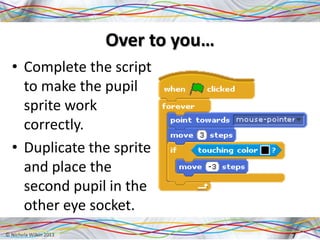
• Complete the script
to make the pupil
sprite work
correctly.
• Duplicate the sprite
and place the
second pupil in the
other eye socket.
7
Start a new project
• Start a new Scratch project; you may want to
save your Eyes project first.
• Add two sprites.
• Change the background to one of your choice.
• Add the script so that one sprite moves
backwards and forwards across the stage and
bounces off the edge and the other sprite
follows the mouse pointer.
8
How much do you remember?
1. How do you stop a sprite turning upside
down?
2. What do we want the program to do?
3. Why should you change the names of the
sprites?
4. How can you change the names of the sprites?
5. Where would you find the “If” script?
6. Where would you find the “Touching” script?
10
Over to you…
• Rename your sprites.
• Complete your game so
that one sprite will change
colour when it touches the
other sprite.
• Try to make your game
more interesting by:
– Adding further sprites
– Adding different effects
when they touch the other
sprites.
11
Look at other peoples’ games
Have a look at the games that your
classmates have created.
1. What do you like about them?
2. What did people do that was different
to your game?
3. If you got stuck, what did you
do to help yourself solve the
problem?
12
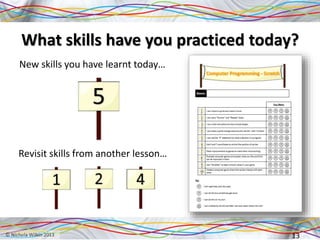
What skills have you practiced today?
New skills you have learnt today…
13
Revisit skills from another lesson…

Scratch Lesson 4

  • 1.
  • 2.
    Starter 1. Load Scratch 2.Change your sprite 3. Add a background 4. Make the sprite point towards you mouse pointer and chase it around the stage. 2
  • 3.
    Objective of thelesson Use the If statement • All of you will: – Write script that will run when the sprite touches a particular colour • Most of you will: – Write script that will run when one script touches another • Some of you will: – Create a complex game which includes further sprites and scripts 3
  • 4.
    Load the file Openthe Eyes file 4
  • 5.
  • 6.
    How much doyou remember? 1. What does the program do when it is first loaded up? 2. What is the problem with the program? 3. Where would you find the “If” script? 4. Where would you find the “Touching colour” script? 5. What should your script do if the sprite touches the edge of the eye socket? 6
  • 7.
    Over to you… •Complete the script to make the pupil sprite work correctly. • Duplicate the sprite and place the second pupil in the other eye socket. 7
  • 8.
    Start a newproject • Start a new Scratch project; you may want to save your Eyes project first. • Add two sprites. • Change the background to one of your choice. • Add the script so that one sprite moves backwards and forwards across the stage and bounces off the edge and the other sprite follows the mouse pointer. 8
  • 10.
    How much doyou remember? 1. How do you stop a sprite turning upside down? 2. What do we want the program to do? 3. Why should you change the names of the sprites? 4. How can you change the names of the sprites? 5. Where would you find the “If” script? 6. Where would you find the “Touching” script? 10
  • 11.
    Over to you… •Rename your sprites. • Complete your game so that one sprite will change colour when it touches the other sprite. • Try to make your game more interesting by: – Adding further sprites – Adding different effects when they touch the other sprites. 11
  • 12.
    Look at otherpeoples’ games Have a look at the games that your classmates have created. 1. What do you like about them? 2. What did people do that was different to your game? 3. If you got stuck, what did you do to help yourself solve the problem? 12
  • 13.
    What skills haveyou practiced today? New skills you have learnt today… 13 Revisit skills from another lesson…