Google Sketch-Up Tutorial By: Brittany Beckett
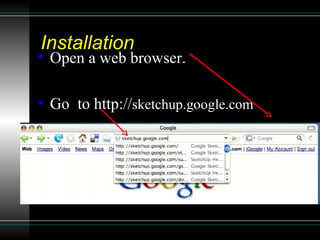
Installation Open a web browser. Go  to http:// sketchup.google.com
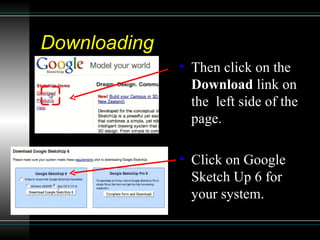
Downloading  Then click on the  Download  link on the  left side of the page. Click on Google Sketch Up 6 for your system.
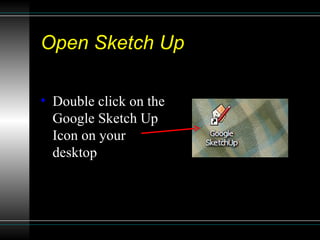
Open Sketch Up Double click on the Google Sketch Up Icon on your desktop
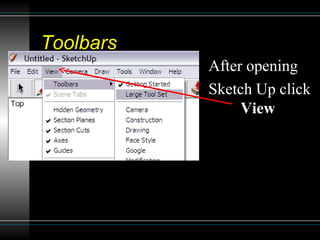
Toolbars After opening Sketch Up click  View
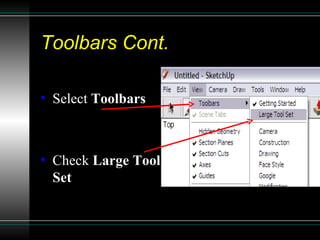
Toolbars Cont. Select  Toolbars Check  Large Tool Set
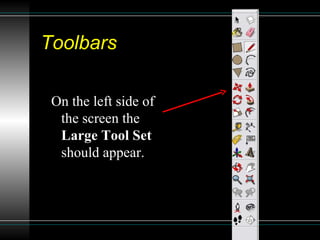
Toolbars On the left side of the screen the  Large Tool Set  should appear.
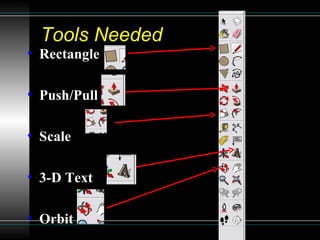
Tools Needed  Rectangle Push/Pull Scale 3-D Text Orbit
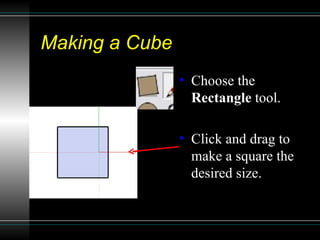
Making a Cube Choose the  Rectangle  tool. Click and drag to make a square the desired size.
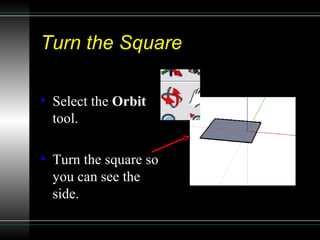
Turn the Square Select the  Orbit  tool. Turn the square so you can see the side.
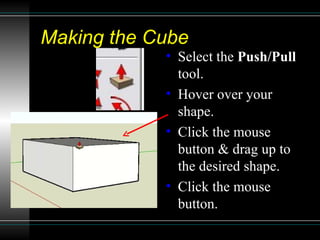
Making the Cube Select the  Push/Pull  tool. Hover over your shape. Click the mouse button & drag up to the desired shape. Click the mouse button.
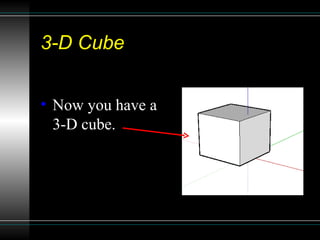
3-D Cube Now you have a  3-D cube.
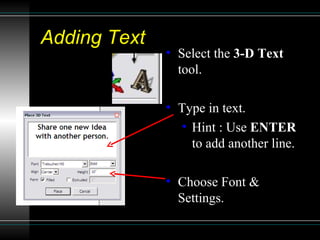
Adding Text Select the  3-D Text  tool. Type in text. Hint : Use  ENTER  to add another line. Choose Font & Settings.
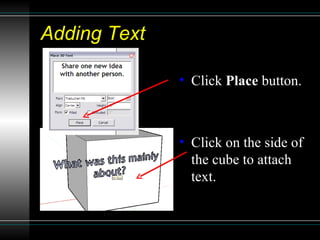
Adding Text Click  Place  button. Click on the side of the cube to attach text.
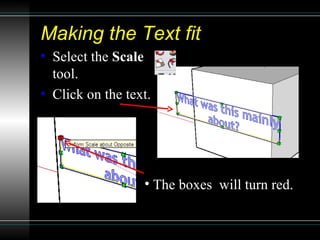
Making the Text fit Select the  Scale  tool. Click on the text. The boxes  will turn red.
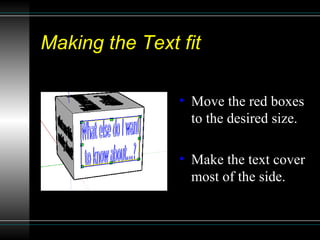
Making the Text fit Move the red boxes to the desired size.  Make the text cover most of the side.
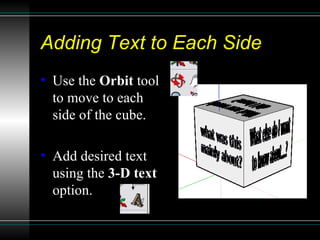
Adding Text to Each Side Use the  Orbit  tool to move to each side of the cube. Add desired text using the  3-D text  option.
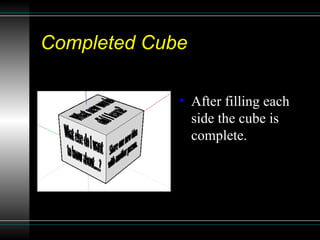
Completed Cube After filling each side the cube is complete.

Google sketch up tutorial