Scratch
Lesson 2
1
Starter
1. Load Scratch
2. Change the sprite
3. Make the sprite
move around the
screen when you
press a key
2
Objective of the lesson
Use script to control a sprite
• All of you will:
– Make your sprite follow the mouse pointer
• Most of you will:
– Use the pen tool to draw a variety of shapes using the
repeat function
– Direct a monster through a maze
• Some of you will:
– Write your name or draw a face using the pen tool
3
How much do you remember
1. How can you make the
sprite move faster or
slower?
2. How can you keep the
sprite moving, even after
you stop pressing the key?
3. How can you stop the
sprite moving?
4
5
How much do you remember?
1. How would you run the program?
2. What does the forever loop do?
3. How can you get the sprite to turn towards
your mouse pointer?
4. How would you get the sprite to move
towards the mouse pointer?
5. How can you stop the program from
running?
6. How can you draw a trail behind the sprite?
7. How do you clear the screen?
6
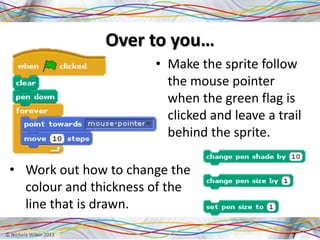
Over to you…
• Make the sprite follow
the mouse pointer
when the green flag is
clicked and leave a trail
behind the sprite.
7
• Work out how to change the
colour and thickness of the
line that is drawn.
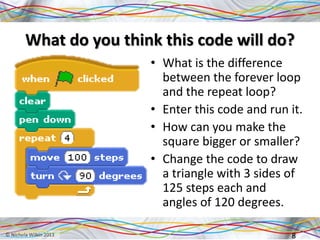
What do you think this code will do?
• What is the difference
between the forever loop
and the repeat loop?
• Enter this code and run it.
• How can you make the
square bigger or smaller?
• Change the code to draw
a triangle with 3 sides of
125 steps each and
angles of 120 degrees.
8
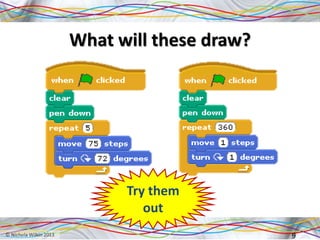
What will these draw?
9
Try them
out
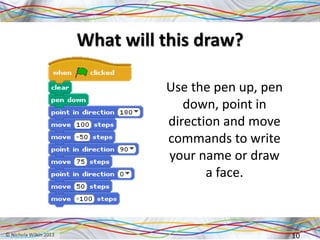
What will this draw?
Use the pen up, pen
down, point in
direction and move
commands to write
your name or draw
a face.
10
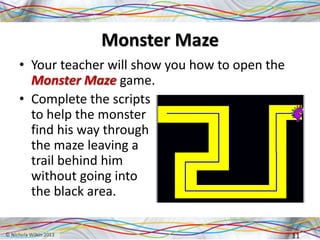
Monster Maze
• Your teacher will show you how to open the
Monster Maze game.
• Complete the scripts
to help the monster
find his way through
the maze leaving a
trail behind him
without going into
the black area.
11
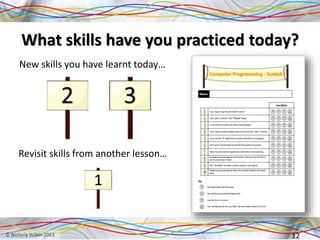
What skills have you practiced today?
New skills you have learnt today…
12
Revisit skills from another lesson…

Scratch Lesson 2

  • 1.
  • 2.
    Starter 1. Load Scratch 2.Change the sprite 3. Make the sprite move around the screen when you press a key 2
  • 3.
    Objective of thelesson Use script to control a sprite • All of you will: – Make your sprite follow the mouse pointer • Most of you will: – Use the pen tool to draw a variety of shapes using the repeat function – Direct a monster through a maze • Some of you will: – Write your name or draw a face using the pen tool 3
  • 4.
    How much doyou remember 1. How can you make the sprite move faster or slower? 2. How can you keep the sprite moving, even after you stop pressing the key? 3. How can you stop the sprite moving? 4
  • 5.
  • 6.
    How much doyou remember? 1. How would you run the program? 2. What does the forever loop do? 3. How can you get the sprite to turn towards your mouse pointer? 4. How would you get the sprite to move towards the mouse pointer? 5. How can you stop the program from running? 6. How can you draw a trail behind the sprite? 7. How do you clear the screen? 6
  • 7.
    Over to you… •Make the sprite follow the mouse pointer when the green flag is clicked and leave a trail behind the sprite. 7 • Work out how to change the colour and thickness of the line that is drawn.
  • 8.
    What do youthink this code will do? • What is the difference between the forever loop and the repeat loop? • Enter this code and run it. • How can you make the square bigger or smaller? • Change the code to draw a triangle with 3 sides of 125 steps each and angles of 120 degrees. 8
  • 9.
    What will thesedraw? 9 Try them out
  • 10.
    What will thisdraw? Use the pen up, pen down, point in direction and move commands to write your name or draw a face. 10
  • 11.
    Monster Maze • Yourteacher will show you how to open the Monster Maze game. • Complete the scripts to help the monster find his way through the maze leaving a trail behind him without going into the black area. 11
  • 12.
    What skills haveyou practiced today? New skills you have learnt today… 12 Revisit skills from another lesson…