Stacy Robison
Let’s Get to
Know Scratch!
A Quick Reference Guide
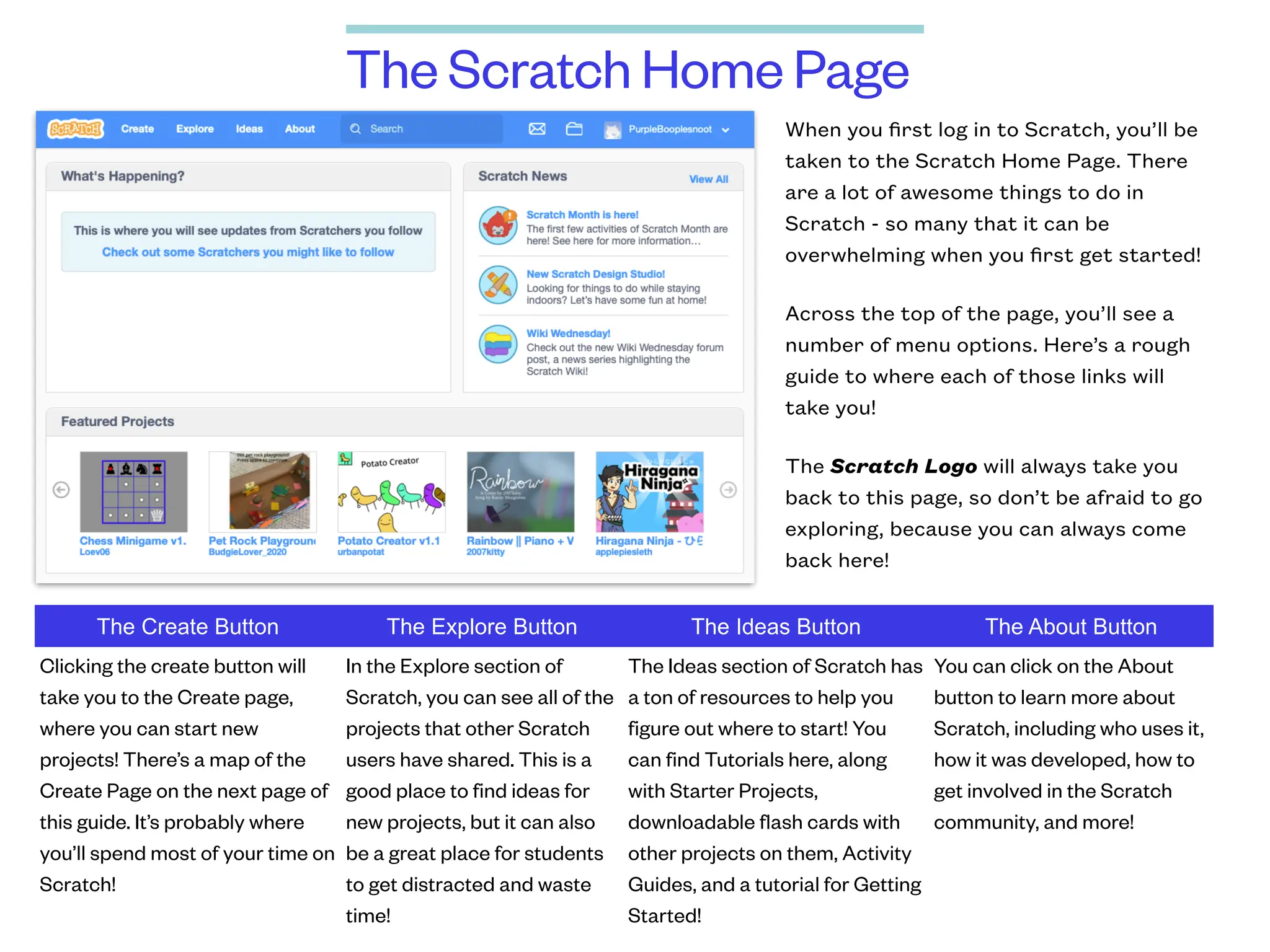
The Scratch Home Page
When you first log in to Scratch, you’ll be
taken to the Scratch Home Page. There
are a lot of awesome things to do in
Scratch - so many that it can be
overwhelming when you first get started!
Across the top of the page, you’ll see a
number of menu options. Here’s a rough
guide to where each of those links will
take you!
The Scratch Logo will always take you
back to this page, so don’t be afraid to go
exploring, because you can always come
back here!
The Create Button The Explore Button The Ideas Button The About Button
Clicking the create button will
take you to the Create page,
where you can start new
projects! There’s a map of the
Create Page on the next page of
this guide. It’s probably where
you’ll spend most of your time on
Scratch!
In the Explore section of
Scratch, you can see all of the
projects that other Scratch
users have shared. This is a
good place to find ideas for
new projects, but it can also
be a great place for students
to get distracted and waste
time!
The Ideas section of Scratch has
a ton of resources to help you
figure out where to start! You
can find Tutorials here, along
with Starter Projects,
downloadable flash cards with
other projects on them, Activity
Guides, and a tutorial for Getting
Started!
You can click on the About
button to learn more about
Scratch, including who uses it,
how it was developed, how to
get involved in the Scratch
community, and more!
Urna Semper
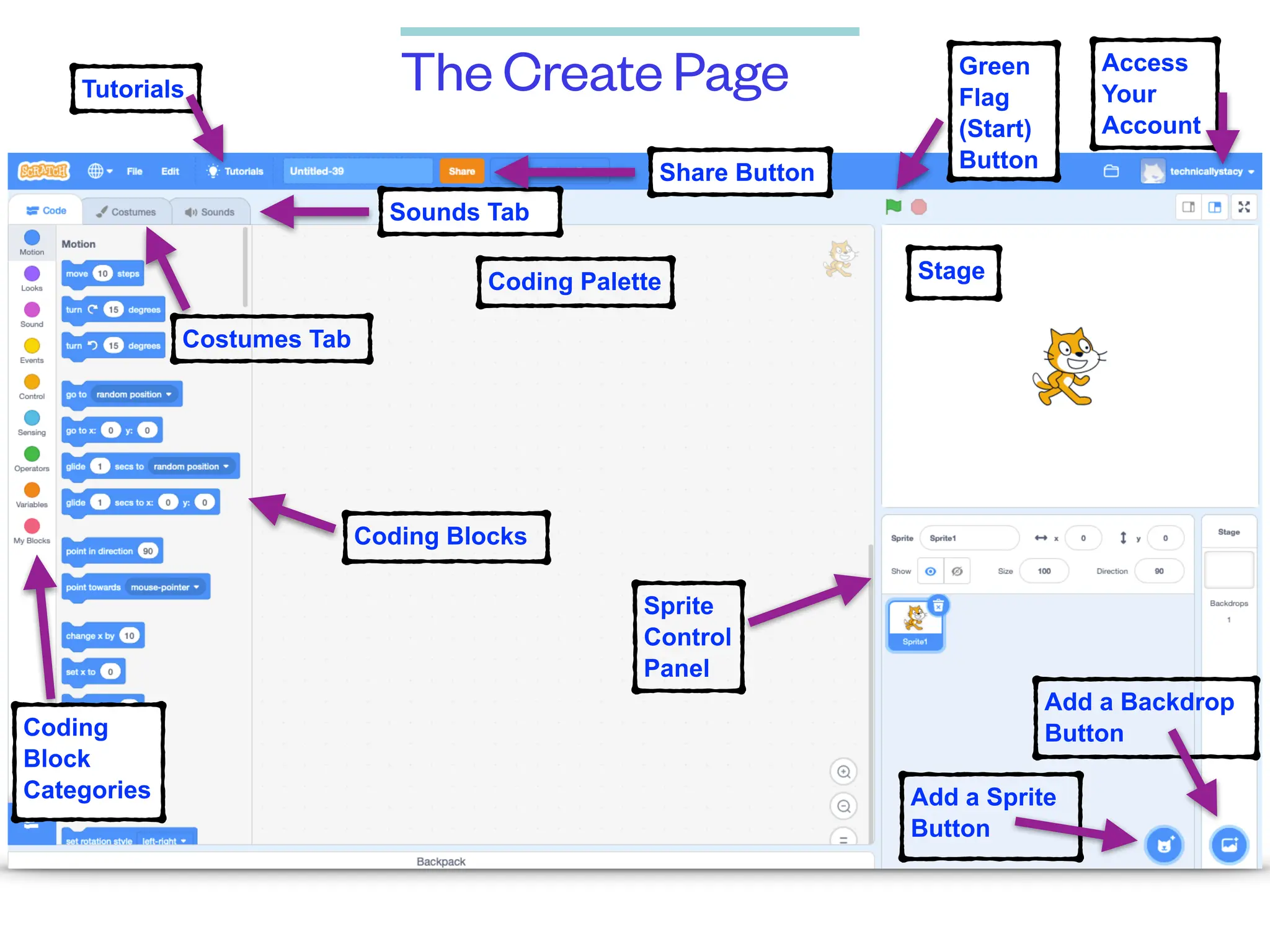
The Create Page
Stage
Coding Palette
Coding
Block
Categories
Coding Blocks
Costumes Tab
Sounds Tab
Add a Sprite
Button
Add a Backdrop
Button
Share Button
Tutorials
Sprite
Control
Panel
Green
Flag
(Start)
Button
Access
Your
Account
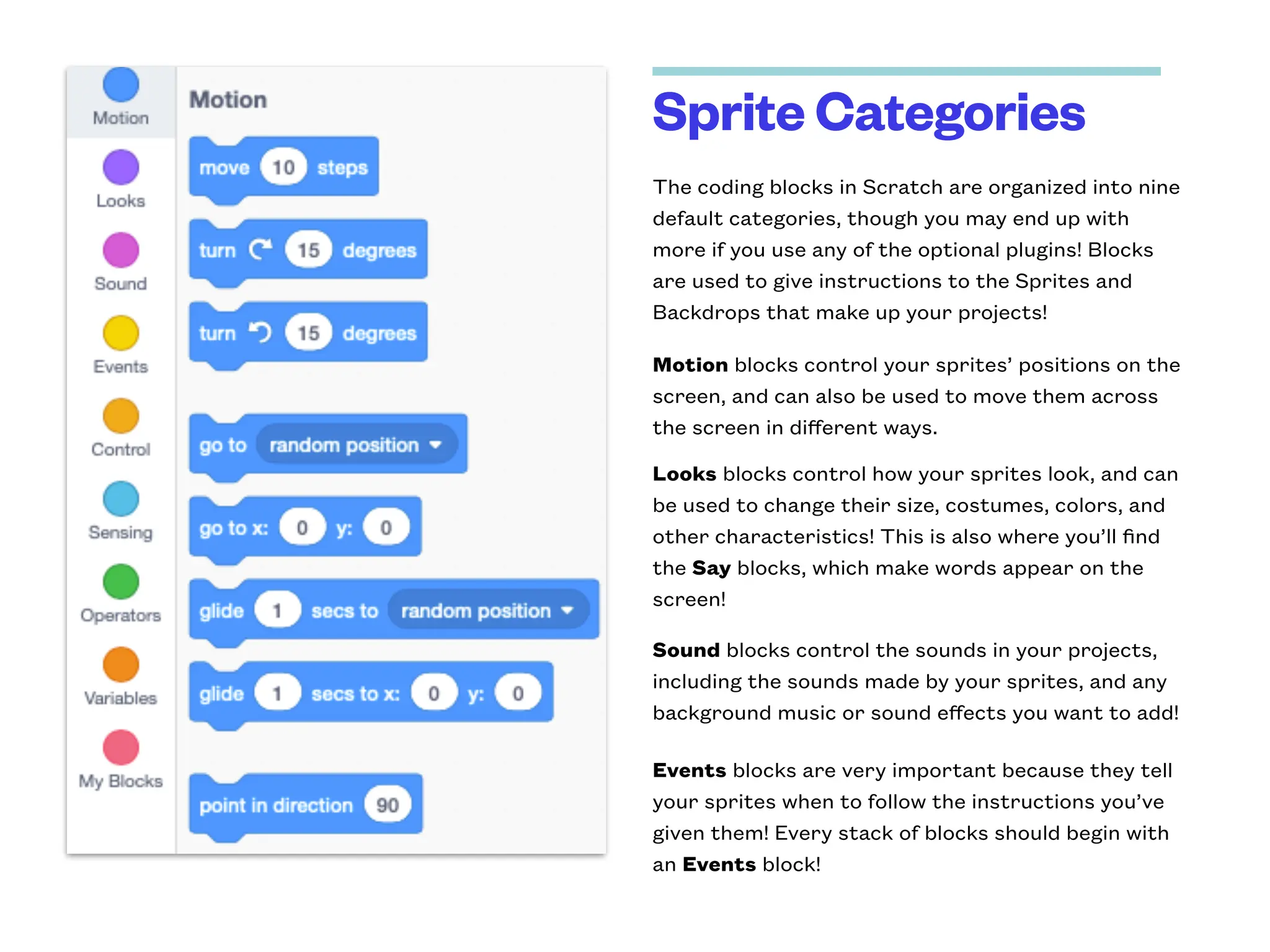
Sprite Categories
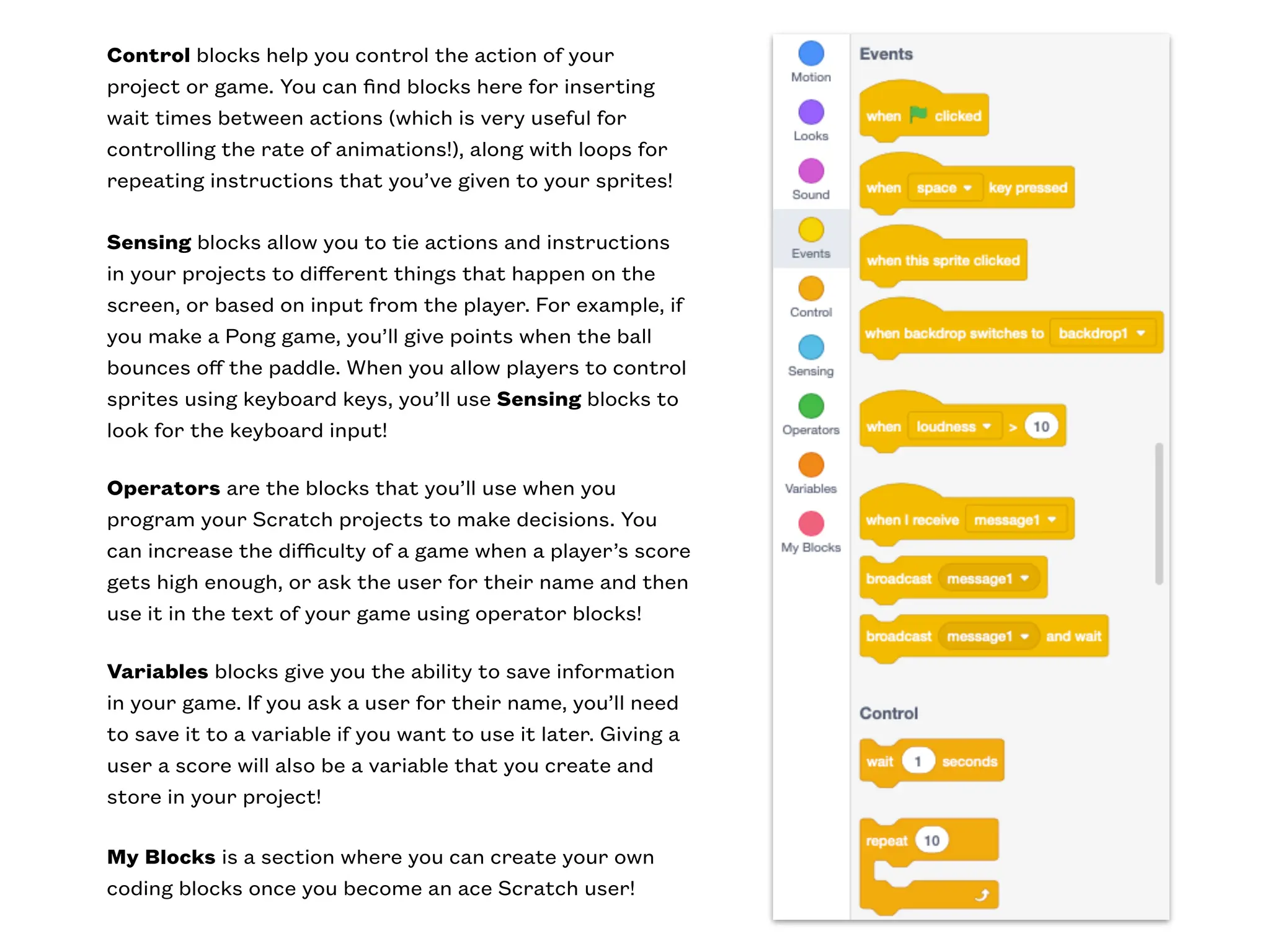
The coding blocks in Scratch are organized into nine
default categories, though you may end up with
more if you use any of the optional plugins! Blocks
are used to give instructions to the Sprites and
Backdrops that make up your projects!
Motion blocks control your sprites’ positions on the
screen, and can also be used to move them across
the screen in different ways.
Looks blocks control how your sprites look, and can
be used to change their size, costumes, colors, and
other characteristics! This is also where you’ll find
the Say blocks, which make words appear on the
screen!
Sound blocks control the sounds in your projects,
including the sounds made by your sprites, and any
background music or sound effects you want to add!
Events blocks are very important because they tell
your sprites when to follow the instructions you’ve
given them! Every stack of blocks should begin with
an Events block!
Control blocks help you control the action of your
project or game. You can find blocks here for inserting
wait times between actions (which is very useful for
controlling the rate of animations!), along with loops for
repeating instructions that you’ve given to your sprites!
Sensing blocks allow you to tie actions and instructions
in your projects to different things that happen on the
screen, or based on input from the player. For example, if
you make a Pong game, you’ll give points when the ball
bounces off the paddle. When you allow players to control
sprites using keyboard keys, you’ll use Sensing blocks to
look for the keyboard input!
Operators are the blocks that you’ll use when you
program your Scratch projects to make decisions. You
can increase the difficulty of a game when a player’s score
gets high enough, or ask the user for their name and then
use it in the text of your game using operator blocks!
Variables blocks give you the ability to save information
in your game. If you ask a user for their name, you’ll need
to save it to a variable if you want to use it later. Giving a
user a score will also be a variable that you create and
store in your project!
My Blocks is a section where you can create your own
coding blocks once you become an ace Scratch user!
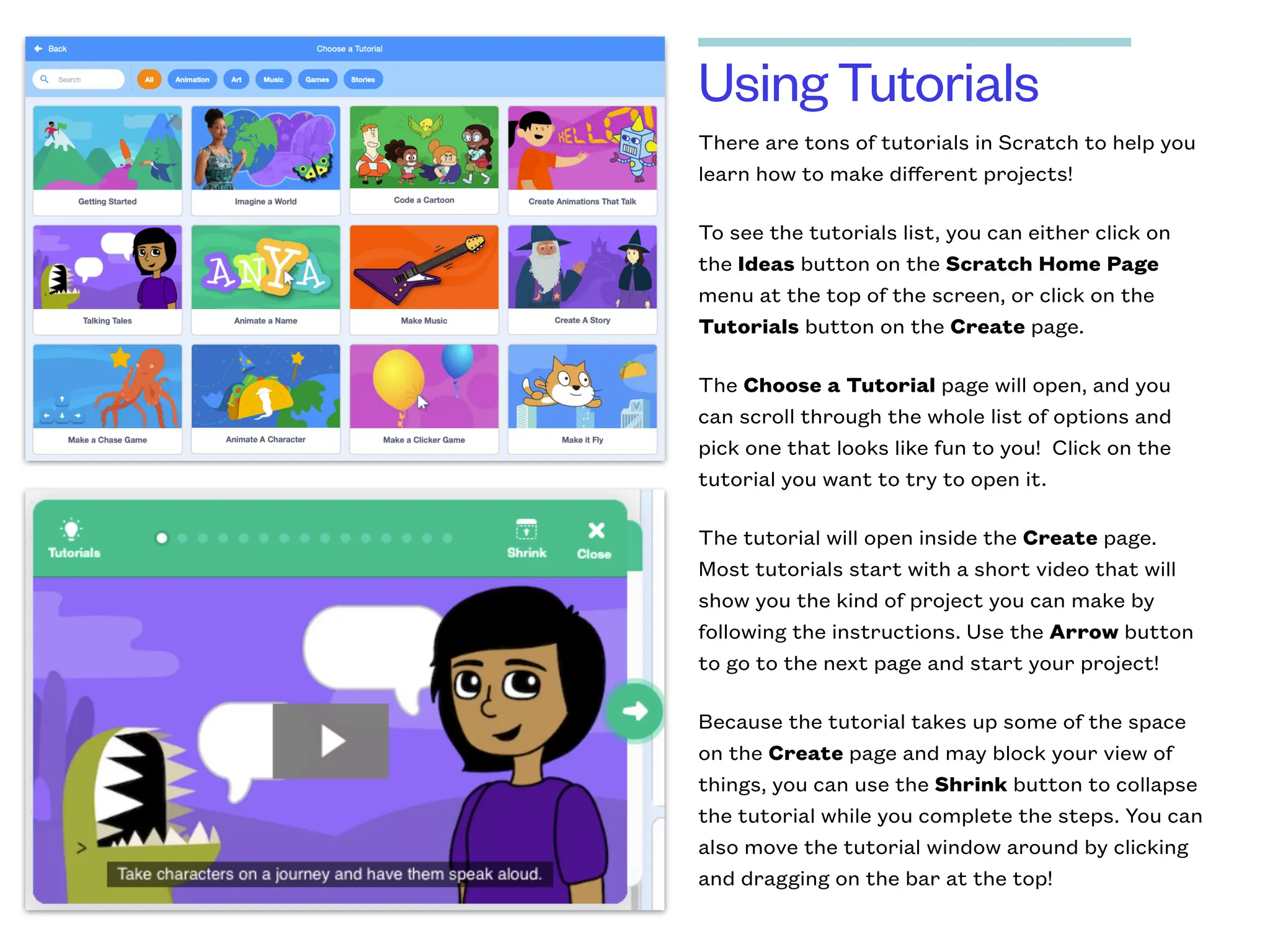
Using Tutorials
There are tons of tutorials in Scratch to help you
learn how to make different projects!
To see the tutorials list, you can either click on
the Ideas button on the Scratch Home Page
menu at the top of the screen, or click on the
Tutorials button on the Create page.
The Choose a Tutorial page will open, and you
can scroll through the whole list of options and
pick one that looks like fun to you! Click on the
tutorial you want to try to open it.
The tutorial will open inside the Create page.
Most tutorials start with a short video that will
show you the kind of project you can make by
following the instructions. Use the Arrow button
to go to the next page and start your project!
Because the tutorial takes up some of the space
on the Create page and may block your view of
things, you can use the Shrink button to collapse
the tutorial while you complete the steps. You can
also move the tutorial window around by clicking
and dragging on the bar at the top!
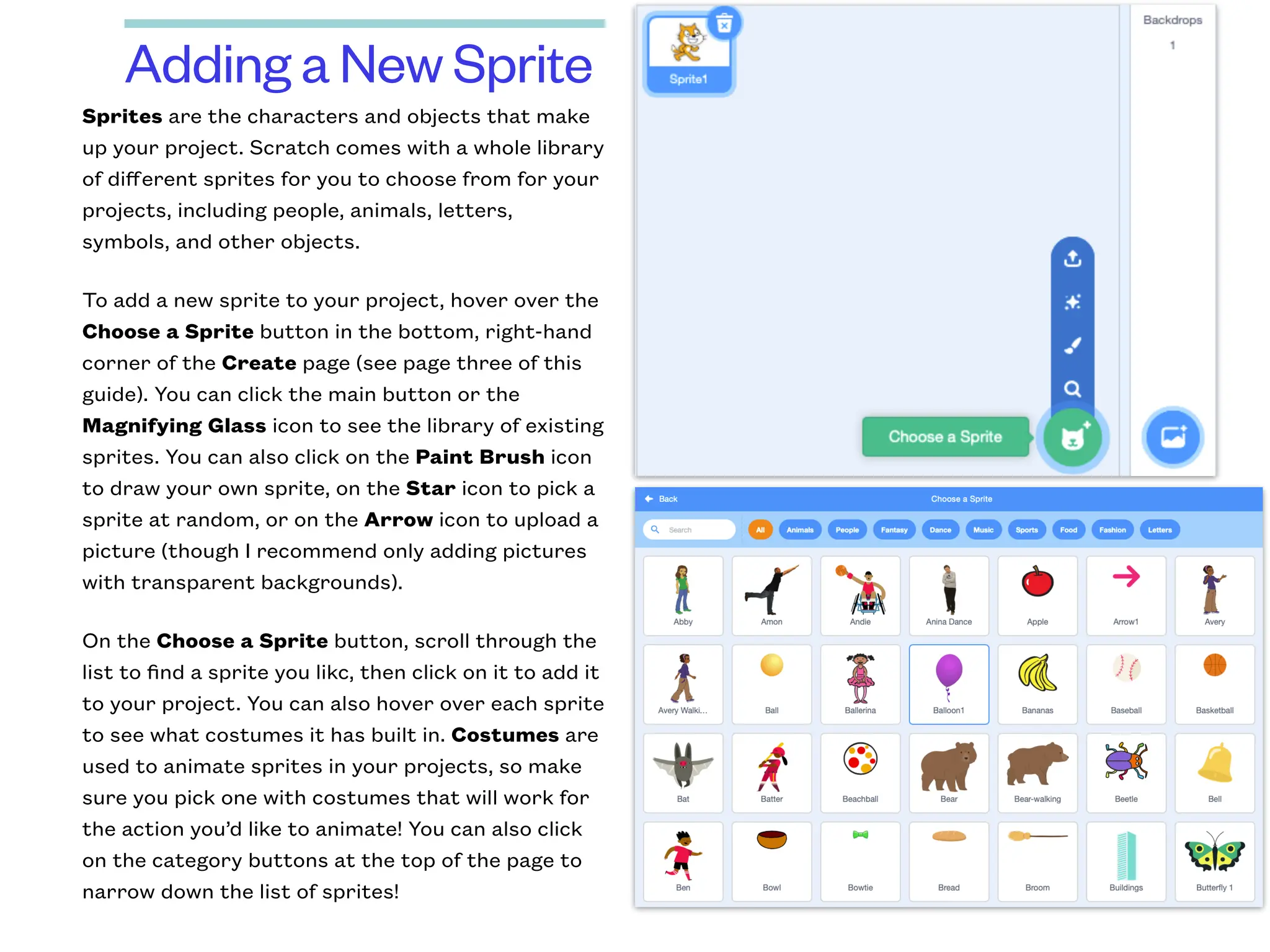
Adding a New Sprite
Sprites are the characters and objects that make
up your project. Scratch comes with a whole library
of different sprites for you to choose from for your
projects, including people, animals, letters,
symbols, and other objects.
To add a new sprite to your project, hover over the
Choose a Sprite button in the bottom, right-hand
corner of the Create page (see page three of this
guide). You can click the main button or the
Magnifying Glass icon to see the library of existing
sprites. You can also click on the Paint Brush icon
to draw your own sprite, on the Star icon to pick a
sprite at random, or on the Arrow icon to upload a
picture (though I recommend only adding pictures
with transparent backgrounds).
On the Choose a Sprite button, scroll through the
list to find a sprite you likc, then click on it to add it
to your project. You can also hover over each sprite
to see what costumes it has built in. Costumes are
used to animate sprites in your projects, so make
sure you pick one with costumes that will work for
the action you’d like to animate! You can also click
on the category buttons at the top of the page to
narrow down the list of sprites!
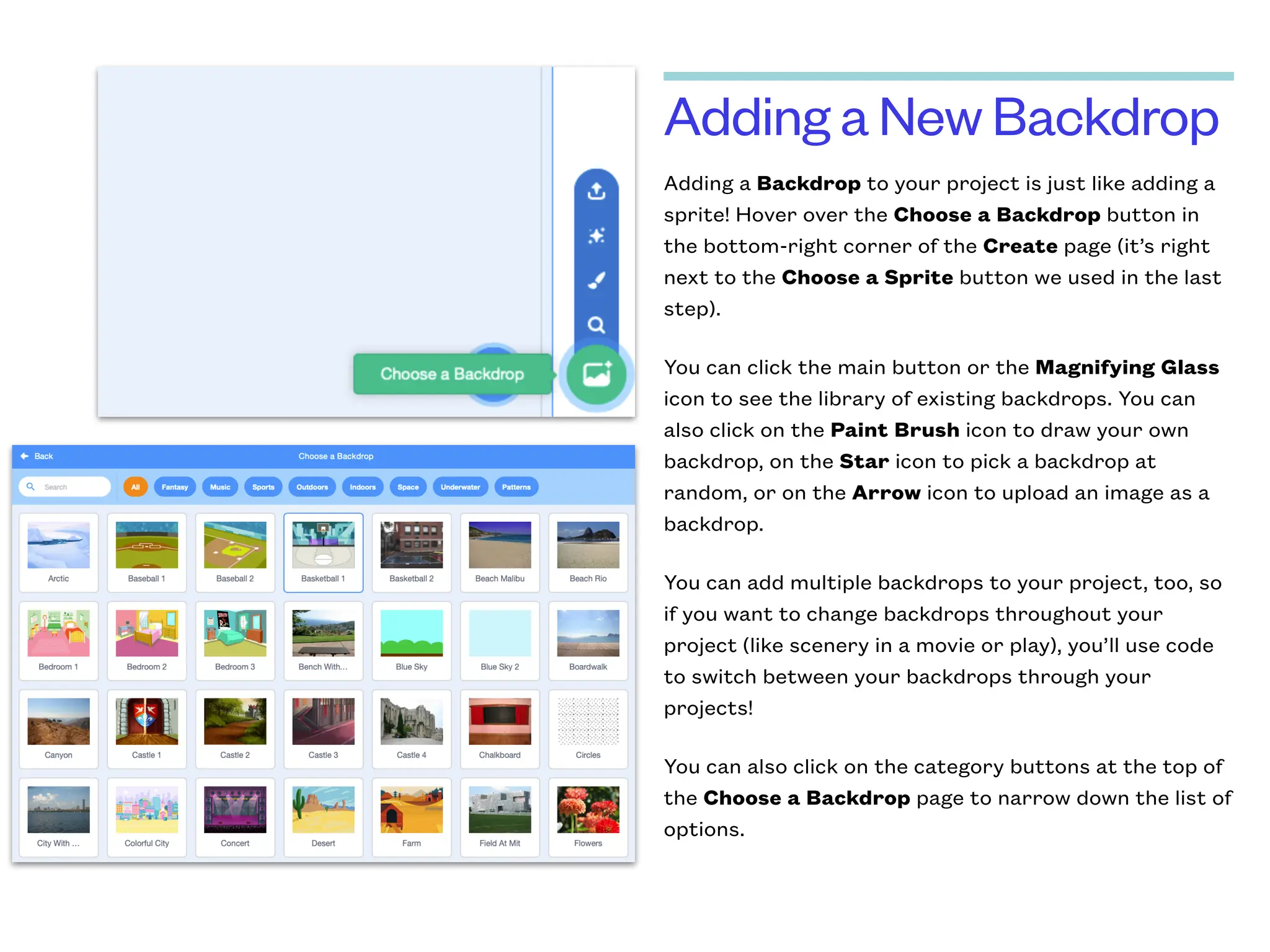
Adding a New Backdrop
Adding a Backdrop to your project is just like adding a
sprite! Hover over the Choose a Backdrop button in
the bottom-right corner of the Create page (it’s right
next to the Choose a Sprite button we used in the last
step).
You can click the main button or the Magnifying Glass
icon to see the library of existing backdrops. You can
also click on the Paint Brush icon to draw your own
backdrop, on the Star icon to pick a backdrop at
random, or on the Arrow icon to upload an image as a
backdrop.
You can add multiple backdrops to your project, too, so
if you want to change backdrops throughout your
project (like scenery in a movie or play), you’ll use code
to switch between your backdrops through your
projects!
You can also click on the category buttons at the top of
the Choose a Backdrop page to narrow down the list of
options.
Some Helpful Resources
My Scratch Tutorial Youtube Playlist
https://www.youtube.com/playlist?list=PLC1gEnDM7bgAinglV66DjBmFe4uqqq5Pq&advanced_settings=1&disable_polymer=1
Scratch Teacher Account FAQs
https://scratch.mit.edu/educators/faq
Scratch for Educators
https://scratch.mit.edu/educators
Scratch Educator Guides
https://resources.scratch.mit.edu/www/guides/en/EducatorGuidesAll.pdf

Scratch_Reference_Guide.pdf

  • 1.
    Stacy Robison Let’s Getto Know Scratch! A Quick Reference Guide
  • 2.
    The Scratch HomePage When you first log in to Scratch, you’ll be taken to the Scratch Home Page. There are a lot of awesome things to do in Scratch - so many that it can be overwhelming when you first get started! Across the top of the page, you’ll see a number of menu options. Here’s a rough guide to where each of those links will take you! The Scratch Logo will always take you back to this page, so don’t be afraid to go exploring, because you can always come back here! The Create Button The Explore Button The Ideas Button The About Button Clicking the create button will take you to the Create page, where you can start new projects! There’s a map of the Create Page on the next page of this guide. It’s probably where you’ll spend most of your time on Scratch! In the Explore section of Scratch, you can see all of the projects that other Scratch users have shared. This is a good place to find ideas for new projects, but it can also be a great place for students to get distracted and waste time! The Ideas section of Scratch has a ton of resources to help you figure out where to start! You can find Tutorials here, along with Starter Projects, downloadable flash cards with other projects on them, Activity Guides, and a tutorial for Getting Started! You can click on the About button to learn more about Scratch, including who uses it, how it was developed, how to get involved in the Scratch community, and more!
  • 3.
    Urna Semper The CreatePage Stage Coding Palette Coding Block Categories Coding Blocks Costumes Tab Sounds Tab Add a Sprite Button Add a Backdrop Button Share Button Tutorials Sprite Control Panel Green Flag (Start) Button Access Your Account
  • 4.
    Sprite Categories The codingblocks in Scratch are organized into nine default categories, though you may end up with more if you use any of the optional plugins! Blocks are used to give instructions to the Sprites and Backdrops that make up your projects! Motion blocks control your sprites’ positions on the screen, and can also be used to move them across the screen in different ways. Looks blocks control how your sprites look, and can be used to change their size, costumes, colors, and other characteristics! This is also where you’ll find the Say blocks, which make words appear on the screen! Sound blocks control the sounds in your projects, including the sounds made by your sprites, and any background music or sound effects you want to add! Events blocks are very important because they tell your sprites when to follow the instructions you’ve given them! Every stack of blocks should begin with an Events block!
  • 5.
    Control blocks helpyou control the action of your project or game. You can find blocks here for inserting wait times between actions (which is very useful for controlling the rate of animations!), along with loops for repeating instructions that you’ve given to your sprites! Sensing blocks allow you to tie actions and instructions in your projects to different things that happen on the screen, or based on input from the player. For example, if you make a Pong game, you’ll give points when the ball bounces off the paddle. When you allow players to control sprites using keyboard keys, you’ll use Sensing blocks to look for the keyboard input! Operators are the blocks that you’ll use when you program your Scratch projects to make decisions. You can increase the difficulty of a game when a player’s score gets high enough, or ask the user for their name and then use it in the text of your game using operator blocks! Variables blocks give you the ability to save information in your game. If you ask a user for their name, you’ll need to save it to a variable if you want to use it later. Giving a user a score will also be a variable that you create and store in your project! My Blocks is a section where you can create your own coding blocks once you become an ace Scratch user!
  • 6.
    Using Tutorials There aretons of tutorials in Scratch to help you learn how to make different projects! To see the tutorials list, you can either click on the Ideas button on the Scratch Home Page menu at the top of the screen, or click on the Tutorials button on the Create page. The Choose a Tutorial page will open, and you can scroll through the whole list of options and pick one that looks like fun to you! Click on the tutorial you want to try to open it. The tutorial will open inside the Create page. Most tutorials start with a short video that will show you the kind of project you can make by following the instructions. Use the Arrow button to go to the next page and start your project! Because the tutorial takes up some of the space on the Create page and may block your view of things, you can use the Shrink button to collapse the tutorial while you complete the steps. You can also move the tutorial window around by clicking and dragging on the bar at the top!
  • 7.
    Adding a NewSprite Sprites are the characters and objects that make up your project. Scratch comes with a whole library of different sprites for you to choose from for your projects, including people, animals, letters, symbols, and other objects. To add a new sprite to your project, hover over the Choose a Sprite button in the bottom, right-hand corner of the Create page (see page three of this guide). You can click the main button or the Magnifying Glass icon to see the library of existing sprites. You can also click on the Paint Brush icon to draw your own sprite, on the Star icon to pick a sprite at random, or on the Arrow icon to upload a picture (though I recommend only adding pictures with transparent backgrounds). On the Choose a Sprite button, scroll through the list to find a sprite you likc, then click on it to add it to your project. You can also hover over each sprite to see what costumes it has built in. Costumes are used to animate sprites in your projects, so make sure you pick one with costumes that will work for the action you’d like to animate! You can also click on the category buttons at the top of the page to narrow down the list of sprites!
  • 8.
    Adding a NewBackdrop Adding a Backdrop to your project is just like adding a sprite! Hover over the Choose a Backdrop button in the bottom-right corner of the Create page (it’s right next to the Choose a Sprite button we used in the last step). You can click the main button or the Magnifying Glass icon to see the library of existing backdrops. You can also click on the Paint Brush icon to draw your own backdrop, on the Star icon to pick a backdrop at random, or on the Arrow icon to upload an image as a backdrop. You can add multiple backdrops to your project, too, so if you want to change backdrops throughout your project (like scenery in a movie or play), you’ll use code to switch between your backdrops through your projects! You can also click on the category buttons at the top of the Choose a Backdrop page to narrow down the list of options.
  • 9.
    Some Helpful Resources MyScratch Tutorial Youtube Playlist https://www.youtube.com/playlist?list=PLC1gEnDM7bgAinglV66DjBmFe4uqqq5Pq&advanced_settings=1&disable_polymer=1 Scratch Teacher Account FAQs https://scratch.mit.edu/educators/faq Scratch for Educators https://scratch.mit.edu/educators Scratch Educator Guides https://resources.scratch.mit.edu/www/guides/en/EducatorGuidesAll.pdf