David Scott Oromaner Touro College Instructor: Dr. Issac Herskowitz  EDIT 692 Scratch 1.4  Lesson 2 - Paint Editor
Open Scratch  Double click scratch.exe icon located on your desktop. Open new project and name it your name_scratch_drumstick Save it in your network folder Let’s begin
Create Your own Sprite Delete the cat sprite by right clicking “Sprite1” and selecting “Delete.”   Click the Paint Editor button  to open the paint editor.
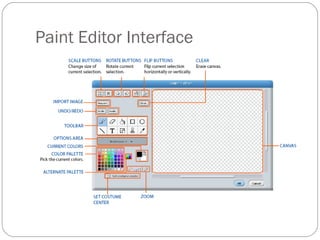
Paint Editor Interface
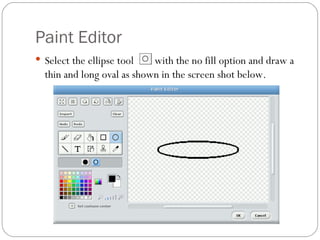
Paint Editor Select the ellipse tool  with the no fill option and draw a thin and long oval as shown in the screen shot below.
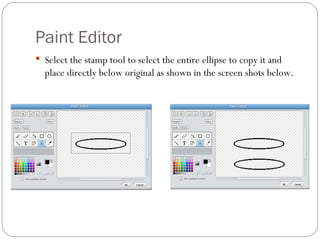
Paint Editor Select the stamp tool to select the entire ellipse to copy it and place directly below original as shown in the screen shots below.
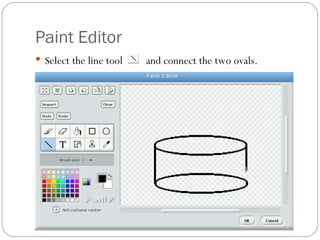
Paint Editor Select the line tool  and connect the two ovals.
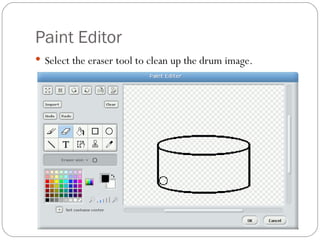
Paint Editor Select the eraser tool to clean up the drum image.
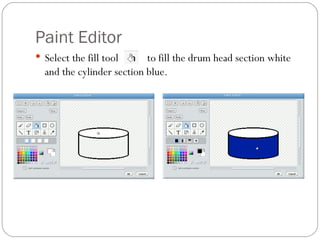
Paint Editor Select the fill tool  to fill the drum head section white and the cylinder section blue.
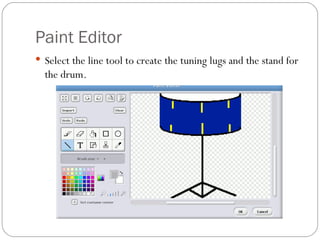
Paint Editor Select the line tool to create the tuning lugs and the stand for the drum.
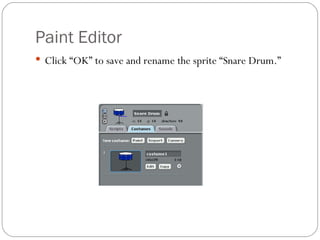
Paint Editor Click “OK” to save and rename the sprite “Snare Drum.”
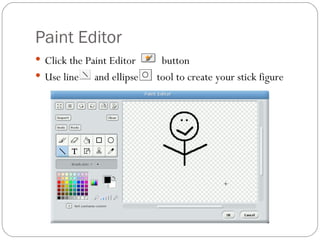
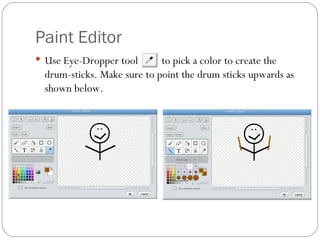
Paint Editor  Click the Paint Editor  button Use line  and ellipse  tool to create your stick figure
Paint Editor  Use Eye-Dropper tool  to pick a color to create the drum-sticks. Make sure to point the drum sticks upwards as shown below.
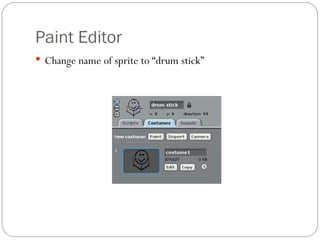
Paint Editor Change name of sprite to “drum stick”
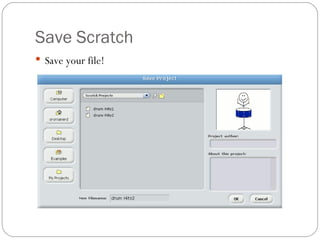
Save Scratch Save your file!
Class Assignment Experiment with drawing different Sprites while using the scale, rotate, and flip buttons. Experiment with using different brush sizes. Navigate to Google images and download an image. Import the image into paint editor and think of a concept or story to draw around the image.  Save work separately as student name_scratch assignment 2 in your network folder.

Scratch Lesson 2 – Paint Editor

  • 1.
    David Scott OromanerTouro College Instructor: Dr. Issac Herskowitz EDIT 692 Scratch 1.4 Lesson 2 - Paint Editor
  • 2.
    Open Scratch Double click scratch.exe icon located on your desktop. Open new project and name it your name_scratch_drumstick Save it in your network folder Let’s begin
  • 3.
    Create Your ownSprite Delete the cat sprite by right clicking “Sprite1” and selecting “Delete.”   Click the Paint Editor button to open the paint editor.
  • 4.
  • 5.
    Paint Editor Selectthe ellipse tool with the no fill option and draw a thin and long oval as shown in the screen shot below.
  • 6.
    Paint Editor Selectthe stamp tool to select the entire ellipse to copy it and place directly below original as shown in the screen shots below.
  • 7.
    Paint Editor Selectthe line tool and connect the two ovals.
  • 8.
    Paint Editor Selectthe eraser tool to clean up the drum image.
  • 9.
    Paint Editor Selectthe fill tool to fill the drum head section white and the cylinder section blue.
  • 10.
    Paint Editor Selectthe line tool to create the tuning lugs and the stand for the drum.
  • 11.
    Paint Editor Click“OK” to save and rename the sprite “Snare Drum.”
  • 12.
    Paint Editor Click the Paint Editor button Use line and ellipse tool to create your stick figure
  • 13.
    Paint Editor Use Eye-Dropper tool to pick a color to create the drum-sticks. Make sure to point the drum sticks upwards as shown below.
  • 14.
    Paint Editor Changename of sprite to “drum stick”
  • 15.
  • 16.
    Class Assignment Experimentwith drawing different Sprites while using the scale, rotate, and flip buttons. Experiment with using different brush sizes. Navigate to Google images and download an image. Import the image into paint editor and think of a concept or story to draw around the image. Save work separately as student name_scratch assignment 2 in your network folder.