Scratch Programming
Worksheet Compilation
Table of Contents
Worksheet #1 Set up Scratch Account
Worksheet #2 Scratch Explore
Worksheet #3 Scratch Studio
Worksheet #4 Step by Step
Worksheet #5 10 blocks
Worksheet #6 About Me
Worksheet #7 Scratch Sound
Worksheet #8 orange purple
Worksheet #9 It's Alive
Worksheet #10 Adding Sound files
Worksheet #11 Characters
Worksheet #12 Scenes
Worksheet #13 Remix
Worksheet #14 Maze
Worksheet #15 Pong
Worksheet #16 scrolling
Worksheet #17 Score
Worksheet #18 Extending
	
  
FINISHED?
FINISHED?
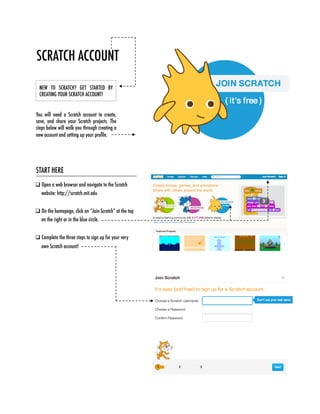
NEW TO SCRATCH? GET STARTED BY
CREATING YOUR SCRATCH ACCOUNT!
You will need a Scratch account to create,
save, and share your Scratch projects. The
steps below will walk you through creating a
new account and setting up your profile.
START HERE
q Open a web browser and navigate to the Scratch
website: http://scratch.mit.edu

q On the homepage, click on “Join Scratch” at the top
on the right or in the blue circle.

q Complete the three steps to sign up for your very
own Scratch account!
SCRATCH ACCOUNT
CAN YOU MAKE THE SCRATCH CAT DO
SOMETHING SURPRISING?
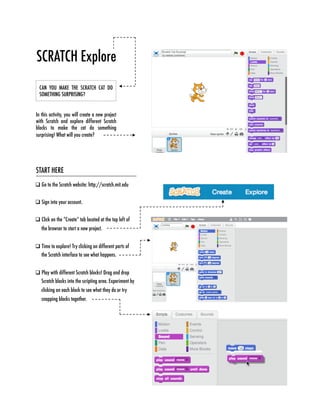
In this activity, you will create a new project
with Scratch and explore different Scratch
blocks to make the cat do something
surprising! What will you create? 
START HERE
q Go to the Scratch website: http://scratch.mit.edu 
q Sign into your account.
q Click on the “Create” tab located at the top left of
the browser to start a new project. 
q Time to explore! Try clicking on different parts of
the Scratch interface to see what happens.
q Play with different Scratch blocks! Drag and drop
Scratch blocks into the scripting area. Experiment by
clicking on each block to see what they do or try
snapping blocks together.
SCRATCH Explore
START HERE
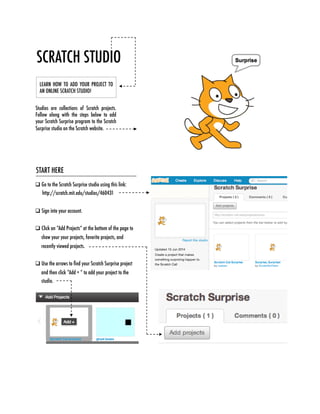
q Go to the Scratch Surprise studio using this link:
http://scratch.mit.edu/studios/460431

q Sign into your account.
q Click on “Add Projects” at the bottom of the page to
show your your projects, favorite projects, and
recently viewed projects.

q Use the arrows to find your Scratch Surprise project
and then click “Add + ” to add your project to the
studio.
LEARN HOW TO ADD YOUR PROJECT TO
AN ONLINE SCRATCH STUDIO!
Studios are collections of Scratch projects.
Follow along with the steps below to add
your Scratch Surprise program to the Scratch
Surprise studio on the Scratch website.
SCRATCH STUDIO
START HERE
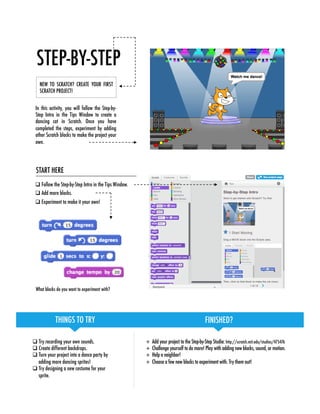
q Follow the Step-by-Step Intro in the Tips Window.
q Add more blocks.
q Experiment to make it your own!
q Try recording your own sounds.
q Create different backdrops.
q Turn your project into a dance party by
adding more dancing sprites!
q Try designing a new costume for your
sprite.
What blocks do you want to experiment with? 
THINGS TO TRY
 FINISHED?
+  Add your project to the Step-by-Step Studio: http://scratch.mit.edu/studios/475476
+  Challenge yourself to do more! Play with adding new blocks, sound, or motion.
+  Help a neighbor!
+  Choose a few new blocks to experiment with. Try them out!
NEW TO SCRATCH? CREATE YOUR FIRST
SCRATCH PROJECT!
In this activity, you will follow the Step-by-
Step Intro in the Tips Window to create a
dancing cat in Scratch. Once you have
completed the steps, experiment by adding
other Scratch blocks to make the project your
own.
STEP-BY-STEP
FINISHED?
FEELING
STUCK?
THAT’S OKAY! TRY THESE THINGS…
+  Add your project to the 10 Blocks Studio: 
http://scratch.mit.edu/studios/475480 
+  Play with different sprites, costumes, or backdrops.
+  Challenge yourself to do more! See how many different projects
you can create with these 10 blocks. 
+  Swap projects with a partner and remix each others’ creations.
START HERE
q Test ideas by experimenting with each block.
q Mix and match blocks in various ways.
q Repeat!
q Test ideas by trying out different block combinations. Mix
and match blocks until you find something that interests
you!
q Try brainstorming ideas with your partner!
q Explore other projects to see what others are doing in
Scratch. This can be a great way to find inspiration!
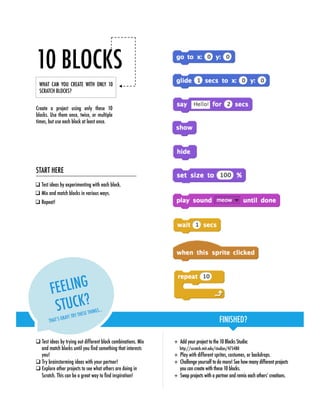
WHAT CAN YOU CREATE WITH ONLY 10
SCRATCH BLOCKS?
Create a project using only these 10
blocks. Use them once, twice, or multiple
times, but use each block at least once. 
10 BLOCKS
TIPS & TRICKS
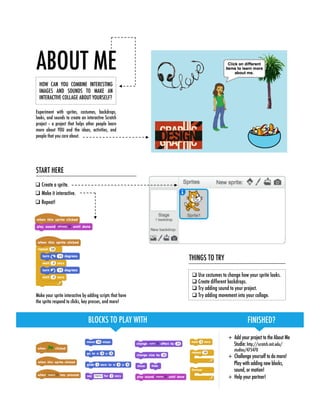
Make your sprite interactive by adding scripts that have 
the sprite respond to clicks, key presses, and more!
BLOCKS TO PLAY WITH
 FINISHED?
q Use costumes to change how your sprite looks. 
q Create different backdrops.
q Try adding sound to your project.
q Try adding movement into your collage.
THINGS TO TRY
+  Add your project to the About Me
Studio: http://scratch.mit.edu/
studios/475470 
+  Challenge yourself to do more!
Play with adding new blocks,
sound, or motion!
+  Help your partner!
HOW CAN YOU COMBINE INTERESTING
IMAGES AND SOUNDS TO MAKE AN
INTERACTIVE COLLAGE ABOUT YOURSELF?
Experiment with sprites, costumes, backdrops,
looks, and sounds to create an interactive Scratch
project -- a project that helps other people learn
more about YOU and the ideas, activities, and
people that you care about.
START HERE
q Create a sprite.
q Make it interactive.
q Repeat! 
ABOUT ME
q Use repeat blocks to make a sound play more than once. 
q Import or record your own sounds or experiment with the Sounds
editor.
q Try playing with the tempo blocks to speed up or slow down the
rhythm.
+  Add your project to the Build-A-Band Studio:
http://scratch.mit.edu/studios/475523
+  Challenge yourself to do more! Invent a new
instrument or record your own sounds.
+  Help your partner!
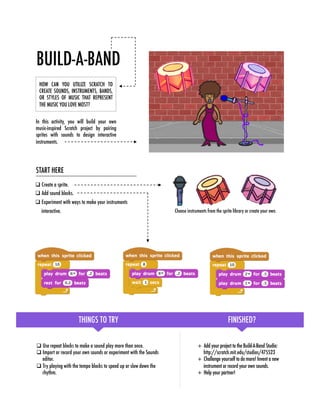
HOW CAN YOU UTILIZE SCRATCH TO
CREATE SOUNDS, INSTRUMENTS, BANDS,
OR STYLES OF MUSIC THAT REPRESENT
THE MUSIC YOU LOVE MOST?
In this activity, you will build your own
music-inspired Scratch project by pairing
sprites with sounds to design interactive
instruments.
q Create a sprite.
q Add sound blocks.
q Experiment with ways to make your instruments
interactive.
START HERE
Choose instruments from the sprite library or create your own.	
THINGS TO TRY
 FINISHED?
BUILD-A-BAND
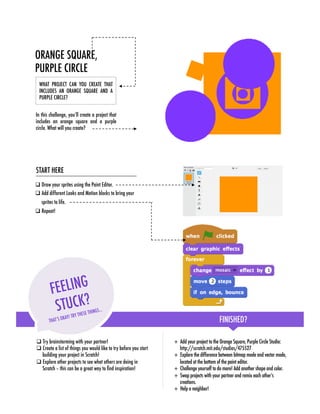
WHAT PROJECT CAN YOU CREATE THAT
INCLUDES AN ORANGE SQUARE AND A
PURPLE CIRCLE?
In this challenge, you’ll create a project that
includes an orange square and a purple
circle. What will you create?
q Draw your sprites using the Paint Editor.
q Add different Looks and Motion blocks to bring your
sprites to life.
q Repeat!
START HERE
FEELING
STUCK?
THAT’S OKAY! TRY THESE THINGS…
FINISHED?
+  Add your project to the Orange Square, Purple Circle Studio:
http://scratch.mit.edu/studios/475527
+  Explore the difference between bitmap mode and vector mode,
located at the bottom of the paint editor.
+  Challenge yourself to do more! Add another shape and color.
+  Swap projects with your partner and remix each other’s
creations.
+  Help a neighbor!
q Try brainstorming with your partner!
q Create a list of things you would like to try before you start
building your project in Scratch!
q Explore other projects to see what others are doing in
Scratch – this can be a great way to find inspiration!
ORANGE SQUARE, 
PURPLE CIRCLE
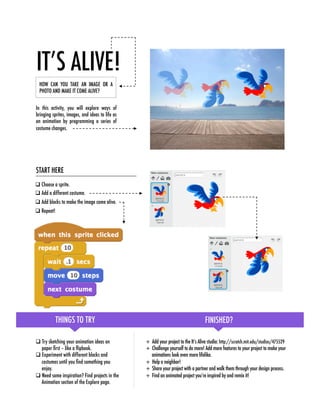
HOW CAN YOU TAKE AN IMAGE OR A
PHOTO AND MAKE IT COME ALIVE?
In this activity, you will explore ways of
bringing sprites, images, and ideas to life as
an animation by programming a series of
costume changes.
q Choose a sprite.
q Add a different costume.
q Add blocks to make the image come alive.
q Repeat!
q Try sketching your animation ideas on
paper first – like a flipbook.
q Experiment with different blocks and
costumes until you find something you
enjoy.
q Need some inspiration? Find projects in the
Animation section of the Explore page.
THINGS TO TRY
 FINISHED?
+  Add your project to the It’s Alive studio: http://scratch.mit.edu/studios/475529
+  Challenge yourself to do more! Add more features to your project to make your
animations look even more lifelike.
+  Help a neighbor!
+  Share your project with a partner and walk them through your design process.
+  Find an animated project you’re inspired by and remix it!
START HERE
IT’S ALIVE!
choose sprite 
from library	
paint your own sprite	
upload sprite from file	
new sprite from camera	
FINISHED?
TIPS & TRICKS
FINISHED?
BLOCKS TO PLAY WITH
 FINISHED?
q Use costumes to help bring your animations to life!
q Make your sprite interactive by adding scripts that have the sprite
respond to clicks, key presses, and more.
q Add instructions on the project page to explain how people can
interact with your program.
THINGS TO TRY
+  Add your project to the Music Video
studio: http://scratch.mit.edu/studios/
475517
+  Be sure to give credit to any music, code,
or other work used in your project.
+  Challenge yourself to do more! Create
your own sprites, sounds, or costumes!
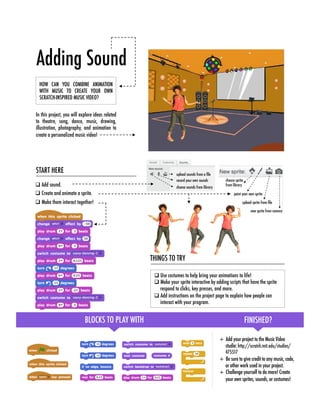
HOW CAN YOU COMBINE ANIMATION
WITH MUSIC TO CREATE YOUR OWN
SCRATCH-INSPIRED MUSIC VIDEO?
In this project, you will explore ideas related
to theatre, song, dance, music, drawing,
illustration, photography, and animation to
create a personalized music video! 
START HERE
q Add sound.
q Create and animate a sprite.
q Make them interact together!
upload sounds from a file	
record your own sounds	
choose sounds from library	
Adding Sound
q Feeling stuck? That’s okay! Check out this video to get started with
the Make a Block feature: http://bit.ly/makeablock
q Explore other projects in the Characters Studio to see what new
blocks others have created.
q Sometimes there can be more than one way of defining the same
behavior. Experiment with different block combinations to try out
multiple options and outcomes.
+  Add your project to the Characters Studio:
http://scratch.mit.edu/studios/475545
+  Challenge yourself to do more! Experiment
with adding different characters and behaviors
using the Make a Block feature.
+  Help a neighbor!
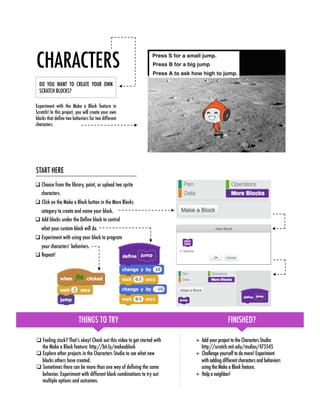
DO YOU WANT TO CREATE YOUR OWN
SCRATCH BLOCKS?
Experiment with the Make a Block feature in
Scratch! In this project, you will create your own
blocks that define two behaviors for two different
characters. 
q Choose from the library, paint, or upload two sprite
characters.
q Click on the Make a Block button in the More Blocks
category to create and name your block.
q Add blocks under the Define block to control
what your custom block will do.
q Experiment with using your block to program
your characters’ behaviors.
q Repeat!
START HERE
THINGS TO TRY
 FINISHED?
CHARACTERS
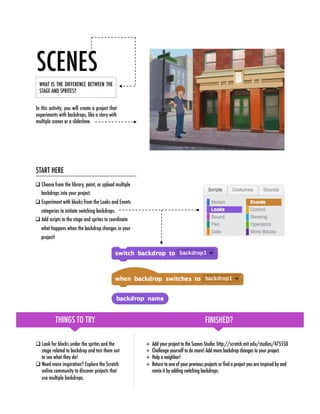
WHAT IS THE DIFFERENCE BETWEEN THE
STAGE AND SPRITES?
In this activity, you will create a project that
experiments with backdrops, like a story with
multiple scenes or a slideshow.
q Choose from the library, paint, or upload multiple
backdrops into your project.
q Experiment with blocks from the Looks and Events
categories to initiate switching backdrops.
q Add scripts to the stage and sprites to coordinate
what happens when the backdrop changes in your
project!
q Look for blocks under the sprites and the
stage related to backdrop and test them out
to see what they do!
q Need more inspiration? Explore the Scratch
online community to discover projects that
use multiple backdrops.
THINGS TO TRY
 FINISHED?
+  Add your project to the Scenes Studio: http://scratch.mit.edu/studios/475550
+  Challenge yourself to do more! Add more backdrop changes to your project.
+  Help a neighbor!
+  Return to one of your previous projects or find a project you are inspired by and
remix it by adding switching backdrops.
START HERE
SCENES
FINISHED?
FINISHED?
BLOCKS TO PLAY WITH
 FINISHED?
+  Add your project to the Pass It
On studio: http://
scratch.mit.edu/studios/475543
+  Help a neighbor!
+  Return to all the projects you
contributed to and check out
how the stories evolved!
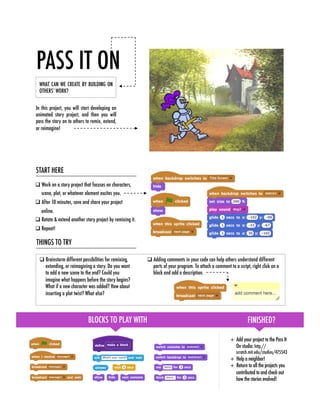
WHAT CAN WE CREATE BY BUILDING ON
OTHERS’ WORK?
In this project, you will start developing an
animated story project, and then you will
pass the story on to others to remix, extend,
or reimagine!
START HERE
q Work on a story project that focuses on characters,
scene, plot, or whatever element excites you.
q After 10 minutes, save and share your project
online.
q Rotate & extend another story project by remixing it.
q Repeat!


q Brainstorm different possibilities for remixing,
extending, or reimagining a story. Do you want
to add a new scene to the end? Could you
imagine what happens before the story begins?
What if a new character was added? How about
inserting a plot twist? What else?
THINGS TO TRY
q Adding comments in your code can help others understand different
parts of your program. To attach a comment to a script, right click on a
block and add a description.
PASS IT ON
HOW CAN YOU USE SCRATCH TO BUILD
AN INTERACTIVE GAME?
In this project, you will create a game. This
game includes interactions between sprites,
score, and levels. You move a sprite from the
start of a maze to the end without touching
the walls.
MAZE
FINISHED?
FINISHED?
BLOCKS TO PLAY WITH
 FINISHED?
START HERE
q Draw a maze-like background and use different
colors for the walls and end-of-maze marker.
q Add a sprite.
q Make your game interactive!
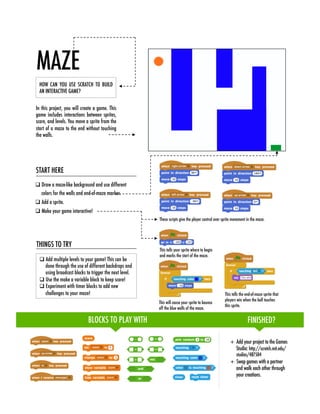
These scripts give the player control over sprite movement in the maze.	
q Add multiple levels to your game! This can be
done through the use of different backdrops and
using braodcast blocks to trigger the next level.
q Use the make a variable block to keep score!
q Experiment with timer blocks to add new
challenges to your maze!
THINGS TO TRY
+  Add your project to the Games
Studio: http://scratch.mit.edu/
studios/487504
+  Swap games with a partner
and walk each other through
your creations.
This will cause your sprite to bounce
off the blue walls of the maze.	
This tells your sprite where to begin
and marks the start of the maze.	
This tells the end-of-maze sprite that
players win when the ball touches
this sprite.
HOW CAN YOU USE SCRATCH TO BUILD
AN INTERACTIVE GAME?
In this project, you will create a game. This
game includes interactions between sprites,
score, and levels. The game is similar to the
classic game of pong, where the goal is to
keep the sprite from getting past you.
PONG
FINISHED?
FINISHED?
+  Add your project to the Games
Studio: http://scratch.mit.edu/
studios/487504
+  Swap games with a partner
and walk each other through
your creations.
START HERE
q Create two sprites: a paddle for the user to control
and a ball the user will be playing with.
q Make your paddle sprite interactive.
q Bring your game to life!
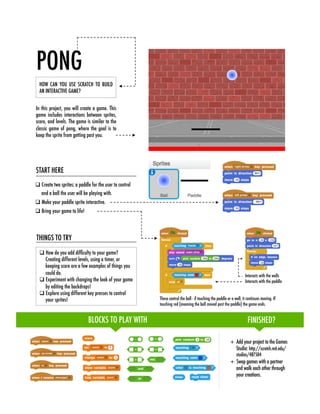
These control the ball - if touching the paddle or a wall, it continues moving. If
touching red (meaning the ball moved past the paddle) the game ends.	
q How do you add difficulty to your game?
Creating different levels, using a timer, or
keeping score are a few examples of things you
could do.
q Experiment with changing the look of your game
by editing the backdrops!
q Explore using different key presses to control
your sprites!
THINGS TO TRY
Interacts with the walls
Interacts with the paddle	
BLOCKS TO PLAY WITH
 FINISHED?
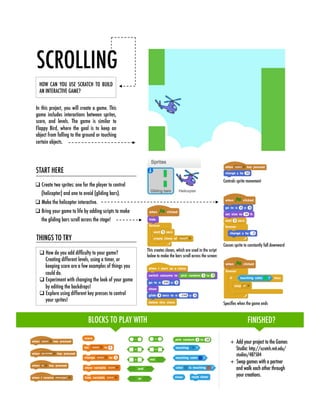
SCROLLING
HOW CAN YOU USE SCRATCH TO BUILD
AN INTERACTIVE GAME?
In this project, you will create a game. This
game includes interactions between sprites,
score, and levels. The game is similar to
Flappy Bird, where the goal is to keep an
object from falling to the ground or touching
certain objects.
FINISHED?
FINISHED?
START HERE
q Create two sprites: one for the player to control
(helicopter) and one to avoid (gliding bars).
q Make the helicopter interactive.
q Bring your game to life by adding scripts to make
the gliding bars scroll across the stage!
q How do you add difficulty to your game?
Creating different levels, using a timer, or
keeping score are a few examples of things you
could do.
q Experiment with changing the look of your game
by editing the backdrops!
q Explore using different key presses to control
your sprites!
THINGS TO TRY
+  Add your project to the Games
Studio: http://scratch.mit.edu/
studios/487504
+  Swap games with a partner
and walk each other through
your creations.
Controls sprite movement
Specifies when the game ends
Causes sprite to constantly fall downward 
This creates clones, which are used in the script
below to make the bars scroll across the screen:
BLOCKS TO PLAY WITH
 FINISHED?
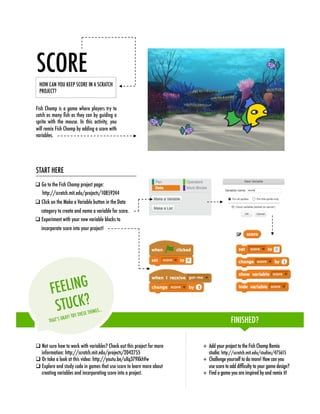
HOW CAN YOU KEEP SCORE IN A SCRATCH
PROJECT?
Fish Chomp is a game where players try to
catch as many fish as they can by guiding a
sprite with the mouse. In this activity, you
will remix Fish Chomp by adding a score with
variables. 
q Go to the Fish Chomp project page:
http://scratch.mit.edu/projects/10859244
q Click on the Make a Variable button in the Data
category to create and name a variable for score.
q Experiment with your new variable blocks to
incorporate score into your project!
q Not sure how to work with variables? Check out this project for more
information: http://scratch.mit.edu/projects/2042755
q Or take a look at this video: http://youtu.be/uXq379XkhVw
q Explore and study code in games that use score to learn more about
creating variables and incorporating score into a project.
+  Add your project to the Fish Chomp Remix
studio: http://scratch.mit.edu/studios/475615
+  Challenge yourself to do more! How can you
use score to add difficulty to your game design?
+  Find a game you are inspired by and remix it!
START HERE
FINISHED?
FEELING
STUCK?
THAT’S OKAY! TRY THESE THINGS…
SCORE
+ MULTIPLAYER http://scratch.mit.edu/projects/25192711
Demonstrates how to add another player to the game. Player 1 uses the 
arrow keys to navigate Pico through the maze, and player 2 uses the
W, A, S, D keys to navigate Nano through the maze.
THINGS TO TRY
 FINISHED?
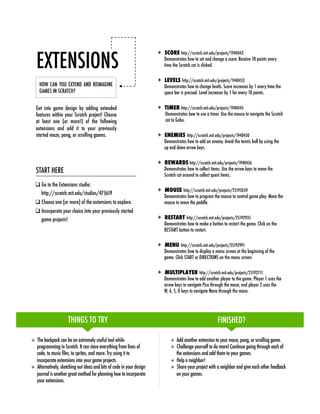
HOW CAN YOU EXTEND AND REIMAGINE
GAMES IN SCRATCH?
Get into game design by adding extended
features within your Scratch project! Choose
at least one (or more!) of the following
extensions and add it to your previously
started maze, pong, or scrolling games.
+  Add another extension to your maze, pong, or scrolling game.
+  Challenge yourself to do more! Continue going through each of
the extensions and add them to your games.
+  Help a neighbor!
+  Share your project with a neighbor and give each other feedback
on your games.
+ SCORE http://scratch.mit.edu/projects/1940443
Demonstrates how to set and change a score. Receive 10 points every 
time the Scratch cat is clicked.
+ TIMER http://scratch.mit.edu/projects/1940445
Demonstrates how to use a timer. Use the mouse to navigate the Scratch 
cat to Gobo.
+ MOUSE http://scratch.mit.edu/projects/25192659
Demonstrates how to program the mouse to control game play. Move the 
mouse to move the paddle.
+ RESTART http://scratch.mit.edu/projects/25192935
Demonstrates how to make a button to restart the game. Click on the 
RESTART button to restart.
+ REWARDS http://scratch.mit.edu/projects/1940456
Demonstrates how to collect items. Use the arrow keys to move the 
Scratch cat around to collect quest items.
+ MENU http://scratch.mit.edu/projects/25192991
Demonstrates how to display a menu screen at the beginning of the 
game. Click START or DIRECTIONS on the menu screen.
+ LEVELS http://scratch.mit.edu/projects/1940453
Demonstrates how to change levels. Score increases by 1 every time the 
space bar is pressed. Level increases by 1 for every 10 points.
+ ENEMIES http://scratch.mit.edu/projects/1940450
Demonstrates how to add an enemy. Avoid the tennis ball by using the 
up and down arrow keys.
q Go to the Extensions studio:
http://scratch.mit.edu/studios/475619
q Choose one (or more) of the extensions to explore.
q Incorporate your choice into your previously started
game projects!
START HERE
+  The backpack can be an extremely useful tool while
programming in Scratch. It can store everything from lines of
code, to music files, to sprites, and more. Try using it to
incorporate extensions into your game projects.
+  Alternatively, sketching out ideas and bits of code in your design
journal is another great method for planning how to incorporate
your extensions.
EXTENSIONS

Scratch worksheets compilation activities

  • 1.
    Scratch Programming Worksheet Compilation Tableof Contents Worksheet #1 Set up Scratch Account Worksheet #2 Scratch Explore Worksheet #3 Scratch Studio Worksheet #4 Step by Step Worksheet #5 10 blocks Worksheet #6 About Me Worksheet #7 Scratch Sound Worksheet #8 orange purple Worksheet #9 It's Alive Worksheet #10 Adding Sound files Worksheet #11 Characters Worksheet #12 Scenes Worksheet #13 Remix Worksheet #14 Maze Worksheet #15 Pong Worksheet #16 scrolling Worksheet #17 Score Worksheet #18 Extending  
  • 2.
    FINISHED? FINISHED? NEW TO SCRATCH?GET STARTED BY CREATING YOUR SCRATCH ACCOUNT! You will need a Scratch account to create, save, and share your Scratch projects. The steps below will walk you through creating a new account and setting up your profile. START HERE q Open a web browser and navigate to the Scratch website: http://scratch.mit.edu q On the homepage, click on “Join Scratch” at the top on the right or in the blue circle. q Complete the three steps to sign up for your very own Scratch account! SCRATCH ACCOUNT
  • 3.
    CAN YOU MAKETHE SCRATCH CAT DO SOMETHING SURPRISING? In this activity, you will create a new project with Scratch and explore different Scratch blocks to make the cat do something surprising! What will you create? START HERE q Go to the Scratch website: http://scratch.mit.edu q Sign into your account. q Click on the “Create” tab located at the top left of the browser to start a new project. q Time to explore! Try clicking on different parts of the Scratch interface to see what happens. q Play with different Scratch blocks! Drag and drop Scratch blocks into the scripting area. Experiment by clicking on each block to see what they do or try snapping blocks together. SCRATCH Explore
  • 4.
    START HERE q Go tothe Scratch Surprise studio using this link: http://scratch.mit.edu/studios/460431 q Sign into your account. q Click on “Add Projects” at the bottom of the page to show your your projects, favorite projects, and recently viewed projects. q Use the arrows to find your Scratch Surprise project and then click “Add + ” to add your project to the studio. LEARN HOW TO ADD YOUR PROJECT TO AN ONLINE SCRATCH STUDIO! Studios are collections of Scratch projects. Follow along with the steps below to add your Scratch Surprise program to the Scratch Surprise studio on the Scratch website. SCRATCH STUDIO
  • 5.
    START HERE q Follow theStep-by-Step Intro in the Tips Window. q Add more blocks. q Experiment to make it your own! q Try recording your own sounds. q Create different backdrops. q Turn your project into a dance party by adding more dancing sprites! q Try designing a new costume for your sprite. What blocks do you want to experiment with? THINGS TO TRY FINISHED? +  Add your project to the Step-by-Step Studio: http://scratch.mit.edu/studios/475476 +  Challenge yourself to do more! Play with adding new blocks, sound, or motion. +  Help a neighbor! +  Choose a few new blocks to experiment with. Try them out! NEW TO SCRATCH? CREATE YOUR FIRST SCRATCH PROJECT! In this activity, you will follow the Step-by- Step Intro in the Tips Window to create a dancing cat in Scratch. Once you have completed the steps, experiment by adding other Scratch blocks to make the project your own. STEP-BY-STEP
  • 6.
    FINISHED? FEELING STUCK? THAT’S OKAY! TRYTHESE THINGS… +  Add your project to the 10 Blocks Studio: http://scratch.mit.edu/studios/475480 +  Play with different sprites, costumes, or backdrops. +  Challenge yourself to do more! See how many different projects you can create with these 10 blocks. +  Swap projects with a partner and remix each others’ creations. START HERE q Test ideas by experimenting with each block. q Mix and match blocks in various ways. q Repeat! q Test ideas by trying out different block combinations. Mix and match blocks until you find something that interests you! q Try brainstorming ideas with your partner! q Explore other projects to see what others are doing in Scratch. This can be a great way to find inspiration! WHAT CAN YOU CREATE WITH ONLY 10 SCRATCH BLOCKS? Create a project using only these 10 blocks. Use them once, twice, or multiple times, but use each block at least once. 10 BLOCKS
  • 7.
    TIPS & TRICKS Makeyour sprite interactive by adding scripts that have the sprite respond to clicks, key presses, and more! BLOCKS TO PLAY WITH FINISHED? q Use costumes to change how your sprite looks. q Create different backdrops. q Try adding sound to your project. q Try adding movement into your collage. THINGS TO TRY +  Add your project to the About Me Studio: http://scratch.mit.edu/ studios/475470 +  Challenge yourself to do more! Play with adding new blocks, sound, or motion! +  Help your partner! HOW CAN YOU COMBINE INTERESTING IMAGES AND SOUNDS TO MAKE AN INTERACTIVE COLLAGE ABOUT YOURSELF? Experiment with sprites, costumes, backdrops, looks, and sounds to create an interactive Scratch project -- a project that helps other people learn more about YOU and the ideas, activities, and people that you care about. START HERE q Create a sprite. q Make it interactive. q Repeat! ABOUT ME
  • 8.
    q Use repeat blocksto make a sound play more than once. q Import or record your own sounds or experiment with the Sounds editor. q Try playing with the tempo blocks to speed up or slow down the rhythm. +  Add your project to the Build-A-Band Studio: http://scratch.mit.edu/studios/475523 +  Challenge yourself to do more! Invent a new instrument or record your own sounds. +  Help your partner! HOW CAN YOU UTILIZE SCRATCH TO CREATE SOUNDS, INSTRUMENTS, BANDS, OR STYLES OF MUSIC THAT REPRESENT THE MUSIC YOU LOVE MOST? In this activity, you will build your own music-inspired Scratch project by pairing sprites with sounds to design interactive instruments. q Create a sprite. q Add sound blocks. q Experiment with ways to make your instruments interactive. START HERE Choose instruments from the sprite library or create your own. THINGS TO TRY FINISHED? BUILD-A-BAND
  • 9.
    WHAT PROJECT CANYOU CREATE THAT INCLUDES AN ORANGE SQUARE AND A PURPLE CIRCLE? In this challenge, you’ll create a project that includes an orange square and a purple circle. What will you create? q Draw your sprites using the Paint Editor. q Add different Looks and Motion blocks to bring your sprites to life. q Repeat! START HERE FEELING STUCK? THAT’S OKAY! TRY THESE THINGS… FINISHED? +  Add your project to the Orange Square, Purple Circle Studio: http://scratch.mit.edu/studios/475527 +  Explore the difference between bitmap mode and vector mode, located at the bottom of the paint editor. +  Challenge yourself to do more! Add another shape and color. +  Swap projects with your partner and remix each other’s creations. +  Help a neighbor! q Try brainstorming with your partner! q Create a list of things you would like to try before you start building your project in Scratch! q Explore other projects to see what others are doing in Scratch – this can be a great way to find inspiration! ORANGE SQUARE, PURPLE CIRCLE
  • 10.
    HOW CAN YOUTAKE AN IMAGE OR A PHOTO AND MAKE IT COME ALIVE? In this activity, you will explore ways of bringing sprites, images, and ideas to life as an animation by programming a series of costume changes. q Choose a sprite. q Add a different costume. q Add blocks to make the image come alive. q Repeat! q Try sketching your animation ideas on paper first – like a flipbook. q Experiment with different blocks and costumes until you find something you enjoy. q Need some inspiration? Find projects in the Animation section of the Explore page. THINGS TO TRY FINISHED? +  Add your project to the It’s Alive studio: http://scratch.mit.edu/studios/475529 +  Challenge yourself to do more! Add more features to your project to make your animations look even more lifelike. +  Help a neighbor! +  Share your project with a partner and walk them through your design process. +  Find an animated project you’re inspired by and remix it! START HERE IT’S ALIVE!
  • 11.
    choose sprite fromlibrary paint your own sprite upload sprite from file new sprite from camera FINISHED? TIPS & TRICKS FINISHED? BLOCKS TO PLAY WITH FINISHED? q Use costumes to help bring your animations to life! q Make your sprite interactive by adding scripts that have the sprite respond to clicks, key presses, and more. q Add instructions on the project page to explain how people can interact with your program. THINGS TO TRY +  Add your project to the Music Video studio: http://scratch.mit.edu/studios/ 475517 +  Be sure to give credit to any music, code, or other work used in your project. +  Challenge yourself to do more! Create your own sprites, sounds, or costumes! HOW CAN YOU COMBINE ANIMATION WITH MUSIC TO CREATE YOUR OWN SCRATCH-INSPIRED MUSIC VIDEO? In this project, you will explore ideas related to theatre, song, dance, music, drawing, illustration, photography, and animation to create a personalized music video! START HERE q Add sound. q Create and animate a sprite. q Make them interact together! upload sounds from a file record your own sounds choose sounds from library Adding Sound
  • 12.
    q Feeling stuck? That’sokay! Check out this video to get started with the Make a Block feature: http://bit.ly/makeablock q Explore other projects in the Characters Studio to see what new blocks others have created. q Sometimes there can be more than one way of defining the same behavior. Experiment with different block combinations to try out multiple options and outcomes. +  Add your project to the Characters Studio: http://scratch.mit.edu/studios/475545 +  Challenge yourself to do more! Experiment with adding different characters and behaviors using the Make a Block feature. +  Help a neighbor! DO YOU WANT TO CREATE YOUR OWN SCRATCH BLOCKS? Experiment with the Make a Block feature in Scratch! In this project, you will create your own blocks that define two behaviors for two different characters. q Choose from the library, paint, or upload two sprite characters. q Click on the Make a Block button in the More Blocks category to create and name your block. q Add blocks under the Define block to control what your custom block will do. q Experiment with using your block to program your characters’ behaviors. q Repeat! START HERE THINGS TO TRY FINISHED? CHARACTERS
  • 13.
    WHAT IS THEDIFFERENCE BETWEEN THE STAGE AND SPRITES? In this activity, you will create a project that experiments with backdrops, like a story with multiple scenes or a slideshow. q Choose from the library, paint, or upload multiple backdrops into your project. q Experiment with blocks from the Looks and Events categories to initiate switching backdrops. q Add scripts to the stage and sprites to coordinate what happens when the backdrop changes in your project! q Look for blocks under the sprites and the stage related to backdrop and test them out to see what they do! q Need more inspiration? Explore the Scratch online community to discover projects that use multiple backdrops. THINGS TO TRY FINISHED? +  Add your project to the Scenes Studio: http://scratch.mit.edu/studios/475550 +  Challenge yourself to do more! Add more backdrop changes to your project. +  Help a neighbor! +  Return to one of your previous projects or find a project you are inspired by and remix it by adding switching backdrops. START HERE SCENES
  • 14.
    FINISHED? FINISHED? BLOCKS TO PLAYWITH FINISHED? +  Add your project to the Pass It On studio: http:// scratch.mit.edu/studios/475543 +  Help a neighbor! +  Return to all the projects you contributed to and check out how the stories evolved! WHAT CAN WE CREATE BY BUILDING ON OTHERS’ WORK? In this project, you will start developing an animated story project, and then you will pass the story on to others to remix, extend, or reimagine! START HERE q Work on a story project that focuses on characters, scene, plot, or whatever element excites you. q After 10 minutes, save and share your project online. q Rotate & extend another story project by remixing it. q Repeat! q Brainstorm different possibilities for remixing, extending, or reimagining a story. Do you want to add a new scene to the end? Could you imagine what happens before the story begins? What if a new character was added? How about inserting a plot twist? What else? THINGS TO TRY q Adding comments in your code can help others understand different parts of your program. To attach a comment to a script, right click on a block and add a description. PASS IT ON
  • 15.
    HOW CAN YOUUSE SCRATCH TO BUILD AN INTERACTIVE GAME? In this project, you will create a game. This game includes interactions between sprites, score, and levels. You move a sprite from the start of a maze to the end without touching the walls. MAZE FINISHED? FINISHED? BLOCKS TO PLAY WITH FINISHED? START HERE q Draw a maze-like background and use different colors for the walls and end-of-maze marker. q Add a sprite. q Make your game interactive! These scripts give the player control over sprite movement in the maze. q Add multiple levels to your game! This can be done through the use of different backdrops and using braodcast blocks to trigger the next level. q Use the make a variable block to keep score! q Experiment with timer blocks to add new challenges to your maze! THINGS TO TRY +  Add your project to the Games Studio: http://scratch.mit.edu/ studios/487504 +  Swap games with a partner and walk each other through your creations. This will cause your sprite to bounce off the blue walls of the maze. This tells your sprite where to begin and marks the start of the maze. This tells the end-of-maze sprite that players win when the ball touches this sprite.
  • 16.
    HOW CAN YOUUSE SCRATCH TO BUILD AN INTERACTIVE GAME? In this project, you will create a game. This game includes interactions between sprites, score, and levels. The game is similar to the classic game of pong, where the goal is to keep the sprite from getting past you. PONG FINISHED? FINISHED? +  Add your project to the Games Studio: http://scratch.mit.edu/ studios/487504 +  Swap games with a partner and walk each other through your creations. START HERE q Create two sprites: a paddle for the user to control and a ball the user will be playing with. q Make your paddle sprite interactive. q Bring your game to life! These control the ball - if touching the paddle or a wall, it continues moving. If touching red (meaning the ball moved past the paddle) the game ends. q How do you add difficulty to your game? Creating different levels, using a timer, or keeping score are a few examples of things you could do. q Experiment with changing the look of your game by editing the backdrops! q Explore using different key presses to control your sprites! THINGS TO TRY Interacts with the walls Interacts with the paddle BLOCKS TO PLAY WITH FINISHED?
  • 17.
    SCROLLING HOW CAN YOUUSE SCRATCH TO BUILD AN INTERACTIVE GAME? In this project, you will create a game. This game includes interactions between sprites, score, and levels. The game is similar to Flappy Bird, where the goal is to keep an object from falling to the ground or touching certain objects. FINISHED? FINISHED? START HERE q Create two sprites: one for the player to control (helicopter) and one to avoid (gliding bars). q Make the helicopter interactive. q Bring your game to life by adding scripts to make the gliding bars scroll across the stage! q How do you add difficulty to your game? Creating different levels, using a timer, or keeping score are a few examples of things you could do. q Experiment with changing the look of your game by editing the backdrops! q Explore using different key presses to control your sprites! THINGS TO TRY +  Add your project to the Games Studio: http://scratch.mit.edu/ studios/487504 +  Swap games with a partner and walk each other through your creations. Controls sprite movement Specifies when the game ends Causes sprite to constantly fall downward This creates clones, which are used in the script below to make the bars scroll across the screen: BLOCKS TO PLAY WITH FINISHED?
  • 18.
    HOW CAN YOUKEEP SCORE IN A SCRATCH PROJECT? Fish Chomp is a game where players try to catch as many fish as they can by guiding a sprite with the mouse. In this activity, you will remix Fish Chomp by adding a score with variables. q Go to the Fish Chomp project page: http://scratch.mit.edu/projects/10859244 q Click on the Make a Variable button in the Data category to create and name a variable for score. q Experiment with your new variable blocks to incorporate score into your project! q Not sure how to work with variables? Check out this project for more information: http://scratch.mit.edu/projects/2042755 q Or take a look at this video: http://youtu.be/uXq379XkhVw q Explore and study code in games that use score to learn more about creating variables and incorporating score into a project. +  Add your project to the Fish Chomp Remix studio: http://scratch.mit.edu/studios/475615 +  Challenge yourself to do more! How can you use score to add difficulty to your game design? +  Find a game you are inspired by and remix it! START HERE FINISHED? FEELING STUCK? THAT’S OKAY! TRY THESE THINGS… SCORE
  • 19.
    + MULTIPLAYER http://scratch.mit.edu/projects/25192711 Demonstrateshow to add another player to the game. Player 1 uses the arrow keys to navigate Pico through the maze, and player 2 uses the W, A, S, D keys to navigate Nano through the maze. THINGS TO TRY FINISHED? HOW CAN YOU EXTEND AND REIMAGINE GAMES IN SCRATCH? Get into game design by adding extended features within your Scratch project! Choose at least one (or more!) of the following extensions and add it to your previously started maze, pong, or scrolling games. +  Add another extension to your maze, pong, or scrolling game. +  Challenge yourself to do more! Continue going through each of the extensions and add them to your games. +  Help a neighbor! +  Share your project with a neighbor and give each other feedback on your games. + SCORE http://scratch.mit.edu/projects/1940443 Demonstrates how to set and change a score. Receive 10 points every time the Scratch cat is clicked. + TIMER http://scratch.mit.edu/projects/1940445 Demonstrates how to use a timer. Use the mouse to navigate the Scratch cat to Gobo. + MOUSE http://scratch.mit.edu/projects/25192659 Demonstrates how to program the mouse to control game play. Move the mouse to move the paddle. + RESTART http://scratch.mit.edu/projects/25192935 Demonstrates how to make a button to restart the game. Click on the RESTART button to restart. + REWARDS http://scratch.mit.edu/projects/1940456 Demonstrates how to collect items. Use the arrow keys to move the Scratch cat around to collect quest items. + MENU http://scratch.mit.edu/projects/25192991 Demonstrates how to display a menu screen at the beginning of the game. Click START or DIRECTIONS on the menu screen. + LEVELS http://scratch.mit.edu/projects/1940453 Demonstrates how to change levels. Score increases by 1 every time the space bar is pressed. Level increases by 1 for every 10 points. + ENEMIES http://scratch.mit.edu/projects/1940450 Demonstrates how to add an enemy. Avoid the tennis ball by using the up and down arrow keys. q Go to the Extensions studio: http://scratch.mit.edu/studios/475619 q Choose one (or more) of the extensions to explore. q Incorporate your choice into your previously started game projects! START HERE +  The backpack can be an extremely useful tool while programming in Scratch. It can store everything from lines of code, to music files, to sprites, and more. Try using it to incorporate extensions into your game projects. +  Alternatively, sketching out ideas and bits of code in your design journal is another great method for planning how to incorporate your extensions. EXTENSIONS