Scratch Project
Starter Activity: Commands
Think of 10 commands that you know how to use
in Scratch. You may be asked to name these in a
minute.
Scratch Project
Scratch Project
This is a project that you will have three lessons to
complete. Using your Scratch skills and
programming knowledge you are to create a new
Scratch project or develop an existing project.
Lesson
 Understand that programs are normally created
in a series of stages
 Analyse, design, create and test a Scratch project
 Understand the importance of evaluating
Objectives
Past projects
In recent years students have created:
1.A virtual aquarium with moving fish and sound
effects.
2.A house created from shapes.
3.A car maze based on the A mazing game.
4.A graphic of a car made up of shapes.
5.A duck hunt game based on the forest archery
game.
Scratch Project
Stage 1: Deciding on an Idea
Brainstorm some ideas for your project.
•Think of the areas you’ve covered so far... Is it
going to be graphics-based? A story? A game?
•Check out the Scratch gallery at http://
scratch.mit.edu for some inspiration
•Your teacher may let you access some game
creator cards
•Discuss your ideas with your elbow partner and
decide on one project
Scratch Project
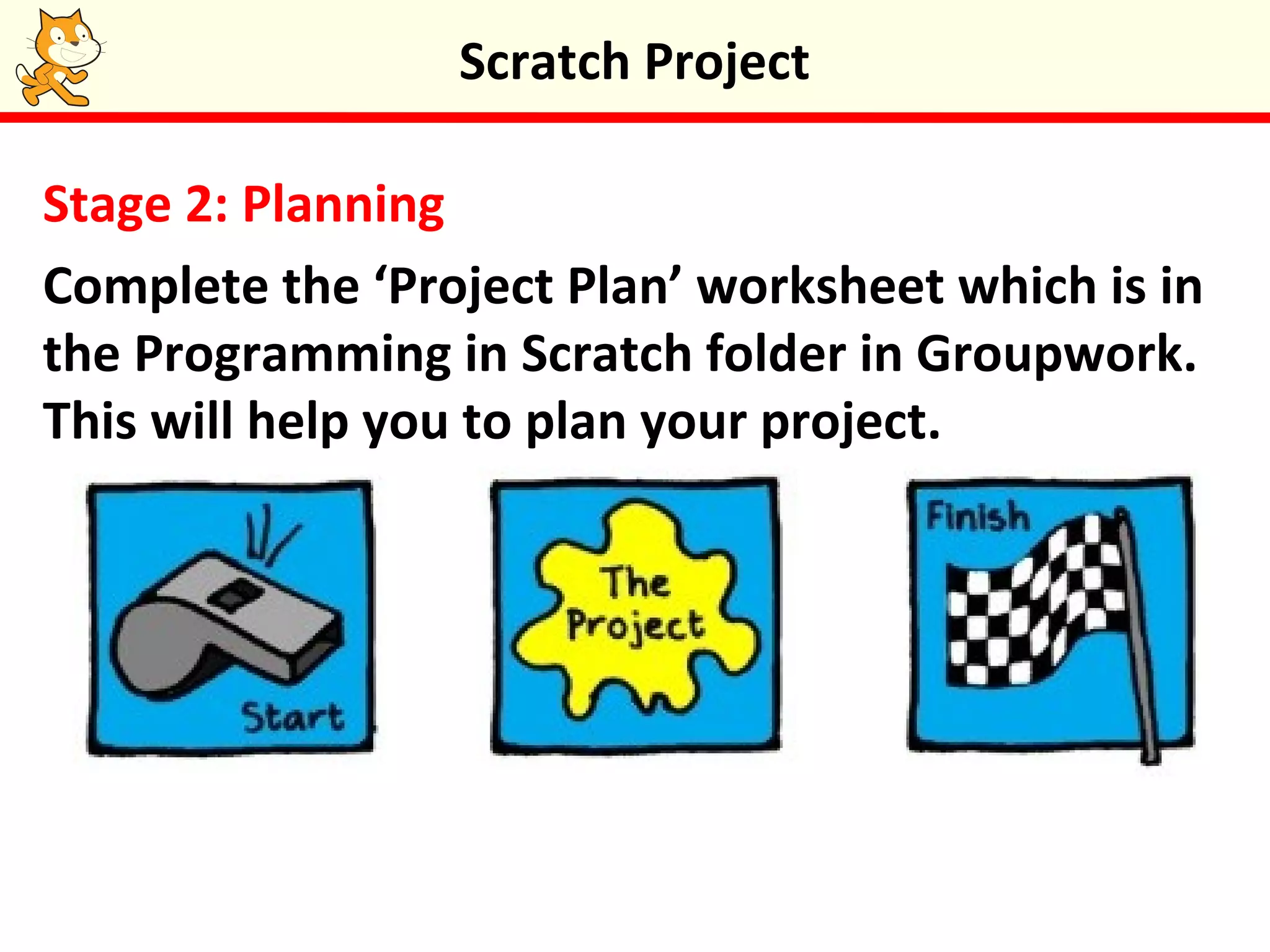
Stage 2: Planning
Complete the ‘Project Plan’ worksheet which is in
the Programming in Scratch folder in Groupwork.
This will help you to plan your project.
Scratch Project
Stage 3: Development
•Using Scratch create (develop) your project
– gather the sprites, costumes, sounds and
backgrounds – remember to give them
sensible names
– create the code using your algorithms
Scratch Project
Stage 4: Testing
•Test your project to make sure it works
•Let your peers test it too
•Fix any program bugs or errors that either
yourself or your peers found
Scratch Project
Stage 5: Evaluating
Evaluate your work by answering the following
questions:
1.How did the project turn out compared to how
you originally planned it?
2.What mistakes did you make on the way?
3.If you were to start again from the beginning,
what would you do differently?
4.How could you improve what you have done?
Scratch Project
Stage 6: Feedback
•Complete a gallery walk to see all the students
projects.
•Provide some verbal feedback to your elbow
partner on their project.
Scratch Project
Is that the End
Completing this unit doesn’t mean to say that it’s
the end of programming for you using Scratch.
Download it at home (http://scratch.mit.edu) and
explore the featured projects.
The website is a vibrant community of Scratchers.
May be you could get a project featured on the
website one day!
Scratch Project
Submission of Work
This is the end of the unit. Your teacher will tell
you what files you need to submit for marking.
Scratch Project
Lessons 6, 7 and 8 – Scratch Project
 Understand that programs are normally created
in a series of stages
 Analyse, design, create and test a Scratch project
 Understand the importance of evaluating
Objectives




Scratch Project

  • 1.
  • 2.
    Starter Activity: Commands Thinkof 10 commands that you know how to use in Scratch. You may be asked to name these in a minute. Scratch Project
  • 3.
    Scratch Project This isa project that you will have three lessons to complete. Using your Scratch skills and programming knowledge you are to create a new Scratch project or develop an existing project. Lesson  Understand that programs are normally created in a series of stages  Analyse, design, create and test a Scratch project  Understand the importance of evaluating Objectives
  • 4.
    Past projects In recentyears students have created: 1.A virtual aquarium with moving fish and sound effects. 2.A house created from shapes. 3.A car maze based on the A mazing game. 4.A graphic of a car made up of shapes. 5.A duck hunt game based on the forest archery game. Scratch Project
  • 5.
    Stage 1: Decidingon an Idea Brainstorm some ideas for your project. •Think of the areas you’ve covered so far... Is it going to be graphics-based? A story? A game? •Check out the Scratch gallery at http:// scratch.mit.edu for some inspiration •Your teacher may let you access some game creator cards •Discuss your ideas with your elbow partner and decide on one project Scratch Project
  • 6.
    Stage 2: Planning Completethe ‘Project Plan’ worksheet which is in the Programming in Scratch folder in Groupwork. This will help you to plan your project. Scratch Project
  • 7.
    Stage 3: Development •UsingScratch create (develop) your project – gather the sprites, costumes, sounds and backgrounds – remember to give them sensible names – create the code using your algorithms Scratch Project
  • 8.
    Stage 4: Testing •Testyour project to make sure it works •Let your peers test it too •Fix any program bugs or errors that either yourself or your peers found Scratch Project
  • 9.
    Stage 5: Evaluating Evaluateyour work by answering the following questions: 1.How did the project turn out compared to how you originally planned it? 2.What mistakes did you make on the way? 3.If you were to start again from the beginning, what would you do differently? 4.How could you improve what you have done? Scratch Project
  • 10.
    Stage 6: Feedback •Completea gallery walk to see all the students projects. •Provide some verbal feedback to your elbow partner on their project. Scratch Project
  • 11.
    Is that theEnd Completing this unit doesn’t mean to say that it’s the end of programming for you using Scratch. Download it at home (http://scratch.mit.edu) and explore the featured projects. The website is a vibrant community of Scratchers. May be you could get a project featured on the website one day! Scratch Project
  • 12.
    Submission of Work Thisis the end of the unit. Your teacher will tell you what files you need to submit for marking. Scratch Project
  • 13.
    Lessons 6, 7and 8 – Scratch Project  Understand that programs are normally created in a series of stages  Analyse, design, create and test a Scratch project  Understand the importance of evaluating Objectives   