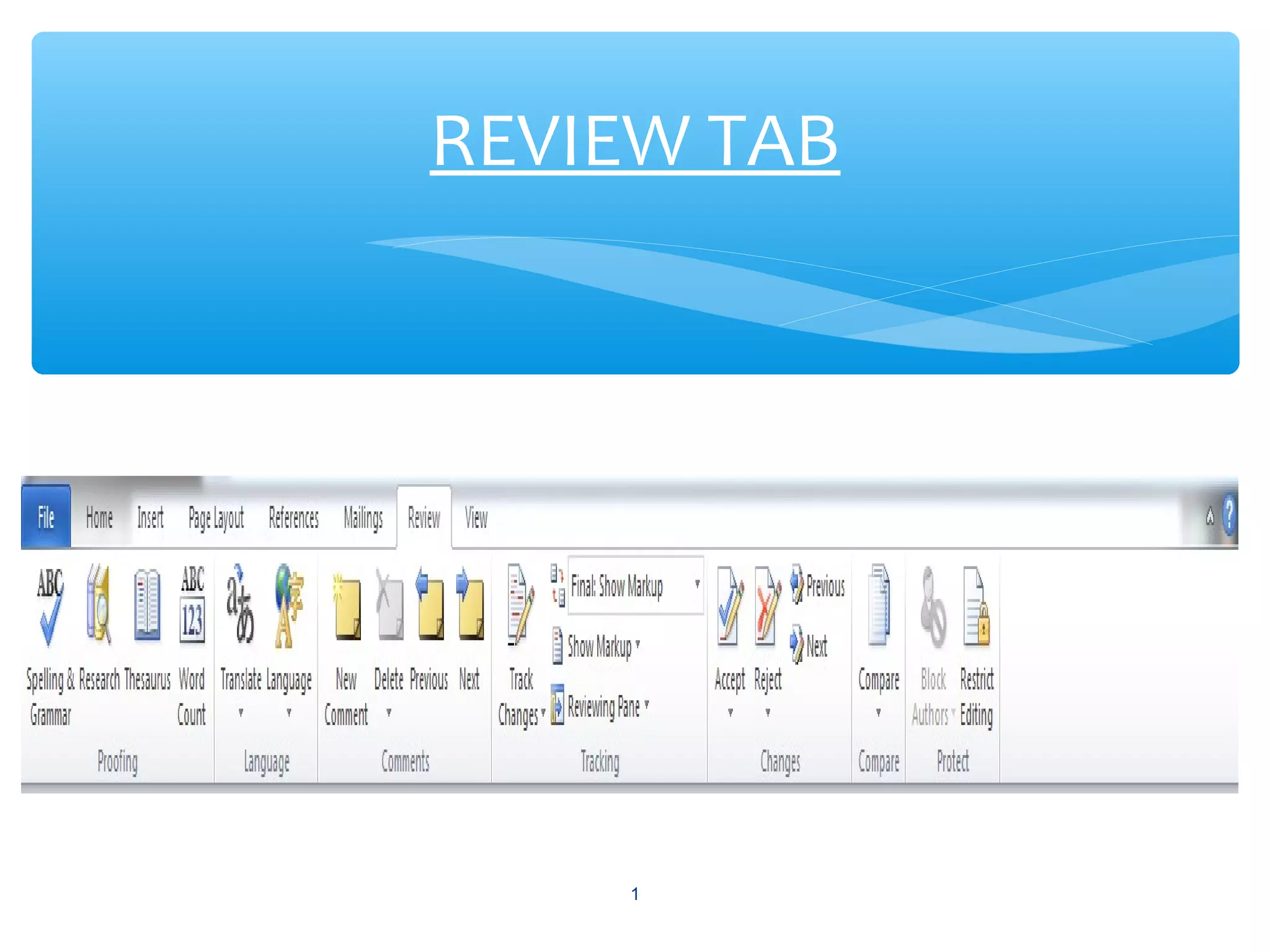
REVIEW TAB
1
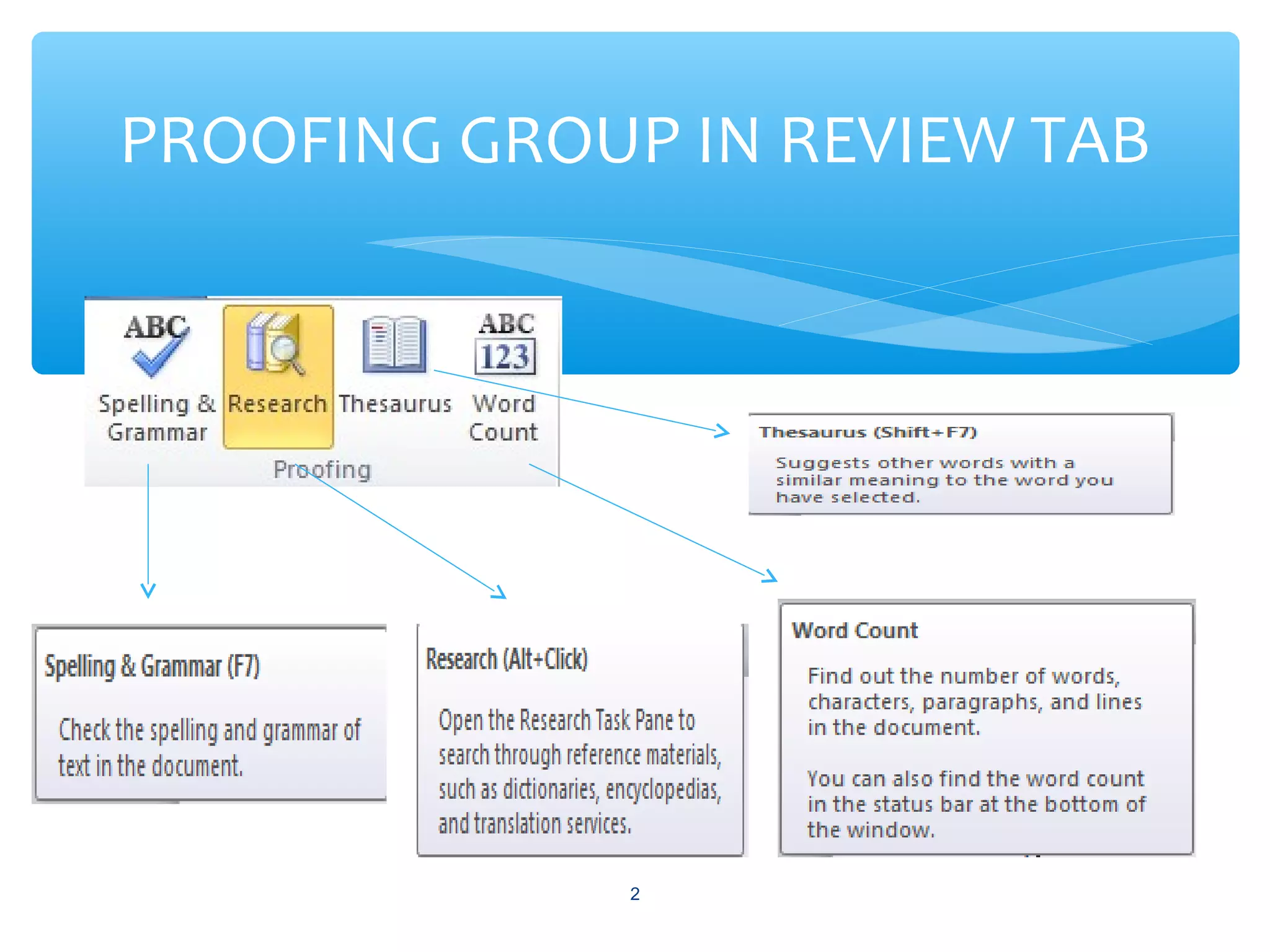
PROOFING GROUP IN REVIEW TAB
2
SPELLING & GRAMMAR
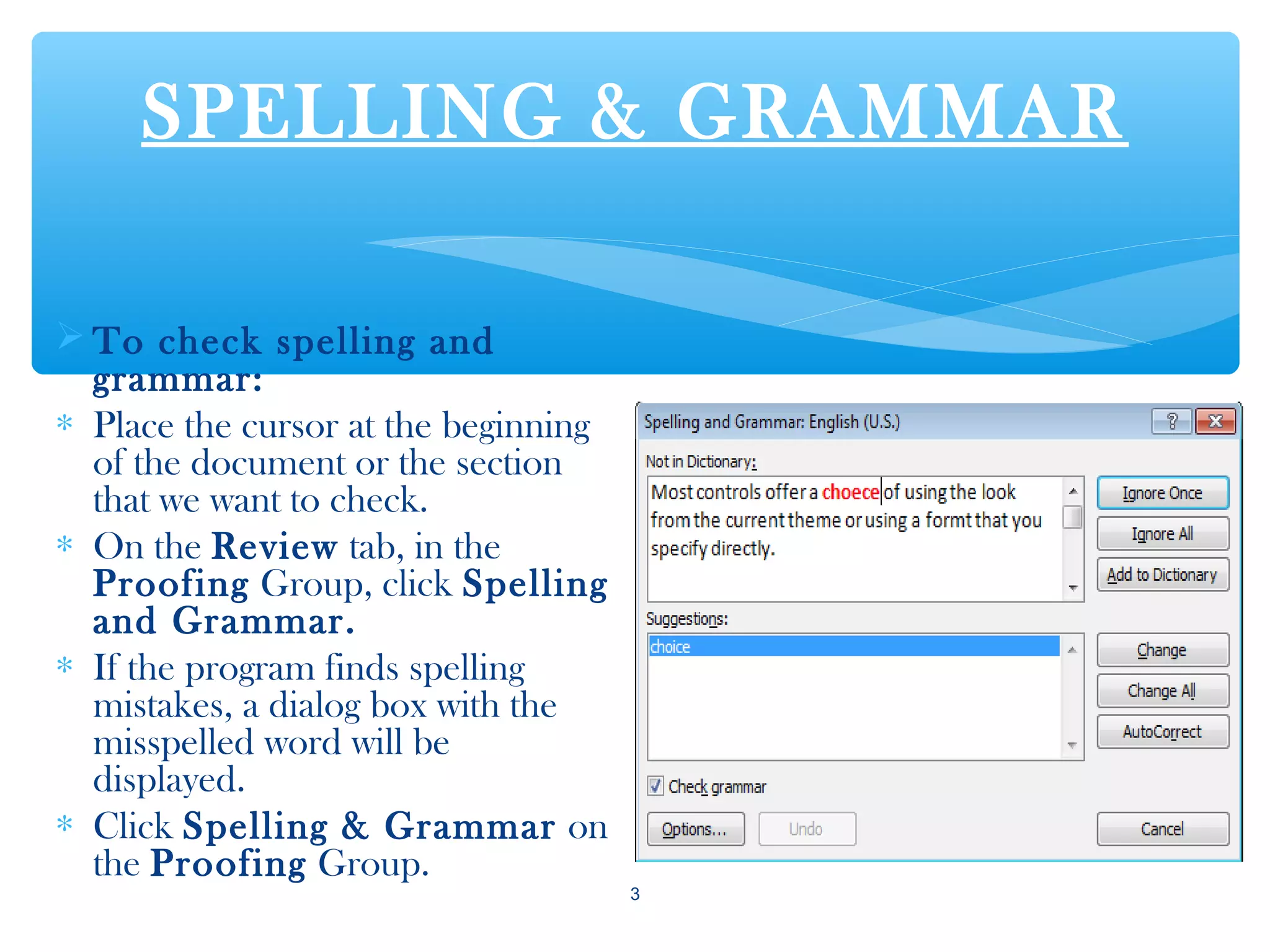
 To check spelling and
grammar:
∗ Place the cursor at the beginning
of the document or the section
that we want to check.
∗ On the Review tab, in the
Proofing Group, click Spelling
and Grammar.
∗ If the program finds spelling
mistakes, a dialog box with the
misspelled word will be
displayed.
∗ Click Spelling & Grammar on
the Proofing Group.
3
RESEARCH
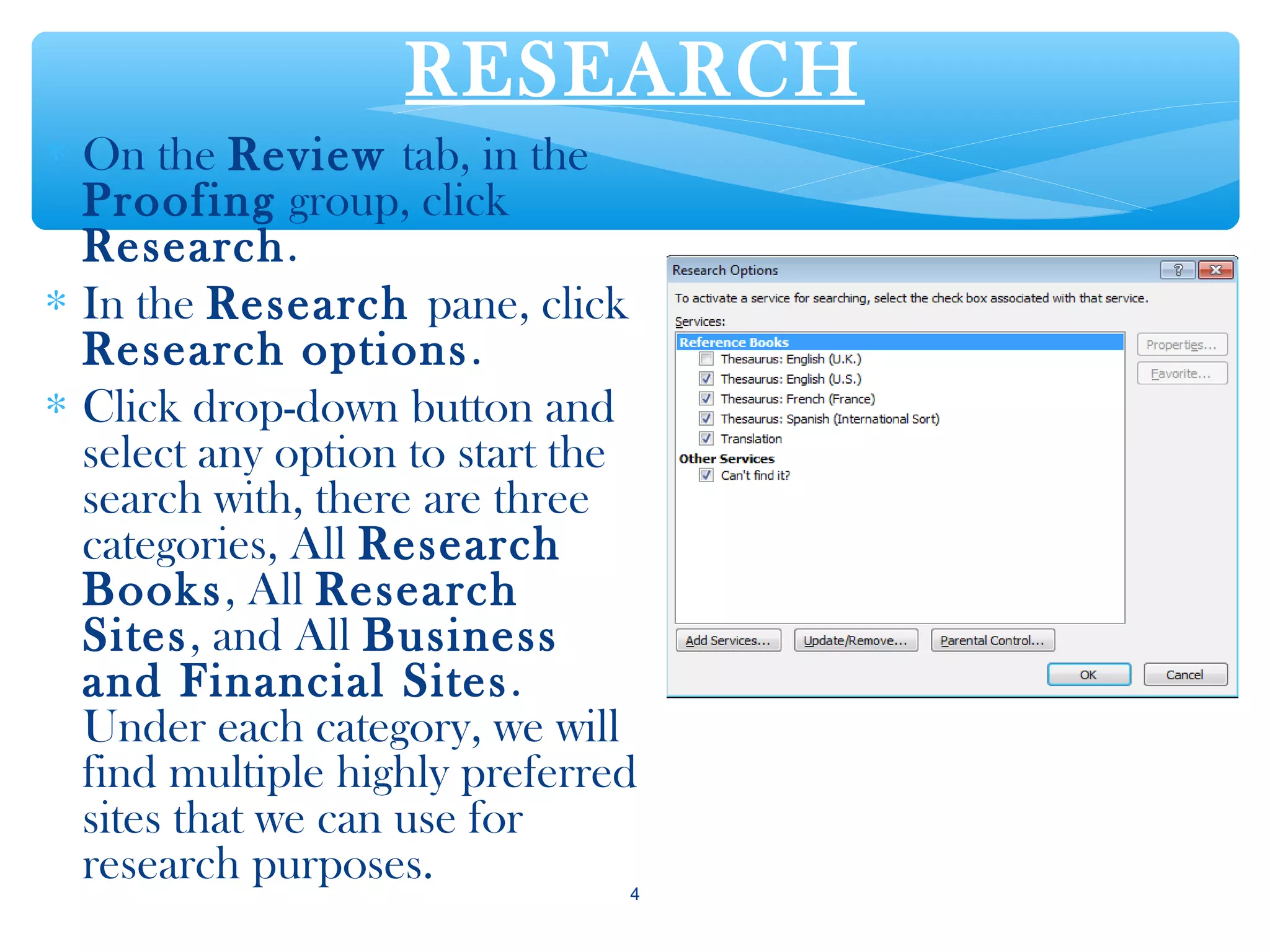
∗ On the Review tab, in the
Proofing group, click
Research.
∗ In the Research pane, click
Research options.
∗ Click drop-down button and
select any option to start the
search with, there are three
categories, All Research
Books, All Research
Sites, and All Business
and Financial Sites.
Under each category, we will
find multiple highly preferred
sites that we can use for
research purposes. 4
THESAURUS
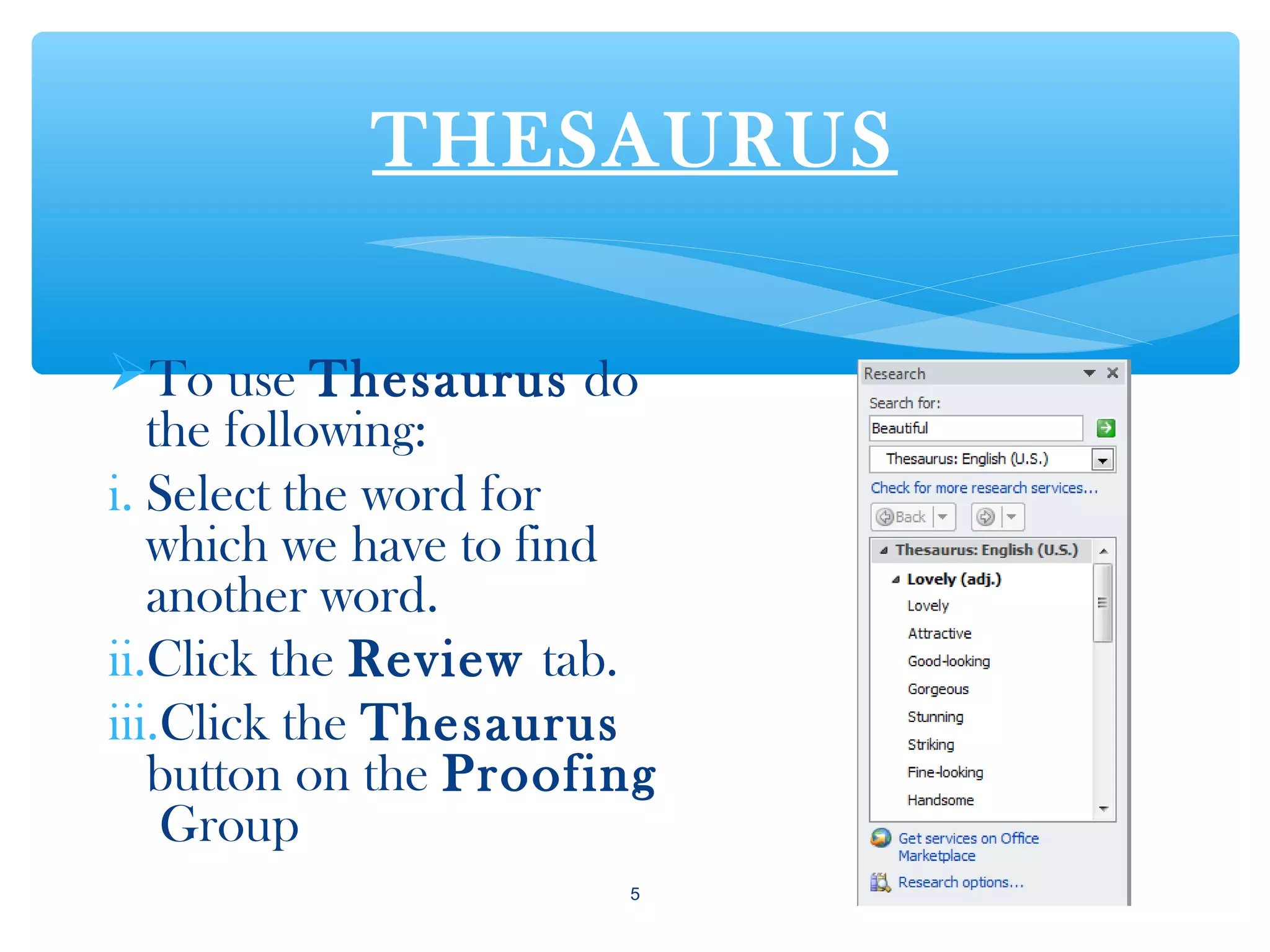
To use Thesaurus do
the following:
i. Select the word for
which we have to find
another word.
ii.Click the Review tab.
iii.Click the Thesaurus
button on the Proofing
Group
5
WORD COUNT
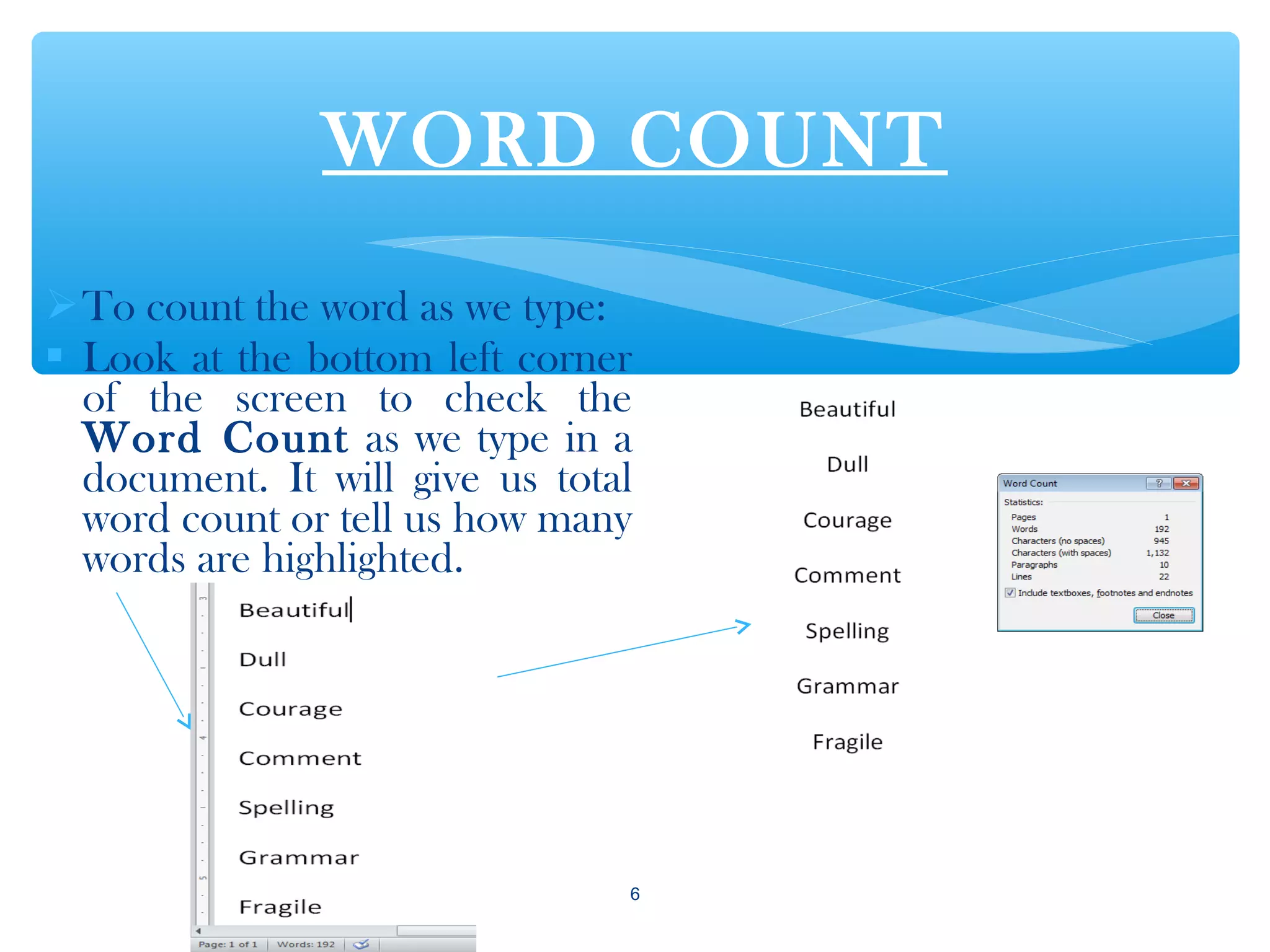
To count the word as we type:
 Look at the bottom left corner
of the screen to check the
Word Count as we type in a
document. It will give us total
word count or tell us how many
words are highlighted.
6
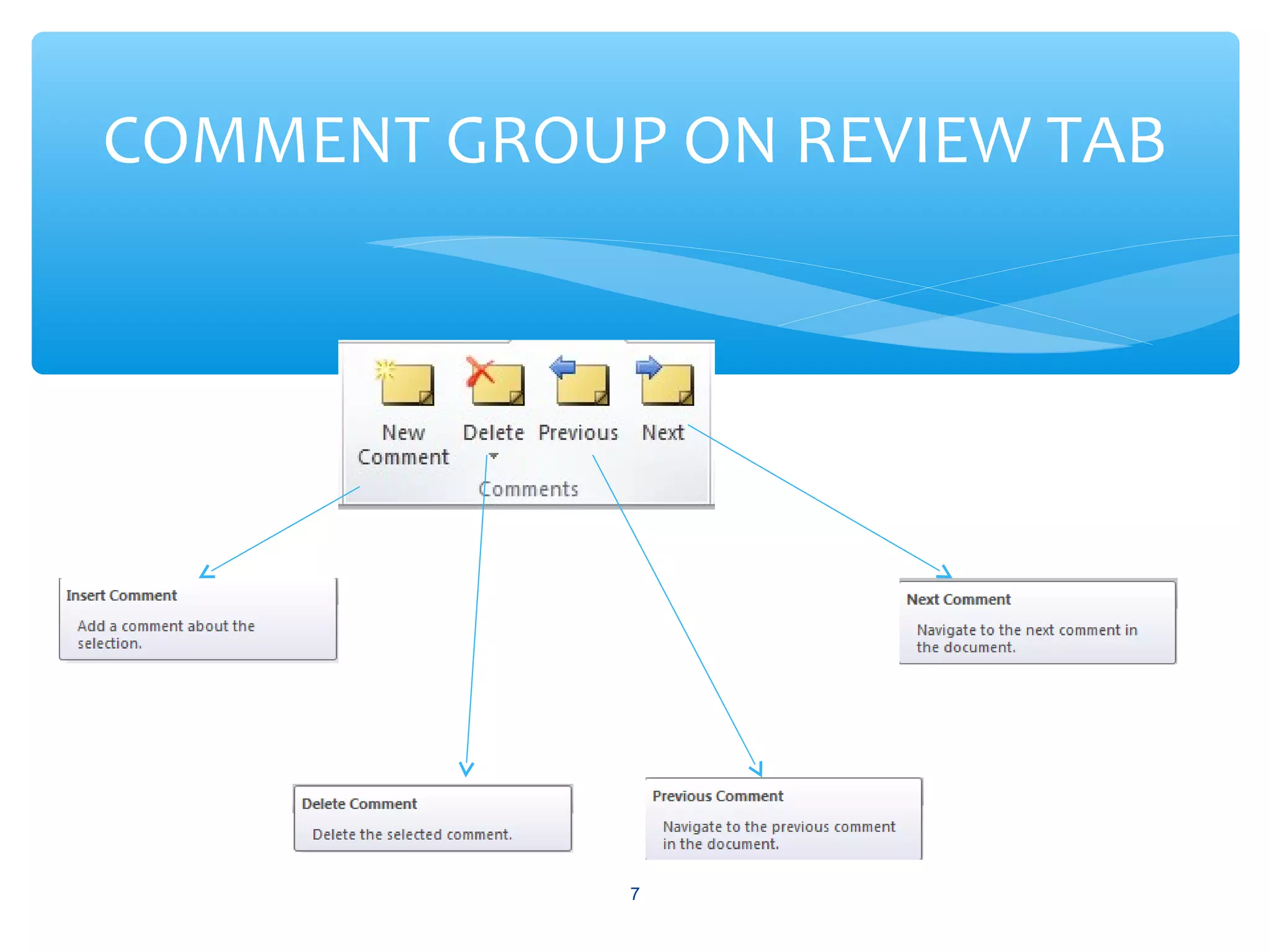
COMMENT GROUP ON REVIEW TAB
7
INSERT A COMMENT
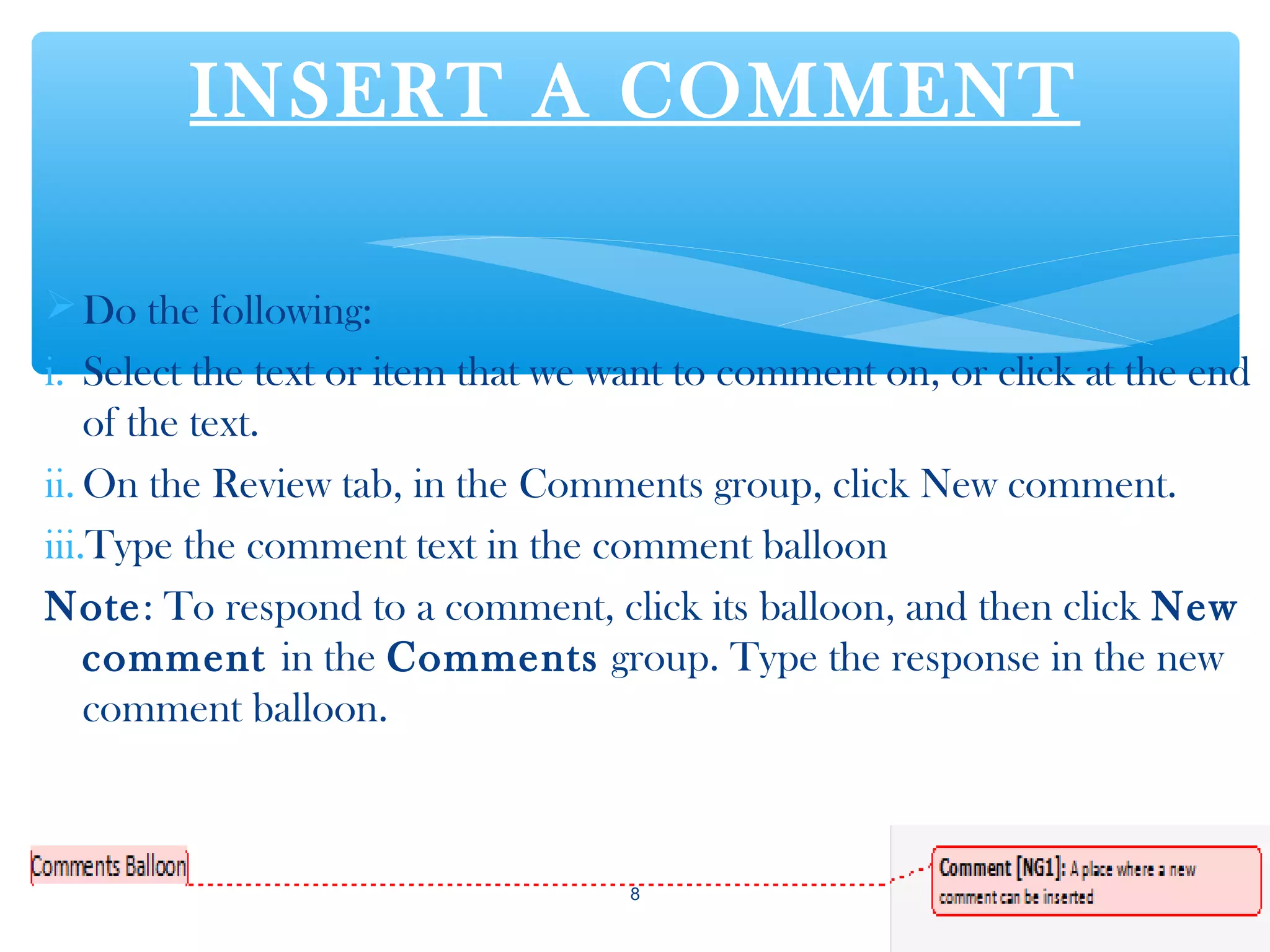
Do the following:
i. Select the text or item that we want to comment on, or click at the end
of the text.
ii. On the Review tab, in the Comments group, click New comment.
iii.Type the comment text in the comment balloon
Note: To respond to a comment, click its balloon, and then click New
comment in the Comments group. Type the response in the new
comment balloon.
8
DELETE
COMMENT(S)
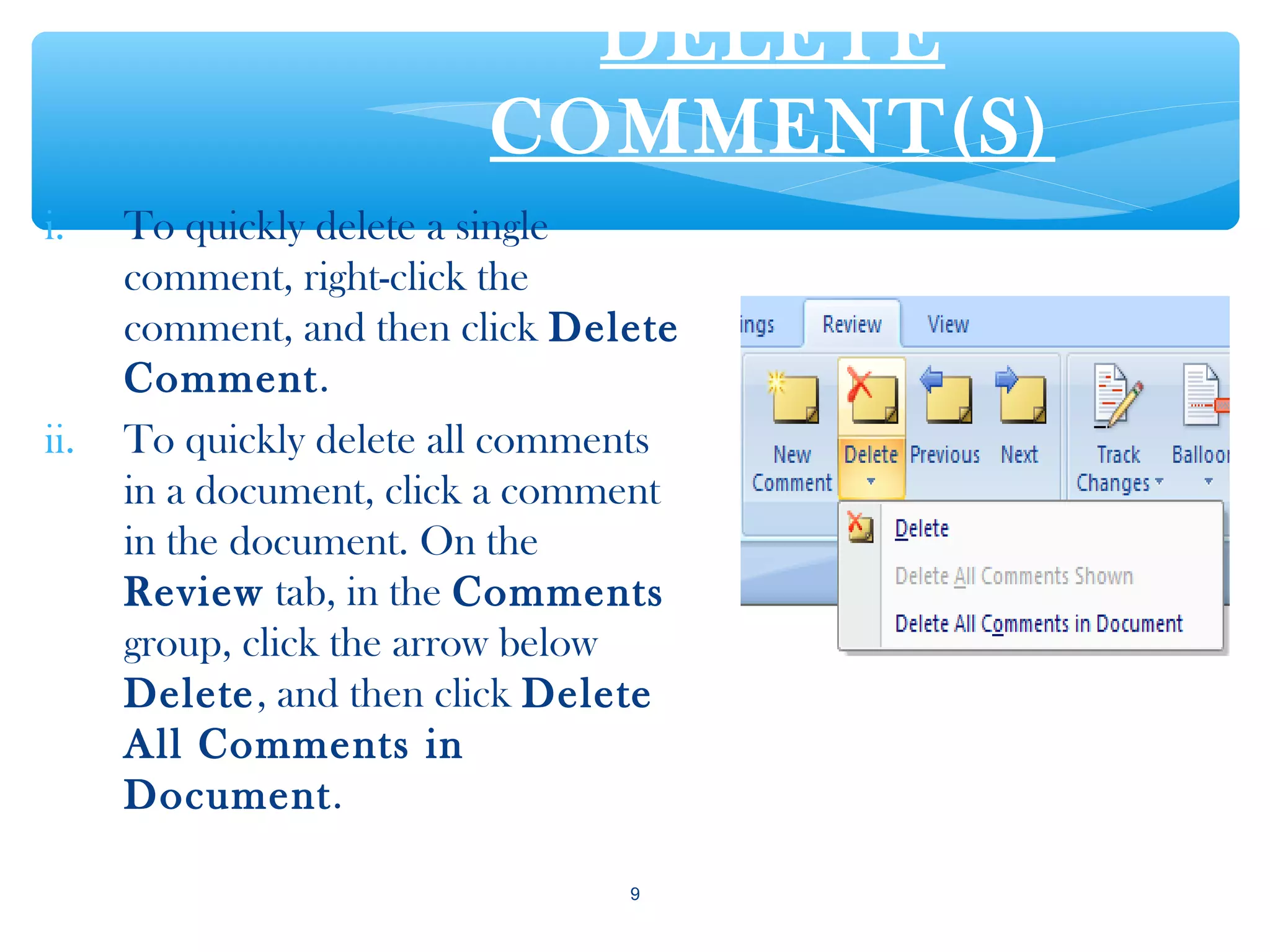
i. To quickly delete a single
comment, right-click the
comment, and then click Delete
Comment.
ii. To quickly delete all comments
in a document, click a comment
in the document. On the
Review tab, in the Comments
group, click the arrow below
Delete, and then click Delete
All Comments in
Document.
9
THANK YOU
10

REVIEW TAB : Proofing group and Comments group

  • 1.
  • 2.
    PROOFING GROUP INREVIEW TAB 2
  • 3.
    SPELLING & GRAMMAR To check spelling and grammar: ∗ Place the cursor at the beginning of the document or the section that we want to check. ∗ On the Review tab, in the Proofing Group, click Spelling and Grammar. ∗ If the program finds spelling mistakes, a dialog box with the misspelled word will be displayed. ∗ Click Spelling & Grammar on the Proofing Group. 3
  • 4.
    RESEARCH ∗ On theReview tab, in the Proofing group, click Research. ∗ In the Research pane, click Research options. ∗ Click drop-down button and select any option to start the search with, there are three categories, All Research Books, All Research Sites, and All Business and Financial Sites. Under each category, we will find multiple highly preferred sites that we can use for research purposes. 4
  • 5.
    THESAURUS To use Thesaurusdo the following: i. Select the word for which we have to find another word. ii.Click the Review tab. iii.Click the Thesaurus button on the Proofing Group 5
  • 6.
    WORD COUNT To countthe word as we type:  Look at the bottom left corner of the screen to check the Word Count as we type in a document. It will give us total word count or tell us how many words are highlighted. 6
  • 7.
    COMMENT GROUP ONREVIEW TAB 7
  • 8.
    INSERT A COMMENT Dothe following: i. Select the text or item that we want to comment on, or click at the end of the text. ii. On the Review tab, in the Comments group, click New comment. iii.Type the comment text in the comment balloon Note: To respond to a comment, click its balloon, and then click New comment in the Comments group. Type the response in the new comment balloon. 8
  • 9.
    DELETE COMMENT(S) i. To quicklydelete a single comment, right-click the comment, and then click Delete Comment. ii. To quickly delete all comments in a document, click a comment in the document. On the Review tab, in the Comments group, click the arrow below Delete, and then click Delete All Comments in Document. 9
  • 10.