RaspberryPi 101
Indonesia Creative Open Source Software
Balai Kartini - Jakarta
Who We Are ?
PeenTar Team
● Gladhi Guarddin (adin@ui.ac.id)
● Abi Rheza (abi.rheza@ui.ac.id)
● Jan Peter Alexander (jp@ui.ac.id)
● Tonny Adhi S (tonny.adhi@ui.ac.id)
● Ramot Stephanus (ramot.stephanus@gmail.
com)
● Zulfikar Ian (ian.djakman@gmail.com)
● Maulidan Yulianto
(maulidan.ksl@gmail.com)
Join Us
www.peentar.org
What We Will Learn Today ?
● One Device Endless Possibilities
● Raspberry Pi Quick Start Guide
● Raspbian Initial Setup
● Building File / Media Server With
Raspberry Pi
● Building Web Server With Raspberry Pi
● Use Your Media Server : Raspbmc
● Controlling Your Media Server
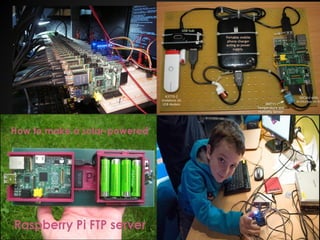
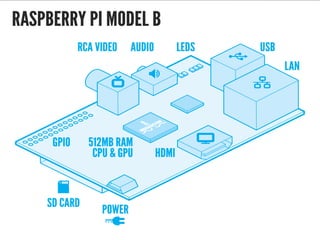
One Device Endless Possibilities
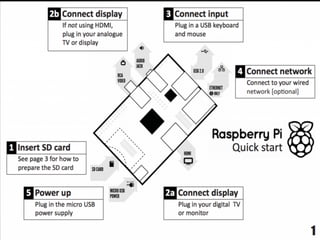
A Quick Start Guide
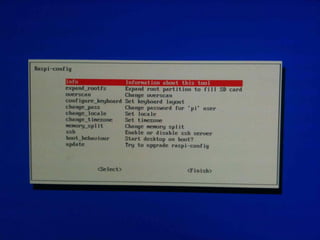
Raspbian Initial Setup
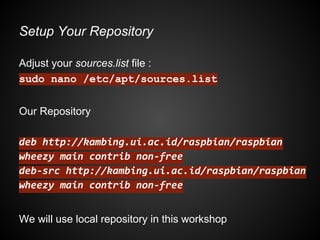
Setup Your Repository
Adjust your sources.list file :
sudo nano /etc/apt/sources.list
Our Repository
deb http://kambing.ui.ac.id/raspbian/raspbian
wheezy main contrib non-free
deb-src http://kambing.ui.ac.id/raspbian/raspbian
wheezy main contrib non-free
We will use local repository in this workshop
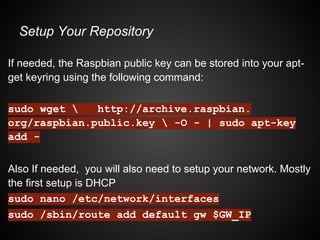
Setup Your Repository
If needed, the Raspbian public key can be stored into your apt-
get keyring using the following command:
sudo wget  http://archive.raspbian.
org/raspbian.public.key  -O - | sudo apt-key
add -
Also If needed, you will also need to setup your network. Mostly
the first setup is DHCP
sudo nano /etc/network/interfaces
sudo /sbin/route add default gw $GW_IP
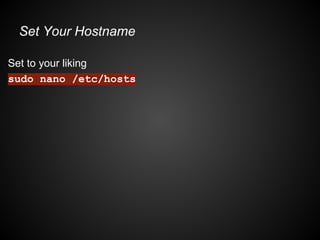
Set Your Hostname
Set to your liking
sudo nano /etc/hosts
Building File Server With Raspberry Pi
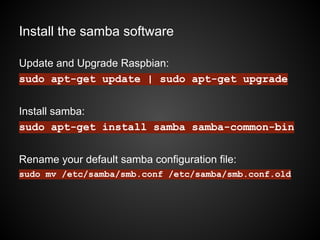
Install the samba software
Update and Upgrade Raspbian:
sudo apt-get update | sudo apt-get upgrade
Install samba:
sudo apt-get install samba samba-common-bin
Rename your default samba configuration file:
sudo mv /etc/samba/smb.conf /etc/samba/smb.conf.old
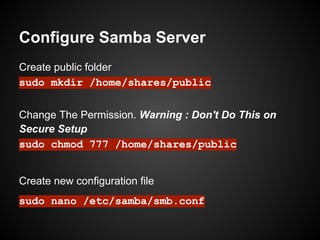
Configure Samba Server
Create public folder
sudo mkdir /home/shares/public
Change The Permission. Warning : Don't Do This on
Secure Setup
sudo chmod 777 /home/shares/public
Create new configuration file
sudo nano /etc/samba/smb.conf
Configure Samba Server
[global]
create mode = 664
workgroup = RASPBERRYPI
security = SHARE
usershare allow guest = yes
Configure Samba Server
[public]
comment = shared
path = /home/shares/public
guest ok = yes
read only = no
public = yes
writeable = yes
Configure Samba Server
Restart samba to use the new configuration file.
sudo /etc/init.d/samba restart
Done. Let's test it using our Media Center
Adding USB Storage
Check device drive:
dmesg | tail
You should see some lines like this:
usb 2-6: New USB device found, idVendor=0718, idProduct=0077
scsi 30:0:0:0: Direct-Access Imation USB Flash Drive 0.00 PQ: 0 ANSI: 2
sd 30:0:0:0: [sdb] 7897088 512-byte hardware sectors (4043 MB)
See the [sdb] above, that means this device appeared as /dev/sdb.
Mounting Disk:
sudo mkdir /home/shares/public/disk1
sudo mount /dev/sdxx /home/shares/public/disk1
Where sdxx is where your drive is in the file system's device hierarchy. i.e.
/dev/sdb or /dev/sda1
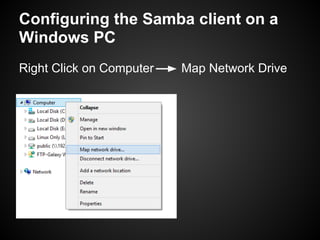
Configuring the Samba client on a
Windows PC
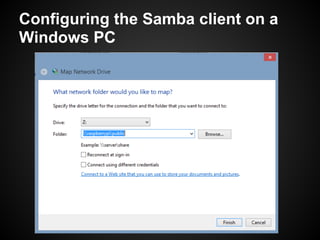
Right Click on Computer Map Network Drive
Configuring the Samba client on a
Windows PC
Configuring the Samba client on a
Linux PC
Open a file manager (e.g. nautilus, thunar) and enter
smb://raspberrypi/
Or :
smb://$SMB_HOST_IP/
Or :
Just Scan Your Network With Your Media Center
Building Web Server With RPi
Update and Upgrade Raspbian:
sudo apt-get update | sudo apt-get upgrade
Apache2 :
aptitude install apache2
MySQL:
aptitude install mysql-server mysql-client
-- You will be asked to provide a password for the MySQL root user:
Installing Apache2, MySql
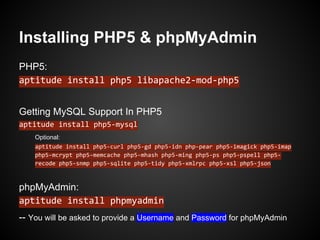
PHP5:
aptitude install php5 libapache2-mod-php5
Getting MySQL Support In PHP5
aptitude install php5-mysql
Optional:
aptitude install php5-curl php5-gd php5-idn php-pear php5-imagick php5-imap
php5-mcrypt php5-memcache php5-mhash php5-ming php5-ps php5-pspell php5-
recode php5-snmp php5-sqlite php5-tidy php5-xmlrpc php5-xsl php5-json
phpMyAdmin:
aptitude install phpmyadmin
-- You will be asked to provide a Username and Password for phpMyAdmin
Installing PHP5 & phpMyAdmin
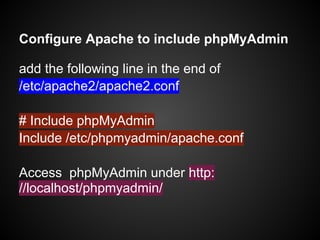
Configure Apache to include phpMyAdmin
add the following line in the end of
/etc/apache2/apache2.conf
# Include phpMyAdmin
Include /etc/phpmyadmin/apache.conf
Access phpMyAdmin under http:
//localhost/phpmyadmin/
Let's Deploy It
Raspberry Pi Media Center
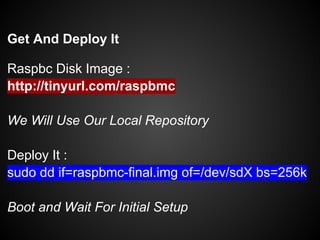
Get And Deploy It
Raspbc Disk Image :
http://tinyurl.com/raspbmc
We Will Use Our Local Repository
Deploy It :
sudo dd if=raspbmc-final.img of=/dev/sdX bs=256k
Boot and Wait For Initial Setup
Control Your Media Center
XBMC Remote
References
http://elinux.org/RPi_Hub
http://www.raspberrypi.org/
http://www.raspberrypi-spy.co.uk/
And Don't Forget To Join Our Project Page At
http://peentar.org

Raspberry Pi 101

  • 1.
    RaspberryPi 101 Indonesia CreativeOpen Source Software Balai Kartini - Jakarta
  • 2.
    Who We Are? PeenTar Team ● Gladhi Guarddin (adin@ui.ac.id) ● Abi Rheza (abi.rheza@ui.ac.id) ● Jan Peter Alexander (jp@ui.ac.id) ● Tonny Adhi S (tonny.adhi@ui.ac.id) ● Ramot Stephanus (ramot.stephanus@gmail. com) ● Zulfikar Ian (ian.djakman@gmail.com) ● Maulidan Yulianto (maulidan.ksl@gmail.com)
  • 3.
  • 4.
    What We WillLearn Today ? ● One Device Endless Possibilities ● Raspberry Pi Quick Start Guide ● Raspbian Initial Setup ● Building File / Media Server With Raspberry Pi ● Building Web Server With Raspberry Pi ● Use Your Media Server : Raspbmc ● Controlling Your Media Server
  • 5.
    One Device EndlessPossibilities
  • 7.
  • 10.
  • 12.
    Setup Your Repository Adjustyour sources.list file : sudo nano /etc/apt/sources.list Our Repository deb http://kambing.ui.ac.id/raspbian/raspbian wheezy main contrib non-free deb-src http://kambing.ui.ac.id/raspbian/raspbian wheezy main contrib non-free We will use local repository in this workshop
  • 13.
    Setup Your Repository Ifneeded, the Raspbian public key can be stored into your apt- get keyring using the following command: sudo wget http://archive.raspbian. org/raspbian.public.key -O - | sudo apt-key add - Also If needed, you will also need to setup your network. Mostly the first setup is DHCP sudo nano /etc/network/interfaces sudo /sbin/route add default gw $GW_IP
  • 14.
    Set Your Hostname Setto your liking sudo nano /etc/hosts
  • 15.
    Building File ServerWith Raspberry Pi
  • 16.
    Install the sambasoftware Update and Upgrade Raspbian: sudo apt-get update | sudo apt-get upgrade Install samba: sudo apt-get install samba samba-common-bin Rename your default samba configuration file: sudo mv /etc/samba/smb.conf /etc/samba/smb.conf.old
  • 17.
    Configure Samba Server Createpublic folder sudo mkdir /home/shares/public Change The Permission. Warning : Don't Do This on Secure Setup sudo chmod 777 /home/shares/public Create new configuration file sudo nano /etc/samba/smb.conf
  • 18.
    Configure Samba Server [global] createmode = 664 workgroup = RASPBERRYPI security = SHARE usershare allow guest = yes
  • 19.
    Configure Samba Server [public] comment= shared path = /home/shares/public guest ok = yes read only = no public = yes writeable = yes
  • 20.
    Configure Samba Server Restartsamba to use the new configuration file. sudo /etc/init.d/samba restart Done. Let's test it using our Media Center
  • 21.
    Adding USB Storage Checkdevice drive: dmesg | tail You should see some lines like this: usb 2-6: New USB device found, idVendor=0718, idProduct=0077 scsi 30:0:0:0: Direct-Access Imation USB Flash Drive 0.00 PQ: 0 ANSI: 2 sd 30:0:0:0: [sdb] 7897088 512-byte hardware sectors (4043 MB) See the [sdb] above, that means this device appeared as /dev/sdb. Mounting Disk: sudo mkdir /home/shares/public/disk1 sudo mount /dev/sdxx /home/shares/public/disk1 Where sdxx is where your drive is in the file system's device hierarchy. i.e. /dev/sdb or /dev/sda1
  • 22.
    Configuring the Sambaclient on a Windows PC Right Click on Computer Map Network Drive
  • 23.
    Configuring the Sambaclient on a Windows PC
  • 24.
    Configuring the Sambaclient on a Linux PC Open a file manager (e.g. nautilus, thunar) and enter smb://raspberrypi/ Or : smb://$SMB_HOST_IP/ Or : Just Scan Your Network With Your Media Center
  • 25.
  • 26.
    Update and UpgradeRaspbian: sudo apt-get update | sudo apt-get upgrade Apache2 : aptitude install apache2 MySQL: aptitude install mysql-server mysql-client -- You will be asked to provide a password for the MySQL root user: Installing Apache2, MySql
  • 27.
    PHP5: aptitude install php5libapache2-mod-php5 Getting MySQL Support In PHP5 aptitude install php5-mysql Optional: aptitude install php5-curl php5-gd php5-idn php-pear php5-imagick php5-imap php5-mcrypt php5-memcache php5-mhash php5-ming php5-ps php5-pspell php5- recode php5-snmp php5-sqlite php5-tidy php5-xmlrpc php5-xsl php5-json phpMyAdmin: aptitude install phpmyadmin -- You will be asked to provide a Username and Password for phpMyAdmin Installing PHP5 & phpMyAdmin
  • 28.
    Configure Apache toinclude phpMyAdmin add the following line in the end of /etc/apache2/apache2.conf # Include phpMyAdmin Include /etc/phpmyadmin/apache.conf Access phpMyAdmin under http: //localhost/phpmyadmin/
  • 29.
  • 30.
    Get And DeployIt Raspbc Disk Image : http://tinyurl.com/raspbmc We Will Use Our Local Repository Deploy It : sudo dd if=raspbmc-final.img of=/dev/sdX bs=256k Boot and Wait For Initial Setup
  • 31.
    Control Your MediaCenter XBMC Remote
  • 32.