Using Life Preserver
to Backup a PC-BSD 9.0 System to FreeNAS™ 8.0.1
This article demonstrates how to use the built-in Life Preserver
program to backup a PC-BSD 9.0 desktop system to a FreeNAS™ 8.0.1
NAS system. Users can refer to the Guides at http://wiki.pcbsd.org/
index.php/PC-BSD_9_Handbook and http://doc.freenas.org for
instructions on how to install PC-BSD and FreeNAS™.


What you will learn…                                         What you should know…
• how to create an automated backup solution                 • how to install PC-BSD and FreeNAS™


P
       C-BSD provides a graphical Life Preserver utility     data is protected while being transferred over the network
       to make it easy for a desktop user to back up their   due to the encryption provided by SSH.
       home directory to another computer or storage
appliance using rsync and SSH. Once a full backup has        Configure FreeNAS™
been created, rsync will only send the files that have       In order to prepare the FreeNAS™ system to store the
changed since the last backup to the backup device. The      backups created by Life Preserver, you will need to:
                                                             create a dataset to store the user’s backup, create a user
                                                             account that has permission to access that dataset, and
                                                             enable the SSH and rsync services.


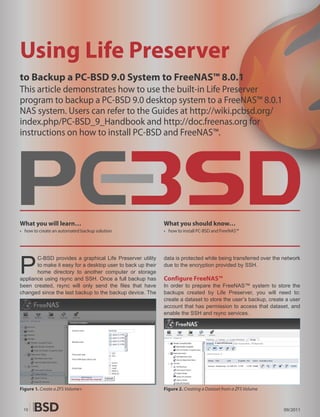
Figure 1. Create a ZFS Volume+                               Figure 2. Creating a Dataset from a ZFS Volume


 10                                                                                                             09/2011
PC-BSD’s New Control Panel


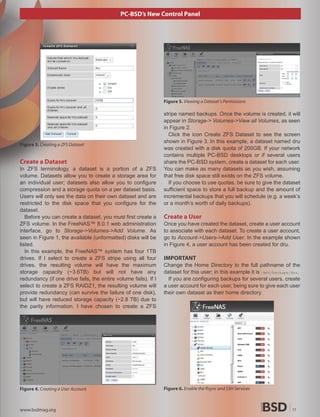
                                                                 Figure 5. Viewing a Dataset’s Permissions

                                                                 stripe named backups. Once the volume is created, it will
                                                                 appear in Storage-> Volumes->View all Volumes, as seen
                                                                 in Figure 2.
                                                                   Click the icon Create ZFS Dataset to see the screen
                                                                 shown in Figure 3. In this example, a dataset named dru
Figure 3. Creating a ZFS Dataset
                                                                 was created with a disk quota of 200GB. If your network
                                                                 contains multiple PC-BSD desktops or if several users
Create a Dataset                                                 share the PC-BSD system, create a dataset for each user.
In ZFS terminology, a dataset is a portion of a ZFS              You can make as many datasets as you wish, assuming
volume. Datasets allow you to create a storage area for          that free disk space still exists on the ZFS volume.
an individual user; datasets also allow you to configure           If you choose to use quotas, be sure to give the dataset
compression and a storage quota on a per dataset basis.          sufficient space to store a full backup and the amount of
Users will only see the data on their own dataset and are        incremental backups that you will schedule (e.g. a week’s
restricted to the disk space that you configure for the          or a month’s worth of daily backups).
dataset.
   Before you can create a dataset, you must first create a      Create a User
ZFS volume. In the FreeNAS™ 8.0.1 web administration             Once you have created the dataset, create a user account
interface, go to Storage->Volumes->Add Volume. As                to associate with each dataset. To create a user account,
seen in Figure 1, the available (unformatted) disks will be      go to Account->Users->Add User. In the example shown
listed.                                                          in Figure 4, a user account has been created for dru.
   In this example, the FreeNAS™ system has four 1TB
drives. If I select to create a ZFS stripe using all four        IMPORTANT
drives, the resulting volume will have the maximum               Change the Home Directory to the full pathname of the
storage capacity (~3.6TB) but will not have any                  dataset for this user; in this example it is /mnt/backups/dru.
redundancy (if one drive fails, the entire volume fails). If I     If you are configuring backups for several users, create
select to create a ZFS RAIDZ1, the resulting volume will         a user account for each user, being sure to give each user
provide redundancy (can survive the failure of one disk),        their own dataset as their home directory.
but will have reduced storage capacity (~2.8 TB) due to
the parity information. I have chosen to create a ZFS


Figure 4. Creating a User Account                                Figure 6. Enable the Rsync and SSH Services


www.bsdmag.org                                                                                                             11
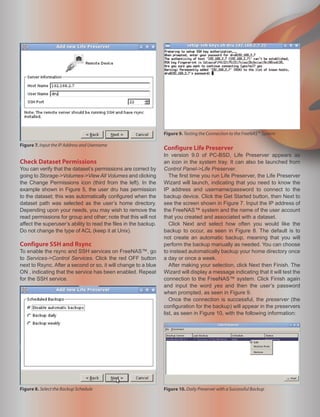
Figure 9. Testing the Connection to the FreeNAS™ System

Figure 7. Input the IP Address and Username
                                                                  Configure Life Preserver
                                                                  In version 9.0 of PC-BSD, Life Preserver appears as
Check Dataset Permissions                                         an icon in the system tray. It can also be launched from
You can verify that the dataset’s permissions are correct by      Control Panel->Life Preserver.
going to Storage->Volumes->View All Volumes and clicking             The first time you run Life Preserver, the Life Preserver
the Change Permissions icon (third from the left). In the         Wizard will launch, indicating that you need to know the
example shown in Figure 5, the user dru has permission            IP address and username/password to connect to the
to the dataset; this was automatically configured when the        backup device. Click the Get Started button, then Next to
dataset path was selected as the user’s home directory.           see the screen shown in Figure 7. Input the IP address of
Depending upon your needs, you may wish to remove the             the FreeNAS™ system and the name of the user account
read permissions for group and other; note that this will not     that you created and associated with a dataset.
affect the superuser’s ability to read the files in the backup.      Click Next and select how often you would like the
Do not change the type of ACL (keep it at Unix).                  backup to occur, as seen in Figure 8. The default is to
                                                                  not create an automatic backup, meaning that you will
Configure SSH and Rsync                                           perform the backup manually as needed. You can choose
To enable the rsync and SSH services on FreeNAS™, go              to instead automatically backup your home directory once
to Services->Control Services. Click the red OFF button           a day or once a week.
next to Rsync. After a second or so, it will change to a blue        After making your selection, click Next then Finish. The
ON , indicating that the service has been enabled. Repeat         Wizard will display a message indicating that it will test the
for the SSH service.                                              connection to the FreeNAS™ system. Click Finish again
                                                                  and input the word yes and then the user’s password
                                                                  when prompted, as seen in Figure 9.
                                                                     Once the connection is successful, the preserver (the
                                                                  configuration for the backup) will appear in the preservers
                                                                  list, as seen in Figure 10, with the following information:


Figure 8. Select the Backup Schedule                              Figure 10. Daily Preserver with a Successful Backup


 12                                                                                                                         09/2011
Figure 11. Editing a Preserver’s Settings and Include List


Backup Server
Will indicate the user account and IP address of the
backup server.

Last Backup
Wil indicate whether or not the last backup was successful.
If you chose to automate backups, the first backup will
happen immediately. Otherwise, a backup will not occur
until you press the Start button. How long the first backup
takes depends upon the size of your home directory and
the speed of your network.

Schedule
Will indicate disabled, daily, or weekly.

Status
Running indicates that the backup is occurring now,
otherwise will show as not running.
  If you right-click the preserver, you can choose to
edit the settings, restore from a backup, or remove the
configuration.


Figure 12. List of Backups


www.bsdmag.org
Using a Graphical File Manager to View
                                                              Backups
                                                              Since Life Preserver uses SSH to transfer the backups
                                                              and restores, users can use SSH utilities such as ssh,
                                                              scp, and sftp to view and copy the files in their dataset.
                                                              If you prefer to use a graphical rather than a command-
                                                              line utility, there are several options available. Depending
                                                              upon which desktop you are logged into, you may or
                                                              may not have a graphical utility that understands SSH. If
                                                              you’re not sure, Krusader2 is available from AppCafe™
                                                              and provides a dual-pane file manager interface that
                                                              understands sftp.
                                                                 To access the FreeNAS™ system using Krusader,
                                                              type sftp:/102.168.2.7 into the address bar of one of the
                                                              panes, replacing the IP address with the value for your
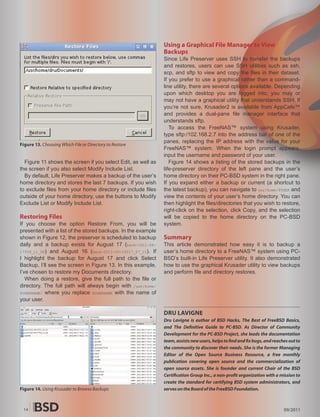
Figure 13. Choosing Which File or Directory to Restore
                                                              FreeNAS™ system. When the login prompt appears,
                                                              input the username and password of your user.
  Figure 11 shows the screen if you select Edit, as well as      Figure 14 shows a listing of the stored backups in the
the screen if you also select Modify Include List.            life-preserver directory of the left pane and the user’s
  By default, Life Preserver makes a backup of the user’s     home directory on their PC-BSD system in the right pane.
home directory and stores the last 7 backups. If you wish     If you expand either a backup or current (a shortcut to
to exclude files from your home directory or include files    the latest backup), you can navigate to usr/home/$USER and
outside of your home directory, use the buttons to Modify     view the contents of your user’s home directory. You can
Exclude List or Modify Include List.                          then highlight the files/directories that you wish to restore,
                                                              right-click on the selection, click Copy, and the selection
Restoring Files                                               will be copied to the home directory on the PC-BSD
If you choose the option Restore From, you will be            system.
presented with a list of the stored backups. In the example
shown in Figure 12, the preserver is scheduled to backup      Summary
daily and a backup exists for August 17 (back-2011-08-        This article demonstrated how easy it is to backup a
17T09_11_08) and August 16 (back-2011-08-16T17_07_15). If     user’s home directory to a FreeNAS™ system using PC-
I highlight the backup for August 17 and click Select         BSD’s built-in Life Preserver utility. It also demonstrated
Backup, I’ll see the screen in Figure 13. In this example,    how to use the graphical Krusader utility to view backups
I’ve chosen to restore my Documents directory.                and perform file and directory restores.
   When doing a restore, give the full path to the file or
directory. The full path will always begin with /usr/home/
$USERNAME/ where you replace $USERNAME with the name of
your user.

                                                              DRU LAVIGNE
                                                              Dru Lavigne is author of BSD Hacks, The Best of FreeBSD Basics,
                                                              and The De�nitive Guide to PC-BSD. As Director of Community
                                                              Development for the PC-BSD Project, she leads the documentation
                                                              team, assists new users, helps to �nd and �x bugs, and reaches out to
                                                              the community to discover their needs. She is the former Managing
                                                              Editor of the Open Source Business Resource, a free monthly
                                                              publication covering open source and the commercialization of
                                                              open source assets. She is founder and current Chair of the BSD
                                                              Certi�cation Group Inc., a non-pro�t organization with a mission to
                                                              create the standard for certifying BSD system administrators, and
Figure 14. Using Krusader to Browse Backups                   serves on the Board of the FreeBSD Foundation.


 14                                                                                                                       09/2011
Lavigne sept11 bsdmag

Lavigne sept11 bsdmag

  • 1.
    Using Life Preserver toBackup a PC-BSD 9.0 System to FreeNAS™ 8.0.1 This article demonstrates how to use the built-in Life Preserver program to backup a PC-BSD 9.0 desktop system to a FreeNAS™ 8.0.1 NAS system. Users can refer to the Guides at http://wiki.pcbsd.org/ index.php/PC-BSD_9_Handbook and http://doc.freenas.org for instructions on how to install PC-BSD and FreeNAS™. What you will learn… What you should know… • how to create an automated backup solution • how to install PC-BSD and FreeNAS™ P C-BSD provides a graphical Life Preserver utility data is protected while being transferred over the network to make it easy for a desktop user to back up their due to the encryption provided by SSH. home directory to another computer or storage appliance using rsync and SSH. Once a full backup has Configure FreeNAS™ been created, rsync will only send the files that have In order to prepare the FreeNAS™ system to store the changed since the last backup to the backup device. The backups created by Life Preserver, you will need to: create a dataset to store the user’s backup, create a user account that has permission to access that dataset, and enable the SSH and rsync services. Figure 1. Create a ZFS Volume+ Figure 2. Creating a Dataset from a ZFS Volume 10 09/2011
  • 2.
    PC-BSD’s New ControlPanel Figure 5. Viewing a Dataset’s Permissions stripe named backups. Once the volume is created, it will appear in Storage-> Volumes->View all Volumes, as seen in Figure 2. Click the icon Create ZFS Dataset to see the screen shown in Figure 3. In this example, a dataset named dru Figure 3. Creating a ZFS Dataset was created with a disk quota of 200GB. If your network contains multiple PC-BSD desktops or if several users Create a Dataset share the PC-BSD system, create a dataset for each user. In ZFS terminology, a dataset is a portion of a ZFS You can make as many datasets as you wish, assuming volume. Datasets allow you to create a storage area for that free disk space still exists on the ZFS volume. an individual user; datasets also allow you to configure If you choose to use quotas, be sure to give the dataset compression and a storage quota on a per dataset basis. sufficient space to store a full backup and the amount of Users will only see the data on their own dataset and are incremental backups that you will schedule (e.g. a week’s restricted to the disk space that you configure for the or a month’s worth of daily backups). dataset. Before you can create a dataset, you must first create a Create a User ZFS volume. In the FreeNAS™ 8.0.1 web administration Once you have created the dataset, create a user account interface, go to Storage->Volumes->Add Volume. As to associate with each dataset. To create a user account, seen in Figure 1, the available (unformatted) disks will be go to Account->Users->Add User. In the example shown listed. in Figure 4, a user account has been created for dru. In this example, the FreeNAS™ system has four 1TB drives. If I select to create a ZFS stripe using all four IMPORTANT drives, the resulting volume will have the maximum Change the Home Directory to the full pathname of the storage capacity (~3.6TB) but will not have any dataset for this user; in this example it is /mnt/backups/dru. redundancy (if one drive fails, the entire volume fails). If I If you are configuring backups for several users, create select to create a ZFS RAIDZ1, the resulting volume will a user account for each user, being sure to give each user provide redundancy (can survive the failure of one disk), their own dataset as their home directory. but will have reduced storage capacity (~2.8 TB) due to the parity information. I have chosen to create a ZFS Figure 4. Creating a User Account Figure 6. Enable the Rsync and SSH Services www.bsdmag.org 11
  • 3.
    Figure 9. Testingthe Connection to the FreeNAS™ System Figure 7. Input the IP Address and Username Configure Life Preserver In version 9.0 of PC-BSD, Life Preserver appears as Check Dataset Permissions an icon in the system tray. It can also be launched from You can verify that the dataset’s permissions are correct by Control Panel->Life Preserver. going to Storage->Volumes->View All Volumes and clicking The first time you run Life Preserver, the Life Preserver the Change Permissions icon (third from the left). In the Wizard will launch, indicating that you need to know the example shown in Figure 5, the user dru has permission IP address and username/password to connect to the to the dataset; this was automatically configured when the backup device. Click the Get Started button, then Next to dataset path was selected as the user’s home directory. see the screen shown in Figure 7. Input the IP address of Depending upon your needs, you may wish to remove the the FreeNAS™ system and the name of the user account read permissions for group and other; note that this will not that you created and associated with a dataset. affect the superuser’s ability to read the files in the backup. Click Next and select how often you would like the Do not change the type of ACL (keep it at Unix). backup to occur, as seen in Figure 8. The default is to not create an automatic backup, meaning that you will Configure SSH and Rsync perform the backup manually as needed. You can choose To enable the rsync and SSH services on FreeNAS™, go to instead automatically backup your home directory once to Services->Control Services. Click the red OFF button a day or once a week. next to Rsync. After a second or so, it will change to a blue After making your selection, click Next then Finish. The ON , indicating that the service has been enabled. Repeat Wizard will display a message indicating that it will test the for the SSH service. connection to the FreeNAS™ system. Click Finish again and input the word yes and then the user’s password when prompted, as seen in Figure 9. Once the connection is successful, the preserver (the configuration for the backup) will appear in the preservers list, as seen in Figure 10, with the following information: Figure 8. Select the Backup Schedule Figure 10. Daily Preserver with a Successful Backup 12 09/2011
  • 4.
    Figure 11. Editinga Preserver’s Settings and Include List Backup Server Will indicate the user account and IP address of the backup server. Last Backup Wil indicate whether or not the last backup was successful. If you chose to automate backups, the first backup will happen immediately. Otherwise, a backup will not occur until you press the Start button. How long the first backup takes depends upon the size of your home directory and the speed of your network. Schedule Will indicate disabled, daily, or weekly. Status Running indicates that the backup is occurring now, otherwise will show as not running. If you right-click the preserver, you can choose to edit the settings, restore from a backup, or remove the configuration. Figure 12. List of Backups www.bsdmag.org
  • 5.
    Using a GraphicalFile Manager to View Backups Since Life Preserver uses SSH to transfer the backups and restores, users can use SSH utilities such as ssh, scp, and sftp to view and copy the files in their dataset. If you prefer to use a graphical rather than a command- line utility, there are several options available. Depending upon which desktop you are logged into, you may or may not have a graphical utility that understands SSH. If you’re not sure, Krusader2 is available from AppCafe™ and provides a dual-pane file manager interface that understands sftp. To access the FreeNAS™ system using Krusader, type sftp:/102.168.2.7 into the address bar of one of the panes, replacing the IP address with the value for your Figure 13. Choosing Which File or Directory to Restore FreeNAS™ system. When the login prompt appears, input the username and password of your user. Figure 11 shows the screen if you select Edit, as well as Figure 14 shows a listing of the stored backups in the the screen if you also select Modify Include List. life-preserver directory of the left pane and the user’s By default, Life Preserver makes a backup of the user’s home directory on their PC-BSD system in the right pane. home directory and stores the last 7 backups. If you wish If you expand either a backup or current (a shortcut to to exclude files from your home directory or include files the latest backup), you can navigate to usr/home/$USER and outside of your home directory, use the buttons to Modify view the contents of your user’s home directory. You can Exclude List or Modify Include List. then highlight the files/directories that you wish to restore, right-click on the selection, click Copy, and the selection Restoring Files will be copied to the home directory on the PC-BSD If you choose the option Restore From, you will be system. presented with a list of the stored backups. In the example shown in Figure 12, the preserver is scheduled to backup Summary daily and a backup exists for August 17 (back-2011-08- This article demonstrated how easy it is to backup a 17T09_11_08) and August 16 (back-2011-08-16T17_07_15). If user’s home directory to a FreeNAS™ system using PC- I highlight the backup for August 17 and click Select BSD’s built-in Life Preserver utility. It also demonstrated Backup, I’ll see the screen in Figure 13. In this example, how to use the graphical Krusader utility to view backups I’ve chosen to restore my Documents directory. and perform file and directory restores. When doing a restore, give the full path to the file or directory. The full path will always begin with /usr/home/ $USERNAME/ where you replace $USERNAME with the name of your user. DRU LAVIGNE Dru Lavigne is author of BSD Hacks, The Best of FreeBSD Basics, and The De�nitive Guide to PC-BSD. As Director of Community Development for the PC-BSD Project, she leads the documentation team, assists new users, helps to �nd and �x bugs, and reaches out to the community to discover their needs. She is the former Managing Editor of the Open Source Business Resource, a free monthly publication covering open source and the commercialization of open source assets. She is founder and current Chair of the BSD Certi�cation Group Inc., a non-pro�t organization with a mission to create the standard for certifying BSD system administrators, and Figure 14. Using Krusader to Browse Backups serves on the Board of the FreeBSD Foundation. 14 09/2011