






LINUX
WHAT IS LINUX? Linux is a free Unix-type operating system originally created by Linus Torvalds with the assistance of developers around the world. Linux was developed under the GNU General Public License. The source code for Linux is freely available to everyone,
HOW TO INSTALL LINUX? PREREQISITES :- A running Ubuntu 8.04 or any ubuntu version installation. A USB device (stick, pen-drive, USB hard disk) that has already been formatted with FAT32 and has enough free space to hold your Ubuntu installation image. A Ubuntu CD image downloaded from the Ubuntu servers or mirrors (*.iso file).
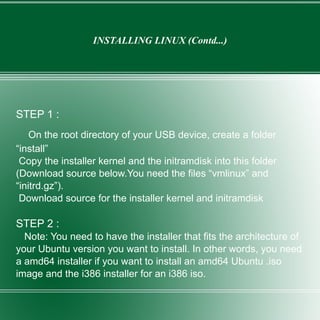
INSTALLING LINUX (Contd...) STEP 1 : On the root directory of your USB device, create a folder “install” Copy the installer kernel and the initramdisk into this folder (Download source below.You need the files “vmlinux” and “initrd.gz”). Download source for the installer kernel and initramdisk STEP 2 : Note: You need to have the installer that fits the architecture of your Ubuntu version you want to install. In other words, you need a amd64 installer if you want to install an amd64 Ubuntu .iso image and the i386 installer for an i386 iso.
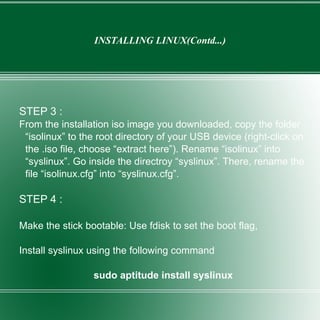
INSTALLING LINUX(Contd...) STEP 3 : From the installation iso image you downloaded, copy the folder “isolinux” to the root directory of your USB device (right-click on the .iso file, choose “extract here”). Rename “isolinux” into “syslinux”. Go inside the directroy “syslinux”. There, rename the file “isolinux.cfg” into “syslinux.cfg”. STEP 4 : Make the stick bootable: Use fdisk to set the boot flag, Install syslinux using the following command sudo aptitude install syslinux
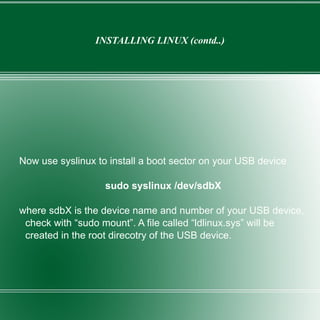
INSTALLING LINUX (contd..) Now use syslinux to install a boot sector on your USB device sudo syslinux /dev/sdbX where sdbX is the device name and number of your USB device, check with “sudo mount”. A file called “ldlinux.sys” will be created in the root direcotry of the USB device.
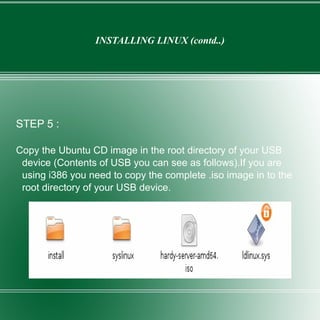
INSTALLING LINUX (contd..) STEP 5 : Copy the Ubuntu CD image in the root directory of your USB device (Contents of USB you can see as follows).If you are using i386 you need to copy the complete .iso image in to the root directory of your USB device.
LINUX COMMANDS COMMANDS :- Useradd – useradd creates a new user with specified options like username, home dir, group details, password, etc ... Example : # useradd usr1 -- Add new user usr1 with default settings. # useradd usr1 -d /home2/usr1 -- Create the new user's home dir in  /home2
LINUX COMMANDS Userdel  -  Delete a user account and related file. The userdel command modifies the system account files, deleting all entries that refer to login. userdel will not allow you to remove an account if the user is currently logged in. You must kill any running. Example: # userdel usr1 -- Remove the usr1 account entry details. Home Dir will  not be removed. processes which belong to an account that you are deleting
LINUX COMMANDS Groupadd -  The groupadd command creates a new group account using the values specified on the command line and the default values from the system. Example: # groupadd newgrp -- Create a new group
LINUX COMMANDS Groupmod --  The groupmod command modifies the system account files to reflect the changes that are specified on the command line. Example: # groupmod -g 600 mygrp -- Change the mygrp Group ID to 600.
LINUX COMMANDS groupdel -- Delete a group The groupdel command modifies the system account files, deleting all entries that refer to group. Example: # groupdel mygrp -- Remove all entries about the mygrp.
LINUX COMMANDS chown -- CHange file OWNer and Group `chown' changes the user and/or group ownership of each given file to the specified user and/or group. Examples : $ chown usr1 file1 -- Make usr1 as the owner of the file1. No  change in the group.
LINUX COMMANDS chgrp  --  CHange the GRouP ownership `chgrp' changes the group ownership of each given file(s) to the specified group (group name or a numeric group id). Examples : $ chgrp grp1 file1 -- Change the group ownership to grp1. No change in  the user ownership.
LINUX COMMANDS tac -- Concatenate and Print files in  reverse order. `tac' copies each file to standard output, reversing the records (lines by default) in each separately. It is doing the reverse function of the CAT command (TAC). $ tac myfile -- Print the file (Line by Line) in reverse order. Example : $ tac myfile -- Print the file (Line by Line) in reverse order.
LINUX COMMANDS uname - Display system informations Display system informations like OS Type, Kernel Version, Arch, Host Name etc., It will collect all this info from the /proc/sys/kernel/ {ostype, hostname, osrelease, version, domainname}. Example : $ uname -- Kernel Name
LINUX COMMANDS tree - List contents of dirs in a  TREE-like format. Tree is a recursive directory listing program that produces a listing of files in different formats according to the options. Example : $ tree -- Recursive listing of Dirs and files.
LINUX COMMANDS who -- show WHO is logged on. `who' prints the info (login name, terminal line, login time, and remote hostname or X display) about each user currently logged on. `who' uses /var/run/utmp file to know about the current users. Example :  $ who -- Show who are all logged on.
LINUX COMMANDS id - Print real & effective UIDs and GIDs It prints the user's info like user id, group id, user name, etc., Example : $ id -- Print UID, GID, Groups.
LINUX COMMANDS dmesg - Print or Control the kernel ring buffer. dmesg is used to examine or control the kernel ring buffer. The program helps users to print out their boot-up messages.  Example : $ dmesg -- Print the kernel boot-up messages.
LINUX COMMANDS passwd - Update a user's authentication  tokens(s). Passwd is used to update a user's authentication tokens, like password, lifetime, etc.. Passwd is configured to work through the Linux-PAM API. Example : $ passwd -- Ask new passwd for your account.
LINUX COMMANDS lspci -- List all PCI device information. $ lspci -- List all PCI device details in short form. $ lspci -- List all PCI device details in short form.
LINUX COMMANDS lsusb -- List all USB devices. lsusb is a utility for displaying information about all USB buses in the system and all devices connected to them. Example : $ lsusb -- List all USB device details in short form.
LINUX COMMANDS kill -- Sends a signal to processes. The command kill sends the specified signal to the specified process or process group. If no signal is specified, the TERM signal is sent. Signals are used for inter process communications. Two kill commands are available. One is built-in SHELL (default) and 2nd is in /usr/bin/kill. Example : $ kill -l -- Print a list of signal names with numbers.
LINUX COMMANDS Usermod -  The usermod command modifies the system account files to reflect thechanges that are specified, like Home dir, password, etc. on thecommand line. Example: # usermod -d /home2/usr1 usr1 -- Create the new home Dir for usr1 in /home2 & Move old Dir contents to this Dir.
LINUX COMMANDS more -- File perusal filter for viewing. Perusal means the act of reading, especially of reading through or with care. More is a filter for paging through text one screenful at a time. Press `q' to Quit. Example : $ more myfile1 myfile2 -- Show myfile 1 and 2 page by page.
LINUX COMMANDS smod -- Show the status of loaded Linux Kernel Modules. Linux Kernel is a monolithic kernel with dynamic module loading capability after booting. So a kernel module can be statically linked or dynamically loaded into the Kernel. lsmod will list the currently loaded kernel modules info from /proc/modules file. Example : $ lsmod
LINUX COMMANDS eject -- Eject the removable media. Eject allows removable media (like CD-ROM, Floppy, Tape, JAZ, ZIP) to be ejected under software control. The command can also control some multi-disc CD-ROM changers, the auto-eject feature supported by some devices, and close the disc tray of some CD-ROM drives. Example : $ eject -- Eject the default device, mostly CD.
LINUX COMMANDS ldd -- Print shared Library Dependencies. Most of the programs/libraries are linked to shared libraries, like libc, etc. If a particular shared library, needed by a program, is not present in the system, then that program will not run. ldd command is used to print the shared libraries required by each program or shared library specified on the command line. Example : $ ldd /bin/ls -- Print all shared libs needed for the ls command.
LINUX COMMANDS su -- Run a shell with Substitute User. `su' allows one user to temporarily become another user. It runs a command with the Real & Effective user id, group id and supplemental groups of a given user. If user not given, it will login as root. Example : $ su -- Run a new shell with root user.
LINUX COMMANDS jobs -- Lists the active jobs. jobs is bash build-in command, which is used to list the actives jobs in the current shell. Example : $ sleep 60 & -- Just run this command 5 times. Create dummy active  jobs for testing.
LINUX COMMANDS wall -- Send a message to everybody's  terminal. Wall sends a message to everybody logged. The length of the message is limited to 20 lines. You MAY need root permission, on some system, to run this command. This command is used to pass the some critical information to all. Example : # wall "Welcome" -- Send the string "Welcome" to all.
LINUX COMMANDS ping -- send ICMP ECHO_REQUEST to network hosts. Packet InterNet Groper uses the ICMP protocol's mandatory ECHO_REQUEST datagram to elicit an ICMP ECHO_RESPONSE from a host or gateway to find whether it is alive or not. Example : $ ping localhost -- Resolve the IP for localhost and Ping it.
LINUX COMMANDS whereis -- Locate the bin, src & man page for a file. 'whereis' locates source/binary and manuals sections for specified files. whereis will attempts to locate the desired program in a list of standard Linux places, which is hard-coded in it. Example : $ whereis ls -- Display the bin, src(if avail) and man page locations.
LINUX COMMANDS tar – Create / Add / Extract Tape ARchives files. tar is an archiving program designed to store and extract files from an archive file known as a tar file. A tar file may be made on a tape drive, however, it is also common to write a tar file to a normal file. Normally ".tar" file is not a compressed files, it is actually a collection of files within a single file. ".tar.gz"/ ".tgz" is collection of files in compressed mode. Example :  $ tar -cf myfile.tar mydir -- Create new tar file.
LINUX COMMANDS lprm -- Cancel print jobs. lprm cancels print jobs that have been queued for printing. If no arguments are supplied, the current job on the default printer is canceled. You can specify one or more job ID numbers to cancel those jobs, or use the - option to cancel all jobs. Example : $ lprm -- Cancel the current job on default printer.
LINUX COMMANDS hostid - Print the numeric id for the host. It will print a 32-bit hexadecimal numerical identifier for the host machine. Certain product registration procedures use this number to brand a particular user license. The 32-bit quantity happens to be closely related to the system's IP address, but that isn't always the case. If your IP address is 192.168.14.155 then your hostid is A8C09B0E. A8 -- 168 C0 -- 192 9B -- 155 0E -- 14 Example : $ hostid -- Print the hostid of the current host.
LINUX COMMANDS cksum -- Computes a CRC (Cyclic  Redundancy Check) checksum.  `cksum' prints the CRC checksum for each file along with the number of bytes in the file. The CRC algorithm is specified by the POSIX Std. It is not compatible with the BSD or System V `sum' algorithms. Example $ cksum file -- Prints the Checksum, No of Bytes and filename.
LINUX COMMANDS factor -- Print prime factors. Print the prime factors of each number. The algorithm, it uses, is not very sophisticated. So, for some inputs `factor' runs for a long time. Example  $ factor 25 -- Print prime factors
LINUX COMMANDS lsdev - Display information about  installed hardware. lsdev gathers information about your computer's installed hardware from the interrupts, ioports and dma files in the /proc directory, thus giving you a quick overview of which hardware uses what I/O addresses and what IRQ and DMA channels. This program only shows the kernel's idea of what hardware is present, not what's actually physically available in the system. Example : $ lsdev
LINUX COMMANDS colrm -- Remove columns from a file. colrm removes selected columns from the input. Input is taken from STDIN and Output is sent to STDOUT. Column numbering starts with 1. Example : $ ls -l | colrm 35 -- Remove all columns after the 34th column.
LINUX COMMANDS printenv - Print All/Part of Environment. `printenv' prints environment variables with its Name and Value. Example : $ printenv -- Print all Env variables and its value.
LINUX COMMANDS nohup -- Run a command even after HangUP (logout). `nohup' runs the given COMMAND with hangup signals ignored, so that the command can continue running in the background after you log out. `nohup' does not run the command in the background. We have do it by ending command line with an `&'. Example : $ cat > myscript sleep 60 echo a date Press Ctrl+D to save and exit. $ chmod 555 myscript -- Add execute permission.
LINUX COMMANDS updatedb -- Update the locate DateBase. locate command is doing the quick search by using the database created by this updatedb command. Normally this command is run by cron at some periodic interval to keep the DB upto date. Example : # updatedb -u -- Create DB starting at / (root).
LINUX COMMANDS bg -- Place a job in BackGround. Normally user can run a job in background, by adding & at end of the command (ex: sleep 10 &).  bg is a shell command. It is used to move a job from foreground to the background, as if it had been started with `&'. If JOB is not present, the shell's notion of the current job is used. Example : $ sleep 100 -- Start a dummy job in foreground. Press Ctrl+z to stop the current job.
LINUX COMMANDS
LINUX COMMANDS
LINUX COMMANDS
LINUX COMMANDS
LINUX COMMANDS

Linuxppt

  • 1.
  • 2.
    WHAT IS LINUX?Linux is a free Unix-type operating system originally created by Linus Torvalds with the assistance of developers around the world. Linux was developed under the GNU General Public License. The source code for Linux is freely available to everyone,
  • 3.
    HOW TO INSTALLLINUX? PREREQISITES :- A running Ubuntu 8.04 or any ubuntu version installation. A USB device (stick, pen-drive, USB hard disk) that has already been formatted with FAT32 and has enough free space to hold your Ubuntu installation image. A Ubuntu CD image downloaded from the Ubuntu servers or mirrors (*.iso file).
  • 4.
    INSTALLING LINUX (Contd...)STEP 1 : On the root directory of your USB device, create a folder “install” Copy the installer kernel and the initramdisk into this folder (Download source below.You need the files “vmlinux” and “initrd.gz”). Download source for the installer kernel and initramdisk STEP 2 : Note: You need to have the installer that fits the architecture of your Ubuntu version you want to install. In other words, you need a amd64 installer if you want to install an amd64 Ubuntu .iso image and the i386 installer for an i386 iso.
  • 5.
    INSTALLING LINUX(Contd...) STEP3 : From the installation iso image you downloaded, copy the folder “isolinux” to the root directory of your USB device (right-click on the .iso file, choose “extract here”). Rename “isolinux” into “syslinux”. Go inside the directroy “syslinux”. There, rename the file “isolinux.cfg” into “syslinux.cfg”. STEP 4 : Make the stick bootable: Use fdisk to set the boot flag, Install syslinux using the following command sudo aptitude install syslinux
  • 6.
    INSTALLING LINUX (contd..)Now use syslinux to install a boot sector on your USB device sudo syslinux /dev/sdbX where sdbX is the device name and number of your USB device, check with “sudo mount”. A file called “ldlinux.sys” will be created in the root direcotry of the USB device.
  • 7.
    INSTALLING LINUX (contd..)STEP 5 : Copy the Ubuntu CD image in the root directory of your USB device (Contents of USB you can see as follows).If you are using i386 you need to copy the complete .iso image in to the root directory of your USB device.
  • 8.
    LINUX COMMANDS COMMANDS:- Useradd – useradd creates a new user with specified options like username, home dir, group details, password, etc ... Example : # useradd usr1 -- Add new user usr1 with default settings. # useradd usr1 -d /home2/usr1 -- Create the new user's home dir in /home2
  • 9.
    LINUX COMMANDS Userdel - Delete a user account and related file. The userdel command modifies the system account files, deleting all entries that refer to login. userdel will not allow you to remove an account if the user is currently logged in. You must kill any running. Example: # userdel usr1 -- Remove the usr1 account entry details. Home Dir will not be removed. processes which belong to an account that you are deleting
  • 10.
    LINUX COMMANDS Groupadd- The groupadd command creates a new group account using the values specified on the command line and the default values from the system. Example: # groupadd newgrp -- Create a new group
  • 11.
    LINUX COMMANDS Groupmod-- The groupmod command modifies the system account files to reflect the changes that are specified on the command line. Example: # groupmod -g 600 mygrp -- Change the mygrp Group ID to 600.
  • 12.
    LINUX COMMANDS groupdel-- Delete a group The groupdel command modifies the system account files, deleting all entries that refer to group. Example: # groupdel mygrp -- Remove all entries about the mygrp.
  • 13.
    LINUX COMMANDS chown-- CHange file OWNer and Group `chown' changes the user and/or group ownership of each given file to the specified user and/or group. Examples : $ chown usr1 file1 -- Make usr1 as the owner of the file1. No change in the group.
  • 14.
    LINUX COMMANDS chgrp -- CHange the GRouP ownership `chgrp' changes the group ownership of each given file(s) to the specified group (group name or a numeric group id). Examples : $ chgrp grp1 file1 -- Change the group ownership to grp1. No change in the user ownership.
  • 15.
    LINUX COMMANDS tac-- Concatenate and Print files in reverse order. `tac' copies each file to standard output, reversing the records (lines by default) in each separately. It is doing the reverse function of the CAT command (TAC). $ tac myfile -- Print the file (Line by Line) in reverse order. Example : $ tac myfile -- Print the file (Line by Line) in reverse order.
  • 16.
    LINUX COMMANDS uname- Display system informations Display system informations like OS Type, Kernel Version, Arch, Host Name etc., It will collect all this info from the /proc/sys/kernel/ {ostype, hostname, osrelease, version, domainname}. Example : $ uname -- Kernel Name
  • 17.
    LINUX COMMANDS tree- List contents of dirs in a TREE-like format. Tree is a recursive directory listing program that produces a listing of files in different formats according to the options. Example : $ tree -- Recursive listing of Dirs and files.
  • 18.
    LINUX COMMANDS who-- show WHO is logged on. `who' prints the info (login name, terminal line, login time, and remote hostname or X display) about each user currently logged on. `who' uses /var/run/utmp file to know about the current users. Example : $ who -- Show who are all logged on.
  • 19.
    LINUX COMMANDS id- Print real & effective UIDs and GIDs It prints the user's info like user id, group id, user name, etc., Example : $ id -- Print UID, GID, Groups.
  • 20.
    LINUX COMMANDS dmesg- Print or Control the kernel ring buffer. dmesg is used to examine or control the kernel ring buffer. The program helps users to print out their boot-up messages. Example : $ dmesg -- Print the kernel boot-up messages.
  • 21.
    LINUX COMMANDS passwd- Update a user's authentication tokens(s). Passwd is used to update a user's authentication tokens, like password, lifetime, etc.. Passwd is configured to work through the Linux-PAM API. Example : $ passwd -- Ask new passwd for your account.
  • 22.
    LINUX COMMANDS lspci-- List all PCI device information. $ lspci -- List all PCI device details in short form. $ lspci -- List all PCI device details in short form.
  • 23.
    LINUX COMMANDS lsusb-- List all USB devices. lsusb is a utility for displaying information about all USB buses in the system and all devices connected to them. Example : $ lsusb -- List all USB device details in short form.
  • 24.
    LINUX COMMANDS kill-- Sends a signal to processes. The command kill sends the specified signal to the specified process or process group. If no signal is specified, the TERM signal is sent. Signals are used for inter process communications. Two kill commands are available. One is built-in SHELL (default) and 2nd is in /usr/bin/kill. Example : $ kill -l -- Print a list of signal names with numbers.
  • 25.
    LINUX COMMANDS Usermod- The usermod command modifies the system account files to reflect thechanges that are specified, like Home dir, password, etc. on thecommand line. Example: # usermod -d /home2/usr1 usr1 -- Create the new home Dir for usr1 in /home2 & Move old Dir contents to this Dir.
  • 26.
    LINUX COMMANDS more-- File perusal filter for viewing. Perusal means the act of reading, especially of reading through or with care. More is a filter for paging through text one screenful at a time. Press `q' to Quit. Example : $ more myfile1 myfile2 -- Show myfile 1 and 2 page by page.
  • 27.
    LINUX COMMANDS smod-- Show the status of loaded Linux Kernel Modules. Linux Kernel is a monolithic kernel with dynamic module loading capability after booting. So a kernel module can be statically linked or dynamically loaded into the Kernel. lsmod will list the currently loaded kernel modules info from /proc/modules file. Example : $ lsmod
  • 28.
    LINUX COMMANDS eject-- Eject the removable media. Eject allows removable media (like CD-ROM, Floppy, Tape, JAZ, ZIP) to be ejected under software control. The command can also control some multi-disc CD-ROM changers, the auto-eject feature supported by some devices, and close the disc tray of some CD-ROM drives. Example : $ eject -- Eject the default device, mostly CD.
  • 29.
    LINUX COMMANDS ldd-- Print shared Library Dependencies. Most of the programs/libraries are linked to shared libraries, like libc, etc. If a particular shared library, needed by a program, is not present in the system, then that program will not run. ldd command is used to print the shared libraries required by each program or shared library specified on the command line. Example : $ ldd /bin/ls -- Print all shared libs needed for the ls command.
  • 30.
    LINUX COMMANDS su-- Run a shell with Substitute User. `su' allows one user to temporarily become another user. It runs a command with the Real & Effective user id, group id and supplemental groups of a given user. If user not given, it will login as root. Example : $ su -- Run a new shell with root user.
  • 31.
    LINUX COMMANDS jobs-- Lists the active jobs. jobs is bash build-in command, which is used to list the actives jobs in the current shell. Example : $ sleep 60 & -- Just run this command 5 times. Create dummy active jobs for testing.
  • 32.
    LINUX COMMANDS wall-- Send a message to everybody's terminal. Wall sends a message to everybody logged. The length of the message is limited to 20 lines. You MAY need root permission, on some system, to run this command. This command is used to pass the some critical information to all. Example : # wall "Welcome" -- Send the string "Welcome" to all.
  • 33.
    LINUX COMMANDS ping-- send ICMP ECHO_REQUEST to network hosts. Packet InterNet Groper uses the ICMP protocol's mandatory ECHO_REQUEST datagram to elicit an ICMP ECHO_RESPONSE from a host or gateway to find whether it is alive or not. Example : $ ping localhost -- Resolve the IP for localhost and Ping it.
  • 34.
    LINUX COMMANDS whereis-- Locate the bin, src & man page for a file. 'whereis' locates source/binary and manuals sections for specified files. whereis will attempts to locate the desired program in a list of standard Linux places, which is hard-coded in it. Example : $ whereis ls -- Display the bin, src(if avail) and man page locations.
  • 35.
    LINUX COMMANDS tar– Create / Add / Extract Tape ARchives files. tar is an archiving program designed to store and extract files from an archive file known as a tar file. A tar file may be made on a tape drive, however, it is also common to write a tar file to a normal file. Normally ".tar" file is not a compressed files, it is actually a collection of files within a single file. ".tar.gz"/ ".tgz" is collection of files in compressed mode. Example : $ tar -cf myfile.tar mydir -- Create new tar file.
  • 36.
    LINUX COMMANDS lprm-- Cancel print jobs. lprm cancels print jobs that have been queued for printing. If no arguments are supplied, the current job on the default printer is canceled. You can specify one or more job ID numbers to cancel those jobs, or use the - option to cancel all jobs. Example : $ lprm -- Cancel the current job on default printer.
  • 37.
    LINUX COMMANDS hostid- Print the numeric id for the host. It will print a 32-bit hexadecimal numerical identifier for the host machine. Certain product registration procedures use this number to brand a particular user license. The 32-bit quantity happens to be closely related to the system's IP address, but that isn't always the case. If your IP address is 192.168.14.155 then your hostid is A8C09B0E. A8 -- 168 C0 -- 192 9B -- 155 0E -- 14 Example : $ hostid -- Print the hostid of the current host.
  • 38.
    LINUX COMMANDS cksum-- Computes a CRC (Cyclic Redundancy Check) checksum. `cksum' prints the CRC checksum for each file along with the number of bytes in the file. The CRC algorithm is specified by the POSIX Std. It is not compatible with the BSD or System V `sum' algorithms. Example $ cksum file -- Prints the Checksum, No of Bytes and filename.
  • 39.
    LINUX COMMANDS factor-- Print prime factors. Print the prime factors of each number. The algorithm, it uses, is not very sophisticated. So, for some inputs `factor' runs for a long time. Example $ factor 25 -- Print prime factors
  • 40.
    LINUX COMMANDS lsdev- Display information about installed hardware. lsdev gathers information about your computer's installed hardware from the interrupts, ioports and dma files in the /proc directory, thus giving you a quick overview of which hardware uses what I/O addresses and what IRQ and DMA channels. This program only shows the kernel's idea of what hardware is present, not what's actually physically available in the system. Example : $ lsdev
  • 41.
    LINUX COMMANDS colrm-- Remove columns from a file. colrm removes selected columns from the input. Input is taken from STDIN and Output is sent to STDOUT. Column numbering starts with 1. Example : $ ls -l | colrm 35 -- Remove all columns after the 34th column.
  • 42.
    LINUX COMMANDS printenv- Print All/Part of Environment. `printenv' prints environment variables with its Name and Value. Example : $ printenv -- Print all Env variables and its value.
  • 43.
    LINUX COMMANDS nohup-- Run a command even after HangUP (logout). `nohup' runs the given COMMAND with hangup signals ignored, so that the command can continue running in the background after you log out. `nohup' does not run the command in the background. We have do it by ending command line with an `&'. Example : $ cat > myscript sleep 60 echo a date Press Ctrl+D to save and exit. $ chmod 555 myscript -- Add execute permission.
  • 44.
    LINUX COMMANDS updatedb-- Update the locate DateBase. locate command is doing the quick search by using the database created by this updatedb command. Normally this command is run by cron at some periodic interval to keep the DB upto date. Example : # updatedb -u -- Create DB starting at / (root).
  • 45.
    LINUX COMMANDS bg-- Place a job in BackGround. Normally user can run a job in background, by adding & at end of the command (ex: sleep 10 &). bg is a shell command. It is used to move a job from foreground to the background, as if it had been started with `&'. If JOB is not present, the shell's notion of the current job is used. Example : $ sleep 100 -- Start a dummy job in foreground. Press Ctrl+z to stop the current job.
  • 46.
  • 47.
  • 48.
  • 49.
  • 50.