10 th  planet ARJUNRAJ.D linux Installation Uninstallation Setup Configure Basic Commands Advaced commands
Installation: Linux - Any Linux distribution such as Ubuntu,  Fedora, Redhat, OpenSuse etc.gathering system hardware information; backing up your old system (optional, but strongly recommended) preparing Linux partitions deciding on a boot loader (for dual boot systems) booting a Linux kernel installing the kernel
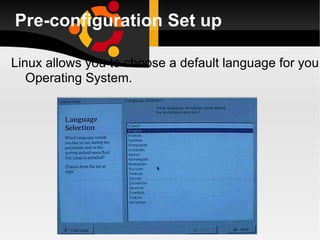
Pre-configuration Set up Linux allows you to choose a default language for you  Operating System.
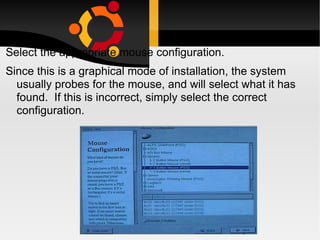
Select the appropriate mouse configuration.  Since this is a graphical mode of installation, the system usually probes for the mouse, and will select what it has found.  If this is incorrect, simply select the correct configuration.
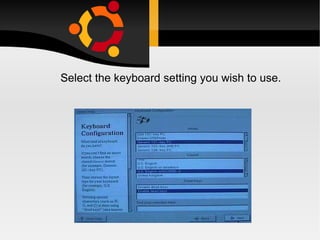
Select the keyboard setting you wish to use.
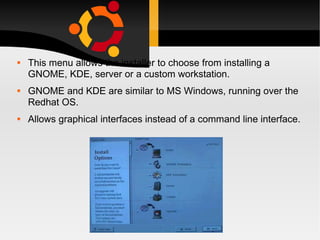
This menu allows the installer to choose from installing a GNOME, KDE, server or a custom workstation. GNOME and KDE are similar to MS Windows, running over the Redhat OS. Allows graphical interfaces instead of a command line interface.
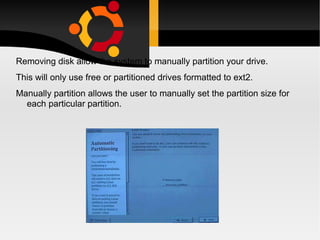
Removing disk allow the system to manually partition your drive.  This will only use free or partitioned drives formatted to ext2. Manually partition allows the user to manually set the partition size for each particular partition.
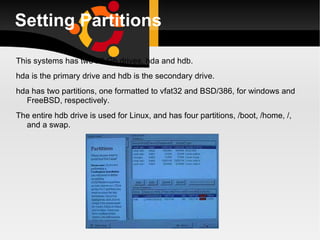
Setting Partitions This systems has two 20 Gb drives, hda and hdb. hda is the primary drive and hdb is the secondary drive. hda has two partitions, one formatted to vfat32 and BSD/386, for windows and FreeBSD, respectively. The entire hdb drive is used for Linux, and has four partitions, /boot, /home, /, and a swap.
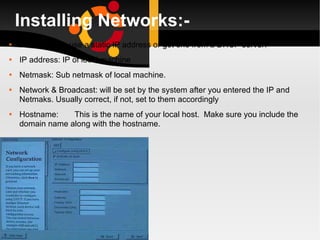
Installing Networks:- Allows you to use a static IP address or get one from a DHCP server. IP address: IP of local machine Netmask: Sub netmask of local machine. Network & Broadcast: will be set by the system after you entered the IP and Netmaks. Usually correct, if not, set to them accordingly Hostname: This is the name of your local host.  Make sure you include the domain name along with the hostname.
a:- Gateway:This is the default gateway address where all traffic will leave.  ie; to get outside the network. Primary DNS:  The IP or domain name of a Domain Name Server  (DNS) Secondary DNS:  A second IP or domain name of a DNS server
Installing Software in Linux rpm - Redhat Package Manager. YUM - Package Manager which resolves dependency issues. dpkg - Ubuntu tool performs same job as rpm. apt-get - Package Manager in Ubuntu. Compiling from source.
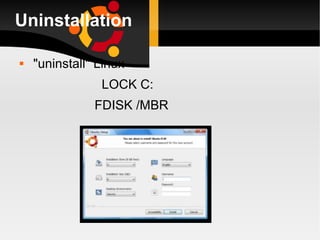
Uninstallation "uninstall" Linux LOCK C: FDISK /MBR
Uninstall Commands: get rid of LILO--it overwrites the master boot record (MBR "lock" command allows  "raw" writing to disk, which is normally disallowed on more recent DOS versions as an antiviral measure The problem with FDISK/MBR proceed it with the "lock" command
a:- After this Linux partitions using the DOS "FDISK" utility to re-claim the hard drive space. may use linux fdisk The simplest may be to boot from the Linux installation floppy/CD, and to remove the partition using the Linux partitioning tool when it pops up during the "installation" procedure
b:- Linux-based solution.  If you can boot Linux - say via boot floppy - you can simply invoke "dd": dd if=/dev/zero of=/dev/hda bs=512 count=1 This fills up the MBR with zeros. Obviously, you have to be root to do this. DOS-based solution . Boot with a DOS floppy that has "debug" on it; run debug
c:- At the '-' prompt, "block-fill" a 512-byte chunk of memory with zeroes: f 9000:0 200 0 Start assembly mode with the 'a' command, and enter the following code: mov dx,9000 mov es,dx xor bx,bx mov cx,0001 ready for partitioning and installation.
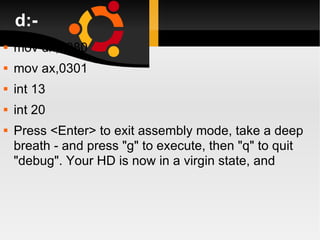
d:- mov dx,0080 mov ax,0301 int 13 int 20 Press <Enter> to exit assembly mode, take a deep breath - and press &quot;g&quot; to execute, then &quot;q&quot; to quit &quot;debug&quot;. Your HD is now in a virgin state, and
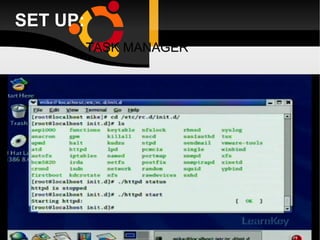
SET UP: TASK MANAGER
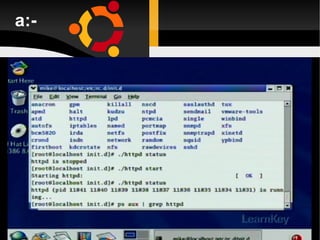
a:-
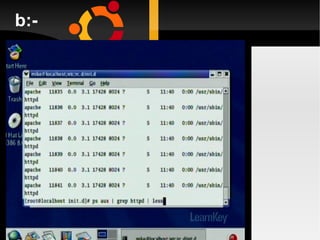
b:-
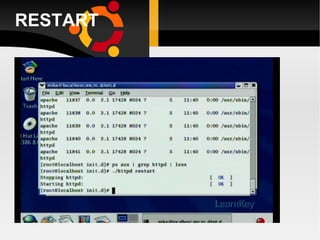
RESTART
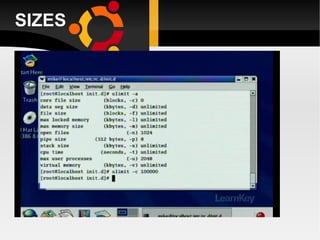
SIZES
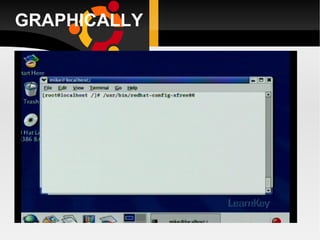
GRAPHICALLY
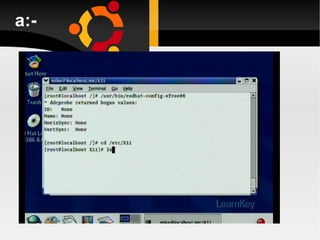
a:-
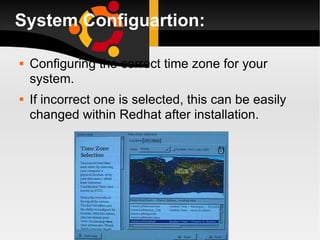
System Configuartion: Configuring the correct time zone for your system. If incorrect one is selected, this can be easily changed within Redhat after installation.
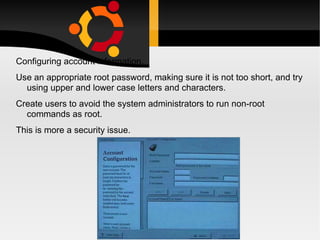
Configuring account information.  Use an appropriate root password, making sure it is not too short, and try using upper and lower case letters and characters. Create users to avoid the system administrators to run non-root commands as root. This is more a security issue.
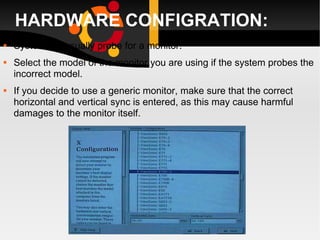
HARDWARE CONFIGRATION: System will usually probe for a monitor.  Select the model of the monitor you are using if the system probes the incorrect model. If you decide to use a generic monitor, make sure that the correct horizontal and vertical sync is entered, as this may cause harmful damages to the monitor itself.
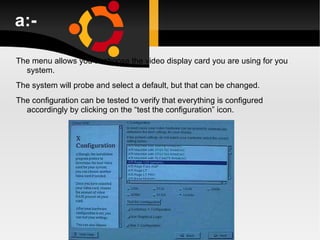
a:- The menu allows you to choose the video display card you are using for you system. The system will probe and select a default, but that can be changed. The configuration can be tested to verify that everything is configured accordingly by clicking on the “test the configuration” icon.
b:- If everything is configured properly, the system will display a gray then green back ground followed by a menu instructing you on whether you can see the that test menu. You can also customize the the X configurator.  The X configurator allows you to set the colour depth, and the resolution of the display. There is also an option to use a graphical login screen.  If this is not selected, the default is the text mode login screen.
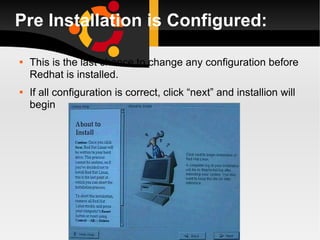
Pre Installation is Configured: This is the last chance to change any configuration before Redhat is installed. If all configuration is correct, click “next” and installion will begin
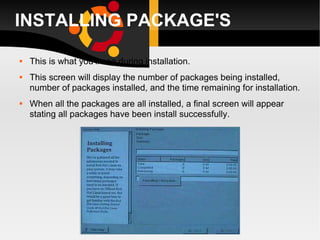
INSTALLING PACKAGE'S This is what you’ll see during installation. This screen will display the number of packages being installed, number of packages installed, and the time remaining for installation. When all the packages are all installed, a final screen will appear stating all packages have been install successfully.
Post-Install Configuration: Reboot the system.  graphical login, simply type the user name followed by the password.  When the password is verified, Xwindows will automatically start. default text login will appear after boot up.  Type the user login followed by the password.  At the prompt, type “startx” and this will start Xwindows.
BASIC COMMANDS: Creating an account. Logging in. Virtual consoles Shells and commands Logging out. Changing your password. Files and directories The directory tree. The current working directory. Referring to home directories.
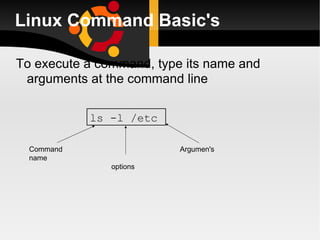
Linux Command Basic's To execute a command, type its name and arguments at the command line ls -l /etc Command name Argumen's options
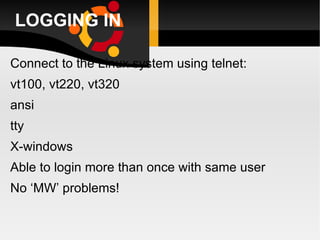
LOGGING IN Connect to the Linux system using telnet: vt100, vt220, vt320 ansi tty X-windows  Able to login more than once with same user No ‘MW’ problems!
a: Before you can use it you must login by specifying your account and password: Linux 2.2.13 (penguinvm.princeton.edu) (ttyp1) penguinvm login: arjun Password: Last login: Tue Jan  4 10:13:13 from linuxtcp.princeton.edu [neale@penguinvm neale]$
Use the  useradd   command Use the  passwd   command to set password [root@penguinvm]# useradd scully [root@penguinvm]# passwd scully Changing password for user scully New UNIX password: Retype new UNIX password: passwd: all authentication tokens updated successfully [root@penguinvm]#
Adding a New User Limits on users can be controlled by Quotas ulimit  command Authority levels for a user controlled by group membership
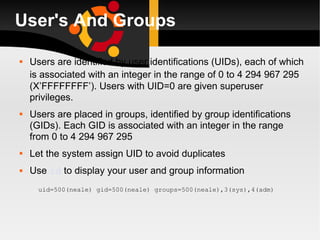
User's And Groups Users are identified by user identifications (UIDs), each of which is associated with an integer in the range of 0 to  4 294 967 295   (X’FFFFFFFF’). Users with UID=0 are given superuser privileges.  Users are placed in groups, identified by group identifications (GIDs). Each GID is associated with an integer in the range from 0 to 4 294 967 295 Let the system assign UID to avoid duplicates Use  id  to display your user and group information uid=500(neale) gid=500(neale) groups=500(neale),3(sys),4(adm)
TYPICAL GROUP SETUP Sys Bin Adm staff
New User Now logoff using the exit command login as the new user Linux 2.2.13 (penguinvm.princeton.edu) (ttyp2) penguinvm login: scully Password: [scully@penguinvm scully]$
U need Help! The Linux equivalent of HELP is  man   (manual) Use  man -k <keyword>  to find all commands with that keyword Use  man <command>  to display help for that command Output is presented a page at a time. Use  b  for to scroll backward,  f  or a space to scroll forward and  q  to quit
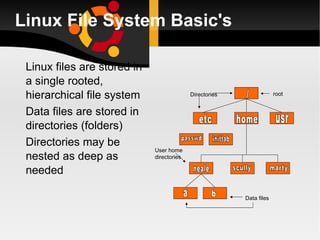
Linux File System Basic's Linux files are stored in a single rooted, hierarchical file system Data files are stored in directories (folders) Directories may be nested as deep as needed / etc home usr passwd inittab neale scully marty a b Directories User home directories Data files root
Some Special File Names: Some file names are special: /   The root directory (not to be confused with the root user) .   The current directory ..  The parent (previous) directory ~   My home directory Examples: ./a  same as  a ../jane/x   go up one level then look in directory  jane  for  x
Special Files: /home  - all users’ home directories are stored here /bin ,  /usr/bin  - system commands /sbin ,  /usr/sbin  - commands used by sysadmins /etc  - all sorts of configuration files /var  - logs, spool directories etc. /dev  - device files /proc  - special system files
FILE PERMISSION'S Every user: Has a uid (login name), gid (login group) and membership of a &quot;groups&quot; list: The  uid  is who you are (name and number)  The  gid  is your initial “login group” you normally belong to The  groups list  is the file groups you can access via group permissions
Editor's People are fanatical about their editor Several choices available: vi Standard UNIX editor the XEDIT-like editor xedit X windows text editor emacs Extensible, Customizable Self- Documenting Display Editor pico Simple display-oriented text editor  nedit X windows Motif text editor
Command Options: Command options allow you to control a command to a certain degree Conventions: Usually being with a single dash and are a single letter (“ -l ”) Sometimes have double dashes followed by a keyword (“ --help ”) Sometimes follow no pattern at all
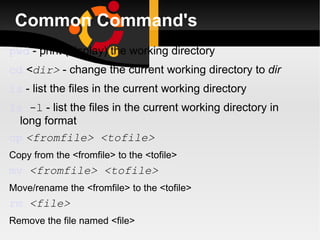
Common Command's pwd  - print (display) the working directory cd   < dir>  - change the current working directory to  dir ls  - list the files in the current working directory ls  -l  - list the files in the current working directory in long format cp   <fromfile> <tofile> Copy from the <fromfile> to the <tofile>  mv   <fromfile> <tofile> Move/rename the <fromfile> to the <tofile> rm   <file> Remove the file named <file>
a: mkdir   <newdir> Make a new directory called <newdir> rmdir   <dir> Remove an (empty) directory
Advanced Command's who List who is currently logged on to the system whoami Report what user you are logged on as ps List your processes on the system ps  aux List all the processes on the system echo   “A string to be echoed” Echo a string (or list of arguments) to the terminal
a: alias  - used to tailor commands: alias erase=rm alias grep=”grep -i” ar   - Maintain archive libraries: a collection of files (usually object files which may be linked to a program, like a CMS TXTLIB) ar -t libgdbm.a __.SYMDEF dbmopen.o
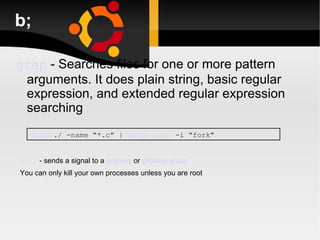
b; grep   -   Searches files for one or more pattern arguments. It does plain string, basic regular expression, and extended regular expression searching find  ./ -name &quot;*.c&quot; |  xargs   grep  -i &quot;fork&quot; kill  - sends a signal to a  process  or  process group You can only kill your own processes unless you are root
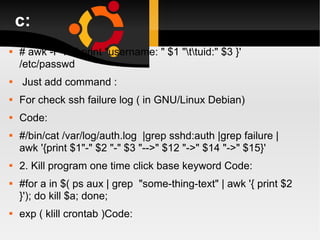
c: # awk -F&quot;:&quot; '{ print &quot;username: &quot; $1 &quot;\t\tuid:&quot; $3 }' /etc/passwd  Just add command : For check ssh failure log ( in GNU/Linux Debian) Code: #/bin/cat /var/log/auth.log  |grep sshd:auth |grep failure |awk '{print $1&quot;-&quot; $2 &quot;-&quot; $3 &quot;-->&quot; $12 &quot;->&quot; $14 &quot;->&quot; $15}' 2. Kill program one time click base keyword Code: #for a in $( ps aux | grep  &quot;some-thing-text&quot; | awk '{ print $2 }'); do kill $a; done; exp ( klill crontab )Code:
d: # cd /etc # for i in $(find -type f); do grep -iH nfsnobody $i; done  # grep -iH nfsnobody *  # awk '/ServerName/ {i=i+1} END {print i}' /etc/httpd/conf/httpd.conf # grep ServerName /etc/httpd/conf/httpd.conf  # ipcs -s | grep apache | perl -e 'while (<STDIN>) { @a=split(/\s+/); print`ipcrm sem $a[1]`}'  # perl -e 'require Mail::SPF::Query'
Thank u

Linux

  • 1.
    10 th planet ARJUNRAJ.D linux Installation Uninstallation Setup Configure Basic Commands Advaced commands
  • 2.
    Installation: Linux -Any Linux distribution such as Ubuntu, Fedora, Redhat, OpenSuse etc.gathering system hardware information; backing up your old system (optional, but strongly recommended) preparing Linux partitions deciding on a boot loader (for dual boot systems) booting a Linux kernel installing the kernel
  • 3.
    Pre-configuration Set upLinux allows you to choose a default language for you Operating System.
  • 4.
    Select the appropriatemouse configuration. Since this is a graphical mode of installation, the system usually probes for the mouse, and will select what it has found. If this is incorrect, simply select the correct configuration.
  • 5.
    Select the keyboardsetting you wish to use.
  • 6.
    This menu allowsthe installer to choose from installing a GNOME, KDE, server or a custom workstation. GNOME and KDE are similar to MS Windows, running over the Redhat OS. Allows graphical interfaces instead of a command line interface.
  • 7.
    Removing disk allowthe system to manually partition your drive. This will only use free or partitioned drives formatted to ext2. Manually partition allows the user to manually set the partition size for each particular partition.
  • 8.
    Setting Partitions Thissystems has two 20 Gb drives, hda and hdb. hda is the primary drive and hdb is the secondary drive. hda has two partitions, one formatted to vfat32 and BSD/386, for windows and FreeBSD, respectively. The entire hdb drive is used for Linux, and has four partitions, /boot, /home, /, and a swap.
  • 9.
    Installing Networks:- Allowsyou to use a static IP address or get one from a DHCP server. IP address: IP of local machine Netmask: Sub netmask of local machine. Network & Broadcast: will be set by the system after you entered the IP and Netmaks. Usually correct, if not, set to them accordingly Hostname: This is the name of your local host. Make sure you include the domain name along with the hostname.
  • 10.
    a:- Gateway:This isthe default gateway address where all traffic will leave. ie; to get outside the network. Primary DNS: The IP or domain name of a Domain Name Server (DNS) Secondary DNS: A second IP or domain name of a DNS server
  • 11.
    Installing Software inLinux rpm - Redhat Package Manager. YUM - Package Manager which resolves dependency issues. dpkg - Ubuntu tool performs same job as rpm. apt-get - Package Manager in Ubuntu. Compiling from source.
  • 12.
  • 13.
    Uninstall Commands: getrid of LILO--it overwrites the master boot record (MBR &quot;lock&quot; command allows &quot;raw&quot; writing to disk, which is normally disallowed on more recent DOS versions as an antiviral measure The problem with FDISK/MBR proceed it with the &quot;lock&quot; command
  • 14.
    a:- After thisLinux partitions using the DOS &quot;FDISK&quot; utility to re-claim the hard drive space. may use linux fdisk The simplest may be to boot from the Linux installation floppy/CD, and to remove the partition using the Linux partitioning tool when it pops up during the &quot;installation&quot; procedure
  • 15.
    b:- Linux-based solution. If you can boot Linux - say via boot floppy - you can simply invoke &quot;dd&quot;: dd if=/dev/zero of=/dev/hda bs=512 count=1 This fills up the MBR with zeros. Obviously, you have to be root to do this. DOS-based solution . Boot with a DOS floppy that has &quot;debug&quot; on it; run debug
  • 16.
    c:- At the'-' prompt, &quot;block-fill&quot; a 512-byte chunk of memory with zeroes: f 9000:0 200 0 Start assembly mode with the 'a' command, and enter the following code: mov dx,9000 mov es,dx xor bx,bx mov cx,0001 ready for partitioning and installation.
  • 17.
    d:- mov dx,0080mov ax,0301 int 13 int 20 Press <Enter> to exit assembly mode, take a deep breath - and press &quot;g&quot; to execute, then &quot;q&quot; to quit &quot;debug&quot;. Your HD is now in a virgin state, and
  • 18.
    SET UP: TASKMANAGER
  • 19.
  • 20.
  • 21.
  • 22.
  • 23.
  • 24.
  • 25.
    System Configuartion: Configuringthe correct time zone for your system. If incorrect one is selected, this can be easily changed within Redhat after installation.
  • 26.
    Configuring account information. Use an appropriate root password, making sure it is not too short, and try using upper and lower case letters and characters. Create users to avoid the system administrators to run non-root commands as root. This is more a security issue.
  • 27.
    HARDWARE CONFIGRATION: Systemwill usually probe for a monitor. Select the model of the monitor you are using if the system probes the incorrect model. If you decide to use a generic monitor, make sure that the correct horizontal and vertical sync is entered, as this may cause harmful damages to the monitor itself.
  • 28.
    a:- The menuallows you to choose the video display card you are using for you system. The system will probe and select a default, but that can be changed. The configuration can be tested to verify that everything is configured accordingly by clicking on the “test the configuration” icon.
  • 29.
    b:- If everythingis configured properly, the system will display a gray then green back ground followed by a menu instructing you on whether you can see the that test menu. You can also customize the the X configurator. The X configurator allows you to set the colour depth, and the resolution of the display. There is also an option to use a graphical login screen. If this is not selected, the default is the text mode login screen.
  • 30.
    Pre Installation isConfigured: This is the last chance to change any configuration before Redhat is installed. If all configuration is correct, click “next” and installion will begin
  • 31.
    INSTALLING PACKAGE'S Thisis what you’ll see during installation. This screen will display the number of packages being installed, number of packages installed, and the time remaining for installation. When all the packages are all installed, a final screen will appear stating all packages have been install successfully.
  • 32.
    Post-Install Configuration: Rebootthe system. graphical login, simply type the user name followed by the password. When the password is verified, Xwindows will automatically start. default text login will appear after boot up. Type the user login followed by the password. At the prompt, type “startx” and this will start Xwindows.
  • 33.
    BASIC COMMANDS: Creatingan account. Logging in. Virtual consoles Shells and commands Logging out. Changing your password. Files and directories The directory tree. The current working directory. Referring to home directories.
  • 34.
    Linux Command Basic'sTo execute a command, type its name and arguments at the command line ls -l /etc Command name Argumen's options
  • 35.
    LOGGING IN Connectto the Linux system using telnet: vt100, vt220, vt320 ansi tty X-windows Able to login more than once with same user No ‘MW’ problems!
  • 36.
    a: Before youcan use it you must login by specifying your account and password: Linux 2.2.13 (penguinvm.princeton.edu) (ttyp1) penguinvm login: arjun Password: Last login: Tue Jan 4 10:13:13 from linuxtcp.princeton.edu [neale@penguinvm neale]$
  • 37.
    Use the useradd command Use the passwd command to set password [root@penguinvm]# useradd scully [root@penguinvm]# passwd scully Changing password for user scully New UNIX password: Retype new UNIX password: passwd: all authentication tokens updated successfully [root@penguinvm]#
  • 38.
    Adding a NewUser Limits on users can be controlled by Quotas ulimit command Authority levels for a user controlled by group membership
  • 39.
    User's And GroupsUsers are identified by user identifications (UIDs), each of which is associated with an integer in the range of 0 to 4 294 967 295 (X’FFFFFFFF’). Users with UID=0 are given superuser privileges. Users are placed in groups, identified by group identifications (GIDs). Each GID is associated with an integer in the range from 0 to 4 294 967 295 Let the system assign UID to avoid duplicates Use id to display your user and group information uid=500(neale) gid=500(neale) groups=500(neale),3(sys),4(adm)
  • 40.
    TYPICAL GROUP SETUPSys Bin Adm staff
  • 41.
    New User Nowlogoff using the exit command login as the new user Linux 2.2.13 (penguinvm.princeton.edu) (ttyp2) penguinvm login: scully Password: [scully@penguinvm scully]$
  • 42.
    U need Help!The Linux equivalent of HELP is man (manual) Use man -k <keyword> to find all commands with that keyword Use man <command> to display help for that command Output is presented a page at a time. Use b for to scroll backward, f or a space to scroll forward and q to quit
  • 43.
    Linux File SystemBasic's Linux files are stored in a single rooted, hierarchical file system Data files are stored in directories (folders) Directories may be nested as deep as needed / etc home usr passwd inittab neale scully marty a b Directories User home directories Data files root
  • 44.
    Some Special FileNames: Some file names are special: / The root directory (not to be confused with the root user) . The current directory .. The parent (previous) directory ~ My home directory Examples: ./a same as a ../jane/x go up one level then look in directory jane for x
  • 45.
    Special Files: /home - all users’ home directories are stored here /bin , /usr/bin - system commands /sbin , /usr/sbin - commands used by sysadmins /etc - all sorts of configuration files /var - logs, spool directories etc. /dev - device files /proc - special system files
  • 46.
    FILE PERMISSION'S Everyuser: Has a uid (login name), gid (login group) and membership of a &quot;groups&quot; list: The uid is who you are (name and number) The gid is your initial “login group” you normally belong to The groups list is the file groups you can access via group permissions
  • 47.
    Editor's People arefanatical about their editor Several choices available: vi Standard UNIX editor the XEDIT-like editor xedit X windows text editor emacs Extensible, Customizable Self- Documenting Display Editor pico Simple display-oriented text editor nedit X windows Motif text editor
  • 48.
    Command Options: Commandoptions allow you to control a command to a certain degree Conventions: Usually being with a single dash and are a single letter (“ -l ”) Sometimes have double dashes followed by a keyword (“ --help ”) Sometimes follow no pattern at all
  • 49.
    Common Command's pwd - print (display) the working directory cd < dir> - change the current working directory to dir ls - list the files in the current working directory ls -l - list the files in the current working directory in long format cp <fromfile> <tofile> Copy from the <fromfile> to the <tofile> mv <fromfile> <tofile> Move/rename the <fromfile> to the <tofile> rm <file> Remove the file named <file>
  • 50.
    a: mkdir <newdir> Make a new directory called <newdir> rmdir <dir> Remove an (empty) directory
  • 51.
    Advanced Command's whoList who is currently logged on to the system whoami Report what user you are logged on as ps List your processes on the system ps aux List all the processes on the system echo “A string to be echoed” Echo a string (or list of arguments) to the terminal
  • 52.
    a: alias - used to tailor commands: alias erase=rm alias grep=”grep -i” ar - Maintain archive libraries: a collection of files (usually object files which may be linked to a program, like a CMS TXTLIB) ar -t libgdbm.a __.SYMDEF dbmopen.o
  • 53.
    b; grep - Searches files for one or more pattern arguments. It does plain string, basic regular expression, and extended regular expression searching find ./ -name &quot;*.c&quot; | xargs grep -i &quot;fork&quot; kill - sends a signal to a process or process group You can only kill your own processes unless you are root
  • 54.
    c: # awk-F&quot;:&quot; '{ print &quot;username: &quot; $1 &quot;\t\tuid:&quot; $3 }' /etc/passwd Just add command : For check ssh failure log ( in GNU/Linux Debian) Code: #/bin/cat /var/log/auth.log |grep sshd:auth |grep failure |awk '{print $1&quot;-&quot; $2 &quot;-&quot; $3 &quot;-->&quot; $12 &quot;->&quot; $14 &quot;->&quot; $15}' 2. Kill program one time click base keyword Code: #for a in $( ps aux | grep &quot;some-thing-text&quot; | awk '{ print $2 }'); do kill $a; done; exp ( klill crontab )Code:
  • 55.
    d: # cd/etc # for i in $(find -type f); do grep -iH nfsnobody $i; done # grep -iH nfsnobody * # awk '/ServerName/ {i=i+1} END {print i}' /etc/httpd/conf/httpd.conf # grep ServerName /etc/httpd/conf/httpd.conf # ipcs -s | grep apache | perl -e 'while (<STDIN>) { @a=split(/\s+/); print`ipcrm sem $a[1]`}' # perl -e 'require Mail::SPF::Query'
  • 56.