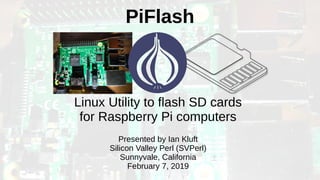
PiFlash
Linux Utility to flash SD cards
for Raspberry Pi computers
Presented by Ian Kluft
Silicon Valley Perl (SVPerl)
Sunnyvale, California
February 7, 2019
What is PiFlash?
●
Linux utility to write SD cards for Raspberry Pi
●
I originally wrote piflash in Dec 2016 for myself
●
Presented to SVPerl in Feb 2017
●
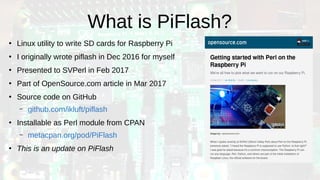
Part of OpenSource.com article in Mar 2017
●
Source code on GitHub
– github.com/ikluft/piflash
●
Installable as Perl module from CPAN
– metacpan.org/pod/PiFlash
●
This is an update on PiFlash
The main ideas behind PiFlash
●
For new users
– Safety: it will make
sure it’s only writing to
an SD card
– Prevents accidental
erasure of disks you
wanted to keep
●
For experts
– Automatically detects
input file format to
unpack/decompress
image from zip, tar, gz,
xz files
– More automation coming
with plugin support
What does PiFlash mean?
●
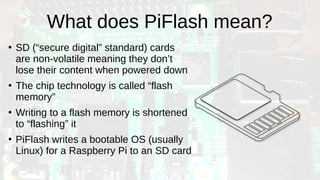
SD (“secure digital” standard) cards
are non-volatile meaning they don’t
lose their content when powered down
●
The chip technology is called “flash
memory”
●
Writing to a flash memory is shortened
to “flashing” it
●
PiFlash writes a bootable OS (usually
Linux) for a Raspberry Pi to an SD card
What is a Raspberry Pi?
●
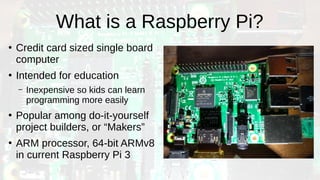
Credit card sized single board
computer
●
Intended for education
– Inexpensive so kids can learn
programming more easily
●
Popular among do-it-yourself
project builders, or “Makers”
●
ARM processor, 64-bit ARMv8
in current Raspberry Pi 3
History of the Raspberry Pi
●
Started by UK CompSci
professor Eben Upton
●
College freshman didn’t have
experience playing with
computers
●
Needed an inexpensive
computer for kids to learn
●
Raspberry Pi released 2012
●
Low cost: US$25 without
Ethernet, $35 with net
●
Original expected demand was
10,000 units total
●
10 millionth shipped in 2016
●
Developed by non-profit
Raspberry Pi Foundation
●
Licensed to manufacturers
Popularity soars with Maker Community
●
A “Maker” is generally anyone who
builds things
●
Anyone can be a Maker – you too
●
Raspberry Pi instantly became
wildly popular with Makers as a
cheap embedded computer
●
Best when you need the power of
Linux
– It may be overkill when simpler
electronics will work
●
Hardware video acceleration made
it good for displaying video on HDMI
●
GPIO (general purpose I/O) pins
can be optionally used for
electronics interfacing
●
Networking makes RasPi devices
able to remote sense or control
●
For analog/digital electronic
projects, Arduino is popular
competing project board
Based on ARM processor
●
This is different if you’re used to
Intel x86 computers
●
ARM is a “microcontroller” aimed at
low-power devices
●
Most phones & embedded
computers use ARM today
●
Raspberry Pi originally used 32-bit
ARM6
– limited OS support mostly Debian
Linux, OpenElec
●
RasPi 2 & 3 are 64-bit ARM8
– wider OS support: more Linux
distros, FreeBSD, Win10 IoT
●
binaries must be compiled for
ARM – can’t use x86 binaries
– Debian Linux → Raspbian
– Ubuntu & Fedora: ARM spins
– FreeBSD → RaspBSD
– Windows 10 → Win10 IoT
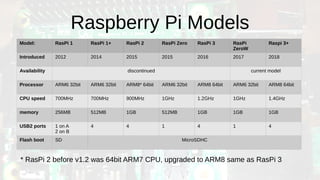
Raspberry Pi Models
Model: RasPi 1 RasPi 1+ RasPi 2 RasPi Zero RasPi 3 RasPi
ZeroW
Raspi 3+
Introduced 2012 2014 2015 2015 2016 2017 2018
Availability discontinued current model
Processor ARM6 32bit ARM6 32bit ARM8* 64bit ARM6 32bit ARM8 64bit ARM6 32bit ARM8 64bit
CPU speed 700MHz 700MHz 900MHz 1GHz 1.2GHz 1GHz 1.4GHz
memory 256MB 512MB 1GB 512MB 1GB 1GB 1GB
USB2 ports 1 on A
2 on B
4 4 1 4 1 4
Flash boot SD MicroSDHC
* RasPi 2 before v1.2 was 64bit ARM7 CPU, upgraded to ARM8 same as RasPi 3
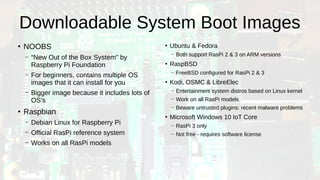
Downloadable System Boot Images
●
NOOBS
– “New Out of the Box System” by
Raspberry Pi Foundation
– For beginners, contains multiple OS
images that it can install for you
– Bigger image because it includes lots of
OS’s
●
Raspbian
– Debian Linux for Raspberry Pi
– Official RasPi reference system
– Works on all RasPi models
●
Ubuntu & Fedora
– Both support RasPi 2 & 3 on ARM versions
●
RaspBSD
– FreeBSD configured for RasPi 2 & 3
●
Kodi, OSMC & LibreElec
– Entertainment system distros based on Linux kernel
– Work on all RasPi models
– Beware untrusted plugins: recent malware problems
●
Microsoft Windows 10 IoT Core
– RasPi 3 only
– Not free - requires software license
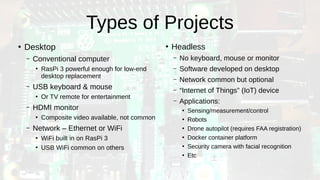
Types of Projects
●
Desktop
– Conventional computer
●
RasPi 3 powerful enough for low-end
desktop replacement
– USB keyboard & mouse
●
Or TV remote for entertainment
– HDMI monitor
●
Composite video available, not common
– Network – Ethernet or WiFi
●
WiFi built in on RasPi 3
●
USB WiFi common on others
●
Headless
– No keyboard, mouse or monitor
– Software developed on desktop
– Network common but optional
– “Internet of Things” (IoT) device
– Applications:
●
Sensing/measurement/control
●
Robots
●
Drone autopilot (requires FAA registration)
●
Docker container platform
●
Security camera with facial recognition
●
Etc
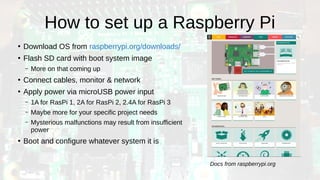
How to set up a Raspberry Pi
●
Download OS from raspberrypi.org/downloads/
●
Flash SD card with boot system image
– More on that coming up
●
Connect cables, monitor & network
●
Apply power via microUSB power input
– 1A for RasPi 1, 2A for RasPi 2, 2.4A for RasPi 3
– Maybe more for your specific project needs
– Mysterious malfunctions may result from insufficient
power
●
Boot and configure whatever system it is
Docs from raspberrypi.org
Flashing an SD card for Raspberry Pi
●
Raspberry Pi needs SD card to boot
– RasPi 1 uses bigger SD card
– All others use smaller MicroSD
– RasPi 3 also has USB & network boot procedures
●
not for beginners
●
8GB SD card minimum recommended
– Cheapest SD cards are currently 16-32GB
●
Get the right boot image for your system
– If you have a RasPi 1/1+/Zero/ZeroW, there’s usually a
separate image for ARM6
●
RaspberryPi.org has SD flash tools for Windows &
Mac
– Instructions for Windows
– Instructions for MacOS
●
Linux instructions provide no tools
– Biggest point is to identify the correct
device
– You don’t want to accidentally erase
another disk on your system
– You can use PiFlash for Linux
●
In all cases…
– Flashing gigabytes of data will require at
least some minutes of wait, maybe many
– Be patient once you start
– Let it finish
Installing PiFlash
●
From CPAN
– Follow instructions for local Perl modules if needed
– “cpan PiFlash”
●
Also on GitHub
– Download or git-clone from github.com/ikluft/piflash
– “dzil install”
●
Requires Dist::Zilla to build from Git source
PiFlash usage
●
PiFlash is a command-line utility
usage: piflash [--verbose] [--resize] input-file output-device
piflash [--verbose] --SDsearch
piflash --version
PiFlash usage: --version
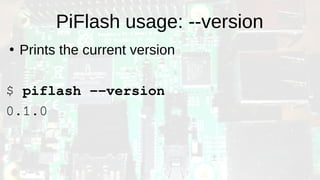
●
Prints the current version
$ piflash --version
0.1.0
PiFlash usage: --SDsearch
●
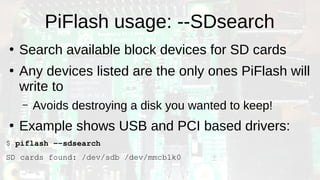
Search available block devices for SD cards
●
Any devices listed are the only ones PiFlash will
write to
– Avoids destroying a disk you wanted to keep!
●
Example shows USB and PCI based drivers:
$ piflash --sdsearch
SD cards found: /dev/sdb /dev/mmcblk0
PiFlash usage: writing to an SD
●
Simplest form is input file and output device
$ piflash --resize 2018-11-13-raspbian-stretch-lite.zip /dev/sdb
requested to flash 2018-11-13-raspbian-stretch-lite.zip to /dev/sdb
output device /dev/sdb will be erased
[sudo] password for user:
verify sudo access
flashing 2018-11-13-raspbian-stretch-lite.zip / 2018-11-13-raspbian-stretch-lite.img ->
/dev/sdb
…
done - it is safe to remove the SD card
PiFlash usage: --resize
●
Add –resize to command line to resize the root
filesystem to fill the entire SD card
●
Only works with boot images that have a Linux ext2/3/4
root filesystem
– Not always necessary – some OS’s will do this on first boot
– Works for Raspbian, Ubuntu, Fedora
– Doesn’t work on NOOBS, RaspBSD, Kodi, RISCOS, Windows
Internals of PiFlash
●
You don’t need to know this to use
PiFlash
– But we at SVPerl want to hear about Perl
●
Lowest-level “State” class stores all
parameters from
– Command line
– Operating system configuration
– Input file
– Output device
– It’s all the info needed for support requests
– --verbose parameter dumps the State
●
Contains a fork/exec wrapper to capture status
or output of commands it launches
– Eliminating qx() made perlcritic happy at the -4 level
●
Maintains list of command locations rather than
use $PATH – just being careful since it needs
root privs
●
“lsblk” command inspects output device so we
can tell if it’s an SD card
– Differences tested on PCI and USB SD readers
– That’s expected to cover most cases
– If a device isn’t detected, I’d like to see the verbose
output so I can add it
●
Main() is exception-catching wrapper
Modules in PiFlash package
●
PiFlash.pm – main(),
package version
●
Command.pm –
command launching
wrapper and logging
●
Hook.pm – callback
hooks
●
Inspector.pm – collects
data on system, input file
and output device
●
MediaWriter.pm – flashes
the SD card from input
file
●
State.pm – middleware
data storage layer
Features in development
●
These are chances for you to get involved if
anything sounds interesting
●
Plugin modules via Module::Pluggable
– Any module named under PiFlash::Plugin hierarchy
can be enabled from command line with –plugin
– i.e. PiFlash::Plugin::ModuleName
Features in development: Hooks
●
Callback hooks via PiFlash::Hook
●
Code including plugins can register callbacks
– At start
– After installation
– With mounted boot/root filesystem for system
customization
Possible customizations via plugins
●
These can be done before 1st boot by mounting boot and root filesystems and
running callback hooks to modify them
●
System configuration
– Kernel driver command line settings
– CPU overclocking
– Camera
– Audio/Video
– Network: wired and/or wireless
●
Security
– Change user name/password
– Set SSH key and authorized remote keys
Caveats for customization
●
Raspberry Pi runs ARM binaries
– 32 bit ARMv6 for Pi 1, 1B, Zero & Zero W
– 64 bit ARMv8 for Pi 2, 3 & 3+
●
Installation of software packages are probably not
the same as the system running PiFlash
– X86 binaries won’t work on RasPi
– Similar to all embedded systems development
Any questions?

PiFlash: Linux utility to flash SD cards for Raspberry Pi computers

  • 1.
    PiFlash Linux Utility toflash SD cards for Raspberry Pi computers Presented by Ian Kluft Silicon Valley Perl (SVPerl) Sunnyvale, California February 7, 2019
  • 2.
    What is PiFlash? ● Linuxutility to write SD cards for Raspberry Pi ● I originally wrote piflash in Dec 2016 for myself ● Presented to SVPerl in Feb 2017 ● Part of OpenSource.com article in Mar 2017 ● Source code on GitHub – github.com/ikluft/piflash ● Installable as Perl module from CPAN – metacpan.org/pod/PiFlash ● This is an update on PiFlash
  • 3.
    The main ideasbehind PiFlash ● For new users – Safety: it will make sure it’s only writing to an SD card – Prevents accidental erasure of disks you wanted to keep ● For experts – Automatically detects input file format to unpack/decompress image from zip, tar, gz, xz files – More automation coming with plugin support
  • 4.
    What does PiFlashmean? ● SD (“secure digital” standard) cards are non-volatile meaning they don’t lose their content when powered down ● The chip technology is called “flash memory” ● Writing to a flash memory is shortened to “flashing” it ● PiFlash writes a bootable OS (usually Linux) for a Raspberry Pi to an SD card
  • 5.
    What is aRaspberry Pi? ● Credit card sized single board computer ● Intended for education – Inexpensive so kids can learn programming more easily ● Popular among do-it-yourself project builders, or “Makers” ● ARM processor, 64-bit ARMv8 in current Raspberry Pi 3
  • 6.
    History of theRaspberry Pi ● Started by UK CompSci professor Eben Upton ● College freshman didn’t have experience playing with computers ● Needed an inexpensive computer for kids to learn ● Raspberry Pi released 2012 ● Low cost: US$25 without Ethernet, $35 with net ● Original expected demand was 10,000 units total ● 10 millionth shipped in 2016 ● Developed by non-profit Raspberry Pi Foundation ● Licensed to manufacturers
  • 7.
    Popularity soars withMaker Community ● A “Maker” is generally anyone who builds things ● Anyone can be a Maker – you too ● Raspberry Pi instantly became wildly popular with Makers as a cheap embedded computer ● Best when you need the power of Linux – It may be overkill when simpler electronics will work ● Hardware video acceleration made it good for displaying video on HDMI ● GPIO (general purpose I/O) pins can be optionally used for electronics interfacing ● Networking makes RasPi devices able to remote sense or control ● For analog/digital electronic projects, Arduino is popular competing project board
  • 8.
    Based on ARMprocessor ● This is different if you’re used to Intel x86 computers ● ARM is a “microcontroller” aimed at low-power devices ● Most phones & embedded computers use ARM today ● Raspberry Pi originally used 32-bit ARM6 – limited OS support mostly Debian Linux, OpenElec ● RasPi 2 & 3 are 64-bit ARM8 – wider OS support: more Linux distros, FreeBSD, Win10 IoT ● binaries must be compiled for ARM – can’t use x86 binaries – Debian Linux → Raspbian – Ubuntu & Fedora: ARM spins – FreeBSD → RaspBSD – Windows 10 → Win10 IoT
  • 9.
    Raspberry Pi Models Model:RasPi 1 RasPi 1+ RasPi 2 RasPi Zero RasPi 3 RasPi ZeroW Raspi 3+ Introduced 2012 2014 2015 2015 2016 2017 2018 Availability discontinued current model Processor ARM6 32bit ARM6 32bit ARM8* 64bit ARM6 32bit ARM8 64bit ARM6 32bit ARM8 64bit CPU speed 700MHz 700MHz 900MHz 1GHz 1.2GHz 1GHz 1.4GHz memory 256MB 512MB 1GB 512MB 1GB 1GB 1GB USB2 ports 1 on A 2 on B 4 4 1 4 1 4 Flash boot SD MicroSDHC * RasPi 2 before v1.2 was 64bit ARM7 CPU, upgraded to ARM8 same as RasPi 3
  • 10.
    Downloadable System BootImages ● NOOBS – “New Out of the Box System” by Raspberry Pi Foundation – For beginners, contains multiple OS images that it can install for you – Bigger image because it includes lots of OS’s ● Raspbian – Debian Linux for Raspberry Pi – Official RasPi reference system – Works on all RasPi models ● Ubuntu & Fedora – Both support RasPi 2 & 3 on ARM versions ● RaspBSD – FreeBSD configured for RasPi 2 & 3 ● Kodi, OSMC & LibreElec – Entertainment system distros based on Linux kernel – Work on all RasPi models – Beware untrusted plugins: recent malware problems ● Microsoft Windows 10 IoT Core – RasPi 3 only – Not free - requires software license
  • 11.
    Types of Projects ● Desktop –Conventional computer ● RasPi 3 powerful enough for low-end desktop replacement – USB keyboard & mouse ● Or TV remote for entertainment – HDMI monitor ● Composite video available, not common – Network – Ethernet or WiFi ● WiFi built in on RasPi 3 ● USB WiFi common on others ● Headless – No keyboard, mouse or monitor – Software developed on desktop – Network common but optional – “Internet of Things” (IoT) device – Applications: ● Sensing/measurement/control ● Robots ● Drone autopilot (requires FAA registration) ● Docker container platform ● Security camera with facial recognition ● Etc
  • 12.
    How to setup a Raspberry Pi ● Download OS from raspberrypi.org/downloads/ ● Flash SD card with boot system image – More on that coming up ● Connect cables, monitor & network ● Apply power via microUSB power input – 1A for RasPi 1, 2A for RasPi 2, 2.4A for RasPi 3 – Maybe more for your specific project needs – Mysterious malfunctions may result from insufficient power ● Boot and configure whatever system it is Docs from raspberrypi.org
  • 13.
    Flashing an SDcard for Raspberry Pi ● Raspberry Pi needs SD card to boot – RasPi 1 uses bigger SD card – All others use smaller MicroSD – RasPi 3 also has USB & network boot procedures ● not for beginners ● 8GB SD card minimum recommended – Cheapest SD cards are currently 16-32GB ● Get the right boot image for your system – If you have a RasPi 1/1+/Zero/ZeroW, there’s usually a separate image for ARM6 ● RaspberryPi.org has SD flash tools for Windows & Mac – Instructions for Windows – Instructions for MacOS ● Linux instructions provide no tools – Biggest point is to identify the correct device – You don’t want to accidentally erase another disk on your system – You can use PiFlash for Linux ● In all cases… – Flashing gigabytes of data will require at least some minutes of wait, maybe many – Be patient once you start – Let it finish
  • 14.
    Installing PiFlash ● From CPAN –Follow instructions for local Perl modules if needed – “cpan PiFlash” ● Also on GitHub – Download or git-clone from github.com/ikluft/piflash – “dzil install” ● Requires Dist::Zilla to build from Git source
  • 15.
    PiFlash usage ● PiFlash isa command-line utility usage: piflash [--verbose] [--resize] input-file output-device piflash [--verbose] --SDsearch piflash --version
  • 16.
    PiFlash usage: --version ● Printsthe current version $ piflash --version 0.1.0
  • 17.
    PiFlash usage: --SDsearch ● Searchavailable block devices for SD cards ● Any devices listed are the only ones PiFlash will write to – Avoids destroying a disk you wanted to keep! ● Example shows USB and PCI based drivers: $ piflash --sdsearch SD cards found: /dev/sdb /dev/mmcblk0
  • 18.
    PiFlash usage: writingto an SD ● Simplest form is input file and output device $ piflash --resize 2018-11-13-raspbian-stretch-lite.zip /dev/sdb requested to flash 2018-11-13-raspbian-stretch-lite.zip to /dev/sdb output device /dev/sdb will be erased [sudo] password for user: verify sudo access flashing 2018-11-13-raspbian-stretch-lite.zip / 2018-11-13-raspbian-stretch-lite.img -> /dev/sdb … done - it is safe to remove the SD card
  • 19.
    PiFlash usage: --resize ● Add–resize to command line to resize the root filesystem to fill the entire SD card ● Only works with boot images that have a Linux ext2/3/4 root filesystem – Not always necessary – some OS’s will do this on first boot – Works for Raspbian, Ubuntu, Fedora – Doesn’t work on NOOBS, RaspBSD, Kodi, RISCOS, Windows
  • 20.
    Internals of PiFlash ● Youdon’t need to know this to use PiFlash – But we at SVPerl want to hear about Perl ● Lowest-level “State” class stores all parameters from – Command line – Operating system configuration – Input file – Output device – It’s all the info needed for support requests – --verbose parameter dumps the State ● Contains a fork/exec wrapper to capture status or output of commands it launches – Eliminating qx() made perlcritic happy at the -4 level ● Maintains list of command locations rather than use $PATH – just being careful since it needs root privs ● “lsblk” command inspects output device so we can tell if it’s an SD card – Differences tested on PCI and USB SD readers – That’s expected to cover most cases – If a device isn’t detected, I’d like to see the verbose output so I can add it ● Main() is exception-catching wrapper
  • 21.
    Modules in PiFlashpackage ● PiFlash.pm – main(), package version ● Command.pm – command launching wrapper and logging ● Hook.pm – callback hooks ● Inspector.pm – collects data on system, input file and output device ● MediaWriter.pm – flashes the SD card from input file ● State.pm – middleware data storage layer
  • 22.
    Features in development ● Theseare chances for you to get involved if anything sounds interesting ● Plugin modules via Module::Pluggable – Any module named under PiFlash::Plugin hierarchy can be enabled from command line with –plugin – i.e. PiFlash::Plugin::ModuleName
  • 23.
    Features in development:Hooks ● Callback hooks via PiFlash::Hook ● Code including plugins can register callbacks – At start – After installation – With mounted boot/root filesystem for system customization
  • 24.
    Possible customizations viaplugins ● These can be done before 1st boot by mounting boot and root filesystems and running callback hooks to modify them ● System configuration – Kernel driver command line settings – CPU overclocking – Camera – Audio/Video – Network: wired and/or wireless ● Security – Change user name/password – Set SSH key and authorized remote keys
  • 25.
    Caveats for customization ● RaspberryPi runs ARM binaries – 32 bit ARMv6 for Pi 1, 1B, Zero & Zero W – 64 bit ARMv8 for Pi 2, 3 & 3+ ● Installation of software packages are probably not the same as the system running PiFlash – X86 binaries won’t work on RasPi – Similar to all embedded systems development
  • 26.