PROJECTED AIDS
R.PUSHPAKALAMBIGA,
M.SC(NURSING) 1 YEAR.
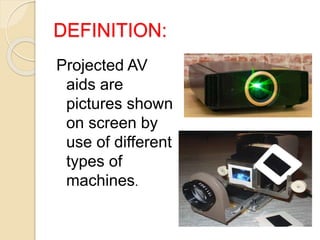
DEFINITION:
Projected AV
aids are
pictures shown
on screen by
use of different
types of
machines.
FUNCTIONS :
 They have high degree of interest for
students.
 They make more learning permanent.
 They supply a concrete basis for
conceptual thinking and hence reduce
meaningless word response of students.
 Develop continuity of thoughts.
CLASSIFICATION:
 Over head projector
 Slide projector
 Power point
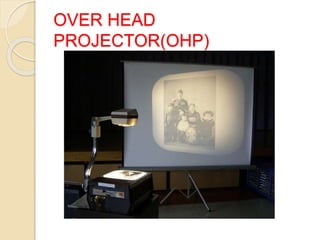
OVER HEAD
PROJECTOR(OHP)
DEFINITION:
The name comes from the fact that
the projected image is behind and
over the head of the speaker.
The teacher can write or draw
diagrams on the transparency while
he teaches; these are projected
simultaneously on the screen by the
OHP.
PURPOSES:
 To develop concepts and sequences in a
subject.
 To test students performance, while others
classmates observe.
 To give illusion of motion in the
transparency.
 To show relationship by means of
transparent overlays in contrasting colour.
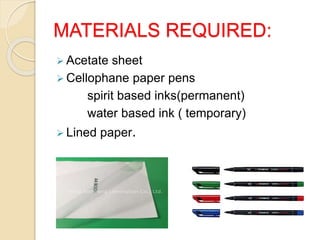
MATERIALS REQUIRED:
 Acetate sheet
 Cellophane paper pens
spirit based inks(permanent)
water based ink ( temporary)
 Lined paper.
OVERHEAD
TRANSPARENCIES:
 Transparencies are popular
instructional medium. They are simple
and easy to prepare and easy to
operate with the OHP which is light
weight.
PREPARING A
TRANSPARENCY:
Size of acetate sheet measures
18cm*22.5cm.
Placed lined paper beneath the acetate
sheet before writing the material.
Use simple letter 6mm for text and 9mm for
titles.
Use capital letters for titles.
It should be clearly read from distance of 2
meters.
contd,
 Best colour- black ,blue, green.
 Use colors and words with discretion.
 Have one main idea on each transparency.
 Content should clear, simple and not be a
clumsy.
 Don’t use all capital letters.
 Use diagram in proportion to its lettering.
 Avoid too much information on single
transparency.
RULE OF SIX FOR PREPARING
TRANSPARENCIES:
 Six lines per transparency
 Six words per line
 Six mm smallest letter size
 Six cm (3+3 on each side) margin
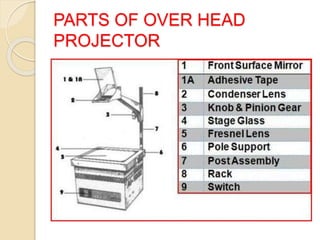
PARTS OF OVER HEAD
PROJECTOR
SCREENS FOR
PROJECTIONS:
Types of screen are,
 Aluminium coated
 Glass board
 Flat white screen
 Screens should be mounted properly an at
a proper angles.
STEPS IN USING OHP:
Keep the screen above the
participants heads.
Place the OHP on a table facing to
screen.
Pit the plug into the power wall socket
switch on the blower first and lamp.
Contd,
Place the acetate transparency on the
glass top.
Move the objective lens and mirror up
and down to get the image on the
screen.
Explain the material on the
transparency with a small pointer
Contd,
Turn the screen off between the
slides if you are going to talk for more
minutes.
Talk to audience not to the screen.
Switch off the bulb when not in use .
Don’t move the OHP when it is in use;
it may increase the chance of losing
oh OHP.
SOME DO’S AND DONT’S
WHILE USING OHP
DO’S:
 Focus and position image before
presentation
 Stand to the side of the screen
 Turnoff projector when not in use
 use colors to attract attention
Contd,
 Put captions on top
 Have images in to two-thirds of visual
position image at the top of screen
 Use pen or ruler to point
 Use upper and lower case letters.
DONT’S:
 Walk or stand in front of screen.
 Leave the projector on when you’ve talking
about something.
 Write closely on the whole of transparency
sheet.
 Have images type-written or too small
 Use black to point.
 Use only capital letter.
ADVANTAGES DISADVANTAGES
 Permits the teacher
pointing the material and
observe the student on
same time
 It can be used in fairly
lighted room.
 Materials projected can be
changed quickly abs easily.
 It can be prepared in short
notice.
 Preserved for future use.
 OHP sheet can be quite
cheap
 It is too costly
 Writing by some type of
pen get blotted out on
plastic.
 Need electricity and OHP
bulbs are very sensitive
to jerky movements.
 Transparencies are large
compared to other
projected aids like slides.
 Require good
handwriting .
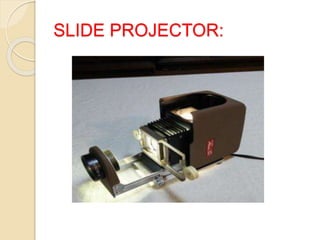
SLIDE PROJECTOR:
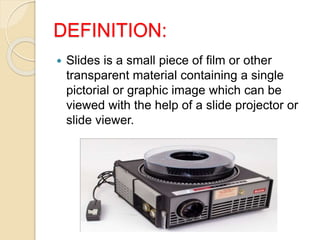
DEFINITION:
 Slides is a small piece of film or other
transparent material containing a single
pictorial or graphic image which can be
viewed with the help of a slide projector or
slide viewer.
PURPOSES:
To visualize an entire teaching
session.
To make the abstract fact more
understandable and interesting.
To show pictures using slides.
METHOD OF SLIDES:
 BASED ON METHOD OF PERPARATION:
a) Photographic slides
b) Handmade slides
c) Computer made slides
 BASED ON CONTENT OF SLIDES:
a) Live slides
b) Flat copy slides
PREPARATION:
Collect all available slides.
Check them thoroughly.
Choose at least 5 to 6 slides for
presentation.
Arrange the chosen slides in a proper
sequence
Start teaching
Interruption during the slide show will result
in the lost of interest.
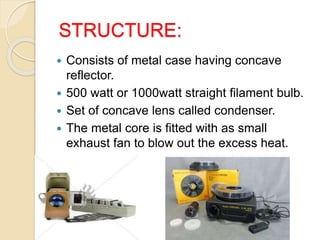
STRUCTURE:
 Consists of metal case having concave
reflector.
 500 watt or 1000watt straight filament bulb.
 Set of concave lens called condenser.
 The metal core is fitted with as small
exhaust fan to blow out the excess heat.
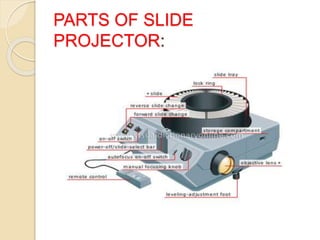
PARTS OF SLIDE
PROJECTOR:
GUIDELINES:
 Place the slide projector on a rigid and
stable table.
 Place the screen at an appropriate place.
 Insert the slide projector or film strip carrier
in its place after opening the tube.
 Mount a slide or film strip on its carrier.
 Insert the projector cord plug into the wall
socket.
 Darken the room.
Contd,
 Switch on the cooling fan first and then the
projection bulb.
 Focus the image.
 Show the slide and explain.
 Insert the next slide.
 Present the slides or frames sequentially,
 Switch off the bulb first then the cooling fan
 Unplug the slide projector and store it back
in its box.
CARE OF SLIDES AND
EQUIPMENTS:
 They require care in handling and storage
 Store vertically in cardboard trays of right
size
 Tray should be covered.
 They should be catalogued subject wise.
 Container should be properly labeled.
 Don’t handle projector while bulb is still hot.
 Protect from environment,
dust,dirt,moisture.
ADVANTAGES: DISADVANTAGES:
 Small in size
 Require simple skills
 Can be stored and also
carried around easily.
 A logical and sequential
order of presentation.
 Save time in teaching
 Capture attention and
interest of students.
 Interaction with students
and group participation is
possible.
 Needed a darkened
room.
 Require equipment and
power that will need to
be maintained.
 Sequence cannot be
changed.
 Visual media only; it
requires audio or printed
text.
 Require professional
assistance for final
production.
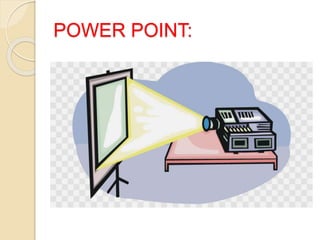
POWER POINT:
DEFINITION:
It is a Microsoft presentation software
program that creates a slide show of
important notes to display during a
presentation.
GUIDELINES FOR POWER
POINT PRESENTATION:
 Alternative to using OHP
 Production of interesting and visually
attractive presentation.
 Flexibility both in terms of content and
display
 Graphics, drawings, tables and
organizational charts.
 Keep presentation simple and clear
Contd,
 Limit number of slides not more than 12 for
a 10 minute presentation.
 Ensure text contrasts with the background
 Avoid patterned background
 Comply with copyright law, when pictures,
charts, tables are used.
 Use on one or two animation effects.
ERRORS:
 Use “ special effects” sparingly
 They rarely add anything to the
presentation.
 And can be extremely annoying and
distracting.
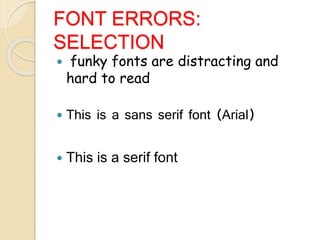
FONT ERRORS:
SELECTION
 funky fonts are distracting and
hard to read
 This is a sans serif font (Arial)
 This is a serif font
FONT ERRORS: SIZE
 Too small is hard to see , and this is smaller that the minimum
resolvable acuity for most of audience
 Beyond minimum resolvable
acuity
 Make big enough to see easily.
FONT SIZE:
 Titles- 40 to 72 pt
 Text – 28 to 40 pt
 Never smaller than 28 pt
FONT ERRORS : CASE
SELECTION
 ALL CAPS IS NOT VERY READABLE
FOR LONG PASSAGES; AVOID THIS
EXCEPT FOR SHORT TITLES AND
ABBREVIATIONS
 Sentence case is much more
readable!
FONT ERRORS:
ALIGNMENT
 This passage is more difficult for you
to read because it is centered, instead
of left justified. Don’t do this.
 This passage is left justified and
easier for you to read. Do this.
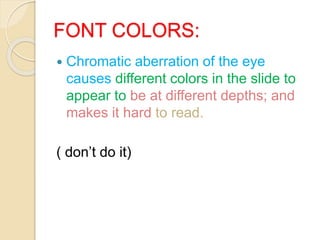
FONT COLORS:
 Chromatic aberration of the eye
causes different colors in the slide to
appear to be at different depths; and
makes it hard to read.
( don’t do it)
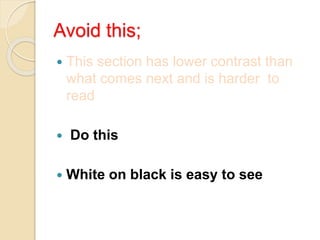
Avoid this;
 This section has lower contrast than
what comes next and is harder to
read
 Do this
 White on black is easy to see
GUIDELINES FOR LCD
PROJECTION:
• surface should be neutral colour and best
suited for natural colors.
 Placed 5-15 feet away from projection.
 The power cable should be connected at
back of LCD projector.
 Content should ne clearly projected on
screen.
Contd.
 Blinking of lamp warning light notifies
the need of lamp to be charged.
 To shut off the LCD projector the
power button should be pressed.
 Teacher should wait for projection fan
off before projector is unplugged.
ADVANTAGES: DISADVANTAGES:
 If you get lost, you can
casually look at the power
point for guidance.
 Images and good
presentation can makes
PPT more engaging.
 Looks more professional
 Students can register the
information more as they
can observe the PPT
 Technically faults can
rise
 Time consuming
 You will not able to
change any slide during
a presentation.
 Presenter cannot get into
giving their full heart to
the presentation.
REFERENCE:
 Jaspreet kauri sodhi(2017).
Comprehensive textbook of nursing
education. Published by jaypee
 Sudha R(2013). Nursing education
principles and concepts. Published by
jaypee.
 Née raja K P (2011). Textbook of
communication and education
technology for nurses. Published by
jaypee.
Contd,
 Basavanthappa(2003). Nursing
education. Published by jaypee.
 Suresh K Sharma(2016).
Communication and educational
technology. Published by Elsevier.
Projected aids

Projected aids

  • 1.
  • 2.
    DEFINITION: Projected AV aids are picturesshown on screen by use of different types of machines.
  • 3.
    FUNCTIONS :  Theyhave high degree of interest for students.  They make more learning permanent.  They supply a concrete basis for conceptual thinking and hence reduce meaningless word response of students.  Develop continuity of thoughts.
  • 4.
    CLASSIFICATION:  Over headprojector  Slide projector  Power point
  • 5.
  • 6.
    DEFINITION: The name comesfrom the fact that the projected image is behind and over the head of the speaker. The teacher can write or draw diagrams on the transparency while he teaches; these are projected simultaneously on the screen by the OHP.
  • 7.
    PURPOSES:  To developconcepts and sequences in a subject.  To test students performance, while others classmates observe.  To give illusion of motion in the transparency.  To show relationship by means of transparent overlays in contrasting colour.
  • 8.
    MATERIALS REQUIRED:  Acetatesheet  Cellophane paper pens spirit based inks(permanent) water based ink ( temporary)  Lined paper.
  • 9.
    OVERHEAD TRANSPARENCIES:  Transparencies arepopular instructional medium. They are simple and easy to prepare and easy to operate with the OHP which is light weight.
  • 10.
    PREPARING A TRANSPARENCY: Size ofacetate sheet measures 18cm*22.5cm. Placed lined paper beneath the acetate sheet before writing the material. Use simple letter 6mm for text and 9mm for titles. Use capital letters for titles. It should be clearly read from distance of 2 meters.
  • 11.
    contd,  Best colour-black ,blue, green.  Use colors and words with discretion.  Have one main idea on each transparency.  Content should clear, simple and not be a clumsy.  Don’t use all capital letters.  Use diagram in proportion to its lettering.  Avoid too much information on single transparency.
  • 12.
    RULE OF SIXFOR PREPARING TRANSPARENCIES:  Six lines per transparency  Six words per line  Six mm smallest letter size  Six cm (3+3 on each side) margin
  • 13.
    PARTS OF OVERHEAD PROJECTOR
  • 14.
    SCREENS FOR PROJECTIONS: Types ofscreen are,  Aluminium coated  Glass board  Flat white screen  Screens should be mounted properly an at a proper angles.
  • 15.
    STEPS IN USINGOHP: Keep the screen above the participants heads. Place the OHP on a table facing to screen. Pit the plug into the power wall socket switch on the blower first and lamp.
  • 16.
    Contd, Place the acetatetransparency on the glass top. Move the objective lens and mirror up and down to get the image on the screen. Explain the material on the transparency with a small pointer
  • 17.
    Contd, Turn the screenoff between the slides if you are going to talk for more minutes. Talk to audience not to the screen. Switch off the bulb when not in use . Don’t move the OHP when it is in use; it may increase the chance of losing oh OHP.
  • 18.
    SOME DO’S ANDDONT’S WHILE USING OHP
  • 19.
    DO’S:  Focus andposition image before presentation  Stand to the side of the screen  Turnoff projector when not in use  use colors to attract attention
  • 20.
    Contd,  Put captionson top  Have images in to two-thirds of visual position image at the top of screen  Use pen or ruler to point  Use upper and lower case letters.
  • 21.
    DONT’S:  Walk orstand in front of screen.  Leave the projector on when you’ve talking about something.  Write closely on the whole of transparency sheet.  Have images type-written or too small  Use black to point.  Use only capital letter.
  • 22.
    ADVANTAGES DISADVANTAGES  Permitsthe teacher pointing the material and observe the student on same time  It can be used in fairly lighted room.  Materials projected can be changed quickly abs easily.  It can be prepared in short notice.  Preserved for future use.  OHP sheet can be quite cheap  It is too costly  Writing by some type of pen get blotted out on plastic.  Need electricity and OHP bulbs are very sensitive to jerky movements.  Transparencies are large compared to other projected aids like slides.  Require good handwriting .
  • 23.
  • 24.
    DEFINITION:  Slides isa small piece of film or other transparent material containing a single pictorial or graphic image which can be viewed with the help of a slide projector or slide viewer.
  • 25.
    PURPOSES: To visualize anentire teaching session. To make the abstract fact more understandable and interesting. To show pictures using slides.
  • 26.
    METHOD OF SLIDES: BASED ON METHOD OF PERPARATION: a) Photographic slides b) Handmade slides c) Computer made slides  BASED ON CONTENT OF SLIDES: a) Live slides b) Flat copy slides
  • 27.
    PREPARATION: Collect all availableslides. Check them thoroughly. Choose at least 5 to 6 slides for presentation. Arrange the chosen slides in a proper sequence Start teaching Interruption during the slide show will result in the lost of interest.
  • 28.
    STRUCTURE:  Consists ofmetal case having concave reflector.  500 watt or 1000watt straight filament bulb.  Set of concave lens called condenser.  The metal core is fitted with as small exhaust fan to blow out the excess heat.
  • 29.
  • 30.
    GUIDELINES:  Place theslide projector on a rigid and stable table.  Place the screen at an appropriate place.  Insert the slide projector or film strip carrier in its place after opening the tube.  Mount a slide or film strip on its carrier.  Insert the projector cord plug into the wall socket.  Darken the room.
  • 31.
    Contd,  Switch onthe cooling fan first and then the projection bulb.  Focus the image.  Show the slide and explain.  Insert the next slide.  Present the slides or frames sequentially,  Switch off the bulb first then the cooling fan  Unplug the slide projector and store it back in its box.
  • 32.
    CARE OF SLIDESAND EQUIPMENTS:  They require care in handling and storage  Store vertically in cardboard trays of right size  Tray should be covered.  They should be catalogued subject wise.  Container should be properly labeled.  Don’t handle projector while bulb is still hot.  Protect from environment, dust,dirt,moisture.
  • 33.
    ADVANTAGES: DISADVANTAGES:  Smallin size  Require simple skills  Can be stored and also carried around easily.  A logical and sequential order of presentation.  Save time in teaching  Capture attention and interest of students.  Interaction with students and group participation is possible.  Needed a darkened room.  Require equipment and power that will need to be maintained.  Sequence cannot be changed.  Visual media only; it requires audio or printed text.  Require professional assistance for final production.
  • 34.
  • 35.
    DEFINITION: It is aMicrosoft presentation software program that creates a slide show of important notes to display during a presentation.
  • 36.
    GUIDELINES FOR POWER POINTPRESENTATION:  Alternative to using OHP  Production of interesting and visually attractive presentation.  Flexibility both in terms of content and display  Graphics, drawings, tables and organizational charts.  Keep presentation simple and clear
  • 37.
    Contd,  Limit numberof slides not more than 12 for a 10 minute presentation.  Ensure text contrasts with the background  Avoid patterned background  Comply with copyright law, when pictures, charts, tables are used.  Use on one or two animation effects.
  • 38.
    ERRORS:  Use “special effects” sparingly  They rarely add anything to the presentation.  And can be extremely annoying and distracting.
  • 39.
    FONT ERRORS: SELECTION  funkyfonts are distracting and hard to read  This is a sans serif font (Arial)  This is a serif font
  • 40.
    FONT ERRORS: SIZE Too small is hard to see , and this is smaller that the minimum resolvable acuity for most of audience  Beyond minimum resolvable acuity  Make big enough to see easily.
  • 41.
    FONT SIZE:  Titles-40 to 72 pt  Text – 28 to 40 pt  Never smaller than 28 pt
  • 42.
    FONT ERRORS :CASE SELECTION  ALL CAPS IS NOT VERY READABLE FOR LONG PASSAGES; AVOID THIS EXCEPT FOR SHORT TITLES AND ABBREVIATIONS  Sentence case is much more readable!
  • 43.
    FONT ERRORS: ALIGNMENT  Thispassage is more difficult for you to read because it is centered, instead of left justified. Don’t do this.  This passage is left justified and easier for you to read. Do this.
  • 44.
    FONT COLORS:  Chromaticaberration of the eye causes different colors in the slide to appear to be at different depths; and makes it hard to read. ( don’t do it)
  • 45.
    Avoid this;  Thissection has lower contrast than what comes next and is harder to read  Do this  White on black is easy to see
  • 46.
    GUIDELINES FOR LCD PROJECTION: •surface should be neutral colour and best suited for natural colors.  Placed 5-15 feet away from projection.  The power cable should be connected at back of LCD projector.  Content should ne clearly projected on screen.
  • 47.
    Contd.  Blinking oflamp warning light notifies the need of lamp to be charged.  To shut off the LCD projector the power button should be pressed.  Teacher should wait for projection fan off before projector is unplugged.
  • 48.
    ADVANTAGES: DISADVANTAGES:  Ifyou get lost, you can casually look at the power point for guidance.  Images and good presentation can makes PPT more engaging.  Looks more professional  Students can register the information more as they can observe the PPT  Technically faults can rise  Time consuming  You will not able to change any slide during a presentation.  Presenter cannot get into giving their full heart to the presentation.
  • 49.
    REFERENCE:  Jaspreet kaurisodhi(2017). Comprehensive textbook of nursing education. Published by jaypee  Sudha R(2013). Nursing education principles and concepts. Published by jaypee.  Née raja K P (2011). Textbook of communication and education technology for nurses. Published by jaypee.
  • 50.
    Contd,  Basavanthappa(2003). Nursing education.Published by jaypee.  Suresh K Sharma(2016). Communication and educational technology. Published by Elsevier.