Print Screens of my magazine
construction
Front Cover
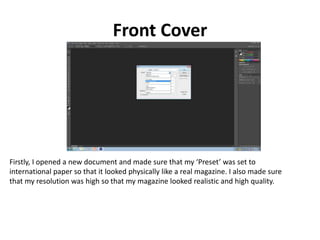
Firstly, I opened a new document and made sure that my ‘Preset’ was set to
international paper so that it looked physically like a real magazine. I also made sure
that my resolution was high so that my magazine looked realistic and high quality.
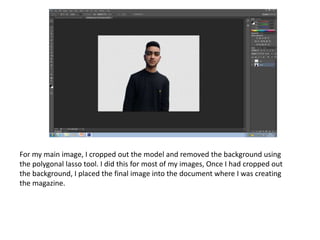
For my main image, I cropped out the model and removed the background using
the polygonal lasso tool. I did this for most of my images, Once I had cropped out
the background, I placed the final image into the document where I was creating
the magazine.
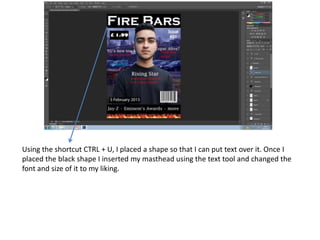
Using the shortcut CTRL + U, I placed a shape so that I can put text over it. Once I
placed the black shape I inserted my masthead using the text tool and changed the
font and size of it to my liking.
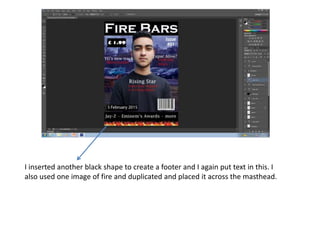
I inserted another black shape to create a footer and I again put text in this. I
also used one image of fire and duplicated and placed it across the masthead.
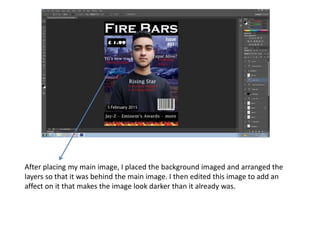
After placing my main image, I placed the background imaged and arranged the
layers so that it was behind the main image. I then edited this image to add an
affect on it that makes the image look darker than it already was.
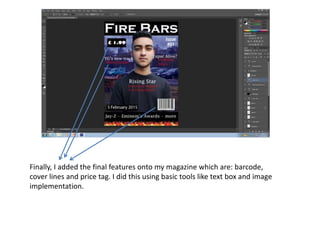
Finally, I added the final features onto my magazine which are: barcode,
cover lines and price tag. I did this using basic tools like text box and image
implementation.
Contents Page
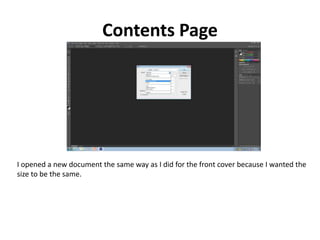
I opened a new document the same way as I did for the front cover because I wanted the
size to be the same.
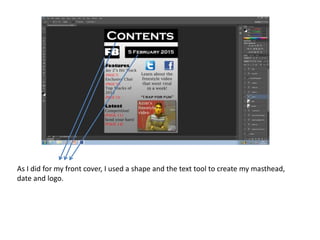
As I did for my front cover, I used a shape and the text tool to create my masthead,
date and logo.
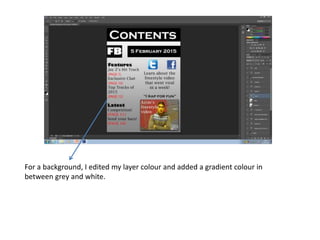
For a background, I edited my layer colour and added a gradient colour in
between grey and white.
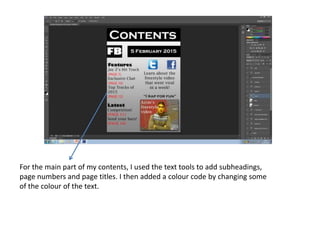
For the main part of my contents, I used the text tools to add subheadings,
page numbers and page titles. I then added a colour code by changing some
of the colour of the text.
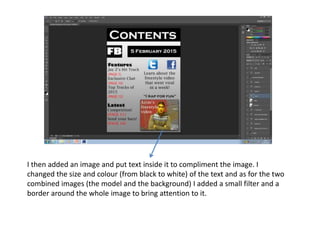
I then added an image and put text inside it to compliment the image. I
changed the size and colour (from black to white) of the text and as for the two
combined images (the model and the background) I added a small filter and a
border around the whole image to bring attention to it.
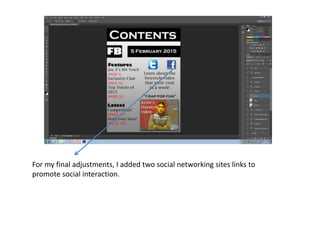
For my final adjustments, I added two social networking sites links to
promote social interaction.
Double Page Spread (DPS)
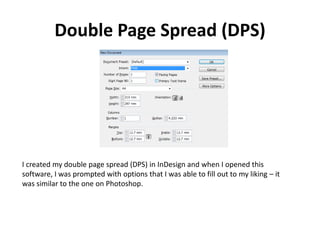
I created my double page spread (DPS) in InDesign and when I opened this
software, I was prompted with options that I was able to fill out to my liking – it
was similar to the one on Photoshop.
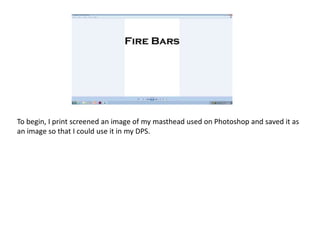
To begin, I print screened an image of my masthead used on Photoshop and saved it as
an image so that I could use it in my DPS.
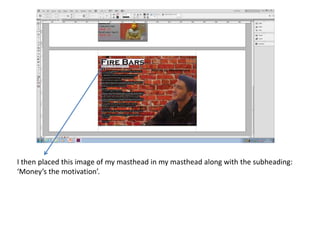
I then placed this image of my masthead in my masthead along with the subheading:
‘Money’s the motivation’.
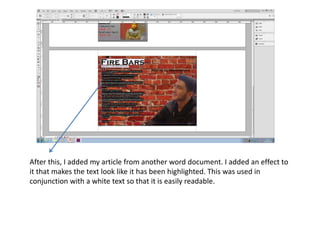
After this, I added my article from another word document. I added an effect to
it that makes the text look like it has been highlighted. This was used in
conjunction with a white text so that it is easily readable.
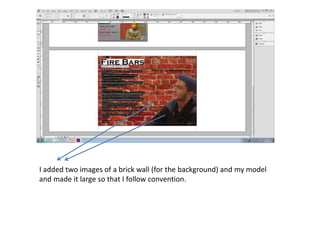
I added two images of a brick wall (for the background) and my model
and made it large so that I follow convention.
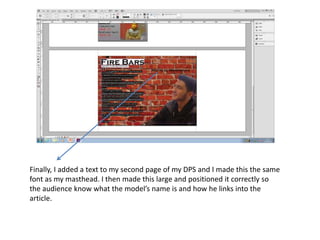
Finally, I added a text to my second page of my DPS and I made this the same
font as my masthead. I then made this large and positioned it correctly so
the audience know what the model’s name is and how he links into the
article.
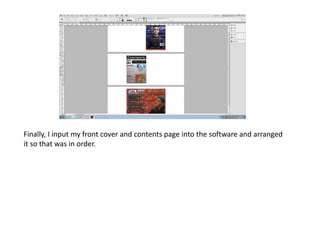
Finally, I input my front cover and contents page into the software and arranged
it so that was in order.

Print screens

  • 1.
    Print Screens ofmy magazine construction
  • 2.
    Front Cover Firstly, Iopened a new document and made sure that my ‘Preset’ was set to international paper so that it looked physically like a real magazine. I also made sure that my resolution was high so that my magazine looked realistic and high quality.
  • 3.
    For my mainimage, I cropped out the model and removed the background using the polygonal lasso tool. I did this for most of my images, Once I had cropped out the background, I placed the final image into the document where I was creating the magazine.
  • 4.
    Using the shortcutCTRL + U, I placed a shape so that I can put text over it. Once I placed the black shape I inserted my masthead using the text tool and changed the font and size of it to my liking.
  • 5.
    I inserted anotherblack shape to create a footer and I again put text in this. I also used one image of fire and duplicated and placed it across the masthead.
  • 6.
    After placing mymain image, I placed the background imaged and arranged the layers so that it was behind the main image. I then edited this image to add an affect on it that makes the image look darker than it already was.
  • 7.
    Finally, I addedthe final features onto my magazine which are: barcode, cover lines and price tag. I did this using basic tools like text box and image implementation.
  • 8.
    Contents Page I openeda new document the same way as I did for the front cover because I wanted the size to be the same.
  • 9.
    As I didfor my front cover, I used a shape and the text tool to create my masthead, date and logo.
  • 10.
    For a background,I edited my layer colour and added a gradient colour in between grey and white.
  • 11.
    For the mainpart of my contents, I used the text tools to add subheadings, page numbers and page titles. I then added a colour code by changing some of the colour of the text.
  • 12.
    I then addedan image and put text inside it to compliment the image. I changed the size and colour (from black to white) of the text and as for the two combined images (the model and the background) I added a small filter and a border around the whole image to bring attention to it.
  • 13.
    For my finaladjustments, I added two social networking sites links to promote social interaction.
  • 14.
    Double Page Spread(DPS) I created my double page spread (DPS) in InDesign and when I opened this software, I was prompted with options that I was able to fill out to my liking – it was similar to the one on Photoshop.
  • 15.
    To begin, Iprint screened an image of my masthead used on Photoshop and saved it as an image so that I could use it in my DPS.
  • 16.
    I then placedthis image of my masthead in my masthead along with the subheading: ‘Money’s the motivation’.
  • 17.
    After this, Iadded my article from another word document. I added an effect to it that makes the text look like it has been highlighted. This was used in conjunction with a white text so that it is easily readable.
  • 18.
    I added twoimages of a brick wall (for the background) and my model and made it large so that I follow convention.
  • 19.
    Finally, I addeda text to my second page of my DPS and I made this the same font as my masthead. I then made this large and positioned it correctly so the audience know what the model’s name is and how he links into the article.
  • 20.
    Finally, I inputmy front cover and contents page into the software and arranged it so that was in order.