Photoshop Process
Front Cover
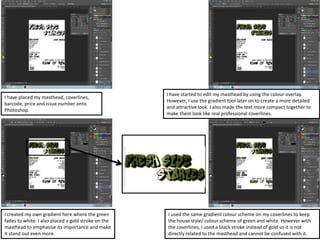
I have placed my masthead, coverlines,
barcode, price and issue number onto
Photoshop.
I have started to edit my masthead by using the colour overlay.
However, I use the gradient tool later on to create a more detailed
and attractive look. I also made the text more compact together to
make them look like real professional coverlines.
I created my own gradient here where the green
fades to white. I also placed a gold stroke on the
masthead to emphasise its importance and make
it stand out even more.
I used the same gradient colour scheme on my coverlines to keep
the house style/ colour scheme of green and white. However with
the coverlines, I used a black stroke instead of gold so it is not
directly related to the masthead and cannot be confused with it.
At the top of the page you can see that I have made space
for a covermount. I created a layer for the gradient filled
background. I merged black with gold and then white. This
also keeps with some of the colour scheme and creates quite
a nice contrast.
I used another tool to edit my masthead, coverlines and
covermount. This was the texture tool, which gives the effect
that they are 3D and also for my magazine, gives a graffiti styled
effect. I also placed a drop shadow on all of the coverlines and
masthead to enhance the importance of them.
This piece of graffiti is the back drop for my
magazine which will go behind my main image.
I started to use the background eraser to take away parts of the graffiti which
gives it a decaying ghostly effect. This will make it an interesting background,
but it will not detract from the main image and other conventions.
As you can see I have duplicated the graffiti layers
all with certain pieces missing. They did overlap
the coverlines making them hard to read so I
erased parts so it left the space behind it white.
With the main coverline I started to experiment
with the colour to see how I could make it
different to the other coverlines therefore
distinguishing it as the main coverline more easily.
I adjusted the hue saturation of every single piece
of graffiti so it is now black and white. This means
that it doesn’t distract too much from the
coverlines and masthead.
I know that on my front cover I have used a limited amount of text compared to what would normally
be shown. I was inspired to do this by the magazine ‘VIBE’ which is shown to the right. The masthead
is clear and there are only five coverlines. These coverlines also contain very limited amount of
information which means they don’t crowd up the page; it is mainly about the main image, masthead
and main coverline, which I wanted to get across in my magazine.
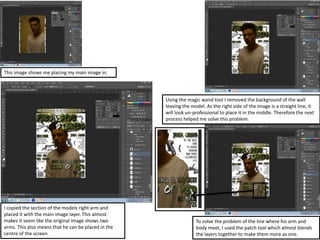
To solve the problem of the line where his arm and
body meet, I used the patch tool which almost blends
the layers together to make them more as one.
This image shows me placing my main image in.
Using the magic wand tool I removed the background of the wall
leaving the model. As the right side of the image is a straight line, it
will look un-professional to place it in the middle. Therefore the next
process helped me solve this problem.
I copied the section of the models right arm and
placed it with the main image layer. This almost
makes it seem like the original image shows two
arms. This also means that he can be placed in the
centre of the screen.
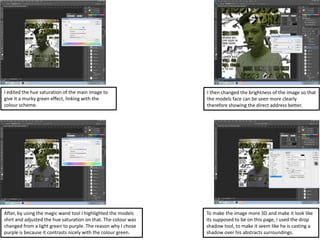
I edited the hue saturation of the main image to
give it a murky green effect, linking with the
colour scheme.
I then changed the brightness of the image so that
the models face can be seen more clearly
therefore showing the direct address better.
After, by using the magic wand tool I highlighted the models
shirt and adjusted the hue saturation on that. The colour was
changed from a light green to purple. The reason why I chose
purple is because it contrasts nicely with the colour green.
To make the image more 3D and make it look like
its supposed to be on this page, I used the drop
shadow tool, to make it seem like he is casting a
shadow over his abstracts surroundings.
Contents Page
To keep the brand identity, I repeated the
masthead on the contents page by duplicating
the layer.
In this print screen, the title of the page, images,
page numbers and articles have been inserted.
In this print screen, I have cropped an image so
that I have a number of brick wall layers, collaged
together. This will be my background.
Using the gradient tool created the style for the
title of the page and page numbers. Also on the
title of the page, I placed a drop shadow to give
the effect that it is graffiti on the wall.
Drop shadows have been placed on all of the page numbers to
give them the effect that they are pieces of graffiti on the wall. I
also inserted two social media site images, Twitter and Instagram.
In this image you can clearly see that I have followed
the convention of putting borders on the article
images. This gives them a more refined look.
I have completed the social media sites for the
magazine and also put a stroke around the social
media icons to make them more refined
I have edited the images for my contents page. I used the gradient
tool to adjust the colour of the image. Also I changed the opacity so
it did not completely fill the image. Finally, I placed a drop shadow
on the image to make it seem like it is attached to the wall
This is where I started to edit the colour of the
wall by changing it to black and white. This would
emphasise the 3D effect of the writing, therefore
making it easier to read.
In this section, I placed a thick white stroke on the
black writing to contrast with the dark wall,
making it stand out.
I chose to include another photo and make and
editorial note. The image has had a stroke placed
on it, a drop shadow and a gradient overlay.
This shows the date of when the issue was
released giving the magazine a sense of realism
Double Page Spread
This is my original main image for my double page
spread
Here is where I
placed extra
graffiti onto the
right side of the
wall and reduced
the opacity. In this
shot I have also
darkened the
background to
make the model
stand out more
and connote that
he is the
important figure in
this image
This screenshot shows me adjusting the sharpness of
the image to create a more refined and detailed effect.
Before I took this next screenshot, I actually placed the
image before into InDesign. However the text was
overlapping the models face so I decided to adjust the
composition of where the model was standing

Photoshop process

  • 1.
  • 2.
  • 3.
    I have placedmy masthead, coverlines, barcode, price and issue number onto Photoshop. I have started to edit my masthead by using the colour overlay. However, I use the gradient tool later on to create a more detailed and attractive look. I also made the text more compact together to make them look like real professional coverlines. I created my own gradient here where the green fades to white. I also placed a gold stroke on the masthead to emphasise its importance and make it stand out even more. I used the same gradient colour scheme on my coverlines to keep the house style/ colour scheme of green and white. However with the coverlines, I used a black stroke instead of gold so it is not directly related to the masthead and cannot be confused with it.
  • 4.
    At the topof the page you can see that I have made space for a covermount. I created a layer for the gradient filled background. I merged black with gold and then white. This also keeps with some of the colour scheme and creates quite a nice contrast. I used another tool to edit my masthead, coverlines and covermount. This was the texture tool, which gives the effect that they are 3D and also for my magazine, gives a graffiti styled effect. I also placed a drop shadow on all of the coverlines and masthead to enhance the importance of them. This piece of graffiti is the back drop for my magazine which will go behind my main image. I started to use the background eraser to take away parts of the graffiti which gives it a decaying ghostly effect. This will make it an interesting background, but it will not detract from the main image and other conventions.
  • 5.
    As you cansee I have duplicated the graffiti layers all with certain pieces missing. They did overlap the coverlines making them hard to read so I erased parts so it left the space behind it white. With the main coverline I started to experiment with the colour to see how I could make it different to the other coverlines therefore distinguishing it as the main coverline more easily. I adjusted the hue saturation of every single piece of graffiti so it is now black and white. This means that it doesn’t distract too much from the coverlines and masthead. I know that on my front cover I have used a limited amount of text compared to what would normally be shown. I was inspired to do this by the magazine ‘VIBE’ which is shown to the right. The masthead is clear and there are only five coverlines. These coverlines also contain very limited amount of information which means they don’t crowd up the page; it is mainly about the main image, masthead and main coverline, which I wanted to get across in my magazine.
  • 6.
    To solve theproblem of the line where his arm and body meet, I used the patch tool which almost blends the layers together to make them more as one. This image shows me placing my main image in. Using the magic wand tool I removed the background of the wall leaving the model. As the right side of the image is a straight line, it will look un-professional to place it in the middle. Therefore the next process helped me solve this problem. I copied the section of the models right arm and placed it with the main image layer. This almost makes it seem like the original image shows two arms. This also means that he can be placed in the centre of the screen.
  • 7.
    I edited thehue saturation of the main image to give it a murky green effect, linking with the colour scheme. I then changed the brightness of the image so that the models face can be seen more clearly therefore showing the direct address better. After, by using the magic wand tool I highlighted the models shirt and adjusted the hue saturation on that. The colour was changed from a light green to purple. The reason why I chose purple is because it contrasts nicely with the colour green. To make the image more 3D and make it look like its supposed to be on this page, I used the drop shadow tool, to make it seem like he is casting a shadow over his abstracts surroundings.
  • 8.
  • 9.
    To keep thebrand identity, I repeated the masthead on the contents page by duplicating the layer. In this print screen, the title of the page, images, page numbers and articles have been inserted. In this print screen, I have cropped an image so that I have a number of brick wall layers, collaged together. This will be my background. Using the gradient tool created the style for the title of the page and page numbers. Also on the title of the page, I placed a drop shadow to give the effect that it is graffiti on the wall.
  • 10.
    Drop shadows havebeen placed on all of the page numbers to give them the effect that they are pieces of graffiti on the wall. I also inserted two social media site images, Twitter and Instagram. In this image you can clearly see that I have followed the convention of putting borders on the article images. This gives them a more refined look. I have completed the social media sites for the magazine and also put a stroke around the social media icons to make them more refined I have edited the images for my contents page. I used the gradient tool to adjust the colour of the image. Also I changed the opacity so it did not completely fill the image. Finally, I placed a drop shadow on the image to make it seem like it is attached to the wall
  • 11.
    This is whereI started to edit the colour of the wall by changing it to black and white. This would emphasise the 3D effect of the writing, therefore making it easier to read. In this section, I placed a thick white stroke on the black writing to contrast with the dark wall, making it stand out. I chose to include another photo and make and editorial note. The image has had a stroke placed on it, a drop shadow and a gradient overlay. This shows the date of when the issue was released giving the magazine a sense of realism
  • 12.
  • 13.
    This is myoriginal main image for my double page spread Here is where I placed extra graffiti onto the right side of the wall and reduced the opacity. In this shot I have also darkened the background to make the model stand out more and connote that he is the important figure in this image This screenshot shows me adjusting the sharpness of the image to create a more refined and detailed effect. Before I took this next screenshot, I actually placed the image before into InDesign. However the text was overlapping the models face so I decided to adjust the composition of where the model was standing