Web Design Principles
5th
Edition
Chapter Eleven
Creating User Input Forms
Objectives
When you complete this chapter, you will be able to:
• Understand how forms work
• Use the <form> element
• Create input objects
• Style forms with Cascading Style Sheets (CSS)
2Web Design Principles 5th
Ed.
Understanding How Forms Work
4
Understanding How Forms Work
• Forms let you build interactive Web pages that
collect information from a user and process it on
the Web server
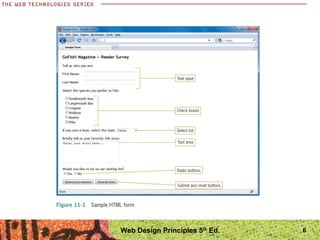
• The HTML form is the interface for the user to enter
data
• The data is processed by applications that reside
on the Web server
Web Design Principles 5th
Ed.
5
Understanding How Forms Work
• The data-processing software can then work
with the data and send a response back to
the user
• The user enters data via an HTML form
Web Design Principles 5th
Ed.
6Web Design Principles 5th
Ed.
Using the <form> Element
Using the <form> element
• The <form> element is the container for
creating a form
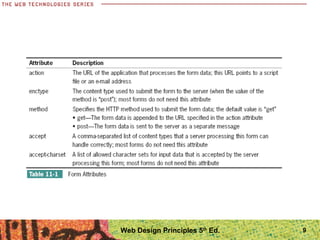
• A variety of attributes describe how the form
data will be processed
8Web Design Principles 5th
Ed.
9Web Design Principles 5th
Ed.
10
Using the <form> element
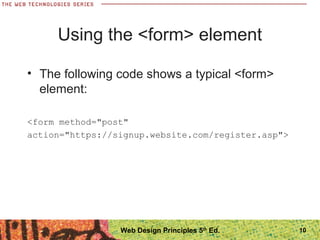
• The following code shows a typical <form>
element:
<form method="post"
action="https://signup.website.com/register.asp">
Web Design Principles 5th
Ed.
Using get or post
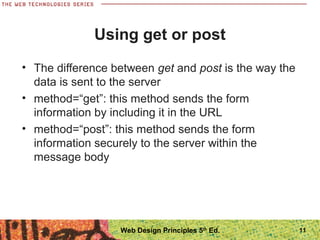
• The difference between get and post is the way the
data is sent to the server
• method=“get”: this method sends the form
information by including it in the URL
• method=“post”: this method sends the form
information securely to the server within the
message body
11Web Design Principles 5th
Ed.
Using the mailto Action
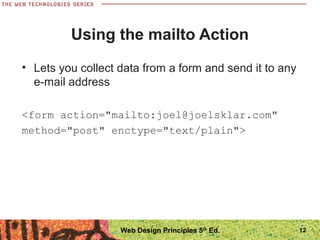
• Lets you collect data from a form and send it to any
e-mail address
<form action="mailto:joel@joelsklar.com"
method="post" enctype="text/plain">
12Web Design Principles 5th
Ed.
Creating Input Objects
14
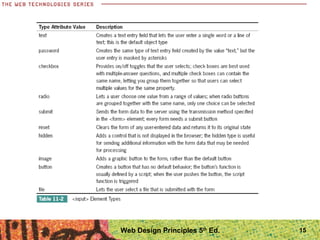
Creating Input Objects
• The <input> element defines many of the form
input object types
• The type attribute specifies the type of input
object
Web Design Principles 5th
Ed.
15Web Design Principles 5th
Ed.
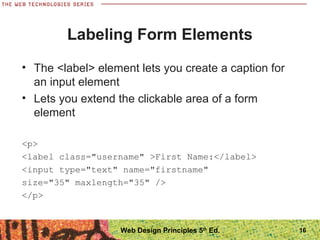
Labeling Form Elements
• The <label> element lets you create a caption for
an input element
• Lets you extend the clickable area of a form
element
<p>
<label class="username" >First Name:</label>
<input type="text" name="firstname"
size="35" maxlength="35" />
</p>
16Web Design Principles 5th
Ed.
Labeling Form Elements
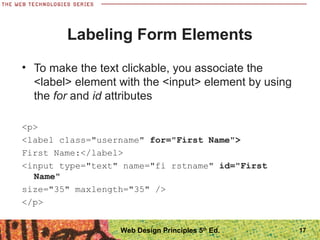
• To make the text clickable, you associate the
<label> element with the <input> element by using
the for and id attributes
<p>
<label class="username" for="First Name">
First Name:</label>
<input type="text" name="fi rstname" id="First
Name"
size="35" maxlength="35" />
</p>
17Web Design Principles 5th
Ed.
18
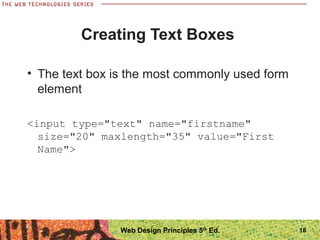
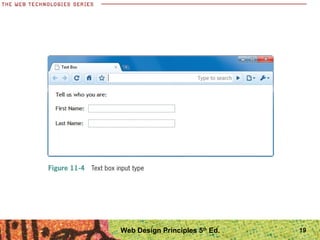
Creating Text Boxes
• The text box is the most commonly used form
element
<input type="text" name="firstname"
size="20" maxlength="35" value="First
Name">
Web Design Principles 5th
Ed.
19Web Design Principles 5th
Ed.
20
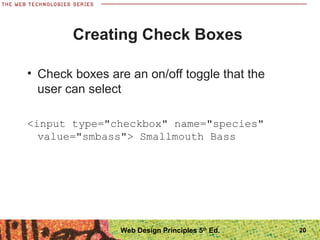
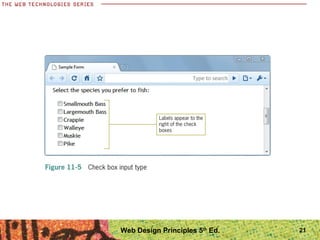
Creating Check Boxes
• Check boxes are an on/off toggle that the
user can select
<input type="checkbox" name="species"
value="smbass"> Smallmouth Bass
Web Design Principles 5th
Ed.
21Web Design Principles 5th
Ed.
22
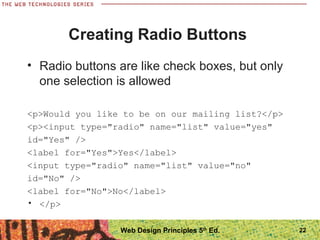
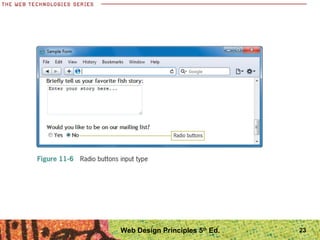
Creating Radio Buttons
• Radio buttons are like check boxes, but only
one selection is allowed
<p>Would you like to be on our mailing list?</p>
<p><input type="radio" name="list" value="yes"
id="Yes" />
<label for="Yes">Yes</label>
<input type="radio" name="list" value="no"
id="No" />
<label for="No">No</label>
• </p>
Web Design Principles 5th
Ed.
23Web Design Principles 5th
Ed.
24
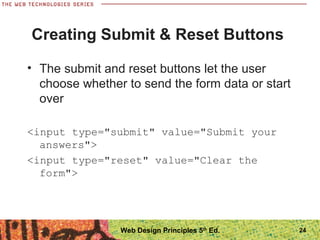
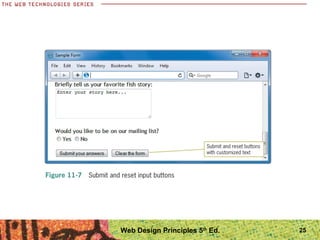
Creating Submit & Reset Buttons
• The submit and reset buttons let the user
choose whether to send the form data or start
over
<input type="submit" value="Submit your
answers">
<input type="reset" value="Clear the
form">
Web Design Principles 5th
Ed.
25Web Design Principles 5th
Ed.
26
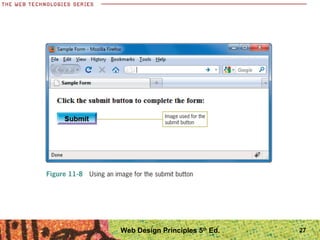
Creating an Image for the
Submit Button
• You can choose an image file and use it
instead of the default submit button
<input type="image" src="submit.gif"
alt="submit button">
Web Design Principles 5th
Ed.
27Web Design Principles 5th
Ed.
28
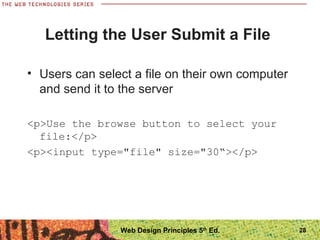
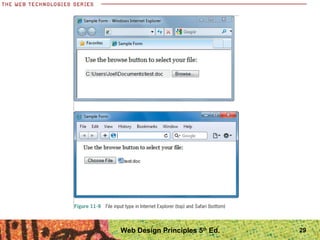
Letting the User Submit a File
• Users can select a file on their own computer
and send it to the server
<p>Use the browse button to select your
file:</p>
<p><input type="file" size="30“></p>
Web Design Principles 5th
Ed.
29Web Design Principles 5th
Ed.
30
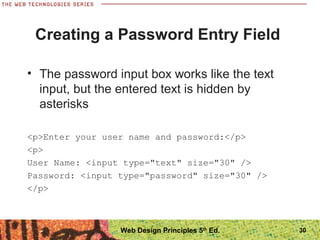
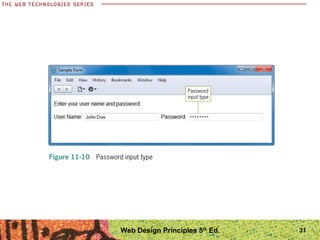
Creating a Password Entry Field
• The password input box works like the text
input, but the entered text is hidden by
asterisks
<p>Enter your user name and password:</p>
<p>
User Name: <input type="text" size="30" />
Password: <input type="password" size="30" />
</p>
Web Design Principles 5th
Ed.
31Web Design Principles 5th
Ed.
32
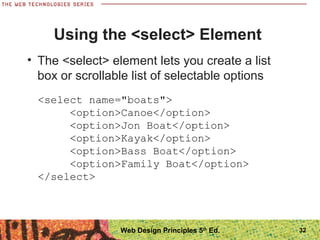
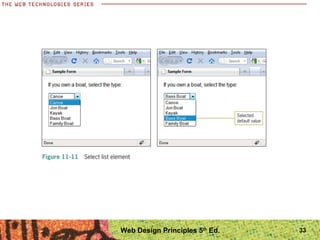
Using the <select> Element
• The <select> element lets you create a list
box or scrollable list of selectable options
<select name="boats">
<option>Canoe</option>
<option>Jon Boat</option>
<option>Kayak</option>
<option>Bass Boat</option>
<option>Family Boat</option>
</select>
Web Design Principles 5th
Ed.
33Web Design Principles 5th
Ed.
34
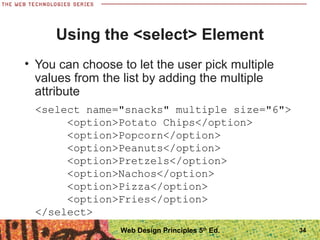
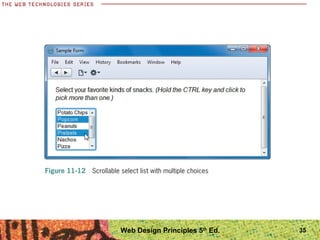
Using the <select> Element
• You can choose to let the user pick multiple
values from the list by adding the multiple
attribute
<select name="snacks" multiple size="6">
<option>Potato Chips</option>
<option>Popcorn</option>
<option>Peanuts</option>
<option>Pretzels</option>
<option>Nachos</option>
<option>Pizza</option>
<option>Fries</option>
</select>
Web Design Principles 5th
Ed.
35Web Design Principles 5th
Ed.
36
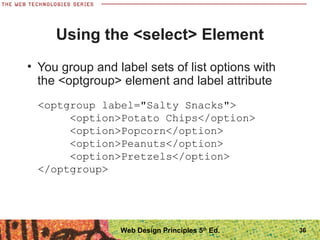
Using the <select> Element
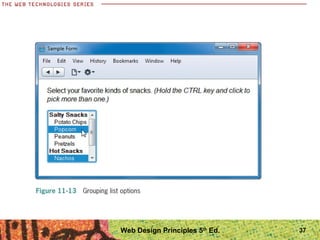
• You group and label sets of list options with
the <optgroup> element and label attribute
<optgroup label="Salty Snacks">
<option>Potato Chips</option>
<option>Popcorn</option>
<option>Peanuts</option>
<option>Pretzels</option>
</optgroup>
Web Design Principles 5th
Ed.
37Web Design Principles 5th
Ed.
38
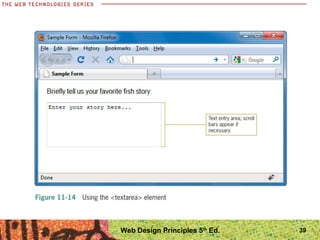
Using the <textarea> Element
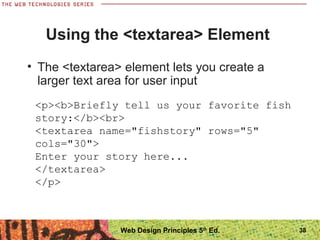
• The <textarea> element lets you create a
larger text area for user input
<p><b>Briefly tell us your favorite fish
story:</b><br>
<textarea name="fishstory" rows="5"
cols="30">
Enter your story here...
</textarea>
</p>
Web Design Principles 5th
Ed.
39Web Design Principles 5th
Ed.
40
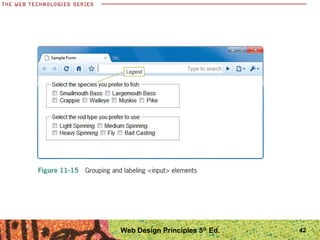
Creating Input Groupings
• You can use the <fieldset> and <legend>
elements to create groupings of different
types of input elements
Web Design Principles 5th
Ed.
41
Creating Input Groupings
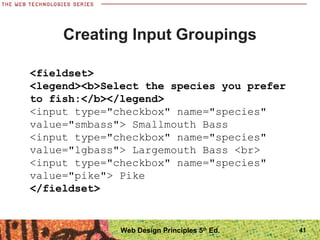
<fieldset>
<legend><b>Select the species you prefer
to fish:</b></legend>
<input type="checkbox" name="species"
value="smbass"> Smallmouth Bass
<input type="checkbox" name="species"
value="lgbass"> Largemouth Bass <br>
<input type="checkbox" name="species"
value="pike"> Pike
</fieldset>
Web Design Principles 5th
Ed.
42Web Design Principles 5th
Ed.
Styling Forms with CSS
44
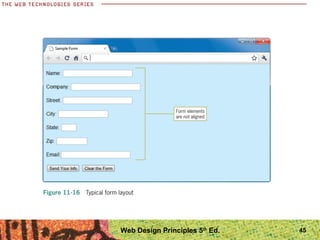
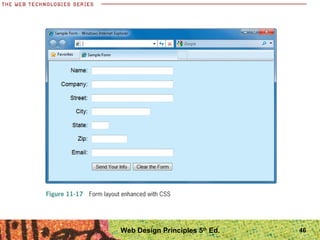
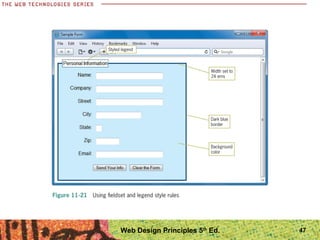
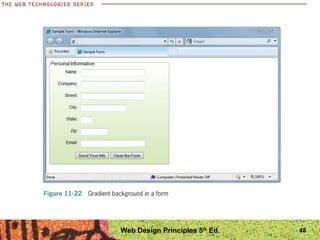
Styling Forms with CSS
• You can use many of the CSS properties to
specify type styles, background colors, box
properties, and colors to enhance the look of
your forms
• The grouping and labeling elements
<fieldset>, <legend>, and <label> are useful
when applying styles to forms
Web Design Principles 5th
Ed.
45Web Design Principles 5th
Ed.
46Web Design Principles 5th
Ed.
47Web Design Principles 5th
Ed.
48Web Design Principles 5th
Ed.
Summary
• Choose the right form elements based on the data
you want to collect
• A form element has attributes that describe how the
form data is processed
• You need a server application to process your form
data
• The <fieldset> and <legend> elements let you
create more visually appealing forms
• Forms should be formatted to improve their
legibility
49Web Design Principles 5th
Ed.

Ppt ch11

  • 1.
    Web Design Principles 5th Edition ChapterEleven Creating User Input Forms
  • 2.
    Objectives When you completethis chapter, you will be able to: • Understand how forms work • Use the <form> element • Create input objects • Style forms with Cascading Style Sheets (CSS) 2Web Design Principles 5th Ed.
  • 3.
  • 4.
    4 Understanding How FormsWork • Forms let you build interactive Web pages that collect information from a user and process it on the Web server • The HTML form is the interface for the user to enter data • The data is processed by applications that reside on the Web server Web Design Principles 5th Ed.
  • 5.
    5 Understanding How FormsWork • The data-processing software can then work with the data and send a response back to the user • The user enters data via an HTML form Web Design Principles 5th Ed.
  • 6.
  • 7.
  • 8.
    Using the <form>element • The <form> element is the container for creating a form • A variety of attributes describe how the form data will be processed 8Web Design Principles 5th Ed.
  • 9.
  • 10.
    10 Using the <form>element • The following code shows a typical <form> element: <form method="post" action="https://signup.website.com/register.asp"> Web Design Principles 5th Ed.
  • 11.
    Using get orpost • The difference between get and post is the way the data is sent to the server • method=“get”: this method sends the form information by including it in the URL • method=“post”: this method sends the form information securely to the server within the message body 11Web Design Principles 5th Ed.
  • 12.
    Using the mailtoAction • Lets you collect data from a form and send it to any e-mail address <form action="mailto:joel@joelsklar.com" method="post" enctype="text/plain"> 12Web Design Principles 5th Ed.
  • 13.
  • 14.
    14 Creating Input Objects •The <input> element defines many of the form input object types • The type attribute specifies the type of input object Web Design Principles 5th Ed.
  • 15.
  • 16.
    Labeling Form Elements •The <label> element lets you create a caption for an input element • Lets you extend the clickable area of a form element <p> <label class="username" >First Name:</label> <input type="text" name="firstname" size="35" maxlength="35" /> </p> 16Web Design Principles 5th Ed.
  • 17.
    Labeling Form Elements •To make the text clickable, you associate the <label> element with the <input> element by using the for and id attributes <p> <label class="username" for="First Name"> First Name:</label> <input type="text" name="fi rstname" id="First Name" size="35" maxlength="35" /> </p> 17Web Design Principles 5th Ed.
  • 18.
    18 Creating Text Boxes •The text box is the most commonly used form element <input type="text" name="firstname" size="20" maxlength="35" value="First Name"> Web Design Principles 5th Ed.
  • 19.
  • 20.
    20 Creating Check Boxes •Check boxes are an on/off toggle that the user can select <input type="checkbox" name="species" value="smbass"> Smallmouth Bass Web Design Principles 5th Ed.
  • 21.
  • 22.
    22 Creating Radio Buttons •Radio buttons are like check boxes, but only one selection is allowed <p>Would you like to be on our mailing list?</p> <p><input type="radio" name="list" value="yes" id="Yes" /> <label for="Yes">Yes</label> <input type="radio" name="list" value="no" id="No" /> <label for="No">No</label> • </p> Web Design Principles 5th Ed.
  • 23.
  • 24.
    24 Creating Submit &Reset Buttons • The submit and reset buttons let the user choose whether to send the form data or start over <input type="submit" value="Submit your answers"> <input type="reset" value="Clear the form"> Web Design Principles 5th Ed.
  • 25.
  • 26.
    26 Creating an Imagefor the Submit Button • You can choose an image file and use it instead of the default submit button <input type="image" src="submit.gif" alt="submit button"> Web Design Principles 5th Ed.
  • 27.
  • 28.
    28 Letting the UserSubmit a File • Users can select a file on their own computer and send it to the server <p>Use the browse button to select your file:</p> <p><input type="file" size="30“></p> Web Design Principles 5th Ed.
  • 29.
  • 30.
    30 Creating a PasswordEntry Field • The password input box works like the text input, but the entered text is hidden by asterisks <p>Enter your user name and password:</p> <p> User Name: <input type="text" size="30" /> Password: <input type="password" size="30" /> </p> Web Design Principles 5th Ed.
  • 31.
  • 32.
    32 Using the <select>Element • The <select> element lets you create a list box or scrollable list of selectable options <select name="boats"> <option>Canoe</option> <option>Jon Boat</option> <option>Kayak</option> <option>Bass Boat</option> <option>Family Boat</option> </select> Web Design Principles 5th Ed.
  • 33.
  • 34.
    34 Using the <select>Element • You can choose to let the user pick multiple values from the list by adding the multiple attribute <select name="snacks" multiple size="6"> <option>Potato Chips</option> <option>Popcorn</option> <option>Peanuts</option> <option>Pretzels</option> <option>Nachos</option> <option>Pizza</option> <option>Fries</option> </select> Web Design Principles 5th Ed.
  • 35.
  • 36.
    36 Using the <select>Element • You group and label sets of list options with the <optgroup> element and label attribute <optgroup label="Salty Snacks"> <option>Potato Chips</option> <option>Popcorn</option> <option>Peanuts</option> <option>Pretzels</option> </optgroup> Web Design Principles 5th Ed.
  • 37.
  • 38.
    38 Using the <textarea>Element • The <textarea> element lets you create a larger text area for user input <p><b>Briefly tell us your favorite fish story:</b><br> <textarea name="fishstory" rows="5" cols="30"> Enter your story here... </textarea> </p> Web Design Principles 5th Ed.
  • 39.
  • 40.
    40 Creating Input Groupings •You can use the <fieldset> and <legend> elements to create groupings of different types of input elements Web Design Principles 5th Ed.
  • 41.
    41 Creating Input Groupings <fieldset> <legend><b>Selectthe species you prefer to fish:</b></legend> <input type="checkbox" name="species" value="smbass"> Smallmouth Bass <input type="checkbox" name="species" value="lgbass"> Largemouth Bass <br> <input type="checkbox" name="species" value="pike"> Pike </fieldset> Web Design Principles 5th Ed.
  • 42.
  • 43.
  • 44.
    44 Styling Forms withCSS • You can use many of the CSS properties to specify type styles, background colors, box properties, and colors to enhance the look of your forms • The grouping and labeling elements <fieldset>, <legend>, and <label> are useful when applying styles to forms Web Design Principles 5th Ed.
  • 45.
  • 46.
  • 47.
  • 48.
  • 49.
    Summary • Choose theright form elements based on the data you want to collect • A form element has attributes that describe how the form data is processed • You need a server application to process your form data • The <fieldset> and <legend> elements let you create more visually appealing forms • Forms should be formatted to improve their legibility 49Web Design Principles 5th Ed.