jQuery &
IBM Lotus Domino
A RAD Combination


Sean Burgess
Legal
IBM’s statements regarding its plans, directions, and intent are subject to change or
withdrawal without notice at IBM’s sole discretion.

Information regarding potential future products is intended to outline our general product
direction and it should not be relied on in making a purchasing decision.

The information mentioned regarding potential future products is not a commitment,
promise, or legal obligation to deliver any material, code or functionality. Information about
potential future products may not be incorporated into any contract. The development,
release, and timing of any future features or functionality described for our products
remains at our sole discretion.
Who Am I?
• Owner/Head Designer at ASND Designs of Laurel, MD
• Certified Developer/Administrator that has been working with
    Lotus Notes/Domino since v3 in 1994
•   IBM Business Partner and member of OpenNTF Board of
    Directors
•   One time blogger and member of 1352 Report podcast crew
•   Avid cook and foodie
•   A Very Lazy Developer!
What We’ll Cover …
• Getting Started with jQuery
• Using jQuery UI
• There’s a Plugin for That!
• Domino Make Over Tips
• Questions
What is jQuery?

“jQuery is a fast and concise
JavaScript Library that simplifies
HTML document traversing, event
handling, animating, and Ajax
interactions for rapid web
development. jQuery is designed to
change the way that you write
JavaScript.”
Why Should You Use jQuery?
• Works on all supported versions of Domino!
• Very small, customizable JavaScript library – 31 KB for version
    1.7.1
•   Cross Browser Compliant – Really!
•   Widely Used, Open Source Framework Available on Google’s
    CDN
•   Access page elements and functions with very little code
•   Makes having a polished website almost too easy to develop
•   Doesn’t require learning Java or XML or SSJS!!!
•   Works on xPages
•   Skills transfer to any other web platform
Working with jQuery
• The Ever Popular $ Function
• Launching Code at the Right Time
• Using This to Function Correctly
• Accessing Elements using Selectors
• Adding and Removing Classes
• Capturing Events on the Page
• Using Special Effects
• Callback Functions
• Chaining Done Right
The Ever Popular $ Function
• $ function is an alias to the jQuery object and is used to create a
  new jQuery object
• The new jQuery object contains all the elements in the DOM that
  match the selector listed in the parenthesis
   o $(‘p’) – returns all <P> objects on the page
   o $(‘p.green’) - returns all <P> objects on the page that have the
     class ‘green’
• The .each() function can be used to loop through all the elements
  in the jQuery object
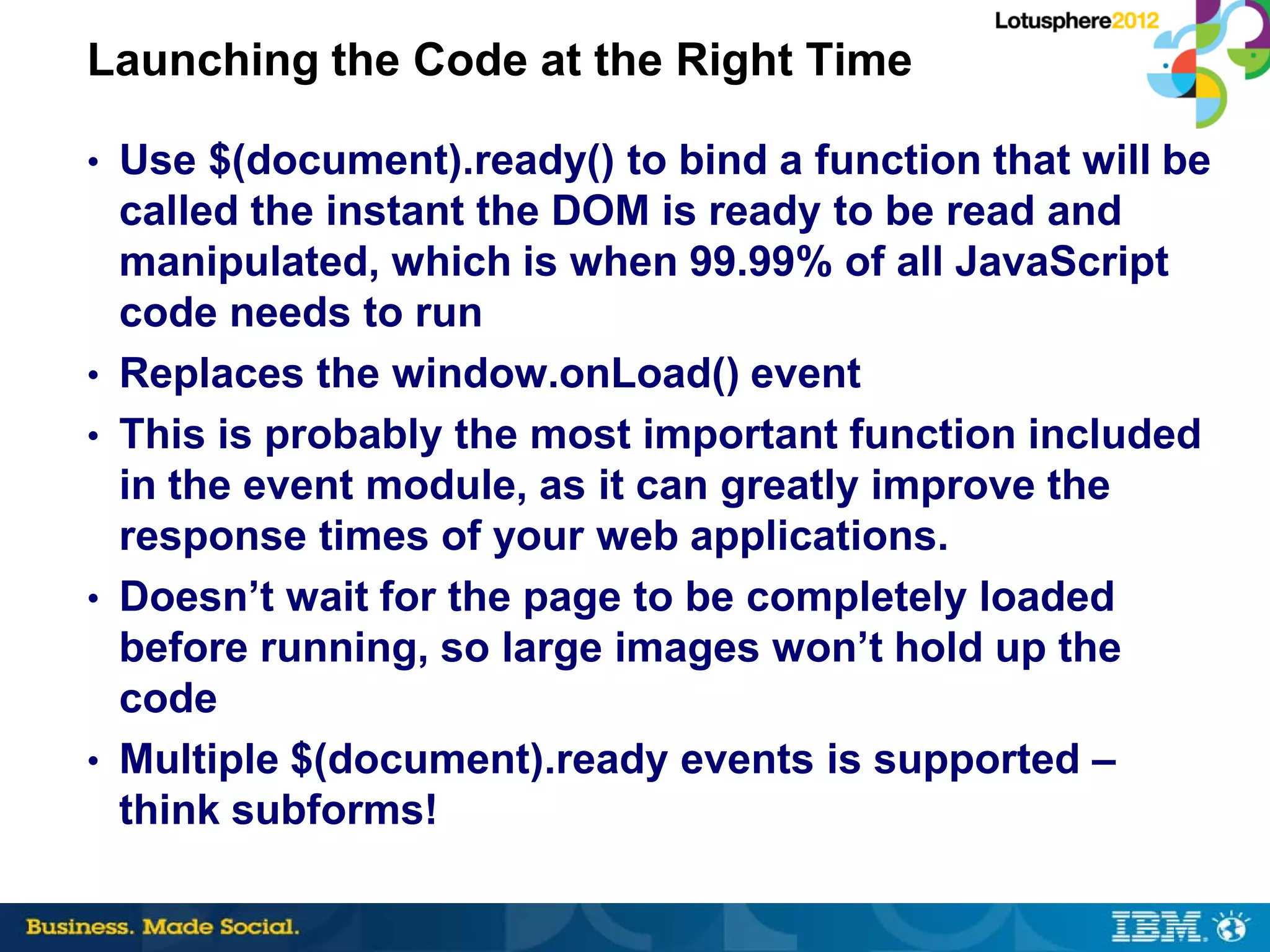
Launching the Code at the Right Time

• Use $(document).ready() to bind a function that will be
    called the instant the DOM is ready to be read and
    manipulated, which is when 99.99% of all JavaScript
    code needs to run
•   Replaces the window.onLoad() event
•   This is probably the most important function included
    in the event module, as it can greatly improve the
    response times of your web applications.
•   Doesn’t wait for the page to be completely loaded
    before running, so large images won’t hold up the
    code
•   Multiple $(document).ready events is supported –
    think subforms!
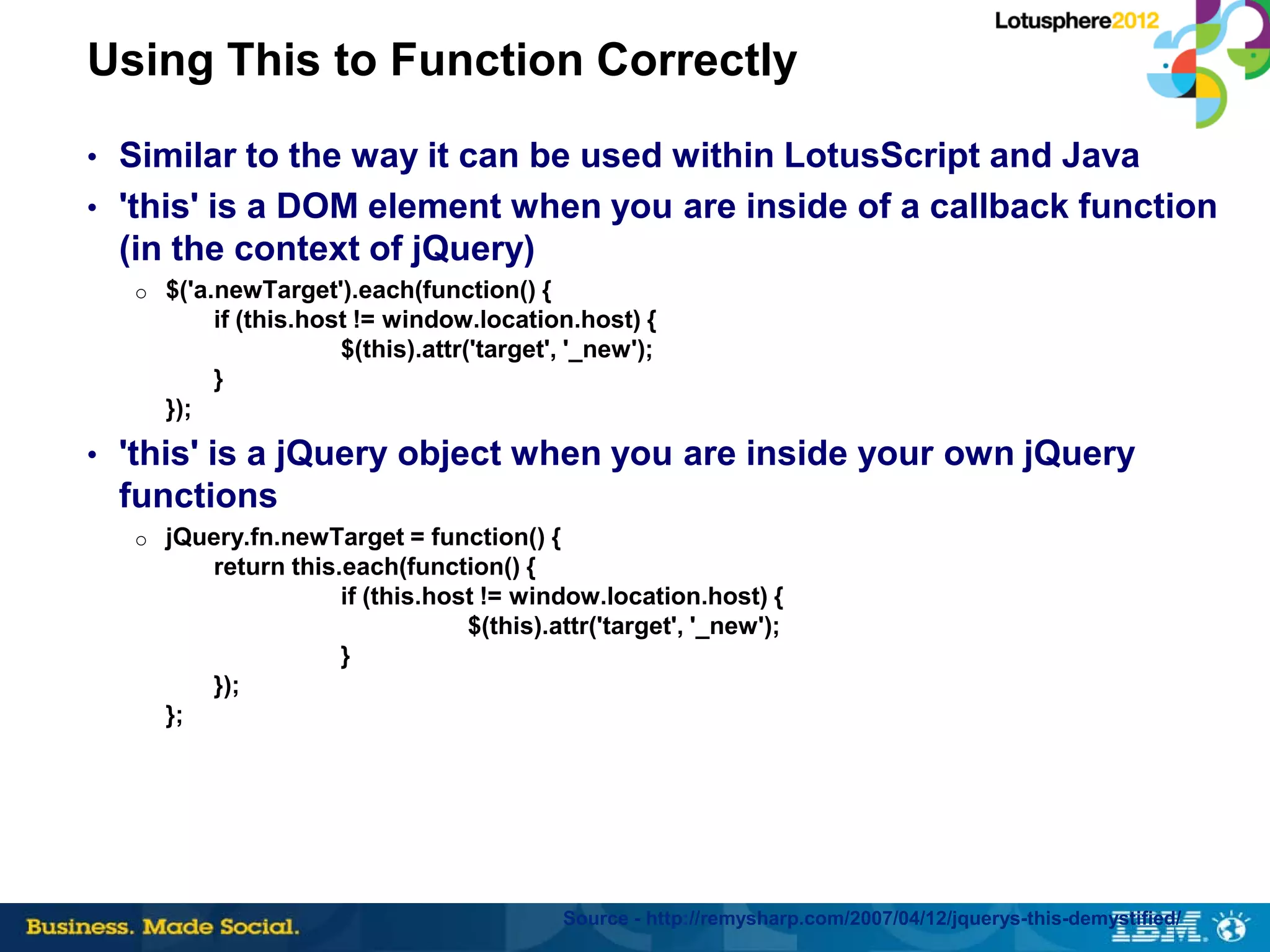
Using This to Function Correctly
• Similar to the way it can be used within LotusScript and Java
• 'this' is a DOM element when you are inside of a callback function
 (in the context of jQuery)
  o $('a.newTarget').each(function() {
          if (this.host != window.location.host) {
                      $(this).attr('target', '_new');
          }
    });
• 'this' is a jQuery object when you are inside your own jQuery
 functions
  o jQuery.fn.newTarget = function() {
          return this.each(function() {
                      if (this.host != window.location.host) {
                                  $(this).attr('target', '_new');
                      }
          });
    };


                                           Source - http://remysharp.com/2007/04/12/jquerys-this-demystified/
Accessing Elements Using Selectors
• Selectors work very similar to CSS
• $(‘div ol li’) – returns all the <li> objects inside an <ol> which is
    also inside a <div>
•   $(‘#_MyForm :input) – returns all the input objects inside the
    Domino form called MyForm
•   $(‘img[title]’) – returns all <img> objects that have a title attribute
•   $(‘a[rel$=nofollow]’) – returns all <a> objects that have the rel
    attribute that exactly matches ‘nofollow’
•   $(‘tr.ugly:even’) – returns the even numbered <tr> objects that
    have the class ‘ugly’
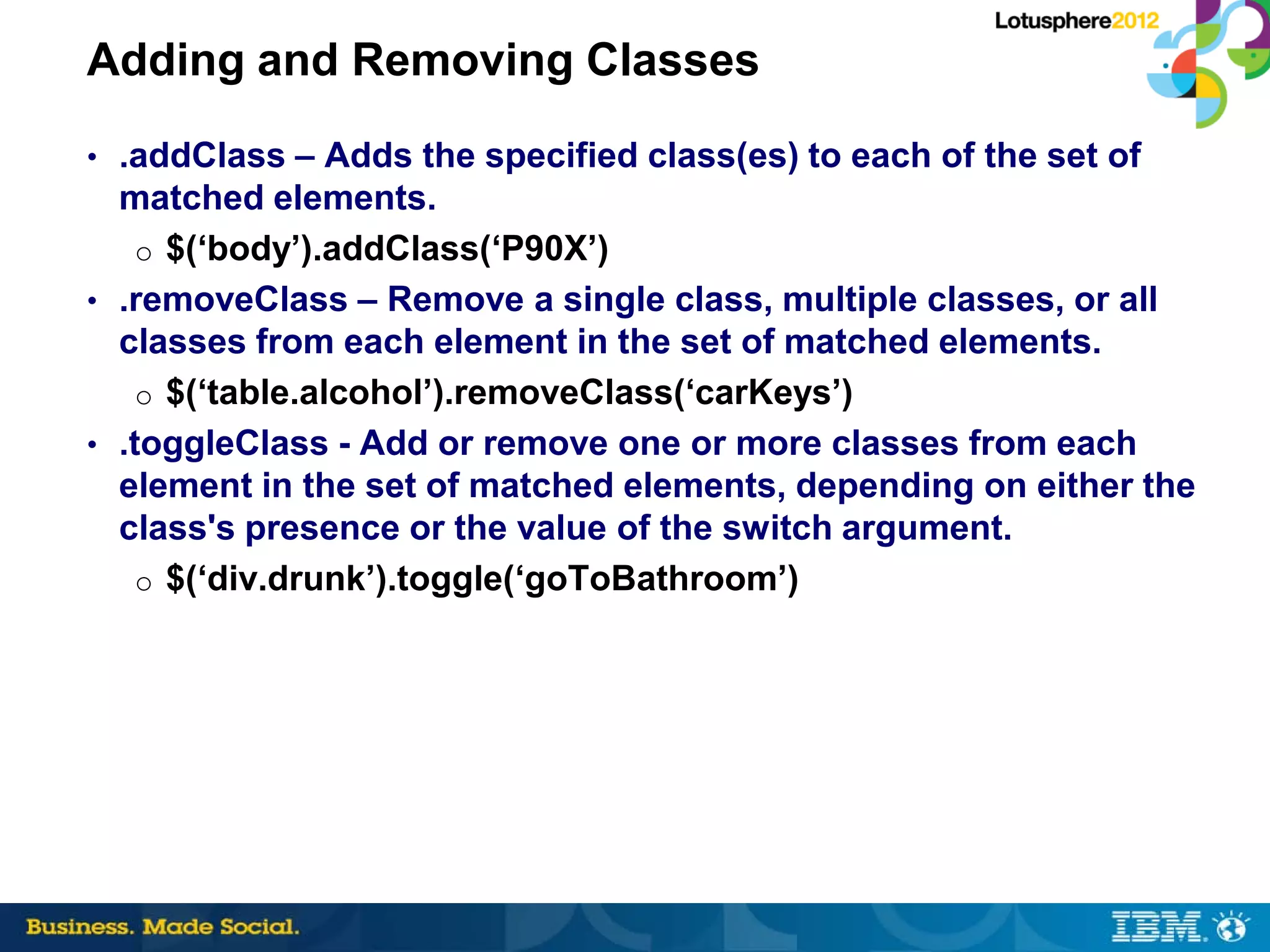
Adding and Removing Classes
• .addClass – Adds the specified class(es) to each of the set of
  matched elements.
    o $(‘body’).addClass(‘P90X’)
• .removeClass – Remove a single class, multiple classes, or all
  classes from each element in the set of matched elements.
    o $(‘table.alcohol’).removeClass(‘carKeys’)
• .toggleClass - Add or remove one or more classes from each
  element in the set of matched elements, depending on either the
  class's presence or the value of the switch argument.
    o $(‘div.drunk’).toggle(‘goToBathroom’)
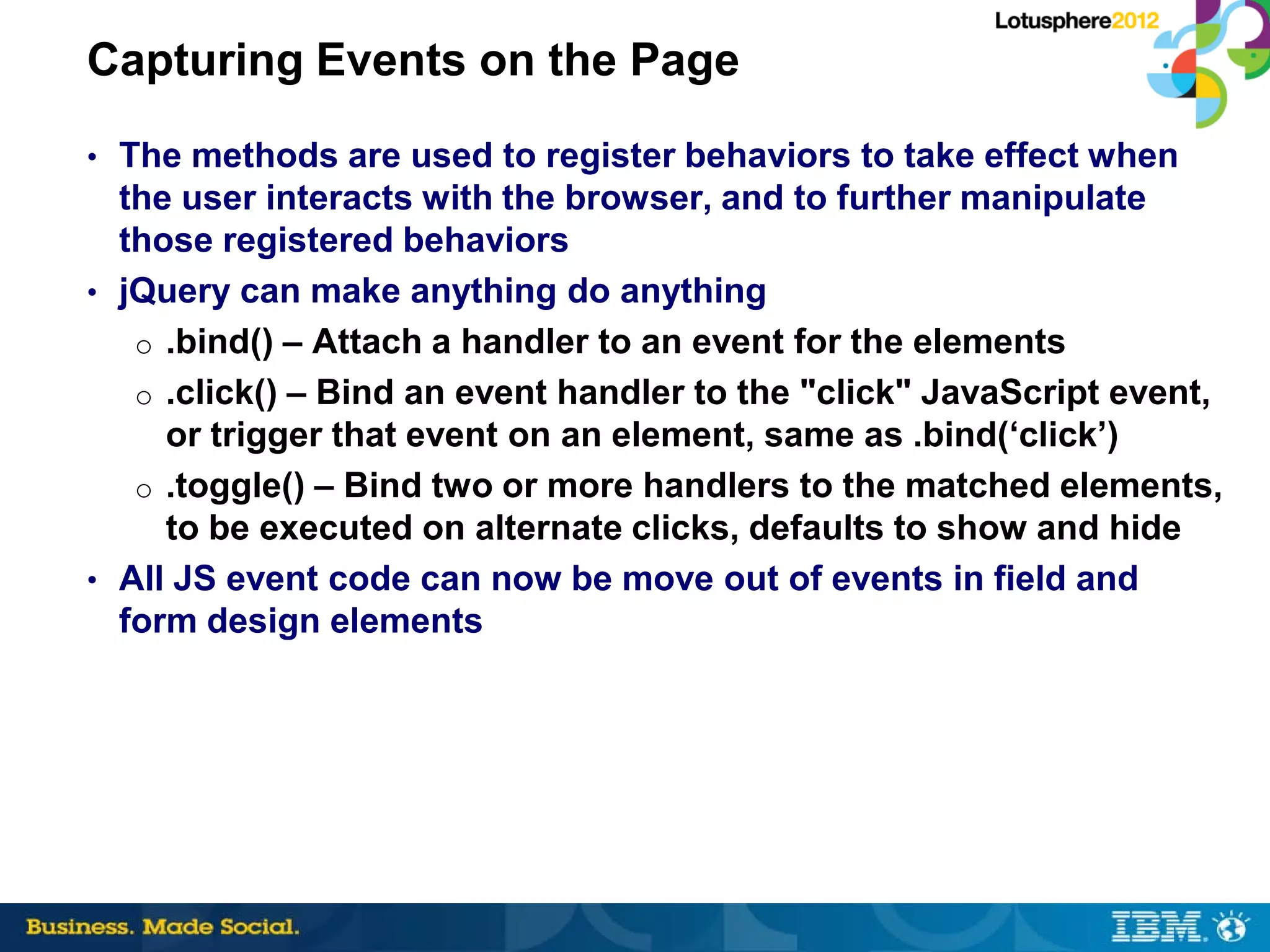
Capturing Events on the Page
• The methods are used to register behaviors to take effect when
  the user interacts with the browser, and to further manipulate
  those registered behaviors
• jQuery can make anything do anything
   o .bind() – Attach a handler to an event for the elements
   o .click() – Bind an event handler to the "click" JavaScript event,
     or trigger that event on an element, same as .bind(‘click’)
   o .toggle() – Bind two or more handlers to the matched elements,
     to be executed on alternate clicks, defaults to show and hide
• All JS event code can now be move out of events in field and
  form design elements
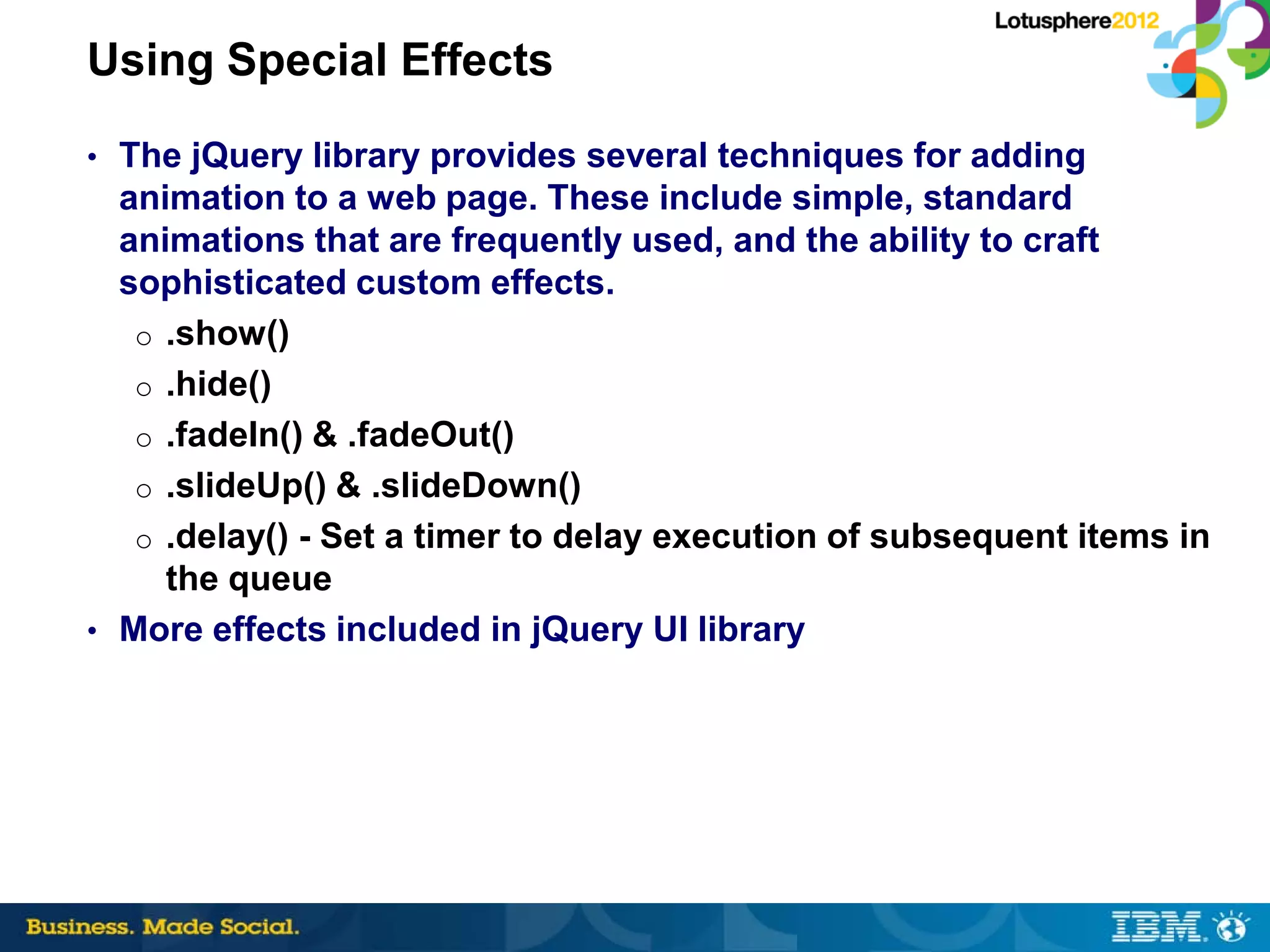
Using Special Effects
• The jQuery library provides several techniques for adding
  animation to a web page. These include simple, standard
  animations that are frequently used, and the ability to craft
  sophisticated custom effects.
   o .show()
   o .hide()
   o .fadeIn() & .fadeOut()
   o .slideUp() & .slideDown()
   o .delay() - Set a timer to delay execution of subsequent items in
     the queue
• More effects included in jQuery UI library
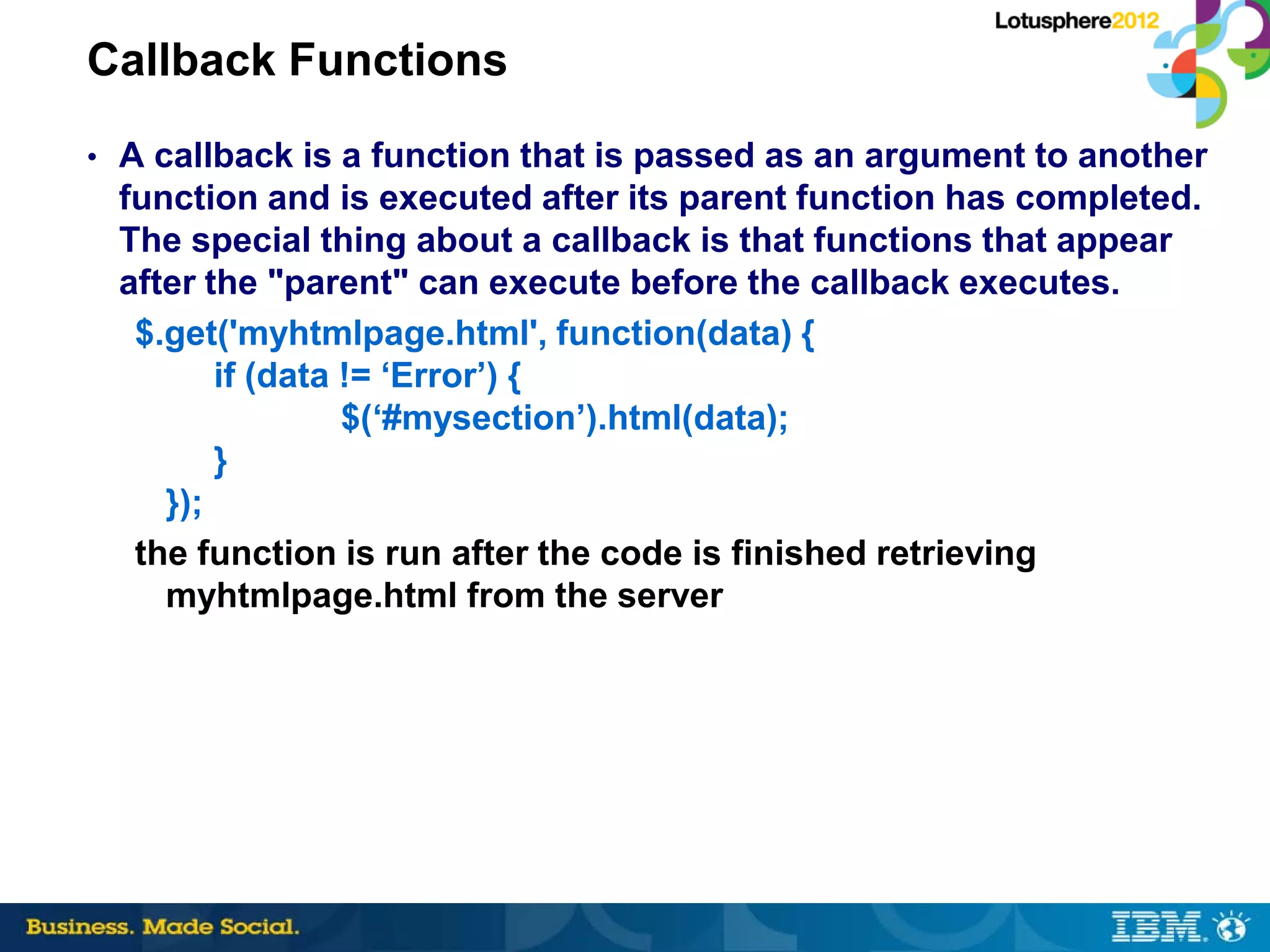
Callback Functions
• A callback is a function that is passed as an argument to another
 function and is executed after its parent function has completed.
 The special thing about a callback is that functions that appear
 after the "parent" can execute before the callback executes.
  $.get('myhtmlpage.html', function(data) {
        if (data != ‘Error’) {
                 $(‘#mysection’).html(data);
        }
    });
  the function is run after the code is finished retrieving
    myhtmlpage.html from the server
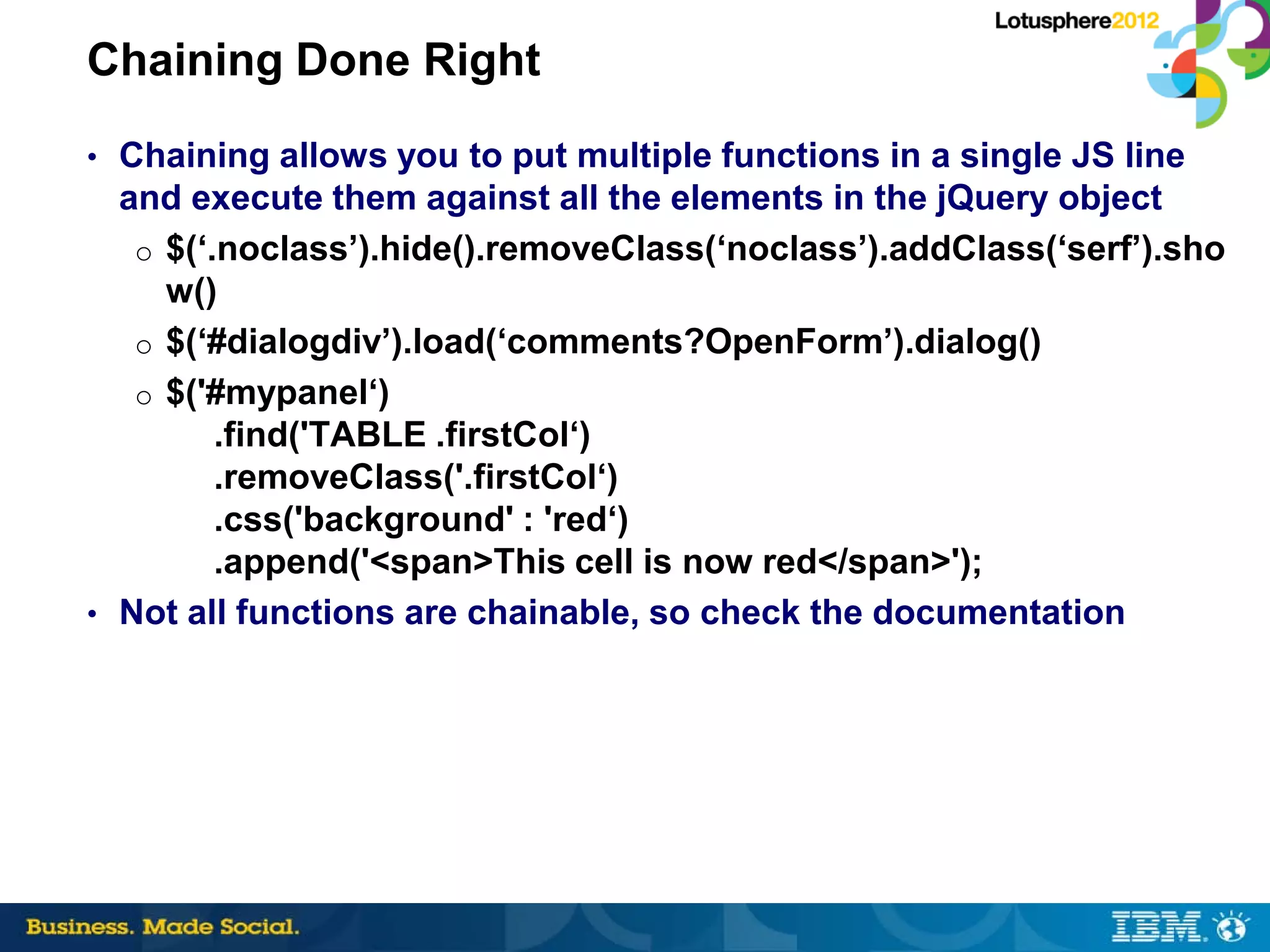
Chaining Done Right
• Chaining allows you to put multiple functions in a single JS line
  and execute them against all the elements in the jQuery object
   o $(‘.noclass’).hide().removeClass(‘noclass’).addClass(‘serf’).sho
     w()
   o $(‘#dialogdiv’).load(‘comments?OpenForm’).dialog()
   o $('#mypanel‘)
         .find('TABLE .firstCol‘)
         .removeClass('.firstCol‘)
         .css('background' : 'red‘)
         .append('<span>This cell is now red</span>');
• Not all functions are chainable, so check the documentation
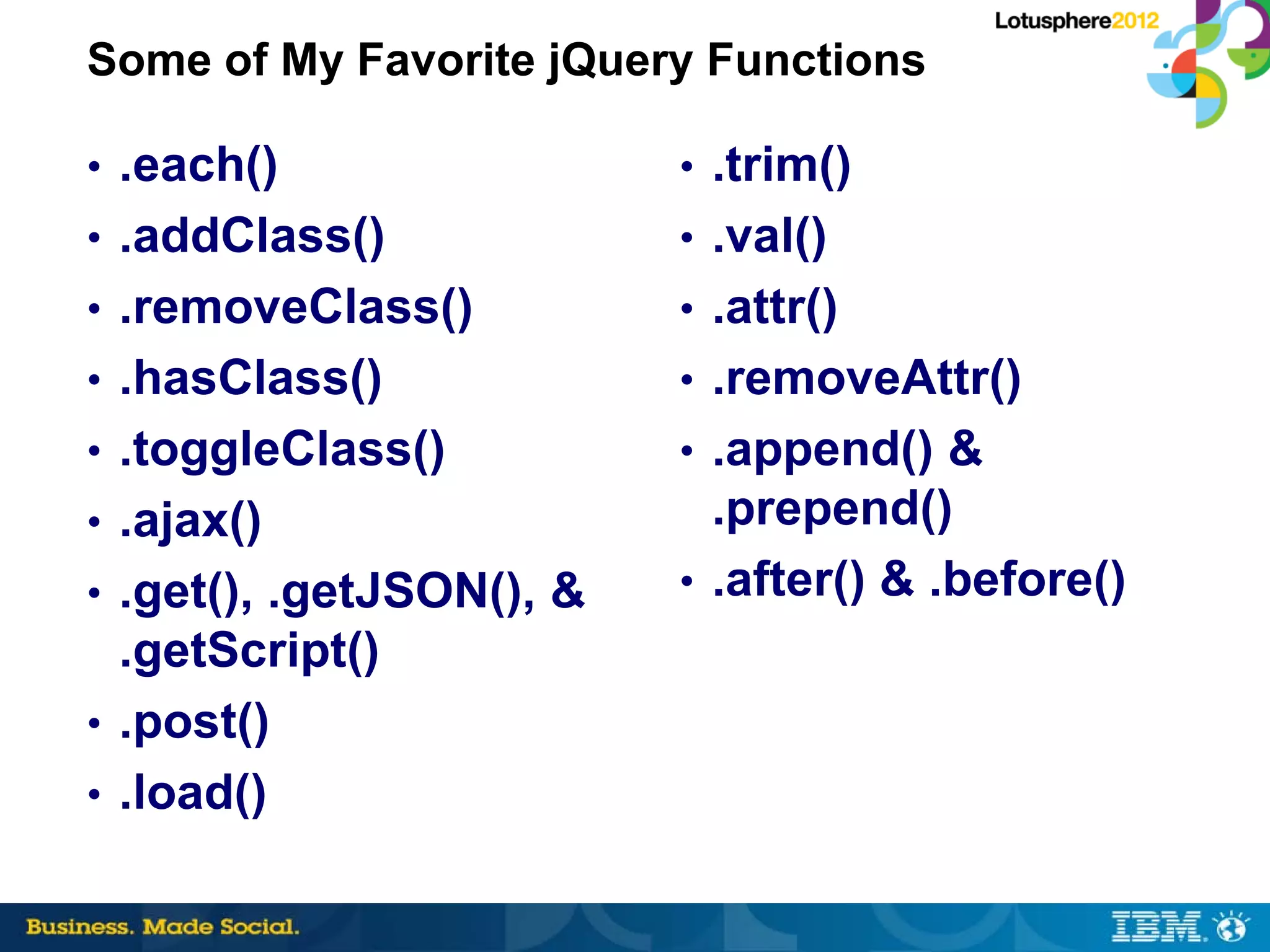
Some of My Favorite jQuery Functions

• .each()                 • .trim()
• .addClass()             • .val()
• .removeClass()          • .attr()
• .hasClass()             • .removeAttr()
• .toggleClass()          • .append() &
• .ajax()                   .prepend()
• .get(), .getJSON(), &   • .after() & .before()
  .getScript()
• .post()
• .load()
Using jQuery UI

 “jQuery UI is a widget and interaction
 library built on top of the jQuery
 JavaScript Library, that you can use to
 build highly interactive web
 applications.”
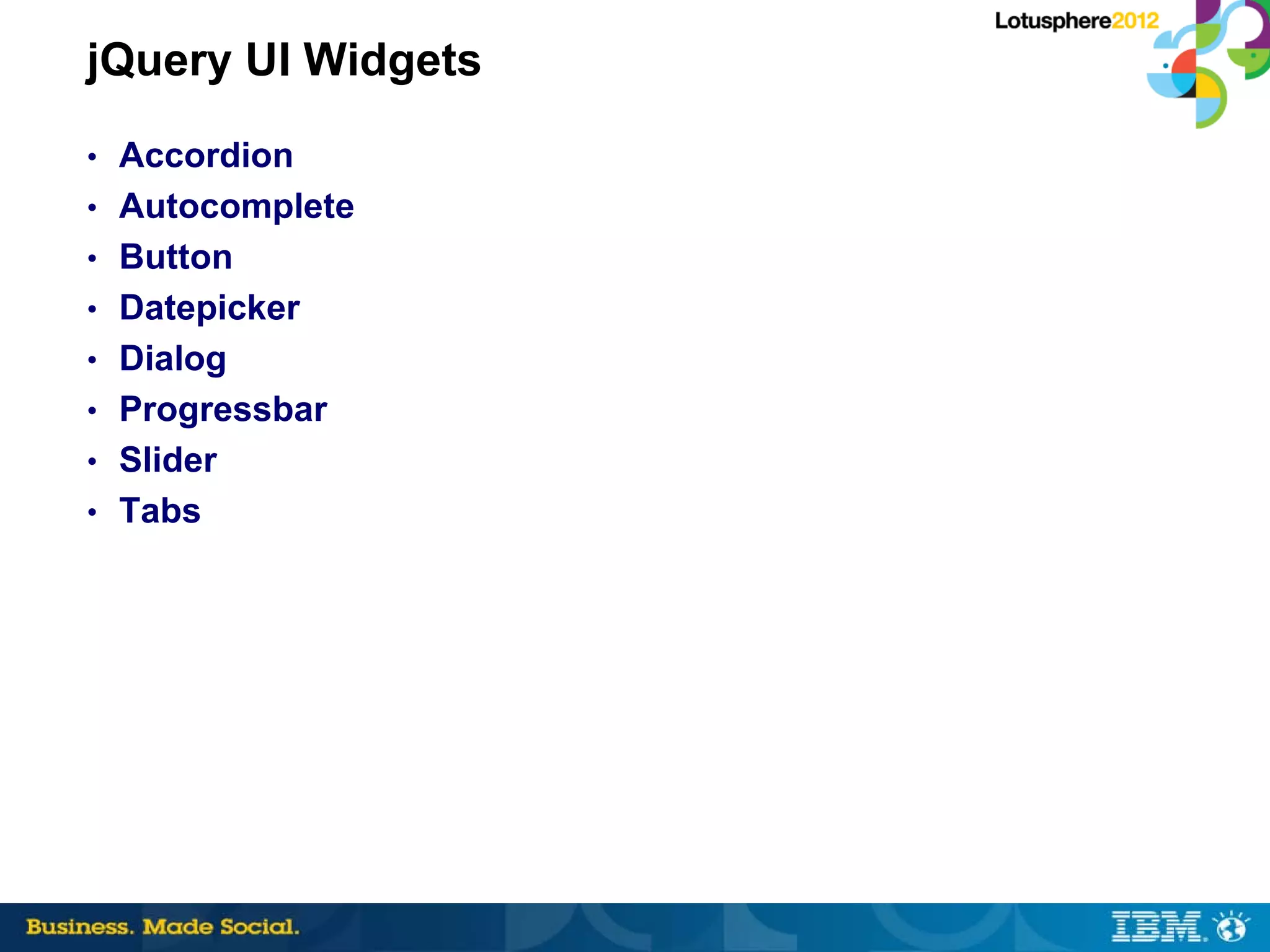
jQuery UI Widgets
• Accordion
• Autocomplete
• Button
• Datepicker
• Dialog
• Progressbar
• Slider
• Tabs
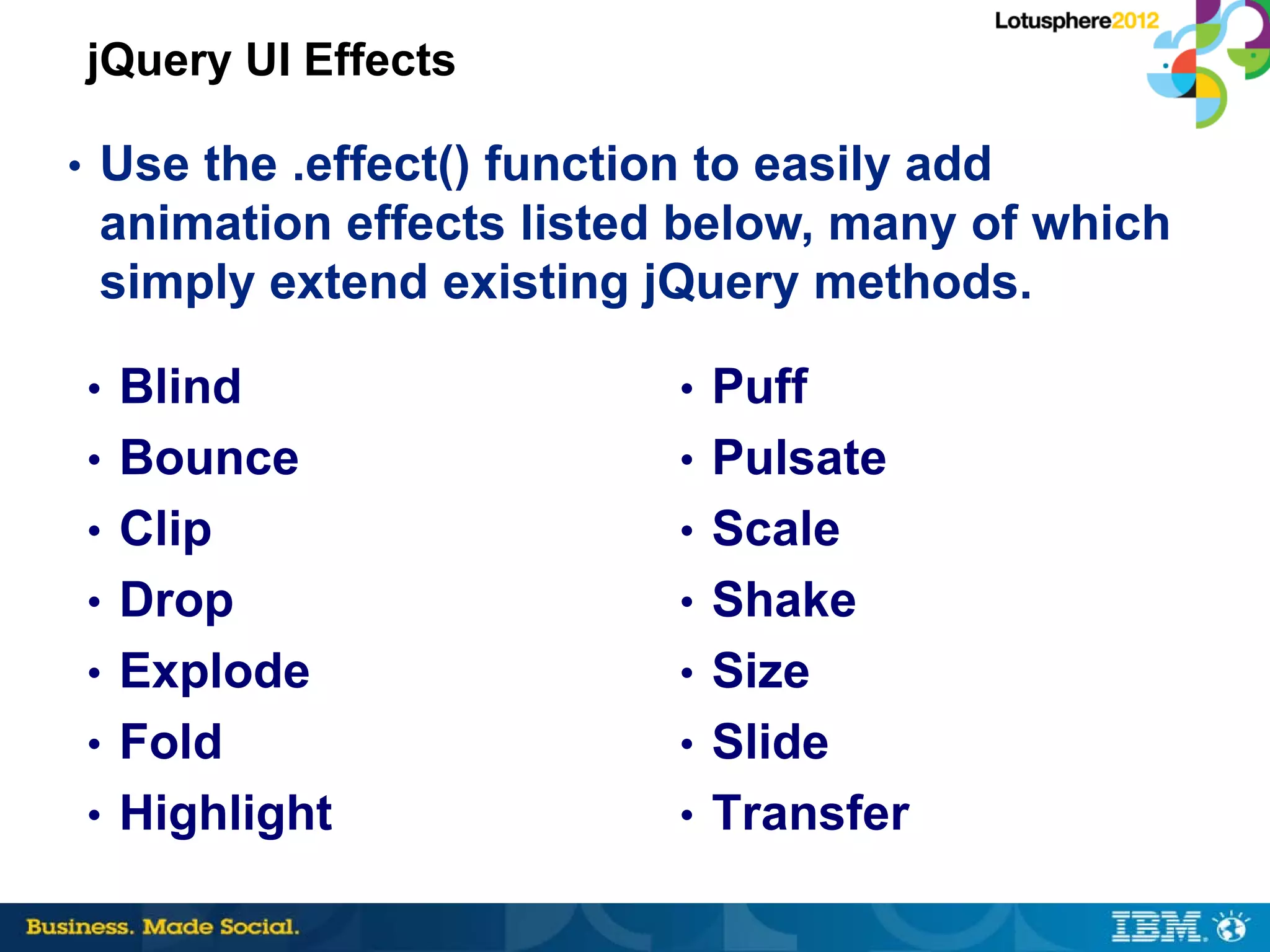
jQuery UI Effects

• Use the .effect() function to easily add
 animation effects listed below, many of which
 simply extend existing jQuery methods.

• Blind                    • Puff
• Bounce                   • Pulsate
• Clip                     • Scale
• Drop                     • Shake
• Explode                  • Size
• Fold                     • Slide
• Highlight                • Transfer
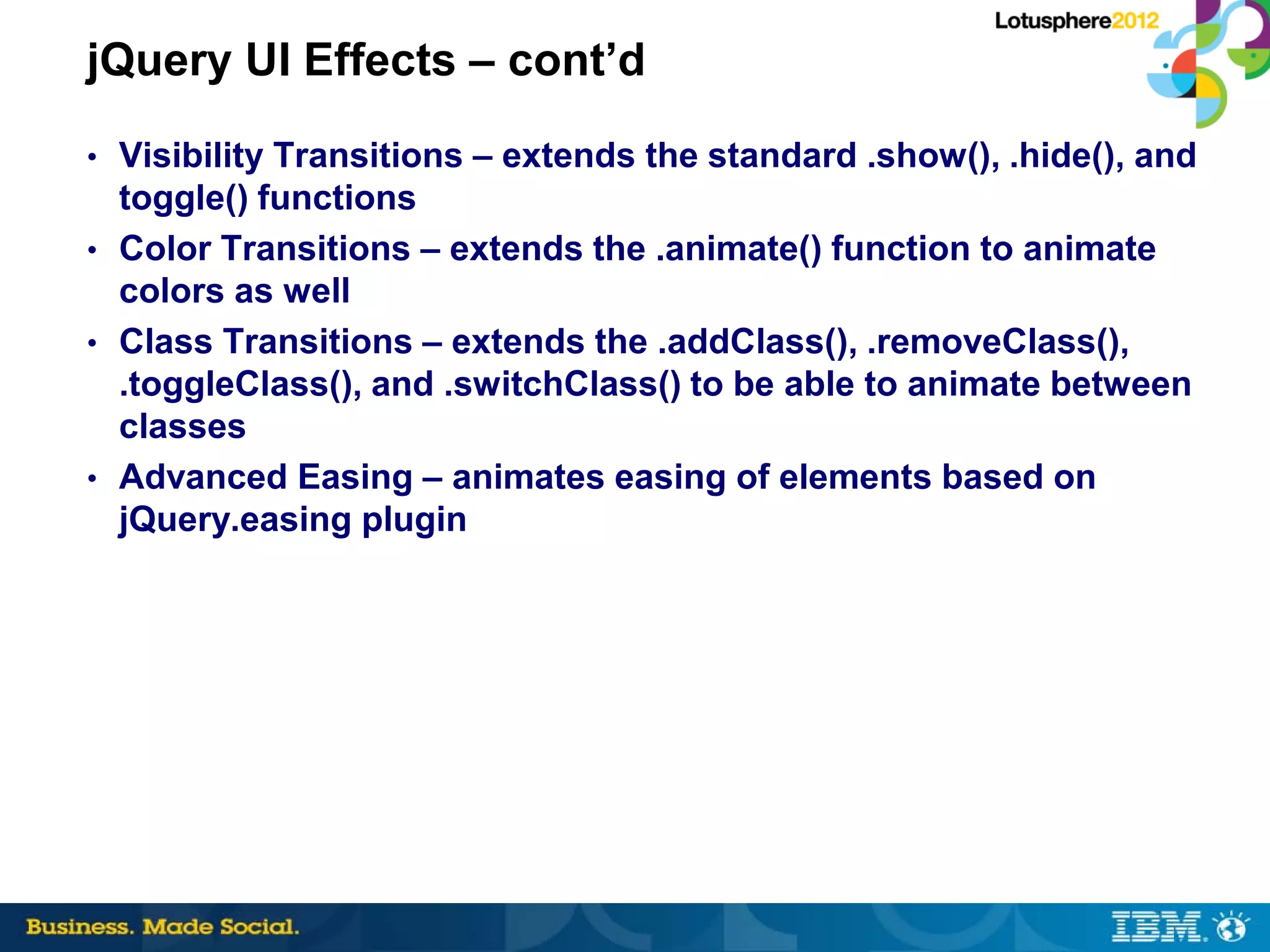
jQuery UI Effects – cont’d
• Visibility Transitions – extends the standard .show(), .hide(), and
  toggle() functions
• Color Transitions – extends the .animate() function to animate
  colors as well
• Class Transitions – extends the .addClass(), .removeClass(),
  .toggleClass(), and .switchClass() to be able to animate between
  classes
• Advanced Easing – animates easing of elements based on
  jQuery.easing plugin
jQuery Interaction and Utilities
• Draggable – make any DOM element able to be dragged around
• Droppable – make any DOM element to be droppable, a target for
    Draggable elements
•   Resizable – make any DOM element resizable, duh!
•   Selectable – make any DOM element or group of elements
    selectable, including multiple selections
•   Sortable – make a group of DOM elements sortable, can connect
    multiple lists
•   Position – allows you to absolutely position any widget on a page
jQuery UI Themes
• All jQuery UI plugins are designed to allow a developer to
  seamlessly integrate UI widgets into the look and feel of their site
  or application. Each plugin is styled with CSS and contains two
  layers of style information: standard jQuery UI CSS Framework
  styles and plugin-specific styles.
• jQuery UI Themeroller allows you to download any of the 24
  themes in the gallery or create your own.
• The jQuery UI Downloader allows you to build a custom download
  with only the pieces of jQuery and jQuery UI that your page
  requires.
There’s a Plug-in for That
• A Plugin is a method for bundling methods and functionality that
    enhance and extend the jQuery Core
•   There is a Plugin directory on the jQuery site
•   Most Plugins are Open Source and free to use
•   Plugins can be extremely simple or complex
•   Many Plugins have very good documentation
•   Anyone can write a plugin – it’s easier than you think
     o Name your file jquery.[insert name of plugin].js, eg.
       jquery.debug.js
     o All new methods are attached to the jQuery.fn object, all
       functions to the jQuery object.
     o inside methods, 'this' is a reference to the current jQuery
       object.
What can you do with a Plugin?
• Create menus and tabs from simple unordered lists
• Add drag & drop functionality to any element
• Create slide shows and light boxes for displaying images
• Add animation and visual effects to any page
• Handle complex AJAX calls
• Add visually appealing tool tips to any element on a page
• Handle form validation prior to submission
• Make views easier to navigate
• Handle browser navigation issues that AJAX can create
• Add Autocomplete to any text field
Domino Beauty Make-over Ritual
1.   Build on a Good Foundation
2.   Make It Easy on the Eyes
3.   Don’t Make the Them Think
4.   Check the Mirror Before Heading Out
5.   Flaunt It Once You Got It
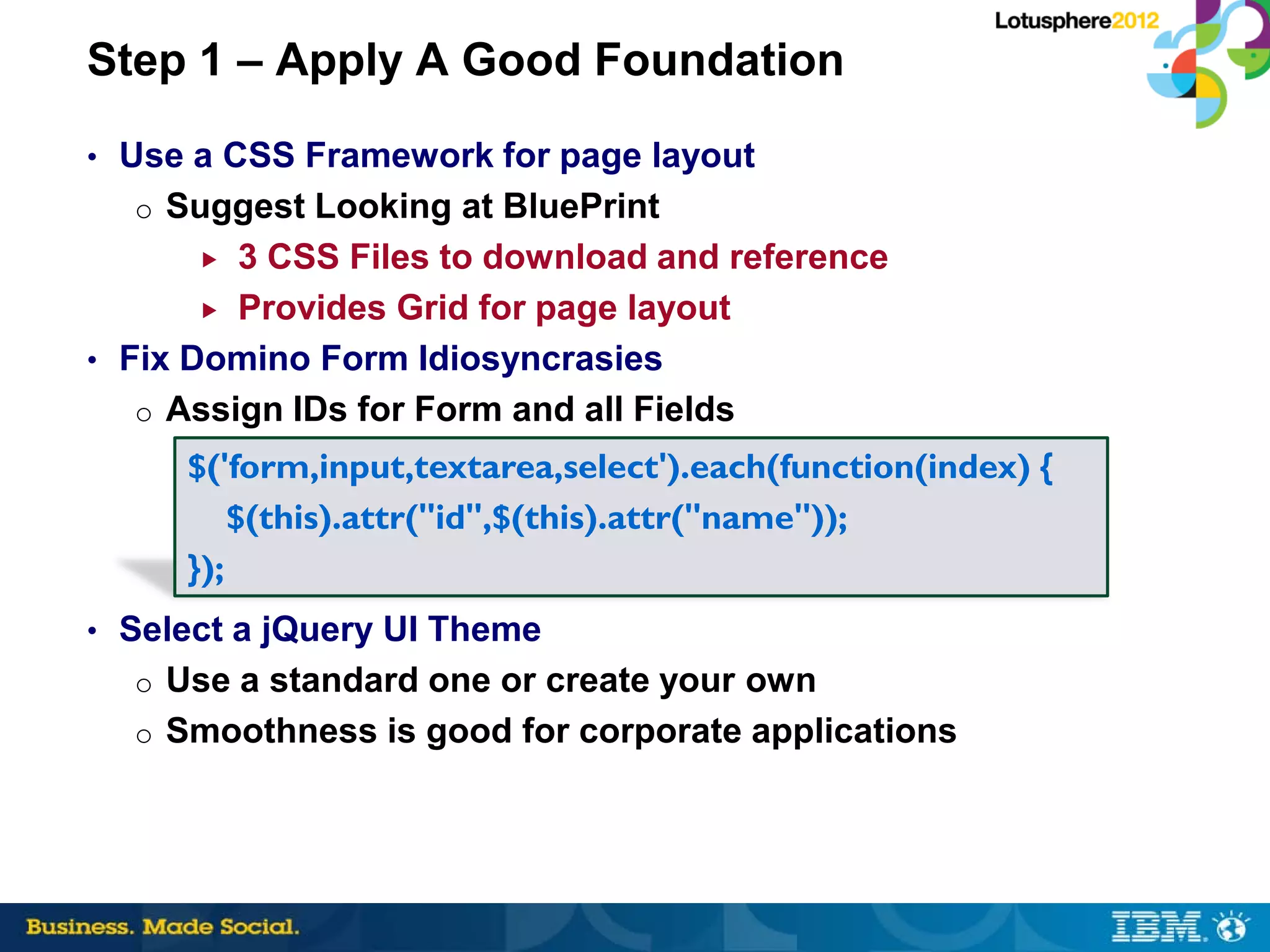
Step 1 – Apply A Good Foundation
• Use a CSS Framework for page layout
  o Suggest Looking at BluePrint
        3 CSS Files to download and reference
        Provides Grid for page layout

• Fix Domino Form Idiosyncrasies
   o Assign IDs for Form and all Fields
     $('form,input,textarea,select').each(function(index) {
         $(this).attr("id",$(this).attr("name"));
     });
• Select a jQuery UI Theme
  o Use a standard one or create your own
  o Smoothness is good for corporate applications
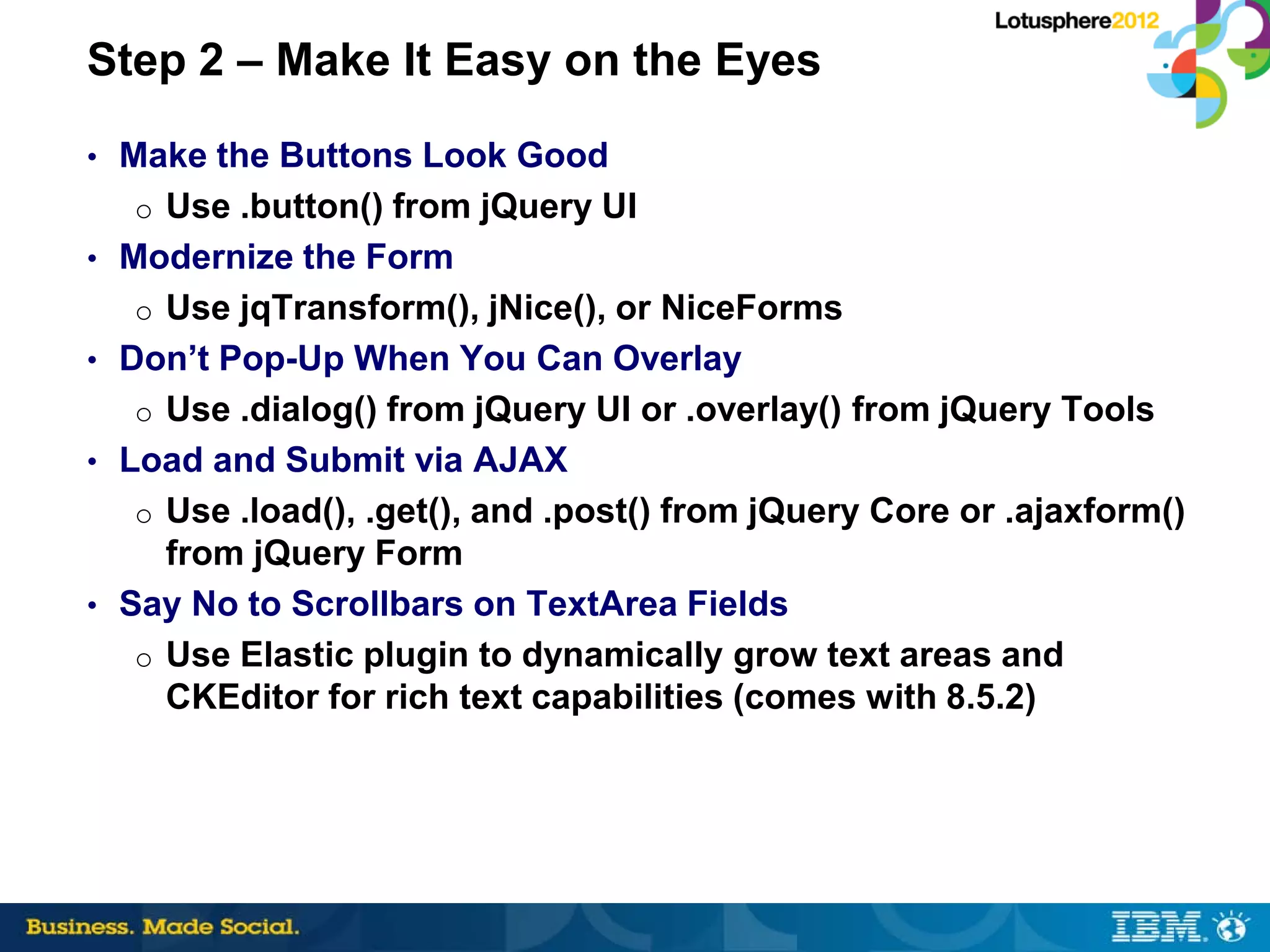
Step 2 – Make It Easy on the Eyes
• Make the Buttons Look Good
  o Use .button() from jQuery UI
• Modernize the Form
  o Use jqTransform(), jNice(), or NiceForms
• Don’t Pop-Up When You Can Overlay
  o Use .dialog() from jQuery UI or .overlay() from jQuery Tools
• Load and Submit via AJAX
  o Use .load(), .get(), and .post() from jQuery Core or .ajaxform()
     from jQuery Form
• Say No to Scrollbars on TextArea Fields
   o Use Elastic plugin to dynamically grow text areas and
     CKEditor for rich text capabilities (comes with 8.5.2)
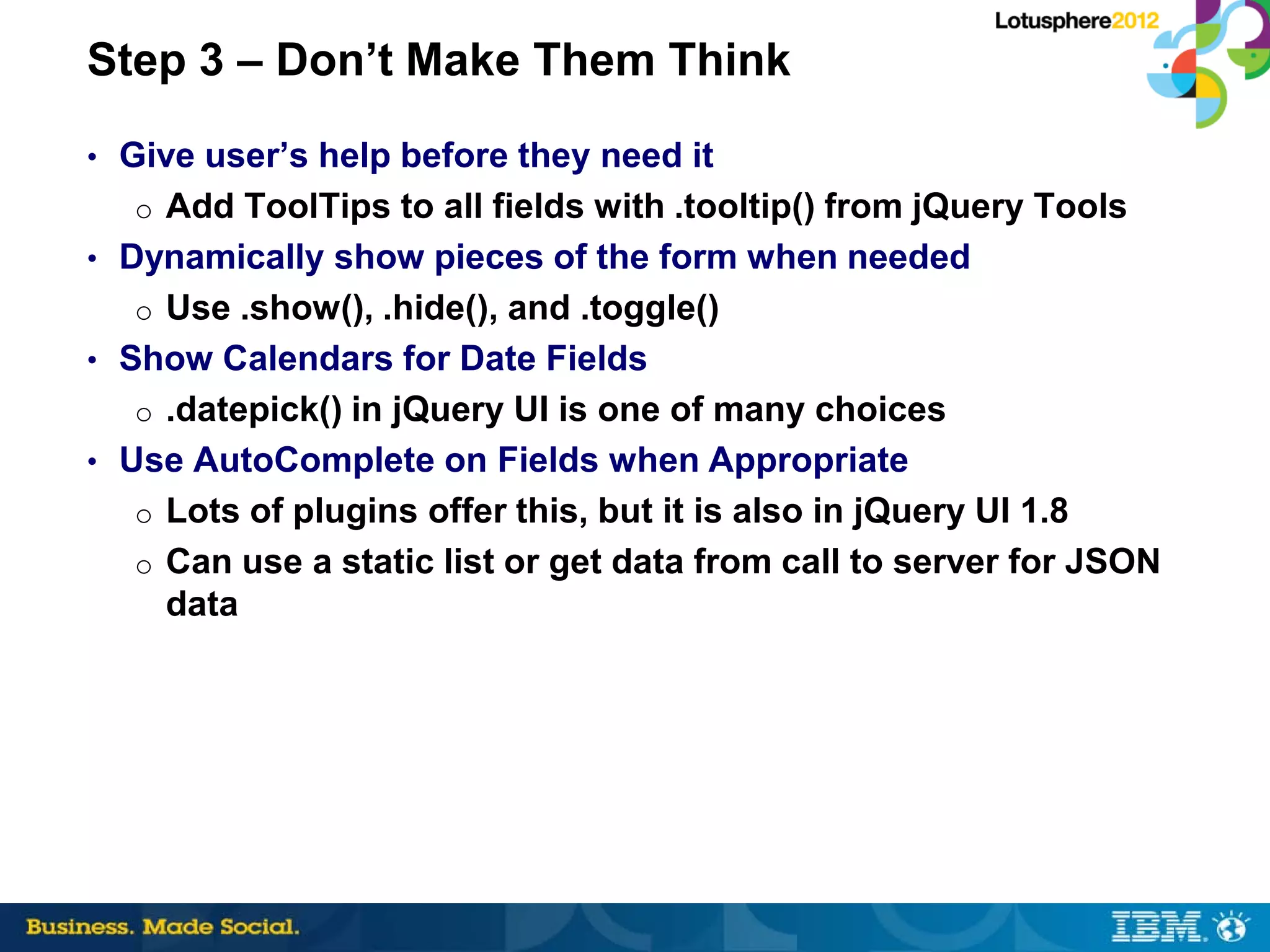
Step 3 – Don’t Make Them Think
• Give user’s help before they need it
  o Add ToolTips to all fields with .tooltip() from jQuery Tools
• Dynamically show pieces of the form when needed
  o Use .show(), .hide(), and .toggle()
• Show Calendars for Date Fields
  o .datepick() in jQuery UI is one of many choices
• Use AutoComplete on Fields when Appropriate
  o Lots of plugins offer this, but it is also in jQuery UI 1.8
  o Can use a static list or get data from call to server for JSON
    data
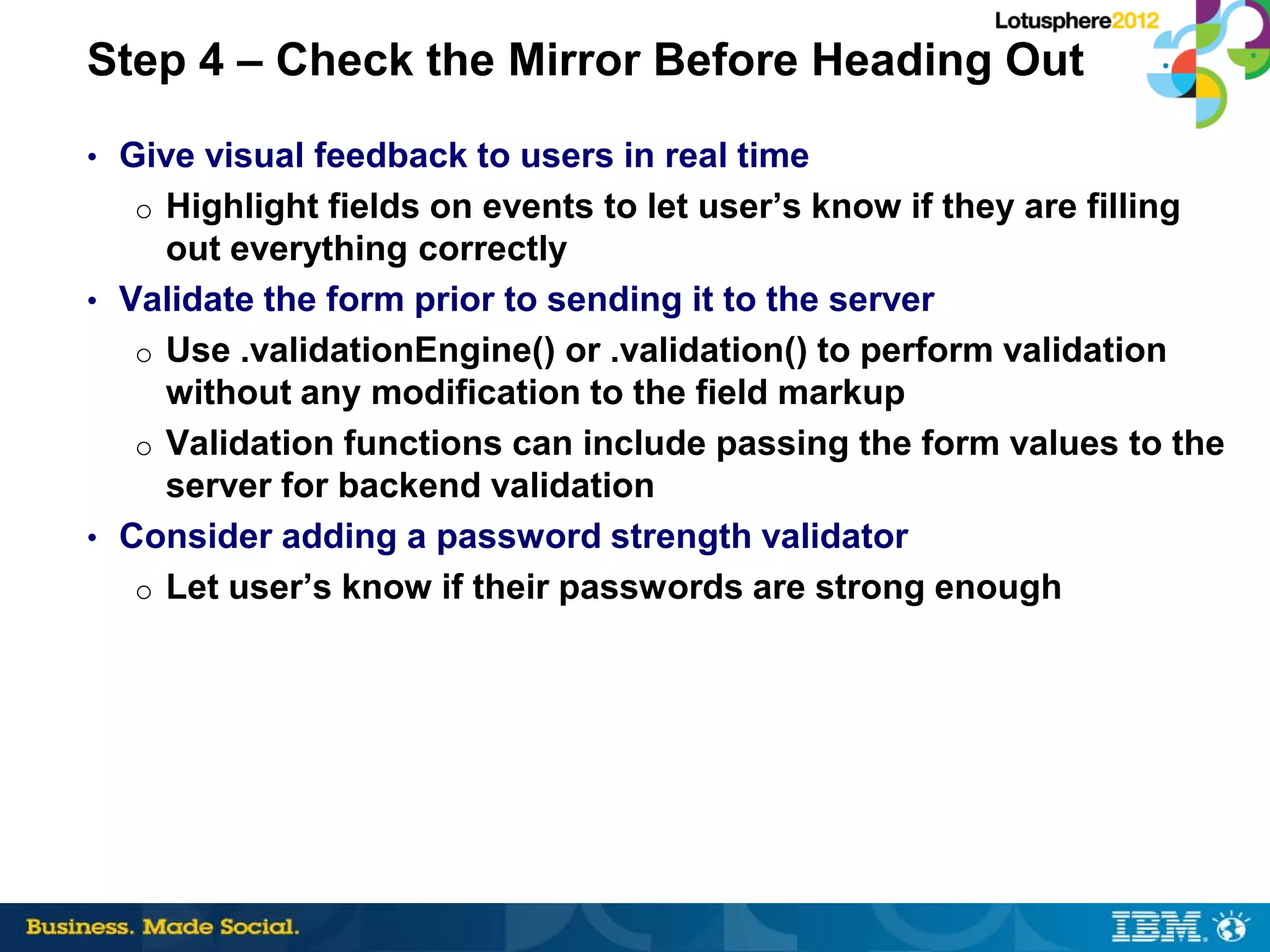
Step 4 – Check the Mirror Before Heading Out
• Give visual feedback to users in real time
  o Highlight fields on events to let user’s know if they are filling
     out everything correctly
• Validate the form prior to sending it to the server
   o Use .validationEngine() or .validation() to perform validation
     without any modification to the field markup
   o Validation functions can include passing the form values to the
     server for backend validation
• Consider adding a password strength validator
   o Let user’s know if their passwords are strong enough
Step 5 – Flaunt It Once You Got It
• Make Your Views Clean and Efficient
  o Use DataTables plug-in for displaying tabular data and views
• Say Good-bye to Ugly Calendar Views
  o Use FullCalendar to display full-sized, drag & drop enabled
     calendars
• Add Charts and Graphs to WOW the Executives
   o Use the HighCharts plugin for jQuery for JS/CSS Charts
• Give user’s the ability to provide ratings as well as comments on
  your site
   o Add Star Ratings Widget to the content pages of your site
   o Tie ratings to user logins to control rating accuracy
Resources

• jQuery Project – http://jquery.com
• jQuery UI Project – http://jqueryui.com
• BluePrint CSS Framework –
    http://www.blueprintcss.org
•   jQuery Tools – http://flowplayer.org/tools/index.html
•   DataTables – http://www.datatables.net/
•   HighCharts for jQuery – http://www.highcharts.com/
•   Star Rating Widget – http://orkans-
    tmp.22web.net/star_rating/
Follow Up


              How to contact me:
                Sean Burgess
            sean@asnddesigns.com

Lotusphere 2012 Speedgeeking - jQuery & Domino, a RAD Combination

  • 1.
    jQuery & IBM LotusDomino A RAD Combination Sean Burgess
  • 2.
    Legal IBM’s statements regardingits plans, directions, and intent are subject to change or withdrawal without notice at IBM’s sole discretion. Information regarding potential future products is intended to outline our general product direction and it should not be relied on in making a purchasing decision. The information mentioned regarding potential future products is not a commitment, promise, or legal obligation to deliver any material, code or functionality. Information about potential future products may not be incorporated into any contract. The development, release, and timing of any future features or functionality described for our products remains at our sole discretion.
  • 3.
    Who Am I? •Owner/Head Designer at ASND Designs of Laurel, MD • Certified Developer/Administrator that has been working with Lotus Notes/Domino since v3 in 1994 • IBM Business Partner and member of OpenNTF Board of Directors • One time blogger and member of 1352 Report podcast crew • Avid cook and foodie • A Very Lazy Developer!
  • 4.
    What We’ll Cover… • Getting Started with jQuery • Using jQuery UI • There’s a Plugin for That! • Domino Make Over Tips • Questions
  • 5.
    What is jQuery? “jQueryis a fast and concise JavaScript Library that simplifies HTML document traversing, event handling, animating, and Ajax interactions for rapid web development. jQuery is designed to change the way that you write JavaScript.”
  • 6.
    Why Should YouUse jQuery? • Works on all supported versions of Domino! • Very small, customizable JavaScript library – 31 KB for version 1.7.1 • Cross Browser Compliant – Really! • Widely Used, Open Source Framework Available on Google’s CDN • Access page elements and functions with very little code • Makes having a polished website almost too easy to develop • Doesn’t require learning Java or XML or SSJS!!! • Works on xPages • Skills transfer to any other web platform
  • 7.
    Working with jQuery •The Ever Popular $ Function • Launching Code at the Right Time • Using This to Function Correctly • Accessing Elements using Selectors • Adding and Removing Classes • Capturing Events on the Page • Using Special Effects • Callback Functions • Chaining Done Right
  • 8.
    The Ever Popular$ Function • $ function is an alias to the jQuery object and is used to create a new jQuery object • The new jQuery object contains all the elements in the DOM that match the selector listed in the parenthesis o $(‘p’) – returns all <P> objects on the page o $(‘p.green’) - returns all <P> objects on the page that have the class ‘green’ • The .each() function can be used to loop through all the elements in the jQuery object
  • 9.
    Launching the Codeat the Right Time • Use $(document).ready() to bind a function that will be called the instant the DOM is ready to be read and manipulated, which is when 99.99% of all JavaScript code needs to run • Replaces the window.onLoad() event • This is probably the most important function included in the event module, as it can greatly improve the response times of your web applications. • Doesn’t wait for the page to be completely loaded before running, so large images won’t hold up the code • Multiple $(document).ready events is supported – think subforms!
  • 10.
    Using This toFunction Correctly • Similar to the way it can be used within LotusScript and Java • 'this' is a DOM element when you are inside of a callback function (in the context of jQuery) o $('a.newTarget').each(function() { if (this.host != window.location.host) { $(this).attr('target', '_new'); } }); • 'this' is a jQuery object when you are inside your own jQuery functions o jQuery.fn.newTarget = function() { return this.each(function() { if (this.host != window.location.host) { $(this).attr('target', '_new'); } }); }; Source - http://remysharp.com/2007/04/12/jquerys-this-demystified/
  • 11.
    Accessing Elements UsingSelectors • Selectors work very similar to CSS • $(‘div ol li’) – returns all the <li> objects inside an <ol> which is also inside a <div> • $(‘#_MyForm :input) – returns all the input objects inside the Domino form called MyForm • $(‘img[title]’) – returns all <img> objects that have a title attribute • $(‘a[rel$=nofollow]’) – returns all <a> objects that have the rel attribute that exactly matches ‘nofollow’ • $(‘tr.ugly:even’) – returns the even numbered <tr> objects that have the class ‘ugly’
  • 12.
    Adding and RemovingClasses • .addClass – Adds the specified class(es) to each of the set of matched elements. o $(‘body’).addClass(‘P90X’) • .removeClass – Remove a single class, multiple classes, or all classes from each element in the set of matched elements. o $(‘table.alcohol’).removeClass(‘carKeys’) • .toggleClass - Add or remove one or more classes from each element in the set of matched elements, depending on either the class's presence or the value of the switch argument. o $(‘div.drunk’).toggle(‘goToBathroom’)
  • 13.
    Capturing Events onthe Page • The methods are used to register behaviors to take effect when the user interacts with the browser, and to further manipulate those registered behaviors • jQuery can make anything do anything o .bind() – Attach a handler to an event for the elements o .click() – Bind an event handler to the "click" JavaScript event, or trigger that event on an element, same as .bind(‘click’) o .toggle() – Bind two or more handlers to the matched elements, to be executed on alternate clicks, defaults to show and hide • All JS event code can now be move out of events in field and form design elements
  • 14.
    Using Special Effects •The jQuery library provides several techniques for adding animation to a web page. These include simple, standard animations that are frequently used, and the ability to craft sophisticated custom effects. o .show() o .hide() o .fadeIn() & .fadeOut() o .slideUp() & .slideDown() o .delay() - Set a timer to delay execution of subsequent items in the queue • More effects included in jQuery UI library
  • 15.
    Callback Functions • Acallback is a function that is passed as an argument to another function and is executed after its parent function has completed. The special thing about a callback is that functions that appear after the "parent" can execute before the callback executes. $.get('myhtmlpage.html', function(data) { if (data != ‘Error’) { $(‘#mysection’).html(data); } }); the function is run after the code is finished retrieving myhtmlpage.html from the server
  • 16.
    Chaining Done Right •Chaining allows you to put multiple functions in a single JS line and execute them against all the elements in the jQuery object o $(‘.noclass’).hide().removeClass(‘noclass’).addClass(‘serf’).sho w() o $(‘#dialogdiv’).load(‘comments?OpenForm’).dialog() o $('#mypanel‘) .find('TABLE .firstCol‘) .removeClass('.firstCol‘) .css('background' : 'red‘) .append('<span>This cell is now red</span>'); • Not all functions are chainable, so check the documentation
  • 17.
    Some of MyFavorite jQuery Functions • .each() • .trim() • .addClass() • .val() • .removeClass() • .attr() • .hasClass() • .removeAttr() • .toggleClass() • .append() & • .ajax() .prepend() • .get(), .getJSON(), & • .after() & .before() .getScript() • .post() • .load()
  • 18.
    Using jQuery UI “jQuery UI is a widget and interaction library built on top of the jQuery JavaScript Library, that you can use to build highly interactive web applications.”
  • 19.
    jQuery UI Widgets •Accordion • Autocomplete • Button • Datepicker • Dialog • Progressbar • Slider • Tabs
  • 20.
    jQuery UI Effects •Use the .effect() function to easily add animation effects listed below, many of which simply extend existing jQuery methods. • Blind • Puff • Bounce • Pulsate • Clip • Scale • Drop • Shake • Explode • Size • Fold • Slide • Highlight • Transfer
  • 21.
    jQuery UI Effects– cont’d • Visibility Transitions – extends the standard .show(), .hide(), and toggle() functions • Color Transitions – extends the .animate() function to animate colors as well • Class Transitions – extends the .addClass(), .removeClass(), .toggleClass(), and .switchClass() to be able to animate between classes • Advanced Easing – animates easing of elements based on jQuery.easing plugin
  • 22.
    jQuery Interaction andUtilities • Draggable – make any DOM element able to be dragged around • Droppable – make any DOM element to be droppable, a target for Draggable elements • Resizable – make any DOM element resizable, duh! • Selectable – make any DOM element or group of elements selectable, including multiple selections • Sortable – make a group of DOM elements sortable, can connect multiple lists • Position – allows you to absolutely position any widget on a page
  • 23.
    jQuery UI Themes •All jQuery UI plugins are designed to allow a developer to seamlessly integrate UI widgets into the look and feel of their site or application. Each plugin is styled with CSS and contains two layers of style information: standard jQuery UI CSS Framework styles and plugin-specific styles. • jQuery UI Themeroller allows you to download any of the 24 themes in the gallery or create your own. • The jQuery UI Downloader allows you to build a custom download with only the pieces of jQuery and jQuery UI that your page requires.
  • 24.
    There’s a Plug-infor That • A Plugin is a method for bundling methods and functionality that enhance and extend the jQuery Core • There is a Plugin directory on the jQuery site • Most Plugins are Open Source and free to use • Plugins can be extremely simple or complex • Many Plugins have very good documentation • Anyone can write a plugin – it’s easier than you think o Name your file jquery.[insert name of plugin].js, eg. jquery.debug.js o All new methods are attached to the jQuery.fn object, all functions to the jQuery object. o inside methods, 'this' is a reference to the current jQuery object.
  • 25.
    What can youdo with a Plugin? • Create menus and tabs from simple unordered lists • Add drag & drop functionality to any element • Create slide shows and light boxes for displaying images • Add animation and visual effects to any page • Handle complex AJAX calls • Add visually appealing tool tips to any element on a page • Handle form validation prior to submission • Make views easier to navigate • Handle browser navigation issues that AJAX can create • Add Autocomplete to any text field
  • 26.
    Domino Beauty Make-overRitual 1. Build on a Good Foundation 2. Make It Easy on the Eyes 3. Don’t Make the Them Think 4. Check the Mirror Before Heading Out 5. Flaunt It Once You Got It
  • 27.
    Step 1 –Apply A Good Foundation • Use a CSS Framework for page layout o Suggest Looking at BluePrint  3 CSS Files to download and reference  Provides Grid for page layout • Fix Domino Form Idiosyncrasies o Assign IDs for Form and all Fields $('form,input,textarea,select').each(function(index) { $(this).attr("id",$(this).attr("name")); }); • Select a jQuery UI Theme o Use a standard one or create your own o Smoothness is good for corporate applications
  • 28.
    Step 2 –Make It Easy on the Eyes • Make the Buttons Look Good o Use .button() from jQuery UI • Modernize the Form o Use jqTransform(), jNice(), or NiceForms • Don’t Pop-Up When You Can Overlay o Use .dialog() from jQuery UI or .overlay() from jQuery Tools • Load and Submit via AJAX o Use .load(), .get(), and .post() from jQuery Core or .ajaxform() from jQuery Form • Say No to Scrollbars on TextArea Fields o Use Elastic plugin to dynamically grow text areas and CKEditor for rich text capabilities (comes with 8.5.2)
  • 29.
    Step 3 –Don’t Make Them Think • Give user’s help before they need it o Add ToolTips to all fields with .tooltip() from jQuery Tools • Dynamically show pieces of the form when needed o Use .show(), .hide(), and .toggle() • Show Calendars for Date Fields o .datepick() in jQuery UI is one of many choices • Use AutoComplete on Fields when Appropriate o Lots of plugins offer this, but it is also in jQuery UI 1.8 o Can use a static list or get data from call to server for JSON data
  • 30.
    Step 4 –Check the Mirror Before Heading Out • Give visual feedback to users in real time o Highlight fields on events to let user’s know if they are filling out everything correctly • Validate the form prior to sending it to the server o Use .validationEngine() or .validation() to perform validation without any modification to the field markup o Validation functions can include passing the form values to the server for backend validation • Consider adding a password strength validator o Let user’s know if their passwords are strong enough
  • 31.
    Step 5 –Flaunt It Once You Got It • Make Your Views Clean and Efficient o Use DataTables plug-in for displaying tabular data and views • Say Good-bye to Ugly Calendar Views o Use FullCalendar to display full-sized, drag & drop enabled calendars • Add Charts and Graphs to WOW the Executives o Use the HighCharts plugin for jQuery for JS/CSS Charts • Give user’s the ability to provide ratings as well as comments on your site o Add Star Ratings Widget to the content pages of your site o Tie ratings to user logins to control rating accuracy
  • 32.
    Resources • jQuery Project– http://jquery.com • jQuery UI Project – http://jqueryui.com • BluePrint CSS Framework – http://www.blueprintcss.org • jQuery Tools – http://flowplayer.org/tools/index.html • DataTables – http://www.datatables.net/ • HighCharts for jQuery – http://www.highcharts.com/ • Star Rating Widget – http://orkans- tmp.22web.net/star_rating/
  • 33.
    Follow Up How to contact me: Sean Burgess sean@asnddesigns.com