Internet & World Wide Web
How to Program, 5/e
1
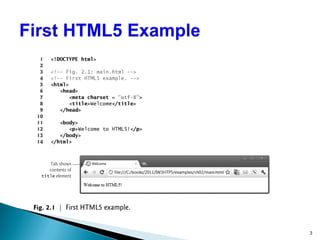
 HTML5 (HyperText Markup Language 5)
 markup language that specifies the structure and content of
documents that are displayed in web browsers
 Create HTML5 documents using text editor such as
(Notepad, TextEdit, vim, emacs).
 saving it with the .html or .htm filename extension.
2
3
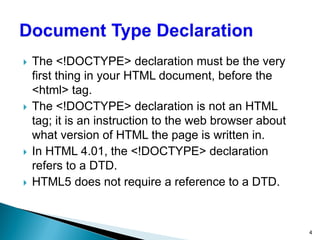
 The <!DOCTYPE> declaration must be the very
first thing in your HTML document, before the
<html> tag.
 The <!DOCTYPE> declaration is not an HTML
tag; it is an instruction to the web browser about
what version of HTML the page is written in.
 In HTML 4.01, the <!DOCTYPE> declaration
refers to a DTD.
 HTML5 does not require a reference to a DTD.
4
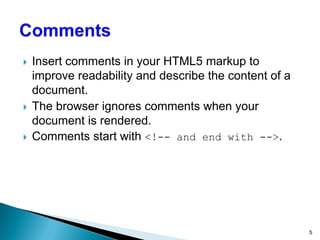
 Insert comments in your HTML5 markup to
improve readability and describe the content of a
document.
 The browser ignores comments when your
document is rendered.
 Comments start with <!-- and end with -->.
5
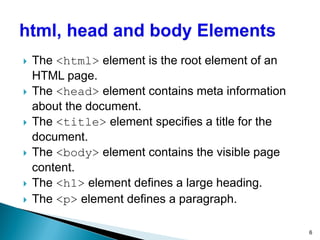
 The <html> element is the root element of an
HTML page.
 The <head> element contains meta information
about the document.
 The <title> element specifies a title for the
document.
 The <body> element contains the visible page
content.
 The <h1> element defines a large heading.
 The <p> element defines a paragraph.
6
 HTML tags are element names surrounded by
angle brackets:
<tagname>content goes here...</tagname>
 HTML tags normally come in pairs like <p> and
</p>
 The first tag in a pair is the start tag, the second
tag is the end tag.
 The end tag is written like the start tag, but with
a forward slash (/) inserted before the tag name
7
 The title element is called a nested element,
because it’s enclosed in the head element’s start
and end tags.
 The title element describes the web page.
 Search engines use the title for indexing purposes
and when displaying results
8
 HTML5 provides six heading elements (h1 to h6)
for specifying the relative importance of
information
 Heading element h1 is considered the most
significant heading and is rendered in the largest
font.
 Each next heading element (i.e., h2, h3, etc.) is
shown in a progressively smaller font.
9
10
 A hyperlink references or links to other
resources, such as HTML5 documents and
images.
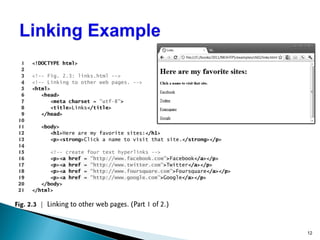
 Web browsers typically underline text hyperlinks
and color them blue by default.
 Links are created using the a (anchor) element.
 Attribute href (hypertext reference) specifies a
resource’s location, such as:
 a web page or location within a web page
 a file
 an e-mail address
11
12
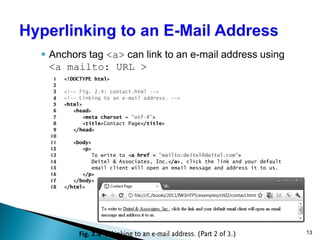
 Anchors tag <a> can link to an e-mail address using
<a mailto: URL >
13
 The most popular image formats used by web
developers today are PNG (Portable Network
Graphics) and JPEG (Joint Photographic Experts
Group).
 The img element’s src attribute specifies an
image’s location.
 Every img element must have an alt attribute,
which contains text that is displayed if the client
cannot render the image.
14
15
 Some HTML5 elements (called void elements)
contain only attributes and do not mark up text
(i.e., text is not placed between a start and an
end tag).
 You can terminate void elements (such as the
img element) by using the forward slash
character (/) inside the closing right angle
bracket (>) of the start tag.
 For example, lines 15–16 of Fig. 2.6 could be
written as follows:
<img src = "jhtp.png" width = "92" height = "120"
alt = "Java How to Program book cover" />
16
 By using images as hyperlinks, you can create
graphical web pages that link to other resources.
 In Fig. 2.7, we create five different image
hyperlinks.
 Clicking an image in this example takes the user
to a corresponding web page—one of the other
examples in this chapter.
17
18
19
 Some of certain characters or symbols may be
difficult to embed directly into an HTML5 document.
 Some keyboards do not provide these symbols
(such as ©).
 Also, some the markup may cause syntax errors (as
with <).
 HTML5 provides character entity references (in
the form &code;) for representing special
characters
 A horizontal rule, indicated by the <hr> tag renders
a horizontal line with extra space above and below it
in most browsers.
20
21
22
23
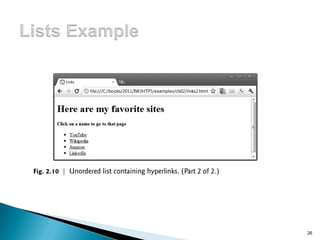
 Unordered list element ul
 creates a list in which each item in the list begins with a
bullet symbol (typically a disc)
 Each entry is an li (list item) element. Most web
browsers render these elements with a line break and a
bullet symbol at the beginning of the line.
24
25
26
27
28
29
30
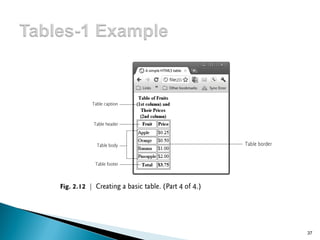
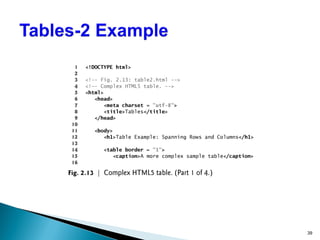
 Tables are used to organize data into rows and
columns.
 The table element defines an HTML5 table.
 The border attribute with the value "1" specifies
that the browser should place borders around the
table and the table’s cells.
 The caption element specifies a table’s title.
31
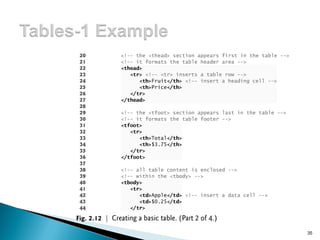
 A table can be split into three distinct sections:
 Head (thead element)
 Table titles
 Column headers
 Body (tbody element)
 Primary table data
 Table Foot (tfoot element)
 Calculation results
 Footnotes
 Above body section in the code, but displays at the bottom
in the page
32
 tr Element
 Defines individual table rows
 Element th
 Defines a header cell
 td Element
 Contains table data elements
33
34
35
36
37
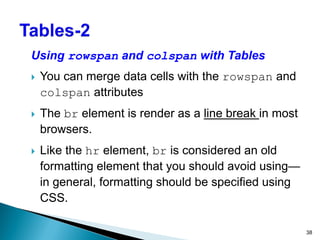
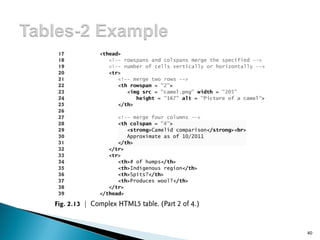
Using rowspan and colspan with Tables
 You can merge data cells with the rowspan and
colspan attributes
 The br element is render as a line break in most
browsers.
 Like the hr element, br is considered an old
formatting element that you should avoid using—
in general, formatting should be specified using
CSS.
38
39
40
41
42
 HTML5 provides forms for collecting information
from users.
 Figure 2.14 is a simple form that sends data to
the web server for processing.
43
44
45
46
method Attribute of the form Element
 A form is defined by a form element
 Attribute method specifies how the form’s data is sent
to the web server.
 Using method = "post" appends form data to the
browser request, which contains the protocol (HTTP)
and the requested resource’s URL.
 The other possible value, method = "get", appends
the form data directly to the end of the URL of the
script, where it’s visible in the browser’s Address field.
47
action Attribute of the form Element
 The action attribute of the form element specifies
the script to which the form data will be sent.
 input elements that specify data to provide to the
script that processes the form (also called the form
handler).
 An input’s type is determined by its type attribute.
48
Hidden Inputs
 Forms can contain visual and nonvisual components.
 Visual components include clickable buttons and other
graphical user interface components with which users
interact.
 Nonvisual components, called hidden inputs, store any
data that you specify, such as e-mail addresses and
HTML5 document file names that act as links.
49
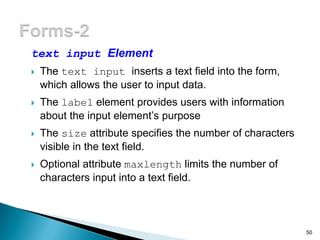
text input Element
 The text input inserts a text field into the form,
which allows the user to input data.
 The label element provides users with information
about the input element’s purpose
 The size attribute specifies the number of characters
visible in the text field.
 Optional attribute maxlength limits the number of
characters input into a text field.
50
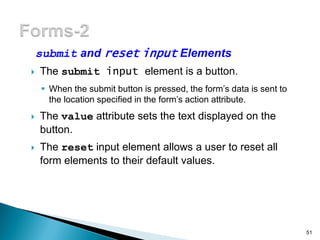
submit and reset input Elements
 The submit input element is a button.
 When the submit button is pressed, the form’s data is sent to
the location specified in the form’s action attribute.
 The value attribute sets the text displayed on the
button.
 The reset input element allows a user to reset all
form elements to their default values.
51
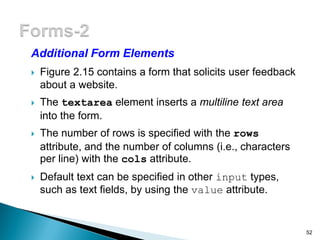
Additional Form Elements
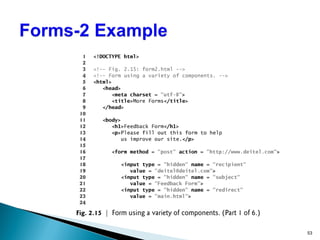
 Figure 2.15 contains a form that solicits user feedback
about a website.
 The textarea element inserts a multiline text area
into the form.
 The number of rows is specified with the rows
attribute, and the number of columns (i.e., characters
per line) with the cols attribute.
 Default text can be specified in other input types,
such as text fields, by using the value attribute.
52
53
54
55
56
57
58
 The password input inserts a password box into
a form.
 Allows users to enter sensitive information, such as
credit card numbers and passwords, by ―masking‖ the
information input with another character, usually
asterisks.
 The actual value input is sent to the web server, not the
asterisks that mask the input.
59
 The checkbox input element enables users to select
and option.
 radio buttons are similar to checkboxes, except that
only one radio button in a group can be selected at any
time. All radio buttons in a group have the same name attribute but
different value attributes.
 The select input provides a drop-down list of items.
 The name attribute identifies the drop-down list.
 The option element adds items to the drop-down list.
60
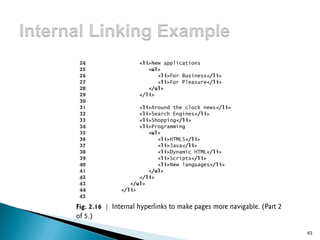
 The a tag can be used to link to another section of
the same document by specifying the element’s
id as the link’s href.
 To link internally to an element with its id attribute
set, use the syntax #id.
61
62
63
64
65
66
 One way that search engines catalog pages is by
reading the meta element’s contents.
 The name attribute identifies the type of meta element
 The content attribute
 Of a keywords meta element: provides search engines
with a list of words that describe a page, which are
compared with words in search requests
 Of a description meta element: provides a three- to
four-line description of a site in sentence form, used by
search engines to catalog your site. This text is sometimes
displayed as part of the search result
67
68
69
70
71

Chapter 2 - HTML5.pdf

  • 1.
    Internet & WorldWide Web How to Program, 5/e 1
  • 2.
     HTML5 (HyperTextMarkup Language 5)  markup language that specifies the structure and content of documents that are displayed in web browsers  Create HTML5 documents using text editor such as (Notepad, TextEdit, vim, emacs).  saving it with the .html or .htm filename extension. 2
  • 3.
  • 4.
     The <!DOCTYPE>declaration must be the very first thing in your HTML document, before the <html> tag.  The <!DOCTYPE> declaration is not an HTML tag; it is an instruction to the web browser about what version of HTML the page is written in.  In HTML 4.01, the <!DOCTYPE> declaration refers to a DTD.  HTML5 does not require a reference to a DTD. 4
  • 5.
     Insert commentsin your HTML5 markup to improve readability and describe the content of a document.  The browser ignores comments when your document is rendered.  Comments start with <!-- and end with -->. 5
  • 6.
     The <html>element is the root element of an HTML page.  The <head> element contains meta information about the document.  The <title> element specifies a title for the document.  The <body> element contains the visible page content.  The <h1> element defines a large heading.  The <p> element defines a paragraph. 6
  • 7.
     HTML tagsare element names surrounded by angle brackets: <tagname>content goes here...</tagname>  HTML tags normally come in pairs like <p> and </p>  The first tag in a pair is the start tag, the second tag is the end tag.  The end tag is written like the start tag, but with a forward slash (/) inserted before the tag name 7
  • 8.
     The titleelement is called a nested element, because it’s enclosed in the head element’s start and end tags.  The title element describes the web page.  Search engines use the title for indexing purposes and when displaying results 8
  • 9.
     HTML5 providessix heading elements (h1 to h6) for specifying the relative importance of information  Heading element h1 is considered the most significant heading and is rendered in the largest font.  Each next heading element (i.e., h2, h3, etc.) is shown in a progressively smaller font. 9
  • 10.
  • 11.
     A hyperlinkreferences or links to other resources, such as HTML5 documents and images.  Web browsers typically underline text hyperlinks and color them blue by default.  Links are created using the a (anchor) element.  Attribute href (hypertext reference) specifies a resource’s location, such as:  a web page or location within a web page  a file  an e-mail address 11
  • 12.
  • 13.
     Anchors tag<a> can link to an e-mail address using <a mailto: URL > 13
  • 14.
     The mostpopular image formats used by web developers today are PNG (Portable Network Graphics) and JPEG (Joint Photographic Experts Group).  The img element’s src attribute specifies an image’s location.  Every img element must have an alt attribute, which contains text that is displayed if the client cannot render the image. 14
  • 15.
  • 16.
     Some HTML5elements (called void elements) contain only attributes and do not mark up text (i.e., text is not placed between a start and an end tag).  You can terminate void elements (such as the img element) by using the forward slash character (/) inside the closing right angle bracket (>) of the start tag.  For example, lines 15–16 of Fig. 2.6 could be written as follows: <img src = "jhtp.png" width = "92" height = "120" alt = "Java How to Program book cover" /> 16
  • 17.
     By usingimages as hyperlinks, you can create graphical web pages that link to other resources.  In Fig. 2.7, we create five different image hyperlinks.  Clicking an image in this example takes the user to a corresponding web page—one of the other examples in this chapter. 17
  • 18.
  • 19.
  • 20.
     Some ofcertain characters or symbols may be difficult to embed directly into an HTML5 document.  Some keyboards do not provide these symbols (such as ©).  Also, some the markup may cause syntax errors (as with <).  HTML5 provides character entity references (in the form &code;) for representing special characters  A horizontal rule, indicated by the <hr> tag renders a horizontal line with extra space above and below it in most browsers. 20
  • 21.
  • 22.
  • 23.
  • 24.
     Unordered listelement ul  creates a list in which each item in the list begins with a bullet symbol (typically a disc)  Each entry is an li (list item) element. Most web browsers render these elements with a line break and a bullet symbol at the beginning of the line. 24
  • 25.
  • 26.
  • 27.
  • 28.
  • 29.
  • 30.
  • 31.
     Tables areused to organize data into rows and columns.  The table element defines an HTML5 table.  The border attribute with the value "1" specifies that the browser should place borders around the table and the table’s cells.  The caption element specifies a table’s title. 31
  • 32.
     A tablecan be split into three distinct sections:  Head (thead element)  Table titles  Column headers  Body (tbody element)  Primary table data  Table Foot (tfoot element)  Calculation results  Footnotes  Above body section in the code, but displays at the bottom in the page 32
  • 33.
     tr Element Defines individual table rows  Element th  Defines a header cell  td Element  Contains table data elements 33
  • 34.
  • 35.
  • 36.
  • 37.
  • 38.
    Using rowspan andcolspan with Tables  You can merge data cells with the rowspan and colspan attributes  The br element is render as a line break in most browsers.  Like the hr element, br is considered an old formatting element that you should avoid using— in general, formatting should be specified using CSS. 38
  • 39.
  • 40.
  • 41.
  • 42.
  • 43.
     HTML5 providesforms for collecting information from users.  Figure 2.14 is a simple form that sends data to the web server for processing. 43
  • 44.
  • 45.
  • 46.
  • 47.
    method Attribute ofthe form Element  A form is defined by a form element  Attribute method specifies how the form’s data is sent to the web server.  Using method = "post" appends form data to the browser request, which contains the protocol (HTTP) and the requested resource’s URL.  The other possible value, method = "get", appends the form data directly to the end of the URL of the script, where it’s visible in the browser’s Address field. 47
  • 48.
    action Attribute ofthe form Element  The action attribute of the form element specifies the script to which the form data will be sent.  input elements that specify data to provide to the script that processes the form (also called the form handler).  An input’s type is determined by its type attribute. 48
  • 49.
    Hidden Inputs  Formscan contain visual and nonvisual components.  Visual components include clickable buttons and other graphical user interface components with which users interact.  Nonvisual components, called hidden inputs, store any data that you specify, such as e-mail addresses and HTML5 document file names that act as links. 49
  • 50.
    text input Element The text input inserts a text field into the form, which allows the user to input data.  The label element provides users with information about the input element’s purpose  The size attribute specifies the number of characters visible in the text field.  Optional attribute maxlength limits the number of characters input into a text field. 50
  • 51.
    submit and resetinput Elements  The submit input element is a button.  When the submit button is pressed, the form’s data is sent to the location specified in the form’s action attribute.  The value attribute sets the text displayed on the button.  The reset input element allows a user to reset all form elements to their default values. 51
  • 52.
    Additional Form Elements Figure 2.15 contains a form that solicits user feedback about a website.  The textarea element inserts a multiline text area into the form.  The number of rows is specified with the rows attribute, and the number of columns (i.e., characters per line) with the cols attribute.  Default text can be specified in other input types, such as text fields, by using the value attribute. 52
  • 53.
  • 54.
  • 55.
  • 56.
  • 57.
  • 58.
  • 59.
     The passwordinput inserts a password box into a form.  Allows users to enter sensitive information, such as credit card numbers and passwords, by ―masking‖ the information input with another character, usually asterisks.  The actual value input is sent to the web server, not the asterisks that mask the input. 59
  • 60.
     The checkboxinput element enables users to select and option.  radio buttons are similar to checkboxes, except that only one radio button in a group can be selected at any time. All radio buttons in a group have the same name attribute but different value attributes.  The select input provides a drop-down list of items.  The name attribute identifies the drop-down list.  The option element adds items to the drop-down list. 60
  • 61.
     The atag can be used to link to another section of the same document by specifying the element’s id as the link’s href.  To link internally to an element with its id attribute set, use the syntax #id. 61
  • 62.
  • 63.
  • 64.
  • 65.
  • 66.
  • 67.
     One waythat search engines catalog pages is by reading the meta element’s contents.  The name attribute identifies the type of meta element  The content attribute  Of a keywords meta element: provides search engines with a list of words that describe a page, which are compared with words in search requests  Of a description meta element: provides a three- to four-line description of a site in sentence form, used by search engines to catalog your site. This text is sometimes displayed as part of the search result 67
  • 68.
  • 69.
  • 70.
  • 71.