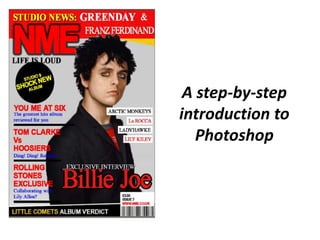
A step-by-step
introduction to
Photoshop
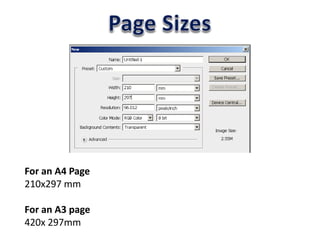
For an A4 Page
210x297 mm
For an A3 page
420x 297mm
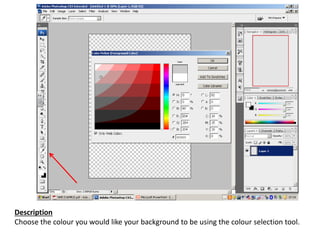
Description
Choose the colour you would like your background to be using the colour selection tool.
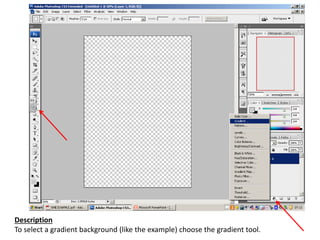
Description
To select a gradient background (like the example) choose the gradient tool.
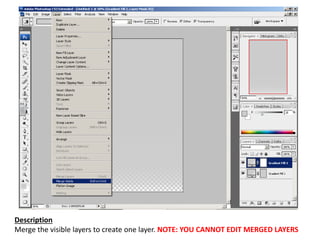
Description
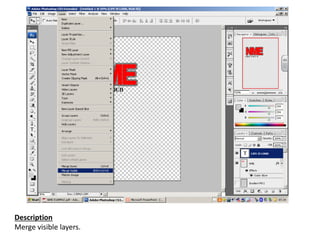
Merge the visible layers to create one layer. NOTE: YOU CANNOT EDIT MERGED LAYERS
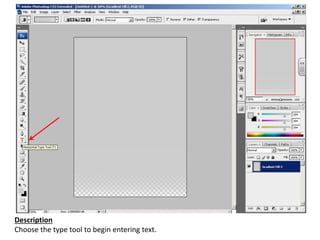
Description
Choose the type tool to begin entering text.
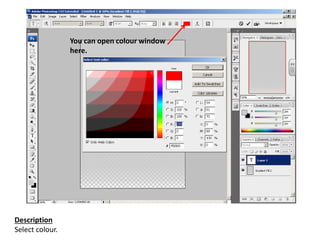
Description
Select colour.
You can open colour window
here.
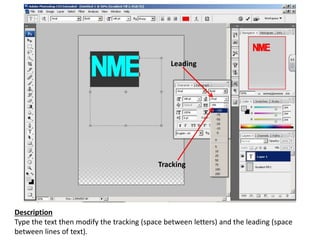
Description
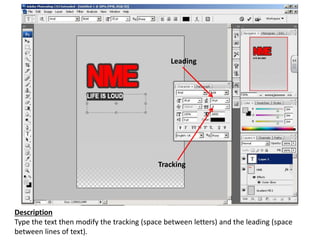
Type the text then modify the tracking (space between letters) and the leading (space
between lines of text).
Leading
Tracking
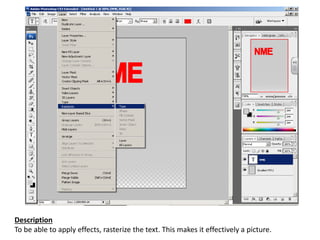
Description
To be able to apply effects, rasterize the text. This makes it effectively a picture.
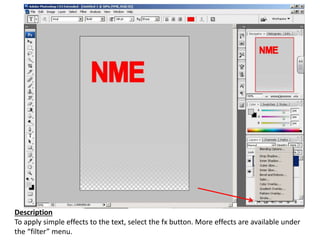
Description
To apply simple effects to the text, select the fx button. More effects are available under
the “filter” menu.
Description
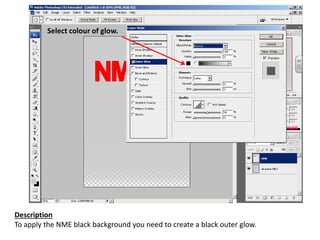
To apply the NME black background you need to create a black outer glow.
Select colour of glow.
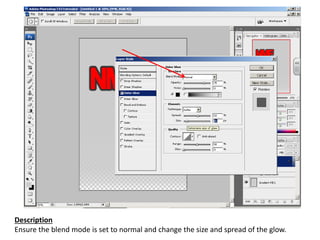
Description
Ensure the blend mode is set to normal and change the size and spread of the glow.
Leading
Tracking
Description
Type the text then modify the tracking (space between letters) and the leading (space
between lines of text).
Description
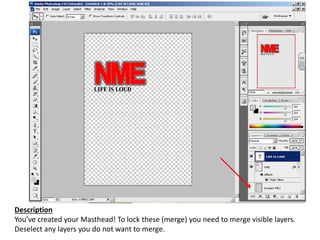
You’ve created your Masthead! To lock these (merge) you need to merge visible layers.
Deselect any layers you do not want to merge.
Description
Merge visible layers.
Description
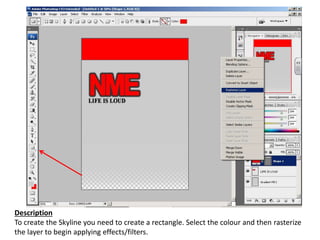
To create the Skyline you need to create a rectangle. Select the colour and then rasterize
the layer to begin applying effects/filters.
Description
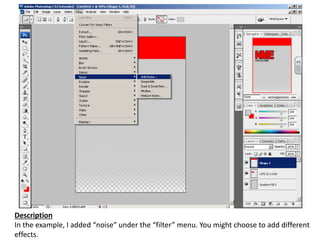
In the example, I added “noise” under the “filter” menu. You might choose to add different
effects.
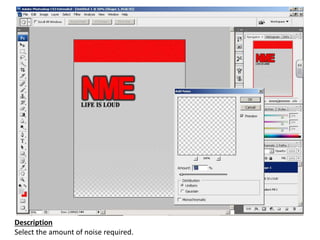
Description
Select the amount of noise required.
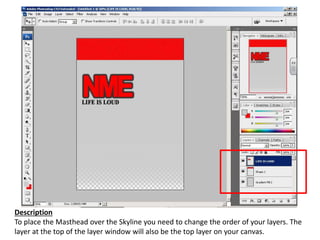
Description
To place the Masthead over the Skyline you need to change the order of your layers. The
layer at the top of the layer window will also be the top layer on your canvas.
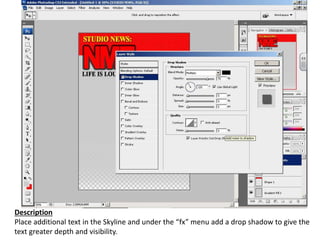
Description
Place additional text in the Skyline and under the “fx” menu add a drop shadow to give the
text greater depth and visibility.
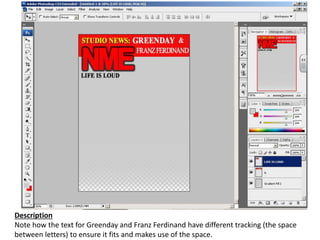
Description
Note how the text for Greenday and Franz Ferdinand have different tracking (the space
between letters) to ensure it fits and makes use of the space.
Description
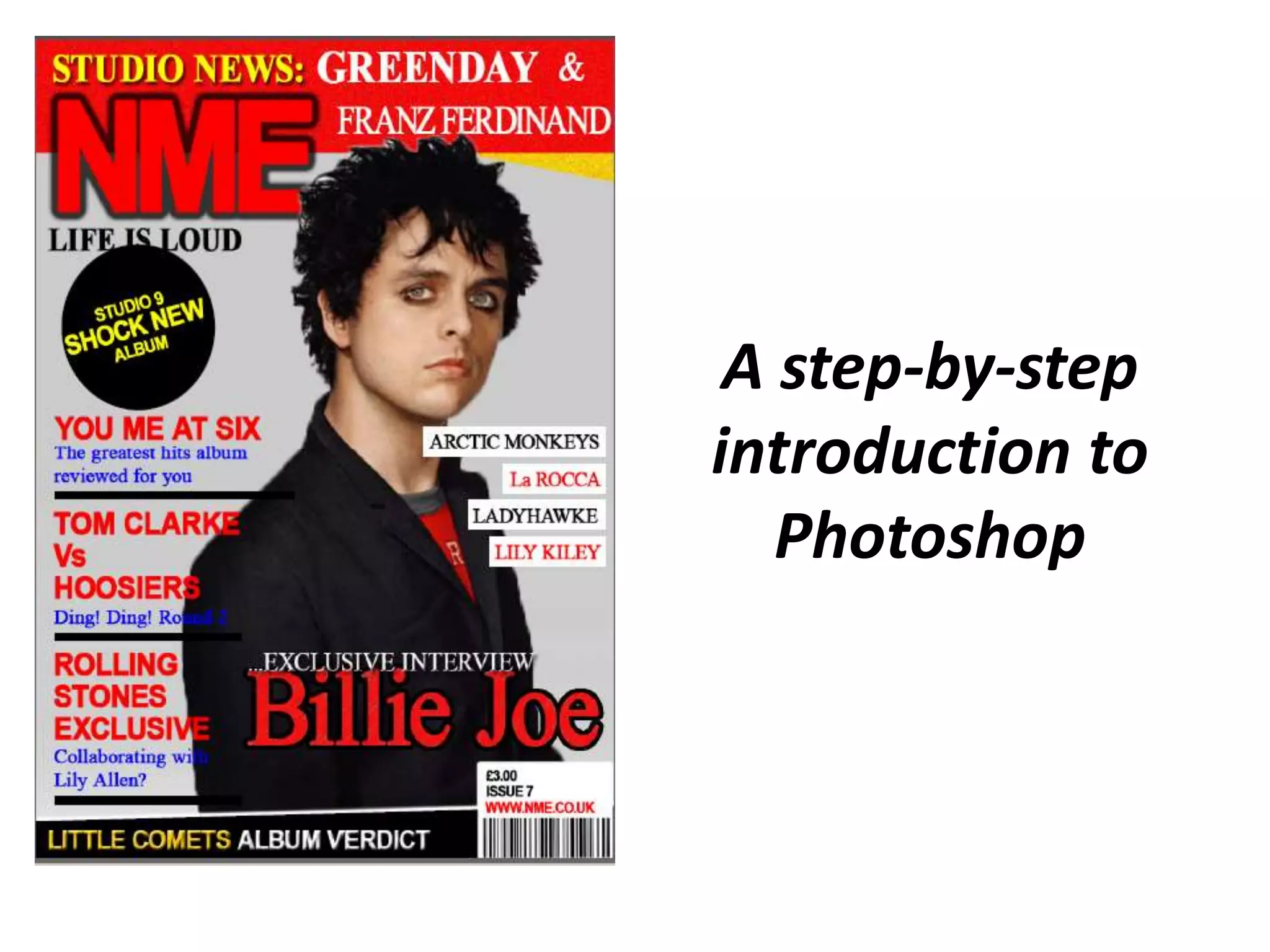
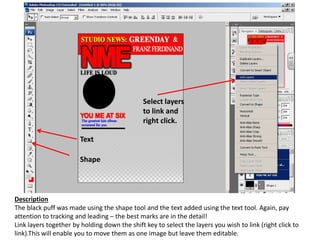
The black puff was made using the shape tool and the text added using the text tool. Again, pay
attention to tracking and leading – the best marks are in the detail!
Link layers together by holding down the shift key to select the layers you wish to link (right click to
link).This will enable you to move them as one image but leave them editable.
Shape
Text
Select layers
to link and
right click.
Description
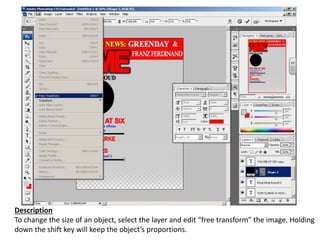
To change the size of an object, select the layer and edit “free transform” the image. Holding
down the shift key will keep the object’s proportions.
Description
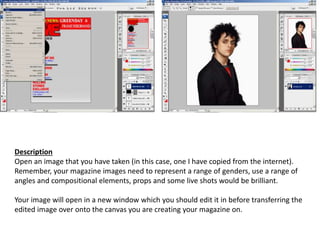
Open an image that you have taken (in this case, one I have copied from the internet).
Remember, your magazine images need to represent a range of genders, use a range of
angles and compositional elements, props and some live shots would be brilliant.
Your image will open in a new window which you should edit it in before transferring the
edited image over onto the canvas you are creating your magazine on.
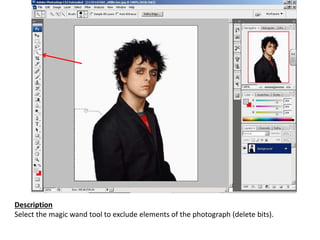
Description
Select the magic wand tool to exclude elements of the photograph (delete bits).
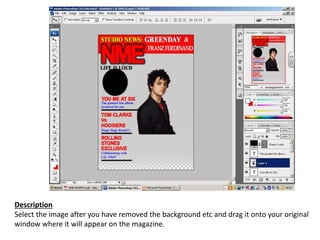
Description
Select the image after you have removed the background etc and drag it onto your original
window where it will appear on the magazine.
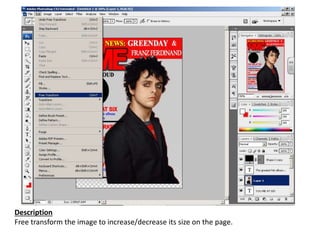
Description
Free transform the image to increase/decrease its size on the page.
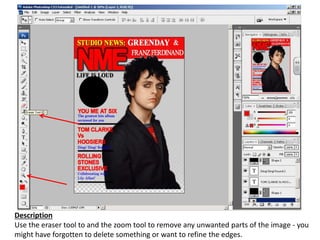
Description
Use the eraser tool to and the zoom tool to remove any unwanted parts of the image - you
might have forgotten to delete something or want to refine the edges.
Description
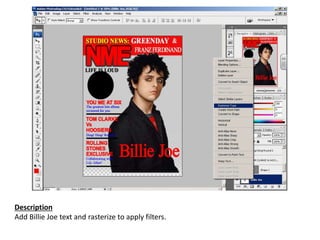
Add Billie Joe text and rasterize to apply filters.
Description
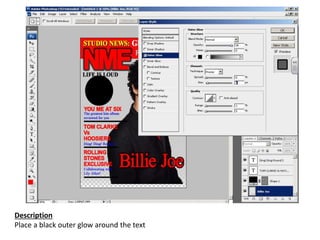
Place a black outer glow around the text
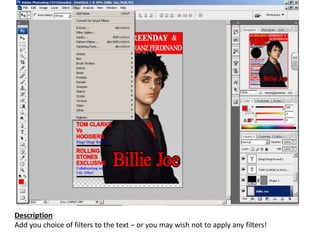
Description
Add you choice of filters to the text – or you may wish not to apply any filters!
Description
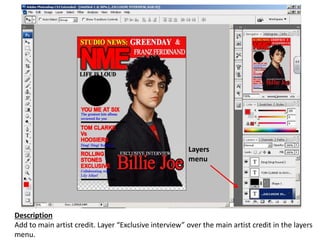
Add to main artist credit. Layer “Exclusive interview” over the main artist credit in the layers
menu.
Layers
menu
Description
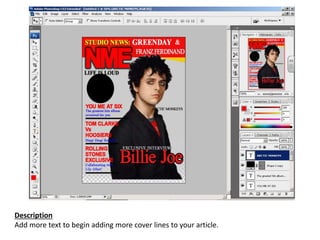
Add more text to begin adding more cover lines to your article.
Description
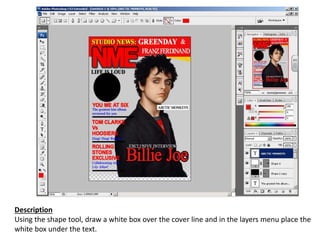
Using the shape tool, draw a white box over the cover line and in the layers menu place the
white box under the text.
Description
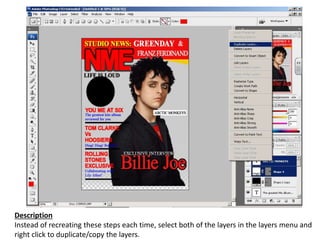
Instead of recreating these steps each time, select both of the layers in the layers menu and
right click to duplicate/copy the layers.
Description
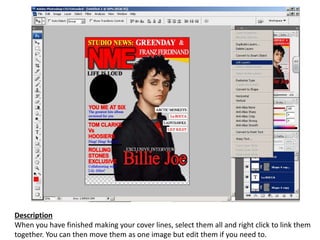
When you have finished making your cover lines, select them all and right click to link them
together. You can then move them as one image but edit them if you need to.
Description
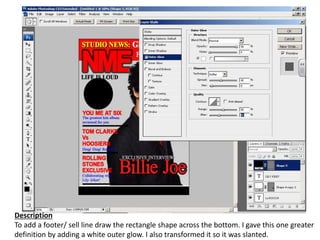
To add a footer/ sell line draw the rectangle shape across the bottom. I gave this one greater
definition by adding a white outer glow. I also transformed it so it was slanted.
Description
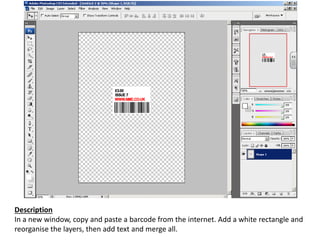
In a new window, copy and paste a barcode from the internet. Add a white rectangle and
reorganise the layers, then add text and merge all.
Description
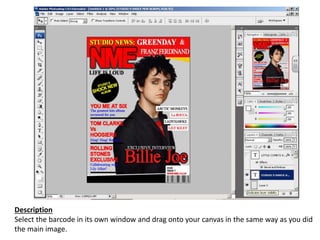
Select the barcode in its own window and drag onto your canvas in the same way as you did
the main image.
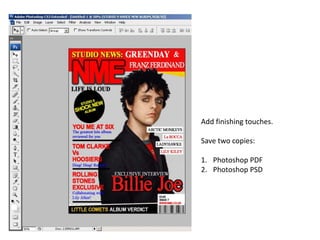
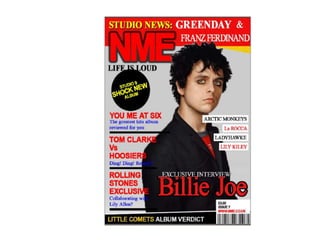
Add finishing touches.
Save two copies:
1. Photoshop PDF
2. Photoshop PSD
Photoshop Tutorial
Photoshop Tutorial

Photoshop Tutorial