Illustrator (vector/ raster editor)
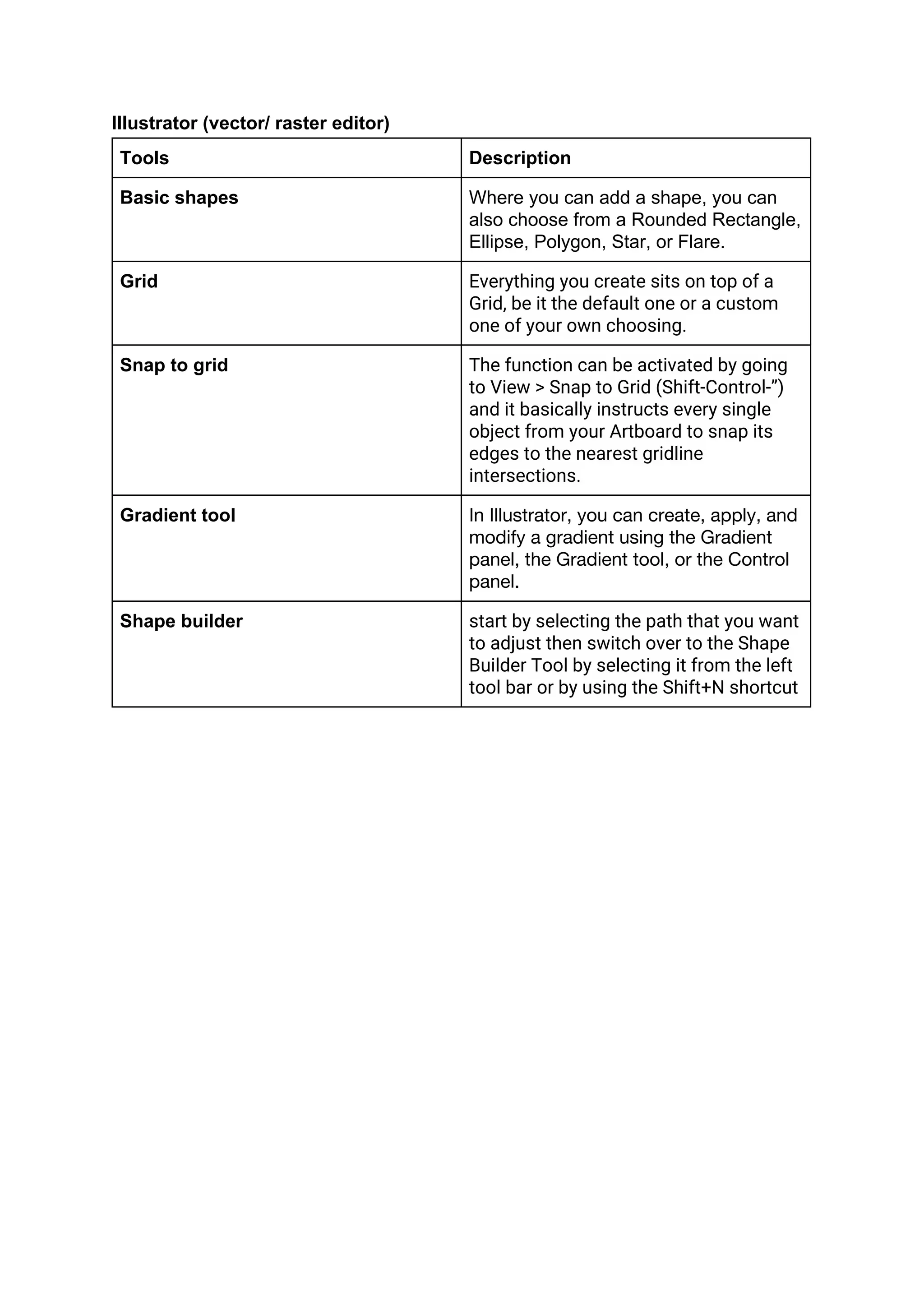
Tools Description
Basic shapes Where you can add a shape, you can
also choose from a Rounded Rectangle,
Ellipse, Polygon, Star, or Flare.
Grid Everything you create sits on top of a 
Grid, be it the default one or a custom 
one of your own choosing.
Snap to grid The function can be activated by going 
to View > Snap to Grid (Shift-Control-”) 
and it basically instructs every single 
object from your Artboard to snap its 
edges to the nearest gridline 
intersections.
Gradient tool In Illustrator, you can create, apply, and 
modify a gradient using the Gradient 
panel, the Gradient tool, or the Control 
panel.
Shape builder start by selecting the path that you want 
to adjust then switch over to the Shape 
Builder Tool by selecting it from the left 
tool bar or by using the Shift+N shortcut
Premier pro (video editing)
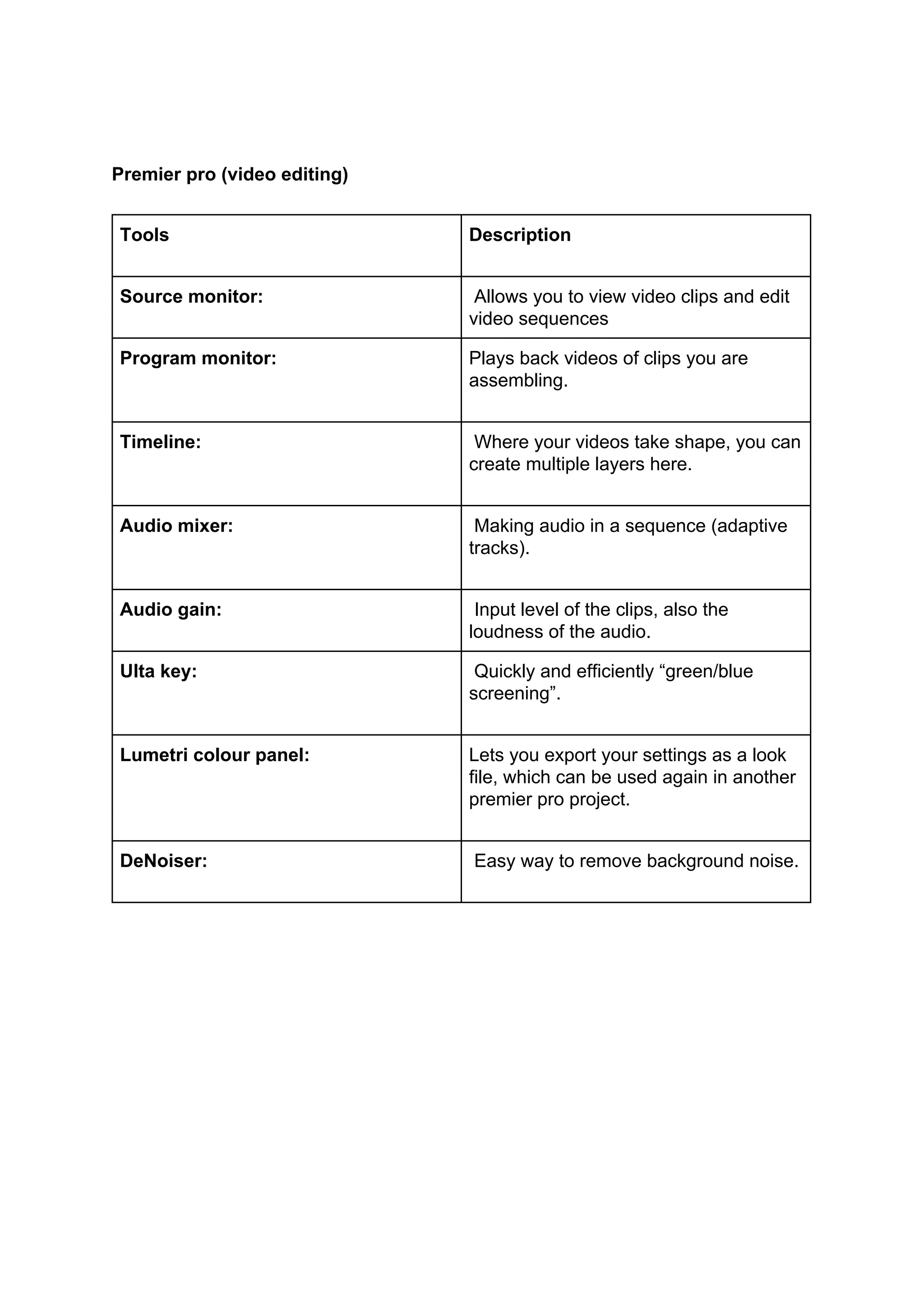
Tools Description
Source monitor: Allows you to view video clips and edit
video sequences
Program monitor: Plays back videos of clips you are
assembling.
Timeline: ​Where your videos take shape, you can
create multiple layers here.
Audio mixer: ​Making audio in a sequence (adaptive
tracks).
Audio gain: ​Input level of the clips, also the
loudness of the audio.
Ulta key: ​Quickly and efficiently “green/blue
screening”.
Lumetri colour panel: Lets you export your settings as a look
file, which can be used again in another
premier pro project.
DeNoiser: ​Easy way to remove background noise.
Photoshop (bitmap editor)
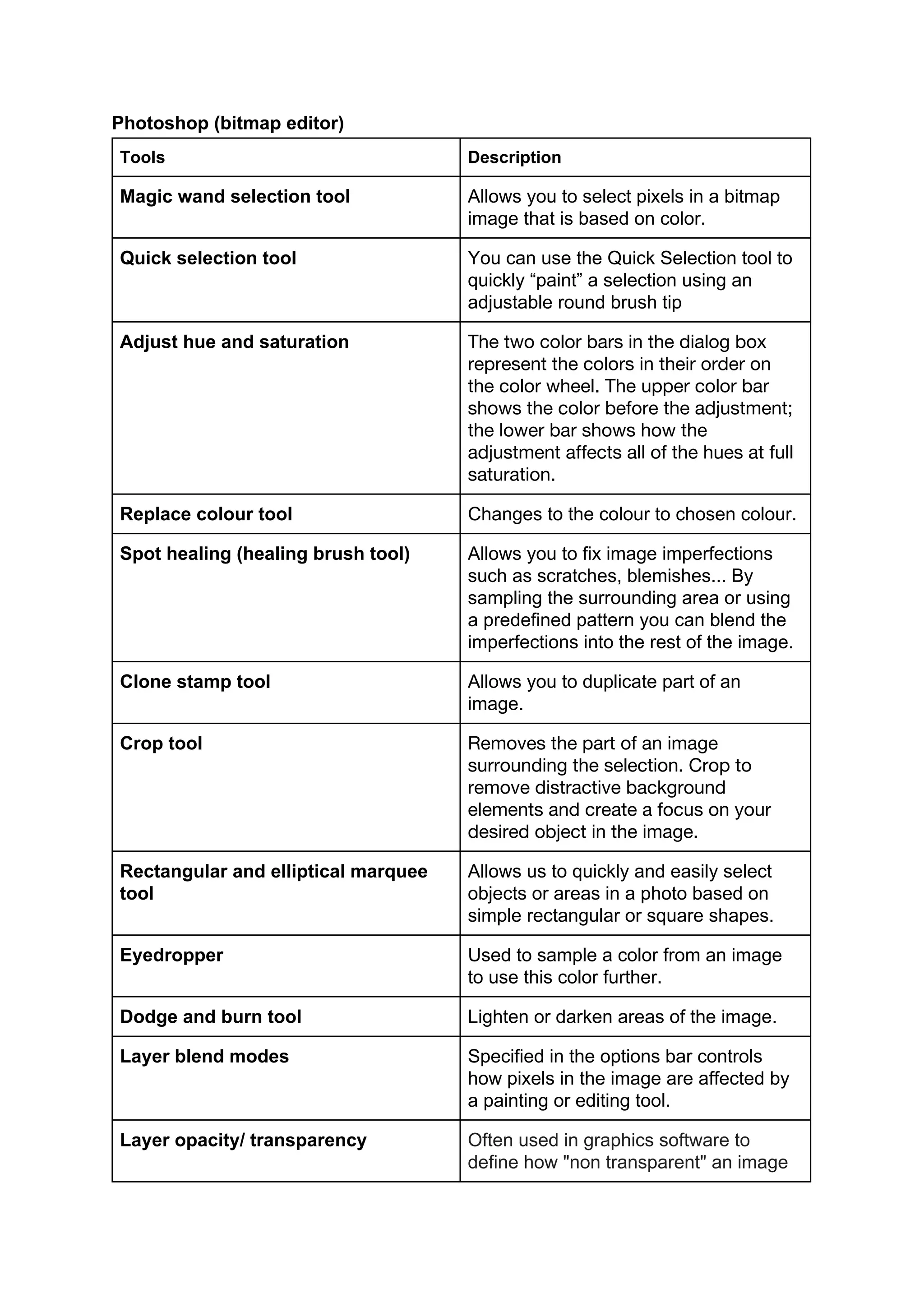
Tools Description
Magic wand selection tool Allows you to select pixels in a bitmap
image that is based on color.
Quick selection tool You can use the Quick Selection tool to
quickly “paint” a selection using an
adjustable round brush tip
Adjust hue and saturation The two color bars in the dialog box 
represent the colors in their order on 
the color wheel. The upper color bar 
shows the color before the adjustment; 
the lower bar shows how the 
adjustment affects all of the hues at full 
saturation.
Replace colour tool Changes to the colour to chosen colour.
Spot healing (healing brush tool) Allows you to fix image imperfections
such as scratches, blemishes... By
sampling the surrounding area or using
a predefined pattern you can blend the
imperfections into the rest of the image.
Clone stamp tool Allows you to duplicate part of an
image.
Crop tool Removes the part of an image 
surrounding the selection. Crop to 
remove distractive background 
elements and create a focus on your 
desired object in the image. 
Rectangular and elliptical marquee
tool
Allows us to quickly and easily select
objects or areas in a photo based on
simple rectangular or square shapes.  
Eyedropper Used to sample a color from an image
to use this color further.
Dodge and burn tool Lighten or darken areas of the image.
Layer blend modes Specified in the options bar controls
how pixels in the image are affected by
a painting or editing tool.
Layer opacity/ transparency Often used in graphics software to
define how "non transparent" an image
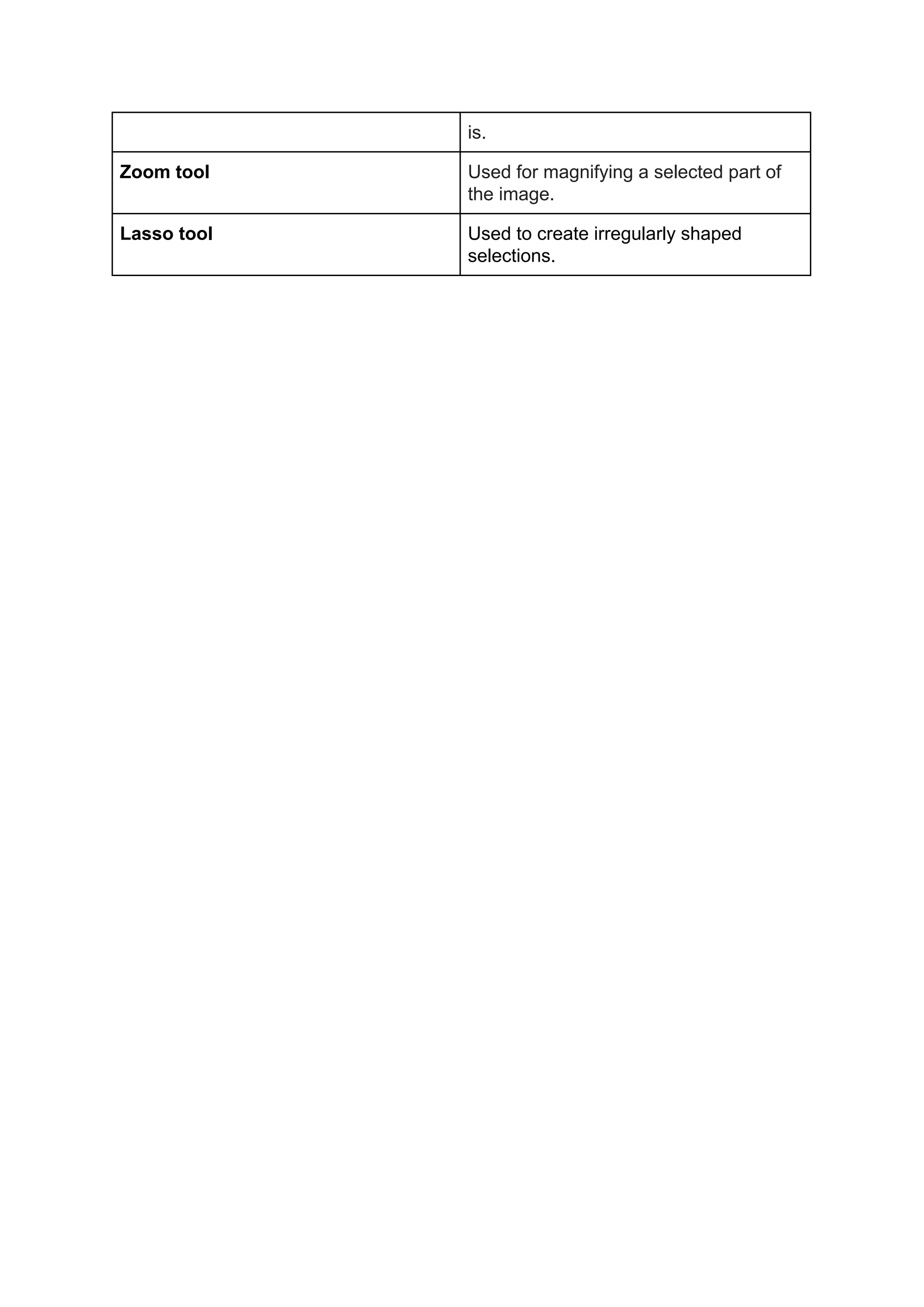
is.
Zoom tool Used for magnifying a selected part of
the image.
Lasso tool Used to create irregularly shaped
selections.

Untitled document (1)

  • 1.
    Illustrator (vector/ rastereditor) Tools Description Basic shapes Where you can add a shape, you can also choose from a Rounded Rectangle, Ellipse, Polygon, Star, or Flare. Grid Everything you create sits on top of a  Grid, be it the default one or a custom  one of your own choosing. Snap to grid The function can be activated by going  to View > Snap to Grid (Shift-Control-”)  and it basically instructs every single  object from your Artboard to snap its  edges to the nearest gridline  intersections. Gradient tool In Illustrator, you can create, apply, and  modify a gradient using the Gradient  panel, the Gradient tool, or the Control  panel. Shape builder start by selecting the path that you want  to adjust then switch over to the Shape  Builder Tool by selecting it from the left  tool bar or by using the Shift+N shortcut
  • 2.
    Premier pro (videoediting) Tools Description Source monitor: Allows you to view video clips and edit video sequences Program monitor: Plays back videos of clips you are assembling. Timeline: ​Where your videos take shape, you can create multiple layers here. Audio mixer: ​Making audio in a sequence (adaptive tracks). Audio gain: ​Input level of the clips, also the loudness of the audio. Ulta key: ​Quickly and efficiently “green/blue screening”. Lumetri colour panel: Lets you export your settings as a look file, which can be used again in another premier pro project. DeNoiser: ​Easy way to remove background noise.
  • 3.
    Photoshop (bitmap editor) ToolsDescription Magic wand selection tool Allows you to select pixels in a bitmap image that is based on color. Quick selection tool You can use the Quick Selection tool to quickly “paint” a selection using an adjustable round brush tip Adjust hue and saturation The two color bars in the dialog box  represent the colors in their order on  the color wheel. The upper color bar  shows the color before the adjustment;  the lower bar shows how the  adjustment affects all of the hues at full  saturation. Replace colour tool Changes to the colour to chosen colour. Spot healing (healing brush tool) Allows you to fix image imperfections such as scratches, blemishes... By sampling the surrounding area or using a predefined pattern you can blend the imperfections into the rest of the image. Clone stamp tool Allows you to duplicate part of an image. Crop tool Removes the part of an image  surrounding the selection. Crop to  remove distractive background  elements and create a focus on your  desired object in the image.  Rectangular and elliptical marquee tool Allows us to quickly and easily select objects or areas in a photo based on simple rectangular or square shapes.   Eyedropper Used to sample a color from an image to use this color further. Dodge and burn tool Lighten or darken areas of the image. Layer blend modes Specified in the options bar controls how pixels in the image are affected by a painting or editing tool. Layer opacity/ transparency Often used in graphics software to define how "non transparent" an image
  • 4.
    is. Zoom tool Usedfor magnifying a selected part of the image. Lasso tool Used to create irregularly shaped selections.