OmniPlan
version 2.0.1
Manual
Introduction to the Interface
2
Introduction to the Interface
Toolbar
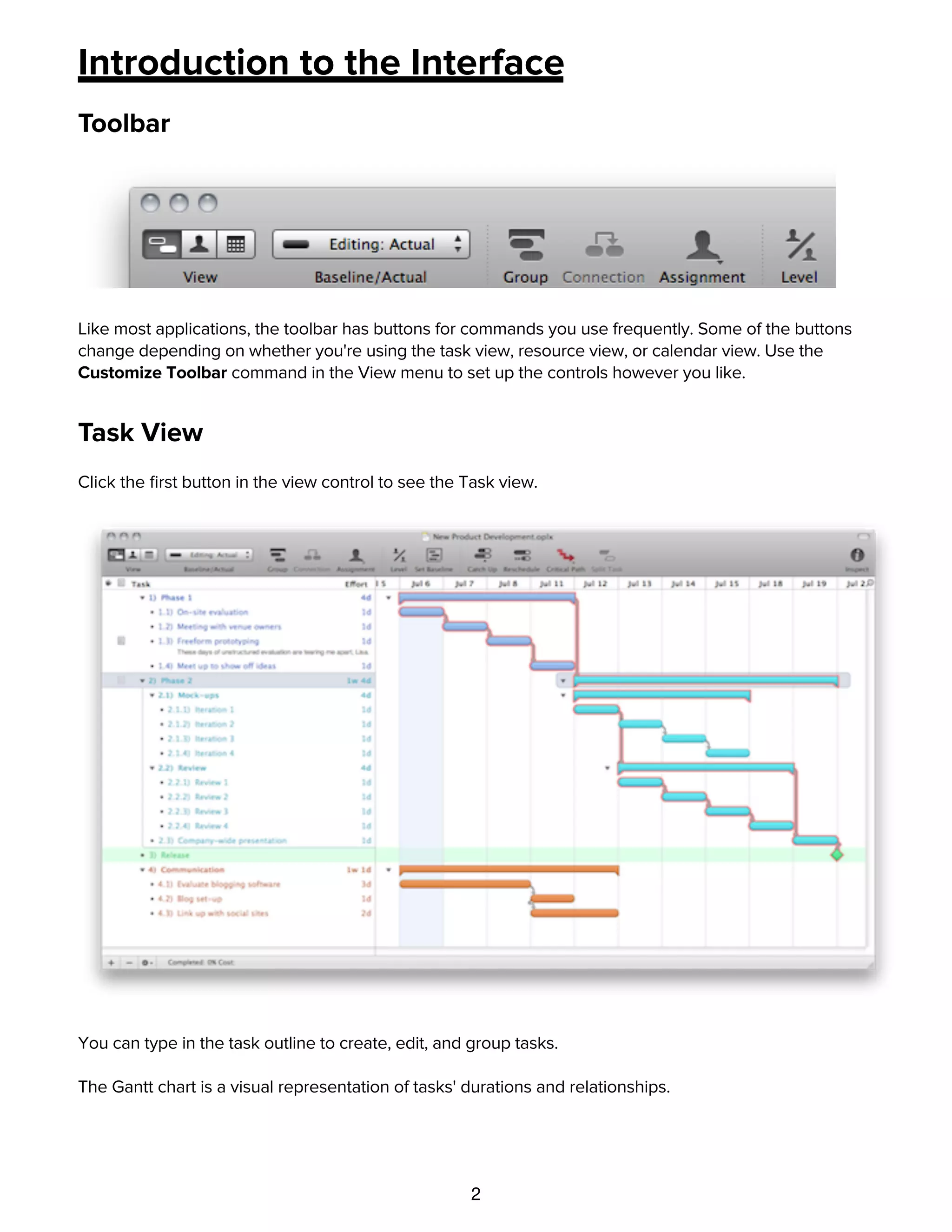
Like most applications, the toolbar has buttons for commands you use frequently. Some of the buttons
change depending on whether you're using the task view, resource view, or calendar view. Use the
Customize Toolbar command in the View menu to set up the controls however you like.
Task View
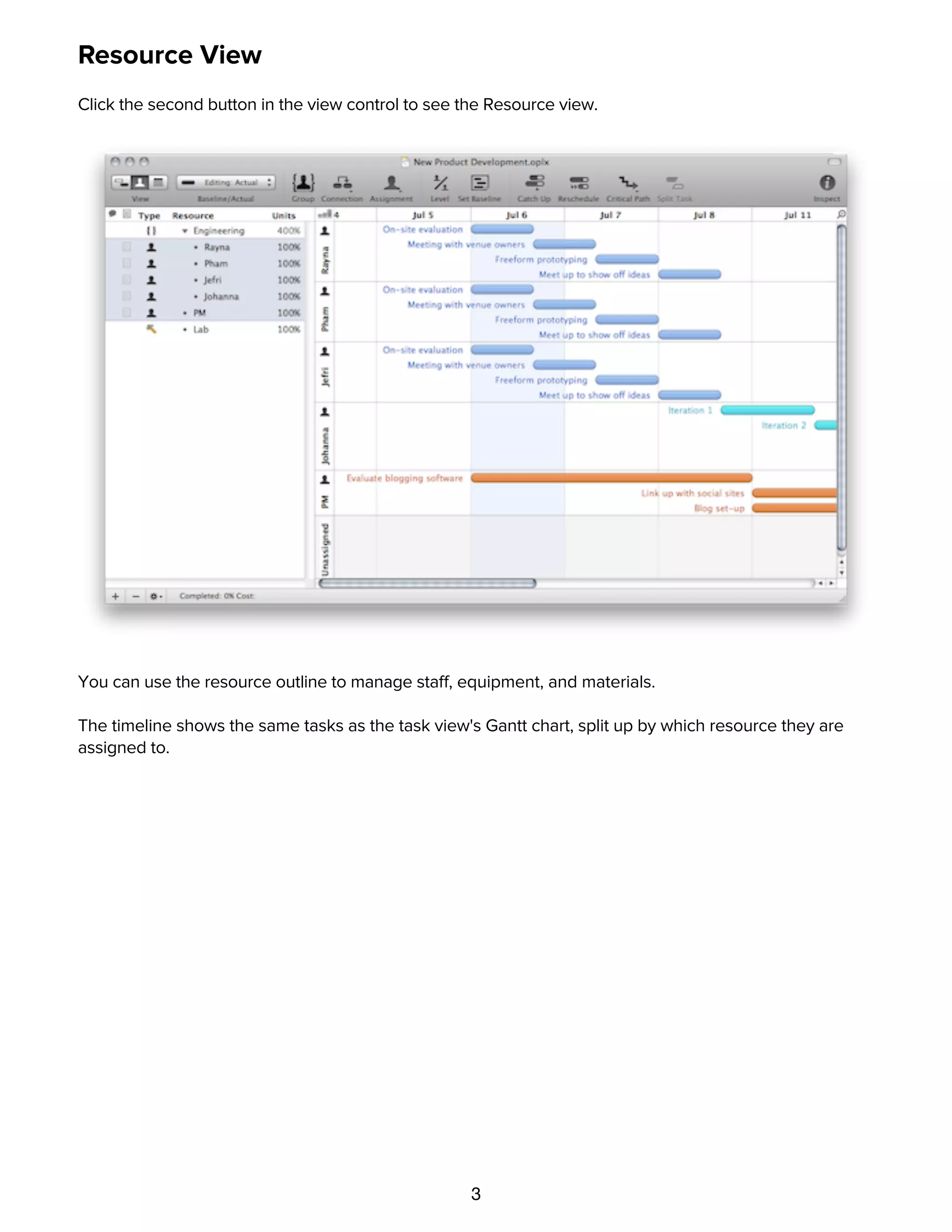
Click the first button in the view control to see the Task view.
You can type in the task outline to create, edit, and group tasks.
The Gantt chart is a visual representation of tasks' durations and relationships.
Resource View
3
Resource View
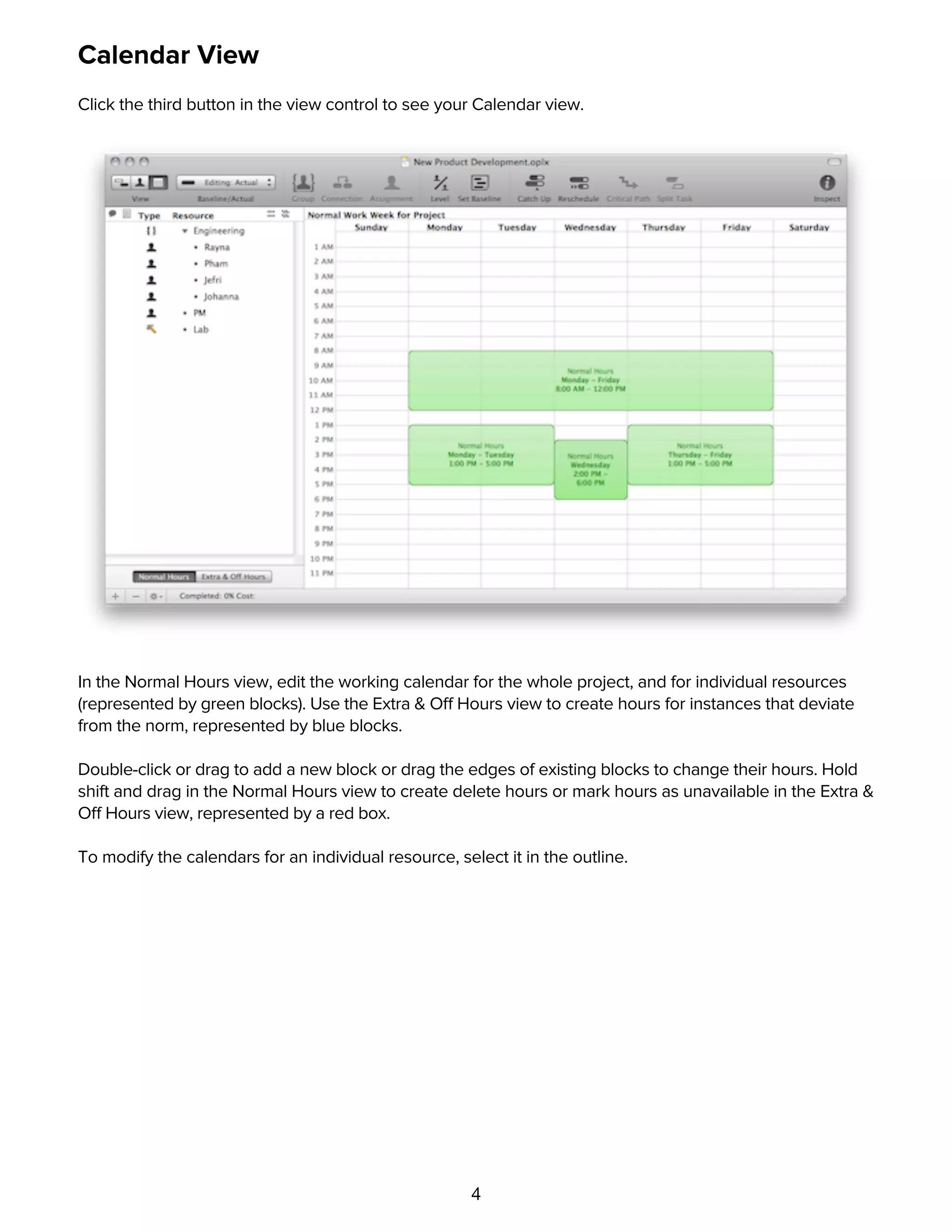
Click the second button in the view control to see the Resource view.
You can use the resource outline to manage staff, equipment, and materials.
The timeline shows the same tasks as the task view's Gantt chart, split up by which resource they are
assigned to.
Calendar View
4
Calendar View
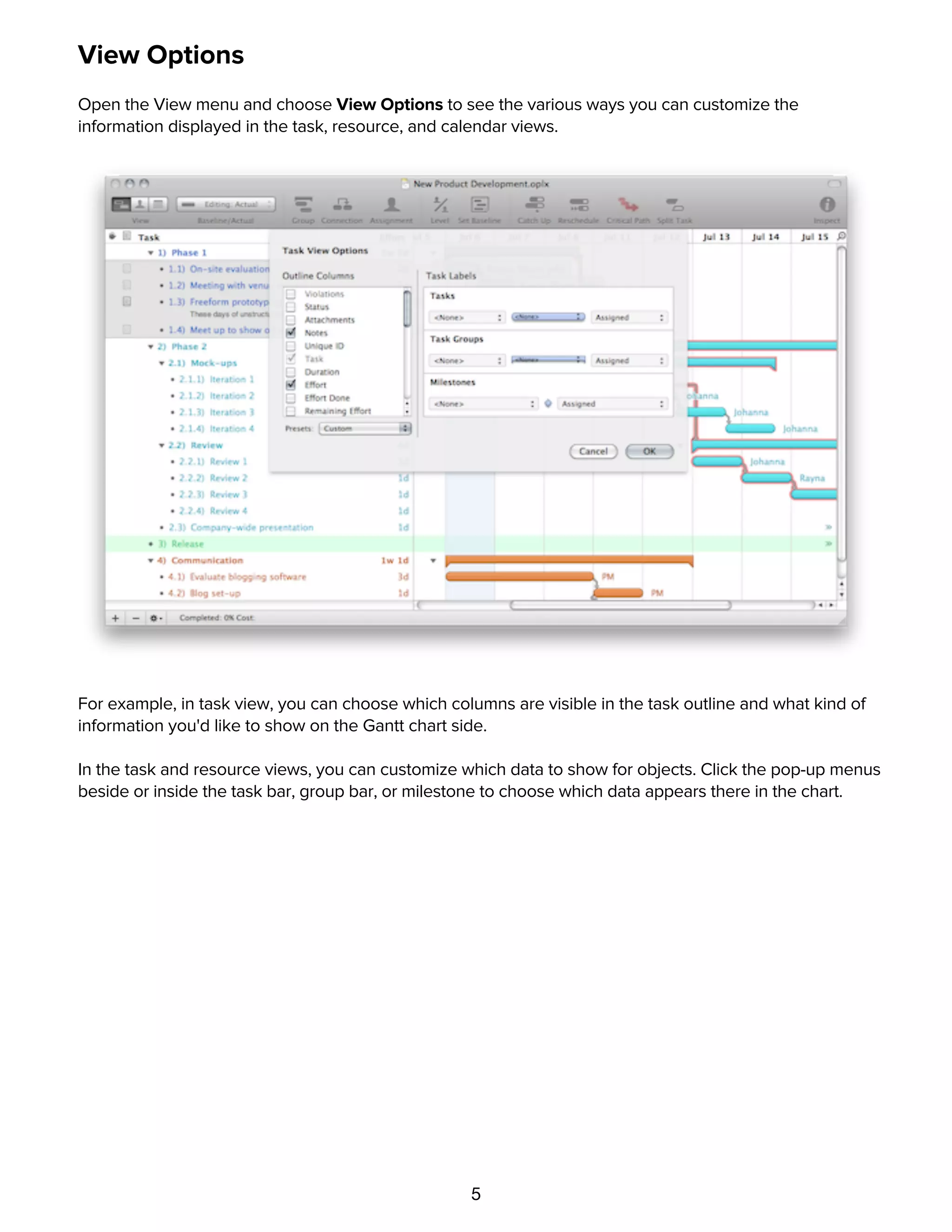
Click the third button in the view control to see your Calendar view.
In the Normal Hours view, edit the working calendar for the whole project, and for individual resources
(represented by green blocks). Use the Extra & Off Hours view to create hours for instances that deviate
from the norm, represented by blue blocks.
Double-click or drag to add a new block or drag the edges of existing blocks to change their hours. Hold
shift and drag in the Normal Hours view to create delete hours or mark hours as unavailable in the Extra &
Off Hours view, represented by a red box.
To modify the calendars for an individual resource, select it in the outline.
View Options
5
View Options
Open the View menu and choose View Options to see the various ways you can customize the
information displayed in the task, resource, and calendar views.
For example, in task view, you can choose which columns are visible in the task outline and what kind of
information you'd like to show on the Gantt chart side.
In the task and resource views, you can customize which data to show for objects. Click the pop-up menus
beside or inside the task bar, group bar, or milestone to choose which data appears there in the chart.
Inspectors
6
Inspectors
The inspectors are floating windows which contain information and controls related to what's selected in
the main window. If you don't see them, click the Inspect button in the toolbar, or pick one from the
Inspectors menu. You can show and hide an inspector's various sections by clicking the icons at the top of
each inspector window. Hold Command while clicking to open an inspector section without closing the
ones that are already open.
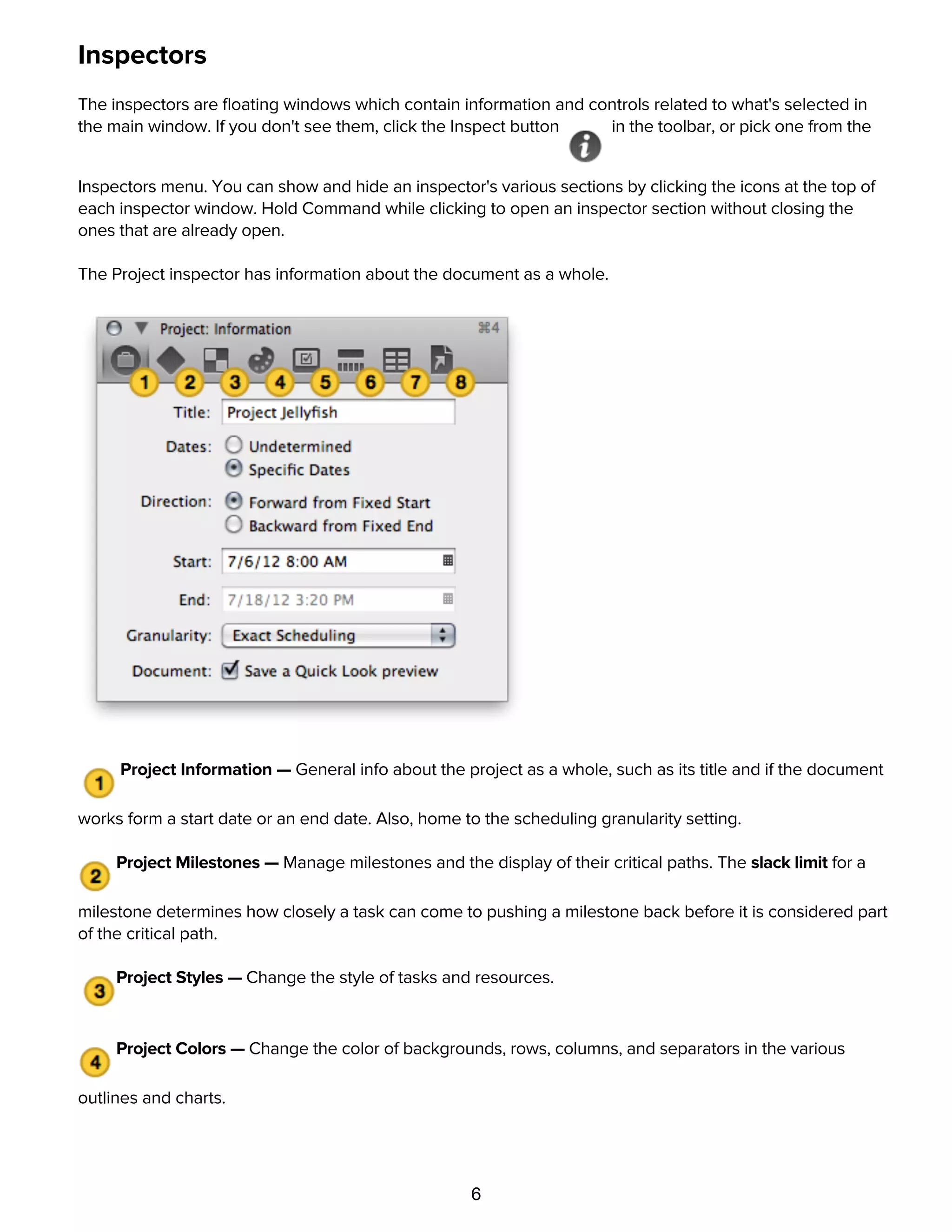
The Project inspector has information about the document as a whole.
Project Information — General info about the project as a whole, such as its title and if the document
works form a start date or an end date. Also, home to the scheduling granularity setting.
Project Milestones — Manage milestones and the display of their critical paths. The slack limit for a
milestone determines how closely a task can come to pushing a milestone back before it is considered part
of the critical path.
Project Styles — Change the style of tasks and resources.
Project Colors — Change the color of backgrounds, rows, columns, and separators in the various
outlines and charts.
Project Formats — Configure your time and currency units.
7
outlines and charts.
Project Formats — Configure your time and currency units.
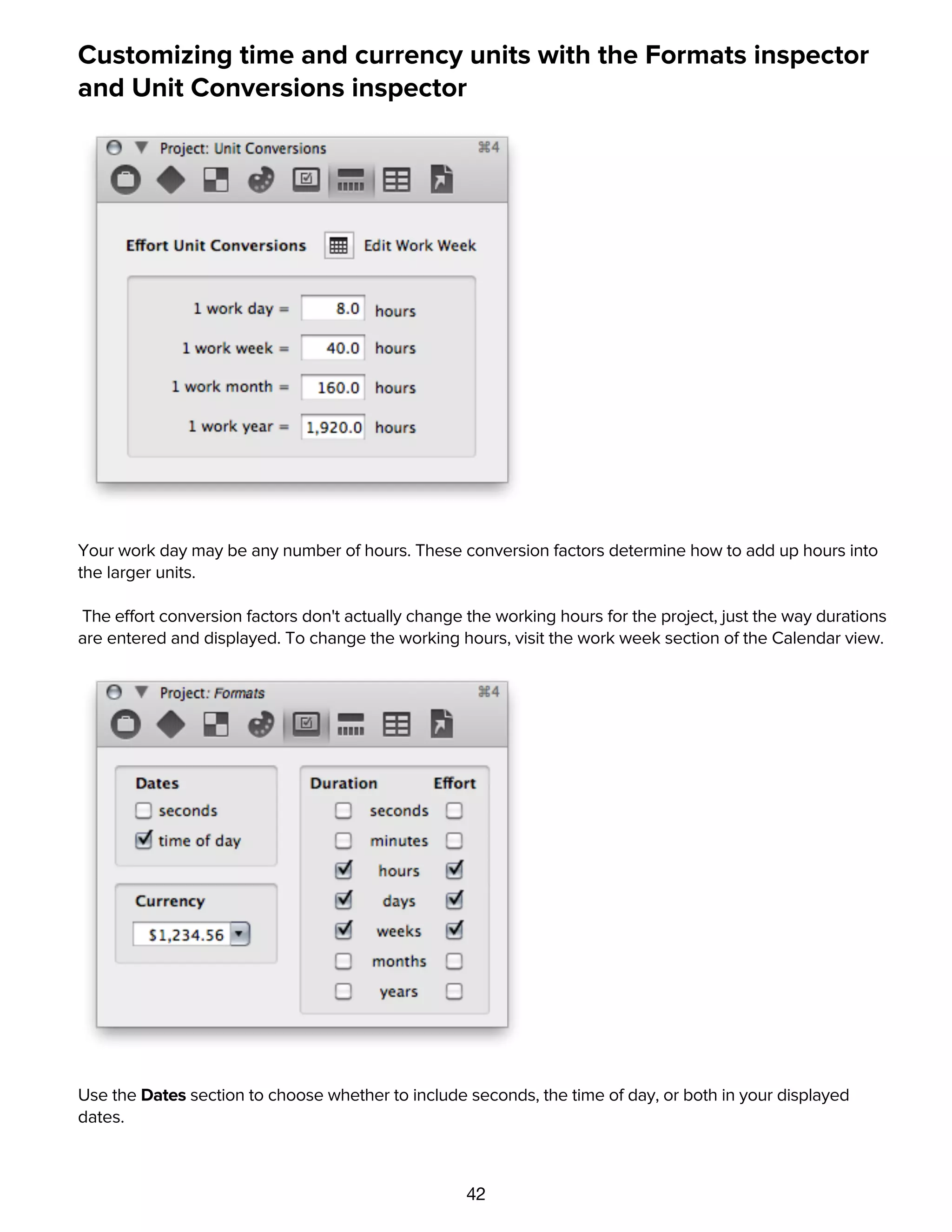
Project Unit Conversions — Define the hours in a given work day, week, month, and year. Click the
Edit Work Week button to go to Calendar View and make adjustments to your working hours.
Project Custom Data — Store any kind of miscellaneous data about the project.
Project Attachments — Link to important files related to the project.
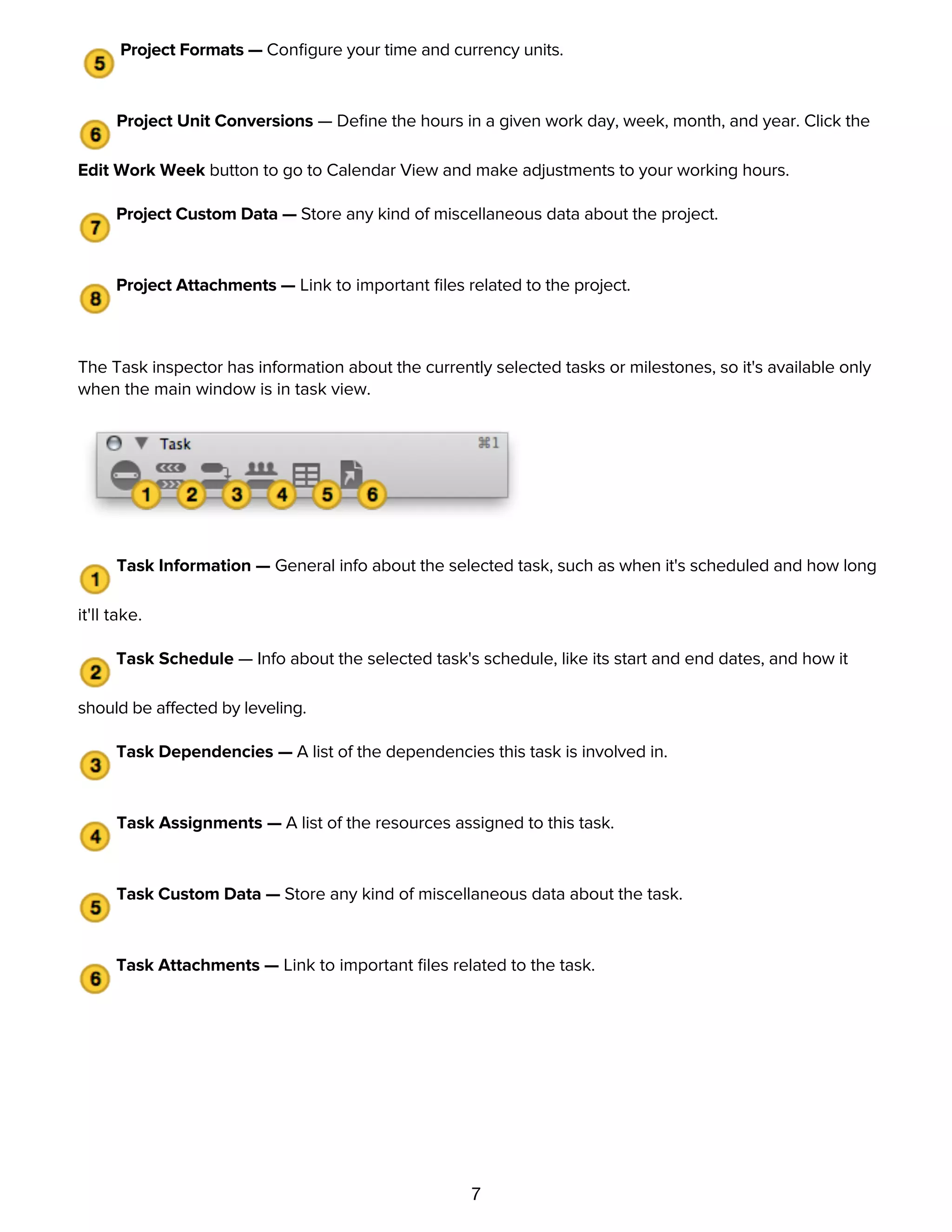
The Task inspector has information about the currently selected tasks or milestones, so it's available only
when the main window is in task view.
Task Information — General info about the selected task, such as when it's scheduled and how long
it'll take.
Task Schedule — Info about the selected task's schedule, like its start and end dates, and how it
should be affected by leveling.
Task Dependencies — A list of the dependencies this task is involved in.
Task Assignments — A list of the resources assigned to this task.
Task Custom Data — Store any kind of miscellaneous data about the task.
Task Attachments — Link to important files related to the task.
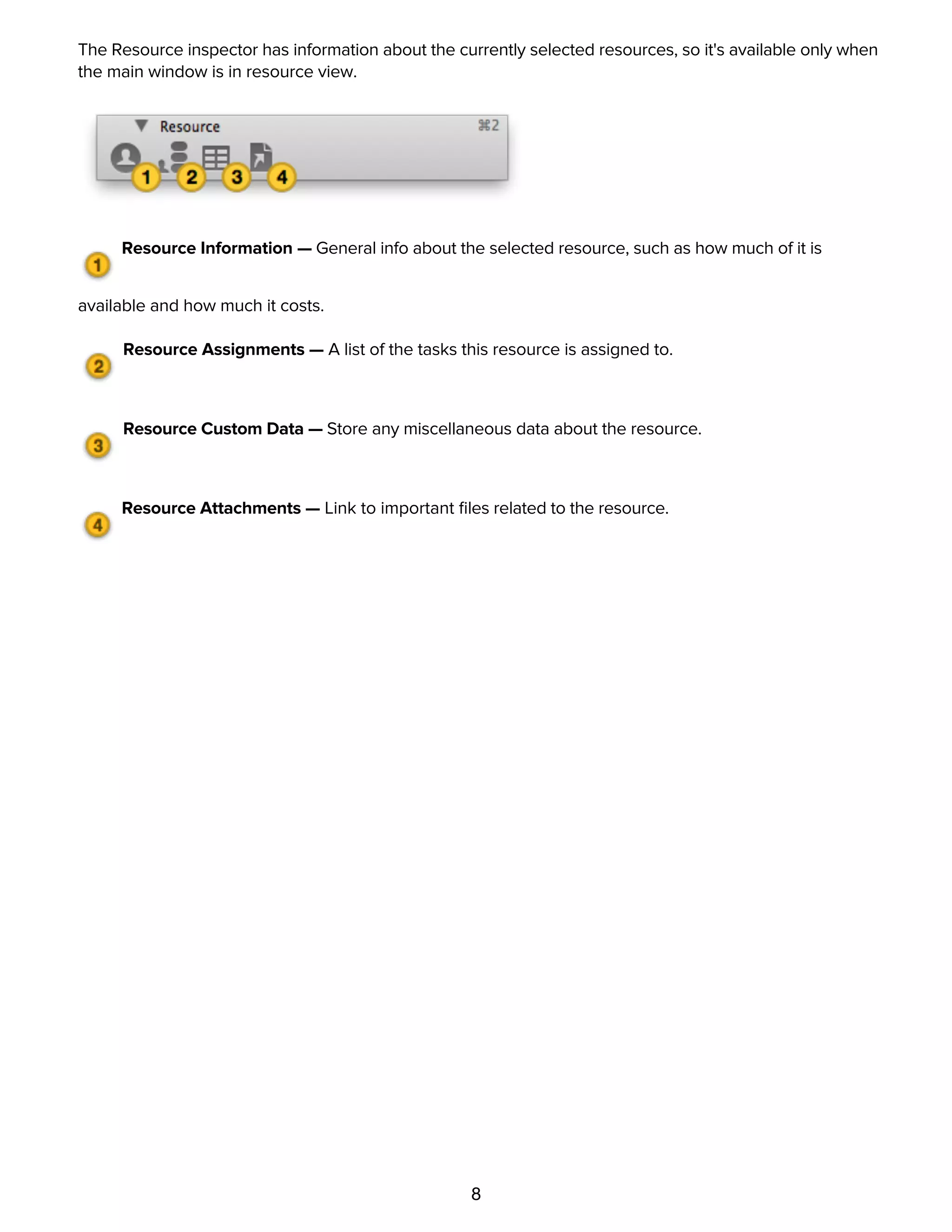
The Resource inspector has information about the currently selected resources, so it's available only when
the main window is in resource view.
8
The Resource inspector has information about the currently selected resources, so it's available only when
the main window is in resource view.
Resource Information — General info about the selected resource, such as how much of it is
available and how much it costs.
Resource Assignments — A list of the tasks this resource is assigned to.
Resource Custom Data — Store any miscellaneous data about the resource.
Resource Attachments — Link to important files related to the resource.
Quick Tutorial
9
Quick Tutorial
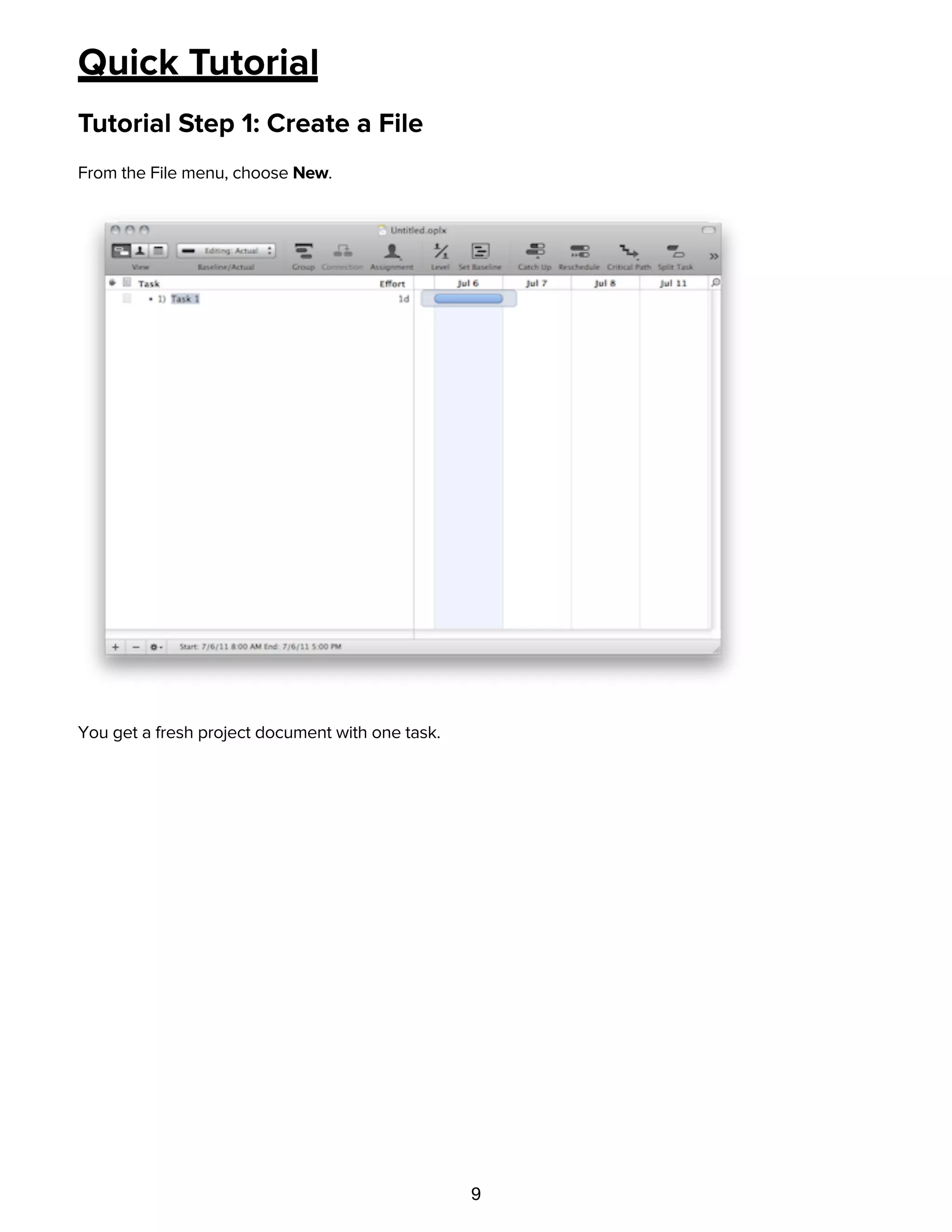
Tutorial Step 1: Create a File
From the File menu, choose New.
You get a fresh project document with one task.
Tutorial Step 2: Choose a Start or End Date
10
Tutorial Step 2: Choose a Start or End Date
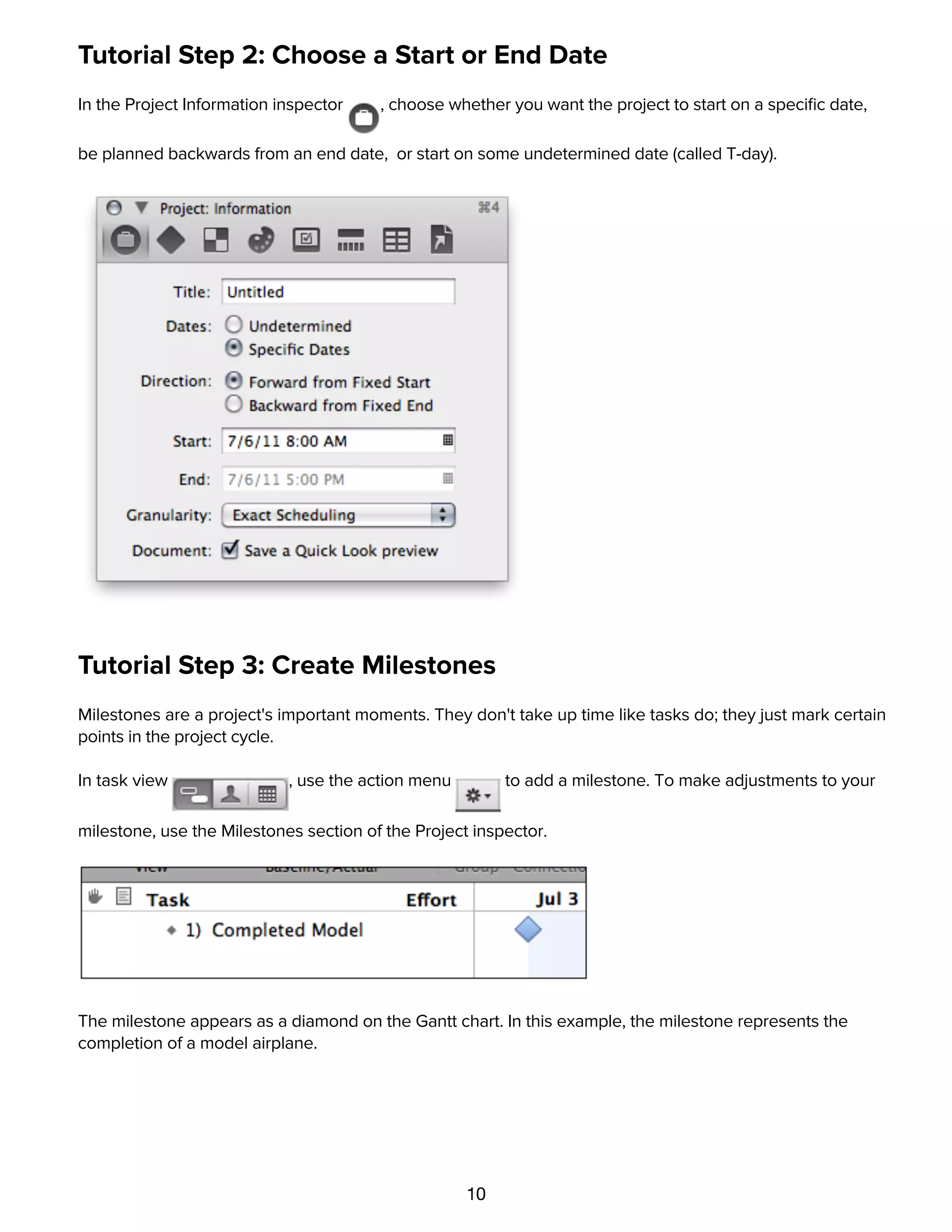
In the Project Information inspector , choose whether you want the project to start on a specific date,
be planned backwards from an end date, or start on some undetermined date (called T-day).
Tutorial Step 3: Create Milestones
Milestones are a project's important moments. They don't take up time like tasks do; they just mark certain
points in the project cycle.
In task view , use the action menu to add a milestone. To make adjustments to your
milestone, use the Milestones section of the Project inspector.
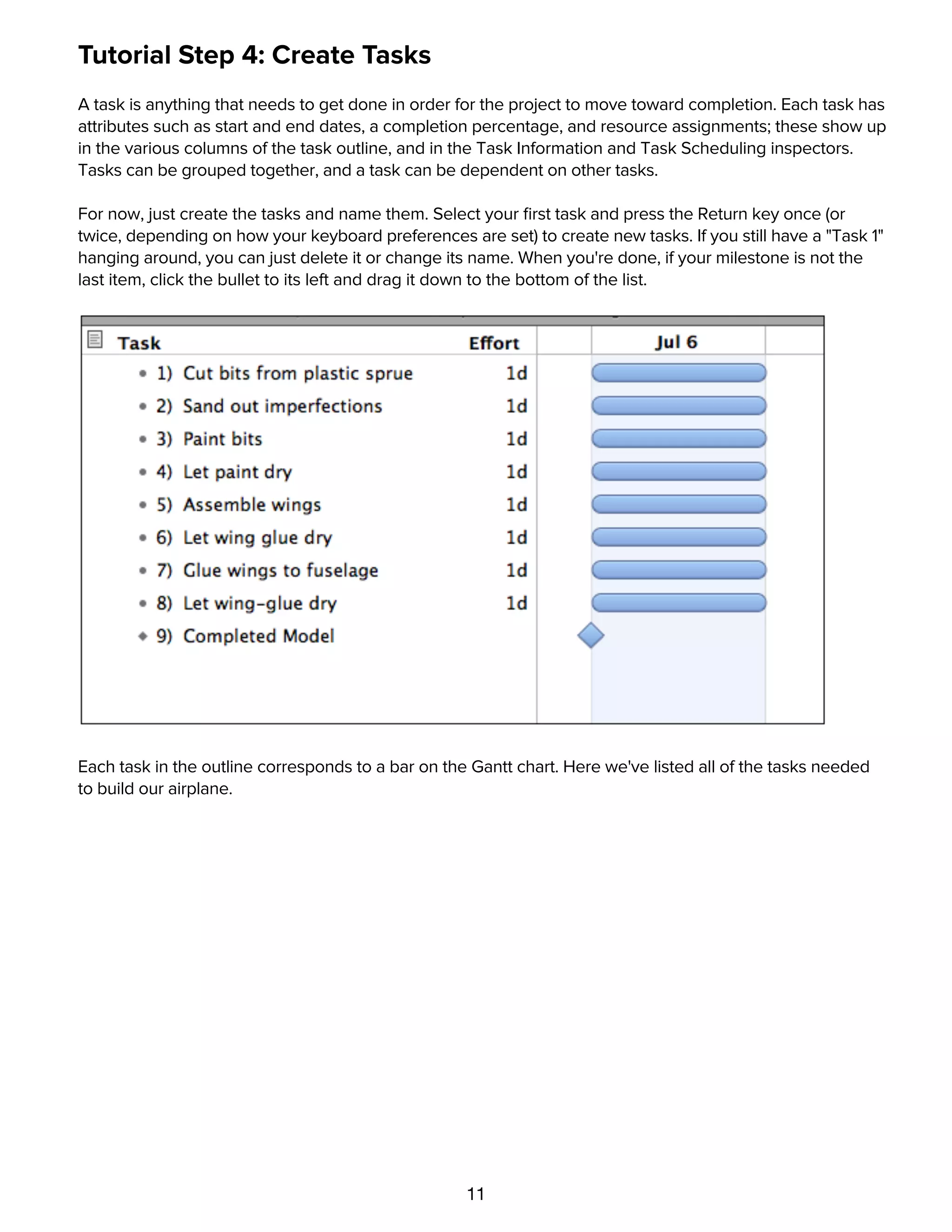
The milestone appears as a diamond on the Gantt chart. In this example, the milestone represents the
completion of a model airplane.
Tutorial Step 4: Create Tasks
11
Tutorial Step 4: Create Tasks
A task is anything that needs to get done in order for the project to move toward completion. Each task has
attributes such as start and end dates, a completion percentage, and resource assignments; these show up
in the various columns of the task outline, and in the Task Information and Task Scheduling inspectors.
Tasks can be grouped together, and a task can be dependent on other tasks.
For now, just create the tasks and name them. Select your first task and press the Return key once (or
twice, depending on how your keyboard preferences are set) to create new tasks. If you still have a "Task 1"
hanging around, you can just delete it or change its name. When you're done, if your milestone is not the
last item, click the bullet to its left and drag it down to the bottom of the list.
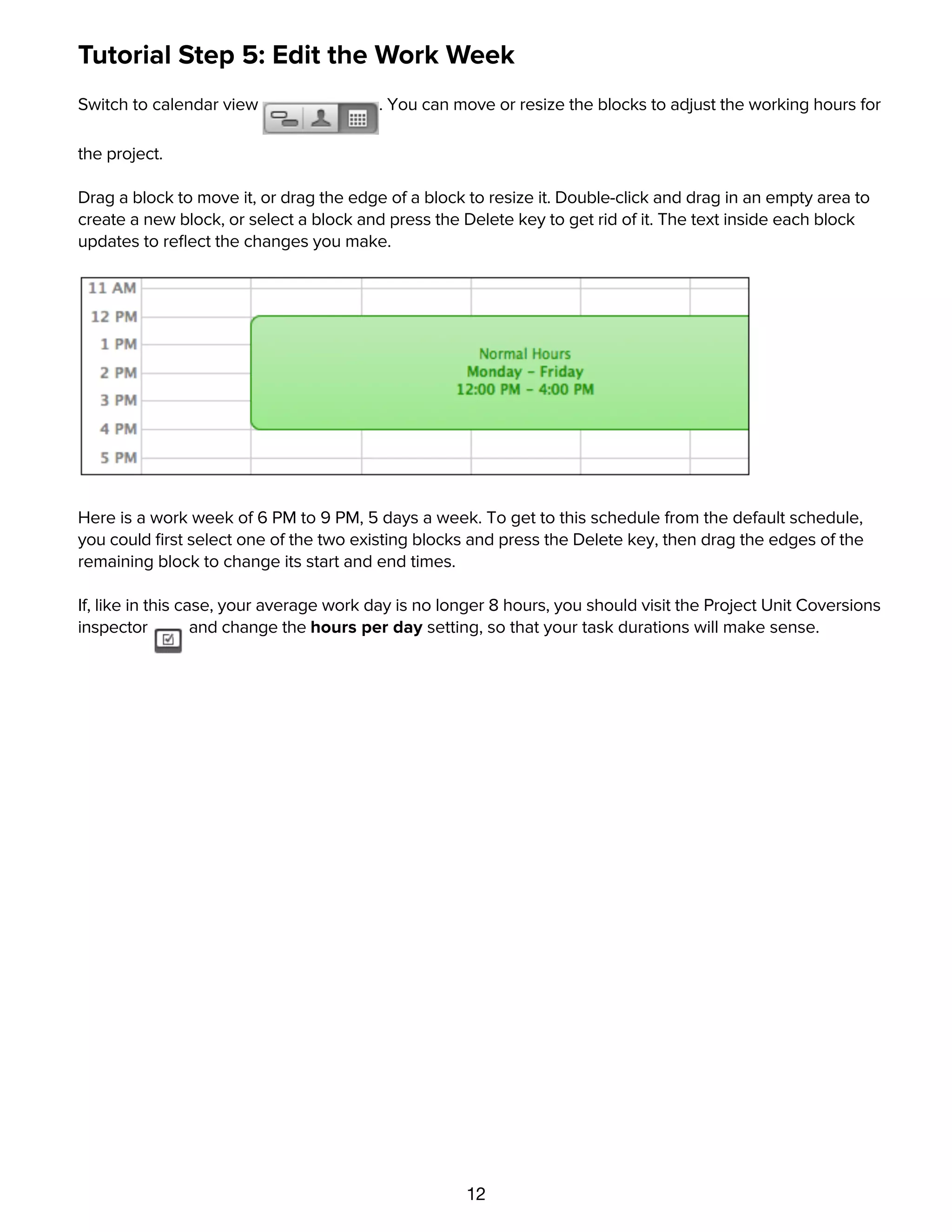
Each task in the outline corresponds to a bar on the Gantt chart. Here we've listed all of the tasks needed
to build our airplane.
Tutorial Step 5: Edit the Work Week
12
Tutorial Step 5: Edit the Work Week
Switch to calendar view . You can move or resize the blocks to adjust the working hours for
the project.
Drag a block to move it, or drag the edge of a block to resize it. Double-click and drag in an empty area to
create a new block, or select a block and press the Delete key to get rid of it. The text inside each block
updates to reflect the changes you make.
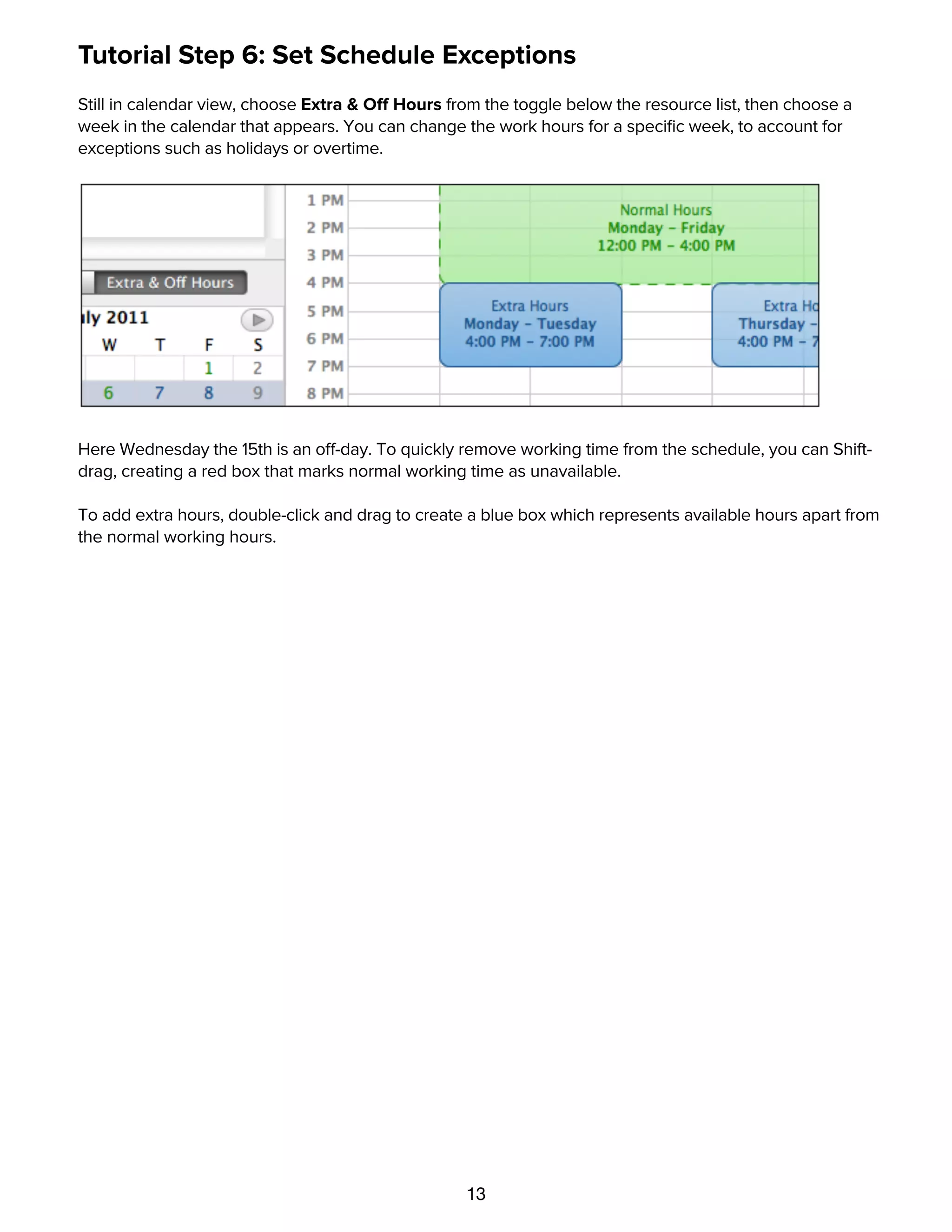
Here is a work week of 6 PM to 9 PM, 5 days a week. To get to this schedule from the default schedule,
you could first select one of the two existing blocks and press the Delete key, then drag the edges of the
remaining block to change its start and end times.
If, like in this case, your average work day is no longer 8 hours, you should visit the Project Unit Coversions
inspector and change the hours per day setting, so that your task durations will make sense.
Tutorial Step 6: Set Schedule Exceptions
13
Tutorial Step 6: Set Schedule Exceptions
Still in calendar view, choose Extra & Off Hours from the toggle below the resource list, then choose a
week in the calendar that appears. You can change the work hours for a specific week, to account for
exceptions such as holidays or overtime.
Here Wednesday the 15th is an off-day. To quickly remove working time from the schedule, you can Shift-
drag, creating a red box that marks normal working time as unavailable.
To add extra hours, double-click and drag to create a blue box which represents available hours apart from
the normal working hours.
Tutorial Step 7: Set Task Durations
14
Tutorial Step 7: Set Task Durations
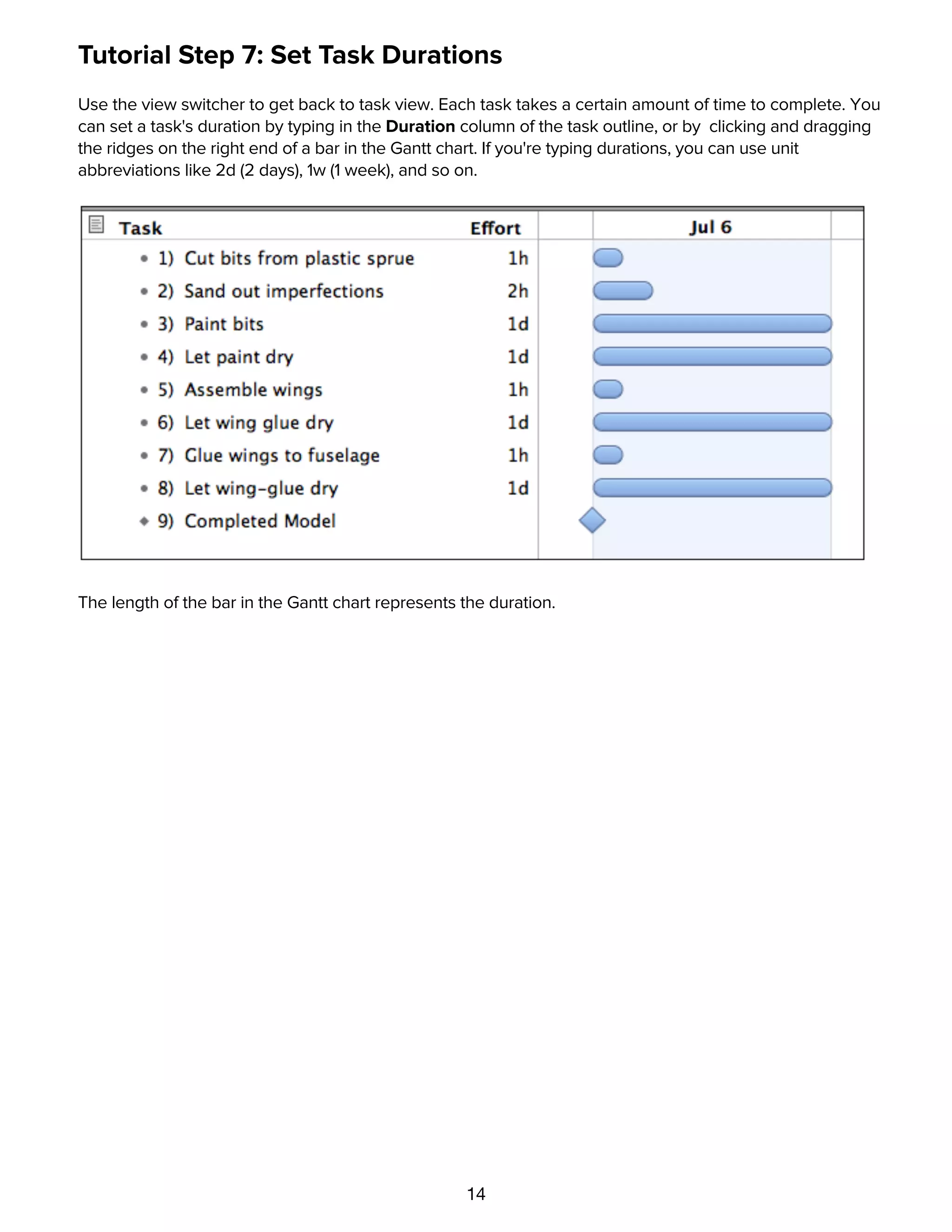
Use the view switcher to get back to task view. Each task takes a certain amount of time to complete. You
can set a task's duration by typing in the Duration column of the task outline, or by clicking and dragging
the ridges on the right end of a bar in the Gantt chart. If you're typing durations, you can use unit
abbreviations like 2d (2 days), 1w (1 week), and so on.
The length of the bar in the Gantt chart represents the duration.
Tutorial Step 8: Group Tasks
15
Tutorial Step 8: Group Tasks
You can associate related tasks together into groups. Select some tasks and use the action menu to
group them. Or just press Command-] to indent the selected tasks as children of the task immediately
above them in the outline.
Grouped tasks are indented in the outline.
Tutorial Step 9: Connect Tasks with Dependency Lines
16
Tutorial Step 9: Connect Tasks with Dependency Lines
Of course, most tasks require some other task to be finished before they can begin. You can represent this
by connecting tasks with dependency lines. There are several types of dependency, but the most common
is a Finish→Start dependency.
Select two tasks which need to be connected, and click the Connection button in the toolbar. A
Finish→Start dependency line appears between the tasks, starting from the task which comes first in the
outline.
As you connect tasks, they automatically reschedule to respect the dependencies.
Tutorial Step 10: Create Hammock Tasks
17
Tutorial Step 10: Create Hammock Tasks
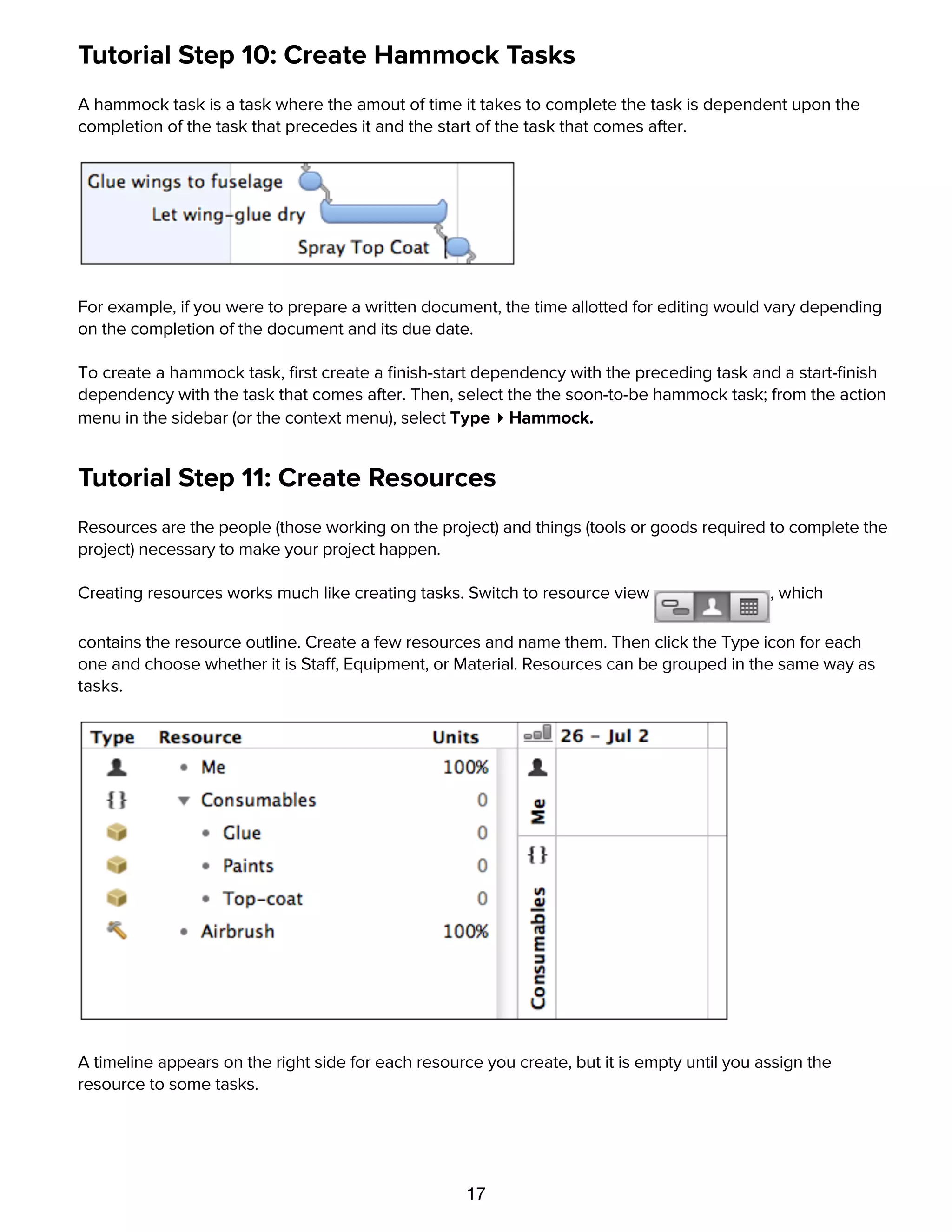
A hammock task is a task where the amout of time it takes to complete the task is dependent upon the
completion of the task that precedes it and the start of the task that comes after.
For example, if you were to prepare a written document, the time allotted for editing would vary depending
on the completion of the document and its due date.
To create a hammock task, first create a finish-start dependency with the preceding task and a start-finish
dependency with the task that comes after. Then, select the the soon-to-be hammock task; from the action
menu in the sidebar (or the context menu), select Type ▸ Hammock.
Tutorial Step 11: Create Resources
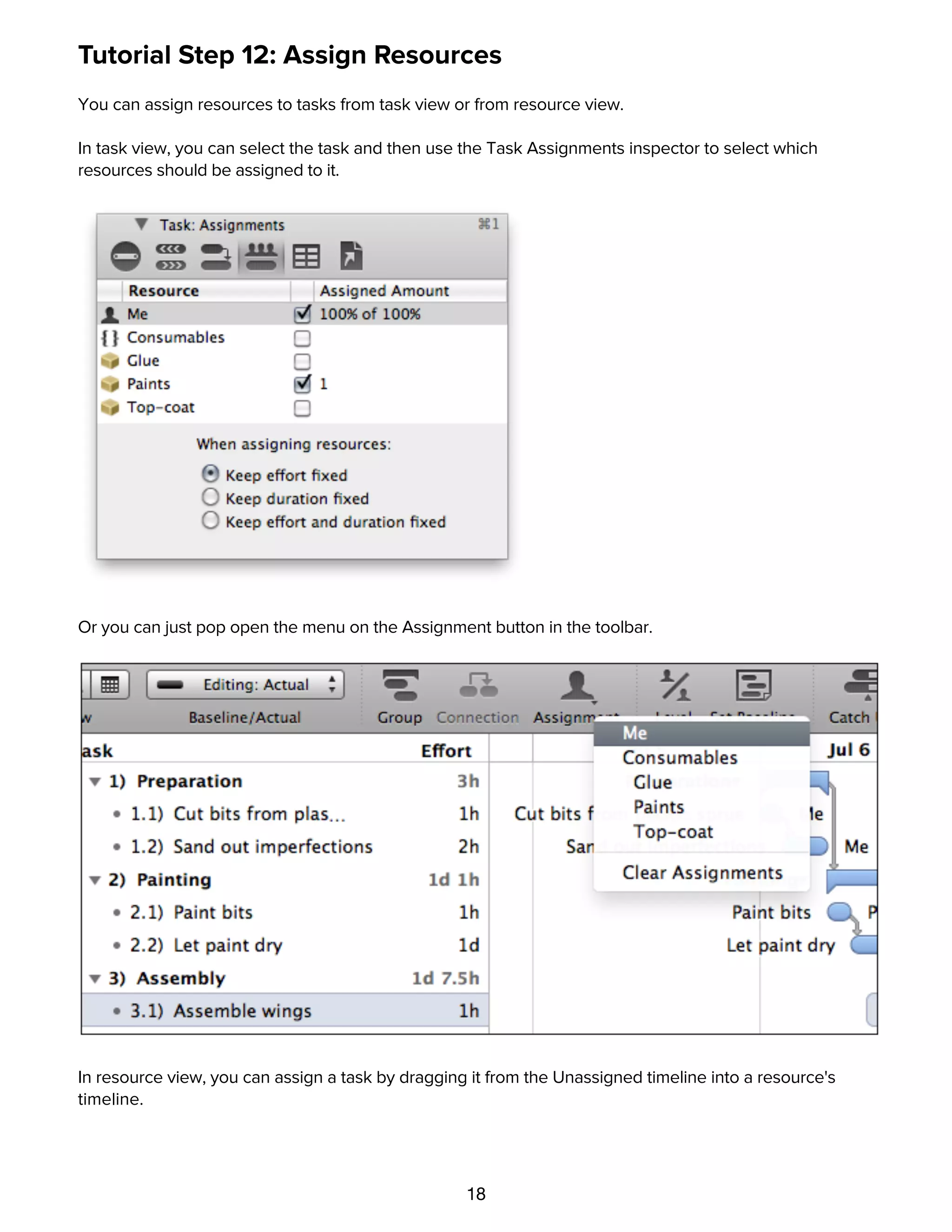
Resources are the people (those working on the project) and things (tools or goods required to complete the
project) necessary to make your project happen.
Creating resources works much like creating tasks. Switch to resource view , which
contains the resource outline. Create a few resources and name them. Then click the Type icon for each
one and choose whether it is Staff, Equipment, or Material. Resources can be grouped in the same way as
tasks.
A timeline appears on the right side for each resource you create, but it is empty until you assign the
resource to some tasks.
Tutorial Step 12: Assign Resources
18
Tutorial Step 12: Assign Resources
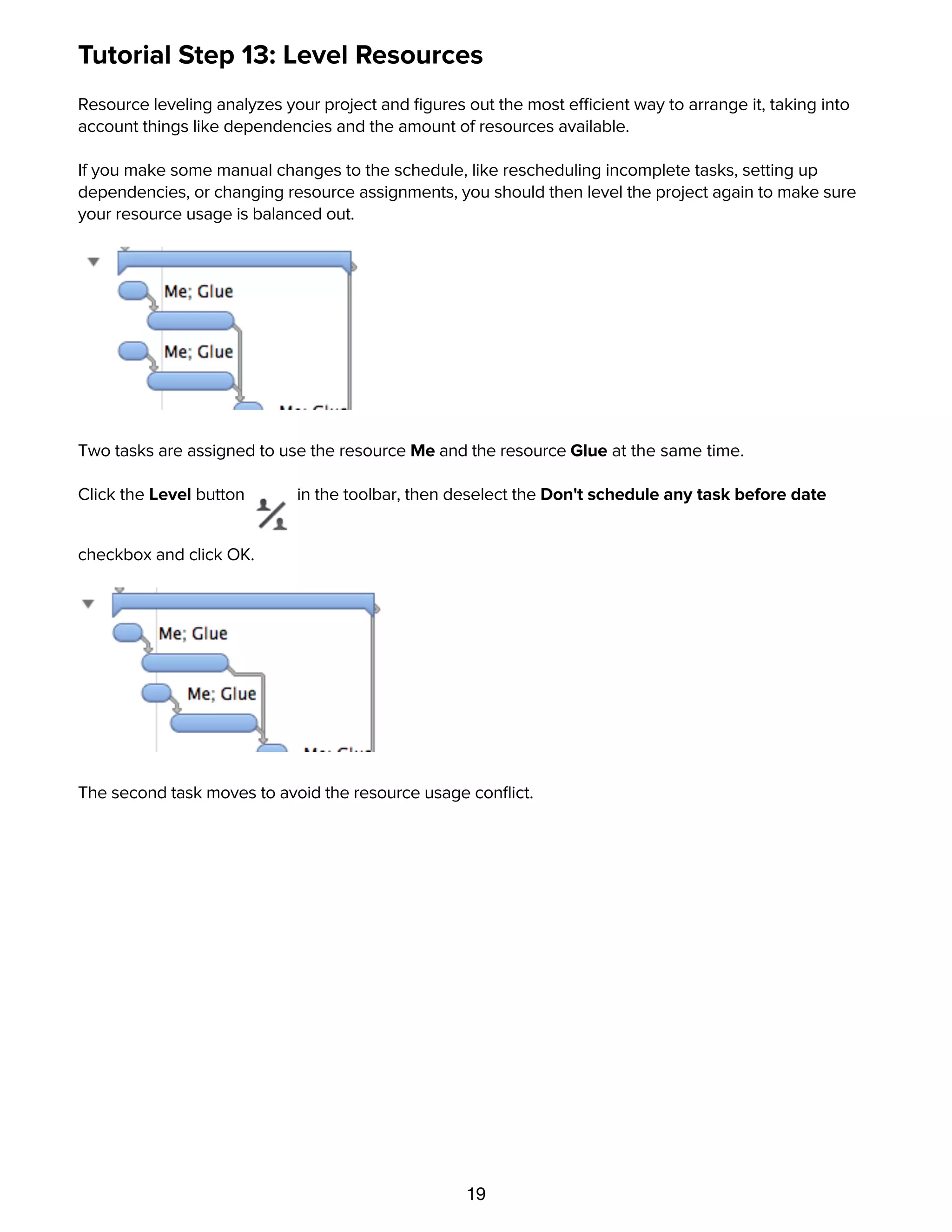
You can assign resources to tasks from task view or from resource view.
In task view, you can select the task and then use the Task Assignments inspector to select which
resources should be assigned to it.
Or you can just pop open the menu on the Assignment button in the toolbar.
In resource view, you can assign a task by dragging it from the Unassigned timeline into a resource's
timeline.
Tutorial Step 13: Level Resources
19
Tutorial Step 13: Level Resources
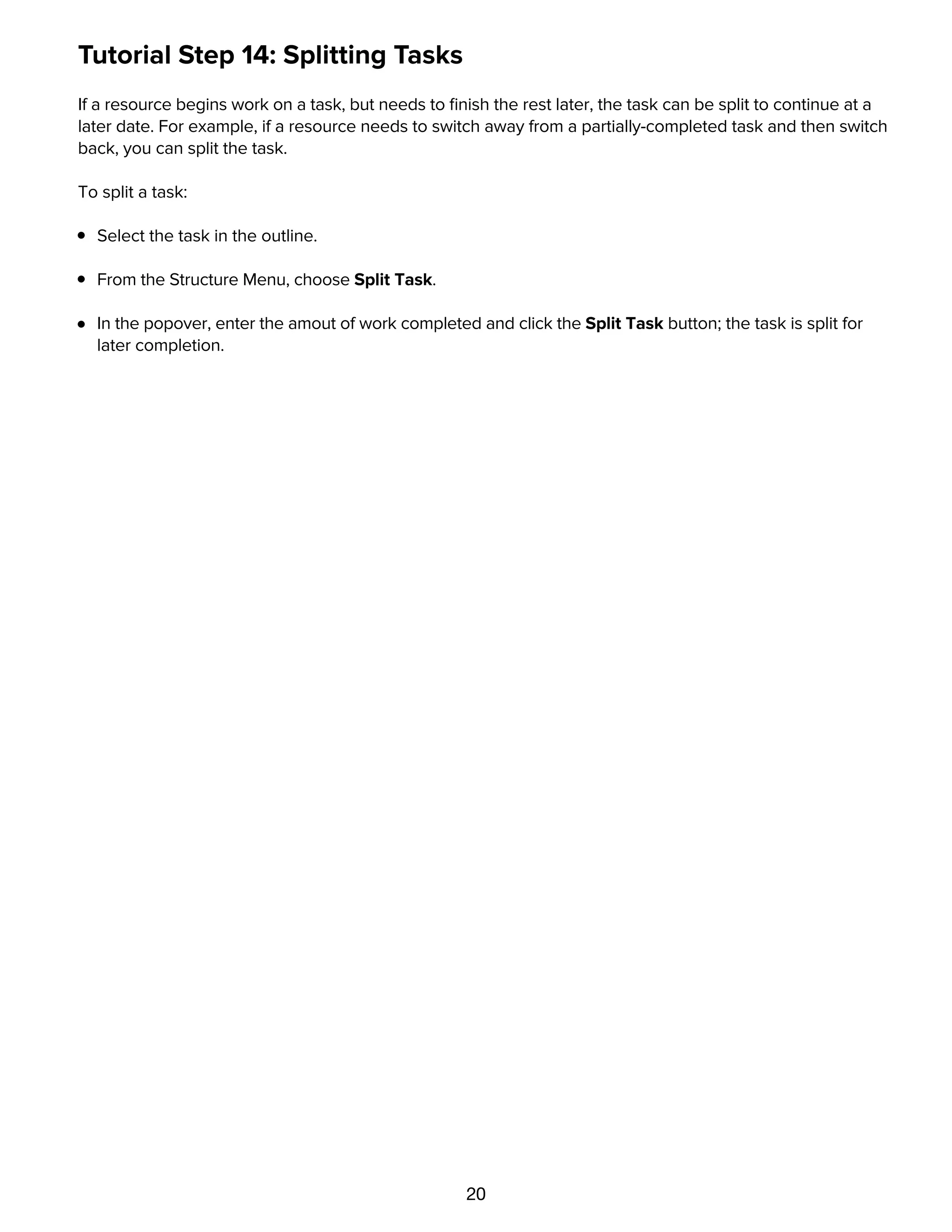
Resource leveling analyzes your project and figures out the most efficient way to arrange it, taking into
account things like dependencies and the amount of resources available.
If you make some manual changes to the schedule, like rescheduling incomplete tasks, setting up
dependencies, or changing resource assignments, you should then level the project again to make sure
your resource usage is balanced out.
Two tasks are assigned to use the resource Me and the resource Glue at the same time.
Click the Level button in the toolbar, then deselect the Don't schedule any task before date
checkbox and click OK.
The second task moves to avoid the resource usage conflict.
Tutorial Step 14: Splitting Tasks
20
Tutorial Step 14: Splitting Tasks
If a resource begins work on a task, but needs to finish the rest later, the task can be split to continue at a
later date. For example, if a resource needs to switch away from a partially-completed task and then switch
back, you can split the task.
To split a task:
Select the task in the outline.
From the Structure Menu, choose Split Task.
In the popover, enter the amout of work completed and click the Split Task button; the task is split for
later completion.
Tutorial Step 15: Set the Baseline
21
Tutorial Step 15: Set the Baseline
When you have a schedule set up and leveled properly, and the project is ready to begin, choose Set
Baseline from the Project menu. This copies the schedule you created into a baseline schedule. The
baseline schedules remain unchanged as you update the actual schedule; as the project goes on you can
keep track of how closely it is following the original plans.
You can choose Split or Both from the Baseline/Actual menu on the toolbar to compare the baseline
schedule to the actual schedule.
Tutorial Step 16: Resolve Violations
If there are any logical inconsistencies in your schedule, they are marked with red icons in your task
outline and in the status bar at the bottom of the window. Click one of them to see the Violations window,
which explains what the problems are and how to fix them.
Try creating a circular dependency in which two tasks both depend on each other. Because this is logically
impossible, you should see a violation icon which you can click to resolve the problem.
Tutorial Step 17: Check the Critical Path
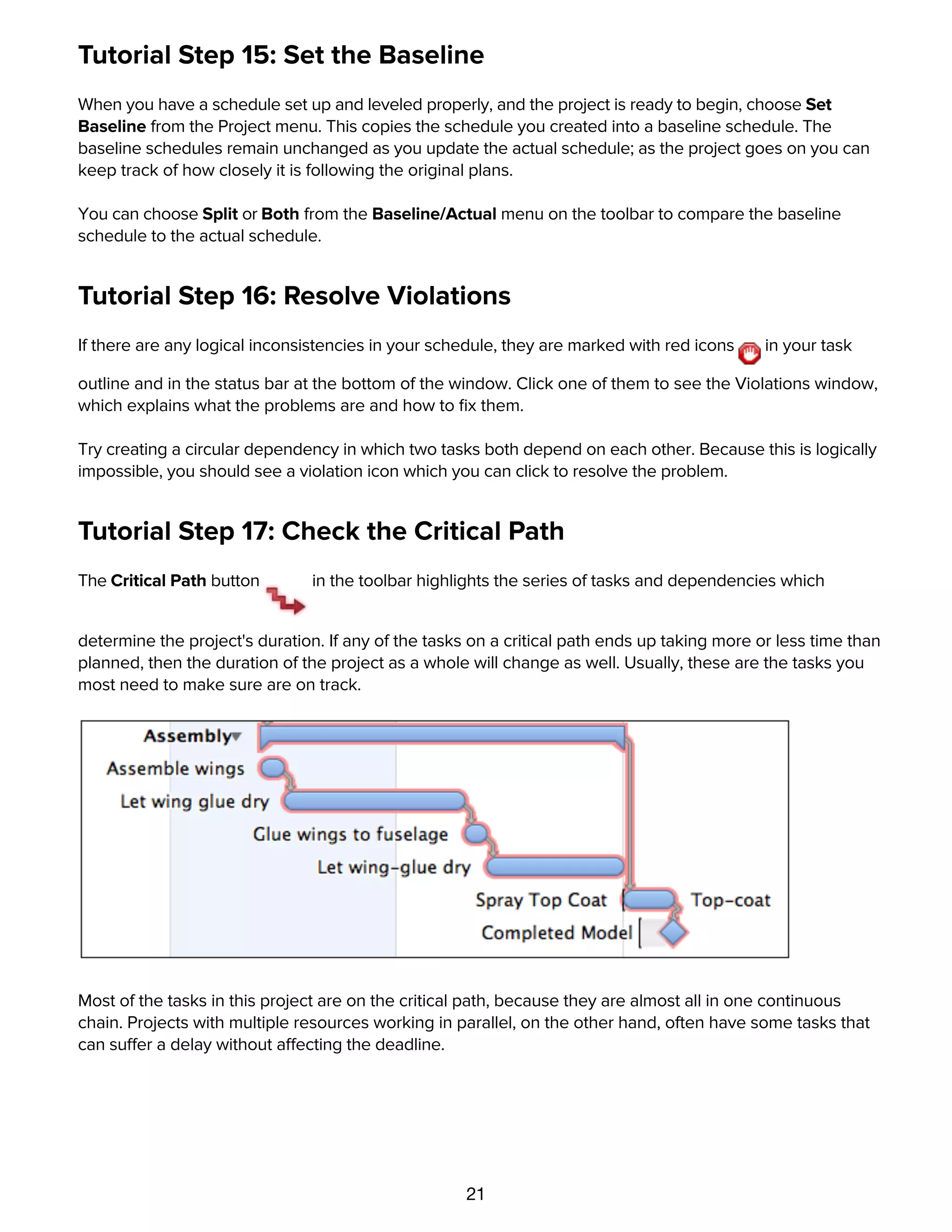
The Critical Path button in the toolbar highlights the series of tasks and dependencies which
determine the project's duration. If any of the tasks on a critical path ends up taking more or less time than
planned, then the duration of the project as a whole will change as well. Usually, these are the tasks you
most need to make sure are on track.
Most of the tasks in this project are on the critical path, because they are almost all in one continuous
chain. Projects with multiple resources working in parallel, on the other hand, often have some tasks that
can suffer a delay without affecting the deadline.
Tutorial Step 18: Update Task Completion
22
Tutorial Step 18: Update Task Completion
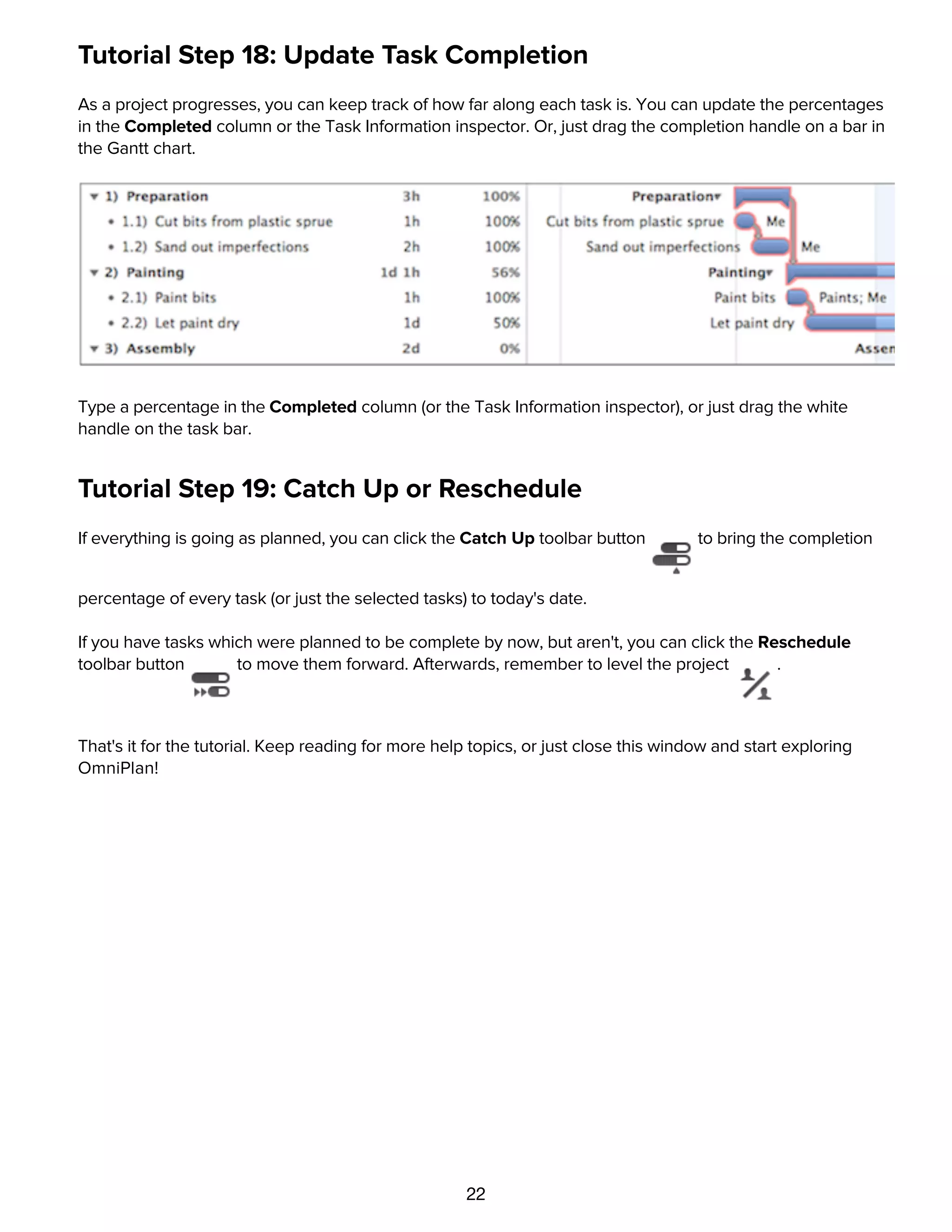
As a project progresses, you can keep track of how far along each task is. You can update the percentages
in the Completed column or the Task Information inspector. Or, just drag the completion handle on a bar in
the Gantt chart.
Type a percentage in the Completed column (or the Task Information inspector), or just drag the white
handle on the task bar.
Tutorial Step 19: Catch Up or Reschedule
If everything is going as planned, you can click the Catch Up toolbar button to bring the completion
percentage of every task (or just the selected tasks) to today's date.
If you have tasks which were planned to be complete by now, but aren't, you can click the Reschedule
toolbar button to move them forward. Afterwards, remember to level the project .
That's it for the tutorial. Keep reading for more help topics, or just close this window and start exploring
OmniPlan!
Details
23
Details
Setting the project's start or end date
If you know when the project is going to start or end, you can enter a date in the Project Information
inspector. Then all of the working hours and work schedule exceptions as set up in the calendar view can
be applied properly, and real dates appear in the interface. When your project has a start date, the tasks are
scheduled from that point on as soon as possible. When your project has an end date, they are scheduled
from that date backwards, as late as possible. You can change a task's dates in the Task Schedule
Inspector.
If you don't know when the project will start or end, you can mark the start date undetermined in the
Project Information inspector. For the purposes of applying the work week, the project is assumed to start
on the first day of the week. The normal work week for the project and for the individual resources is
respected, but work schedule exceptions such as holidays are ignored.
In a project with an undetermined date, all dates are represented in the format "T day", for the first day of
the project, or "T + x", where x is some time duration. For example, "T+2w 1d" means 2 weeks and 1 day
after the start of the project.
When you change the start or end date of an existing project from an undetermined date to a real date, the
project may shift as the new position of weekends, off-days, and other exceptions are taken into account.
Creating tasks and resources
There are several ways to create new items in task view or resource view:
Select an item in the task outline or the resource outline and press Return (or Command-Return,
depending on the Keyboard Options in OmniPlan's keyboard preferences).
Click the Add button below the outline.
Click the Add button in the toolbar above the outline.
Drag an Address Book card into the resource outline to create a Staff resource which collects its contact
information from the Address Book.
Creating milestones
24
Creating milestones
There are several ways to make a new milestone in task view:
Create a new task, then right-click on the task and use the contextual menu to change its Type to
Milestone.
Click the Add Milestone button in the toolbar. (Right-click on the toolbar then choose Customize
Toolbar to add the button, if it's not already there.
Choose Add ▸ Milestone from the action menu below the task outline.
Use the Project Milestone Inspector to manage your milestones and see the critical path leading to each
one.
Deleting items
There are a few ways to delete an item:
Select an item in the outline, such as a task, milestone, resource, or group, then press the Delete key.
Select the item, then click the Remove button below the outline.
Select the item, then click the Remove button in the toolbar above the outline.
If you're publishing and subscribing, new tasks and changes can come from other users of the project. Use
the change tracking sidebar to reject these changes.
Connecting tasks with dependencies
25
Connecting tasks with dependencies
When you have a task which requires something from another task, you can represent their relationship
with dependency lines. A dependency line is drawn from the beginning or end of one task (or group, or
milestone) to the beginning or end of another.
When you create a dependency, the dependent task automatically reschedules itself to respect the
dependency. With further changes to the schedule and leveling, the tasks continue trying to follow the
dependencies. If a dependency becomes impossible or you manually make a task stop obeying its
dependencies, a violation occurs, and you should resolve it with the Violations window.
There are a few ways to connect tasks:
Select two or more tasks in the outline view or the Gantt chart, then click the Connection button
to create a Finish to Start dependency.
Select two or more tasks in the task outline or the Gantt chart, then click the triangle in the corner of the
Connection button—or click and hold the Connection button—to summon a menu of dependency types;
choose the type you want.
Put the mouse pointer over a task bar in the Gantt chart, then drag one of the lines that appears at the
beginning or end of the bar. It becomes a dependency line, which you can then drop onto the start or end
of another task, group, or milestone. Whether you drag from the start or the end of the prerequisite task,
and whether you drop onto the start or end of the dependent task, determines the type of dependency.
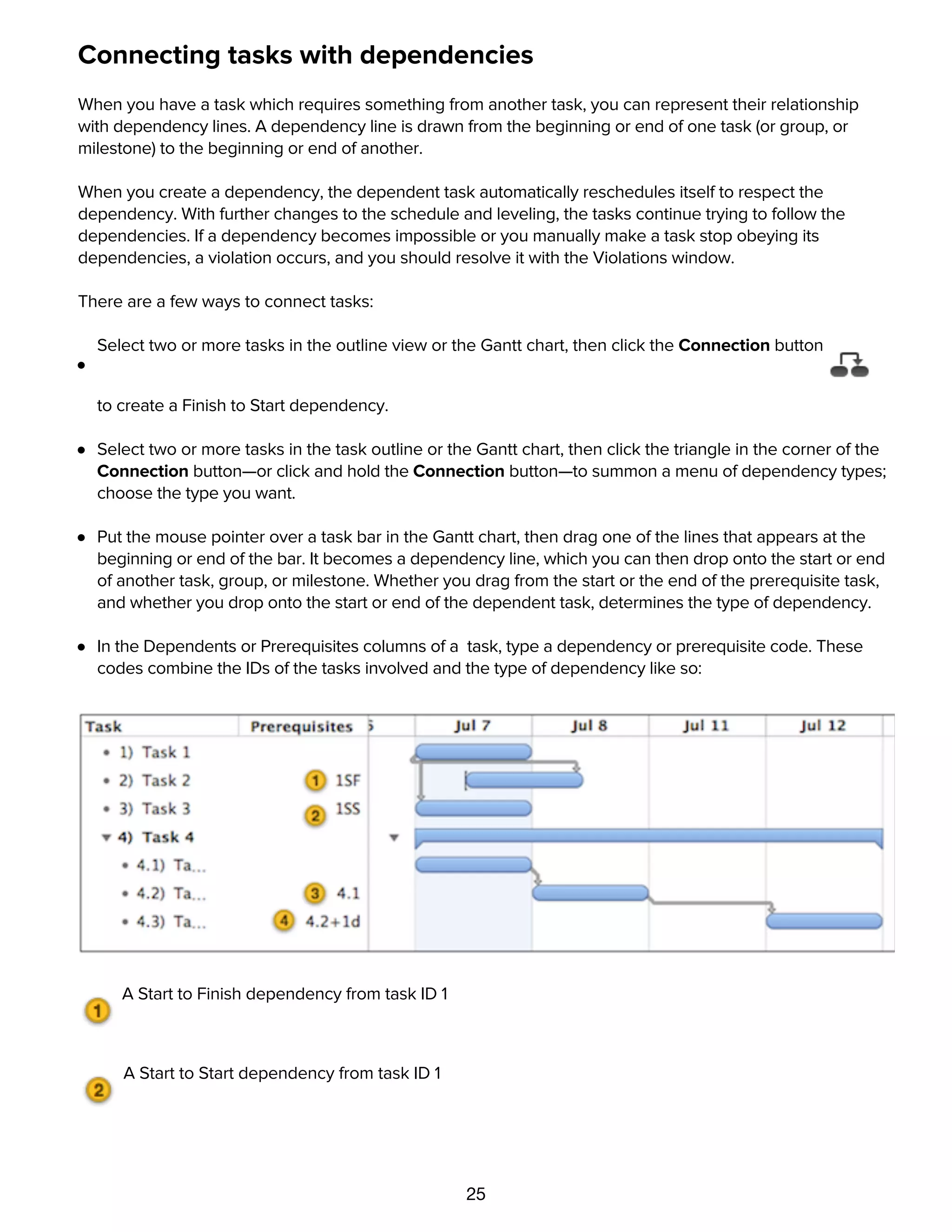
In the Dependents or Prerequisites columns of a task, type a dependency or prerequisite code. These
codes combine the IDs of the tasks involved and the type of dependency like so:
A Start to Finish dependency from task ID 1
A Start to Start dependency from task ID 1
A Finish to Start dependency from task ID 4.1. FS is the most common type of dependency, so a task
ID by itself without any letters is assumed to be FS.
26
A Finish to Start dependency from task ID 4.1. FS is the most common type of dependency, so a task
ID by itself without any letters is assumed to be FS.
A Finish to Start dependency from task ID 4.2, with a lead time of 1 day.
Types of dependencies
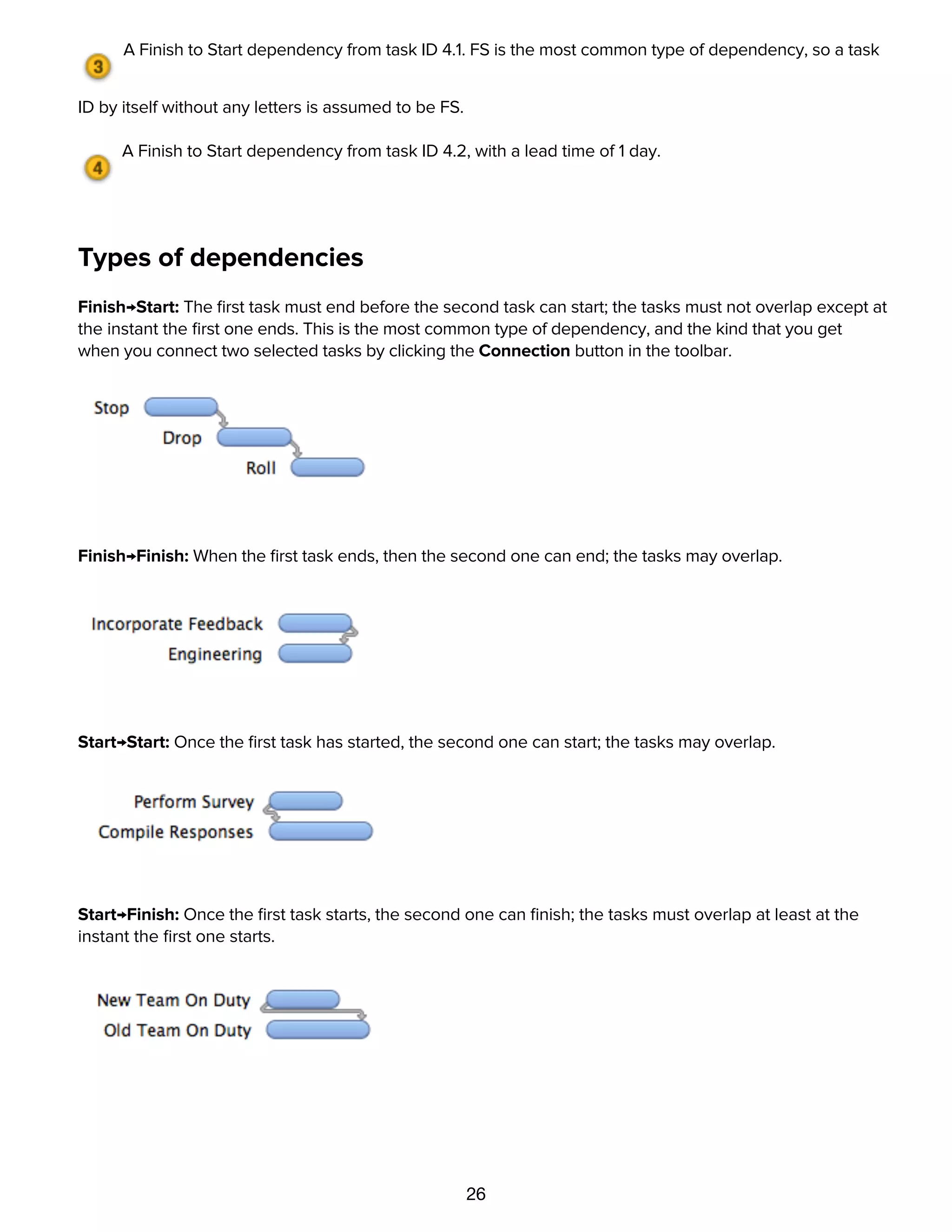
Finish→Start: The first task must end before the second task can start; the tasks must not overlap except at
the instant the first one ends. This is the most common type of dependency, and the kind that you get
when you connect two selected tasks by clicking the Connection button in the toolbar.
Finish→Finish: When the first task ends, then the second one can end; the tasks may overlap.
Start→Start: Once the first task has started, the second one can start; the tasks may overlap.
Start→Finish: Once the first task starts, the second one can finish; the tasks must overlap at least at the
instant the first one starts.
Tracking assignments with the resource timeline
27
Tracking assignments with the resource timeline
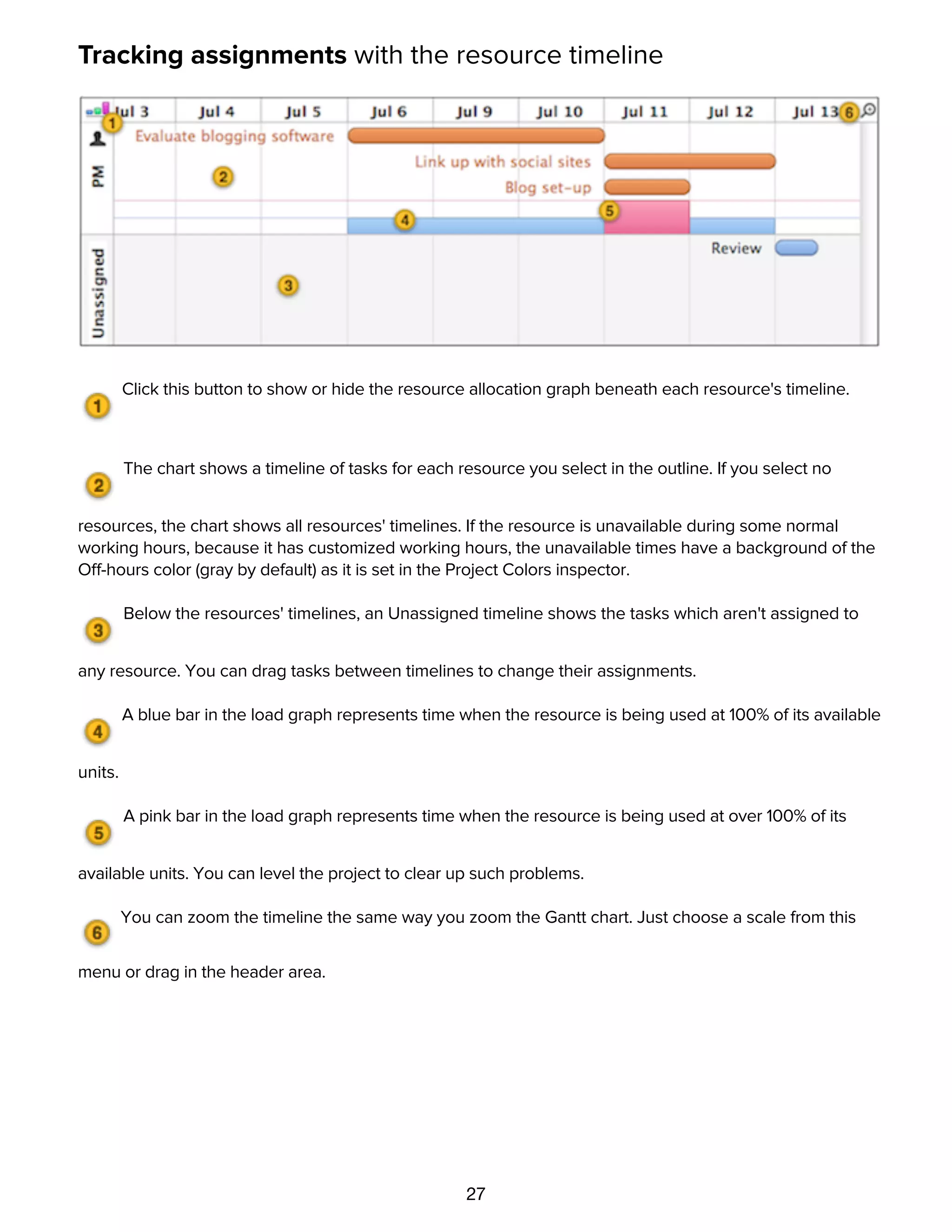
Click this button to show or hide the resource allocation graph beneath each resource's timeline.
The chart shows a timeline of tasks for each resource you select in the outline. If you select no
resources, the chart shows all resources' timelines. If the resource is unavailable during some normal
working hours, because it has customized working hours, the unavailable times have a background of the
Off-hours color (gray by default) as it is set in the Project Colors inspector.
Below the resources' timelines, an Unassigned timeline shows the tasks which aren't assigned to
any resource. You can drag tasks between timelines to change their assignments.
A blue bar in the load graph represents time when the resource is being used at 100% of its available
units.
A pink bar in the load graph represents time when the resource is being used at over 100% of its
available units. You can level the project to clear up such problems.
You can zoom the timeline the same way you zoom the Gantt chart. Just choose a scale from this
menu or drag in the header area.
Grouping tasks and resources
28
Grouping tasks and resources
There are a few ways to approach grouping.
Select an item
Add Child — Command-}
Item becomes a group
Add more items to the group
Or:
Select some items
Indent — Command-] (or Tab, depending on preference setting)
Items become children of previous item
29
Indent — Command-] (or Tab, depending on preference setting)
Items become children of previous item
Or:
Select some items
Group — Command-Option-L
Items become children of new group
Characteristics of task groups
30
Characteristics of task groups
A task group determines most of its characteristics from the tasks it contains, rather than having
characteristics of its own.
Name: Of course, a task group has its own name.
Type: A task group can contain tasks, milestones, and other groups, but its own type is always group. (An
empty group has no effort or duration and can serve as a placeholder.)
Effort: The effort of a group is the sum of the effort of all tasks it contains.
Duration: The duration of a group is the amount of time between the beginning of its first task and the end
of its last task, not the sum of the durations of all its tasks. If a group contains three one-hour tasks all
happening at the same time, the group has a duration of one hour, not three hours.
Scheduling: A group can have a specific start date, which can then affect the start dates of tasks inside it.
Dependencies: A group can have dependencies just like a regular task.
Resource Assignments: If you assign a resource to a task group, the resource gets assigned to all tasks in
the group. The group itself can't have any resources assigned.
Editing Tasks with the Task Information and Scheduling
inspectors
31
Editing Tasks with the Task Information and Scheduling
inspectors
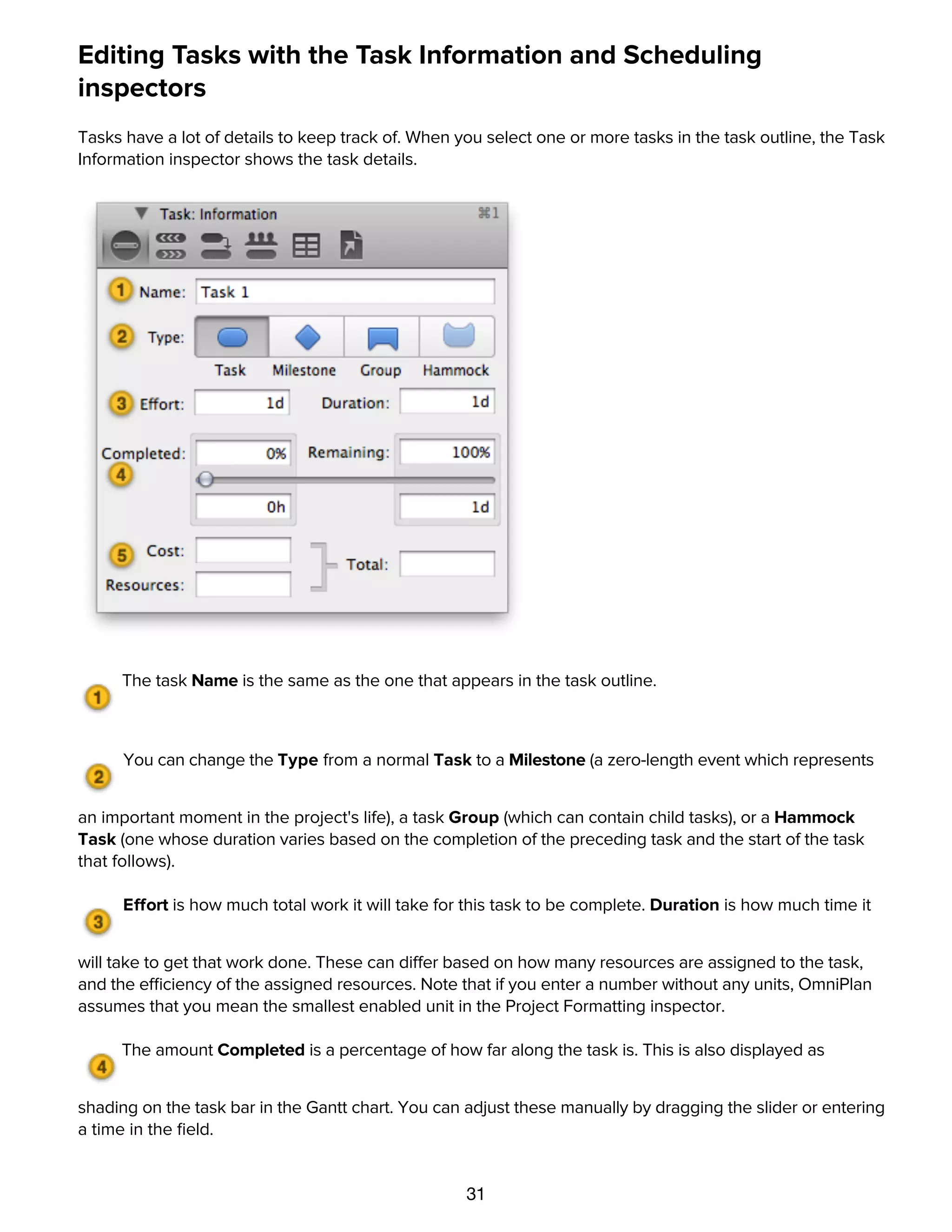
Tasks have a lot of details to keep track of. When you select one or more tasks in the task outline, the Task
Information inspector shows the task details.
The task Name is the same as the one that appears in the task outline.
You can change the Type from a normal Task to a Milestone (a zero-length event which represents
an important moment in the project's life), a task Group (which can contain child tasks), or a Hammock
Task (one whose duration varies based on the completion of the preceding task and the start of the task
that follows).
Effort is how much total work it will take for this task to be complete. Duration is how much time it
will take to get that work done. These can differ based on how many resources are assigned to the task,
and the efficiency of the assigned resources. Note that if you enter a number without any units, OmniPlan
assumes that you mean the smallest enabled unit in the Project Formatting inspector.
The amount Completed is a percentage of how far along the task is. This is also displayed as
shading on the task bar in the Gantt chart. You can adjust these manually by dragging the slider or entering
a time in the field.
The task Cost is how much money the task takes to complete. The resources are the per-use or per-
hour costs of resources assigned to the task.
32
a time in the field.
The task Cost is how much money the task takes to complete. The resources are the per-use or per-
hour costs of resources assigned to the task.
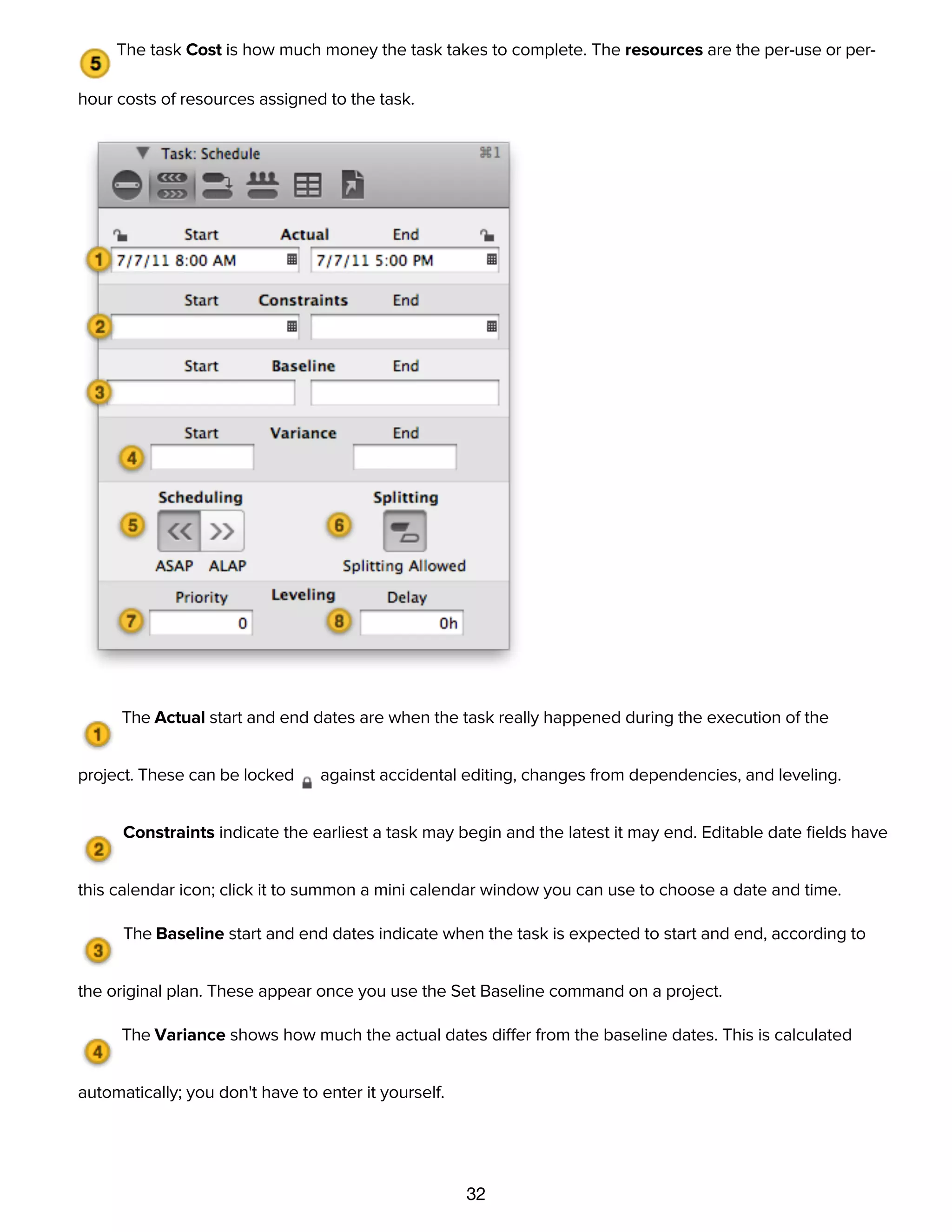
The Actual start and end dates are when the task really happened during the execution of the
project. These can be locked against accidental editing, changes from dependencies, and leveling.
Constraints indicate the earliest a task may begin and the latest it may end. Editable date fields have
this calendar icon; click it to summon a mini calendar window you can use to choose a date and time.
The Baseline start and end dates indicate when the task is expected to start and end, according to
the original plan. These appear once you use the Set Baseline command on a project.
The Variance shows how much the actual dates differ from the baseline dates. This is calculated
automatically; you don't have to enter it yourself.
Use Scheduling to choose whether the task is scheduled as soon as possible (ASAP) or as late as
possible (ALAP).
33
automatically; you don't have to enter it yourself.
Use Scheduling to choose whether the task is scheduled as soon as possible (ASAP) or as late as
possible (ALAP).
Click the Splitting toggle to allow tasks to be automatically split when leveling.
Assign the task a numerical Priority if you want to manually affect the order in which tasks are
ordered when leveling. (Also see the priority section of the Special columns help.)
Delay is the amount of time a task has been pushed back from its original scheduled time by leveling.
Using columns in the task and resource outlines
Various columns are available in the task outline and the resource outline; set which columns are visible by
choosing View Options from the View menu, or Control-clicking the column headers.
Some of the values in the columns (such as Task Cost) can be edited directly in the outline; others (such as
Total Cost) are calculated automatically. Generally, values you can edit in the outline are also editable in
the Task Information or Resource Information inspectors.
Use the Arrow keys, or Tab and Shift-Tab (depending the Keyboard Options in OmniPlan's keyboard
preferences), to move between cells.
Drag column titles left and right to rearrange the columns.
Each key you set up in the Task and Resource Custom Data inspectors becomes available as a column in
the outline.
You can sort the selected items in the outline, or all items (if nothing is selected), by using the Sort
commands in the Structure menu.
Special columns
34
Special columns
Violations (in task view)
This column displays an icon for each task that has a violation. You can click the icon to summon the
Violations window and see what the problem is.
Status (in task view)
This column shows alarm clock icons for tasks that are incomplete and due in the next few days, or in the
past. Note that these icons won't appear if your project has an undetermined start date in the Project
Information inspector. Each color of clock has a meaning:
This task is incomplete and due in the next 3 work days.
This task is incomplete and due in the next work day.
This task is incomplete and past due. Try panicking.
Priority (in task view)
You can manually set a priority on a task, to control the order in which tasks are leveled. Priority can be any
integer, so you are welcome to make up your own convention (1 to 3, 0 to 999, or whatever you like).
During leveling, if two tasks are assigned to one resource at the same time, the task with higher priority
gets to use the resource first.
Assigned (in task view)
This column lists the resources that are assigned to the task.
Attachments
You can click the paper clip icon in the selected row to see a menu of the item's attachments, or to link
to a file if there isn't one linked yet. Rows with links to files show a paper clip icon even when they are
deselected.
Notes
You can click the note icon in the selected row to show or hide the item's note, or to create a note if there
isn't one yet. Rows with notes show a note icon even when they are deselected.
Unique ID
35
Unique ID
The unique ID is a number assigned to each task or resource to identify it unambiguously, even if its name
or position in the outline changes. A unique ID won't ever change, and each new task or resource you
create gets a new unique ID number. These numbers are useful for matching up items when you are
importing and exporting projects between OmniPlan and other applications.
IM (in resource view)
If a Staff resource is associated with an Address Book card, and that card has instant messaging account
information, this column shows when the resource is available to chat. You can double-click the IM status
icon to start a chat with that person.
Custom Work Week (in resource view)
An icon appears in this column if a resource has a work week that differs from its default work week; the
default work week for a resource is defined by its parent (if it's a member of a group) or the project (if it's
not). You can click the icon to see the resource's work week, and from there you can always click the
button in the upper right of the week view to revert to the default.
Schedule Exception (in resource view)
An icon appears in this column if a resource has a work schedule that differs from its work week, such as
when someone goes on vacation. You can click the icon to see the resource's work schedule, and from
there you can check the orange-highlighted dates to see where its exceptions are. You can click the
button in the upper right corner of any week view to clear the resource's exceptions for that week.
Assigning resources to tasks
36
Assigning resources to tasks
Most tasks require some kind of resources in order to complete. Software development needs
programmers, excavation needs heavy machinery, and construction needs lumber. Tracking which
resources are assigned to which tasks helps you to see how long the tasks will take to complete, and when
your resources are going to be busy or idle.
There are several ways to assign a resource to a task:
Select the task in task view, open the Task Assignments inspector , and check the resources you'd
like to assign. You can then edit the amount to assign, if it's different from the default amount. You can
also see all of a resource's assignments, and adjust their amounts or clear them, in the Resource
Assignments inspector .
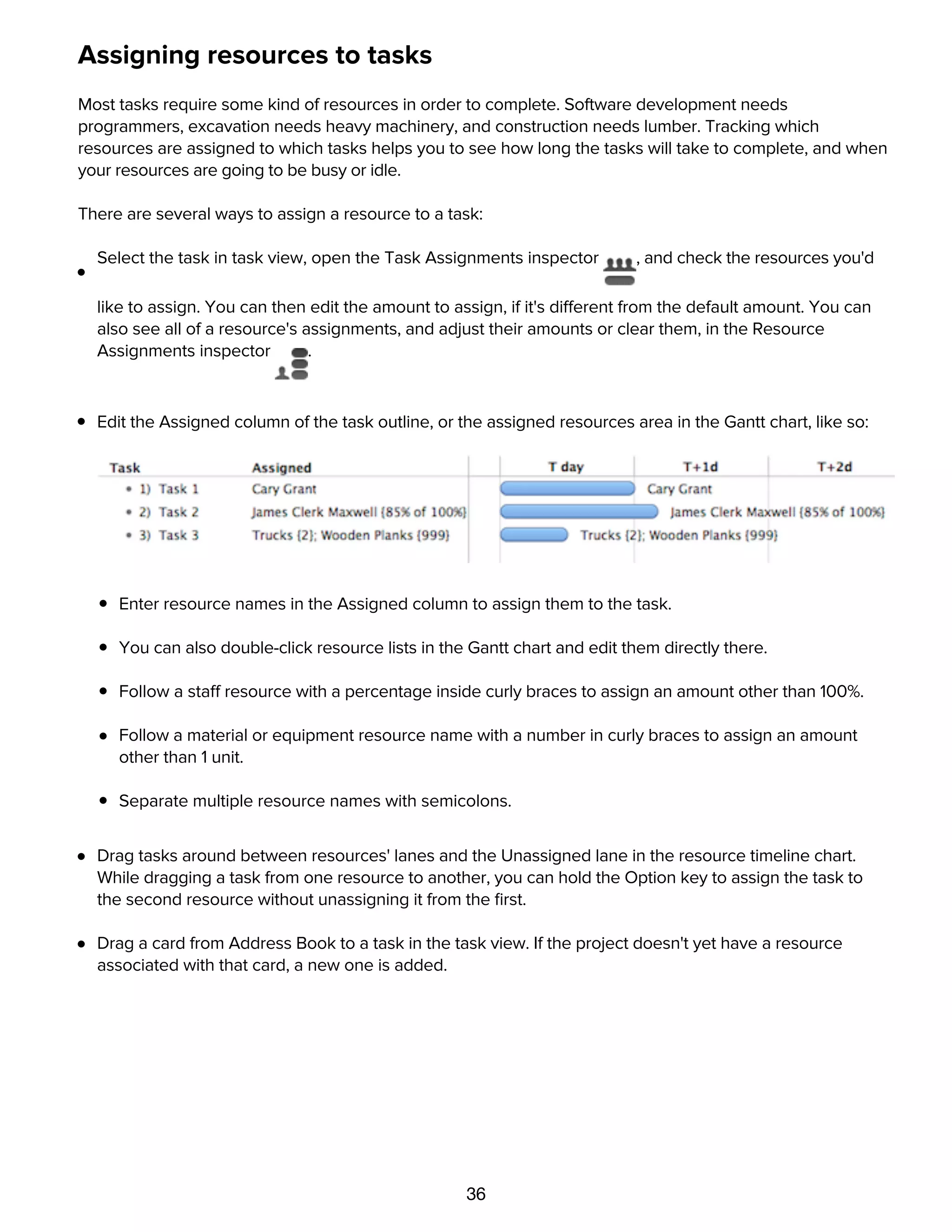
Edit the Assigned column of the task outline, or the assigned resources area in the Gantt chart, like so:
Enter resource names in the Assigned column to assign them to the task.
You can also double-click resource lists in the Gantt chart and edit them directly there.
Follow a staff resource with a percentage inside curly braces to assign an amount other than 100%.
Follow a material or equipment resource name with a number in curly braces to assign an amount
other than 1 unit.
Separate multiple resource names with semicolons.
Drag tasks around between resources' lanes and the Unassigned lane in the resource timeline chart.
While dragging a task from one resource to another, you can hold the Option key to assign the task to
the second resource without unassigning it from the first.
Drag a card from Address Book to a task in the task view. If the project doesn't yet have a resource
associated with that card, a new one is added.
Assigning groups
37
Assigning groups
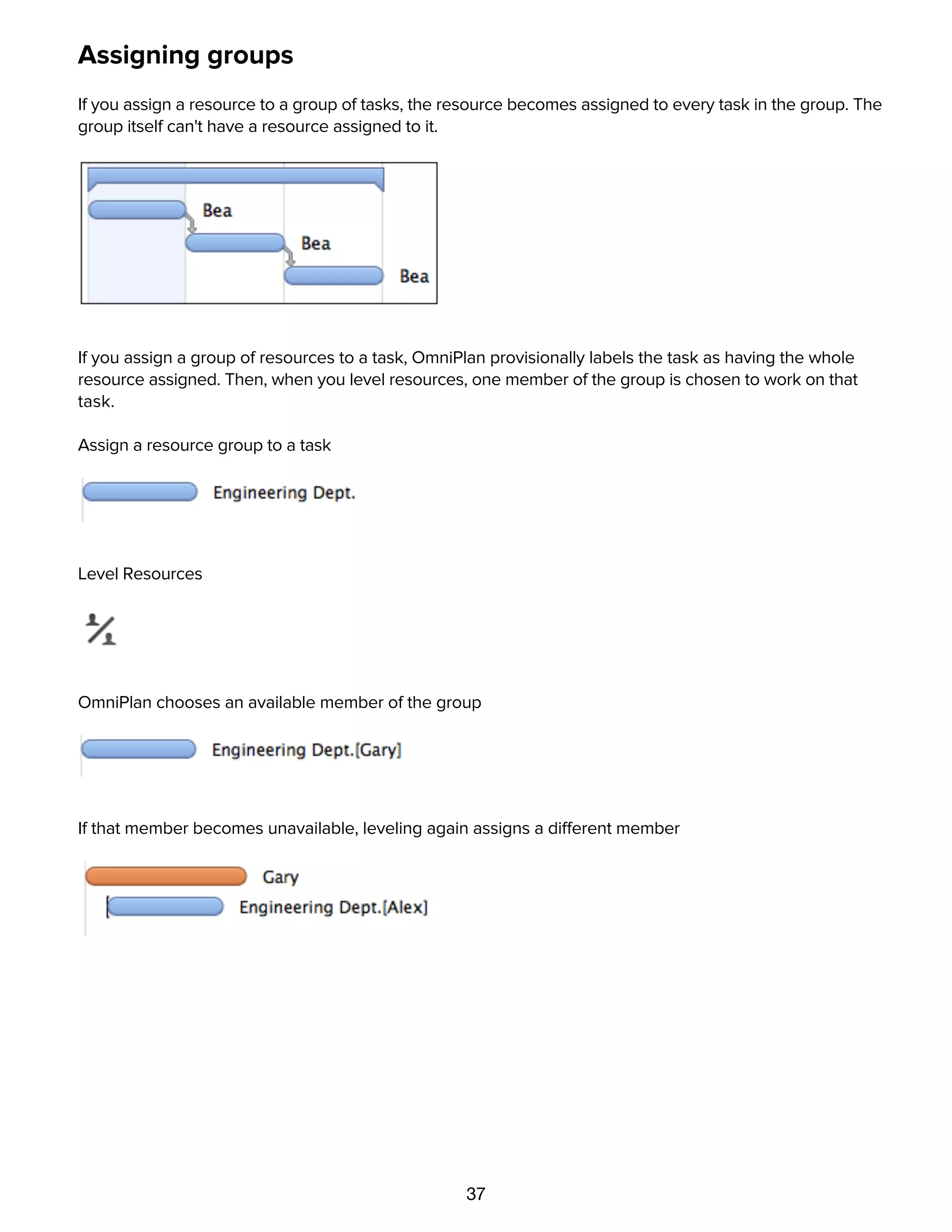
If you assign a resource to a group of tasks, the resource becomes assigned to every task in the group. The
group itself can't have a resource assigned to it.
If you assign a group of resources to a task, OmniPlan provisionally labels the task as having the whole
resource assigned. Then, when you level resources, one member of the group is chosen to work on that
task.
Assign a resource group to a task
Level Resources
OmniPlan chooses an available member of the group
If that member becomes unavailable, leveling again assigns a different member
Using the calendar view to set up working hours
38
Using the calendar view to set up working hours
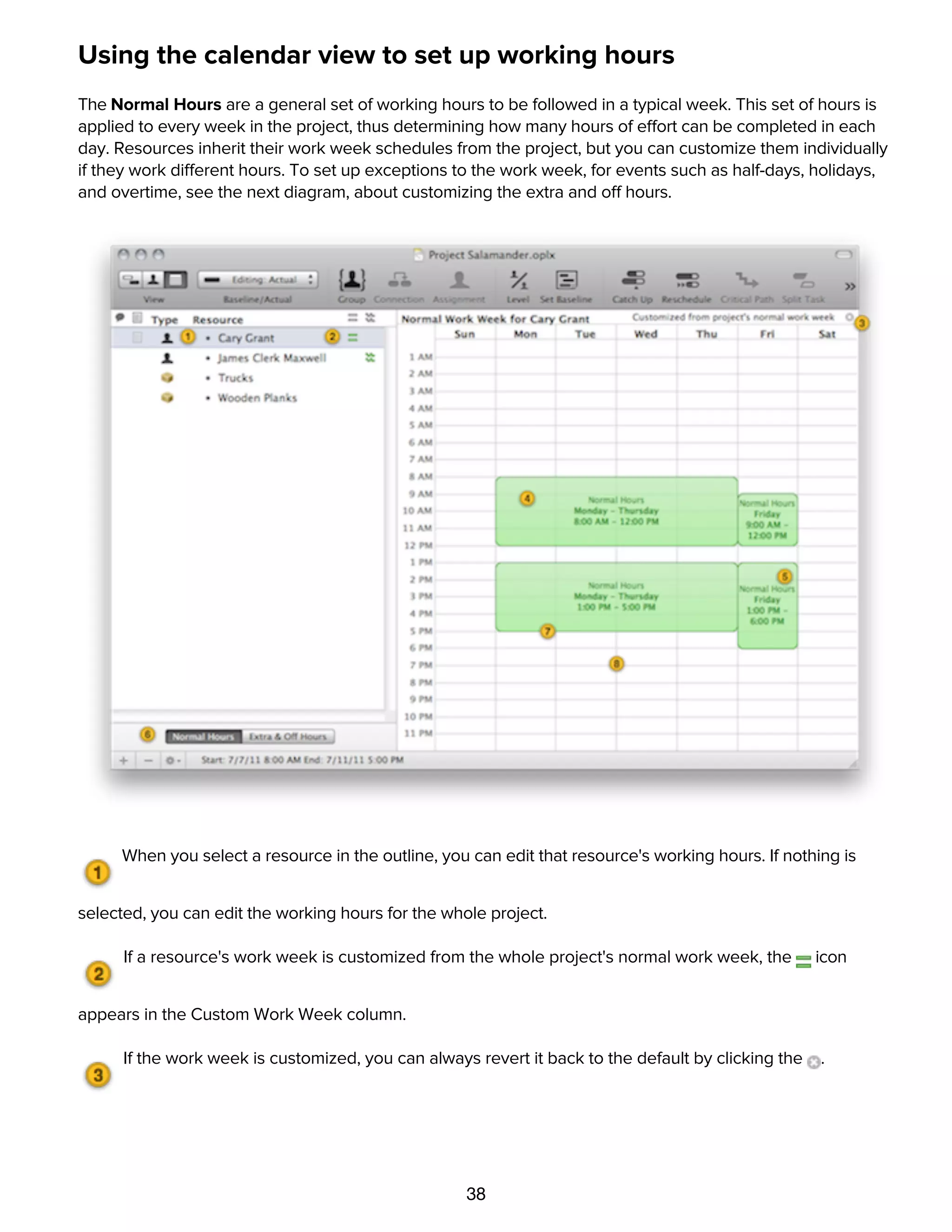
The Normal Hours are a general set of working hours to be followed in a typical week. This set of hours is
applied to every week in the project, thus determining how many hours of effort can be completed in each
day. Resources inherit their work week schedules from the project, but you can customize them individually
if they work different hours. To set up exceptions to the work week, for events such as half-days, holidays,
and overtime, see the next diagram, about customizing the extra and off hours.
When you select a resource in the outline, you can edit that resource's working hours. If nothing is
selected, you can edit the working hours for the whole project.
If a resource's work week is customized from the whole project's normal work week, the icon
appears in the Custom Work Week column.
If the work week is customized, you can always revert it back to the default by clicking the .
The green blocks represent blocks of working time. Drag to set a day and time range.
39
The green blocks represent blocks of working time. Drag to set a day and time range.
Click a block to select it; you can then press the arrow keys to move it, or press the Delete key to
remove it.
You can switch to customizing the extra and off hours for specific days, rather than the normal work
week, with this switcher. See the next diagram for more information about customizing the work schedule.
Drag any edge of a time block to resize it.
Drag or double-click in an empty area to create a new time block. Shift-drag anywhere to draw a red
block that erases working hours. These techniques are useful for breaking up blocks that span several
days, so that you can adjust them individually.
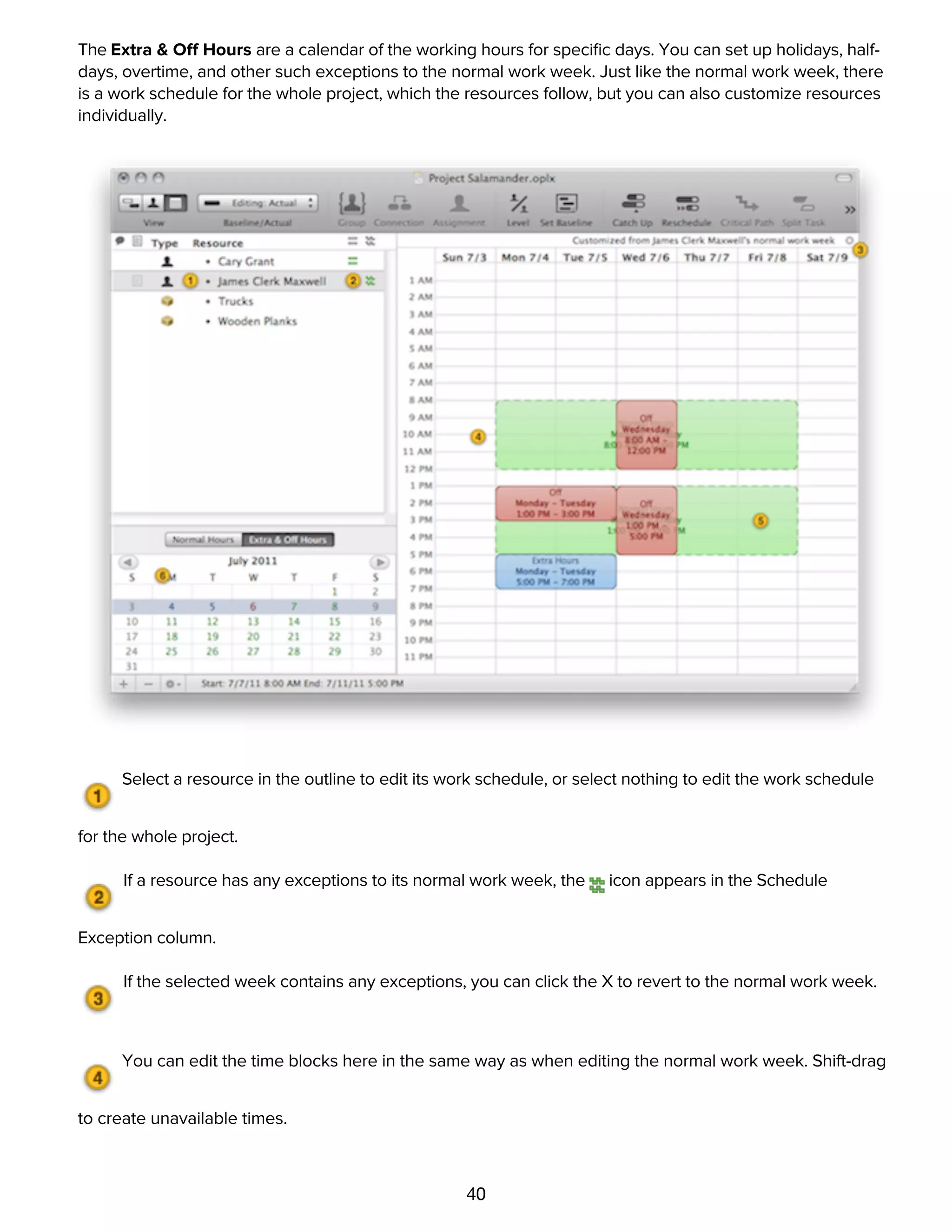
The Extra & Off Hours are a calendar of the working hours for specific days. You can set up holidays, half-
days, overtime, and other such exceptions to the normal work week. Just like the normal work week, there
is a work schedule for the whole project, which the resources follow, but you can also customize resources
individually.
40
The Extra & Off Hours are a calendar of the working hours for specific days. You can set up holidays, half-
days, overtime, and other such exceptions to the normal work week. Just like the normal work week, there
is a work schedule for the whole project, which the resources follow, but you can also customize resources
individually.
Select a resource in the outline to edit its work schedule, or select nothing to edit the work schedule
for the whole project.
If a resource has any exceptions to its normal work week, the icon appears in the Schedule
Exception column.
If the selected week contains any exceptions, you can click the X to revert to the normal work week.
You can edit the time blocks here in the same way as when editing the normal work week. Shift-drag
to create unavailable times.
The normal work week appears with a green dotted border, so you can see how this week's
schedule differs.
41
to create unavailable times.
The normal work week appears with a green dotted border, so you can see how this week's
schedule differs.
Choose a week to edit from the mini calendar. Days which differ from the standard work week are
blue. Click the arrows to move between months; Option-click to move a year at a time.
Customizing time and currency units with the Formats inspector
and Unit Conversions inspector
42
Customizing time and currency units with the Formats inspector
and Unit Conversions inspector
Your work day may be any number of hours. These conversion factors determine how to add up hours into
the larger units.
The effort conversion factors don't actually change the working hours for the project, just the way durations
are entered and displayed. To change the working hours, visit the work week section of the Calendar view.
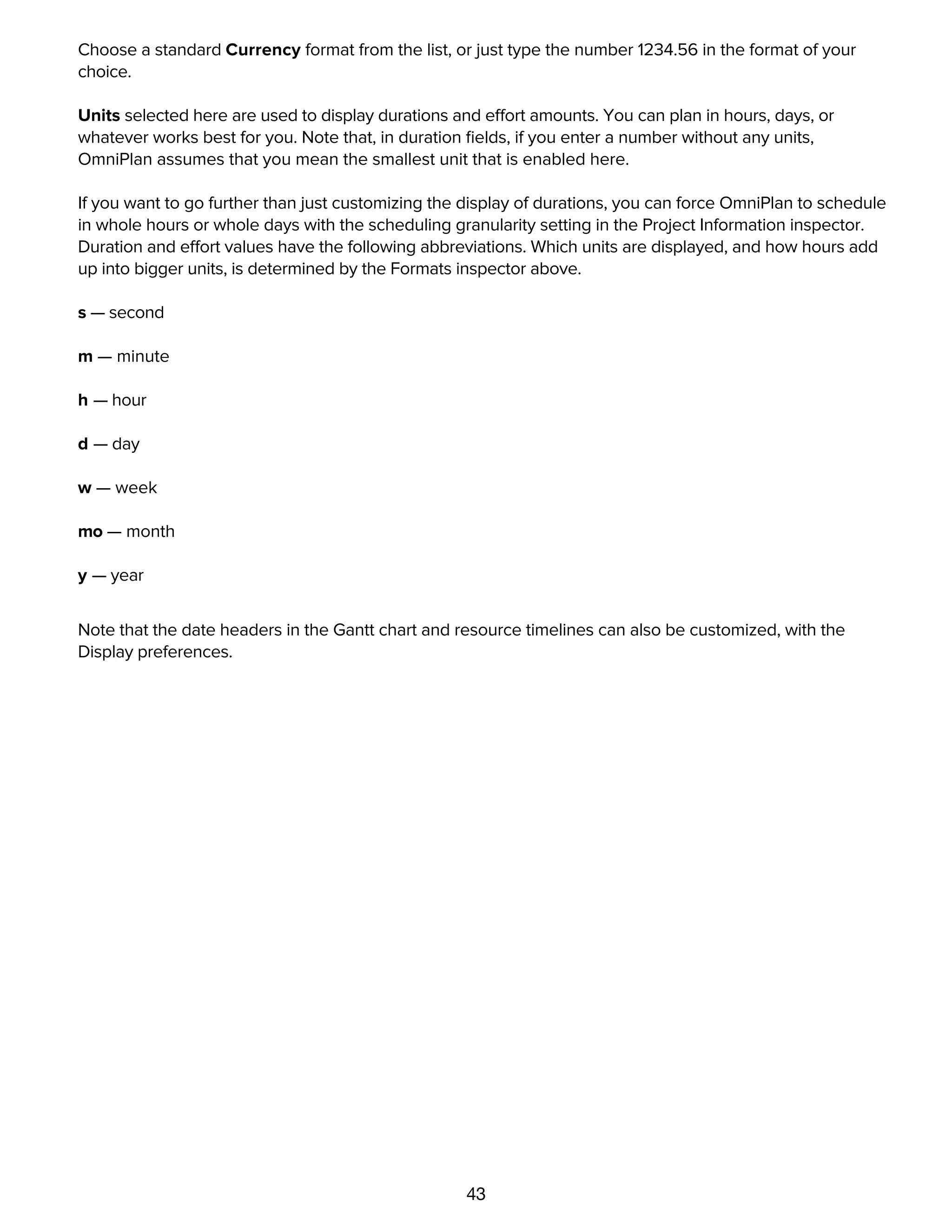
Use the Dates section to choose whether to include seconds, the time of day, or both in your displayed
dates.
Choose a standard Currency format from the list, or just type the number 1234.56 in the format of your
choice.
43
dates.
Choose a standard Currency format from the list, or just type the number 1234.56 in the format of your
choice.
Units selected here are used to display durations and effort amounts. You can plan in hours, days, or
whatever works best for you. Note that, in duration fields, if you enter a number without any units,
OmniPlan assumes that you mean the smallest unit that is enabled here.
If you want to go further than just customizing the display of durations, you can force OmniPlan to schedule
in whole hours or whole days with the scheduling granularity setting in the Project Information inspector.
Duration and effort values have the following abbreviations. Which units are displayed, and how hours add
up into bigger units, is determined by the Formats inspector above.
s — second
m — minute
h — hour
d — day
w — week
mo — month
y — year
Note that the date headers in the Gantt chart and resource timelines can also be customized, with the
Display preferences.
Rounded time values and scheduling granularity
44
Rounded time values and scheduling granularity
Rounded time values
If a value contains a unit of time that is too small to be displayed, you may see a rounded value. For
example, if you have turned off the display of minutes in the Formats inspector, and you have a task that
starts at 9:00 and ends at 9:55, the value you see is "< 1h". If you want to know the actual value, you can
turn on the smaller units in the Project Formatting inspector, or just check the start and end times. If you
want to edit the value to conform to your units, you can just delete the greater-than or less-than sign and
the value updates.
Scheduling granularity
Taking the duration rounding a step further, you can use the Granularity control on the Project Information
inspector to force OmniPlan to round every duration up to the nearest whole hour or day. This setting is not
just for display purposes, but actually changes how exact OmniPlan should be about scheduling tasks.
By default, OmniPlan uses Exact Scheduling: if you have a task with an effort of 58 minutes, starting at
8:00, then it is drawn exactly 58 minutes long on the Gantt chart, dependent tasks start at 8:58, leveling
makes the resource begin working on the next task at 8:58, and so on. The start and end times of tasks
are exact down to the second.
With Hourly Scheduling, start and end times happen at the next whole hour mark. A task starting at 8:00
with an effort of 58 minutes (or even 1 minute), ends at 9:00; successor and resource leveled tasks begin at
9:00, and so on.
With Daily Scheduling, start and end times are always pinned to the beginning or end of work days. The
58-minute task ends at the end of the day, successor and resource leveled tasks begin on the next day,
and so on.
Regardless of the granularity setting, OmniPlan doesn't forget any of the values you enter. You can still
specify task effort and resource units with any amount of precision, and OmniPlan stores those values in
case you switch back to exact scheduling.
Duration versus effort
45
Duration versus effort
Duration is how long a task takes in actual working hours in the schedule. If the task begins at 8:00 and
ends at 12:00, that's a duration of 4 hours. Note that non-working times don't count; if a task starts one
afternoon and doesn't complete until the next morning, or spans a lunch break, only the working hours are
counted. Also note that the resources assigned to a task may have different working hours than the project
as a whole, and thus the displayed duration of a task may not match up exactly with the amount of effort it
takes.
Effort is the total amount of working time put into a task by all assigned resources. A task with a duration
of 4 hours, with 2 resources assigned at 100%, has an effort value of 8 hours. Note that Material resources
don't contribute to effort, only Staff and Equipment resources do.
The duration and the effort of a task can change depending on the resources you assign.
Determining which value to recalculate
Each task has a setting in its Assignments inspector which controls whether to keep the duration fixed, the
effort fixed, or both.
When you assign or unassign staff and equipment resources, the value that isn't fixed re-calculates its
value; the other field stays the same. Regardless of which value is calculated, you can always edit either
value manually.
If both values are fixed, then assigning resources changes the assigned percentage.
What Makes Duration and Effort Change
Number of Assigned Resources — Assigning more resources to a task generally causes the task to take
less time, because the required effort gets completed sooner.
Efficiency of Assigned Resources — Assigning less-efficient resources to a task causes the duration to be
longer than the effort, because the resource takes more time to achieve the same amount of effort.
Assigned Amount and Available Units — Assigning fewer units of a resource to a task causes the
duration to be longer than the effort, because less of the resource's time and energy is being spent on that
task. This situation is common when a resource is split between multiple tasks at one time. The amount of
a resource you can assign to tasks depends on the resource's available Units (set in the Resource
Information inspector or the Units column of the Resource outline). Assigning more of a resource than is
available causes a violation and shows up as overutilization in the Resource timeline.
Resolving violations
46
Resolving violations
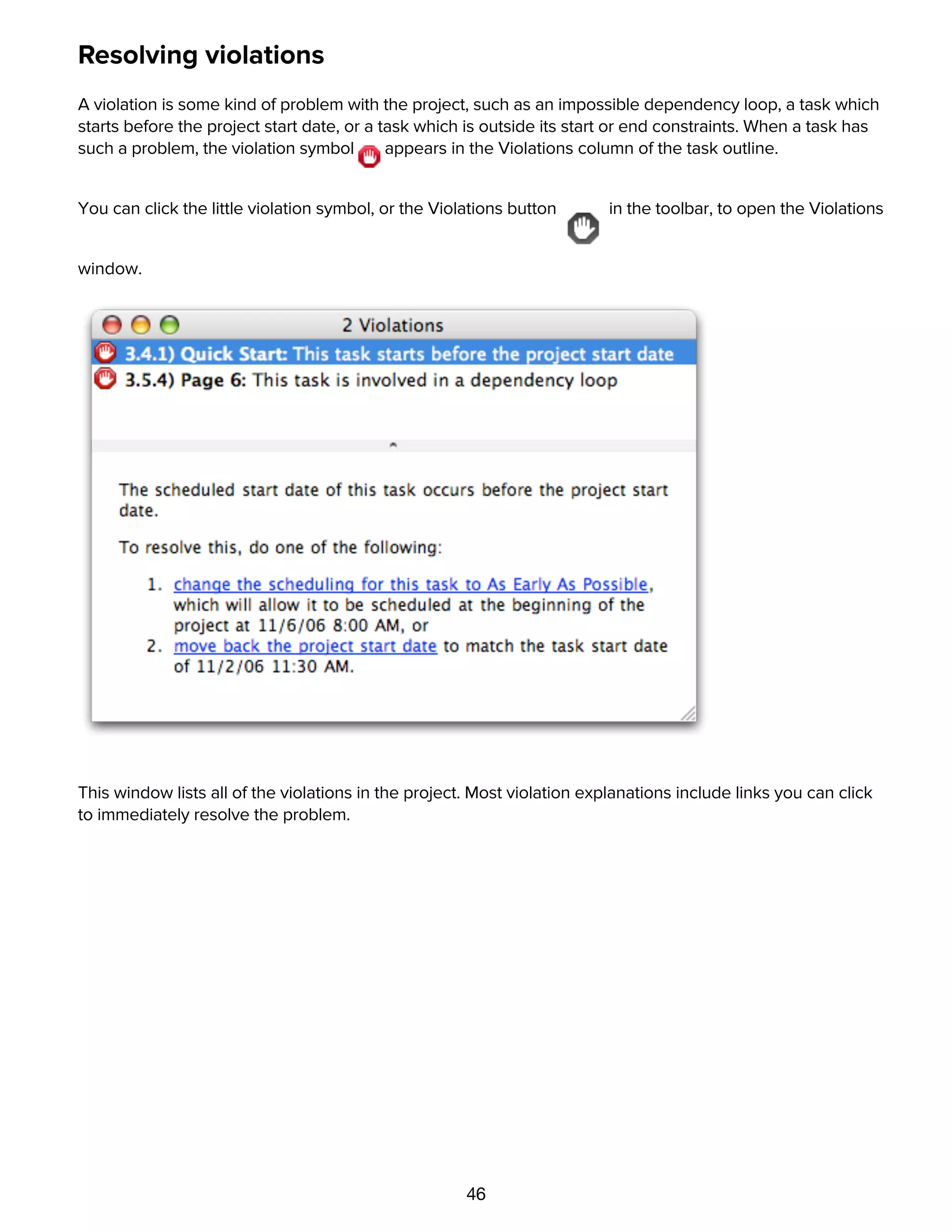
A violation is some kind of problem with the project, such as an impossible dependency loop, a task which
starts before the project start date, or a task which is outside its start or end constraints. When a task has
such a problem, the violation symbol appears in the Violations column of the task outline.
You can click the little violation symbol, or the Violations button in the toolbar, to open the Violations
window.
This window lists all of the violations in the project. Most violation explanations include links you can click
to immediately resolve the problem.
Editing resources with the Resource Information inspector
47
Editing resources with the Resource Information inspector
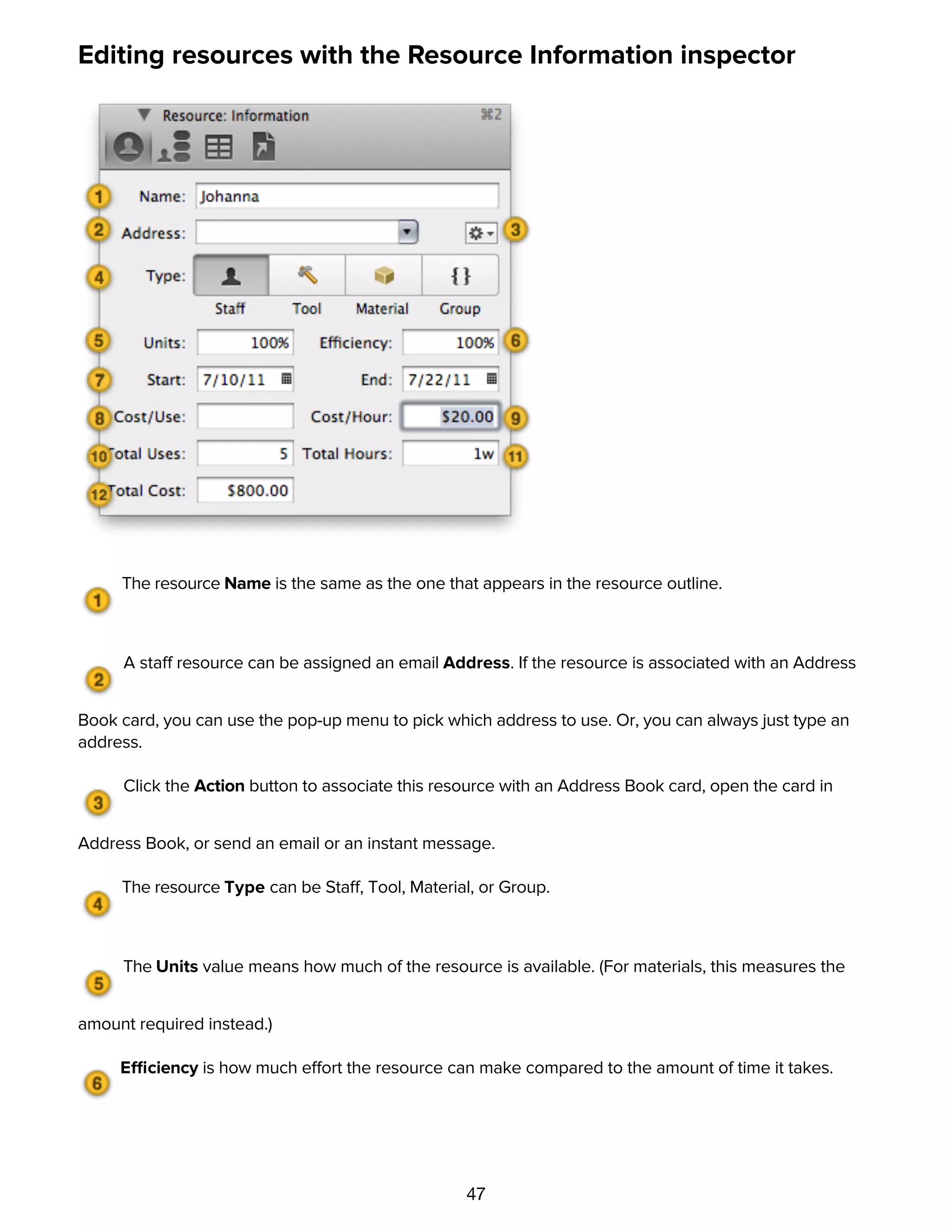
The resource Name is the same as the one that appears in the resource outline.
A staff resource can be assigned an email Address. If the resource is associated with an Address
Book card, you can use the pop-up menu to pick which address to use. Or, you can always just type an
address.
Click the Action button to associate this resource with an Address Book card, open the card in
Address Book, or send an email or an instant message.
The resource Type can be Staff, Tool, Material, or Group.
The Units value means how much of the resource is available. (For materials, this measures the
amount required instead.)
Efficiency is how much effort the resource can make compared to the amount of time it takes.
The Start and End dates determine for which dates the resource is available.
48
The Start and End dates determine for which dates the resource is available.
The Cost per Use is an amount of money for each time the resource is assigned to a task.
Cost per Hour is an amount of money for each hour of effort the resource is assigned.
Total Uses means the number of times this resource is assigned to a task.
Total Hours is the sum of the effort of all tasks the resource is assigned to.
Total Cost is the combined cost of all uses and all hours for this resource.
Characteristics of resource groups
49
Characteristics of resource groups
A resource group is just a way to organize several resources together, so it doesn't have a lot of the same
characteristics as an individual resource, like Efficiency and Cost.
Name: Of course, a resource group has its own name.
Address: You can assign an e-mail address to a group, in case you have a mailing list or some address
which goes to all of the members in the group.
Type: A resource group can contain resources of any type (Staff, Equipment, or Material), but its own type is
always Group.
Cost/Use, Cost/Hour, and Efficiency: These are shown as averages of the values of all members of the
group. If you enter a new value, it is applied to all members of the group.
Visual planning in the Gantt chart
Many attributes of tasks can be edited directly with the mouse in the Gantt chart. When you put your
mouse pointer on a task bar, controls appear for manipulating the task.
Changing the chart's scale
You can zoom the Gantt chart (and the resource timeline) in and out using the magnifying glass menu in
the upper-right corner of the chart, or by putting the mouse pointer in the chart's header area and dragging
left or right, as if you were resizing a column.
Changing the duration of a task by dragging
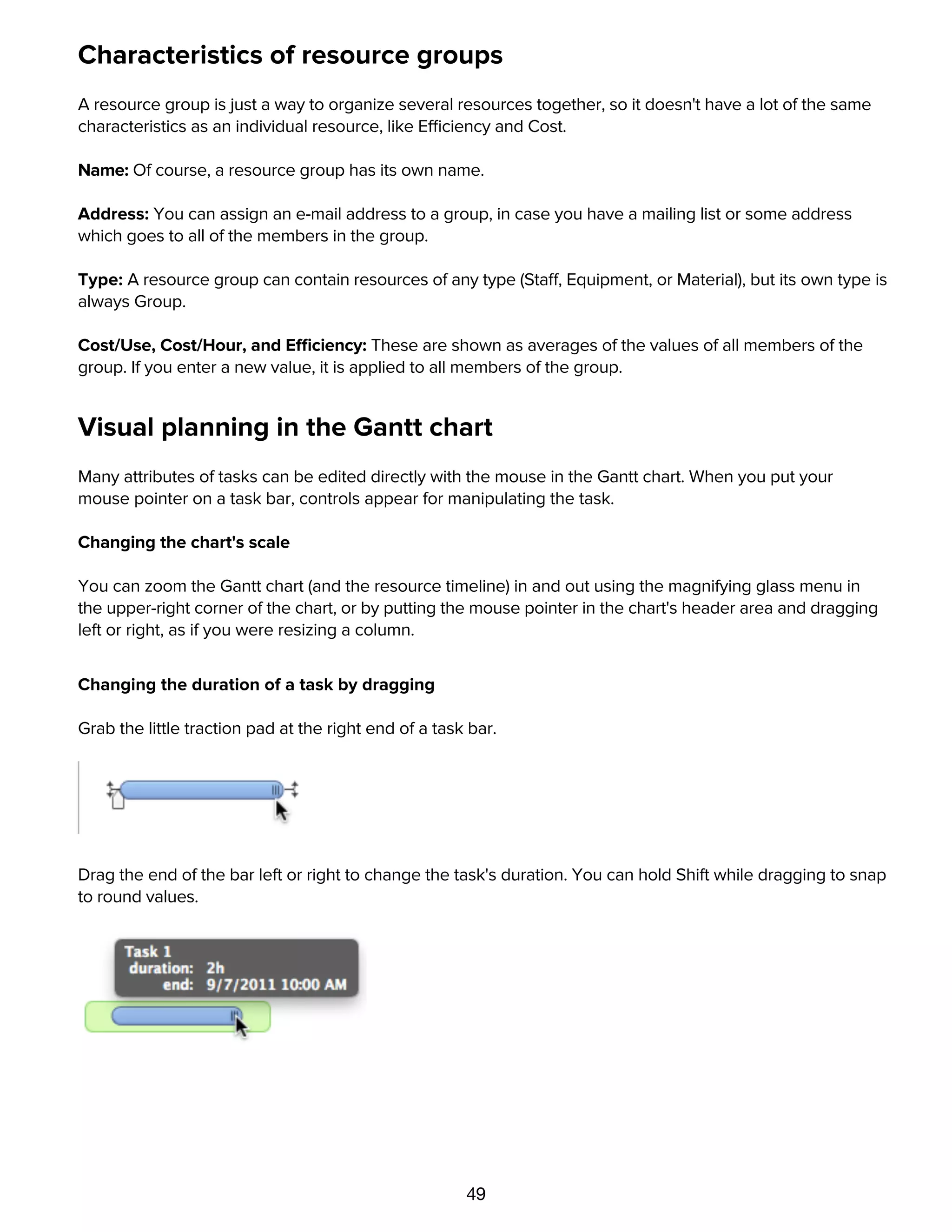
Grab the little traction pad at the right end of a task bar.
Drag the end of the bar left or right to change the task's duration. You can hold Shift while dragging to snap
to round values.
Adjusting task completion by dragging
50
Adjusting task completion by dragging
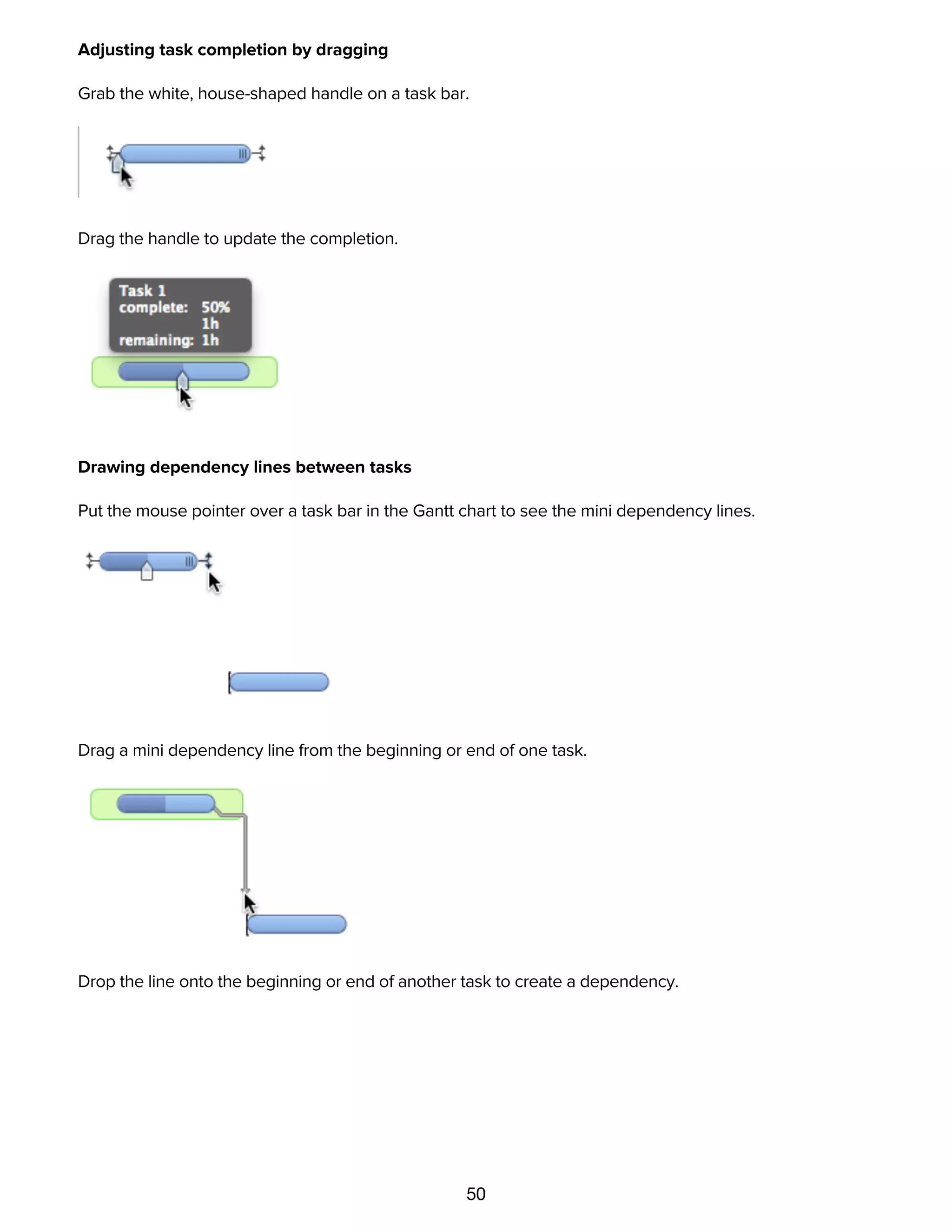
Grab the white, house-shaped handle on a task bar.
Drag the handle to update the completion.
Drawing dependency lines between tasks
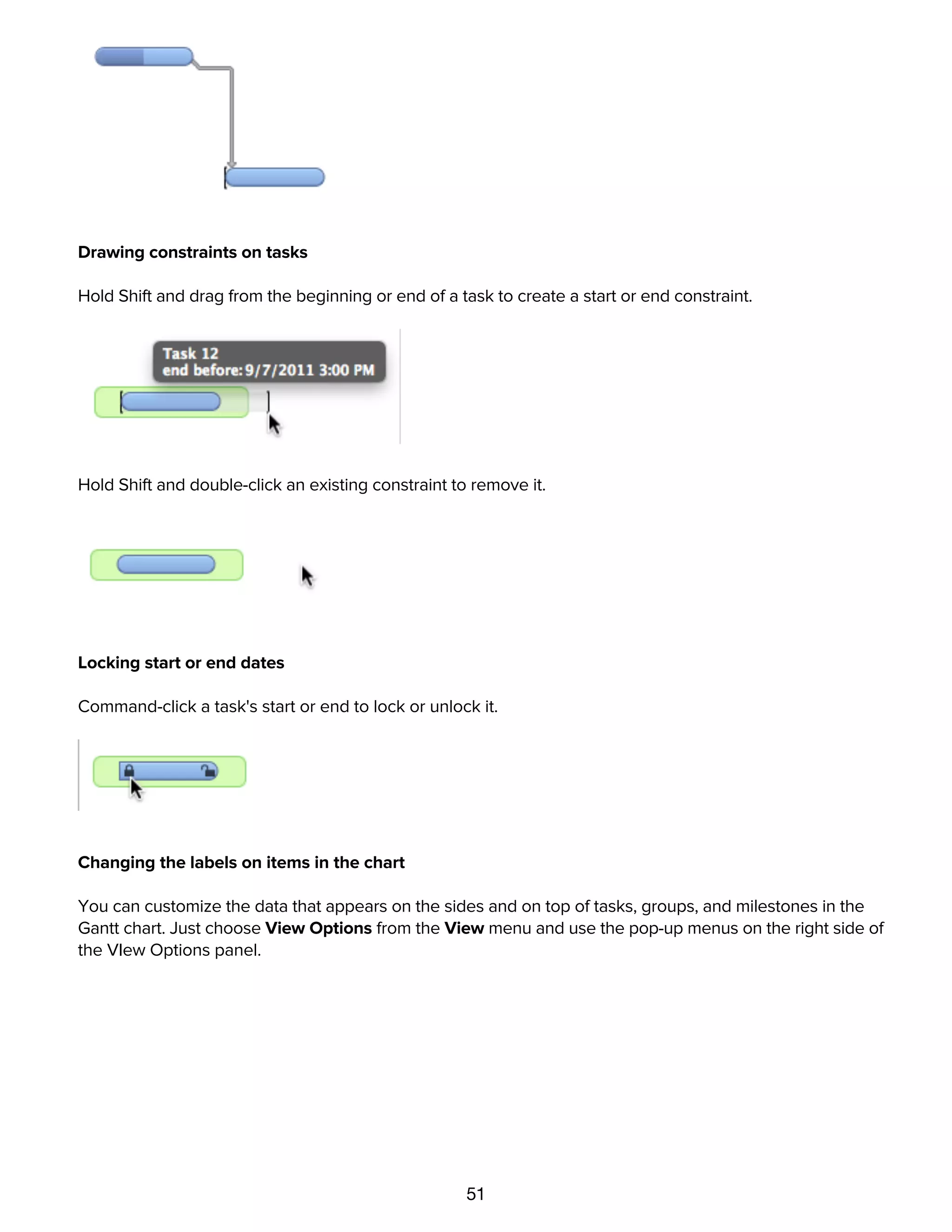
Put the mouse pointer over a task bar in the Gantt chart to see the mini dependency lines.
Drag a mini dependency line from the beginning or end of one task.
Drop the line onto the beginning or end of another task to create a dependency.
51
Drop the line onto the beginning or end of another task to create a dependency.
Drawing constraints on tasks
Hold Shift and drag from the beginning or end of a task to create a start or end constraint.
Hold Shift and double-click an existing constraint to remove it.
Locking start or end dates
Command-click a task's start or end to lock or unlock it.
Changing the labels on items in the chart
You can customize the data that appears on the sides and on top of tasks, groups, and milestones in the
Gantt chart. Just choose View Options from the View menu and use the pop-up menus on the right side of
the VIew Options panel.
Using notes
52
Using notes
The task outline and the resource outline both have a Notes column, which you can use to store extra text
about any item.
To edit the selected item's note, press Command-', press the Enter key, or click the Note icon in the
Notes column.
Once an item has a note, you can move in and out of the note field by pressing Command-' (which hides
the note after you stop editing it) or Enter (which leaves the note open).
The font style of notes can be set up in the Project Styles inspector.
Using the Custom Data inspectors
Each of the three main inspector windows (Project, Task, and Resource) has a Custom Data inspector. You
can use this to keep your own information about the project or about individual tasks and resources.
Custom data is stored as key/value pairs. The Key is like a label for what type of information you are
storing, and the Value is the information itself.
For example, here's how you could keep track of staff members' phone numbers:
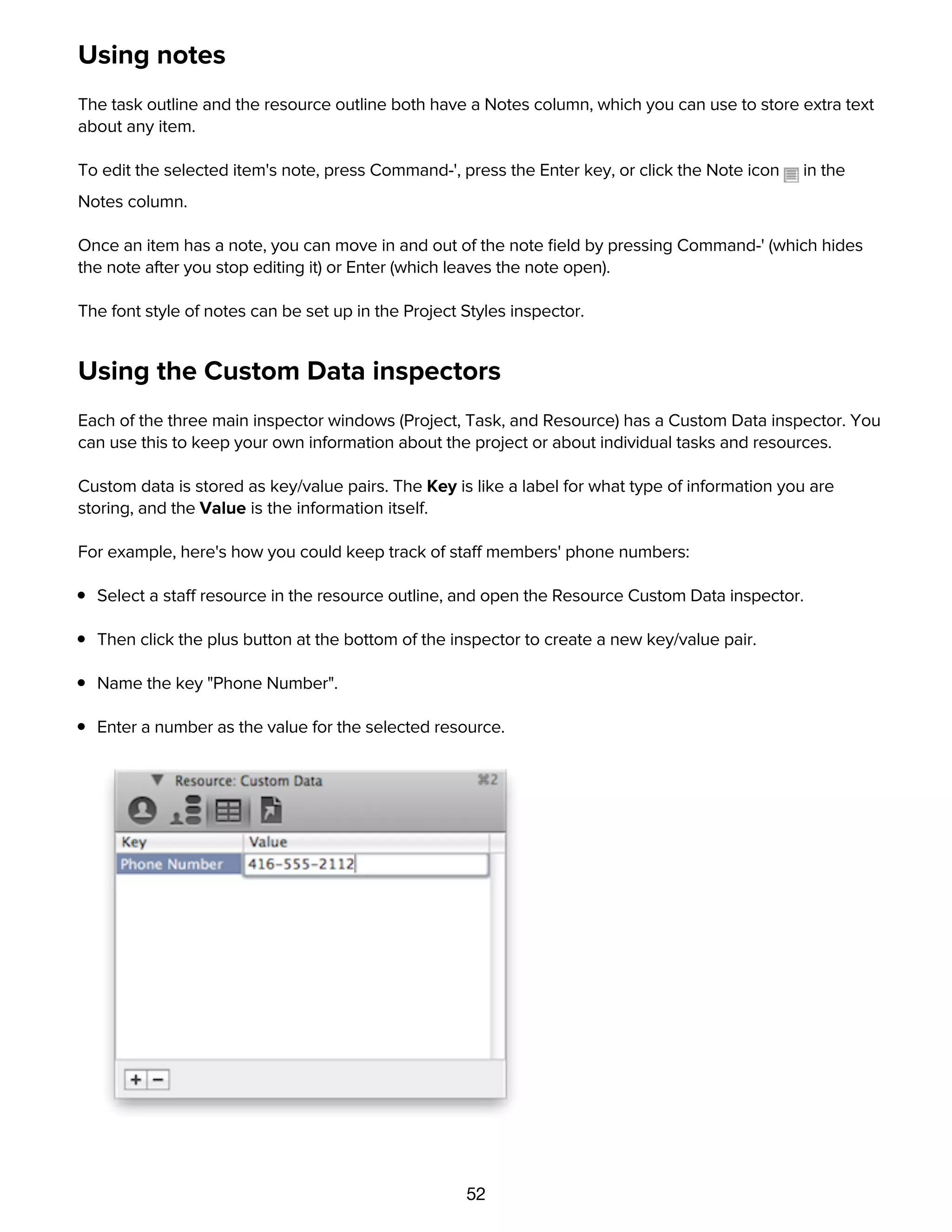
Select a staff resource in the resource outline, and open the Resource Custom Data inspector.
Then click the plus button at the bottom of the inspector to create a new key/value pair.
Name the key "Phone Number".
Enter a number as the value for the selected resource.
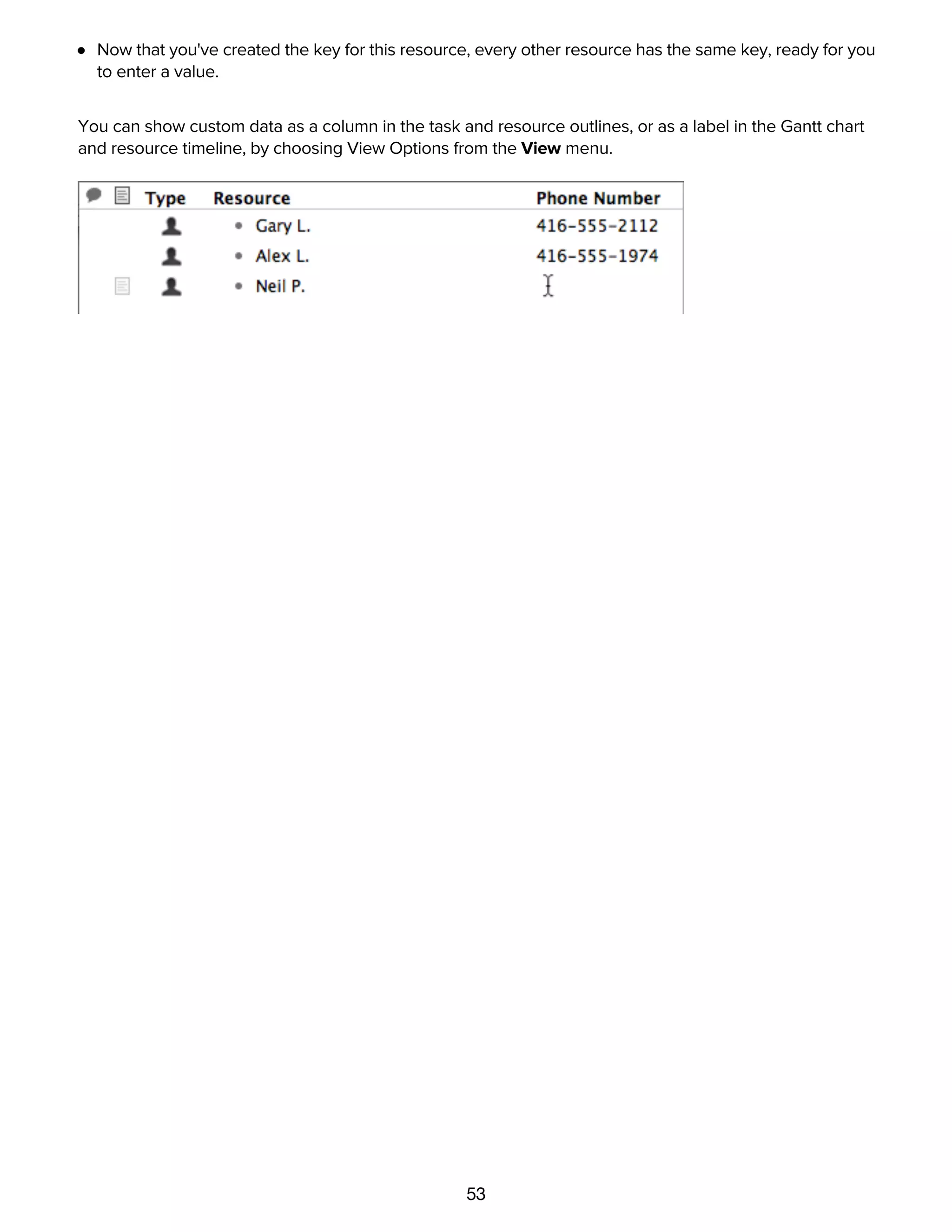
Now that you've created the key for this resource, every other resource has the same key, ready for you
to enter a value.
53
Now that you've created the key for this resource, every other resource has the same key, ready for you
to enter a value.
You can show custom data as a column in the task and resource outlines, or as a label in the Gantt chart
and resource timeline, by choosing View Options from the View menu.
Linking files to a project
54
Linking files to a project
Each of the three main inspector windows (Project, Task, and Resource) has an Attachments inspector. You
can use this to keep references to files that are relevant to your project or to particular items in it.
To link a file to an item in the task outline or resource outline:
Click the item to select it.
In the Task Attachments inspector or the Resource Attachments inspector, click the plus button below
the attachment list, then choose a file in the dialog that appears. If you are showing the Attachments
column in the outline, you could also click the paper clip icon and choose Attach File from the pop-up
menu, then choose a file. Or, easiest of all, just drag a file into the attachments list.
The file appears in the inspector's attachments list.
To attach a file to the project itself:
In the Project Attachments inspector, click the plus button below the attachment list, then choose a file
in the dialog that appears. Or, just drag a file into the attachments list.
The file appears in the inspector's attachments list.
You can open an attached file by selecting it in the appropriate Attachments inspector and then clicking the
Open button, or by choosing it from the pop-up menu in an item's Attachment cell in the outline.
Every file attachment is a reference to the file elsewhere on your disk. If you move the files around, the
references try to keep track of the new location. But if you are going to send a project to someone else, or
otherwise move your project to another computer, the other files won't automatically come along for the
ride. In that case you should gather all of the attached files into one folder along with the OmniPlan file
itself, and send the whole folder.
You can show attachments as a column in the task and resource outlines by choosing View Options from
the View menu.
How scheduling and leveling work
The Task information inspector's Schedule method indicates how OmniPlan should determine when a
task is to occur in the project.
By default, new tasks are scheduled as early as constraints allow. This means the task is placed at the
very earliest time possible, taking into consideration start and end constraints, and dependencies on other
tasks. Resource availability is not taken into consideration, so resources may end up overutilized. Tasks
can also be scheduled as late as possible as defined in the Task Schedule Inspector or locked so they are
not affected.
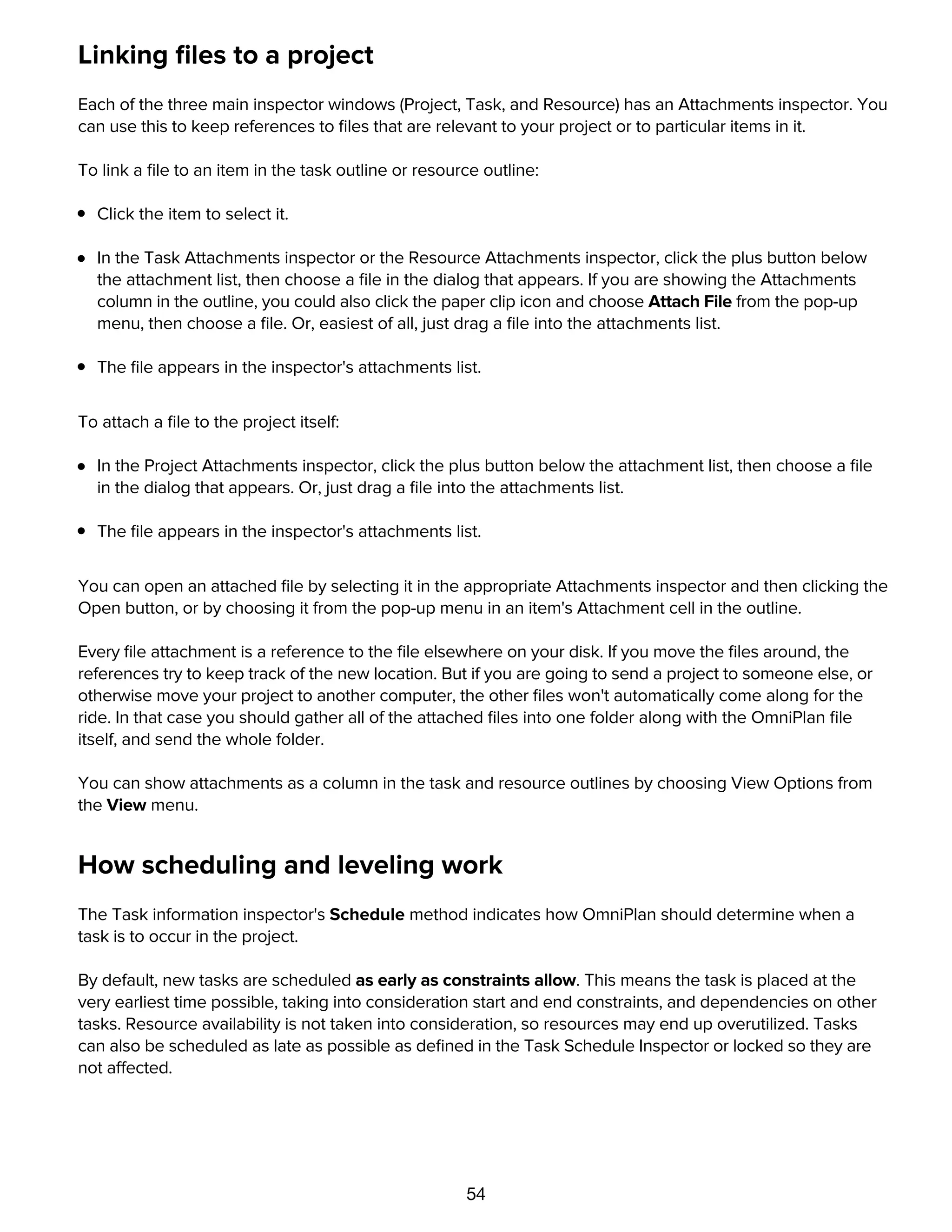
These tasks are scheduled as early as constraints allow:
55
not affected.
These tasks are scheduled as early as constraints allow:
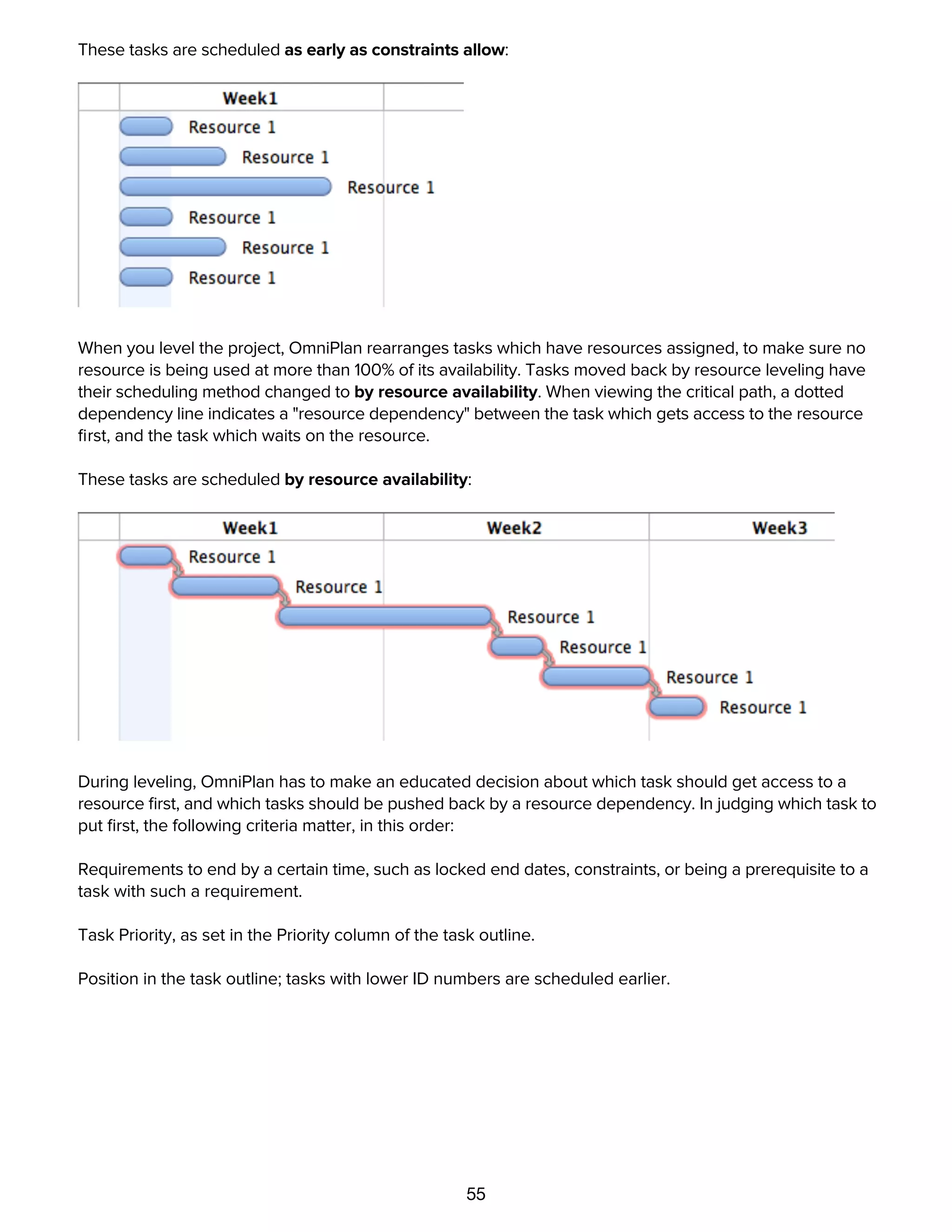
When you level the project, OmniPlan rearranges tasks which have resources assigned, to make sure no
resource is being used at more than 100% of its availability. Tasks moved back by resource leveling have
their scheduling method changed to by resource availability. When viewing the critical path, a dotted
dependency line indicates a "resource dependency" between the task which gets access to the resource
first, and the task which waits on the resource.
These tasks are scheduled by resource availability:
During leveling, OmniPlan has to make an educated decision about which task should get access to a
resource first, and which tasks should be pushed back by a resource dependency. In judging which task to
put first, the following criteria matter, in this order:
Requirements to end by a certain time, such as locked end dates, constraints, or being a prerequisite to a
task with such a requirement.
Task Priority, as set in the Priority column of the task outline.
Position in the task outline; tasks with lower ID numbers are scheduled earlier.
Comparing the baseline and actual schedules
56
Comparing the baseline and actual schedules
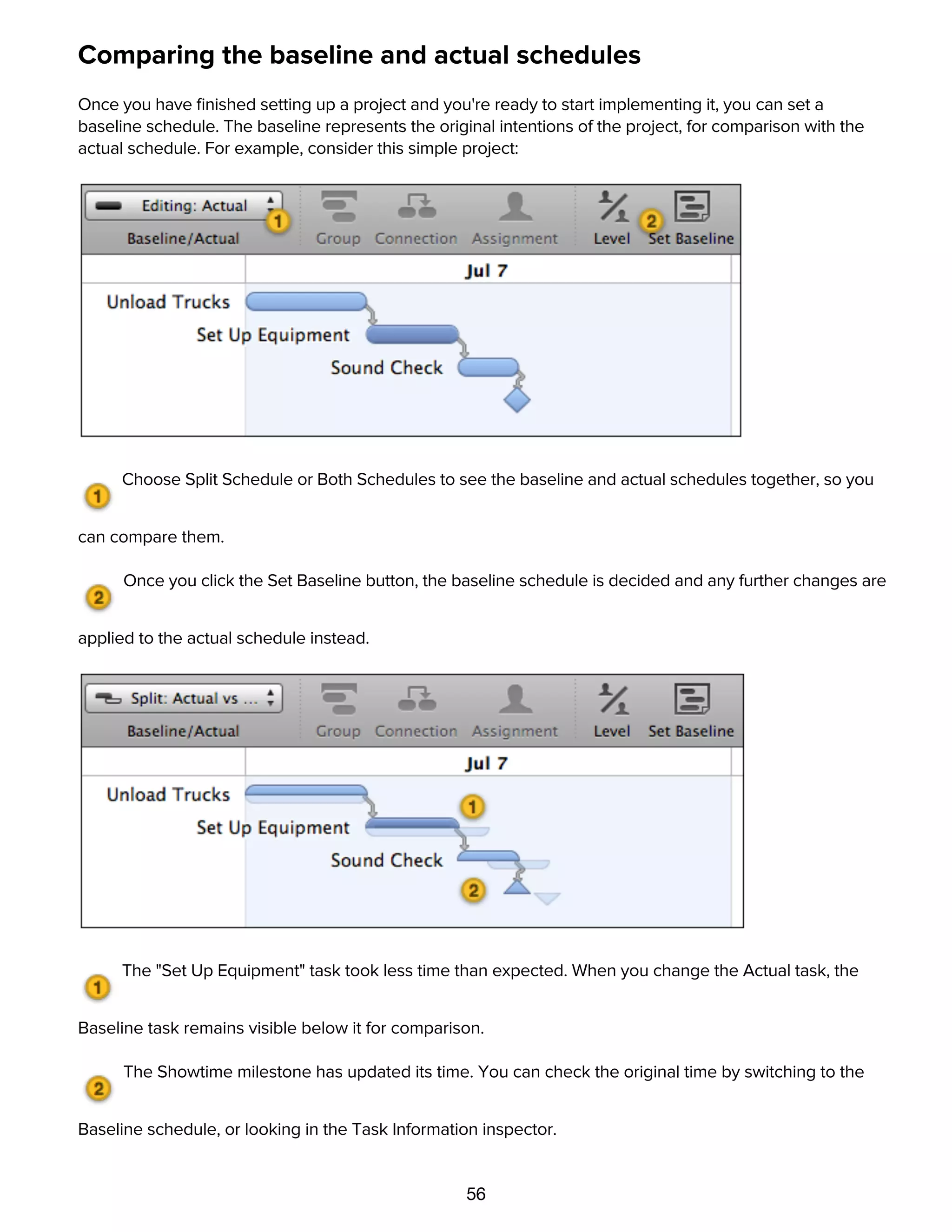
Once you have finished setting up a project and you're ready to start implementing it, you can set a
baseline schedule. The baseline represents the original intentions of the project, for comparison with the
actual schedule. For example, consider this simple project:
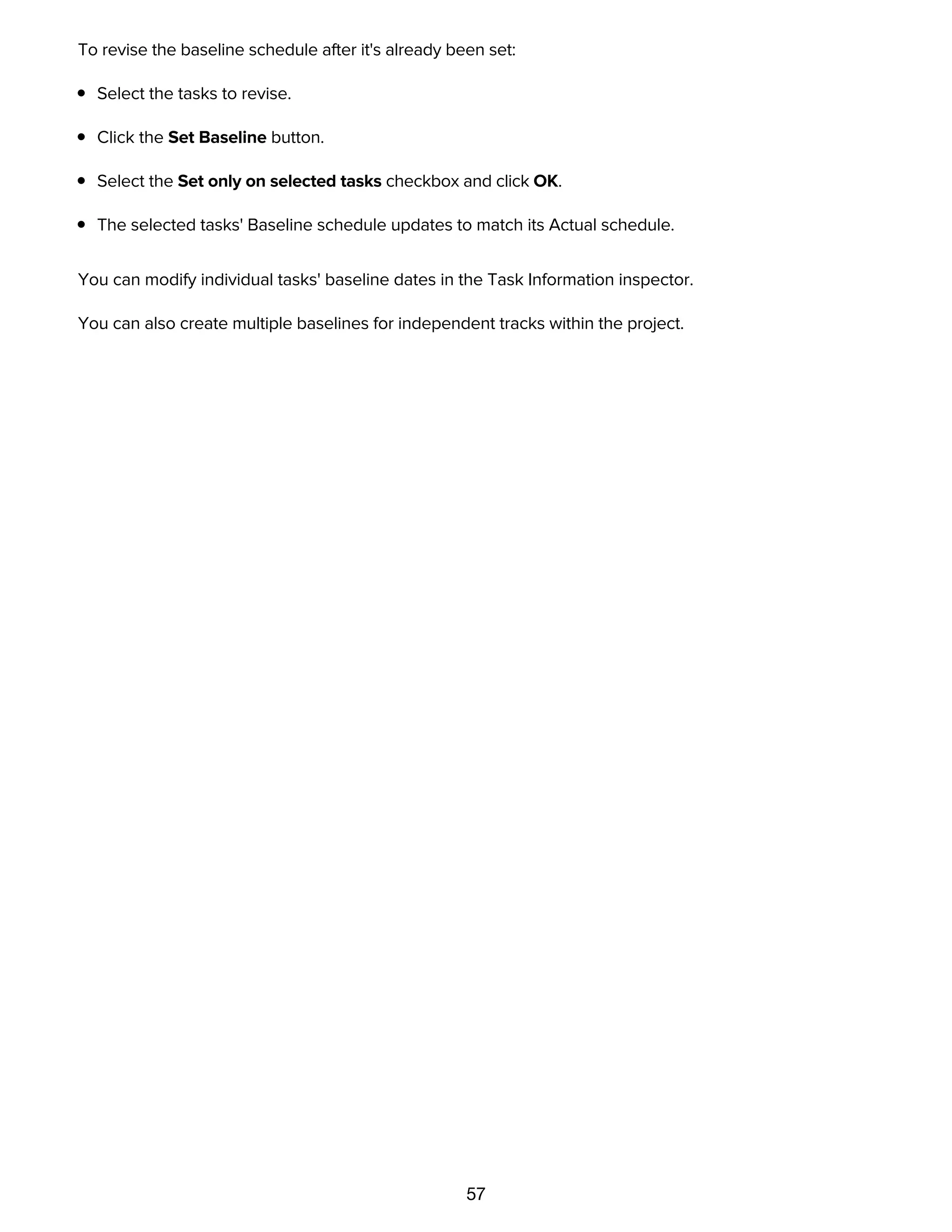
Choose Split Schedule or Both Schedules to see the baseline and actual schedules together, so you
can compare them.
Once you click the Set Baseline button, the baseline schedule is decided and any further changes are
applied to the actual schedule instead.
The "Set Up Equipment" task took less time than expected. When you change the Actual task, the
Baseline task remains visible below it for comparison.
The Showtime milestone has updated its time. You can check the original time by switching to the
Baseline schedule, or looking in the Task Information inspector.
To revise the baseline schedule after it's already been set:
57
Baseline schedule, or looking in the Task Information inspector.
To revise the baseline schedule after it's already been set:
Select the tasks to revise.
Click the Set Baseline button.
Select the Set only on selected tasks checkbox and click OK.
The selected tasks' Baseline schedule updates to match its Actual schedule.
You can modify individual tasks' baseline dates in the Task Information inspector.
You can also create multiple baselines for independent tracks within the project.
Catching up task completion to the present
58
Catching up task completion to the present
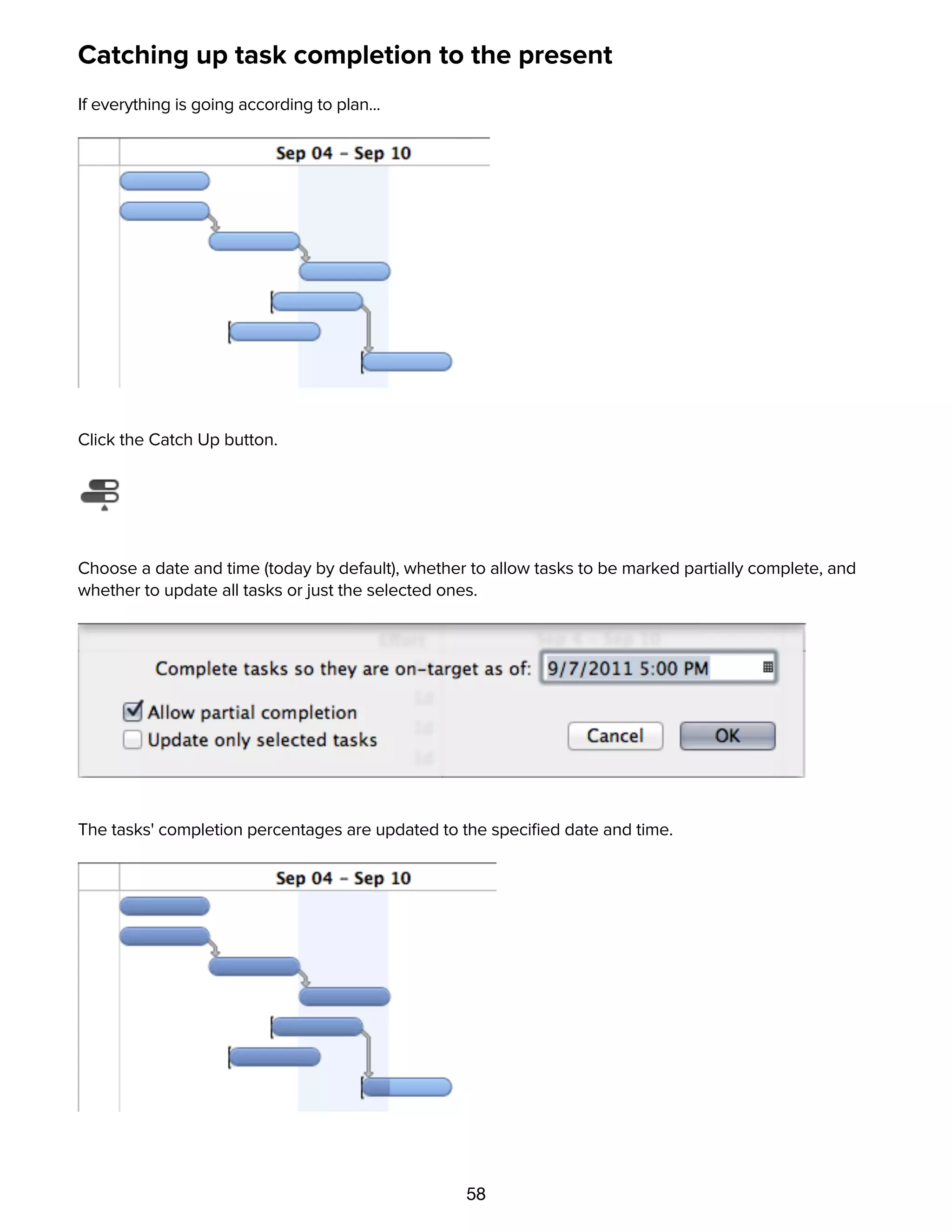
If everything is going according to plan...
Click the Catch Up button.
Choose a date and time (today by default), whether to allow tasks to be marked partially complete, and
whether to update all tasks or just the selected ones.
The tasks' completion percentages are updated to the specified date and time.
Rescheduling incomplete tasks
59
Rescheduling incomplete tasks
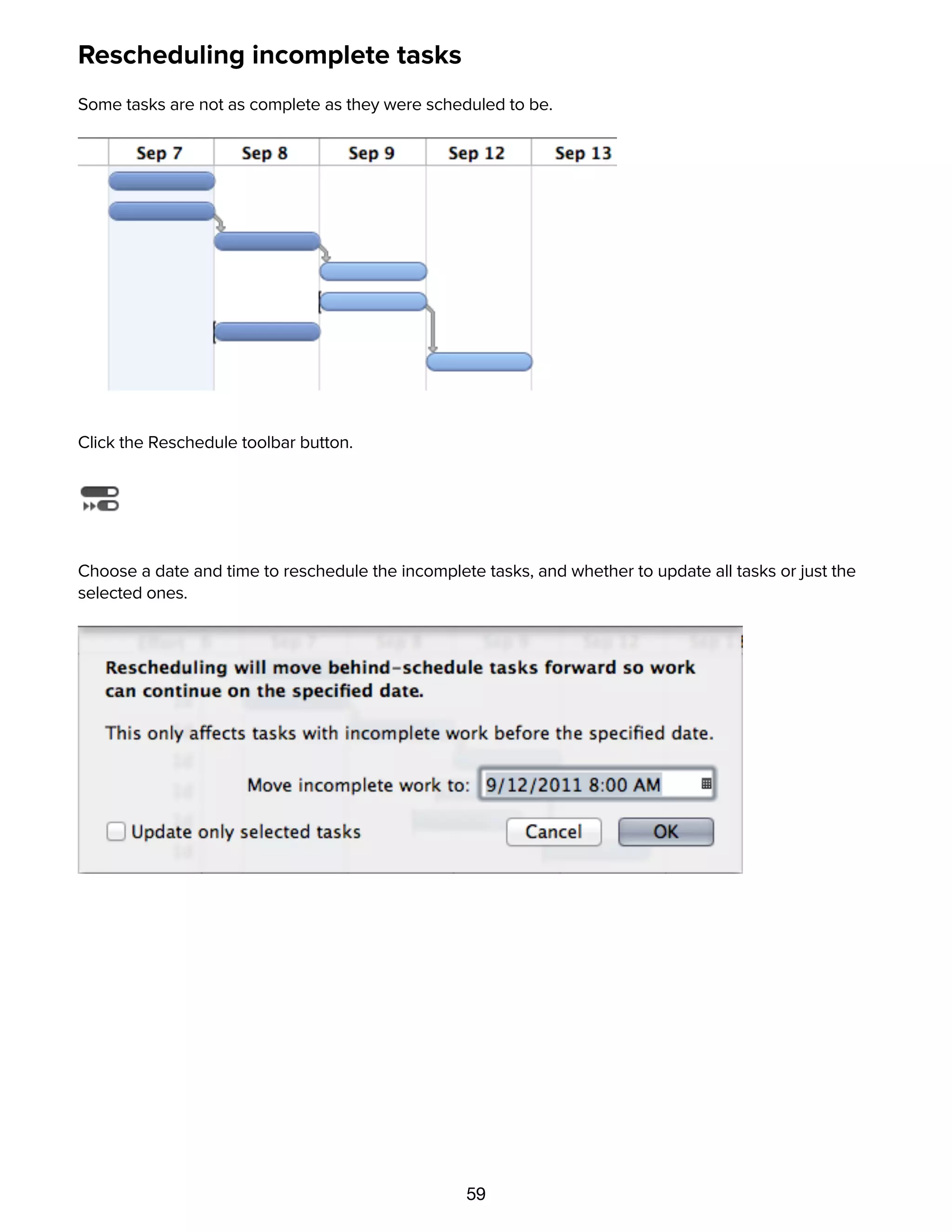
Some tasks are not as complete as they were scheduled to be.
Click the Reschedule toolbar button.
Choose a date and time to reschedule the incomplete tasks, and whether to update all tasks or just the
selected ones.
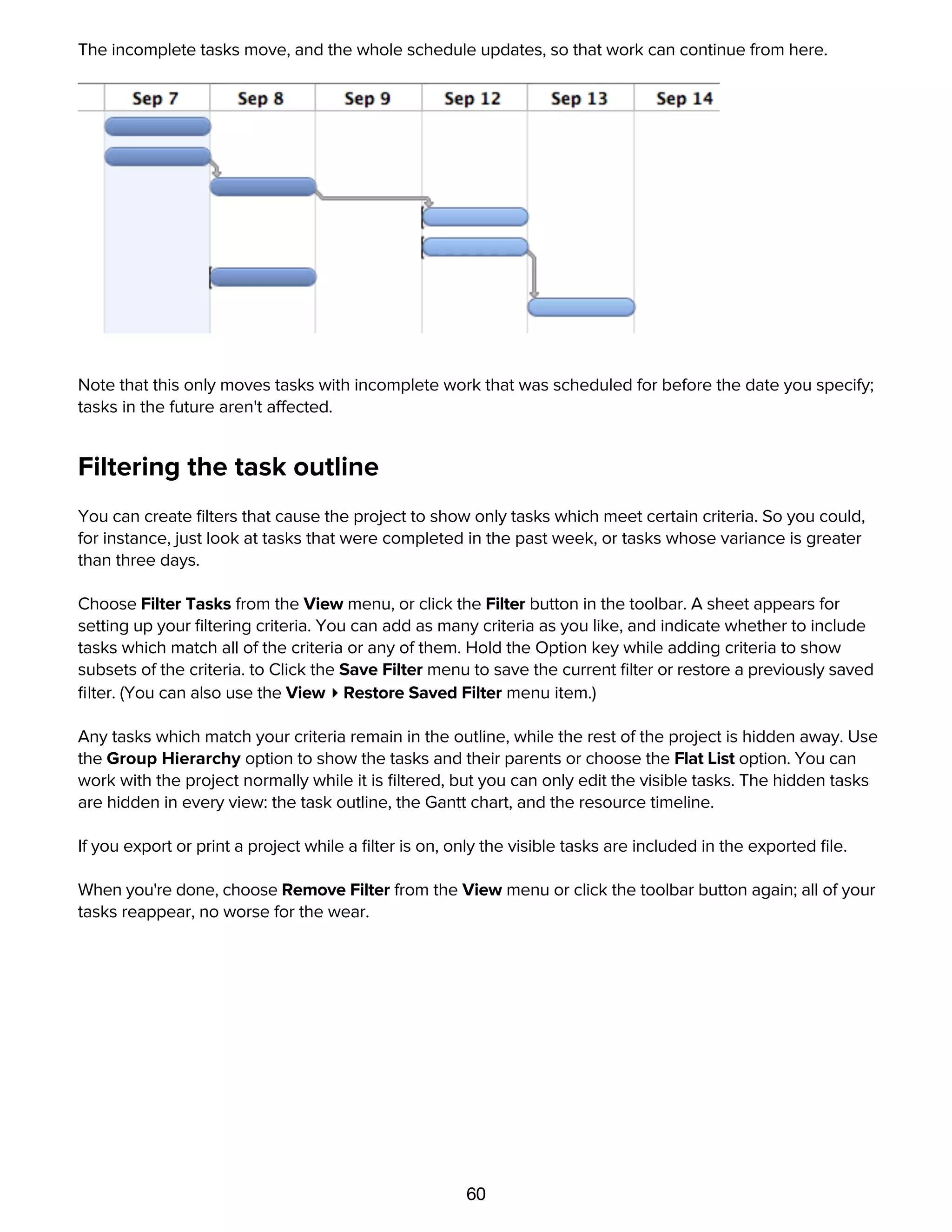
The incomplete tasks move, and the whole schedule updates, so that work can continue from here.
60
The incomplete tasks move, and the whole schedule updates, so that work can continue from here.
Note that this only moves tasks with incomplete work that was scheduled for before the date you specify;
tasks in the future aren't affected.
Filtering the task outline
You can create filters that cause the project to show only tasks which meet certain criteria. So you could,
for instance, just look at tasks that were completed in the past week, or tasks whose variance is greater
than three days.
Choose Filter Tasks from the View menu, or click the Filter button in the toolbar. A sheet appears for
setting up your filtering criteria. You can add as many criteria as you like, and indicate whether to include
tasks which match all of the criteria or any of them. Hold the Option key while adding criteria to show
subsets of the criteria. to Click the Save Filter menu to save the current filter or restore a previously saved
filter. (You can also use the View ▸ Restore Saved Filter menu item.)
Any tasks which match your criteria remain in the outline, while the rest of the project is hidden away. Use
the Group Hierarchy option to show the tasks and their parents or choose the Flat List option. You can
work with the project normally while it is filtered, but you can only edit the visible tasks. The hidden tasks
are hidden in every view: the task outline, the Gantt chart, and the resource timeline.
If you export or print a project while a filter is on, only the visible tasks are included in the exported file.
When you're done, choose Remove Filter from the View menu or click the toolbar button again; all of your
tasks reappear, no worse for the wear.
Customizing keyboard behaviors with the General preferences
61
Customizing keyboard behaviors with the General preferences
The way that the Tab and Return keys work can be customized to suit the way you work. These options are
in the General pane of the preferences, available from the OmniPlan menu.
When pressing Tab
You can set the Tab key to do one of two things:
Indent the currently selected item in the outline, thus making it a child of the item above it; pressing Shift-
Tab outdents the selected item.
Move to the next cell in the outline; pressing Shift-Tab moves to the previous cell.
Either way, the Indent and Outdent commands in the Structure menu (and their keyboard shortcuts,
Command-[ or Command-] by default) will always work.
You can always press Option-Tab to type a tab character at the insertion point.
When pressing Return in a cell, create a new row
When you are done editing the contents of a cell in the outline, you might press Return to finish editing. If
this preference is turned on, a new item is then created. Otherwise, the editing just ends and the current
item becomes selected.
Whether this setting is on or off, pressing Return while not editing a cell always creates a new item.
You can hold Command while pressing Return to temporarily change the setting; for example you could
press Command-Return to finish editing and create a new item, even if the setting was turned off.
Customizing date headers with the Display preferences
62
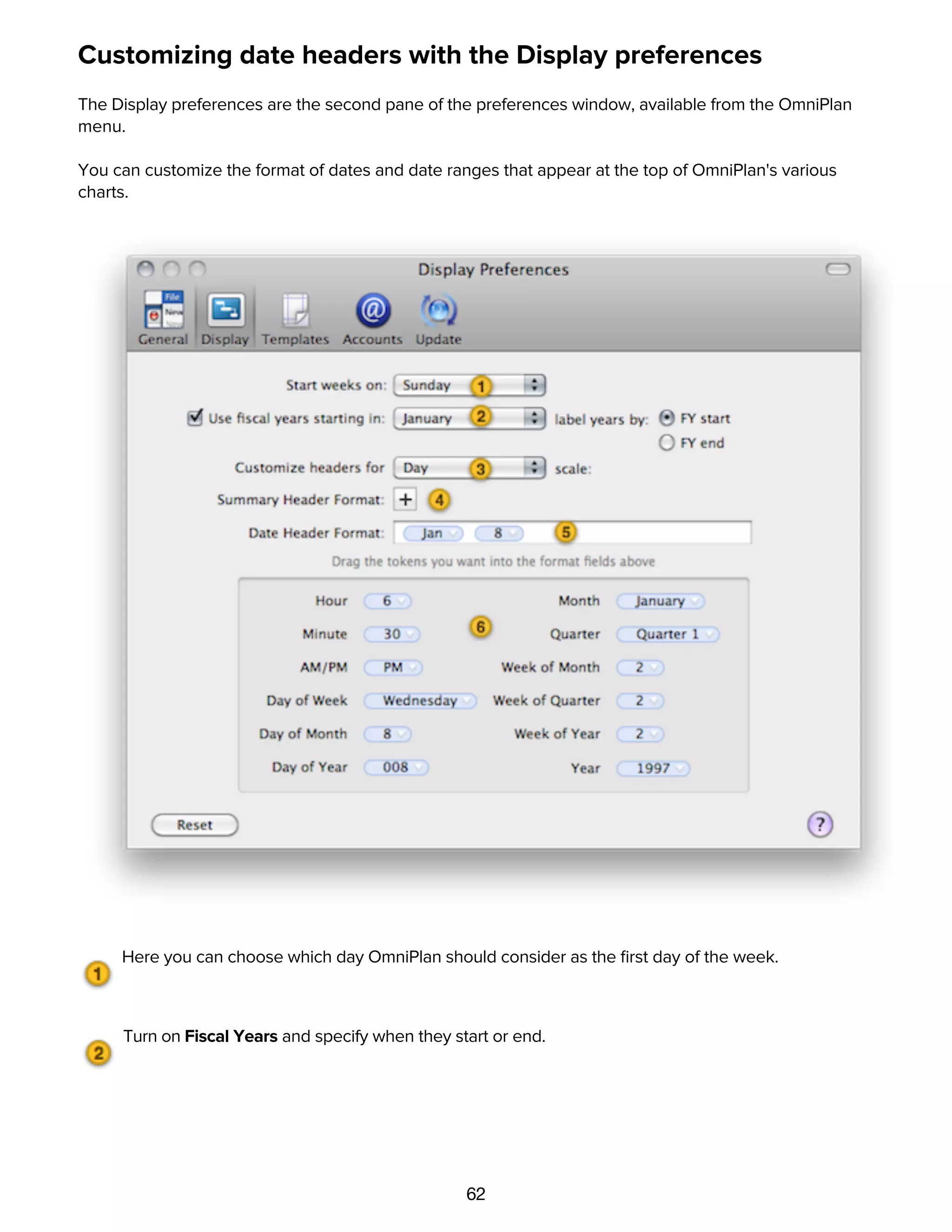
Customizing date headers with the Display preferences
The Display preferences are the second pane of the preferences window, available from the OmniPlan
menu.
You can customize the format of dates and date ranges that appear at the top of OmniPlan's various
charts.
Here you can choose which day OmniPlan should consider as the first day of the week.
Turn on Fiscal Years and specify when they start or end.
The pop-up menu determines which chart header scale you are editing. The different time scales
appear in the headers of the Gantt chart, resource timeline, and work week chart, depending on the zoom
scale.
63
The pop-up menu determines which chart header scale you are editing. The different time scales
appear in the headers of the Gantt chart, resource timeline, and work week chart, depending on the zoom
scale.
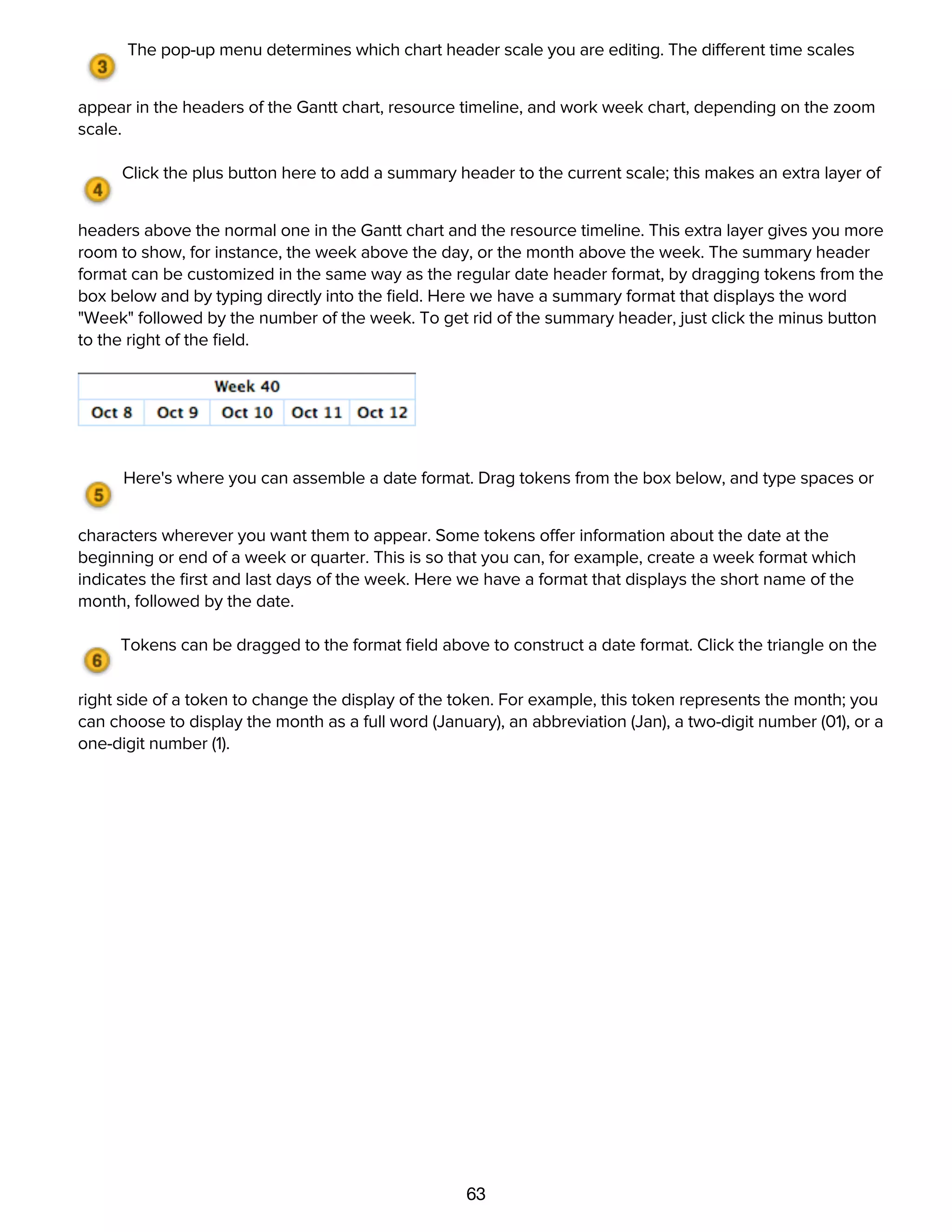
Click the plus button here to add a summary header to the current scale; this makes an extra layer of
headers above the normal one in the Gantt chart and the resource timeline. This extra layer gives you more
room to show, for instance, the week above the day, or the month above the week. The summary header
format can be customized in the same way as the regular date header format, by dragging tokens from the
box below and by typing directly into the field. Here we have a summary format that displays the word
"Week" followed by the number of the week. To get rid of the summary header, just click the minus button
to the right of the field.
Here's where you can assemble a date format. Drag tokens from the box below, and type spaces or
characters wherever you want them to appear. Some tokens offer information about the date at the
beginning or end of a week or quarter. This is so that you can, for example, create a week format which
indicates the first and last days of the week. Here we have a format that displays the short name of the
month, followed by the date.
Tokens can be dragged to the format field above to construct a date format. Click the triangle on the
right side of a token to change the display of the token. For example, this token represents the month; you
can choose to display the month as a full word (January), an abbreviation (Jan), a two-digit number (01), or a
one-digit number (1).
Adding style with the Project Styles inspector
64
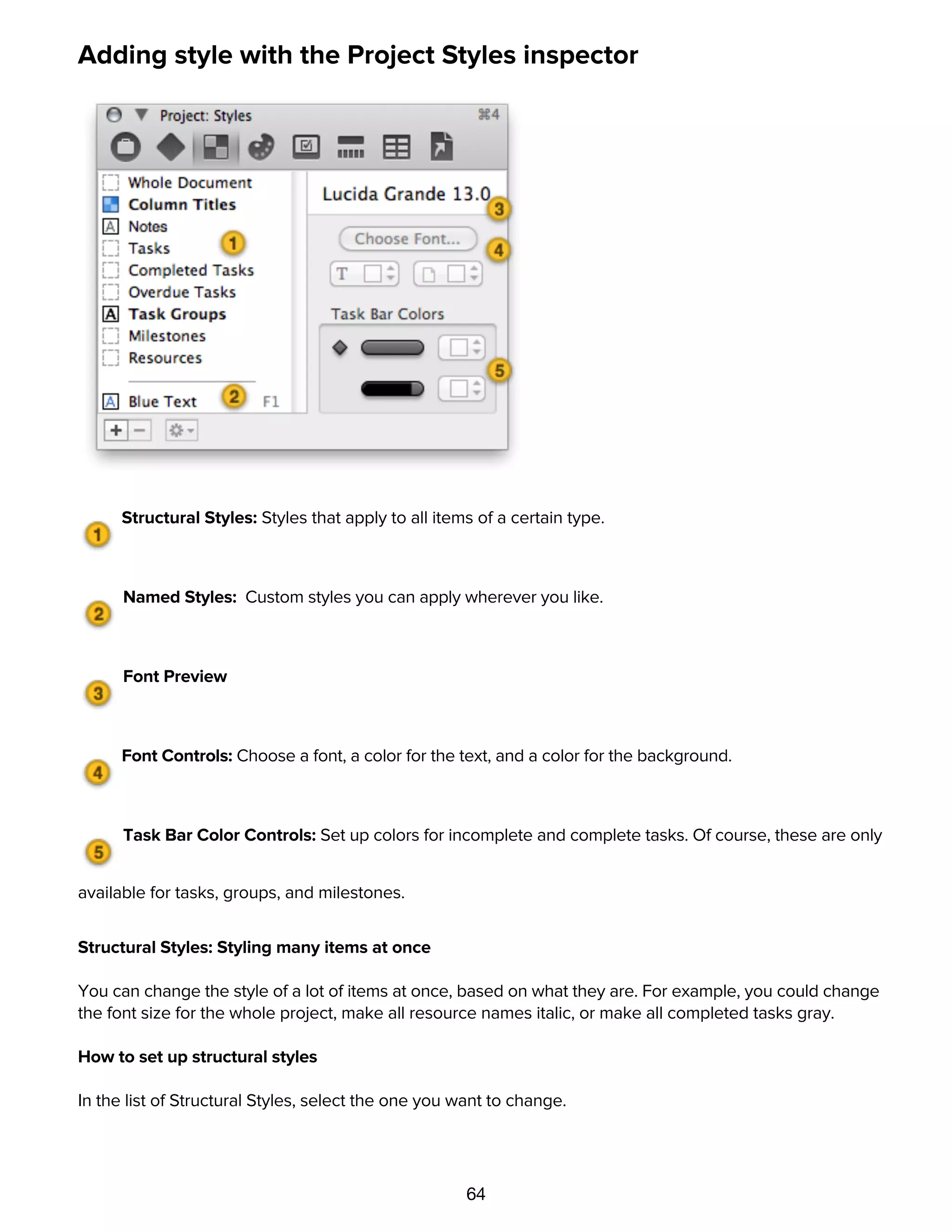
Adding style with the Project Styles inspector
Structural Styles: Styles that apply to all items of a certain type.
Named Styles: Custom styles you can apply wherever you like.
Font Preview
Font Controls: Choose a font, a color for the text, and a color for the background.
Task Bar Color Controls: Set up colors for incomplete and complete tasks. Of course, these are only
available for tasks, groups, and milestones.
Structural Styles: Styling many items at once
You can change the style of a lot of items at once, based on what they are. For example, you could change
the font size for the whole project, make all resource names italic, or make all completed tasks gray.
How to set up structural styles
In the list of Structural Styles, select the one you want to change.
Use the style controls on the right side of the inspector to change the default style for everything of the
selected type.
65
In the list of Structural Styles, select the one you want to change.
Use the style controls on the right side of the inspector to change the default style for everything of the
selected type.
Available Structural Styles
Whole Document — Everything throughout the entire document; it can be overriden by the more specific
styles listed below it.
Column Titles — The headers above the outline views and charts, and the sideways resource names in the
resource timeline.
Notes — Notes attached to tasks and resources.
Tasks — All tasks, but not groups or milestones. Note that the Completed Tasks and Overdue Tasks styles
can override this.
Completed Tasks — Any task whose completion is at 100%. You could, for example, make tasks' Gantt
bars turn gray when they are finished.
Overdue Tasks — Tasks which were scheduled to complete in the past, but are not complete. You might
like to turn these bright red so that you can see where your project is getting behind.
Task Groups — All groups of tasks. By default, their titles are in bold text to distinguish them from single
tasks.
Milestones — All milestones. By default they are styled the same as regular tasks.
Resources — All resources, how they appear in the resource outline and as assignments on the Gantt
chart.
Precedence
Structural styles are the most general type of style, so named styles or ad-hoc styles can override them.
Named Styles: Creating your own reusable styles
You can make up your own styles and reuse them throughout the document.
How to set up named styles
Click the plus button at the bottom of the styles list to create a new named style.
Then, while you have the named style selected, use the controls on the right side of the inspector to change
its attributes.
Once the style is set up how you want it, apply it to an item in the main window by either dragging it and
dropping it on the item, or by selecting the item and then pressing the appropriate function key.
You can keep applying the named style to items, and any further changes you make to the named style will
get applied to every item that has it applied.
66
dropping it on the item, or by selecting the item and then pressing the appropriate function key.
You can keep applying the named style to items, and any further changes you make to the named style will
get applied to every item that has it applied.
Precedence
Named styles take precedence over structural styles; if a structural style and a named style are both
applied to the same item, the named style wins.
Ad-hoc styling: Styling items individually
If you just want to apply a style to something without any special logic or updating, you can use an ad-hoc
style.
How to apply an ad-hoc style
In the main window, select the items, or the part of a note, you want to style.
Use the right side of the Project Styles inspector to style the selected items.
Precedence
Ad-hoc styles have the highest precedence. If an item has an ad-hoc style applied to it, that style wins over
any named styles or structural styles.
The Style Attributes Inspector
67
The Style Attributes Inspector
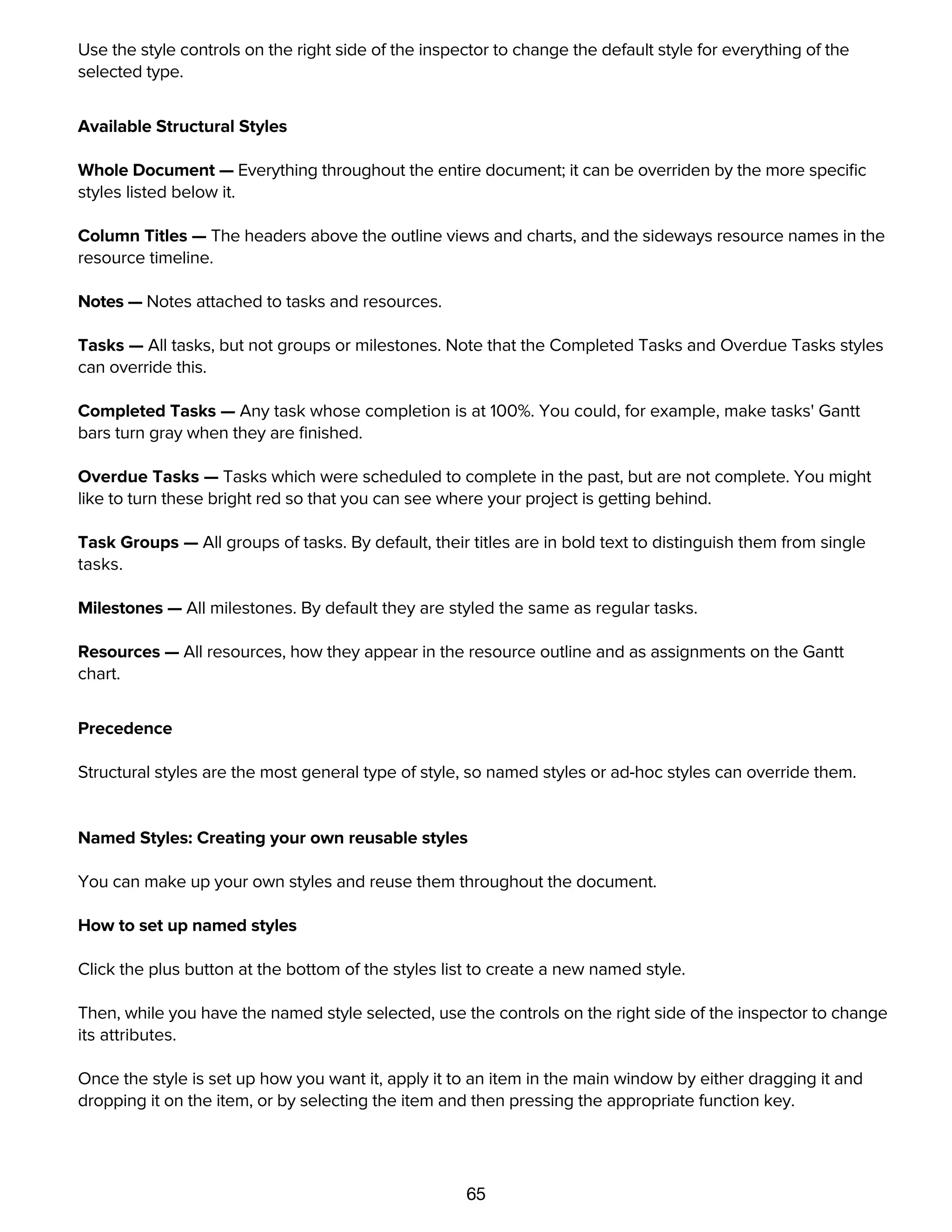
The Style Attributes inspector lists all of the styles applied to the selection, in order of precedence. You can
drag styles from here onto other items, or click the little to remove a style.
Styles specific to this task (ad-hoc styles) have the highest precedence.
Structural styles (in this case, the style for all tasks) come next.
The Whole Document style is the most general.
You can drag these style chits onto other items or onto entries in the Project Styles inspector to apply
them there.
Customizing Gantt chart colors with the Project Colors inspector
68
Customizing Gantt chart colors with the Project Colors inspector
The background color of the whole document. This also affects the "Whole Document" background
color in the Project Styles inspector.
A color for every other item; set this to a nice low-opacity color to keep your rows distinctive.
The color for non-working hours. But only if you've set up the View Options to show off-hours.
Today's date in the chart. But only if you have a specific start date set in the Project Information
inspector.
The base color for lines between time spans. They fade in and out as you zoom.
Using templates
69
Using templates
A template is a file set up just right to be a starting point for a new project. For example, there might be
certain resources you use for every project, a common task structure, certain named styles you like to use,
and a standard set of working hours for your company. You can configure all of these things once, then
create new documents from that template.
Creating a template
Create a new document normally by choosing New from the File menu.
Set up the document however you like. Everything about a document, including its contents, the state of
the Project inspector, the view options, and so on, can be saved to a template.
Once the document is ready, choose Save As Template from the File menu.
Enter a name for the template and save it to the ~/Library/Application Support/OmniPlan/
Templates/ folder, which is the default location. Note that you can also save to the same location in
the Library of the computer you are using, or the Library of the network you are on, to make the template
available to others.
Starting a new document from a template
When you create a document using the File ▸ New command, your new document follows the default
template. To use a different template, use the File ▸ New From Template submenu instead.
Managing templates with the Templates preferences
Choose Preferences from the OmniPlan menu, then click the Templates icon at the top of the
preferences window.
A list of available templates and their locations appears. The default template is listed in bold type; this
is the template that is used when you choose New from the File menu. Unless you choose a different
one, the Empty Plan document included inside the OmniPlan application is the default template.
Templates in any of the Library/Application Support/Templates/ folders appear in the list;
these can be in the Library of your user folder, the Library of the computer you are using, or the Library of
the network you are on.
From the action menu below the list, you can:
Edit: Change the selected template. You can also just double-click the template's name in the list.
When you save your changes, the template is updated.
Edit a Copy: Make a different version of the selected template. Select this command, type a title for
the new template, then change the document and save it as usual.
Make Default: Use the selected template from now on when making new documents with the File ▸
New command. The template's entry in the list changes to bold type.
70
New command. The template's entry in the list changes to bold type.
Rename: Change the title of the selected template.
Move to Trash: Get rid of the selected template by putting it in the trash. From there, you can still
recover it if you need it. Otherwise, it will be deleted the next time you empty the trash.
You can also use the Project ▸ Set As Default For New Tasks menu item to create new tasks that
match the default.
Publishing, Subscribing, and Change Tracking
71
Publishing, Subscribing, and Change Tracking
Publishing and subcribing can be used to keep a project up-to-date between members of a team. Choose
Configure Publishing & Subscriptions from the Project menu.
Click the Plus button below the Publish & Update Actions list to add an action. These changes can be
published upon save and updated via Bonjour (or at a specified interval). If you'd rather update manually,
leave these options unchecked and use the Project ▸ Update and Project ▸ Publish menu items.
General actions:
Execute a custom AppleScript upon publish or update.
Export your document with one of the export options.
Use Subscribe actions to pull in changes from others. (Be sure to set up sync accounts in Account
Preferences.)
Choose free/busy times from the calendar server to see available resource times and be notified of
changes for particular resources or all of them.
Choose offtime/overtime from iCal calendar to choose a calendar for the whole project or an individual
resource. Specify whether events are extra or off-hours.
Choose offtime/overtime from web calendar and specify a URL, along with the schedule for a project or
particular resource, and how events behave.
Use Sync to make changes to the project and pull in changes from others.
Choose entire plan with OmniPlan server repository to sync all tasks, resources, and calendars—
everything!—on a shared server.
Choose to sync tasks to/from calendar server events to make changes and bring in changes from
events on a calendar server.
Choose to sync tasks to/from calendar server to-do items to make changes and bring in changes from
to-do items on a calendar server.
Choose to sync tasks to/from iCal events to make changes and bring in changes from events in iCal.
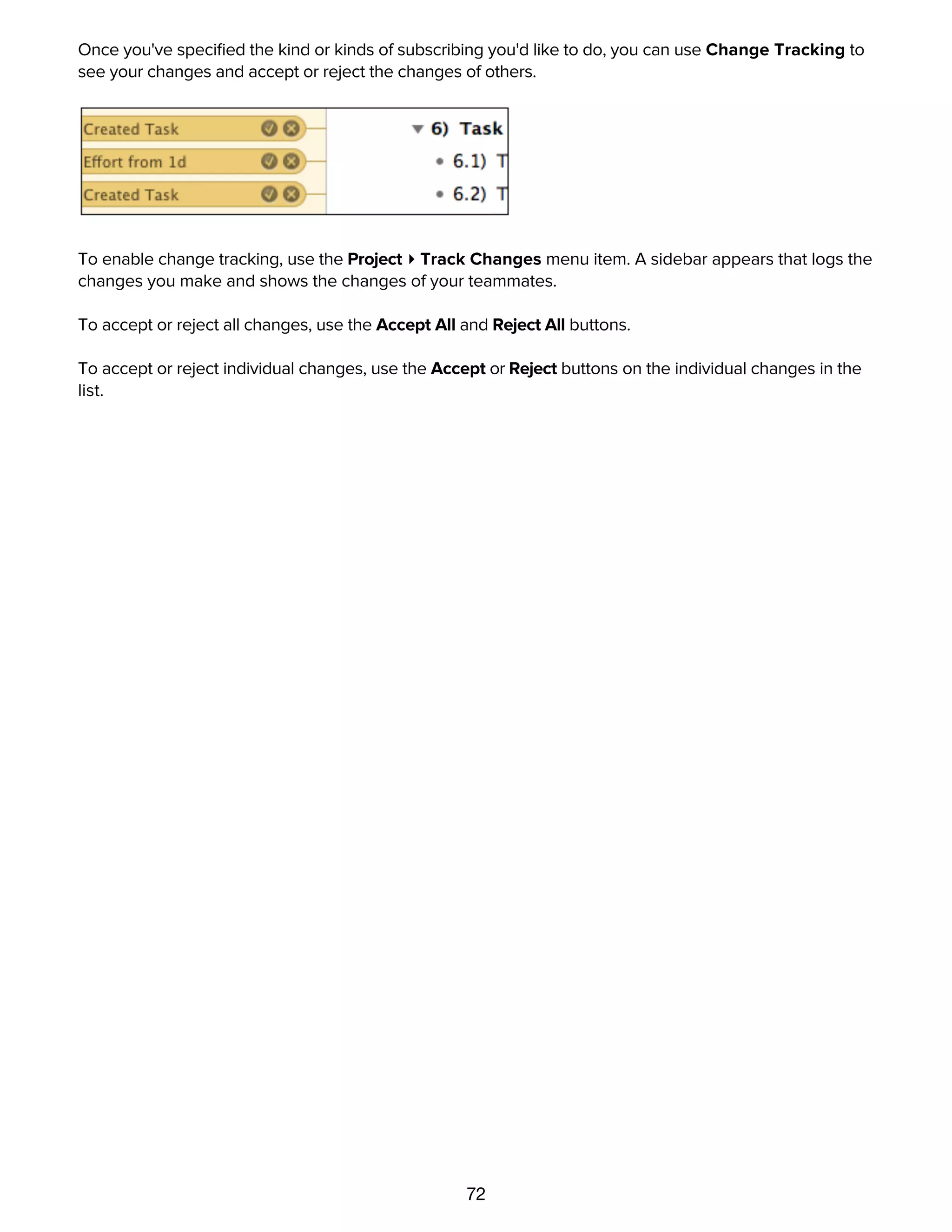
Once you've specified the kind or kinds of subscribing you'd like to do, you can use Change Tracking to
see your changes and accept or reject the changes of others.
72
Once you've specified the kind or kinds of subscribing you'd like to do, you can use Change Tracking to
see your changes and accept or reject the changes of others.
To enable change tracking, use the Project ▸ Track Changes menu item. A sidebar appears that logs the
changes you make and shows the changes of your teammates.
To accept or reject all changes, use the Accept All and Reject All buttons.
To accept or reject individual changes, use the Accept or Reject buttons on the individual changes in the
list.
Importing from other formats
73
Importing from other formats
OmniPlan understands several other applications' file formats. You can open files of these types in
OmniPlan the same way you would open an OmniPlan document. The file is imported into a brand new
OmniPlan document, which you can then edit, save, or export.
Microsoft Project (.xml, .mpx, .mpp, and .mpt)
Documents created in Microsoft Project XML, MPX, or MPP formats can be opened by OmniPlan, with a
few limitations. Note that while OmniPlan can read MPP files, it can't write them. For the best compatibility
going back and forth between OmniPlan and Microsoft Project, use the XML format. See the Microsoft
Project support section for a list of the compatibility limitations.
Comma-Separated Values (.csv) and Tab-delimited text files (.txt)
OmniPlan can read comma-separated or tab-delimited values from a plain-text file. To see how the data in
a CSV file should be formatted, export an OmniPlan document as a CSV file and open the result in any text
editor. Tab-delimited files are formatted like CSV files, except that tab characters are used instead of
commas to separate fields.
OmniOutliner 3 (.oo3 and .ooutline)
Task lists can be imported from OmniOutliner files. A column mapping dialog appears, where you can
choose which outline column should correspond to which field of task information. If the outline has
multiple levels of hierarchy, task groups are created.
OmniGraffle (.graffle)
Task lists can be imported from OmniGraffle diagrams. The title of an object becomes the task title, and
the hierarchy of connection lines determines the hierarchy of task groups.
Exporting to other formats
74
Exporting to other formats
OmniPlan can write files in several formats, for use with other applications. To export an OmniPlan file,
choose Export from the File menu. When you export, a new file is created, leaving your original document
as it is on the screen. Of course, not all aspects of an OmniPlan document can be represented in all file
formats. (If you're working in tandem with others, consider Publishing and Subcribing.)
If you export a project while a filter is on, only the visible tasks are included in the exported file.
OmniPlan 2
Of course, OmniPlan can export to its own format. This is useful when you want to use the filtering feature
to make a new OmniPlan file of tasks matching certain criteria.
OmniPlan 1
OmniPlan 2 can export either the document as a whole or just the filtered contients to a format OmniPlan 1
can work with.
iCalendar
This is the calendar format used by Apple iCal, Apple Calendar, and many other calendar applications. You
can choose to export the tasks as calendar events or as items on a to-do list. If you export calendar events,
you can also choose whether each task should become to a single event, regardless of how long it may be
(One event per task), or whether tasks should be broken into chunks when they span working and non-
working hours (One event per work period).
Comma Separated Values (CSV or CSV UTF-16)
CSV is a common, plain-text format that can be read by many different applications.
If you're having trouble persuading other applications to read the non-ASCII characters in your CSV file,
such as accented letters or non-Roman characters, try exporting with the UTF-16 CSV option, and importing
that into the other application. This makes it easier for some applications to detect the correct encoding
and interpret your characters properly.
Microsoft Project Exchange (MPX)
MPX is an older compatibility format that can be read by Microsoft Project 2002 and earlier, and written by
Microsoft Project 98 and earlier. This format doesn't support the Unicode character encoding standard at
all, and is in general less reliable than the Microsoft Project XML format. See the Microsoft Project support
section for a list of the compatibility limitations.
Microsoft Project (XML)
75
Microsoft Project (XML)
Microsoft Project 2002 and newer can read and write this format. This is the best choice for compatibility,
if you have a version of Microsoft Project that supports it. See the Microsoft Project support section for a list
of the compatibility limitations.
PNG Bitmap Image, PDF Vector Image, TIFF Bitmap Image, JPEG Bitmap Image
You can export a picture of the task view or the resource view, whichever one is open in the main window.
In the Export panel, you can choose whether the image should include the outline, the chart, or both.
OmniOutliner 3
The task outline is exported as an OmniOutliner file, with a column corresponding to each column in the
OmniPlan document.
OmniGraffle
There are several ways to export to an OmniGraffle diagram.
Work Breakdown Structure
Tasks and groups are represented by a tree of objects. The connection lines in this diagram type represent
the hierarchy of the task outline; dependency lines are not represented.
Activity-on-Node PERT Chart
Tasks are represented by objects, connected by dependency lines. While a Gantt chart emphasizes
durations, this type of chart emphasizes the path of dependencies.
Activity-on-Line PERT Chart
76
Activity-on-Line PERT Chart
Tasks are represented as lines between objects, with the title and duration of the task as a label on each
line. Like the Activity-on-Node PERT Chart, this diagram type emphasizes dependencies.
When exporting to a Work Breakdown Structure or an Activity-on-Node PERT Chart, you can choose
whether to represent tasks with basic objects (which just show the task name) or with tables (which show
the task name, assigned resources, start date and end date).
If you own an OmniGraffle license, you can style and edit exported diagrams. But even if you don't own it,
you can use an unlicensed copy of OmniGraffle (available at www.omnigroup.com) to view, print, or export
the diagrams.
HTML Full Report
A folder is created containing a full report of the project, including:
An overview index page
A task list
A resource list
A Gantt chart
A resource timeline
An iCalendar file of the project milestones
iCalendar files with each resource's tasks as events
iCalendar files for each staff or equipment resource's tasks as to-do list items
If you know HTML and CSS, you can also make your own HTML templates.
HTML Task List
77
HTML Task List
This is just the task list part from the HTML Full Report; it exports as a single HTML page.
HTML Resource List
This is just the resource list part from the HTML Full Report; it exports as a single HTML page.
Printing
78
Printing
Page Setup
OmniPlan supports the standard Mac OS X Page Setup dialog; choose Page Setup from the File menu to
see it. You can set the paper size, orientation, and scale; this information is saved with the document.
Print-Time Options
Choose Print from the File menu to see the standard Mac OS X print dialog.
Select Show Details from the pop-up menu to see OmniPlan's print options.
You can print the task view or the resource view, whichever one is open in the main window. You can
then choose whether to print the outline, the chart, or both.
Or, you can choose to print an HTML report of the project. This works just like exporting to a web
page, and uses the same HTML templates.
The dimensions are calculated based on the size of the project and the scale set in the Page Setup
79
page, and uses the same HTML templates.
The dimensions are calculated based on the size of the project and the scale set in the Page Setup
dialog. When you change the width or height, the other one changes accordingly. Note that this overrides
the Scale setting in the Page Setup dialog.
You can use the Cropping settings to chop off any part of the project you don't need. An overview of
your project is here. To define the area to print, resize the cropping box by draging its left or right edge, or
move the box by draging its center. If you enter dates in the From and To fields, the cropping box updates
to match.
The preview shows what your project will look like on paper. Use the buttons to step through the
pages and get an idea of the scale and layout.
Note that like in any application that uses the Mac OS X printing system, you can "print" to a PDF file
instead of to real paper.
If you print the project while a filter is on, only the visible tasks are included in the printed copy.
Reference
80
Reference
Menu Commands
OmniPlan menu
About OmniPlan — Summon up a panel with information about this version of OmniPlan.
Buy OmniPlan — Visit the Omni Store, where you can turn your hard-earned bucks into our hard-earned
bucks.
Check for Updates — Make sure that you have the newest version of OmniPlan. The application can
automatically check, too, if you have that setting turned on in the Update preferences.
Preferences — See OmniPlan's preferences window, where you can change settings that affect the whole
application.
Licenses — Open the Licenses window, where you can add OmniPlan licenses you've bought, or check
your existing licenses.
Manage Server Repository — Shows you all the projects published to your servers. This is where you can
delete a project off of a server.
Services — Access system-wide Mac OS X services offered by other applications.
Hide OmniPlan — Temporarily hide all of OmniPlan's windows.
Hide Others — Temporarily hide windows of all applications except OmniPlan.
Show All — Show all windows of all applications.
Quit OmniPlan — Stop using OmniPlan for now. If you have any documents open with unsaved changes,
you're asked whether you'd like to save them.
File menu
81
File menu
New — Start a new OmniPlan document from the default template.
New From Template — Start a new OmniPlan document from a specific template.
Open — Open an existing OmniPlan document (or any document OmniPlan knows how to import) from a
disk or the network.
Open From Server Repository — Open an existing OmniPlan document that has already been published
to a WebDAV server for collaboration.
Open Recent — Open one of the documents that OmniPlan remembers opening most recently.
Close — Close the current document. If you hold the Option key, this becomes Close All, and closes every
open OmniPlan document.
Save — Write the current document to the disk; if you haven't saved this document yet, you're asked to
give it a name and a location.
Save As — Write the current document to the disk under a different name, leaving the original one as it is.
Save As Template — Save the current document as an OmniPlan template, which can then be used as a
starting point for new documents.
Revert To Saved — Go back to the last saved version of the current document, ditching any unsaved
changes.
Revert To Server Copy — Go back to the most recent version of the current document on the WebDAV
server, ditching any changes made locally.
Import — Actually, this is the same as the Open command. We just threw it in as an extra hint that
OmniPlan can import documents from other applications. You know, for people who don't read the help.
Export — Export a copy of the current document, or some part of it, in one of several different formats,
leaving the original document just as it is.
Customize HTML Templates — Make a copy of the default HTML template folder and place it in the
standard HTML template location in your Library. Then you can customize it and use it to export HTML
reports.
Page Setup — Open the standard Mac OS X Page Setup window, where you can change some settings
for printing the current document. These settings are saved with the document.
Print — Open the standard Mac OS X Print window, with a variety of options for printing, including the
OmniPlan print-time options.
Edit menu
82
Edit menu
Undo — Reverse the most recent change you made to the document. You can keep stepping backwards
like this if there are more changes you want to undo.
Redo — Reenact the last change you undid. You can keep stepping forward through however many Undo
commands you made.
Cut — Remove the selected text or items, putting them on the clipboard so you can paste them
somewhere.
Copy — Put a copy of the selected text or items on the clipboard, so you can paste them somewhere.
Copy As Link — Put a link to the selected items on the clipboard, so you can paste it somewhere. This link
uses the OmniPlan URL format.
Paste — Take whatever's on the clipboard and insert it at the current selection. If the clipboard contains just
text (not whole items), and you are editing the text of an item, the text is pasted at the insertion point.
Otherwise, the contents of the clipboard are pasted as new items.
Delete — Get rid of the selected items.
Select All — Select every item in the outline, or if you are editing an item's text, all text in the cell.
Deselect All — Clear the selection completely so that nothing is selected.
Duplicate — Make another item just like the selected one, immediately after it.
Edit Note — Move from the item text to the notes area of an item, or move back from the note area to the
item text.
Attach File — Choose a file to link to the Attachments inspector of the selected item.
Find — This submenu contains the standard Find commands included in many Mac OS X applications: Find
(which opens the Find window), Find Next, Find Previous, and Enter Selection (which enters the selected
text as the text to search for).
Spelling — This submenu contains the standard Spelling commands for Mac OS X's spell checking
system: Spelling (which opens the Spelling window), Check Spelling (which checks spelling in the
document once), and Check Spelling As You Type (which turns the automatic spell checking on or off).
Special Characters — Open the Mac OS X Character Palette, where you can find characters not easily
accessible from the keyboard.
Format menu
83
Format menu
Show Fonts — Show the Mac OS X Font panel, where you can choose from all of the available font
families and typefaces installed on your Mac, and apply them to the selected text in the document.
Bold — Embolden the selected text, or disembolden it if it's already bold.
Italic — Italicize the selected text, or unitalicize it if it's already italic.
Underline — Underline the selected text, or remove the underline if there already is one.
Bigger — Step up the font size of the selected text.
Smaller — Step down the font size of the selected text.
Show Colors — Show the Mac OS X Colors panel, where you can select a color, then drag a color swatch
onto text, task bars, or entries in the Project Styles inspector.
Copy Style — Copy the style of the selected text, so that you can apply it elsewhere with the Paste Style
command. This uses a special style clipboard, so you don't lose the data in the normal clipboard.
Paste Style — Apply the style in the style clipboard (gotten by using the Copy Style command) to the
selected text.
View menu
84
View menu
Task View, Resource View, Calendar View — Switch between the three main views.
Show Overview — Turn on or off a zoomed-out view of the whole Gantt chart, with a draggable box
representing the currently visible area.
Outline
Show/Hide Numbering — Turn numbering on or off for all items.
Flat Numbering — Number all tasks sequentially regardless of hierarchy.
Hierarchical Numbering — Use dots to create hierarchical numbers for group members (item 2.1 and 2.2
are children of item 2).
Always Show Full Text — Make it so that text in a multi-line item should always be visible.
Collapse When Not Editing — Make it so that text in a multi-line item is folded down to one line when
you're not editing it.
Expand All — Open all collapsed groups in the outline to show their contents.
Collapse All — Hide all groups' children, leaving just the top level showing.
Expand Rows — Show all descendants of the selected row.
Collapse Rows — Hide all descendants of the selected row.
Baseline Comparison
Show Baseline/Actual/Both/Both as Split Items — Choose how to view the actual and baseline
schedules' task bars.
Gantt
Critical Path — Turn the glowing critical path display on or off.
Resource Load — Turn the resource allocation graphs (in the resource view) on or off.
Dependency Lines — Turn the dependency lines connecting task bars on or off.
Slack Lines — Turn the slack lines on task bars on or off.
Group Shading — Turn group boxes' coloring on or off.
Constraints — Turn the constraint lines on task bars on or off.
Off-hours — Turn the visibility of non-working hours on or off.
85
Scale To Fit Project — Zoom the Gantt chart to fit the whole project in the window.
Scale To Fit Selection — Zoom the Gantt chart to fit the selected tasks in the window.
Go to Today — Focuses the Gantt chart on today's date.
Filter Tasks — Create a filter that makes the task outline show only tasks that meet certain criteria.
Update Current Filter — Reapply your filter if you've added or removed any tasks from your filtered task
view.
Remove Filter — Remove the filter created with the Filter Tasks command.
Restore Saved Filter — Apply a filter that you previously created and saved for use with the current project.
Focus — Focus on the selected task group; that is, make OmniPlan temporarily act like those tasks are the
only things in your whole project.
Show/Hide Toolbar — Switch the visibility of the main window's toolbar.
Customize Toolbar — Choose which controls appear in the main window's toolbar.
View Options — Show the view options dialog, where you can set which columns are visible in the outlines
and how to draw the charts. Each view has its own view options dialog.
Project menu
86
Project menu
Set Baseline — Set a baseline schedule for the project, or for just the selected tasks.
Delete Baseline — Delete the currently selected baseline schedule for the project.
Track Changes — Summons the Change Tracking view which allows you to see who has changed
something in the project.
Level Resources — Reschedule the project, or just the selected tasks, so that resource usage is balanced.
Clear Leveling — Get rid of all resource-availability dependencies and let tasks be scheduled based only
on constraints and prerequisites.
Catch Up to Date — Update the completion percentage of tasks to a certain date and time.
Reschedule Incomplete Tasks — Move tasks that haven't been completed on time so that work can
continue from there.
Set Current Editing Date — Once you set this date, all newly created tasks will start on the current editing
date.
Set as Default for New Tasks — Assimilates all of the attributes from a selected task, using it as the
default template for new tasks in the current project. Resistance is futile.
Configure Publishing & Subscriptions — Open the Publishing & Subscriptions window, where you can
set up all of your automated collaboration and export actions.
Publish — Pushes your project data out to your collaboration servers.
Update — Synchronizes all the new changes from your collaboration servers into your project.
Structure menu
87
Structure menu
Add — Select something from the submenu to create a new item in the outline.
Move — Move the selected item spatially, while trying to preserve existing structure. The thing to look out
for here is that Move Left and Outdent are subtly different: while Outdent leaves the item where it was
vertically, possibly turning some of its siblings into its children, Move Left gets the item out of whatever
group it's in while not affecting its siblings at all.
Indent — Move the selected item to the right, turning it into a child of the item before it in the outline.
Outdent — Move the selected item to the left, making it a sibling of what was its parent. This turns any of
its siblings that came after it in the group into its children.
Group — Put all selected items into a newly created group.
Ungroup — Remove the selected group and leave all of its children at the level of the parent.
Split Task — Divides a task into two tasks, so you can push some of the work off to a later date.
Connect Tasks — Choose a type of dependency line for relating two or more selected tasks.
Disconnect Tasks — Remove dependency lines from between two or more selected tasks.
Assign Resource — Choose a resource to assign to the selected tasks.
Clear Assignments — Remove all resource assignments from the selected task.
Sort Selected/All Tasks/Resources — Reorder the selected items (or all items, if none are selected) based
on the values in some visible column. This is an on-demand thing, not a permanent auto-reordering mode
that you turn on.
Window menu
Minimize — Shrink the current document down into the Dock.
Zoom — Switch the window between the biggest possible size and the last size you set.
New Window On — Open a new window for the document, set up just like the frontmost one.
Violations — Show the Violations window for the current document, where you can check if there are any
violations and how to resolve them.
Bring All to Front — Get all of the OmniPlan windows up in front of other applications' windows.
Help menu
88
Help menu
OmniPlan Help — Open this help book in the Help Viewer application.
Keyboard Shortcuts — See a document that lists all the keyboard shortcuts available in OmniPlan, so that
you can eschew that mouse thingy.
Release Notes — Check out what's new since the last version of OmniPlan.
Send Feedback — Conjure up an email to the Omni Group support staff. You have the option of including a
copy of the current document for reference, with all of its text replaced by generic text so as to protect your
information. Whenever you run into trouble that you can't figure out on your own, or you just have some
comments or ideas to contribute, go ahead and send us an email. We have people whose whole job is to
read your message and help you out.
Microsoft Project support
OmniPlan is pretty good at working with Microsoft Project documents, and we're always working to make
it even better, but there are a few things you should watch out for.
Assignments to task groups — In Microsoft Project, a resource can be assigned to a group of tasks. In
OmniPlan, this just assigns the resource to all tasks in the group, not to the group itself. When you import a
Microsoft Project document with an assignment to a task group, a warning appears in the violations
column to let you know that the assignment was not imported.
Efficiency — Microsoft Project doesn't support the OmniPlan efficiency attribute for resources.
Zero-length tasks — Microsoft Project tasks can have a duration of 0. In OmniPlan, though, a task with no
duration is considered a milestone. When you import a Microsoft Project document, zero-duration tasks
become milestones.
Unequal assignments — In Microsoft Project, if you assign more than one resource to a task you can
specify how many hours of effort each assigned resource should contribute. If you don't specify, it assigns
however much work to each that will complete the task earliest (taking schedule and resource assigned
units into account). OmniPlan always uses that same automatic method. So, a task with effort hours
specified for its resources may take a different amount of time in OmniPlan than it did in Microsoft Project.
Unicode characters — The Microsoft Project MPX format doesn't support the Unicode character encoding
standard. If your project contains Unicode characters (say, some Chinese text for instance), you should use
the more modern Microsoft Project XML format instead.
Customizing HTML templates
89
Customizing HTML templates
If you know HTML and CSS, you can make your own HTML templates for exporting:
Choose Customize HTML Templates from the File menu.
Enter a name for the template and save it to the ~/Library/Application Support/OmniPlan/
HTMLTemplates/ folder, which is the default location. Note that you can also save to the same location
in the Library of the computer you are using, or the Library of the network you are on, to make the template
available to others.
The new template opens in Finder; it is a folder of HTML and CSS files that you can customize to your
liking.
The HTML templates use a special syntax for inserting data from the project. Open one of the HTML files in
the text editor of your choice, and you'll find standard XHTML interspersed with OmniPlan tokens that look
like this:
{@Token Name@}
These tokens are placeholders for data about the project as a whole. When the template is used to export
an OmniPlan file, each token is replaced by the data corresponding to the token name.
Project tokens
{@Date@} — The date of the export.
{@Version@} — The version of OmniPlan that exported the report.
{@Project Title@} — The title of the project, as set in the Project Information inspector.
{@StartDate@}, {@EndDate@} — The start or end date of the project.
{@StartTime@}, {@EndTime@} — The start or end time of the project.
{@Duration@} — The duration of the whole project.
{@Completion@} — The completion percentage of the whole project, as calculated from all tasks.
{@Cost@} — The cost of the whole project.
{@ResourceData@} — Place this at the <tr> level of a table; for each resource it creates a row of three
cells, containing the resource name, a link to an iCalendar file of the resource's assignments as events, and
a link to an iCalendar file of the resource's assignments as to-do items.
{@ProjectCalendarLink@} — A link to the Project Milestones calendar, if there are any milestones.
Stylesheet token
90
Stylesheet token
{@ApplyStyleSheet include/style.css@} — This token applies a CSS stylesheet to the page,
by specifying the path to the stylesheet. When the export happens, this token is replaced by one of two
things:
If exporting a full HTML report, a link to the stylesheet as an external file. This lets all of the exported HTML
files link to the same stylesheet. <link rel="stylesheet" href="include/style.css"
type="text/css" />
If exporting just one HTML page (a task list or resource list), an embedded copy of the stylesheet. This
keeps everything in one HTML file. <style type="text/css"> [...] </style>
Loop tokens
These work like open/close HTML or XML tags. When the export happens, OmniPlan cycles through
everything between the opening and closing tokens, inserting data about each task or resource. The
Assignments loop has to happen inside the Resources loop, as it lists tasks that are assigned to a particular
resource. Make sure that you include the closing token, and that your task-specific or resource-specific
tokens are between the appropriate loop tokens.
{@Tasks@} and {@/Tasks@} — Lists all tasks in the export; inside this loop you can use task-specific
tokens.
{@Resources@} and {@/Resources@} — Lists all resources in the project; inside this loop you can use
resource-specific tokens and Assignments loops.
{@Assignments@} and {@/Assignments@} — Lists all assigned tasks for a resource; this can only be
used inside the Resources loop. Inside this loop you can use task-specific tokens.
Tokens for tasks
These tokens can be used inside the Tasks loop or the Assignments loop of a resource.
{@ID@} — The task's number in the outline.
{@Title@} — The task name.
{@Start@}, {@End@} — Actual start or end time of the task.
{@Time@} — Duration of the task.
{@Effort@} — Effort value for the task.
{@%Done@} — Completion percentage for the task.
{@Dependencies@} — A list of the task's dependencies, in the same format as the Dependencies
column in the task outline.
{@Cost@} — Cost of the task itself.
{@Resources Cost@} — Cost of the assigned resources.
91
{@Cost@} — Cost of the task itself.
{@Resources Cost@} — Cost of the assigned resources.
{@Total Cost@} — Cost of the task and the assigned resources.
{@Assigned@} — A list of assigned resources.
{@Planned Start@}, {@Planned End@} — Baseline start or end time of the task.
{@Start Variance@}, {@End Variance@} — Difference between the baseline and actual times for
the start or end of the task.
{@Constraint Start@}, {@Constraint End@} — Constraint on the task's start or end time, if any.
{@Notes@} — Text of the task's note, if any.
{@Priority@} — Task priority, just like the column in the task outline.
{@Status@} — Some words to describe the task's due or overdue state, like the Status icons in the task
outline.
{@Violations@} — Number of violations that involve this task.
Custom data keys — If you include a token that exactly matches the name of one of your custom data
keys, it is converted to the value of that key for the given task. For example, if you have a "Location" key for
your tasks, you can use a {@Location@} token in your template.
Tokens for resources
These tokens can be used inside the Resources loop.
{@Resource@} — The resource name.
{@Start@}, {@End@} — Actual start time of the resource's earliest assignment, or end time of the
resource's latest assignment.
{@Time@} — Total duration of all tasks assigned to the resource.
{@%Done@} — Completion percentage of all tasks assigned to the resource.
{@Resources Cost@} — Total cost of assigning this resource to its assigned tasks.
{@Resource Type@} — The type of resource (Staff, Equipment, or Material).
{@#@} — Total units value of the resource.
{@Notes@} — Text of the resource's note, if any.
{@IM@} — Resource's instant messaging account name, if any.
{@Efficiency@} — Resource's efficiency value.
92
{@IM@} — Resource's instant messaging account name, if any.
{@Efficiency@} — Resource's efficiency value.
{@Cost/Use@}, {@Cost/Hour@} — Cost per use and cost per hour values as defined in the Resource
Information inspector.
{@Total Uses@}, {@Total Hours@} — Total number of assignments, or total amount of effort
assigned, for the resource.
{@ResourceCalendarLink@} — A link to the resource's assigned tasks as an iCalendar file of events,
if it has any tasks assigned.
{@ResourceToDoLink@} — A link to the resource's assigned tasks as an iCalendar file of to-do items,
if it has any tasks assigned.
Custom data keys — If you include a token that exactly matches the name of one of your custom data
keys, it is converted to the value of that key for the given resource. For example, if you have a "Phone
Number" key for your resources, you can use a {@Phone Number@} token in your template.
Path tokens
These provide the path to a particular page in the HTML export. You can use these to create links between
pages; for example: <a href="file:{@TaskReportPath@}">
{@TaskReportPath@} — The file path to this HTML export's Task Report page.
{@ResourceReportPath@} — The file path to this HTML export's Resource Report page.
{@ResourceTimelinePath@} — The file path to this HTML export's Resource Timeline image.
{@GanttChartPath@} — The file path to this HTML export's Gantt Chart image.
{@ProjectCalendarPath@} — The file path to this HTML export's Project Milestones calendar.
Accessing tasks and resources by URL
93
Accessing tasks and resources by URL
OmniPlan supports URLs beginning with omniplan://. When you open such an URL, OmniPlan opens
and highlights the specified item.
For example:
omniplan:/Volumes/Local/Users/someone/Desktop/Coffee%20Plan.omniplan opens
the Coffee Plan project on the user's desktop
omniplan:/Volumes/Local/Users/someone/Desktop/Coffee%20Plan.omniplan/task/
14 opens the project and highlights the task that has the unique ID of 14.
omniplan:/Volumes/Local/Users/someone/Desktop/Coffee%20Plan.omniplan/task/
14,22,67 opens the project and highlights the tasks that have the unique IDs of 14, 22, and 67.
omniplan:/Volumes/Local/Users/someone/Desktop/Coffee%20Plan.omniplan/
resource/2 opens the project and highlights the resource that has the unique ID of 2.
You can also make URLs which query for certain values other than ID:
omniplan:/Volumes/Local/Users/someone/Desktop/Coffee%20Plan.omniplan/task?
title=Clean%20Up opens the Coffee Plan project on the user's desktop and highlights any task titled
"Clean Up".
omniplan:/Volumes/Local/Users/someone/Desktop/Coffee%20Plan.omniplan/task?
name=Clean%20Up also opens the project and highlights any task titled "Clean Up".
omniplan:/Volumes/Local/Users/someone/Desktop/Coffee%20Plan.omniplan/task?
position=1.9.1 opens the project and highlights the task at outline position 1.9.1. Note that the URLs
use hierarchical numbering regardless of whether you have hierarchical or flat numbering turned on in the
View menu.
omniplan:/Volumes/Local/Users/someone/Desktop/Coffee%20Plan.omniplan/
resource?name=Coffee%20Beans opens the project and highlights the resource named "Coffee
Beans".
Licensing
94
Licensing
Select the Licenses menu item from the OmniPlan menu to see the Licenses dialog. From here you can
review and edit your OmniPlan licenses, which verify that you've actually paid for the software. (Thanks!)
To buy a license:
Click the Buy Licenses button and you will find yourself magically transported to The Omni Group's
store on the web. Naturally, this only works if you have a live Internet connection.
To add a new license:
Click the Add License button
If you have a license key in an e-mail message, copy and paste both the owner name and the license
key into the appropriate fields. (If you copy and paste them, you don't have to waste time trying to shove
the license key into your short-term memory so you can type it.)
If you can't copy and paste the license, you will have to type it in. (Sorry about that!)
Use the drop-down menu to select the type of license you would like to use. (Keep reading to learn about
license types.)
Click the Save button.
OmniPlan has three different types of licenses:
Personal: This license is for your personal use, and will only be available on this computer when you are
logged on as the user who installed the license. You can install this license on more than one computer,
but only for your personal use. You should not use the software on two different computers at the same
time with this kind of license. If a personal license is available, the application will always use it.
Computer: You can use this license on this computer, and so can any other user of this computer.
However, you should not install this license on more than one computer. If both a network license and a
computer license are available, the application will prefer the computer license.
Network: This license sits on your network and is available to any user on the network. However, only a
certain number of users (indicated by the number of "seats") can use the license at one time. OmniPlan
will only use a network license if neither a personal nor a computer license is available.
To remove a license:
Select the license you want to remove.
Click the Delete License button.
Update preferences
95
Update preferences
OmniPlan can automatically use your internet connection to check for new and updated versions of itself;
you can get to these options by choosing Preferences from the OmniPlan menu, then clicking the Update
button.
If the Check for Updates checkbox is selected, you will be notified when there is a new version of
OmniPlan ready for you to enjoy. Click the Check for Updates Now button to look for the newest version
once right away.
You can select the Include system information checkbox to volunteer some information about your
computer's configuration when you check for updates. For details about what kind of information we
collect and how we use it, click the Learn More button on the preference pane.
Getting Help
96
Getting Help
Web Site
The OmniPlan web site is a good place to find the latest information about OmniPlan.
http://www.omnigroup.com/applications/omniplan
Forum
The Omni Group maintains online forums for all of our products, and you're invited! Come share your
questions and ideas with other users and Omni staff.
http://forums.omnigroup.com/
E-mail Support
If you're stuck, or if you just want to let us know how we're doing, go ahead and send us an e-mail. Choose
Send Feedback from the Help menu to conjure up a message addressed to us, or just write to
omniplan@omnigroup.com. A real human reads and replies to every message we get. We'll do our best to
help you out.
Glossary
97
Glossary
Actual schedule
The actual schedule, in contrast to the baseline schedule, is the way a project turns out in real life. Before
the baseline is set for a project, the baseline and actual schedules are the same. After the baseline is set,
further editing changes the actual schedule only.
Attachment
An attachment is a link to a file somewhere on your computer from inside your OmniPlan project. You can
attach files to the project, to a task, or to a resource.
Assignment
Assigning a resource to a task means that the resource is expected to be actively busy with that task
throughout its duration. Assignment amounts are expressed as the percentage of the resource's time being
spent on the task.
Baseline schedule
The baseline schedule, in contrast to the actual schedule, is the way a project is originally planned. Before
the baseline is set for a project, the baseline and actual schedules are the same. After the baseline is set,
further editing changes the actual schedule only. You can compare the baseline schedule and the actual
schedule using the split or both view modes of the Gantt chart.
Calendar View
The mode of the main window in which you can set up working hours and work schedule exceptions for
individual resources or for the project as a whole. It contains a replica of the resource outline on the left,
and a week view, with green time blocks, on the right.
Child
A member of a group is considered the group's "child"; this is common terminology for outlining software.
Cost
98
Cost
A task or a resource can have a monetary cost. The total cost of a task is the sum of the task cost and the
costs of the resources assigned to it. A resource can have a per-use cost and a per-hour cost.
Critical path
The critical path is the series of dependent tasks which, if any of their durations change, will cause the
whole project's duration to change. You can check the critical path from the View menu or the Critical Path
toolbar button.
Custom data
Data you can attach to any project, task, or resource, for your own purposes.
Dependency
The relationship by which one task must start or finish before another task can start or finish. For example,
the task "Buy paint" must finish before the task "Paint fence" can begin.
Duration
Duration, in contrast to effort, is how long a task takes to complete in actual working time (that is, not
including off-time). For example, a task which takes 4 hours of effort, and is assigned to 2 resources, has a
duration of 2 hours. When you assign resources to a task, the duration or effort may change.
Efficiency
The measure of how much work a resource can get done in a certain amount of time. Efficiency can affect
duration and effort: 100% efficiency means the resource can contribute 1 hour of effort for every hour of
work; 50% efficiency means it can contribute 1 hour of effort for every 2 hours of work; and so on.
Effort
Effort, in contrast, to duration, is how much work time a task takes to complete, considering all of the
resources assigned to it. For example, a task which has a duration of 4 hours, and has 2 resources
assigned to it, has an effort of 8 hours. When you assign resources to a task, the duration or effort may
change.
Equipment
99
Equipment
Equipment is a type of resource. It represents some kind of reusable asset, such as some special computer
hardware. It can also be useful to consider things like meeting rooms to be "equipment", if you need to
balance their use between different tasks.
For equipment resources, "Units" means how many of the resource are available. The number of available
units can affect resource leveling.
Equipment can have Efficiency, Cost per Use, and Cost per Hour values.
Gantt Chart
The Gantt chart is a chronological representation of the project, shown on the right side of the task view.
Each task is represented by a bar, corresponding to a row in the outline, and possibly connected to other
tasks by lines representing dependencies.
Group
Items in the task outline or the resource outline can be grouped together. The members, or "children", of
the group appear indented from the group itself in the outline. In the Gantt chart, a task group appears as a
bracket enclosing its members.
Item
A single row in either the task outline or the resource outline. General outlining commands like Indent and
Outdent, Expand and Collapse, work on items in either outline.
Lead Time
Lead time is a duration you can put on a dependency to mean that some amount of time is needed
between the two moments involved. For example, a Start→Start dependency with a lead time of 1 day
means that after the first task starts, the second task can start one day later.
Lead time can be negative; for instance a Finish→Start dependency with a -2 hour lead time will allow the
second task to start once the first task is 2 hours from completion.
You can set up lead time by typing a duration (such as +3w or -2d4h) either a the end of a dependency
code in the Dependencies column of the task outline, or in the Task Dependencies inspector.
Lead time can also be a percentage of the predecessor task's duration; for example you could enter 100%
for a lead time just as long as the task it comes after.
Level
100
Level
"Leveling the project", or "leveling resources", means automatically rearranging the project to make sure
the resources are being used as efficiently as possible. This means not allowing a resource to be assigned
at more than 100% of its available units at any time, and finding the best order for resources to work on
tasks in order to complete them more quickly.
You should level your project after making changes like updating task completion or changing resource
assignments.
Material
Material is a type of resource, representing consumable supplies.
For material resources, "Units" means how many of the resource are being used throughout the project.
This value updates as the resource is assigned to more tasks.
Material resources can have Cost per Use and Cost per Hour values.
Milestone
A milestone is like a task, except that it has no duration and requires no effort. Its purpose is to mark some
important point in time. Based on dependencies and work schedules, a milestone may shift in time; you
can keep track of your project's milestones in the Project Information inspector.
Parent
A group is considered the "parent" of all its members; this is common terminology for outlining software.
Reserve
Reserve is extra time allocated to a task group, in case its tasks take longer than expected. If the duration
of tasks in the group increases, the reserve is used up accordingly, until there is no reserve time left.
Resource
Resources are the people and things needed to get a project done. Resources are listed in the resource
outline, and can be assigned to tasks. The three types of resources are Staff, Material, and Equipment.
Resource load / Resource allocation
101
Resource load / Resource allocation
A resource's load is the amount of effort it is assigned to do at various times throughout the project. If a
resource is assigned at more than 100% of its availability all at once, it is said to be "overloaded" or
"overutilized". Resource leveling tries to alleviate overload of resources. You can see each resource's load
by turning on the resource allocation graphs in the resource timeline.
Resource timeline
On the right side of the resource view is a timeline of the tasks assigned to each resource. It provides a
more vertically-compressed, resource-oriented look at the project.
Resource view
The mode of the main window in which you create, edit, and examine resources. It contains the resource
outline on the left and the resource timeline on the right.
Staff
Staff is a type of resource, representing people who work on the project.
Staff units are measured as percentages. A person who is fully available to the project has a units value of
100%; someone who is spending part of their working hours on other projects would have lower available
units. Note that this is not the same as having fewer working hours (which can be set in the calendar view),
or being less efficient (which can be set in the Resource Information inspector).
Staff can have Address, Efficiency, Cost per Use, and Cost per Hour values.
T day
The first day of a project that has an undetermined start date. Until the start date is set, all dates are
represented by an amount of time after T day, such as "T+2w 1d"
Task
102
Task
Some item of work that needs to be done for the project to progress. A task is represented by a row in the
task outline, and by a corresponding task bar in the Gantt chart.
Task View
The mode of the main window in which you create, edit, and examine tasks. It contains the task outline on
the left and the Gantt chart on the right.
Template
A template is a file you can use as a starting point for new documents. There are also HTML templates,
which are used for creating a web report of a project.
Units
Units measure amounts of resources in various contexts. For a staff resource, the units value is a
percentage representing how much of the person's time is available to be assigned to tasks. For
equipment and material resources, the units value is a number representing a physical quantity.
Variance
Variance is the amount of time by which the an actual date differs from the baseline date.
Violation
A violation is some sort of problem in the project that prevents it from working out properly. Such problems
are things like tasks that start before the project start date, tasks that don't have enough time to complete
before their dependent tasks need to start, or dependencies that cause a task to be prerequisite to itself.

Omni plan 2-manual

  • 1.
  • 2.
    2 Introduction to theInterface Toolbar Like most applications, the toolbar has buttons for commands you use frequently. Some of the buttons change depending on whether you're using the task view, resource view, or calendar view. Use the Customize Toolbar command in the View menu to set up the controls however you like. Task View Click the first button in the view control to see the Task view. You can type in the task outline to create, edit, and group tasks. The Gantt chart is a visual representation of tasks' durations and relationships. Resource View
  • 3.
    3 Resource View Click thesecond button in the view control to see the Resource view. You can use the resource outline to manage staff, equipment, and materials. The timeline shows the same tasks as the task view's Gantt chart, split up by which resource they are assigned to. Calendar View
  • 4.
    4 Calendar View Click thethird button in the view control to see your Calendar view. In the Normal Hours view, edit the working calendar for the whole project, and for individual resources (represented by green blocks). Use the Extra & Off Hours view to create hours for instances that deviate from the norm, represented by blue blocks. Double-click or drag to add a new block or drag the edges of existing blocks to change their hours. Hold shift and drag in the Normal Hours view to create delete hours or mark hours as unavailable in the Extra & Off Hours view, represented by a red box. To modify the calendars for an individual resource, select it in the outline. View Options
  • 5.
    5 View Options Open theView menu and choose View Options to see the various ways you can customize the information displayed in the task, resource, and calendar views. For example, in task view, you can choose which columns are visible in the task outline and what kind of information you'd like to show on the Gantt chart side. In the task and resource views, you can customize which data to show for objects. Click the pop-up menus beside or inside the task bar, group bar, or milestone to choose which data appears there in the chart. Inspectors
  • 6.
    6 Inspectors The inspectors arefloating windows which contain information and controls related to what's selected in the main window. If you don't see them, click the Inspect button in the toolbar, or pick one from the Inspectors menu. You can show and hide an inspector's various sections by clicking the icons at the top of each inspector window. Hold Command while clicking to open an inspector section without closing the ones that are already open. The Project inspector has information about the document as a whole. Project Information — General info about the project as a whole, such as its title and if the document works form a start date or an end date. Also, home to the scheduling granularity setting. Project Milestones — Manage milestones and the display of their critical paths. The slack limit for a milestone determines how closely a task can come to pushing a milestone back before it is considered part of the critical path. Project Styles — Change the style of tasks and resources. Project Colors — Change the color of backgrounds, rows, columns, and separators in the various outlines and charts. Project Formats — Configure your time and currency units.
  • 7.
    7 outlines and charts. ProjectFormats — Configure your time and currency units. Project Unit Conversions — Define the hours in a given work day, week, month, and year. Click the Edit Work Week button to go to Calendar View and make adjustments to your working hours. Project Custom Data — Store any kind of miscellaneous data about the project. Project Attachments — Link to important files related to the project. The Task inspector has information about the currently selected tasks or milestones, so it's available only when the main window is in task view. Task Information — General info about the selected task, such as when it's scheduled and how long it'll take. Task Schedule — Info about the selected task's schedule, like its start and end dates, and how it should be affected by leveling. Task Dependencies — A list of the dependencies this task is involved in. Task Assignments — A list of the resources assigned to this task. Task Custom Data — Store any kind of miscellaneous data about the task. Task Attachments — Link to important files related to the task. The Resource inspector has information about the currently selected resources, so it's available only when the main window is in resource view.
  • 8.
    8 The Resource inspectorhas information about the currently selected resources, so it's available only when the main window is in resource view. Resource Information — General info about the selected resource, such as how much of it is available and how much it costs. Resource Assignments — A list of the tasks this resource is assigned to. Resource Custom Data — Store any miscellaneous data about the resource. Resource Attachments — Link to important files related to the resource. Quick Tutorial
  • 9.
    9 Quick Tutorial Tutorial Step1: Create a File From the File menu, choose New. You get a fresh project document with one task. Tutorial Step 2: Choose a Start or End Date
  • 10.
    10 Tutorial Step 2:Choose a Start or End Date In the Project Information inspector , choose whether you want the project to start on a specific date, be planned backwards from an end date, or start on some undetermined date (called T-day). Tutorial Step 3: Create Milestones Milestones are a project's important moments. They don't take up time like tasks do; they just mark certain points in the project cycle. In task view , use the action menu to add a milestone. To make adjustments to your milestone, use the Milestones section of the Project inspector. The milestone appears as a diamond on the Gantt chart. In this example, the milestone represents the completion of a model airplane. Tutorial Step 4: Create Tasks
  • 11.
    11 Tutorial Step 4:Create Tasks A task is anything that needs to get done in order for the project to move toward completion. Each task has attributes such as start and end dates, a completion percentage, and resource assignments; these show up in the various columns of the task outline, and in the Task Information and Task Scheduling inspectors. Tasks can be grouped together, and a task can be dependent on other tasks. For now, just create the tasks and name them. Select your first task and press the Return key once (or twice, depending on how your keyboard preferences are set) to create new tasks. If you still have a "Task 1" hanging around, you can just delete it or change its name. When you're done, if your milestone is not the last item, click the bullet to its left and drag it down to the bottom of the list. Each task in the outline corresponds to a bar on the Gantt chart. Here we've listed all of the tasks needed to build our airplane. Tutorial Step 5: Edit the Work Week
  • 12.
    12 Tutorial Step 5:Edit the Work Week Switch to calendar view . You can move or resize the blocks to adjust the working hours for the project. Drag a block to move it, or drag the edge of a block to resize it. Double-click and drag in an empty area to create a new block, or select a block and press the Delete key to get rid of it. The text inside each block updates to reflect the changes you make. Here is a work week of 6 PM to 9 PM, 5 days a week. To get to this schedule from the default schedule, you could first select one of the two existing blocks and press the Delete key, then drag the edges of the remaining block to change its start and end times. If, like in this case, your average work day is no longer 8 hours, you should visit the Project Unit Coversions inspector and change the hours per day setting, so that your task durations will make sense. Tutorial Step 6: Set Schedule Exceptions
  • 13.
    13 Tutorial Step 6:Set Schedule Exceptions Still in calendar view, choose Extra & Off Hours from the toggle below the resource list, then choose a week in the calendar that appears. You can change the work hours for a specific week, to account for exceptions such as holidays or overtime. Here Wednesday the 15th is an off-day. To quickly remove working time from the schedule, you can Shift- drag, creating a red box that marks normal working time as unavailable. To add extra hours, double-click and drag to create a blue box which represents available hours apart from the normal working hours. Tutorial Step 7: Set Task Durations
  • 14.
    14 Tutorial Step 7:Set Task Durations Use the view switcher to get back to task view. Each task takes a certain amount of time to complete. You can set a task's duration by typing in the Duration column of the task outline, or by clicking and dragging the ridges on the right end of a bar in the Gantt chart. If you're typing durations, you can use unit abbreviations like 2d (2 days), 1w (1 week), and so on. The length of the bar in the Gantt chart represents the duration. Tutorial Step 8: Group Tasks
  • 15.
    15 Tutorial Step 8:Group Tasks You can associate related tasks together into groups. Select some tasks and use the action menu to group them. Or just press Command-] to indent the selected tasks as children of the task immediately above them in the outline. Grouped tasks are indented in the outline. Tutorial Step 9: Connect Tasks with Dependency Lines
  • 16.
    16 Tutorial Step 9:Connect Tasks with Dependency Lines Of course, most tasks require some other task to be finished before they can begin. You can represent this by connecting tasks with dependency lines. There are several types of dependency, but the most common is a Finish→Start dependency. Select two tasks which need to be connected, and click the Connection button in the toolbar. A Finish→Start dependency line appears between the tasks, starting from the task which comes first in the outline. As you connect tasks, they automatically reschedule to respect the dependencies. Tutorial Step 10: Create Hammock Tasks
  • 17.
    17 Tutorial Step 10:Create Hammock Tasks A hammock task is a task where the amout of time it takes to complete the task is dependent upon the completion of the task that precedes it and the start of the task that comes after. For example, if you were to prepare a written document, the time allotted for editing would vary depending on the completion of the document and its due date. To create a hammock task, first create a finish-start dependency with the preceding task and a start-finish dependency with the task that comes after. Then, select the the soon-to-be hammock task; from the action menu in the sidebar (or the context menu), select Type ▸ Hammock. Tutorial Step 11: Create Resources Resources are the people (those working on the project) and things (tools or goods required to complete the project) necessary to make your project happen. Creating resources works much like creating tasks. Switch to resource view , which contains the resource outline. Create a few resources and name them. Then click the Type icon for each one and choose whether it is Staff, Equipment, or Material. Resources can be grouped in the same way as tasks. A timeline appears on the right side for each resource you create, but it is empty until you assign the resource to some tasks. Tutorial Step 12: Assign Resources
  • 18.
    18 Tutorial Step 12:Assign Resources You can assign resources to tasks from task view or from resource view. In task view, you can select the task and then use the Task Assignments inspector to select which resources should be assigned to it. Or you can just pop open the menu on the Assignment button in the toolbar. In resource view, you can assign a task by dragging it from the Unassigned timeline into a resource's timeline. Tutorial Step 13: Level Resources
  • 19.
    19 Tutorial Step 13:Level Resources Resource leveling analyzes your project and figures out the most efficient way to arrange it, taking into account things like dependencies and the amount of resources available. If you make some manual changes to the schedule, like rescheduling incomplete tasks, setting up dependencies, or changing resource assignments, you should then level the project again to make sure your resource usage is balanced out. Two tasks are assigned to use the resource Me and the resource Glue at the same time. Click the Level button in the toolbar, then deselect the Don't schedule any task before date checkbox and click OK. The second task moves to avoid the resource usage conflict. Tutorial Step 14: Splitting Tasks
  • 20.
    20 Tutorial Step 14:Splitting Tasks If a resource begins work on a task, but needs to finish the rest later, the task can be split to continue at a later date. For example, if a resource needs to switch away from a partially-completed task and then switch back, you can split the task. To split a task: Select the task in the outline. From the Structure Menu, choose Split Task. In the popover, enter the amout of work completed and click the Split Task button; the task is split for later completion. Tutorial Step 15: Set the Baseline
  • 21.
    21 Tutorial Step 15:Set the Baseline When you have a schedule set up and leveled properly, and the project is ready to begin, choose Set Baseline from the Project menu. This copies the schedule you created into a baseline schedule. The baseline schedules remain unchanged as you update the actual schedule; as the project goes on you can keep track of how closely it is following the original plans. You can choose Split or Both from the Baseline/Actual menu on the toolbar to compare the baseline schedule to the actual schedule. Tutorial Step 16: Resolve Violations If there are any logical inconsistencies in your schedule, they are marked with red icons in your task outline and in the status bar at the bottom of the window. Click one of them to see the Violations window, which explains what the problems are and how to fix them. Try creating a circular dependency in which two tasks both depend on each other. Because this is logically impossible, you should see a violation icon which you can click to resolve the problem. Tutorial Step 17: Check the Critical Path The Critical Path button in the toolbar highlights the series of tasks and dependencies which determine the project's duration. If any of the tasks on a critical path ends up taking more or less time than planned, then the duration of the project as a whole will change as well. Usually, these are the tasks you most need to make sure are on track. Most of the tasks in this project are on the critical path, because they are almost all in one continuous chain. Projects with multiple resources working in parallel, on the other hand, often have some tasks that can suffer a delay without affecting the deadline. Tutorial Step 18: Update Task Completion
  • 22.
    22 Tutorial Step 18:Update Task Completion As a project progresses, you can keep track of how far along each task is. You can update the percentages in the Completed column or the Task Information inspector. Or, just drag the completion handle on a bar in the Gantt chart. Type a percentage in the Completed column (or the Task Information inspector), or just drag the white handle on the task bar. Tutorial Step 19: Catch Up or Reschedule If everything is going as planned, you can click the Catch Up toolbar button to bring the completion percentage of every task (or just the selected tasks) to today's date. If you have tasks which were planned to be complete by now, but aren't, you can click the Reschedule toolbar button to move them forward. Afterwards, remember to level the project . That's it for the tutorial. Keep reading for more help topics, or just close this window and start exploring OmniPlan! Details
  • 23.
    23 Details Setting the project'sstart or end date If you know when the project is going to start or end, you can enter a date in the Project Information inspector. Then all of the working hours and work schedule exceptions as set up in the calendar view can be applied properly, and real dates appear in the interface. When your project has a start date, the tasks are scheduled from that point on as soon as possible. When your project has an end date, they are scheduled from that date backwards, as late as possible. You can change a task's dates in the Task Schedule Inspector. If you don't know when the project will start or end, you can mark the start date undetermined in the Project Information inspector. For the purposes of applying the work week, the project is assumed to start on the first day of the week. The normal work week for the project and for the individual resources is respected, but work schedule exceptions such as holidays are ignored. In a project with an undetermined date, all dates are represented in the format "T day", for the first day of the project, or "T + x", where x is some time duration. For example, "T+2w 1d" means 2 weeks and 1 day after the start of the project. When you change the start or end date of an existing project from an undetermined date to a real date, the project may shift as the new position of weekends, off-days, and other exceptions are taken into account. Creating tasks and resources There are several ways to create new items in task view or resource view: Select an item in the task outline or the resource outline and press Return (or Command-Return, depending on the Keyboard Options in OmniPlan's keyboard preferences). Click the Add button below the outline. Click the Add button in the toolbar above the outline. Drag an Address Book card into the resource outline to create a Staff resource which collects its contact information from the Address Book. Creating milestones
  • 24.
    24 Creating milestones There areseveral ways to make a new milestone in task view: Create a new task, then right-click on the task and use the contextual menu to change its Type to Milestone. Click the Add Milestone button in the toolbar. (Right-click on the toolbar then choose Customize Toolbar to add the button, if it's not already there. Choose Add ▸ Milestone from the action menu below the task outline. Use the Project Milestone Inspector to manage your milestones and see the critical path leading to each one. Deleting items There are a few ways to delete an item: Select an item in the outline, such as a task, milestone, resource, or group, then press the Delete key. Select the item, then click the Remove button below the outline. Select the item, then click the Remove button in the toolbar above the outline. If you're publishing and subscribing, new tasks and changes can come from other users of the project. Use the change tracking sidebar to reject these changes. Connecting tasks with dependencies
  • 25.
    25 Connecting tasks withdependencies When you have a task which requires something from another task, you can represent their relationship with dependency lines. A dependency line is drawn from the beginning or end of one task (or group, or milestone) to the beginning or end of another. When you create a dependency, the dependent task automatically reschedules itself to respect the dependency. With further changes to the schedule and leveling, the tasks continue trying to follow the dependencies. If a dependency becomes impossible or you manually make a task stop obeying its dependencies, a violation occurs, and you should resolve it with the Violations window. There are a few ways to connect tasks: Select two or more tasks in the outline view or the Gantt chart, then click the Connection button to create a Finish to Start dependency. Select two or more tasks in the task outline or the Gantt chart, then click the triangle in the corner of the Connection button—or click and hold the Connection button—to summon a menu of dependency types; choose the type you want. Put the mouse pointer over a task bar in the Gantt chart, then drag one of the lines that appears at the beginning or end of the bar. It becomes a dependency line, which you can then drop onto the start or end of another task, group, or milestone. Whether you drag from the start or the end of the prerequisite task, and whether you drop onto the start or end of the dependent task, determines the type of dependency. In the Dependents or Prerequisites columns of a task, type a dependency or prerequisite code. These codes combine the IDs of the tasks involved and the type of dependency like so: A Start to Finish dependency from task ID 1 A Start to Start dependency from task ID 1 A Finish to Start dependency from task ID 4.1. FS is the most common type of dependency, so a task ID by itself without any letters is assumed to be FS.
  • 26.
    26 A Finish toStart dependency from task ID 4.1. FS is the most common type of dependency, so a task ID by itself without any letters is assumed to be FS. A Finish to Start dependency from task ID 4.2, with a lead time of 1 day. Types of dependencies Finish→Start: The first task must end before the second task can start; the tasks must not overlap except at the instant the first one ends. This is the most common type of dependency, and the kind that you get when you connect two selected tasks by clicking the Connection button in the toolbar. Finish→Finish: When the first task ends, then the second one can end; the tasks may overlap. Start→Start: Once the first task has started, the second one can start; the tasks may overlap. Start→Finish: Once the first task starts, the second one can finish; the tasks must overlap at least at the instant the first one starts. Tracking assignments with the resource timeline
  • 27.
    27 Tracking assignments withthe resource timeline Click this button to show or hide the resource allocation graph beneath each resource's timeline. The chart shows a timeline of tasks for each resource you select in the outline. If you select no resources, the chart shows all resources' timelines. If the resource is unavailable during some normal working hours, because it has customized working hours, the unavailable times have a background of the Off-hours color (gray by default) as it is set in the Project Colors inspector. Below the resources' timelines, an Unassigned timeline shows the tasks which aren't assigned to any resource. You can drag tasks between timelines to change their assignments. A blue bar in the load graph represents time when the resource is being used at 100% of its available units. A pink bar in the load graph represents time when the resource is being used at over 100% of its available units. You can level the project to clear up such problems. You can zoom the timeline the same way you zoom the Gantt chart. Just choose a scale from this menu or drag in the header area. Grouping tasks and resources
  • 28.
    28 Grouping tasks andresources There are a few ways to approach grouping. Select an item Add Child — Command-} Item becomes a group Add more items to the group Or: Select some items Indent — Command-] (or Tab, depending on preference setting) Items become children of previous item
  • 29.
    29 Indent — Command-](or Tab, depending on preference setting) Items become children of previous item Or: Select some items Group — Command-Option-L Items become children of new group Characteristics of task groups
  • 30.
    30 Characteristics of taskgroups A task group determines most of its characteristics from the tasks it contains, rather than having characteristics of its own. Name: Of course, a task group has its own name. Type: A task group can contain tasks, milestones, and other groups, but its own type is always group. (An empty group has no effort or duration and can serve as a placeholder.) Effort: The effort of a group is the sum of the effort of all tasks it contains. Duration: The duration of a group is the amount of time between the beginning of its first task and the end of its last task, not the sum of the durations of all its tasks. If a group contains three one-hour tasks all happening at the same time, the group has a duration of one hour, not three hours. Scheduling: A group can have a specific start date, which can then affect the start dates of tasks inside it. Dependencies: A group can have dependencies just like a regular task. Resource Assignments: If you assign a resource to a task group, the resource gets assigned to all tasks in the group. The group itself can't have any resources assigned. Editing Tasks with the Task Information and Scheduling inspectors
  • 31.
    31 Editing Tasks withthe Task Information and Scheduling inspectors Tasks have a lot of details to keep track of. When you select one or more tasks in the task outline, the Task Information inspector shows the task details. The task Name is the same as the one that appears in the task outline. You can change the Type from a normal Task to a Milestone (a zero-length event which represents an important moment in the project's life), a task Group (which can contain child tasks), or a Hammock Task (one whose duration varies based on the completion of the preceding task and the start of the task that follows). Effort is how much total work it will take for this task to be complete. Duration is how much time it will take to get that work done. These can differ based on how many resources are assigned to the task, and the efficiency of the assigned resources. Note that if you enter a number without any units, OmniPlan assumes that you mean the smallest enabled unit in the Project Formatting inspector. The amount Completed is a percentage of how far along the task is. This is also displayed as shading on the task bar in the Gantt chart. You can adjust these manually by dragging the slider or entering a time in the field. The task Cost is how much money the task takes to complete. The resources are the per-use or per- hour costs of resources assigned to the task.
  • 32.
    32 a time inthe field. The task Cost is how much money the task takes to complete. The resources are the per-use or per- hour costs of resources assigned to the task. The Actual start and end dates are when the task really happened during the execution of the project. These can be locked against accidental editing, changes from dependencies, and leveling. Constraints indicate the earliest a task may begin and the latest it may end. Editable date fields have this calendar icon; click it to summon a mini calendar window you can use to choose a date and time. The Baseline start and end dates indicate when the task is expected to start and end, according to the original plan. These appear once you use the Set Baseline command on a project. The Variance shows how much the actual dates differ from the baseline dates. This is calculated automatically; you don't have to enter it yourself. Use Scheduling to choose whether the task is scheduled as soon as possible (ASAP) or as late as possible (ALAP).
  • 33.
    33 automatically; you don'thave to enter it yourself. Use Scheduling to choose whether the task is scheduled as soon as possible (ASAP) or as late as possible (ALAP). Click the Splitting toggle to allow tasks to be automatically split when leveling. Assign the task a numerical Priority if you want to manually affect the order in which tasks are ordered when leveling. (Also see the priority section of the Special columns help.) Delay is the amount of time a task has been pushed back from its original scheduled time by leveling. Using columns in the task and resource outlines Various columns are available in the task outline and the resource outline; set which columns are visible by choosing View Options from the View menu, or Control-clicking the column headers. Some of the values in the columns (such as Task Cost) can be edited directly in the outline; others (such as Total Cost) are calculated automatically. Generally, values you can edit in the outline are also editable in the Task Information or Resource Information inspectors. Use the Arrow keys, or Tab and Shift-Tab (depending the Keyboard Options in OmniPlan's keyboard preferences), to move between cells. Drag column titles left and right to rearrange the columns. Each key you set up in the Task and Resource Custom Data inspectors becomes available as a column in the outline. You can sort the selected items in the outline, or all items (if nothing is selected), by using the Sort commands in the Structure menu. Special columns
  • 34.
    34 Special columns Violations (intask view) This column displays an icon for each task that has a violation. You can click the icon to summon the Violations window and see what the problem is. Status (in task view) This column shows alarm clock icons for tasks that are incomplete and due in the next few days, or in the past. Note that these icons won't appear if your project has an undetermined start date in the Project Information inspector. Each color of clock has a meaning: This task is incomplete and due in the next 3 work days. This task is incomplete and due in the next work day. This task is incomplete and past due. Try panicking. Priority (in task view) You can manually set a priority on a task, to control the order in which tasks are leveled. Priority can be any integer, so you are welcome to make up your own convention (1 to 3, 0 to 999, or whatever you like). During leveling, if two tasks are assigned to one resource at the same time, the task with higher priority gets to use the resource first. Assigned (in task view) This column lists the resources that are assigned to the task. Attachments You can click the paper clip icon in the selected row to see a menu of the item's attachments, or to link to a file if there isn't one linked yet. Rows with links to files show a paper clip icon even when they are deselected. Notes You can click the note icon in the selected row to show or hide the item's note, or to create a note if there isn't one yet. Rows with notes show a note icon even when they are deselected. Unique ID
  • 35.
    35 Unique ID The uniqueID is a number assigned to each task or resource to identify it unambiguously, even if its name or position in the outline changes. A unique ID won't ever change, and each new task or resource you create gets a new unique ID number. These numbers are useful for matching up items when you are importing and exporting projects between OmniPlan and other applications. IM (in resource view) If a Staff resource is associated with an Address Book card, and that card has instant messaging account information, this column shows when the resource is available to chat. You can double-click the IM status icon to start a chat with that person. Custom Work Week (in resource view) An icon appears in this column if a resource has a work week that differs from its default work week; the default work week for a resource is defined by its parent (if it's a member of a group) or the project (if it's not). You can click the icon to see the resource's work week, and from there you can always click the button in the upper right of the week view to revert to the default. Schedule Exception (in resource view) An icon appears in this column if a resource has a work schedule that differs from its work week, such as when someone goes on vacation. You can click the icon to see the resource's work schedule, and from there you can check the orange-highlighted dates to see where its exceptions are. You can click the button in the upper right corner of any week view to clear the resource's exceptions for that week. Assigning resources to tasks
  • 36.
    36 Assigning resources totasks Most tasks require some kind of resources in order to complete. Software development needs programmers, excavation needs heavy machinery, and construction needs lumber. Tracking which resources are assigned to which tasks helps you to see how long the tasks will take to complete, and when your resources are going to be busy or idle. There are several ways to assign a resource to a task: Select the task in task view, open the Task Assignments inspector , and check the resources you'd like to assign. You can then edit the amount to assign, if it's different from the default amount. You can also see all of a resource's assignments, and adjust their amounts or clear them, in the Resource Assignments inspector . Edit the Assigned column of the task outline, or the assigned resources area in the Gantt chart, like so: Enter resource names in the Assigned column to assign them to the task. You can also double-click resource lists in the Gantt chart and edit them directly there. Follow a staff resource with a percentage inside curly braces to assign an amount other than 100%. Follow a material or equipment resource name with a number in curly braces to assign an amount other than 1 unit. Separate multiple resource names with semicolons. Drag tasks around between resources' lanes and the Unassigned lane in the resource timeline chart. While dragging a task from one resource to another, you can hold the Option key to assign the task to the second resource without unassigning it from the first. Drag a card from Address Book to a task in the task view. If the project doesn't yet have a resource associated with that card, a new one is added. Assigning groups
  • 37.
    37 Assigning groups If youassign a resource to a group of tasks, the resource becomes assigned to every task in the group. The group itself can't have a resource assigned to it. If you assign a group of resources to a task, OmniPlan provisionally labels the task as having the whole resource assigned. Then, when you level resources, one member of the group is chosen to work on that task. Assign a resource group to a task Level Resources OmniPlan chooses an available member of the group If that member becomes unavailable, leveling again assigns a different member Using the calendar view to set up working hours
  • 38.
    38 Using the calendarview to set up working hours The Normal Hours are a general set of working hours to be followed in a typical week. This set of hours is applied to every week in the project, thus determining how many hours of effort can be completed in each day. Resources inherit their work week schedules from the project, but you can customize them individually if they work different hours. To set up exceptions to the work week, for events such as half-days, holidays, and overtime, see the next diagram, about customizing the extra and off hours. When you select a resource in the outline, you can edit that resource's working hours. If nothing is selected, you can edit the working hours for the whole project. If a resource's work week is customized from the whole project's normal work week, the icon appears in the Custom Work Week column. If the work week is customized, you can always revert it back to the default by clicking the . The green blocks represent blocks of working time. Drag to set a day and time range.
  • 39.
    39 The green blocksrepresent blocks of working time. Drag to set a day and time range. Click a block to select it; you can then press the arrow keys to move it, or press the Delete key to remove it. You can switch to customizing the extra and off hours for specific days, rather than the normal work week, with this switcher. See the next diagram for more information about customizing the work schedule. Drag any edge of a time block to resize it. Drag or double-click in an empty area to create a new time block. Shift-drag anywhere to draw a red block that erases working hours. These techniques are useful for breaking up blocks that span several days, so that you can adjust them individually. The Extra & Off Hours are a calendar of the working hours for specific days. You can set up holidays, half- days, overtime, and other such exceptions to the normal work week. Just like the normal work week, there is a work schedule for the whole project, which the resources follow, but you can also customize resources individually.
  • 40.
    40 The Extra &Off Hours are a calendar of the working hours for specific days. You can set up holidays, half- days, overtime, and other such exceptions to the normal work week. Just like the normal work week, there is a work schedule for the whole project, which the resources follow, but you can also customize resources individually. Select a resource in the outline to edit its work schedule, or select nothing to edit the work schedule for the whole project. If a resource has any exceptions to its normal work week, the icon appears in the Schedule Exception column. If the selected week contains any exceptions, you can click the X to revert to the normal work week. You can edit the time blocks here in the same way as when editing the normal work week. Shift-drag to create unavailable times. The normal work week appears with a green dotted border, so you can see how this week's schedule differs.
  • 41.
    41 to create unavailabletimes. The normal work week appears with a green dotted border, so you can see how this week's schedule differs. Choose a week to edit from the mini calendar. Days which differ from the standard work week are blue. Click the arrows to move between months; Option-click to move a year at a time. Customizing time and currency units with the Formats inspector and Unit Conversions inspector
  • 42.
    42 Customizing time andcurrency units with the Formats inspector and Unit Conversions inspector Your work day may be any number of hours. These conversion factors determine how to add up hours into the larger units. The effort conversion factors don't actually change the working hours for the project, just the way durations are entered and displayed. To change the working hours, visit the work week section of the Calendar view. Use the Dates section to choose whether to include seconds, the time of day, or both in your displayed dates. Choose a standard Currency format from the list, or just type the number 1234.56 in the format of your choice.
  • 43.
    43 dates. Choose a standardCurrency format from the list, or just type the number 1234.56 in the format of your choice. Units selected here are used to display durations and effort amounts. You can plan in hours, days, or whatever works best for you. Note that, in duration fields, if you enter a number without any units, OmniPlan assumes that you mean the smallest unit that is enabled here. If you want to go further than just customizing the display of durations, you can force OmniPlan to schedule in whole hours or whole days with the scheduling granularity setting in the Project Information inspector. Duration and effort values have the following abbreviations. Which units are displayed, and how hours add up into bigger units, is determined by the Formats inspector above. s — second m — minute h — hour d — day w — week mo — month y — year Note that the date headers in the Gantt chart and resource timelines can also be customized, with the Display preferences. Rounded time values and scheduling granularity
  • 44.
    44 Rounded time valuesand scheduling granularity Rounded time values If a value contains a unit of time that is too small to be displayed, you may see a rounded value. For example, if you have turned off the display of minutes in the Formats inspector, and you have a task that starts at 9:00 and ends at 9:55, the value you see is "< 1h". If you want to know the actual value, you can turn on the smaller units in the Project Formatting inspector, or just check the start and end times. If you want to edit the value to conform to your units, you can just delete the greater-than or less-than sign and the value updates. Scheduling granularity Taking the duration rounding a step further, you can use the Granularity control on the Project Information inspector to force OmniPlan to round every duration up to the nearest whole hour or day. This setting is not just for display purposes, but actually changes how exact OmniPlan should be about scheduling tasks. By default, OmniPlan uses Exact Scheduling: if you have a task with an effort of 58 minutes, starting at 8:00, then it is drawn exactly 58 minutes long on the Gantt chart, dependent tasks start at 8:58, leveling makes the resource begin working on the next task at 8:58, and so on. The start and end times of tasks are exact down to the second. With Hourly Scheduling, start and end times happen at the next whole hour mark. A task starting at 8:00 with an effort of 58 minutes (or even 1 minute), ends at 9:00; successor and resource leveled tasks begin at 9:00, and so on. With Daily Scheduling, start and end times are always pinned to the beginning or end of work days. The 58-minute task ends at the end of the day, successor and resource leveled tasks begin on the next day, and so on. Regardless of the granularity setting, OmniPlan doesn't forget any of the values you enter. You can still specify task effort and resource units with any amount of precision, and OmniPlan stores those values in case you switch back to exact scheduling. Duration versus effort
  • 45.
    45 Duration versus effort Durationis how long a task takes in actual working hours in the schedule. If the task begins at 8:00 and ends at 12:00, that's a duration of 4 hours. Note that non-working times don't count; if a task starts one afternoon and doesn't complete until the next morning, or spans a lunch break, only the working hours are counted. Also note that the resources assigned to a task may have different working hours than the project as a whole, and thus the displayed duration of a task may not match up exactly with the amount of effort it takes. Effort is the total amount of working time put into a task by all assigned resources. A task with a duration of 4 hours, with 2 resources assigned at 100%, has an effort value of 8 hours. Note that Material resources don't contribute to effort, only Staff and Equipment resources do. The duration and the effort of a task can change depending on the resources you assign. Determining which value to recalculate Each task has a setting in its Assignments inspector which controls whether to keep the duration fixed, the effort fixed, or both. When you assign or unassign staff and equipment resources, the value that isn't fixed re-calculates its value; the other field stays the same. Regardless of which value is calculated, you can always edit either value manually. If both values are fixed, then assigning resources changes the assigned percentage. What Makes Duration and Effort Change Number of Assigned Resources — Assigning more resources to a task generally causes the task to take less time, because the required effort gets completed sooner. Efficiency of Assigned Resources — Assigning less-efficient resources to a task causes the duration to be longer than the effort, because the resource takes more time to achieve the same amount of effort. Assigned Amount and Available Units — Assigning fewer units of a resource to a task causes the duration to be longer than the effort, because less of the resource's time and energy is being spent on that task. This situation is common when a resource is split between multiple tasks at one time. The amount of a resource you can assign to tasks depends on the resource's available Units (set in the Resource Information inspector or the Units column of the Resource outline). Assigning more of a resource than is available causes a violation and shows up as overutilization in the Resource timeline. Resolving violations
  • 46.
    46 Resolving violations A violationis some kind of problem with the project, such as an impossible dependency loop, a task which starts before the project start date, or a task which is outside its start or end constraints. When a task has such a problem, the violation symbol appears in the Violations column of the task outline. You can click the little violation symbol, or the Violations button in the toolbar, to open the Violations window. This window lists all of the violations in the project. Most violation explanations include links you can click to immediately resolve the problem. Editing resources with the Resource Information inspector
  • 47.
    47 Editing resources withthe Resource Information inspector The resource Name is the same as the one that appears in the resource outline. A staff resource can be assigned an email Address. If the resource is associated with an Address Book card, you can use the pop-up menu to pick which address to use. Or, you can always just type an address. Click the Action button to associate this resource with an Address Book card, open the card in Address Book, or send an email or an instant message. The resource Type can be Staff, Tool, Material, or Group. The Units value means how much of the resource is available. (For materials, this measures the amount required instead.) Efficiency is how much effort the resource can make compared to the amount of time it takes. The Start and End dates determine for which dates the resource is available.
  • 48.
    48 The Start andEnd dates determine for which dates the resource is available. The Cost per Use is an amount of money for each time the resource is assigned to a task. Cost per Hour is an amount of money for each hour of effort the resource is assigned. Total Uses means the number of times this resource is assigned to a task. Total Hours is the sum of the effort of all tasks the resource is assigned to. Total Cost is the combined cost of all uses and all hours for this resource. Characteristics of resource groups
  • 49.
    49 Characteristics of resourcegroups A resource group is just a way to organize several resources together, so it doesn't have a lot of the same characteristics as an individual resource, like Efficiency and Cost. Name: Of course, a resource group has its own name. Address: You can assign an e-mail address to a group, in case you have a mailing list or some address which goes to all of the members in the group. Type: A resource group can contain resources of any type (Staff, Equipment, or Material), but its own type is always Group. Cost/Use, Cost/Hour, and Efficiency: These are shown as averages of the values of all members of the group. If you enter a new value, it is applied to all members of the group. Visual planning in the Gantt chart Many attributes of tasks can be edited directly with the mouse in the Gantt chart. When you put your mouse pointer on a task bar, controls appear for manipulating the task. Changing the chart's scale You can zoom the Gantt chart (and the resource timeline) in and out using the magnifying glass menu in the upper-right corner of the chart, or by putting the mouse pointer in the chart's header area and dragging left or right, as if you were resizing a column. Changing the duration of a task by dragging Grab the little traction pad at the right end of a task bar. Drag the end of the bar left or right to change the task's duration. You can hold Shift while dragging to snap to round values. Adjusting task completion by dragging
  • 50.
    50 Adjusting task completionby dragging Grab the white, house-shaped handle on a task bar. Drag the handle to update the completion. Drawing dependency lines between tasks Put the mouse pointer over a task bar in the Gantt chart to see the mini dependency lines. Drag a mini dependency line from the beginning or end of one task. Drop the line onto the beginning or end of another task to create a dependency.
  • 51.
    51 Drop the lineonto the beginning or end of another task to create a dependency. Drawing constraints on tasks Hold Shift and drag from the beginning or end of a task to create a start or end constraint. Hold Shift and double-click an existing constraint to remove it. Locking start or end dates Command-click a task's start or end to lock or unlock it. Changing the labels on items in the chart You can customize the data that appears on the sides and on top of tasks, groups, and milestones in the Gantt chart. Just choose View Options from the View menu and use the pop-up menus on the right side of the VIew Options panel. Using notes
  • 52.
    52 Using notes The taskoutline and the resource outline both have a Notes column, which you can use to store extra text about any item. To edit the selected item's note, press Command-', press the Enter key, or click the Note icon in the Notes column. Once an item has a note, you can move in and out of the note field by pressing Command-' (which hides the note after you stop editing it) or Enter (which leaves the note open). The font style of notes can be set up in the Project Styles inspector. Using the Custom Data inspectors Each of the three main inspector windows (Project, Task, and Resource) has a Custom Data inspector. You can use this to keep your own information about the project or about individual tasks and resources. Custom data is stored as key/value pairs. The Key is like a label for what type of information you are storing, and the Value is the information itself. For example, here's how you could keep track of staff members' phone numbers: Select a staff resource in the resource outline, and open the Resource Custom Data inspector. Then click the plus button at the bottom of the inspector to create a new key/value pair. Name the key "Phone Number". Enter a number as the value for the selected resource. Now that you've created the key for this resource, every other resource has the same key, ready for you to enter a value.
  • 53.
    53 Now that you'vecreated the key for this resource, every other resource has the same key, ready for you to enter a value. You can show custom data as a column in the task and resource outlines, or as a label in the Gantt chart and resource timeline, by choosing View Options from the View menu. Linking files to a project
  • 54.
    54 Linking files toa project Each of the three main inspector windows (Project, Task, and Resource) has an Attachments inspector. You can use this to keep references to files that are relevant to your project or to particular items in it. To link a file to an item in the task outline or resource outline: Click the item to select it. In the Task Attachments inspector or the Resource Attachments inspector, click the plus button below the attachment list, then choose a file in the dialog that appears. If you are showing the Attachments column in the outline, you could also click the paper clip icon and choose Attach File from the pop-up menu, then choose a file. Or, easiest of all, just drag a file into the attachments list. The file appears in the inspector's attachments list. To attach a file to the project itself: In the Project Attachments inspector, click the plus button below the attachment list, then choose a file in the dialog that appears. Or, just drag a file into the attachments list. The file appears in the inspector's attachments list. You can open an attached file by selecting it in the appropriate Attachments inspector and then clicking the Open button, or by choosing it from the pop-up menu in an item's Attachment cell in the outline. Every file attachment is a reference to the file elsewhere on your disk. If you move the files around, the references try to keep track of the new location. But if you are going to send a project to someone else, or otherwise move your project to another computer, the other files won't automatically come along for the ride. In that case you should gather all of the attached files into one folder along with the OmniPlan file itself, and send the whole folder. You can show attachments as a column in the task and resource outlines by choosing View Options from the View menu. How scheduling and leveling work The Task information inspector's Schedule method indicates how OmniPlan should determine when a task is to occur in the project. By default, new tasks are scheduled as early as constraints allow. This means the task is placed at the very earliest time possible, taking into consideration start and end constraints, and dependencies on other tasks. Resource availability is not taken into consideration, so resources may end up overutilized. Tasks can also be scheduled as late as possible as defined in the Task Schedule Inspector or locked so they are not affected. These tasks are scheduled as early as constraints allow:
  • 55.
    55 not affected. These tasksare scheduled as early as constraints allow: When you level the project, OmniPlan rearranges tasks which have resources assigned, to make sure no resource is being used at more than 100% of its availability. Tasks moved back by resource leveling have their scheduling method changed to by resource availability. When viewing the critical path, a dotted dependency line indicates a "resource dependency" between the task which gets access to the resource first, and the task which waits on the resource. These tasks are scheduled by resource availability: During leveling, OmniPlan has to make an educated decision about which task should get access to a resource first, and which tasks should be pushed back by a resource dependency. In judging which task to put first, the following criteria matter, in this order: Requirements to end by a certain time, such as locked end dates, constraints, or being a prerequisite to a task with such a requirement. Task Priority, as set in the Priority column of the task outline. Position in the task outline; tasks with lower ID numbers are scheduled earlier. Comparing the baseline and actual schedules
  • 56.
    56 Comparing the baselineand actual schedules Once you have finished setting up a project and you're ready to start implementing it, you can set a baseline schedule. The baseline represents the original intentions of the project, for comparison with the actual schedule. For example, consider this simple project: Choose Split Schedule or Both Schedules to see the baseline and actual schedules together, so you can compare them. Once you click the Set Baseline button, the baseline schedule is decided and any further changes are applied to the actual schedule instead. The "Set Up Equipment" task took less time than expected. When you change the Actual task, the Baseline task remains visible below it for comparison. The Showtime milestone has updated its time. You can check the original time by switching to the Baseline schedule, or looking in the Task Information inspector. To revise the baseline schedule after it's already been set:
  • 57.
    57 Baseline schedule, orlooking in the Task Information inspector. To revise the baseline schedule after it's already been set: Select the tasks to revise. Click the Set Baseline button. Select the Set only on selected tasks checkbox and click OK. The selected tasks' Baseline schedule updates to match its Actual schedule. You can modify individual tasks' baseline dates in the Task Information inspector. You can also create multiple baselines for independent tracks within the project. Catching up task completion to the present
  • 58.
    58 Catching up taskcompletion to the present If everything is going according to plan... Click the Catch Up button. Choose a date and time (today by default), whether to allow tasks to be marked partially complete, and whether to update all tasks or just the selected ones. The tasks' completion percentages are updated to the specified date and time. Rescheduling incomplete tasks
  • 59.
    59 Rescheduling incomplete tasks Sometasks are not as complete as they were scheduled to be. Click the Reschedule toolbar button. Choose a date and time to reschedule the incomplete tasks, and whether to update all tasks or just the selected ones. The incomplete tasks move, and the whole schedule updates, so that work can continue from here.
  • 60.
    60 The incomplete tasksmove, and the whole schedule updates, so that work can continue from here. Note that this only moves tasks with incomplete work that was scheduled for before the date you specify; tasks in the future aren't affected. Filtering the task outline You can create filters that cause the project to show only tasks which meet certain criteria. So you could, for instance, just look at tasks that were completed in the past week, or tasks whose variance is greater than three days. Choose Filter Tasks from the View menu, or click the Filter button in the toolbar. A sheet appears for setting up your filtering criteria. You can add as many criteria as you like, and indicate whether to include tasks which match all of the criteria or any of them. Hold the Option key while adding criteria to show subsets of the criteria. to Click the Save Filter menu to save the current filter or restore a previously saved filter. (You can also use the View ▸ Restore Saved Filter menu item.) Any tasks which match your criteria remain in the outline, while the rest of the project is hidden away. Use the Group Hierarchy option to show the tasks and their parents or choose the Flat List option. You can work with the project normally while it is filtered, but you can only edit the visible tasks. The hidden tasks are hidden in every view: the task outline, the Gantt chart, and the resource timeline. If you export or print a project while a filter is on, only the visible tasks are included in the exported file. When you're done, choose Remove Filter from the View menu or click the toolbar button again; all of your tasks reappear, no worse for the wear. Customizing keyboard behaviors with the General preferences
  • 61.
    61 Customizing keyboard behaviorswith the General preferences The way that the Tab and Return keys work can be customized to suit the way you work. These options are in the General pane of the preferences, available from the OmniPlan menu. When pressing Tab You can set the Tab key to do one of two things: Indent the currently selected item in the outline, thus making it a child of the item above it; pressing Shift- Tab outdents the selected item. Move to the next cell in the outline; pressing Shift-Tab moves to the previous cell. Either way, the Indent and Outdent commands in the Structure menu (and their keyboard shortcuts, Command-[ or Command-] by default) will always work. You can always press Option-Tab to type a tab character at the insertion point. When pressing Return in a cell, create a new row When you are done editing the contents of a cell in the outline, you might press Return to finish editing. If this preference is turned on, a new item is then created. Otherwise, the editing just ends and the current item becomes selected. Whether this setting is on or off, pressing Return while not editing a cell always creates a new item. You can hold Command while pressing Return to temporarily change the setting; for example you could press Command-Return to finish editing and create a new item, even if the setting was turned off. Customizing date headers with the Display preferences
  • 62.
    62 Customizing date headerswith the Display preferences The Display preferences are the second pane of the preferences window, available from the OmniPlan menu. You can customize the format of dates and date ranges that appear at the top of OmniPlan's various charts. Here you can choose which day OmniPlan should consider as the first day of the week. Turn on Fiscal Years and specify when they start or end. The pop-up menu determines which chart header scale you are editing. The different time scales appear in the headers of the Gantt chart, resource timeline, and work week chart, depending on the zoom scale.
  • 63.
    63 The pop-up menudetermines which chart header scale you are editing. The different time scales appear in the headers of the Gantt chart, resource timeline, and work week chart, depending on the zoom scale. Click the plus button here to add a summary header to the current scale; this makes an extra layer of headers above the normal one in the Gantt chart and the resource timeline. This extra layer gives you more room to show, for instance, the week above the day, or the month above the week. The summary header format can be customized in the same way as the regular date header format, by dragging tokens from the box below and by typing directly into the field. Here we have a summary format that displays the word "Week" followed by the number of the week. To get rid of the summary header, just click the minus button to the right of the field. Here's where you can assemble a date format. Drag tokens from the box below, and type spaces or characters wherever you want them to appear. Some tokens offer information about the date at the beginning or end of a week or quarter. This is so that you can, for example, create a week format which indicates the first and last days of the week. Here we have a format that displays the short name of the month, followed by the date. Tokens can be dragged to the format field above to construct a date format. Click the triangle on the right side of a token to change the display of the token. For example, this token represents the month; you can choose to display the month as a full word (January), an abbreviation (Jan), a two-digit number (01), or a one-digit number (1). Adding style with the Project Styles inspector
  • 64.
    64 Adding style withthe Project Styles inspector Structural Styles: Styles that apply to all items of a certain type. Named Styles: Custom styles you can apply wherever you like. Font Preview Font Controls: Choose a font, a color for the text, and a color for the background. Task Bar Color Controls: Set up colors for incomplete and complete tasks. Of course, these are only available for tasks, groups, and milestones. Structural Styles: Styling many items at once You can change the style of a lot of items at once, based on what they are. For example, you could change the font size for the whole project, make all resource names italic, or make all completed tasks gray. How to set up structural styles In the list of Structural Styles, select the one you want to change. Use the style controls on the right side of the inspector to change the default style for everything of the selected type.
  • 65.
    65 In the listof Structural Styles, select the one you want to change. Use the style controls on the right side of the inspector to change the default style for everything of the selected type. Available Structural Styles Whole Document — Everything throughout the entire document; it can be overriden by the more specific styles listed below it. Column Titles — The headers above the outline views and charts, and the sideways resource names in the resource timeline. Notes — Notes attached to tasks and resources. Tasks — All tasks, but not groups or milestones. Note that the Completed Tasks and Overdue Tasks styles can override this. Completed Tasks — Any task whose completion is at 100%. You could, for example, make tasks' Gantt bars turn gray when they are finished. Overdue Tasks — Tasks which were scheduled to complete in the past, but are not complete. You might like to turn these bright red so that you can see where your project is getting behind. Task Groups — All groups of tasks. By default, their titles are in bold text to distinguish them from single tasks. Milestones — All milestones. By default they are styled the same as regular tasks. Resources — All resources, how they appear in the resource outline and as assignments on the Gantt chart. Precedence Structural styles are the most general type of style, so named styles or ad-hoc styles can override them. Named Styles: Creating your own reusable styles You can make up your own styles and reuse them throughout the document. How to set up named styles Click the plus button at the bottom of the styles list to create a new named style. Then, while you have the named style selected, use the controls on the right side of the inspector to change its attributes. Once the style is set up how you want it, apply it to an item in the main window by either dragging it and dropping it on the item, or by selecting the item and then pressing the appropriate function key. You can keep applying the named style to items, and any further changes you make to the named style will get applied to every item that has it applied.
  • 66.
    66 dropping it onthe item, or by selecting the item and then pressing the appropriate function key. You can keep applying the named style to items, and any further changes you make to the named style will get applied to every item that has it applied. Precedence Named styles take precedence over structural styles; if a structural style and a named style are both applied to the same item, the named style wins. Ad-hoc styling: Styling items individually If you just want to apply a style to something without any special logic or updating, you can use an ad-hoc style. How to apply an ad-hoc style In the main window, select the items, or the part of a note, you want to style. Use the right side of the Project Styles inspector to style the selected items. Precedence Ad-hoc styles have the highest precedence. If an item has an ad-hoc style applied to it, that style wins over any named styles or structural styles. The Style Attributes Inspector
  • 67.
    67 The Style AttributesInspector The Style Attributes inspector lists all of the styles applied to the selection, in order of precedence. You can drag styles from here onto other items, or click the little to remove a style. Styles specific to this task (ad-hoc styles) have the highest precedence. Structural styles (in this case, the style for all tasks) come next. The Whole Document style is the most general. You can drag these style chits onto other items or onto entries in the Project Styles inspector to apply them there. Customizing Gantt chart colors with the Project Colors inspector
  • 68.
    68 Customizing Gantt chartcolors with the Project Colors inspector The background color of the whole document. This also affects the "Whole Document" background color in the Project Styles inspector. A color for every other item; set this to a nice low-opacity color to keep your rows distinctive. The color for non-working hours. But only if you've set up the View Options to show off-hours. Today's date in the chart. But only if you have a specific start date set in the Project Information inspector. The base color for lines between time spans. They fade in and out as you zoom. Using templates
  • 69.
    69 Using templates A templateis a file set up just right to be a starting point for a new project. For example, there might be certain resources you use for every project, a common task structure, certain named styles you like to use, and a standard set of working hours for your company. You can configure all of these things once, then create new documents from that template. Creating a template Create a new document normally by choosing New from the File menu. Set up the document however you like. Everything about a document, including its contents, the state of the Project inspector, the view options, and so on, can be saved to a template. Once the document is ready, choose Save As Template from the File menu. Enter a name for the template and save it to the ~/Library/Application Support/OmniPlan/ Templates/ folder, which is the default location. Note that you can also save to the same location in the Library of the computer you are using, or the Library of the network you are on, to make the template available to others. Starting a new document from a template When you create a document using the File ▸ New command, your new document follows the default template. To use a different template, use the File ▸ New From Template submenu instead. Managing templates with the Templates preferences Choose Preferences from the OmniPlan menu, then click the Templates icon at the top of the preferences window. A list of available templates and their locations appears. The default template is listed in bold type; this is the template that is used when you choose New from the File menu. Unless you choose a different one, the Empty Plan document included inside the OmniPlan application is the default template. Templates in any of the Library/Application Support/Templates/ folders appear in the list; these can be in the Library of your user folder, the Library of the computer you are using, or the Library of the network you are on. From the action menu below the list, you can: Edit: Change the selected template. You can also just double-click the template's name in the list. When you save your changes, the template is updated. Edit a Copy: Make a different version of the selected template. Select this command, type a title for the new template, then change the document and save it as usual. Make Default: Use the selected template from now on when making new documents with the File ▸ New command. The template's entry in the list changes to bold type.
  • 70.
    70 New command. Thetemplate's entry in the list changes to bold type. Rename: Change the title of the selected template. Move to Trash: Get rid of the selected template by putting it in the trash. From there, you can still recover it if you need it. Otherwise, it will be deleted the next time you empty the trash. You can also use the Project ▸ Set As Default For New Tasks menu item to create new tasks that match the default. Publishing, Subscribing, and Change Tracking
  • 71.
    71 Publishing, Subscribing, andChange Tracking Publishing and subcribing can be used to keep a project up-to-date between members of a team. Choose Configure Publishing & Subscriptions from the Project menu. Click the Plus button below the Publish & Update Actions list to add an action. These changes can be published upon save and updated via Bonjour (or at a specified interval). If you'd rather update manually, leave these options unchecked and use the Project ▸ Update and Project ▸ Publish menu items. General actions: Execute a custom AppleScript upon publish or update. Export your document with one of the export options. Use Subscribe actions to pull in changes from others. (Be sure to set up sync accounts in Account Preferences.) Choose free/busy times from the calendar server to see available resource times and be notified of changes for particular resources or all of them. Choose offtime/overtime from iCal calendar to choose a calendar for the whole project or an individual resource. Specify whether events are extra or off-hours. Choose offtime/overtime from web calendar and specify a URL, along with the schedule for a project or particular resource, and how events behave. Use Sync to make changes to the project and pull in changes from others. Choose entire plan with OmniPlan server repository to sync all tasks, resources, and calendars— everything!—on a shared server. Choose to sync tasks to/from calendar server events to make changes and bring in changes from events on a calendar server. Choose to sync tasks to/from calendar server to-do items to make changes and bring in changes from to-do items on a calendar server. Choose to sync tasks to/from iCal events to make changes and bring in changes from events in iCal. Once you've specified the kind or kinds of subscribing you'd like to do, you can use Change Tracking to see your changes and accept or reject the changes of others.
  • 72.
    72 Once you've specifiedthe kind or kinds of subscribing you'd like to do, you can use Change Tracking to see your changes and accept or reject the changes of others. To enable change tracking, use the Project ▸ Track Changes menu item. A sidebar appears that logs the changes you make and shows the changes of your teammates. To accept or reject all changes, use the Accept All and Reject All buttons. To accept or reject individual changes, use the Accept or Reject buttons on the individual changes in the list. Importing from other formats
  • 73.
    73 Importing from otherformats OmniPlan understands several other applications' file formats. You can open files of these types in OmniPlan the same way you would open an OmniPlan document. The file is imported into a brand new OmniPlan document, which you can then edit, save, or export. Microsoft Project (.xml, .mpx, .mpp, and .mpt) Documents created in Microsoft Project XML, MPX, or MPP formats can be opened by OmniPlan, with a few limitations. Note that while OmniPlan can read MPP files, it can't write them. For the best compatibility going back and forth between OmniPlan and Microsoft Project, use the XML format. See the Microsoft Project support section for a list of the compatibility limitations. Comma-Separated Values (.csv) and Tab-delimited text files (.txt) OmniPlan can read comma-separated or tab-delimited values from a plain-text file. To see how the data in a CSV file should be formatted, export an OmniPlan document as a CSV file and open the result in any text editor. Tab-delimited files are formatted like CSV files, except that tab characters are used instead of commas to separate fields. OmniOutliner 3 (.oo3 and .ooutline) Task lists can be imported from OmniOutliner files. A column mapping dialog appears, where you can choose which outline column should correspond to which field of task information. If the outline has multiple levels of hierarchy, task groups are created. OmniGraffle (.graffle) Task lists can be imported from OmniGraffle diagrams. The title of an object becomes the task title, and the hierarchy of connection lines determines the hierarchy of task groups. Exporting to other formats
  • 74.
    74 Exporting to otherformats OmniPlan can write files in several formats, for use with other applications. To export an OmniPlan file, choose Export from the File menu. When you export, a new file is created, leaving your original document as it is on the screen. Of course, not all aspects of an OmniPlan document can be represented in all file formats. (If you're working in tandem with others, consider Publishing and Subcribing.) If you export a project while a filter is on, only the visible tasks are included in the exported file. OmniPlan 2 Of course, OmniPlan can export to its own format. This is useful when you want to use the filtering feature to make a new OmniPlan file of tasks matching certain criteria. OmniPlan 1 OmniPlan 2 can export either the document as a whole or just the filtered contients to a format OmniPlan 1 can work with. iCalendar This is the calendar format used by Apple iCal, Apple Calendar, and many other calendar applications. You can choose to export the tasks as calendar events or as items on a to-do list. If you export calendar events, you can also choose whether each task should become to a single event, regardless of how long it may be (One event per task), or whether tasks should be broken into chunks when they span working and non- working hours (One event per work period). Comma Separated Values (CSV or CSV UTF-16) CSV is a common, plain-text format that can be read by many different applications. If you're having trouble persuading other applications to read the non-ASCII characters in your CSV file, such as accented letters or non-Roman characters, try exporting with the UTF-16 CSV option, and importing that into the other application. This makes it easier for some applications to detect the correct encoding and interpret your characters properly. Microsoft Project Exchange (MPX) MPX is an older compatibility format that can be read by Microsoft Project 2002 and earlier, and written by Microsoft Project 98 and earlier. This format doesn't support the Unicode character encoding standard at all, and is in general less reliable than the Microsoft Project XML format. See the Microsoft Project support section for a list of the compatibility limitations. Microsoft Project (XML)
  • 75.
    75 Microsoft Project (XML) MicrosoftProject 2002 and newer can read and write this format. This is the best choice for compatibility, if you have a version of Microsoft Project that supports it. See the Microsoft Project support section for a list of the compatibility limitations. PNG Bitmap Image, PDF Vector Image, TIFF Bitmap Image, JPEG Bitmap Image You can export a picture of the task view or the resource view, whichever one is open in the main window. In the Export panel, you can choose whether the image should include the outline, the chart, or both. OmniOutliner 3 The task outline is exported as an OmniOutliner file, with a column corresponding to each column in the OmniPlan document. OmniGraffle There are several ways to export to an OmniGraffle diagram. Work Breakdown Structure Tasks and groups are represented by a tree of objects. The connection lines in this diagram type represent the hierarchy of the task outline; dependency lines are not represented. Activity-on-Node PERT Chart Tasks are represented by objects, connected by dependency lines. While a Gantt chart emphasizes durations, this type of chart emphasizes the path of dependencies. Activity-on-Line PERT Chart
  • 76.
    76 Activity-on-Line PERT Chart Tasksare represented as lines between objects, with the title and duration of the task as a label on each line. Like the Activity-on-Node PERT Chart, this diagram type emphasizes dependencies. When exporting to a Work Breakdown Structure or an Activity-on-Node PERT Chart, you can choose whether to represent tasks with basic objects (which just show the task name) or with tables (which show the task name, assigned resources, start date and end date). If you own an OmniGraffle license, you can style and edit exported diagrams. But even if you don't own it, you can use an unlicensed copy of OmniGraffle (available at www.omnigroup.com) to view, print, or export the diagrams. HTML Full Report A folder is created containing a full report of the project, including: An overview index page A task list A resource list A Gantt chart A resource timeline An iCalendar file of the project milestones iCalendar files with each resource's tasks as events iCalendar files for each staff or equipment resource's tasks as to-do list items If you know HTML and CSS, you can also make your own HTML templates. HTML Task List
  • 77.
    77 HTML Task List Thisis just the task list part from the HTML Full Report; it exports as a single HTML page. HTML Resource List This is just the resource list part from the HTML Full Report; it exports as a single HTML page. Printing
  • 78.
    78 Printing Page Setup OmniPlan supportsthe standard Mac OS X Page Setup dialog; choose Page Setup from the File menu to see it. You can set the paper size, orientation, and scale; this information is saved with the document. Print-Time Options Choose Print from the File menu to see the standard Mac OS X print dialog. Select Show Details from the pop-up menu to see OmniPlan's print options. You can print the task view or the resource view, whichever one is open in the main window. You can then choose whether to print the outline, the chart, or both. Or, you can choose to print an HTML report of the project. This works just like exporting to a web page, and uses the same HTML templates. The dimensions are calculated based on the size of the project and the scale set in the Page Setup
  • 79.
    79 page, and usesthe same HTML templates. The dimensions are calculated based on the size of the project and the scale set in the Page Setup dialog. When you change the width or height, the other one changes accordingly. Note that this overrides the Scale setting in the Page Setup dialog. You can use the Cropping settings to chop off any part of the project you don't need. An overview of your project is here. To define the area to print, resize the cropping box by draging its left or right edge, or move the box by draging its center. If you enter dates in the From and To fields, the cropping box updates to match. The preview shows what your project will look like on paper. Use the buttons to step through the pages and get an idea of the scale and layout. Note that like in any application that uses the Mac OS X printing system, you can "print" to a PDF file instead of to real paper. If you print the project while a filter is on, only the visible tasks are included in the printed copy. Reference
  • 80.
    80 Reference Menu Commands OmniPlan menu AboutOmniPlan — Summon up a panel with information about this version of OmniPlan. Buy OmniPlan — Visit the Omni Store, where you can turn your hard-earned bucks into our hard-earned bucks. Check for Updates — Make sure that you have the newest version of OmniPlan. The application can automatically check, too, if you have that setting turned on in the Update preferences. Preferences — See OmniPlan's preferences window, where you can change settings that affect the whole application. Licenses — Open the Licenses window, where you can add OmniPlan licenses you've bought, or check your existing licenses. Manage Server Repository — Shows you all the projects published to your servers. This is where you can delete a project off of a server. Services — Access system-wide Mac OS X services offered by other applications. Hide OmniPlan — Temporarily hide all of OmniPlan's windows. Hide Others — Temporarily hide windows of all applications except OmniPlan. Show All — Show all windows of all applications. Quit OmniPlan — Stop using OmniPlan for now. If you have any documents open with unsaved changes, you're asked whether you'd like to save them. File menu
  • 81.
    81 File menu New —Start a new OmniPlan document from the default template. New From Template — Start a new OmniPlan document from a specific template. Open — Open an existing OmniPlan document (or any document OmniPlan knows how to import) from a disk or the network. Open From Server Repository — Open an existing OmniPlan document that has already been published to a WebDAV server for collaboration. Open Recent — Open one of the documents that OmniPlan remembers opening most recently. Close — Close the current document. If you hold the Option key, this becomes Close All, and closes every open OmniPlan document. Save — Write the current document to the disk; if you haven't saved this document yet, you're asked to give it a name and a location. Save As — Write the current document to the disk under a different name, leaving the original one as it is. Save As Template — Save the current document as an OmniPlan template, which can then be used as a starting point for new documents. Revert To Saved — Go back to the last saved version of the current document, ditching any unsaved changes. Revert To Server Copy — Go back to the most recent version of the current document on the WebDAV server, ditching any changes made locally. Import — Actually, this is the same as the Open command. We just threw it in as an extra hint that OmniPlan can import documents from other applications. You know, for people who don't read the help. Export — Export a copy of the current document, or some part of it, in one of several different formats, leaving the original document just as it is. Customize HTML Templates — Make a copy of the default HTML template folder and place it in the standard HTML template location in your Library. Then you can customize it and use it to export HTML reports. Page Setup — Open the standard Mac OS X Page Setup window, where you can change some settings for printing the current document. These settings are saved with the document. Print — Open the standard Mac OS X Print window, with a variety of options for printing, including the OmniPlan print-time options. Edit menu
  • 82.
    82 Edit menu Undo —Reverse the most recent change you made to the document. You can keep stepping backwards like this if there are more changes you want to undo. Redo — Reenact the last change you undid. You can keep stepping forward through however many Undo commands you made. Cut — Remove the selected text or items, putting them on the clipboard so you can paste them somewhere. Copy — Put a copy of the selected text or items on the clipboard, so you can paste them somewhere. Copy As Link — Put a link to the selected items on the clipboard, so you can paste it somewhere. This link uses the OmniPlan URL format. Paste — Take whatever's on the clipboard and insert it at the current selection. If the clipboard contains just text (not whole items), and you are editing the text of an item, the text is pasted at the insertion point. Otherwise, the contents of the clipboard are pasted as new items. Delete — Get rid of the selected items. Select All — Select every item in the outline, or if you are editing an item's text, all text in the cell. Deselect All — Clear the selection completely so that nothing is selected. Duplicate — Make another item just like the selected one, immediately after it. Edit Note — Move from the item text to the notes area of an item, or move back from the note area to the item text. Attach File — Choose a file to link to the Attachments inspector of the selected item. Find — This submenu contains the standard Find commands included in many Mac OS X applications: Find (which opens the Find window), Find Next, Find Previous, and Enter Selection (which enters the selected text as the text to search for). Spelling — This submenu contains the standard Spelling commands for Mac OS X's spell checking system: Spelling (which opens the Spelling window), Check Spelling (which checks spelling in the document once), and Check Spelling As You Type (which turns the automatic spell checking on or off). Special Characters — Open the Mac OS X Character Palette, where you can find characters not easily accessible from the keyboard. Format menu
  • 83.
    83 Format menu Show Fonts— Show the Mac OS X Font panel, where you can choose from all of the available font families and typefaces installed on your Mac, and apply them to the selected text in the document. Bold — Embolden the selected text, or disembolden it if it's already bold. Italic — Italicize the selected text, or unitalicize it if it's already italic. Underline — Underline the selected text, or remove the underline if there already is one. Bigger — Step up the font size of the selected text. Smaller — Step down the font size of the selected text. Show Colors — Show the Mac OS X Colors panel, where you can select a color, then drag a color swatch onto text, task bars, or entries in the Project Styles inspector. Copy Style — Copy the style of the selected text, so that you can apply it elsewhere with the Paste Style command. This uses a special style clipboard, so you don't lose the data in the normal clipboard. Paste Style — Apply the style in the style clipboard (gotten by using the Copy Style command) to the selected text. View menu
  • 84.
    84 View menu Task View,Resource View, Calendar View — Switch between the three main views. Show Overview — Turn on or off a zoomed-out view of the whole Gantt chart, with a draggable box representing the currently visible area. Outline Show/Hide Numbering — Turn numbering on or off for all items. Flat Numbering — Number all tasks sequentially regardless of hierarchy. Hierarchical Numbering — Use dots to create hierarchical numbers for group members (item 2.1 and 2.2 are children of item 2). Always Show Full Text — Make it so that text in a multi-line item should always be visible. Collapse When Not Editing — Make it so that text in a multi-line item is folded down to one line when you're not editing it. Expand All — Open all collapsed groups in the outline to show their contents. Collapse All — Hide all groups' children, leaving just the top level showing. Expand Rows — Show all descendants of the selected row. Collapse Rows — Hide all descendants of the selected row. Baseline Comparison Show Baseline/Actual/Both/Both as Split Items — Choose how to view the actual and baseline schedules' task bars. Gantt Critical Path — Turn the glowing critical path display on or off. Resource Load — Turn the resource allocation graphs (in the resource view) on or off. Dependency Lines — Turn the dependency lines connecting task bars on or off. Slack Lines — Turn the slack lines on task bars on or off. Group Shading — Turn group boxes' coloring on or off. Constraints — Turn the constraint lines on task bars on or off. Off-hours — Turn the visibility of non-working hours on or off.
  • 85.
    85 Scale To FitProject — Zoom the Gantt chart to fit the whole project in the window. Scale To Fit Selection — Zoom the Gantt chart to fit the selected tasks in the window. Go to Today — Focuses the Gantt chart on today's date. Filter Tasks — Create a filter that makes the task outline show only tasks that meet certain criteria. Update Current Filter — Reapply your filter if you've added or removed any tasks from your filtered task view. Remove Filter — Remove the filter created with the Filter Tasks command. Restore Saved Filter — Apply a filter that you previously created and saved for use with the current project. Focus — Focus on the selected task group; that is, make OmniPlan temporarily act like those tasks are the only things in your whole project. Show/Hide Toolbar — Switch the visibility of the main window's toolbar. Customize Toolbar — Choose which controls appear in the main window's toolbar. View Options — Show the view options dialog, where you can set which columns are visible in the outlines and how to draw the charts. Each view has its own view options dialog. Project menu
  • 86.
    86 Project menu Set Baseline— Set a baseline schedule for the project, or for just the selected tasks. Delete Baseline — Delete the currently selected baseline schedule for the project. Track Changes — Summons the Change Tracking view which allows you to see who has changed something in the project. Level Resources — Reschedule the project, or just the selected tasks, so that resource usage is balanced. Clear Leveling — Get rid of all resource-availability dependencies and let tasks be scheduled based only on constraints and prerequisites. Catch Up to Date — Update the completion percentage of tasks to a certain date and time. Reschedule Incomplete Tasks — Move tasks that haven't been completed on time so that work can continue from there. Set Current Editing Date — Once you set this date, all newly created tasks will start on the current editing date. Set as Default for New Tasks — Assimilates all of the attributes from a selected task, using it as the default template for new tasks in the current project. Resistance is futile. Configure Publishing & Subscriptions — Open the Publishing & Subscriptions window, where you can set up all of your automated collaboration and export actions. Publish — Pushes your project data out to your collaboration servers. Update — Synchronizes all the new changes from your collaboration servers into your project. Structure menu
  • 87.
    87 Structure menu Add —Select something from the submenu to create a new item in the outline. Move — Move the selected item spatially, while trying to preserve existing structure. The thing to look out for here is that Move Left and Outdent are subtly different: while Outdent leaves the item where it was vertically, possibly turning some of its siblings into its children, Move Left gets the item out of whatever group it's in while not affecting its siblings at all. Indent — Move the selected item to the right, turning it into a child of the item before it in the outline. Outdent — Move the selected item to the left, making it a sibling of what was its parent. This turns any of its siblings that came after it in the group into its children. Group — Put all selected items into a newly created group. Ungroup — Remove the selected group and leave all of its children at the level of the parent. Split Task — Divides a task into two tasks, so you can push some of the work off to a later date. Connect Tasks — Choose a type of dependency line for relating two or more selected tasks. Disconnect Tasks — Remove dependency lines from between two or more selected tasks. Assign Resource — Choose a resource to assign to the selected tasks. Clear Assignments — Remove all resource assignments from the selected task. Sort Selected/All Tasks/Resources — Reorder the selected items (or all items, if none are selected) based on the values in some visible column. This is an on-demand thing, not a permanent auto-reordering mode that you turn on. Window menu Minimize — Shrink the current document down into the Dock. Zoom — Switch the window between the biggest possible size and the last size you set. New Window On — Open a new window for the document, set up just like the frontmost one. Violations — Show the Violations window for the current document, where you can check if there are any violations and how to resolve them. Bring All to Front — Get all of the OmniPlan windows up in front of other applications' windows. Help menu
  • 88.
    88 Help menu OmniPlan Help— Open this help book in the Help Viewer application. Keyboard Shortcuts — See a document that lists all the keyboard shortcuts available in OmniPlan, so that you can eschew that mouse thingy. Release Notes — Check out what's new since the last version of OmniPlan. Send Feedback — Conjure up an email to the Omni Group support staff. You have the option of including a copy of the current document for reference, with all of its text replaced by generic text so as to protect your information. Whenever you run into trouble that you can't figure out on your own, or you just have some comments or ideas to contribute, go ahead and send us an email. We have people whose whole job is to read your message and help you out. Microsoft Project support OmniPlan is pretty good at working with Microsoft Project documents, and we're always working to make it even better, but there are a few things you should watch out for. Assignments to task groups — In Microsoft Project, a resource can be assigned to a group of tasks. In OmniPlan, this just assigns the resource to all tasks in the group, not to the group itself. When you import a Microsoft Project document with an assignment to a task group, a warning appears in the violations column to let you know that the assignment was not imported. Efficiency — Microsoft Project doesn't support the OmniPlan efficiency attribute for resources. Zero-length tasks — Microsoft Project tasks can have a duration of 0. In OmniPlan, though, a task with no duration is considered a milestone. When you import a Microsoft Project document, zero-duration tasks become milestones. Unequal assignments — In Microsoft Project, if you assign more than one resource to a task you can specify how many hours of effort each assigned resource should contribute. If you don't specify, it assigns however much work to each that will complete the task earliest (taking schedule and resource assigned units into account). OmniPlan always uses that same automatic method. So, a task with effort hours specified for its resources may take a different amount of time in OmniPlan than it did in Microsoft Project. Unicode characters — The Microsoft Project MPX format doesn't support the Unicode character encoding standard. If your project contains Unicode characters (say, some Chinese text for instance), you should use the more modern Microsoft Project XML format instead. Customizing HTML templates
  • 89.
    89 Customizing HTML templates Ifyou know HTML and CSS, you can make your own HTML templates for exporting: Choose Customize HTML Templates from the File menu. Enter a name for the template and save it to the ~/Library/Application Support/OmniPlan/ HTMLTemplates/ folder, which is the default location. Note that you can also save to the same location in the Library of the computer you are using, or the Library of the network you are on, to make the template available to others. The new template opens in Finder; it is a folder of HTML and CSS files that you can customize to your liking. The HTML templates use a special syntax for inserting data from the project. Open one of the HTML files in the text editor of your choice, and you'll find standard XHTML interspersed with OmniPlan tokens that look like this: {@Token Name@} These tokens are placeholders for data about the project as a whole. When the template is used to export an OmniPlan file, each token is replaced by the data corresponding to the token name. Project tokens {@Date@} — The date of the export. {@Version@} — The version of OmniPlan that exported the report. {@Project Title@} — The title of the project, as set in the Project Information inspector. {@StartDate@}, {@EndDate@} — The start or end date of the project. {@StartTime@}, {@EndTime@} — The start or end time of the project. {@Duration@} — The duration of the whole project. {@Completion@} — The completion percentage of the whole project, as calculated from all tasks. {@Cost@} — The cost of the whole project. {@ResourceData@} — Place this at the <tr> level of a table; for each resource it creates a row of three cells, containing the resource name, a link to an iCalendar file of the resource's assignments as events, and a link to an iCalendar file of the resource's assignments as to-do items. {@ProjectCalendarLink@} — A link to the Project Milestones calendar, if there are any milestones. Stylesheet token
  • 90.
    90 Stylesheet token {@ApplyStyleSheet include/style.css@}— This token applies a CSS stylesheet to the page, by specifying the path to the stylesheet. When the export happens, this token is replaced by one of two things: If exporting a full HTML report, a link to the stylesheet as an external file. This lets all of the exported HTML files link to the same stylesheet. <link rel="stylesheet" href="include/style.css" type="text/css" /> If exporting just one HTML page (a task list or resource list), an embedded copy of the stylesheet. This keeps everything in one HTML file. <style type="text/css"> [...] </style> Loop tokens These work like open/close HTML or XML tags. When the export happens, OmniPlan cycles through everything between the opening and closing tokens, inserting data about each task or resource. The Assignments loop has to happen inside the Resources loop, as it lists tasks that are assigned to a particular resource. Make sure that you include the closing token, and that your task-specific or resource-specific tokens are between the appropriate loop tokens. {@Tasks@} and {@/Tasks@} — Lists all tasks in the export; inside this loop you can use task-specific tokens. {@Resources@} and {@/Resources@} — Lists all resources in the project; inside this loop you can use resource-specific tokens and Assignments loops. {@Assignments@} and {@/Assignments@} — Lists all assigned tasks for a resource; this can only be used inside the Resources loop. Inside this loop you can use task-specific tokens. Tokens for tasks These tokens can be used inside the Tasks loop or the Assignments loop of a resource. {@ID@} — The task's number in the outline. {@Title@} — The task name. {@Start@}, {@End@} — Actual start or end time of the task. {@Time@} — Duration of the task. {@Effort@} — Effort value for the task. {@%Done@} — Completion percentage for the task. {@Dependencies@} — A list of the task's dependencies, in the same format as the Dependencies column in the task outline. {@Cost@} — Cost of the task itself. {@Resources Cost@} — Cost of the assigned resources.
  • 91.
    91 {@Cost@} — Costof the task itself. {@Resources Cost@} — Cost of the assigned resources. {@Total Cost@} — Cost of the task and the assigned resources. {@Assigned@} — A list of assigned resources. {@Planned Start@}, {@Planned End@} — Baseline start or end time of the task. {@Start Variance@}, {@End Variance@} — Difference between the baseline and actual times for the start or end of the task. {@Constraint Start@}, {@Constraint End@} — Constraint on the task's start or end time, if any. {@Notes@} — Text of the task's note, if any. {@Priority@} — Task priority, just like the column in the task outline. {@Status@} — Some words to describe the task's due or overdue state, like the Status icons in the task outline. {@Violations@} — Number of violations that involve this task. Custom data keys — If you include a token that exactly matches the name of one of your custom data keys, it is converted to the value of that key for the given task. For example, if you have a "Location" key for your tasks, you can use a {@Location@} token in your template. Tokens for resources These tokens can be used inside the Resources loop. {@Resource@} — The resource name. {@Start@}, {@End@} — Actual start time of the resource's earliest assignment, or end time of the resource's latest assignment. {@Time@} — Total duration of all tasks assigned to the resource. {@%Done@} — Completion percentage of all tasks assigned to the resource. {@Resources Cost@} — Total cost of assigning this resource to its assigned tasks. {@Resource Type@} — The type of resource (Staff, Equipment, or Material). {@#@} — Total units value of the resource. {@Notes@} — Text of the resource's note, if any. {@IM@} — Resource's instant messaging account name, if any. {@Efficiency@} — Resource's efficiency value.
  • 92.
    92 {@IM@} — Resource'sinstant messaging account name, if any. {@Efficiency@} — Resource's efficiency value. {@Cost/Use@}, {@Cost/Hour@} — Cost per use and cost per hour values as defined in the Resource Information inspector. {@Total Uses@}, {@Total Hours@} — Total number of assignments, or total amount of effort assigned, for the resource. {@ResourceCalendarLink@} — A link to the resource's assigned tasks as an iCalendar file of events, if it has any tasks assigned. {@ResourceToDoLink@} — A link to the resource's assigned tasks as an iCalendar file of to-do items, if it has any tasks assigned. Custom data keys — If you include a token that exactly matches the name of one of your custom data keys, it is converted to the value of that key for the given resource. For example, if you have a "Phone Number" key for your resources, you can use a {@Phone Number@} token in your template. Path tokens These provide the path to a particular page in the HTML export. You can use these to create links between pages; for example: <a href="file:{@TaskReportPath@}"> {@TaskReportPath@} — The file path to this HTML export's Task Report page. {@ResourceReportPath@} — The file path to this HTML export's Resource Report page. {@ResourceTimelinePath@} — The file path to this HTML export's Resource Timeline image. {@GanttChartPath@} — The file path to this HTML export's Gantt Chart image. {@ProjectCalendarPath@} — The file path to this HTML export's Project Milestones calendar. Accessing tasks and resources by URL
  • 93.
    93 Accessing tasks andresources by URL OmniPlan supports URLs beginning with omniplan://. When you open such an URL, OmniPlan opens and highlights the specified item. For example: omniplan:/Volumes/Local/Users/someone/Desktop/Coffee%20Plan.omniplan opens the Coffee Plan project on the user's desktop omniplan:/Volumes/Local/Users/someone/Desktop/Coffee%20Plan.omniplan/task/ 14 opens the project and highlights the task that has the unique ID of 14. omniplan:/Volumes/Local/Users/someone/Desktop/Coffee%20Plan.omniplan/task/ 14,22,67 opens the project and highlights the tasks that have the unique IDs of 14, 22, and 67. omniplan:/Volumes/Local/Users/someone/Desktop/Coffee%20Plan.omniplan/ resource/2 opens the project and highlights the resource that has the unique ID of 2. You can also make URLs which query for certain values other than ID: omniplan:/Volumes/Local/Users/someone/Desktop/Coffee%20Plan.omniplan/task? title=Clean%20Up opens the Coffee Plan project on the user's desktop and highlights any task titled "Clean Up". omniplan:/Volumes/Local/Users/someone/Desktop/Coffee%20Plan.omniplan/task? name=Clean%20Up also opens the project and highlights any task titled "Clean Up". omniplan:/Volumes/Local/Users/someone/Desktop/Coffee%20Plan.omniplan/task? position=1.9.1 opens the project and highlights the task at outline position 1.9.1. Note that the URLs use hierarchical numbering regardless of whether you have hierarchical or flat numbering turned on in the View menu. omniplan:/Volumes/Local/Users/someone/Desktop/Coffee%20Plan.omniplan/ resource?name=Coffee%20Beans opens the project and highlights the resource named "Coffee Beans". Licensing
  • 94.
    94 Licensing Select the Licensesmenu item from the OmniPlan menu to see the Licenses dialog. From here you can review and edit your OmniPlan licenses, which verify that you've actually paid for the software. (Thanks!) To buy a license: Click the Buy Licenses button and you will find yourself magically transported to The Omni Group's store on the web. Naturally, this only works if you have a live Internet connection. To add a new license: Click the Add License button If you have a license key in an e-mail message, copy and paste both the owner name and the license key into the appropriate fields. (If you copy and paste them, you don't have to waste time trying to shove the license key into your short-term memory so you can type it.) If you can't copy and paste the license, you will have to type it in. (Sorry about that!) Use the drop-down menu to select the type of license you would like to use. (Keep reading to learn about license types.) Click the Save button. OmniPlan has three different types of licenses: Personal: This license is for your personal use, and will only be available on this computer when you are logged on as the user who installed the license. You can install this license on more than one computer, but only for your personal use. You should not use the software on two different computers at the same time with this kind of license. If a personal license is available, the application will always use it. Computer: You can use this license on this computer, and so can any other user of this computer. However, you should not install this license on more than one computer. If both a network license and a computer license are available, the application will prefer the computer license. Network: This license sits on your network and is available to any user on the network. However, only a certain number of users (indicated by the number of "seats") can use the license at one time. OmniPlan will only use a network license if neither a personal nor a computer license is available. To remove a license: Select the license you want to remove. Click the Delete License button. Update preferences
  • 95.
    95 Update preferences OmniPlan canautomatically use your internet connection to check for new and updated versions of itself; you can get to these options by choosing Preferences from the OmniPlan menu, then clicking the Update button. If the Check for Updates checkbox is selected, you will be notified when there is a new version of OmniPlan ready for you to enjoy. Click the Check for Updates Now button to look for the newest version once right away. You can select the Include system information checkbox to volunteer some information about your computer's configuration when you check for updates. For details about what kind of information we collect and how we use it, click the Learn More button on the preference pane. Getting Help
  • 96.
    96 Getting Help Web Site TheOmniPlan web site is a good place to find the latest information about OmniPlan. http://www.omnigroup.com/applications/omniplan Forum The Omni Group maintains online forums for all of our products, and you're invited! Come share your questions and ideas with other users and Omni staff. http://forums.omnigroup.com/ E-mail Support If you're stuck, or if you just want to let us know how we're doing, go ahead and send us an e-mail. Choose Send Feedback from the Help menu to conjure up a message addressed to us, or just write to omniplan@omnigroup.com. A real human reads and replies to every message we get. We'll do our best to help you out. Glossary
  • 97.
    97 Glossary Actual schedule The actualschedule, in contrast to the baseline schedule, is the way a project turns out in real life. Before the baseline is set for a project, the baseline and actual schedules are the same. After the baseline is set, further editing changes the actual schedule only. Attachment An attachment is a link to a file somewhere on your computer from inside your OmniPlan project. You can attach files to the project, to a task, or to a resource. Assignment Assigning a resource to a task means that the resource is expected to be actively busy with that task throughout its duration. Assignment amounts are expressed as the percentage of the resource's time being spent on the task. Baseline schedule The baseline schedule, in contrast to the actual schedule, is the way a project is originally planned. Before the baseline is set for a project, the baseline and actual schedules are the same. After the baseline is set, further editing changes the actual schedule only. You can compare the baseline schedule and the actual schedule using the split or both view modes of the Gantt chart. Calendar View The mode of the main window in which you can set up working hours and work schedule exceptions for individual resources or for the project as a whole. It contains a replica of the resource outline on the left, and a week view, with green time blocks, on the right. Child A member of a group is considered the group's "child"; this is common terminology for outlining software. Cost
  • 98.
    98 Cost A task ora resource can have a monetary cost. The total cost of a task is the sum of the task cost and the costs of the resources assigned to it. A resource can have a per-use cost and a per-hour cost. Critical path The critical path is the series of dependent tasks which, if any of their durations change, will cause the whole project's duration to change. You can check the critical path from the View menu or the Critical Path toolbar button. Custom data Data you can attach to any project, task, or resource, for your own purposes. Dependency The relationship by which one task must start or finish before another task can start or finish. For example, the task "Buy paint" must finish before the task "Paint fence" can begin. Duration Duration, in contrast to effort, is how long a task takes to complete in actual working time (that is, not including off-time). For example, a task which takes 4 hours of effort, and is assigned to 2 resources, has a duration of 2 hours. When you assign resources to a task, the duration or effort may change. Efficiency The measure of how much work a resource can get done in a certain amount of time. Efficiency can affect duration and effort: 100% efficiency means the resource can contribute 1 hour of effort for every hour of work; 50% efficiency means it can contribute 1 hour of effort for every 2 hours of work; and so on. Effort Effort, in contrast, to duration, is how much work time a task takes to complete, considering all of the resources assigned to it. For example, a task which has a duration of 4 hours, and has 2 resources assigned to it, has an effort of 8 hours. When you assign resources to a task, the duration or effort may change. Equipment
  • 99.
    99 Equipment Equipment is atype of resource. It represents some kind of reusable asset, such as some special computer hardware. It can also be useful to consider things like meeting rooms to be "equipment", if you need to balance their use between different tasks. For equipment resources, "Units" means how many of the resource are available. The number of available units can affect resource leveling. Equipment can have Efficiency, Cost per Use, and Cost per Hour values. Gantt Chart The Gantt chart is a chronological representation of the project, shown on the right side of the task view. Each task is represented by a bar, corresponding to a row in the outline, and possibly connected to other tasks by lines representing dependencies. Group Items in the task outline or the resource outline can be grouped together. The members, or "children", of the group appear indented from the group itself in the outline. In the Gantt chart, a task group appears as a bracket enclosing its members. Item A single row in either the task outline or the resource outline. General outlining commands like Indent and Outdent, Expand and Collapse, work on items in either outline. Lead Time Lead time is a duration you can put on a dependency to mean that some amount of time is needed between the two moments involved. For example, a Start→Start dependency with a lead time of 1 day means that after the first task starts, the second task can start one day later. Lead time can be negative; for instance a Finish→Start dependency with a -2 hour lead time will allow the second task to start once the first task is 2 hours from completion. You can set up lead time by typing a duration (such as +3w or -2d4h) either a the end of a dependency code in the Dependencies column of the task outline, or in the Task Dependencies inspector. Lead time can also be a percentage of the predecessor task's duration; for example you could enter 100% for a lead time just as long as the task it comes after. Level
  • 100.
    100 Level "Leveling the project",or "leveling resources", means automatically rearranging the project to make sure the resources are being used as efficiently as possible. This means not allowing a resource to be assigned at more than 100% of its available units at any time, and finding the best order for resources to work on tasks in order to complete them more quickly. You should level your project after making changes like updating task completion or changing resource assignments. Material Material is a type of resource, representing consumable supplies. For material resources, "Units" means how many of the resource are being used throughout the project. This value updates as the resource is assigned to more tasks. Material resources can have Cost per Use and Cost per Hour values. Milestone A milestone is like a task, except that it has no duration and requires no effort. Its purpose is to mark some important point in time. Based on dependencies and work schedules, a milestone may shift in time; you can keep track of your project's milestones in the Project Information inspector. Parent A group is considered the "parent" of all its members; this is common terminology for outlining software. Reserve Reserve is extra time allocated to a task group, in case its tasks take longer than expected. If the duration of tasks in the group increases, the reserve is used up accordingly, until there is no reserve time left. Resource Resources are the people and things needed to get a project done. Resources are listed in the resource outline, and can be assigned to tasks. The three types of resources are Staff, Material, and Equipment. Resource load / Resource allocation
  • 101.
    101 Resource load /Resource allocation A resource's load is the amount of effort it is assigned to do at various times throughout the project. If a resource is assigned at more than 100% of its availability all at once, it is said to be "overloaded" or "overutilized". Resource leveling tries to alleviate overload of resources. You can see each resource's load by turning on the resource allocation graphs in the resource timeline. Resource timeline On the right side of the resource view is a timeline of the tasks assigned to each resource. It provides a more vertically-compressed, resource-oriented look at the project. Resource view The mode of the main window in which you create, edit, and examine resources. It contains the resource outline on the left and the resource timeline on the right. Staff Staff is a type of resource, representing people who work on the project. Staff units are measured as percentages. A person who is fully available to the project has a units value of 100%; someone who is spending part of their working hours on other projects would have lower available units. Note that this is not the same as having fewer working hours (which can be set in the calendar view), or being less efficient (which can be set in the Resource Information inspector). Staff can have Address, Efficiency, Cost per Use, and Cost per Hour values. T day The first day of a project that has an undetermined start date. Until the start date is set, all dates are represented by an amount of time after T day, such as "T+2w 1d" Task
  • 102.
    102 Task Some item ofwork that needs to be done for the project to progress. A task is represented by a row in the task outline, and by a corresponding task bar in the Gantt chart. Task View The mode of the main window in which you create, edit, and examine tasks. It contains the task outline on the left and the Gantt chart on the right. Template A template is a file you can use as a starting point for new documents. There are also HTML templates, which are used for creating a web report of a project. Units Units measure amounts of resources in various contexts. For a staff resource, the units value is a percentage representing how much of the person's time is available to be assigned to tasks. For equipment and material resources, the units value is a number representing a physical quantity. Variance Variance is the amount of time by which the an actual date differs from the baseline date. Violation A violation is some sort of problem in the project that prevents it from working out properly. Such problems are things like tasks that start before the project start date, tasks that don't have enough time to complete before their dependent tasks need to start, or dependencies that cause a task to be prerequisite to itself.