MUSIC VIDEO
PRODUCTION
PROCESS
LOGYOUR NAME
PRODUCTION LOG:
GUIDANCE
• This document is for you to track the progress of your
production – filming, editing and post-production.
• This is so you can track what you did and how you did it,
explaining and amendments and changes you made and
tracking the decisions that have shaped the practical
creation of your music video.
• The more detail you include about how you made your music
video, the better. The document is broken down in to two
sections, Filming and Editing, each of these is then made of
specific elements that occur in both.
• For each slide there is a prompt detailing what you should
include, delete the prompt after you have complete the slide.
• Remember, images often show what you’ve done more
effectively than words. Use text to explain an illustration.
FILMING
Explain what worked and didn’t work about your filming and how you
managed this covering the following areas:
• Technical – using the cameras and any technical equipment; this could
be how you did your lip sync, used the green screen, dealt with problems
with batteries, etc
• Logistical – did your locations work? Did you have any access
problems? Did it rain?
• Personnel – how were your cast/crew? Did anyone let you down? How
did you manage this?
• Planning – did your planning help? Do you think it could have worked
better? How?
• Next steps – do you need to re-film? Film more? Have you changed your
video? How/why?
*If you make any drastic changes to your video you MUST
add this to your planning documentation and state how and
why this has happened
EDITING
• Record your edit progress, decisions, problems, etc. in this section
• Include screenshots with annotations, statements, etc.
• Try to explain how you worked and justify why you chose to work the way you did.
• Follow the structure and what to include on each slide as this is necessary for evidence for assessment
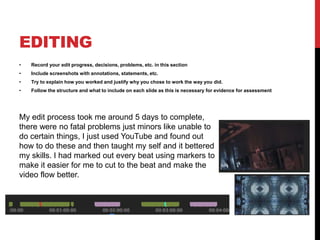
My edit process took me around 5 days to complete,
there were no fatal problems just minors like unable to
do certain things, I just used YouTube and found out
how to do these and then taught my self and it bettered
my skills. I had marked out every beat using markers to
make it easier for me to cut to the beat and make the
video flow better.
EDITING –
FILE MANAGEMENT
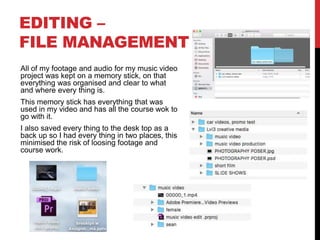
All of my footage and audio for my music video
project was kept on a memory stick, on that
everything was organised and clear to what
and where every thing is.
This memory stick has everything that was
used in my video and has all the course wok to
go with it.
I also saved every thing to the desk top as a
back up so I had every thing in two places, this
minimised the risk of loosing footage and
course work.
EDITING –
SETTING UP PREMIERE
Screenshot and annotate how you have set up a new
Premiere Pro project – indicate what you called it, where
you saved it
You should also show how you set up your timeline,
indicating the video settings used [e.g. DSLR 1080p 25]
To set up premire I used the standard settings
hat came up when I opened a new project
besides I called it 'music video' and saved it to
my desktop and to my memory stick, this
made sure I had 2 coppies in case one got
corrupted or deleted i had a back up.
EDITING –
IMPORTING FOOTAGE
Show how you imported your footage, your file set up in Premiere and how you have organised
your different docs [video, audio, etc]
All my footage was
separated and put in to
folders clearly stating what
they are, these where two
main ones ‘Sean’ and
‘female’ , these are the
singer and the girl.
I only had one audio track
which didn’t go in a folder
then had some texts that I
left out too, besides these
every thing was organized
well.
EDITING –
WORKSPACE
Show and describe the Premiere Pro workspace – preview window, bins, timeline,
playback window, tool bar, audio levels, etc
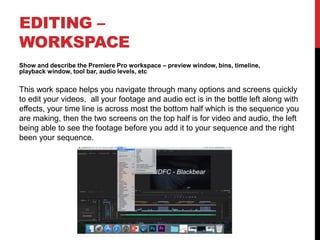
This work space helps you navigate through many options and screens quickly
to edit your videos, all your footage and audio ect is in the bottle left along with
effects, your time line is across most the bottom half which is the sequence you
are making, then the two screens on the top half is for video and audio, the left
being able to see the footage before you add it to your sequence and the right
been your sequence.
EDITING –
ASSEMBLY EDIT
Show how you put together your basic sequence in the order you want it – previewing
clips, dragging to the timeline, trimming/cutting, etc
If you have a lip sync, pay special attention to showing how you synchronised the
footage with the audio track
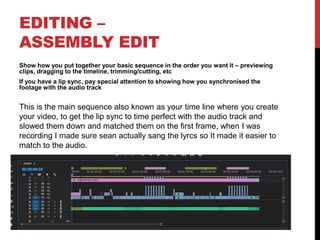
This is the main sequence also known as your time line where you create
your video, to get the lip sync to time perfect with the audio track and
slowed them down and matched them on the first frame, when I was
recording I made sure sean actually sang the lyrcs so It made it easier to
match to the audio.
EDITING –
ASSEMBLY EDIT
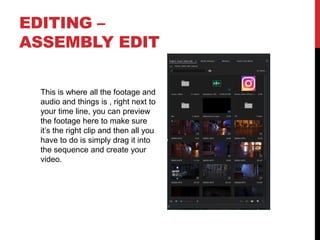
This is where all the footage and
audio and things is , right next to
your time line, you can preview
the footage here to make sure
it’s the right clip and then all you
have to do is simply drag it into
the sequence and create your
video.
EDITING –
REFINEMENT
Show and explain how you have refined and improved your
initial sequence edit
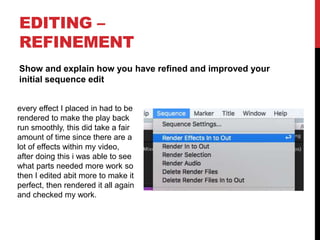
every effect I placed in had to be
rendered to make the play back
run smoothly, this did take a fair
amount of time since there are a
lot of effects within my video,
after doing this i was able to see
what parts needed more work so
then I edited abit more to make it
perfect, then rendered it all again
and checked my work.
EDITING –
COLOUR CORRECTION/SFX
Show and explain your colour
correction process/effects process –
use staged screenshots to show each
part of the process and the effect.
Explain why you chose to do this
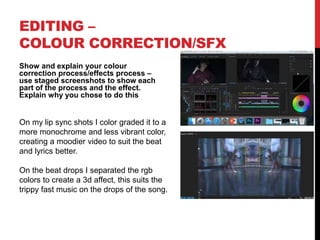
On my lip sync shots I color graded it to a
more monochrome and less vibrant color,
creating a moodier video to suit the beat
and lyrics better.
On the beat drops I separated the rgb
colors to create a 3d affect, this suits the
trippy fast music on the drops of the song.
EDITING –
EXPORT
Show how you exported your completed
project, show which settings you have
used and explain your choice of file name
and where you have saved it
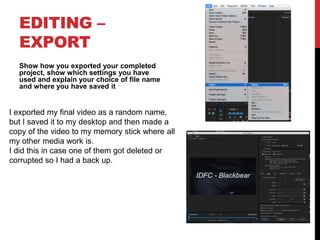
I exported my final video as a random name,
but I saved it to my desktop and then made a
copy of the video to my memory stick where all
my other media work is.
I did this in case one of them got deleted or
corrupted so I had a back up.

Mv process log form 2019 (1)

  • 1.
  • 2.
    PRODUCTION LOG: GUIDANCE • Thisdocument is for you to track the progress of your production – filming, editing and post-production. • This is so you can track what you did and how you did it, explaining and amendments and changes you made and tracking the decisions that have shaped the practical creation of your music video. • The more detail you include about how you made your music video, the better. The document is broken down in to two sections, Filming and Editing, each of these is then made of specific elements that occur in both. • For each slide there is a prompt detailing what you should include, delete the prompt after you have complete the slide. • Remember, images often show what you’ve done more effectively than words. Use text to explain an illustration.
  • 3.
    FILMING Explain what workedand didn’t work about your filming and how you managed this covering the following areas: • Technical – using the cameras and any technical equipment; this could be how you did your lip sync, used the green screen, dealt with problems with batteries, etc • Logistical – did your locations work? Did you have any access problems? Did it rain? • Personnel – how were your cast/crew? Did anyone let you down? How did you manage this? • Planning – did your planning help? Do you think it could have worked better? How? • Next steps – do you need to re-film? Film more? Have you changed your video? How/why? *If you make any drastic changes to your video you MUST add this to your planning documentation and state how and why this has happened
  • 4.
    EDITING • Record youredit progress, decisions, problems, etc. in this section • Include screenshots with annotations, statements, etc. • Try to explain how you worked and justify why you chose to work the way you did. • Follow the structure and what to include on each slide as this is necessary for evidence for assessment My edit process took me around 5 days to complete, there were no fatal problems just minors like unable to do certain things, I just used YouTube and found out how to do these and then taught my self and it bettered my skills. I had marked out every beat using markers to make it easier for me to cut to the beat and make the video flow better.
  • 5.
    EDITING – FILE MANAGEMENT Allof my footage and audio for my music video project was kept on a memory stick, on that everything was organised and clear to what and where every thing is. This memory stick has everything that was used in my video and has all the course wok to go with it. I also saved every thing to the desk top as a back up so I had every thing in two places, this minimised the risk of loosing footage and course work.
  • 6.
    EDITING – SETTING UPPREMIERE Screenshot and annotate how you have set up a new Premiere Pro project – indicate what you called it, where you saved it You should also show how you set up your timeline, indicating the video settings used [e.g. DSLR 1080p 25] To set up premire I used the standard settings hat came up when I opened a new project besides I called it 'music video' and saved it to my desktop and to my memory stick, this made sure I had 2 coppies in case one got corrupted or deleted i had a back up.
  • 7.
    EDITING – IMPORTING FOOTAGE Showhow you imported your footage, your file set up in Premiere and how you have organised your different docs [video, audio, etc] All my footage was separated and put in to folders clearly stating what they are, these where two main ones ‘Sean’ and ‘female’ , these are the singer and the girl. I only had one audio track which didn’t go in a folder then had some texts that I left out too, besides these every thing was organized well.
  • 8.
    EDITING – WORKSPACE Show anddescribe the Premiere Pro workspace – preview window, bins, timeline, playback window, tool bar, audio levels, etc This work space helps you navigate through many options and screens quickly to edit your videos, all your footage and audio ect is in the bottle left along with effects, your time line is across most the bottom half which is the sequence you are making, then the two screens on the top half is for video and audio, the left being able to see the footage before you add it to your sequence and the right been your sequence.
  • 9.
    EDITING – ASSEMBLY EDIT Showhow you put together your basic sequence in the order you want it – previewing clips, dragging to the timeline, trimming/cutting, etc If you have a lip sync, pay special attention to showing how you synchronised the footage with the audio track This is the main sequence also known as your time line where you create your video, to get the lip sync to time perfect with the audio track and slowed them down and matched them on the first frame, when I was recording I made sure sean actually sang the lyrcs so It made it easier to match to the audio.
  • 10.
    EDITING – ASSEMBLY EDIT Thisis where all the footage and audio and things is , right next to your time line, you can preview the footage here to make sure it’s the right clip and then all you have to do is simply drag it into the sequence and create your video.
  • 11.
    EDITING – REFINEMENT Show andexplain how you have refined and improved your initial sequence edit every effect I placed in had to be rendered to make the play back run smoothly, this did take a fair amount of time since there are a lot of effects within my video, after doing this i was able to see what parts needed more work so then I edited abit more to make it perfect, then rendered it all again and checked my work.
  • 12.
    EDITING – COLOUR CORRECTION/SFX Showand explain your colour correction process/effects process – use staged screenshots to show each part of the process and the effect. Explain why you chose to do this On my lip sync shots I color graded it to a more monochrome and less vibrant color, creating a moodier video to suit the beat and lyrics better. On the beat drops I separated the rgb colors to create a 3d affect, this suits the trippy fast music on the drops of the song.
  • 13.
    EDITING – EXPORT Show howyou exported your completed project, show which settings you have used and explain your choice of file name and where you have saved it I exported my final video as a random name, but I saved it to my desktop and then made a copy of the video to my memory stick where all my other media work is. I did this in case one of them got deleted or corrupted so I had a back up.