MSP430G2 with BLE
Code:
void setup() {
Serial.begin(9600); /* Define baud rate for serial communication */
Serial.println("AT");
}
void loop() {
String str = "";
while (Serial.available()) {
Serial.write((char) Serial.read());
delay(1); //wait for the next byte, if after this nothing has arrived it means the text was not part of
the same stream entered by the user
}
}
Board: MSP430G2553
BLE: AT-09
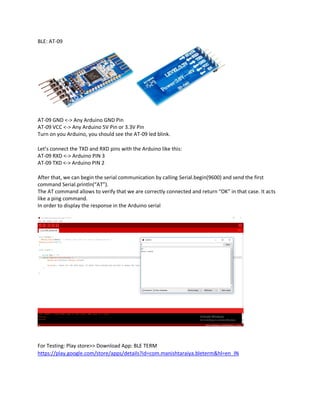
AT-09 GND <-> Any Arduino GND Pin
AT-09 VCC <-> Any Arduino 5V Pin or 3.3V Pin
Turn on you Arduino, you should see the AT-09 led blink.
Let’s connect the TXD and RXD pins with the Arduino like this:
AT-09 RXD <-> Arduino PIN 3
AT-09 TXD <-> Arduino PIN 2
After that, we can begin the serial communication by calling Serial.begin(9600) and send the first
command Serial.println(“AT”).
The AT command allows to verify that we are correctly connected and return “OK” in that case. It acts
like a ping command.
In order to display the response in the Arduino serial
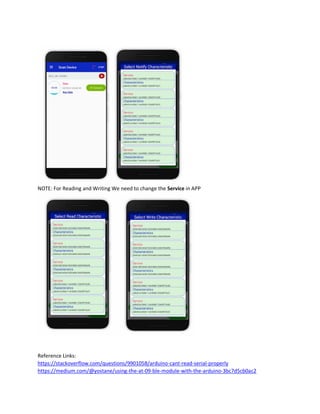
For Testing: Play store>> Download App: BLE TERM
https://play.google.com/store/apps/details?id=com.manishtaraiya.bleterm&hl=en_IN
NOTE: For Reading and Writing We need to change the Service in APP
Reference Links:
https://stackoverflow.com/questions/9901058/arduino-cant-read-serial-properly
https://medium.com/@yostane/using-the-at-09-ble-module-with-the-arduino-3bc7d5cb0ac2

Msp430 g2 with ble(Bluetooth Low Energy)

  • 1.
    MSP430G2 with BLE Code: voidsetup() { Serial.begin(9600); /* Define baud rate for serial communication */ Serial.println("AT"); } void loop() { String str = ""; while (Serial.available()) { Serial.write((char) Serial.read()); delay(1); //wait for the next byte, if after this nothing has arrived it means the text was not part of the same stream entered by the user } } Board: MSP430G2553
  • 2.
    BLE: AT-09 AT-09 GND<-> Any Arduino GND Pin AT-09 VCC <-> Any Arduino 5V Pin or 3.3V Pin Turn on you Arduino, you should see the AT-09 led blink. Let’s connect the TXD and RXD pins with the Arduino like this: AT-09 RXD <-> Arduino PIN 3 AT-09 TXD <-> Arduino PIN 2 After that, we can begin the serial communication by calling Serial.begin(9600) and send the first command Serial.println(“AT”). The AT command allows to verify that we are correctly connected and return “OK” in that case. It acts like a ping command. In order to display the response in the Arduino serial For Testing: Play store>> Download App: BLE TERM https://play.google.com/store/apps/details?id=com.manishtaraiya.bleterm&hl=en_IN
  • 3.
    NOTE: For Readingand Writing We need to change the Service in APP Reference Links: https://stackoverflow.com/questions/9901058/arduino-cant-read-serial-properly https://medium.com/@yostane/using-the-at-09-ble-module-with-the-arduino-3bc7d5cb0ac2