WORDPRESS 101
           WordPress for Beginners


             Vanessa Chu
             info@designfaire.com
             designfaire.com
             twitter @vanessa_chu


Friday, July 9, 2010
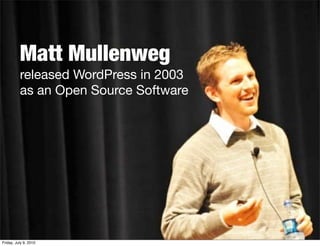
Matt Mullenweg
          released WordPress in 2003
          as an Open Source Software


Friday, July 9, 2010
200+ Million
                        WordPress websites worldwide


Friday, July 9, 2010
So who maintains
          WordPress?
              +
          Why is Free?


Friday, July 9, 2010
Open Source?


Friday, July 9, 2010
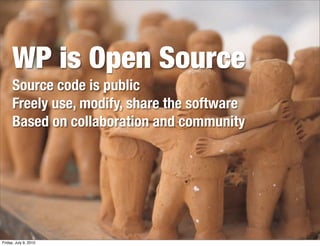
WP is Open Source
      Source code is public
      Freely use, modify, share the software
      Based on collaboration and community


Friday, July 9, 2010
3 Focuses
                       Easy to use              Looks Good
                        Useability               Aesthetics


                                     Easy to Modify
                                     Web Standards


Friday, July 9, 2010
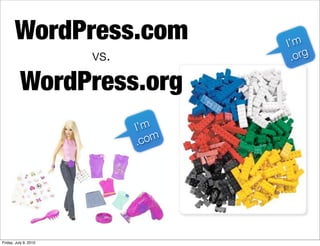
WordPress.com                 I’m
                       vs.            .org

          WordPress.org
                             I’m
                             . com


Friday, July 9, 2010
Basic Functionality
                       • Posts and Pages      • Widgets
                       • Comments +           • Select Themes
                         Trackbacks
                                              • Multi-language
                       • Categories and
                         Tags                 • Multiple Users
                       • Photos + Galleries


Friday, July 9, 2010
M ore!
    G et
          WordPress.org
                       • All basic functionality   • Custom Menus
                       • Unlimited Themes +        • Domain Shortened
                          Templates                  URLs
                          Customizations
                                                   • Multiple Blogs
                       • Plugins
                                                   • Access to all backend
                       • Custom Content Types        files

                       • Custom Taxonomy           • and more...

Friday, July 9, 2010
When Do I
      Use What?


Friday, July 9, 2010
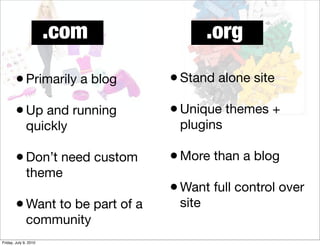
.com              .org

        • Primarily a blog       • Stand alone site
        • Up and running         • Unique themes +
              quickly             plugins

        • Don’t need custom      • More than a blog
              theme
                                 • Want full control over
        • Want to be part of a    site
              community
Friday, July 9, 2010
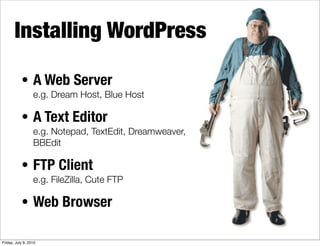
Installing WordPress

           • A Web Server
                  e.g. Dream Host, Blue Host

           • A Text Editor
                  e.g. Notepad, TextEdit, Dreamweaver,
                  BBEdit

           • FTP Client
                  e.g. FileZilla, Cute FTP

           • Web Browser

Friday, July 9, 2010
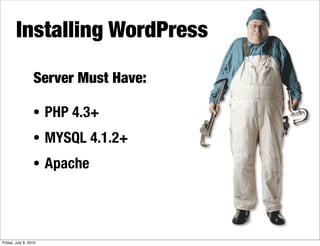
Installing WordPress

                  Server Must Have:

                  • PHP 4.3+
                  • MYSQL 4.1.2+
                  • Apache


Friday, July 9, 2010
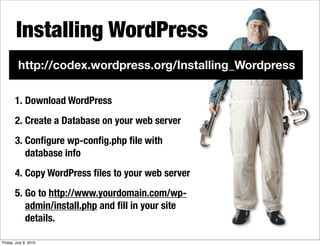
Installing WordPress
         http://codex.wordpress.org/Installing_Wordpress

       1. Download WordPress
       2. Create a Database on your web server
       3. Configure wp-config.php file with
          database info
       4. Copy WordPress files to your web server
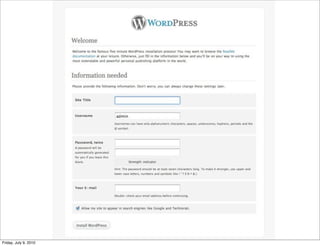
       5. Go to http://www.yourdomain.com/wp-
          admin/install.php and fill in your site
          details.

Friday, July 9, 2010
30 Second Install

               Find a web hosts with an
               auto WordPress Install!
               e.g. Dream Host, Blue Host


Friday, July 9, 2010
Using WordPress


Friday, July 9, 2010
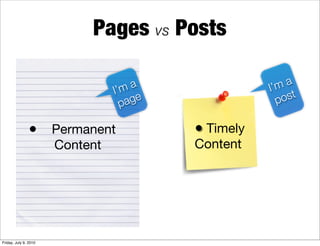
Pages vs Posts

                                 I’m
                                      a              I’ ma
                                   page                 p ost

                • Permanent               • Timely
                       Content            Content


Friday, July 9, 2010
Categorize your
                  Content
         Posts and pages can be categorized
         and subcategorized!
         Makes it easy for your readers to filter your content


Friday, July 9, 2010
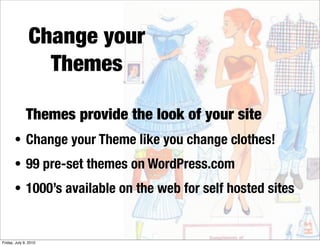
Change your
                 Themes

              Themes provide the look of your site
       • Change your Theme like you change clothes!
       • 99 pre-set themes on WordPress.com
       • 1000’s available on the web for self hosted sites


Friday, July 9, 2010
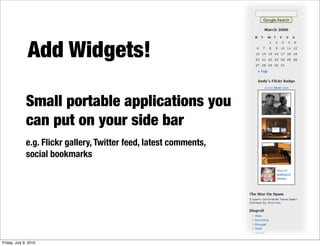
Add Widgets!

              Small portable applications you
              can put on your side bar
              e.g. Flickr gallery, Twitter feed, latest comments,
              social bookmarks


Friday, July 9, 2010
Add Plugins!
              Plugins are tools to extend the
              functionality of WordPress
              BEWARE: ONLY FOR SELF
              HOSTED SITES!
              e.g. Akismet - spam bot, social bookmarks, SEO, fancy
              galleries etc.


Friday, July 9, 2010
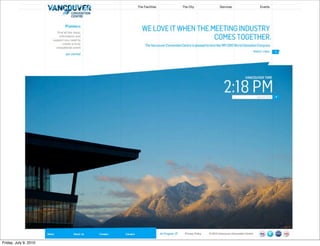
WordPress as a Website

              Use Pages to build your site.
              Set a Page as your Homepage
              instead of displaying your Blog!
              e.g. Pages can be a Bio, Services, Products etc.


Friday, July 9, 2010
Resources
                       WordPress.org
                       http://wordpress.org/
                       WordPress Lessons
                       http://codex.wordpress.org/WordPress_Lessons
                       WPBeginners.com
                       http://www.wpbeginner.com/
                       WordPress Tutorials
                       http://www.wp-tutorials.org/


Friday, July 9, 2010
Thanks!


Friday, July 9, 2010

Vancouver WordPress Meetup - WordPress 101

  • 1.
    WORDPRESS 101 WordPress for Beginners Vanessa Chu info@designfaire.com designfaire.com twitter @vanessa_chu Friday, July 9, 2010
  • 2.
  • 3.
    Matt Mullenweg released WordPress in 2003 as an Open Source Software Friday, July 9, 2010
  • 4.
    200+ Million WordPress websites worldwide Friday, July 9, 2010
  • 5.
    So who maintains WordPress? + Why is Free? Friday, July 9, 2010
  • 6.
  • 7.
    WP is OpenSource Source code is public Freely use, modify, share the software Based on collaboration and community Friday, July 9, 2010
  • 8.
    3 Focuses Easy to use Looks Good Useability Aesthetics Easy to Modify Web Standards Friday, July 9, 2010
  • 9.
    WordPress.com I’m vs. .org WordPress.org I’m . com Friday, July 9, 2010
  • 10.
    Basic Functionality • Posts and Pages • Widgets • Comments + • Select Themes Trackbacks • Multi-language • Categories and Tags • Multiple Users • Photos + Galleries Friday, July 9, 2010
  • 11.
    M ore! G et WordPress.org • All basic functionality • Custom Menus • Unlimited Themes + • Domain Shortened Templates URLs Customizations • Multiple Blogs • Plugins • Access to all backend • Custom Content Types files • Custom Taxonomy • and more... Friday, July 9, 2010
  • 12.
    When Do I Use What? Friday, July 9, 2010
  • 13.
    .com .org • Primarily a blog • Stand alone site • Up and running • Unique themes + quickly plugins • Don’t need custom • More than a blog theme • Want full control over • Want to be part of a site community Friday, July 9, 2010
  • 14.
    Installing WordPress • A Web Server e.g. Dream Host, Blue Host • A Text Editor e.g. Notepad, TextEdit, Dreamweaver, BBEdit • FTP Client e.g. FileZilla, Cute FTP • Web Browser Friday, July 9, 2010
  • 15.
    Installing WordPress Server Must Have: • PHP 4.3+ • MYSQL 4.1.2+ • Apache Friday, July 9, 2010
  • 16.
    Installing WordPress http://codex.wordpress.org/Installing_Wordpress 1. Download WordPress 2. Create a Database on your web server 3. Configure wp-config.php file with database info 4. Copy WordPress files to your web server 5. Go to http://www.yourdomain.com/wp- admin/install.php and fill in your site details. Friday, July 9, 2010
  • 17.
  • 18.
    30 Second Install Find a web hosts with an auto WordPress Install! e.g. Dream Host, Blue Host Friday, July 9, 2010
  • 19.
  • 20.
    Pages vs Posts I’m a I’ ma page p ost • Permanent • Timely Content Content Friday, July 9, 2010
  • 21.
    Categorize your Content Posts and pages can be categorized and subcategorized! Makes it easy for your readers to filter your content Friday, July 9, 2010
  • 22.
    Change your Themes Themes provide the look of your site • Change your Theme like you change clothes! • 99 pre-set themes on WordPress.com • 1000’s available on the web for self hosted sites Friday, July 9, 2010
  • 23.
    Add Widgets! Small portable applications you can put on your side bar e.g. Flickr gallery, Twitter feed, latest comments, social bookmarks Friday, July 9, 2010
  • 24.
    Add Plugins! Plugins are tools to extend the functionality of WordPress BEWARE: ONLY FOR SELF HOSTED SITES! e.g. Akismet - spam bot, social bookmarks, SEO, fancy galleries etc. Friday, July 9, 2010
  • 25.
    WordPress as aWebsite Use Pages to build your site. Set a Page as your Homepage instead of displaying your Blog! e.g. Pages can be a Bio, Services, Products etc. Friday, July 9, 2010
  • 26.
  • 27.
  • 28.
  • 29.
  • 30.
    Resources WordPress.org http://wordpress.org/ WordPress Lessons http://codex.wordpress.org/WordPress_Lessons WPBeginners.com http://www.wpbeginner.com/ WordPress Tutorials http://www.wp-tutorials.org/ Friday, July 9, 2010
  • 31.