Microsoft ®  Office  PowerPoint ®  2003 Training Create your first presentation Edited by B. Holmes MSN/Ed, RN Distance Education Specialist/CNA  Skill & Clinical Insructor South Arkansas Community College
Course contents Overview: Presentation basics Lesson 1: Slides, text, and notes Lesson 2: Design and layout Lesson 3: Proof, print, prep for the show Create your first presentation Each lesson includes a list of suggested tasks and a set of test questions.
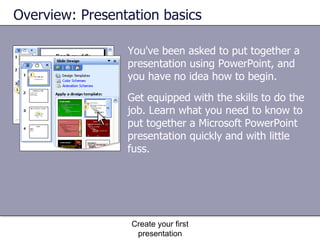
You've been asked to put together a presentation using PowerPoint, and you have no idea how to begin. Overview: Presentation basics Create your first presentation Get equipped with the skills to do the job. Learn what you need to know to put together a Microsoft PowerPoint presentation quickly and with little fuss.
Course goals Put text and pictures on slides.  Navigate in the PowerPoint window.  Apply a design template.  Arrange slide content by using layouts.  Print handouts and notes.  Prepare to give the show. Create your first presentation
Lesson 1 Slides, text, and notes
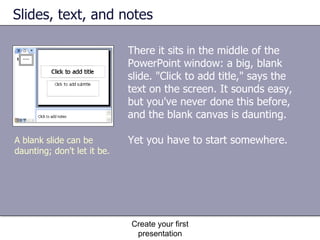
Slides, text, and notes There it sits in the middle of the PowerPoint window: a big, blank slide. "Click to add title," says the text on the screen. It sounds easy, but you've never done this before, and the blank canvas is daunting. Yet you have to start somewhere. Create your first presentation A blank slide can be daunting; don't let it be.
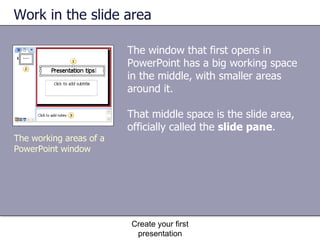
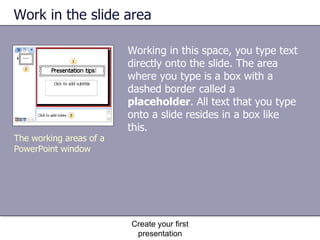
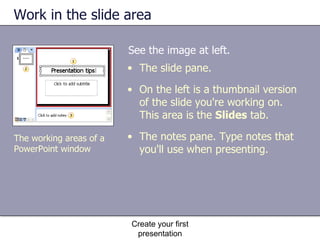
Work in the slide area The window that first opens in PowerPoint has a big working space in the middle, with smaller areas around it.  That middle space is the slide area, officially called the  slide pane .  Create your first presentation The working areas of a PowerPoint window
Work in the slide area Create your first presentation The working areas of a PowerPoint window Working in this space, you type text directly onto the slide. The area where you type is a box with a dashed border called a  placeholder . All text that you type onto a slide resides in a box like this.
Work in the slide area See the image at left. Create your first presentation The working areas of a PowerPoint window The slide pane. On the left is a thumbnail version of the slide you're working on. This area is the  Slides  tab. The notes pane. Type notes that you'll use when presenting.
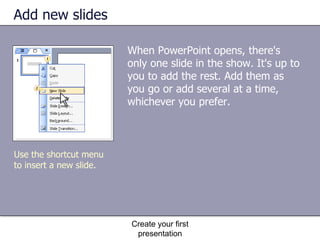
Add new slides When PowerPoint opens, there's only one slide in the show. It's up to you to add the rest. Add them as you go or add several at a time, whichever you prefer. Create your first presentation Use the shortcut menu to insert a new slide.
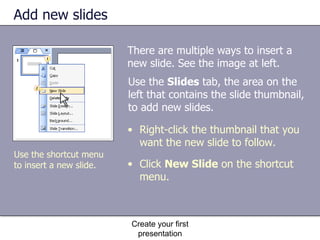
Add new slides There are multiple ways to insert a new slide. See the image at left. Create your first presentation Right-click the thumbnail that you want the new slide to follow. Click  New Slide  on the shortcut menu.  Use the  Slides  tab, the area on the left that contains the slide thumbnail, to add new slides.  Use the shortcut menu to insert a new slide.
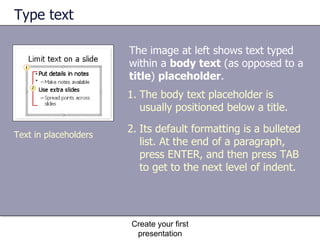
Type text The image at left shows text typed within a  body text  (as opposed to a  title )  placeholder .  Create your first presentation The body text placeholder is usually positioned below a title. Its default formatting is a bulleted list. At the end of a paragraph, press ENTER, and then press TAB to get to the next level of indent. Text in placeholders
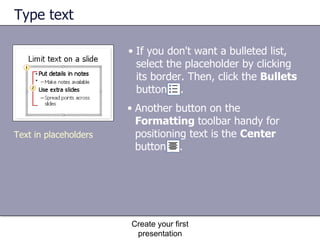
Type text If you don't want a bulleted list, select the placeholder by clicking its border. Then, click the  Bullets  button  . Create your first presentation Text in placeholders Another button on the  Formatting  toolbar handy for positioning text is the  Center  button  .
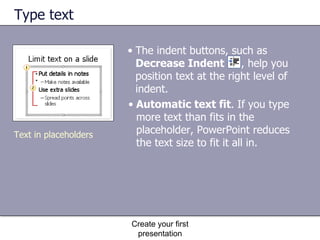
Type text Automatic text fit . If you type more text than fits in the placeholder, PowerPoint reduces the text size to fit it all in.  Create your first presentation Text in placeholders The indent buttons, such as  Decrease Indent   , help you position text at the right level of indent.
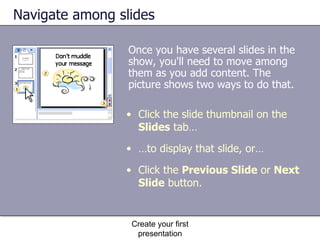
Navigate among slides Once you have several slides in the show, you'll need to move among them as you add content. The picture shows two ways to do that. Create your first presentation Click the slide thumbnail on the  Slides  tab… … to display that slide, or…  Click the  Previous Slide  or  Next Slide  button.
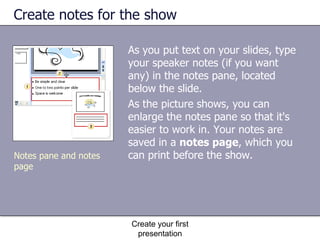
Create notes for the show As you put text on your slides, type your speaker notes (if you want any) in the notes pane, located below the slide.  As the picture shows, you can enlarge the notes pane so that it's easier to work in. Your notes are saved in a  notes page , which you can print before the show.  Create your first presentation Notes pane and notes page
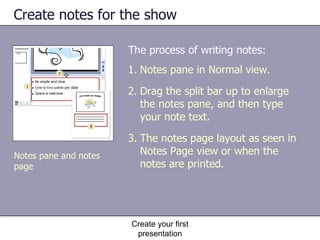
Create notes for the show The process of writing notes: Create your first presentation Notes pane in Normal view.  Drag the split bar up to enlarge the notes pane, and then type your note text. The notes page layout as seen in Notes Page view or when the notes are printed. Notes pane and notes page
Practice Look at the areas of the PowerPoint window. Type title text. Add new slides. Navigate and add more text. Use text indents and formatting. See how AutoFit works. Type and view notes. Create your first presentation
Test 1: Question 1.  Answer the following questions. Please write the question and answer down. Submit on blackboard. Create your first presentation The  Slides  tab, located on the left of the window.  The notes pane.  The slide pane, located in the middle of the window.  In the PowerPoint window, what's the main area for adding slide content?  (Pick one answer.)
Test 1, question 2 You're typing text within a body text placeholder and suddenly you see this little button  . What is it and what's it for? (Pick one answer.) Create your first presentation The  AutoLayout  button. It means that PowerPoint has adapted the slide layout to fit new elements onto it.  The  AutoFit Options  button. It means that text is being reduced to fit inside the placeholder.  The  AutoCorrect Options  button. You use it to undo an automatic spelling correction that PowerPoint has made.
Test 1, question 3 The notes pane at the bottom of the PowerPoint window is the only place you can type and work with notes. (Pick one answer.) Create your first presentation True: It's a small window, but you can enlarge it when you work in it for greater ease.  False.
Lesson 2 Design and layout
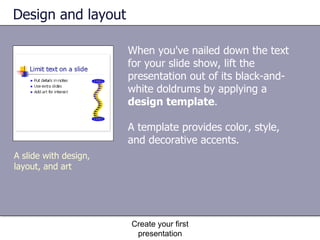
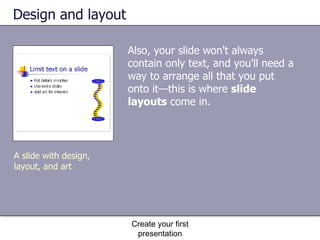
Design and layout When you've nailed down the text for your slide show, lift the presentation out of its black-and-white doldrums by applying a  design template .  A template provides color, style, and decorative accents. Create your first presentation A slide with design, layout, and art
Design and layout Also, your slide won't always contain only text, and you'll need a way to arrange all that you put onto it—this is where  slide layouts  come in.  Create your first presentation A slide with design, layout, and art
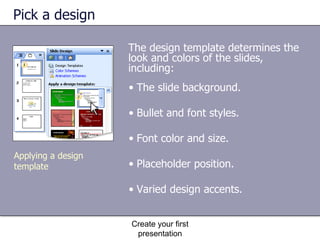
Pick a design The design template determines the look and colors of the slides, including: Create your first presentation Applying a design template The slide background. Bullet and font styles. Font color and size. Placeholder position. Varied design accents.
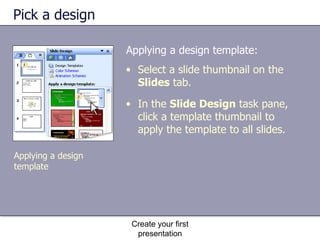
Pick a design Applying a design template: Create your first presentation Select a slide thumbnail on the  Slides  tab. In the  Slide Design  task pane, click a template thumbnail to apply the template to all slides. Applying a design template
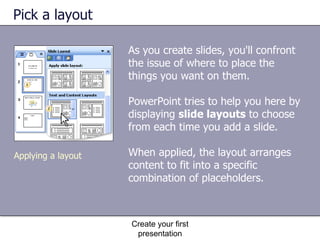
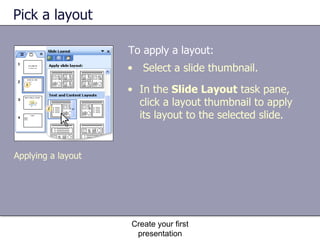
Pick a layout As you create slides, you'll confront the issue of where to place the things you want on them.  PowerPoint tries to help you here by displaying  slide layouts  to choose from each time you add a slide. When applied, the layout arranges content to fit into a specific combination of placeholders.  Create your first presentation Applying a layout
Pick a layout To apply a layout: Create your first presentation Select a slide thumbnail. In the  Slide Layout  task pane, click a layout thumbnail to apply its layout to the selected slide. Applying a layout
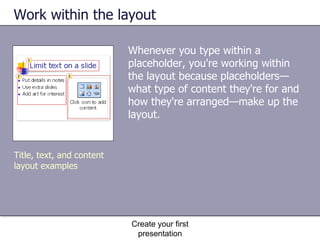
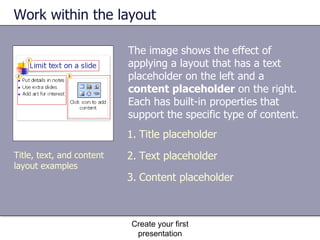
Work within the layout Whenever you type within a placeholder, you're working within the layout because placeholders—what type of content they're for and how they're arranged—make up the layout. Create your first presentation Title, text, and content layout examples
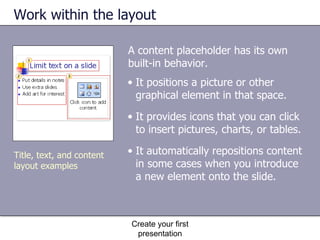
Work within the layout The image shows the effect of applying a layout that has a text placeholder on the left and a  content placeholder  on the right. Each has built-in properties that support the specific type of content.  Create your first presentation Title placeholder  Text placeholder Content placeholder Title, text, and content layout examples
Work within the layout A content placeholder has its own built-in behavior.  Create your first presentation It positions a picture or other graphical element in that space. It provides icons that you can click to insert pictures, charts, or tables. It automatically repositions content in some cases when you introduce a new element onto the slide.  Title, text, and content layout examples
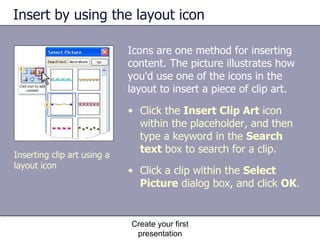
Insert by using the layout icon Icons are one method for inserting content. The picture illustrates how you'd use one of the icons in the layout to insert a piece of clip art.  Create your first presentation Click the  Insert Clip Art  icon within the placeholder, and then type a keyword in the  Search text  box to search for a clip. Click a clip within the  Select Picture  dialog box, and click  OK .  Inserting clip art using a layout icon
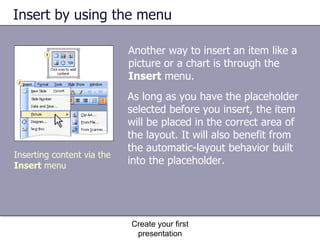
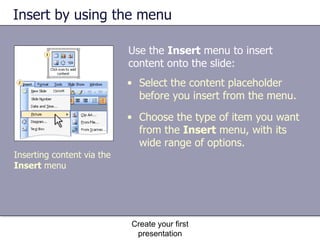
Insert by using the menu Another way to insert an item like a picture or a chart is through the  Insert  menu.  Create your first presentation As long as you have the placeholder selected before you insert, the item will be placed in the correct area of the layout. It will also benefit from the automatic-layout behavior built into the placeholder.  Inserting content via the  Insert  menu
Insert by using the menu Use the  Insert  menu to insert content onto the slide:  Create your first presentation Select the content placeholder before you insert from the menu. Choose the type of item you want from the  Insert  menu, with its wide range of options. Inserting content via the  Insert  menu
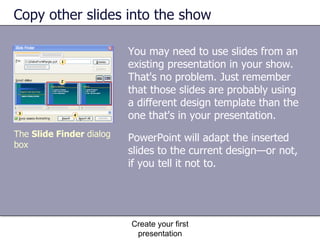
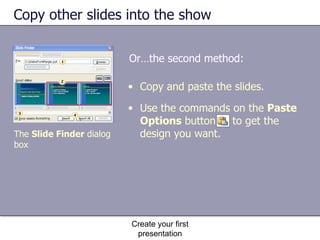
Copy other slides into the show You may need to use slides from an existing presentation in your show. That's no problem. Just remember that those slides are probably using a different design template than the one that's in your presentation.  Create your first presentation The  Slide Finder  dialog box PowerPoint will adapt the inserted slides to the current design—or not, if you tell it not to.
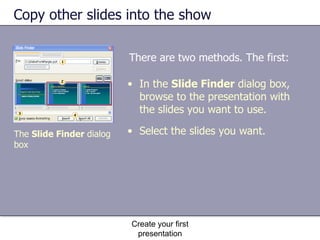
Copy other slides into the show There are two methods. The first: Create your first presentation In the  Slide Finder  dialog box, browse to the presentation with the slides you want to use.  Select the slides you want. The  Slide Finder  dialog box
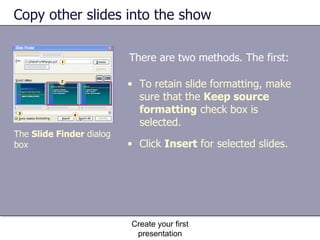
Copy other slides into the show There are two methods. The first: Create your first presentation To retain slide formatting, make sure that the  Keep source formatting  check box is selected.  Click  Insert  for selected slides. The  Slide Finder  dialog box
Copy other slides into the show Or…the second method: Create your first presentation Copy and paste the slides. Use the commands on the  Paste Options  button  to get the design you want. The  Slide Finder  dialog box
Practice Pick a design template. Change the layout and add art. Insert art by using the  Insert  menu. Save for later use. Create your first presentation
Test 2, question 1 To apply a design template to all your slides, you need to select all the slide thumbnails on the Slides tab before you apply the template. (Pick one answer.) Create your first presentation True. False.
Test 2, question 2 Keep in mind the recent practice session for this question: You've applied a layout that has placeholders for a title and two bulleted lists. Then you decide you want a table on the left side of the slide instead of a bulleted list. What layout should you apply instead?  (Pick one answer.) Create your first presentation The  Blank  layout.  The  Title, Text, and Content  layout.  The  Title, Content, and Text  layout.
Test 2, question 3 You've put a layout on your slide that contains a placeholder for a picture. You'd rather use the Clip Art task pane to insert the art than the options you get when you click the Insert Clip Art icon in the placeholder. What do you do?  (Pick one answer.) Create your first presentation
Test 2, question 3 Create your first presentation Apply a blank layout instead, and then use the  Insert  menu (point to  Picture , and then click  Clip Art ) to open the  Clip Art  task pane, and insert the picture.  Select the placeholder on the slide, and then press DELETE. Then use the  Insert  menu (point to  Picture , and then click  Clip Art ) to open the  Clip Art  task pane, and insert the picture.  Make sure the picture placeholder is selected, and then use the  Insert  menu (point to  Picture , and then click  Clip Art ) to open the  Clip Art  task pane, and insert the picture.
Lesson 3 Proof, print, prep for the show
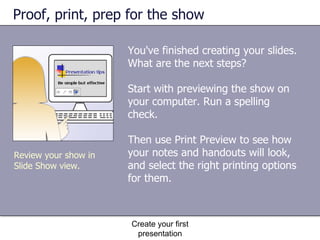
Proof, print, prep for the show You've finished creating your slides. What are the next steps? Start with previewing the show on your computer. Run a spelling check. Then use Print Preview to see how your notes and handouts will look, and select the right printing options for them. Create your first presentation Review your show in Slide Show view.
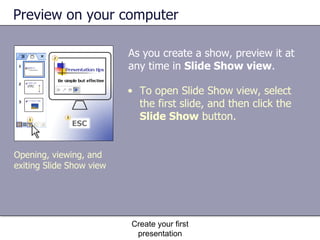
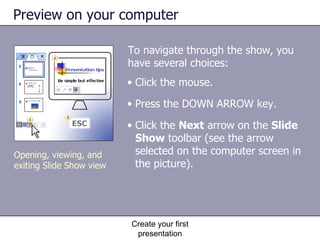
Preview on your computer As you create a show, preview it at any time in  Slide Show view .  Create your first presentation Opening, viewing, and exiting Slide Show view To open Slide Show view, select the first slide, and then click the  Slide Show  button.
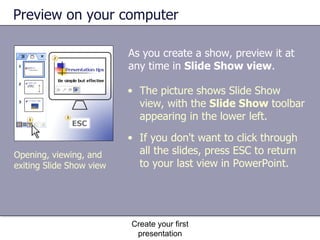
Preview on your computer As you create a show, preview it at any time in  Slide Show view .  Create your first presentation Opening, viewing, and exiting Slide Show view The picture shows Slide Show view, with the  Slide Show  toolbar appearing in the lower left.  If you don't want to click through all the slides, press ESC to return to your last view in PowerPoint.
Preview on your computer To navigate through the show, you have several choices:  Create your first presentation Opening, viewing, and exiting Slide Show view Click the mouse.  Press the DOWN ARROW key.  Click the  Next  arrow on the  Slide Show  toolbar (see the arrow selected on the computer screen in the picture).
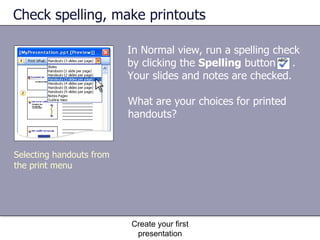
Check spelling, make printouts In Normal view, run a spelling check by clicking the  Spelling  button  . Your slides and notes are checked. Create your first presentation Selecting handouts from the print menu What are your choices for printed handouts?
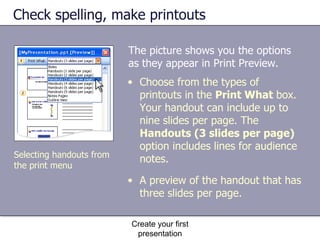
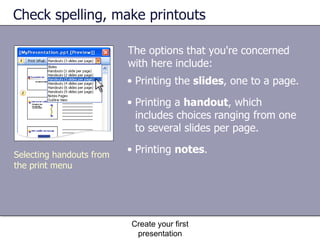
The picture shows you the options as they appear in Print Preview.  Check spelling, make printouts Create your first presentation Choose from the types of printouts in the  Print What  box. Your handout can include up to nine slides per page. The  Handouts (3 slides per page)  option includes lines for audience notes. A preview of the handout that has three slides per page. Selecting handouts from the print menu
The options that you're concerned with here include:  Check spelling, make printouts Create your first presentation Printing the  slides , one to a page.  Printing a  handout , which includes choices ranging from one to several slides per page.  Printing  notes .  Selecting handouts from the print menu
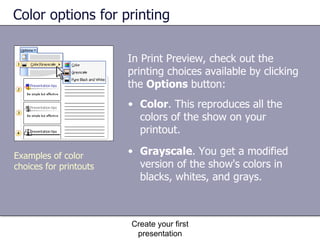
Color options for printing In Print Preview, check out the printing choices available by clicking the  Options  button:  Create your first presentation Color . This reproduces all the colors of the show on your printout. Grayscale . You get a modified version of the show's colors in blacks, whites, and grays. Examples of color choices for printouts
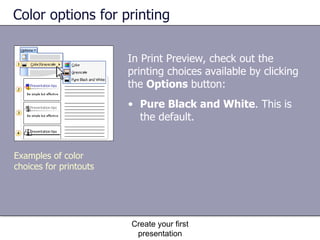
Color options for printing In Print Preview, check out the printing choices available by clicking the  Options  button:  Create your first presentation Pure Black and White . This is the default.  Examples of color choices for printouts
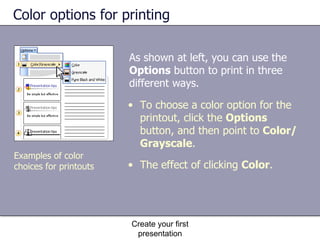
Color options for printing As shown at left, you can use the  Options  button to print in three different ways.  Create your first presentation To choose a color option for the printout, click the  Options  button, and then point to  Color/Grayscale . The effect of clicking  Color . Examples of color choices for printouts
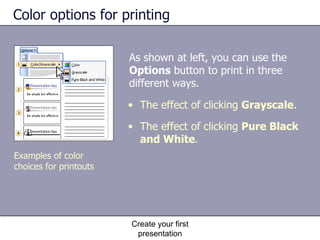
Color options for printing As shown at left, you can use the  Options  button to print in three different ways.  Create your first presentation The effect of clicking  Grayscale . The effect of clicking  Pure Black and White . Examples of color choices for printouts
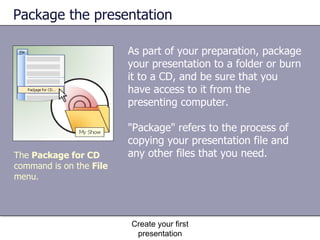
Package the presentation As part of your preparation, package your presentation to a folder or burn it to a CD, and be sure that you have access to it from the presenting computer.  "Package" refers to the process of copying your presentation file and any other files that you need. Create your first presentation The  Package for CD  command is on the  File  menu.
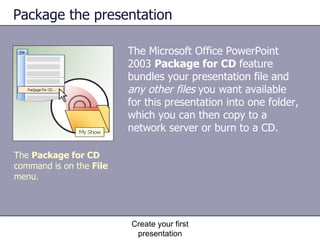
Package the presentation The Microsoft Office PowerPoint 2003  Package for CD  feature bundles your presentation file and  any other files  you want available for this presentation into one folder, which you can then copy to a network server or burn to a CD. Create your first presentation The  Package for CD  command is on the  File  menu.
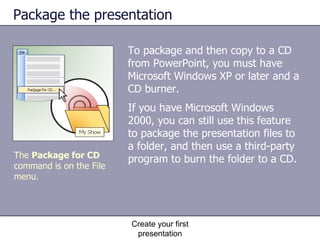
Package the presentation To package and then copy to a CD from PowerPoint, you must have Microsoft Windows XP or later and a CD burner.  Create your first presentation The  Package for CD  command is on the File menu. If you have Microsoft Windows 2000, you can still use this feature to package the presentation files to a folder, and then use a third-party program to burn the folder to a CD.
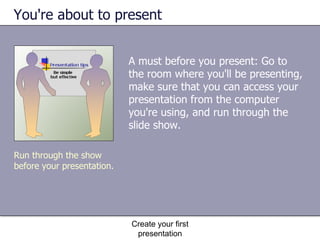
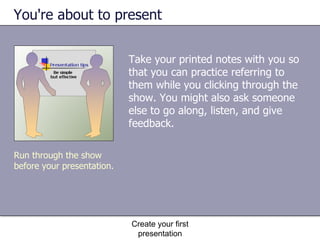
You're about to present A must before you present: Go to the room where you'll be presenting, make sure that you can access your presentation from the computer you're using, and run through the slide show.  Create your first presentation Run through the show before your presentation.
You're about to present Take your printed notes with you so that you can practice referring to them while you clicking through the show. You might also ask someone else to go along, listen, and give feedback. Create your first presentation Run through the show before your presentation.
Practice Preview the show on your computer. Run a spelling check. Prepare to print handouts and notes. Package the presentation to a folder and submit to me through blackboard assignment. Create your first presentation
Test 3, question 1 Which key do you press to go into Slide Show view and always start on the first slide?  (Pick one answer.) Create your first presentation ESC.  F5.  F7.
Test 3, question 2 Which handout option do you choose if you want the handout to have room for audience notes? (Pick one answer.) Create your first presentation Three slides per page.  One slide per page.  Notes pages.
Test 3, question 3 The Package for CD feature is only available if you have a CD burner.  (Pick one answer.) Create your first presentation True. Otherwise, it can't help you.  False.

Microsoft® office creating your first presentation

  • 1.
    Microsoft ® Office PowerPoint ® 2003 Training Create your first presentation Edited by B. Holmes MSN/Ed, RN Distance Education Specialist/CNA Skill & Clinical Insructor South Arkansas Community College
  • 2.
    Course contents Overview:Presentation basics Lesson 1: Slides, text, and notes Lesson 2: Design and layout Lesson 3: Proof, print, prep for the show Create your first presentation Each lesson includes a list of suggested tasks and a set of test questions.
  • 3.
    You've been askedto put together a presentation using PowerPoint, and you have no idea how to begin. Overview: Presentation basics Create your first presentation Get equipped with the skills to do the job. Learn what you need to know to put together a Microsoft PowerPoint presentation quickly and with little fuss.
  • 4.
    Course goals Puttext and pictures on slides. Navigate in the PowerPoint window. Apply a design template. Arrange slide content by using layouts. Print handouts and notes. Prepare to give the show. Create your first presentation
  • 5.
    Lesson 1 Slides,text, and notes
  • 6.
    Slides, text, andnotes There it sits in the middle of the PowerPoint window: a big, blank slide. "Click to add title," says the text on the screen. It sounds easy, but you've never done this before, and the blank canvas is daunting. Yet you have to start somewhere. Create your first presentation A blank slide can be daunting; don't let it be.
  • 7.
    Work in theslide area The window that first opens in PowerPoint has a big working space in the middle, with smaller areas around it. That middle space is the slide area, officially called the slide pane . Create your first presentation The working areas of a PowerPoint window
  • 8.
    Work in theslide area Create your first presentation The working areas of a PowerPoint window Working in this space, you type text directly onto the slide. The area where you type is a box with a dashed border called a placeholder . All text that you type onto a slide resides in a box like this.
  • 9.
    Work in theslide area See the image at left. Create your first presentation The working areas of a PowerPoint window The slide pane. On the left is a thumbnail version of the slide you're working on. This area is the Slides tab. The notes pane. Type notes that you'll use when presenting.
  • 10.
    Add new slidesWhen PowerPoint opens, there's only one slide in the show. It's up to you to add the rest. Add them as you go or add several at a time, whichever you prefer. Create your first presentation Use the shortcut menu to insert a new slide.
  • 11.
    Add new slidesThere are multiple ways to insert a new slide. See the image at left. Create your first presentation Right-click the thumbnail that you want the new slide to follow. Click New Slide on the shortcut menu. Use the Slides tab, the area on the left that contains the slide thumbnail, to add new slides. Use the shortcut menu to insert a new slide.
  • 12.
    Type text Theimage at left shows text typed within a body text (as opposed to a title ) placeholder . Create your first presentation The body text placeholder is usually positioned below a title. Its default formatting is a bulleted list. At the end of a paragraph, press ENTER, and then press TAB to get to the next level of indent. Text in placeholders
  • 13.
    Type text Ifyou don't want a bulleted list, select the placeholder by clicking its border. Then, click the Bullets button . Create your first presentation Text in placeholders Another button on the Formatting toolbar handy for positioning text is the Center button .
  • 14.
    Type text Automatictext fit . If you type more text than fits in the placeholder, PowerPoint reduces the text size to fit it all in. Create your first presentation Text in placeholders The indent buttons, such as Decrease Indent , help you position text at the right level of indent.
  • 15.
    Navigate among slidesOnce you have several slides in the show, you'll need to move among them as you add content. The picture shows two ways to do that. Create your first presentation Click the slide thumbnail on the Slides tab… … to display that slide, or… Click the Previous Slide or Next Slide button.
  • 16.
    Create notes forthe show As you put text on your slides, type your speaker notes (if you want any) in the notes pane, located below the slide. As the picture shows, you can enlarge the notes pane so that it's easier to work in. Your notes are saved in a notes page , which you can print before the show. Create your first presentation Notes pane and notes page
  • 17.
    Create notes forthe show The process of writing notes: Create your first presentation Notes pane in Normal view. Drag the split bar up to enlarge the notes pane, and then type your note text. The notes page layout as seen in Notes Page view or when the notes are printed. Notes pane and notes page
  • 18.
    Practice Look atthe areas of the PowerPoint window. Type title text. Add new slides. Navigate and add more text. Use text indents and formatting. See how AutoFit works. Type and view notes. Create your first presentation
  • 19.
    Test 1: Question1. Answer the following questions. Please write the question and answer down. Submit on blackboard. Create your first presentation The Slides tab, located on the left of the window. The notes pane. The slide pane, located in the middle of the window. In the PowerPoint window, what's the main area for adding slide content? (Pick one answer.)
  • 20.
    Test 1, question2 You're typing text within a body text placeholder and suddenly you see this little button . What is it and what's it for? (Pick one answer.) Create your first presentation The AutoLayout button. It means that PowerPoint has adapted the slide layout to fit new elements onto it. The AutoFit Options button. It means that text is being reduced to fit inside the placeholder. The AutoCorrect Options button. You use it to undo an automatic spelling correction that PowerPoint has made.
  • 21.
    Test 1, question3 The notes pane at the bottom of the PowerPoint window is the only place you can type and work with notes. (Pick one answer.) Create your first presentation True: It's a small window, but you can enlarge it when you work in it for greater ease. False.
  • 22.
    Lesson 2 Designand layout
  • 23.
    Design and layoutWhen you've nailed down the text for your slide show, lift the presentation out of its black-and-white doldrums by applying a design template . A template provides color, style, and decorative accents. Create your first presentation A slide with design, layout, and art
  • 24.
    Design and layoutAlso, your slide won't always contain only text, and you'll need a way to arrange all that you put onto it—this is where slide layouts come in. Create your first presentation A slide with design, layout, and art
  • 25.
    Pick a designThe design template determines the look and colors of the slides, including: Create your first presentation Applying a design template The slide background. Bullet and font styles. Font color and size. Placeholder position. Varied design accents.
  • 26.
    Pick a designApplying a design template: Create your first presentation Select a slide thumbnail on the Slides tab. In the Slide Design task pane, click a template thumbnail to apply the template to all slides. Applying a design template
  • 27.
    Pick a layoutAs you create slides, you'll confront the issue of where to place the things you want on them. PowerPoint tries to help you here by displaying slide layouts to choose from each time you add a slide. When applied, the layout arranges content to fit into a specific combination of placeholders. Create your first presentation Applying a layout
  • 28.
    Pick a layoutTo apply a layout: Create your first presentation Select a slide thumbnail. In the Slide Layout task pane, click a layout thumbnail to apply its layout to the selected slide. Applying a layout
  • 29.
    Work within thelayout Whenever you type within a placeholder, you're working within the layout because placeholders—what type of content they're for and how they're arranged—make up the layout. Create your first presentation Title, text, and content layout examples
  • 30.
    Work within thelayout The image shows the effect of applying a layout that has a text placeholder on the left and a content placeholder on the right. Each has built-in properties that support the specific type of content. Create your first presentation Title placeholder Text placeholder Content placeholder Title, text, and content layout examples
  • 31.
    Work within thelayout A content placeholder has its own built-in behavior. Create your first presentation It positions a picture or other graphical element in that space. It provides icons that you can click to insert pictures, charts, or tables. It automatically repositions content in some cases when you introduce a new element onto the slide. Title, text, and content layout examples
  • 32.
    Insert by usingthe layout icon Icons are one method for inserting content. The picture illustrates how you'd use one of the icons in the layout to insert a piece of clip art. Create your first presentation Click the Insert Clip Art icon within the placeholder, and then type a keyword in the Search text box to search for a clip. Click a clip within the Select Picture dialog box, and click OK . Inserting clip art using a layout icon
  • 33.
    Insert by usingthe menu Another way to insert an item like a picture or a chart is through the Insert menu. Create your first presentation As long as you have the placeholder selected before you insert, the item will be placed in the correct area of the layout. It will also benefit from the automatic-layout behavior built into the placeholder. Inserting content via the Insert menu
  • 34.
    Insert by usingthe menu Use the Insert menu to insert content onto the slide: Create your first presentation Select the content placeholder before you insert from the menu. Choose the type of item you want from the Insert menu, with its wide range of options. Inserting content via the Insert menu
  • 35.
    Copy other slidesinto the show You may need to use slides from an existing presentation in your show. That's no problem. Just remember that those slides are probably using a different design template than the one that's in your presentation. Create your first presentation The Slide Finder dialog box PowerPoint will adapt the inserted slides to the current design—or not, if you tell it not to.
  • 36.
    Copy other slidesinto the show There are two methods. The first: Create your first presentation In the Slide Finder dialog box, browse to the presentation with the slides you want to use. Select the slides you want. The Slide Finder dialog box
  • 37.
    Copy other slidesinto the show There are two methods. The first: Create your first presentation To retain slide formatting, make sure that the Keep source formatting check box is selected. Click Insert for selected slides. The Slide Finder dialog box
  • 38.
    Copy other slidesinto the show Or…the second method: Create your first presentation Copy and paste the slides. Use the commands on the Paste Options button to get the design you want. The Slide Finder dialog box
  • 39.
    Practice Pick adesign template. Change the layout and add art. Insert art by using the Insert menu. Save for later use. Create your first presentation
  • 40.
    Test 2, question1 To apply a design template to all your slides, you need to select all the slide thumbnails on the Slides tab before you apply the template. (Pick one answer.) Create your first presentation True. False.
  • 41.
    Test 2, question2 Keep in mind the recent practice session for this question: You've applied a layout that has placeholders for a title and two bulleted lists. Then you decide you want a table on the left side of the slide instead of a bulleted list. What layout should you apply instead? (Pick one answer.) Create your first presentation The Blank layout. The Title, Text, and Content layout. The Title, Content, and Text layout.
  • 42.
    Test 2, question3 You've put a layout on your slide that contains a placeholder for a picture. You'd rather use the Clip Art task pane to insert the art than the options you get when you click the Insert Clip Art icon in the placeholder. What do you do? (Pick one answer.) Create your first presentation
  • 43.
    Test 2, question3 Create your first presentation Apply a blank layout instead, and then use the Insert menu (point to Picture , and then click Clip Art ) to open the Clip Art task pane, and insert the picture. Select the placeholder on the slide, and then press DELETE. Then use the Insert menu (point to Picture , and then click Clip Art ) to open the Clip Art task pane, and insert the picture. Make sure the picture placeholder is selected, and then use the Insert menu (point to Picture , and then click Clip Art ) to open the Clip Art task pane, and insert the picture.
  • 44.
    Lesson 3 Proof,print, prep for the show
  • 45.
    Proof, print, prepfor the show You've finished creating your slides. What are the next steps? Start with previewing the show on your computer. Run a spelling check. Then use Print Preview to see how your notes and handouts will look, and select the right printing options for them. Create your first presentation Review your show in Slide Show view.
  • 46.
    Preview on yourcomputer As you create a show, preview it at any time in Slide Show view . Create your first presentation Opening, viewing, and exiting Slide Show view To open Slide Show view, select the first slide, and then click the Slide Show button.
  • 47.
    Preview on yourcomputer As you create a show, preview it at any time in Slide Show view . Create your first presentation Opening, viewing, and exiting Slide Show view The picture shows Slide Show view, with the Slide Show toolbar appearing in the lower left. If you don't want to click through all the slides, press ESC to return to your last view in PowerPoint.
  • 48.
    Preview on yourcomputer To navigate through the show, you have several choices: Create your first presentation Opening, viewing, and exiting Slide Show view Click the mouse. Press the DOWN ARROW key. Click the Next arrow on the Slide Show toolbar (see the arrow selected on the computer screen in the picture).
  • 49.
    Check spelling, makeprintouts In Normal view, run a spelling check by clicking the Spelling button . Your slides and notes are checked. Create your first presentation Selecting handouts from the print menu What are your choices for printed handouts?
  • 50.
    The picture showsyou the options as they appear in Print Preview. Check spelling, make printouts Create your first presentation Choose from the types of printouts in the Print What box. Your handout can include up to nine slides per page. The Handouts (3 slides per page) option includes lines for audience notes. A preview of the handout that has three slides per page. Selecting handouts from the print menu
  • 51.
    The options thatyou're concerned with here include: Check spelling, make printouts Create your first presentation Printing the slides , one to a page. Printing a handout , which includes choices ranging from one to several slides per page. Printing notes . Selecting handouts from the print menu
  • 52.
    Color options forprinting In Print Preview, check out the printing choices available by clicking the Options button: Create your first presentation Color . This reproduces all the colors of the show on your printout. Grayscale . You get a modified version of the show's colors in blacks, whites, and grays. Examples of color choices for printouts
  • 53.
    Color options forprinting In Print Preview, check out the printing choices available by clicking the Options button: Create your first presentation Pure Black and White . This is the default. Examples of color choices for printouts
  • 54.
    Color options forprinting As shown at left, you can use the Options button to print in three different ways. Create your first presentation To choose a color option for the printout, click the Options button, and then point to Color/Grayscale . The effect of clicking Color . Examples of color choices for printouts
  • 55.
    Color options forprinting As shown at left, you can use the Options button to print in three different ways. Create your first presentation The effect of clicking Grayscale . The effect of clicking Pure Black and White . Examples of color choices for printouts
  • 56.
    Package the presentationAs part of your preparation, package your presentation to a folder or burn it to a CD, and be sure that you have access to it from the presenting computer. "Package" refers to the process of copying your presentation file and any other files that you need. Create your first presentation The Package for CD command is on the File menu.
  • 57.
    Package the presentationThe Microsoft Office PowerPoint 2003 Package for CD feature bundles your presentation file and any other files you want available for this presentation into one folder, which you can then copy to a network server or burn to a CD. Create your first presentation The Package for CD command is on the File menu.
  • 58.
    Package the presentationTo package and then copy to a CD from PowerPoint, you must have Microsoft Windows XP or later and a CD burner. Create your first presentation The Package for CD command is on the File menu. If you have Microsoft Windows 2000, you can still use this feature to package the presentation files to a folder, and then use a third-party program to burn the folder to a CD.
  • 59.
    You're about topresent A must before you present: Go to the room where you'll be presenting, make sure that you can access your presentation from the computer you're using, and run through the slide show. Create your first presentation Run through the show before your presentation.
  • 60.
    You're about topresent Take your printed notes with you so that you can practice referring to them while you clicking through the show. You might also ask someone else to go along, listen, and give feedback. Create your first presentation Run through the show before your presentation.
  • 61.
    Practice Preview theshow on your computer. Run a spelling check. Prepare to print handouts and notes. Package the presentation to a folder and submit to me through blackboard assignment. Create your first presentation
  • 62.
    Test 3, question1 Which key do you press to go into Slide Show view and always start on the first slide? (Pick one answer.) Create your first presentation ESC. F5. F7.
  • 63.
    Test 3, question2 Which handout option do you choose if you want the handout to have room for audience notes? (Pick one answer.) Create your first presentation Three slides per page. One slide per page. Notes pages.
  • 64.
    Test 3, question3 The Package for CD feature is only available if you have a CD burner. (Pick one answer.) Create your first presentation True. Otherwise, it can't help you. False.