Microsoft® PowerPoint®2010 TrainingCreate your first PowerPoint 2010 presentation
Course contentsOverview: Create, prepare, share
Lesson: Includes seven instructional movies
Suggested practice tasks
Test
Quick Reference CardCreate your first PowerPoint 2010 presentation
Overview: Create, prepare, shareCreate your first PowerPoint 2010 presentationIn this course, you’ll learn to create a PowerPoint 2010 presentation and prepare to share it with your audience.This includes creating slides and slide text; choosing a layout and working with pictures and themes; editing content; creating speaker notes; and more.
Course goalsCreate slides and add text.
Choose a slide layout, insert a picture, and apply a theme.
Change the size and position of slide elements.
Format pictures, shapes, and other slide content. Create your first PowerPoint 2010 presentation
Course goals, cont.Create speaker notes to use when you present.
Share the presentation file for review.
Print handouts and prepare to present.Create your first PowerPoint 2010 presentation
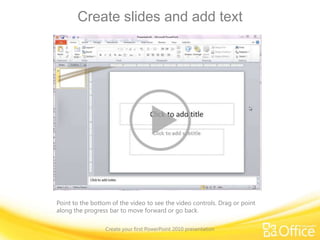
Create slides and add textCreate your first PowerPoint 2010 presentationPoint to the bottom of the video to see the video controls. Drag or point along the progress bar to move forward or go back.
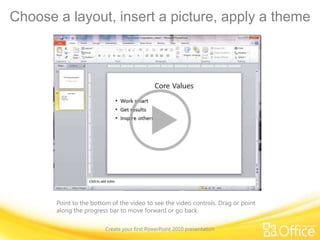
Choose a layout, insert a picture, apply a themeCreate your first PowerPoint 2010 presentationPoint to the bottom of the video to see the video controls. Drag or point along the progress bar to move forward or go back.
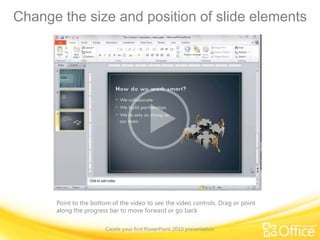
Change the size and position of slide elementsCreate your first PowerPoint 2010 presentationPoint to the bottom of the video to see the video controls. Drag or point along the progress bar to move forward or go back.
Add more slide content and use formattingCreate your first PowerPoint 2010 presentationPoint to the bottom of the video to see the video controls. Drag or point along the progress bar to move forward or go back.
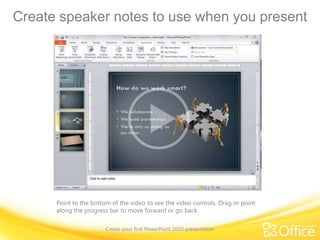
Create speaker notes to use when you presentCreate your first PowerPoint 2010 presentationPoint to the bottom of the video to see the video controls. Drag or point along the progress bar to move forward or go back.
Finalize your slides and notesCreate your first PowerPoint 2010 presentationPoint to the bottom of the video to see the video controls. Drag or point along the progress bar to move forward or go back.
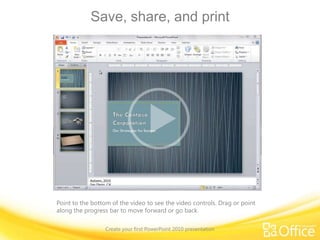
Save, share, and printCreate your first PowerPoint 2010 presentationPoint to the bottom of the video to see the video controls. Drag or point along the progress bar to move forward or go back.
Suggestions for practiceAdd a slide and text.Choose a slide layout, insert a picture, and apply a theme.Size and position slide elements.Add a video.Create speaker notes.Finalize your slides and notes pages; save and print. Create your first PowerPoint 2010 presentationOnline practice (requires PowerPoint 2010)
Test question 1How do you insert a new slide? (Pick one answer.)Create your first PowerPoint 2010 presentationOn the Insert tab, in the Images group, click Screenshot.Click the arrow under the slide icon on the Home tab, next to New Slide.Click Add New Slide on the Insert tab.
Test question 1Create your first PowerPoint 2010 presentationHow do you insert a new slide?Answer:Click the arrow under the slide icon on the Home tab, next to New Slide.Clicking the arrow opens the Layout gallery, and the layout you choose is applied to the new slide. Tip: You can also click the New Slide button, and PowerPoint will insert a slide that has the default Title and Slide layout applied to it.
Test question 2A PowerPoint theme contains which of the following three key elements? (Pick one answer.)Create your first PowerPoint 2010 presentationA group of special colors; fonts that look good in any color; shadows.Colored textures; fonts that are easy to see on a large screen; shadows and reflections.A color scheme; coordinating fonts; special effects such as shadows, glows, bevels, reflections, 3-D, and more.
Test question 2Create your first PowerPoint 2010 presentationA PowerPoint theme contains which of the following three key elements? Answer:A color scheme; coordinating fonts; special effects such as shadows, glows, bevels, reflections, 3-D, and more.
Test question 3When sizing and positioning pictures on a slide, it’s important to do which of the following? (Pick one answer.)Create your first PowerPoint 2010 presentationSize the picture to 5.07” by 5/7”.Maintain the aspect ratio, keeping the relative height and width the same.Size and move the picture by using the four-headed arrow.
Test question 3Create your first PowerPoint 2010 presentationWhen sizing and positioning pictures on a slide, it’s important to do which of the following? Answer:Maintain the aspect ratio, keeping the relative height and width the same.

My first power point

  • 1.
    Microsoft® PowerPoint®2010 TrainingCreateyour first PowerPoint 2010 presentation
  • 2.
  • 3.
    Lesson: Includes seveninstructional movies
  • 4.
  • 5.
  • 6.
    Quick Reference CardCreateyour first PowerPoint 2010 presentation
  • 7.
    Overview: Create, prepare,shareCreate your first PowerPoint 2010 presentationIn this course, you’ll learn to create a PowerPoint 2010 presentation and prepare to share it with your audience.This includes creating slides and slide text; choosing a layout and working with pictures and themes; editing content; creating speaker notes; and more.
  • 8.
  • 9.
    Choose a slidelayout, insert a picture, and apply a theme.
  • 10.
    Change the sizeand position of slide elements.
  • 11.
    Format pictures, shapes,and other slide content. Create your first PowerPoint 2010 presentation
  • 12.
    Course goals, cont.Createspeaker notes to use when you present.
  • 13.
    Share the presentationfile for review.
  • 14.
    Print handouts andprepare to present.Create your first PowerPoint 2010 presentation
  • 15.
    Create slides andadd textCreate your first PowerPoint 2010 presentationPoint to the bottom of the video to see the video controls. Drag or point along the progress bar to move forward or go back.
  • 16.
    Choose a layout,insert a picture, apply a themeCreate your first PowerPoint 2010 presentationPoint to the bottom of the video to see the video controls. Drag or point along the progress bar to move forward or go back.
  • 17.
    Change the sizeand position of slide elementsCreate your first PowerPoint 2010 presentationPoint to the bottom of the video to see the video controls. Drag or point along the progress bar to move forward or go back.
  • 18.
    Add more slidecontent and use formattingCreate your first PowerPoint 2010 presentationPoint to the bottom of the video to see the video controls. Drag or point along the progress bar to move forward or go back.
  • 19.
    Create speaker notesto use when you presentCreate your first PowerPoint 2010 presentationPoint to the bottom of the video to see the video controls. Drag or point along the progress bar to move forward or go back.
  • 20.
    Finalize your slidesand notesCreate your first PowerPoint 2010 presentationPoint to the bottom of the video to see the video controls. Drag or point along the progress bar to move forward or go back.
  • 21.
    Save, share, andprintCreate your first PowerPoint 2010 presentationPoint to the bottom of the video to see the video controls. Drag or point along the progress bar to move forward or go back.
  • 22.
    Suggestions for practiceAdda slide and text.Choose a slide layout, insert a picture, and apply a theme.Size and position slide elements.Add a video.Create speaker notes.Finalize your slides and notes pages; save and print. Create your first PowerPoint 2010 presentationOnline practice (requires PowerPoint 2010)
  • 23.
    Test question 1Howdo you insert a new slide? (Pick one answer.)Create your first PowerPoint 2010 presentationOn the Insert tab, in the Images group, click Screenshot.Click the arrow under the slide icon on the Home tab, next to New Slide.Click Add New Slide on the Insert tab.
  • 24.
    Test question 1Createyour first PowerPoint 2010 presentationHow do you insert a new slide?Answer:Click the arrow under the slide icon on the Home tab, next to New Slide.Clicking the arrow opens the Layout gallery, and the layout you choose is applied to the new slide. Tip: You can also click the New Slide button, and PowerPoint will insert a slide that has the default Title and Slide layout applied to it.
  • 25.
    Test question 2APowerPoint theme contains which of the following three key elements? (Pick one answer.)Create your first PowerPoint 2010 presentationA group of special colors; fonts that look good in any color; shadows.Colored textures; fonts that are easy to see on a large screen; shadows and reflections.A color scheme; coordinating fonts; special effects such as shadows, glows, bevels, reflections, 3-D, and more.
  • 26.
    Test question 2Createyour first PowerPoint 2010 presentationA PowerPoint theme contains which of the following three key elements? Answer:A color scheme; coordinating fonts; special effects such as shadows, glows, bevels, reflections, 3-D, and more.
  • 27.
    Test question 3Whensizing and positioning pictures on a slide, it’s important to do which of the following? (Pick one answer.)Create your first PowerPoint 2010 presentationSize the picture to 5.07” by 5/7”.Maintain the aspect ratio, keeping the relative height and width the same.Size and move the picture by using the four-headed arrow.
  • 28.
    Test question 3Createyour first PowerPoint 2010 presentationWhen sizing and positioning pictures on a slide, it’s important to do which of the following? Answer:Maintain the aspect ratio, keeping the relative height and width the same.
  • 29.
    Test question 4Whenyou want to format a video (add a border, recolor, adjust brightness and contrast, specify how you want your video to begin, and so on) that you have embedded in a slide, what do you do? (Pick one answer.)Create your first PowerPoint 2010 presentationClick the video on the slide, and then specify the Video Tools options on the Format and Playback tabs.Add a PowerPoint theme.Apply special effects and then publish the presentation.All of the above.
  • 30.
    Test question 4Createyour first PowerPoint 2010 presentationWhen you want to format a video (add a border, recolor, adjust brightness and contrast, specify how you want your video to begin, and so on) that you have embedded in a slide, what do you do? Answer:Click the video on the slide, and then specify the Video Tools options on the Format and Playback tabs.
  • 31.
    Test question 5Whatis Presenter view? (Pick one answer.)Create your first PowerPoint 2010 presentationYou can view your notes on a laptop.When the audience can see only your slides, and not your presenter notes.A view that requires multiple monitors, or a projector or a laptop with dual-display capabilities.All of the above.
  • 32.
    Test question 5Createyour first PowerPoint 2010 presentationWhat is Presenter view? Answer:All of the above.
  • 33.
    Test question 6Beforeyou print a presentation, how do you access Print Preview? (Pick one answer.)Create your first PowerPoint 2010 presentationOn the Home tab, click Print Preview.On the File tab, click Print. Print Preview appears on the right.On the File tab, click Print. Print Preview appears under Settings.
  • 34.
    Test question 6Createyour first PowerPoint 2010 presentationBefore you print a presentation, how do you access Print Preview? Answer:On the File tab, click Print. Print Preview appears on the right.Print Preview is now easier than ever to access.
  • 35.
    Test question 7Toend a slide show from Slide Show view, do which of the following? (Pick one answer.)Create your first PowerPoint 2010 presentationPress ESC on the keyboard.Right-click and select End Show.Continue to press the right arrow key on the keyboard until the end of the show.All of the above.
  • 36.
    Test question 7Createyour first PowerPoint 2010 presentationTo end a slide show from Slide Show view, do which of the following? Answer:All of the above. You can end a slide show by using any of the methods listed.
  • 37.
    Quick Reference CardFora summary of the tasks covered in this course, view the Quick Reference Card.Create your first PowerPoint 2010 presentation

Editor's Notes

  • #2 [Notes to trainer: This presentation must beviewed in PowerPoint 2010.If you don’t have PowerPoint 2010, the videos included in the presentation will not play. If you don’t have PowerPoint 2010, download the PowerPoint Viewer to view these files(http://www.microsoft.com/downloads/details.aspx?displaylang=en&FamilyID=cb9bf144%2D1076%2D4615%2D9951%2D294eeb832823).If the yellow security bar appears at the top of the screen in PowerPoint, or if a Codec Unavailable message appears in the video playback window, the presentation might have opened in Protected View. To enable video playback, in the yellow security bar at the top of the PowerPoint window, click Enable Editing. To browse other downloadable PowerPointtraining presentations, see the “Download Office 2010 training” page (http://office.microsoft.com/en-us/powerpoint-help/download-office-2010-training-HA101901726.aspx).For detailed help in customizing this template, see the very last slide. Also, look for additional lesson text in the notes pane of some slides.]
  • #7 [Note to trainer: If you have trouble playing this video, for instance if a Codec Unavailablemessage appears in the video playback window, the presentation might have opened in Protected View. To enable video playback, in the yellow security bar at the top of the PowerPoint window, click Enable Editing. Note that even with Protected View turned on, video should play correctly in Slide Show view.]
  • #8 [Note to trainer: If you have trouble playing this video, for instance if a Codec Unavailablemessage appears in the video playback window, the presentation might have opened in Protected View. To enable video playback, in the yellow security bar at the top of the PowerPoint window, click Enable Editing. Note that even with Protected View turned on, video should play correctly in Slide Show view.]
  • #9 [Note to trainer: If you have trouble playing this video, for instance if a Codec Unavailablemessage appears in the video playback window, the presentation might have opened in Protected View. To enable video playback, in the yellow security bar at the top of the PowerPoint window, click Enable Editing. Note that even with Protected View turned on, video should play correctly in Slide Show view.]
  • #10 [Note to trainer: If you have trouble playing this video, for instance if a Codec Unavailablemessage appears in the video playback window, the presentation might have opened in Protected View. To enable video playback, in the yellow security bar at the top of the PowerPoint window, click Enable Editing. Note that even with Protected View turned on, video should play correctly in Slide Show view.]
  • #11 [Note to trainer: If you have trouble playing this video, for instance if a Codec Unavailablemessage appears in the video playback window, the presentation might have opened in Protected View. To enable video playback, in the yellow security bar at the top of the PowerPoint window, click Enable Editing. Note that even with Protected View turned on, video should play correctly in Slide Show view.]
  • #12 [Note to trainer: If you have trouble playing this video, for instance if a Codec Unavailablemessage appears in the video playback window, the presentation might have opened in Protected View. To enable video playback, in the yellow security bar at the top of the PowerPoint window, click Enable Editing. Note that even with Protected View turned on, video should play correctly in Slide Show view.]
  • #13 [Note to trainer: If you have trouble playing this video, for instance if a Codec Unavailablemessage appears in the video playback window, the presentation might have opened in Protected View. To enable video playback, in the yellow security bar at the top of the PowerPoint window, click Enable Editing. Note that even with Protected View turned on, video should play correctly in Slide Show view.]
  • #14 [Note to trainer: With PowerPoint2010 installed on your computer, you can click the link in the slide to go to an online practice. In the practice, you can work through each of these tasks in PowerPoint 2010, with instructions to guide you. Important: If you don’t have PowerPoint 2010, you won’t be able to access the practice instructions.]