SHAREPOINT
PERMISSIONS 101
Thomas Duff – 06/21/2013
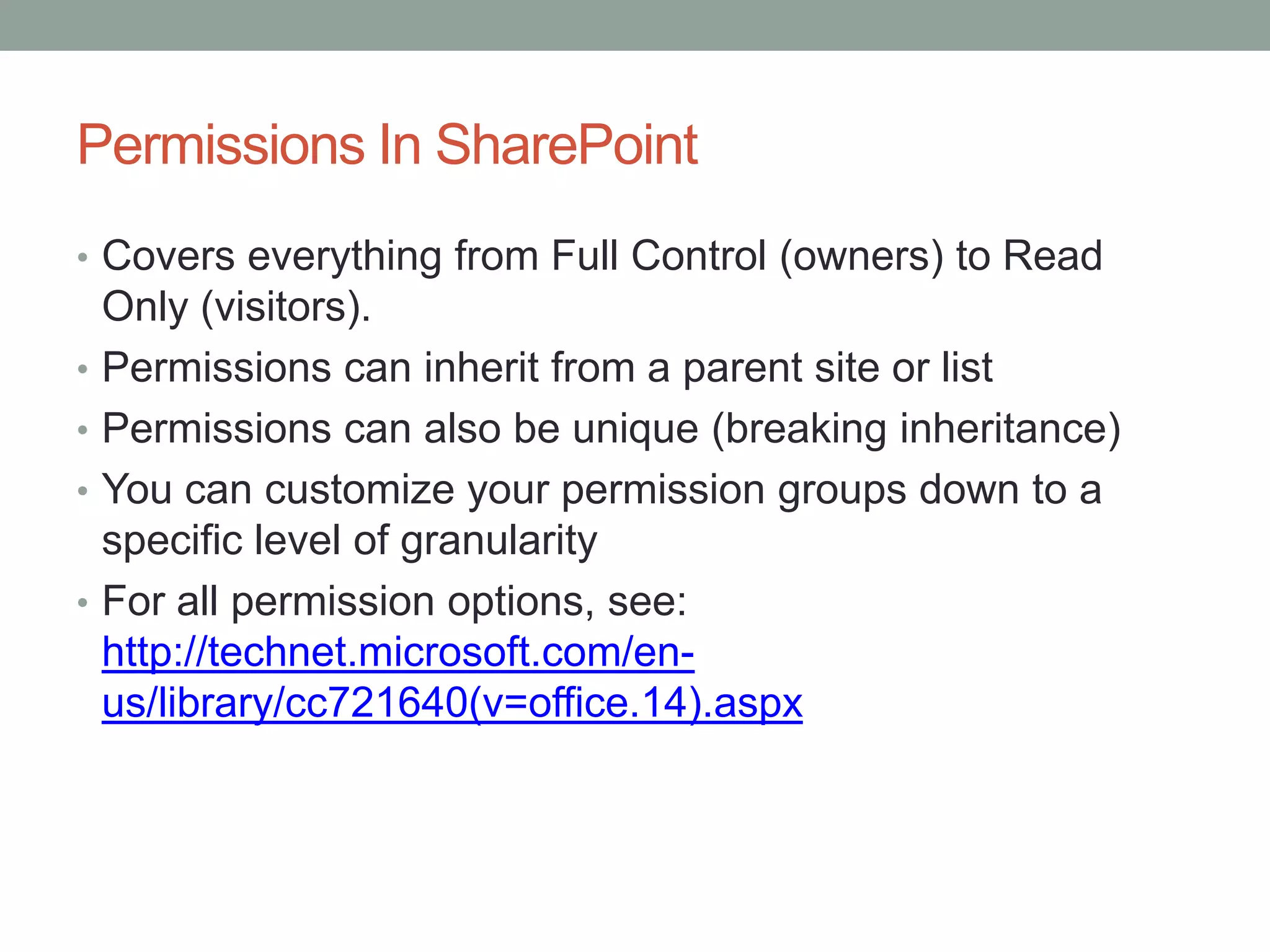
Agenda
• Permissions In SharePoint
• SharePoint Groups
• Inheriting And Breaking Permissions
• Finding What Permissions Someone Has On A Site
• What Is “Limited Access”?
• Using Email Distribution Groups In SharePoint Groups
• SharePoint Groups vs. Active Directory Groups
Permissions In SharePoint
• Covers everything from Full Control (owners) to Read
Only (visitors).
• Permissions can inherit from a parent site or list
• Permissions can also be unique (breaking inheritance)
• You can customize your permission groups down to a
specific level of granularity
• For all permission options, see:
http://technet.microsoft.com/en-
us/library/cc721640(v=office.14).aspx
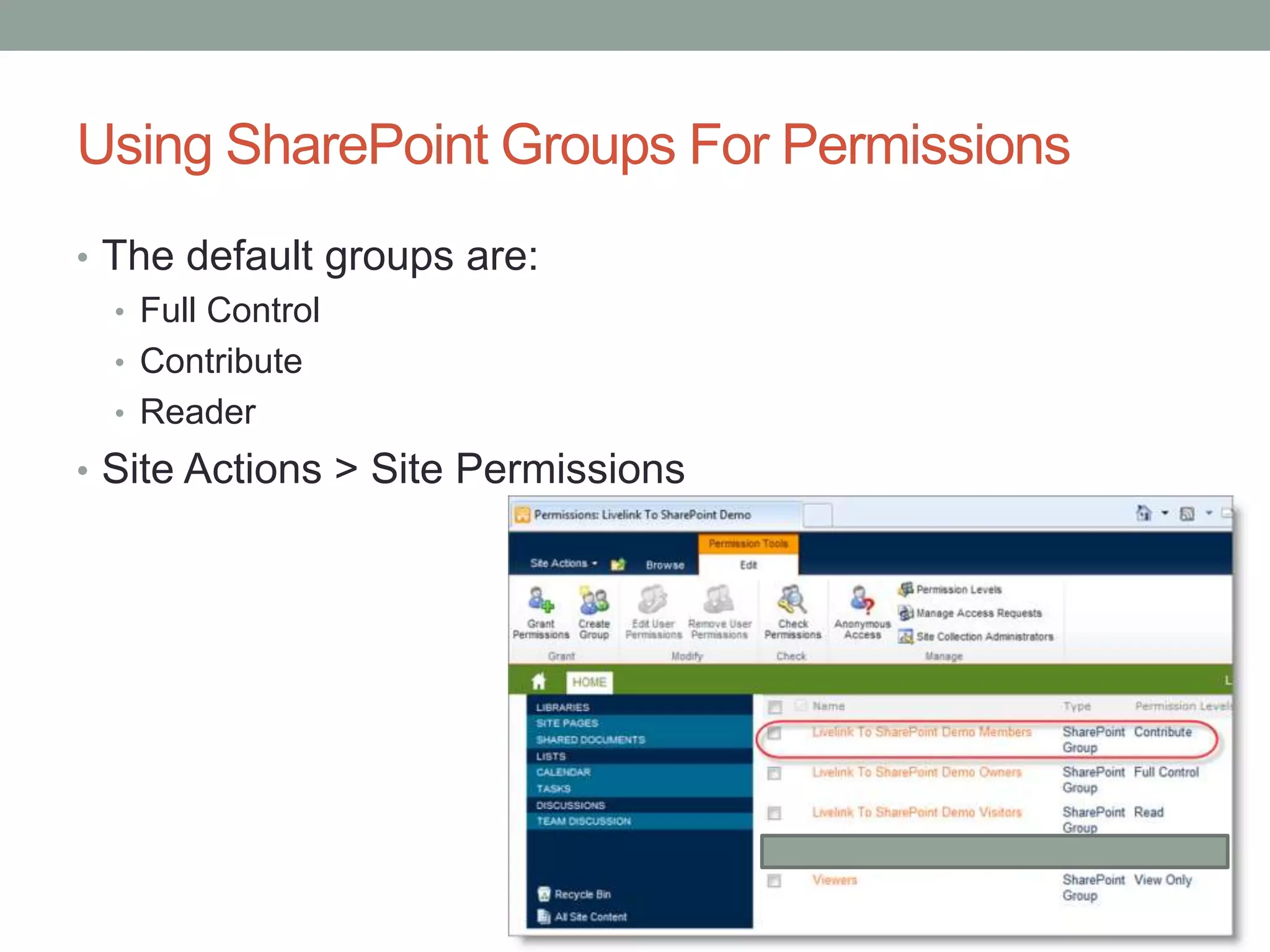
Using SharePoint Groups For Permissions
• The default groups are:
• Full Control
• Contribute
• Reader
• Site Actions > Site Permissions
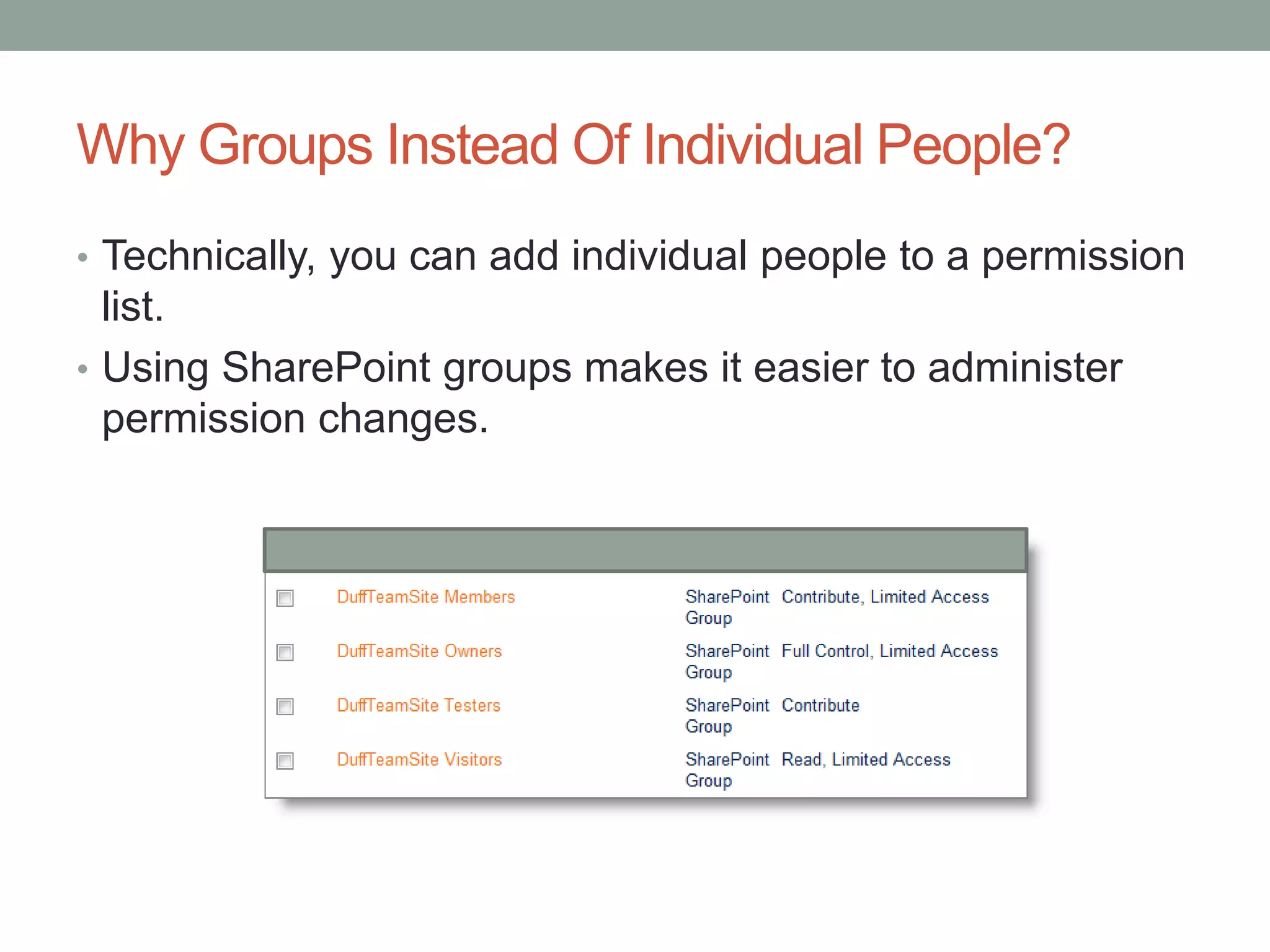
Why Groups Instead Of Individual People?
• Technically, you can add individual people to a permission
list.
• Using SharePoint groups makes it easier to administer
permission changes.
CreatingA New SharePoint Group
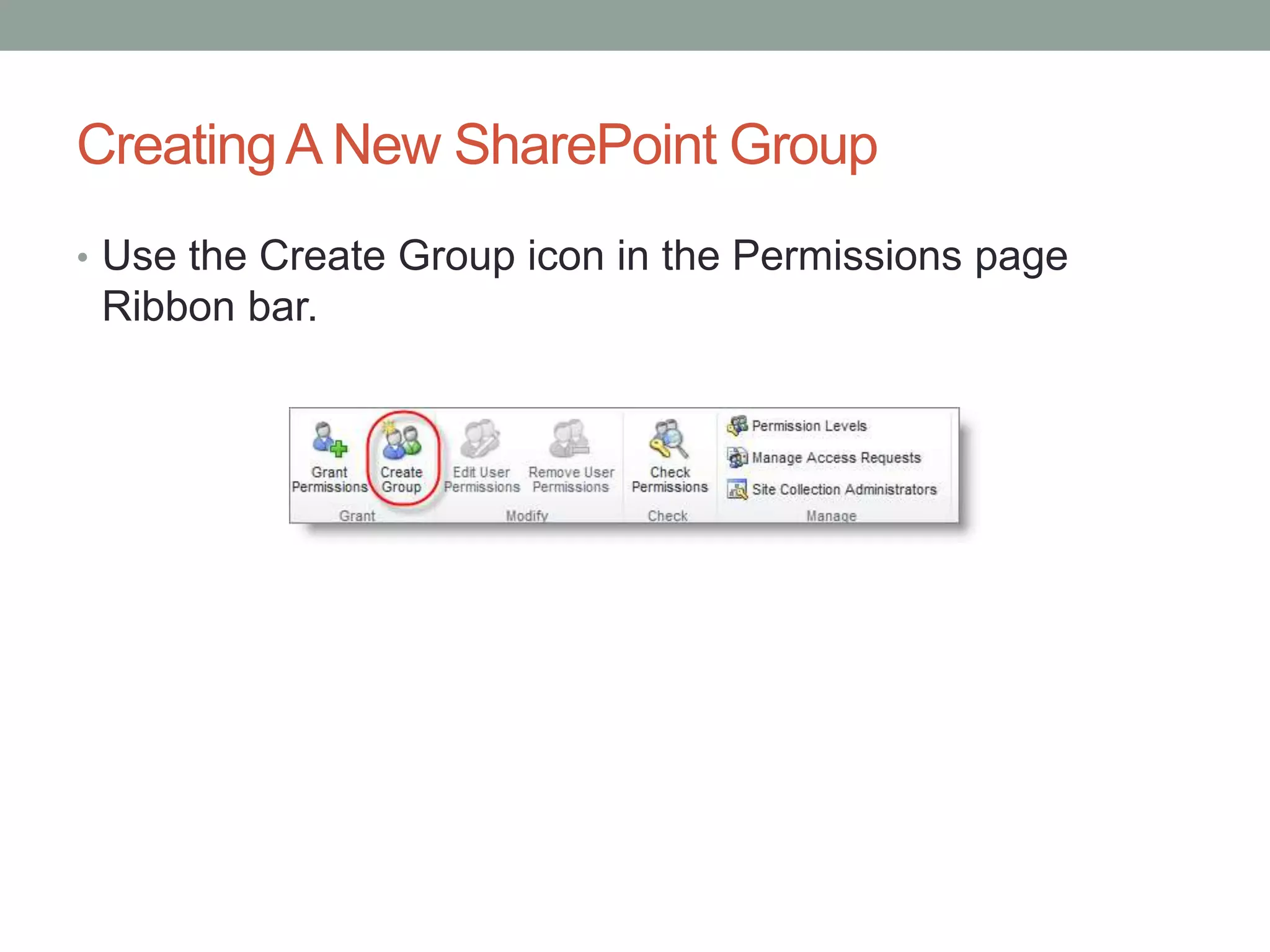
• Use the Create Group icon in the Permissions page
Ribbon bar.
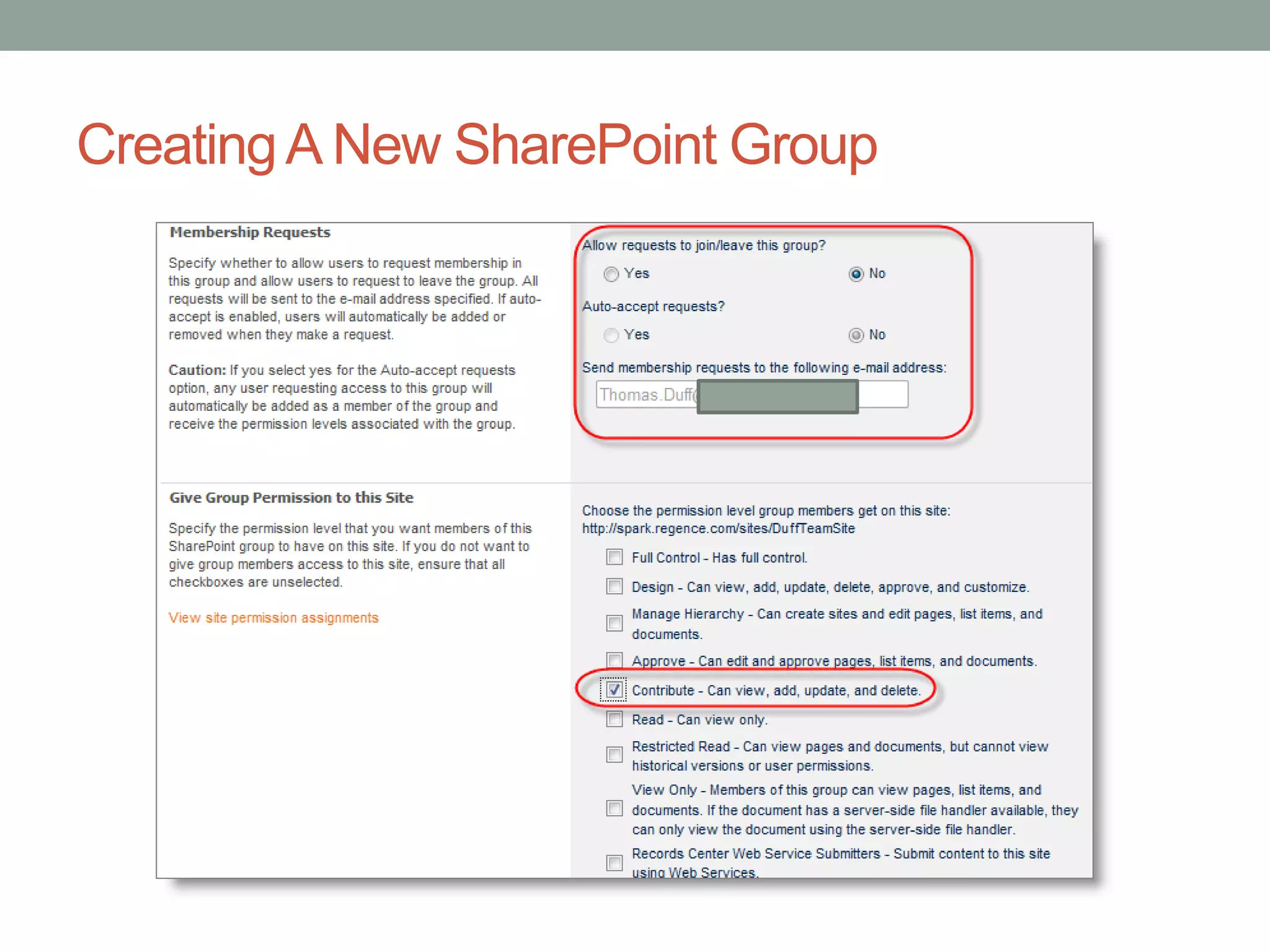
CreatingA New SharePoint Group
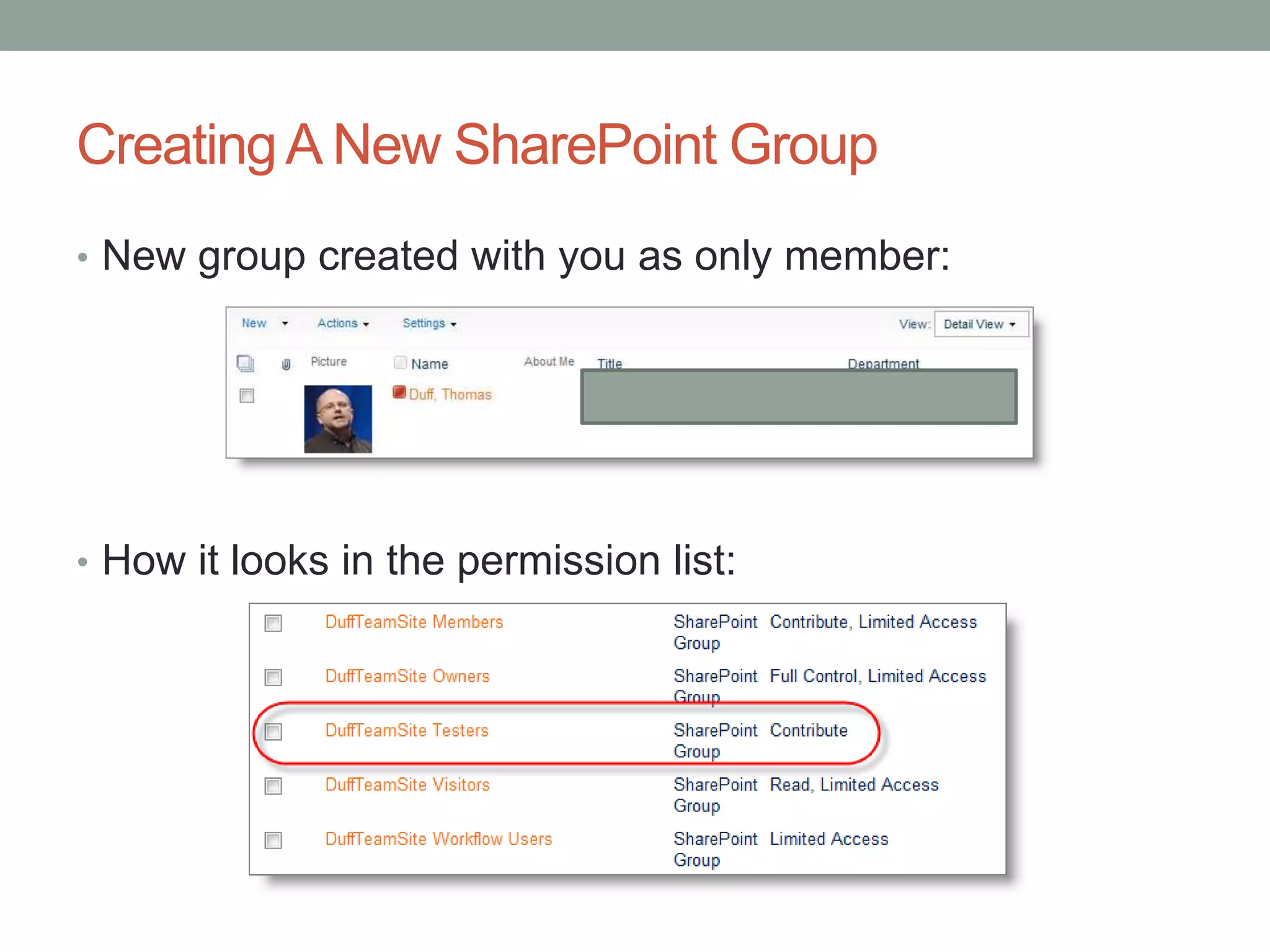
• New group created with you as only member:
• How it looks in the permission list:
CreatingA New SharePoint Group
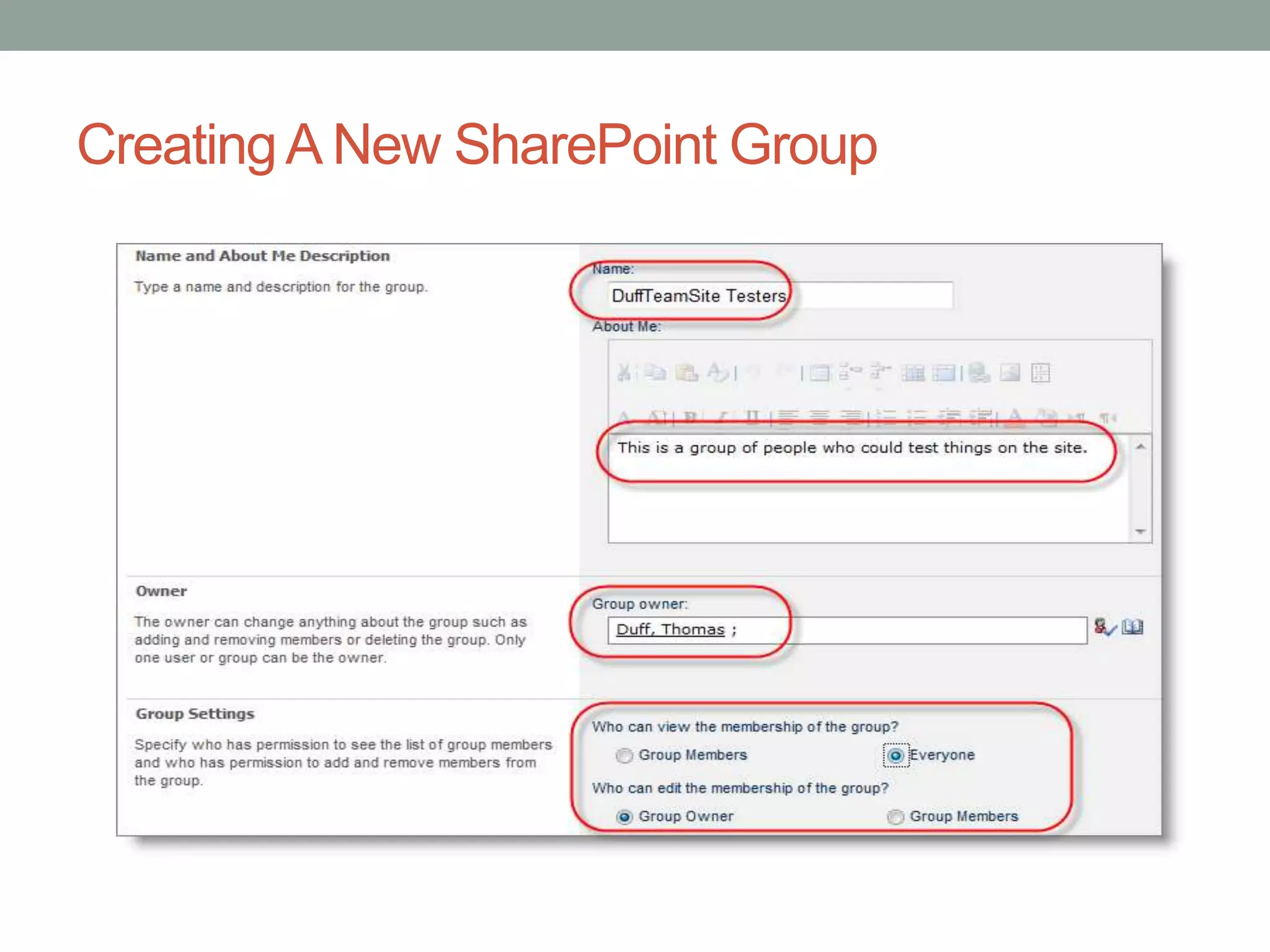
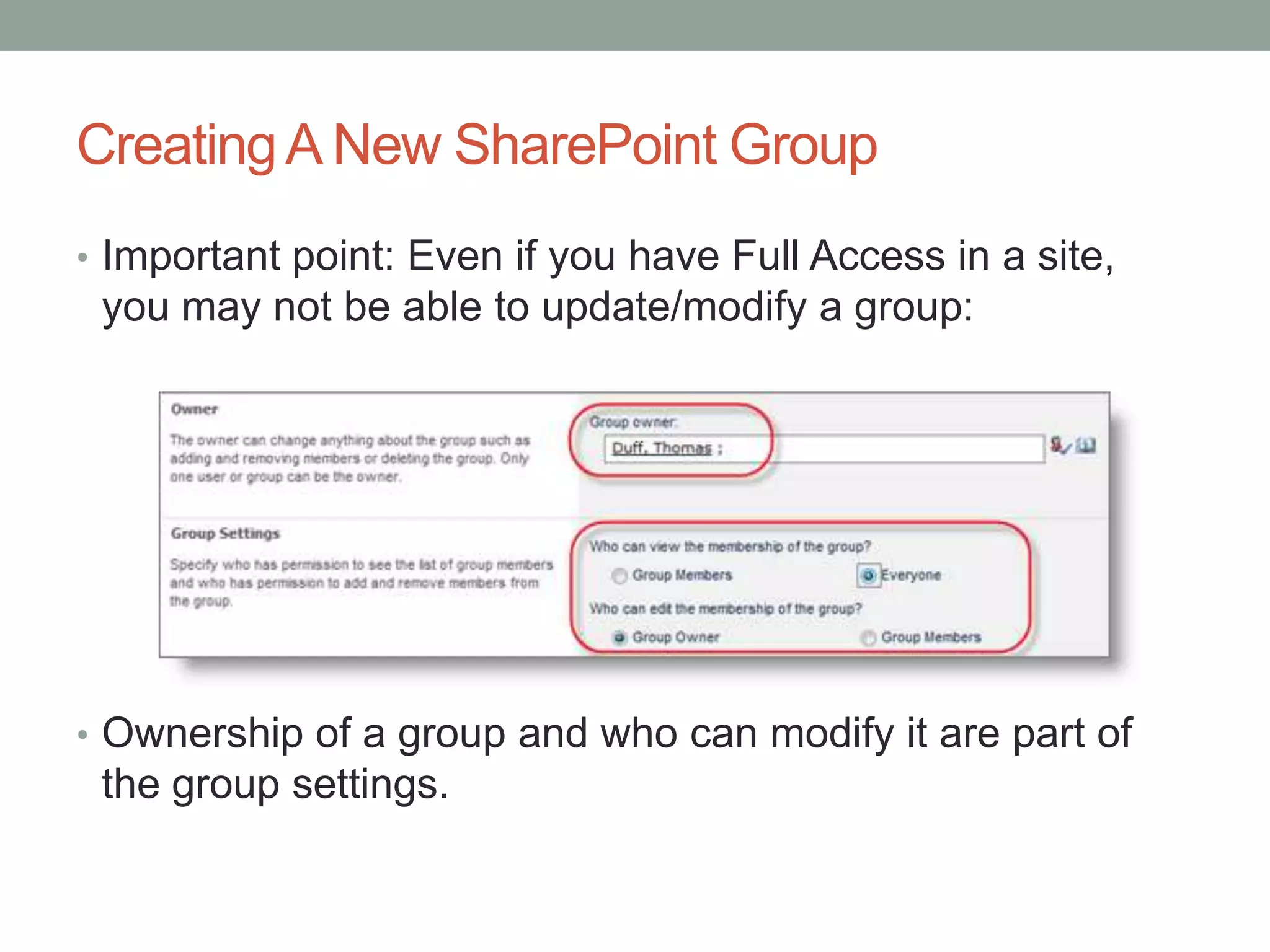
• Important point: Even if you have Full Access in a site,
you may not be able to update/modify a group:
• Ownership of a group and who can modify it are part of
the group settings.
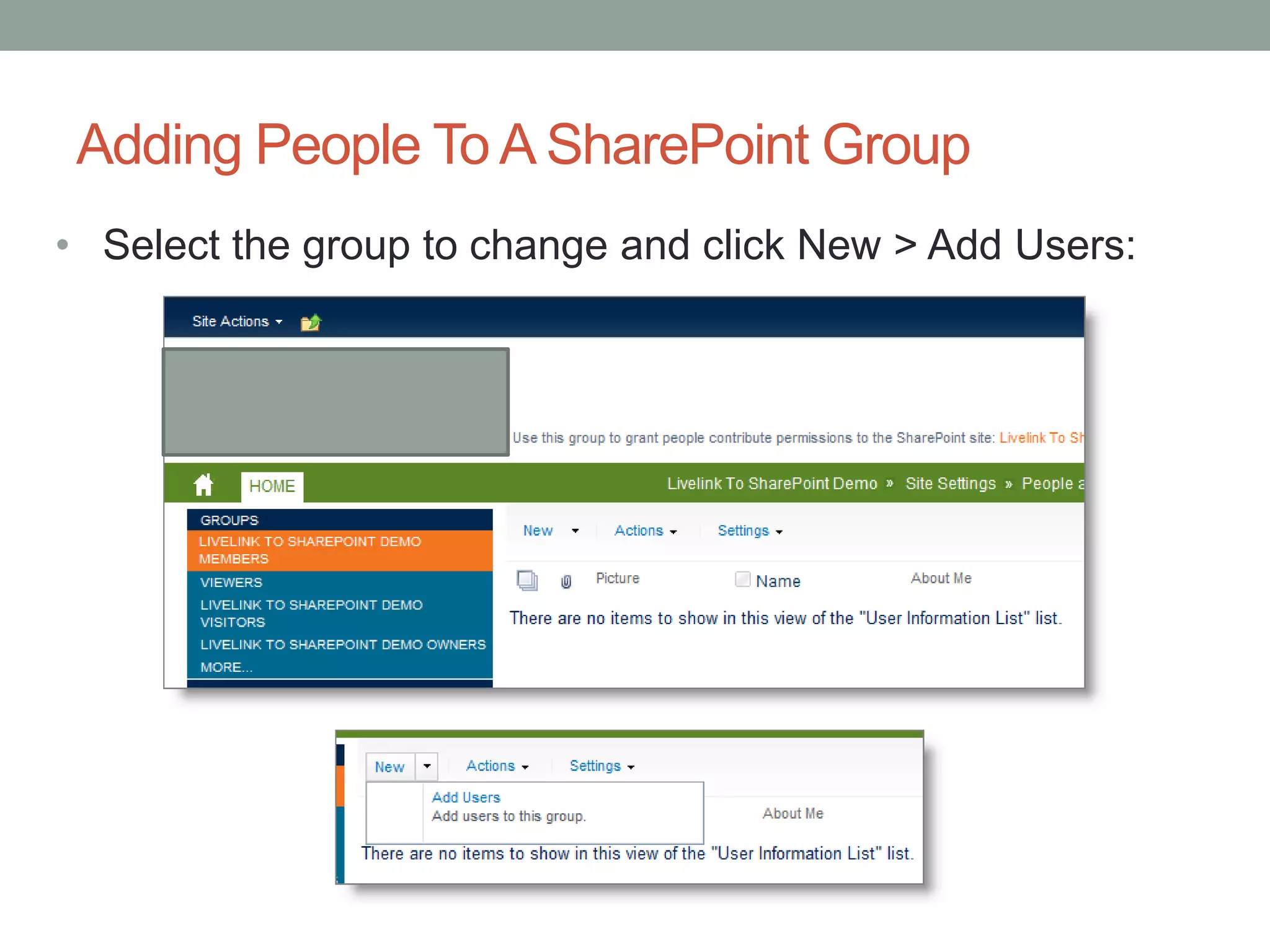
Adding People To A SharePoint Group
• Select the group to change and click New > Add Users:
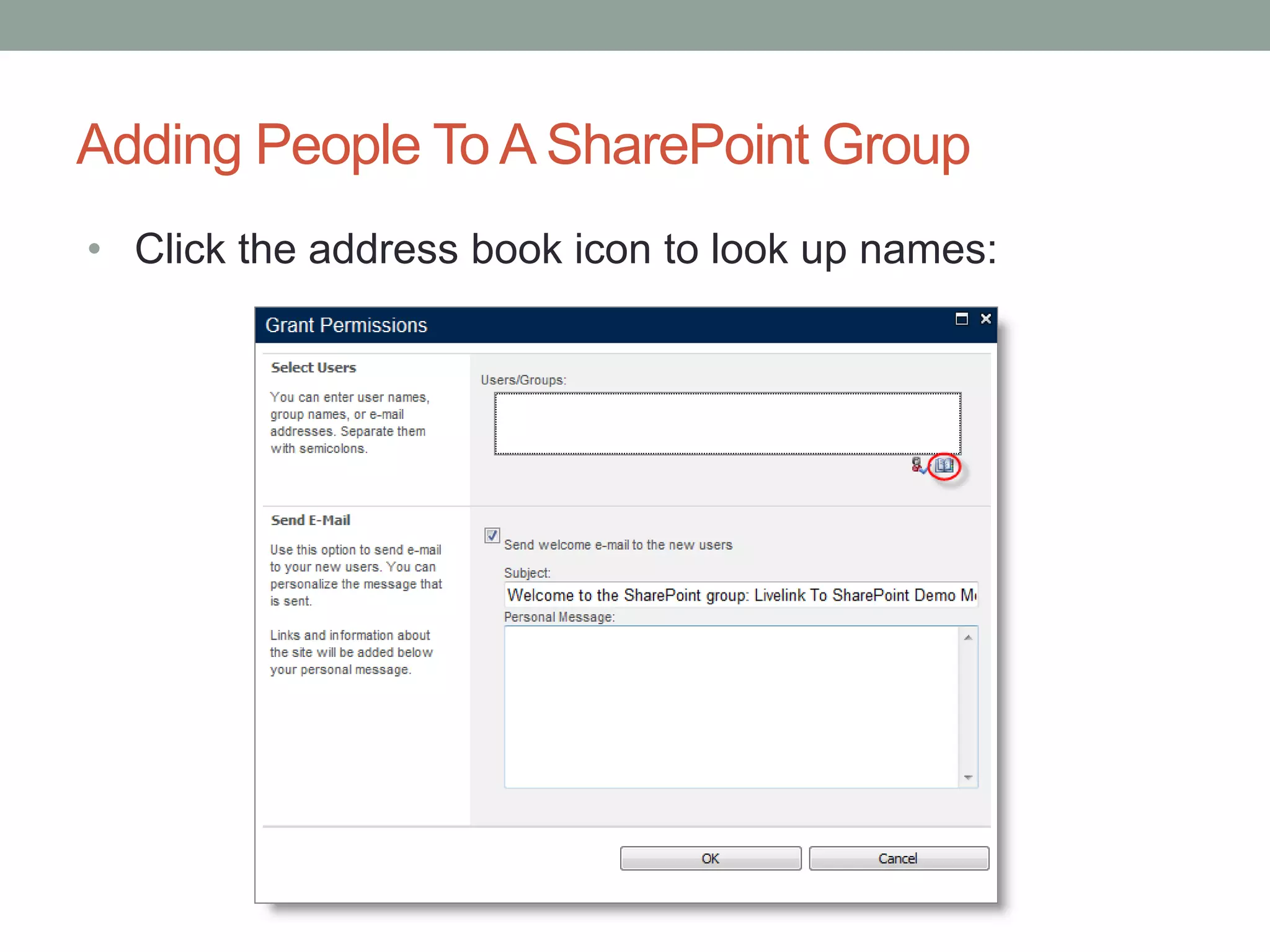
Adding People To A SharePoint Group
• Click the address book icon to look up names:
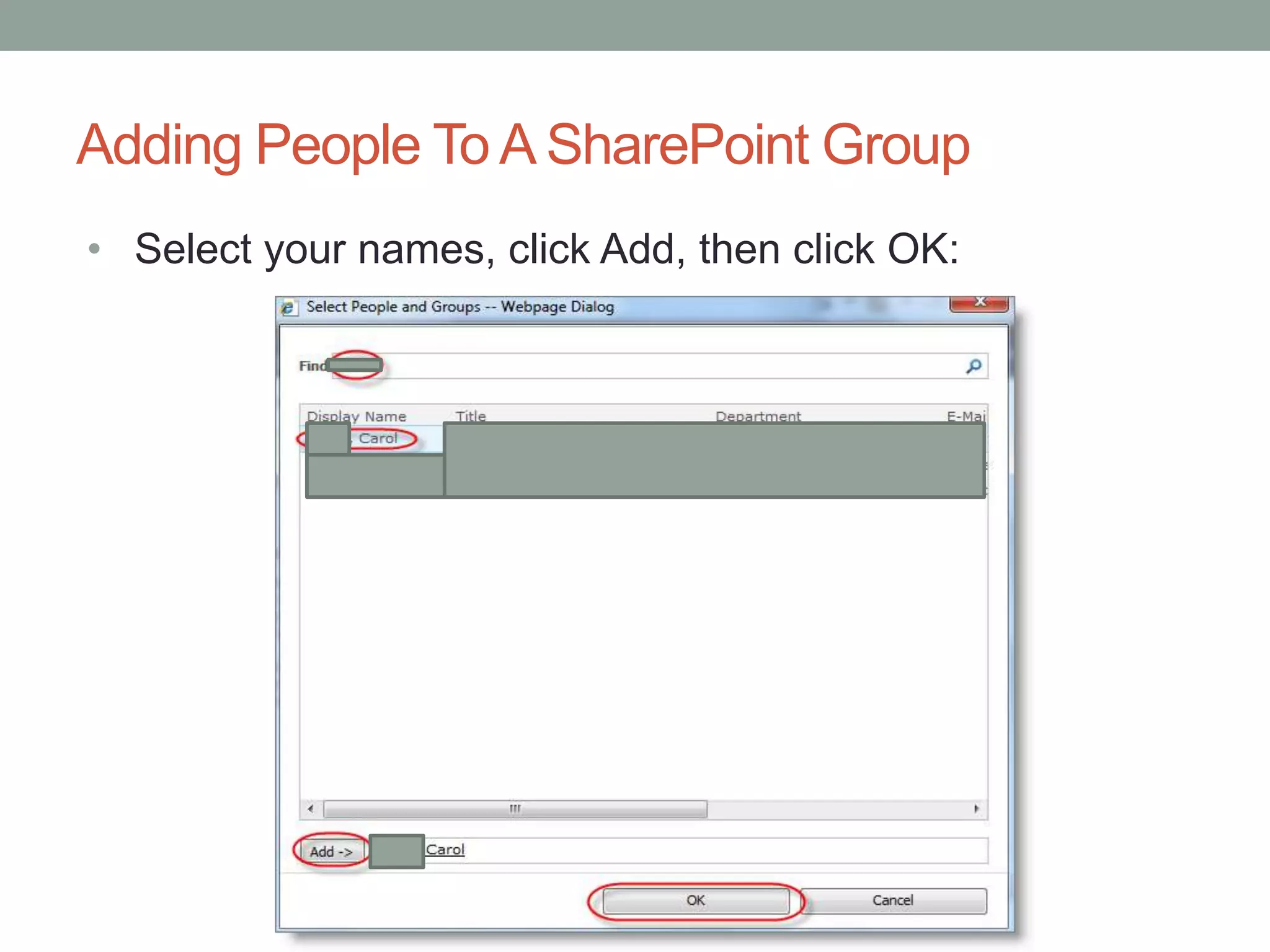
Adding People To A SharePoint Group
• Select your names, click Add, then click OK:
Adding People To A SharePoint Group
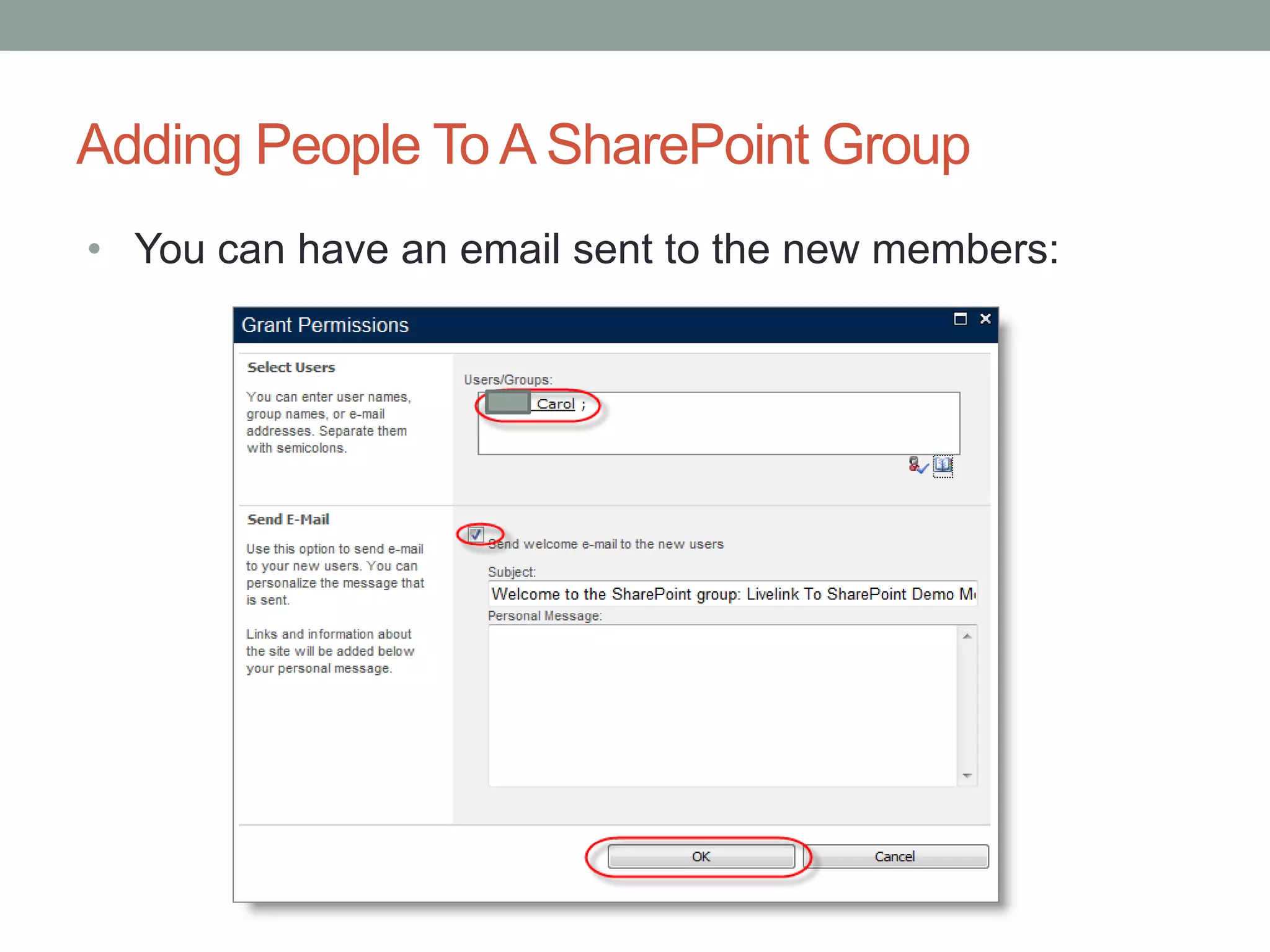
• You can have an email sent to the new members:
Adding People To A SharePoint Group
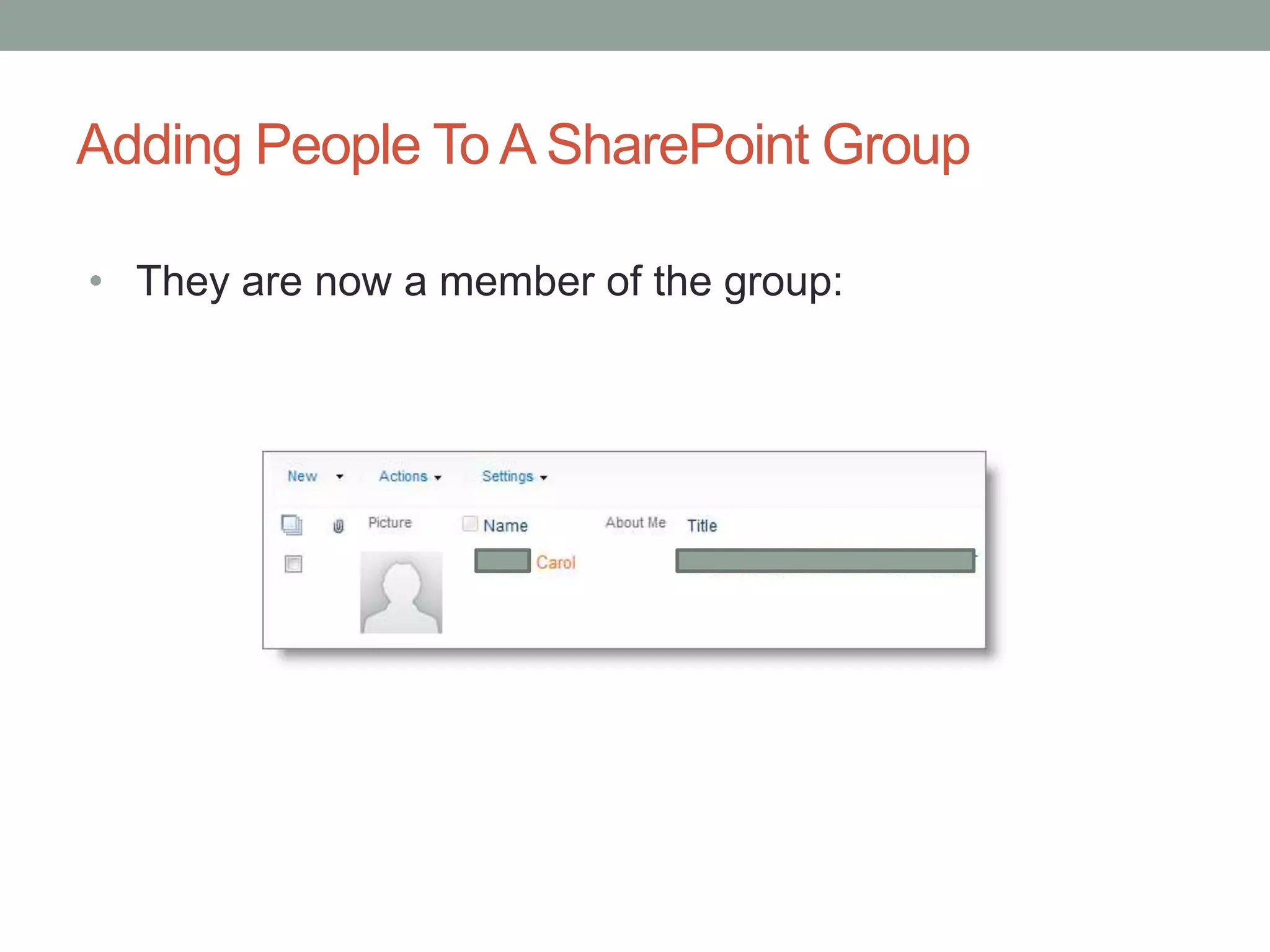
• They are now a member of the group:
InheritingAnd Breaking Permissions
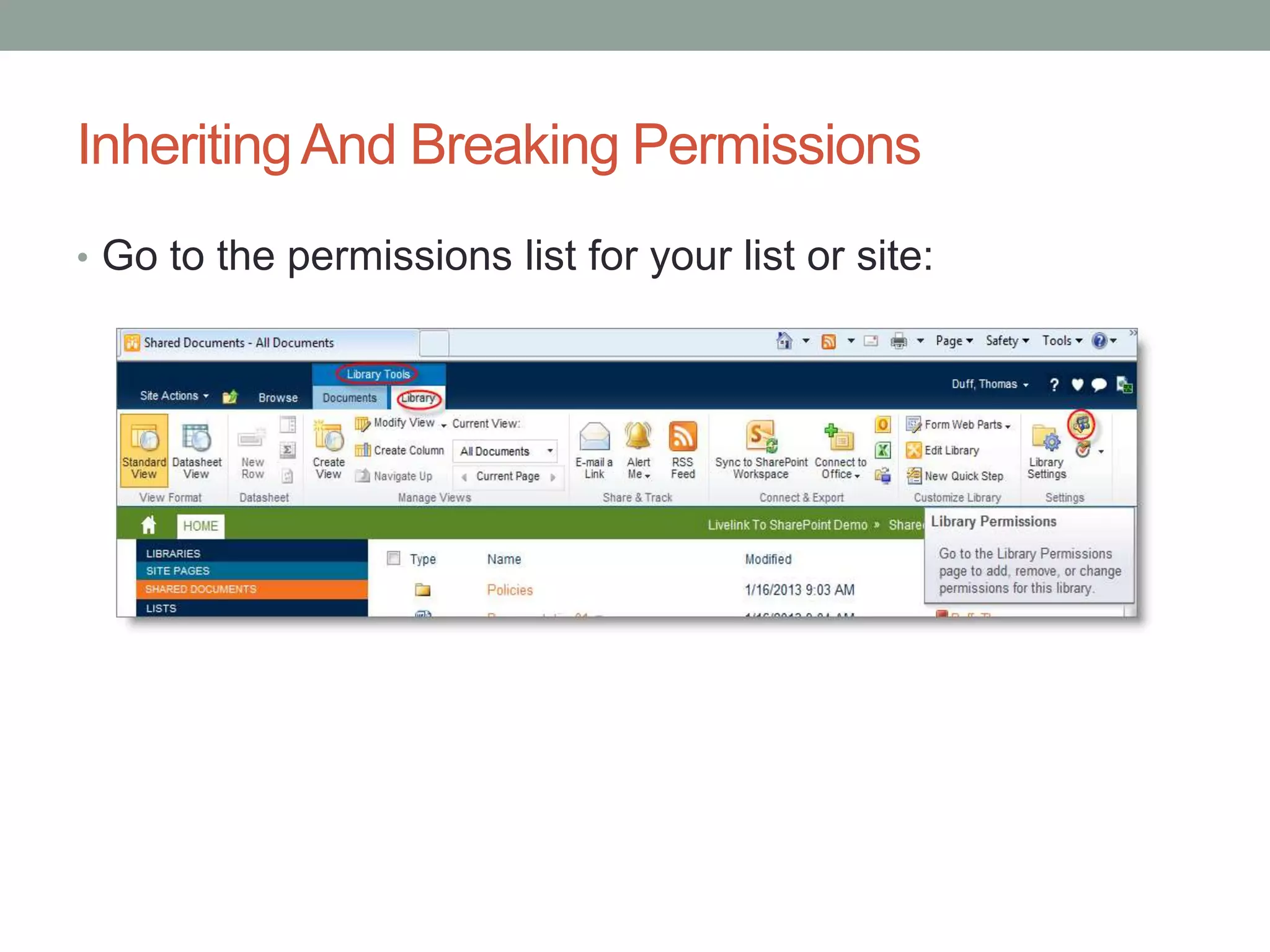
• Go to the permissions list for your list or site:
InheritingAnd Breaking Permissions
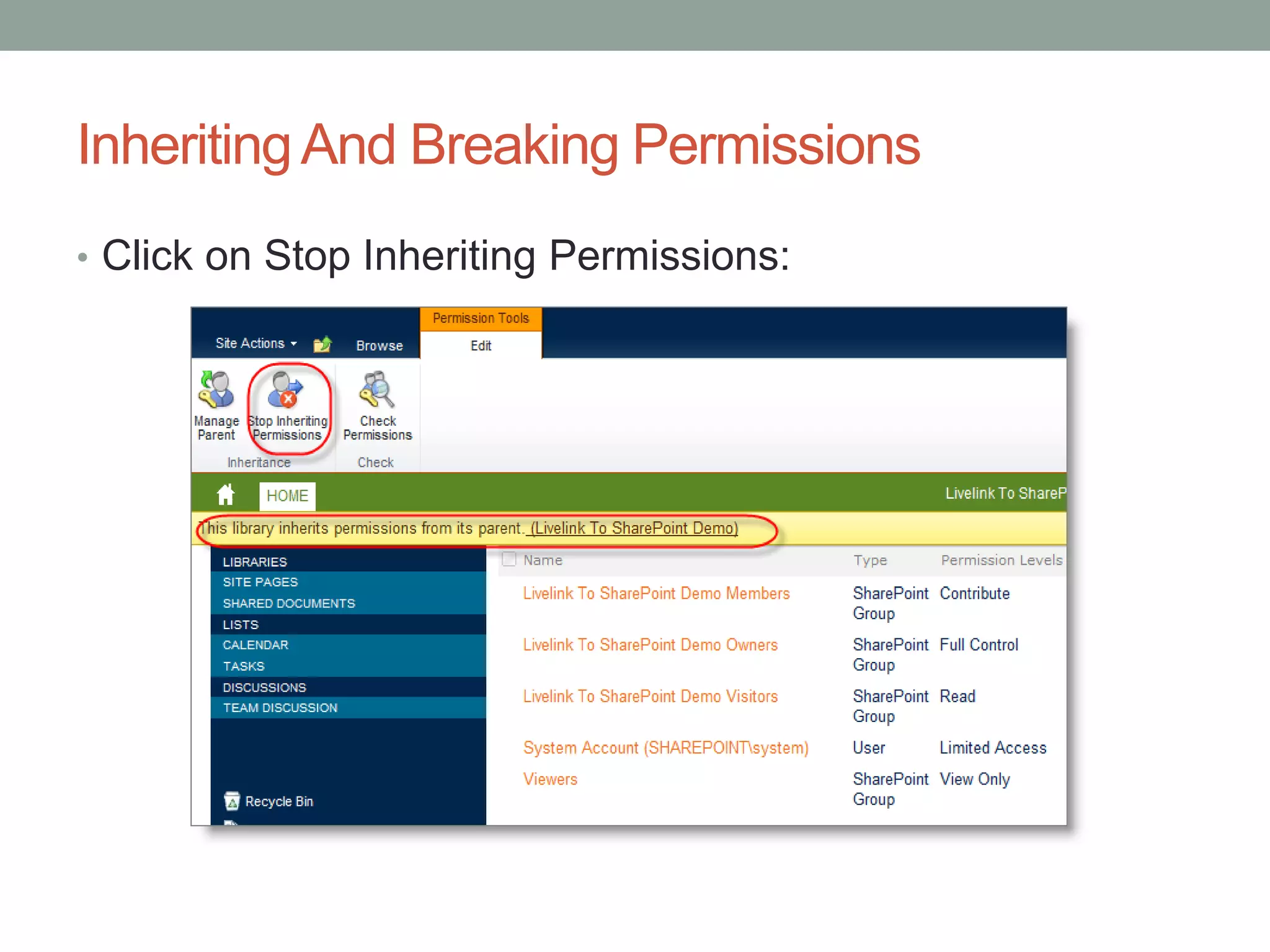
• Click on Stop Inheriting Permissions:
InheritingAnd Breaking Permissions
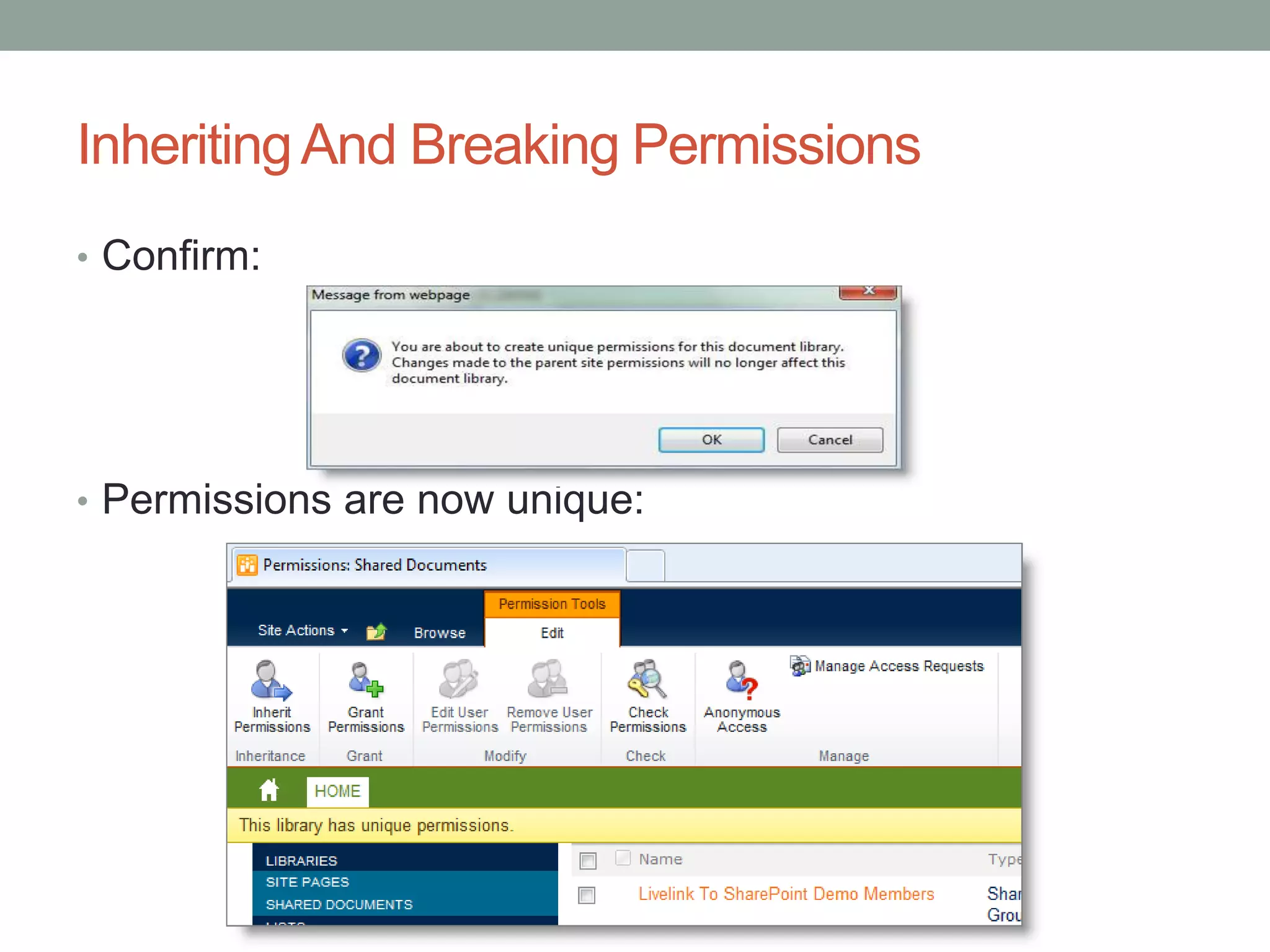
• Confirm:
• Permissions are now unique:
InheritingAnd Breaking Permissions
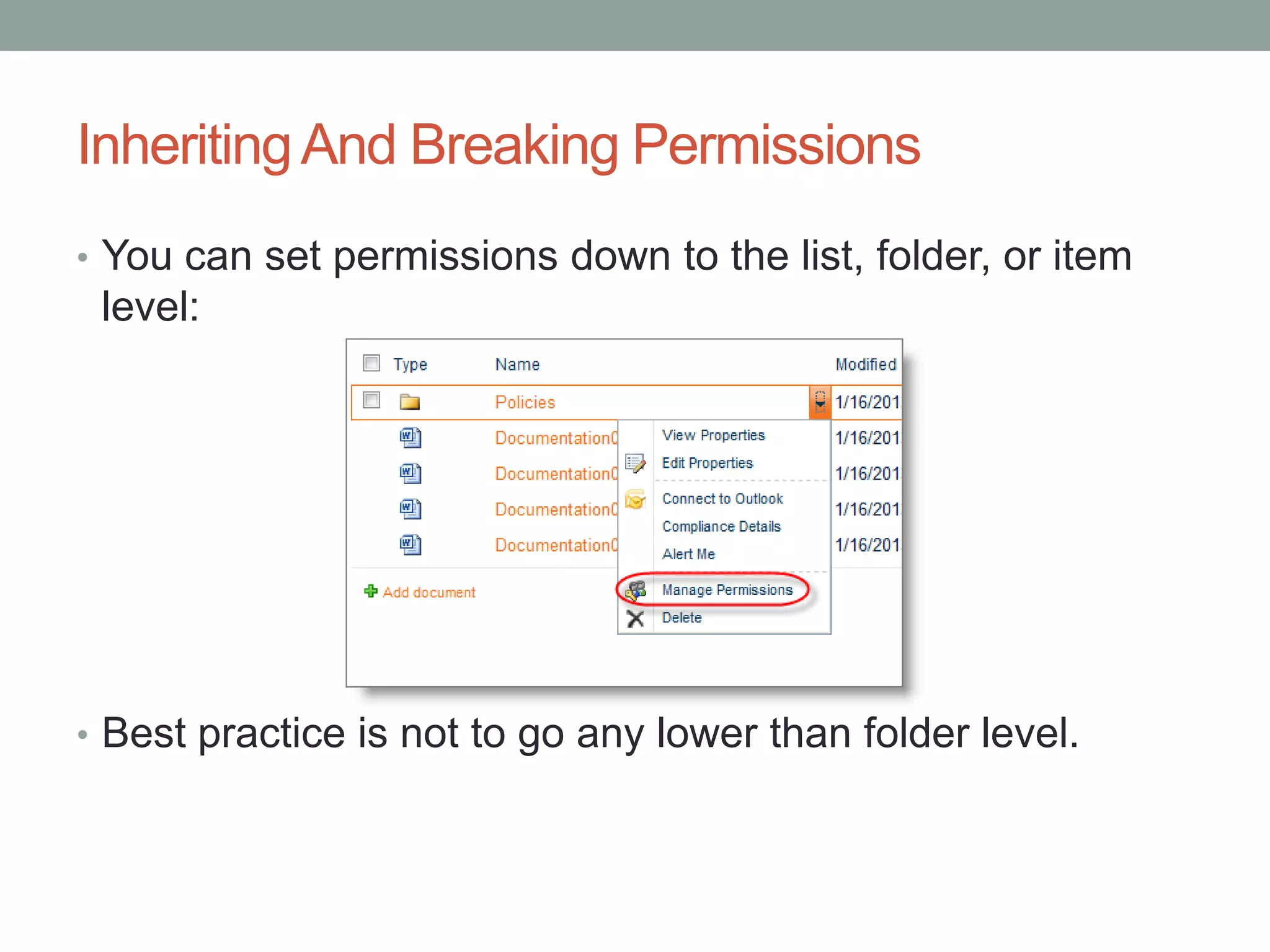
• You can set permissions down to the list, folder, or item
level:
• Best practice is not to go any lower than folder level.
SharePoint GroupsAnd Breaking Inheritance
• The names *within* a SharePoint group are not frozen,
and changes to the SharePoint group membership *will*
affect any site or list that uses that group.
• THIS IS THE BIGGEST MISUNDERSTOOD PART OF
UNIQUE PERMISSIONS!
• Do not *delete* a group in a list, thinking you are only
removing it from the list. You are deleting it anywhere it is
used.
• Use the Remove User Permissions button to remove (not
*delete*) the group from this list.
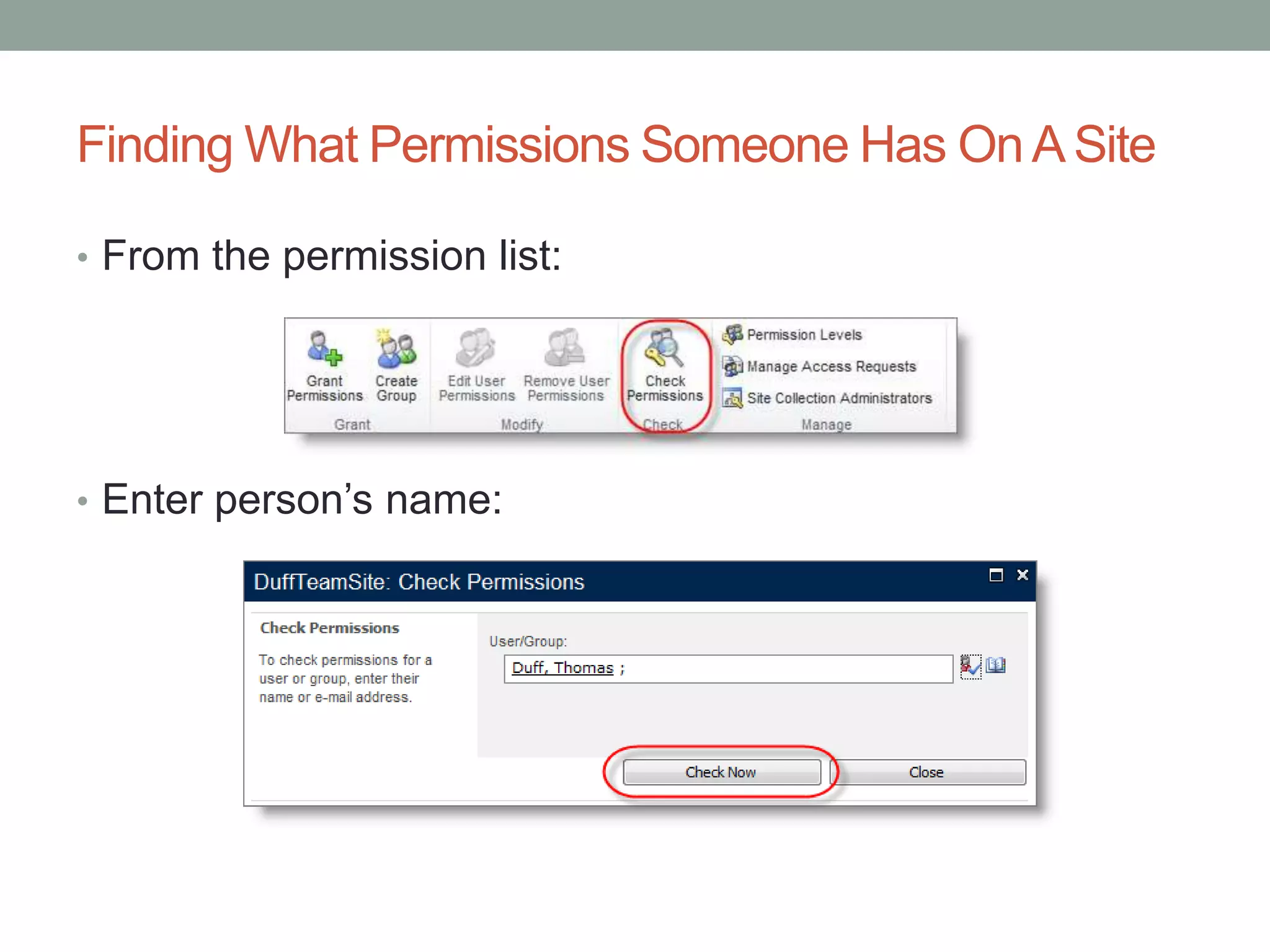
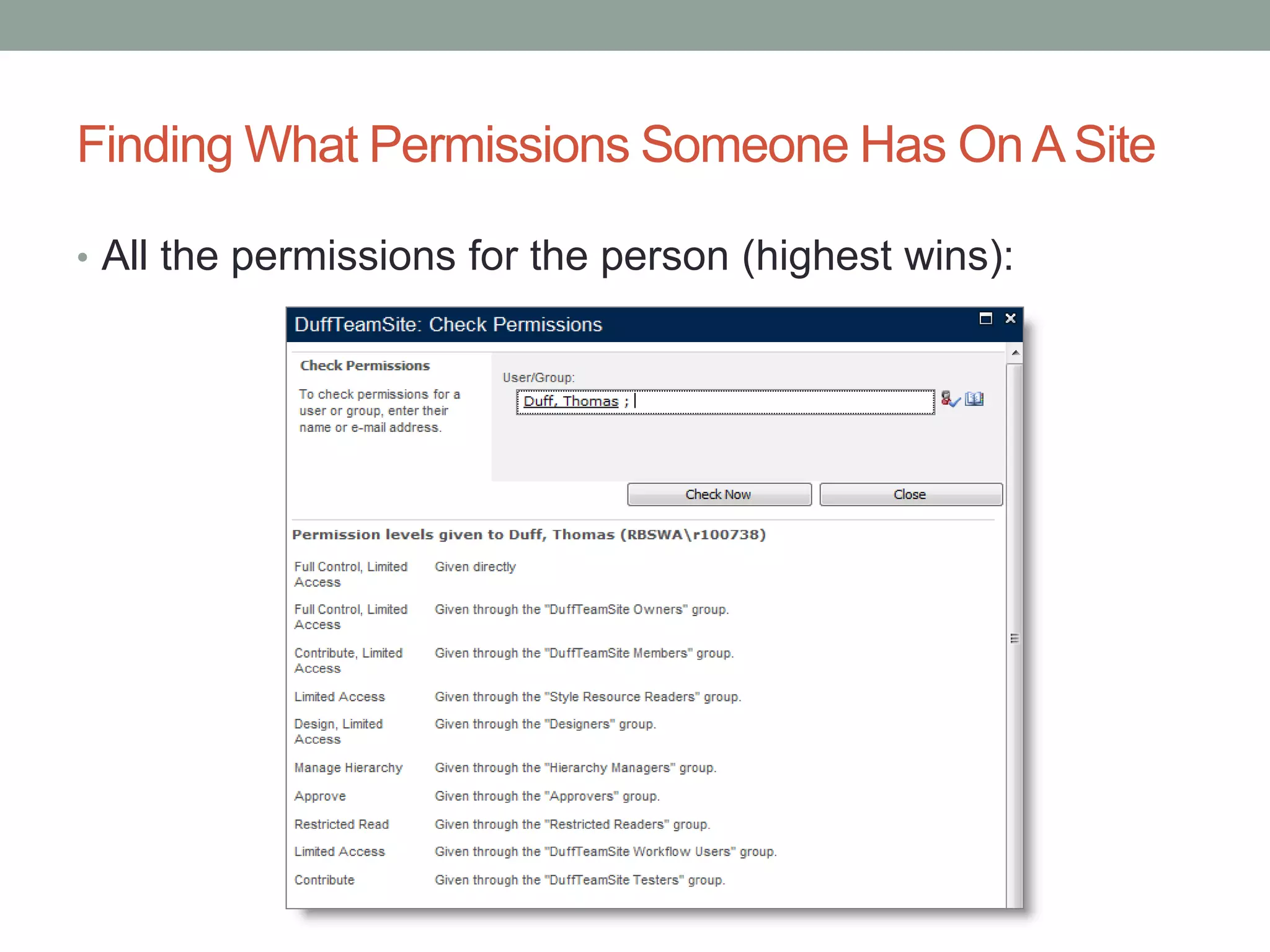
Finding What Permissions Someone Has OnA Site
• From the permission list:
• Enter person’s name:
Finding What Permissions Someone Has OnA Site
• All the permissions for the person (highest wins):
What Is “Limited Access”?
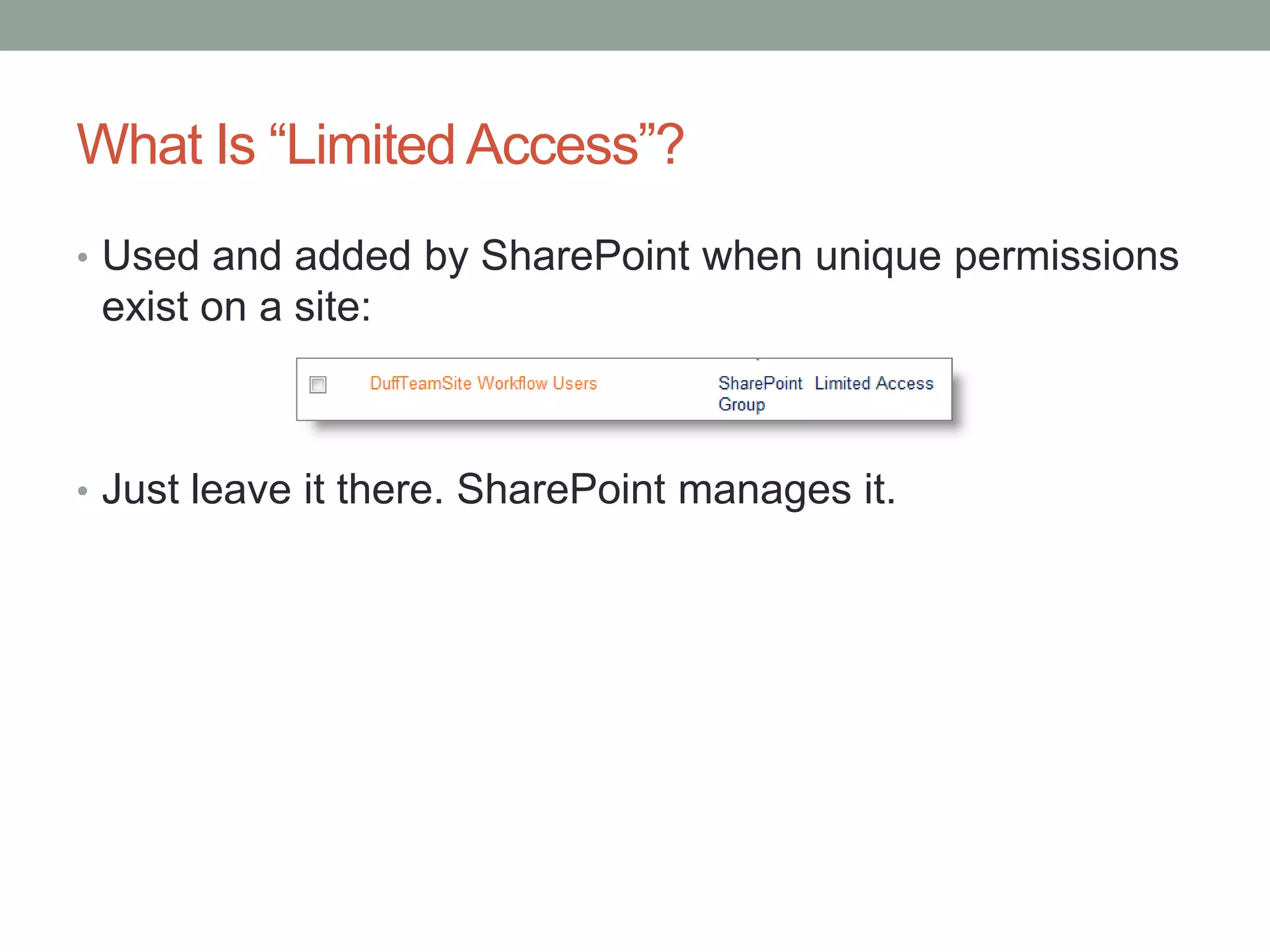
• Used and added by SharePoint when unique permissions
exist on a site:
• Just leave it there. SharePoint manages it.
Using Email Distribution Groups In SharePoint Groups
• These are groups in Outlook that start with [DL]:
Using Email Distribution Groups In SharePoint Groups
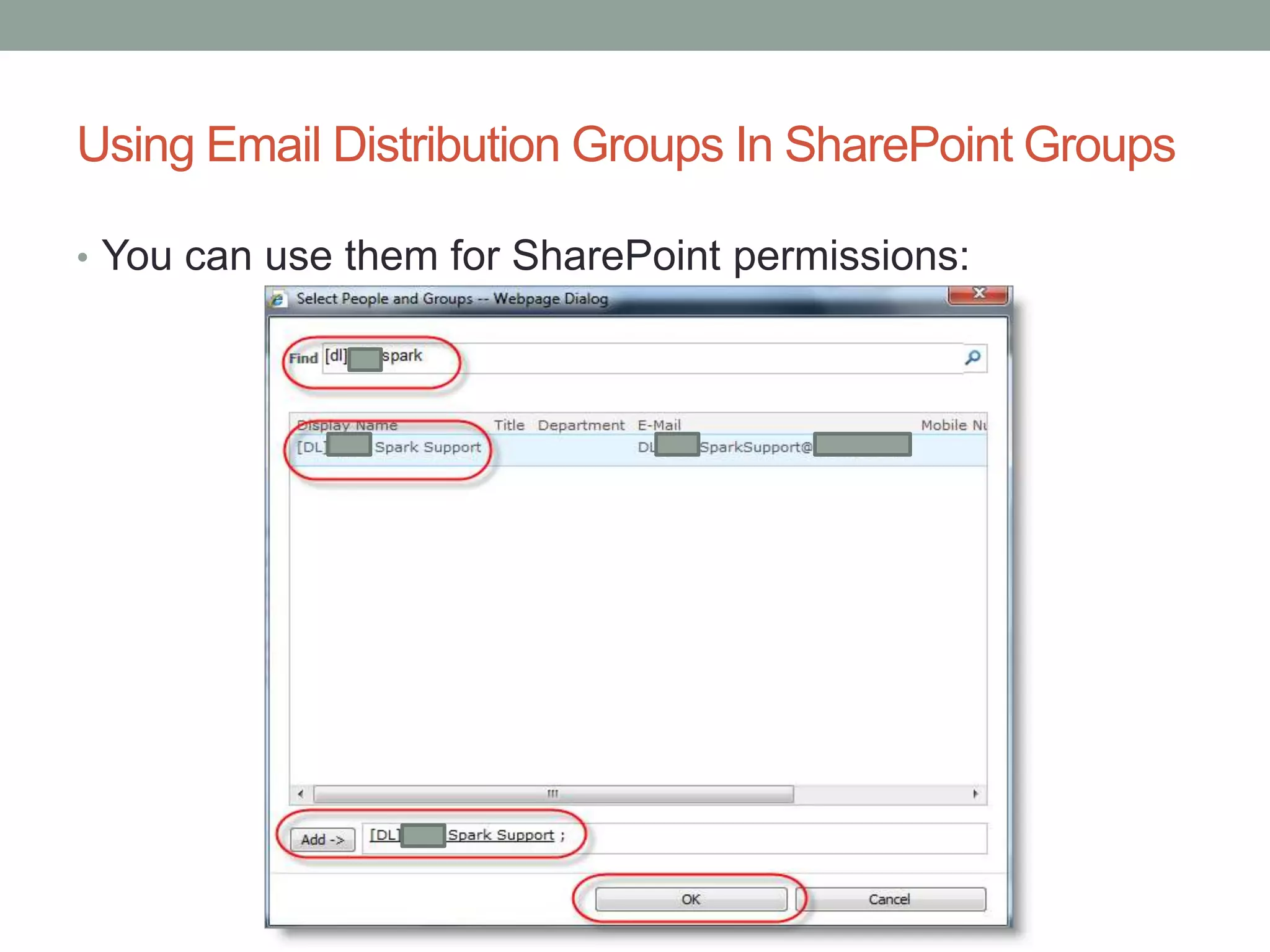
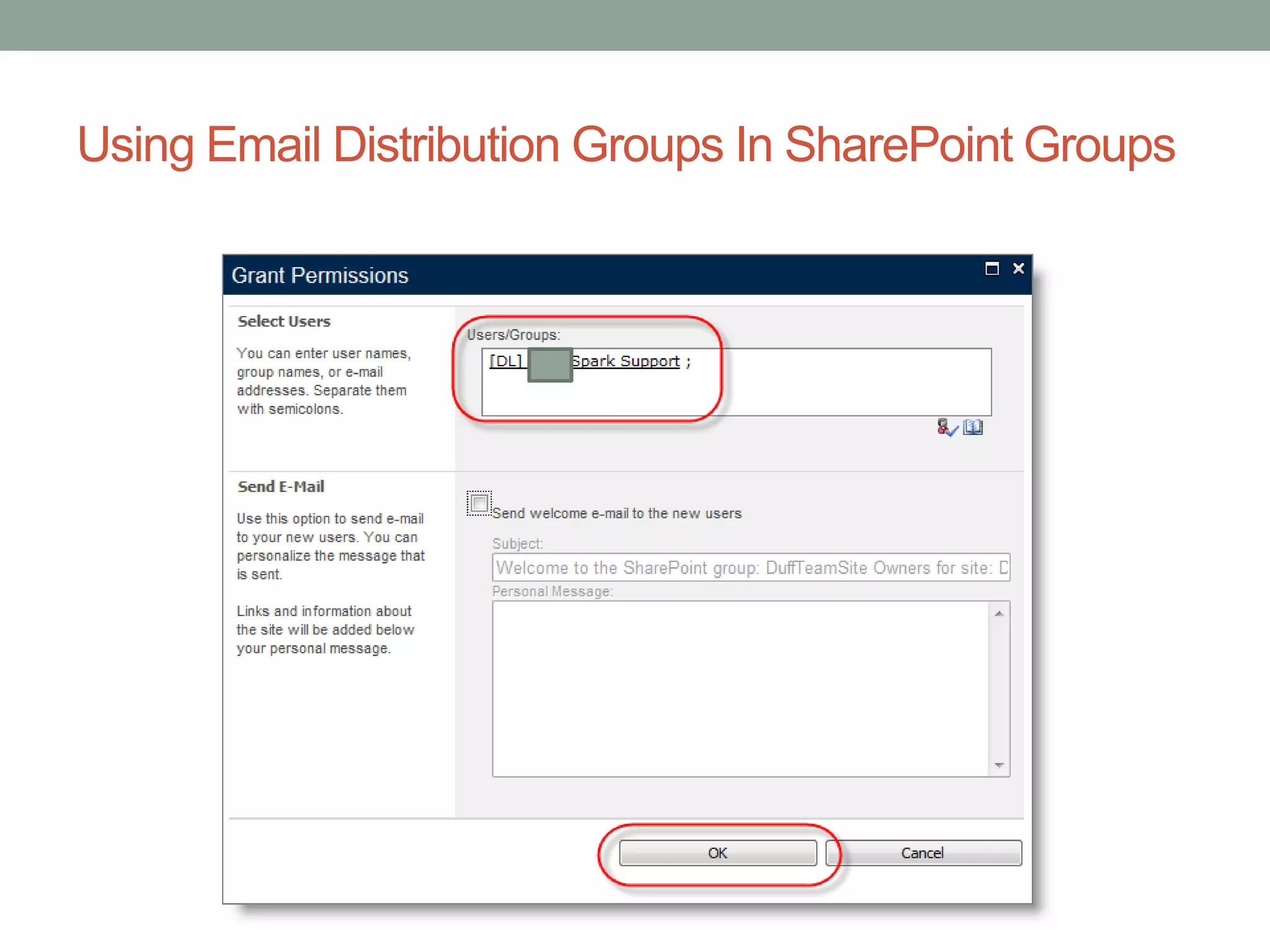
• You can use them for SharePoint permissions:
Using Email Distribution Groups In SharePoint Groups
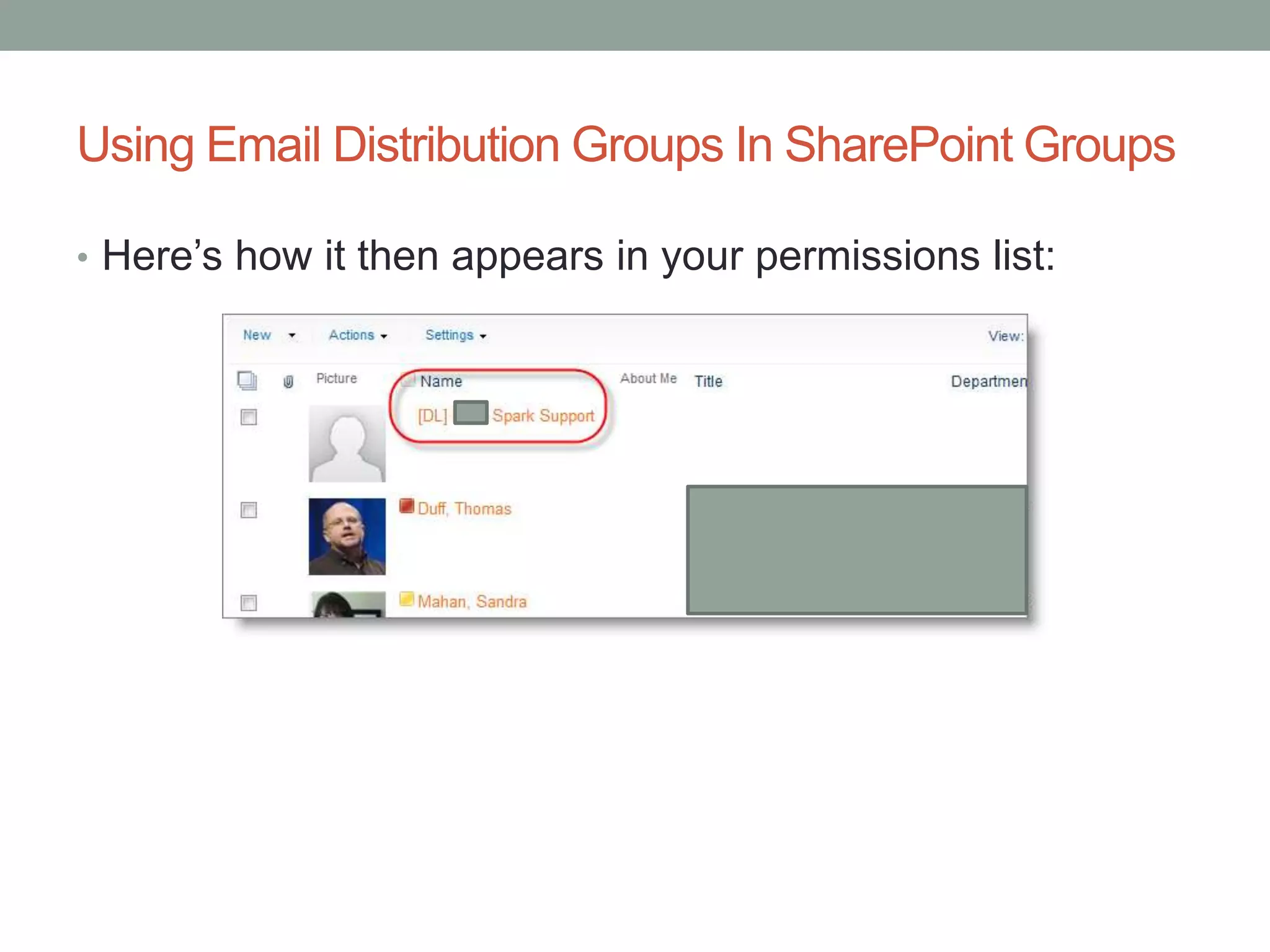
• Here’s how it then appears in your permissions list:
Using Email Distribution Groups In SharePoint Groups
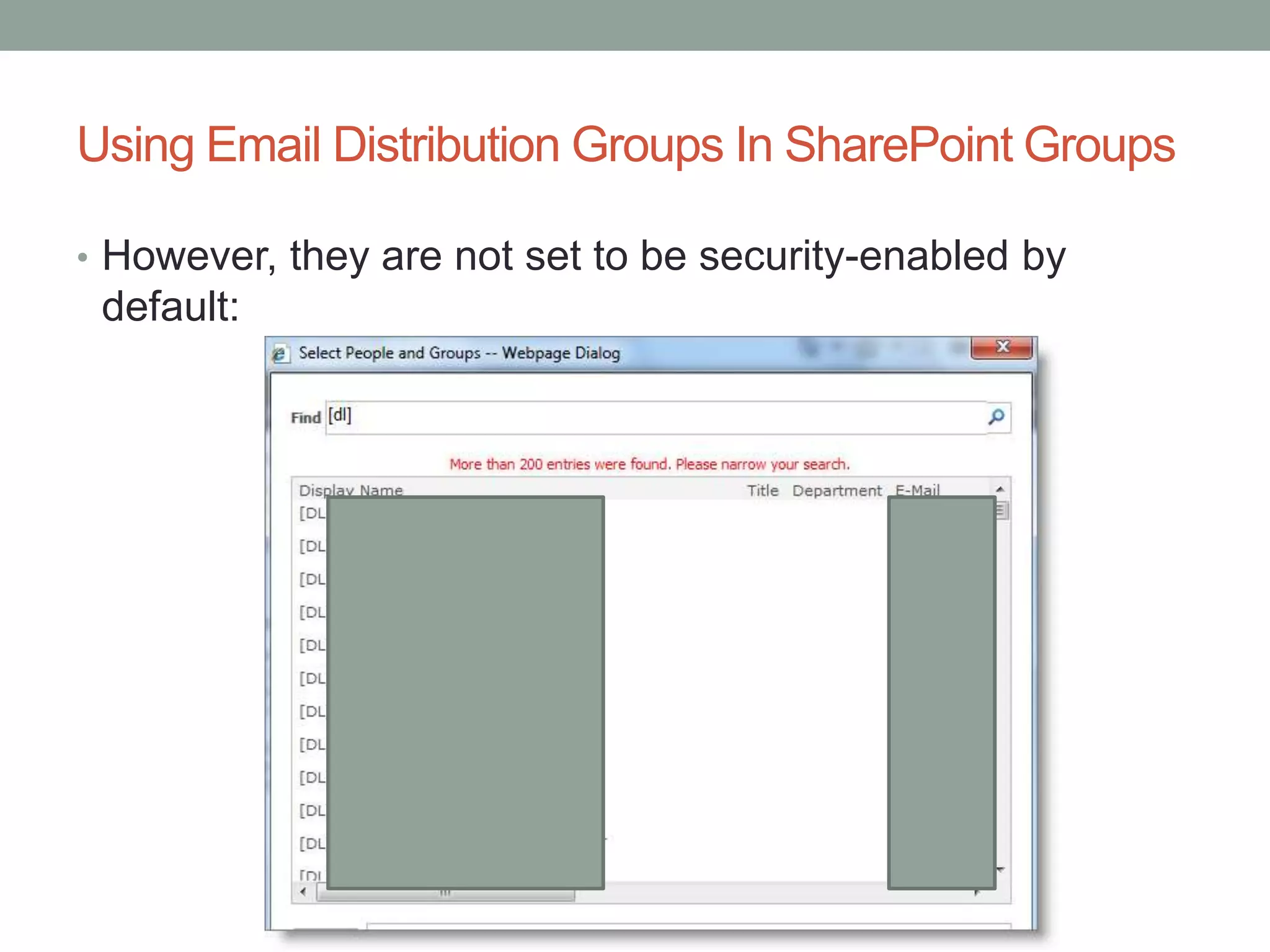
• However, they are not set to be security-enabled by
default:
Using Email Distribution Groups In SharePoint Groups
• If you don’t find your [DL] entry, create a help desk case to
have it added:
SharePoint Groups vs.Active Directory Groups
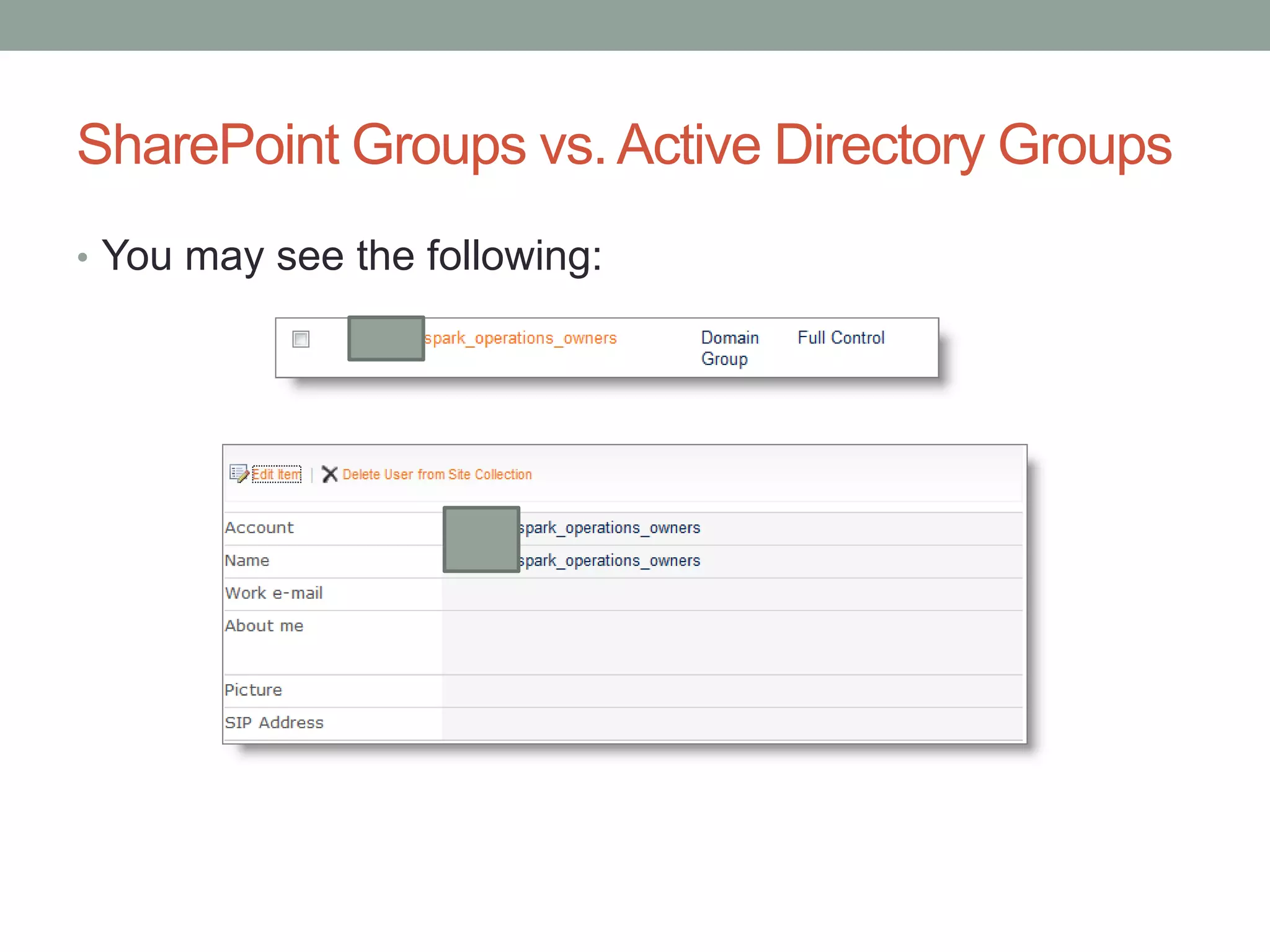
• You may see the following:
SharePoint Groups vs.Active Directory Groups
• Active Directory groups are managed by the Security
Access Management group.
• There are pros and cons to using Active Directory groups
vs. SharePoint groups.
• If you find an Active Directory group in your permission
list, call to find out who is in it.
• This is still a topic we are discussing as a group to
determine how we want to handle this on a consistent
basis.
Questions?
• This presentation and associated Word document with
this information will be posted for all to use.

SharePoint Permissions 101

  • 1.
  • 2.
    Agenda • Permissions InSharePoint • SharePoint Groups • Inheriting And Breaking Permissions • Finding What Permissions Someone Has On A Site • What Is “Limited Access”? • Using Email Distribution Groups In SharePoint Groups • SharePoint Groups vs. Active Directory Groups
  • 3.
    Permissions In SharePoint •Covers everything from Full Control (owners) to Read Only (visitors). • Permissions can inherit from a parent site or list • Permissions can also be unique (breaking inheritance) • You can customize your permission groups down to a specific level of granularity • For all permission options, see: http://technet.microsoft.com/en- us/library/cc721640(v=office.14).aspx
  • 4.
    Using SharePoint GroupsFor Permissions • The default groups are: • Full Control • Contribute • Reader • Site Actions > Site Permissions
  • 5.
    Why Groups InsteadOf Individual People? • Technically, you can add individual people to a permission list. • Using SharePoint groups makes it easier to administer permission changes.
  • 6.
    CreatingA New SharePointGroup • Use the Create Group icon in the Permissions page Ribbon bar.
  • 7.
  • 8.
  • 9.
    CreatingA New SharePointGroup • New group created with you as only member: • How it looks in the permission list:
  • 10.
    CreatingA New SharePointGroup • Important point: Even if you have Full Access in a site, you may not be able to update/modify a group: • Ownership of a group and who can modify it are part of the group settings.
  • 11.
    Adding People ToA SharePoint Group • Select the group to change and click New > Add Users:
  • 12.
    Adding People ToA SharePoint Group • Click the address book icon to look up names:
  • 13.
    Adding People ToA SharePoint Group • Select your names, click Add, then click OK:
  • 14.
    Adding People ToA SharePoint Group • You can have an email sent to the new members:
  • 15.
    Adding People ToA SharePoint Group • They are now a member of the group:
  • 16.
    InheritingAnd Breaking Permissions •Go to the permissions list for your list or site:
  • 17.
    InheritingAnd Breaking Permissions •Click on Stop Inheriting Permissions:
  • 18.
    InheritingAnd Breaking Permissions •Confirm: • Permissions are now unique:
  • 19.
    InheritingAnd Breaking Permissions •You can set permissions down to the list, folder, or item level: • Best practice is not to go any lower than folder level.
  • 20.
    SharePoint GroupsAnd BreakingInheritance • The names *within* a SharePoint group are not frozen, and changes to the SharePoint group membership *will* affect any site or list that uses that group. • THIS IS THE BIGGEST MISUNDERSTOOD PART OF UNIQUE PERMISSIONS! • Do not *delete* a group in a list, thinking you are only removing it from the list. You are deleting it anywhere it is used. • Use the Remove User Permissions button to remove (not *delete*) the group from this list.
  • 21.
    Finding What PermissionsSomeone Has OnA Site • From the permission list: • Enter person’s name:
  • 22.
    Finding What PermissionsSomeone Has OnA Site • All the permissions for the person (highest wins):
  • 23.
    What Is “LimitedAccess”? • Used and added by SharePoint when unique permissions exist on a site: • Just leave it there. SharePoint manages it.
  • 24.
    Using Email DistributionGroups In SharePoint Groups • These are groups in Outlook that start with [DL]:
  • 25.
    Using Email DistributionGroups In SharePoint Groups • You can use them for SharePoint permissions:
  • 26.
    Using Email DistributionGroups In SharePoint Groups
  • 27.
    Using Email DistributionGroups In SharePoint Groups • Here’s how it then appears in your permissions list:
  • 28.
    Using Email DistributionGroups In SharePoint Groups • However, they are not set to be security-enabled by default:
  • 29.
    Using Email DistributionGroups In SharePoint Groups • If you don’t find your [DL] entry, create a help desk case to have it added:
  • 30.
    SharePoint Groups vs.ActiveDirectory Groups • You may see the following:
  • 31.
    SharePoint Groups vs.ActiveDirectory Groups • Active Directory groups are managed by the Security Access Management group. • There are pros and cons to using Active Directory groups vs. SharePoint groups. • If you find an Active Directory group in your permission list, call to find out who is in it. • This is still a topic we are discussing as a group to determine how we want to handle this on a consistent basis.
  • 32.
    Questions? • This presentationand associated Word document with this information will be posted for all to use.