Plotting Curves 
ME 443 Mathematica for Engineers
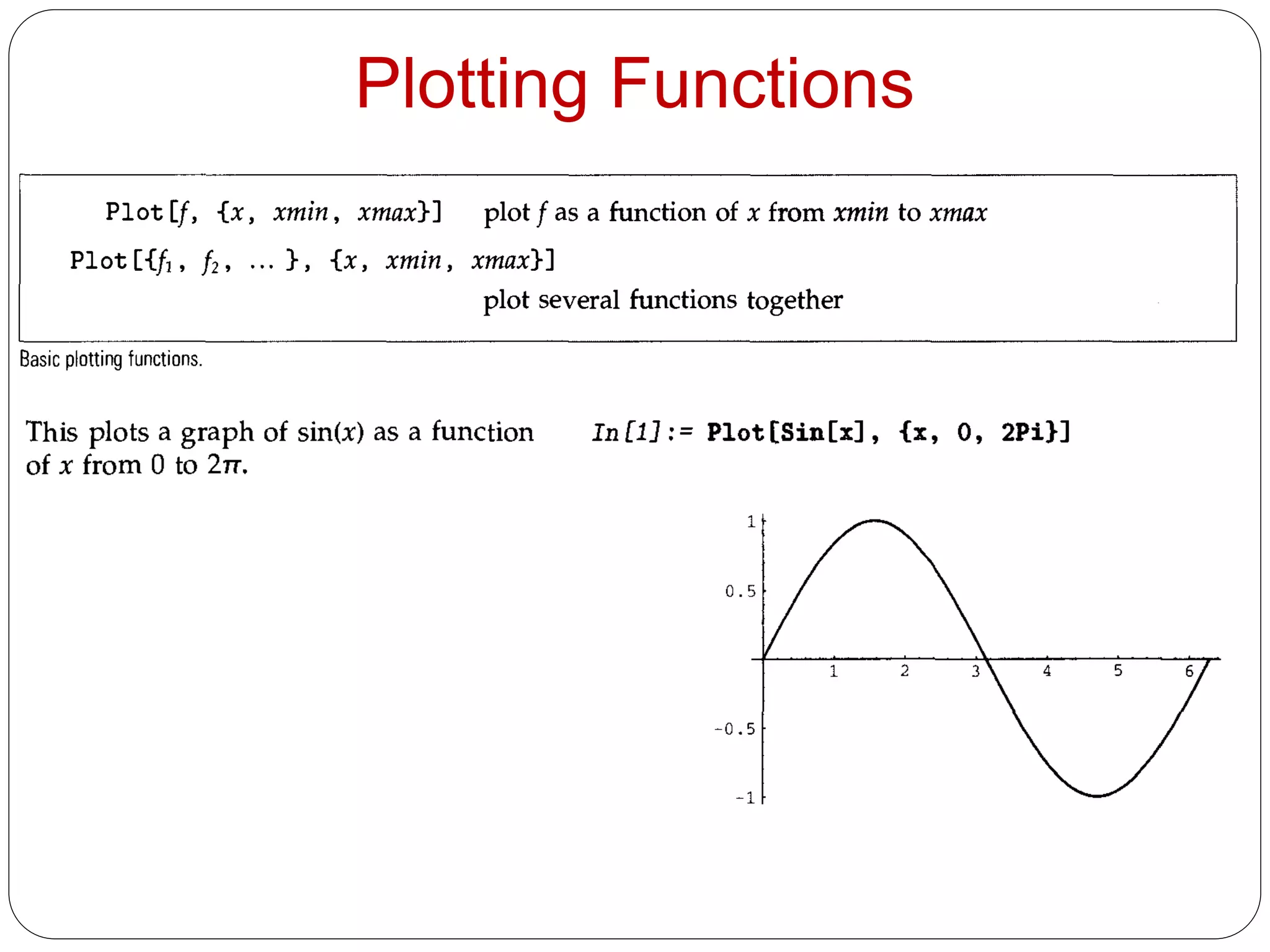
Plotting Functions
Parametric Plot 
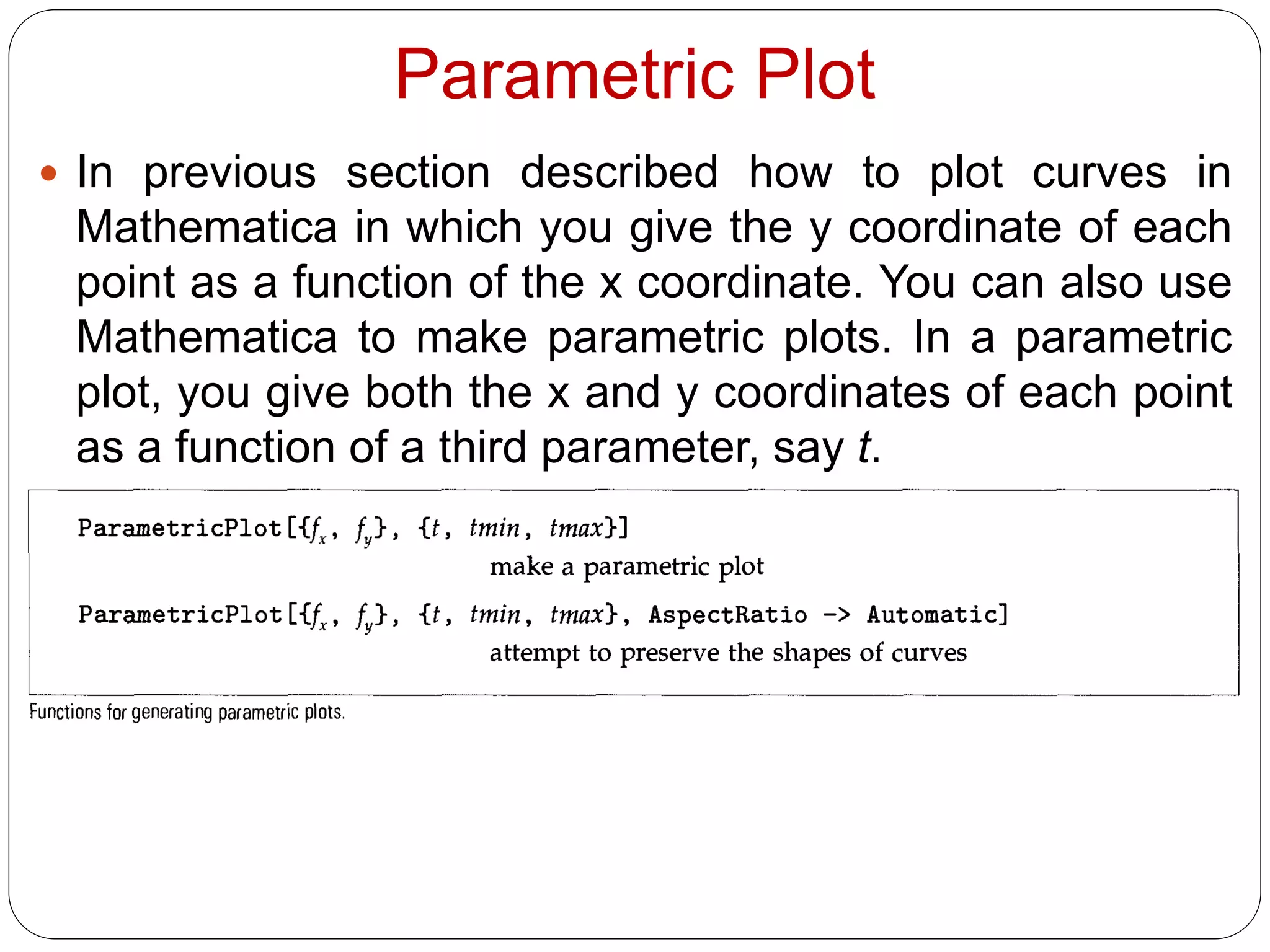
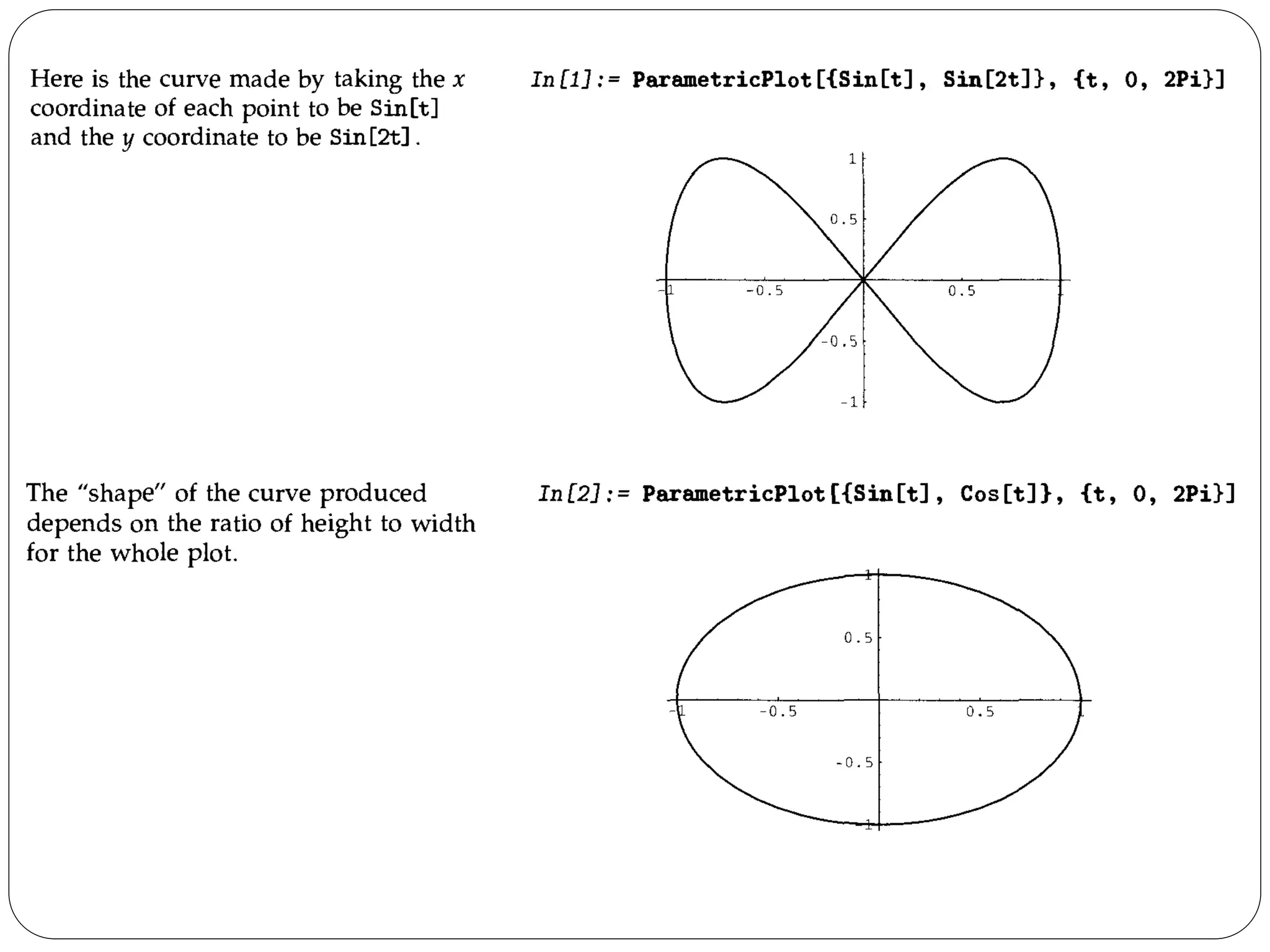
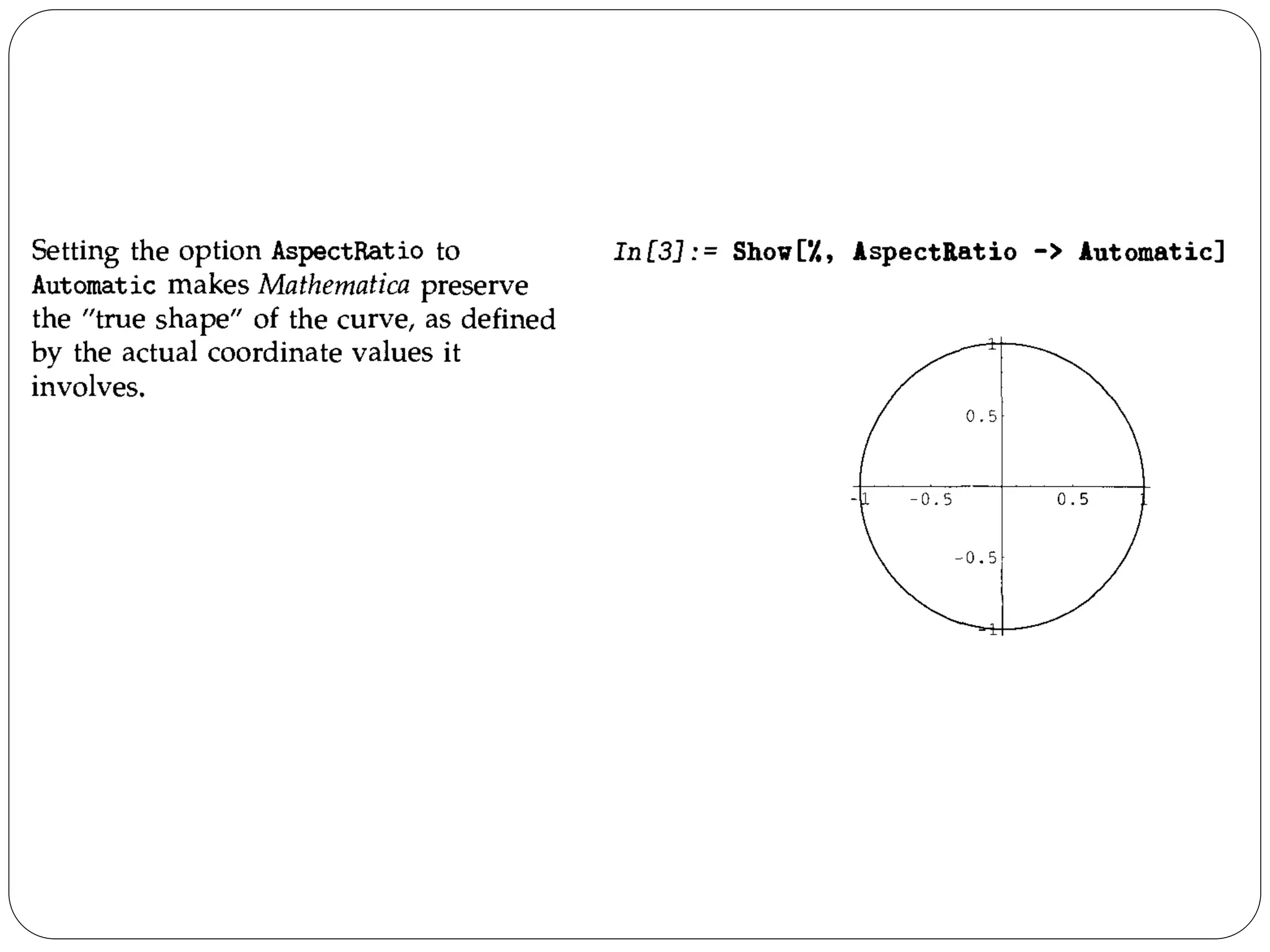
In previous section described how to plot curves in Mathematica in which you give the y coordinate of each point as a function of the x coordinate. You can also use Mathematica to make parametric plots. In a parametric plot, you give both the x and y coordinates of each point as a function of a third parameter, say t.
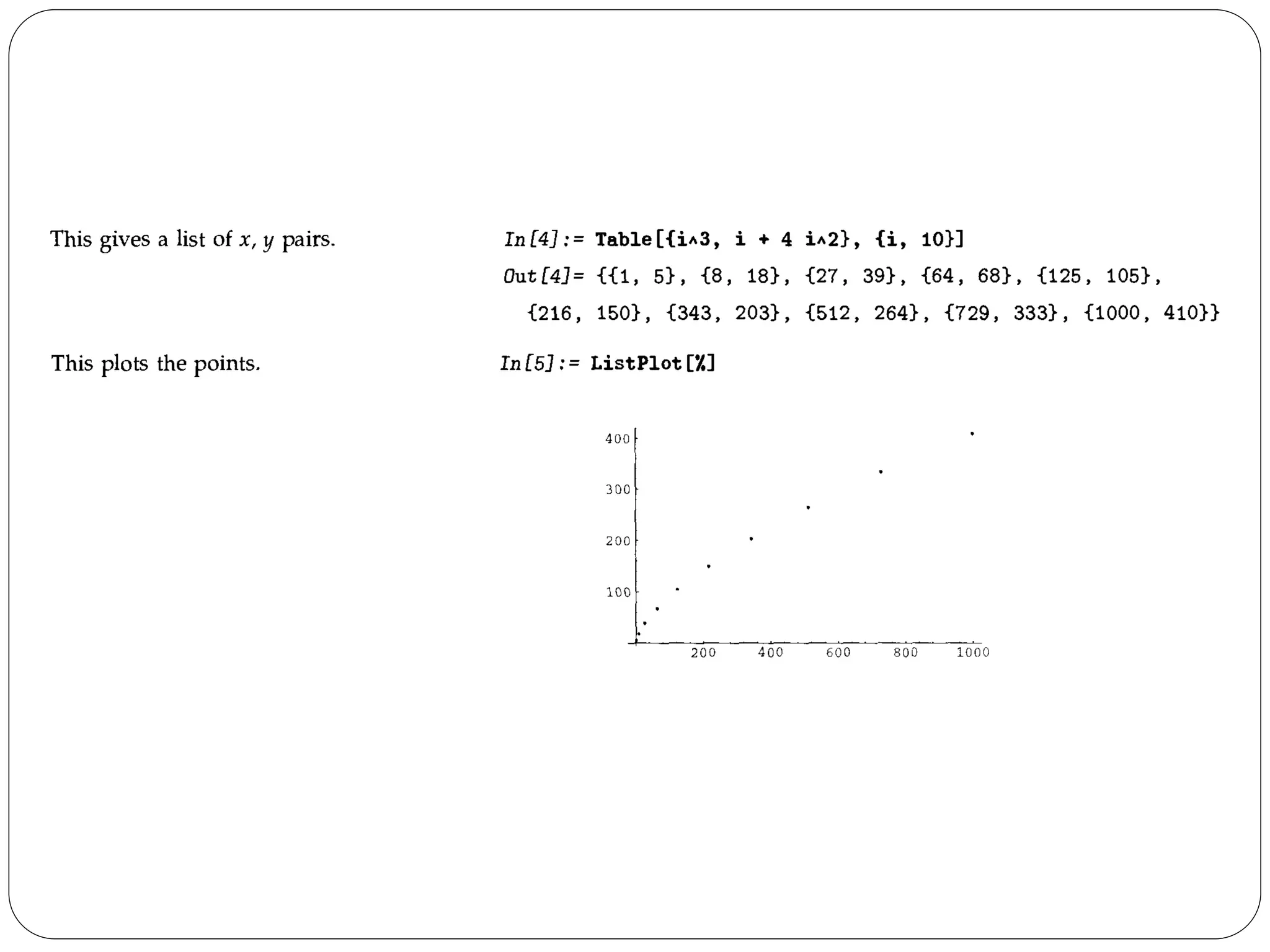
Plotting Lists of Data 
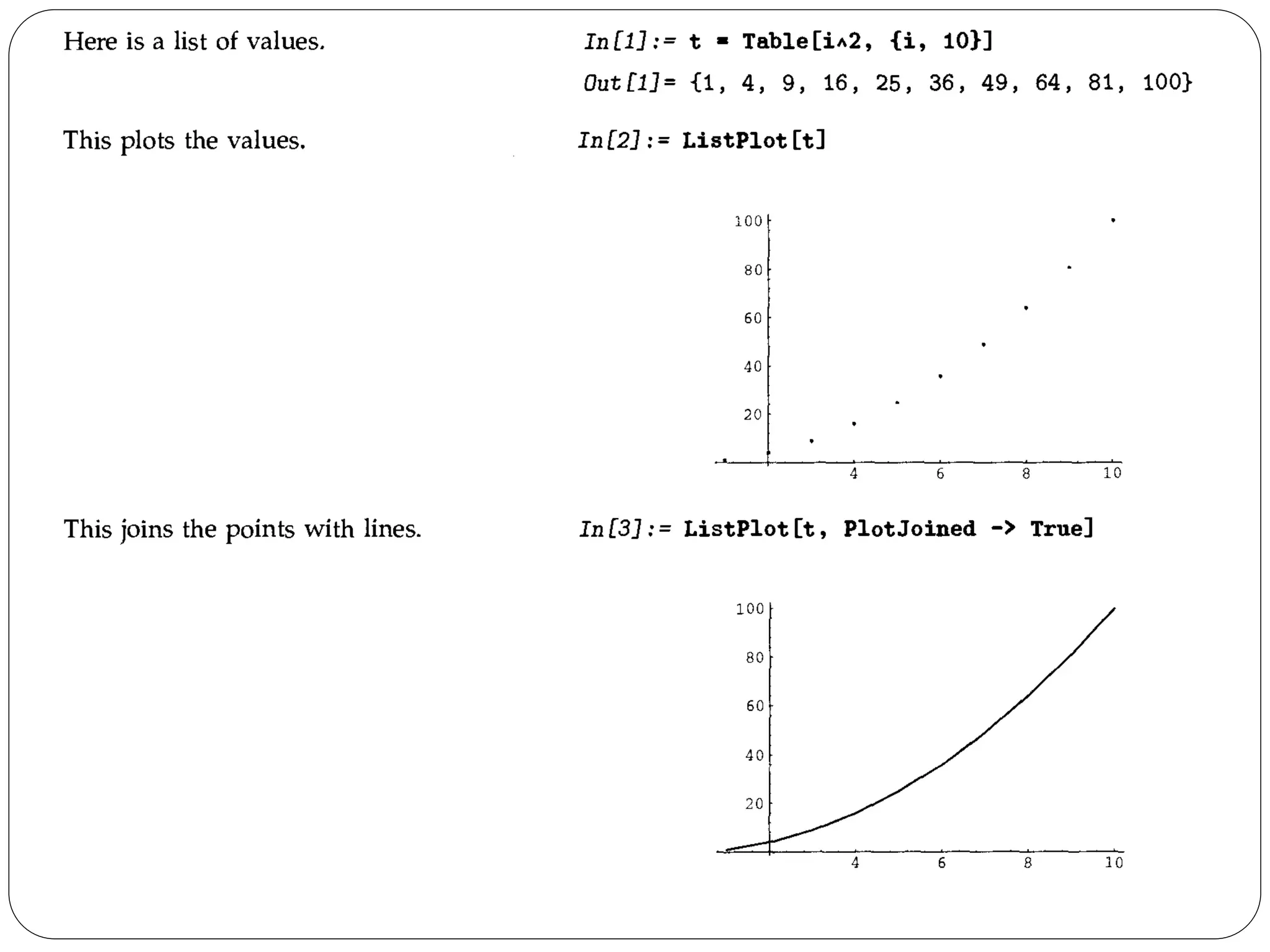
So far, we have discussed how you can use Mathematica to make plots of functions. You give Mathematica a function, and it builds up a curve by evaluating the function at many different points. 
This section describes how you can make plots from lists of data, instead of functions. The Mathematica commands for plotting lists of data are direct analogs of the ones discussed in the section for plotting functions.
Options for Plot 
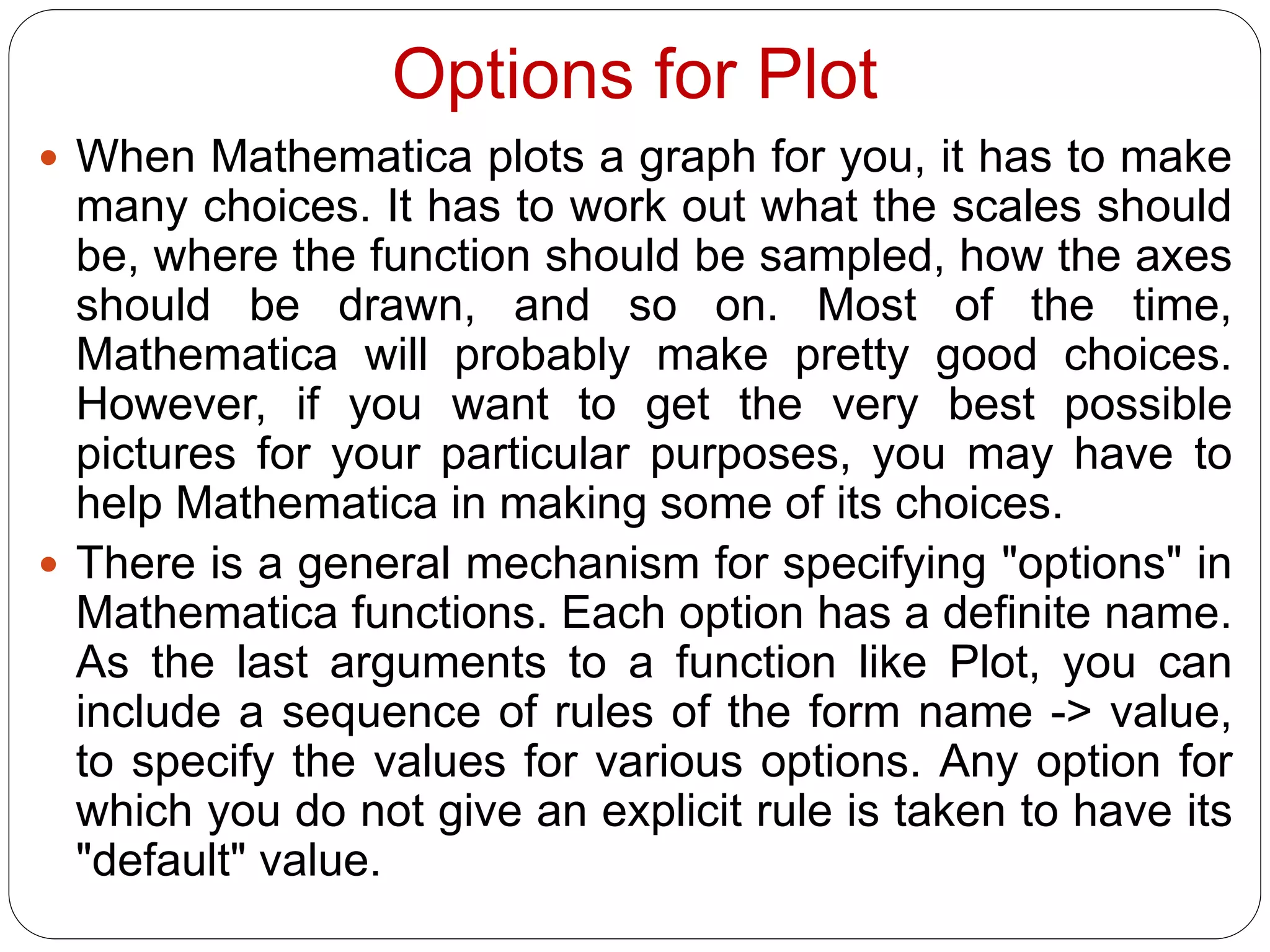
When Mathematica plots a graph for you, it has to make many choices. It has to work out what the scales should be, where the function should be sampled, how the axes should be drawn, and so on. Most of the time, Mathematica will probably make pretty good choices. However, if you want to get the very best possible pictures for your particular purposes, you may have to help Mathematica in making some of its choices. 
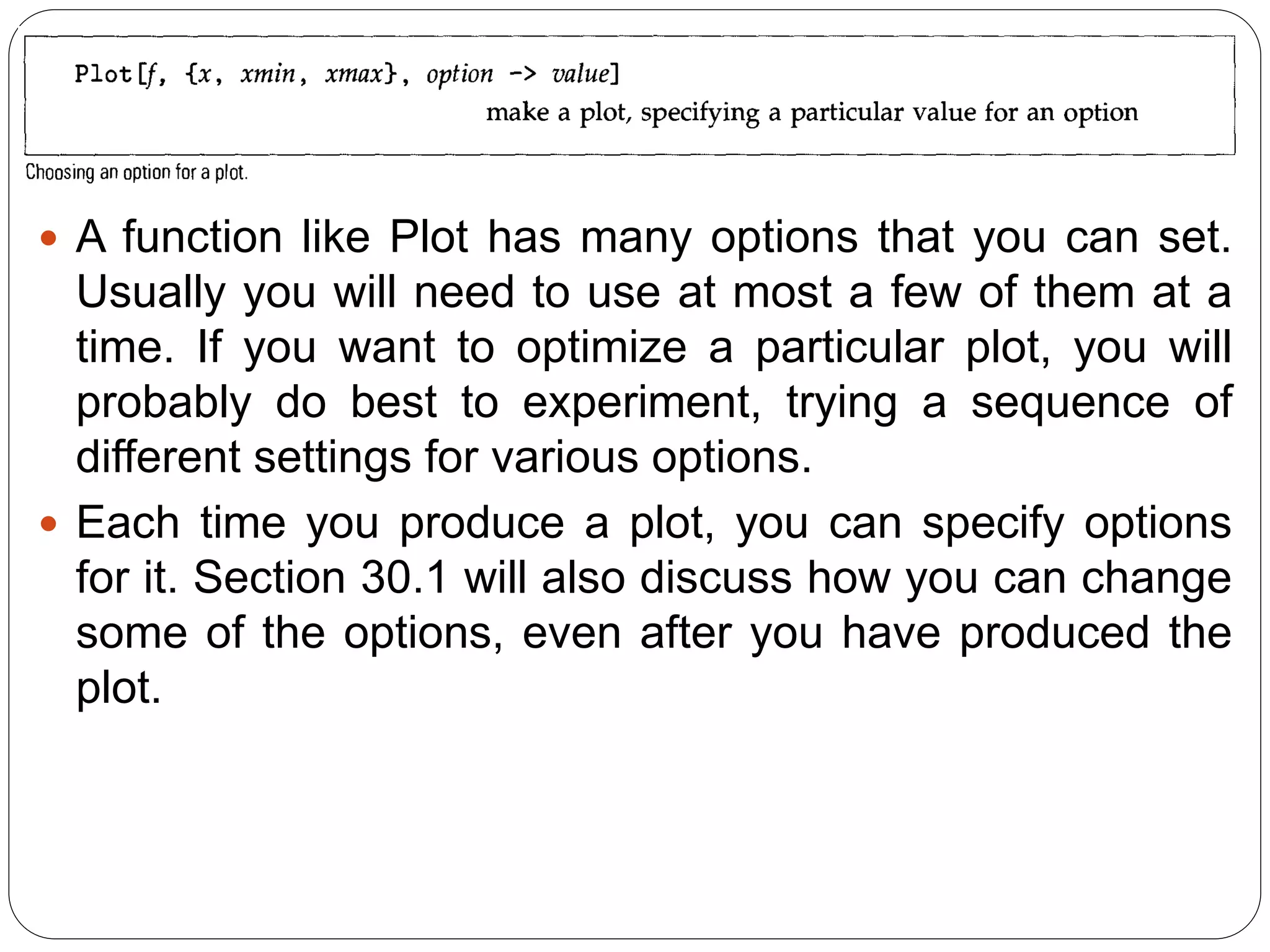
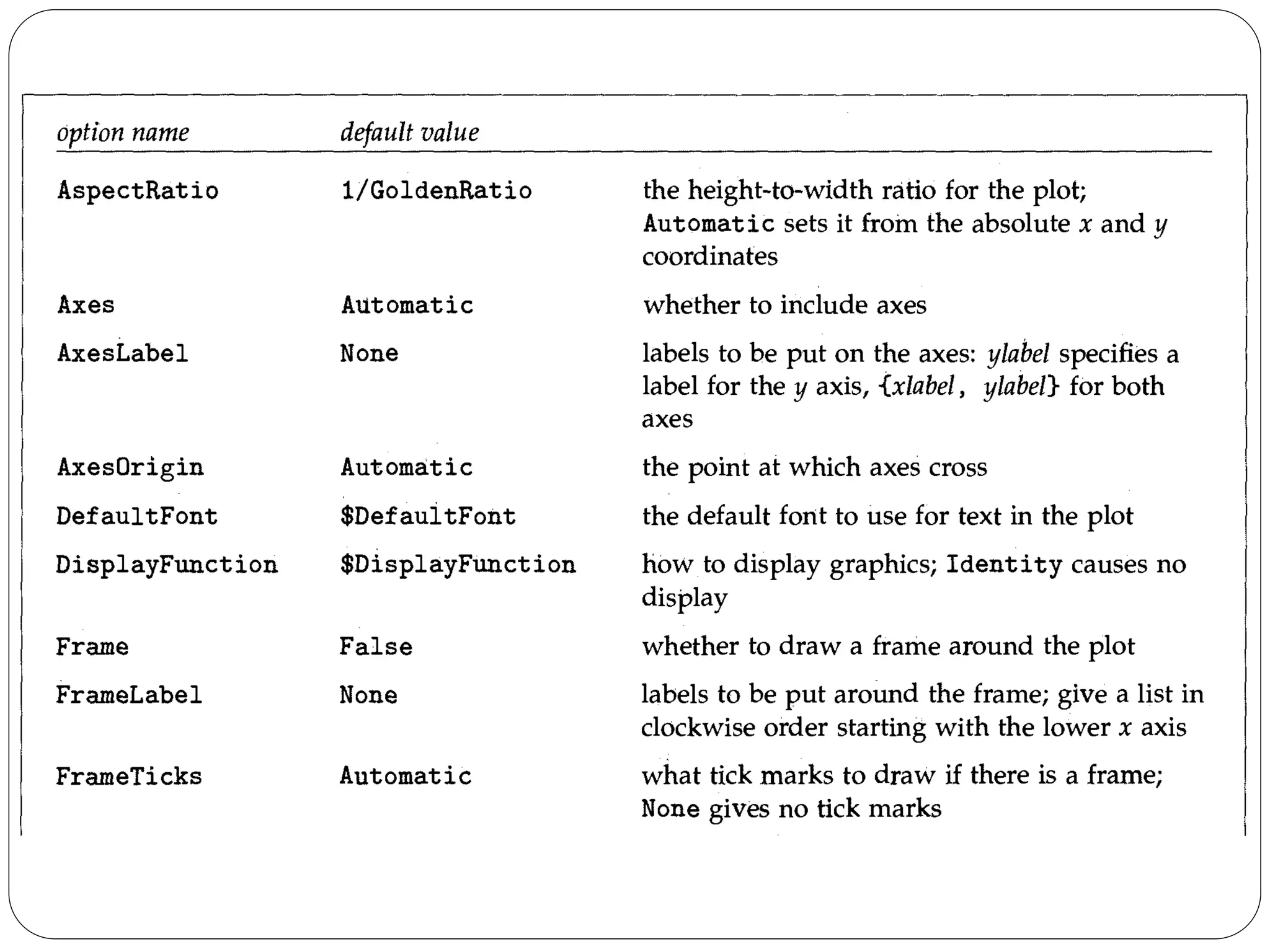
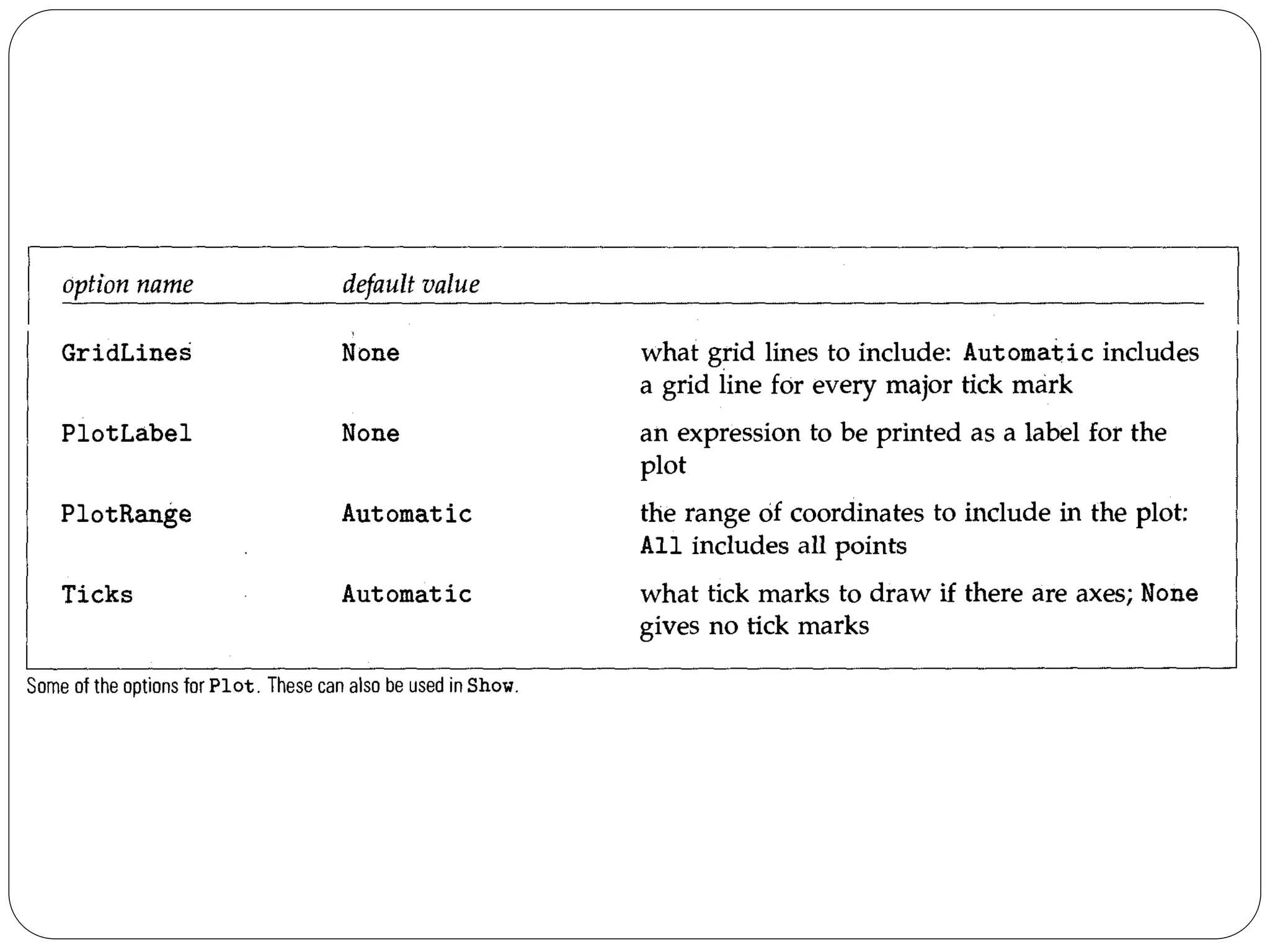
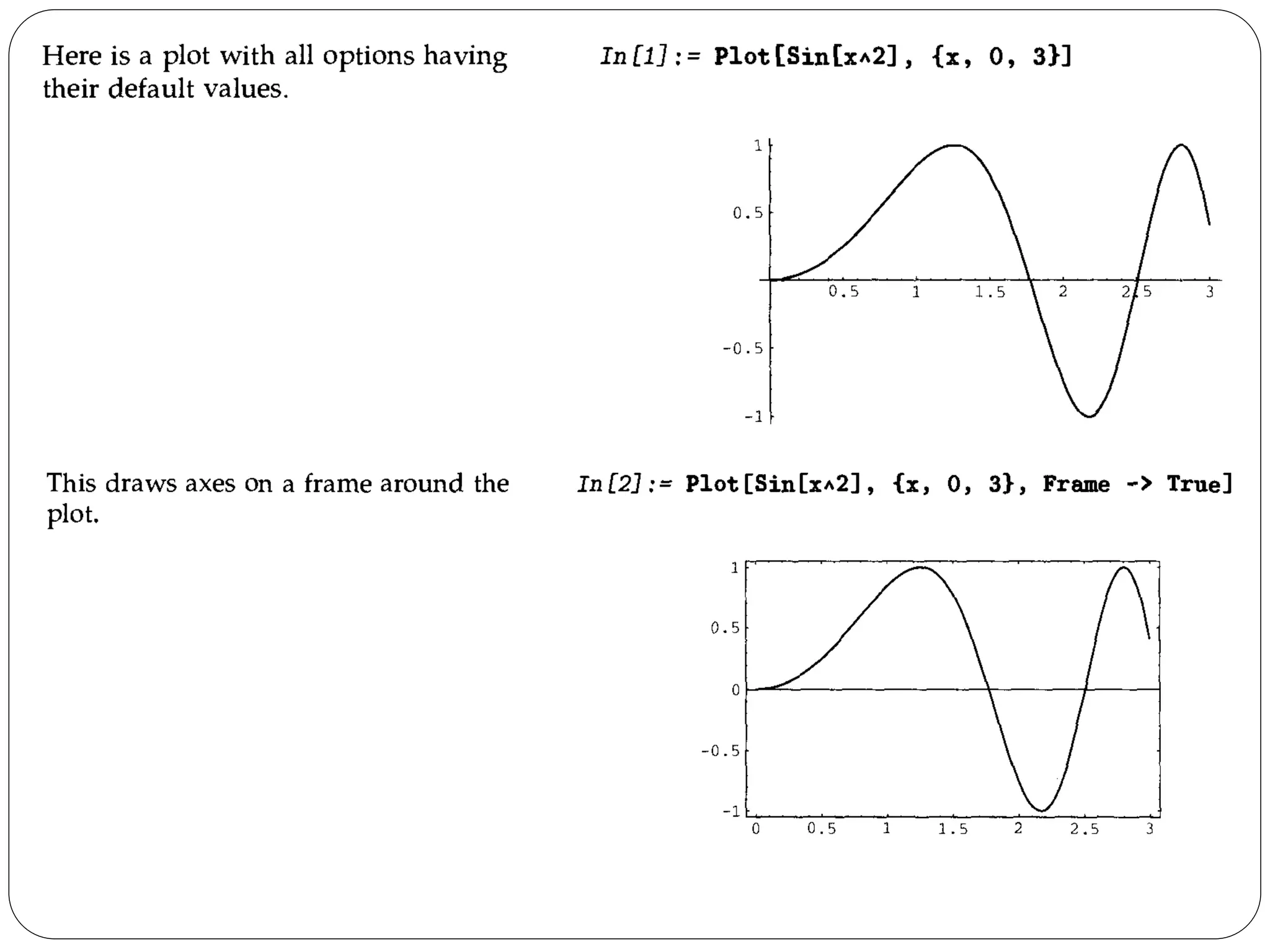
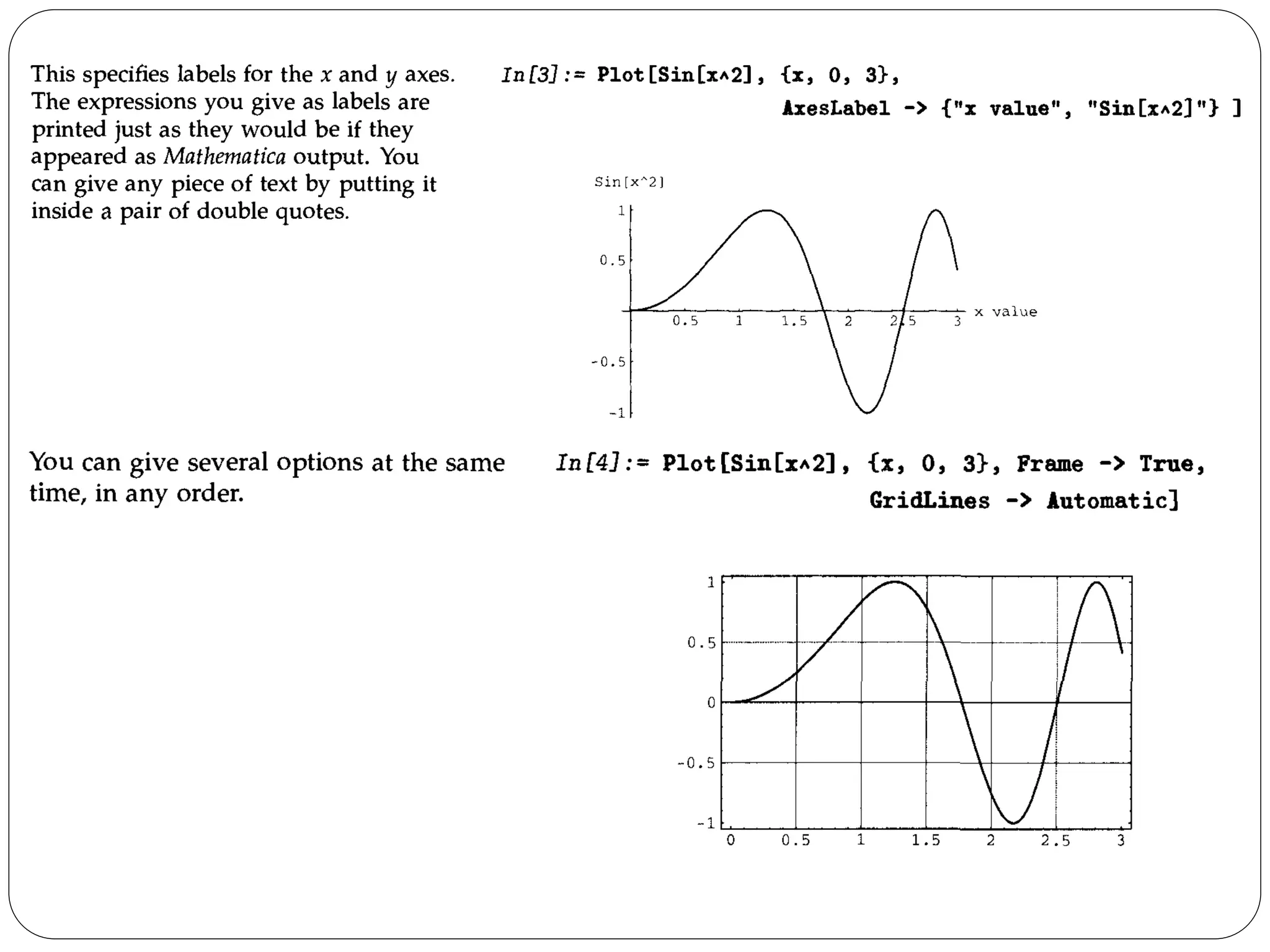
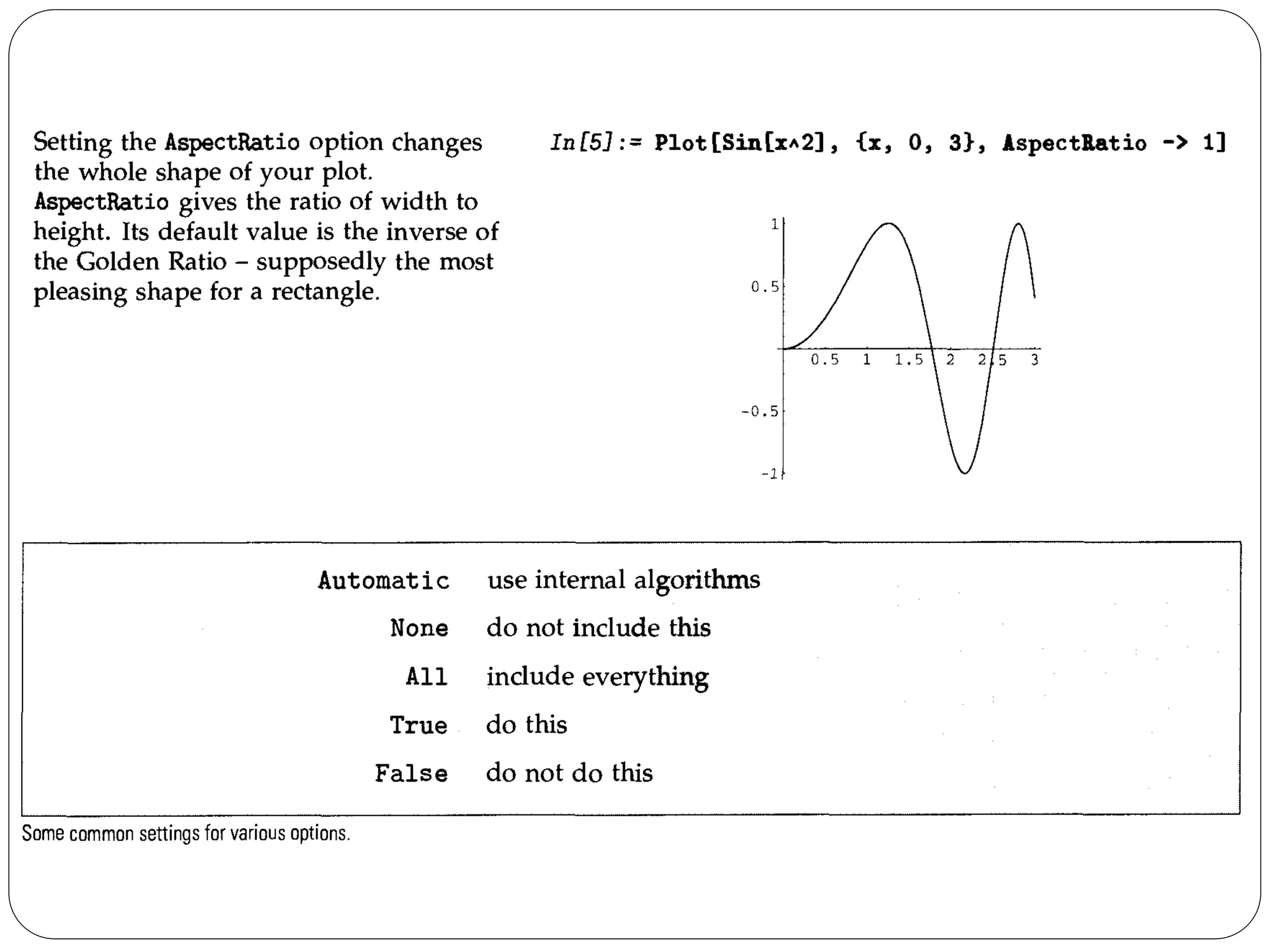
There is a general mechanism for specifying "options" in Mathematica functions. Each option has a definite name. As the last arguments to a function like Plot, you can include a sequence of rules of the form name -> value, to specify the values for various options. Any option for which you do not give an explicit rule is taken to have its "default" value.
A function like Plot has many options that you can set. Usually you will need to use at most a few of them at a time. If you want to optimize a particular plot, you will probably do best to experiment, trying a sequence of different settings for various options. 
Each time you produce a plot, you can specify options for it. Section 30.1 will also discuss how you can change some of the options, even after you have produced the plot.
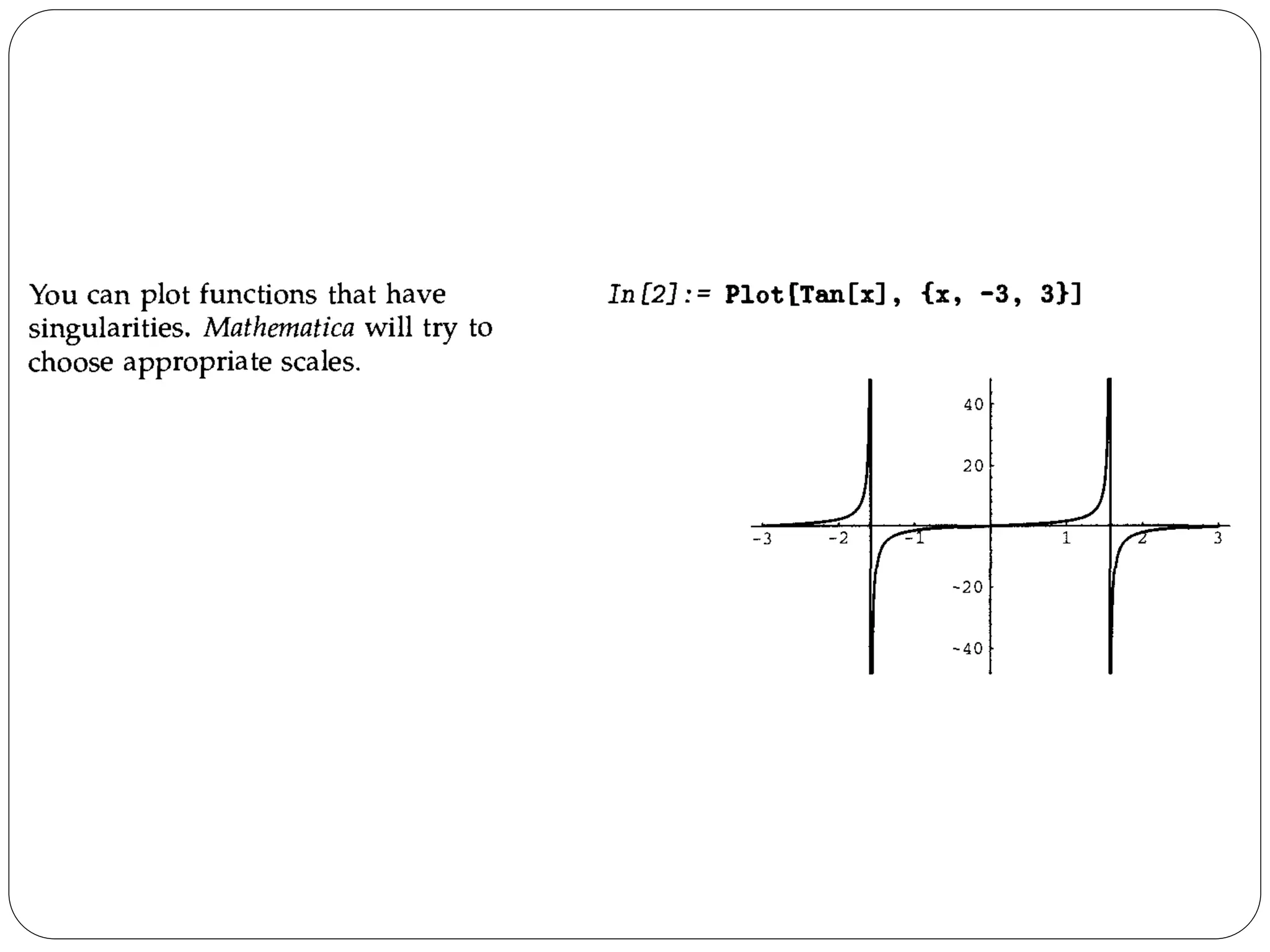
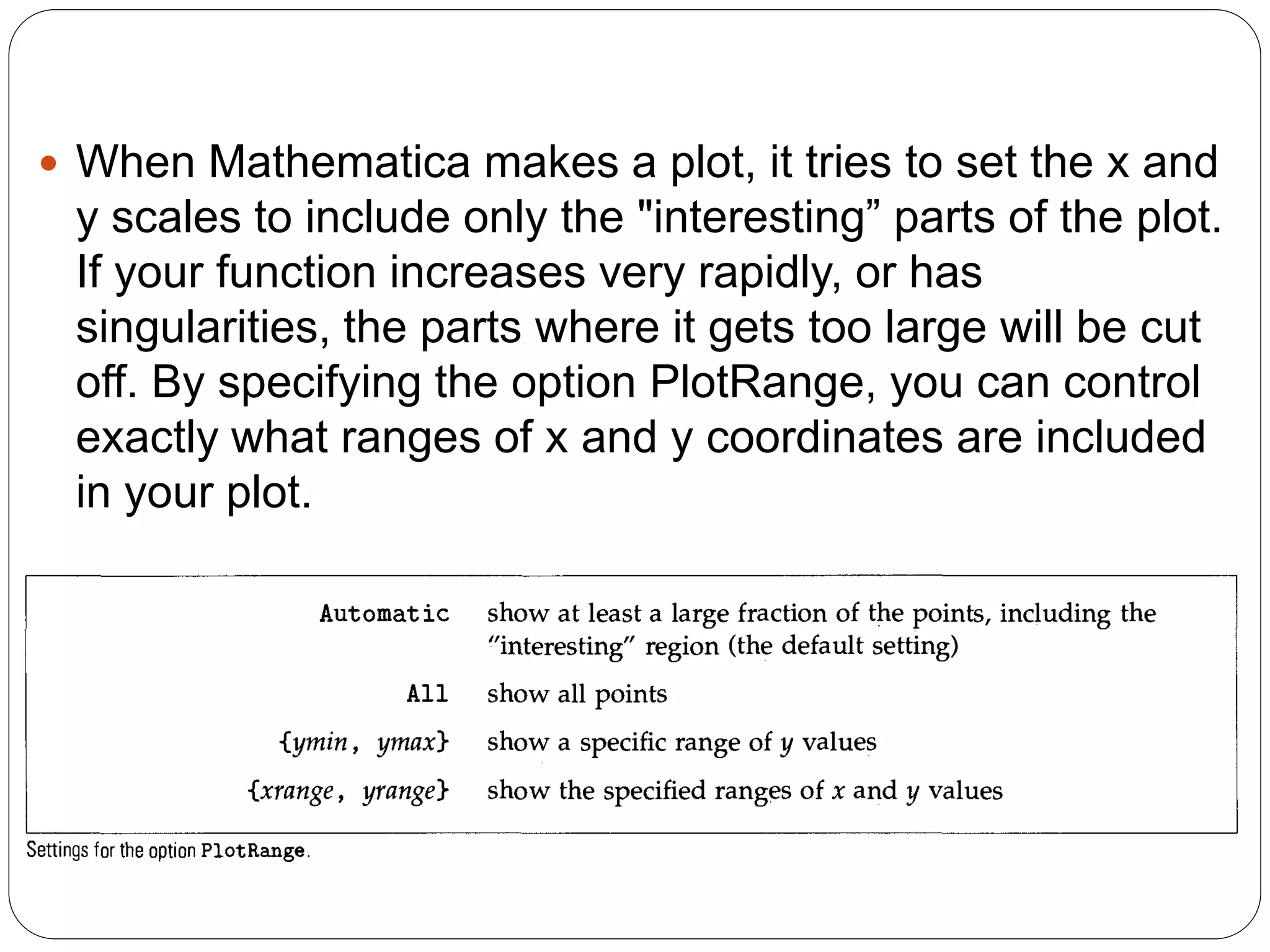
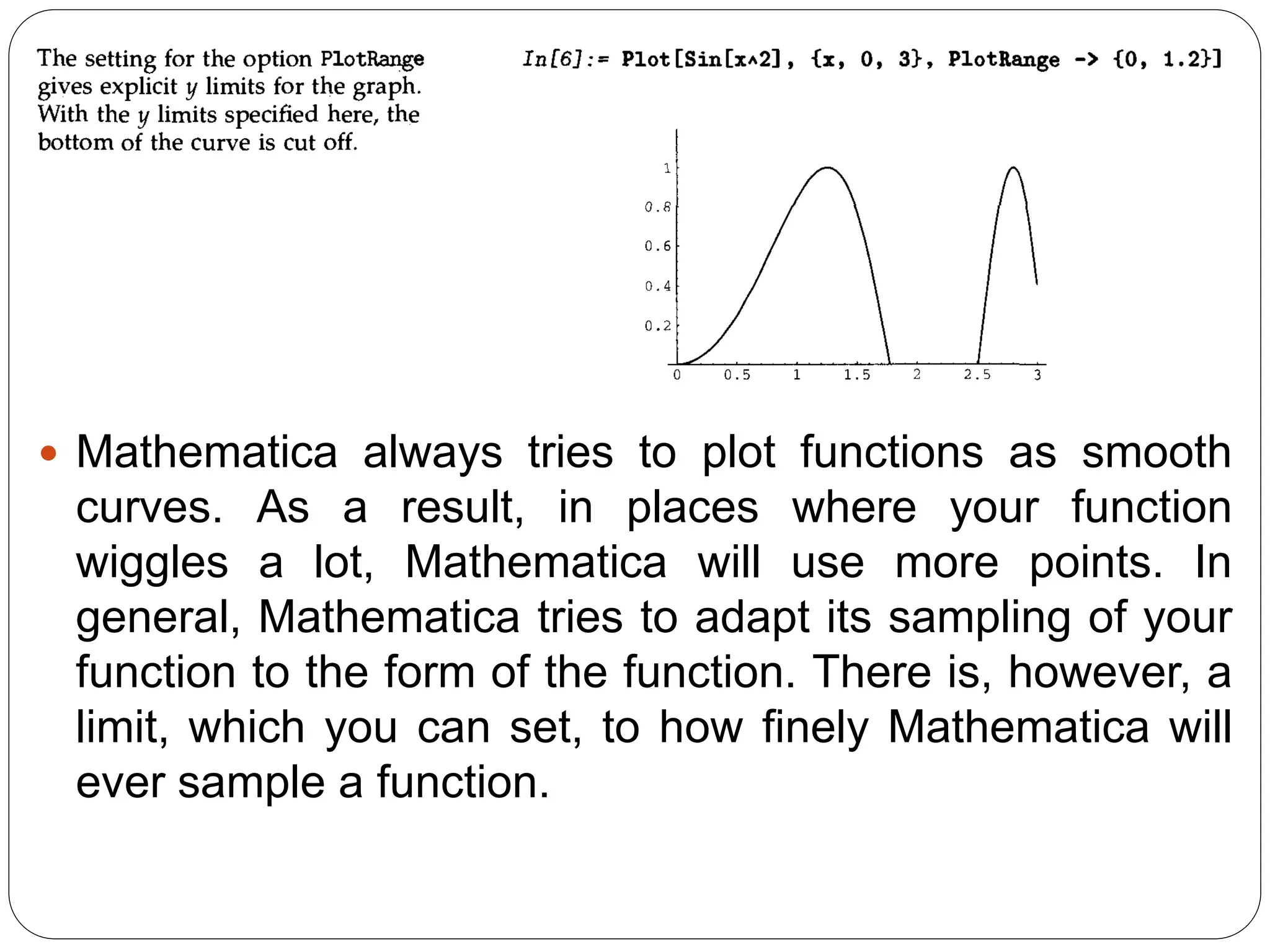
When Mathematica makes a plot, it tries to set the x and y scales to include only the "interesting” parts of the plot. If your function increases very rapidly, or has singularities, the parts where it gets too large will be cut off. By specifying the option PlotRange, you can control exactly what ranges of x and y coordinates are included in your plot.
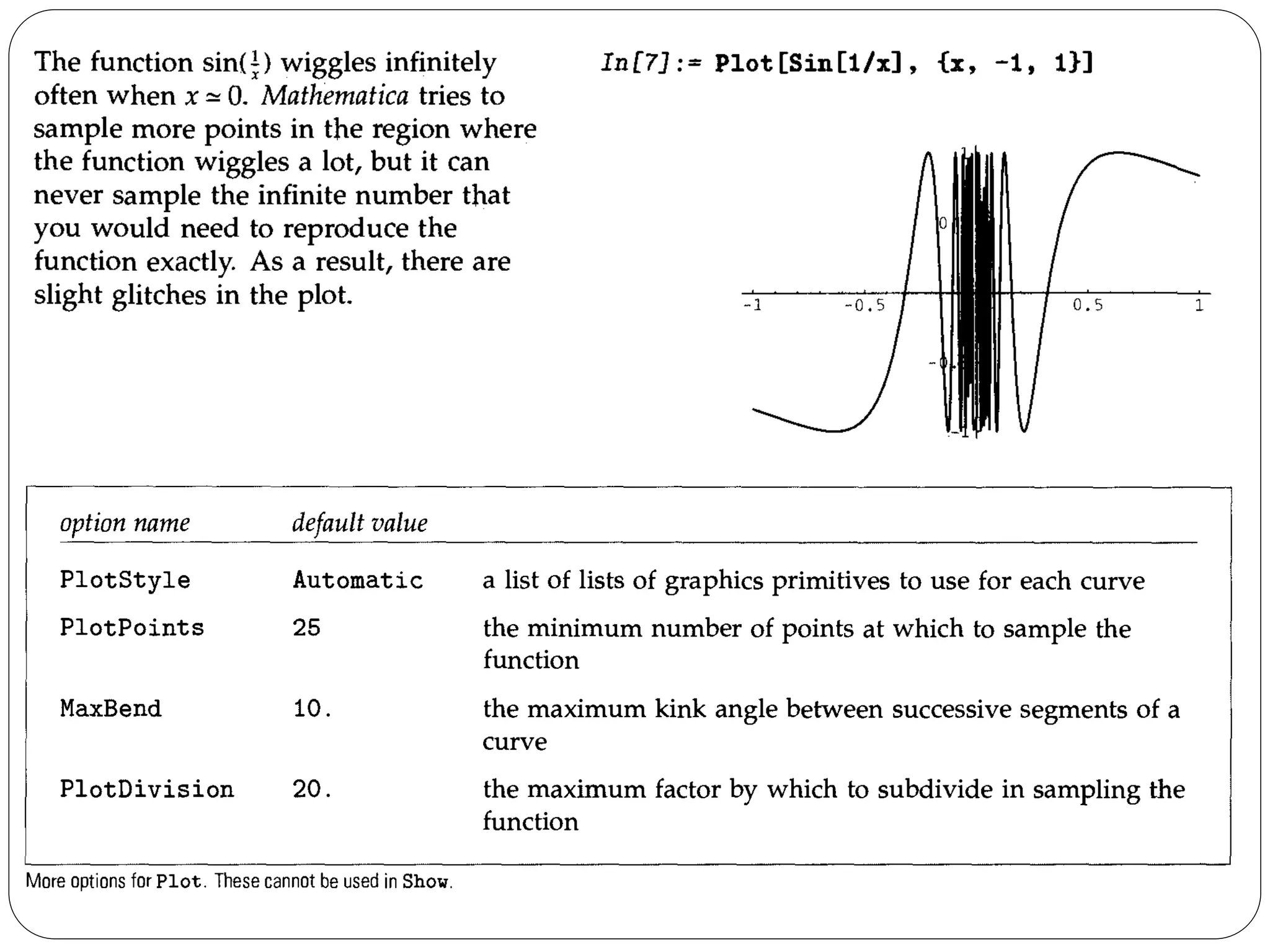
Mathematica always tries to plot functions as smooth curves. As a result, in places where your function wiggles a lot, Mathematica will use more points. In general, Mathematica tries to adapt its sampling of your function to the form of the function. There is, however, a limit, which you can set, to how finely Mathematica will ever sample a function.
It is important to realize that since Mathematica can only sample your function at a limited number of points, it can always miss features of the function. By increasing PlotPoints, you can make Mathematica sample your function at a larger number of points. Of course, the larger you set PlotPoints to be, the longer it will take Mathematica to plot any function, even a smooth one. 
Since Plot needs to evaluate your function many times, it is important to make each evaluation as quickly as possible. As a result, Mathematica usually compiles your function into a low-level pseudocode that can be executed very efficiently. Note that Mathematica can only compile "in-line code"; it cannot for example compile functions that you have defined. As a result, you should, when possible, use Evaluate as described on next section to evaluate any such definitions and get a form that the Mathematica compiler can handle.
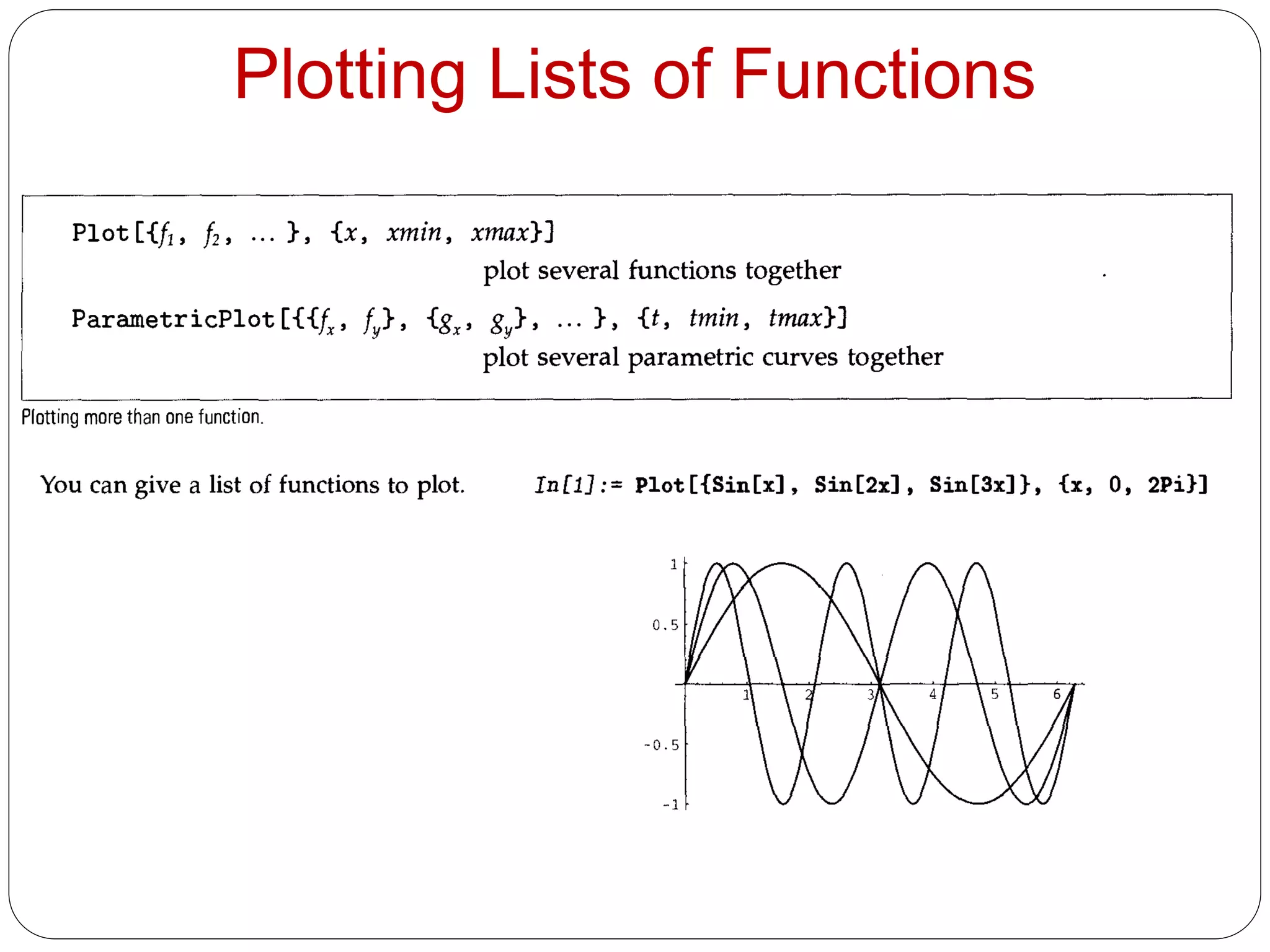
Plotting Lists of Functions
To get smooth curves, Mathematica has to evaluate functions you plot at a large number of points. As a result, it is important that you set things up so that each function evaluation is as quick as possible. 
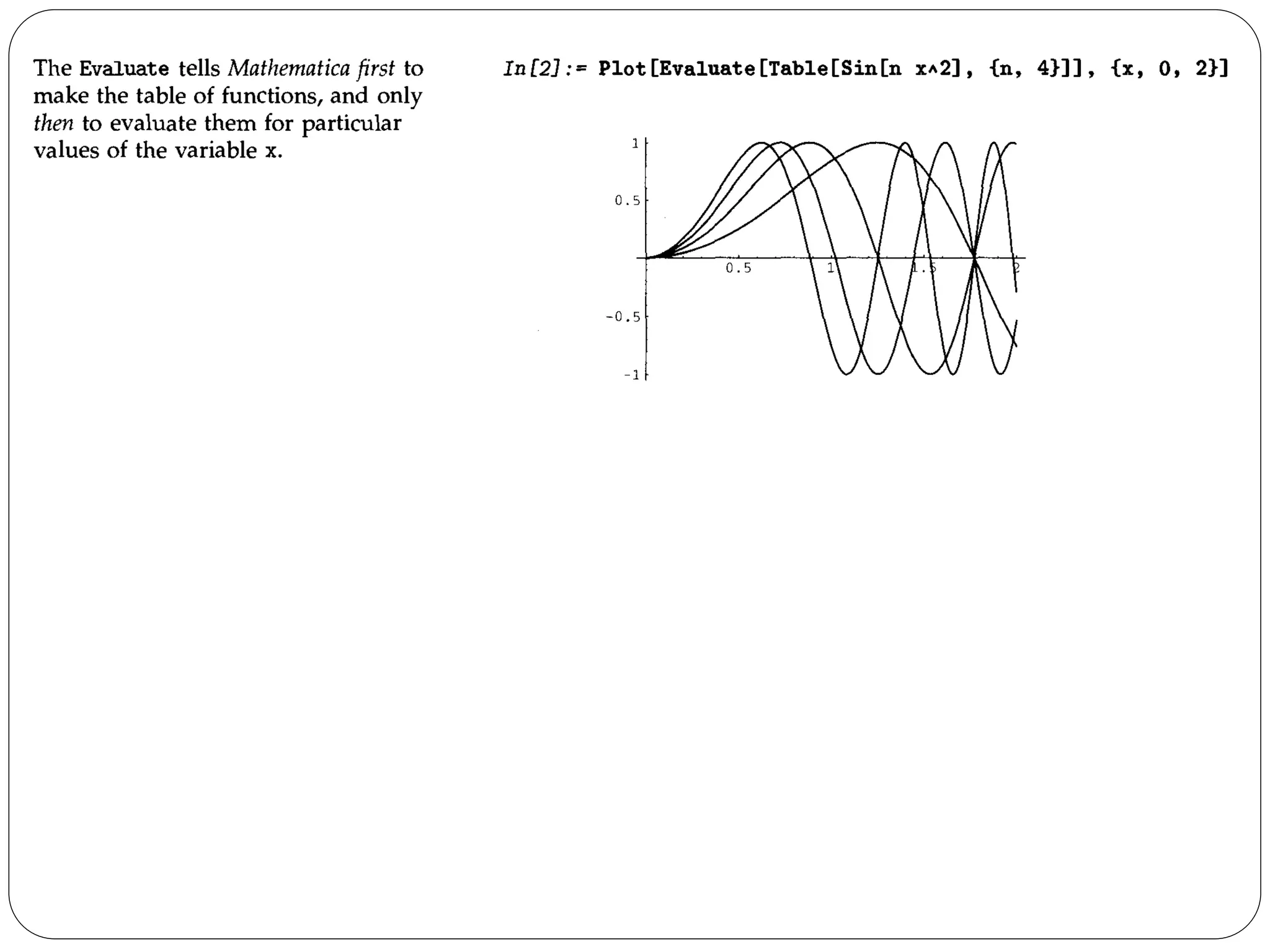
When you ask Mathematica to plot an object, say f, as a function of x, there are two possible approaches it can take. One approach is first to try and evaluate f, presumably getting a symbolic expression in terms of x, and then subsequently evaluate this expression numerically for the specific values of x needed in the plot. The second approach is first to work out what values of x are needed, and only subsequently to evaluate f with those values of x. 
If you type Plot [f, {x, xmin, xmax}] it is the second of these approaches that is used. This has the advantage that Mathematica only tries to evaluate f for specific numerical values of x; it does not matter whether sensible values are defined for f when x is symbolic. 
There are, however, some cases in which it is much better to have Mathematica evaluate f before it starts to make the plot. A typical case is when f is actually a command that generates a table of functions. You want to have Mathematica first produce the table, and then evaluate the functions, rather than trying to produce the table afresh for each value of x. You can do this by typing Plot [Evaluate [f] , {x, xmin, xmax}].
Two-Dimensional Graphics 
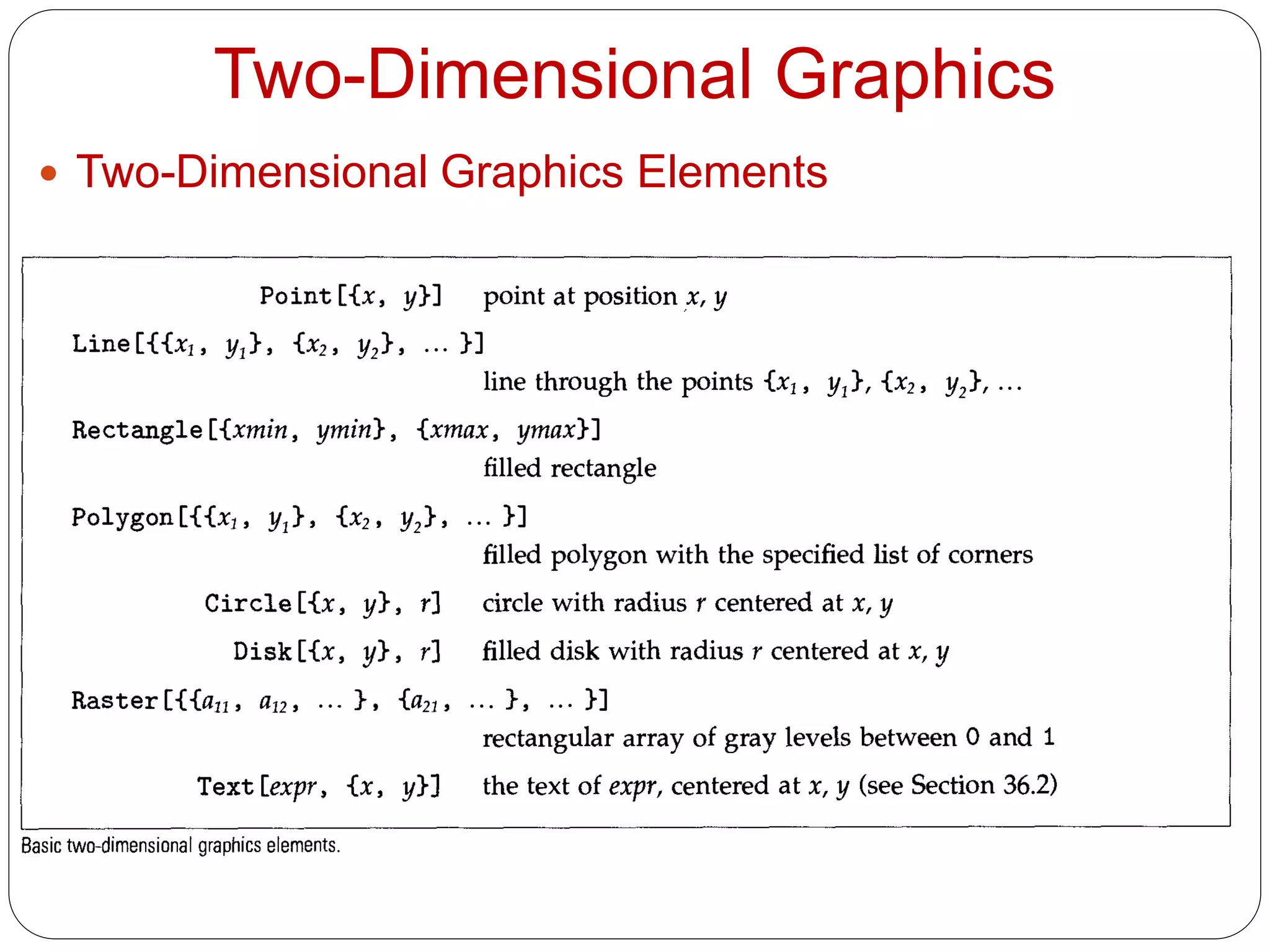
Two-Dimensional Graphics Elements
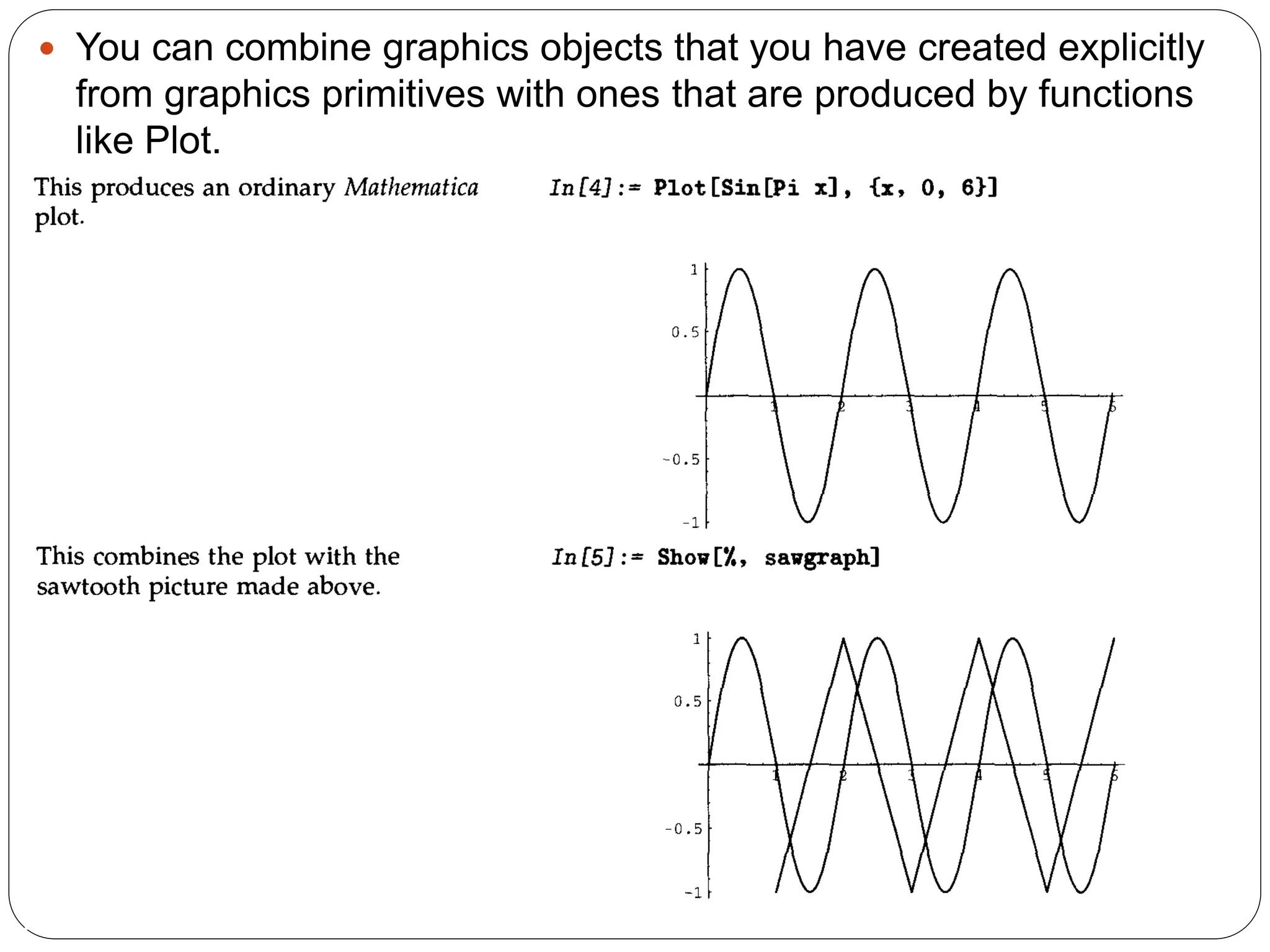
You can combine graphics objects that you have created explicitly from graphics primitives with ones that are produced by functions like Plot.
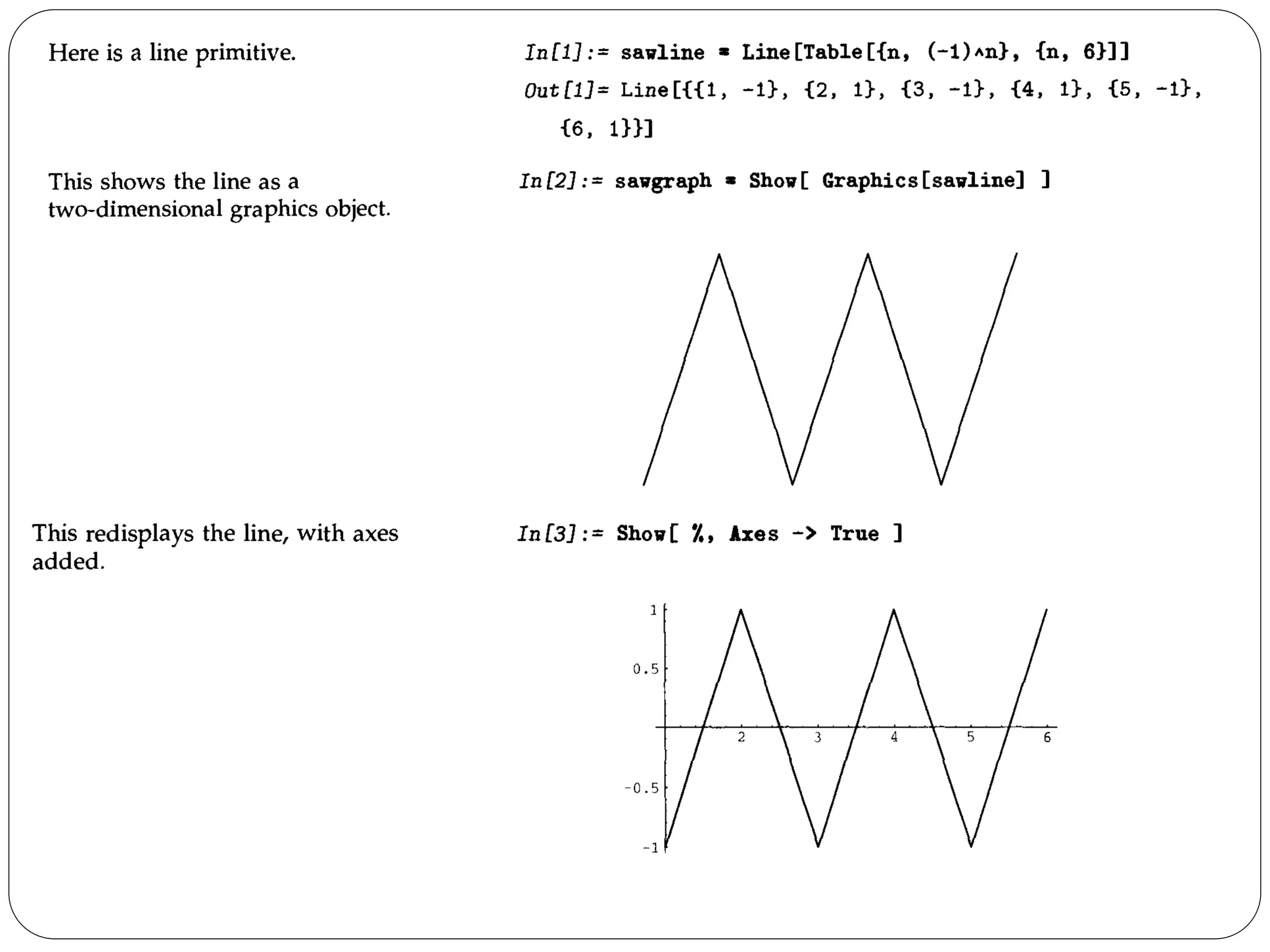
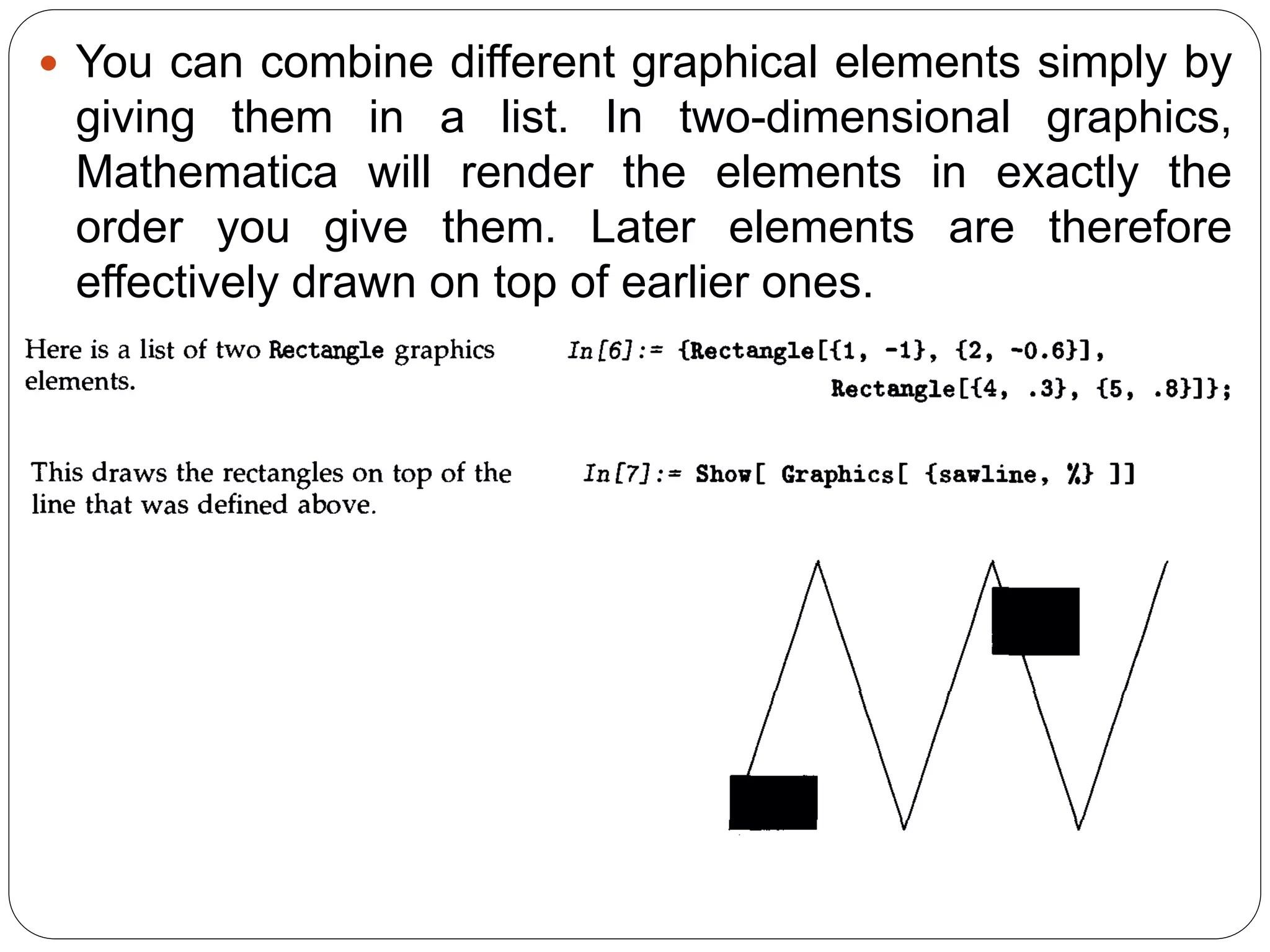
You can combine different graphical elements simply by giving them in a list. In two-dimensional graphics, Mathematica will render the elements in exactly the order you give them. Later elements are therefore effectively drawn on top of earlier ones.
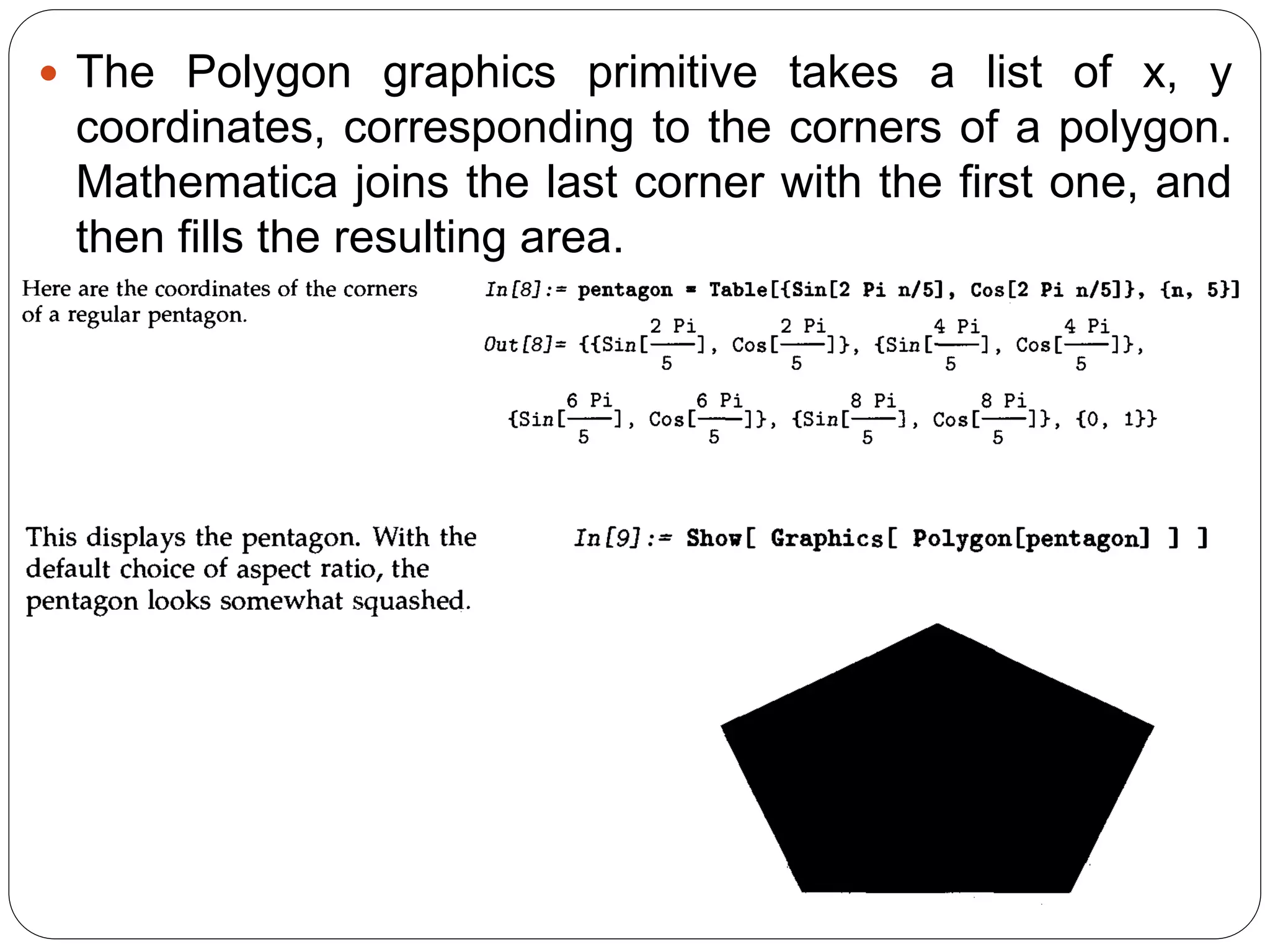
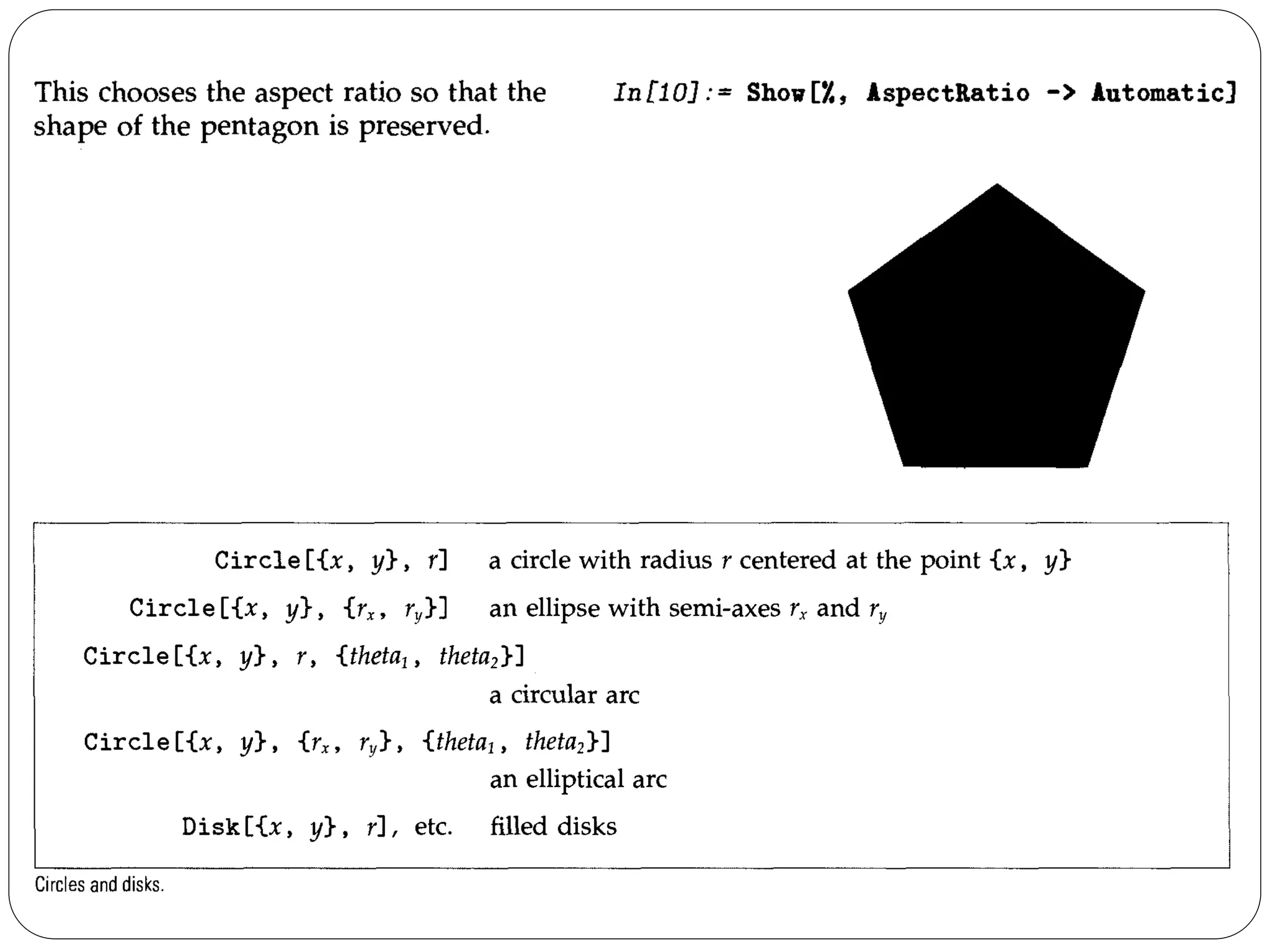
The Polygon graphics primitive takes a list of x, y coordinates, corresponding to the corners of a polygon. Mathematica joins the last corner with the first one, and then fills the resulting area.
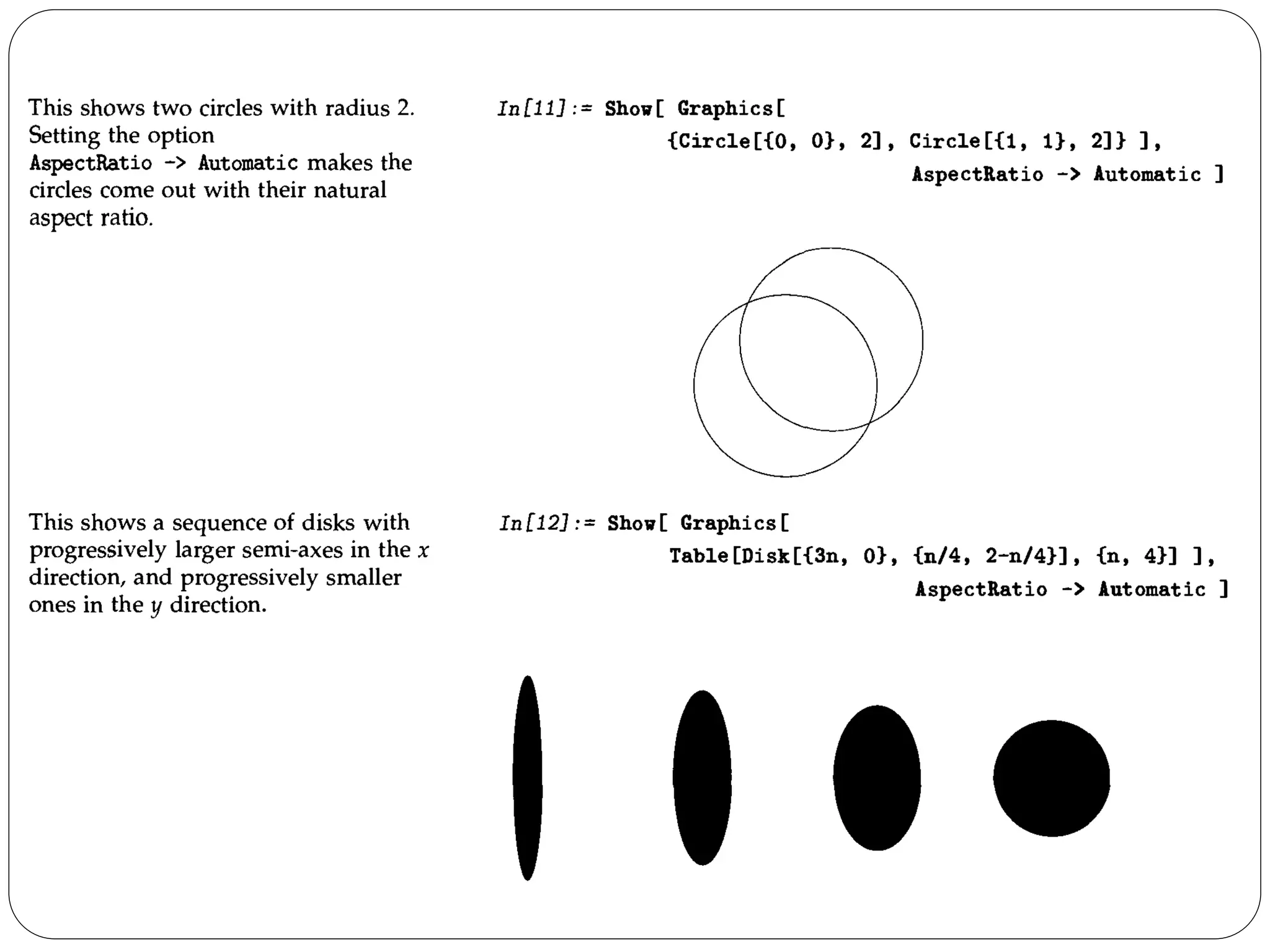
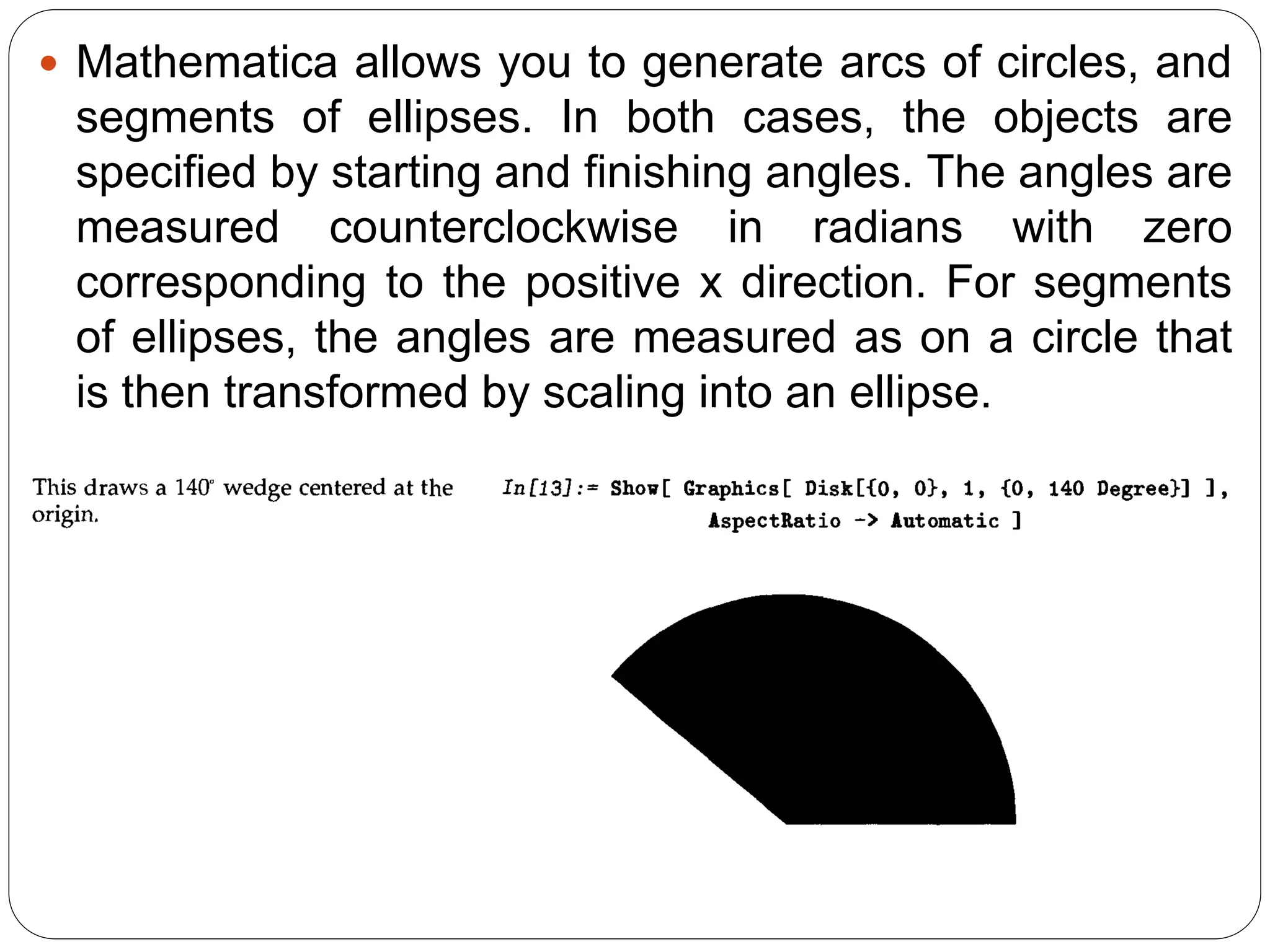
Mathematica allows you to generate arcs of circles, and segments of ellipses. In both cases, the objects are specified by starting and finishing angles. The angles are measured counterclockwise in radians with zero corresponding to the positive x direction. For segments of ellipses, the angles are measured as on a circle that is then transformed by scaling into an ellipse.
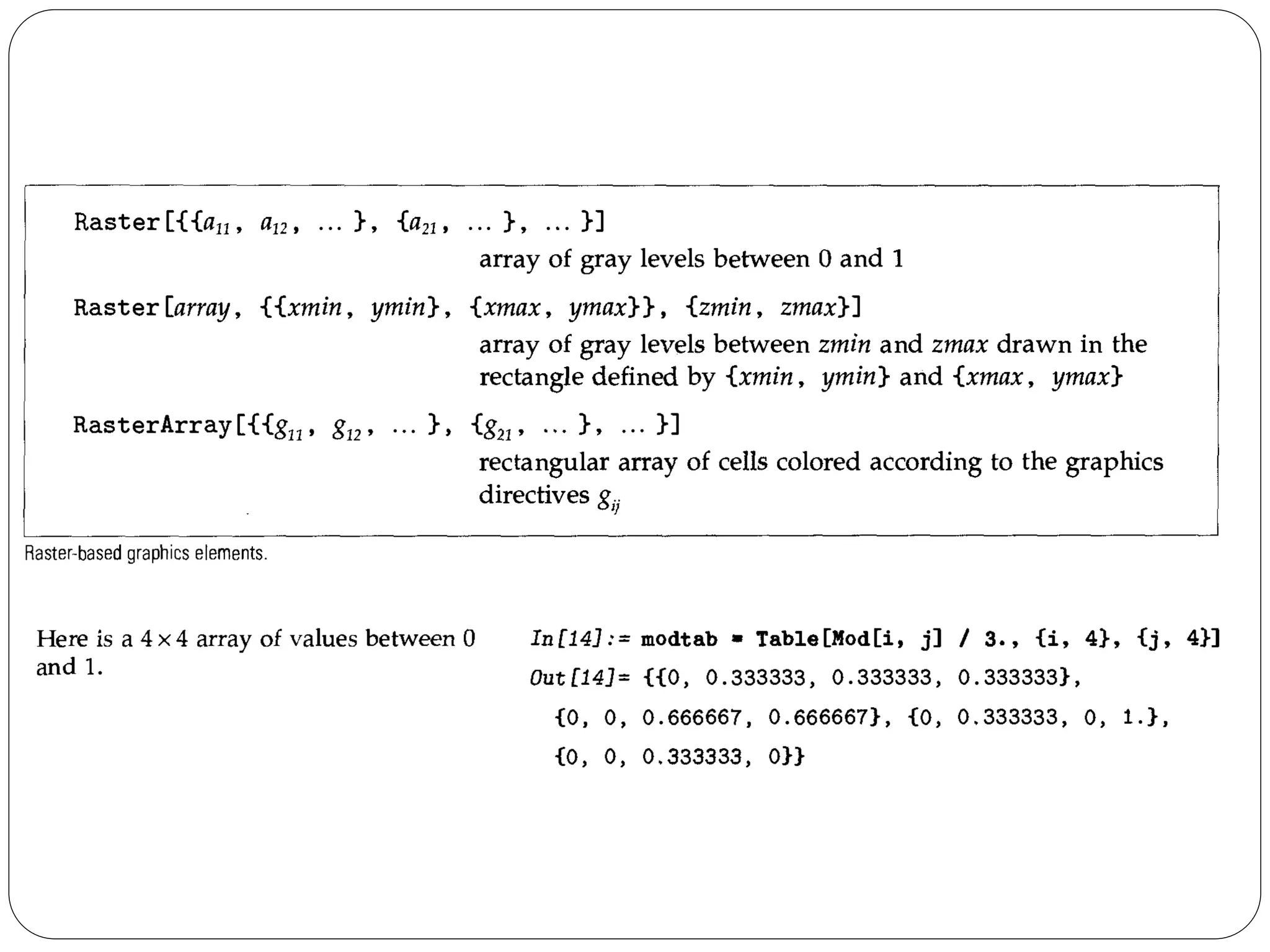
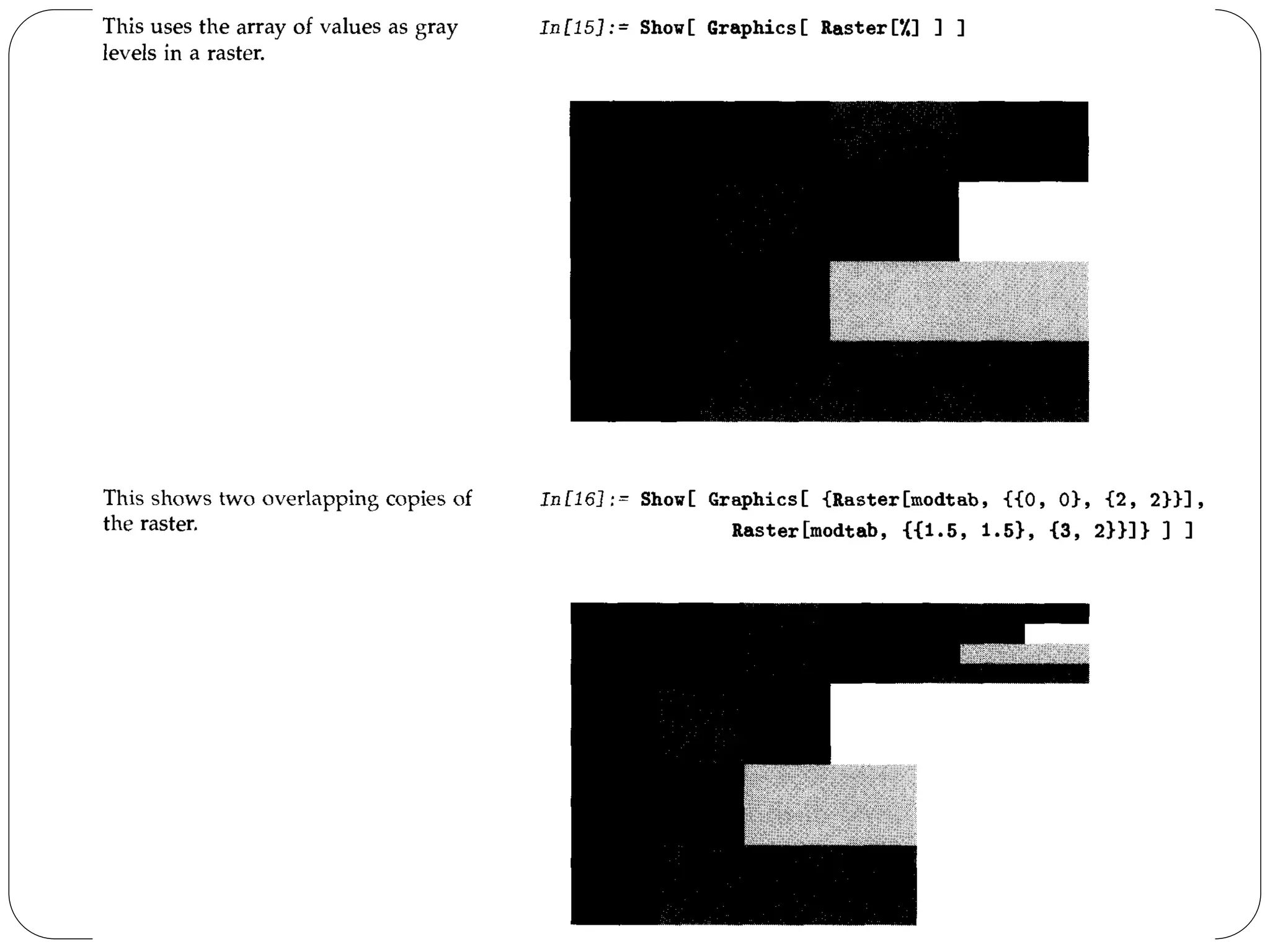
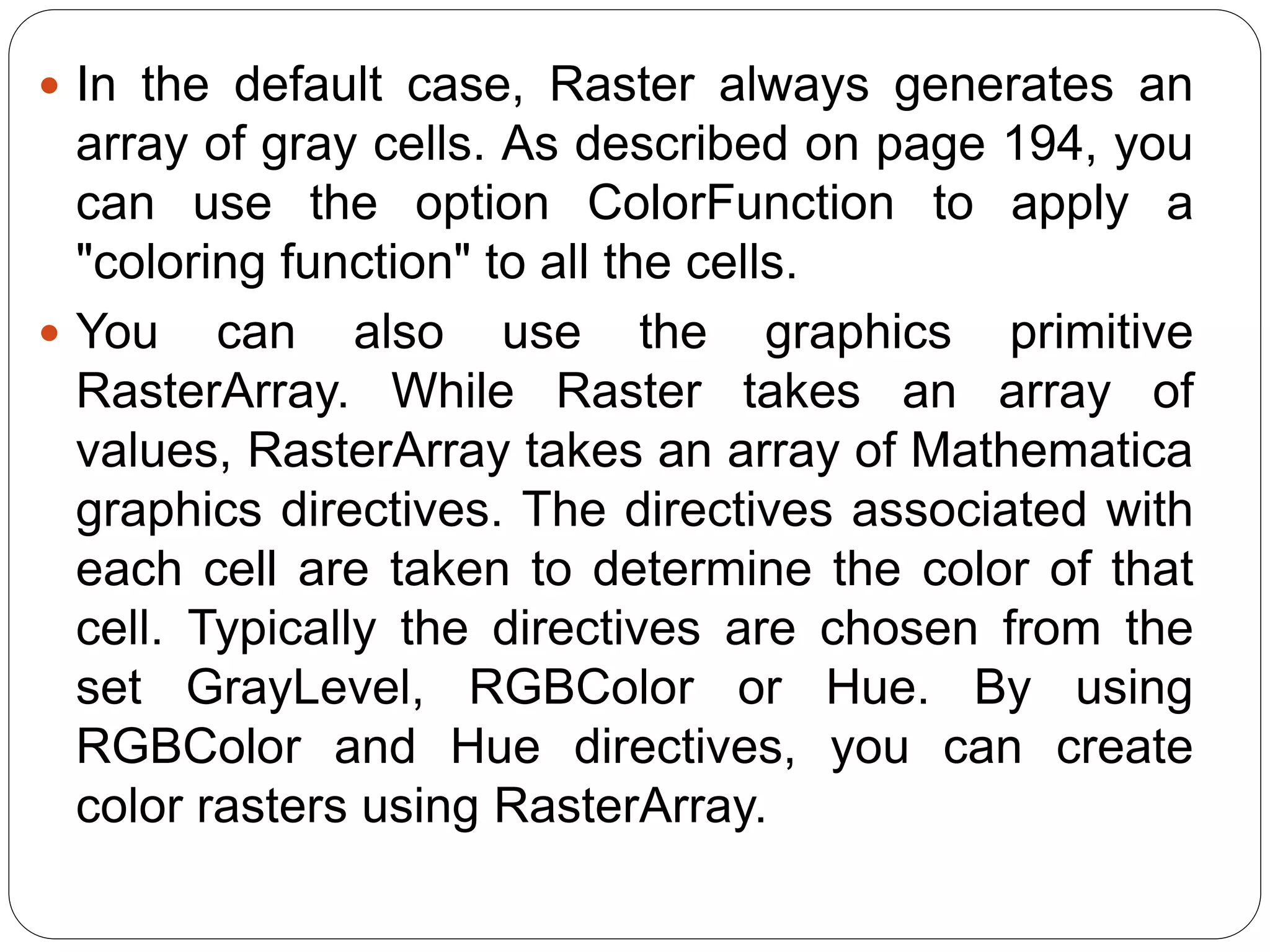
In the default case, Raster always generates an array of gray cells. As described on page 194, you can use the option ColorFunction to apply a "coloring function" to all the cells. 
You can also use the graphics primitive RasterArray. While Raster takes an array of values, RasterArray takes an array of Mathematica graphics directives. The directives associated with each cell are taken to determine the color of that cell. Typically the directives are chosen from the set GrayLevel, RGBColor or Hue. By using RGBColor and Hue directives, you can create color rasters using RasterArray.
Graphics Directives and Options 
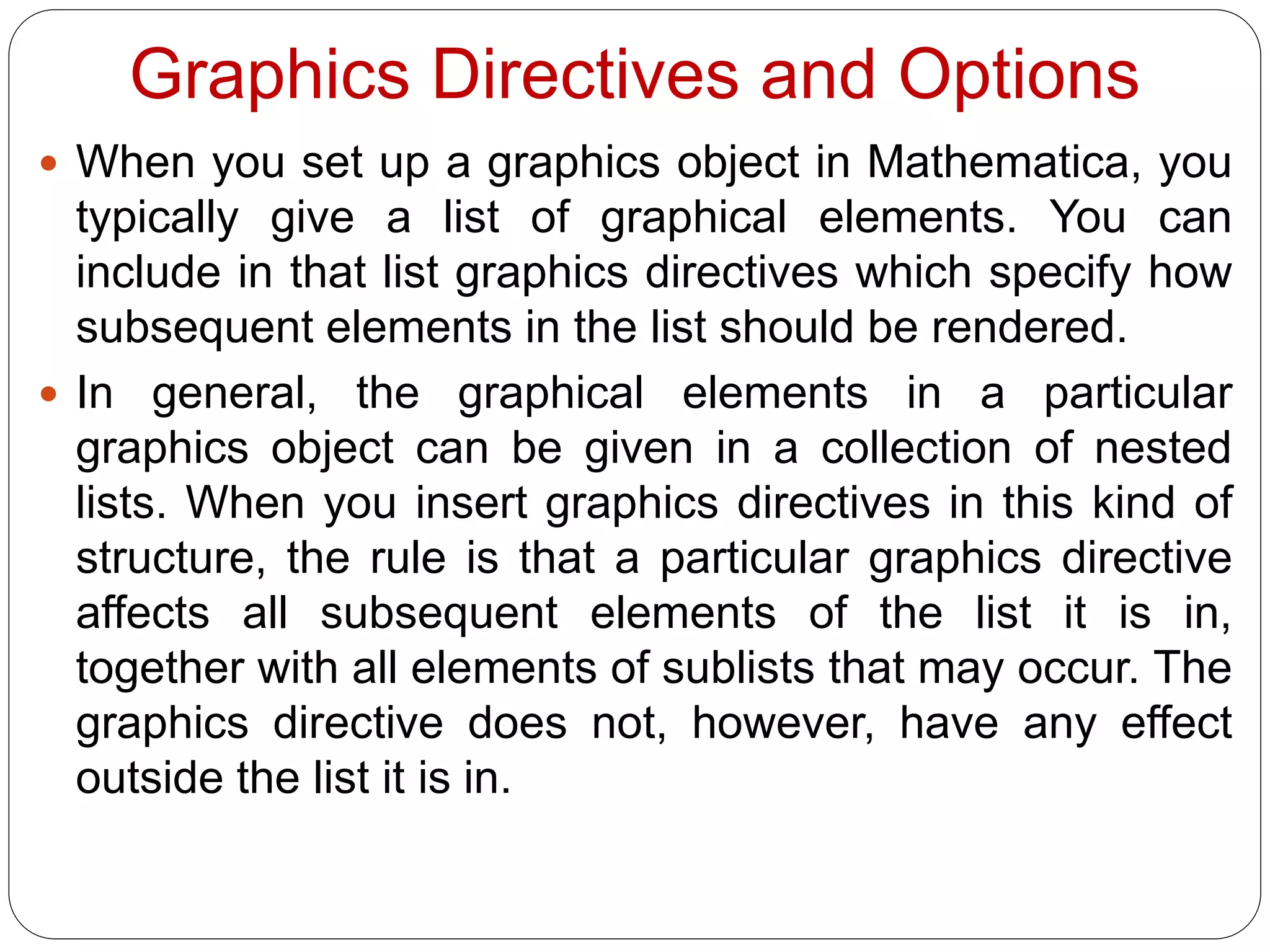
When you set up a graphics object in Mathematica, you typically give a list of graphical elements. You can include in that list graphics directives which specify how subsequent elements in the list should be rendered. 
In general, the graphical elements in a particular graphics object can be given in a collection of nested lists. When you insert graphics directives in this kind of structure, the rule is that a particular graphics directive affects all subsequent elements of the list it is in, together with all elements of sublists that may occur. The graphics directive does not, however, have any effect outside the list it is in.
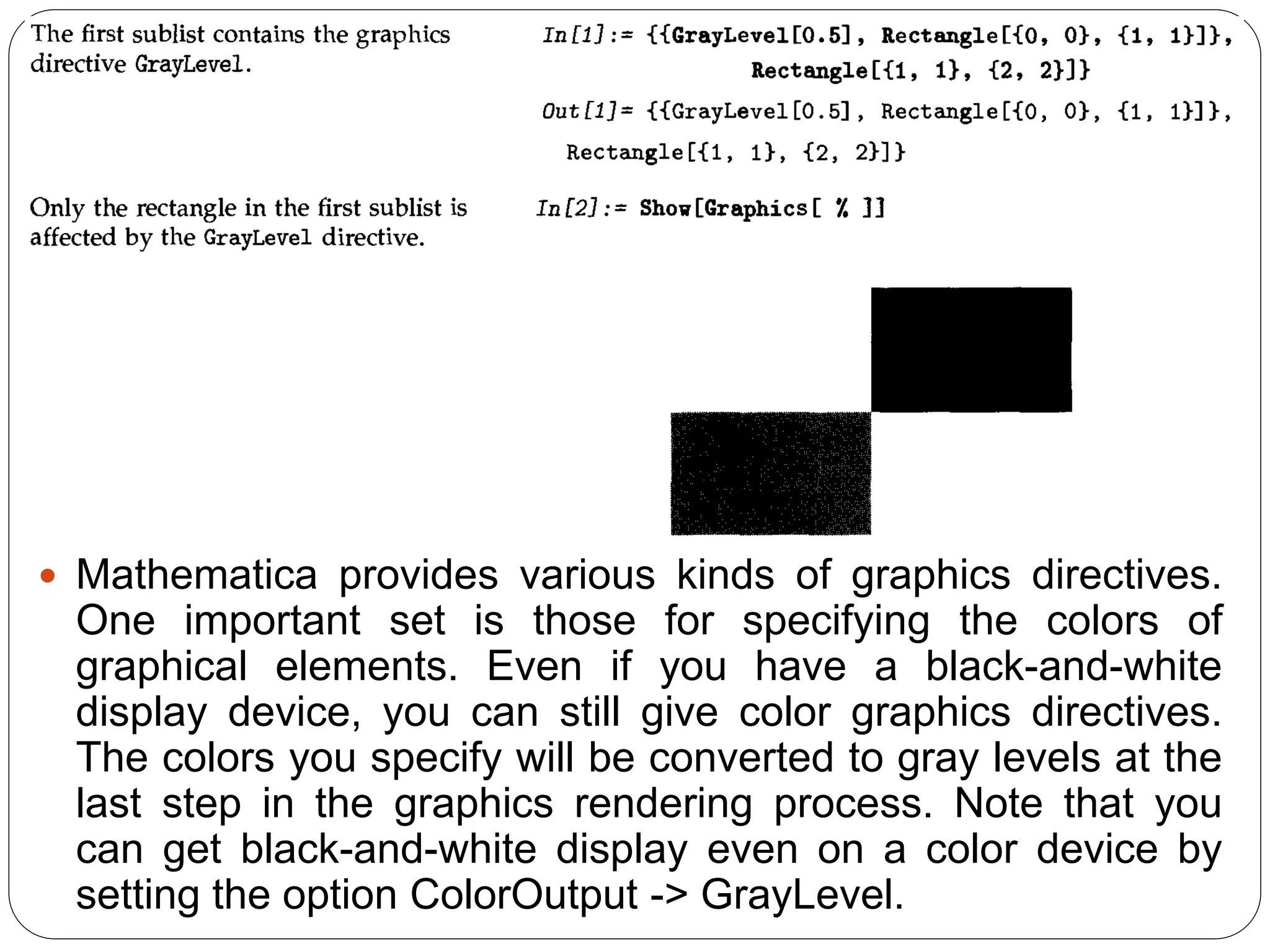
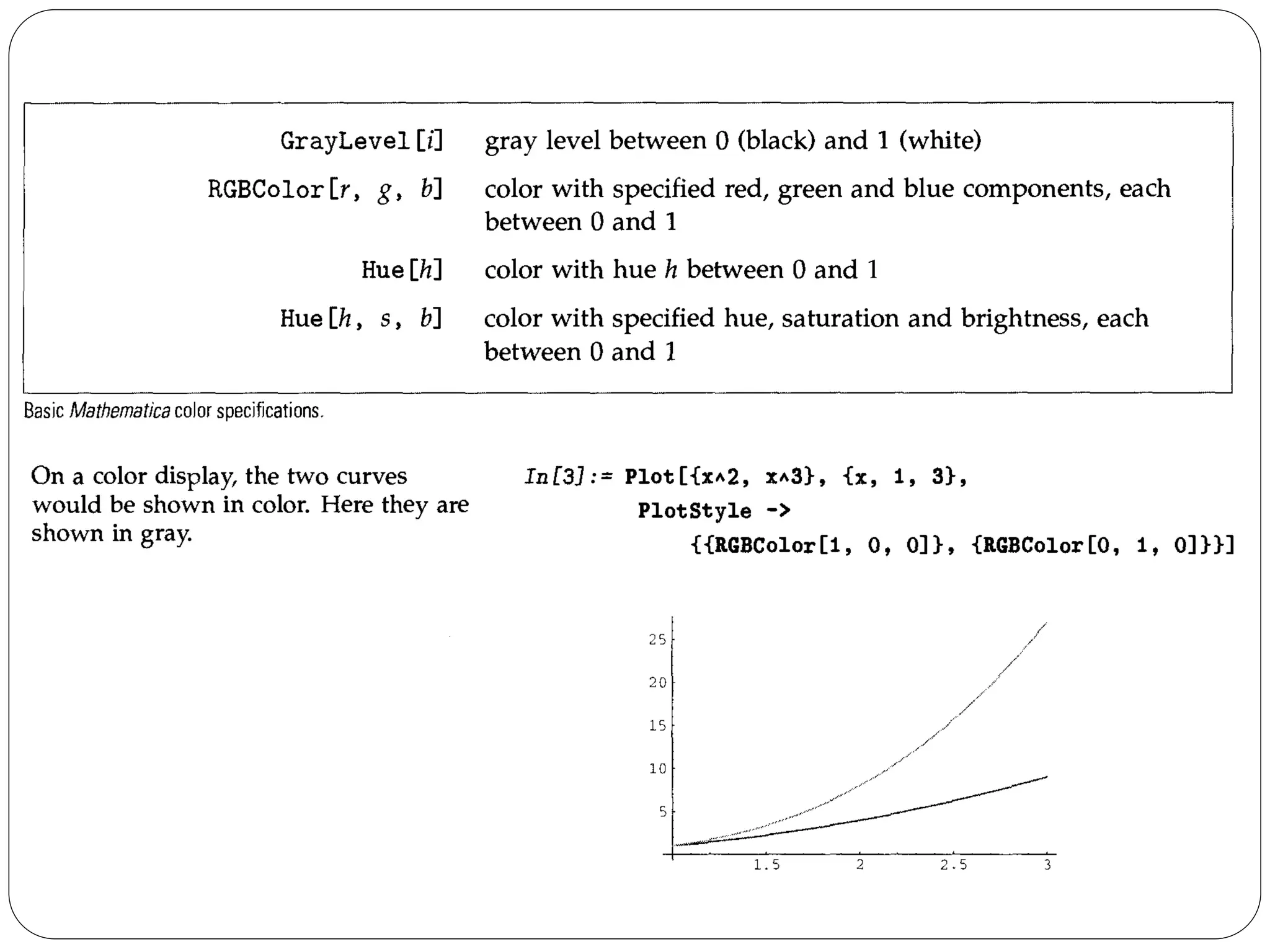
Mathematica provides various kinds of graphics directives. One important set is those for specifying the colors of graphical elements. Even if you have a black-and-white display device, you can still give color graphics directives. The colors you specify will be converted to gray levels at the last step in the graphics rendering process. Note that you can get black-and-white display even on a color device by setting the option ColorOutput -> GrayLevel.
The function Hue[h] provides a convenient way to specify a range of colors using just one parameter. As ft varies from 0 to 1, Hue[h] runs through red, yellow, green, cyan, blue, magenta, and back to red again. Hue [h, s, b] allows you to specify not only the "hue", but also the "saturation" and "brightness" of a color. Taking the saturation to be equal to one gives the deepest colors; decreasing the saturation towards zero leads to progressively more "washed out" colors. 
For most purposes, you will be able to specify the colors you need simply by giving appropriate RGBColor or Hue directives. 
When you give a graphics directive such as RGBColor, it affects all subsequent graphical elements that appear in a particular list. Mathematica also supports various graphics directives which affect only specific types of graphical elements.
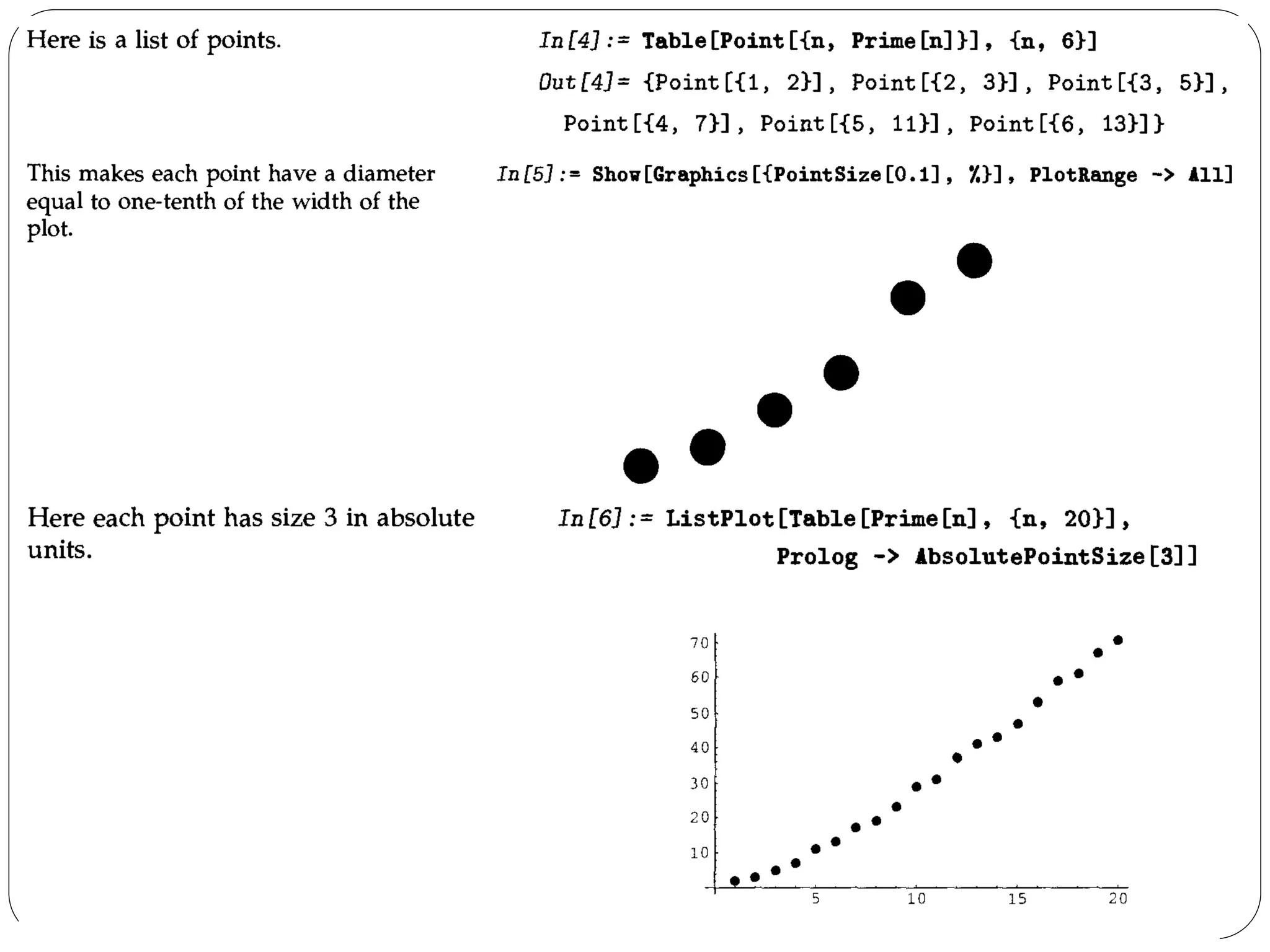
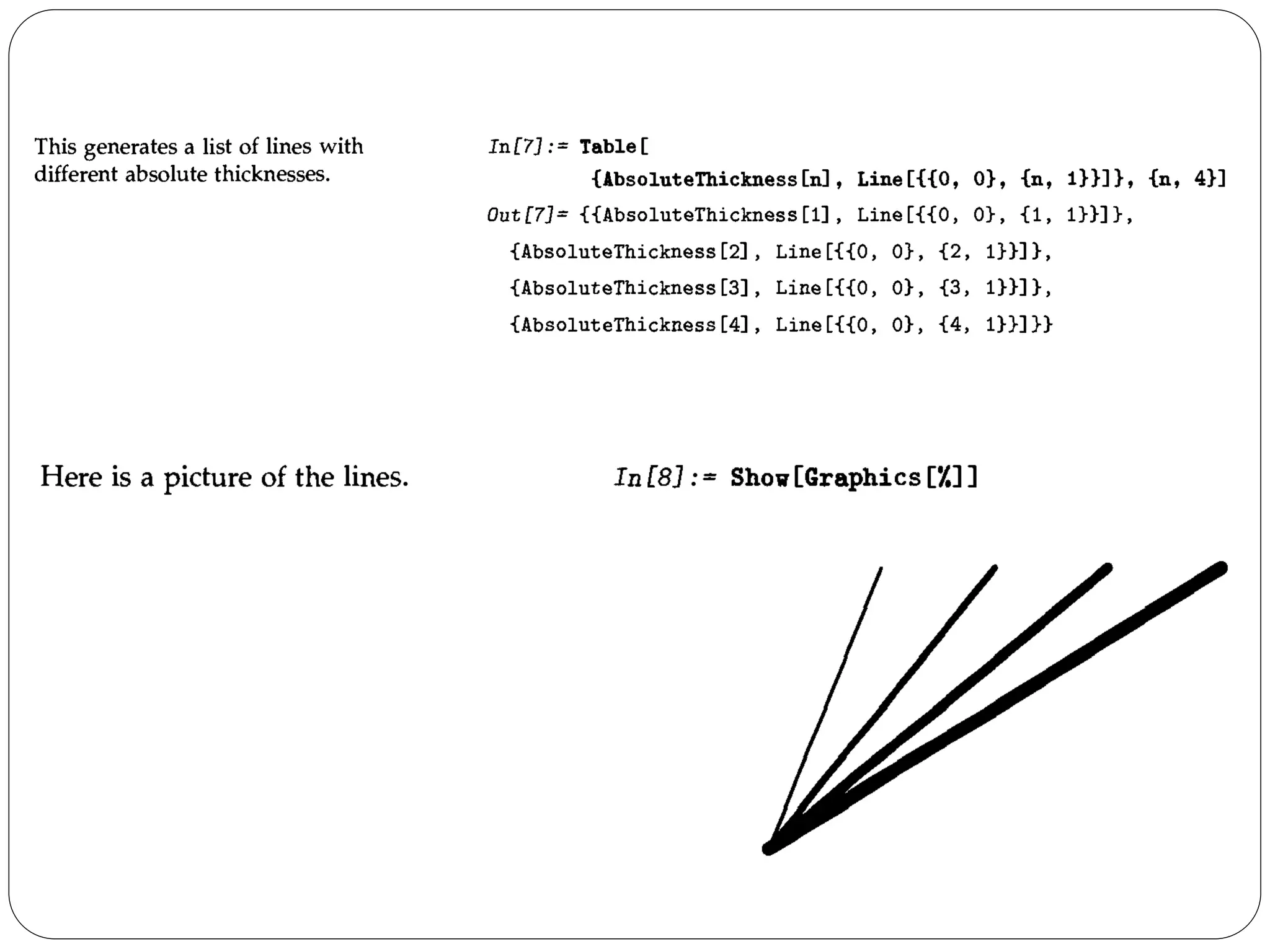
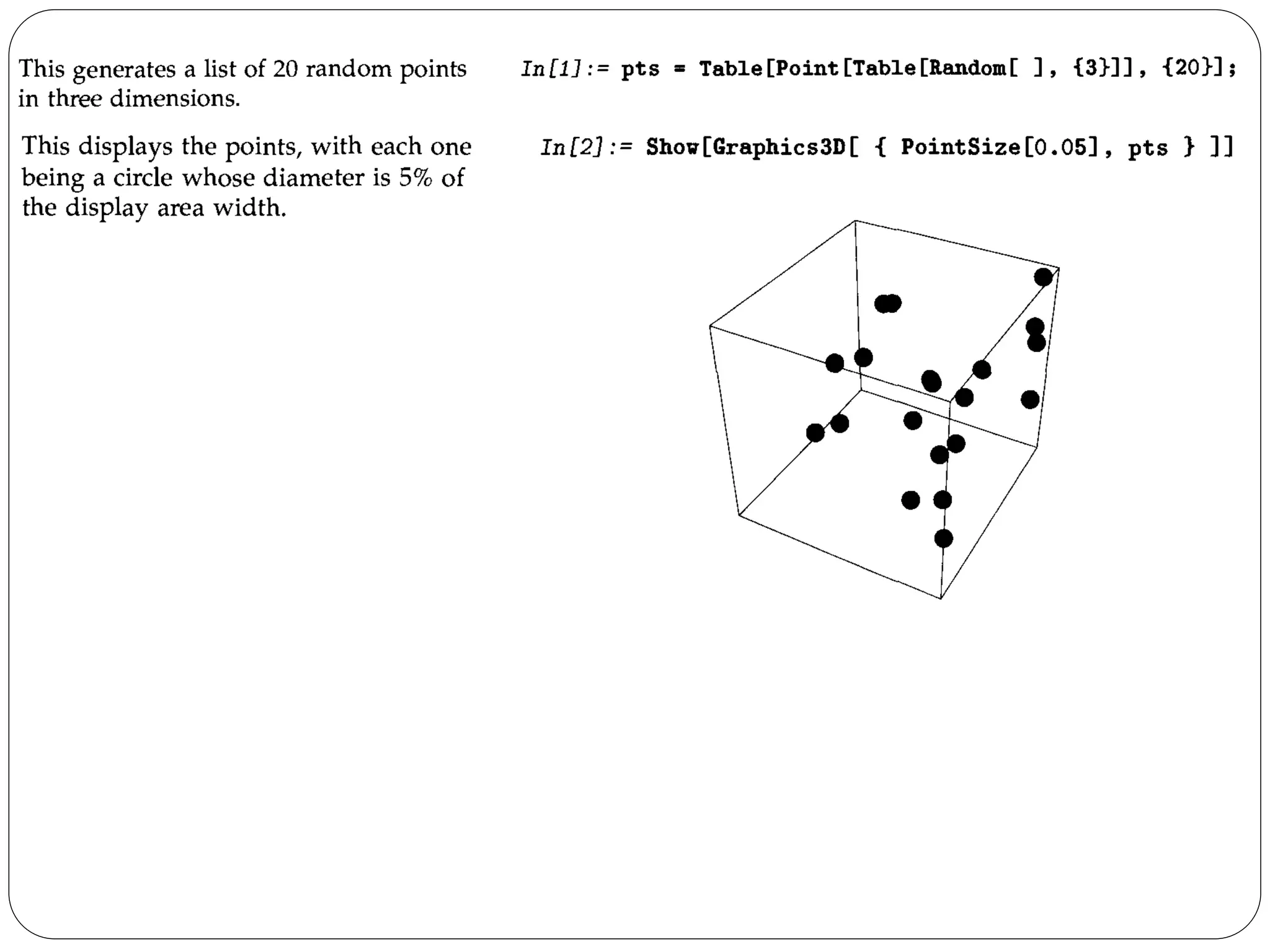
The graphics directive PointSize[d] specifies that all Point elements which appear in a graphics object should be drawn as circles with a diameter d. In PointSize, the diameter d is measured as a fraction of the width of your whole plot. 
Mathematica also provides the graphics directive AbsolutePointSize[d], which allows you to specify the "absolute" diameter of points, measured in fixed units. The units are approximately printer's points, equal to 1/72 of an inch.
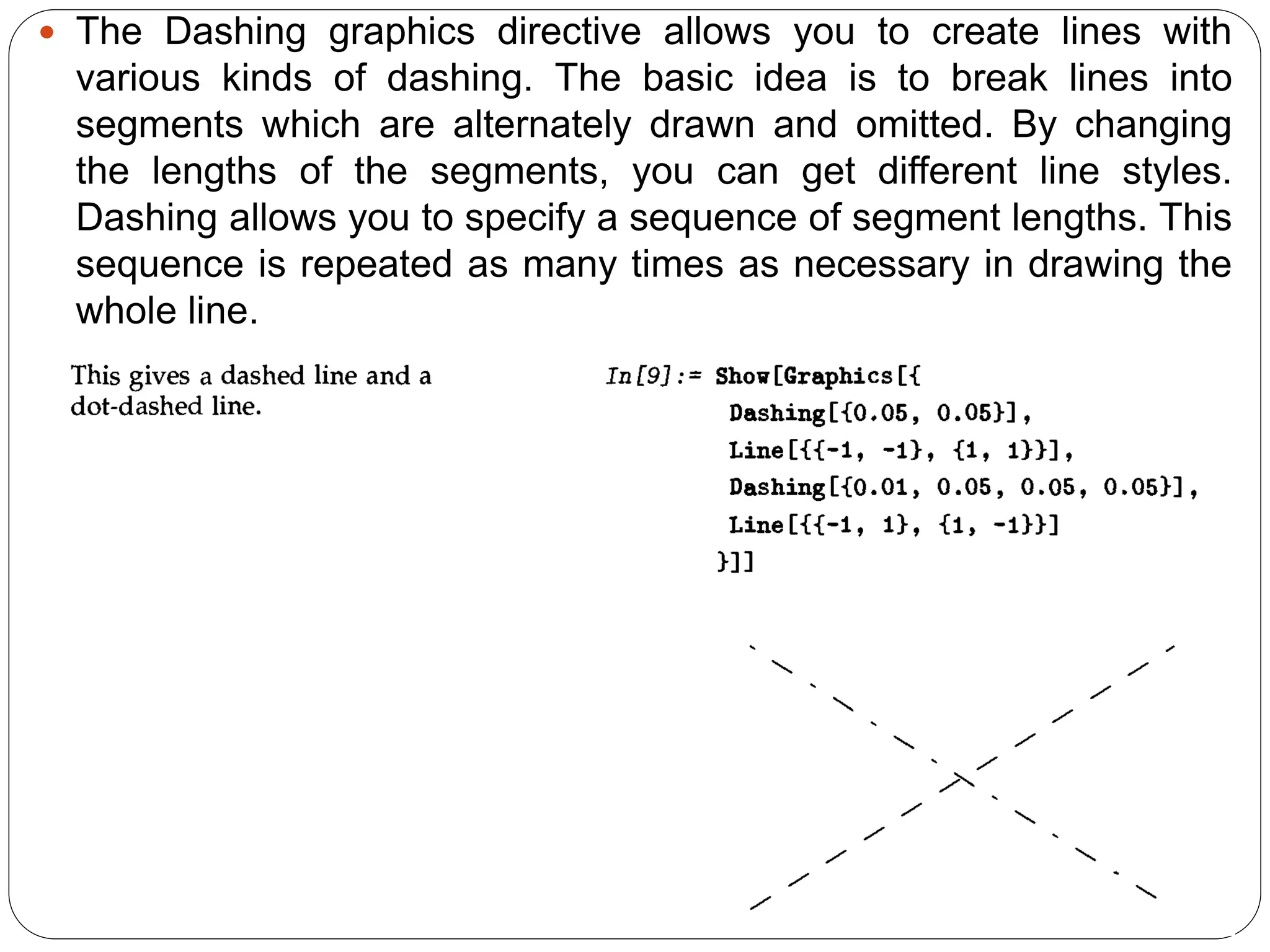
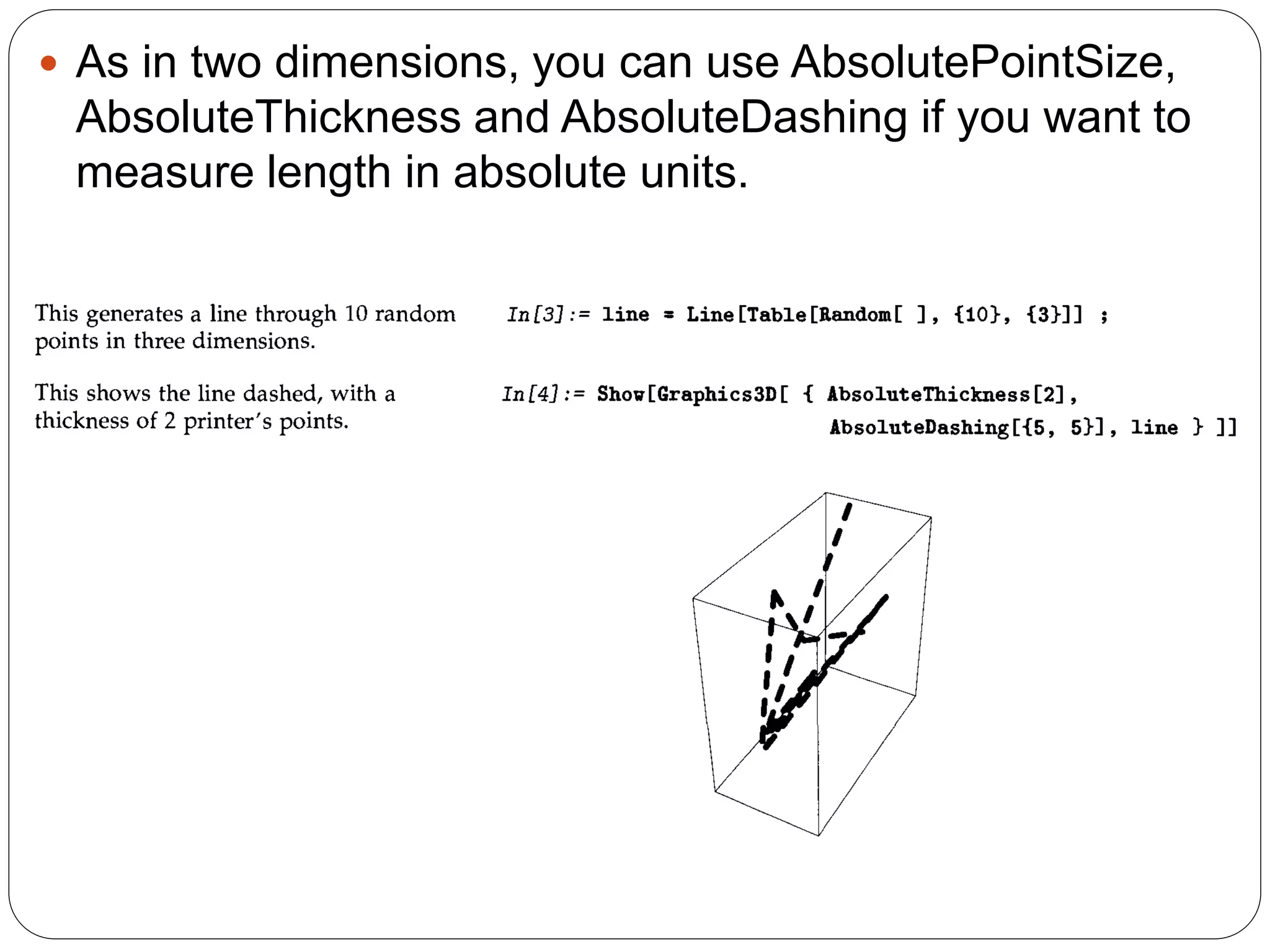
The Dashing graphics directive allows you to create lines with various kinds of dashing. The basic idea is to break lines into segments which are alternately drawn and omitted. By changing the lengths of the segments, you can get different line styles. Dashing allows you to specify a sequence of segment lengths. This sequence is repeated as many times as necessary in drawing the whole line.
Three-Dimensional Graphics 
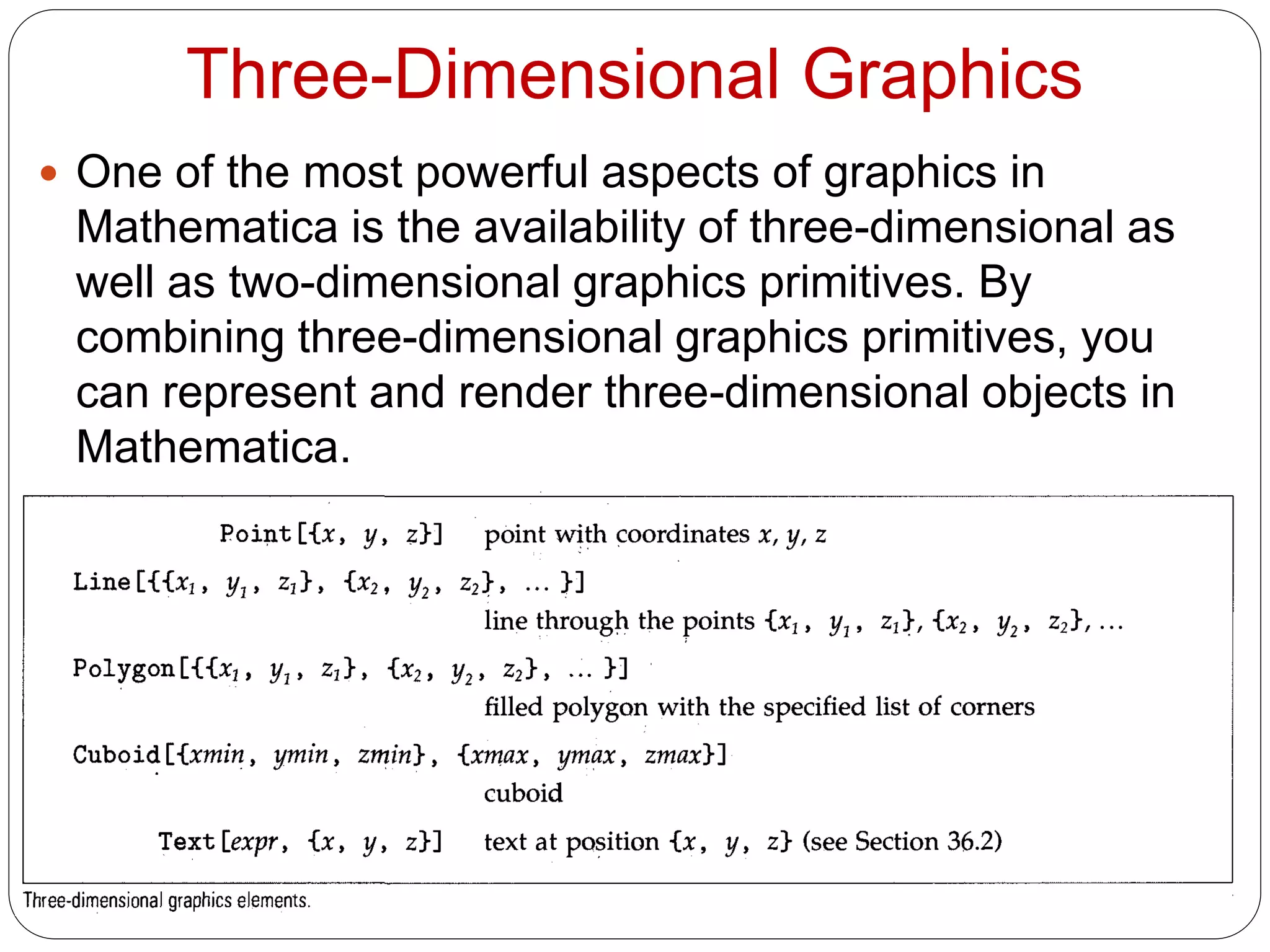
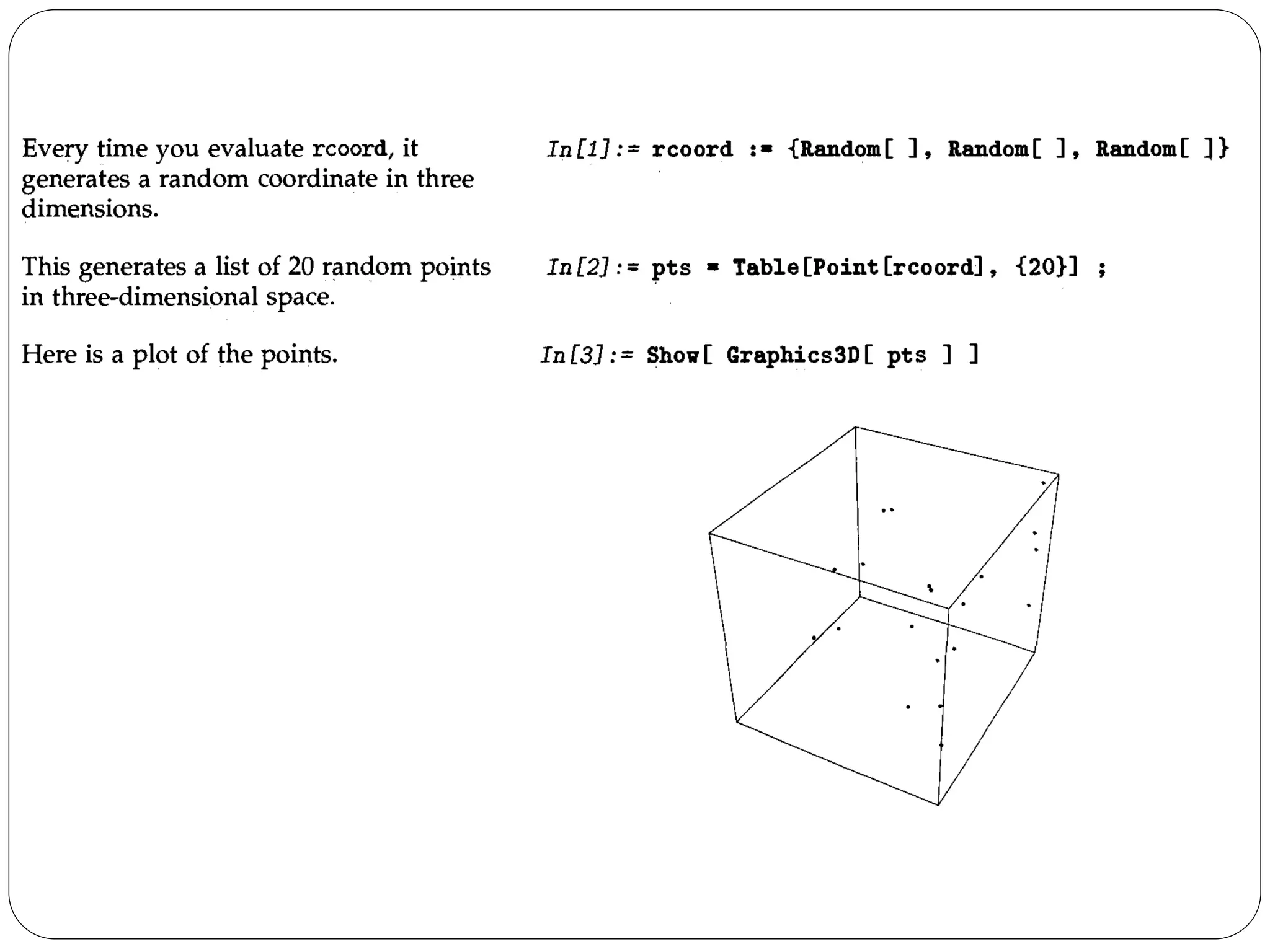
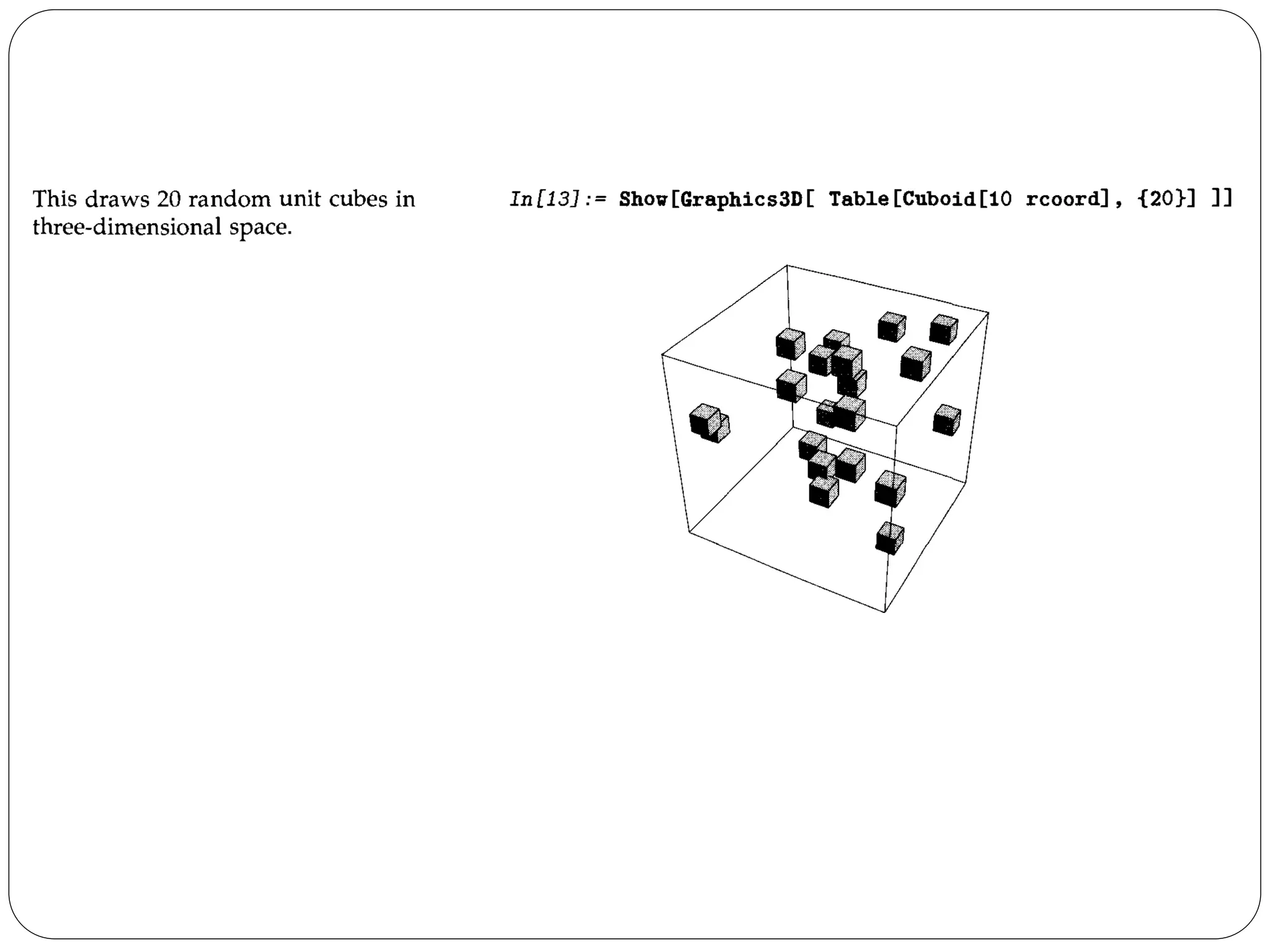
One of the most powerful aspects of graphics in Mathematica is the availability of three-dimensional as well as two-dimensional graphics primitives. By combining three-dimensional graphics primitives, you can represent and render three-dimensional objects in Mathematica.
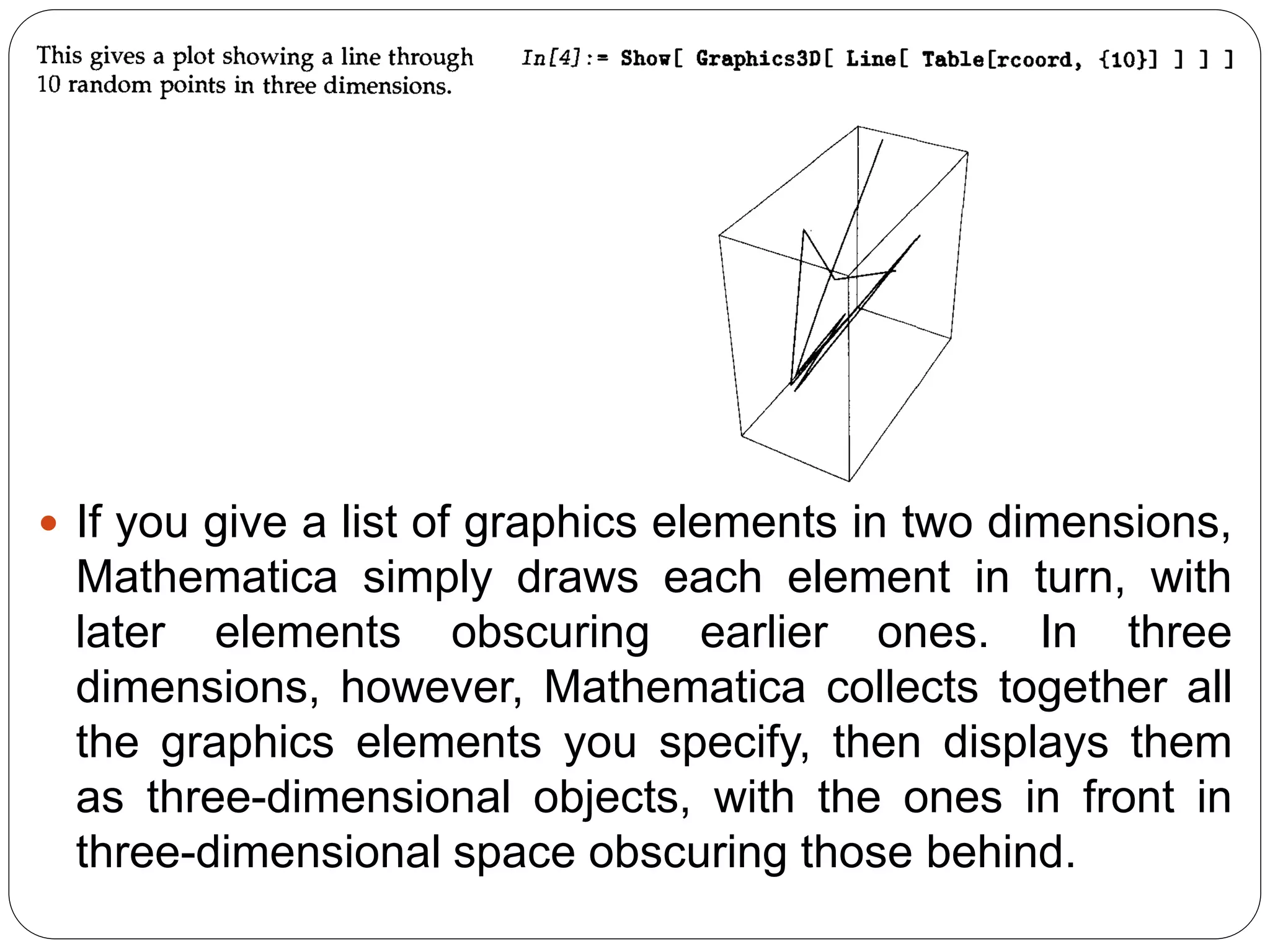
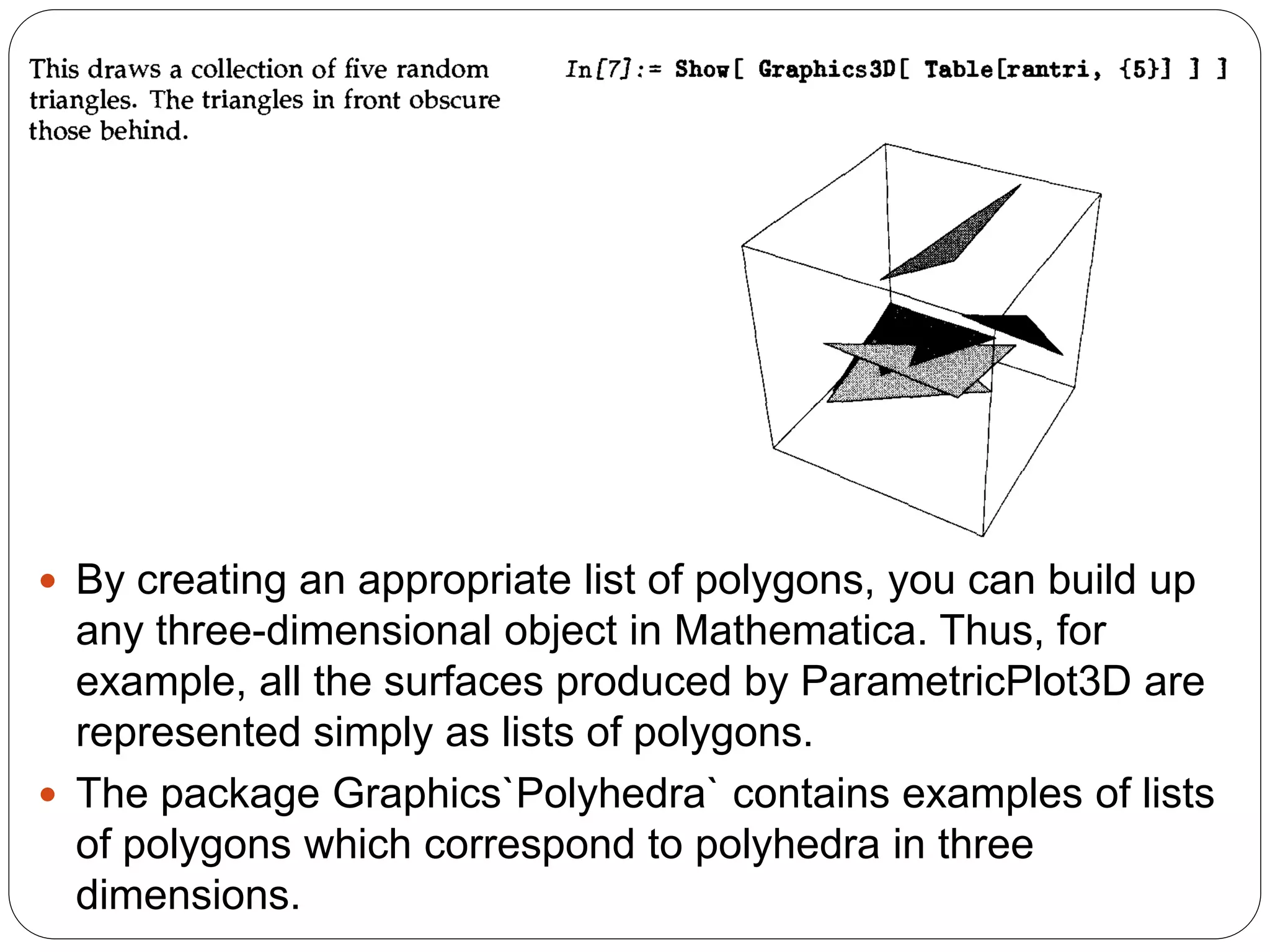
If you give a list of graphics elements in two dimensions, Mathematica simply draws each element in turn, with later elements obscuring earlier ones. In three dimensions, however, Mathematica collects together all the graphics elements you specify, then displays them as three-dimensional objects, with the ones in front in three-dimensional space obscuring those behind.
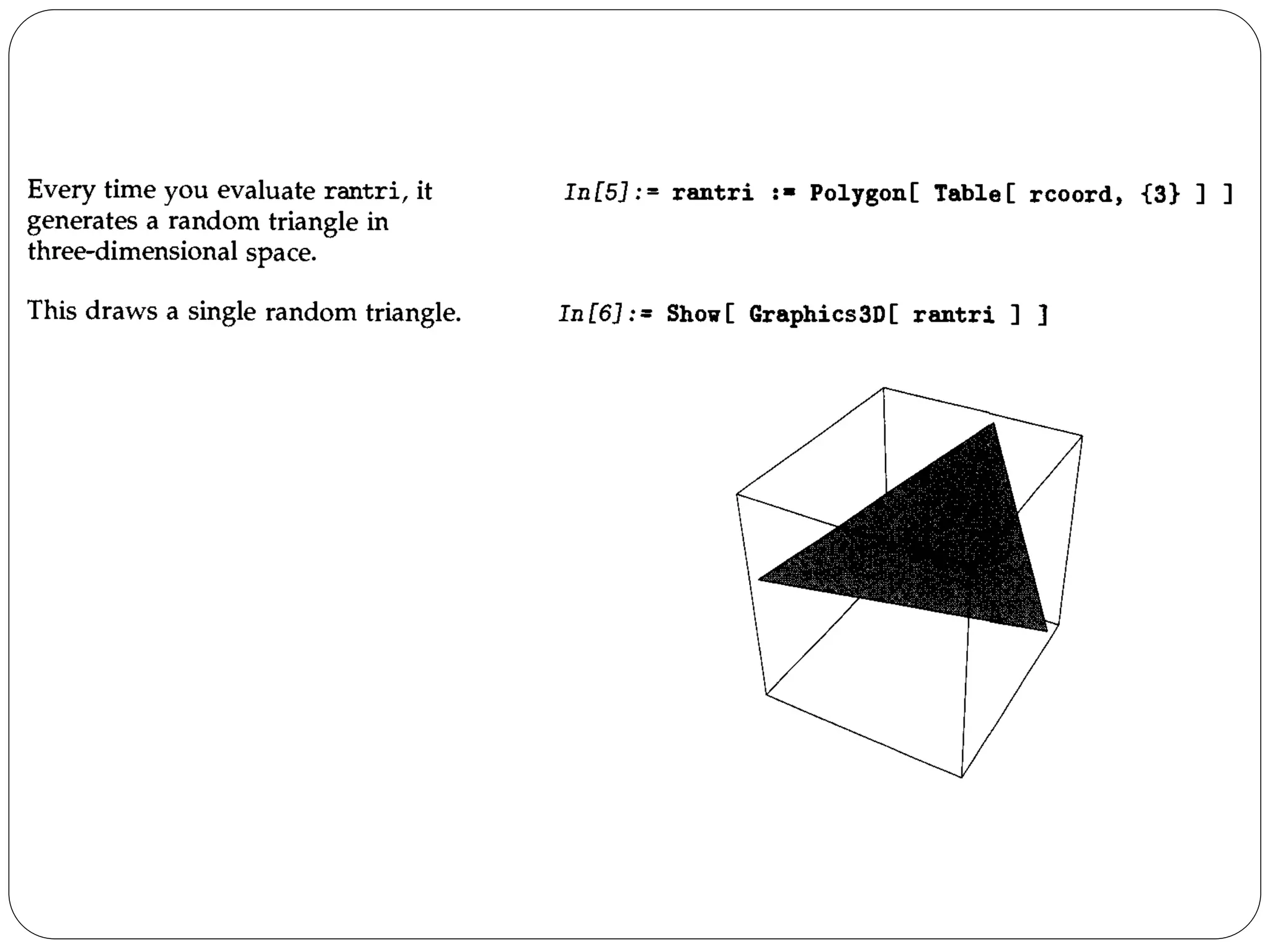
By creating an appropriate list of polygons, you can build up any three-dimensional object in Mathematica. Thus, for example, all the surfaces produced by ParametricPlot3D are represented simply as lists of polygons. 
The package Graphics`Polyhedra` contains examples of lists of polygons which correspond to polyhedra in three dimensions.
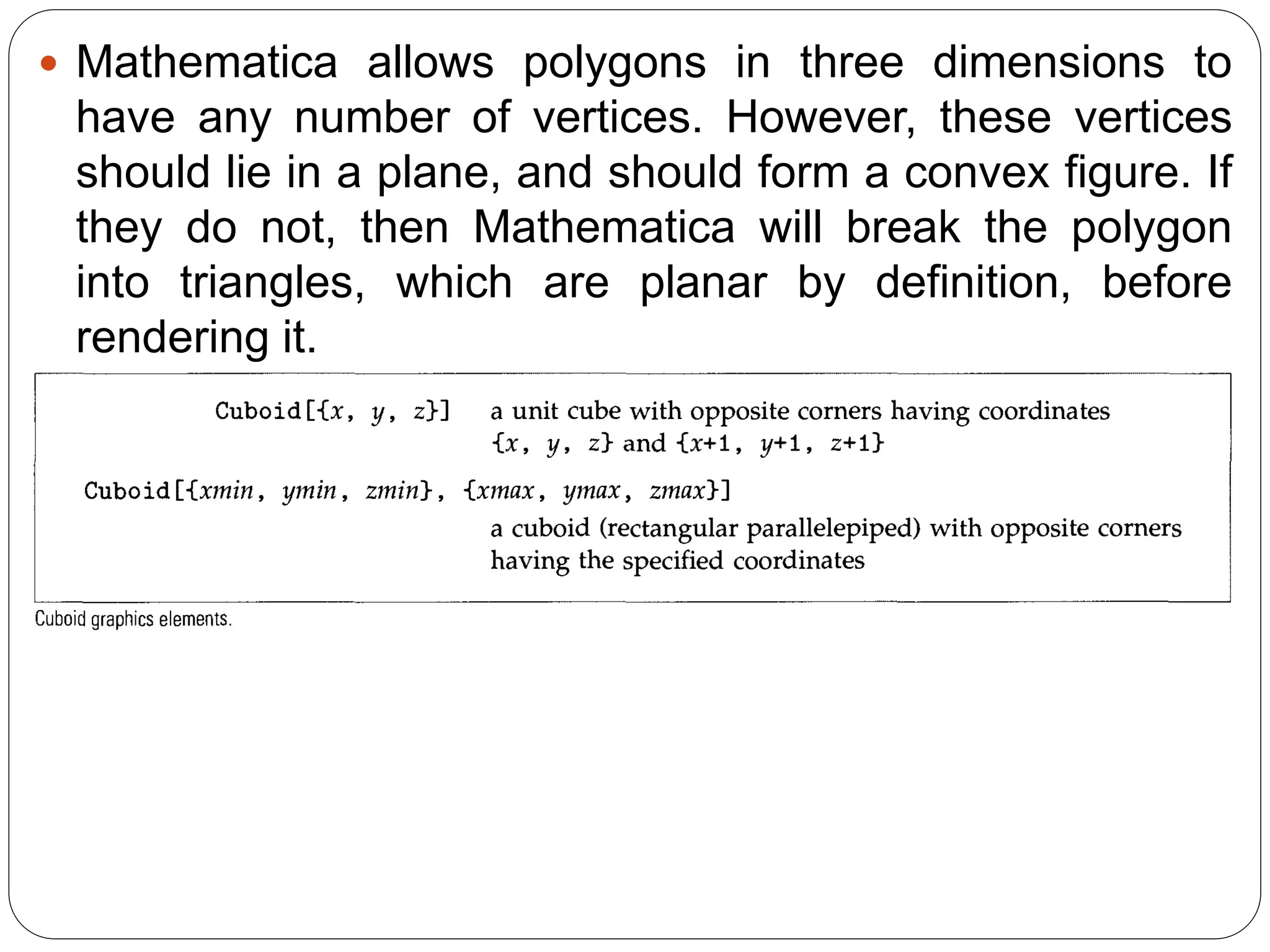
Mathematica allows polygons in three dimensions to have any number of vertices. However, these vertices should lie in a plane, and should form a convex figure. If they do not, then Mathematica will break the polygon into triangles, which are planar by definition, before rendering it.
Three-Dimensional Graphics Directives 
In three dimensions, just as in two dimensions, you can give various graphics directives to specify how the different elements in a graphics object should be rendered. 
All the graphics directives for two dimensions also work in three dimensions. There are however some additional directives in three dimensions. 
Just as in two dimensions, you can use the directives PointSize, Thickness and Dashing to tell Mathematica how to render Point and Line elements. Note that in three dimensions, the lengths that appear in these directives are measured as fractions of the total width of the display area for your plot.
As in two dimensions, you can use AbsolutePointSize, AbsoluteThickness and AbsoluteDashing if you want to measure length in absolute units.
For Point and Line objects, the color specification directives also work the same in three dimensions as in two dimensions. For Polygon objects, however, they can work differently. 
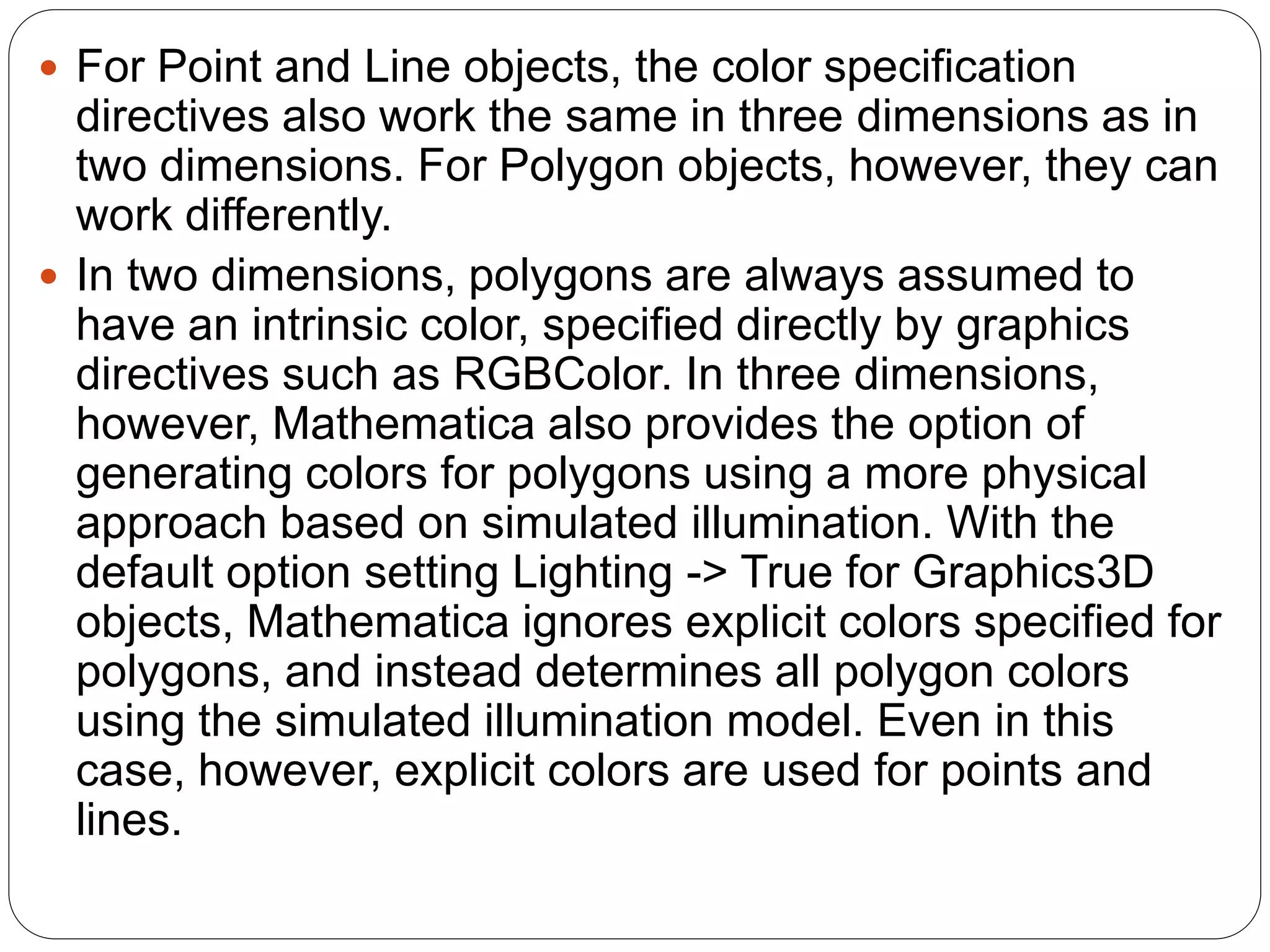
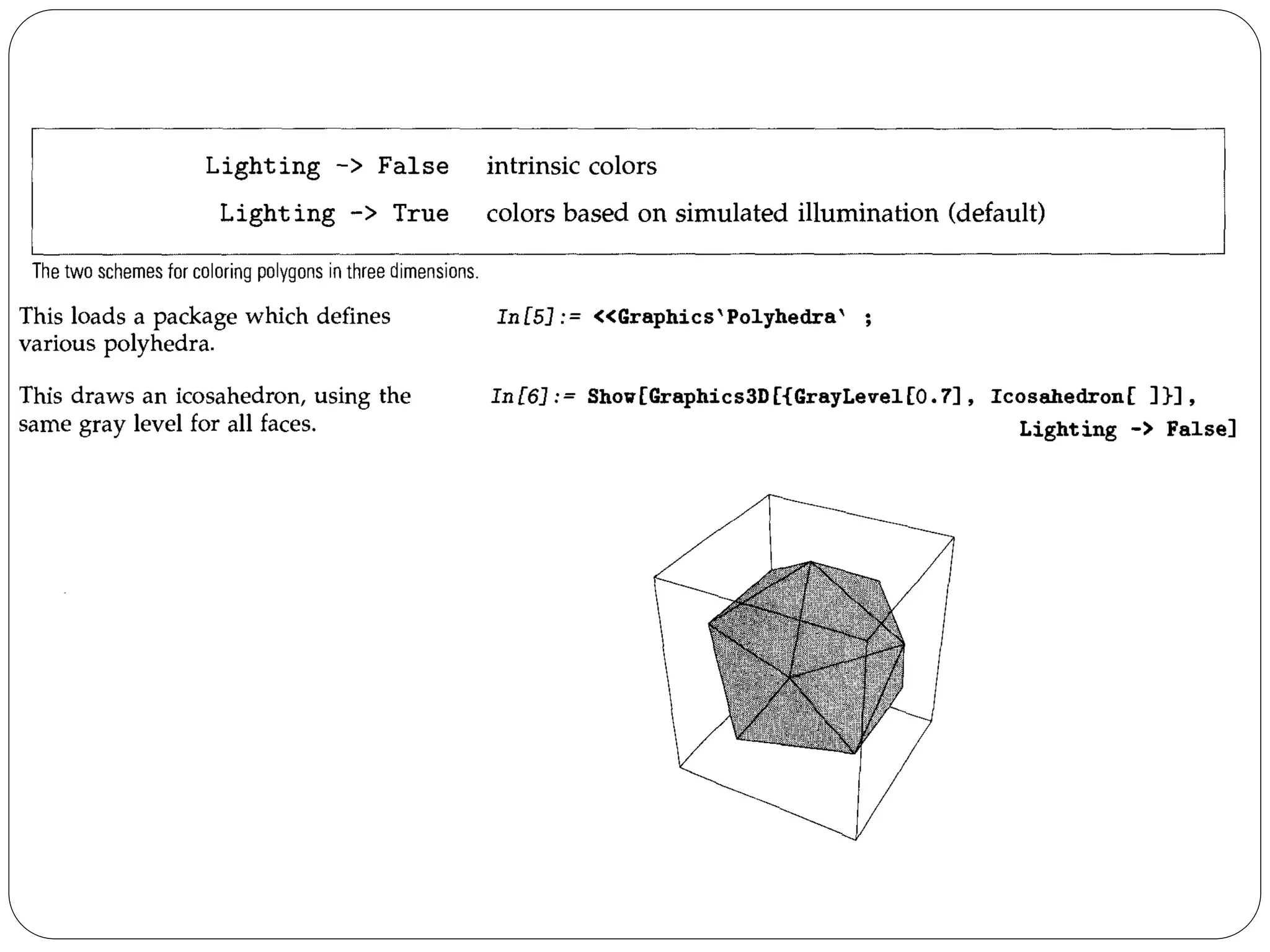
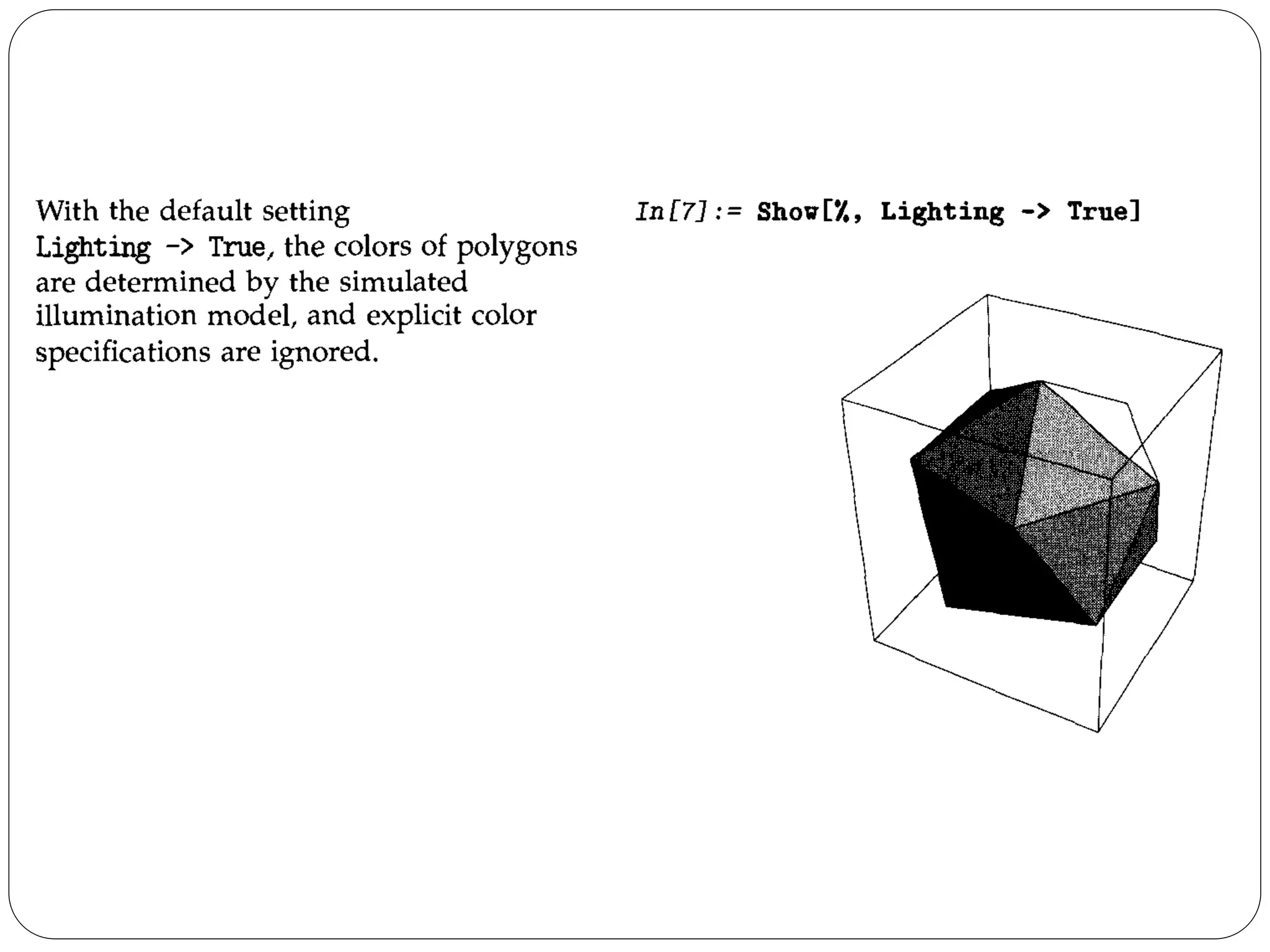
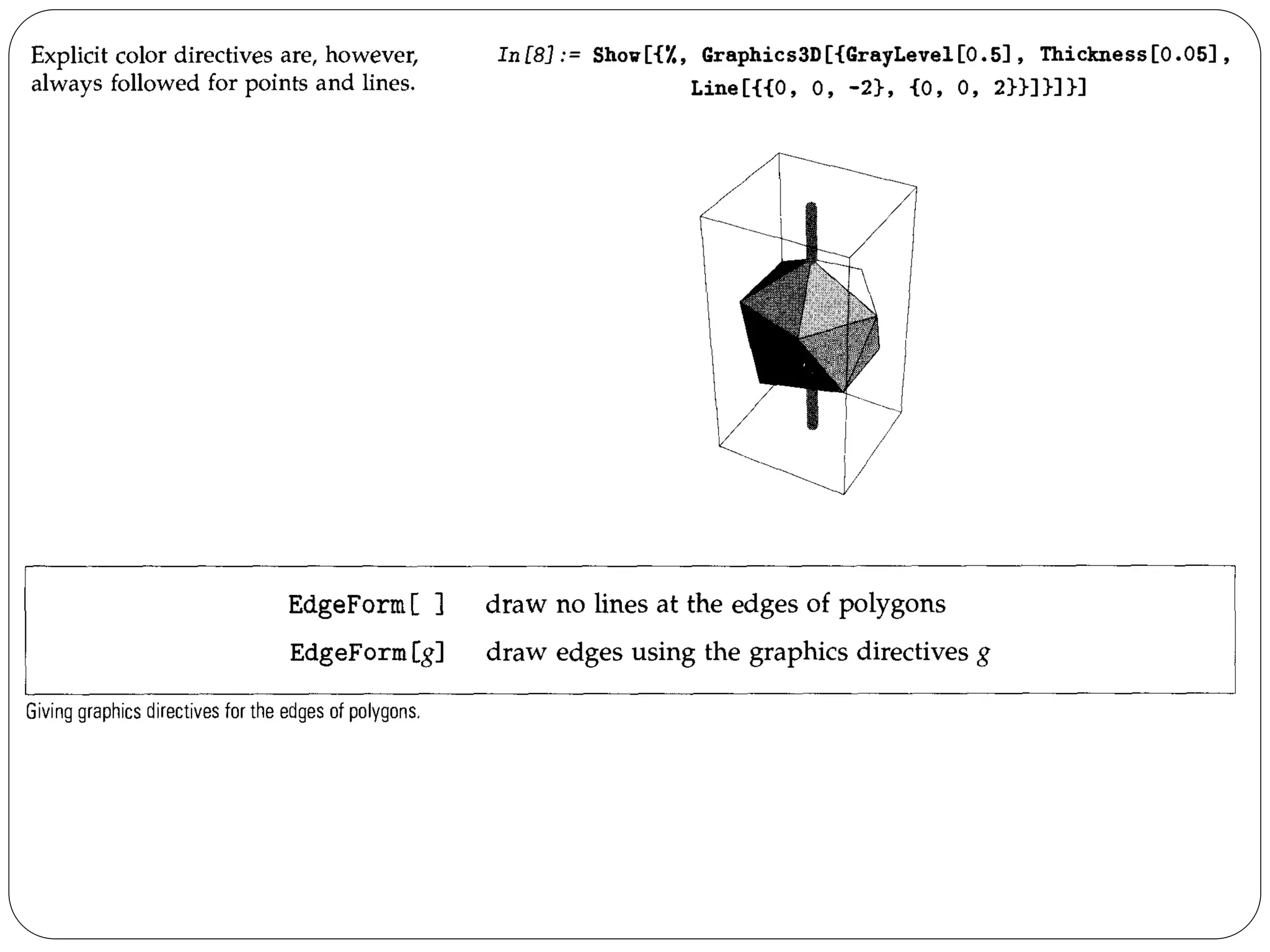
In two dimensions, polygons are always assumed to have an intrinsic color, specified directly by graphics directives such as RGBColor. In three dimensions, however, Mathematica also provides the option of generating colors for polygons using a more physical approach based on simulated illumination. With the default option setting Lighting -> True for Graphics3D objects, Mathematica ignores explicit colors specified for polygons, and instead determines all polygon colors using the simulated illumination model. Even in this case, however, explicit colors are used for points and lines.
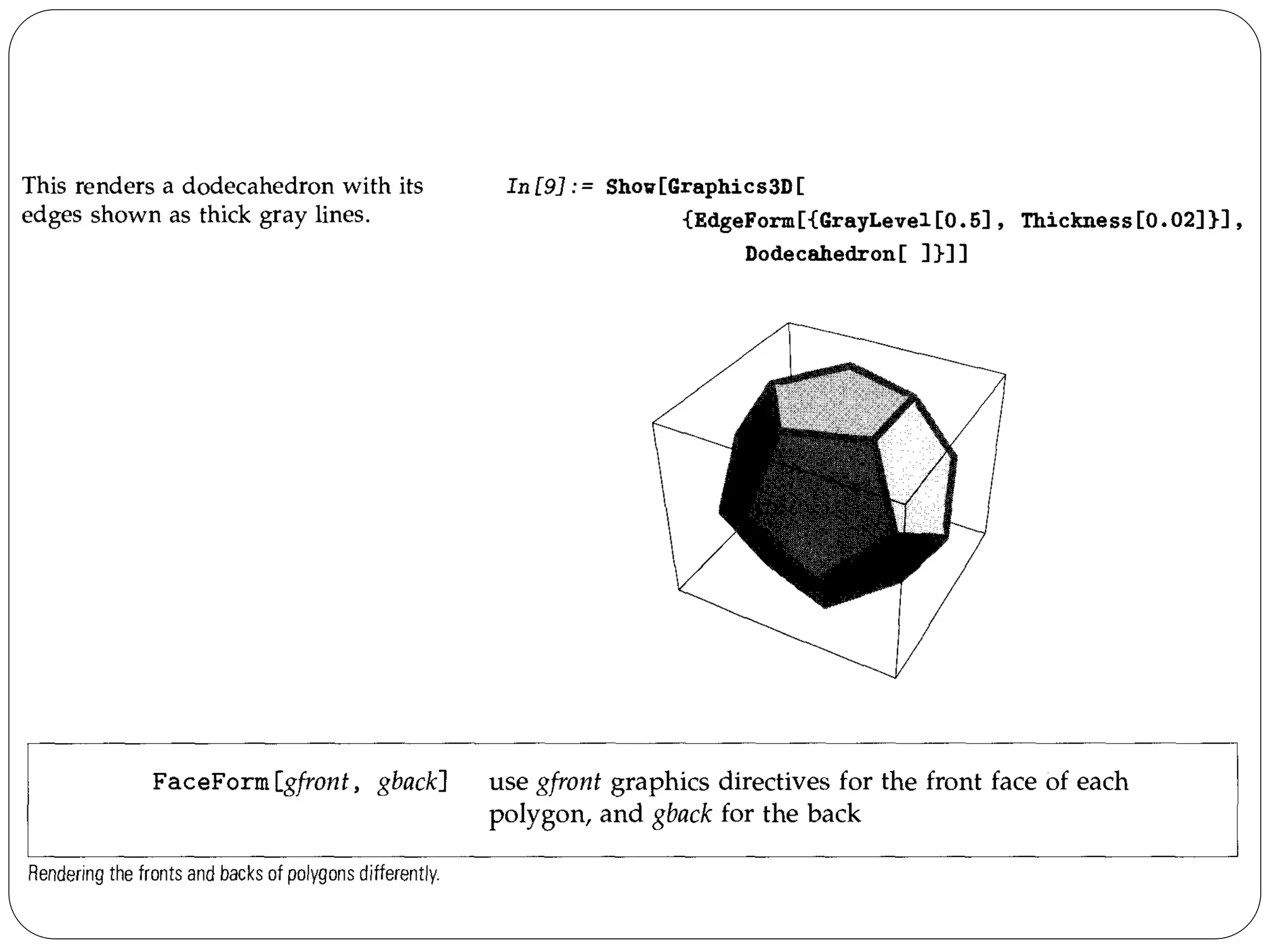
When you render a three-dimensional graphics object in Mathematica, there are two kinds of lines that can appear. The first kind are lines from explicit Line primitives that you included in the graphics object. The second kind are lines that were generated as the edges of polygons. 
You can tell Mathematica how to render lines of the second kind by giving a list of graphics directives inside EdgeForm.
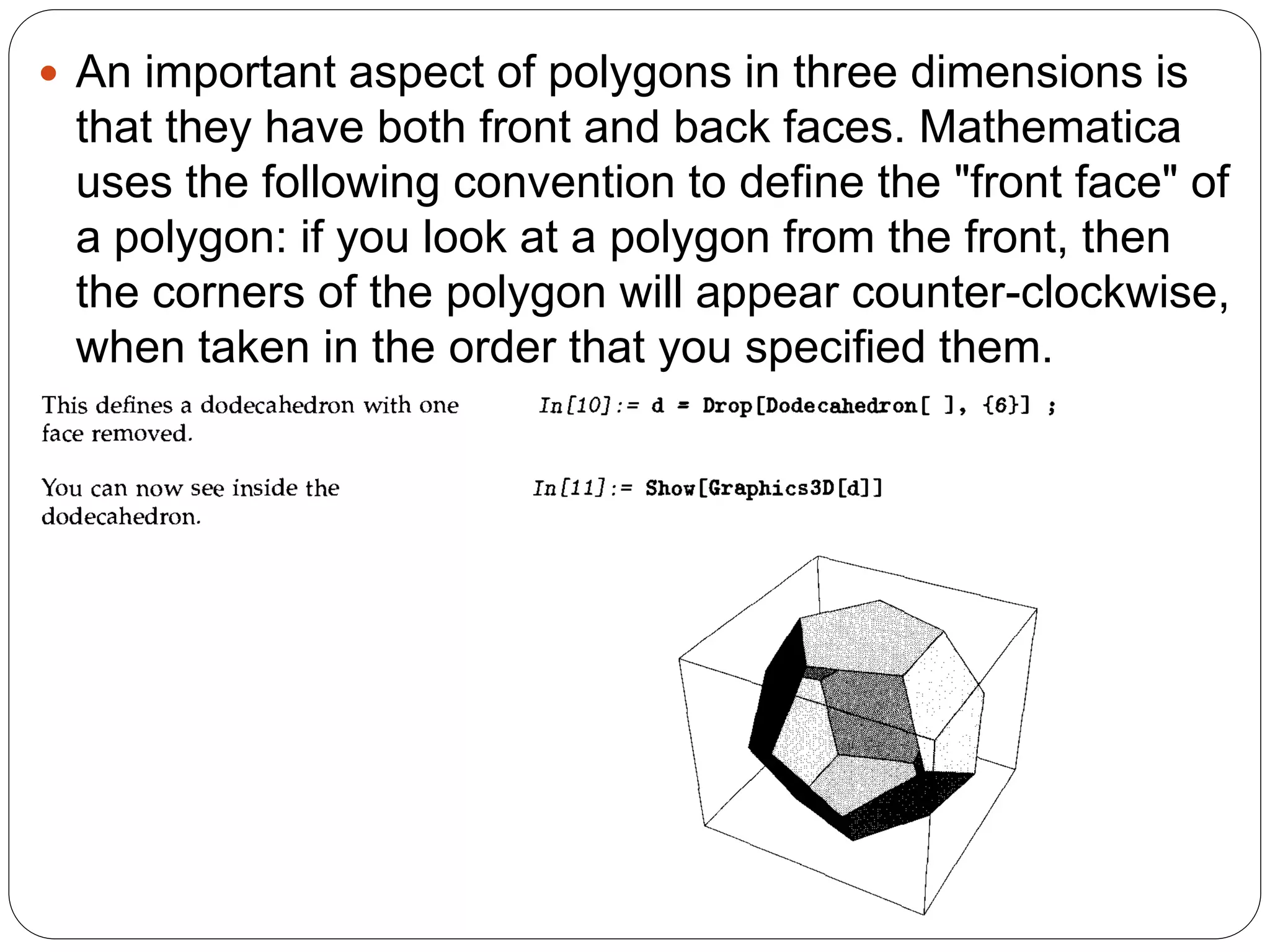
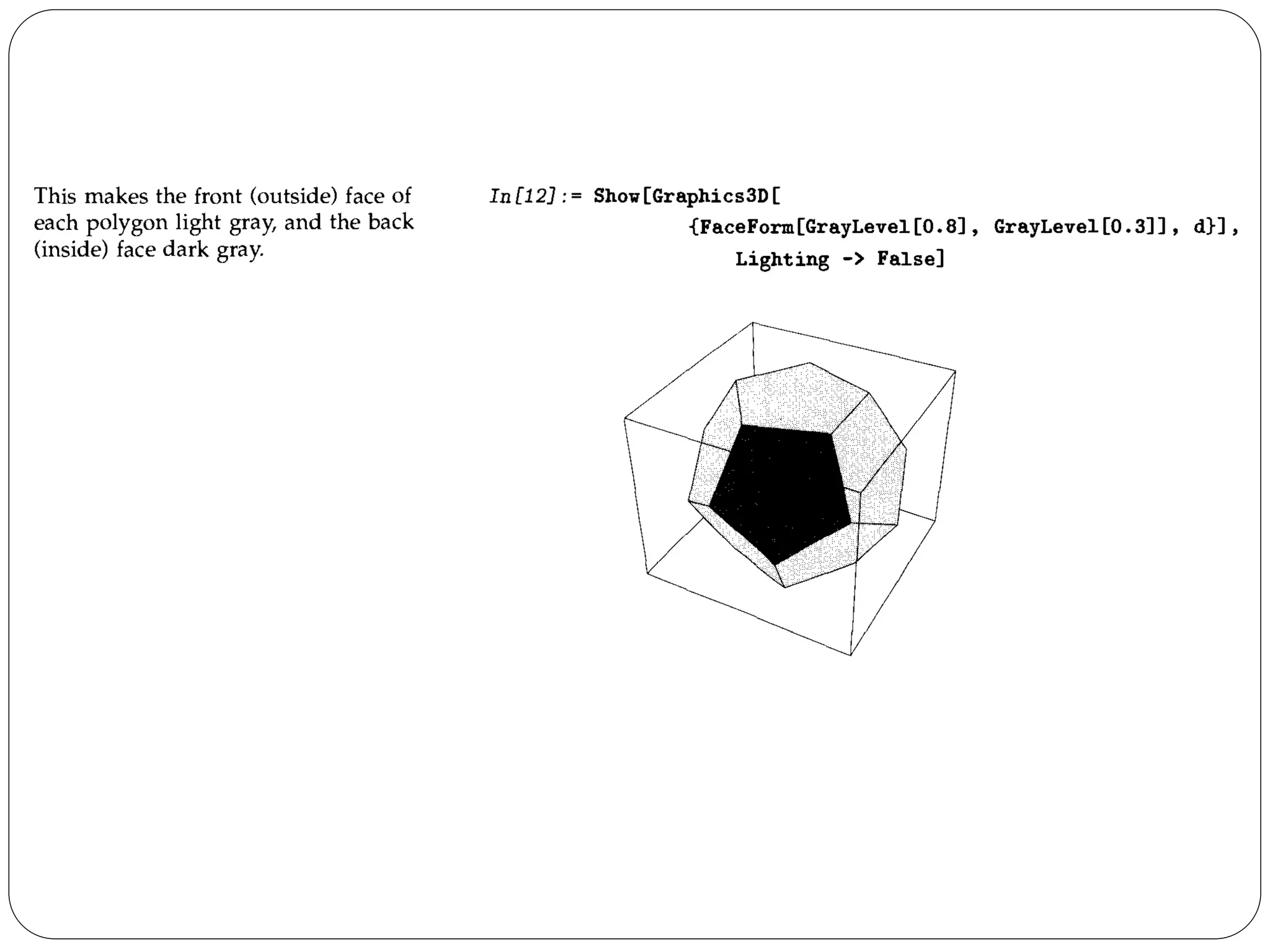
An important aspect of polygons in three dimensions is that they have both front and back faces. Mathematica uses the following convention to define the "front face" of a polygon: if you look at a polygon from the front, then the corners of the polygon will appear counter-clockwise, when taken in the order that you specified them.
Me 443   4 plotting curves Erdi Karaçal Mechanical Engineer University of Gaziantep

Me 443 4 plotting curves Erdi Karaçal Mechanical Engineer University of Gaziantep

  • 1.
    Plotting Curves ME443 Mathematica for Engineers
  • 2.
  • 4.
    Parametric Plot Inprevious section described how to plot curves in Mathematica in which you give the y coordinate of each point as a function of the x coordinate. You can also use Mathematica to make parametric plots. In a parametric plot, you give both the x and y coordinates of each point as a function of a third parameter, say t.
  • 7.
    Plotting Lists ofData So far, we have discussed how you can use Mathematica to make plots of functions. You give Mathematica a function, and it builds up a curve by evaluating the function at many different points. This section describes how you can make plots from lists of data, instead of functions. The Mathematica commands for plotting lists of data are direct analogs of the ones discussed in the section for plotting functions.
  • 10.
    Options for Plot When Mathematica plots a graph for you, it has to make many choices. It has to work out what the scales should be, where the function should be sampled, how the axes should be drawn, and so on. Most of the time, Mathematica will probably make pretty good choices. However, if you want to get the very best possible pictures for your particular purposes, you may have to help Mathematica in making some of its choices. There is a general mechanism for specifying "options" in Mathematica functions. Each option has a definite name. As the last arguments to a function like Plot, you can include a sequence of rules of the form name -> value, to specify the values for various options. Any option for which you do not give an explicit rule is taken to have its "default" value.
  • 11.
    A function likePlot has many options that you can set. Usually you will need to use at most a few of them at a time. If you want to optimize a particular plot, you will probably do best to experiment, trying a sequence of different settings for various options. Each time you produce a plot, you can specify options for it. Section 30.1 will also discuss how you can change some of the options, even after you have produced the plot.
  • 17.
    When Mathematica makesa plot, it tries to set the x and y scales to include only the "interesting” parts of the plot. If your function increases very rapidly, or has singularities, the parts where it gets too large will be cut off. By specifying the option PlotRange, you can control exactly what ranges of x and y coordinates are included in your plot.
  • 18.
    Mathematica always triesto plot functions as smooth curves. As a result, in places where your function wiggles a lot, Mathematica will use more points. In general, Mathematica tries to adapt its sampling of your function to the form of the function. There is, however, a limit, which you can set, to how finely Mathematica will ever sample a function.
  • 20.
    It is importantto realize that since Mathematica can only sample your function at a limited number of points, it can always miss features of the function. By increasing PlotPoints, you can make Mathematica sample your function at a larger number of points. Of course, the larger you set PlotPoints to be, the longer it will take Mathematica to plot any function, even a smooth one. Since Plot needs to evaluate your function many times, it is important to make each evaluation as quickly as possible. As a result, Mathematica usually compiles your function into a low-level pseudocode that can be executed very efficiently. Note that Mathematica can only compile "in-line code"; it cannot for example compile functions that you have defined. As a result, you should, when possible, use Evaluate as described on next section to evaluate any such definitions and get a form that the Mathematica compiler can handle.
  • 21.
  • 22.
    To get smoothcurves, Mathematica has to evaluate functions you plot at a large number of points. As a result, it is important that you set things up so that each function evaluation is as quick as possible. When you ask Mathematica to plot an object, say f, as a function of x, there are two possible approaches it can take. One approach is first to try and evaluate f, presumably getting a symbolic expression in terms of x, and then subsequently evaluate this expression numerically for the specific values of x needed in the plot. The second approach is first to work out what values of x are needed, and only subsequently to evaluate f with those values of x. If you type Plot [f, {x, xmin, xmax}] it is the second of these approaches that is used. This has the advantage that Mathematica only tries to evaluate f for specific numerical values of x; it does not matter whether sensible values are defined for f when x is symbolic. There are, however, some cases in which it is much better to have Mathematica evaluate f before it starts to make the plot. A typical case is when f is actually a command that generates a table of functions. You want to have Mathematica first produce the table, and then evaluate the functions, rather than trying to produce the table afresh for each value of x. You can do this by typing Plot [Evaluate [f] , {x, xmin, xmax}].
  • 24.
  • 26.
    You can combinegraphics objects that you have created explicitly from graphics primitives with ones that are produced by functions like Plot.
  • 27.
    You can combinedifferent graphical elements simply by giving them in a list. In two-dimensional graphics, Mathematica will render the elements in exactly the order you give them. Later elements are therefore effectively drawn on top of earlier ones.
  • 28.
    The Polygon graphicsprimitive takes a list of x, y coordinates, corresponding to the corners of a polygon. Mathematica joins the last corner with the first one, and then fills the resulting area.
  • 31.
    Mathematica allows youto generate arcs of circles, and segments of ellipses. In both cases, the objects are specified by starting and finishing angles. The angles are measured counterclockwise in radians with zero corresponding to the positive x direction. For segments of ellipses, the angles are measured as on a circle that is then transformed by scaling into an ellipse.
  • 34.
    In the defaultcase, Raster always generates an array of gray cells. As described on page 194, you can use the option ColorFunction to apply a "coloring function" to all the cells. You can also use the graphics primitive RasterArray. While Raster takes an array of values, RasterArray takes an array of Mathematica graphics directives. The directives associated with each cell are taken to determine the color of that cell. Typically the directives are chosen from the set GrayLevel, RGBColor or Hue. By using RGBColor and Hue directives, you can create color rasters using RasterArray.
  • 35.
    Graphics Directives andOptions When you set up a graphics object in Mathematica, you typically give a list of graphical elements. You can include in that list graphics directives which specify how subsequent elements in the list should be rendered. In general, the graphical elements in a particular graphics object can be given in a collection of nested lists. When you insert graphics directives in this kind of structure, the rule is that a particular graphics directive affects all subsequent elements of the list it is in, together with all elements of sublists that may occur. The graphics directive does not, however, have any effect outside the list it is in.
  • 36.
    Mathematica provides variouskinds of graphics directives. One important set is those for specifying the colors of graphical elements. Even if you have a black-and-white display device, you can still give color graphics directives. The colors you specify will be converted to gray levels at the last step in the graphics rendering process. Note that you can get black-and-white display even on a color device by setting the option ColorOutput -> GrayLevel.
  • 38.
    The function Hue[h]provides a convenient way to specify a range of colors using just one parameter. As ft varies from 0 to 1, Hue[h] runs through red, yellow, green, cyan, blue, magenta, and back to red again. Hue [h, s, b] allows you to specify not only the "hue", but also the "saturation" and "brightness" of a color. Taking the saturation to be equal to one gives the deepest colors; decreasing the saturation towards zero leads to progressively more "washed out" colors. For most purposes, you will be able to specify the colors you need simply by giving appropriate RGBColor or Hue directives. When you give a graphics directive such as RGBColor, it affects all subsequent graphical elements that appear in a particular list. Mathematica also supports various graphics directives which affect only specific types of graphical elements.
  • 39.
    The graphics directivePointSize[d] specifies that all Point elements which appear in a graphics object should be drawn as circles with a diameter d. In PointSize, the diameter d is measured as a fraction of the width of your whole plot. Mathematica also provides the graphics directive AbsolutePointSize[d], which allows you to specify the "absolute" diameter of points, measured in fixed units. The units are approximately printer's points, equal to 1/72 of an inch.
  • 42.
    The Dashing graphicsdirective allows you to create lines with various kinds of dashing. The basic idea is to break lines into segments which are alternately drawn and omitted. By changing the lengths of the segments, you can get different line styles. Dashing allows you to specify a sequence of segment lengths. This sequence is repeated as many times as necessary in drawing the whole line.
  • 43.
    Three-Dimensional Graphics Oneof the most powerful aspects of graphics in Mathematica is the availability of three-dimensional as well as two-dimensional graphics primitives. By combining three-dimensional graphics primitives, you can represent and render three-dimensional objects in Mathematica.
  • 45.
    If you givea list of graphics elements in two dimensions, Mathematica simply draws each element in turn, with later elements obscuring earlier ones. In three dimensions, however, Mathematica collects together all the graphics elements you specify, then displays them as three-dimensional objects, with the ones in front in three-dimensional space obscuring those behind.
  • 47.
    By creating anappropriate list of polygons, you can build up any three-dimensional object in Mathematica. Thus, for example, all the surfaces produced by ParametricPlot3D are represented simply as lists of polygons. The package Graphics`Polyhedra` contains examples of lists of polygons which correspond to polyhedra in three dimensions.
  • 48.
    Mathematica allows polygonsin three dimensions to have any number of vertices. However, these vertices should lie in a plane, and should form a convex figure. If they do not, then Mathematica will break the polygon into triangles, which are planar by definition, before rendering it.
  • 50.
    Three-Dimensional Graphics Directives In three dimensions, just as in two dimensions, you can give various graphics directives to specify how the different elements in a graphics object should be rendered. All the graphics directives for two dimensions also work in three dimensions. There are however some additional directives in three dimensions. Just as in two dimensions, you can use the directives PointSize, Thickness and Dashing to tell Mathematica how to render Point and Line elements. Note that in three dimensions, the lengths that appear in these directives are measured as fractions of the total width of the display area for your plot.
  • 52.
    As in twodimensions, you can use AbsolutePointSize, AbsoluteThickness and AbsoluteDashing if you want to measure length in absolute units.
  • 53.
    For Point andLine objects, the color specification directives also work the same in three dimensions as in two dimensions. For Polygon objects, however, they can work differently. In two dimensions, polygons are always assumed to have an intrinsic color, specified directly by graphics directives such as RGBColor. In three dimensions, however, Mathematica also provides the option of generating colors for polygons using a more physical approach based on simulated illumination. With the default option setting Lighting -> True for Graphics3D objects, Mathematica ignores explicit colors specified for polygons, and instead determines all polygon colors using the simulated illumination model. Even in this case, however, explicit colors are used for points and lines.
  • 57.
    When you rendera three-dimensional graphics object in Mathematica, there are two kinds of lines that can appear. The first kind are lines from explicit Line primitives that you included in the graphics object. The second kind are lines that were generated as the edges of polygons. You can tell Mathematica how to render lines of the second kind by giving a list of graphics directives inside EdgeForm.
  • 59.
    An important aspectof polygons in three dimensions is that they have both front and back faces. Mathematica uses the following convention to define the "front face" of a polygon: if you look at a polygon from the front, then the corners of the polygon will appear counter-clockwise, when taken in the order that you specified them.