Introduction to Simulink
Larry Michaels
michaels@mathworks.com
The MathWorks Inc.
24 Prime Park Way
Natick, MA 01760-1500
USA
Copyright  1984 - 1997 by The MathWorks, Inc.
2Introduction to Simulink
What Is Simulink?
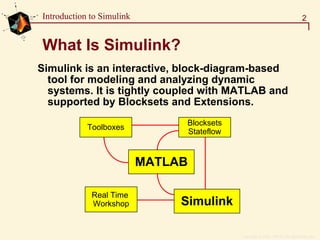
Simulink is an interactive, block-diagram-based
tool for modeling and analyzing dynamic
systems. It is tightly coupled with MATLAB and
supported by Blocksets and Extensions.
Blocksets
Stateflow
Toolboxes
MATLAB
Real Time
Workshop Simulink
Copyright  1984 - 1997 by The MathWorks, Inc.
3Introduction to Simulink
What Is Simulink?
A simulation tool in MATLAB’s Technical
Computing Environment
Among other things, this means
Block diagram editing
Nonlinear simulation
Continuous and discrete simulation
Asynchronous (non-uniform sampling)
simulation
Integration with MATLAB, Extensions, Blocksets
& Toolboxes
Copyright  1984 - 1997 by The MathWorks, Inc.
4Introduction to Simulink
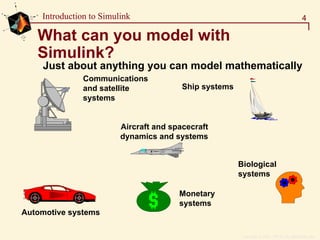
What can you model with
Simulink?
Just about anything you can model mathematically
Communications
and satellite
systems
Ship systems
Aircraft and spacecraft
dynamics and systems
Biological
systems
Monetary
systems
Automotive systems
Copyright  1984 - 1997 by The MathWorks, Inc.
5Introduction to Simulink
Building & Running a Model
Creating a model
Running the simulation
Analyzing the results
Copyright  1984 - 1997 by The MathWorks, Inc.
6Introduction to Simulink
Creating a model
Editing models
Annotations
Setting block dialog parameters
Creating Subsystems
Signal Labels
Saving (MDL File format)
Copyright  1984 - 1997 by The MathWorks, Inc.
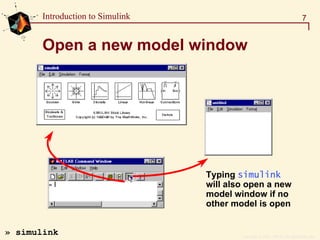
7Introduction to Simulink
Open a new model window
Typing simulink
will also open a new
model window if no
other model is open
» simulink
Copyright  1984 - 1997 by The MathWorks, Inc.
8Introduction to Simulink
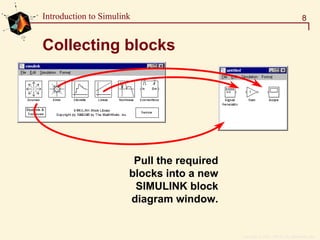
Collecting blocks
Pull the required
blocks into a new
SIMULINK block
diagram window.
Copyright  1984 - 1997 by The MathWorks, Inc.
9Introduction to Simulink
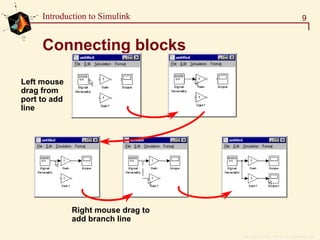
Connecting blocks
Left mouse
drag from
port to add
line
Right mouse drag to
add branch line
Copyright  1984 - 1997 by The MathWorks, Inc.
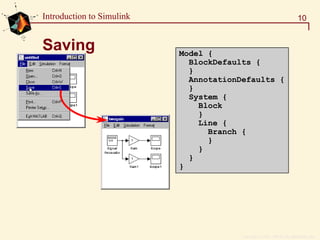
10Introduction to Simulink
Saving Model {
BlockDefaults {
}
AnnotationDefaults {
}
System {
Block
}
Line {
Branch {
}
}
}
}
Copyright  1984 - 1997 by The MathWorks, Inc.
11Introduction to Simulink
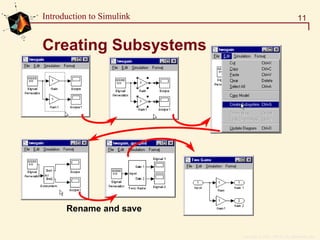
Creating Subsystems
Rename and save
Copyright  1984 - 1997 by The MathWorks, Inc.
12Introduction to Simulink
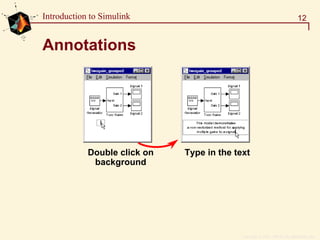
Annotations
Double click on
background
Type in the text
Copyright  1984 - 1997 by The MathWorks, Inc.
13Introduction to Simulink
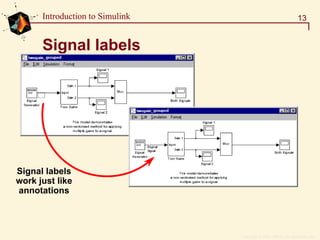
Signal labels
Signal labels
work just like
annotations
Copyright  1984 - 1997 by The MathWorks, Inc.
14Introduction to Simulink
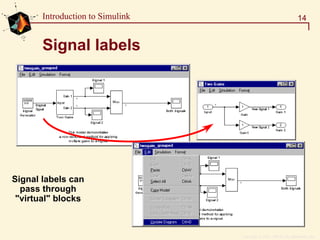
Signal labels
Signal labels can
pass through
"virtual" blocks
Copyright  1984 - 1997 by The MathWorks, Inc.
15Introduction to Simulink
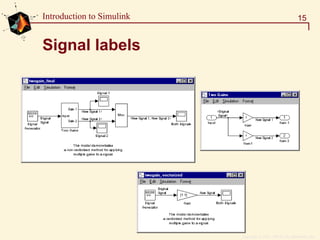
Signal labels
Copyright  1984 - 1997 by The MathWorks, Inc.
16Introduction to Simulink
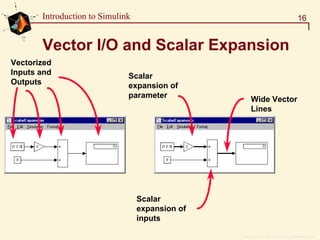
Vector I/O and Scalar Expansion
Vectorized
Inputs and
Outputs
Scalar
expansion of
parameter Wide Vector
Lines
Scalar
expansion of
inputs
Copyright  1984 - 1997 by The MathWorks, Inc.
17Introduction to Simulink
Defining variables
Both MATLAB and Simulink Windows “See” Into
the Same Workspace.
» x=21;
» t = 0:1
x=21
pi=3.14159...
t=[0 1]
Copyright  1984 - 1997 by The MathWorks, Inc.
18Introduction to Simulink
Goto / From blocks
Local [ ] is only
on the current
window
Copyright  1984 - 1997 by The MathWorks, Inc.
19Introduction to Simulink
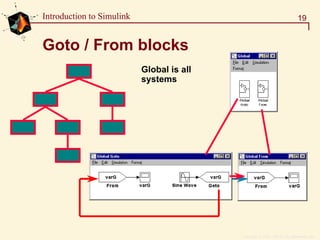
Goto / From blocks
Global is all
systems
Copyright  1984 - 1997 by The MathWorks, Inc.
20Introduction to Simulink
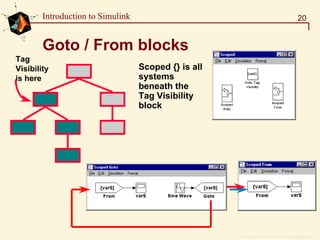
Goto / From blocks
Tag
Visibility
is here
Scoped {} is all
systems
beneath the
Tag Visibility
block
Copyright  1984 - 1997 by The MathWorks, Inc.
21Introduction to Simulink
Running a simulation
Parameters dialog box
Continuous systems
Discrete systems
Getting data into models
From the command line
Copyright  1984 - 1997 by The MathWorks, Inc.
22Introduction to Simulink
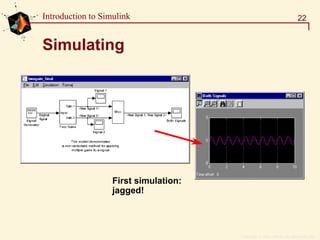
Simulating
First simulation:
jagged!
Copyright  1984 - 1997 by The MathWorks, Inc.
23Introduction to Simulink
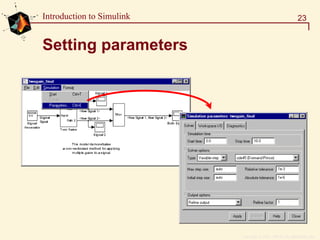
Setting parameters
Copyright  1984 - 1997 by The MathWorks, Inc.
24Introduction to Simulink
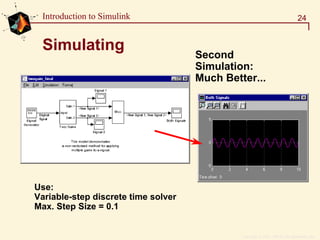
Simulating
Second
Simulation:
Much Better...
Use:
Variable-step discrete time solver
Max. Step Size = 0.1
Copyright  1984 - 1997 by The MathWorks, Inc.
25Introduction to Simulink
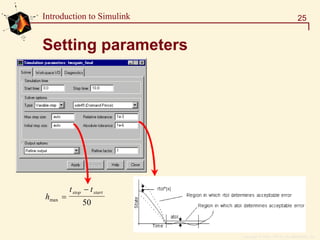
Setting parameters
h
t tstop start
max =
−
50
Copyright  1984 - 1997 by The MathWorks, Inc.
26Introduction to Simulink
Available Solvers
Variable-step solvers
Modify step size during simulation
Error control and zero crossing detection
ode45, ode23, ode113, ode15s, ode23s, discrete
Fixed-step solvers
Same step size throughout simulation
No error control or zero crossing detection
ode5, ode4, ode3, ode2, ode1, discrete
Simulink selects a default solver
ode45 used for models with continuous states
Variable-step discrete-time solver used for models
with no continuous states
Copyright  1984 - 1997 by The MathWorks, Inc.
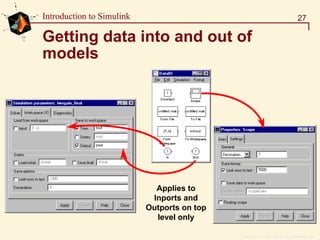
27Introduction to Simulink
Getting data into and out of
models
Applies to
Inports and
Outports on top
level only
Copyright  1984 - 1997 by The MathWorks, Inc.
28Introduction to Simulink
Continuous models
Ordinary differential equations
F mx bx kx= + +
x
F
y
u ms bs k
= =
+ +
1
2
k
b
x(t)
F(t)
m
[m b k]
Copyright  1984 - 1997 by The MathWorks, Inc.
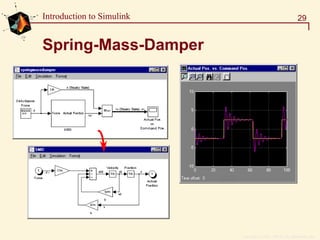
29Introduction to Simulink
Spring-Mass-Damper
Copyright  1984 - 1997 by The MathWorks, Inc.
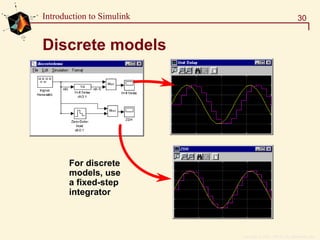
30Introduction to Simulink
Discrete models
For discrete
models, use
a fixed-step
integrator
Copyright  1984 - 1997 by The MathWorks, Inc.
31Introduction to Simulink
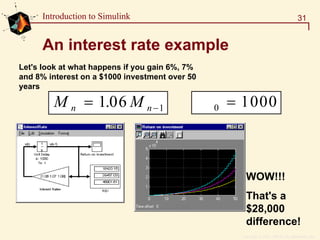
An interest rate example
Let's look at what happens if you gain 6%, 7%
and 8% interest on a $1000 investment over 50
years
M Mn n= −1 06 1. M 0 1000=
WOW!!!
That's a
$28,000
difference!
Copyright  1984 - 1997 by The MathWorks, Inc.
32Introduction to Simulink
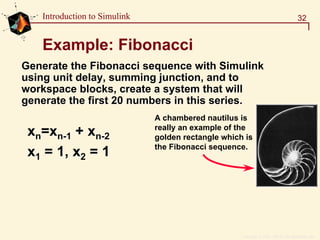
Example: Fibonacci
xxnn==xxnn--11 ++ xxnn--22
xx11 = 1, x= 1, x22 = 1= 1
Generate theGenerate the FibonacciFibonacci sequence withsequence with SimulinkSimulink
using unit delay, summing junction, and tousing unit delay, summing junction, and to
workspace blocks, create a system that willworkspace blocks, create a system that will
generate the first 20 numbers in this series.generate the first 20 numbers in this series.
A chambered nautilus is
really an example of the
golden rectangle which is
the Fibonacci sequence.
Copyright  1984 - 1997 by The MathWorks, Inc.
33Introduction to Simulink
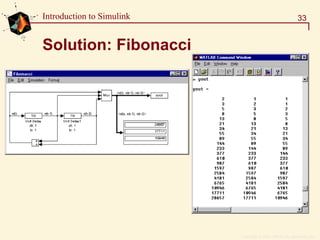
Solution: Fibonacci
Copyright  1984 - 1997 by The MathWorks, Inc.
34Introduction to Simulink
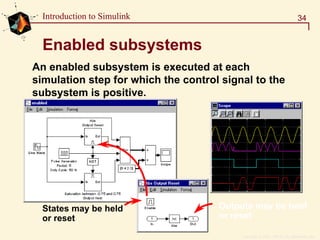
Enabled subsystems
An enabled subsystem is executed at each
simulation step for which the control signal to the
subsystem is positive.
Outputs may be held
or reset
States may be held
or reset
Copyright  1984 - 1997 by The MathWorks, Inc.
35Introduction to Simulink
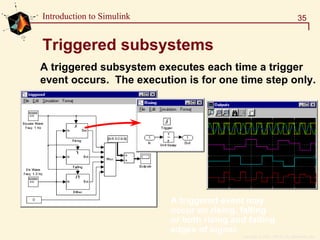
Triggered subsystems
A triggered subsystem executes each time a trigger
event occurs. The execution is for one time step only.
A triggered event may
occur on rising, falling
or both rising and falling
edges of signal.
Copyright  1984 - 1997 by The MathWorks, Inc.
36Introduction to Simulink
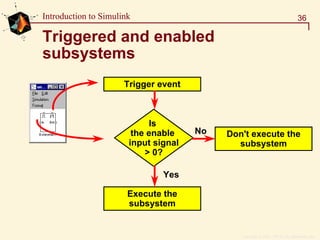
Triggered and enabled
subsystems
Trigger event
Is
the enable
input signal
> 0?
No Don't execute the
subsystem
Yes
Execute the
subsystem
Copyright  1984 - 1997 by The MathWorks, Inc.
37Introduction to Simulink
From the command line
Why simulate from the command line?
Automate repeated simulations
Parameter tuning
Parameter Optimization (NCD)
Copyright  1984 - 1997 by The MathWorks, Inc.
38Introduction to Simulink
From the command line
(The most basic method)
[t,x,y]=sim(model)
[t,x,y1,y2,…, yn]=sim(model)
Simulates the model using all of the model
parameters.
The time, state and output vectors are returned
from the simulation.
Individual outputs may be obtained.
Outputs are obtained from the outport blocks on
the top level of the model.
Copyright  1984 - 1997 by The MathWorks, Inc.
39Introduction to Simulink
From the command line
» options=simget('external_pendulum')
options =
Solver: 'ode45'
RelTol: 1.0000e-003
AbsTol: 1.0000e-006
Refine: 1
MaxStep: 0.1000
InitialStep: 'auto'
MaxOrder: 5
FixedStep: 'auto'
OutputPoints: 'all'
OutputVariables: ''
MaxRows: 1000
Decimation: 1
InitialState: []
FinalStateName: 'xFinal'
Debug: 'off'
Trace: ''
SrcWorkspace: 'current'
DstWorkspace: 'current'
ZeroCross: 'on'
Use simget and simset to
get and set the options
structure.
[t,x,y]=sim(model, timespan, options)
options is a data
structure that contains
all of the solver
parameters
The options structure
overrides the simulation
parameters settings
Copyright  1984 - 1997 by The MathWorks, Inc.
40Introduction to Simulink
From the command line
[t,x,y]=sim(model, timespan, options, ut)
ut allows external inputs to be supplied to the inports
on the top level of the model.
[] in place of timespan or options indicates that the
current model settings are used.
Copyright  1984 - 1997 by The MathWorks, Inc.
41Introduction to Simulink
Analyzing results
Getting data out of models
Floating Scope and Display blocks
Trim
Linearization
Copyright  1984 - 1997 by The MathWorks, Inc.
42Introduction to Simulink
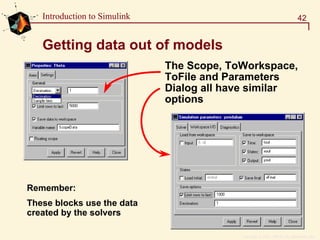
Getting data out of models
The Scope, ToWorkspace,
ToFile and Parameters
Dialog all have similar
options
Remember:
These blocks use the data
created by the solvers
Copyright  1984 - 1997 by The MathWorks, Inc.
43Introduction to Simulink
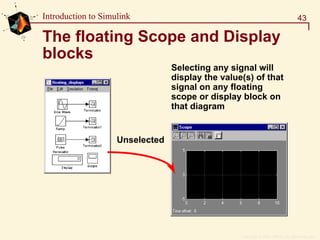
The floating Scope and Display
blocks
Selecting any signal will
display the value(s) of that
signal on any floating
scope or display block on
that diagram
Unselected
Copyright  1984 - 1997 by The MathWorks, Inc.
44Introduction to Simulink
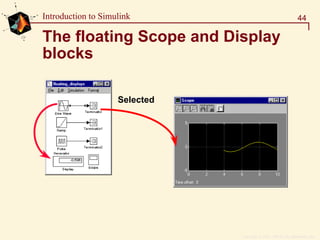
The floating Scope and Display
blocks
Selected
Copyright  1984 - 1997 by The MathWorks, Inc.
45Introduction to Simulink
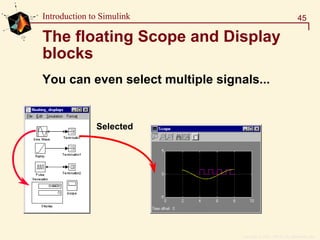
The floating Scope and Display
blocks
You can even select multiple signals...
Selected
Copyright  1984 - 1997 by The MathWorks, Inc.
46Introduction to Simulink
Trim
Find the values of states x and inputs u that
bring the system to steady state (dx=0)
The solution is not necessarily unique
[x, u, y]=trim('sys')
To provide an initial guess at the solution
[x, u, y]=trim('sys', x0, u0, y0)
Individual elements of x,u,y can be constrained
Individual derivatives can be fixed to non-zero
values
Can also add a fourth output argument to get the
state derivatives at trim ([x,u,y,dx]=…)
Copyright  1984 - 1997 by The MathWorks, Inc.
47Introduction to Simulink
Linearization
Use linmod to extract linear models from
Simulink systems
Perturbs each state around the operating point to
determine the rate of change in the state
derivatives and outputs (Jacobians)
Use linmod2 for advanced linearization
attempts to balance roundoff and truncation error
perturbation levels of each state-space matrix
element set individually
can detect discontinuities and produce warning
messages
Copyright  1984 - 1997 by The MathWorks, Inc.
48Introduction to Simulink
Discrete linearization - dlinmod
Used for discrete, multi-rate and hybrid systems
One additional input argument, Ts, after the
system name
[Ad, Bd, Cd, Dd]=dlinmod('sys',Ts,x,u)
Use Ts=0 for a continuous model approximation
Copyright  1984 - 1997 by The MathWorks, Inc.
49Introduction to Simulink
Summary
Block diagram modeling
Interactive operation
Continuous/discrete/hybrid systems
Linear & nonlinear components
Hierarchical models - subsystems
Conditional execution
Command-line operation
Tightly integrated with MATLAB
Linearization for Control Design
Supported by Stateflow, Real-Time Workshop

Forelasning4

  • 1.
    Introduction to Simulink LarryMichaels michaels@mathworks.com The MathWorks Inc. 24 Prime Park Way Natick, MA 01760-1500 USA
  • 2.
    Copyright  1984- 1997 by The MathWorks, Inc. 2Introduction to Simulink What Is Simulink? Simulink is an interactive, block-diagram-based tool for modeling and analyzing dynamic systems. It is tightly coupled with MATLAB and supported by Blocksets and Extensions. Blocksets Stateflow Toolboxes MATLAB Real Time Workshop Simulink
  • 3.
    Copyright  1984- 1997 by The MathWorks, Inc. 3Introduction to Simulink What Is Simulink? A simulation tool in MATLAB’s Technical Computing Environment Among other things, this means Block diagram editing Nonlinear simulation Continuous and discrete simulation Asynchronous (non-uniform sampling) simulation Integration with MATLAB, Extensions, Blocksets & Toolboxes
  • 4.
    Copyright  1984- 1997 by The MathWorks, Inc. 4Introduction to Simulink What can you model with Simulink? Just about anything you can model mathematically Communications and satellite systems Ship systems Aircraft and spacecraft dynamics and systems Biological systems Monetary systems Automotive systems
  • 5.
    Copyright  1984- 1997 by The MathWorks, Inc. 5Introduction to Simulink Building & Running a Model Creating a model Running the simulation Analyzing the results
  • 6.
    Copyright  1984- 1997 by The MathWorks, Inc. 6Introduction to Simulink Creating a model Editing models Annotations Setting block dialog parameters Creating Subsystems Signal Labels Saving (MDL File format)
  • 7.
    Copyright  1984- 1997 by The MathWorks, Inc. 7Introduction to Simulink Open a new model window Typing simulink will also open a new model window if no other model is open » simulink
  • 8.
    Copyright  1984- 1997 by The MathWorks, Inc. 8Introduction to Simulink Collecting blocks Pull the required blocks into a new SIMULINK block diagram window.
  • 9.
    Copyright  1984- 1997 by The MathWorks, Inc. 9Introduction to Simulink Connecting blocks Left mouse drag from port to add line Right mouse drag to add branch line
  • 10.
    Copyright  1984- 1997 by The MathWorks, Inc. 10Introduction to Simulink Saving Model { BlockDefaults { } AnnotationDefaults { } System { Block } Line { Branch { } } } }
  • 11.
    Copyright  1984- 1997 by The MathWorks, Inc. 11Introduction to Simulink Creating Subsystems Rename and save
  • 12.
    Copyright  1984- 1997 by The MathWorks, Inc. 12Introduction to Simulink Annotations Double click on background Type in the text
  • 13.
    Copyright  1984- 1997 by The MathWorks, Inc. 13Introduction to Simulink Signal labels Signal labels work just like annotations
  • 14.
    Copyright  1984- 1997 by The MathWorks, Inc. 14Introduction to Simulink Signal labels Signal labels can pass through "virtual" blocks
  • 15.
    Copyright  1984- 1997 by The MathWorks, Inc. 15Introduction to Simulink Signal labels
  • 16.
    Copyright  1984- 1997 by The MathWorks, Inc. 16Introduction to Simulink Vector I/O and Scalar Expansion Vectorized Inputs and Outputs Scalar expansion of parameter Wide Vector Lines Scalar expansion of inputs
  • 17.
    Copyright  1984- 1997 by The MathWorks, Inc. 17Introduction to Simulink Defining variables Both MATLAB and Simulink Windows “See” Into the Same Workspace. » x=21; » t = 0:1 x=21 pi=3.14159... t=[0 1]
  • 18.
    Copyright  1984- 1997 by The MathWorks, Inc. 18Introduction to Simulink Goto / From blocks Local [ ] is only on the current window
  • 19.
    Copyright  1984- 1997 by The MathWorks, Inc. 19Introduction to Simulink Goto / From blocks Global is all systems
  • 20.
    Copyright  1984- 1997 by The MathWorks, Inc. 20Introduction to Simulink Goto / From blocks Tag Visibility is here Scoped {} is all systems beneath the Tag Visibility block
  • 21.
    Copyright  1984- 1997 by The MathWorks, Inc. 21Introduction to Simulink Running a simulation Parameters dialog box Continuous systems Discrete systems Getting data into models From the command line
  • 22.
    Copyright  1984- 1997 by The MathWorks, Inc. 22Introduction to Simulink Simulating First simulation: jagged!
  • 23.
    Copyright  1984- 1997 by The MathWorks, Inc. 23Introduction to Simulink Setting parameters
  • 24.
    Copyright  1984- 1997 by The MathWorks, Inc. 24Introduction to Simulink Simulating Second Simulation: Much Better... Use: Variable-step discrete time solver Max. Step Size = 0.1
  • 25.
    Copyright  1984- 1997 by The MathWorks, Inc. 25Introduction to Simulink Setting parameters h t tstop start max = − 50
  • 26.
    Copyright  1984- 1997 by The MathWorks, Inc. 26Introduction to Simulink Available Solvers Variable-step solvers Modify step size during simulation Error control and zero crossing detection ode45, ode23, ode113, ode15s, ode23s, discrete Fixed-step solvers Same step size throughout simulation No error control or zero crossing detection ode5, ode4, ode3, ode2, ode1, discrete Simulink selects a default solver ode45 used for models with continuous states Variable-step discrete-time solver used for models with no continuous states
  • 27.
    Copyright  1984- 1997 by The MathWorks, Inc. 27Introduction to Simulink Getting data into and out of models Applies to Inports and Outports on top level only
  • 28.
    Copyright  1984- 1997 by The MathWorks, Inc. 28Introduction to Simulink Continuous models Ordinary differential equations F mx bx kx= + + x F y u ms bs k = = + + 1 2 k b x(t) F(t) m [m b k]
  • 29.
    Copyright  1984- 1997 by The MathWorks, Inc. 29Introduction to Simulink Spring-Mass-Damper
  • 30.
    Copyright  1984- 1997 by The MathWorks, Inc. 30Introduction to Simulink Discrete models For discrete models, use a fixed-step integrator
  • 31.
    Copyright  1984- 1997 by The MathWorks, Inc. 31Introduction to Simulink An interest rate example Let's look at what happens if you gain 6%, 7% and 8% interest on a $1000 investment over 50 years M Mn n= −1 06 1. M 0 1000= WOW!!! That's a $28,000 difference!
  • 32.
    Copyright  1984- 1997 by The MathWorks, Inc. 32Introduction to Simulink Example: Fibonacci xxnn==xxnn--11 ++ xxnn--22 xx11 = 1, x= 1, x22 = 1= 1 Generate theGenerate the FibonacciFibonacci sequence withsequence with SimulinkSimulink using unit delay, summing junction, and tousing unit delay, summing junction, and to workspace blocks, create a system that willworkspace blocks, create a system that will generate the first 20 numbers in this series.generate the first 20 numbers in this series. A chambered nautilus is really an example of the golden rectangle which is the Fibonacci sequence.
  • 33.
    Copyright  1984- 1997 by The MathWorks, Inc. 33Introduction to Simulink Solution: Fibonacci
  • 34.
    Copyright  1984- 1997 by The MathWorks, Inc. 34Introduction to Simulink Enabled subsystems An enabled subsystem is executed at each simulation step for which the control signal to the subsystem is positive. Outputs may be held or reset States may be held or reset
  • 35.
    Copyright  1984- 1997 by The MathWorks, Inc. 35Introduction to Simulink Triggered subsystems A triggered subsystem executes each time a trigger event occurs. The execution is for one time step only. A triggered event may occur on rising, falling or both rising and falling edges of signal.
  • 36.
    Copyright  1984- 1997 by The MathWorks, Inc. 36Introduction to Simulink Triggered and enabled subsystems Trigger event Is the enable input signal > 0? No Don't execute the subsystem Yes Execute the subsystem
  • 37.
    Copyright  1984- 1997 by The MathWorks, Inc. 37Introduction to Simulink From the command line Why simulate from the command line? Automate repeated simulations Parameter tuning Parameter Optimization (NCD)
  • 38.
    Copyright  1984- 1997 by The MathWorks, Inc. 38Introduction to Simulink From the command line (The most basic method) [t,x,y]=sim(model) [t,x,y1,y2,…, yn]=sim(model) Simulates the model using all of the model parameters. The time, state and output vectors are returned from the simulation. Individual outputs may be obtained. Outputs are obtained from the outport blocks on the top level of the model.
  • 39.
    Copyright  1984- 1997 by The MathWorks, Inc. 39Introduction to Simulink From the command line » options=simget('external_pendulum') options = Solver: 'ode45' RelTol: 1.0000e-003 AbsTol: 1.0000e-006 Refine: 1 MaxStep: 0.1000 InitialStep: 'auto' MaxOrder: 5 FixedStep: 'auto' OutputPoints: 'all' OutputVariables: '' MaxRows: 1000 Decimation: 1 InitialState: [] FinalStateName: 'xFinal' Debug: 'off' Trace: '' SrcWorkspace: 'current' DstWorkspace: 'current' ZeroCross: 'on' Use simget and simset to get and set the options structure. [t,x,y]=sim(model, timespan, options) options is a data structure that contains all of the solver parameters The options structure overrides the simulation parameters settings
  • 40.
    Copyright  1984- 1997 by The MathWorks, Inc. 40Introduction to Simulink From the command line [t,x,y]=sim(model, timespan, options, ut) ut allows external inputs to be supplied to the inports on the top level of the model. [] in place of timespan or options indicates that the current model settings are used.
  • 41.
    Copyright  1984- 1997 by The MathWorks, Inc. 41Introduction to Simulink Analyzing results Getting data out of models Floating Scope and Display blocks Trim Linearization
  • 42.
    Copyright  1984- 1997 by The MathWorks, Inc. 42Introduction to Simulink Getting data out of models The Scope, ToWorkspace, ToFile and Parameters Dialog all have similar options Remember: These blocks use the data created by the solvers
  • 43.
    Copyright  1984- 1997 by The MathWorks, Inc. 43Introduction to Simulink The floating Scope and Display blocks Selecting any signal will display the value(s) of that signal on any floating scope or display block on that diagram Unselected
  • 44.
    Copyright  1984- 1997 by The MathWorks, Inc. 44Introduction to Simulink The floating Scope and Display blocks Selected
  • 45.
    Copyright  1984- 1997 by The MathWorks, Inc. 45Introduction to Simulink The floating Scope and Display blocks You can even select multiple signals... Selected
  • 46.
    Copyright  1984- 1997 by The MathWorks, Inc. 46Introduction to Simulink Trim Find the values of states x and inputs u that bring the system to steady state (dx=0) The solution is not necessarily unique [x, u, y]=trim('sys') To provide an initial guess at the solution [x, u, y]=trim('sys', x0, u0, y0) Individual elements of x,u,y can be constrained Individual derivatives can be fixed to non-zero values Can also add a fourth output argument to get the state derivatives at trim ([x,u,y,dx]=…)
  • 47.
    Copyright  1984- 1997 by The MathWorks, Inc. 47Introduction to Simulink Linearization Use linmod to extract linear models from Simulink systems Perturbs each state around the operating point to determine the rate of change in the state derivatives and outputs (Jacobians) Use linmod2 for advanced linearization attempts to balance roundoff and truncation error perturbation levels of each state-space matrix element set individually can detect discontinuities and produce warning messages
  • 48.
    Copyright  1984- 1997 by The MathWorks, Inc. 48Introduction to Simulink Discrete linearization - dlinmod Used for discrete, multi-rate and hybrid systems One additional input argument, Ts, after the system name [Ad, Bd, Cd, Dd]=dlinmod('sys',Ts,x,u) Use Ts=0 for a continuous model approximation
  • 49.
    Copyright  1984- 1997 by The MathWorks, Inc. 49Introduction to Simulink Summary Block diagram modeling Interactive operation Continuous/discrete/hybrid systems Linear & nonlinear components Hierarchical models - subsystems Conditional execution Command-line operation Tightly integrated with MATLAB Linearization for Control Design Supported by Stateflow, Real-Time Workshop