1
Chapter 1
Starting With MATLAB
MATLAB An Introduction with Applications, 5th Edition
Dr. Amos Gilat
The Ohio State University
Icons
– Window Action icon – the icon showing a
down arrow with a circle around it, i.e.,
It is in the upper, right corner of most
MATLAB windows
– Help icon – the question-mark icon
( ) in the Resources Section of the desktop
toolbar
– Layout icon – ( ) in the Environment
Section of the desktop toolbar
2
1.0
This chapter describes:
–MATLAB windows
–Command Window in detail
–How to do basic arithmetic
–Create basic variables
–Introductory script files
3
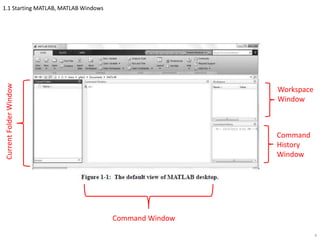
1.1 Starting MATLAB, MATLAB Windows
4
CurrentFolderWindow
Command Window
Workspace
Window
Command
History
Window
1.1 Starting MATLAB, MATLAB Windows
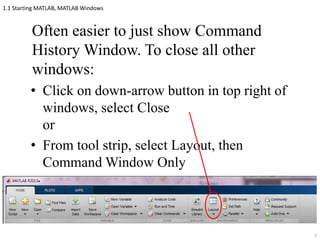
Often easier to just show Command
History Window. To close all other
windows:
• Click on down-arrow button in top right of
windows, select Close
or
• From tool strip, select Layout, then
Command Window Only
5
1.1 Starting MATLAB, MATLAB Windows
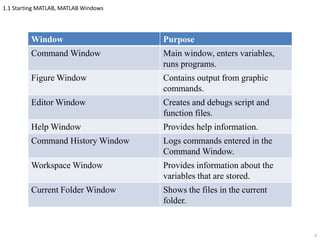
Window Purpose
Command Window Main window, enters variables,
runs programs.
Figure Window Contains output from graphic
commands.
Editor Window Creates and debugs script and
function files.
Help Window Provides help information.
Command History Window Logs commands entered in the
Command Window.
Workspace Window Provides information about the
variables that are stored.
Current Folder Window Shows the files in the current
folder.
6
1.1 Starting MATLAB, MATLAB Windows
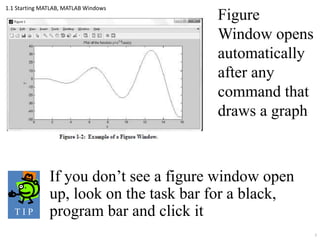
If you don’t see a figure window open
up, look on the task bar for a black,
program bar and click it
7
T I P
Figure
Window opens
automatically
after any
command that
draws a graph
1.1 Starting MATLAB, MATLAB Windows
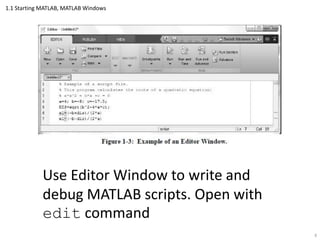
Use Editor Window to write and
debug MATLAB scripts. Open with
edit command
8
1.1 Starting MATLAB, MATLAB Windows
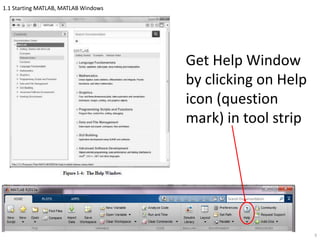
Get Help Window
by clicking on Help
icon (question
mark) in tool strip
9
1.1 Starting MATLAB, MATLAB Windows
More Fun with Windows
• To reopen a window, click the
Layout icon and then click on the
window name
• To get the default window layout
(shown before) click the Layout
icon, then click Default
10
1.1 Starting MATLAB, MATLAB Windows
More Fun with Windows
Undocking a window means
removing it from the main MATLAB
window and then being able to
move it independently. To undock a
window:
• Drag the window’s title bar until the
cursor is outside the MATLAB window,
then release the cursor
or
• Click on the Window Action icon,
then click on Undock
11
1.2 Working in the Command Window
More Fun with Windows
To dock a window:
• Click on the Window Action icon,
then click on Dock
12
1.2 Working in the Command Window
Command Window is MATLAB’s main
window. Use it to:
• Execute commands
• Open other windows
• Run programs that you’ve written
• Manage the MATLAB software
13
1.2 Working in the Command Window
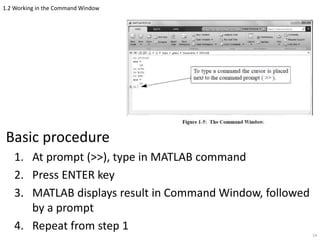
Basic procedure
1. At prompt (>>), type in MATLAB command
2. Press ENTER key
3. MATLAB displays result in Command Window, followed
by a prompt
4. Repeat from step 1
14
1.2 Working in the Command Window
Notes on Command Window
• To start a command, make sure cursor is
next to prompt
• MATLAB won’t respond until you press
ENTER
– It then executes only last command
– Commands before last one may still be
visible, but MATLAB doesn’t execute them
15
1.2 Working in the Command Window
• Can type several commands in same line
by putting a comma between commands
– Hard to read, so don’t do this often
• If command too long to fit on line, can
continue to next line by typing ellipsis (3
periods, i.e., … ) and then pressing
ENTER
16
1.2 Working in the Command Window
When cursor is in bottom command line:
•  key moves cursor one character to left
•  key moves cursor one character to right
•  key recalls preceding command
•  key recalls command that follows one being
displayed, i.e., undoes 
17
1.2 Working in the Command Window
• PAGE-UP key moves up to previous
commands in a window-size at a time
• PAGE-DOWN key moves down to
previous commands in a window-size at a
time
• BACKSPACE key deletes character to left
of cursor
• DELETE key deletes character to right of
cursor
18
1.2 Working in the Command Window
To quickly execute a previous command
but with minor changes
1. Recall command with up- and down-
arrow keys
2. Use left- and right-arrow keys to move
to characters to be altered
3. Use BACKSPACE or DELETE to remove
old character, then type new character
4. Press ENTER to execute modified
command
19
T I P
1.2 Working in the Command Window
Semicolon (;)
• When typed at end of command, suppresses
output. (Only prompt displayed at next line)
– Useful for preventing display of large outputs
– Used much more in scripts (see Section 1.8)
Percent sign(%)
• When typed at beginning of line, MATLAB treats
line as a comment and doesn’t execute line
– Used much more in scripts (see Section 1.8)
20
1.2 Working in the Command Window
clc command
• Clears Command Window display
• Up and down arrows still bring back
previous commands
21
1.2 Working in the Command Window
Command History Window
• Shows previous commands, including ones
from previous MATLAB sessions
• Double-clicking on command puts it in
Command Window and executes it
• Can drag command to Command Window,
make changes in command, then execute
it
• To clear one or more commands, select
the lines to delete, right click, choose
Delete Selection
• To clear entire history, right click, select
Clear Command History
22
1.3 Arithmetic Operations with Scalars
In this chapter will only discuss arithmetic
with scalars (single numbers)
• Can do arithmetic directly on numbers (like a
calculator)
• Can store numbers in variables
23
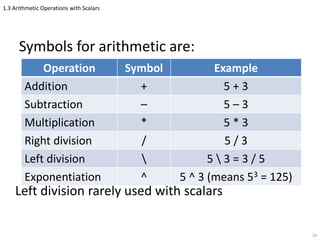
1.3 Arithmetic Operations with Scalars
Symbols for arithmetic are:
Left division rarely used with scalars
24
Operation Symbol Example
Addition + 5 + 3
Subtraction – 5 – 3
Multiplication * 5 * 3
Right division / 5 / 3
Left division  5  3 = 3 / 5
Exponentiation ^ 5 ^ 3 (means 53 = 125)
1.3.1 Order of Precedence
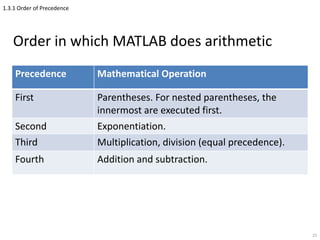
Order in which MATLAB does arithmetic
25
Precedence Mathematical Operation
First Parentheses. For nested parentheses, the
innermost are executed first.
Second Exponentiation.
Third Multiplication, division (equal precedence).
Fourth Addition and subtraction.
1.3.1 Order of Precedence
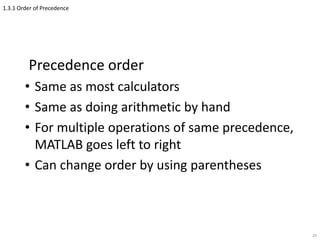
Precedence order
• Same as most calculators
• Same as doing arithmetic by hand
• For multiple operations of same precedence,
MATLAB goes left to right
• Can change order by using parentheses
26
1.3.2 Using MATLAB as a Calculator
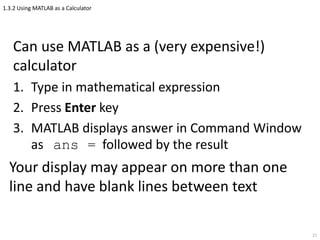
Can use MATLAB as a (very expensive!)
calculator
1. Type in mathematical expression
2. Press Enter key
3. MATLAB displays answer in Command Window
as ans = followed by the result
Your display may appear on more than one
line and have blank lines between text
27
Section 1.4 Display Formats
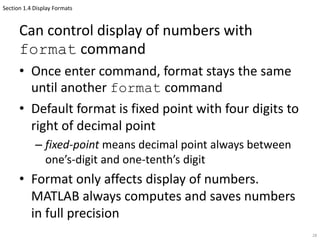
Can control display of numbers with
format command
• Once enter command, format stays the same
until another format command
• Default format is fixed point with four digits to
right of decimal point
– fixed-point means decimal point always between
one’s-digit and one-tenth’s digit
• Format only affects display of numbers.
MATLAB always computes and saves numbers
in full precision
28
Section 1.4 Display Formats
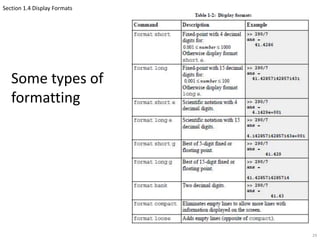
Some types of
formatting
29
1.5 Elementary Math Built-in Functions
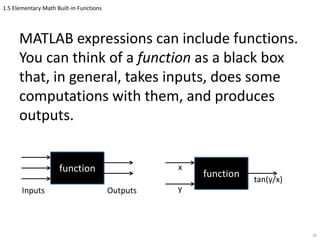
MATLAB expressions can include functions.
You can think of a function as a black box
that, in general, takes inputs, does some
computations with them, and produces
outputs.
30
function
Inputs Outputs
function
y
tan(y/x)
x
1.5 Elementary Math Built-in Functions
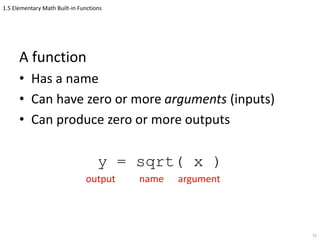
A function
• Has a name
• Can have zero or more arguments (inputs)
• Can produce zero or more outputs
y = sqrt( x )
31
name argumentoutput
1.5 Elementary Math Built-in Functions
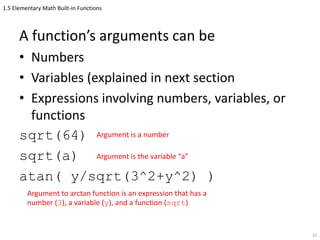
A function’s arguments can be
• Numbers
• Variables (explained in next section
• Expressions involving numbers, variables, or
functions
sqrt(64)
sqrt(a)
atan( y/sqrt(3^2+y^2) )
32
Argument is a number
Argument to arctan function is an expression that has a
number (3), a variable (y), and a function (sqrt)
Argument is the variable “a”
1.5 Elementary Math Built-in Functions
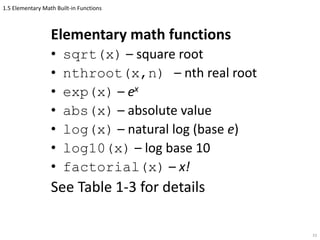
Elementary math functions
• sqrt(x) – square root
• nthroot(x,n) – nth real root
• exp(x) – ex
• abs(x) – absolute value
• log(x) – natural log (base e)
• log10(x) – log base 10
• factorial(x) – x!
See Table 1-3 for details
33
1.5 Elementary Math Built-in Functions
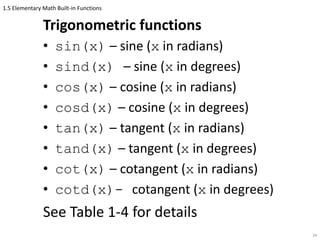
Trigonometric functions
• sin(x) – sine (x in radians)
• sind(x) – sine (x in degrees)
• cos(x) – cosine (x in radians)
• cosd(x) – cosine (x in degrees)
• tan(x) – tangent (x in radians)
• tand(x) – tangent (x in degrees)
• cot(x) – cotangent (x in radians)
• cotd(x)- cotangent (x in degrees)
See Table 1-4 for details
34
1.5 Elementary Math Built-in Functions
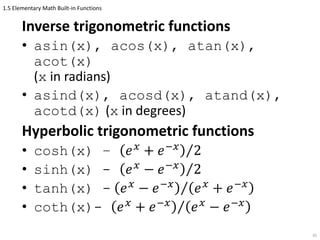
Inverse trigonometric functions
• asin(x), acos(x), atan(x),
acot(x)
(x in radians)
• asind(x), acosd(x), atand(x),
acotd(x) (x in degrees)
Hyperbolic trigonometric functions
• cosh(x) – 𝑒 𝑥
+ 𝑒−𝑥
2
• sinh(x) - 𝑒 𝑥
− 𝑒−𝑥
2
• tanh(x) - 𝑒 𝑥
− 𝑒−𝑥
𝑒 𝑥
+ 𝑒−𝑥
• coth(x)- 𝑒 𝑥
+ 𝑒−𝑥
𝑒 𝑥
− 𝑒−𝑥
35
1.5 Elementary Math Built-in Functions
Rounding functions
• round(x) – round to nearest integer
• fix(x) – round toward zero
• ceil(x) – round toward infinity
• floor(x) – round toward minus infinity
• rem(x,y) – remainder after x is divided
by y (also called modulus)
• sign(x) – returns 1 if x is positive,
-1 if x is negative, zero if x is zero
See Table 1-5 for details
36
1.6 Defining Scalar Variables
A variable is a name that is assigned a
numerical value
• Once assigned, can use variable in
expressions, functions, and MATLAB
statements and commands
• Can read the variable (get its value)
• Can write to the variable (set its value)
37
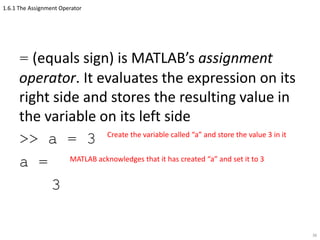
1.6.1 The Assignment Operator
= (equals sign) is MATLAB’s assignment
operator. It evaluates the expression on its
right side and stores the resulting value in
the variable on its left side
>> a = 3
a =
3
38
Create the variable called “a” and store the value 3 in it
MATLAB acknowledges that it has created “a” and set it to 3
1.6.1 The Assignment Operator
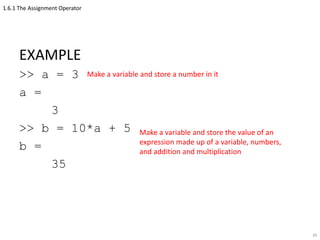
EXAMPLE
>> a = 3
a =
3
>> b = 10*a + 5
b =
35
39
Make a variable and store a number in it
Make a variable and store the value of an
expression made up of a variable, numbers,
and addition and multiplication
1.6.1 The Assignment Operator
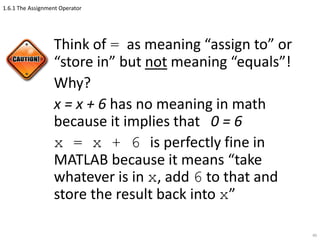
Think of = as meaning “assign to” or
“store in” but not meaning “equals”!
Why?
x = x + 6 has no meaning in math
because it implies that 0 = 6
x = x + 6 is perfectly fine in
MATLAB because it means “take
whatever is in x, add 6 to that and
store the result back into x”
40
1.6.1 The Assignment Operator
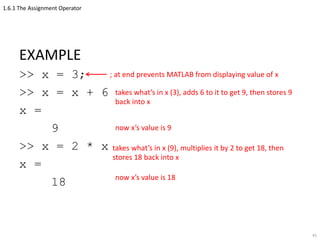
EXAMPLE
>> x = 3;
>> x = x + 6
x =
9
>> x = 2 * x
x =
18
41
; at end prevents MATLAB from displaying value of x
takes what’s in x (3), adds 6 to it to get 9, then stores 9
back into x
now x’s value is 9
takes what’s in x (9), multiplies it by 2 to get 18, then
stores 18 back into x
now x’s value is 18
1.6.1 The Assignment Operator
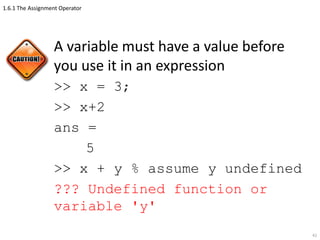
A variable must have a value before
you use it in an expression
>> x = 3;
>> x+2
ans =
5
>> x + y % assume y undefined
??? Undefined function or
variable 'y'
42
1.6.1 The Assignment Operator
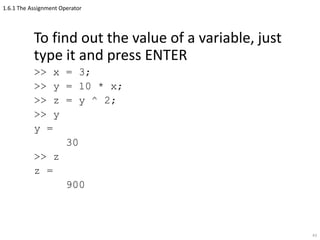
To find out the value of a variable, just
type it and press ENTER
>> x = 3;
>> y = 10 * x;
>> z = y ^ 2;
>> y
y =
30
>> z
z =
900
43
1.6.1 The Assignment Operator
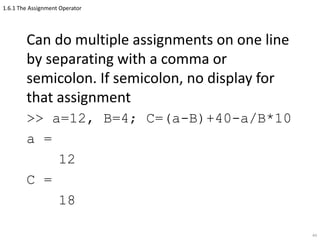
Can do multiple assignments on one line
by separating with a comma or
semicolon. If semicolon, no display for
that assignment
>> a=12, B=4; C=(a-B)+40-a/B*10
a =
12
C =
18
44
1.6.1 The Assignment Operator
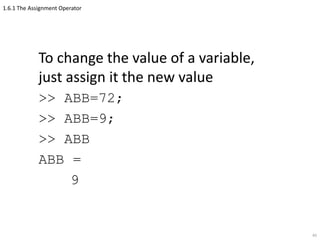
To change the value of a variable,
just assign it the new value
>> ABB=72;
>> ABB=9;
>> ABB
ABB =
9
45
1.6.1 The Assignment Operator
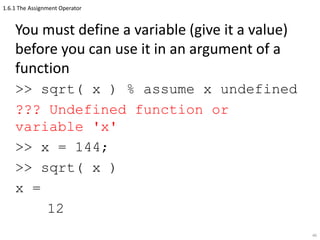
You must define a variable (give it a value)
before you can use it in an argument of a
function
>> sqrt( x ) % assume x undefined
??? Undefined function or
variable 'x'
>> x = 144;
>> sqrt( x )
x =
12
46
1.6.2 Rules About Variable Names
A variable name
• Must begin with a letter
• Can be up to 63 characters long
• Can contain letters, digits, and underscores
(_)
• Can’t contain punctuation, e.g., period,
comma, semicolon
Avoid using the name of a built-in
function as the name of a variable, e.g.,
don’t call a variable exp or sqrt
47
1.6.2 Rules About Variable Names
MATLAB is case-sensitive, and does
not consider an upper-case letter in a
variable name to be the same as its
lower-case counterpart, e.g., MTV,
MTv, mTV, and mtv are four different
variable names
48
1.6.2 Rules About Variable Names
A variable name cannot contain a space.
Two common alternatives:
1. Use an underscore in place of a
space, e.g., speed_of_light
2. Capitalize the first letter of every
other word, e.g., speedOfLight
(This is known as camel case!)
49
1.6.3 Predefined Variables and Keywords
A keyword is a word that has
special meaning to MATLAB
• There are 20 keywords (see book)
• Appear in blue when typed in the
Editor Window
• Can’t be used as variable names
50
1.6.3 Predefined Variables and Keywords
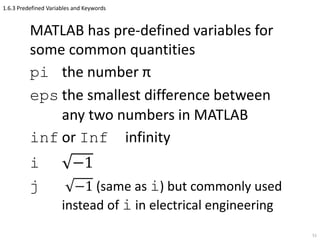
MATLAB has pre-defined variables for
some common quantities
pi the number π
eps the smallest difference between
any two numbers in MATLAB
inf or Inf infinity
i −1
j −1 (same as i) but commonly used
instead of i in electrical engineering
51
1.6.3 Predefined Variables and Keywords
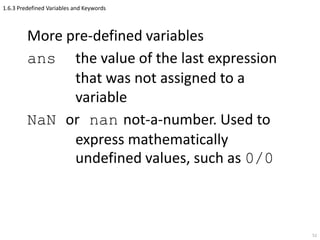
More pre-defined variables
ans the value of the last expression
that was not assigned to a
variable
NaN or nan not-a-number. Used to
express mathematically
undefined values, such as 0/0
52
1.6.3 Predefined Variables and Keywords
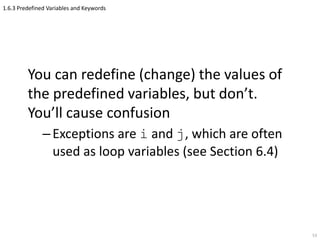
You can redefine (change) the values of
the predefined variables, but don’t.
You’ll cause confusion
–Exceptions are i and j, which are often
used as loop variables (see Section 6.4)
53
1.7 Useful Commands for Managing Variables
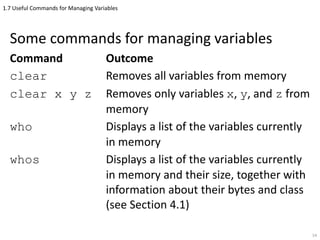
Some commands for managing variables
Command Outcome
clear Removes all variables from memory
clear x y z Removes only variables x, y, and z from
memory
who Displays a list of the variables currently
in memory
whos Displays a list of the variables currently
in memory and their size, together with
information about their bytes and class
(see Section 4.1)
54
1.8 Script Files
So far, have run MATLAB commands by
typing in single command, pressing ENTER,
getting MATLAB’s result, and then
repeating this process for next command
• Not practical for calculations involving more
than a few commands. Can use up and down
arrow keys to avoid lots of typing, but still not
practical
55
1.8 Script Files
Better way
• Save all commands in a file
• With one command in Command
Window, tell MATLAB to run all
commands in file
Will use script files to do this
56
1.8.1 Notes About Script Files
A script file is a sequence of MATLAB
commands, also called a program
• When a script file runs (is executed),
MATLAB performs the commands in the
order they are written, just as if they were
typed in the Command Window
• When a script file has a command that
generates an output (e.g. assignment of a
value to a variable without semicolon at
the end), the file displays the output in the
Command Window
57
1.8.1 Notes About Script Files
• Using a script file is convenient because it
can be edited (corrected and/or changed)
and executed many times
• Script files can be typed and edited in any
text editor and then pasted into the MATLAB
editor
• Script files are also called M-files because the
extension .m is used when they are saved
58
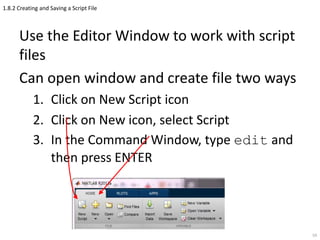
1.8.2 Creating and Saving a Script File
Use the Editor Window to work with script
files
Can open window and create file two ways
1. Click on New Script icon
2. Click on New icon, select Script
3. In the Command Window, type edit and
then press ENTER
59
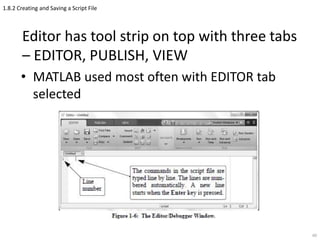
1.8.2 Creating and Saving a Script File
Editor has tool strip on top with three tabs
– EDITOR, PUBLISH, VIEW
• MATLAB used most often with EDITOR tab
selected
60
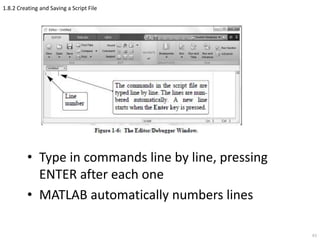
1.8.2 Creating and Saving a Script File
• Type in commands line by line, pressing
ENTER after each one
• MATLAB automatically numbers lines
61
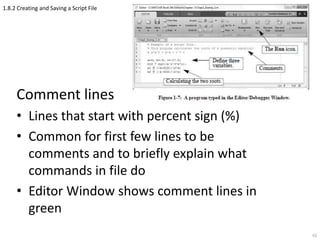
1.8.2 Creating and Saving a Script File
Comment lines
• Lines that start with percent sign (%)
• Common for first few lines to be
comments and to briefly explain what
commands in file do
• Editor Window shows comment lines in
green
62
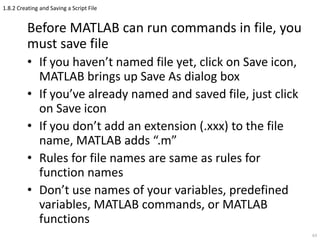
1.8.2 Creating and Saving a Script File
Before MATLAB can run commands in file, you
must save file
• If you haven’t named file yet, click on Save icon,
MATLAB brings up Save As dialog box
• If you’ve already named and saved file, just click
on Save icon
• If you don’t add an extension (.xxx) to the file
name, MATLAB adds “.m”
• Rules for file names are same as rules for
function names
• Don’t use names of your variables, predefined
variables, MATLAB commands, or MATLAB
functions
63
1.8.3 Running (Executing) a Script File
To execute a script file means to run all of
the commands in it. You can execute a file
by
• Pressing the Run icon (a green arrow)
• Typing the file name in the Command
Window and pressing ENTER
MATLAB will execute file if it is in
MATLAB’s current folder or if the file’s
folder is in the search path (explained
next)
64
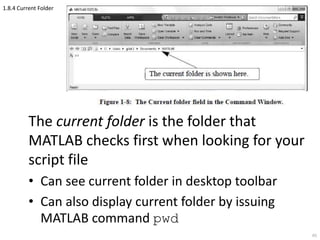
1.8.4 Current Folder
The current folder is the folder that
MATLAB checks first when looking for your
script file
• Can see current folder in desktop toolbar
• Can also display current folder by issuing
MATLAB command pwd
65
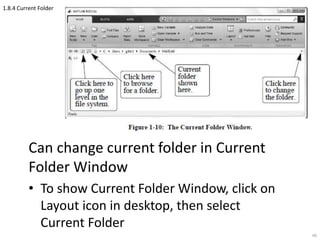
1.8.4 Current Folder
Can change current folder in Current
Folder Window
• To show Current Folder Window, click on
Layout icon in desktop, then select
Current Folder
66
1.8.4 Current Folder
Can change current folder from
command line using cd command,
space, new folder name in single quote
marks, ENTER, i.e.,
>> cd 'new folder'
For example,
>> cd 'F:slidesChapter 1'
67
68
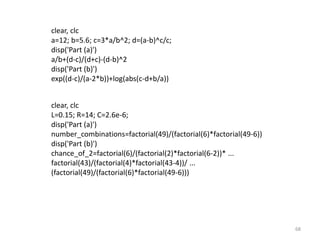
clear, clc
a=12; b=5.6; c=3*a/b^2; d=(a-b)^c/c;
disp('Part (a)')
a/b+(d-c)/(d+c)-(d-b)^2
disp('Part (b)')
exp((d-c)/(a-2*b))+log(abs(c-d+b/a))
clear, clc
L=0.15; R=14; C=2.6e-6;
disp('Part (a)')
number_combinations=factorial(49)/(factorial(6)*factorial(49-6))
disp('Part (b)')
chance_of_2=factorial(6)/(factorial(2)*factorial(6-2))* ...
factorial(43)/(factorial(4)*factorial(43-4))/ ...
(factorial(49)/(factorial(6)*factorial(49-6)))

Matlab ch1 (2)

  • 1.
    1 Chapter 1 Starting WithMATLAB MATLAB An Introduction with Applications, 5th Edition Dr. Amos Gilat The Ohio State University
  • 2.
    Icons – Window Actionicon – the icon showing a down arrow with a circle around it, i.e., It is in the upper, right corner of most MATLAB windows – Help icon – the question-mark icon ( ) in the Resources Section of the desktop toolbar – Layout icon – ( ) in the Environment Section of the desktop toolbar 2
  • 3.
    1.0 This chapter describes: –MATLABwindows –Command Window in detail –How to do basic arithmetic –Create basic variables –Introductory script files 3
  • 4.
    1.1 Starting MATLAB,MATLAB Windows 4 CurrentFolderWindow Command Window Workspace Window Command History Window
  • 5.
    1.1 Starting MATLAB,MATLAB Windows Often easier to just show Command History Window. To close all other windows: • Click on down-arrow button in top right of windows, select Close or • From tool strip, select Layout, then Command Window Only 5
  • 6.
    1.1 Starting MATLAB,MATLAB Windows Window Purpose Command Window Main window, enters variables, runs programs. Figure Window Contains output from graphic commands. Editor Window Creates and debugs script and function files. Help Window Provides help information. Command History Window Logs commands entered in the Command Window. Workspace Window Provides information about the variables that are stored. Current Folder Window Shows the files in the current folder. 6
  • 7.
    1.1 Starting MATLAB,MATLAB Windows If you don’t see a figure window open up, look on the task bar for a black, program bar and click it 7 T I P Figure Window opens automatically after any command that draws a graph
  • 8.
    1.1 Starting MATLAB,MATLAB Windows Use Editor Window to write and debug MATLAB scripts. Open with edit command 8
  • 9.
    1.1 Starting MATLAB,MATLAB Windows Get Help Window by clicking on Help icon (question mark) in tool strip 9
  • 10.
    1.1 Starting MATLAB,MATLAB Windows More Fun with Windows • To reopen a window, click the Layout icon and then click on the window name • To get the default window layout (shown before) click the Layout icon, then click Default 10
  • 11.
    1.1 Starting MATLAB,MATLAB Windows More Fun with Windows Undocking a window means removing it from the main MATLAB window and then being able to move it independently. To undock a window: • Drag the window’s title bar until the cursor is outside the MATLAB window, then release the cursor or • Click on the Window Action icon, then click on Undock 11
  • 12.
    1.2 Working inthe Command Window More Fun with Windows To dock a window: • Click on the Window Action icon, then click on Dock 12
  • 13.
    1.2 Working inthe Command Window Command Window is MATLAB’s main window. Use it to: • Execute commands • Open other windows • Run programs that you’ve written • Manage the MATLAB software 13
  • 14.
    1.2 Working inthe Command Window Basic procedure 1. At prompt (>>), type in MATLAB command 2. Press ENTER key 3. MATLAB displays result in Command Window, followed by a prompt 4. Repeat from step 1 14
  • 15.
    1.2 Working inthe Command Window Notes on Command Window • To start a command, make sure cursor is next to prompt • MATLAB won’t respond until you press ENTER – It then executes only last command – Commands before last one may still be visible, but MATLAB doesn’t execute them 15
  • 16.
    1.2 Working inthe Command Window • Can type several commands in same line by putting a comma between commands – Hard to read, so don’t do this often • If command too long to fit on line, can continue to next line by typing ellipsis (3 periods, i.e., … ) and then pressing ENTER 16
  • 17.
    1.2 Working inthe Command Window When cursor is in bottom command line: •  key moves cursor one character to left •  key moves cursor one character to right •  key recalls preceding command •  key recalls command that follows one being displayed, i.e., undoes  17
  • 18.
    1.2 Working inthe Command Window • PAGE-UP key moves up to previous commands in a window-size at a time • PAGE-DOWN key moves down to previous commands in a window-size at a time • BACKSPACE key deletes character to left of cursor • DELETE key deletes character to right of cursor 18
  • 19.
    1.2 Working inthe Command Window To quickly execute a previous command but with minor changes 1. Recall command with up- and down- arrow keys 2. Use left- and right-arrow keys to move to characters to be altered 3. Use BACKSPACE or DELETE to remove old character, then type new character 4. Press ENTER to execute modified command 19 T I P
  • 20.
    1.2 Working inthe Command Window Semicolon (;) • When typed at end of command, suppresses output. (Only prompt displayed at next line) – Useful for preventing display of large outputs – Used much more in scripts (see Section 1.8) Percent sign(%) • When typed at beginning of line, MATLAB treats line as a comment and doesn’t execute line – Used much more in scripts (see Section 1.8) 20
  • 21.
    1.2 Working inthe Command Window clc command • Clears Command Window display • Up and down arrows still bring back previous commands 21
  • 22.
    1.2 Working inthe Command Window Command History Window • Shows previous commands, including ones from previous MATLAB sessions • Double-clicking on command puts it in Command Window and executes it • Can drag command to Command Window, make changes in command, then execute it • To clear one or more commands, select the lines to delete, right click, choose Delete Selection • To clear entire history, right click, select Clear Command History 22
  • 23.
    1.3 Arithmetic Operationswith Scalars In this chapter will only discuss arithmetic with scalars (single numbers) • Can do arithmetic directly on numbers (like a calculator) • Can store numbers in variables 23
  • 24.
    1.3 Arithmetic Operationswith Scalars Symbols for arithmetic are: Left division rarely used with scalars 24 Operation Symbol Example Addition + 5 + 3 Subtraction – 5 – 3 Multiplication * 5 * 3 Right division / 5 / 3 Left division 5 3 = 3 / 5 Exponentiation ^ 5 ^ 3 (means 53 = 125)
  • 25.
    1.3.1 Order ofPrecedence Order in which MATLAB does arithmetic 25 Precedence Mathematical Operation First Parentheses. For nested parentheses, the innermost are executed first. Second Exponentiation. Third Multiplication, division (equal precedence). Fourth Addition and subtraction.
  • 26.
    1.3.1 Order ofPrecedence Precedence order • Same as most calculators • Same as doing arithmetic by hand • For multiple operations of same precedence, MATLAB goes left to right • Can change order by using parentheses 26
  • 27.
    1.3.2 Using MATLABas a Calculator Can use MATLAB as a (very expensive!) calculator 1. Type in mathematical expression 2. Press Enter key 3. MATLAB displays answer in Command Window as ans = followed by the result Your display may appear on more than one line and have blank lines between text 27
  • 28.
    Section 1.4 DisplayFormats Can control display of numbers with format command • Once enter command, format stays the same until another format command • Default format is fixed point with four digits to right of decimal point – fixed-point means decimal point always between one’s-digit and one-tenth’s digit • Format only affects display of numbers. MATLAB always computes and saves numbers in full precision 28
  • 29.
    Section 1.4 DisplayFormats Some types of formatting 29
  • 30.
    1.5 Elementary MathBuilt-in Functions MATLAB expressions can include functions. You can think of a function as a black box that, in general, takes inputs, does some computations with them, and produces outputs. 30 function Inputs Outputs function y tan(y/x) x
  • 31.
    1.5 Elementary MathBuilt-in Functions A function • Has a name • Can have zero or more arguments (inputs) • Can produce zero or more outputs y = sqrt( x ) 31 name argumentoutput
  • 32.
    1.5 Elementary MathBuilt-in Functions A function’s arguments can be • Numbers • Variables (explained in next section • Expressions involving numbers, variables, or functions sqrt(64) sqrt(a) atan( y/sqrt(3^2+y^2) ) 32 Argument is a number Argument to arctan function is an expression that has a number (3), a variable (y), and a function (sqrt) Argument is the variable “a”
  • 33.
    1.5 Elementary MathBuilt-in Functions Elementary math functions • sqrt(x) – square root • nthroot(x,n) – nth real root • exp(x) – ex • abs(x) – absolute value • log(x) – natural log (base e) • log10(x) – log base 10 • factorial(x) – x! See Table 1-3 for details 33
  • 34.
    1.5 Elementary MathBuilt-in Functions Trigonometric functions • sin(x) – sine (x in radians) • sind(x) – sine (x in degrees) • cos(x) – cosine (x in radians) • cosd(x) – cosine (x in degrees) • tan(x) – tangent (x in radians) • tand(x) – tangent (x in degrees) • cot(x) – cotangent (x in radians) • cotd(x)- cotangent (x in degrees) See Table 1-4 for details 34
  • 35.
    1.5 Elementary MathBuilt-in Functions Inverse trigonometric functions • asin(x), acos(x), atan(x), acot(x) (x in radians) • asind(x), acosd(x), atand(x), acotd(x) (x in degrees) Hyperbolic trigonometric functions • cosh(x) – 𝑒 𝑥 + 𝑒−𝑥 2 • sinh(x) - 𝑒 𝑥 − 𝑒−𝑥 2 • tanh(x) - 𝑒 𝑥 − 𝑒−𝑥 𝑒 𝑥 + 𝑒−𝑥 • coth(x)- 𝑒 𝑥 + 𝑒−𝑥 𝑒 𝑥 − 𝑒−𝑥 35
  • 36.
    1.5 Elementary MathBuilt-in Functions Rounding functions • round(x) – round to nearest integer • fix(x) – round toward zero • ceil(x) – round toward infinity • floor(x) – round toward minus infinity • rem(x,y) – remainder after x is divided by y (also called modulus) • sign(x) – returns 1 if x is positive, -1 if x is negative, zero if x is zero See Table 1-5 for details 36
  • 37.
    1.6 Defining ScalarVariables A variable is a name that is assigned a numerical value • Once assigned, can use variable in expressions, functions, and MATLAB statements and commands • Can read the variable (get its value) • Can write to the variable (set its value) 37
  • 38.
    1.6.1 The AssignmentOperator = (equals sign) is MATLAB’s assignment operator. It evaluates the expression on its right side and stores the resulting value in the variable on its left side >> a = 3 a = 3 38 Create the variable called “a” and store the value 3 in it MATLAB acknowledges that it has created “a” and set it to 3
  • 39.
    1.6.1 The AssignmentOperator EXAMPLE >> a = 3 a = 3 >> b = 10*a + 5 b = 35 39 Make a variable and store a number in it Make a variable and store the value of an expression made up of a variable, numbers, and addition and multiplication
  • 40.
    1.6.1 The AssignmentOperator Think of = as meaning “assign to” or “store in” but not meaning “equals”! Why? x = x + 6 has no meaning in math because it implies that 0 = 6 x = x + 6 is perfectly fine in MATLAB because it means “take whatever is in x, add 6 to that and store the result back into x” 40
  • 41.
    1.6.1 The AssignmentOperator EXAMPLE >> x = 3; >> x = x + 6 x = 9 >> x = 2 * x x = 18 41 ; at end prevents MATLAB from displaying value of x takes what’s in x (3), adds 6 to it to get 9, then stores 9 back into x now x’s value is 9 takes what’s in x (9), multiplies it by 2 to get 18, then stores 18 back into x now x’s value is 18
  • 42.
    1.6.1 The AssignmentOperator A variable must have a value before you use it in an expression >> x = 3; >> x+2 ans = 5 >> x + y % assume y undefined ??? Undefined function or variable 'y' 42
  • 43.
    1.6.1 The AssignmentOperator To find out the value of a variable, just type it and press ENTER >> x = 3; >> y = 10 * x; >> z = y ^ 2; >> y y = 30 >> z z = 900 43
  • 44.
    1.6.1 The AssignmentOperator Can do multiple assignments on one line by separating with a comma or semicolon. If semicolon, no display for that assignment >> a=12, B=4; C=(a-B)+40-a/B*10 a = 12 C = 18 44
  • 45.
    1.6.1 The AssignmentOperator To change the value of a variable, just assign it the new value >> ABB=72; >> ABB=9; >> ABB ABB = 9 45
  • 46.
    1.6.1 The AssignmentOperator You must define a variable (give it a value) before you can use it in an argument of a function >> sqrt( x ) % assume x undefined ??? Undefined function or variable 'x' >> x = 144; >> sqrt( x ) x = 12 46
  • 47.
    1.6.2 Rules AboutVariable Names A variable name • Must begin with a letter • Can be up to 63 characters long • Can contain letters, digits, and underscores (_) • Can’t contain punctuation, e.g., period, comma, semicolon Avoid using the name of a built-in function as the name of a variable, e.g., don’t call a variable exp or sqrt 47
  • 48.
    1.6.2 Rules AboutVariable Names MATLAB is case-sensitive, and does not consider an upper-case letter in a variable name to be the same as its lower-case counterpart, e.g., MTV, MTv, mTV, and mtv are four different variable names 48
  • 49.
    1.6.2 Rules AboutVariable Names A variable name cannot contain a space. Two common alternatives: 1. Use an underscore in place of a space, e.g., speed_of_light 2. Capitalize the first letter of every other word, e.g., speedOfLight (This is known as camel case!) 49
  • 50.
    1.6.3 Predefined Variablesand Keywords A keyword is a word that has special meaning to MATLAB • There are 20 keywords (see book) • Appear in blue when typed in the Editor Window • Can’t be used as variable names 50
  • 51.
    1.6.3 Predefined Variablesand Keywords MATLAB has pre-defined variables for some common quantities pi the number π eps the smallest difference between any two numbers in MATLAB inf or Inf infinity i −1 j −1 (same as i) but commonly used instead of i in electrical engineering 51
  • 52.
    1.6.3 Predefined Variablesand Keywords More pre-defined variables ans the value of the last expression that was not assigned to a variable NaN or nan not-a-number. Used to express mathematically undefined values, such as 0/0 52
  • 53.
    1.6.3 Predefined Variablesand Keywords You can redefine (change) the values of the predefined variables, but don’t. You’ll cause confusion –Exceptions are i and j, which are often used as loop variables (see Section 6.4) 53
  • 54.
    1.7 Useful Commandsfor Managing Variables Some commands for managing variables Command Outcome clear Removes all variables from memory clear x y z Removes only variables x, y, and z from memory who Displays a list of the variables currently in memory whos Displays a list of the variables currently in memory and their size, together with information about their bytes and class (see Section 4.1) 54
  • 55.
    1.8 Script Files Sofar, have run MATLAB commands by typing in single command, pressing ENTER, getting MATLAB’s result, and then repeating this process for next command • Not practical for calculations involving more than a few commands. Can use up and down arrow keys to avoid lots of typing, but still not practical 55
  • 56.
    1.8 Script Files Betterway • Save all commands in a file • With one command in Command Window, tell MATLAB to run all commands in file Will use script files to do this 56
  • 57.
    1.8.1 Notes AboutScript Files A script file is a sequence of MATLAB commands, also called a program • When a script file runs (is executed), MATLAB performs the commands in the order they are written, just as if they were typed in the Command Window • When a script file has a command that generates an output (e.g. assignment of a value to a variable without semicolon at the end), the file displays the output in the Command Window 57
  • 58.
    1.8.1 Notes AboutScript Files • Using a script file is convenient because it can be edited (corrected and/or changed) and executed many times • Script files can be typed and edited in any text editor and then pasted into the MATLAB editor • Script files are also called M-files because the extension .m is used when they are saved 58
  • 59.
    1.8.2 Creating andSaving a Script File Use the Editor Window to work with script files Can open window and create file two ways 1. Click on New Script icon 2. Click on New icon, select Script 3. In the Command Window, type edit and then press ENTER 59
  • 60.
    1.8.2 Creating andSaving a Script File Editor has tool strip on top with three tabs – EDITOR, PUBLISH, VIEW • MATLAB used most often with EDITOR tab selected 60
  • 61.
    1.8.2 Creating andSaving a Script File • Type in commands line by line, pressing ENTER after each one • MATLAB automatically numbers lines 61
  • 62.
    1.8.2 Creating andSaving a Script File Comment lines • Lines that start with percent sign (%) • Common for first few lines to be comments and to briefly explain what commands in file do • Editor Window shows comment lines in green 62
  • 63.
    1.8.2 Creating andSaving a Script File Before MATLAB can run commands in file, you must save file • If you haven’t named file yet, click on Save icon, MATLAB brings up Save As dialog box • If you’ve already named and saved file, just click on Save icon • If you don’t add an extension (.xxx) to the file name, MATLAB adds “.m” • Rules for file names are same as rules for function names • Don’t use names of your variables, predefined variables, MATLAB commands, or MATLAB functions 63
  • 64.
    1.8.3 Running (Executing)a Script File To execute a script file means to run all of the commands in it. You can execute a file by • Pressing the Run icon (a green arrow) • Typing the file name in the Command Window and pressing ENTER MATLAB will execute file if it is in MATLAB’s current folder or if the file’s folder is in the search path (explained next) 64
  • 65.
    1.8.4 Current Folder Thecurrent folder is the folder that MATLAB checks first when looking for your script file • Can see current folder in desktop toolbar • Can also display current folder by issuing MATLAB command pwd 65
  • 66.
    1.8.4 Current Folder Canchange current folder in Current Folder Window • To show Current Folder Window, click on Layout icon in desktop, then select Current Folder 66
  • 67.
    1.8.4 Current Folder Canchange current folder from command line using cd command, space, new folder name in single quote marks, ENTER, i.e., >> cd 'new folder' For example, >> cd 'F:slidesChapter 1' 67
  • 68.
    68 clear, clc a=12; b=5.6;c=3*a/b^2; d=(a-b)^c/c; disp('Part (a)') a/b+(d-c)/(d+c)-(d-b)^2 disp('Part (b)') exp((d-c)/(a-2*b))+log(abs(c-d+b/a)) clear, clc L=0.15; R=14; C=2.6e-6; disp('Part (a)') number_combinations=factorial(49)/(factorial(6)*factorial(49-6)) disp('Part (b)') chance_of_2=factorial(6)/(factorial(2)*factorial(6-2))* ... factorial(43)/(factorial(4)*factorial(43-4))/ ... (factorial(49)/(factorial(6)*factorial(49-6)))