11
Introduction to MATLAB
Lecture Series - 1
by
Shameer Koya
2
Topics..
 What is MATLAB ??
 Basic Matrix Operations
 Complex Number Operations
 Matrices and Arrays
 Polynomials
 Script Files and M-files
 Some more Operations and Functions
APPLICATIONS:
 Plotting functions ..
 Electrical Applications ..
3
What is MATLAB ??
 MATLAB stands for Matrix Laboratory.
 Matlab had many functions and toolboxes to help in various
applications
 It allows you to solve many technical computing problems,
especially those with matrix and vector formulas, in a
fraction of the time it would take to write a program in a
scalar non-interactive language such as C or Fortran.
 It also contains functions for 2-D and 3-D graphics and
animation.
4
MATLAB
Everything in MATLAB is a matrix !
5
MATLAB
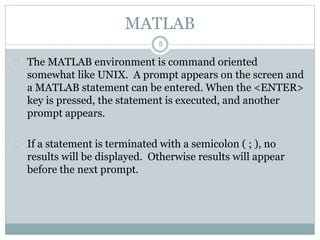
 The MATLAB environment is command oriented
somewhat like UNIX. A prompt appears on the screen and
a MATLAB statement can be entered. When the <ENTER>
key is pressed, the statement is executed, and another
prompt appears.
 If a statement is terminated with a semicolon ( ; ), no
results will be displayed. Otherwise results will appear
before the next prompt.
6
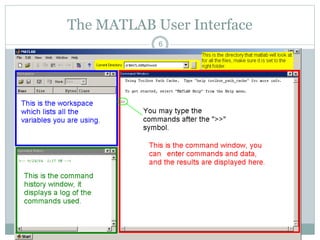
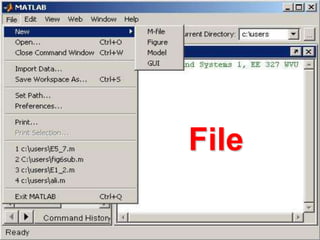
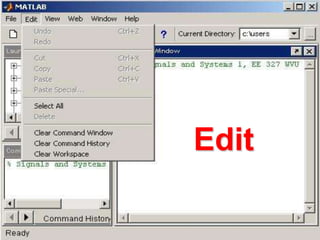
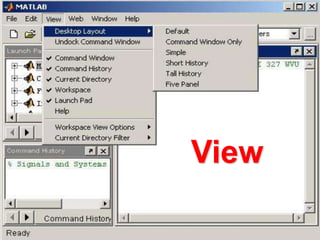
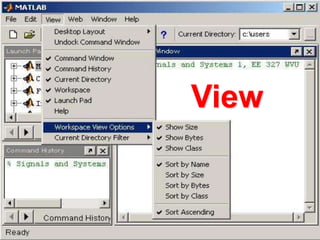
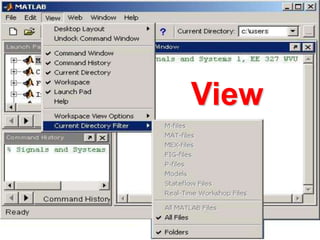
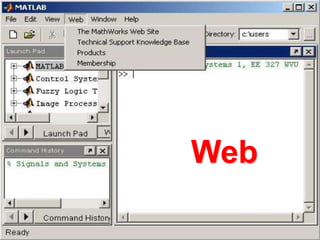
The MATLAB User Interface
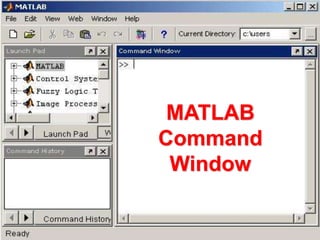
MATLAB
Command
Window
File
Edit
View
View
View
Web
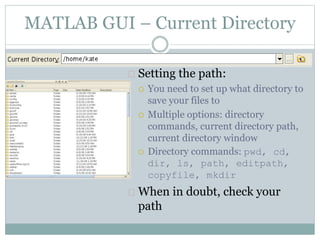
MATLAB GUI – Current Directory
 Setting the path:
 You need to set up what directory to
save your files to
 Multiple options: directory
commands, current directory path,
current directory window
 Directory commands: pwd, cd,
dir, ls, path, editpath,
copyfile, mkdir
 When in doubt, check your
path
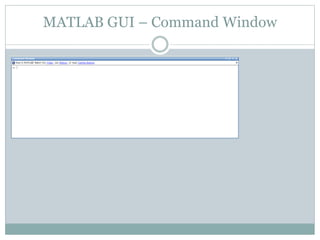
MATLAB GUI – Command Window
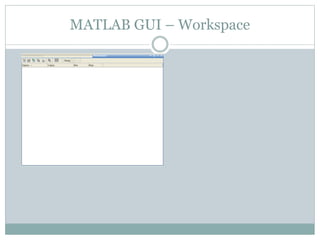
MATLAB GUI – Workspace
MATLAB GUI – Variable Editor
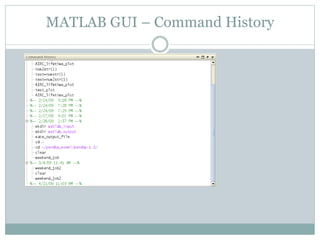
MATLAB GUI – Command History
MATLAB GUI – Additional Windows
 Editor window
 Will discuss with scripts and functions
 Figure window
 Will discuss with graphics
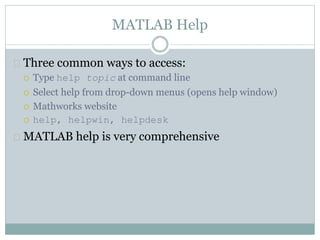
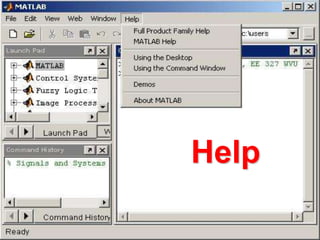
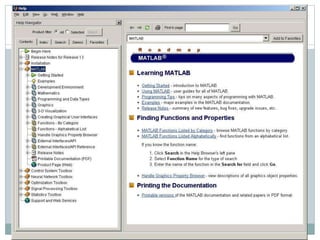
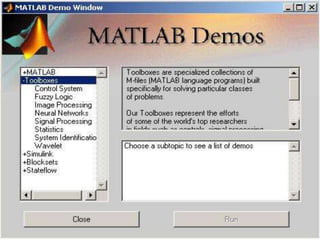
MATLAB Help
 Three common ways to access:
 Type help topic at command line
 Select help from drop-down menus (opens help window)
 Mathworks website
 help, helpwin, helpdesk
 MATLAB help is very comprehensive
Help
Arrays and Matrices
 MATLAB is designed for use with matrices, so many
functions are optimized for matrix use
 This will be discussed further next week
25
MATLAB Variable Names
 Variable names ARE case sensitive
 Variable names can contain up to 63 characters (as of MATLAB 6.5 and
newer)
 Variable names must start with a letter followed by letters, digits, and
underscores.
 Can contain any combination of letters, digits, and underscores
 Special functions that are already defined, but can be overwritten
(temporarily)
pi, i, j, eps, realmin, realmax, Inf, NaN
 Don’t use function names
Namelength max, which –all var_name, isvarname
Variables – Types
 Numeric
 Logical
 Strings and Character (discussed further with file
I/O)
 Cell arrays and structures (discussed further with file
I/O)
 Function handles (discussed further with graphics)
27
MATLAB Special Variables
ans Default variable name for results
pi Value of 
eps Smallest incremental number
inf Infinity
NaN Not a number e.g. 0/0
i and j i = j = square root of -1
realmin The smallest usable positive real number
realmax The largest usable positive real number
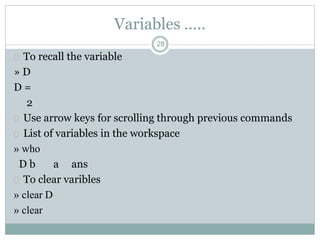
Variables …..
 To recall the variable
» D
D =
2
 Use arrow keys for scrolling through previous commands
 List of variables in the workspace
» who
D b a ans
 To clear varibles
» clear D
» clear
28
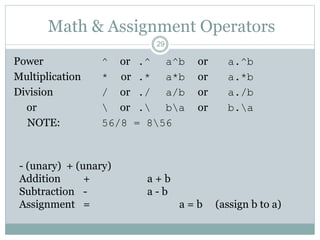
29
Math & Assignment Operators
Power ^ or .^ a^b or a.^b
Multiplication * or .* a*b or a.*b
Division / or ./ a/b or a./b
or  or . ba or b.a
NOTE: 56/8 = 856
- (unary) + (unary)
Addition + a + b
Subtraction - a - b
Assignment = a = b (assign b to a)
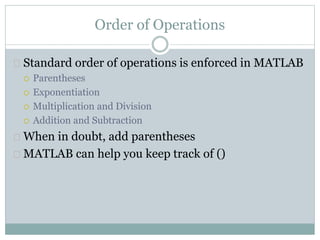
Order of Operations
 Standard order of operations is enforced in MATLAB
 Parentheses
 Exponentiation
 Multiplication and Division
 Addition and Subtraction
 When in doubt, add parentheses
 MATLAB can help you keep track of ()
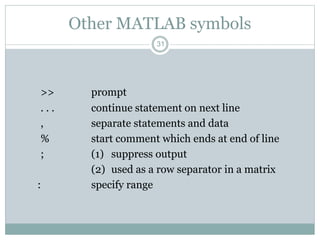
31
Other MATLAB symbols
>> prompt
. . . continue statement on next line
, separate statements and data
% start comment which ends at end of line
; (1) suppress output
(2) used as a row separator in a matrix
: specify range
32
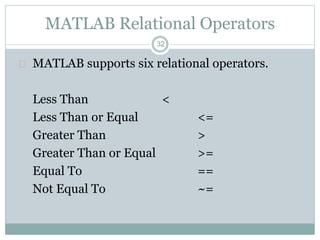
MATLAB Relational Operators
 MATLAB supports six relational operators.
Less Than <
Less Than or Equal <=
Greater Than >
Greater Than or Equal >=
Equal To ==
Not Equal To ~=
33
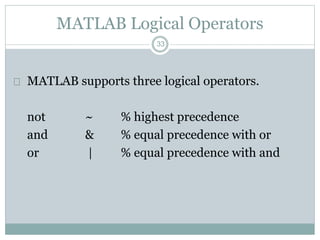
MATLAB Logical Operators
 MATLAB supports three logical operators.
not ~ % highest precedence
and & % equal precedence with or
or | % equal precedence with and
Logical Operations
 &, |, ~, xor
 &&, ||
35
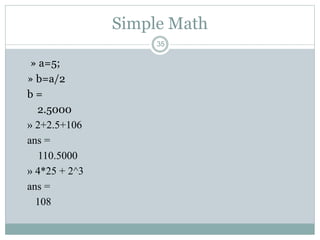
Simple Math
» a=5;
» b=a/2
b =
2.5000
» 2+2.5+106
ans =
110.5000
» 4*25 + 2^3
ans =
108
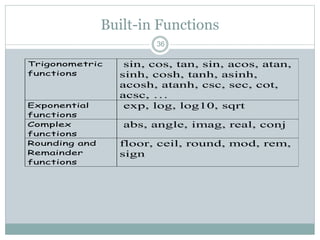
Built-in Functions
36
Trigonometric
functions
sin, cos, tan, sin, acos, atan,
sinh, cosh, tanh, asinh,
acosh, atanh, csc, sec, cot,
acsc, …
Exponential
functions
exp, log, log10, sqrt
Complex
functions
abs, angle, imag, real, conj
Rounding and
Remainder
functions
floor, ceil, round, mod, rem,
sign
37
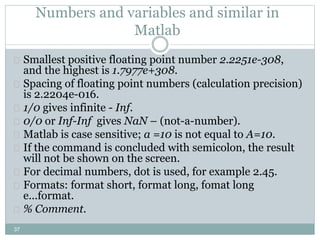
Numbers and variables and similar in
Matlab
 Smallest positive floating point number 2.2251e-308,
and the highest is 1.7977e+308.
 Spacing of floating point numbers (calculation precision)
is 2.2204e-016.
 1/0 gives infinite - Inf.
 0/0 or Inf-Inf gives NaN – (not-a-number).
 Matlab is case sensitive; a =10 is not equal to A=10.
 If the command is concluded with semicolon, the result
will not be shown on the screen.
 For decimal numbers, dot is used, for example 2.45.
 Formats: format short, format long, fomat long
e...format.
 % Comment.
38
Numbers and variables and similar in
Matlab
 2.4e-12 is 2.4*10-12
 pi is the variable with defined name.
 i or j is complex unit (it can be overwritten).
 For trigonometric functions [rad] is used.
 clear all, clears all defined variables.
 close all, closes all graphical windows.
 clear all, close all, very usefull combination!
 clc, clears the screen, but nothing else.
 CRTL+C stop the execution of the program in Matlab.
 dir, current directory.
 who, list of all defined variables.
Basic Matlab Operations
>> % This is a comment, it starts with a “%”
>> y = 5*3 + 2^2; % simple arithmetic
>> x = [1 2 4 5 6]; % create the vector “x”
>> x1 = x.^2; % square each element in x
>> E = sum(abs(x).^2); % Calculate signal energy
>> P = E/length(x); % Calculate av signal power
>> x2 = x(1:3); % Select first 3 elements in x
>> z = 1+i; % Create a complex number
>> a = real(z); % Pick off real part
>> b = imag(z); % Pick off imaginary part
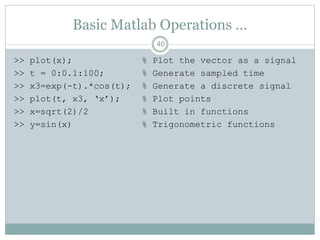
Basic Matlab Operations …
>> plot(x); % Plot the vector as a signal
>> t = 0:0.1:100; % Generate sampled time
>> x3=exp(-t).*cos(t); % Generate a discrete signal
>> plot(t, x3, ‘x’); % Plot points
>> x=sqrt(2)/2 % Built in functions
>> y=sin(x) % Trigonometric functions
40
41
Thanks
Questions ??

Matlab introduction

  • 1.
    11 Introduction to MATLAB LectureSeries - 1 by Shameer Koya
  • 2.
    2 Topics..  What isMATLAB ??  Basic Matrix Operations  Complex Number Operations  Matrices and Arrays  Polynomials  Script Files and M-files  Some more Operations and Functions APPLICATIONS:  Plotting functions ..  Electrical Applications ..
  • 3.
    3 What is MATLAB??  MATLAB stands for Matrix Laboratory.  Matlab had many functions and toolboxes to help in various applications  It allows you to solve many technical computing problems, especially those with matrix and vector formulas, in a fraction of the time it would take to write a program in a scalar non-interactive language such as C or Fortran.  It also contains functions for 2-D and 3-D graphics and animation.
  • 4.
  • 5.
    5 MATLAB  The MATLABenvironment is command oriented somewhat like UNIX. A prompt appears on the screen and a MATLAB statement can be entered. When the <ENTER> key is pressed, the statement is executed, and another prompt appears.  If a statement is terminated with a semicolon ( ; ), no results will be displayed. Otherwise results will appear before the next prompt.
  • 6.
  • 7.
  • 8.
  • 9.
  • 10.
  • 11.
  • 12.
  • 13.
  • 14.
    MATLAB GUI –Current Directory  Setting the path:  You need to set up what directory to save your files to  Multiple options: directory commands, current directory path, current directory window  Directory commands: pwd, cd, dir, ls, path, editpath, copyfile, mkdir  When in doubt, check your path
  • 15.
    MATLAB GUI –Command Window
  • 16.
    MATLAB GUI –Workspace
  • 17.
    MATLAB GUI –Variable Editor
  • 18.
    MATLAB GUI –Command History
  • 19.
    MATLAB GUI –Additional Windows  Editor window  Will discuss with scripts and functions  Figure window  Will discuss with graphics
  • 20.
    MATLAB Help  Threecommon ways to access:  Type help topic at command line  Select help from drop-down menus (opens help window)  Mathworks website  help, helpwin, helpdesk  MATLAB help is very comprehensive
  • 21.
  • 24.
    Arrays and Matrices MATLAB is designed for use with matrices, so many functions are optimized for matrix use  This will be discussed further next week
  • 25.
    25 MATLAB Variable Names Variable names ARE case sensitive  Variable names can contain up to 63 characters (as of MATLAB 6.5 and newer)  Variable names must start with a letter followed by letters, digits, and underscores.  Can contain any combination of letters, digits, and underscores  Special functions that are already defined, but can be overwritten (temporarily) pi, i, j, eps, realmin, realmax, Inf, NaN  Don’t use function names Namelength max, which –all var_name, isvarname
  • 26.
    Variables – Types Numeric  Logical  Strings and Character (discussed further with file I/O)  Cell arrays and structures (discussed further with file I/O)  Function handles (discussed further with graphics)
  • 27.
    27 MATLAB Special Variables ansDefault variable name for results pi Value of  eps Smallest incremental number inf Infinity NaN Not a number e.g. 0/0 i and j i = j = square root of -1 realmin The smallest usable positive real number realmax The largest usable positive real number
  • 28.
    Variables …..  Torecall the variable » D D = 2  Use arrow keys for scrolling through previous commands  List of variables in the workspace » who D b a ans  To clear varibles » clear D » clear 28
  • 29.
    29 Math & AssignmentOperators Power ^ or .^ a^b or a.^b Multiplication * or .* a*b or a.*b Division / or ./ a/b or a./b or or . ba or b.a NOTE: 56/8 = 856 - (unary) + (unary) Addition + a + b Subtraction - a - b Assignment = a = b (assign b to a)
  • 30.
    Order of Operations Standard order of operations is enforced in MATLAB  Parentheses  Exponentiation  Multiplication and Division  Addition and Subtraction  When in doubt, add parentheses  MATLAB can help you keep track of ()
  • 31.
    31 Other MATLAB symbols >>prompt . . . continue statement on next line , separate statements and data % start comment which ends at end of line ; (1) suppress output (2) used as a row separator in a matrix : specify range
  • 32.
    32 MATLAB Relational Operators MATLAB supports six relational operators. Less Than < Less Than or Equal <= Greater Than > Greater Than or Equal >= Equal To == Not Equal To ~=
  • 33.
    33 MATLAB Logical Operators MATLAB supports three logical operators. not ~ % highest precedence and & % equal precedence with or or | % equal precedence with and
  • 34.
    Logical Operations  &,|, ~, xor  &&, ||
  • 35.
    35 Simple Math » a=5; »b=a/2 b = 2.5000 » 2+2.5+106 ans = 110.5000 » 4*25 + 2^3 ans = 108
  • 36.
    Built-in Functions 36 Trigonometric functions sin, cos,tan, sin, acos, atan, sinh, cosh, tanh, asinh, acosh, atanh, csc, sec, cot, acsc, … Exponential functions exp, log, log10, sqrt Complex functions abs, angle, imag, real, conj Rounding and Remainder functions floor, ceil, round, mod, rem, sign
  • 37.
    37 Numbers and variablesand similar in Matlab  Smallest positive floating point number 2.2251e-308, and the highest is 1.7977e+308.  Spacing of floating point numbers (calculation precision) is 2.2204e-016.  1/0 gives infinite - Inf.  0/0 or Inf-Inf gives NaN – (not-a-number).  Matlab is case sensitive; a =10 is not equal to A=10.  If the command is concluded with semicolon, the result will not be shown on the screen.  For decimal numbers, dot is used, for example 2.45.  Formats: format short, format long, fomat long e...format.  % Comment.
  • 38.
    38 Numbers and variablesand similar in Matlab  2.4e-12 is 2.4*10-12  pi is the variable with defined name.  i or j is complex unit (it can be overwritten).  For trigonometric functions [rad] is used.  clear all, clears all defined variables.  close all, closes all graphical windows.  clear all, close all, very usefull combination!  clc, clears the screen, but nothing else.  CRTL+C stop the execution of the program in Matlab.  dir, current directory.  who, list of all defined variables.
  • 39.
    Basic Matlab Operations >>% This is a comment, it starts with a “%” >> y = 5*3 + 2^2; % simple arithmetic >> x = [1 2 4 5 6]; % create the vector “x” >> x1 = x.^2; % square each element in x >> E = sum(abs(x).^2); % Calculate signal energy >> P = E/length(x); % Calculate av signal power >> x2 = x(1:3); % Select first 3 elements in x >> z = 1+i; % Create a complex number >> a = real(z); % Pick off real part >> b = imag(z); % Pick off imaginary part
  • 40.
    Basic Matlab Operations… >> plot(x); % Plot the vector as a signal >> t = 0:0.1:100; % Generate sampled time >> x3=exp(-t).*cos(t); % Generate a discrete signal >> plot(t, x3, ‘x’); % Plot points >> x=sqrt(2)/2 % Built in functions >> y=sin(x) % Trigonometric functions 40
  • 41.