Raymond Phan, Ph.D. Candidate
Dept. of Electrical & Computer Engineering – Ryerson University
 Multimedia and Distributed Computing Research Laboratory
                       rphan@ee.ryerson.ca

                  Monday, February 6th, 2012,
               Eric Palin Hall (EPH) – Room 201
                         4 p.m. – 6 p.m.
Tutorial Topics – (1)
 1st Part of the Tutorial
    Introduction
        What MATLAB is (briefly) and where can I get it?
    Review of array and matrix operations
        Basic Math Operations
        Matrix Algebra vs. Point-by-Point Operations
        Modifying and extracting a portion of a matrix
        Creating and working with dynamic arrays
    Creating Function Handlers
        Creating equations of single or multiple variables
        Not that inline crap that you learned!
Tutorial Topics – (2)
   Plotting Graphs
       Creating an array of numbers following a pattern
       Plotting 2D graphs properly using function handlers
       Plotting multiple separate graphs on the same window
       Using MATLAB syntax to customize plots
       Plotting 3D plots: Surface and Mesh plots
   Some useful MATLAB commands and constructs
       Creating cell arrays
       Review of logical operators (AND, OR, NOT)
       The find command
         Locating values in an array or matrix meeting certain criteria

       Modifying matrices using logical operators
Tutorial Topics – (3)
      Creating Transfer Functions
        Both polynomial form and zero-pole-gain (ZPK) format

        Minimum Realizations

      Calculating the impulse and step response
      Finding the roots of equations
        Polynomial equations

        Non-linear equations

      Evaluating a polynomial equation at given points
      Using convolution to multiply polynomial equations
      Partial Fraction Decomposition
      Create a matrix by using copies of a smaller matrix
      Converting an array and reshaping it into a matrix
Tutorial Topics – (4)
 2nd Part of the Tutorial:
    Advanced Mathematical Analysis
       Calculating Derivatives and Integrals Analytically using the
        Symbolic Math Toolbox
         Using MATLAB to calculate with respect to “x”

         Evaluating derivatives at points

         Calculating the definite integral

       Finding the line of best fit via regression
         Linear regression, parabolic regression, etc.

         More commonly known as polynomial interpolation

       Calculating the area under a curve when the function is unknown,
        but data points are known
         Calculating via trapezoidal rule
Tutorial Topics – (5)
      Numerical Solutions to Differential Equations
        Output is a set of points that is the solution at different points
         in time  Not the actual equation
      Sorting arrays
Tutorial Topics – (1)
 1st Hour: 4:10 p.m. – 5:00 p.m.
    Introduction
       What MATLAB is (briefly) and where can I get it?
   Review of array and matrix operations
       Basic Math Operations
       Matrix Algebra vs. Point-by-Point Operations
       Modifying and extracting a portion of a matrix
       Creating and working with dynamic arrays
   Creating Function Handlers
       Creating equations of single or multiple variables
       Not that inline crap that you learned!
Introduction – (1)
 MATLAB  Stands for MATrix LABoratory
 Created by Cleve Moler @ Stanford U. in 1970
    Why? Makes linear algebra, numerical analysis and
     optimization a lot easier
 MATLAB is a dynamically typed language
    Means that you do not have to declare any variables
    All you need to do is initialize them and they are created
 MATLAB treats all variables as matrices
    Scalar – 1 x 1 matrix. Vector – 1 x N or N x 1 matrix
    Why? Makes calculations a lot faster (will see later)
Introduction – (2)
 How can I get and/or use MATLAB?  3 ways:
   1) Find it on any of the ELCE departmental computers
       Log in to your account, go to Applications  Math 
        MATLAB R2010b
   2) Use any Ryerson computer on to the ACS network
       Log in with your Matrix ID and Password, then go to Start 
        MATLAB R2011
   3) Install it on your own laptop / computer
       Go to http://www.ee.ryerson.ca/matlab for more details
       You must be on the Ryerson network to sign up for an account
       After, you can download MATLAB from anywhere
Introduction – (3)
 A few things before we start
    This is an advanced tutorial
        I assume you have basic knowledge in MATLAB
    I will cover some concepts seen in 2nd year Math courses
    Don’t worry, a lot of you may have forgotten, or have not
     seen this stuff before, and I will give brief intros
    If you have no exposure to MATLAB, then as long as you
     have some programming experience, you will be able to
     understand the basics part
    For each MATLAB line I show, assume I push ENTER
     immediately after
    Enter the commands in the MATLAB Command Prompt
        The main window that opens when you open up MATLAB
        Push ENTER after each command you type in to execute
Tutorial Topics – (1)
 1st Hour: 4:10 p.m. – 5:00 p.m.
    Introduction
       What MATLAB is (briefly) and where can I get it?
   Review of array and matrix operations
       Basic Math Operations
       Matrix Algebra vs. Point-by-Point Operations
       Modifying and extracting a portion of a matrix
       Creating and working with dynamic arrays
   Creating Function Handlers
       Creating equations of single or multiple variables
       Not that inline crap that you learned!
Review: Array & Matrix Ops (1)
 Creating arrays:
    No need to allocate memory  Easy to create with the
     numbers you want  Use square braces in between []
   array = [1 5 8 7];  Row Vector
   array = [1;5;8;7];  Column Vector
       Use a space to separate each element
       Use a semi-colon (;) to go down to the next row
  array = [1 5 8 7]’;  Also a column vector
       ‘ means take the transpose (interchange rows & columns)
   After, MATLAB creates an array automatically, with the
    values you specified, stored in MATLAB as array
Review: Array & Matrix Ops (2)
 Accessing elements in an array
    Use the name of the array, with round brackets ()
    Inside the brackets, specify the position of where you
     want to access
    Remember, MATLAB starts at index 1, not 0 like in C
 Examples  array = [1 5 8 7];
    num = array(2);  num = 5
    num = array(4);  num = 7
 Accessing a range of values  Use colon (:) operator
    Style: val = array(begin:end);
    Begin & end are the starting & ending indices to access
Review: Array & Matrix Ops (3)
 Examples  array = [1 5 8 7];
    val = array(2:4);
       val  3 element array, containing elements 2 to 4 of array
       This is equivalent to val = [5 8 7];
   val = array(1:2);
       val  2 element array, containing elements 1 and 2 of array
       This is equivalent to val = [1 5];
 We can also access specific multiple elements
   val = array([1 4 2 3]);
       val  A 4 element array: 1st element is from index 1 of array,
        2nd element is from index 4 of array, etc.
       This is equivalent to val = [1 7 5 8];
Review: Array & Matrix Ops (4)
    val = array([1 3 2]);
        val  A 3 element array: 1st element is from index 1 of
         array, 2nd element is from index 3 of array, etc.
        This is equivalent to val = [1 8 5];
 Last thing about arrays
    To copy an entire array over, simply set another variable
     equal to the array you want to copy
    i.e. array2 = array;
    This is equivalent to array2 = [1 5 8 7];
Review: Array & Matrix Ops (5)
 Let’s move onto matrices
    To create a matrix, very much like creating arrays
    Use square braces [], then use the numbers you want!
    Use spaces to separate between the columns
    Use semicolons (;) to go to each row
 Example:
                           M = [1 2 3 4;
  M=                            5 6 7 8;
                                9 10 11 12;
                                13 14 15 16];
Review: Array & Matrix Ops (6)
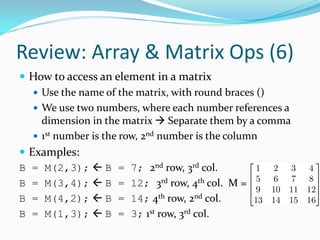
 How to access an element in a matrix
    Use the name of the matrix, with round braces ()
    We use two numbers, where each number references a
     dimension in the matrix  Separate them by a comma
    1st number is the row, 2nd number is the column
 Examples:
B = M(2,3);  B = 7; 2nd row, 3rd col.
B = M(3,4);  B = 12; 3rd row, 4th col. M =
B = M(4,2);  B = 14; 4th row, 2nd col.
B = M(1,3);  B = 3; 1st row, 3rd col.
Review: Array & Matrix Ops (7)
 To access a range of values, use the colon operator just
  like we did for arrays, but now use them for each
  dimension
 Examples:                               M=
   B = M(1:3,3:4);  Rows 1-3, Cols 3-4
       This is equivalent to B = [3 4; 7 8; 11 12];
   B = M(3:4,3:4);  Rows 3-4, Cols 3-4
       This is equivalent to B = [11 12; 15 16];
   B = M(1,1:3);  Row 1, Cols 1-3
       This is equivalent to B = [1 2 3];
   B = M(3:4,2);  Row 3-4, Col 2
       This is equivalent to B = [10;14];
Review: Array & Matrix Ops (8)
 Last thing for accessing  Using : by itself
    Using : for any dimension means to access all values
 Examples:
    A = M(1:2,:);  Rows 1-2, All Cols. M =
        Equal to A = [1 2 3 4; 5 6 7 8];
    A = M(2,:);  Row 2, All Cols.
        This is equivalent to A = [5 6 7 8];
    A = M(:,3);  All Rows, Col 3
        This is equivalent to A = [3;7;11;15];
    A = M(:,1:3)  All Rows, Cols. 1 – 3
        Equal to A = [1 2 3; 5 6 7; 9 10 11; 13 14 15];
    A = M(:,:); or A = M;  Grab the entire matrix
Review: Array & Matrix Ops (9)
 Let’s get onto some basic math operations!
    Let’s assume the following:
       A and B are vectors / arrays, or matrices of compatible
        dimensions
       We assume that A and B can be properly added, subtracted,
        multiplied and divided together
       Also, assume that n is a scalar number
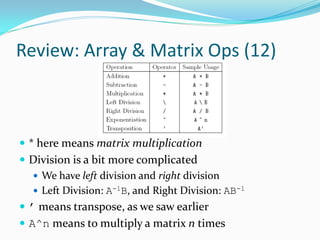
 Here’s a table that provides a good summary of all of
 the basic operations you can perform on vectors /
 array, and matrices
Review: Array & Matrix Ops (10)


 Let’s look at addition and subtraction first
    With addition or subtraction, A & B must be same size
    The result will be a matrix of the same size, where each
     element is added or subtracted with its corresponding
     location
    For vectors, we do this for each corresponding element
Review: Array & Matrix Ops (11)
 Example:
    A = [1 2; 3 4];
    B = [5 6; 7 8];
    E = A + B;
      This is equivalent to E = [6 8; 10 12];
   F = A – B;
      This is equivalent to F = [-4 -4; -4 -4];
   G = C + D;
      This is equivalent to G = [5 7 9];
   H = C – D;
      This is equivalent to H = [-3 -3 -3];
Review: Array & Matrix Ops (12)


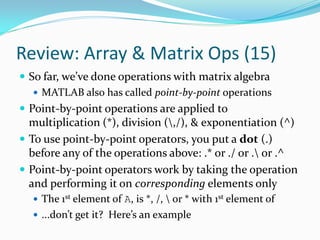
 * here means matrix multiplication
 Division is a bit more complicated
    We have left division and right division
    Left Division: A-1B, and Right Division: AB-1
 ’ means transpose, as we saw earlier
 A^n means to multiply a matrix n times
Review: Array & Matrix Ops (13)
 Examples:
    C = A * B;
      This is equivalent to C = [19 22; 43 50];
   D = A  B;
      This is equivalent to D = [-3 -4; 4 5];
   E = A / B;
      This is equivalent to E = [-3 -2; 2 -1];
   F = A^2;
      This is equivalent to F = [7 10; 15 22];
   G = B^3;
      This is equivalent to G = [881 1026; 1197 1394];
Review: Array & Matrix Ops (14)
 Special case: +,-,* or / every element in a vector or
  matrix by a constant number
 You use an operation, with the constant number
 Examples: A = [1 2; 3 4]; B = [5 6 7 8];
   C = 2*A;
        This is equivalent to C = [2 4; 6 8];
   D = B/3;
        This is equivalent to D = [1.6666 2 2.3333 2.6666];
   E = A-2;
        This is equivalent to E = [-1 0; 1 2];
   F = B+4;
        This is equivalent to F = [9 10 11 12];
Review: Array & Matrix Ops (15)
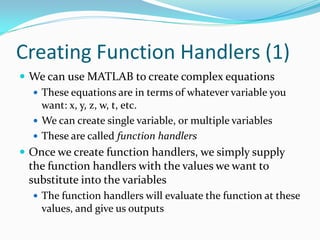
 So far, we’ve done operations with matrix algebra
    MATLAB also has called point-by-point operations
 Point-by-point operations are applied to
  multiplication (*), division (,/), & exponentiation (^)
 To use point-by-point operators, you put a dot (.)
  before any of the operations above: .* or ./ or . or .^
 Point-by-point operators work by taking the operation
  and performing it on corresponding elements only
   The 1st element of A, is *, /,  or * with 1st element of
   ...don’t get it? Here’s an example
Review: Array & Matrix Ops (16)
 Examples:
    C = A * B;
      This is equivalent to C = [19 22; 43 50];
   D = A .* B;
      This is equivalent to D = [5 12; 21 32];
   E = A  B;
      This is equivalent to E = [-3 -4; 4 5];
   F = A . B;
      This is equivalent to F = [5 3; 2.3333 2];
      Same as taking every element from B and dividing by its
       corresponding element in A
Review: Array & Matrix Ops (17)
 Examples:
    G = A / B;
       This is equivalent to G = [-3 -2; 2 -1];
   H = A ./ B;
       This is equivalent to H = [0.2 0.3333; 0.4286 0.5];
       Same as taking every element from A and dividing by its
        corresponding element in B
   I = A^2;
       This is equivalent to I = [7 10; 15 22];
   J = A.^2;
       This is equivalent to J = [1 4; 9 16];
Review: Array & Matrix Ops (18)
 Now on to modifying elements in arrays and matrices
    Do same thing with accessing elements or in groups
    Flip the order of what’s on which side of the equals sign
 Examples, using the A matrix previously:
    A(3,4) = 7;  Store 7 in 3rd row, 4th col
    A(1:2,3:4) = [5 6; 7 8];
        Store this 2 x 2 matrix in Rows 1-2, and Cols 3-4
    A(2,:) = [8 19 2 20];
      Store this row vector in Row 2

    A(:,3) = [5;4;3;2];
      Store this column vector in Col 3

    A(1:2,:) = 5;  Set Row 1-2 and all Cols. to 5
Review: Array & Matrix Ops (19)
 Last thing for our review: Dynamic Arrays
    Good for not knowing size before hand
    We can create arrays that grow in size
    We can extend the size and add new elements
 You simply set a variable to a set of square braces []
    array = [];
 After, you just assign numbers to the array
    array(1:4) = 5;
    array(5:7) = [8 6 8];
    array(end+1) = 7;  end goes to the end of array,
     and +1 puts 7 after the end and extends the size by 1.
    Equivalent to array = [5 5 5 5 8 6 8 7];
Creating Function Handlers (1)
 We can use MATLAB to create complex equations
   These equations are in terms of whatever variable you
    want: x, y, z, w, t, etc.
   We can create single variable, or multiple variables
   These are called function handlers
 Once we create function handlers, we simply supply
  the function handlers with the values we want to
  substitute into the variables
   The function handlers will evaluate the function at these
    values, and give us outputs
Creating Function Handlers (2)
 To create function handlers, you use the @ sign, then
  surround it with round braces ()
   In the braces, place the variables relevant to equation
 After, you then write out the equation in C style
 Make sure that all multiplication, division and
  exponentiation operations are point-by-point
   Why? That way, we can supply a vector or matrix into
    the function handler, and it’ll evaluate the function for
    every element on its own, and send that to the output
 Built-in MATLAB functions like sin, cos, sqrt, etc. are
  all function handlers too!
Creating Function Handlers (3)
 We don’t need to do point-by-point if we’re performing
  these operations on constants
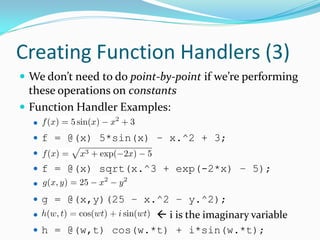
 Function Handler Examples:
  
   f = @(x) 5*sin(x) – x.^2 + 3;
  
   f = @(x) sqrt(x.^3 + exp(-2*x) – 5);
  
   g = @(x,y)(25 – x.^2 – y.^2);
                      i is the imaginary variable
   h = @(w,t) cos(w.*t) + i*sin(w.*t);
Creating Function Handlers (4)
 We can also nest function handlers within other ones
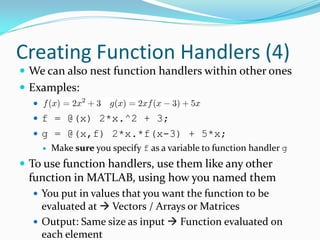
 Examples:
  
   f = @(x) 2*x.^2 + 3;
   g = @(x,f) 2*x.*f(x-3) + 5*x;
         Make sure you specify f as a variable to function handler g
 To use function handlers, use them like any other
 function in MATLAB, using how you named them
   You put in values that you want the function to be
    evaluated at  Vectors / Arrays or Matrices
   Output: Same size as input  Function evaluated on
    each element
Creating Function Handlers (5)
 Examples:
    A = [1 2; 3 4]; B = [2.5 6.7 9];

   f = @(x) 5*sin(x) – x.^2 + 3;
   g = @(x,y) 25 – x.^2 – y.^2;
   a = f(3);
     Equivalent to
     In MATLAB: a = -5.2944  sin is in radians

   b = f(A);
     Using same principle, we get:
      b = [6.2074 3.5465; -5.2944 -16.7840];
   c = g(B,B-2);
     Using same principle, this is equivalent to:
      c = [18.5 -41.98 -105];
Tutorial Topics – (2)
   Plotting Graphs
     Creating an array of numbers following a pattern
     Plotting 2D graphs properly using function handlers
     Plotting multiple separate graphs on the same window
     Using MATLAB syntax to customize plots
     Plotting 3D plots: Surface and Mesh plots

   Some useful MATLAB commands and constructs
     Creating structures and cell arrays
     Review of logical operators (AND, OR, NOT)
     The find command
       Locating values in an array or matrix meeting certain
        criteria
     Finding minimum and maximum values
Plotting Graphs – (1)
 This is not properly taught in any courses that I’ve
  TAed  Here to remedy this situation
 MATLAB makes it very easy to plot data, and makes
  the graphs look visually pleasing
 The basic run through is this:
   (a) Provide an array of points for each set of axes
   (b) Run a function that plots things for you
   (c) Run a few more commands that customize the
    appearance of the plot  grid, legend, axes labels
Plotting Graphs – (2)
 Let’s start with 2D plotting:
    Assuming that we have two variables, x and y and are
     both the same size
    To produce the most basic graph in MATLAB that plots
     y vs. x, you just do:
     plot(x,y);
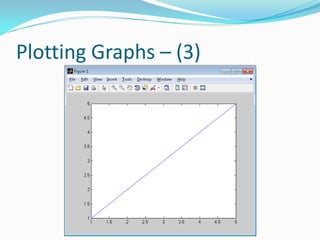
 Let’s start off with a basic example: y = x
    We need to generate x and y values first
    x = [1 2 3 4 5];
    y = [1 2 3 4 5]; or y = x;
    plot(x,y);... and we’ll get...
Plotting Graphs – (3)
Plotting Graphs – (4)
 This is great... but what if we wanted to generate a
  large set of numbers?
   A pain to manually input all these points into an array!
   If the numbers follow a pattern then this is easy
   Use the following syntax:
     array = first : increment : last;

   first – Value to start at
   increment – step size
   last – Final value to stop
   Can also do array = first : last;
       Leaving the increment out defaults to a step size of 1
Plotting Graphs – (5)
 Examples:
    array = 0 : 2 : 10;
      Equivalent to array = [0 2 4 6 8 10];
   array = 3 : 3 : 30;
      Equivalent to array = [3 6 9 12 15 18 ... 30];
   array = 1 : 0.1 : 2.2;
      Equivalent to array = [1 1.1 1.2 1.3 ... 2.2];
   array = 3 : -1 : -3;
      Equivalent to array = [3 2 1 0 -1 -2 -3];
   array = 5 : 15;
      Equivalent to array = [5 6 7 8 ... 14 15];
Plotting Graphs – (6)
 Can also perform this using the linspace command
    array = linspace(first, last, N);
    array = linspace(first, last);
    The first style generates an array of size N, with equally
     spaced points between first and last
    The second style generates an array of the default size of
     100 equally spaced points between first and last
 For non-linear equations, try using logspace
    array = logspace(first, last, N);
    array = logspace(first, last);
    Same as linspace, but on a logarithmic scale instead
Plotting Graphs – (7)
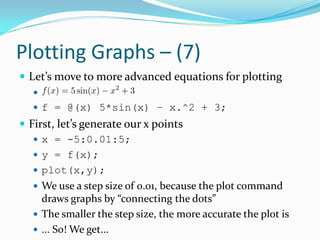
 Let’s move to more advanced equations for plotting
   
    f = @(x) 5*sin(x) – x.^2 + 3;
 First, let’s generate our x points
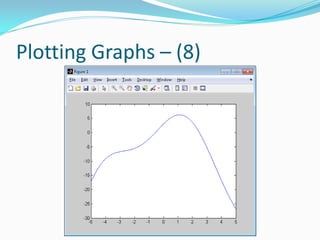
    x = -5:0.01:5;
    y = f(x);
    plot(x,y);
    We use a step size of 0.01, because the plot command
     draws graphs by “connecting the dots”
    The smaller the step size, the more accurate the plot is
    ... So! We get...
Plotting Graphs – (8)
Plotting Graphs – (9)
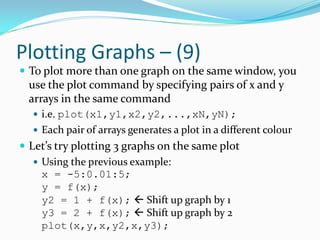
 To plot more than one graph on the same window, you
  use the plot command by specifying pairs of x and y
  arrays in the same command
   i.e. plot(x1,y1,x2,y2,...,xN,yN);
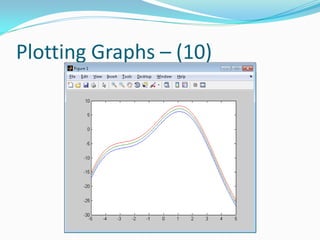
   Each pair of arrays generates a plot in a different colour
 Let’s try plotting 3 graphs on the same plot
    Using the previous example:
     x = -5:0.01:5;
     y = f(x);
     y2 = 1 + f(x);  Shift up graph by 1
     y3 = 2 + f(x);  Shift up graph by 2
     plot(x,y,x,y2,x,y3);
Plotting Graphs – (10)
Plotting Graphs – (11)
 Now, we can customize the graph to make it look nice
   To label the x-axis, use the xlabel command
    xlabel(‘Title’);
   Replace ‘Title’ with whatever you want for the x-axis
   For the y-axis, use the ylabel command
    ylabel(‘Title’);
   Replace ‘Title’ with whatever you want for the y-axis
   To put a legend, use the legend command
    legend(‘Graph1’,’Graph2’,’Graph3’...’);
   Change ‘Graph1’, ‘Graph2’, ... with the graphs’ names
   Caution: Label the graphs in the same order as how you
    placed them in the plot command
Plotting Graphs – (12)
   To name the plot, use the title command
    title(‘Title’);
   Change ‘Title’ to whatever you want to name the plot
   To add gridlines, use the grid command
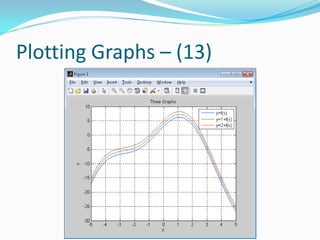
 Using the same graph that we just plotted, we can do
 the following  Ensure that graph window is still open
   xlabel(‘X’);
   ylabel(‘Y’);
   title(‘Three Graphs’);
   grid;
   legend(‘y=f(x)’,‘y=1+f(x)’,‘y=2+f(x)’);
Plotting Graphs – (13)
Plotting Graphs – (14)
 By default, MATLAB takes each pair of points in the
  arrays and connects them  “connects the dots”
    Also has its own way of colouring each plot
 Is there a way that we can control this behaviour? Yes!
    When using the plot command, you specify arrays of x
     and y points, with an additional 3rd parameter: A string
     of up to 3 characters surrounded by single quotes
    plot(x,y,’cst’);
        For the 3rd parameter, the 1st character controls the colour
        The 2nd and optionally the 3rd character control the style of the
         plot
Plotting Graphs – (15)
 Supported colours and their character codes:
    b – blue, g – green, r – red, c – cyan, m – magenta, y –
     yellow, k – black
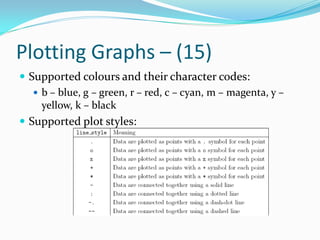
 Supported plot styles:
Plotting Graphs – (16)
 Examples:
    x = 0 : 10;
    y = x;
    plot(x,y,’g.’);
      Plots a green line with dots at each point
   plot(x,y,’bx’);
      Plots a blue line with an x at each point
   plot(x,y,’ko’);
      Plots a black line with circles at each point
   plot(x,y,’m.-’);
      Plots a magenta line with a solid line and a dot at each point
Plotting Graphs – (17)
 Like how we saw before, you can put multiple plots on
    a single graph, each with their own colour and plot
    styles with the following:
    plot(x1, y1, ’line_style1’, x2, y2,
    ’line_style2’,..., xN, yN,
    ’line_styleN’);
   N is the number of plots you want to appear on the
    single graph
   xi and yi are the points to the ith graph you want
    plotted on the single graph
   line_stylei is the plot style and colour of that ith
    graph
   We can also use xlabel, ylabel, legend,
    grid to customize as well
Plotting Graphs – (18)
 Let’s say we wanted to plot multiple graphs in separate
 plots on the same window
   We use the subplot command
   Command treats the window as having multiple slots
       Each slot takes in a graph
   How do we use the command?
    subplot(m,n,p);
     m and n you need to know before hand
     These determine the number of rows (m) and columns (n) for
      the amount of graphs you want
     p chooses which location in the window the plot should go to

     The order is from left to right, top to bottom
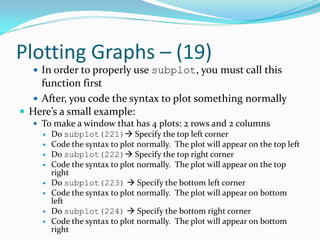
Plotting Graphs – (19)
   In order to properly use subplot, you must call this
     function first
    After, you code the syntax to plot something normally
 Here’s a small example:
   To make a window that has 4 plots: 2 rows and 2 columns
        Do subplot(221) Specify the top left corner
        Code the syntax to plot normally. The plot will appear on the top left
        Do subplot(222) Specify the top right corner
        Code the syntax to plot normally. The plot will appear on the top
         right
        Do subplot(223)  Specify the bottom left corner
        Code the syntax to plot normally. The plot will appear on bottom
         left
        Do subplot(224)  Specify the bottom right corner
        Code the syntax to plot normally. The plot will appear on bottom
         right
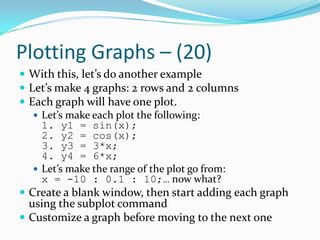
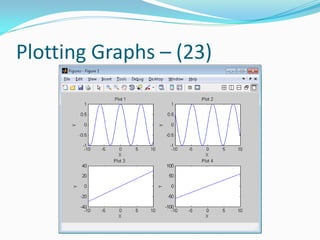
Plotting Graphs – (20)
 With this, let’s do another example
 Let’s make 4 graphs: 2 rows and 2 columns
 Each graph will have one plot.
    Let’s make each plot the following:
     1. y1 = sin(x);
     2. y2 = cos(x);
     3. y3 = 3*x;
     4. y4 = 6*x;
    Let’s make the range of the plot go from:
     x = -10 : 0.1 : 10;… now what?
 Create a blank window, then start adding each graph
  using the subplot command
 Customize a graph before moving to the next one
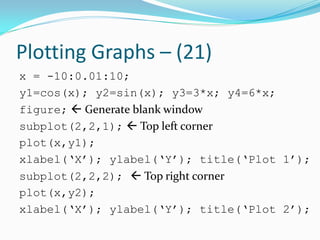
Plotting Graphs – (21)
x = -10:0.01:10;
y1=cos(x); y2=sin(x); y3=3*x; y4=6*x;
figure;  Generate blank window
subplot(2,2,1);  Top left corner
plot(x,y1);
xlabel(‘X’); ylabel(‘Y’); title(‘Plot 1’);
subplot(2,2,2);  Top right corner
plot(x,y2);
xlabel(‘X’); ylabel(‘Y’); title(‘Plot 2’);
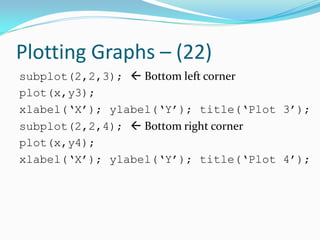
Plotting Graphs – (22)
subplot(2,2,3);  Bottom left corner
plot(x,y3);
xlabel(‘X’); ylabel(‘Y’); title(‘Plot 3’);
subplot(2,2,4);  Bottom right corner
plot(x,y4);
xlabel(‘X’); ylabel(‘Y’); title(‘Plot 4’);
Plotting Graphs – (23)
Plotting Graphs – (24)
 One last thing before we move onto more advanced
 stuff
   We can customize which values along the x or y axis we
    want to display
   Use the set command
  set(gca, ‘xtick’, array);
  set(gca, ‘ytick’, array);
   gca  Get Current Axis
   array: The values we wish to display for either axis,
    stored as an array
Plotting Graphs – (25)
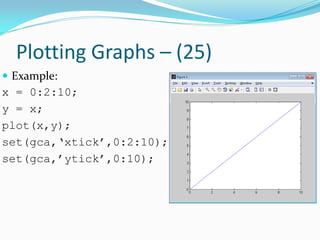
 Example:
x = 0:2:10;
y = x;
plot(x,y);
set(gca,‘xtick’,0:2:10);
set(gca,’ytick’,0:10);
Plotting Graphs – (26)
 Let’s move onto 3D plots!
    MATLAB can draw 3D plots in a very nice way
 Here are the steps:
    1) Create a function header of two variables
    2) Figure out the range of x and y values you want, then
     create a grid of these x and y points
    3) Use the function handler to create the output points
     in the 3rd dimension (z)
    4) Use a function that plots this triplet of arrays in 3D
Plotting Graphs – (27)
 How do we generate a grid of x and y values?
   Use the meshgrid function
   This function will output two matrices, X and Y
   X contains what the x co-ordinates are in the grid of
    points we want
   Y contains what the y co-ordinates are in the grid of
    points we want
   You need to specify the range of x and y values we want to
    plot
  [X,Y] = meshgrid(x1:x2,y1:y2);
  [X,Y] = meshgrid(x1:inc:x2,y1:inc:y2);
Plotting Graphs – (28)
   x1,x2 determines the beginning and ending x values
    respectively
   y1,y2 determines the beginning and ending y values
    respectively
   We can optionally specify inc which specifies the step
    size, just like what we’ve seen earlier
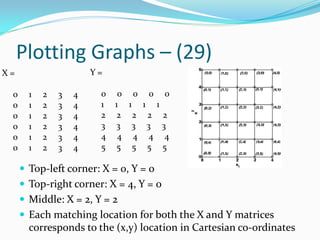
 Example: [X,Y] = meshgrid(0:4,0:5);
    X: Range is from 0 to 4
    Y: Range is from 0 to 5
Plotting Graphs – (29)
X=                     Y=

 0     1   2   3   4    0    0 0 0 0
 0     1   2   3   4    1   1 1 1 1
 0     1   2   3   4    2    2 2 2 2
 0     1   2   3   4    3   3 3 3 3
 0     1   2   3   4    4    4 4 4 4
 0     1   2   3   4    5    5 5 5 5

      Top-left corner: X = 0, Y = 0
      Top-right corner: X = 4, Y = 0
      Middle: X = 2, Y = 2
      Each matching location for both the X and Y matrices
       corresponds to the (x,y) location in Cartesian co-ordinates
Plotting Graphs – (30)
 Now, how do we create 3D plots? Use either the surf
 or mesh commands
   surf(x,y,z);  The z values all have different
    colours assigned to them and is a closed plot
   mesh(x,y,z);  The z values all have different
    colours assigned to them, but only draws lines through
    the points
   For each function, you specify a triplet of x, y and z
    values of all the same size
   We can also customize the graph using the commands
    seen previously
Plotting Graphs – (31)
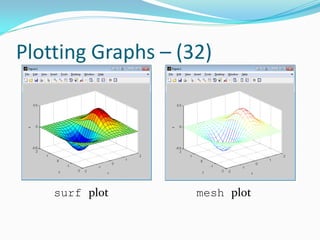
 Example: Let’s plot the following function

f = @(x,y) x.*exp(-x.^2 – y.^2);
[X,Y] = meshgrid(-2:0.2:2,-2:0.2:2);
Z = f(X,Y);  X,Y: Range is from -2 to 2 in steps of 0.2
surf(X,Y,Z);  Previous line gets Z points & now plot
xlabel(‘x’); ylabel(‘y’); zlabel(‘z’);
figure;  Create a new window
mesh(X,Y,Z);  Place mesh graph in new window
xlabel(‘x’); ylabel(‘y’); zlabel(‘z’);
Plotting Graphs – (32)


    surf plot       mesh plot
Tutorial Topics – (2)
   Plotting Graphs
       Creating an array of numbers following a pattern
       Plotting 2D graphs properly using function handlers
       Plotting multiple separate graphs on the same window
       Using MATLAB syntax to customize plots
       Plotting 3D plots: Surface and Mesh plots
   Some useful MATLAB commands and constructs
       Creating cell arrays
       Review of logical operators (AND, OR, NOT)
       The find command
         Locate values in arrays / matrices meeting certain criteria

       Modifying matrices using logical operators
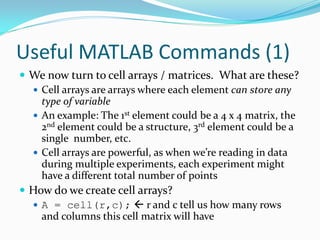
Useful MATLAB Commands (1)
 We now turn to cell arrays / matrices. What are these?
   Cell arrays are arrays where each element can store any
    type of variable
   An example: The 1st element could be a 4 x 4 matrix, the
    2nd element could be a structure, 3rd element could be a
    single number, etc.
   Cell arrays are powerful, as when we’re reading in data
    during multiple experiments, each experiment might
    have a different total number of points
 How do we create cell arrays?
   A = cell(r,c);  r and c tell us how many rows
    and columns this cell matrix will have
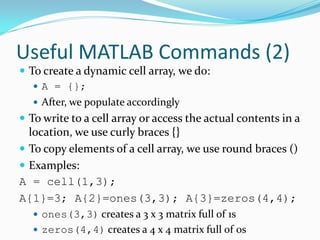
Useful MATLAB Commands (2)
 To create a dynamic cell array, we do:
    A = {};
    After, we populate accordingly
 To write to a cell array or access the actual contents in a
  location, we use curly braces {}
 To copy elements of a cell array, we use round braces ()
 Examples:
A = cell(1,3);
A{1}=3; A{2}=ones(3,3); A{3}=zeros(4,4);
   ones(3,3) creates a 3 x 3 matrix full of 1s
   zeros(4,4) creates a 4 x 4 matrix full of 0s
Useful MATLAB Commands (3)
b = A{2};
  Equivalent to b = [1 1 1; 1 1 1; 1 1 1];
C = A(1:2);
  Copies elements 1 and 2 from cell array into C
  i.e. C{1}=3; C{2}=ones(3,3);
d = A{1};
  Equivalent to d = 3;
e = A{3};
  Equivalent to e = [0 0 0 0; 0 0 0 0; 0 0 0 0;
   0 0 0 0; 0 0 0 0];
Useful MATLAB Commands (4)
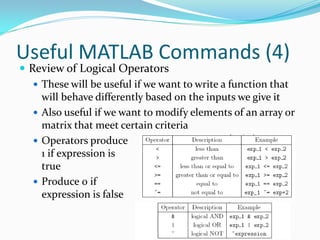
 Review of Logical Operators
    These will be useful if we want to write a function that
     will behave differently based on the inputs we give it
    Also useful if we want to modify elements of an array or
     matrix that meet certain criteria
    Operators produce
     1 if expression is
     true
    Produce 0 if
     expression is false
Useful MATLAB Commands (5)
 Let’s take a look at the find command
    The find command returns locations of an array or
     matrix that satisfy a logical expression
    How do we use? index = find(expr);
    expr: Logical operator used to find certain values
    index: The locations in the array / matrix where
     expr is true
 Example: A = [1 3 6 2 4];
index1 = find(A >= 4);
   Gives: index1 = [3 5];  Locations 3 and 5
   Tells us that locations 3 – 5 satisfy this logical expression
Useful MATLAB Commands (6)
index = find(A >= 2 & A <= 4);
   Gives: index = [2 4 5];
index = find(A == 3);
   Gives: index = 2;
index = find(A ~= 2);
   Gives: index = [1 2 3 5];
 Using these indices, we can modify arrays / matrices when
  certain criteria is met
 Examples: A = [1 3 6 2 4]; B = [1 2 3; 4 5 6];
  index = find(A >= 2 & A <= 4);
  A(ind) = 0;  Finds those values between 2 & 4, and set to 0
Useful MATLAB Commands (7)
 Now, A = [1 0 6 0 0];
index2 = find(~(B >= 1 & B <= 3));
   Find those values that are NOT greater than or equal to
    1, and less than or equal to 3.
B(index2) = [9 10 11];
 Now, B = [1 2 3; 9 10 11];
 One more before we get onto better things
index3 = find(B == 2 | B == 5)
B(index3) = 10;
 Now, B = [1 10 3; 4 10 6];
Tutorial Topics – (3)
      Creating Transfer Functions
        Both polynomial form and zero-pole-gain (ZPK) format

        Minimum Realizations

      Calculating the impulse and step response
      Finding the roots of equations
        Polynomial equations

        Non-linear equations

      Evaluating a polynomial equation at given points
      Using convolution to multiply polynomial equations
      Partial Fraction Decomposition
      Create a matrix by using copies of a smaller matrix
      Converting an array and reshaping it into a matrix
Useful MATLAB Commands (8)
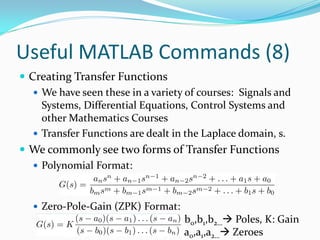
 Creating Transfer Functions
    We have seen these in a variety of courses: Signals and
     Systems, Differential Equations, Control Systems and
     other Mathematics Courses
    Transfer Functions are dealt in the Laplace domain, s.
 We commonly see two forms of Transfer Functions
    Polynomial Format:


    Zero-Pole-Gain (ZPK) Format:
                                    b0,b1,b2… Poles, K: Gain
                                    a0,a1,a2… Zeroes
Useful MATLAB Commands (9)
 To create the first style of transfer function, use the tf
  command
   G = tf(num,den);
   num is an array of coefficients in descending order of
    power for the numerator (top-half) of the equation
   den is an array of coefficients in descending order of
    power for the numerator (bottom-half) of the equation
   The output, G, is a transfer function object that can be
    used in a variety of different signal analysis functions
    seen in MATLAB
Useful MATLAB Commands (10)
 Example: Let’s say I wanted to create these TFs:


 G1(s): Numerator: [2 1], Denominator: [1 2 3 1]
 G2(s): Numerator: [5], Denominator: [1 -3 2]
 G3(s): Numerator: [10 5 -3], Denominator: [1 5 -4 0 6]
 Get it? The numbers that go beside each power of s go
  in decreasing order in the square brackets
   To specify subtraction, use a negative sign for the #!
Useful MATLAB Commands (11)
 Let’s code these transfer function objects
    G1 = tf([2 1], [1 2 3 1]);
    G2 = tf(5, [1 -3 2]);
    G3 = tf([10 5 -3], [1 5 -4 0 6]);
 How about ZPK format? Pretty much the same thing
 This is the case where we specifically know the what
 the poles, zeroes and gain are
   Use the zpk command to invoke this style of TF
  G = zpk([b0 b1 b2…], [a0 a1 a2…], K);
   b0, b1, b2, … are the zero locations
   a0, a1, a2, … are the pole locations, and K the gain
Useful MATLAB Commands (12)
 Note: We can convert a TF in tf form into zpk form
    Example:
    G_TF = tf([2 1], [1 2 3 1]);
    G_ZPK = zpk(G_TF);
 Example: Let’s say I wanted to
 create these TFs:


   G1(s): zeros: [-2 -3], poles: [-1 -5 -6], gain: 3
   G2(s): zeros: [3], poles: [1-i 1+i], gain: 5
   G3(s): zeros: [-1], poles: [1 -2], gain: 1
   Get it? We can specify imaginary poles / zeroes too!
     Factors with addition are negative poles, and vice-versa
Useful MATLAB Commands (13)
 Let’s code these transfer function objects
    G1 = zpk([-2 -3], [-1 -5 -6], 3);
    G2 = zpk(3, [1-i 1+i], 5);
    G3 = zpk(-1, [1 -2], 1);
 There may be some poles or zeroes that are deemed
 insignificant
   Their contribution to the overall system will not affect
    the output as much
   Criteria: If poles and zeroes are very close to each other,
    or if any pole or zero is far away from the imaginary axis
 To get the best TF, we should remove these
Useful MATLAB Commands (14)
 How do we remove this? Use the minreal function
   Gout = minreal(G);
   Input, G, is a transfer function object created either by
    tf, or zpk
 What are transfer functions useful for?
   Transfer functions basically represent the input / output
    relationship of a system
   We can feed any input into this system, and we’ll see
    what the output is
   The two most common inputs that are used for
    simulating behaviour are the step and impulse inputs
Useful MATLAB Commands (15)
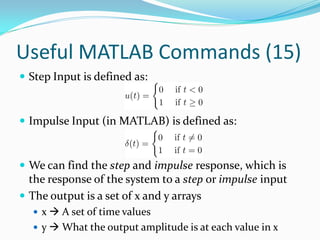
 Step Input is defined as:


 Impulse Input (in MATLAB) is defined as:


 We can find the step and impulse response, which is
  the response of the system to a step or impulse input
 The output is a set of x and y arrays
   x  A set of time values
   y  What the output amplitude is at each value in x
Useful MATLAB Commands (16)
 Something to note: We are specifying the transfer
  function in Laplace domain, yet output is time domain
    This is normal. Laplace is used as a tool to get the time-
    response more efficiently  Time is what we want
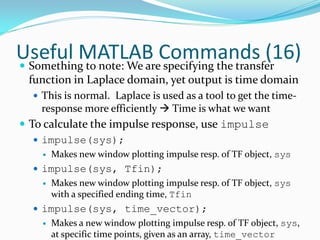
 To calculate the impulse response, use impulse
    impulse(sys);
        Makes new window plotting impulse resp. of TF object, sys
    impulse(sys, Tfin);
        Makes new window plotting impulse resp. of TF object, sys
         with a specified ending time, Tfin
    impulse(sys, time_vector);
        Makes a new window plotting impulse resp. of TF object, sys,
         at specific time points, given as an array, time_vector
Useful MATLAB Commands (17)
 We can also repeat the same style of invocation by:
   [y,t] = impulse(sys);
   [y,t] = impulse(sys, Tfin);
   [y,t] = impulse(sys, time_vector);
 In this way, we don’t generate a plot, but outputs two
 arrays: y, the impulse response values, and t, the time
 points at each of these values in y
   This way is useful if you want to plot more than one
    impulse response on the same graph
   Use the plot and subplot tools that we’ve seen earlier
Useful MATLAB Commands (18)
 To calculate the step response, use the step
 command, and we call it exactly in the same style as
 impulse
   step(sys);
   step(sys, Tfin);
   step(sys, time_vector);
   [y,t] = step(sys);
   [y,t] = step(sys, Tfin);
   [y,t] = step(sys, time_vector);
Useful MATLAB Commands (19)
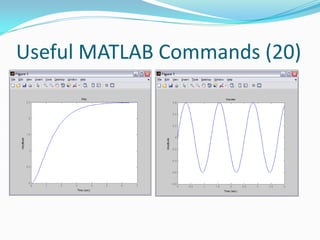
 Example: Let’s try finding impulse and step response with
 these two transfer functions


G1 = tf(5, [1 3 2]);
G2 = tf(3, [1 0 25]);
step(G1,7); xlabel(‘Time’); title(‘Step’);
figure; impulse(G2,4);
xlabel(‘Time’); title(‘Impulse’);
Useful MATLAB Commands (20)
Useful MATLAB Commands (21)
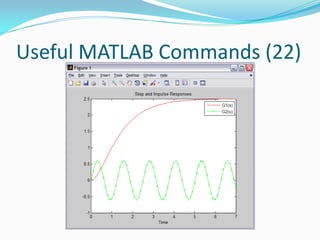
 Let’s try something a bit more advanced
[y1,t1] = step(G1, 0:0.1:7);
[y2,t2] = impulse(G2, 0:0.1:7);
plot(t1,y1,’r-’,t2,y2,’gx-’);
xlabel(‘Time’);
title(‘Step and Impulse Responses’);
legend(‘G1(s)’, ‘G2(s)’);
Useful MATLAB Commands (22)
Useful MATLAB Commands (23)
 MATLAB is a great numerical analysis tool
    We sometimes encounter polynomial equations that are
     of 3rd order or higher
    Most conventional calculators can only find up to 3 roots
    MATLAB is able find the roots of any equation you want
    We will look at finding roots for two very popular forms
     of equations
 First form is the standard polynomial form:

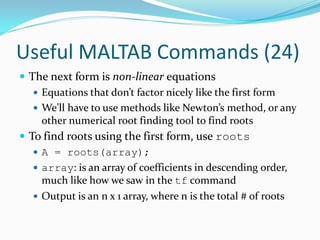
    Here the equation will have n roots
Useful MALTAB Commands (24)
 The next form is non-linear equations
    Equations that don’t factor nicely like the first form
    We’ll have to use methods like Newton’s method, or any
     other numerical root finding tool to find roots
 To find roots using the first form, use roots
    A = roots(array);
    array: is an array of coefficients in descending order,
     much like how we saw in the tf command
    Output is an n x 1 array, where n is the total # of roots
Useful MATLAB Commands (25)
 Examples:

   P1 = roots([3 2.5 1 -1 3]);
   P2 = roots([5 0 3 -2 0 -1]);
 … and we thus get:
   P1 = [-0.9195 + 0.8263i; -0.9195 -
    0.8263i; 0.5028 + 0.6337i; 0.5028 -
    0.6337i];
   P2 = [0.7140; -0.0394 + 0.7440i; -0.0394
    - 0.7440i; -0.3176 + 0.6354i; -0.3176 -
    0.6354i];
Useful MATLAB Commands (26)
 For non-linear equations, we use fzero
    This finds where the root of a non-linear equation,
     based on an initial guess, x0.
    fzero uses a variety of root finding methods to find the
     root we want (Newton’s Method, Bisection Method, etc.)
    y = fzero(func, x0);
    func is a function handler of a single variable
    x0 is the initial guess of the root
    Warning: If the non-linear equation has more than 1
     root, then we have to specify as more than 1 initial guess
     to get all of the roots!
Useful MATLAB Commands (27)
 Example: Let’s try to find some roots of sin(x)
f = @(x) sin(x);
y = fzero(f, 0.5);
y2 = fzero(f, 2.5);
y3 = fzero(f, -4);
 In MATLAB, this will give us:
   y = -1.8428e-28;  ~0 because of approximation
   y2 = 3.1416;  Corresponds to pi
   y3 = -3.1416;  Corresponds to -pi
Useful MATLAB Commands (28)
 Another useful function: Evaluating polynomial
 equations at a point, or several points
   You’ll see that this is very useful later when we get into
    regression
 Given: A polynomial equation, where its coefficients
 are stored in an array  Like what we’ve seen in tf
   val = polyval(coeffs, X);
   coeffs – The array of coefficients in descending order
   X – A single value / vector / matrix of points to evaluate
   val – The same size as X with the equation evaluated at
    each corresponding point
Useful MATLAB Commands (29)
 Example: Let’s evaluate    at a variety of
  different points
coeffs = [3 5 7];
X = [5 7 9];
val = polyval(coeffs,X);
X2 = [1 2; 3 4];
val2 = polyval(coeffs,X2);
 Our outputs are:
   val = [107 189 295];
   val2 = [15 29; 49 75];
Useful MATLAB Commands (30)
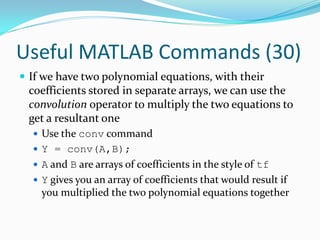
 If we have two polynomial equations, with their
 coefficients stored in separate arrays, we can use the
 convolution operator to multiply the two equations to
 get a resultant one
   Use the conv command
   Y = conv(A,B);
   A and B are arrays of coefficients in the style of tf
   Y gives you an array of coefficients that would result if
    you multiplied the two polynomial equations together
Useful MATLAB Commands (31)
 Example:

 When we multiply p, with q, we should get:


 When we run this in MATLAB, we’ll see:
P = [1 0 2 4]; Q = [2 0 -1];
A = conv(P,Q);
 Now, we will get: A = [2 0 3 8 -2 -4];
Useful MATLAB to perform Partial Fraction
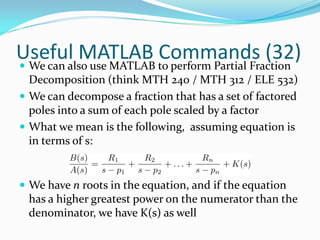
 We can also use MATLAB
                         Commands (32)
  Decomposition (think MTH 240 / MTH 312 / ELE 532)
 We can decompose a fraction that has a set of factored
  poles into a sum of each pole scaled by a factor
 What we mean is the following, assuming equation is
  in terms of s:


 We have n roots in the equation, and if the equation
 has a higher greatest power on the numerator than the
 denominator, we have K(s) as well
Useful MATLAB Commands (33)
 We call partial fractions by the residue function
   [R,P,K] = residue(B,A);
   P – the decomposed pole locations (p1,p2,p3…)
   R – The scale factors for each of the fractions (R1,R2,R3…)
   K – The coefficients of the polynomial equation when
    the order of the numerator is greater than the
    denominator
   If we have repeated roots, then the P and R arrays are
    arranged like so:
Useful MATLAB Commands (34)
 Which means:
   R = [… R(j) R(j+1) … R(j+m-1)…];
   P = [… P(j) P(j+1) … P(j+m-1)…];
 Example: Let’s find the PFD of
B = [1 -4];
A = [1 6 11 6];
[R,P,K] = residue(B,A);
   K = [];
   R = [-3.5;6;-2.5];
   P = [-3;-2;-1];
Useful MATLAB Commands (35)
 Couple of things before we take a break:
    If we ever wanted to take a small matrix, and repeat it
     horizontally and vertically for a finite amount of times,
     we can use the repmat command
    B = repmat(A,M,N);
    M - 1 and N – 1 are the amount of times we want to
     repeat the matrix vertically and horizontally respectively
    A is the matrix we want to use to repeat
 Example:
                              B =

                                1    2    1    2    1    2
A = [1 2; 3 4];                 3    4    3    4    3    4
                                1    2    1    2    1    2
B = repmat(A,2,3);              3    4    3    4    3    4
Useful MATLAB Commands (36)
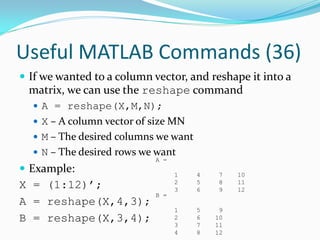
 If we wanted to a column vector, and reshape it into a
 matrix, we can use the reshape command
   A = reshape(X,M,N);
   X – A column vector of size MN
   M – The desired columns we want
   N – The desired rows we want
                            A =
 Example:                        1   4   7    10
                                  2   5   8    11
X = (1:12)’;                      3   6   9    12
                            B =
A = reshape(X,4,3);
                                  1   5    9
B = reshape(X,3,4);               2
                                  3
                                      6
                                      7
                                          10
                                          11
                                  4   8   12
Tutorial Topics – (4)
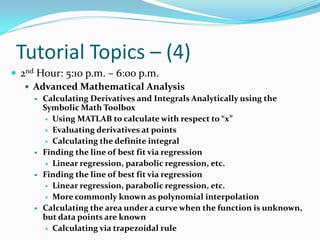
 2nd Hour: 5:10 p.m. – 6:00 p.m.
    Advanced Mathematical Analysis
       Calculating Derivatives and Integrals Analytically using the
        Symbolic Math Toolbox
          Using MATLAB to calculate with respect to “x”

          Evaluating derivatives at points

          Calculating the definite integral

       Finding the line of best fit via regression
          Linear regression, parabolic regression, etc.

       Finding the line of best fit via regression
          Linear regression, parabolic regression, etc.

          More commonly known as polynomial interpolation

       Calculating the area under a curve when the function is unknown,
        but data points are known
          Calculating via trapezoidal rule
Advanced Math – (1)
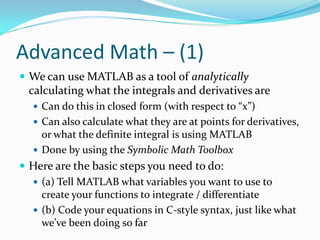
 We can use MATLAB as a tool of analytically
  calculating what the integrals and derivatives are
    Can do this in closed form (with respect to “x”)
    Can also calculate what they are at points for derivatives,
     or what the definite integral is using MATLAB
    Done by using the Symbolic Math Toolbox
 Here are the basic steps you need to do:
   (a) Tell MATLAB what variables you want to use to
    create your functions to integrate / differentiate
   (b) Code your equations in C-style syntax, just like what
    we’ve been doing so far
Advanced Math – (2)
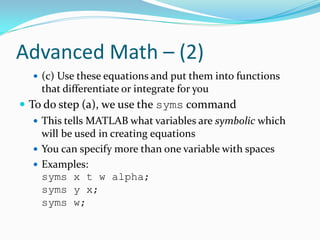
   (c) Use these equations and put them into functions
    that differentiate or integrate for you
 To do step (a), we use the syms command
    This tells MATLAB what variables are symbolic which
     will be used in creating equations
    You can specify more than one variable with spaces
    Examples:
     syms x t w alpha;
     syms y x;
     syms w;
Advanced Math – (3)
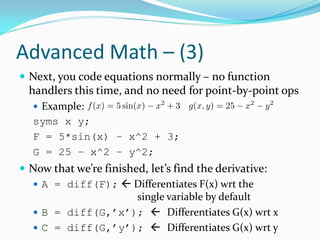
 Next, you code equations normally – no function
 handlers this time, and no need for point-by-point ops
   Example:
  syms x y;
  F = 5*sin(x) – x^2 + 3;
  G = 25 – x^2 – y^2;
 Now that we’re finished, let’s find the derivative:
   A = diff(F);  Differentiates F(x) wrt the
                        single variable by default
   B = diff(G,’x’);  Differentiates G(x) wrt x
   C = diff(G,’y’);  Differentiates G(x) wrt y
Advanced Math – (4)
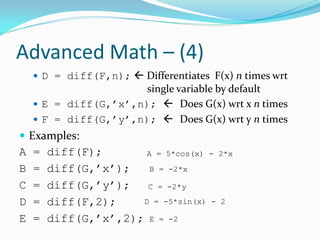
     D = diff(F,n);  Differentiates F(x) n times wrt
                       single variable by default
     E = diff(G,’x’,n);  Does G(x) wrt x n times
     F = diff(G,’y’,n);  Does G(x) wrt y n times
 Examples:
A   =   diff(F);       A = 5*cos(x) - 2*x
B   =   diff(G,’x’);    B = -2*x

C   =   diff(G,’y’);   C = -2*y

D   =   diff(F,2);    D = -5*sin(x) - 2

E   =   diff(G,’x’,2); E = -2
Advanced Math – (5)
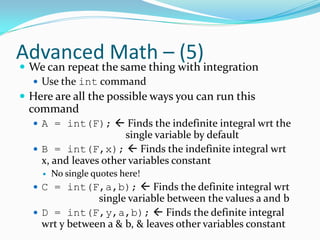
 We can repeat the same thing with integration
   Use the int command
 Here are all the possible ways you can run this
 command
   A = int(F);  Finds the indefinite integral wrt the
                       single variable by default
   B = int(F,x);  Finds the indefinite integral wrt
    x, and leaves other variables constant
       No single quotes here!
   C = int(F,a,b);  Finds the definite integral wrt
                single variable between the values a and b
   D = int(F,y,a,b);  Finds the definite integral
    wrt y between a & b, & leaves other variables constant
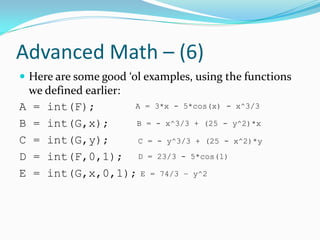
Advanced Math – (6)
 Here are some good ‘ol examples, using the functions
 we defined earlier:
A = int(F);          A = 3*x - 5*cos(x) - x^3/3

B = int(G,x);        B = - x^3/3 + (25 - y^2)*x

C = int(G,y);         C = - y^3/3 + (25 - x^2)*y

D = int(F,0,1); D = 23/3 - 5*cos(1)
E = int(G,x,0,1); E = 74/3 – y^2
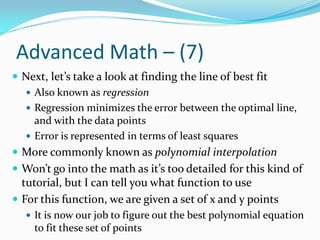
Advanced Math – (7)
 Next, let’s take a look at finding the line of best fit
   Also known as regression
   Regression minimizes the error between the optimal line,
    and with the data points
   Error is represented in terms of least squares
 More commonly known as polynomial interpolation
 Won’t go into the math as it’s too detailed for this kind of
  tutorial, but I can tell you what function to use
 For this function, we are given a set of x and y points
   It is now our job to figure out the best polynomial equation
    to fit these set of points
Advanced Math – (8)
 In other words, for our pair of x and y points, we want
  to find the co-efficients a0,a1,a2 etc., such that:

   How do we do this? Use the polyfit command
   A = polyfit(x,y,N);
   x and y are our data points  Must both be same size!
   N is represents the type of polynomial equation we want
        N = 1  Linear
        N = 2  Parabolic / Quadratic
        N = 3  Cubic, etc. etc.
  A = [                                 ];
Advanced Math – (9)
 A has the coefficients in decreasing order, just like
  what we have seen in tf
 Let’s do an example. Let’s say we had the following
  data
  x = [10 15 20 25 40 50 55 60 75];
  y = [5 20 18 40 33 54 70 60 78];
 Let’s try fitting a straight line, and a quadratic through
 this data by regression
A = polyfit(x,y,1);
B = polyfit(x,y,2);
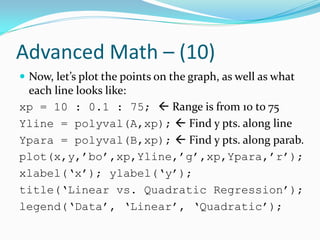
Advanced Math – (10)
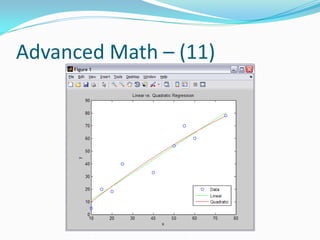
 Now, let’s plot the points on the graph, as well as what
 each line looks like:
xp = 10 : 0.1 : 75;  Range is from 10 to 75
Yline = polyval(A,xp);  Find y pts. along line
Ypara = polyval(B,xp);  Find y pts. along parab.
plot(x,y,’bo’,xp,Yline,’g’,xp,Ypara,’r’);
xlabel(‘x’); ylabel(‘y’);
title(‘Linear vs. Quadratic Regression’);
legend(‘Data’, ‘Linear’, ‘Quadratic’);
Advanced Math – (11)
Advanced Math – (12)
 Going with the set of x,y points, let’s say we wanted to
  calculate the area / integral
   We don’t have a closed-form function, so we can’t do it
    analytically!
   Instead, we’ll turn to numerical methods
 What we’ll do here is calculate the area under the
  curve for a set of x,y points using the trapezoidal rule
   Basically, between each neighbouring pair of points, we
    form a trapezoid, and calculate the best fitting area
    under this trapezoid
   Add up all these trapezoids together and you get the
    total area under the curve
Advanced Math – (13)
 How do we do this? You use the trapz routine!
   How do we call?
    area = trapz(x,y);
   x and y are the data points that we know
   area  Gives you the total estimated area underneath
    the curve bounded by these x,y points
 Note of caution:
   This is the estimated area
   Forming trapezoids around pairs of points will
    inevitably lead to over estimation and underestimation
    of the real area
Tutorial Topics – (5)
      Numerical Solutions to Differential Equations
        Output is a set of points that is the solution at different
         points in time  Not the actual equation
      Sorting arrays
Advanced Math – (14)
 Last advanced topic before moving on
    Calculating numerical solutions to differential equations
    Most computer scientists and mathematicians now rely
     on calculating the solutions to differential equations
     numerically
    The output is no longer a function of a variable (x, y,…)
    The output is an array of points
        Each point in the array corresponds what the actual solution /
         data point / y-value is for a particular point in time
    There are many methods to solve these numerically, but
    what I will show you today deals with matrix algebra
Advanced Math – (15)
 Here are the steps:
   (a) Represent the derivatives in terms of their numerical
    estimates
   If we let tk represent the time at index k, and let y(t) be
    the actual function / constraint that we know of
   Therefore, for succinctness, y(tk) = yk
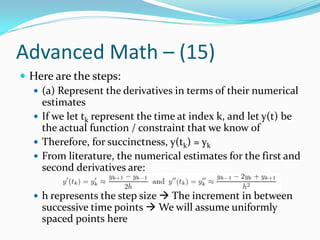
   From literature, the numerical estimates for the first and
    second derivatives are:

    h represents the step size  The increment in between
     successive time points  We will assume uniformly
     spaced points here
Advanced Math – (16)
 (b) Calculate step size and time points
    To calculate step size: h = (b – a) / n;
    To calculate time points, do t = a + i*h;
       i is the index in time that we want
 (c) Substitute the numerical approximations of the
  derivatives into the differential equations
 (d) Determine a system of equations from i = 0 to i = n
  by substituting i = 0, 1, 2, … n into step (c)
 (e) Form into a matrix equation and solve
Advanced Math – (17)
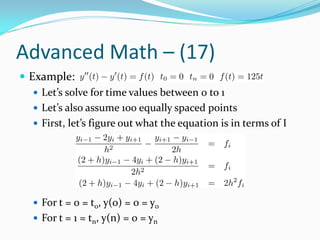
 Example:
    Let’s solve for time values between 0 to 1
    Let’s also assume 100 equally spaced points
    First, let’s figure out what the equation is in terms of I


    For t = 0 = t0, y(0) = 0 = y0
    For t = 1 = tn, y(n) = 0 = yn
Advanced Math – (18)
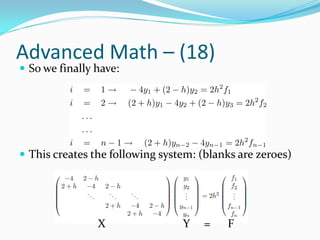
 So we finally have:


 This creates the following system: (blanks are zeroes)


                X                Y   =    F
Advanced Math – (19)
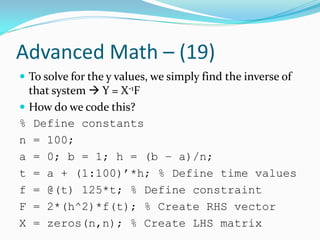
 To solve for the y values, we simply find the inverse of
  that system  Y = X-1F
 How do we code this?
% Define constants
n = 100;
a = 0; b = 1; h = (b – a)/n;
t = a + (1:100)’*h; % Define time values
f = @(t) 125*t; % Define constraint
F = 2*(h^2)*f(t); % Create RHS vector
X = zeros(n,n); % Create LHS matrix
Advanced Math – (20)
% Create first and last row
X(1,1) = -4;
X(1,2) = 2-h;
X(n,n-1) = 2+h;
X(n,n) = -4;
% Create the rest of the rows
for i = 2 : n-1
 X(i,i-1:i+1) = [2+h -4 2-h];
end
Advanced Math – (21)
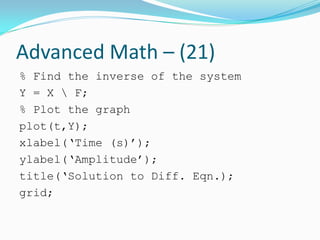
% Find the inverse of the system
Y = X  F;
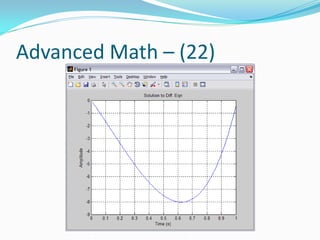
% Plot the graph
plot(t,Y);
xlabel(‘Time (s)’);
ylabel(‘Amplitude’);
title(‘Solution to Diff. Eqn.);
grid;
Advanced Math – (22)
Advanced MATLAB – (23)
 Next advanced function  Sorting
    Very useful!
 If we have an array that we want to sort, use the sort
 command
   Y = sort(A,’ascend’);
   Y = sort(A,’descend’);
   [Y,I] = sort(A,’ascend’);
   [Y,I] = sort(A,’descend’);
 First two sort the array in ascending or descending
 order & descending order then place in Y
Advanced MATLAB – (24)
 Next two not only give you the sorted array, but it gives
  you the indices of where the original values came from
  for each corresponding position
 Example: A = [1 5 7 2 4];
Y = sort(A,’ascend’);
   Y = [1 2 4 5 7];
Y = sort(A,’descend’);
   Y = [7 5 4 2 1];
[Y,I] = sort(A,’ascend’);
   Y = [1 2 4 5 7]; I = [1 4 5 2 3];
[Y,I] = sort(A,’descend’);
   Y = [7 5 4 2 1]; I = [3 2 5 4 1];
END!
 In this tutorial, I’ve tried to show you some advanced
  concepts that you may use later on in your courses /
  thesis
 This is obviously not an exhaustive tutorial! Check
  MathWorks forums and Google  They’re your friends
  for MATLAB coding
 You’re more than welcome to contact me for MATLAB
  help  If I have the time, I will help you
 Last but not least, thanks for coming out!

Advanced MATLAB Tutorial for Engineers & Scientists

  • 1.
    Raymond Phan, Ph.D.Candidate Dept. of Electrical & Computer Engineering – Ryerson University Multimedia and Distributed Computing Research Laboratory rphan@ee.ryerson.ca Monday, February 6th, 2012, Eric Palin Hall (EPH) – Room 201 4 p.m. – 6 p.m.
  • 2.
    Tutorial Topics –(1)  1st Part of the Tutorial  Introduction  What MATLAB is (briefly) and where can I get it?  Review of array and matrix operations  Basic Math Operations  Matrix Algebra vs. Point-by-Point Operations  Modifying and extracting a portion of a matrix  Creating and working with dynamic arrays  Creating Function Handlers  Creating equations of single or multiple variables  Not that inline crap that you learned!
  • 3.
    Tutorial Topics –(2)  Plotting Graphs  Creating an array of numbers following a pattern  Plotting 2D graphs properly using function handlers  Plotting multiple separate graphs on the same window  Using MATLAB syntax to customize plots  Plotting 3D plots: Surface and Mesh plots  Some useful MATLAB commands and constructs  Creating cell arrays  Review of logical operators (AND, OR, NOT)  The find command  Locating values in an array or matrix meeting certain criteria  Modifying matrices using logical operators
  • 4.
    Tutorial Topics –(3)  Creating Transfer Functions  Both polynomial form and zero-pole-gain (ZPK) format  Minimum Realizations  Calculating the impulse and step response  Finding the roots of equations  Polynomial equations  Non-linear equations  Evaluating a polynomial equation at given points  Using convolution to multiply polynomial equations  Partial Fraction Decomposition  Create a matrix by using copies of a smaller matrix  Converting an array and reshaping it into a matrix
  • 5.
    Tutorial Topics –(4)  2nd Part of the Tutorial:  Advanced Mathematical Analysis  Calculating Derivatives and Integrals Analytically using the Symbolic Math Toolbox  Using MATLAB to calculate with respect to “x”  Evaluating derivatives at points  Calculating the definite integral  Finding the line of best fit via regression  Linear regression, parabolic regression, etc.  More commonly known as polynomial interpolation  Calculating the area under a curve when the function is unknown, but data points are known  Calculating via trapezoidal rule
  • 6.
    Tutorial Topics –(5)  Numerical Solutions to Differential Equations  Output is a set of points that is the solution at different points in time  Not the actual equation  Sorting arrays
  • 7.
    Tutorial Topics –(1)  1st Hour: 4:10 p.m. – 5:00 p.m.  Introduction  What MATLAB is (briefly) and where can I get it?  Review of array and matrix operations  Basic Math Operations  Matrix Algebra vs. Point-by-Point Operations  Modifying and extracting a portion of a matrix  Creating and working with dynamic arrays  Creating Function Handlers  Creating equations of single or multiple variables  Not that inline crap that you learned!
  • 8.
    Introduction – (1) MATLAB  Stands for MATrix LABoratory  Created by Cleve Moler @ Stanford U. in 1970  Why? Makes linear algebra, numerical analysis and optimization a lot easier  MATLAB is a dynamically typed language  Means that you do not have to declare any variables  All you need to do is initialize them and they are created  MATLAB treats all variables as matrices  Scalar – 1 x 1 matrix. Vector – 1 x N or N x 1 matrix  Why? Makes calculations a lot faster (will see later)
  • 9.
    Introduction – (2) How can I get and/or use MATLAB?  3 ways:  1) Find it on any of the ELCE departmental computers  Log in to your account, go to Applications  Math  MATLAB R2010b  2) Use any Ryerson computer on to the ACS network  Log in with your Matrix ID and Password, then go to Start  MATLAB R2011  3) Install it on your own laptop / computer  Go to http://www.ee.ryerson.ca/matlab for more details  You must be on the Ryerson network to sign up for an account  After, you can download MATLAB from anywhere
  • 10.
    Introduction – (3) A few things before we start  This is an advanced tutorial  I assume you have basic knowledge in MATLAB  I will cover some concepts seen in 2nd year Math courses  Don’t worry, a lot of you may have forgotten, or have not seen this stuff before, and I will give brief intros  If you have no exposure to MATLAB, then as long as you have some programming experience, you will be able to understand the basics part  For each MATLAB line I show, assume I push ENTER immediately after  Enter the commands in the MATLAB Command Prompt  The main window that opens when you open up MATLAB  Push ENTER after each command you type in to execute
  • 11.
    Tutorial Topics –(1)  1st Hour: 4:10 p.m. – 5:00 p.m.  Introduction  What MATLAB is (briefly) and where can I get it?  Review of array and matrix operations  Basic Math Operations  Matrix Algebra vs. Point-by-Point Operations  Modifying and extracting a portion of a matrix  Creating and working with dynamic arrays  Creating Function Handlers  Creating equations of single or multiple variables  Not that inline crap that you learned!
  • 12.
    Review: Array &Matrix Ops (1)  Creating arrays:  No need to allocate memory  Easy to create with the numbers you want  Use square braces in between [] array = [1 5 8 7];  Row Vector array = [1;5;8;7];  Column Vector  Use a space to separate each element  Use a semi-colon (;) to go down to the next row array = [1 5 8 7]’;  Also a column vector  ‘ means take the transpose (interchange rows & columns)  After, MATLAB creates an array automatically, with the values you specified, stored in MATLAB as array
  • 13.
    Review: Array &Matrix Ops (2)  Accessing elements in an array  Use the name of the array, with round brackets ()  Inside the brackets, specify the position of where you want to access  Remember, MATLAB starts at index 1, not 0 like in C  Examples  array = [1 5 8 7];  num = array(2);  num = 5  num = array(4);  num = 7  Accessing a range of values  Use colon (:) operator  Style: val = array(begin:end);  Begin & end are the starting & ending indices to access
  • 14.
    Review: Array &Matrix Ops (3)  Examples  array = [1 5 8 7];  val = array(2:4);  val  3 element array, containing elements 2 to 4 of array  This is equivalent to val = [5 8 7];  val = array(1:2);  val  2 element array, containing elements 1 and 2 of array  This is equivalent to val = [1 5];  We can also access specific multiple elements  val = array([1 4 2 3]);  val  A 4 element array: 1st element is from index 1 of array, 2nd element is from index 4 of array, etc.  This is equivalent to val = [1 7 5 8];
  • 15.
    Review: Array &Matrix Ops (4)  val = array([1 3 2]);  val  A 3 element array: 1st element is from index 1 of array, 2nd element is from index 3 of array, etc.  This is equivalent to val = [1 8 5];  Last thing about arrays  To copy an entire array over, simply set another variable equal to the array you want to copy  i.e. array2 = array;  This is equivalent to array2 = [1 5 8 7];
  • 16.
    Review: Array &Matrix Ops (5)  Let’s move onto matrices  To create a matrix, very much like creating arrays  Use square braces [], then use the numbers you want!  Use spaces to separate between the columns  Use semicolons (;) to go to each row  Example: M = [1 2 3 4; M= 5 6 7 8; 9 10 11 12; 13 14 15 16];
  • 17.
    Review: Array &Matrix Ops (6)  How to access an element in a matrix  Use the name of the matrix, with round braces ()  We use two numbers, where each number references a dimension in the matrix  Separate them by a comma  1st number is the row, 2nd number is the column  Examples: B = M(2,3);  B = 7; 2nd row, 3rd col. B = M(3,4);  B = 12; 3rd row, 4th col. M = B = M(4,2);  B = 14; 4th row, 2nd col. B = M(1,3);  B = 3; 1st row, 3rd col.
  • 18.
    Review: Array &Matrix Ops (7)  To access a range of values, use the colon operator just like we did for arrays, but now use them for each dimension  Examples: M=  B = M(1:3,3:4);  Rows 1-3, Cols 3-4  This is equivalent to B = [3 4; 7 8; 11 12];  B = M(3:4,3:4);  Rows 3-4, Cols 3-4  This is equivalent to B = [11 12; 15 16];  B = M(1,1:3);  Row 1, Cols 1-3  This is equivalent to B = [1 2 3];  B = M(3:4,2);  Row 3-4, Col 2  This is equivalent to B = [10;14];
  • 19.
    Review: Array &Matrix Ops (8)  Last thing for accessing  Using : by itself  Using : for any dimension means to access all values  Examples:  A = M(1:2,:);  Rows 1-2, All Cols. M =  Equal to A = [1 2 3 4; 5 6 7 8];  A = M(2,:);  Row 2, All Cols.  This is equivalent to A = [5 6 7 8];  A = M(:,3);  All Rows, Col 3  This is equivalent to A = [3;7;11;15];  A = M(:,1:3)  All Rows, Cols. 1 – 3  Equal to A = [1 2 3; 5 6 7; 9 10 11; 13 14 15];  A = M(:,:); or A = M;  Grab the entire matrix
  • 20.
    Review: Array &Matrix Ops (9)  Let’s get onto some basic math operations!  Let’s assume the following:  A and B are vectors / arrays, or matrices of compatible dimensions  We assume that A and B can be properly added, subtracted, multiplied and divided together  Also, assume that n is a scalar number  Here’s a table that provides a good summary of all of the basic operations you can perform on vectors / array, and matrices
  • 21.
    Review: Array &Matrix Ops (10)  Let’s look at addition and subtraction first  With addition or subtraction, A & B must be same size  The result will be a matrix of the same size, where each element is added or subtracted with its corresponding location  For vectors, we do this for each corresponding element
  • 22.
    Review: Array &Matrix Ops (11)  Example:  A = [1 2; 3 4];  B = [5 6; 7 8];  E = A + B;  This is equivalent to E = [6 8; 10 12];  F = A – B;  This is equivalent to F = [-4 -4; -4 -4];  G = C + D;  This is equivalent to G = [5 7 9];  H = C – D;  This is equivalent to H = [-3 -3 -3];
  • 23.
    Review: Array &Matrix Ops (12)  * here means matrix multiplication  Division is a bit more complicated  We have left division and right division  Left Division: A-1B, and Right Division: AB-1  ’ means transpose, as we saw earlier  A^n means to multiply a matrix n times
  • 24.
    Review: Array &Matrix Ops (13)  Examples:  C = A * B;  This is equivalent to C = [19 22; 43 50];  D = A B;  This is equivalent to D = [-3 -4; 4 5];  E = A / B;  This is equivalent to E = [-3 -2; 2 -1];  F = A^2;  This is equivalent to F = [7 10; 15 22];  G = B^3;  This is equivalent to G = [881 1026; 1197 1394];
  • 25.
    Review: Array &Matrix Ops (14)  Special case: +,-,* or / every element in a vector or matrix by a constant number  You use an operation, with the constant number  Examples: A = [1 2; 3 4]; B = [5 6 7 8];  C = 2*A;  This is equivalent to C = [2 4; 6 8];  D = B/3;  This is equivalent to D = [1.6666 2 2.3333 2.6666];  E = A-2;  This is equivalent to E = [-1 0; 1 2];  F = B+4;  This is equivalent to F = [9 10 11 12];
  • 26.
    Review: Array &Matrix Ops (15)  So far, we’ve done operations with matrix algebra  MATLAB also has called point-by-point operations  Point-by-point operations are applied to multiplication (*), division (,/), & exponentiation (^)  To use point-by-point operators, you put a dot (.) before any of the operations above: .* or ./ or . or .^  Point-by-point operators work by taking the operation and performing it on corresponding elements only  The 1st element of A, is *, /, or * with 1st element of  ...don’t get it? Here’s an example
  • 27.
    Review: Array &Matrix Ops (16)  Examples:  C = A * B;  This is equivalent to C = [19 22; 43 50];  D = A .* B;  This is equivalent to D = [5 12; 21 32];  E = A B;  This is equivalent to E = [-3 -4; 4 5];  F = A . B;  This is equivalent to F = [5 3; 2.3333 2];  Same as taking every element from B and dividing by its corresponding element in A
  • 28.
    Review: Array &Matrix Ops (17)  Examples:  G = A / B;  This is equivalent to G = [-3 -2; 2 -1];  H = A ./ B;  This is equivalent to H = [0.2 0.3333; 0.4286 0.5];  Same as taking every element from A and dividing by its corresponding element in B  I = A^2;  This is equivalent to I = [7 10; 15 22];  J = A.^2;  This is equivalent to J = [1 4; 9 16];
  • 29.
    Review: Array &Matrix Ops (18)  Now on to modifying elements in arrays and matrices  Do same thing with accessing elements or in groups  Flip the order of what’s on which side of the equals sign  Examples, using the A matrix previously:  A(3,4) = 7;  Store 7 in 3rd row, 4th col  A(1:2,3:4) = [5 6; 7 8];  Store this 2 x 2 matrix in Rows 1-2, and Cols 3-4  A(2,:) = [8 19 2 20];  Store this row vector in Row 2  A(:,3) = [5;4;3;2];  Store this column vector in Col 3  A(1:2,:) = 5;  Set Row 1-2 and all Cols. to 5
  • 30.
    Review: Array &Matrix Ops (19)  Last thing for our review: Dynamic Arrays  Good for not knowing size before hand  We can create arrays that grow in size  We can extend the size and add new elements  You simply set a variable to a set of square braces []  array = [];  After, you just assign numbers to the array  array(1:4) = 5;  array(5:7) = [8 6 8];  array(end+1) = 7;  end goes to the end of array, and +1 puts 7 after the end and extends the size by 1.  Equivalent to array = [5 5 5 5 8 6 8 7];
  • 31.
    Creating Function Handlers(1)  We can use MATLAB to create complex equations  These equations are in terms of whatever variable you want: x, y, z, w, t, etc.  We can create single variable, or multiple variables  These are called function handlers  Once we create function handlers, we simply supply the function handlers with the values we want to substitute into the variables  The function handlers will evaluate the function at these values, and give us outputs
  • 32.
    Creating Function Handlers(2)  To create function handlers, you use the @ sign, then surround it with round braces ()  In the braces, place the variables relevant to equation  After, you then write out the equation in C style  Make sure that all multiplication, division and exponentiation operations are point-by-point  Why? That way, we can supply a vector or matrix into the function handler, and it’ll evaluate the function for every element on its own, and send that to the output  Built-in MATLAB functions like sin, cos, sqrt, etc. are all function handlers too!
  • 33.
    Creating Function Handlers(3)  We don’t need to do point-by-point if we’re performing these operations on constants  Function Handler Examples:   f = @(x) 5*sin(x) – x.^2 + 3;   f = @(x) sqrt(x.^3 + exp(-2*x) – 5);   g = @(x,y)(25 – x.^2 – y.^2);   i is the imaginary variable  h = @(w,t) cos(w.*t) + i*sin(w.*t);
  • 34.
    Creating Function Handlers(4)  We can also nest function handlers within other ones  Examples:   f = @(x) 2*x.^2 + 3;  g = @(x,f) 2*x.*f(x-3) + 5*x;  Make sure you specify f as a variable to function handler g  To use function handlers, use them like any other function in MATLAB, using how you named them  You put in values that you want the function to be evaluated at  Vectors / Arrays or Matrices  Output: Same size as input  Function evaluated on each element
  • 35.
    Creating Function Handlers(5)  Examples:  A = [1 2; 3 4]; B = [2.5 6.7 9];  f = @(x) 5*sin(x) – x.^2 + 3;  g = @(x,y) 25 – x.^2 – y.^2;  a = f(3);  Equivalent to  In MATLAB: a = -5.2944  sin is in radians  b = f(A);  Using same principle, we get: b = [6.2074 3.5465; -5.2944 -16.7840];  c = g(B,B-2);  Using same principle, this is equivalent to: c = [18.5 -41.98 -105];
  • 36.
    Tutorial Topics –(2)  Plotting Graphs  Creating an array of numbers following a pattern  Plotting 2D graphs properly using function handlers  Plotting multiple separate graphs on the same window  Using MATLAB syntax to customize plots  Plotting 3D plots: Surface and Mesh plots  Some useful MATLAB commands and constructs  Creating structures and cell arrays  Review of logical operators (AND, OR, NOT)  The find command  Locating values in an array or matrix meeting certain criteria  Finding minimum and maximum values
  • 37.
    Plotting Graphs –(1)  This is not properly taught in any courses that I’ve TAed  Here to remedy this situation  MATLAB makes it very easy to plot data, and makes the graphs look visually pleasing  The basic run through is this:  (a) Provide an array of points for each set of axes  (b) Run a function that plots things for you  (c) Run a few more commands that customize the appearance of the plot  grid, legend, axes labels
  • 38.
    Plotting Graphs –(2)  Let’s start with 2D plotting:  Assuming that we have two variables, x and y and are both the same size  To produce the most basic graph in MATLAB that plots y vs. x, you just do: plot(x,y);  Let’s start off with a basic example: y = x  We need to generate x and y values first  x = [1 2 3 4 5];  y = [1 2 3 4 5]; or y = x;  plot(x,y);... and we’ll get...
  • 39.
  • 40.
    Plotting Graphs –(4)  This is great... but what if we wanted to generate a large set of numbers?  A pain to manually input all these points into an array!  If the numbers follow a pattern then this is easy  Use the following syntax:  array = first : increment : last;  first – Value to start at  increment – step size  last – Final value to stop  Can also do array = first : last;  Leaving the increment out defaults to a step size of 1
  • 41.
    Plotting Graphs –(5)  Examples:  array = 0 : 2 : 10;  Equivalent to array = [0 2 4 6 8 10];  array = 3 : 3 : 30;  Equivalent to array = [3 6 9 12 15 18 ... 30];  array = 1 : 0.1 : 2.2;  Equivalent to array = [1 1.1 1.2 1.3 ... 2.2];  array = 3 : -1 : -3;  Equivalent to array = [3 2 1 0 -1 -2 -3];  array = 5 : 15;  Equivalent to array = [5 6 7 8 ... 14 15];
  • 42.
    Plotting Graphs –(6)  Can also perform this using the linspace command  array = linspace(first, last, N);  array = linspace(first, last);  The first style generates an array of size N, with equally spaced points between first and last  The second style generates an array of the default size of 100 equally spaced points between first and last  For non-linear equations, try using logspace  array = logspace(first, last, N);  array = logspace(first, last);  Same as linspace, but on a logarithmic scale instead
  • 43.
    Plotting Graphs –(7)  Let’s move to more advanced equations for plotting   f = @(x) 5*sin(x) – x.^2 + 3;  First, let’s generate our x points  x = -5:0.01:5;  y = f(x);  plot(x,y);  We use a step size of 0.01, because the plot command draws graphs by “connecting the dots”  The smaller the step size, the more accurate the plot is  ... So! We get...
  • 44.
  • 45.
    Plotting Graphs –(9)  To plot more than one graph on the same window, you use the plot command by specifying pairs of x and y arrays in the same command  i.e. plot(x1,y1,x2,y2,...,xN,yN);  Each pair of arrays generates a plot in a different colour  Let’s try plotting 3 graphs on the same plot  Using the previous example: x = -5:0.01:5; y = f(x); y2 = 1 + f(x);  Shift up graph by 1 y3 = 2 + f(x);  Shift up graph by 2 plot(x,y,x,y2,x,y3);
  • 46.
  • 47.
    Plotting Graphs –(11)  Now, we can customize the graph to make it look nice  To label the x-axis, use the xlabel command xlabel(‘Title’);  Replace ‘Title’ with whatever you want for the x-axis  For the y-axis, use the ylabel command ylabel(‘Title’);  Replace ‘Title’ with whatever you want for the y-axis  To put a legend, use the legend command legend(‘Graph1’,’Graph2’,’Graph3’...’);  Change ‘Graph1’, ‘Graph2’, ... with the graphs’ names  Caution: Label the graphs in the same order as how you placed them in the plot command
  • 48.
    Plotting Graphs –(12)  To name the plot, use the title command title(‘Title’);  Change ‘Title’ to whatever you want to name the plot  To add gridlines, use the grid command  Using the same graph that we just plotted, we can do the following  Ensure that graph window is still open  xlabel(‘X’);  ylabel(‘Y’);  title(‘Three Graphs’);  grid;  legend(‘y=f(x)’,‘y=1+f(x)’,‘y=2+f(x)’);
  • 49.
  • 50.
    Plotting Graphs –(14)  By default, MATLAB takes each pair of points in the arrays and connects them  “connects the dots”  Also has its own way of colouring each plot  Is there a way that we can control this behaviour? Yes!  When using the plot command, you specify arrays of x and y points, with an additional 3rd parameter: A string of up to 3 characters surrounded by single quotes  plot(x,y,’cst’);  For the 3rd parameter, the 1st character controls the colour  The 2nd and optionally the 3rd character control the style of the plot
  • 51.
    Plotting Graphs –(15)  Supported colours and their character codes:  b – blue, g – green, r – red, c – cyan, m – magenta, y – yellow, k – black  Supported plot styles:
  • 52.
    Plotting Graphs –(16)  Examples:  x = 0 : 10;  y = x;  plot(x,y,’g.’);  Plots a green line with dots at each point  plot(x,y,’bx’);  Plots a blue line with an x at each point  plot(x,y,’ko’);  Plots a black line with circles at each point  plot(x,y,’m.-’);  Plots a magenta line with a solid line and a dot at each point
  • 53.
    Plotting Graphs –(17)  Like how we saw before, you can put multiple plots on a single graph, each with their own colour and plot styles with the following: plot(x1, y1, ’line_style1’, x2, y2, ’line_style2’,..., xN, yN, ’line_styleN’);  N is the number of plots you want to appear on the single graph  xi and yi are the points to the ith graph you want plotted on the single graph  line_stylei is the plot style and colour of that ith graph  We can also use xlabel, ylabel, legend, grid to customize as well
  • 54.
    Plotting Graphs –(18)  Let’s say we wanted to plot multiple graphs in separate plots on the same window  We use the subplot command  Command treats the window as having multiple slots  Each slot takes in a graph  How do we use the command? subplot(m,n,p);  m and n you need to know before hand  These determine the number of rows (m) and columns (n) for the amount of graphs you want  p chooses which location in the window the plot should go to  The order is from left to right, top to bottom
  • 55.
    Plotting Graphs –(19)  In order to properly use subplot, you must call this function first  After, you code the syntax to plot something normally  Here’s a small example:  To make a window that has 4 plots: 2 rows and 2 columns  Do subplot(221) Specify the top left corner  Code the syntax to plot normally. The plot will appear on the top left  Do subplot(222) Specify the top right corner  Code the syntax to plot normally. The plot will appear on the top right  Do subplot(223)  Specify the bottom left corner  Code the syntax to plot normally. The plot will appear on bottom left  Do subplot(224)  Specify the bottom right corner  Code the syntax to plot normally. The plot will appear on bottom right
  • 56.
    Plotting Graphs –(20)  With this, let’s do another example  Let’s make 4 graphs: 2 rows and 2 columns  Each graph will have one plot.  Let’s make each plot the following: 1. y1 = sin(x); 2. y2 = cos(x); 3. y3 = 3*x; 4. y4 = 6*x;  Let’s make the range of the plot go from: x = -10 : 0.1 : 10;… now what?  Create a blank window, then start adding each graph using the subplot command  Customize a graph before moving to the next one
  • 57.
    Plotting Graphs –(21) x = -10:0.01:10; y1=cos(x); y2=sin(x); y3=3*x; y4=6*x; figure;  Generate blank window subplot(2,2,1);  Top left corner plot(x,y1); xlabel(‘X’); ylabel(‘Y’); title(‘Plot 1’); subplot(2,2,2);  Top right corner plot(x,y2); xlabel(‘X’); ylabel(‘Y’); title(‘Plot 2’);
  • 58.
    Plotting Graphs –(22) subplot(2,2,3);  Bottom left corner plot(x,y3); xlabel(‘X’); ylabel(‘Y’); title(‘Plot 3’); subplot(2,2,4);  Bottom right corner plot(x,y4); xlabel(‘X’); ylabel(‘Y’); title(‘Plot 4’);
  • 59.
  • 60.
    Plotting Graphs –(24)  One last thing before we move onto more advanced stuff  We can customize which values along the x or y axis we want to display  Use the set command set(gca, ‘xtick’, array); set(gca, ‘ytick’, array);  gca  Get Current Axis  array: The values we wish to display for either axis, stored as an array
  • 61.
    Plotting Graphs –(25)  Example: x = 0:2:10; y = x; plot(x,y); set(gca,‘xtick’,0:2:10); set(gca,’ytick’,0:10);
  • 62.
    Plotting Graphs –(26)  Let’s move onto 3D plots!  MATLAB can draw 3D plots in a very nice way  Here are the steps:  1) Create a function header of two variables  2) Figure out the range of x and y values you want, then create a grid of these x and y points  3) Use the function handler to create the output points in the 3rd dimension (z)  4) Use a function that plots this triplet of arrays in 3D
  • 63.
    Plotting Graphs –(27)  How do we generate a grid of x and y values?  Use the meshgrid function  This function will output two matrices, X and Y  X contains what the x co-ordinates are in the grid of points we want  Y contains what the y co-ordinates are in the grid of points we want  You need to specify the range of x and y values we want to plot [X,Y] = meshgrid(x1:x2,y1:y2); [X,Y] = meshgrid(x1:inc:x2,y1:inc:y2);
  • 64.
    Plotting Graphs –(28)  x1,x2 determines the beginning and ending x values respectively  y1,y2 determines the beginning and ending y values respectively  We can optionally specify inc which specifies the step size, just like what we’ve seen earlier  Example: [X,Y] = meshgrid(0:4,0:5);  X: Range is from 0 to 4  Y: Range is from 0 to 5
  • 65.
    Plotting Graphs –(29) X= Y= 0 1 2 3 4 0 0 0 0 0 0 1 2 3 4 1 1 1 1 1 0 1 2 3 4 2 2 2 2 2 0 1 2 3 4 3 3 3 3 3 0 1 2 3 4 4 4 4 4 4 0 1 2 3 4 5 5 5 5 5  Top-left corner: X = 0, Y = 0  Top-right corner: X = 4, Y = 0  Middle: X = 2, Y = 2  Each matching location for both the X and Y matrices corresponds to the (x,y) location in Cartesian co-ordinates
  • 66.
    Plotting Graphs –(30)  Now, how do we create 3D plots? Use either the surf or mesh commands  surf(x,y,z);  The z values all have different colours assigned to them and is a closed plot  mesh(x,y,z);  The z values all have different colours assigned to them, but only draws lines through the points  For each function, you specify a triplet of x, y and z values of all the same size  We can also customize the graph using the commands seen previously
  • 67.
    Plotting Graphs –(31)  Example: Let’s plot the following function f = @(x,y) x.*exp(-x.^2 – y.^2); [X,Y] = meshgrid(-2:0.2:2,-2:0.2:2); Z = f(X,Y);  X,Y: Range is from -2 to 2 in steps of 0.2 surf(X,Y,Z);  Previous line gets Z points & now plot xlabel(‘x’); ylabel(‘y’); zlabel(‘z’); figure;  Create a new window mesh(X,Y,Z);  Place mesh graph in new window xlabel(‘x’); ylabel(‘y’); zlabel(‘z’);
  • 68.
    Plotting Graphs –(32) surf plot mesh plot
  • 69.
    Tutorial Topics –(2)  Plotting Graphs  Creating an array of numbers following a pattern  Plotting 2D graphs properly using function handlers  Plotting multiple separate graphs on the same window  Using MATLAB syntax to customize plots  Plotting 3D plots: Surface and Mesh plots  Some useful MATLAB commands and constructs  Creating cell arrays  Review of logical operators (AND, OR, NOT)  The find command  Locate values in arrays / matrices meeting certain criteria  Modifying matrices using logical operators
  • 70.
    Useful MATLAB Commands(1)  We now turn to cell arrays / matrices. What are these?  Cell arrays are arrays where each element can store any type of variable  An example: The 1st element could be a 4 x 4 matrix, the 2nd element could be a structure, 3rd element could be a single number, etc.  Cell arrays are powerful, as when we’re reading in data during multiple experiments, each experiment might have a different total number of points  How do we create cell arrays?  A = cell(r,c);  r and c tell us how many rows and columns this cell matrix will have
  • 71.
    Useful MATLAB Commands(2)  To create a dynamic cell array, we do:  A = {};  After, we populate accordingly  To write to a cell array or access the actual contents in a location, we use curly braces {}  To copy elements of a cell array, we use round braces ()  Examples: A = cell(1,3); A{1}=3; A{2}=ones(3,3); A{3}=zeros(4,4);  ones(3,3) creates a 3 x 3 matrix full of 1s  zeros(4,4) creates a 4 x 4 matrix full of 0s
  • 72.
    Useful MATLAB Commands(3) b = A{2};  Equivalent to b = [1 1 1; 1 1 1; 1 1 1]; C = A(1:2);  Copies elements 1 and 2 from cell array into C  i.e. C{1}=3; C{2}=ones(3,3); d = A{1};  Equivalent to d = 3; e = A{3};  Equivalent to e = [0 0 0 0; 0 0 0 0; 0 0 0 0; 0 0 0 0; 0 0 0 0];
  • 73.
    Useful MATLAB Commands(4)  Review of Logical Operators  These will be useful if we want to write a function that will behave differently based on the inputs we give it  Also useful if we want to modify elements of an array or matrix that meet certain criteria  Operators produce 1 if expression is true  Produce 0 if expression is false
  • 74.
    Useful MATLAB Commands(5)  Let’s take a look at the find command  The find command returns locations of an array or matrix that satisfy a logical expression  How do we use? index = find(expr);  expr: Logical operator used to find certain values  index: The locations in the array / matrix where expr is true  Example: A = [1 3 6 2 4]; index1 = find(A >= 4);  Gives: index1 = [3 5];  Locations 3 and 5  Tells us that locations 3 – 5 satisfy this logical expression
  • 75.
    Useful MATLAB Commands(6) index = find(A >= 2 & A <= 4);  Gives: index = [2 4 5]; index = find(A == 3);  Gives: index = 2; index = find(A ~= 2);  Gives: index = [1 2 3 5];  Using these indices, we can modify arrays / matrices when certain criteria is met  Examples: A = [1 3 6 2 4]; B = [1 2 3; 4 5 6]; index = find(A >= 2 & A <= 4); A(ind) = 0;  Finds those values between 2 & 4, and set to 0
  • 76.
    Useful MATLAB Commands(7)  Now, A = [1 0 6 0 0]; index2 = find(~(B >= 1 & B <= 3));  Find those values that are NOT greater than or equal to 1, and less than or equal to 3. B(index2) = [9 10 11];  Now, B = [1 2 3; 9 10 11];  One more before we get onto better things index3 = find(B == 2 | B == 5) B(index3) = 10;  Now, B = [1 10 3; 4 10 6];
  • 77.
    Tutorial Topics –(3)  Creating Transfer Functions  Both polynomial form and zero-pole-gain (ZPK) format  Minimum Realizations  Calculating the impulse and step response  Finding the roots of equations  Polynomial equations  Non-linear equations  Evaluating a polynomial equation at given points  Using convolution to multiply polynomial equations  Partial Fraction Decomposition  Create a matrix by using copies of a smaller matrix  Converting an array and reshaping it into a matrix
  • 78.
    Useful MATLAB Commands(8)  Creating Transfer Functions  We have seen these in a variety of courses: Signals and Systems, Differential Equations, Control Systems and other Mathematics Courses  Transfer Functions are dealt in the Laplace domain, s.  We commonly see two forms of Transfer Functions  Polynomial Format:  Zero-Pole-Gain (ZPK) Format: b0,b1,b2… Poles, K: Gain a0,a1,a2… Zeroes
  • 79.
    Useful MATLAB Commands(9)  To create the first style of transfer function, use the tf command  G = tf(num,den);  num is an array of coefficients in descending order of power for the numerator (top-half) of the equation  den is an array of coefficients in descending order of power for the numerator (bottom-half) of the equation  The output, G, is a transfer function object that can be used in a variety of different signal analysis functions seen in MATLAB
  • 80.
    Useful MATLAB Commands(10)  Example: Let’s say I wanted to create these TFs:  G1(s): Numerator: [2 1], Denominator: [1 2 3 1]  G2(s): Numerator: [5], Denominator: [1 -3 2]  G3(s): Numerator: [10 5 -3], Denominator: [1 5 -4 0 6]  Get it? The numbers that go beside each power of s go in decreasing order in the square brackets  To specify subtraction, use a negative sign for the #!
  • 81.
    Useful MATLAB Commands(11)  Let’s code these transfer function objects  G1 = tf([2 1], [1 2 3 1]);  G2 = tf(5, [1 -3 2]);  G3 = tf([10 5 -3], [1 5 -4 0 6]);  How about ZPK format? Pretty much the same thing This is the case where we specifically know the what the poles, zeroes and gain are  Use the zpk command to invoke this style of TF G = zpk([b0 b1 b2…], [a0 a1 a2…], K);  b0, b1, b2, … are the zero locations  a0, a1, a2, … are the pole locations, and K the gain
  • 82.
    Useful MATLAB Commands(12)  Note: We can convert a TF in tf form into zpk form  Example: G_TF = tf([2 1], [1 2 3 1]); G_ZPK = zpk(G_TF);  Example: Let’s say I wanted to create these TFs:  G1(s): zeros: [-2 -3], poles: [-1 -5 -6], gain: 3  G2(s): zeros: [3], poles: [1-i 1+i], gain: 5  G3(s): zeros: [-1], poles: [1 -2], gain: 1  Get it? We can specify imaginary poles / zeroes too!  Factors with addition are negative poles, and vice-versa
  • 83.
    Useful MATLAB Commands(13)  Let’s code these transfer function objects  G1 = zpk([-2 -3], [-1 -5 -6], 3);  G2 = zpk(3, [1-i 1+i], 5);  G3 = zpk(-1, [1 -2], 1);  There may be some poles or zeroes that are deemed insignificant  Their contribution to the overall system will not affect the output as much  Criteria: If poles and zeroes are very close to each other, or if any pole or zero is far away from the imaginary axis  To get the best TF, we should remove these
  • 84.
    Useful MATLAB Commands(14)  How do we remove this? Use the minreal function  Gout = minreal(G);  Input, G, is a transfer function object created either by tf, or zpk  What are transfer functions useful for?  Transfer functions basically represent the input / output relationship of a system  We can feed any input into this system, and we’ll see what the output is  The two most common inputs that are used for simulating behaviour are the step and impulse inputs
  • 85.
    Useful MATLAB Commands(15)  Step Input is defined as:  Impulse Input (in MATLAB) is defined as:  We can find the step and impulse response, which is the response of the system to a step or impulse input  The output is a set of x and y arrays  x  A set of time values  y  What the output amplitude is at each value in x
  • 86.
    Useful MATLAB Commands(16)  Something to note: We are specifying the transfer function in Laplace domain, yet output is time domain  This is normal. Laplace is used as a tool to get the time- response more efficiently  Time is what we want  To calculate the impulse response, use impulse  impulse(sys);  Makes new window plotting impulse resp. of TF object, sys  impulse(sys, Tfin);  Makes new window plotting impulse resp. of TF object, sys with a specified ending time, Tfin  impulse(sys, time_vector);  Makes a new window plotting impulse resp. of TF object, sys, at specific time points, given as an array, time_vector
  • 87.
    Useful MATLAB Commands(17)  We can also repeat the same style of invocation by:  [y,t] = impulse(sys);  [y,t] = impulse(sys, Tfin);  [y,t] = impulse(sys, time_vector);  In this way, we don’t generate a plot, but outputs two arrays: y, the impulse response values, and t, the time points at each of these values in y  This way is useful if you want to plot more than one impulse response on the same graph  Use the plot and subplot tools that we’ve seen earlier
  • 88.
    Useful MATLAB Commands(18)  To calculate the step response, use the step command, and we call it exactly in the same style as impulse  step(sys);  step(sys, Tfin);  step(sys, time_vector);  [y,t] = step(sys);  [y,t] = step(sys, Tfin);  [y,t] = step(sys, time_vector);
  • 89.
    Useful MATLAB Commands(19)  Example: Let’s try finding impulse and step response with these two transfer functions G1 = tf(5, [1 3 2]); G2 = tf(3, [1 0 25]); step(G1,7); xlabel(‘Time’); title(‘Step’); figure; impulse(G2,4); xlabel(‘Time’); title(‘Impulse’);
  • 90.
  • 91.
    Useful MATLAB Commands(21)  Let’s try something a bit more advanced [y1,t1] = step(G1, 0:0.1:7); [y2,t2] = impulse(G2, 0:0.1:7); plot(t1,y1,’r-’,t2,y2,’gx-’); xlabel(‘Time’); title(‘Step and Impulse Responses’); legend(‘G1(s)’, ‘G2(s)’);
  • 92.
  • 93.
    Useful MATLAB Commands(23)  MATLAB is a great numerical analysis tool  We sometimes encounter polynomial equations that are of 3rd order or higher  Most conventional calculators can only find up to 3 roots  MATLAB is able find the roots of any equation you want  We will look at finding roots for two very popular forms of equations  First form is the standard polynomial form:  Here the equation will have n roots
  • 94.
    Useful MALTAB Commands(24)  The next form is non-linear equations  Equations that don’t factor nicely like the first form  We’ll have to use methods like Newton’s method, or any other numerical root finding tool to find roots  To find roots using the first form, use roots  A = roots(array);  array: is an array of coefficients in descending order, much like how we saw in the tf command  Output is an n x 1 array, where n is the total # of roots
  • 95.
    Useful MATLAB Commands(25)  Examples:  P1 = roots([3 2.5 1 -1 3]);  P2 = roots([5 0 3 -2 0 -1]);  … and we thus get:  P1 = [-0.9195 + 0.8263i; -0.9195 - 0.8263i; 0.5028 + 0.6337i; 0.5028 - 0.6337i];  P2 = [0.7140; -0.0394 + 0.7440i; -0.0394 - 0.7440i; -0.3176 + 0.6354i; -0.3176 - 0.6354i];
  • 96.
    Useful MATLAB Commands(26)  For non-linear equations, we use fzero  This finds where the root of a non-linear equation, based on an initial guess, x0.  fzero uses a variety of root finding methods to find the root we want (Newton’s Method, Bisection Method, etc.)  y = fzero(func, x0);  func is a function handler of a single variable  x0 is the initial guess of the root  Warning: If the non-linear equation has more than 1 root, then we have to specify as more than 1 initial guess to get all of the roots!
  • 97.
    Useful MATLAB Commands(27)  Example: Let’s try to find some roots of sin(x) f = @(x) sin(x); y = fzero(f, 0.5); y2 = fzero(f, 2.5); y3 = fzero(f, -4);  In MATLAB, this will give us:  y = -1.8428e-28;  ~0 because of approximation  y2 = 3.1416;  Corresponds to pi  y3 = -3.1416;  Corresponds to -pi
  • 98.
    Useful MATLAB Commands(28)  Another useful function: Evaluating polynomial equations at a point, or several points  You’ll see that this is very useful later when we get into regression  Given: A polynomial equation, where its coefficients are stored in an array  Like what we’ve seen in tf  val = polyval(coeffs, X);  coeffs – The array of coefficients in descending order  X – A single value / vector / matrix of points to evaluate  val – The same size as X with the equation evaluated at each corresponding point
  • 99.
    Useful MATLAB Commands(29)  Example: Let’s evaluate at a variety of different points coeffs = [3 5 7]; X = [5 7 9]; val = polyval(coeffs,X); X2 = [1 2; 3 4]; val2 = polyval(coeffs,X2);  Our outputs are:  val = [107 189 295];  val2 = [15 29; 49 75];
  • 100.
    Useful MATLAB Commands(30)  If we have two polynomial equations, with their coefficients stored in separate arrays, we can use the convolution operator to multiply the two equations to get a resultant one  Use the conv command  Y = conv(A,B);  A and B are arrays of coefficients in the style of tf  Y gives you an array of coefficients that would result if you multiplied the two polynomial equations together
  • 101.
    Useful MATLAB Commands(31)  Example:  When we multiply p, with q, we should get:  When we run this in MATLAB, we’ll see: P = [1 0 2 4]; Q = [2 0 -1]; A = conv(P,Q);  Now, we will get: A = [2 0 3 8 -2 -4];
  • 102.
    Useful MATLAB toperform Partial Fraction  We can also use MATLAB Commands (32) Decomposition (think MTH 240 / MTH 312 / ELE 532)  We can decompose a fraction that has a set of factored poles into a sum of each pole scaled by a factor  What we mean is the following, assuming equation is in terms of s:  We have n roots in the equation, and if the equation has a higher greatest power on the numerator than the denominator, we have K(s) as well
  • 103.
    Useful MATLAB Commands(33)  We call partial fractions by the residue function  [R,P,K] = residue(B,A);  P – the decomposed pole locations (p1,p2,p3…)  R – The scale factors for each of the fractions (R1,R2,R3…)  K – The coefficients of the polynomial equation when the order of the numerator is greater than the denominator  If we have repeated roots, then the P and R arrays are arranged like so:
  • 104.
    Useful MATLAB Commands(34)  Which means:  R = [… R(j) R(j+1) … R(j+m-1)…];  P = [… P(j) P(j+1) … P(j+m-1)…];  Example: Let’s find the PFD of B = [1 -4]; A = [1 6 11 6]; [R,P,K] = residue(B,A);  K = [];  R = [-3.5;6;-2.5];  P = [-3;-2;-1];
  • 105.
    Useful MATLAB Commands(35)  Couple of things before we take a break:  If we ever wanted to take a small matrix, and repeat it horizontally and vertically for a finite amount of times, we can use the repmat command  B = repmat(A,M,N);  M - 1 and N – 1 are the amount of times we want to repeat the matrix vertically and horizontally respectively  A is the matrix we want to use to repeat  Example: B = 1 2 1 2 1 2 A = [1 2; 3 4]; 3 4 3 4 3 4 1 2 1 2 1 2 B = repmat(A,2,3); 3 4 3 4 3 4
  • 106.
    Useful MATLAB Commands(36)  If we wanted to a column vector, and reshape it into a matrix, we can use the reshape command  A = reshape(X,M,N);  X – A column vector of size MN  M – The desired columns we want  N – The desired rows we want A =  Example: 1 4 7 10 2 5 8 11 X = (1:12)’; 3 6 9 12 B = A = reshape(X,4,3); 1 5 9 B = reshape(X,3,4); 2 3 6 7 10 11 4 8 12
  • 107.
    Tutorial Topics –(4)  2nd Hour: 5:10 p.m. – 6:00 p.m.  Advanced Mathematical Analysis  Calculating Derivatives and Integrals Analytically using the Symbolic Math Toolbox  Using MATLAB to calculate with respect to “x”  Evaluating derivatives at points  Calculating the definite integral  Finding the line of best fit via regression  Linear regression, parabolic regression, etc.  Finding the line of best fit via regression  Linear regression, parabolic regression, etc.  More commonly known as polynomial interpolation  Calculating the area under a curve when the function is unknown, but data points are known  Calculating via trapezoidal rule
  • 108.
    Advanced Math –(1)  We can use MATLAB as a tool of analytically calculating what the integrals and derivatives are  Can do this in closed form (with respect to “x”)  Can also calculate what they are at points for derivatives, or what the definite integral is using MATLAB  Done by using the Symbolic Math Toolbox  Here are the basic steps you need to do:  (a) Tell MATLAB what variables you want to use to create your functions to integrate / differentiate  (b) Code your equations in C-style syntax, just like what we’ve been doing so far
  • 109.
    Advanced Math –(2)  (c) Use these equations and put them into functions that differentiate or integrate for you  To do step (a), we use the syms command  This tells MATLAB what variables are symbolic which will be used in creating equations  You can specify more than one variable with spaces  Examples: syms x t w alpha; syms y x; syms w;
  • 110.
    Advanced Math –(3)  Next, you code equations normally – no function handlers this time, and no need for point-by-point ops  Example: syms x y; F = 5*sin(x) – x^2 + 3; G = 25 – x^2 – y^2;  Now that we’re finished, let’s find the derivative:  A = diff(F);  Differentiates F(x) wrt the single variable by default  B = diff(G,’x’);  Differentiates G(x) wrt x  C = diff(G,’y’);  Differentiates G(x) wrt y
  • 111.
    Advanced Math –(4)  D = diff(F,n);  Differentiates F(x) n times wrt single variable by default  E = diff(G,’x’,n);  Does G(x) wrt x n times  F = diff(G,’y’,n);  Does G(x) wrt y n times  Examples: A = diff(F); A = 5*cos(x) - 2*x B = diff(G,’x’); B = -2*x C = diff(G,’y’); C = -2*y D = diff(F,2); D = -5*sin(x) - 2 E = diff(G,’x’,2); E = -2
  • 112.
    Advanced Math –(5)  We can repeat the same thing with integration  Use the int command  Here are all the possible ways you can run this command  A = int(F);  Finds the indefinite integral wrt the single variable by default  B = int(F,x);  Finds the indefinite integral wrt x, and leaves other variables constant  No single quotes here!  C = int(F,a,b);  Finds the definite integral wrt single variable between the values a and b  D = int(F,y,a,b);  Finds the definite integral wrt y between a & b, & leaves other variables constant
  • 113.
    Advanced Math –(6)  Here are some good ‘ol examples, using the functions we defined earlier: A = int(F); A = 3*x - 5*cos(x) - x^3/3 B = int(G,x); B = - x^3/3 + (25 - y^2)*x C = int(G,y); C = - y^3/3 + (25 - x^2)*y D = int(F,0,1); D = 23/3 - 5*cos(1) E = int(G,x,0,1); E = 74/3 – y^2
  • 114.
    Advanced Math –(7)  Next, let’s take a look at finding the line of best fit  Also known as regression  Regression minimizes the error between the optimal line, and with the data points  Error is represented in terms of least squares  More commonly known as polynomial interpolation  Won’t go into the math as it’s too detailed for this kind of tutorial, but I can tell you what function to use  For this function, we are given a set of x and y points  It is now our job to figure out the best polynomial equation to fit these set of points
  • 115.
    Advanced Math –(8)  In other words, for our pair of x and y points, we want to find the co-efficients a0,a1,a2 etc., such that:  How do we do this? Use the polyfit command  A = polyfit(x,y,N);  x and y are our data points  Must both be same size!  N is represents the type of polynomial equation we want  N = 1  Linear  N = 2  Parabolic / Quadratic  N = 3  Cubic, etc. etc. A = [ ];
  • 116.
    Advanced Math –(9)  A has the coefficients in decreasing order, just like what we have seen in tf  Let’s do an example. Let’s say we had the following data x = [10 15 20 25 40 50 55 60 75]; y = [5 20 18 40 33 54 70 60 78];  Let’s try fitting a straight line, and a quadratic through this data by regression A = polyfit(x,y,1); B = polyfit(x,y,2);
  • 117.
    Advanced Math –(10)  Now, let’s plot the points on the graph, as well as what each line looks like: xp = 10 : 0.1 : 75;  Range is from 10 to 75 Yline = polyval(A,xp);  Find y pts. along line Ypara = polyval(B,xp);  Find y pts. along parab. plot(x,y,’bo’,xp,Yline,’g’,xp,Ypara,’r’); xlabel(‘x’); ylabel(‘y’); title(‘Linear vs. Quadratic Regression’); legend(‘Data’, ‘Linear’, ‘Quadratic’);
  • 118.
  • 119.
    Advanced Math –(12)  Going with the set of x,y points, let’s say we wanted to calculate the area / integral  We don’t have a closed-form function, so we can’t do it analytically!  Instead, we’ll turn to numerical methods  What we’ll do here is calculate the area under the curve for a set of x,y points using the trapezoidal rule  Basically, between each neighbouring pair of points, we form a trapezoid, and calculate the best fitting area under this trapezoid  Add up all these trapezoids together and you get the total area under the curve
  • 120.
    Advanced Math –(13)  How do we do this? You use the trapz routine!  How do we call? area = trapz(x,y);  x and y are the data points that we know  area  Gives you the total estimated area underneath the curve bounded by these x,y points  Note of caution:  This is the estimated area  Forming trapezoids around pairs of points will inevitably lead to over estimation and underestimation of the real area
  • 121.
    Tutorial Topics –(5)  Numerical Solutions to Differential Equations  Output is a set of points that is the solution at different points in time  Not the actual equation  Sorting arrays
  • 122.
    Advanced Math –(14)  Last advanced topic before moving on  Calculating numerical solutions to differential equations  Most computer scientists and mathematicians now rely on calculating the solutions to differential equations numerically  The output is no longer a function of a variable (x, y,…)  The output is an array of points  Each point in the array corresponds what the actual solution / data point / y-value is for a particular point in time  There are many methods to solve these numerically, but what I will show you today deals with matrix algebra
  • 123.
    Advanced Math –(15)  Here are the steps:  (a) Represent the derivatives in terms of their numerical estimates  If we let tk represent the time at index k, and let y(t) be the actual function / constraint that we know of  Therefore, for succinctness, y(tk) = yk  From literature, the numerical estimates for the first and second derivatives are:  h represents the step size  The increment in between successive time points  We will assume uniformly spaced points here
  • 124.
    Advanced Math –(16)  (b) Calculate step size and time points  To calculate step size: h = (b – a) / n;  To calculate time points, do t = a + i*h;  i is the index in time that we want  (c) Substitute the numerical approximations of the derivatives into the differential equations  (d) Determine a system of equations from i = 0 to i = n by substituting i = 0, 1, 2, … n into step (c)  (e) Form into a matrix equation and solve
  • 125.
    Advanced Math –(17)  Example:  Let’s solve for time values between 0 to 1  Let’s also assume 100 equally spaced points  First, let’s figure out what the equation is in terms of I  For t = 0 = t0, y(0) = 0 = y0  For t = 1 = tn, y(n) = 0 = yn
  • 126.
    Advanced Math –(18)  So we finally have:  This creates the following system: (blanks are zeroes) X Y = F
  • 127.
    Advanced Math –(19)  To solve for the y values, we simply find the inverse of that system  Y = X-1F  How do we code this? % Define constants n = 100; a = 0; b = 1; h = (b – a)/n; t = a + (1:100)’*h; % Define time values f = @(t) 125*t; % Define constraint F = 2*(h^2)*f(t); % Create RHS vector X = zeros(n,n); % Create LHS matrix
  • 128.
    Advanced Math –(20) % Create first and last row X(1,1) = -4; X(1,2) = 2-h; X(n,n-1) = 2+h; X(n,n) = -4; % Create the rest of the rows for i = 2 : n-1 X(i,i-1:i+1) = [2+h -4 2-h]; end
  • 129.
    Advanced Math –(21) % Find the inverse of the system Y = X F; % Plot the graph plot(t,Y); xlabel(‘Time (s)’); ylabel(‘Amplitude’); title(‘Solution to Diff. Eqn.); grid;
  • 130.
  • 131.
    Advanced MATLAB –(23)  Next advanced function  Sorting  Very useful!  If we have an array that we want to sort, use the sort command  Y = sort(A,’ascend’);  Y = sort(A,’descend’);  [Y,I] = sort(A,’ascend’);  [Y,I] = sort(A,’descend’);  First two sort the array in ascending or descending order & descending order then place in Y
  • 132.
    Advanced MATLAB –(24)  Next two not only give you the sorted array, but it gives you the indices of where the original values came from for each corresponding position  Example: A = [1 5 7 2 4]; Y = sort(A,’ascend’);  Y = [1 2 4 5 7]; Y = sort(A,’descend’);  Y = [7 5 4 2 1]; [Y,I] = sort(A,’ascend’);  Y = [1 2 4 5 7]; I = [1 4 5 2 3]; [Y,I] = sort(A,’descend’);  Y = [7 5 4 2 1]; I = [3 2 5 4 1];
  • 133.
    END!  In thistutorial, I’ve tried to show you some advanced concepts that you may use later on in your courses / thesis  This is obviously not an exhaustive tutorial! Check MathWorks forums and Google  They’re your friends for MATLAB coding  You’re more than welcome to contact me for MATLAB help  If I have the time, I will help you  Last but not least, thanks for coming out!