Introduction to
Matlab
MANAV RACHNA UNIVERSITY
Outline:
 What is Matlab?
 Matlab Screen
 Variables, array, matrix, indexing
 Operators (Arithmetic, relational, logical )
 Display Facilities
 Using operators
 Using Functions
 Creating Plots
MANAV RACHNA UNIVERSITY
What is Matlab?
 Matlab is basically a high level language which has
many specialized toolboxes for making things easier
for us.
 Matlab stands for Matrix Laboratory.
 MATLAB provides a language and environment for
numerical computation, data analysis, visualisation
and algorithm development.
MANAV RACHNA UNIVERSITY
 MATLAB provides functions that operate on
 Integer, real and complex numbers
 Vectors and matrices
 Structures
4MANAV RACHNA UNIVERSITY
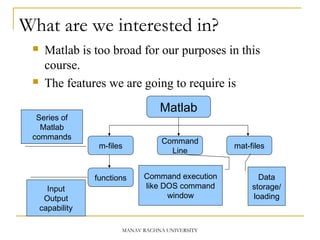
What are we interested in?
 Matlab is too broad for our purposes in this
course.
 The features we are going to require is
Matlab
Command
Line
m-files
functions
mat-files
Command execution
like DOS command
window
Series of
Matlab
commands
Input
Output
capability
Data
storage/
loading
MANAV RACHNA UNIVERSITY
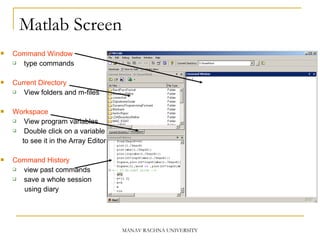
Matlab Screen
 Command Window
 type commands
 Current Directory
 View folders and m-files
 Workspace
 View program variables
 Double click on a variable
to see it in the Array Editor
 Command History
 view past commands
 save a whole session
using diary
MANAV RACHNA UNIVERSITY
Variables
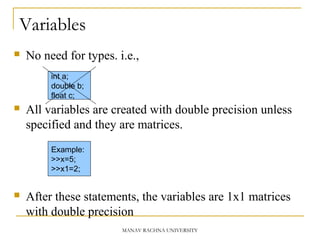
 No need for types. i.e.,
 All variables are created with double precision unless
specified and they are matrices.
 After these statements, the variables are 1x1 matrices
with double precision
int a;
double b;
float c;
Example:
>>x=5;
>>x1=2;
MANAV RACHNA UNIVERSITY
The MATLAB Interface
MANAV RACHNA UNIVERSITY
 Pressing the up arrow in the command window will
bring up the last command entered.
 This saves you time when things go wrong.
 If you want to bring up a command from some time
in the past type the first letter and press the up
arrow.
 The current working directory should be set to a
directory of your own.
8
MANAV RACHNA UNIVERSITY
Using MATLAB as a calculator
 Let’s start at the very beginning. For example,
suppose we want to calculate the expression, 1 + 2 ×
3. We type it at the prompt command (>>) as follows
 >> 1+2*3
 ans = 7
Using MATLAB as a calculator
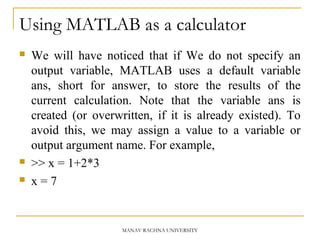
 We will have noticed that if We do not specify an
output variable, MATLAB uses a default variable
ans, short for answer, to store the results of the
current calculation. Note that the variable ans is
created (or overwritten, if it is already existed). To
avoid this, we may assign a value to a variable or
output argument name. For example,
 >> x = 1+2*3
 x = 7
MANAV RACHNA UNIVERSITY
Using MATLAB as a calculator
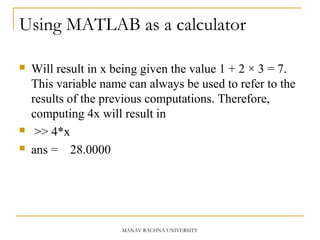
 Will result in x being given the value 1 + 2 × 3 = 7.
This variable name can always be used to refer to the
results of the previous computations. Therefore,
computing 4x will result in
 >> 4*x
 ans = 28.0000
MANAV RACHNA UNIVERSITY
Creating MATLAB variables
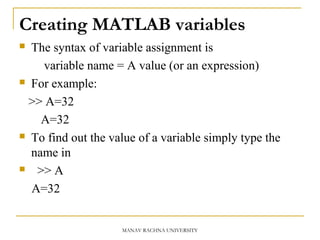
 The syntax of variable assignment is
variable name = A value (or an expression)
 For example:
>> A=32
A=32
 To find out the value of a variable simply type the
name in
 >> A
A=32
MANAV RACHNA UNIVERSITY
Creating MATLAB variables
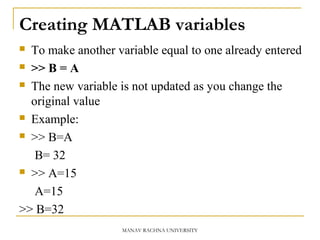
 To make another variable equal to one already entered
 >> B = A
 The new variable is not updated as you change the
original value
 Example:
 >> B=A
B= 32
 >> A=15
A=15
>> B=32
MANAV RACHNA UNIVERSITY
Creating MATLAB variables
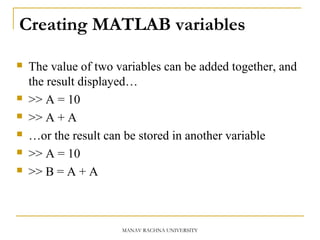
 The value of two variables can be added together, and
the result displayed…
 >> A = 10
 >> A + A
 …or the result can be stored in another variable
 >> A = 10
 >> B = A + A
MANAV RACHNA UNIVERSITY
Creating MATLAB variables
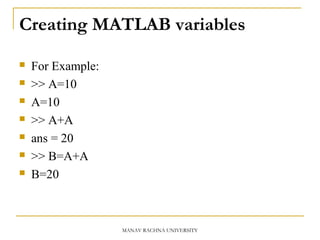
 For Example:
 >> A=10
 A=10
 >> A+A
 ans = 20
 >> B=A+A
 B=20
MANAV RACHNA UNIVERSITY
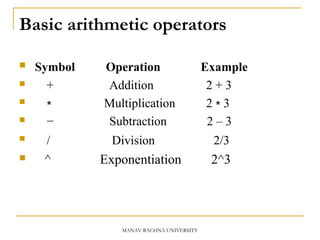
Basic arithmetic operators
 Symbol Operation Example
 + Addition 2 + 3
 ∗ Multiplication 2 3∗
 − Subtraction 2 – 3
 / Division 2/3
 ^ Exponentiation 2^3
MANAV RACHNA UNIVERSITY
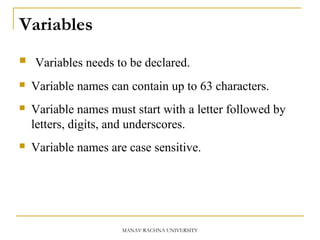
Variables
 Variables needs to be declared.
 Variable names can contain up to 63 characters.
 Variable names must start with a letter followed by
letters, digits, and underscores.
 Variable names are case sensitive.
MANAV RACHNA UNIVERSITY
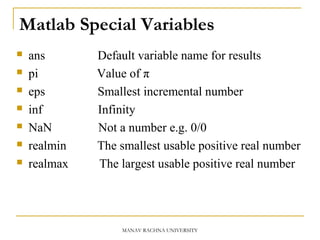
Matlab Special Variables
 ans Default variable name for results
 pi Value of π
 eps Smallest incremental number
 inf Infinity
 NaN Not a number e.g. 0/0
 realmin The smallest usable positive real number
 realmax The largest usable positive real number
MANAV RACHNA UNIVERSITY
Overwriting variable
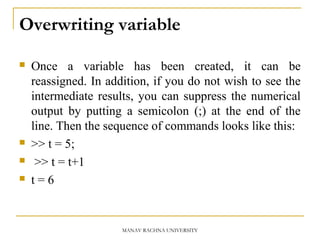
 Once a variable has been created, it can be
reassigned. In addition, if you do not wish to see the
intermediate results, you can suppress the numerical
output by putting a semicolon (;) at the end of the
line. Then the sequence of commands looks like this:
 >> t = 5;
 >> t = t+1
 t = 6
MANAV RACHNA UNIVERSITY
Error messages
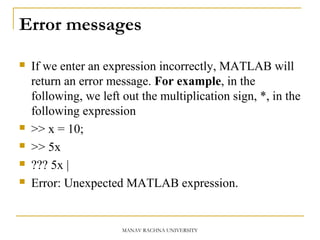
 If we enter an expression incorrectly, MATLAB will
return an error message. For example, in the
following, we left out the multiplication sign, *, in the
following expression
 >> x = 10;
 >> 5x
 ??? 5x |
 Error: Unexpected MATLAB expression.
MANAV RACHNA UNIVERSITY
Making corrections
 A previously typed command can be recalled with the
up-arrow key ↑. When the command is displayed at
the command prompt, it can be modified if needed
and executed.
MANAV RACHNA UNIVERSITY
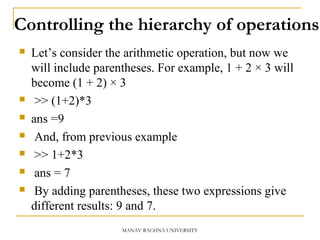
Controlling the hierarchy of operations
 Let’s consider the arithmetic operation, but now we
will include parentheses. For example, 1 + 2 × 3 will
become (1 + 2) × 3
 >> (1+2)*3
 ans =9
 And, from previous example
 >> 1+2*3
 ans = 7
 By adding parentheses, these two expressions give
different results: 9 and 7.
MANAV RACHNA UNIVERSITY
 The order in which MATLAB performs arithmetic
operations is exactly that taught in high school
algebra courses.
MANAV RACHNA UNIVERSITY
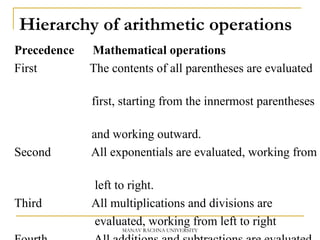
Hierarchy of arithmetic operations
Precedence Mathematical operations
First The contents of all parentheses are evaluated
first, starting from the innermost parentheses
and working outward.
Second All exponentials are evaluated, working from
left to right.
Third All multiplications and divisions are
evaluated, working from left to right
MANAV RACHNA UNIVERSITY
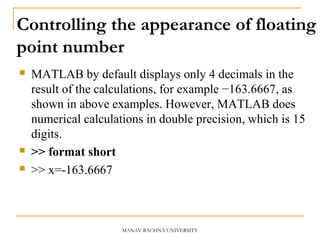
Controlling the appearance of floating
point number
 MATLAB by default displays only 4 decimals in the
result of the calculations, for example −163.6667, as
shown in above examples. However, MATLAB does
numerical calculations in double precision, which is 15
digits.
 >> format short
 >> x=-163.6667
MANAV RACHNA UNIVERSITY
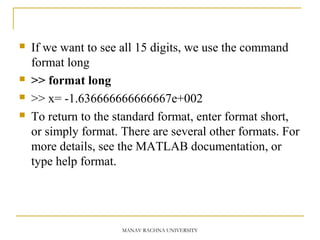
 If we want to see all 15 digits, we use the command
format long
 >> format long
 >> x= -1.636666666666667e+002
 To return to the standard format, enter format short,
or simply format. There are several other formats. For
more details, see the MATLAB documentation, or
type help format.
MANAV RACHNA UNIVERSITY
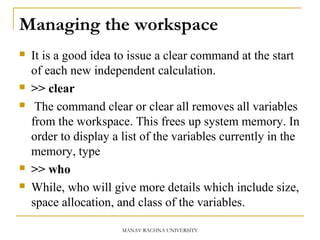
Managing the workspace
 It is a good idea to issue a clear command at the start
of each new independent calculation.
 >> clear
 The command clear or clear all removes all variables
from the workspace. This frees up system memory. In
order to display a list of the variables currently in the
memory, type
 >> who
 While, who will give more details which include size,
space allocation, and class of the variables.
MANAV RACHNA UNIVERSITY
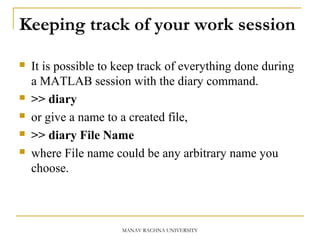
Keeping track of your work session
 It is possible to keep track of everything done during
a MATLAB session with the diary command.
 >> diary
 or give a name to a created file,
 >> diary File Name
 where File name could be any arbitrary name you
choose.
MANAV RACHNA UNIVERSITY
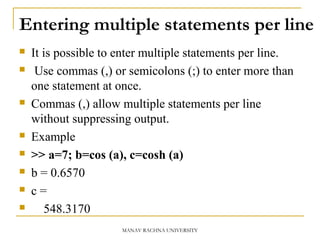
Entering multiple statements per line
 It is possible to enter multiple statements per line.
 Use commas (,) or semicolons (;) to enter more than
one statement at once.
 Commas (,) allow multiple statements per line
without suppressing output.
 Example
 >> a=7; b=cos (a), c=cosh (a)
 b = 0.6570
 c =
 548.3170
MANAV RACHNA UNIVERSITY
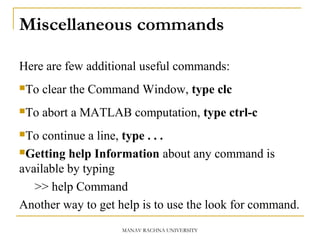
Miscellaneous commands
Here are few additional useful commands:
To clear the Command Window, type clc
To abort a MATLAB computation, type ctrl-c
To continue a line, type . . .
Getting help Information about any command is
available by typing
>> help Command
Another way to get help is to use the look for command.
MANAV RACHNA UNIVERSITY
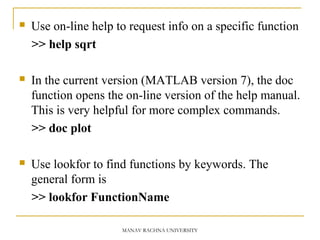
 Use on-line help to request info on a specific function
>> help sqrt
 In the current version (MATLAB version 7), the doc
function opens the on-line version of the help manual.
This is very helpful for more complex commands.
>> doc plot
 Use lookfor to find functions by keywords. The
general form is
>> lookfor FunctionName
MANAV RACHNA UNIVERSITY
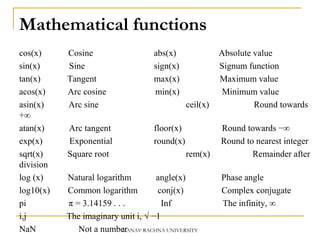
Mathematical functions
 cos(x) Cosine abs(x) Absolute value
sin(x) Sine sign(x) Signum function
tan(x) Tangent max(x) Maximum value
acos(x) Arc cosine min(x) Minimum value
asin(x) Arc sine ceil(x) Round towards
+∞
atan(x) Arc tangent floor(x) Round towards −∞
exp(x) Exponential round(x) Round to nearest integer
sqrt(x) Square root rem(x) Remainder after
division
log (x) Natural logarithm angle(x) Phase angle
log10(x) Common logarithm conj(x) Complex conjugate
pi π = 3.14159 . . . Inf The infinity, ∞
i,j The imaginary unit i, √ −1
NaN Not a numberMANAV RACHNA UNIVERSITY
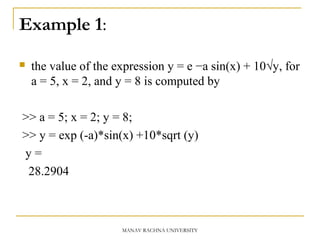
Example 1:
 the value of the expression y = e −a sin(x) + 10√y, for
a = 5, x = 2, and y = 8 is computed by
>> a = 5; x = 2; y = 8;
>> y = exp (-a)*sin(x) +10*sqrt (y)
y =
28.2904
MANAV RACHNA UNIVERSITY
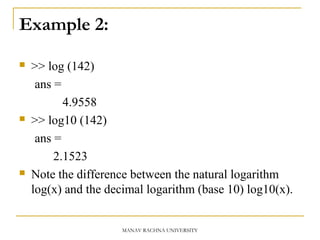
Example 2:
 >> log (142)
ans =
4.9558
 >> log10 (142)
ans =
2.1523
 Note the difference between the natural logarithm
log(x) and the decimal logarithm (base 10) log10(x).
MANAV RACHNA UNIVERSITY
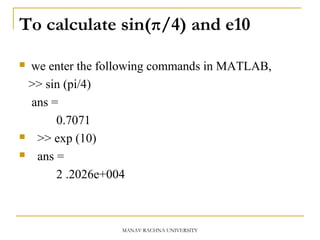
To calculate sin(π/4) and e10
 we enter the following commands in MATLAB,
>> sin (pi/4)
ans =
0.7071
 >> exp (10)
 ans =
2 .2026e+004
MANAV RACHNA UNIVERSITY
Matrix
MANAV RACHNA UNIVERSITY
Array, Matrix
 Entering a vector: An array of dimension 1 ×n is
called a row vector, whereas an array of
dimension m × 1 is called a column vector. The
elements of vectors in MATLAB are enclosed by
square brackets and are separated by spaces or by
commas. For example, to enter a row vector, x,
type
A = [1 2 5 1]
A =
1 2 5 1
MANAV RACHNA UNIVERSITY
 Column vectors are created in a similar way, however,
semicolon (;) must separate the components of a
column vector,
B = [1; 5; 3]
B =
1
5
3
 Entering a matrix: A matrix can be created in Matlab
as follows (note the commas AND semicolons):
>> matrix = [1 2 3 ; 4 5 6 ; 7 8 9]
matrix =
1 2 3
4 5 6
7 8 9
MANAV RACHNA UNIVERSITY
Transpose of a Matrix
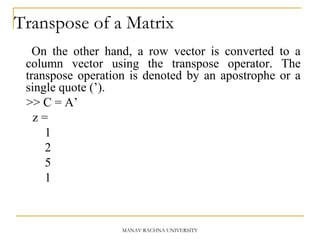
On the other hand, a row vector is converted to a
column vector using the transpose operator. The
transpose operation is denoted by an apostrophe or a
single quote (’).
>> C = A’
z =
1
2
5
1
MANAV RACHNA UNIVERSITY
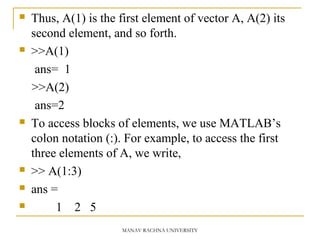
 Thus, A(1) is the first element of vector A, A(2) its
second element, and so forth.
 >>A(1)
ans= 1
>>A(2)
ans=2
 To access blocks of elements, we use MATLAB’s
colon notation (:). For example, to access the first
three elements of A, we write,
 >> A(1:3)
 ans =
 1 2 5
MANAV RACHNA UNIVERSITY
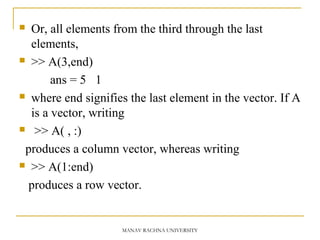
 Or, all elements from the third through the last
elements,
 >> A(3,end)
ans = 5 1
 where end signifies the last element in the vector. If A
is a vector, writing
 >> A( , :)
produces a column vector, whereas writing
 >> A(1:end)
produces a row vector.
MANAV RACHNA UNIVERSITY
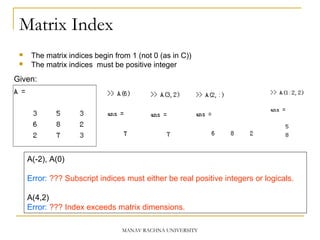
Matrix Index
 The matrix indices begin from 1 (not 0 (as in C))
 The matrix indices must be positive integer
Given:
A(-2), A(0)
Error: ??? Subscript indices must either be real positive integers or logicals.
A(4,2)
Error: ??? Index exceeds matrix dimensions.
MANAV RACHNA UNIVERSITY
Long Array, Matrix
 Creating a vector with constant spacing by
specifying the first term, the spacing, and the last
name.
Variable_name=[m:q:n] or Variable_name = m:q:n
>> t =1:10
t =
1 2 3 4 5 6 7 8 9 10
>>k =2:-0.5:-1
k =
2 1.5 1 0.5 0 -0.5 -1
MANAV RACHNA UNIVERSITY
 B = [1:4; 5:8]
B =
1 2 3 4
5 6 7 8
 Creating a vector with constant spacing by specifying
the first term, and last terms, and the number of terms.
 Variable_name=linspace (xi,xe,n)
>> va=linspace(0,8,6)
Va=
0 16 3.2 4.8 6.4 8
MANAV RACHNA UNIVERSITY
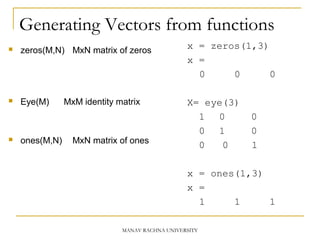
Generating Vectors from functions
 zeros(M,N) MxN matrix of zeros
 Eye(M) MxM identity matrix
 ones(M,N) MxN matrix of ones
x = zeros(1,3)
x =
0 0 0
X= eye(3)
1 0 0
0 1 0
0 0 1
x = ones(1,3)
x =
1 1 1
MANAV RACHNA UNIVERSITY
Concatenation of Matrices
 x = [1 2], y = [4 5], z=[ 0 0]
A = [ x y]
1 2 4 5
B = [x ; y]
1 2
4 5
C = [x y ;z]
Error:
??? Error using ==> vertcat CAT arguments dimensions are not consistent.
MANAV RACHNA UNIVERSITY
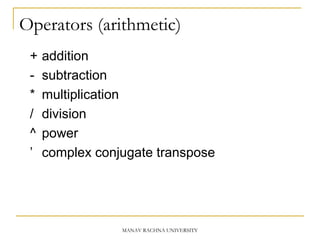
Operators (arithmetic)
+ addition
- subtraction
* multiplication
/ division
^ power
’ complex conjugate transpose
MANAV RACHNA UNIVERSITY
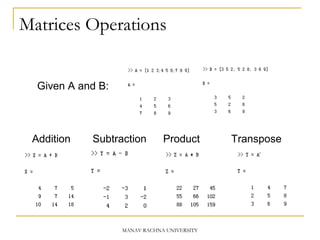
Matrices Operations
Given A and B:
Addition Subtraction Product Transpose
MANAV RACHNA UNIVERSITY
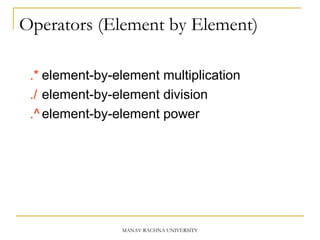
Operators (Element by Element)
.* element-by-element multiplication
./ element-by-element division
.^ element-by-element power
MANAV RACHNA UNIVERSITY
The use of “.” – “Element” Operation
K= x^2
Erorr:
??? Error using ==> mpower Matrix must be square.
B=x*y
Erorr:
??? Error using ==> mtimes Inner matrix dimensions must agree.
A = [1 2 3; 5 1 4; 3 2 1]
A =
1 2 3
5 1 4
3 2 -1
y = A(3 ,:)
y=
3 4 -1
b = x .* y
b=
3 8 -3
c = x . / y
c=
0.33 0.5 -3
d = x .^2
d=
1 4 9
x = A(1,:)
x=
1 2 3
MANAV RACHNA UNIVERSITY
Some matrix functions in Matlab
X = ones(r,c) % Creates matrix full with ones
X = zeros(r,c) % Creates matrix full with zeros
A = diag(x) % Creates squared matrix with
vector x in diagonal
[r,c] = size(A) % Return dimensions of matrix A
+ - * / % Standard operations
.+ .- .* ./ % Wise addition, substraction,…
v = sum(A) % Vector with sum of columns
MANAV RACHNA UNIVERSITY
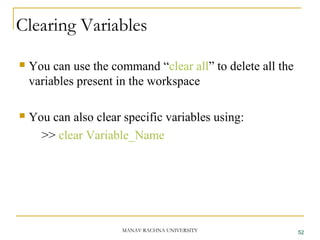
Clearing Variables
 You can use the command “clear all” to delete all the
variables present in the workspace
 You can also clear specific variables using:
>> clear Variable_Name
52MANAV RACHNA UNIVERSITY
Thank You…
MANAV RACHNA UNIVERSITY

Introduction to Matlab

  • 1.
  • 2.
    Outline:  What isMatlab?  Matlab Screen  Variables, array, matrix, indexing  Operators (Arithmetic, relational, logical )  Display Facilities  Using operators  Using Functions  Creating Plots MANAV RACHNA UNIVERSITY
  • 3.
    What is Matlab? Matlab is basically a high level language which has many specialized toolboxes for making things easier for us.  Matlab stands for Matrix Laboratory.  MATLAB provides a language and environment for numerical computation, data analysis, visualisation and algorithm development. MANAV RACHNA UNIVERSITY
  • 4.
     MATLAB providesfunctions that operate on  Integer, real and complex numbers  Vectors and matrices  Structures 4MANAV RACHNA UNIVERSITY
  • 5.
    What are weinterested in?  Matlab is too broad for our purposes in this course.  The features we are going to require is Matlab Command Line m-files functions mat-files Command execution like DOS command window Series of Matlab commands Input Output capability Data storage/ loading MANAV RACHNA UNIVERSITY
  • 6.
    Matlab Screen  CommandWindow  type commands  Current Directory  View folders and m-files  Workspace  View program variables  Double click on a variable to see it in the Array Editor  Command History  view past commands  save a whole session using diary MANAV RACHNA UNIVERSITY
  • 7.
    Variables  No needfor types. i.e.,  All variables are created with double precision unless specified and they are matrices.  After these statements, the variables are 1x1 matrices with double precision int a; double b; float c; Example: >>x=5; >>x1=2; MANAV RACHNA UNIVERSITY
  • 8.
    The MATLAB Interface MANAVRACHNA UNIVERSITY  Pressing the up arrow in the command window will bring up the last command entered.  This saves you time when things go wrong.  If you want to bring up a command from some time in the past type the first letter and press the up arrow.  The current working directory should be set to a directory of your own. 8
  • 9.
    MANAV RACHNA UNIVERSITY UsingMATLAB as a calculator  Let’s start at the very beginning. For example, suppose we want to calculate the expression, 1 + 2 × 3. We type it at the prompt command (>>) as follows  >> 1+2*3  ans = 7
  • 10.
    Using MATLAB asa calculator  We will have noticed that if We do not specify an output variable, MATLAB uses a default variable ans, short for answer, to store the results of the current calculation. Note that the variable ans is created (or overwritten, if it is already existed). To avoid this, we may assign a value to a variable or output argument name. For example,  >> x = 1+2*3  x = 7 MANAV RACHNA UNIVERSITY
  • 11.
    Using MATLAB asa calculator  Will result in x being given the value 1 + 2 × 3 = 7. This variable name can always be used to refer to the results of the previous computations. Therefore, computing 4x will result in  >> 4*x  ans = 28.0000 MANAV RACHNA UNIVERSITY
  • 12.
    Creating MATLAB variables The syntax of variable assignment is variable name = A value (or an expression)  For example: >> A=32 A=32  To find out the value of a variable simply type the name in  >> A A=32 MANAV RACHNA UNIVERSITY
  • 13.
    Creating MATLAB variables To make another variable equal to one already entered  >> B = A  The new variable is not updated as you change the original value  Example:  >> B=A B= 32  >> A=15 A=15 >> B=32 MANAV RACHNA UNIVERSITY
  • 14.
    Creating MATLAB variables The value of two variables can be added together, and the result displayed…  >> A = 10  >> A + A  …or the result can be stored in another variable  >> A = 10  >> B = A + A MANAV RACHNA UNIVERSITY
  • 15.
    Creating MATLAB variables For Example:  >> A=10  A=10  >> A+A  ans = 20  >> B=A+A  B=20 MANAV RACHNA UNIVERSITY
  • 16.
    Basic arithmetic operators Symbol Operation Example  + Addition 2 + 3  ∗ Multiplication 2 3∗  − Subtraction 2 – 3  / Division 2/3  ^ Exponentiation 2^3 MANAV RACHNA UNIVERSITY
  • 17.
    Variables  Variables needsto be declared.  Variable names can contain up to 63 characters.  Variable names must start with a letter followed by letters, digits, and underscores.  Variable names are case sensitive. MANAV RACHNA UNIVERSITY
  • 18.
    Matlab Special Variables ans Default variable name for results  pi Value of π  eps Smallest incremental number  inf Infinity  NaN Not a number e.g. 0/0  realmin The smallest usable positive real number  realmax The largest usable positive real number MANAV RACHNA UNIVERSITY
  • 19.
    Overwriting variable  Oncea variable has been created, it can be reassigned. In addition, if you do not wish to see the intermediate results, you can suppress the numerical output by putting a semicolon (;) at the end of the line. Then the sequence of commands looks like this:  >> t = 5;  >> t = t+1  t = 6 MANAV RACHNA UNIVERSITY
  • 20.
    Error messages  Ifwe enter an expression incorrectly, MATLAB will return an error message. For example, in the following, we left out the multiplication sign, *, in the following expression  >> x = 10;  >> 5x  ??? 5x |  Error: Unexpected MATLAB expression. MANAV RACHNA UNIVERSITY
  • 21.
    Making corrections  Apreviously typed command can be recalled with the up-arrow key ↑. When the command is displayed at the command prompt, it can be modified if needed and executed. MANAV RACHNA UNIVERSITY
  • 22.
    Controlling the hierarchyof operations  Let’s consider the arithmetic operation, but now we will include parentheses. For example, 1 + 2 × 3 will become (1 + 2) × 3  >> (1+2)*3  ans =9  And, from previous example  >> 1+2*3  ans = 7  By adding parentheses, these two expressions give different results: 9 and 7. MANAV RACHNA UNIVERSITY
  • 23.
     The orderin which MATLAB performs arithmetic operations is exactly that taught in high school algebra courses. MANAV RACHNA UNIVERSITY
  • 24.
    Hierarchy of arithmeticoperations Precedence Mathematical operations First The contents of all parentheses are evaluated first, starting from the innermost parentheses and working outward. Second All exponentials are evaluated, working from left to right. Third All multiplications and divisions are evaluated, working from left to right MANAV RACHNA UNIVERSITY
  • 25.
    Controlling the appearanceof floating point number  MATLAB by default displays only 4 decimals in the result of the calculations, for example −163.6667, as shown in above examples. However, MATLAB does numerical calculations in double precision, which is 15 digits.  >> format short  >> x=-163.6667 MANAV RACHNA UNIVERSITY
  • 26.
     If wewant to see all 15 digits, we use the command format long  >> format long  >> x= -1.636666666666667e+002  To return to the standard format, enter format short, or simply format. There are several other formats. For more details, see the MATLAB documentation, or type help format. MANAV RACHNA UNIVERSITY
  • 27.
    Managing the workspace It is a good idea to issue a clear command at the start of each new independent calculation.  >> clear  The command clear or clear all removes all variables from the workspace. This frees up system memory. In order to display a list of the variables currently in the memory, type  >> who  While, who will give more details which include size, space allocation, and class of the variables. MANAV RACHNA UNIVERSITY
  • 28.
    Keeping track ofyour work session  It is possible to keep track of everything done during a MATLAB session with the diary command.  >> diary  or give a name to a created file,  >> diary File Name  where File name could be any arbitrary name you choose. MANAV RACHNA UNIVERSITY
  • 29.
    Entering multiple statementsper line  It is possible to enter multiple statements per line.  Use commas (,) or semicolons (;) to enter more than one statement at once.  Commas (,) allow multiple statements per line without suppressing output.  Example  >> a=7; b=cos (a), c=cosh (a)  b = 0.6570  c =  548.3170 MANAV RACHNA UNIVERSITY
  • 30.
    Miscellaneous commands Here arefew additional useful commands: To clear the Command Window, type clc To abort a MATLAB computation, type ctrl-c To continue a line, type . . . Getting help Information about any command is available by typing >> help Command Another way to get help is to use the look for command. MANAV RACHNA UNIVERSITY
  • 31.
     Use on-linehelp to request info on a specific function >> help sqrt  In the current version (MATLAB version 7), the doc function opens the on-line version of the help manual. This is very helpful for more complex commands. >> doc plot  Use lookfor to find functions by keywords. The general form is >> lookfor FunctionName MANAV RACHNA UNIVERSITY
  • 32.
    Mathematical functions  cos(x) Cosineabs(x) Absolute value sin(x) Sine sign(x) Signum function tan(x) Tangent max(x) Maximum value acos(x) Arc cosine min(x) Minimum value asin(x) Arc sine ceil(x) Round towards +∞ atan(x) Arc tangent floor(x) Round towards −∞ exp(x) Exponential round(x) Round to nearest integer sqrt(x) Square root rem(x) Remainder after division log (x) Natural logarithm angle(x) Phase angle log10(x) Common logarithm conj(x) Complex conjugate pi π = 3.14159 . . . Inf The infinity, ∞ i,j The imaginary unit i, √ −1 NaN Not a numberMANAV RACHNA UNIVERSITY
  • 33.
    Example 1:  thevalue of the expression y = e −a sin(x) + 10√y, for a = 5, x = 2, and y = 8 is computed by >> a = 5; x = 2; y = 8; >> y = exp (-a)*sin(x) +10*sqrt (y) y = 28.2904 MANAV RACHNA UNIVERSITY
  • 34.
    Example 2:  >>log (142) ans = 4.9558  >> log10 (142) ans = 2.1523  Note the difference between the natural logarithm log(x) and the decimal logarithm (base 10) log10(x). MANAV RACHNA UNIVERSITY
  • 35.
    To calculate sin(π/4)and e10  we enter the following commands in MATLAB, >> sin (pi/4) ans = 0.7071  >> exp (10)  ans = 2 .2026e+004 MANAV RACHNA UNIVERSITY
  • 36.
  • 37.
    Array, Matrix  Enteringa vector: An array of dimension 1 ×n is called a row vector, whereas an array of dimension m × 1 is called a column vector. The elements of vectors in MATLAB are enclosed by square brackets and are separated by spaces or by commas. For example, to enter a row vector, x, type A = [1 2 5 1] A = 1 2 5 1 MANAV RACHNA UNIVERSITY
  • 38.
     Column vectorsare created in a similar way, however, semicolon (;) must separate the components of a column vector, B = [1; 5; 3] B = 1 5 3  Entering a matrix: A matrix can be created in Matlab as follows (note the commas AND semicolons): >> matrix = [1 2 3 ; 4 5 6 ; 7 8 9] matrix = 1 2 3 4 5 6 7 8 9 MANAV RACHNA UNIVERSITY
  • 39.
    Transpose of aMatrix On the other hand, a row vector is converted to a column vector using the transpose operator. The transpose operation is denoted by an apostrophe or a single quote (’). >> C = A’ z = 1 2 5 1 MANAV RACHNA UNIVERSITY
  • 40.
     Thus, A(1)is the first element of vector A, A(2) its second element, and so forth.  >>A(1) ans= 1 >>A(2) ans=2  To access blocks of elements, we use MATLAB’s colon notation (:). For example, to access the first three elements of A, we write,  >> A(1:3)  ans =  1 2 5 MANAV RACHNA UNIVERSITY
  • 41.
     Or, allelements from the third through the last elements,  >> A(3,end) ans = 5 1  where end signifies the last element in the vector. If A is a vector, writing  >> A( , :) produces a column vector, whereas writing  >> A(1:end) produces a row vector. MANAV RACHNA UNIVERSITY
  • 42.
    Matrix Index  Thematrix indices begin from 1 (not 0 (as in C))  The matrix indices must be positive integer Given: A(-2), A(0) Error: ??? Subscript indices must either be real positive integers or logicals. A(4,2) Error: ??? Index exceeds matrix dimensions. MANAV RACHNA UNIVERSITY
  • 43.
    Long Array, Matrix Creating a vector with constant spacing by specifying the first term, the spacing, and the last name. Variable_name=[m:q:n] or Variable_name = m:q:n >> t =1:10 t = 1 2 3 4 5 6 7 8 9 10 >>k =2:-0.5:-1 k = 2 1.5 1 0.5 0 -0.5 -1 MANAV RACHNA UNIVERSITY
  • 44.
     B =[1:4; 5:8] B = 1 2 3 4 5 6 7 8  Creating a vector with constant spacing by specifying the first term, and last terms, and the number of terms.  Variable_name=linspace (xi,xe,n) >> va=linspace(0,8,6) Va= 0 16 3.2 4.8 6.4 8 MANAV RACHNA UNIVERSITY
  • 45.
    Generating Vectors fromfunctions  zeros(M,N) MxN matrix of zeros  Eye(M) MxM identity matrix  ones(M,N) MxN matrix of ones x = zeros(1,3) x = 0 0 0 X= eye(3) 1 0 0 0 1 0 0 0 1 x = ones(1,3) x = 1 1 1 MANAV RACHNA UNIVERSITY
  • 46.
    Concatenation of Matrices x = [1 2], y = [4 5], z=[ 0 0] A = [ x y] 1 2 4 5 B = [x ; y] 1 2 4 5 C = [x y ;z] Error: ??? Error using ==> vertcat CAT arguments dimensions are not consistent. MANAV RACHNA UNIVERSITY
  • 47.
    Operators (arithmetic) + addition -subtraction * multiplication / division ^ power ’ complex conjugate transpose MANAV RACHNA UNIVERSITY
  • 48.
    Matrices Operations Given Aand B: Addition Subtraction Product Transpose MANAV RACHNA UNIVERSITY
  • 49.
    Operators (Element byElement) .* element-by-element multiplication ./ element-by-element division .^ element-by-element power MANAV RACHNA UNIVERSITY
  • 50.
    The use of“.” – “Element” Operation K= x^2 Erorr: ??? Error using ==> mpower Matrix must be square. B=x*y Erorr: ??? Error using ==> mtimes Inner matrix dimensions must agree. A = [1 2 3; 5 1 4; 3 2 1] A = 1 2 3 5 1 4 3 2 -1 y = A(3 ,:) y= 3 4 -1 b = x .* y b= 3 8 -3 c = x . / y c= 0.33 0.5 -3 d = x .^2 d= 1 4 9 x = A(1,:) x= 1 2 3 MANAV RACHNA UNIVERSITY
  • 51.
    Some matrix functionsin Matlab X = ones(r,c) % Creates matrix full with ones X = zeros(r,c) % Creates matrix full with zeros A = diag(x) % Creates squared matrix with vector x in diagonal [r,c] = size(A) % Return dimensions of matrix A + - * / % Standard operations .+ .- .* ./ % Wise addition, substraction,… v = sum(A) % Vector with sum of columns MANAV RACHNA UNIVERSITY
  • 52.
    Clearing Variables  Youcan use the command “clear all” to delete all the variables present in the workspace  You can also clear specific variables using: >> clear Variable_Name 52MANAV RACHNA UNIVERSITY
  • 53.

Editor's Notes

  • #9 If you enter a command slightly wrong you can press the up arrow to correct it, You can scroll through what is entered in the past by continuing to press up. You can type the first few letters of the command and press the up arrow to jump more quickly to a command.