1
1
Introduction to MATLAB
Lecture Series by CEPSTRUM
Presented by
Pratik Kotkar & Akash Baid
2
Topics..
 What is MATLAB ??
 Basic Matrix Operations
 Script Files and M-files
 Some more Operations and Functions
APPLICATIONS:
 Plotting functions ..
 Image Processing Basics ..
 Robotics Applications ..
 GUI Design and Programming
3
Topics..
 What is MATLAB ??
 Basic Matrix Operations
 Script Files and M-files
 Some more Operations and Functions
APPLICATIONS:
 Plotting functions ..
 Image Processing Basics ..
 Robotics Applications ..
 GUI Design and Programming
4
MATLAB
 MATLAB is a program for doing numerical
computation. It was originally designed for solving
linear algebra type problems using matrices. It’s
name is derived from MATrix LABoratory.
MATLAB has since been expanded and now has
built-in functions for solving problems requiring data
analysis, signal processing, optimization, and several
other types of scientific computations. It also
contains functions for 2-D and 3-D graphics and
animation.
5
MATLAB
Everything in MATLAB is a matrix !
6
MATLAB
 The MATLAB environment is command oriented
somewhat like UNIX. A prompt appears on the screen and
a MATLAB statement can be entered. When the <ENTER>
key is pressed, the statement is executed, and another
prompt appears.
 If a statement is terminated with a semicolon ( ; ), no
results will be displayed. Otherwise results will appear
before the next prompt.
7
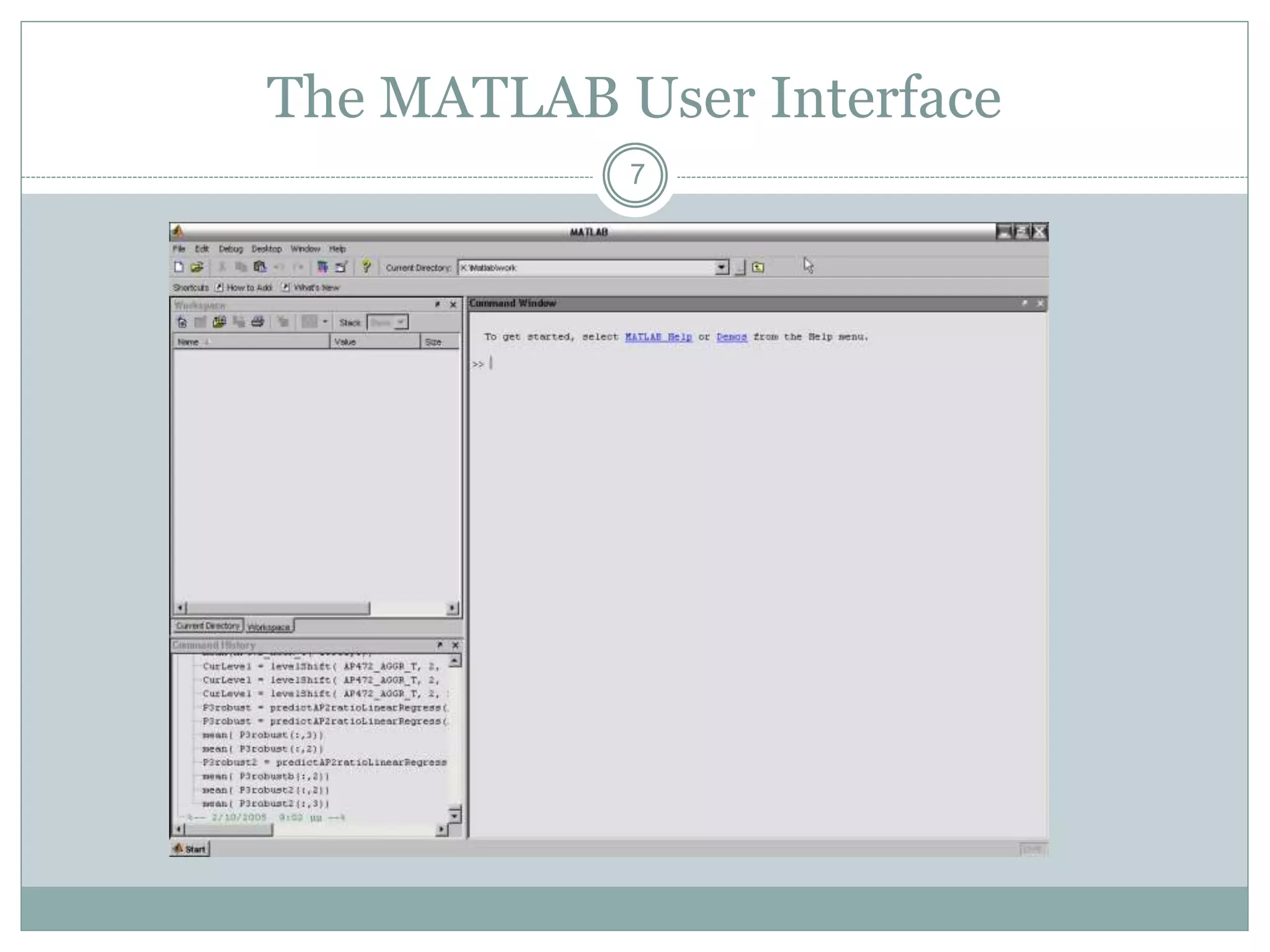
The MATLAB User Interface
8
MATLAB
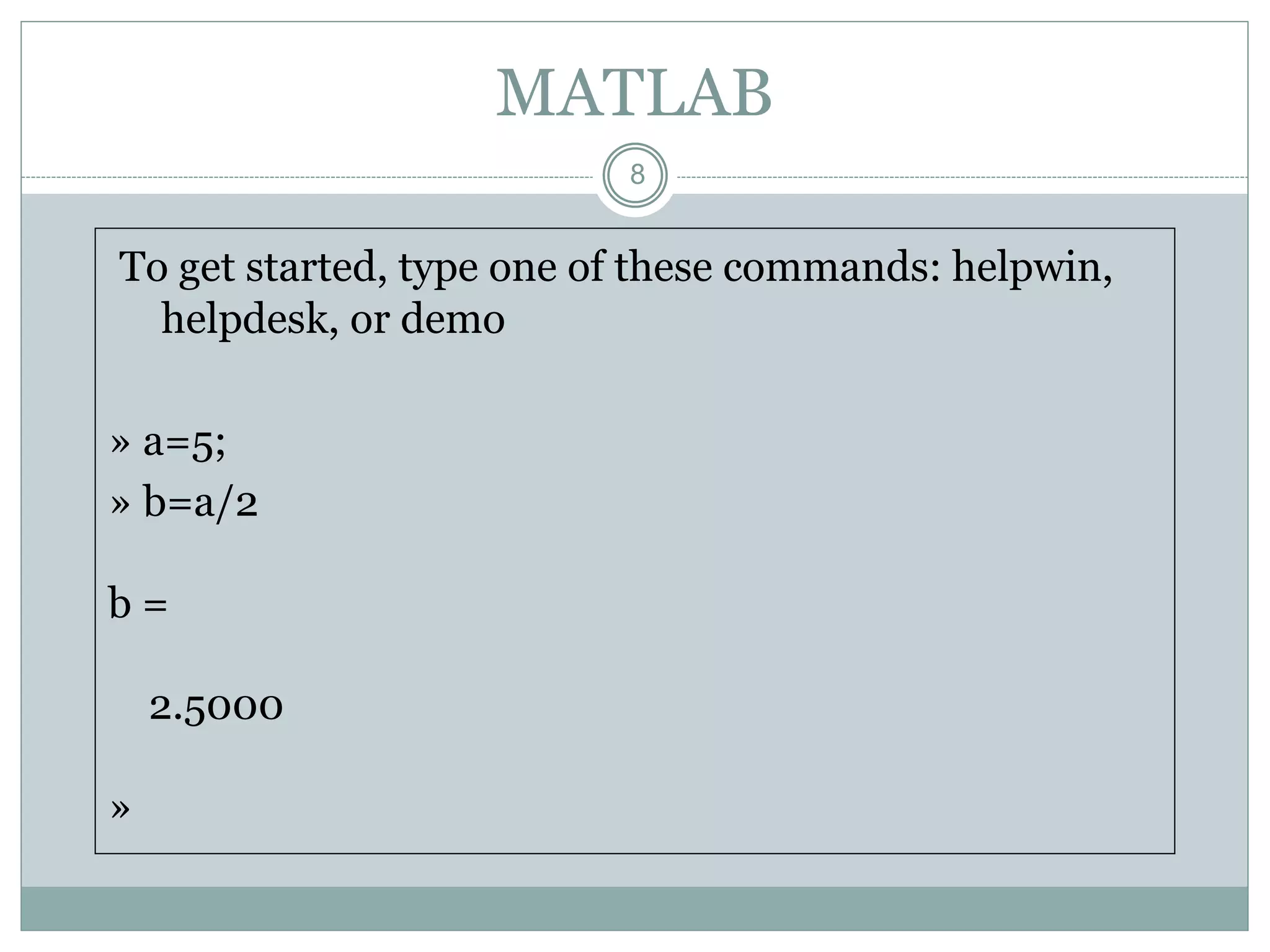
To get started, type one of these commands: helpwin,
helpdesk, or demo
» a=5;
» b=a/2
b =
2.5000
»
9
MATLAB Variable Names
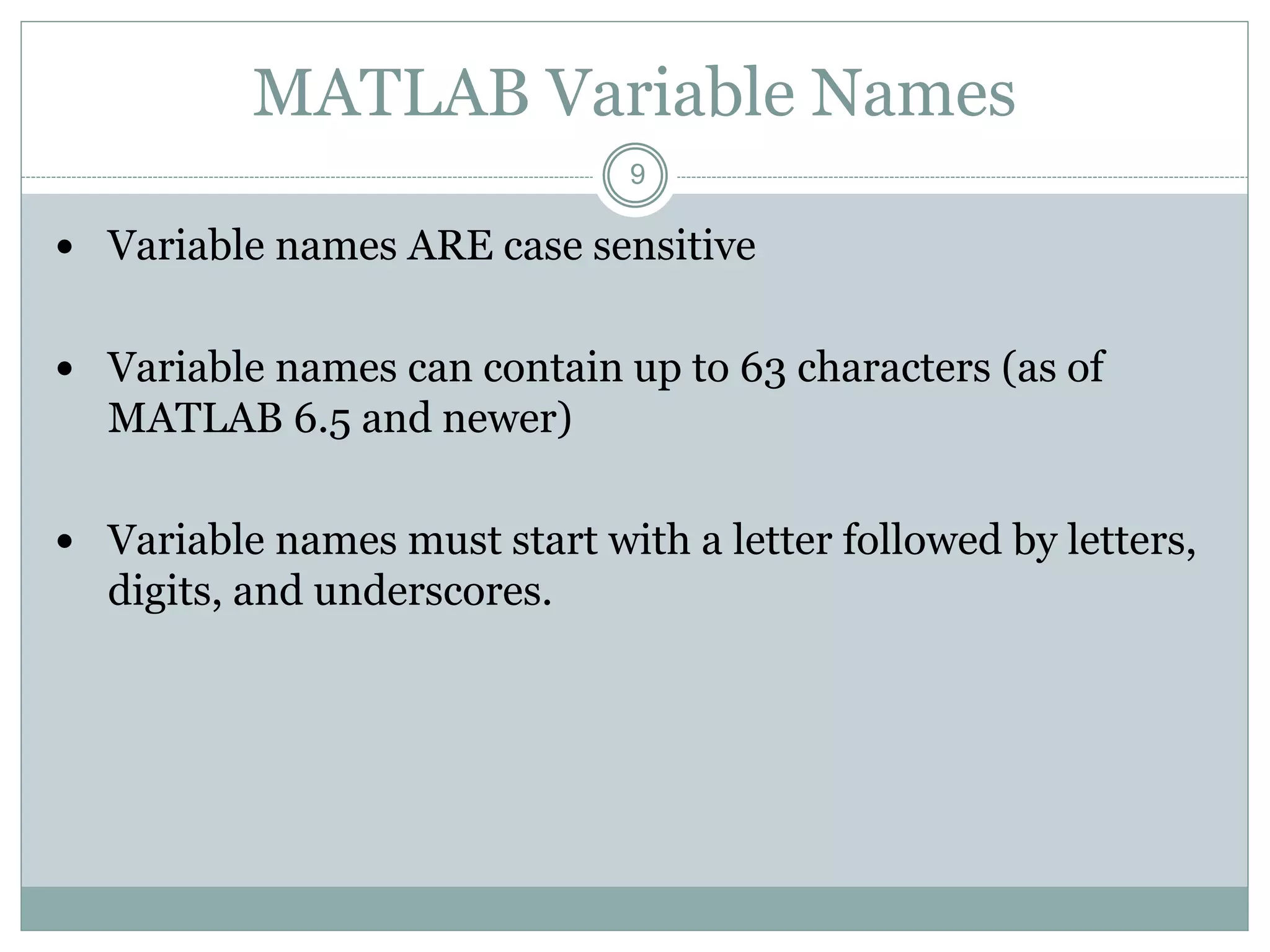
 Variable names ARE case sensitive
 Variable names can contain up to 63 characters (as of
MATLAB 6.5 and newer)
 Variable names must start with a letter followed by letters,
digits, and underscores.
10
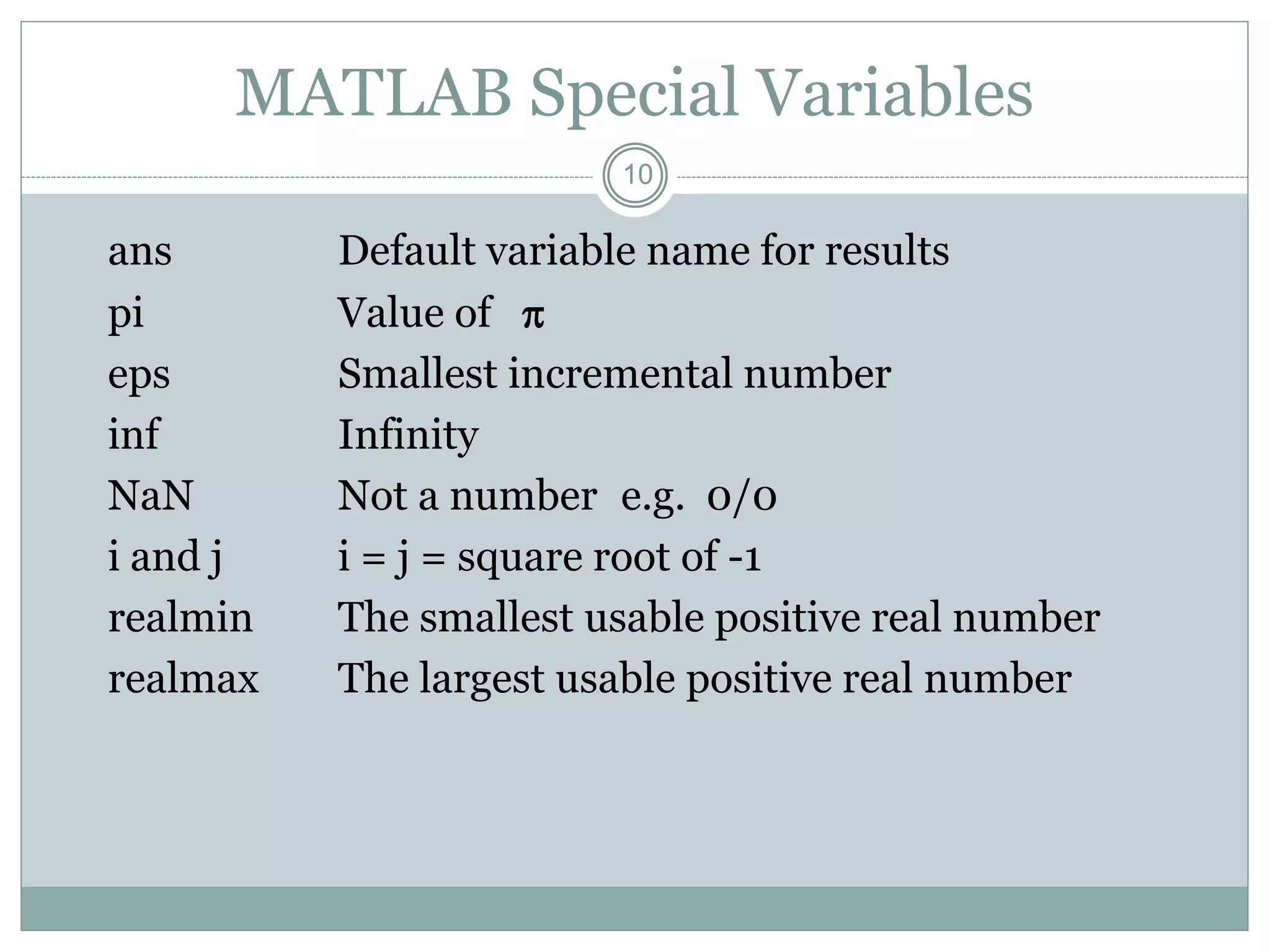
MATLAB Special Variables
ans Default variable name for results
pi Value of 
eps Smallest incremental number
inf Infinity
NaN Not a number e.g. 0/0
i and j i = j = square root of -1
realmin The smallest usable positive real number
realmax The largest usable positive real number
11
Topics..
 What is MATLAB ??
 Basic Matrix Operations
 Script Files and M-files
 Some more Operations and Functions
APPLICATIONS:
 Plotting functions ..
 Image Processing Basics ..
 Robotics Applications ..
 GUI Design and Programming
12
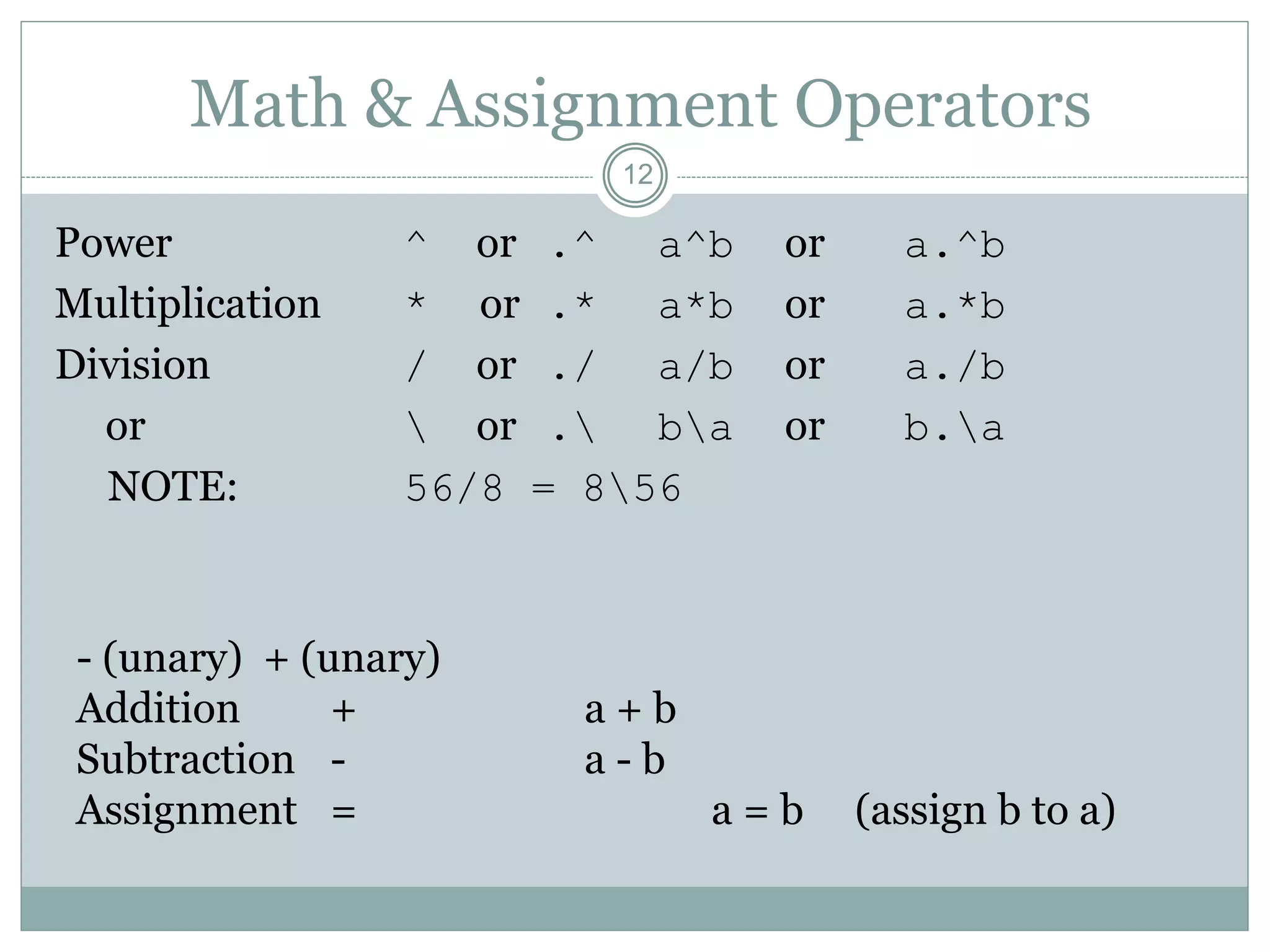
Math & Assignment Operators
Power ^ or .^ a^b or a.^b
Multiplication * or .* a*b or a.*b
Division / or ./ a/b or a./b
or  or . ba or b.a
NOTE: 56/8 = 856
- (unary) + (unary)
Addition + a + b
Subtraction - a - b
Assignment = a = b (assign b to a)
13
Other MATLAB symbols
>> prompt
. . . continue statement on next line
, separate statements and data
% start comment which ends at end of line
; (1) suppress output
(2) used as a row separator in a matrix
: specify range
14
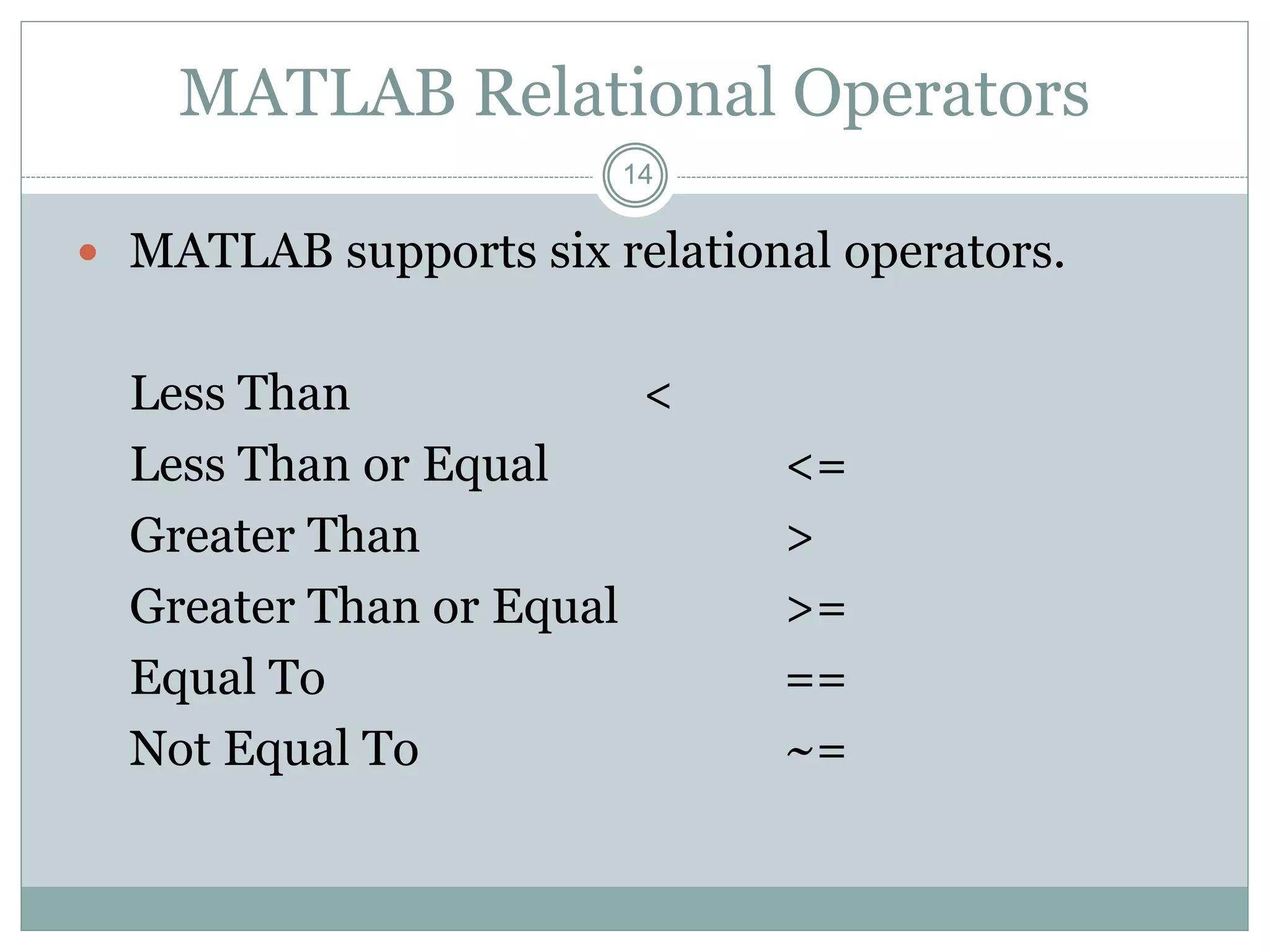
MATLAB Relational Operators
 MATLAB supports six relational operators.
Less Than <
Less Than or Equal <=
Greater Than >
Greater Than or Equal >=
Equal To ==
Not Equal To ~=
15
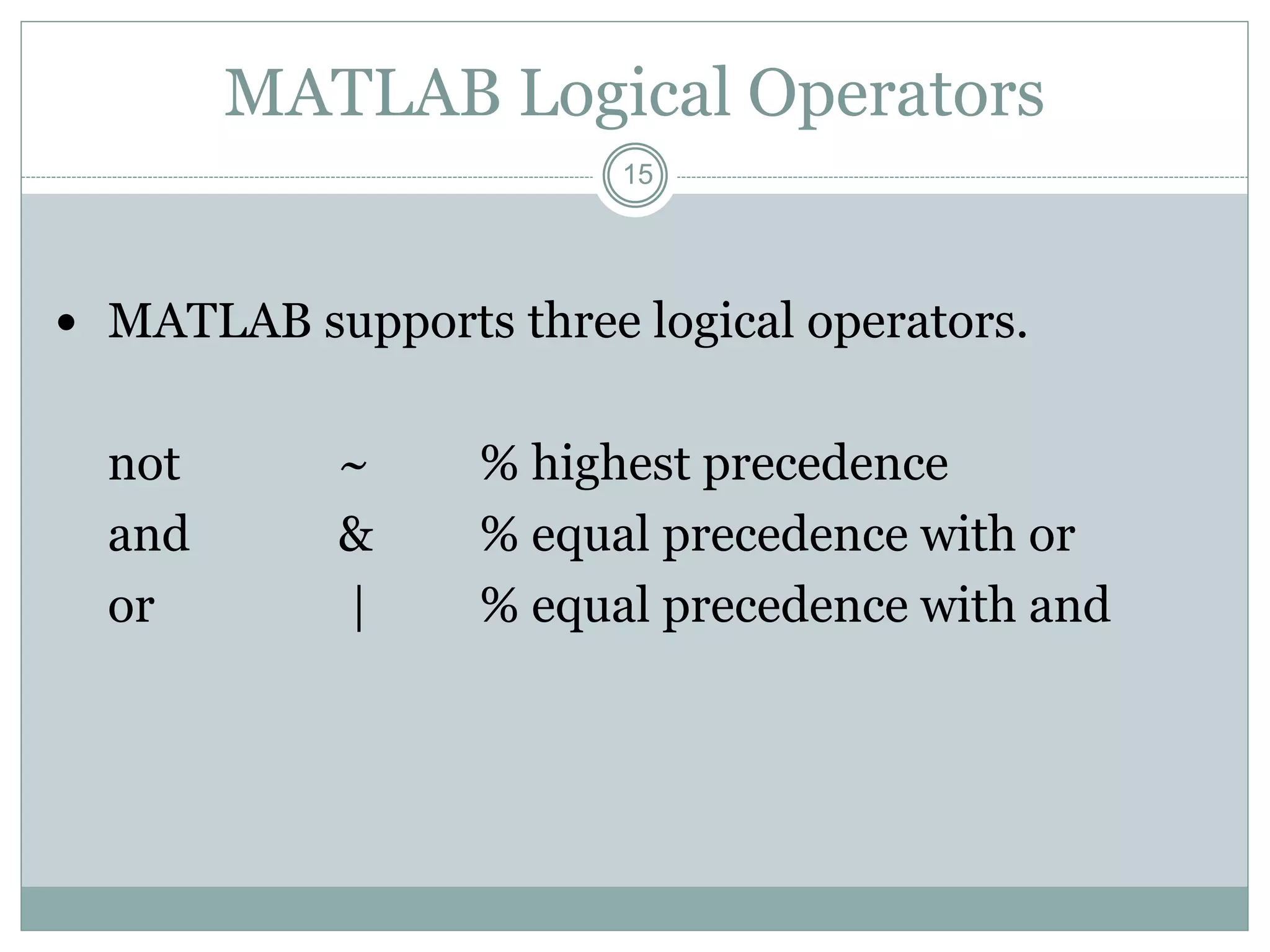
MATLAB Logical Operators
 MATLAB supports three logical operators.
not ~ % highest precedence
and & % equal precedence with or
or | % equal precedence with and
16
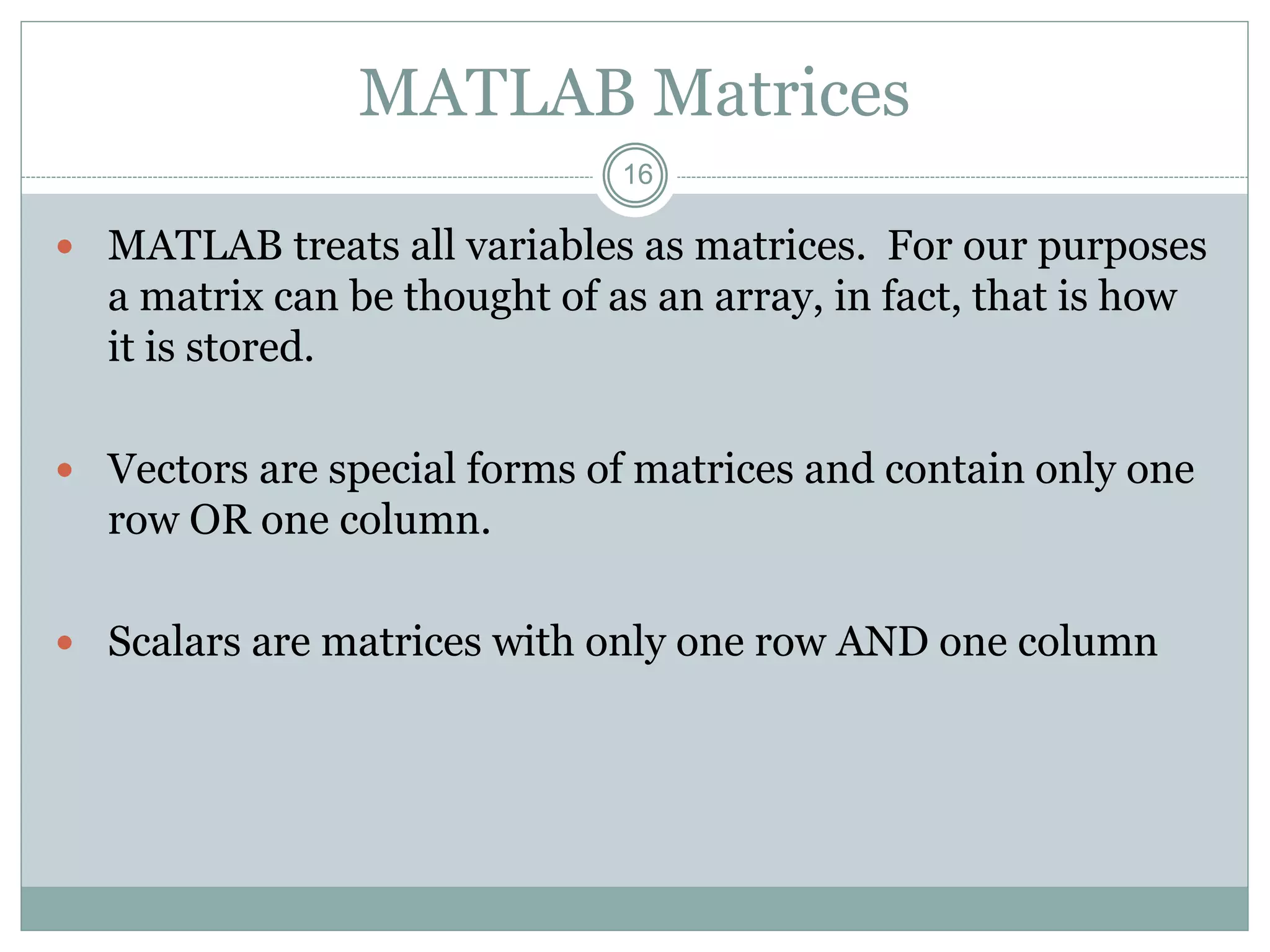
MATLAB Matrices
 MATLAB treats all variables as matrices. For our purposes
a matrix can be thought of as an array, in fact, that is how
it is stored.
 Vectors are special forms of matrices and contain only one
row OR one column.
 Scalars are matrices with only one row AND one column
17
MATLAB Matrices
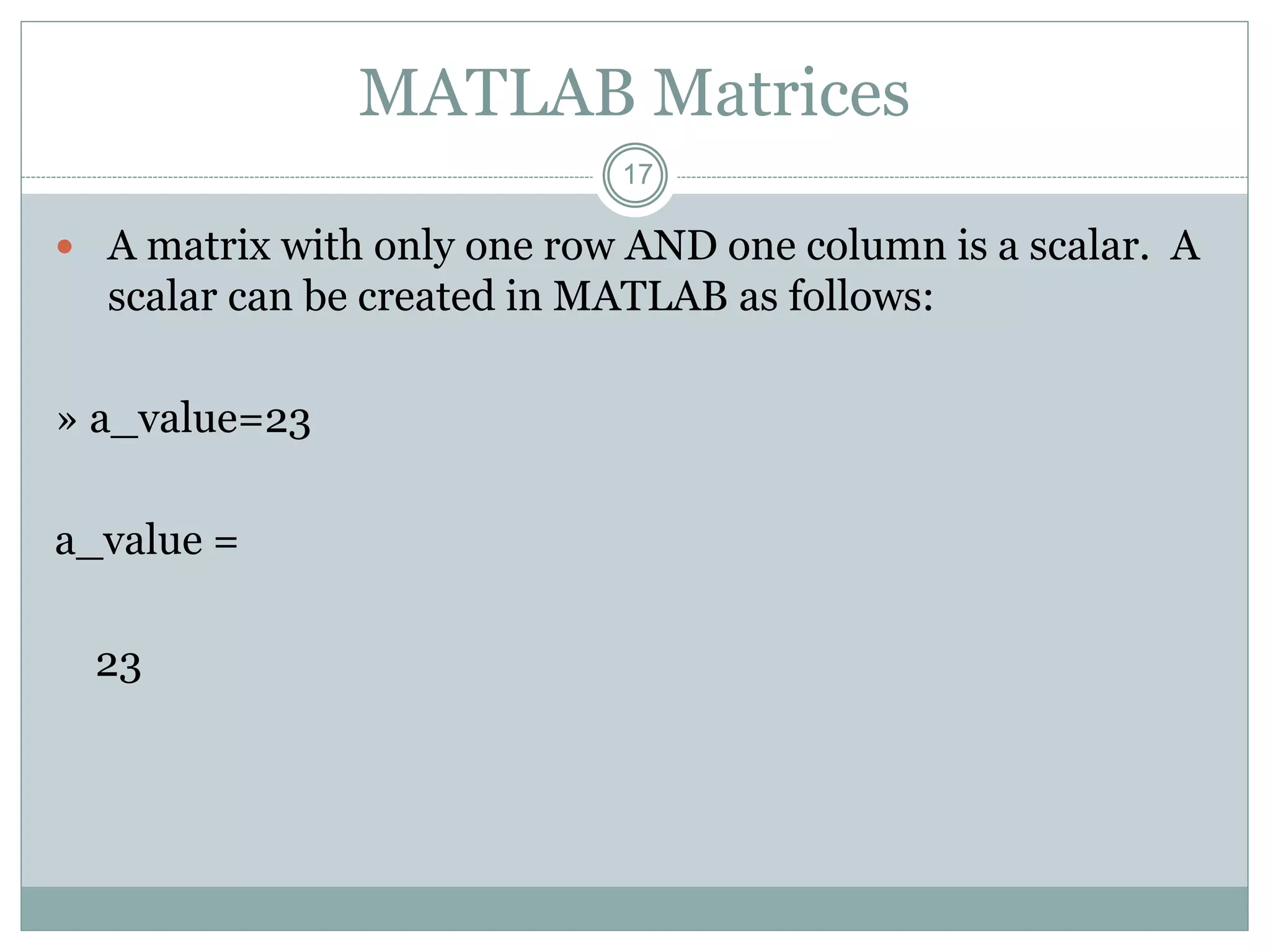
 A matrix with only one row AND one column is a scalar. A
scalar can be created in MATLAB as follows:
» a_value=23
a_value =
23
18
MATLAB Matrices
 A matrix with only one row is called a row vector. A row
vector can be created in MATLAB as follows (note the
commas):
» rowvec = [12 , 14 , 63]
rowvec =
12 14 63
19
MATLAB Matrices
 A matrix with only one column is called a column vector.
A column vector can be created in MATLAB as follows
(note the semicolons):
» colvec = [13 ; 45 ; -2]
colvec =
13
45
-2
20
MATLAB Matrices
 A matrix can be created in MATLAB as follows (note the
commas AND semicolons):
» matrix = [1 , 2 , 3 ; 4 , 5 ,6 ; 7 , 8 , 9]
matrix =
1 2 3
4 5 6
7 8 9
21
Extracting a Sub-Matrix
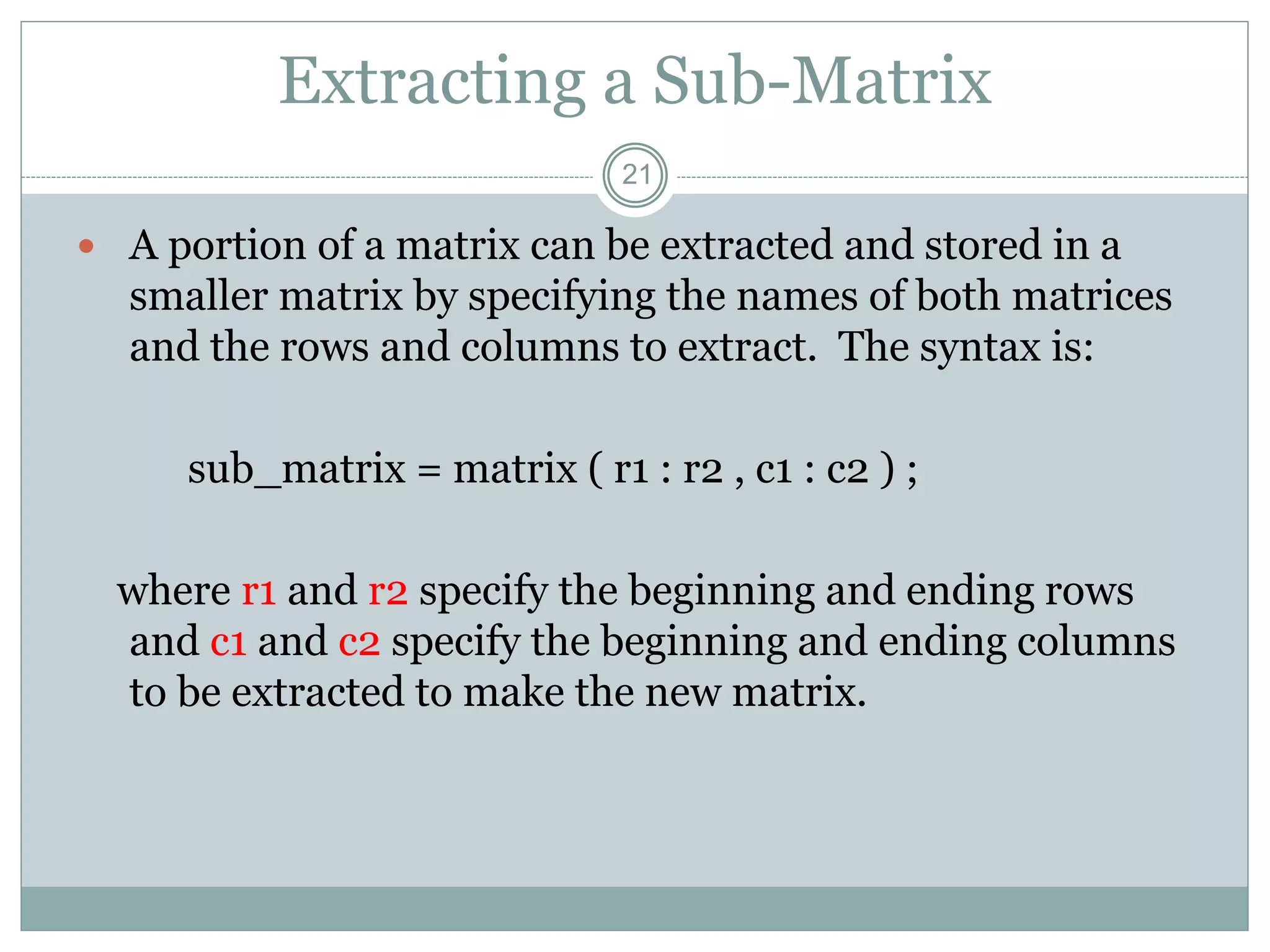
 A portion of a matrix can be extracted and stored in a
smaller matrix by specifying the names of both matrices
and the rows and columns to extract. The syntax is:
sub_matrix = matrix ( r1 : r2 , c1 : c2 ) ;
where r1 and r2 specify the beginning and ending rows
and c1 and c2 specify the beginning and ending columns
to be extracted to make the new matrix.
22
MATLAB Matrices
 A column vector can be
extracted from a matrix.
As an example we create a
matrix below:
» matrix=[1,2,3;4,5,6;7,8,9]
matrix =
1 2 3
4 5 6
7 8 9
 Here we extract column 2
of the matrix and make a
column vector:
» col_two=matrix( : , 2)
col_two =
2
5
8
23
MATLAB Matrices
 A row vector can be
extracted from a matrix.
As an example we create
a matrix below:
» matrix=[1,2,3;4,5,6;7,8,9]
matrix =
1 2 3
4 5 6
7 8 9
 Here we extract row 2 of
the matrix and make a
row vector. Note that
the 2:2 specifies the
second row and the 1:3
specifies which columns
of the row.
» rowvec=matrix(2 : 2 , 1 :
3)
rowvec =
4 5 6
24
Topics..
 What is MATLAB ??
 Basic Matrix Operations
 Script Files and M-files
 Some more Operations and Functions
APPLICATIONS:
 Plotting functions ..
 Image Processing Basics ..
 Robotics Applications ..
 GUI Design and Programming
25
Use of M-File
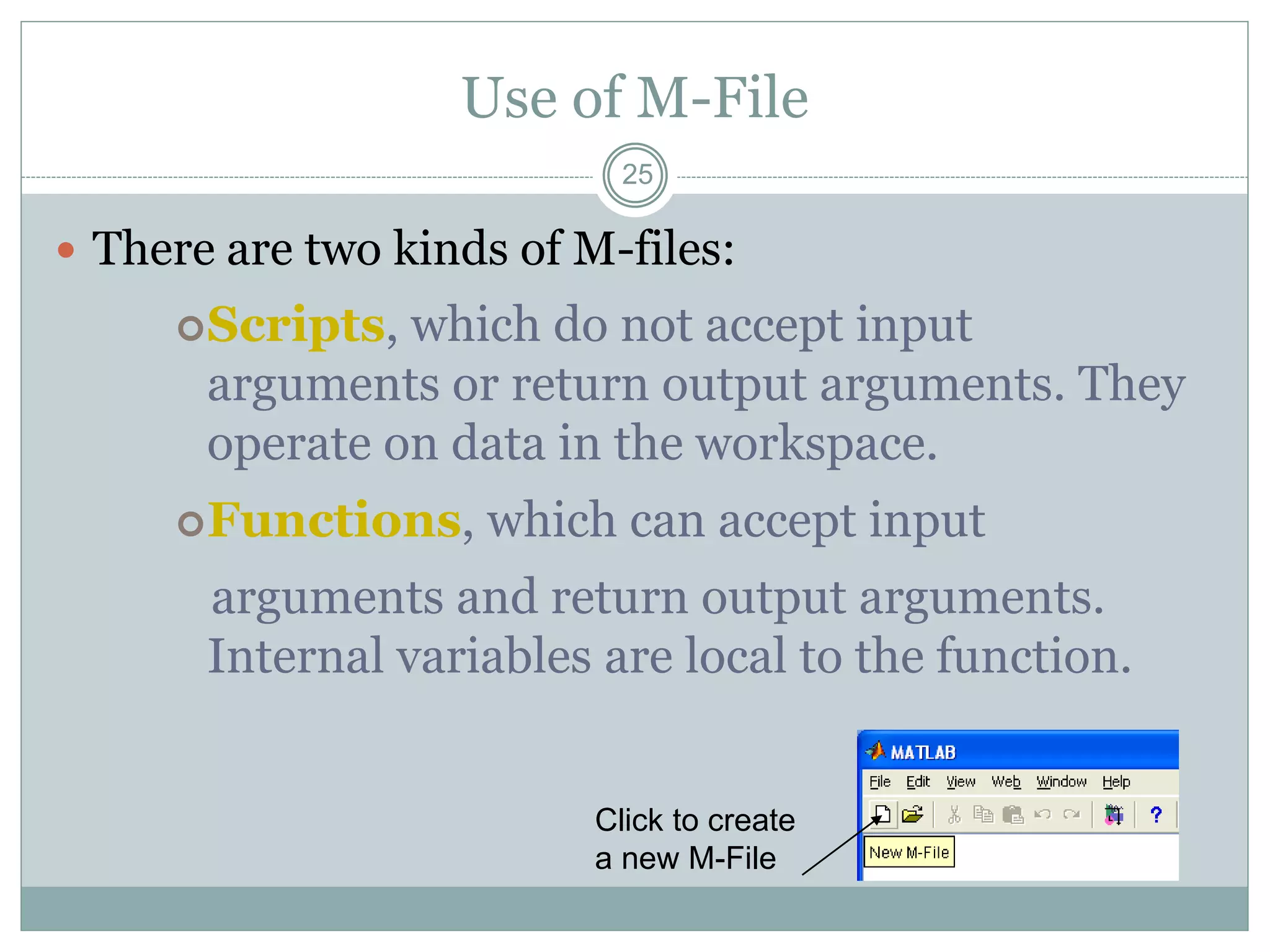
 There are two kinds of M-files:
Scripts, which do not accept input
arguments or return output arguments. They
operate on data in the workspace.
Functions, which can accept input
arguments and return output arguments.
Internal variables are local to the function.
Click to create
a new M-File
26
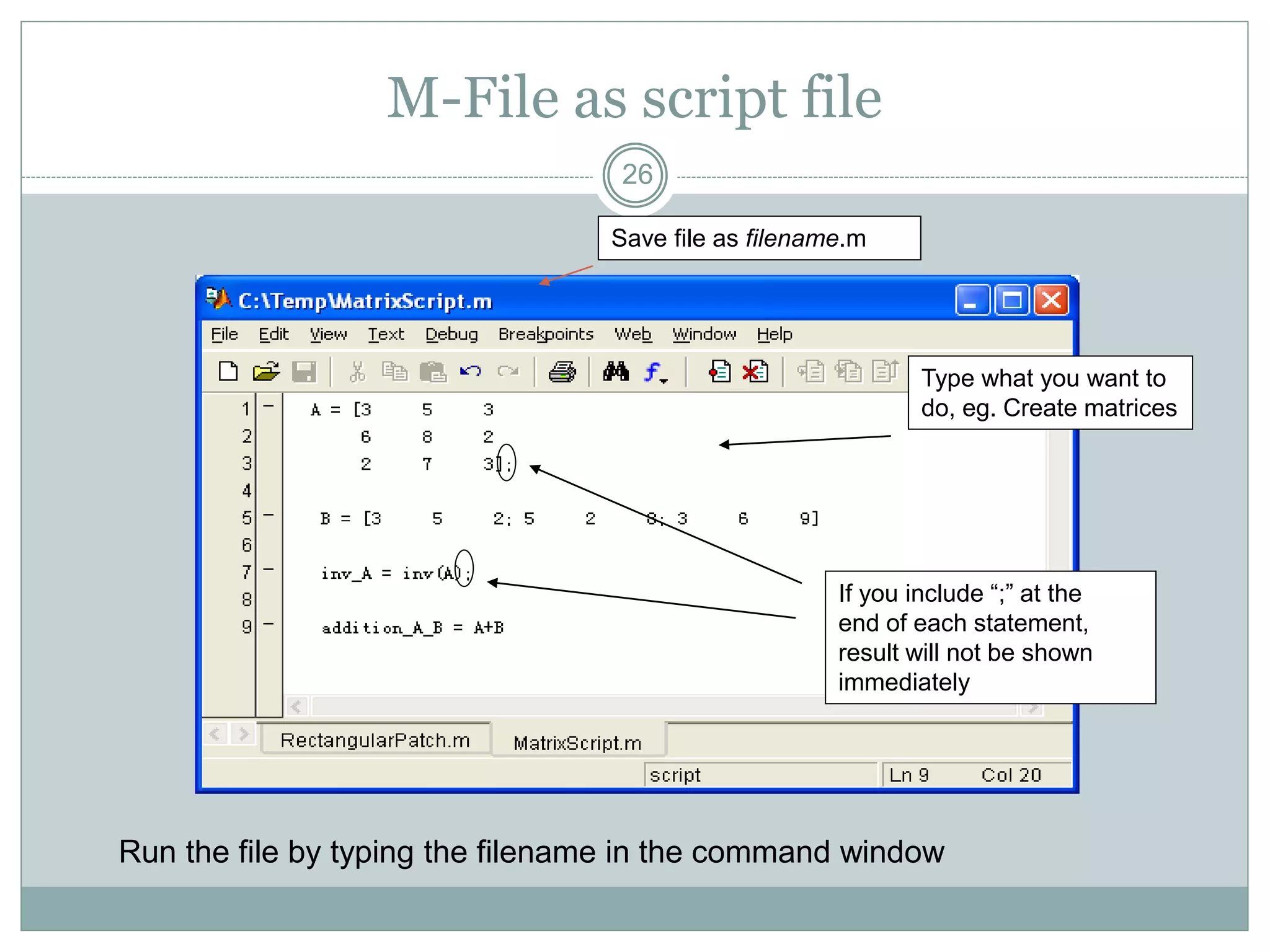
M-File as script file
Save file as filename.m
Type what you want to
do, eg. Create matrices
If you include “;” at the
end of each statement,
result will not be shown
immediately
Run the file by typing the filename in the command window
27
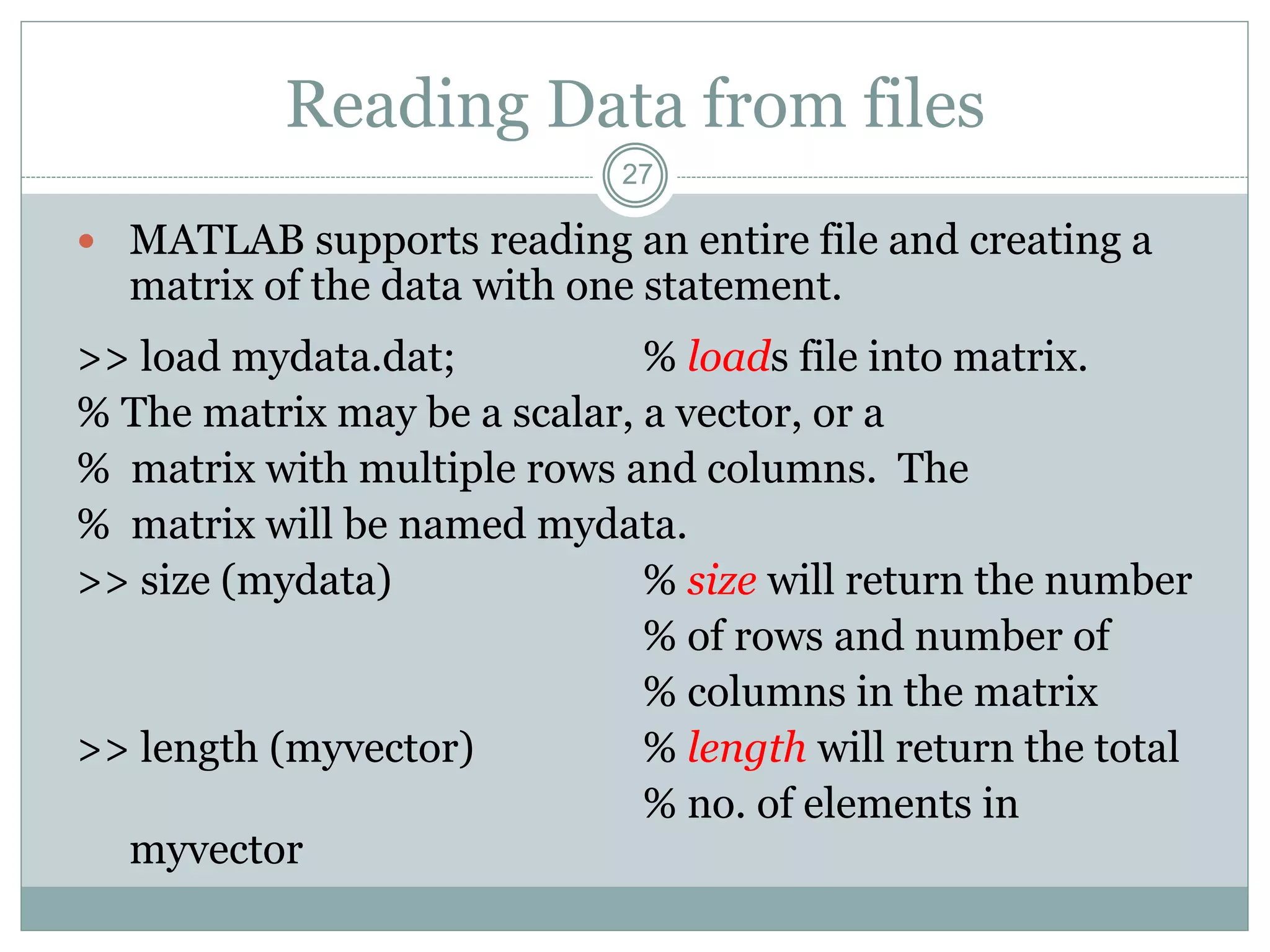
Reading Data from files
 MATLAB supports reading an entire file and creating a
matrix of the data with one statement.
>> load mydata.dat; % loads file into matrix.
% The matrix may be a scalar, a vector, or a
% matrix with multiple rows and columns. The
% matrix will be named mydata.
>> size (mydata) % size will return the number
% of rows and number of
% columns in the matrix
>> length (myvector) % length will return the total
% no. of elements in
myvector
28
Topics..
 What is MATLAB ??
 Basic Matrix Operations
 Script Files and M-files
 Some more Operations and Functions
APPLICATIONS:
 Plotting functions ..
 Image Processing Basics ..
 Robotics Applications ..
 GUI Design and Programming
29
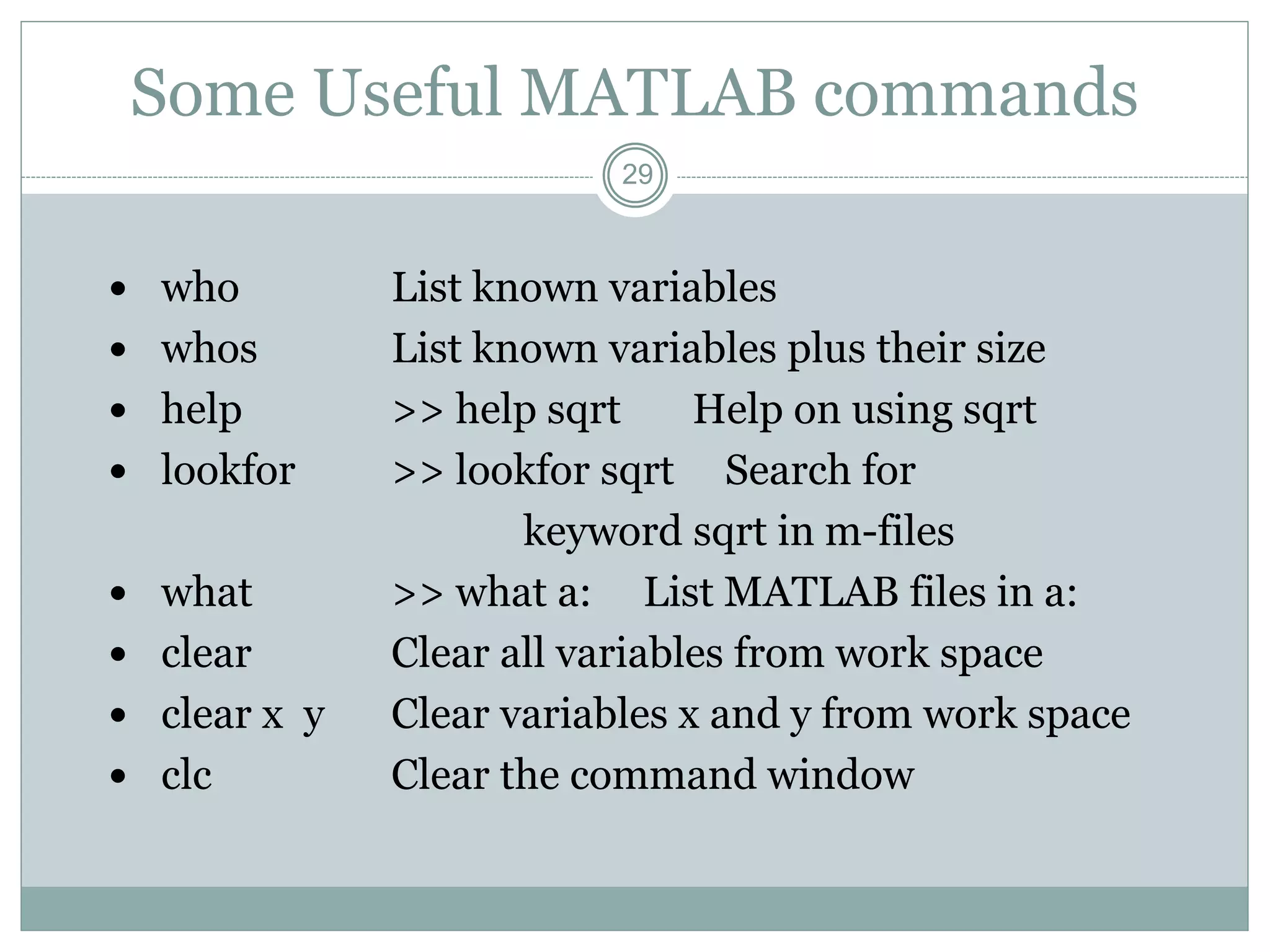
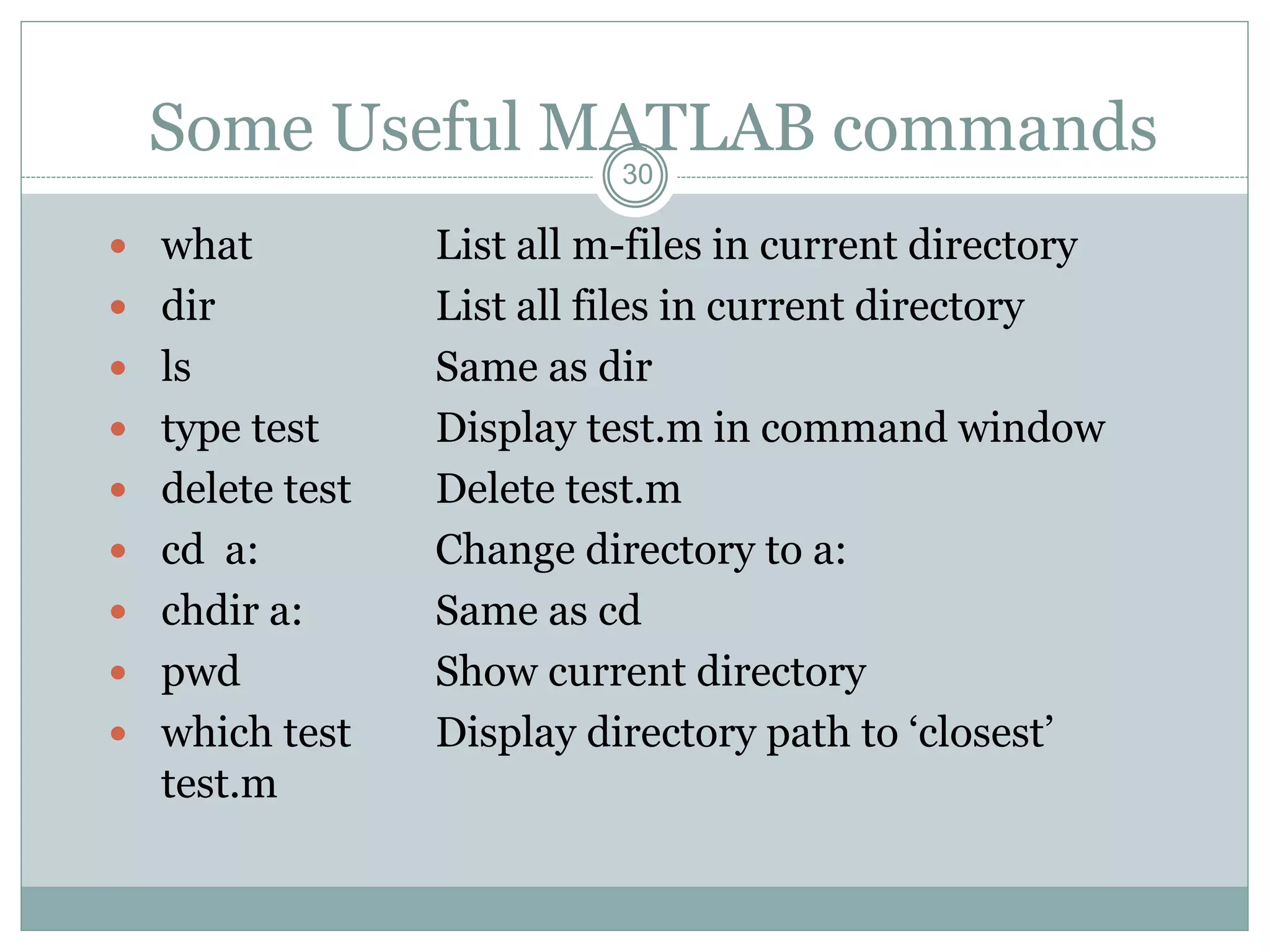
Some Useful MATLAB commands
 who List known variables
 whos List known variables plus their size
 help >> help sqrt Help on using sqrt
 lookfor >> lookfor sqrt Search for
keyword sqrt in m-files
 what >> what a: List MATLAB files in a:
 clear Clear all variables from work space
 clear x y Clear variables x and y from work space
 clc Clear the command window
30
Some Useful MATLAB commands
 what List all m-files in current directory
 dir List all files in current directory
 ls Same as dir
 type test Display test.m in command window
 delete test Delete test.m
 cd a: Change directory to a:
 chdir a: Same as cd
 pwd Show current directory
 which test Display directory path to ‘closest’
test.m
31
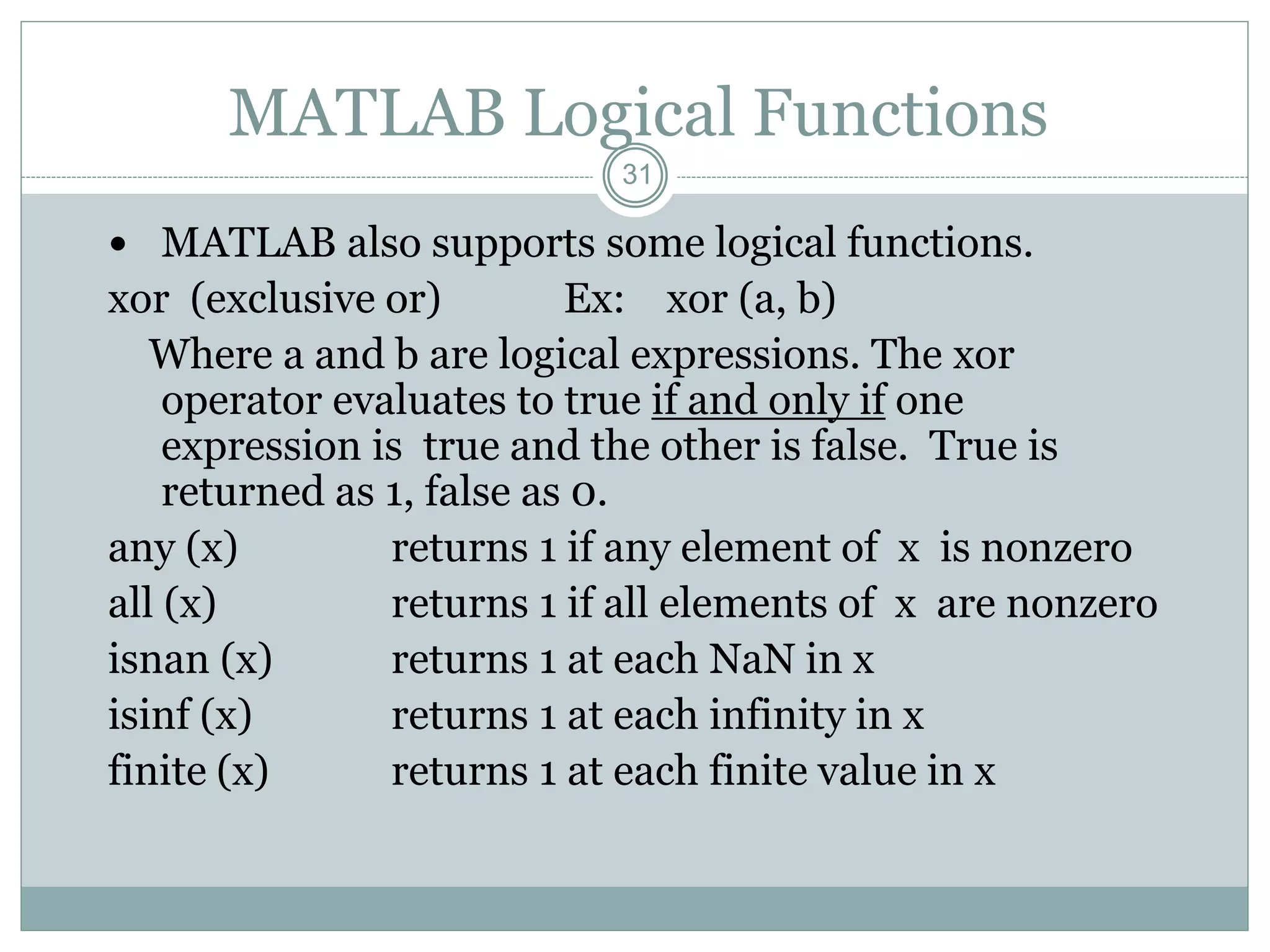
MATLAB Logical Functions
 MATLAB also supports some logical functions.
xor (exclusive or) Ex: xor (a, b)
Where a and b are logical expressions. The xor
operator evaluates to true if and only if one
expression is true and the other is false. True is
returned as 1, false as 0.
any (x) returns 1 if any element of x is nonzero
all (x) returns 1 if all elements of x are nonzero
isnan (x) returns 1 at each NaN in x
isinf (x) returns 1 at each infinity in x
finite (x) returns 1 at each finite value in x
32
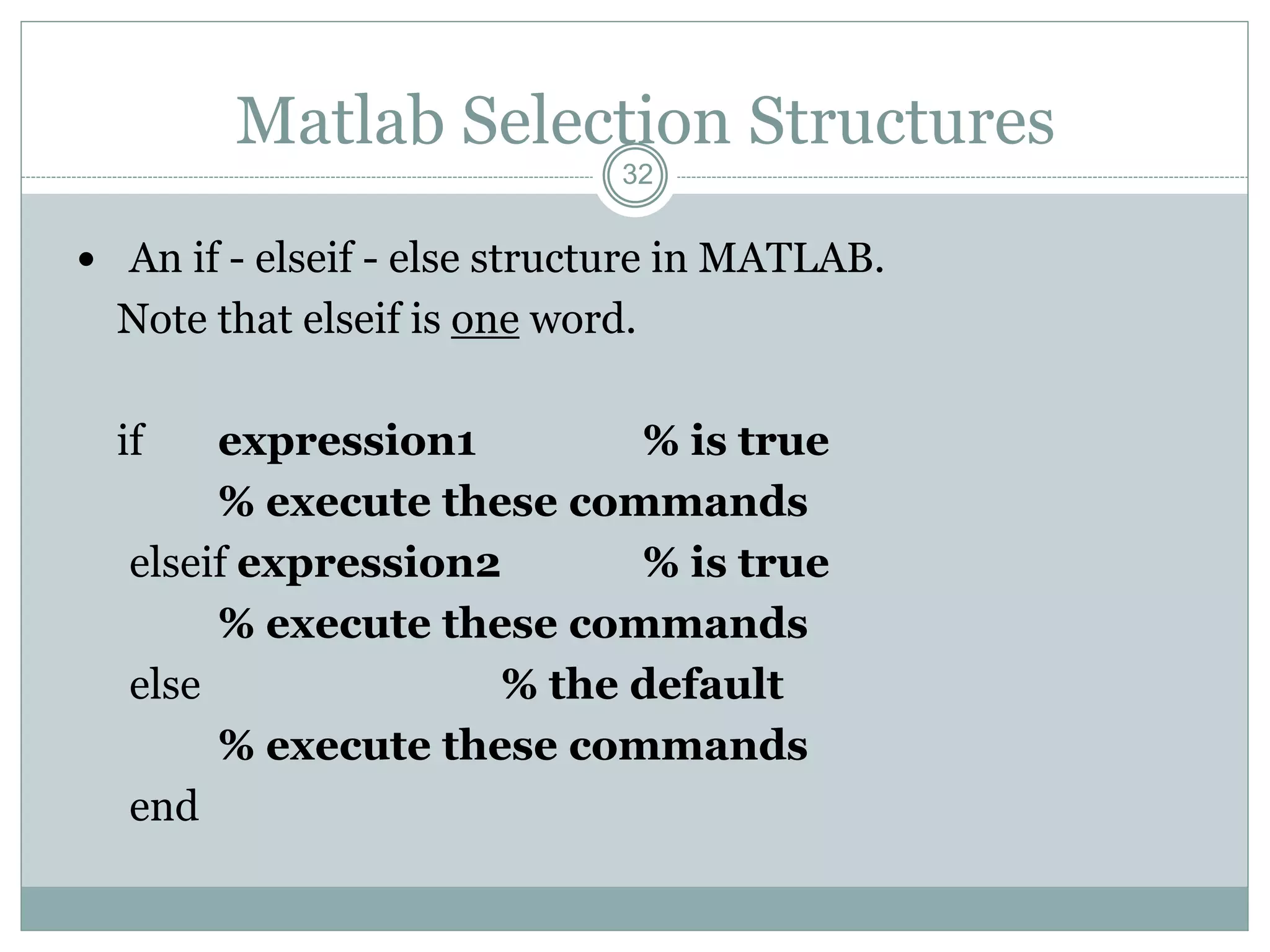
Matlab Selection Structures
 An if - elseif - else structure in MATLAB.
Note that elseif is one word.
if expression1 % is true
% execute these commands
elseif expression2 % is true
% execute these commands
else % the default
% execute these commands
end
33
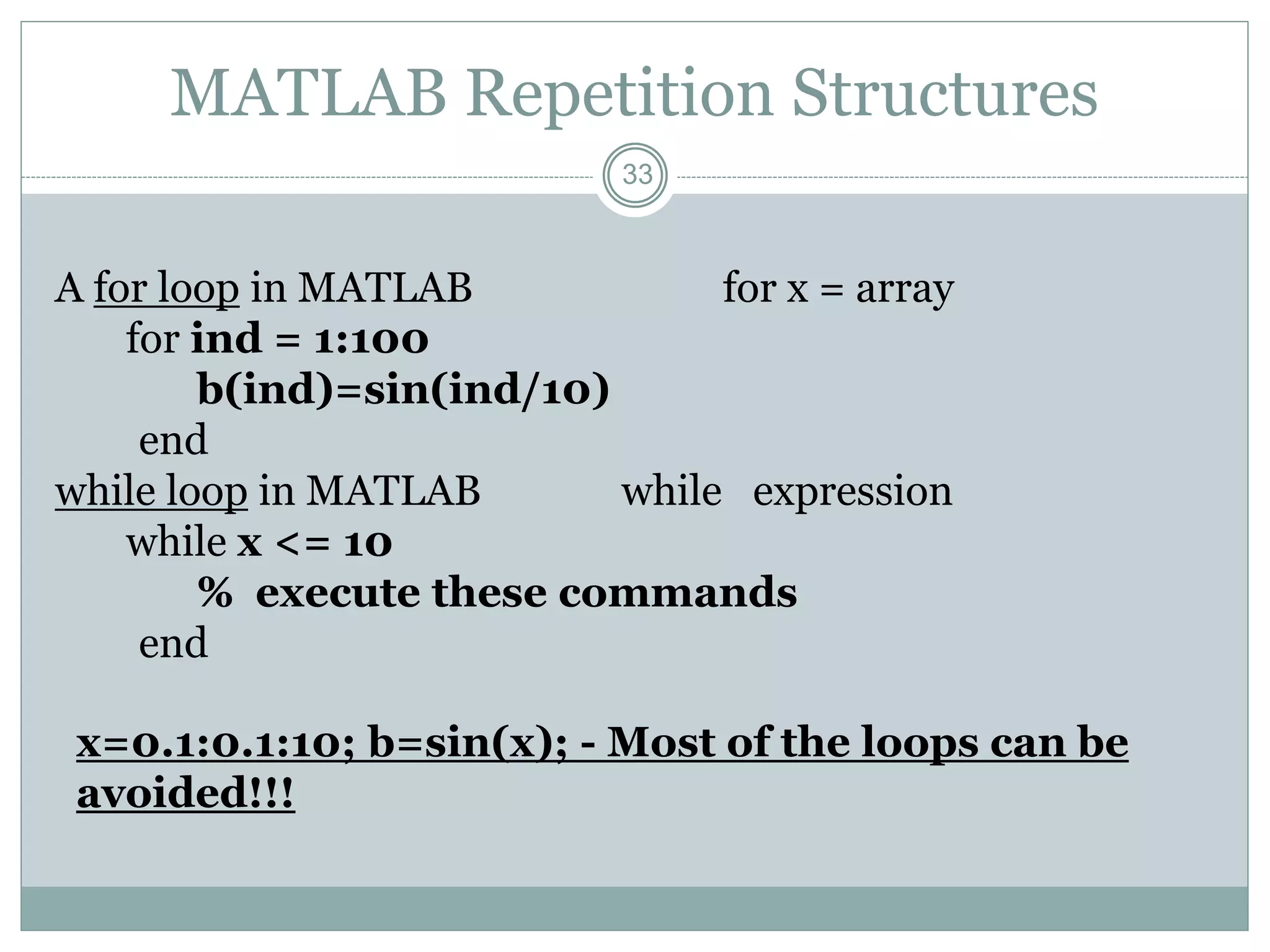
MATLAB Repetition Structures
A for loop in MATLAB for x = array
for ind = 1:100
b(ind)=sin(ind/10)
end
while loop in MATLAB while expression
while x <= 10
% execute these commands
end
x=0.1:0.1:10; b=sin(x); - Most of the loops can be
avoided!!!
34
Scalar - Matrix Addition
» a=3;
» b=[1, 2, 3;4, 5, 6]
b =
1 2 3
4 5 6
» c= b+a % Add a to each element of b
c =
4 5 6
7 8 9
35
Scalar - Matrix Subtraction
» a=3;
» b=[1, 2, 3;4, 5, 6]
b =
1 2 3
4 5 6
» c = b - a %Subtract a from each element of b
c =
-2 -1 0
1 2 3
36
Scalar - Matrix Multiplication
» a=3;
» b=[1, 2, 3; 4, 5, 6]
b =
1 2 3
4 5 6
» c = a * b % Multiply each element of b by a
c =
3 6 9
12 15 18
37
Scalar - Matrix Division
» a=3;
» b=[1, 2, 3; 4, 5, 6]
b =
1 2 3
4 5 6
» c = b / a % Divide each element of b by a
c =
0.3333 0.6667 1.0000
1.3333 1.6667 2.0000
38
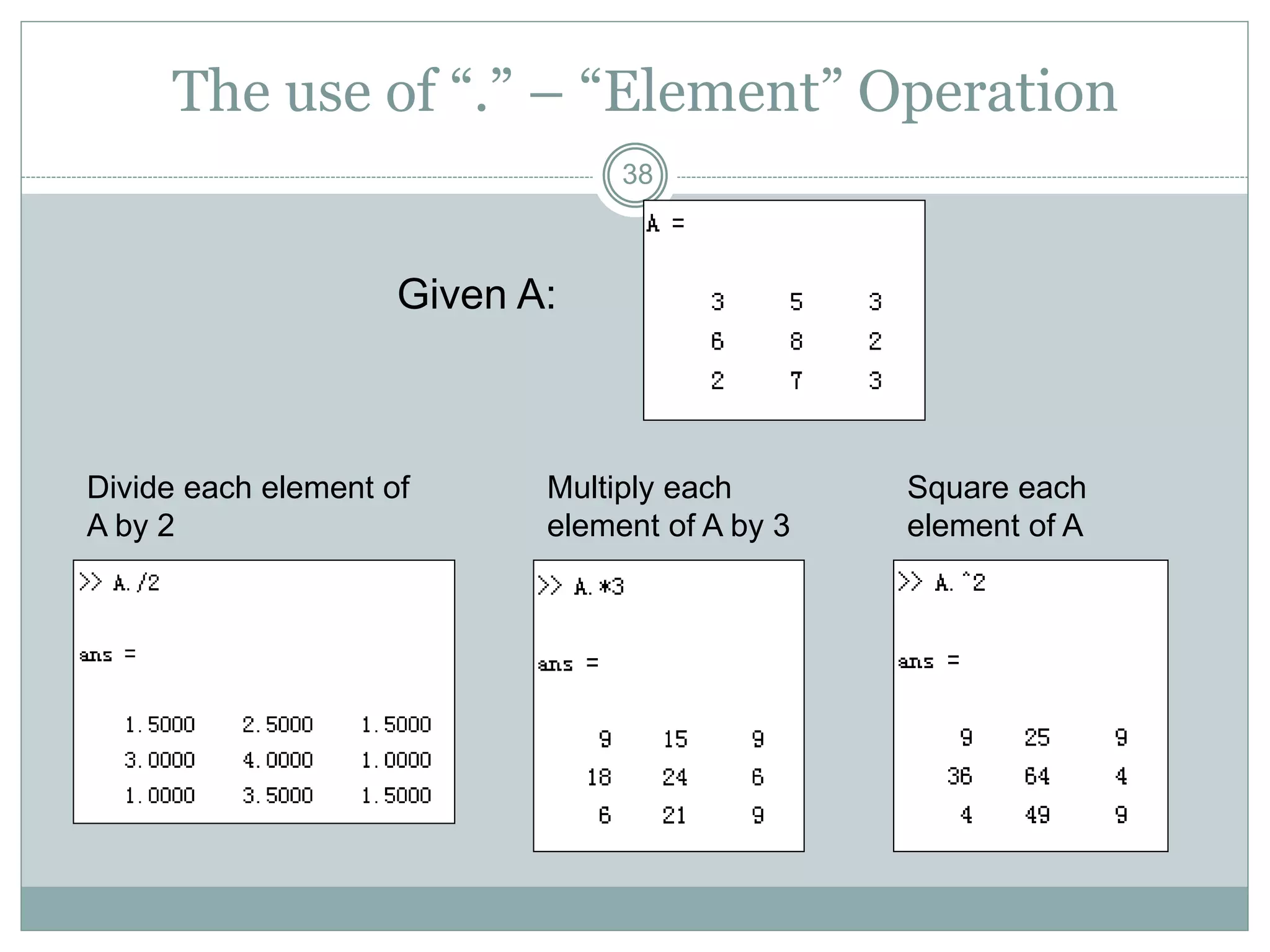
The use of “.” – “Element” Operation
Given A:
Divide each element of
A by 2
Multiply each
element of A by 3
Square each
element of A
39
39
MATLAB Toolboxes
 MATLAB has a number of add-on software modules, called
toolbox , that perform more specialized computations.
 Signal Processing
 Image Processing
 Communications
 System Identification
 Wavelet Filter Design
 Control System
 Fuzzy Logic
 Robust Control
 µ-Analysis and Synthesis
 LMI Control
 Model Predictive Control
 …
40
40
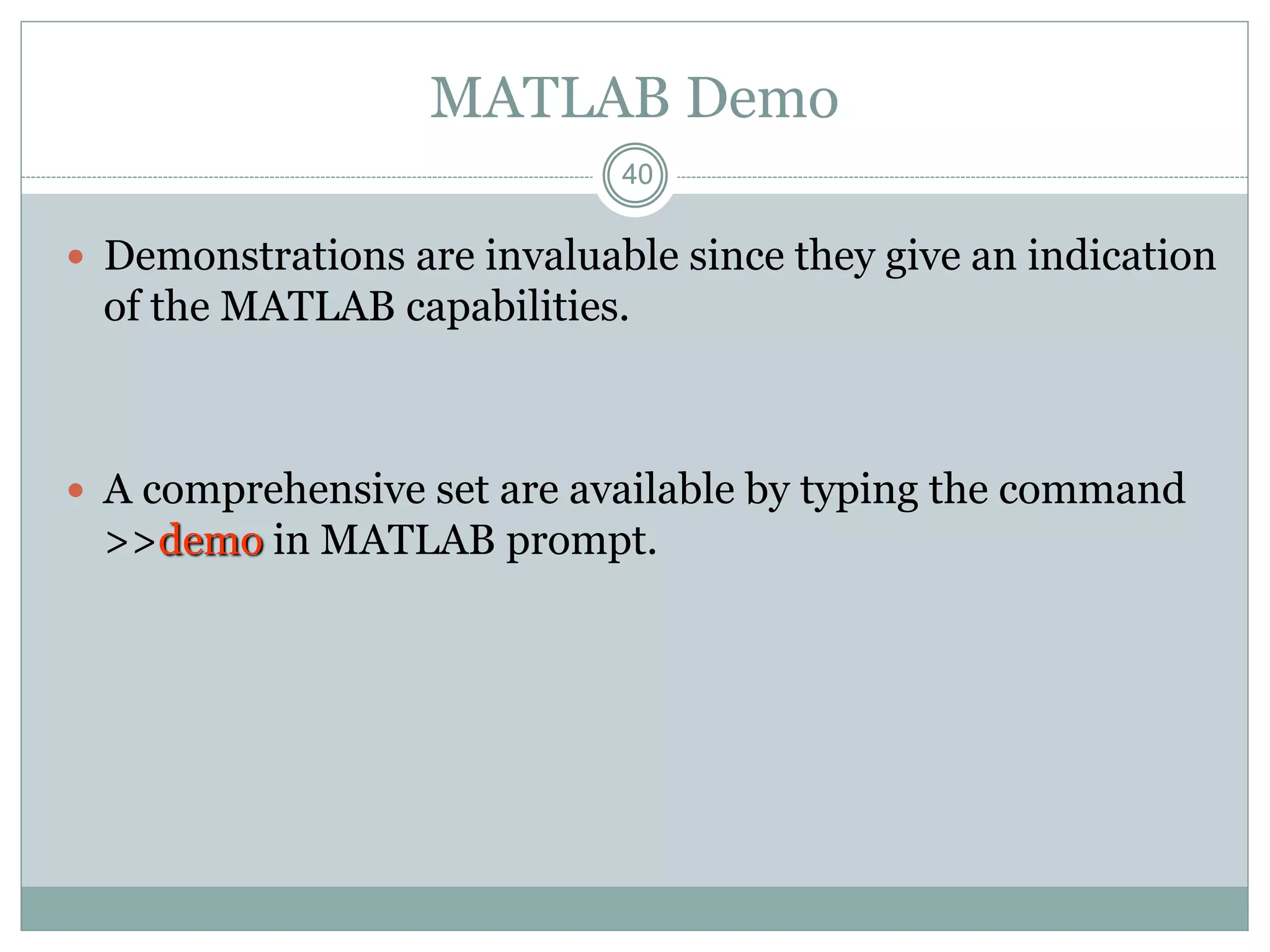
MATLAB Demo
 Demonstrations are invaluable since they give an indication
of the MATLAB capabilities.
 A comprehensive set are available by typing the command
>>demo in MATLAB prompt.
41
An Interesting, MATLAB command
why
In case you ever needed a reason
42
Topics..
 What is MATLAB ??
 Basic Matrix Operations
 Script Files and M-files
 Some more Operations and Functions
APPLICATIONS:
 Plotting functions ..
 Image Processing Basics ..
 Robotics Applications ..
 GUI Design and Programming
43
Plot
PLOT Linear plot.
 PLOT(X,Y) plots vector Y
versus vector X
 PLOT(Y) plots the columns of
Y versus their index
 PLOT(X,Y,S) with plot
symbols and colors
 See also SEMILOGX,
SEMILOGY, TITLE,
XLABEL, YLABEL, AXIS,
AXES, HOLD, COLORDEF,
LEGEND, SUBPLOT...
x = [-3 -2 -1 0 1 2 3];
y1 = (x.^2) -1;
plot(x, y1,'bo-.');
Example
44
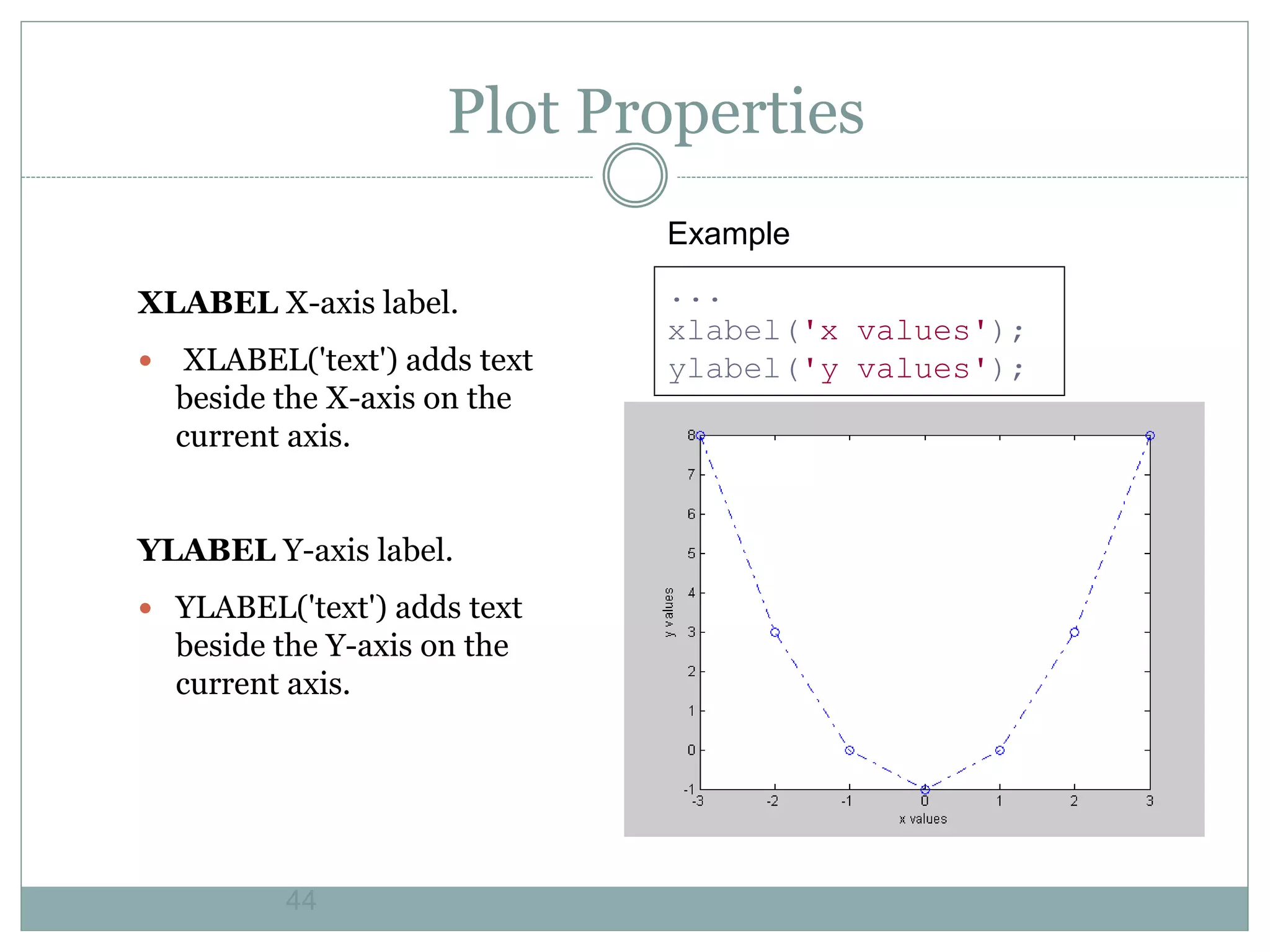
Plot Properties
XLABEL X-axis label.
 XLABEL('text') adds text
beside the X-axis on the
current axis.
YLABEL Y-axis label.
 YLABEL('text') adds text
beside the Y-axis on the
current axis.
...
xlabel('x values');
ylabel('y values');
Example
45
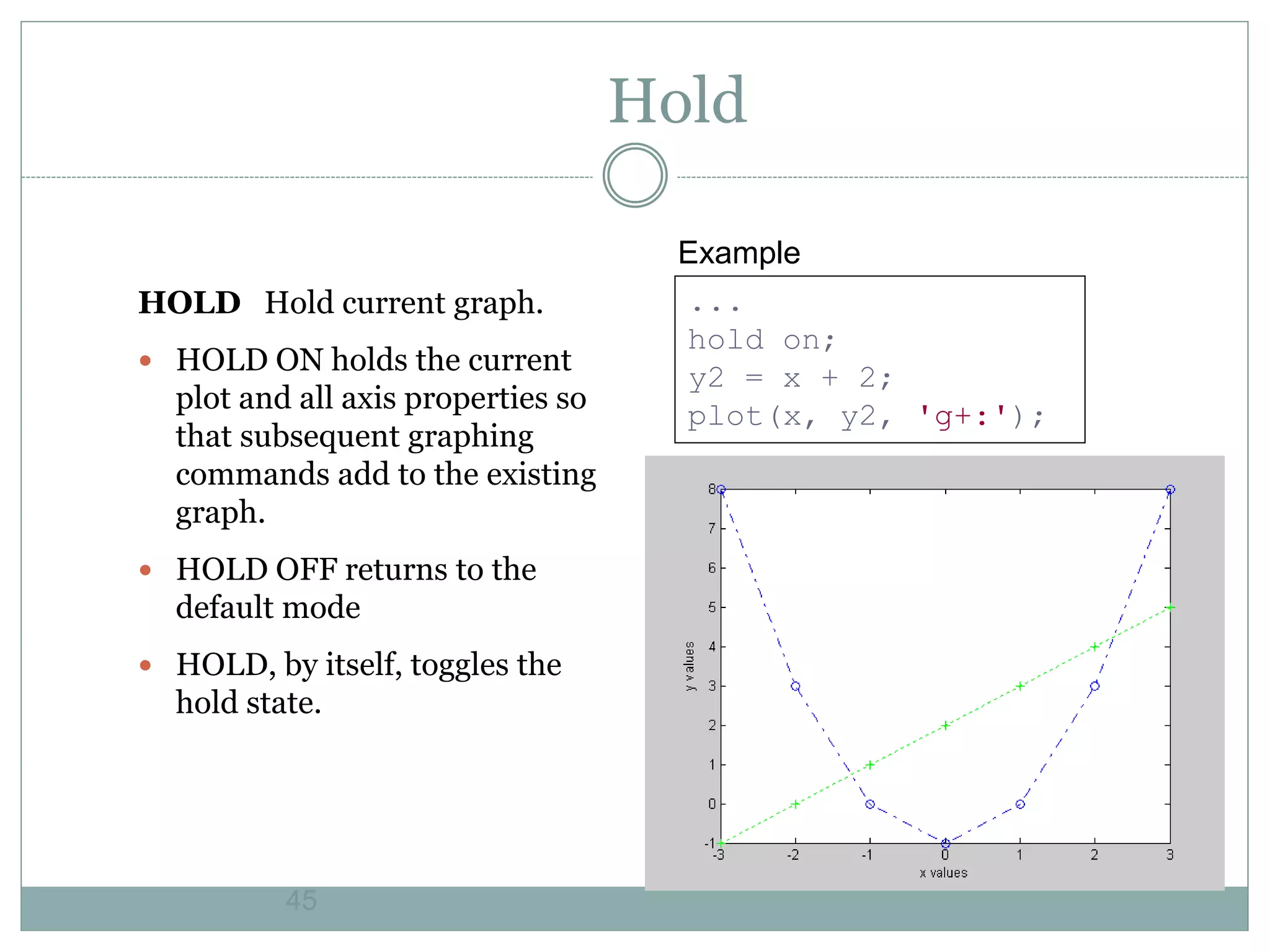
Hold
HOLD Hold current graph.
 HOLD ON holds the current
plot and all axis properties so
that subsequent graphing
commands add to the existing
graph.
 HOLD OFF returns to the
default mode
 HOLD, by itself, toggles the
hold state.
...
hold on;
y2 = x + 2;
plot(x, y2, 'g+:');
Example
46
Subplot
SUBPLOT Create axes in tiled
positions.
 SUBPLOT(m,n,p), or
SUBPLOT(mnp), breaks the Figure
window into an m-by-n matrix of
small axes
x = [-3 -2 -1 0 1 2 3];
y1 = (x.^2) -1;
% Plot y1 on the top
subplot(2,1,1);
plot(x, y1,'bo-.');
xlabel('x values');
ylabel('y values');
% Plot y2 on the bottom
subplot(2,1,2);
y2 = x + 2;
plot(x, y2, 'g+:');
Example
47
Figure
FIGURE Create figure window.
 FIGURE, by itself, creates a
new figure window, and
returns its handle.
x = [-3 -2 -1 0 1 2 3];
y1 = (x.^2) -1;
% Plot y1 in the 1st Figure
plot(x, y1,'bo-.');
xlabel('x values');
ylabel('y values');
% Plot y2 in the 2nd Figure
figure
y2 = x + 2;
plot(x, y2, 'g+:');
Example
48
Surface Plot
x = 0:0.1:2;
y = 0:0.1:2;
[xx, yy] = meshgrid(x,y);
zz=sin(xx.^2+yy.^2);
surf(xx,yy,zz)
xlabel('X axes')
ylabel('Y axes')
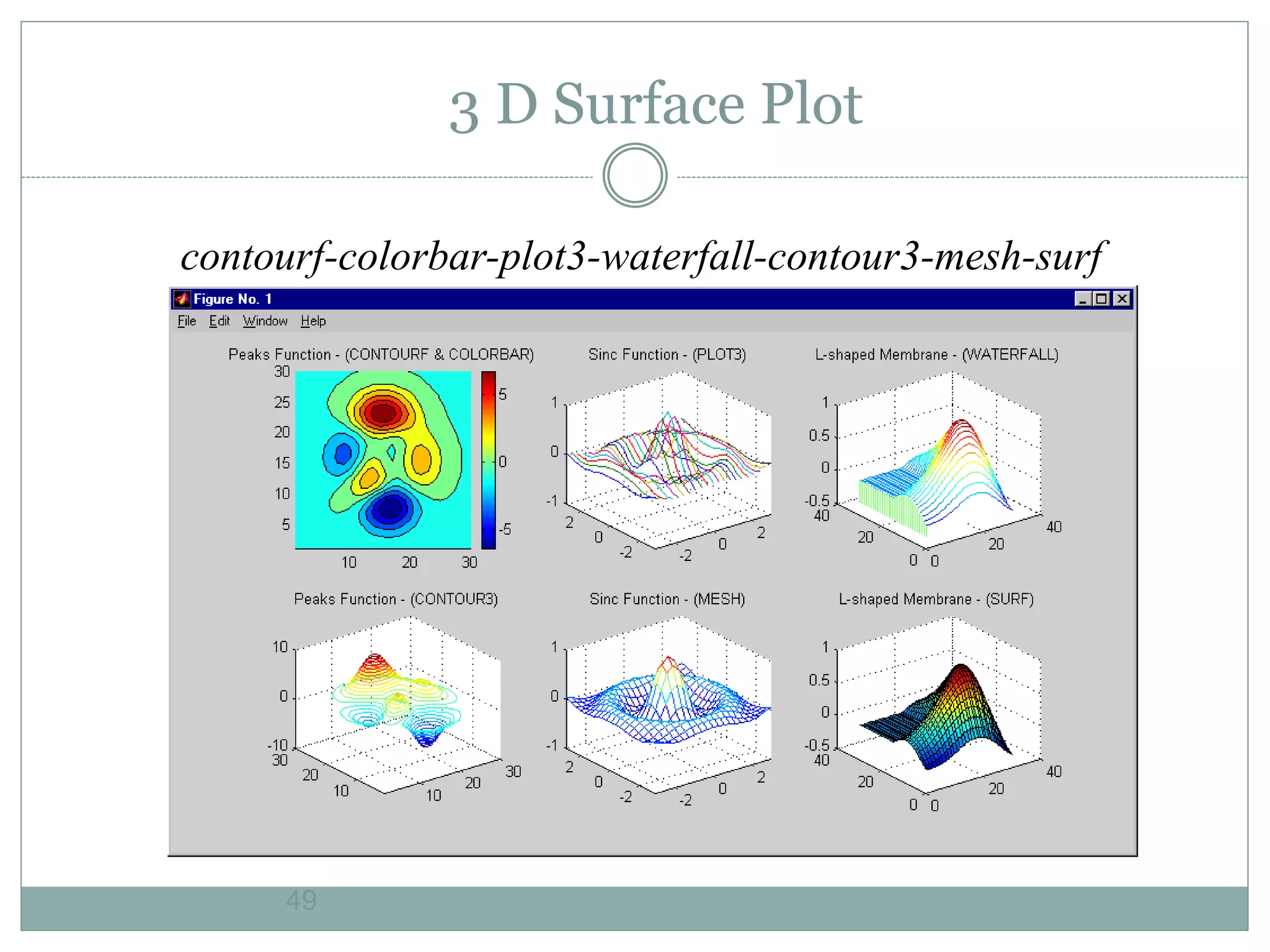
49
contourf-colorbar-plot3-waterfall-contour3-mesh-surf
3 D Surface Plot
50
Convolution
The behavior of a linear, continuous-time, time-invariant system with
input signal x(t) and output signal y(t) is described by the convolution
integral
- h(t), assumed known, the response of the system to a unit impulse
input
For example,
x = [1 1 1 1 1];  [1 1 1 1 1]
h = [0 1 2 3];  [3 2 1 0]
conv(x,h)
yields y = [0 1 3 6 6 6 5 3]
stem(y);
ylabel(‘Conv');
xlabel(‘sample number’);
51
Topics..
 What is MATLAB ??
 Basic Matrix Operations
 Script Files and M-files
 Some more Operations and Functions
APPLICATIONS:
 Plotting functions ..
 Image Processing Basics ..
 Robotics Applications ..
 GUI Design and Programming
52
52
Image Processing Toolbox
 The Image Processing Toolbox is a collection of functions
that extend the capability of the MATLAB ® numeric
computing environment. The toolbox supports a wide
range of image processing operations, including:
 Geometric operations
 Neighborhood and block operations
 Linear filtering and filter design
 Transforms
 Image analysis and enhancement
 Binary image operations
 Region of interest operations
53
53
MATLAB Image Types
 Indexed images : m-by-3 color map
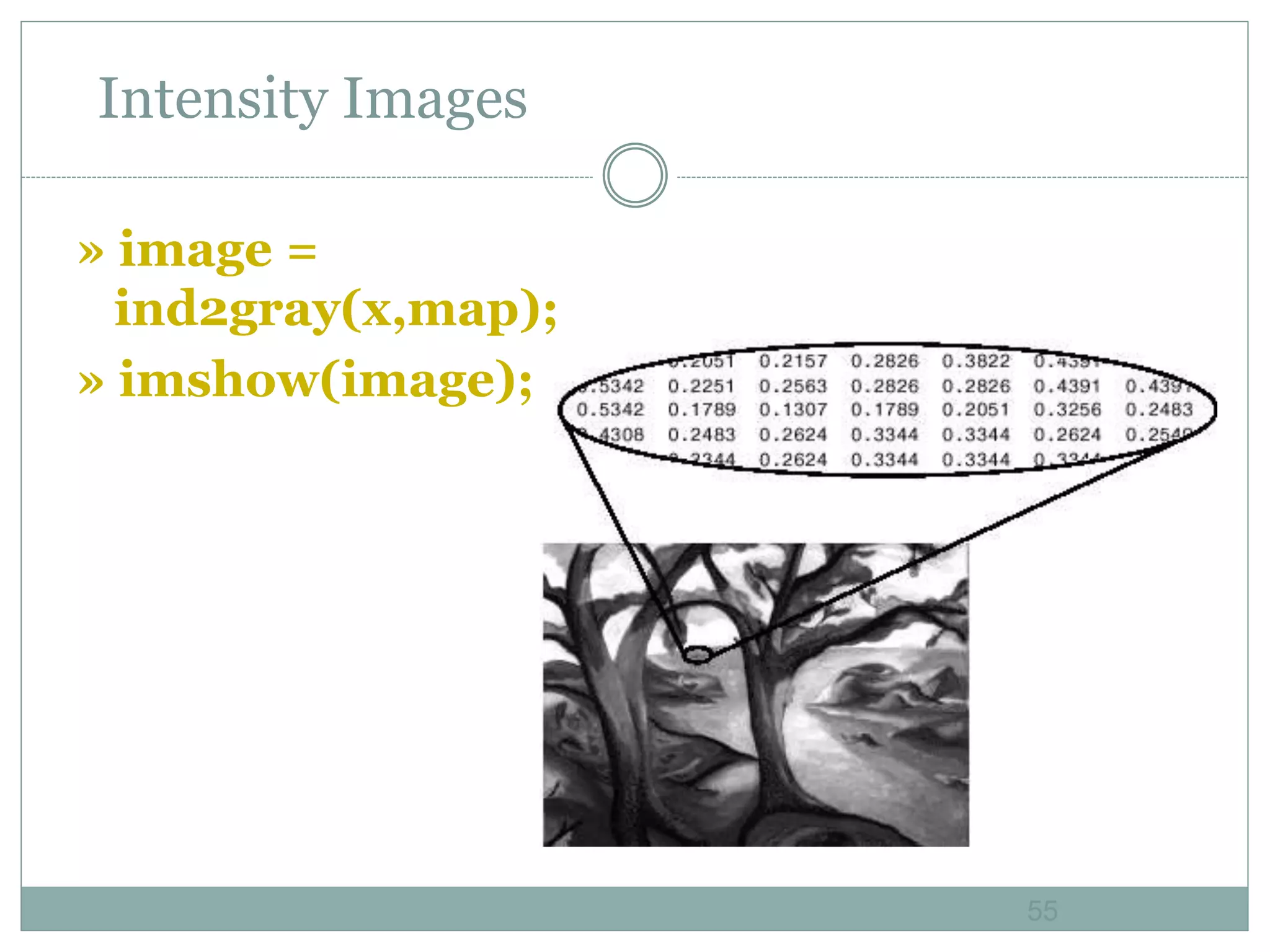
 Intensity images : [0,1] or uint8
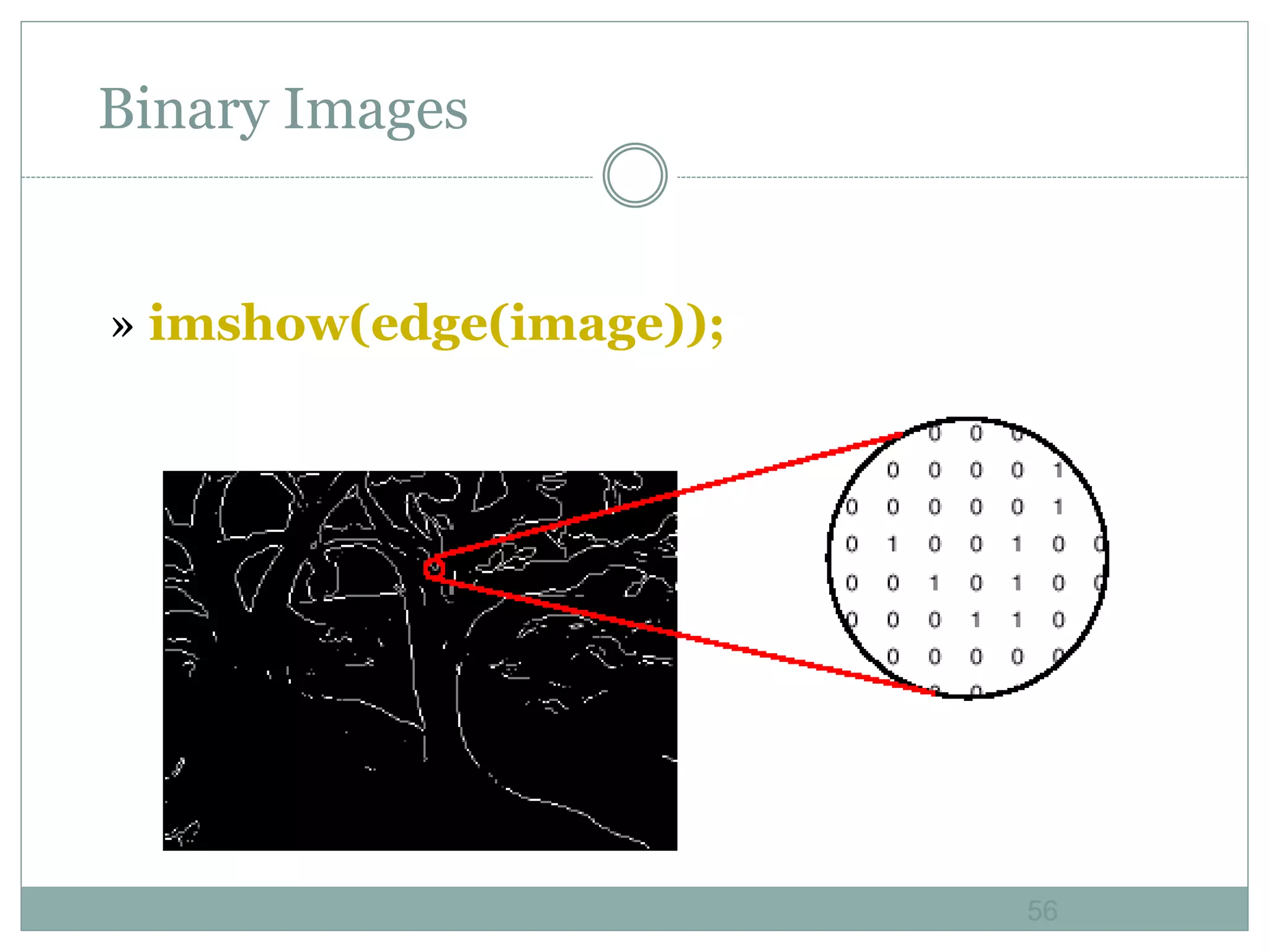
 Binary images : {0,1}
 RGB images : m-by-n-by-3
54
54
Indexed Images
» [x,map] =
imread('trees.tif');
» imshow(x,map);
55
55
Intensity Images
» image =
ind2gray(x,map);
» imshow(image);
56
56
Binary Images
» imshow(edge(image));
57
57
RGB Images
58
58
Image Display
 image - create and display image object
 imagesc - scale and display as image
 imshow - display image
 colorbar - display colorbar
 getimage- get image data from axes
 truesize - adjust display size of image
 zoom - zoom in and zoom out of 2D plot
59
59
Image Conversion
 Gray2ind - intensity image to index image
 im2bw - image to binary
 Im2double - image to double precision
 Im2uint8 - image to 8-bit unsigned integers
 Im2uint16 - image to 16-bit unsigned integers
 Ind2gray - indexed image to intensity image
 mat2gray - matrix to intensity image
 rgb2gray - RGB image to grayscale
 rgb2ind - RGB image to indexed image
60
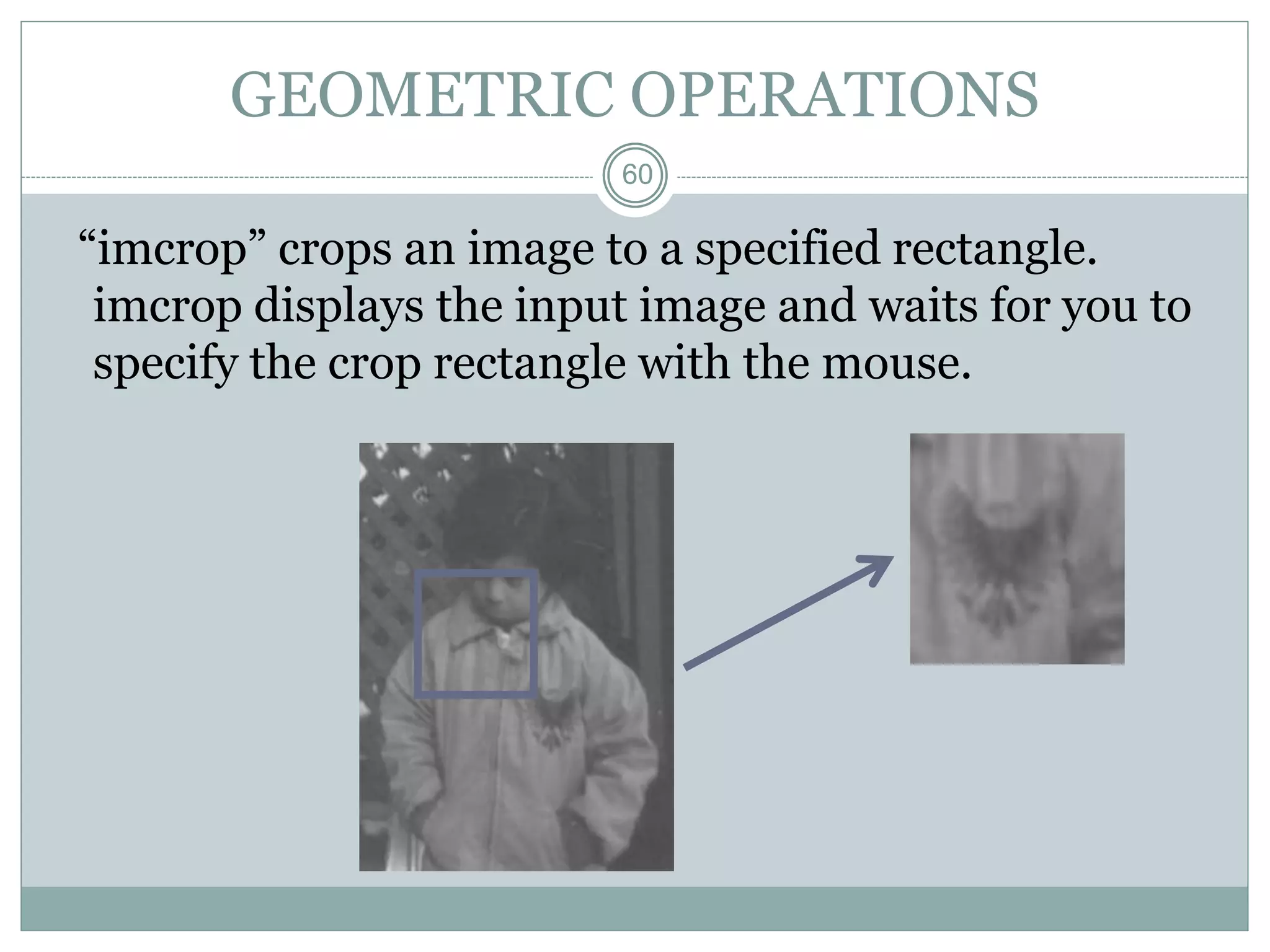
GEOMETRIC OPERATIONS
“imcrop” crops an image to a specified rectangle.
imcrop displays the input image and waits for you to
specify the crop rectangle with the mouse.
61
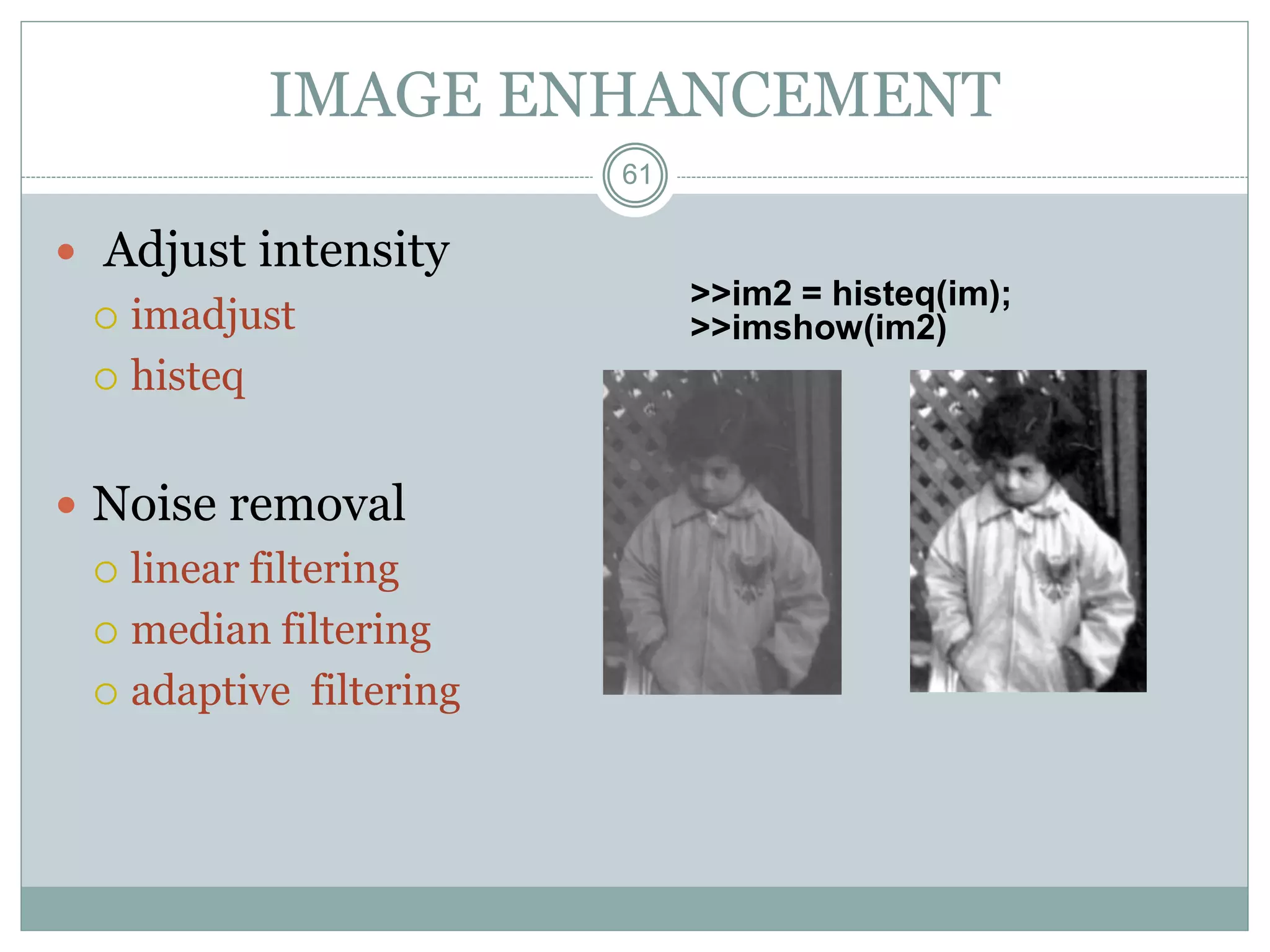
IMAGE ENHANCEMENT
 Adjust intensity
 imadjust
 histeq
 Noise removal
 linear filtering
 median filtering
 adaptive filtering
>>im2 = histeq(im);
>>imshow(im2)
62
62
TRANSFORMS
Fourier Transform
-fft2, fftshift, ifft2
Discrete Cosine Transform (DCT)
-dct2, idct2, dctmtx, dctdemo
Radon Transform
-radon, iradon, phantom
63
Topics..
 What is MATLAB ??
 Basic Matrix Operations
 Script Files and M-files
 Some more Operations and Functions
APPLICATIONS:
 Plotting functions ..
 Image Processing Basics ..
 Robotics Applications ..
 GUI Design and Programming
64
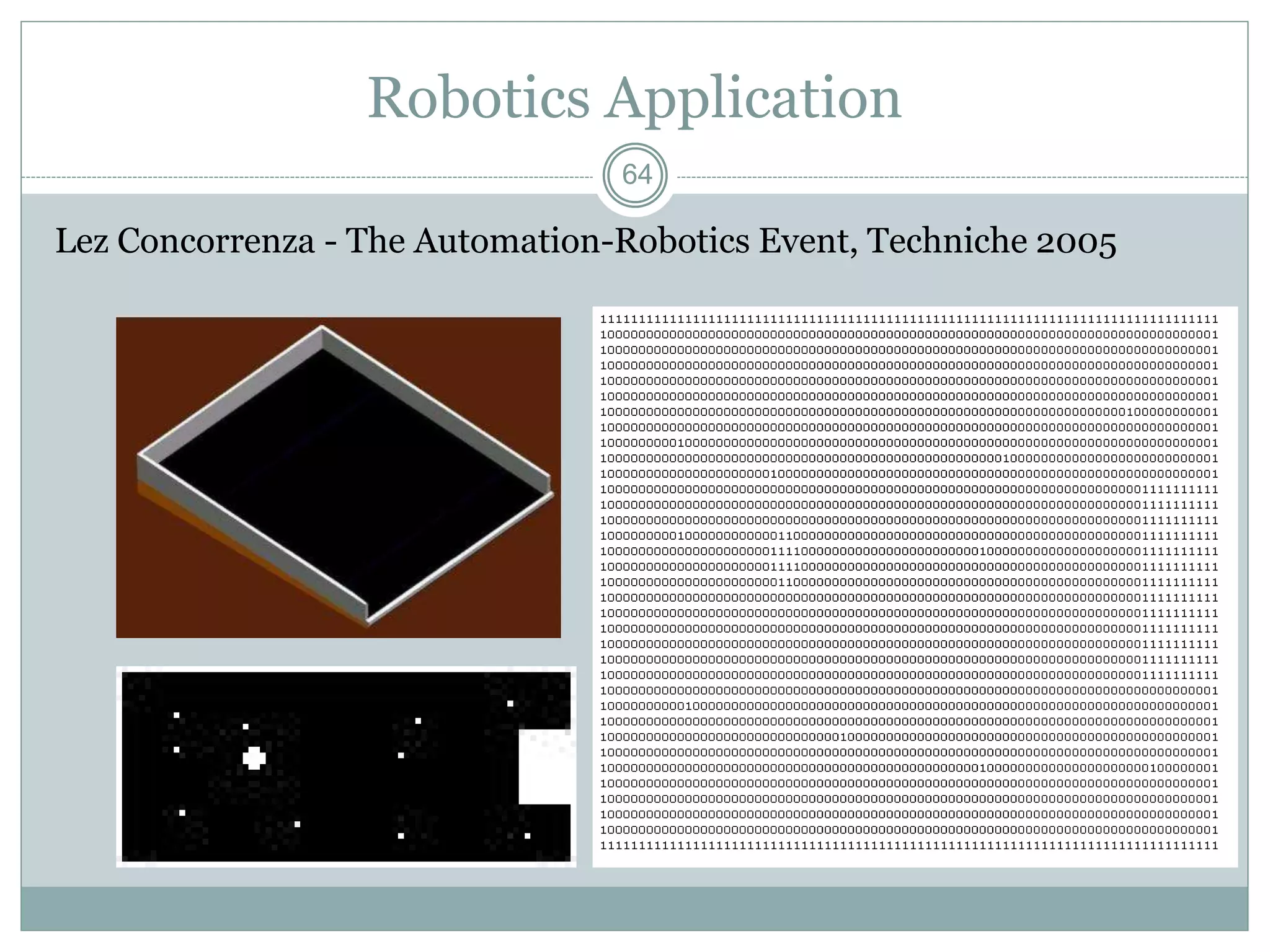
Robotics Application
Lez Concorrenza - The Automation-Robotics Event, Techniche 2005
65
Robotics Application
Concept
 take image
 filter using medfilt2
 take the subarray of ball region, find cluster of max
area ,find its centroid
 take the subarray of robot region , find cluster of max
area, find its centroid
 interpolate the ball using the ball's current and
previous coordinate , give output
66
Robotics Application
MATLAB Code
parport=digitalio('parallel','LPT1');
addline(parport,0:7,'out');
ball_x_prev = 1;
ball_y_prev = 1;
while (1)
% code for acquiring image
filtered_image=medfilt2(bw,[3 3]); % filter the image
region_ball = filtered_image[20:460,10:575]; % ball region
region_bot = filtered_image[20:460,575:630]; % robot region
label = bwlabel(region_ball,4); %label the clusters in the region
data = regionprops(label,'basic'); % data ontains properties of clusters in the region
object = find([data.Area]==max([data.Area])) % object conatains the label of the cluster with max
area
67
Robotics Application
ball_x = data(object).Centroid(1); %x coordinates of the ball
ball_y = data(object).Centroid(2);
label = bwlabel(region_bot,4); %label the clusters in the region
data = regionprops(label,'basic'); % data ontains properties of clusters in the region
object =find([data.Area]==max([data.Area])) % object conatains the label of the cluster with max
area
robot_x = data(object).Centroid(1); %x coordinates of the bot
robot_y = data(object).Centroid(2);
% Algorithm for movement of robot
if (ball_x > ball_x_prev) % the ball is returning to the bot
% Do something
if (robot_y > y_proj)
% Do something else
Etc.
68
Topics..
 What is MATLAB ??
 Basic Matrix Operations
 Script Files and M-files
 Some more Operations and Functions
APPLICATIONS:
 Plotting functions ..
 Image Processing Basics ..
 Robotics Applications ..
 GUI Design and Programming
69
Graphical User Interface
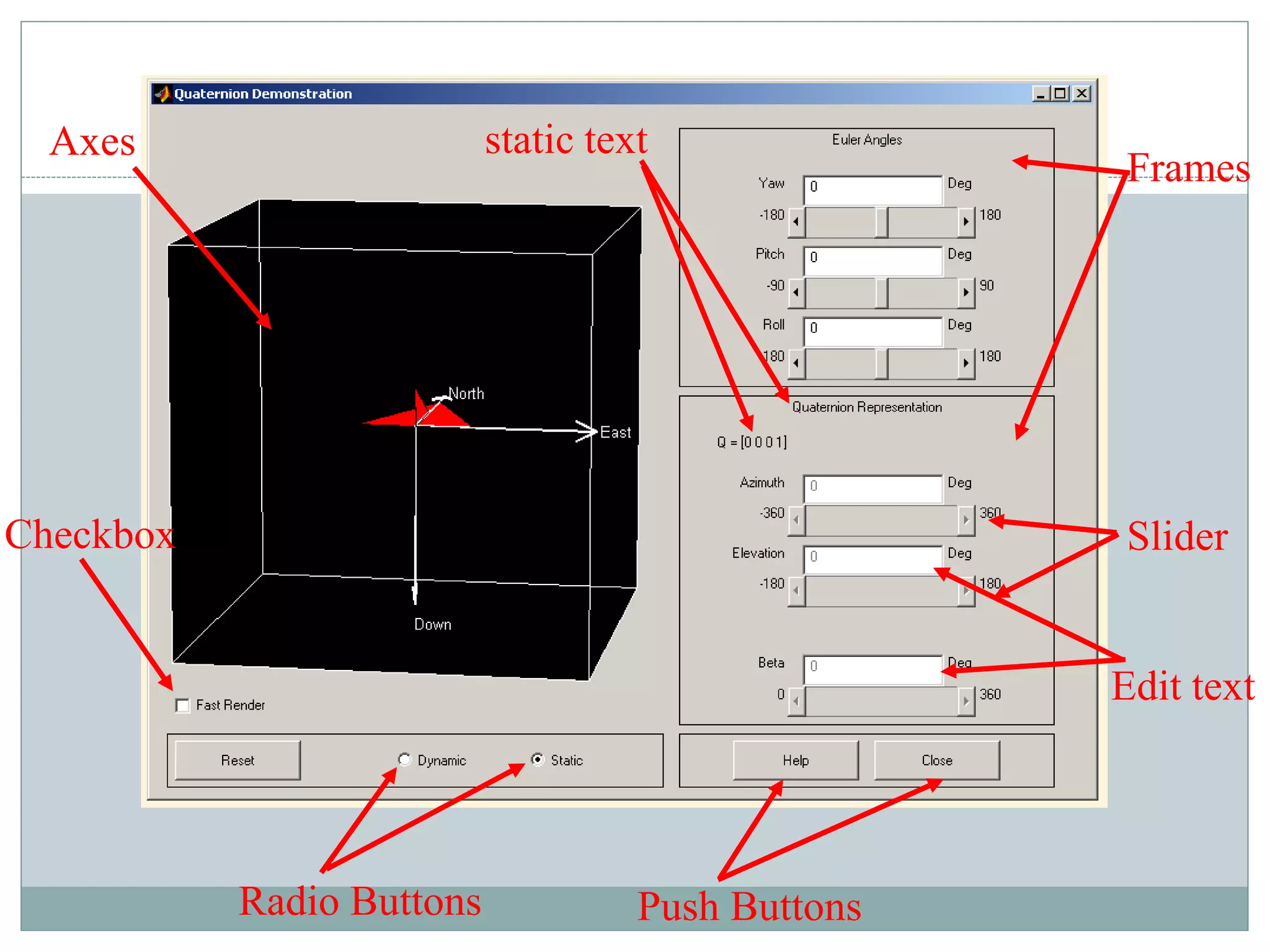
What is GUI: A graphical user interface (GUI) is a
user interface built with graphical objects such as
 Buttons
 Text fields
 Sliders
 Menus
If the GUI is designed well-designed, it should be
intuitively obvious to the user how its components
function.
70
Push Buttons
Radio Buttons
Frames
Checkbox Slider
Edit text
static text
Axes
71
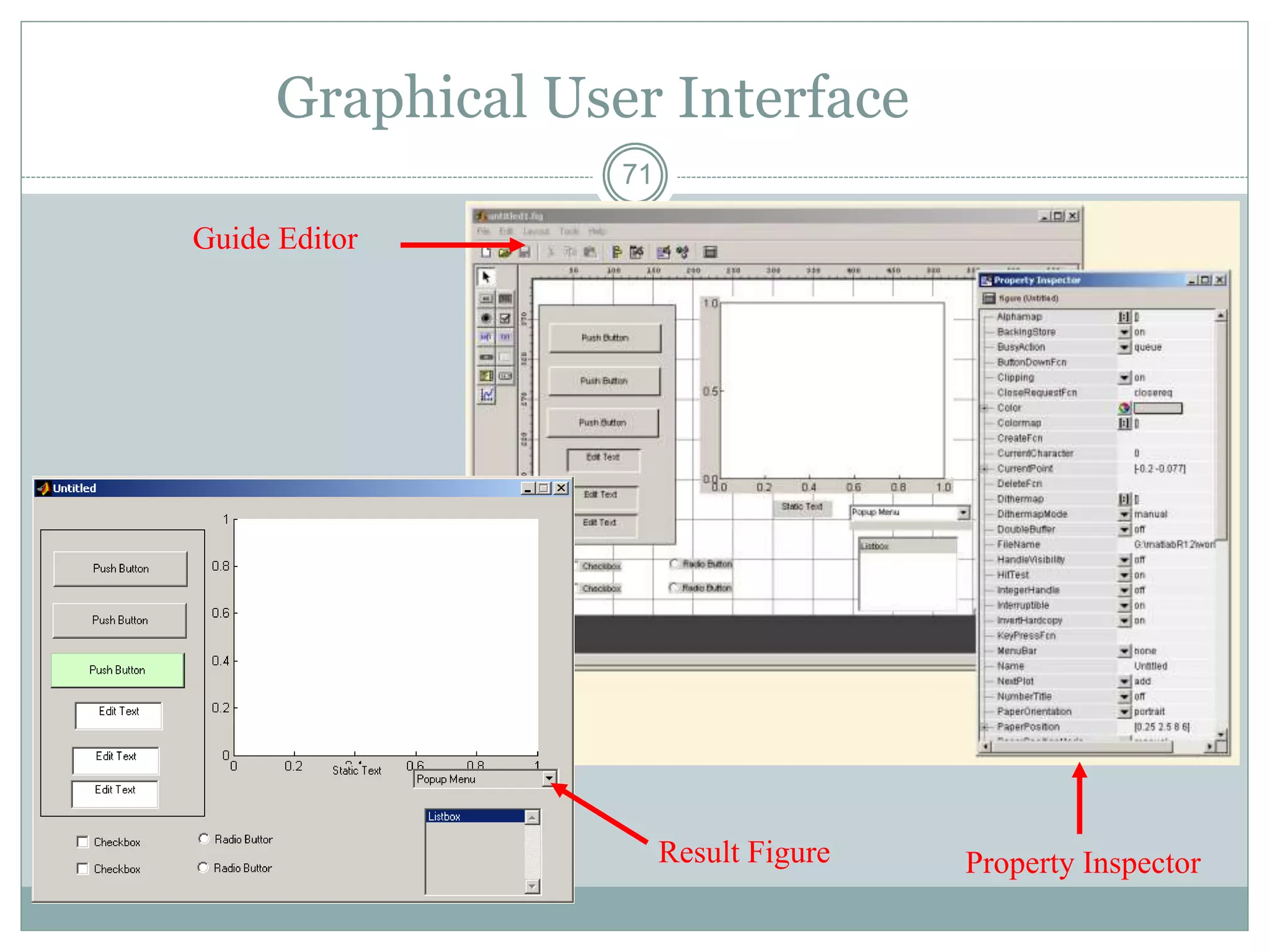
Graphical User Interface
Guide Editor
Property Inspector
Result Figure
72
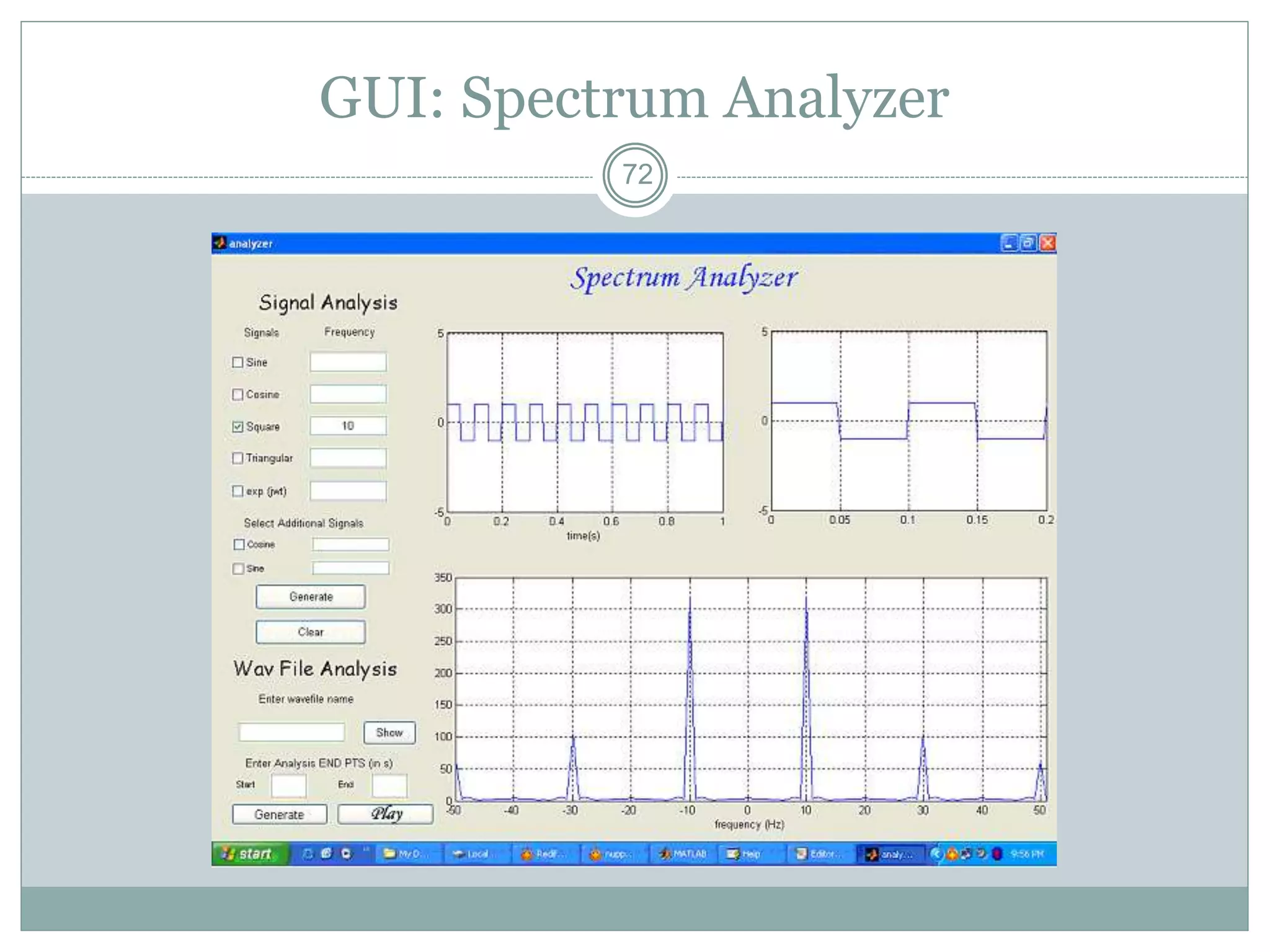
GUI: Spectrum Analyzer
73
Thanks
Questions ??

Matlab anilkumar

  • 1.
    1 1 Introduction to MATLAB LectureSeries by CEPSTRUM Presented by Pratik Kotkar & Akash Baid
  • 2.
    2 Topics..  What isMATLAB ??  Basic Matrix Operations  Script Files and M-files  Some more Operations and Functions APPLICATIONS:  Plotting functions ..  Image Processing Basics ..  Robotics Applications ..  GUI Design and Programming
  • 3.
    3 Topics..  What isMATLAB ??  Basic Matrix Operations  Script Files and M-files  Some more Operations and Functions APPLICATIONS:  Plotting functions ..  Image Processing Basics ..  Robotics Applications ..  GUI Design and Programming
  • 4.
    4 MATLAB  MATLAB isa program for doing numerical computation. It was originally designed for solving linear algebra type problems using matrices. It’s name is derived from MATrix LABoratory. MATLAB has since been expanded and now has built-in functions for solving problems requiring data analysis, signal processing, optimization, and several other types of scientific computations. It also contains functions for 2-D and 3-D graphics and animation.
  • 5.
  • 6.
    6 MATLAB  The MATLABenvironment is command oriented somewhat like UNIX. A prompt appears on the screen and a MATLAB statement can be entered. When the <ENTER> key is pressed, the statement is executed, and another prompt appears.  If a statement is terminated with a semicolon ( ; ), no results will be displayed. Otherwise results will appear before the next prompt.
  • 7.
  • 8.
    8 MATLAB To get started,type one of these commands: helpwin, helpdesk, or demo » a=5; » b=a/2 b = 2.5000 »
  • 9.
    9 MATLAB Variable Names Variable names ARE case sensitive  Variable names can contain up to 63 characters (as of MATLAB 6.5 and newer)  Variable names must start with a letter followed by letters, digits, and underscores.
  • 10.
    10 MATLAB Special Variables ansDefault variable name for results pi Value of  eps Smallest incremental number inf Infinity NaN Not a number e.g. 0/0 i and j i = j = square root of -1 realmin The smallest usable positive real number realmax The largest usable positive real number
  • 11.
    11 Topics..  What isMATLAB ??  Basic Matrix Operations  Script Files and M-files  Some more Operations and Functions APPLICATIONS:  Plotting functions ..  Image Processing Basics ..  Robotics Applications ..  GUI Design and Programming
  • 12.
    12 Math & AssignmentOperators Power ^ or .^ a^b or a.^b Multiplication * or .* a*b or a.*b Division / or ./ a/b or a./b or or . ba or b.a NOTE: 56/8 = 856 - (unary) + (unary) Addition + a + b Subtraction - a - b Assignment = a = b (assign b to a)
  • 13.
    13 Other MATLAB symbols >>prompt . . . continue statement on next line , separate statements and data % start comment which ends at end of line ; (1) suppress output (2) used as a row separator in a matrix : specify range
  • 14.
    14 MATLAB Relational Operators MATLAB supports six relational operators. Less Than < Less Than or Equal <= Greater Than > Greater Than or Equal >= Equal To == Not Equal To ~=
  • 15.
    15 MATLAB Logical Operators MATLAB supports three logical operators. not ~ % highest precedence and & % equal precedence with or or | % equal precedence with and
  • 16.
    16 MATLAB Matrices  MATLABtreats all variables as matrices. For our purposes a matrix can be thought of as an array, in fact, that is how it is stored.  Vectors are special forms of matrices and contain only one row OR one column.  Scalars are matrices with only one row AND one column
  • 17.
    17 MATLAB Matrices  Amatrix with only one row AND one column is a scalar. A scalar can be created in MATLAB as follows: » a_value=23 a_value = 23
  • 18.
    18 MATLAB Matrices  Amatrix with only one row is called a row vector. A row vector can be created in MATLAB as follows (note the commas): » rowvec = [12 , 14 , 63] rowvec = 12 14 63
  • 19.
    19 MATLAB Matrices  Amatrix with only one column is called a column vector. A column vector can be created in MATLAB as follows (note the semicolons): » colvec = [13 ; 45 ; -2] colvec = 13 45 -2
  • 20.
    20 MATLAB Matrices  Amatrix can be created in MATLAB as follows (note the commas AND semicolons): » matrix = [1 , 2 , 3 ; 4 , 5 ,6 ; 7 , 8 , 9] matrix = 1 2 3 4 5 6 7 8 9
  • 21.
    21 Extracting a Sub-Matrix A portion of a matrix can be extracted and stored in a smaller matrix by specifying the names of both matrices and the rows and columns to extract. The syntax is: sub_matrix = matrix ( r1 : r2 , c1 : c2 ) ; where r1 and r2 specify the beginning and ending rows and c1 and c2 specify the beginning and ending columns to be extracted to make the new matrix.
  • 22.
    22 MATLAB Matrices  Acolumn vector can be extracted from a matrix. As an example we create a matrix below: » matrix=[1,2,3;4,5,6;7,8,9] matrix = 1 2 3 4 5 6 7 8 9  Here we extract column 2 of the matrix and make a column vector: » col_two=matrix( : , 2) col_two = 2 5 8
  • 23.
    23 MATLAB Matrices  Arow vector can be extracted from a matrix. As an example we create a matrix below: » matrix=[1,2,3;4,5,6;7,8,9] matrix = 1 2 3 4 5 6 7 8 9  Here we extract row 2 of the matrix and make a row vector. Note that the 2:2 specifies the second row and the 1:3 specifies which columns of the row. » rowvec=matrix(2 : 2 , 1 : 3) rowvec = 4 5 6
  • 24.
    24 Topics..  What isMATLAB ??  Basic Matrix Operations  Script Files and M-files  Some more Operations and Functions APPLICATIONS:  Plotting functions ..  Image Processing Basics ..  Robotics Applications ..  GUI Design and Programming
  • 25.
    25 Use of M-File There are two kinds of M-files: Scripts, which do not accept input arguments or return output arguments. They operate on data in the workspace. Functions, which can accept input arguments and return output arguments. Internal variables are local to the function. Click to create a new M-File
  • 26.
    26 M-File as scriptfile Save file as filename.m Type what you want to do, eg. Create matrices If you include “;” at the end of each statement, result will not be shown immediately Run the file by typing the filename in the command window
  • 27.
    27 Reading Data fromfiles  MATLAB supports reading an entire file and creating a matrix of the data with one statement. >> load mydata.dat; % loads file into matrix. % The matrix may be a scalar, a vector, or a % matrix with multiple rows and columns. The % matrix will be named mydata. >> size (mydata) % size will return the number % of rows and number of % columns in the matrix >> length (myvector) % length will return the total % no. of elements in myvector
  • 28.
    28 Topics..  What isMATLAB ??  Basic Matrix Operations  Script Files and M-files  Some more Operations and Functions APPLICATIONS:  Plotting functions ..  Image Processing Basics ..  Robotics Applications ..  GUI Design and Programming
  • 29.
    29 Some Useful MATLABcommands  who List known variables  whos List known variables plus their size  help >> help sqrt Help on using sqrt  lookfor >> lookfor sqrt Search for keyword sqrt in m-files  what >> what a: List MATLAB files in a:  clear Clear all variables from work space  clear x y Clear variables x and y from work space  clc Clear the command window
  • 30.
    30 Some Useful MATLABcommands  what List all m-files in current directory  dir List all files in current directory  ls Same as dir  type test Display test.m in command window  delete test Delete test.m  cd a: Change directory to a:  chdir a: Same as cd  pwd Show current directory  which test Display directory path to ‘closest’ test.m
  • 31.
    31 MATLAB Logical Functions MATLAB also supports some logical functions. xor (exclusive or) Ex: xor (a, b) Where a and b are logical expressions. The xor operator evaluates to true if and only if one expression is true and the other is false. True is returned as 1, false as 0. any (x) returns 1 if any element of x is nonzero all (x) returns 1 if all elements of x are nonzero isnan (x) returns 1 at each NaN in x isinf (x) returns 1 at each infinity in x finite (x) returns 1 at each finite value in x
  • 32.
    32 Matlab Selection Structures An if - elseif - else structure in MATLAB. Note that elseif is one word. if expression1 % is true % execute these commands elseif expression2 % is true % execute these commands else % the default % execute these commands end
  • 33.
    33 MATLAB Repetition Structures Afor loop in MATLAB for x = array for ind = 1:100 b(ind)=sin(ind/10) end while loop in MATLAB while expression while x <= 10 % execute these commands end x=0.1:0.1:10; b=sin(x); - Most of the loops can be avoided!!!
  • 34.
    34 Scalar - MatrixAddition » a=3; » b=[1, 2, 3;4, 5, 6] b = 1 2 3 4 5 6 » c= b+a % Add a to each element of b c = 4 5 6 7 8 9
  • 35.
    35 Scalar - MatrixSubtraction » a=3; » b=[1, 2, 3;4, 5, 6] b = 1 2 3 4 5 6 » c = b - a %Subtract a from each element of b c = -2 -1 0 1 2 3
  • 36.
    36 Scalar - MatrixMultiplication » a=3; » b=[1, 2, 3; 4, 5, 6] b = 1 2 3 4 5 6 » c = a * b % Multiply each element of b by a c = 3 6 9 12 15 18
  • 37.
    37 Scalar - MatrixDivision » a=3; » b=[1, 2, 3; 4, 5, 6] b = 1 2 3 4 5 6 » c = b / a % Divide each element of b by a c = 0.3333 0.6667 1.0000 1.3333 1.6667 2.0000
  • 38.
    38 The use of“.” – “Element” Operation Given A: Divide each element of A by 2 Multiply each element of A by 3 Square each element of A
  • 39.
    39 39 MATLAB Toolboxes  MATLABhas a number of add-on software modules, called toolbox , that perform more specialized computations.  Signal Processing  Image Processing  Communications  System Identification  Wavelet Filter Design  Control System  Fuzzy Logic  Robust Control  µ-Analysis and Synthesis  LMI Control  Model Predictive Control  …
  • 40.
    40 40 MATLAB Demo  Demonstrationsare invaluable since they give an indication of the MATLAB capabilities.  A comprehensive set are available by typing the command >>demo in MATLAB prompt.
  • 41.
    41 An Interesting, MATLABcommand why In case you ever needed a reason
  • 42.
    42 Topics..  What isMATLAB ??  Basic Matrix Operations  Script Files and M-files  Some more Operations and Functions APPLICATIONS:  Plotting functions ..  Image Processing Basics ..  Robotics Applications ..  GUI Design and Programming
  • 43.
    43 Plot PLOT Linear plot. PLOT(X,Y) plots vector Y versus vector X  PLOT(Y) plots the columns of Y versus their index  PLOT(X,Y,S) with plot symbols and colors  See also SEMILOGX, SEMILOGY, TITLE, XLABEL, YLABEL, AXIS, AXES, HOLD, COLORDEF, LEGEND, SUBPLOT... x = [-3 -2 -1 0 1 2 3]; y1 = (x.^2) -1; plot(x, y1,'bo-.'); Example
  • 44.
    44 Plot Properties XLABEL X-axislabel.  XLABEL('text') adds text beside the X-axis on the current axis. YLABEL Y-axis label.  YLABEL('text') adds text beside the Y-axis on the current axis. ... xlabel('x values'); ylabel('y values'); Example
  • 45.
    45 Hold HOLD Hold currentgraph.  HOLD ON holds the current plot and all axis properties so that subsequent graphing commands add to the existing graph.  HOLD OFF returns to the default mode  HOLD, by itself, toggles the hold state. ... hold on; y2 = x + 2; plot(x, y2, 'g+:'); Example
  • 46.
    46 Subplot SUBPLOT Create axesin tiled positions.  SUBPLOT(m,n,p), or SUBPLOT(mnp), breaks the Figure window into an m-by-n matrix of small axes x = [-3 -2 -1 0 1 2 3]; y1 = (x.^2) -1; % Plot y1 on the top subplot(2,1,1); plot(x, y1,'bo-.'); xlabel('x values'); ylabel('y values'); % Plot y2 on the bottom subplot(2,1,2); y2 = x + 2; plot(x, y2, 'g+:'); Example
  • 47.
    47 Figure FIGURE Create figurewindow.  FIGURE, by itself, creates a new figure window, and returns its handle. x = [-3 -2 -1 0 1 2 3]; y1 = (x.^2) -1; % Plot y1 in the 1st Figure plot(x, y1,'bo-.'); xlabel('x values'); ylabel('y values'); % Plot y2 in the 2nd Figure figure y2 = x + 2; plot(x, y2, 'g+:'); Example
  • 48.
    48 Surface Plot x =0:0.1:2; y = 0:0.1:2; [xx, yy] = meshgrid(x,y); zz=sin(xx.^2+yy.^2); surf(xx,yy,zz) xlabel('X axes') ylabel('Y axes')
  • 49.
  • 50.
    50 Convolution The behavior ofa linear, continuous-time, time-invariant system with input signal x(t) and output signal y(t) is described by the convolution integral - h(t), assumed known, the response of the system to a unit impulse input For example, x = [1 1 1 1 1];  [1 1 1 1 1] h = [0 1 2 3];  [3 2 1 0] conv(x,h) yields y = [0 1 3 6 6 6 5 3] stem(y); ylabel(‘Conv'); xlabel(‘sample number’);
  • 51.
    51 Topics..  What isMATLAB ??  Basic Matrix Operations  Script Files and M-files  Some more Operations and Functions APPLICATIONS:  Plotting functions ..  Image Processing Basics ..  Robotics Applications ..  GUI Design and Programming
  • 52.
    52 52 Image Processing Toolbox The Image Processing Toolbox is a collection of functions that extend the capability of the MATLAB ® numeric computing environment. The toolbox supports a wide range of image processing operations, including:  Geometric operations  Neighborhood and block operations  Linear filtering and filter design  Transforms  Image analysis and enhancement  Binary image operations  Region of interest operations
  • 53.
    53 53 MATLAB Image Types Indexed images : m-by-3 color map  Intensity images : [0,1] or uint8  Binary images : {0,1}  RGB images : m-by-n-by-3
  • 54.
    54 54 Indexed Images » [x,map]= imread('trees.tif'); » imshow(x,map);
  • 55.
    55 55 Intensity Images » image= ind2gray(x,map); » imshow(image);
  • 56.
  • 57.
  • 58.
    58 58 Image Display  image- create and display image object  imagesc - scale and display as image  imshow - display image  colorbar - display colorbar  getimage- get image data from axes  truesize - adjust display size of image  zoom - zoom in and zoom out of 2D plot
  • 59.
    59 59 Image Conversion  Gray2ind- intensity image to index image  im2bw - image to binary  Im2double - image to double precision  Im2uint8 - image to 8-bit unsigned integers  Im2uint16 - image to 16-bit unsigned integers  Ind2gray - indexed image to intensity image  mat2gray - matrix to intensity image  rgb2gray - RGB image to grayscale  rgb2ind - RGB image to indexed image
  • 60.
    60 GEOMETRIC OPERATIONS “imcrop” cropsan image to a specified rectangle. imcrop displays the input image and waits for you to specify the crop rectangle with the mouse.
  • 61.
    61 IMAGE ENHANCEMENT  Adjustintensity  imadjust  histeq  Noise removal  linear filtering  median filtering  adaptive filtering >>im2 = histeq(im); >>imshow(im2)
  • 62.
    62 62 TRANSFORMS Fourier Transform -fft2, fftshift,ifft2 Discrete Cosine Transform (DCT) -dct2, idct2, dctmtx, dctdemo Radon Transform -radon, iradon, phantom
  • 63.
    63 Topics..  What isMATLAB ??  Basic Matrix Operations  Script Files and M-files  Some more Operations and Functions APPLICATIONS:  Plotting functions ..  Image Processing Basics ..  Robotics Applications ..  GUI Design and Programming
  • 64.
    64 Robotics Application Lez Concorrenza- The Automation-Robotics Event, Techniche 2005
  • 65.
    65 Robotics Application Concept  takeimage  filter using medfilt2  take the subarray of ball region, find cluster of max area ,find its centroid  take the subarray of robot region , find cluster of max area, find its centroid  interpolate the ball using the ball's current and previous coordinate , give output
  • 66.
    66 Robotics Application MATLAB Code parport=digitalio('parallel','LPT1'); addline(parport,0:7,'out'); ball_x_prev= 1; ball_y_prev = 1; while (1) % code for acquiring image filtered_image=medfilt2(bw,[3 3]); % filter the image region_ball = filtered_image[20:460,10:575]; % ball region region_bot = filtered_image[20:460,575:630]; % robot region label = bwlabel(region_ball,4); %label the clusters in the region data = regionprops(label,'basic'); % data ontains properties of clusters in the region object = find([data.Area]==max([data.Area])) % object conatains the label of the cluster with max area
  • 67.
    67 Robotics Application ball_x =data(object).Centroid(1); %x coordinates of the ball ball_y = data(object).Centroid(2); label = bwlabel(region_bot,4); %label the clusters in the region data = regionprops(label,'basic'); % data ontains properties of clusters in the region object =find([data.Area]==max([data.Area])) % object conatains the label of the cluster with max area robot_x = data(object).Centroid(1); %x coordinates of the bot robot_y = data(object).Centroid(2); % Algorithm for movement of robot if (ball_x > ball_x_prev) % the ball is returning to the bot % Do something if (robot_y > y_proj) % Do something else Etc.
  • 68.
    68 Topics..  What isMATLAB ??  Basic Matrix Operations  Script Files and M-files  Some more Operations and Functions APPLICATIONS:  Plotting functions ..  Image Processing Basics ..  Robotics Applications ..  GUI Design and Programming
  • 69.
    69 Graphical User Interface Whatis GUI: A graphical user interface (GUI) is a user interface built with graphical objects such as  Buttons  Text fields  Sliders  Menus If the GUI is designed well-designed, it should be intuitively obvious to the user how its components function.
  • 70.
    70 Push Buttons Radio Buttons Frames CheckboxSlider Edit text static text Axes
  • 71.
    71 Graphical User Interface GuideEditor Property Inspector Result Figure
  • 72.
  • 73.