iOS:	
  Persistant	
  Storage	
  

       Jussi	
  Pohjolainen	
  
Overview	
  
•  iOS	
  provides	
  many	
  ways	
  of	
  saving	
  and	
  loading	
  data	
  	
  
•  NSUserDefaults	
  
    –  Simple	
  mechanism	
  for	
  preferences	
  
•  Archiving	
  
    –  Save	
  and	
  load	
  data	
  model	
  object	
  a<ributes	
  from	
  file	
  
       system	
  
•  Wri;ng	
  to	
  File	
  System	
  
    –  Easy	
  mechanism	
  for	
  reading	
  and	
  wri@ng	
  bytes	
  
•  SQLite	
  
    –  Rela@onal	
  database	
  
NSUserDefaults	
  
•  Default	
  database	
  is	
  created	
  automa@cally	
  for	
  
   each	
  user	
  
•  Saves	
  and	
  loads	
  data	
  to	
  database	
  
•  At	
  run@me	
  caches	
  informa@on	
  to	
  avoid	
  having	
  to	
  
   open	
  connec@on	
  to	
  the	
  database	
  
    –  synchronize	
  method	
  will	
  save	
  cache	
  to	
  database	
  
    –  synchronize	
  method	
  is	
  invoked	
  at	
  periodic	
  intervals	
  
•  Methods	
  for	
  saving	
  and	
  loading	
  NSData,	
  
   NSString,	
  NSNumber,	
  NSDate,	
  NSArray	
  and	
  
   NSDic@onary	
  
    –  Any	
  other	
  object;	
  archive	
  it	
  to	
  NSData	
  
Example	
  NSUserDefaults:	
  Saving	
  
NSUserDefaults *defaults = [NSUserDefaults
standardUserDefaults];
[defaults setObject:firstName forKey:@"firstName"];
[defaults setObject:lastName forKey:@"lastname"];
[defaults synchronize];
Example	
  NSUserDefaults:	
  Loading	
  
NSUserDefaults *defaults =
      [NSUserDefaults standardUserDefaults];
NSString *firstName =
      [defaults objectForKey:@"firstName"];
NSString *lastName =
      [defaults objectForKey:@"lastname"];
Archiving	
  
•  NSUserDefaults	
  is	
  good	
  for	
  storing	
  simple	
  data	
  
•  If	
  the	
  applica@on	
  model	
  is	
  complex,	
  archiving	
  
   is	
  a	
  good	
  solu@on	
  
•  Archiving?	
  
    –  Saving	
  objects	
  (=instance	
  variables)	
  to	
  file	
  system	
  
•  Classes	
  that	
  are	
  archived	
  must	
  
    –  Conform	
  NSCoding	
  protocol	
  
    –  Implement	
  two	
  methods:	
  encodeWithCoder	
  and	
  
       initWithCoder	
  
Example	
  
@interface Person : NSObject <NSCoding>
{
    NSString* name;
    int id;
}

- (void) encodeWithCoder:(NSCoder* ) aCoder;
- (void) initWithCoder:(NSCoder* ) aDeCoder;

* * *

- (void) encodeWithCoder:(NSCoder* ) aCoder
{
    [aCoder encodeObject: name forKey:@"personName"];
    [aCoder encodeInt: id forKey:@"personId"];
}

- (void) initWithCoder:(NSCoder* ) aDeCoder
{
    self = [super init];
    if(self) {
        name = [aDecoder decodeObjectForKey:@"personName"];
        id   = [aDecoder decodeIntForKey:@"personId"];
    }
    return self;
}
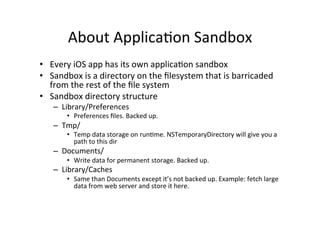
About	
  Applica@on	
  Sandbox	
  
•  Every	
  iOS	
  app	
  has	
  its	
  own	
  applica@on	
  sandbox	
  
•  Sandbox	
  is	
  a	
  directory	
  on	
  the	
  filesystem	
  that	
  is	
  barricaded	
  
   from	
  the	
  rest	
  of	
  the	
  file	
  system	
  
•  Sandbox	
  directory	
  structure	
  
     –  Library/Preferences	
  
          •  Preferences	
  files.	
  Backed	
  up.	
  
     –  Tmp/	
  
          •  Temp	
  data	
  storage	
  on	
  run@me.	
  NSTemporaryDirectory	
  will	
  give	
  you	
  a	
  
             path	
  to	
  this	
  dir	
  
     –  Documents/	
  
          •  Write	
  data	
  for	
  permanent	
  storage.	
  Backed	
  up.	
  
     –  Library/Caches	
  
          •  Same	
  than	
  Documents	
  except	
  it’s	
  not	
  backed	
  up.	
  Example:	
  fetch	
  large	
  
             data	
  from	
  web	
  server	
  and	
  store	
  it	
  here.	
  
Archiving	
  to	
  Documents/	
  dir	
  
// Searches file system for a path that meets the criteria given by the
// arguments. On iOS the last two arguments are always the same! (Mac OS X has several
// more options)
//
// Returns array of strings, in iOS only one string in the array.
NSArray *documentDirectories =
     NSSearchPathForDirectoriesInDomains(NSDocumentDirectory, NSUserFomainMask, YES);

// Fetch the only document directory found in the array
NSString *documentDirectory =
     [documentDirectories objectAtIndex:0];

// Add file name to the end of the array
NSString *path = [documentDirectory stringByAppendingPathComponent:@"file.archive"];
NSKeyedArchiver	
  and	
  
               NSKeyedUnarchiver	
  
•  NSKeyedArchiver	
  provides	
  a	
  way	
  to	
  encode	
  
   objects	
  into	
  a	
  file.	
  
       [NSKeyedArchiver archiveRootObject: someObject
                                   toFile: path];
•  NSKeyedUnarchiver	
  decodes	
  the	
  objects	
  from	
  
   file	
  
       someObject = [NSKeyedUnArchiver
                      unarchiveObjectWithFile: path];
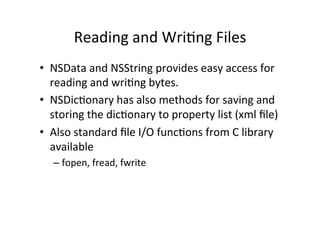
Reading	
  and	
  Wri@ng	
  Files	
  
•  NSData	
  and	
  NSString	
  provides	
  easy	
  access	
  for	
  
   reading	
  and	
  wri@ng	
  bytes.	
  	
  
•  NSDic@onary	
  has	
  also	
  methods	
  for	
  saving	
  and	
  
   storing	
  the	
  dic@onary	
  to	
  property	
  list	
  (xml	
  file)	
  
•  Also	
  standard	
  file	
  I/O	
  func@ons	
  from	
  C	
  library	
  
   available	
  
    –  fopen,	
  fread,	
  fwrite	
  	
  
Wri@ng	
  to	
  File	
  System	
  using	
  NSData	
  
•  NSData	
  provides	
  convinient	
  methods	
  for	
  
   reading	
  and	
  wri@ng	
  to	
  file	
  system	
  
   –  - writeToFile:atomically
   –  + dataWithContentsOfFile
•  Example	
  
   –  [someData writeToFile:path atomically:YES]
   –  NSData* data = [NSData dataWithContestOfFile:
      path];

iOS: Using persistant storage

  • 1.
    iOS:  Persistant  Storage   Jussi  Pohjolainen  
  • 2.
    Overview   •  iOS  provides  many  ways  of  saving  and  loading  data     •  NSUserDefaults   –  Simple  mechanism  for  preferences   •  Archiving   –  Save  and  load  data  model  object  a<ributes  from  file   system   •  Wri;ng  to  File  System   –  Easy  mechanism  for  reading  and  wri@ng  bytes   •  SQLite   –  Rela@onal  database  
  • 3.
    NSUserDefaults   •  Default  database  is  created  automa@cally  for   each  user   •  Saves  and  loads  data  to  database   •  At  run@me  caches  informa@on  to  avoid  having  to   open  connec@on  to  the  database   –  synchronize  method  will  save  cache  to  database   –  synchronize  method  is  invoked  at  periodic  intervals   •  Methods  for  saving  and  loading  NSData,   NSString,  NSNumber,  NSDate,  NSArray  and   NSDic@onary   –  Any  other  object;  archive  it  to  NSData  
  • 4.
    Example  NSUserDefaults:  Saving   NSUserDefaults *defaults = [NSUserDefaults standardUserDefaults]; [defaults setObject:firstName forKey:@"firstName"]; [defaults setObject:lastName forKey:@"lastname"]; [defaults synchronize];
  • 5.
    Example  NSUserDefaults:  Loading   NSUserDefaults *defaults = [NSUserDefaults standardUserDefaults]; NSString *firstName = [defaults objectForKey:@"firstName"]; NSString *lastName = [defaults objectForKey:@"lastname"];
  • 6.
    Archiving   •  NSUserDefaults  is  good  for  storing  simple  data   •  If  the  applica@on  model  is  complex,  archiving   is  a  good  solu@on   •  Archiving?   –  Saving  objects  (=instance  variables)  to  file  system   •  Classes  that  are  archived  must   –  Conform  NSCoding  protocol   –  Implement  two  methods:  encodeWithCoder  and   initWithCoder  
  • 7.
    Example   @interface Person: NSObject <NSCoding> { NSString* name; int id; } - (void) encodeWithCoder:(NSCoder* ) aCoder; - (void) initWithCoder:(NSCoder* ) aDeCoder; * * * - (void) encodeWithCoder:(NSCoder* ) aCoder { [aCoder encodeObject: name forKey:@"personName"]; [aCoder encodeInt: id forKey:@"personId"]; } - (void) initWithCoder:(NSCoder* ) aDeCoder { self = [super init]; if(self) { name = [aDecoder decodeObjectForKey:@"personName"]; id = [aDecoder decodeIntForKey:@"personId"]; } return self; }
  • 8.
    About  Applica@on  Sandbox   •  Every  iOS  app  has  its  own  applica@on  sandbox   •  Sandbox  is  a  directory  on  the  filesystem  that  is  barricaded   from  the  rest  of  the  file  system   •  Sandbox  directory  structure   –  Library/Preferences   •  Preferences  files.  Backed  up.   –  Tmp/   •  Temp  data  storage  on  run@me.  NSTemporaryDirectory  will  give  you  a   path  to  this  dir   –  Documents/   •  Write  data  for  permanent  storage.  Backed  up.   –  Library/Caches   •  Same  than  Documents  except  it’s  not  backed  up.  Example:  fetch  large   data  from  web  server  and  store  it  here.  
  • 9.
    Archiving  to  Documents/  dir   // Searches file system for a path that meets the criteria given by the // arguments. On iOS the last two arguments are always the same! (Mac OS X has several // more options) // // Returns array of strings, in iOS only one string in the array. NSArray *documentDirectories = NSSearchPathForDirectoriesInDomains(NSDocumentDirectory, NSUserFomainMask, YES); // Fetch the only document directory found in the array NSString *documentDirectory = [documentDirectories objectAtIndex:0]; // Add file name to the end of the array NSString *path = [documentDirectory stringByAppendingPathComponent:@"file.archive"];
  • 10.
    NSKeyedArchiver  and   NSKeyedUnarchiver   •  NSKeyedArchiver  provides  a  way  to  encode   objects  into  a  file.   [NSKeyedArchiver archiveRootObject: someObject toFile: path]; •  NSKeyedUnarchiver  decodes  the  objects  from   file   someObject = [NSKeyedUnArchiver unarchiveObjectWithFile: path];
  • 11.
    Reading  and  Wri@ng  Files   •  NSData  and  NSString  provides  easy  access  for   reading  and  wri@ng  bytes.     •  NSDic@onary  has  also  methods  for  saving  and   storing  the  dic@onary  to  property  list  (xml  file)   •  Also  standard  file  I/O  func@ons  from  C  library   available   –  fopen,  fread,  fwrite    
  • 12.
    Wri@ng  to  File  System  using  NSData   •  NSData  provides  convinient  methods  for   reading  and  wri@ng  to  file  system   –  - writeToFile:atomically –  + dataWithContentsOfFile •  Example   –  [someData writeToFile:path atomically:YES] –  NSData* data = [NSData dataWithContestOfFile: path];