Crea%ng	
  Games	
  for	
  	
  
Asha	
  -­‐	
  Pla3orm	
  
Jussi	
  Pohjolainen	
  	
  
TAMK	
  University	
  of	
  Applied	
  Sciences	
  
GRAPHICS	
  IN	
  MIDP	
  
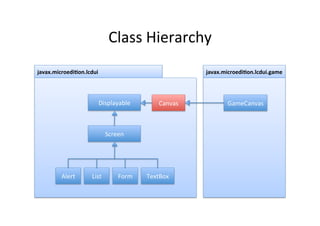
Class	
  Hierarchy	
  
javax.microedi9on.lcdui	
  

javax.microedi9on.lcdui.game	
  

Displayable	
  

Canvas	
  

Screen	
  

Alert	
  

List	
  

Form	
  

TextBox	
  

GameCanvas	
  
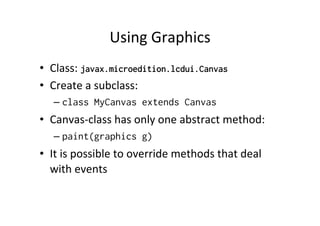
Using	
  Graphics	
  
•  Class:	
  javax.microedition.lcdui.Canvas
•  Create	
  a	
  subclass:	
  
–  class MyCanvas extends Canvas

•  Canvas-­‐class	
  has	
  only	
  one	
  abstract	
  method:	
  
–  paint(graphics g)

•  It	
  is	
  possible	
  to	
  override	
  methods	
  that	
  deal	
  
with	
  events	
  
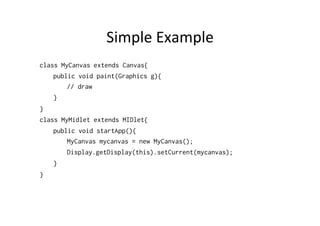
Simple	
  Example	
  
class MyCanvas extends Canvas {
public void paint(Graphics g){
// draw
}
}
class MyMidlet extends MIDlet{
public void startApp(){
MyCanvas mycanvas = new MyCanvas();
Display.getDisplay(this).setCurrent(mycanvas);
}
}
Repain%ng	
  
•  You	
  never	
  call	
  the	
  paint()	
  method.	
  
•  Instead	
  of	
  you	
  use	
  repaint():
–  By	
  using	
  this	
  method,	
  you	
  ask	
  the	
  framework	
  to	
  
repaint	
  the	
  canvas	
  
–  Framework	
  decides	
  when	
  is	
  the	
  best	
  %me	
  to	
  repaint	
  
the	
  canvas	
  

•  There	
  is	
  a	
  also:	
  
–  repaint(int x, int y, int width, int
height)
Coordinates	
  
•  Upper-­‐LeS	
  (0,0)	
  
•  Translate	
  the	
  origon	
  
–  translate()	
  –	
  metodi	
  

•  Origo's	
  posi%on:	
  
–  getTranslateX()
–  getTranslateY()

x"

y"
Graphics-­‐classes	
  drawing	
  methods	
  
•  See	
  the	
  API!	
  
–  drawLine(..)
–  drawRect(...)
–  drawRoundRect(...)
–  drawArc(...)
–  fillTriangle(...)
–  fillRect(...)
–  fillRoundRect(...)
–  fillArc(...)
Key	
  Handling	
  
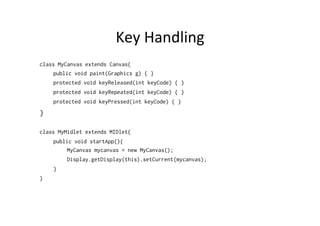
class MyCanvas extends Canvas{
public void paint(Graphics g) { }
protected void keyReleased(int keyCode) { }
protected void keyRepeated(int keyCode) { }
protected void keyPressed(int keyCode) { }

}
class MyMidlet extends MIDlet{
public void startApp(){
MyCanvas mycanvas = new MyCanvas();
Display.getDisplay(this).setCurrent(mycanvas);
}
}
GAME	
  API	
  
Game	
  API	
  
•  It	
  is	
  easy	
  to	
  handle	
  anima%on	
  and	
  graphics	
  
with	
  the	
  Game	
  API	
  
•  All	
  the	
  classes	
  can	
  be	
  found	
  from	
  
javax.microedition.lcdui.game.*;
GameCanvas	
  
•  Using	
  the	
  tradi%onal	
  Canvas-­‐class	
  
–  You	
  inherit	
  the	
  Canvas	
  and	
  override	
  paint-­‐method.	
  
–  repaint()
–  Event	
  handling	
  is	
  done	
  by	
  using	
  methods	
  like	
  keypressed,	
  
keyreleased	
  

•  Using	
  the	
  GameCanvas-­‐class	
  
–  You	
  inherit	
  the	
  GameCanvas-­‐class	
  
–  There	
  is	
  no	
  need	
  for	
  paint-­‐method,	
  you	
  can	
  draw	
  anywhere!	
  	
  
–  flushGraphics()
–  Two	
  ways	
  of	
  doing	
  event	
  handling!
Example	
  of	
  GameCanvas	
  Usage	
  
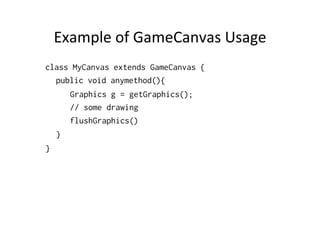
class MyCanvas extends GameCanvas {
public void anymethod(){
Graphics g = getGraphics();
// some drawing
flushGraphics()
}
}
Handling	
  Events	
  
•  Constructor	
  of	
  GameCanvas	
  
–  protected GameCanvas(boolean
suppressKeyEvents)

•  You	
  have	
  to	
  call	
  this	
  constructor	
  in	
  you	
  own	
  
GameCanvas	
  class..	
  
–  =>	
  You	
  have	
  to	
  give	
  a	
  boolean	
  value..	
  
–  true:	
  use	
  only	
  GameCanvases	
  own	
  event	
  handling	
  
–  false:	
  in	
  addi4on	
  to	
  GameCanvases	
  own	
  event	
  handling	
  
use	
  Canvases	
  event	
  handling	
  
GameCanvas	
  Usage	
  
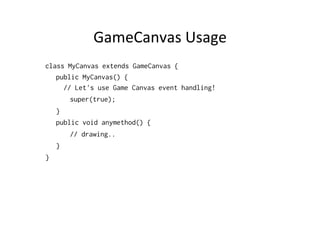
class MyCanvas extends GameCanvas {
public MyCanvas() {
// Let's use Game Canvas event handling!
super(true);
}
public void anymethod() {
// drawing..
}
}
Event	
  Handling	
  
•  You	
  can	
  ask	
  which	
  bu]on	
  is	
  pressed	
  
(GameCanvas	
  Event	
  Handling)	
  
–  public int getKeyStates()

•  Bit-­‐finals	
  of	
  GameCanvas	
  
–  UP_PRESSED, DOWN_PRESSED, LEFT_PRESSED,
RIGHT_PRESSED, FIRE_PRESSED,
GAME_A_PRESSED, GAME_B_PRESSED,
GAME_C_PRESSED, GAME_D_PRESSED
GameCanvas	
  Example	
  3	
  
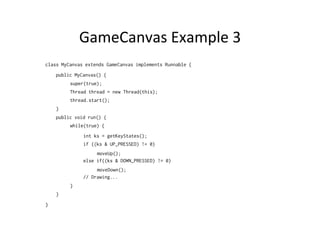
class MyCanvas extends GameCanvas implements Runnable {
public MyCanvas() {
super(true);
Thread thread = new Thread(this);
thread.start();
}
public void run() {
while(true) {
int ks = getKeyStates();
if ((ks & UP_PRESSED) != 0)
moveUp();
else if((ks & DOWN_PRESSED) != 0)
moveDown();
// Drawing...
}
}
}
Touch	
  
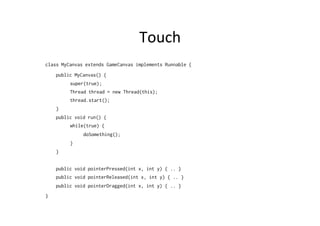
class MyCanvas extends GameCanvas implements Runnable {
public MyCanvas() {
super(true);
Thread thread = new Thread(this);
thread.start();
}
public void run() {
while(true) {
doSomething();
}
}
public void pointerPressed(int x, int y) { .. }
public void pointerReleased(int x, int y) { .. }
public void pointerDragged(int x, int y) { .. }
}
GameLoop	
  and	
  FPS	
  
class MyCanvas extends GameCanvas implements Runnable {
public MyCanvas() {
super(true);
Thread thread = new Thread(this);
thread.start();
}
public void run() {
// THIS WILL LOOP AS FAST AS IT CAN!
while(true) {
doSomething();
}
}
}
GameLoop	
  and	
  FPS	
  
class MyCanvas extends GameCanvas implements Runnable {
private int fps = 1;
public MyCanvas() {
super(true);
Thread thread = new Thread(this);
thread.start();
}
public void run() {
// Now iteration is 1 frames per sec
while(true) {
doSomething();
try {
Thread.sleep(1000 / fps);
} catch (InterruptedException e) { .. }
}
}
}
GameLoop	
  and	
  FPS	
  
class MyCanvas extends GameCanvas implements Runnable {
private int fps = 30;
public MyCanvas() {
super(true);
Thread thread = new Thread(this);
thread.start();
}
public void run() {

// Problem, what if the mobile phone can keep up with the pace?
while(true) {

// This takes second…
doSomethingHeavyAndMagical3DStuff();
try {
Thread.sleep(1000 / fps); // and after the second, we will wait more!
} catch (InterruptedException e) { .. }
}
}
}
class MyCanvas extends GameCanvas implements Runnable {
private int fps = 30;
public
long
long
long
long

void run() {
time = 0;
elapsedTime = 0;
interval = 0;
sleepTime = 0;

while(true) {
// Get current time
time = System.currentTimeMillis();
doSomethingHeavyAndMagical3DStuff();

// Elapsed time
elapsedTime = System.currentTimeMillis() - time;
// Do we need to sleep?
sleepTime = 0;
// If elapsed time was 100 millisecs, then
//
1000 / 30 - 100 = -66,66. Sleep is not needed (= 0)!
// If elapsed time was 1 millisecs, then sleepTime:
//
1000 / 30 - 1 = 32,333.
// If elapsed time was 20 millisecs, then sleepTime:
//
1000 / 30 - 20 = 13,333..
interval = (int) ((1000.0 / fps) - elapsedTime);
if(interval > 0) {
sleepTime = interval;
}
try {

}

}

}

Thread.sleep(sleepTime);
} catch (InterruptedException e) { }
Layers	
  
•  You	
  can	
  use	
  layers	
  with	
  the	
  Game	
  canvas.	
  
•  For	
  example:	
  
–  background-­‐layer	
  (bo]om)	
  
–  car-­‐layer	
  (front	
  of	
  the	
  background)	
  
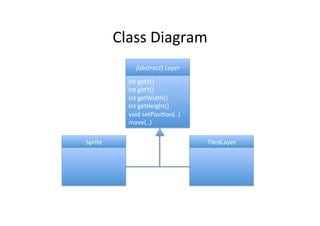
•  javax.microedition.lcdui.game.Layer
Layer-­‐class	
  
•  Layer	
  class	
  is	
  abstract	
  and	
  it	
  has	
  two	
  concrete	
  
subclasses:	
  1)	
  TiledLayer,	
  2)	
  Sprite
•  Layer's	
  methods	
  
–  int getX()
–  int getY()
–  int getWidth()
–  int getHeight()
–  void setPosition(..)
–  move(..)
Class	
  Diagram	
  
{abstract}	
  Layer	
  
int	
  getX()	
  
int	
  getY()	
  
int	
  getWidth()	
  
int	
  getHeight()	
  
void	
  setPosi%on(..)	
  
move(..)	
  
Sprite	
  

TiledLayer	
  
Mastering	
  the	
  layers	
  
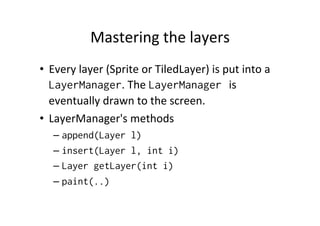
•  Every	
  layer	
  (Sprite	
  or	
  TiledLayer)	
  is	
  put	
  into	
  a	
  
LayerManager.	
  The	
  LayerManager is	
  
eventually	
  drawn	
  to	
  the	
  screen.	
  
•  LayerManager's	
  methods	
  
–  append(Layer l)
–  insert(Layer l, int i)
–  Layer getLayer(int i)
–  paint(..)
Class	
  Diagram	
  
LayerManager	
  

{abstract}	
  Layer	
  

append(Layer	
  l)	
  
insert(Layer	
  l,	
  int	
  i)	
  
Layer	
  getLayer(int	
  i)	
  
paint(..)	
  

int	
  getX()	
  
*	
   int	
  getY()	
  
int	
  getWidth()	
  
int	
  getHeight()	
  
void	
  setPosi%on(..)	
  
move(..)	
  
Sprite	
  

TiledLayer	
  
LayerManager:	
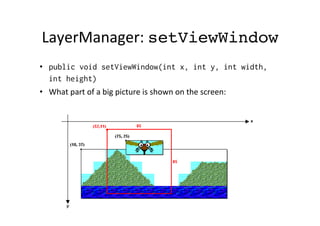
  setViewWindow!
•  public void setViewWindow(int x, int y, int width,
int height)
•  What	
  part	
  of	
  a	
  big	
  picture	
  is	
  shown	
  on	
  the	
  screen:	
  
Sprite	
  -­‐	
  class	
  
•  Sprite	
  classes	
  constructors:	
  
–  public Sprite(Image i)
–  public Sprite(Image i, int framewidth,
int frameheight)
Example	
  of	
  Using	
  Sprite	
  and	
  
LayoutManager	
  
LayerManager l = new LayerManager();
Sprite s = new Sprite(myimage);
s.setPosition(50,50);
l.append(s);
Graphics g = getGraphics();
l.paint(g,0,0);
flushGraphics();
Sprite	
  anima%on	
  
•  Make	
  one	
  image-­‐file,	
  which	
  contains	
  all	
  the	
  
frames	
  
•  In	
  the	
  Sprite's	
  constructor	
  you	
  define	
  one	
  
frame's	
  height	
  and	
  width	
  
•  ASer	
  that	
  you	
  can	
  use	
  Sprite's	
  nextFrame()	
  
method	
  
Example	
  

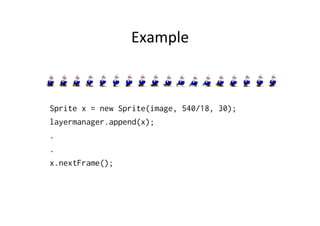
Sprite x = new Sprite(image, 540/18, 30);
layermanager.append(x);
.
.
x.nextFrame();
With	
  Threads..	
  
public void run() {!
while(true){!
int ks = getKeyStates();!
if((ks & RIGHT_PRESSED) != 0){!
mysprite.move(3,0);!
mysprite.nextFrame();!
}!
}!
}!
Influencing	
  frames	
  
•  Changing	
  sequence	
  
–  int sequence [] = {0, 15, 17};
–  mysprite.setFrameSequence(sequence)

•  Jumping	
  to	
  another	
  frame	
  
–  mysprite.setFrame(10);
Transforma%on	
  
•  It	
  is	
  possible	
  to	
  transform	
  the	
  sprite	
  
–  public void setTransform(int transform)

•  Finals	
  
–  TRANS_NONE
–  TRANS_ROT90
–  TRANS_MIRROR
–  ..	
  see	
  the	
  api	
  

•  In	
  prac%ce	
  
–  mysprite.setTransform(Sprite.TRANS_MIRROR)
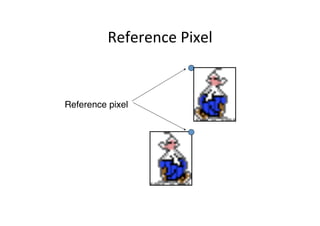
Reference	
  Pixel	
  

Reference pixel"
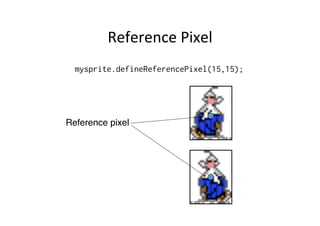
Reference	
  Pixel	
  
mysprite.defineReferencePixel(15,15);

Reference pixel"
Collisions	
  
•  Sprite	
  
–  collidesWith(Sprite s, boolean pixelLevel)
–  collidesWith(TiledLayer s, boolean pixelLevel)
–  collidesWith(Image s, int x, int y, boolean pixelLevel)

•  PixelLevel	
  
–  The	
  rect	
  of	
  the	
  sprite	
  or	
  the	
  "real	
  pixels"	
  
Example	
  
Sprite x = new Sprite(...);
Sprite y = new Sprite(...);
if(x.collidesWith(y, true)){
// CRASH!

}
TiledLayer	
  
•  A	
  TiledLayer	
  is	
  a	
  visual	
  element	
  composed	
  of	
  a	
  
grid	
  of	
  cells	
  that	
  can	
  be	
  filled	
  with	
  a	
  set	
  of	
  %le	
  
images.	
  
•  Rows	
  and	
  Columns	
  
–  TiledLayer(int columns, int rows, Image
i, int tileWidth, int tileHeight);
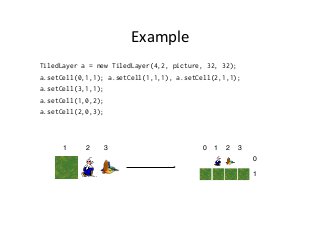
Example	
  
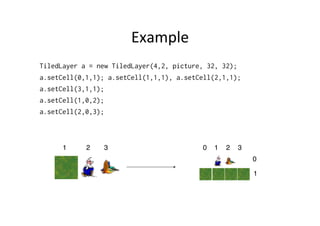
TiledLayer a = new TiledLayer(4,2, picture, 32, 32);
a.setCell(0,1,1); a.setCell(1,1,1), a.setCell(2,1,1);
a.setCell(3,1,1);
a.setCell(1,0,2);
a.setCell(2,0,3);

1"

2"

3"

0" 1" 2" 3"
0"
1"

Creating Games for Asha - platform

  • 1.
    Crea%ng  Games  for     Asha  -­‐  Pla3orm   Jussi  Pohjolainen     TAMK  University  of  Applied  Sciences  
  • 2.
  • 3.
    Class  Hierarchy   javax.microedi9on.lcdui   javax.microedi9on.lcdui.game   Displayable   Canvas   Screen   Alert   List   Form   TextBox   GameCanvas  
  • 4.
    Using  Graphics   • Class:  javax.microedition.lcdui.Canvas •  Create  a  subclass:   –  class MyCanvas extends Canvas •  Canvas-­‐class  has  only  one  abstract  method:   –  paint(graphics g) •  It  is  possible  to  override  methods  that  deal   with  events  
  • 5.
    Simple  Example   classMyCanvas extends Canvas { public void paint(Graphics g){ // draw } } class MyMidlet extends MIDlet{ public void startApp(){ MyCanvas mycanvas = new MyCanvas(); Display.getDisplay(this).setCurrent(mycanvas); } }
  • 6.
    Repain%ng   •  You  never  call  the  paint()  method.   •  Instead  of  you  use  repaint(): –  By  using  this  method,  you  ask  the  framework  to   repaint  the  canvas   –  Framework  decides  when  is  the  best  %me  to  repaint   the  canvas   •  There  is  a  also:   –  repaint(int x, int y, int width, int height)
  • 7.
    Coordinates   •  Upper-­‐LeS  (0,0)   •  Translate  the  origon   –  translate()  –  metodi   •  Origo's  posi%on:   –  getTranslateX() –  getTranslateY() x" y"
  • 8.
    Graphics-­‐classes  drawing  methods   •  See  the  API!   –  drawLine(..) –  drawRect(...) –  drawRoundRect(...) –  drawArc(...) –  fillTriangle(...) –  fillRect(...) –  fillRoundRect(...) –  fillArc(...)
  • 9.
    Key  Handling   classMyCanvas extends Canvas{ public void paint(Graphics g) { } protected void keyReleased(int keyCode) { } protected void keyRepeated(int keyCode) { } protected void keyPressed(int keyCode) { } } class MyMidlet extends MIDlet{ public void startApp(){ MyCanvas mycanvas = new MyCanvas(); Display.getDisplay(this).setCurrent(mycanvas); } }
  • 10.
  • 11.
    Game  API   • It  is  easy  to  handle  anima%on  and  graphics   with  the  Game  API   •  All  the  classes  can  be  found  from   javax.microedition.lcdui.game.*;
  • 12.
    GameCanvas   •  Using  the  tradi%onal  Canvas-­‐class   –  You  inherit  the  Canvas  and  override  paint-­‐method.   –  repaint() –  Event  handling  is  done  by  using  methods  like  keypressed,   keyreleased   •  Using  the  GameCanvas-­‐class   –  You  inherit  the  GameCanvas-­‐class   –  There  is  no  need  for  paint-­‐method,  you  can  draw  anywhere!     –  flushGraphics() –  Two  ways  of  doing  event  handling!
  • 13.
    Example  of  GameCanvas  Usage   class MyCanvas extends GameCanvas { public void anymethod(){ Graphics g = getGraphics(); // some drawing flushGraphics() } }
  • 14.
    Handling  Events   • Constructor  of  GameCanvas   –  protected GameCanvas(boolean suppressKeyEvents) •  You  have  to  call  this  constructor  in  you  own   GameCanvas  class..   –  =>  You  have  to  give  a  boolean  value..   –  true:  use  only  GameCanvases  own  event  handling   –  false:  in  addi4on  to  GameCanvases  own  event  handling   use  Canvases  event  handling  
  • 15.
    GameCanvas  Usage   classMyCanvas extends GameCanvas { public MyCanvas() { // Let's use Game Canvas event handling! super(true); } public void anymethod() { // drawing.. } }
  • 16.
    Event  Handling   • You  can  ask  which  bu]on  is  pressed   (GameCanvas  Event  Handling)   –  public int getKeyStates() •  Bit-­‐finals  of  GameCanvas   –  UP_PRESSED, DOWN_PRESSED, LEFT_PRESSED, RIGHT_PRESSED, FIRE_PRESSED, GAME_A_PRESSED, GAME_B_PRESSED, GAME_C_PRESSED, GAME_D_PRESSED
  • 17.
    GameCanvas  Example  3   class MyCanvas extends GameCanvas implements Runnable { public MyCanvas() { super(true); Thread thread = new Thread(this); thread.start(); } public void run() { while(true) { int ks = getKeyStates(); if ((ks & UP_PRESSED) != 0) moveUp(); else if((ks & DOWN_PRESSED) != 0) moveDown(); // Drawing... } } }
  • 18.
    Touch   class MyCanvasextends GameCanvas implements Runnable { public MyCanvas() { super(true); Thread thread = new Thread(this); thread.start(); } public void run() { while(true) { doSomething(); } } public void pointerPressed(int x, int y) { .. } public void pointerReleased(int x, int y) { .. } public void pointerDragged(int x, int y) { .. } }
  • 19.
    GameLoop  and  FPS   class MyCanvas extends GameCanvas implements Runnable { public MyCanvas() { super(true); Thread thread = new Thread(this); thread.start(); } public void run() { // THIS WILL LOOP AS FAST AS IT CAN! while(true) { doSomething(); } } }
  • 20.
    GameLoop  and  FPS   class MyCanvas extends GameCanvas implements Runnable { private int fps = 1; public MyCanvas() { super(true); Thread thread = new Thread(this); thread.start(); } public void run() { // Now iteration is 1 frames per sec while(true) { doSomething(); try { Thread.sleep(1000 / fps); } catch (InterruptedException e) { .. } } } }
  • 21.
    GameLoop  and  FPS   class MyCanvas extends GameCanvas implements Runnable { private int fps = 30; public MyCanvas() { super(true); Thread thread = new Thread(this); thread.start(); } public void run() { // Problem, what if the mobile phone can keep up with the pace? while(true) { // This takes second… doSomethingHeavyAndMagical3DStuff(); try { Thread.sleep(1000 / fps); // and after the second, we will wait more! } catch (InterruptedException e) { .. } } } }
  • 22.
    class MyCanvas extendsGameCanvas implements Runnable { private int fps = 30; public long long long long void run() { time = 0; elapsedTime = 0; interval = 0; sleepTime = 0; while(true) { // Get current time time = System.currentTimeMillis(); doSomethingHeavyAndMagical3DStuff(); // Elapsed time elapsedTime = System.currentTimeMillis() - time; // Do we need to sleep? sleepTime = 0; // If elapsed time was 100 millisecs, then // 1000 / 30 - 100 = -66,66. Sleep is not needed (= 0)! // If elapsed time was 1 millisecs, then sleepTime: // 1000 / 30 - 1 = 32,333. // If elapsed time was 20 millisecs, then sleepTime: // 1000 / 30 - 20 = 13,333.. interval = (int) ((1000.0 / fps) - elapsedTime); if(interval > 0) { sleepTime = interval; } try { } } } Thread.sleep(sleepTime); } catch (InterruptedException e) { }
  • 23.
    Layers   •  You  can  use  layers  with  the  Game  canvas.   •  For  example:   –  background-­‐layer  (bo]om)   –  car-­‐layer  (front  of  the  background)   •  javax.microedition.lcdui.game.Layer
  • 24.
    Layer-­‐class   •  Layer  class  is  abstract  and  it  has  two  concrete   subclasses:  1)  TiledLayer,  2)  Sprite •  Layer's  methods   –  int getX() –  int getY() –  int getWidth() –  int getHeight() –  void setPosition(..) –  move(..)
  • 25.
    Class  Diagram   {abstract}  Layer   int  getX()   int  getY()   int  getWidth()   int  getHeight()   void  setPosi%on(..)   move(..)   Sprite   TiledLayer  
  • 26.
    Mastering  the  layers   •  Every  layer  (Sprite  or  TiledLayer)  is  put  into  a   LayerManager.  The  LayerManager is   eventually  drawn  to  the  screen.   •  LayerManager's  methods   –  append(Layer l) –  insert(Layer l, int i) –  Layer getLayer(int i) –  paint(..)
  • 27.
    Class  Diagram   LayerManager   {abstract}  Layer   append(Layer  l)   insert(Layer  l,  int  i)   Layer  getLayer(int  i)   paint(..)   int  getX()   *   int  getY()   int  getWidth()   int  getHeight()   void  setPosi%on(..)   move(..)   Sprite   TiledLayer  
  • 28.
    LayerManager:  setViewWindow! •  publicvoid setViewWindow(int x, int y, int width, int height) •  What  part  of  a  big  picture  is  shown  on  the  screen:  
  • 29.
    Sprite  -­‐  class   •  Sprite  classes  constructors:   –  public Sprite(Image i) –  public Sprite(Image i, int framewidth, int frameheight)
  • 30.
    Example  of  Using  Sprite  and   LayoutManager   LayerManager l = new LayerManager(); Sprite s = new Sprite(myimage); s.setPosition(50,50); l.append(s); Graphics g = getGraphics(); l.paint(g,0,0); flushGraphics();
  • 31.
    Sprite  anima%on   • Make  one  image-­‐file,  which  contains  all  the   frames   •  In  the  Sprite's  constructor  you  define  one   frame's  height  and  width   •  ASer  that  you  can  use  Sprite's  nextFrame()   method  
  • 32.
    Example   Sprite x= new Sprite(image, 540/18, 30); layermanager.append(x); . . x.nextFrame();
  • 33.
    With  Threads..   publicvoid run() {! while(true){! int ks = getKeyStates();! if((ks & RIGHT_PRESSED) != 0){! mysprite.move(3,0);! mysprite.nextFrame();! }! }! }!
  • 34.
    Influencing  frames   • Changing  sequence   –  int sequence [] = {0, 15, 17}; –  mysprite.setFrameSequence(sequence) •  Jumping  to  another  frame   –  mysprite.setFrame(10);
  • 35.
    Transforma%on   •  It  is  possible  to  transform  the  sprite   –  public void setTransform(int transform) •  Finals   –  TRANS_NONE –  TRANS_ROT90 –  TRANS_MIRROR –  ..  see  the  api   •  In  prac%ce   –  mysprite.setTransform(Sprite.TRANS_MIRROR)
  • 36.
  • 37.
  • 38.
    Collisions   •  Sprite   –  collidesWith(Sprite s, boolean pixelLevel) –  collidesWith(TiledLayer s, boolean pixelLevel) –  collidesWith(Image s, int x, int y, boolean pixelLevel) •  PixelLevel   –  The  rect  of  the  sprite  or  the  "real  pixels"  
  • 39.
    Example   Sprite x= new Sprite(...); Sprite y = new Sprite(...); if(x.collidesWith(y, true)){ // CRASH! }
  • 40.
    TiledLayer   •  A  TiledLayer  is  a  visual  element  composed  of  a   grid  of  cells  that  can  be  filled  with  a  set  of  %le   images.   •  Rows  and  Columns   –  TiledLayer(int columns, int rows, Image i, int tileWidth, int tileHeight);
  • 41.
    Example   TiledLayer a= new TiledLayer(4,2, picture, 32, 32); a.setCell(0,1,1); a.setCell(1,1,1), a.setCell(2,1,1); a.setCell(3,1,1); a.setCell(1,0,2); a.setCell(2,0,3); 1" 2" 3" 0" 1" 2" 3" 0" 1"