LibGDX:	
  Internaliza1on	
  and	
  
Scene	
  2D	
  
Jussi	
  Pohjolainen	
  
Tampere	
  University	
  of	
  Applied	
  Sciences	
  
INTERNALIZATION	
  
Support	
  for	
  Mul1ple	
  Languages	
  
•  Create	
  defaults	
  proper1es	
  file:	
  
– MyBundle.properties
•  Create	
  other	
  language	
  files:	
  
– MyBundle.fi_FI.properties
MyBundle.proper1es	
  
title=My Game
score=You score {0}
MyBundle_fi.proper1es	
  
title=Pelini
score=Pisteesi {0}
In	
  Java	
  
Locale locale = new Locale("fi");
I18NBundle myBundle =
I18NBundle.createBundle(Gdx.files.internal("MyBundle"), locale);
String title = myBundle.get("title");
String score = myBundle.get("score", 50);
Notes	
  
•  If	
  you	
  don't	
  specify	
  locale,	
  default	
  locale	
  is	
  
used	
  
•  Charset	
  is	
  UTF-­‐8	
  (without	
  BOM)	
  
•  See:	
  	
  
– hVps://github.com/libgdx/libgdx/wiki/
Interna1onaliza1on-­‐and-­‐Localiza1on	


SCENE2D	
  
Scene2D?	
  
•  It’s	
  op1onal,	
  you	
  don’t	
  need	
  it.	
  But	
  you	
  may	
  
want	
  to	
  use	
  it.	
  
•  May	
  be	
  useful	
  for	
  "board	
  games"	
  
•  Higher	
  level	
  framework	
  for	
  crea>ng	
  games	
  
•  Provides	
  UI	
  Toolkit	
  also:	
  Scene2d.ui	
  
•  Tutorial	
  
–  https://github.com/libgdx/libgdx/wiki/Scene2d
Concepts	
  
•  Stage	
  
– “Screens”,	
  “Stages”,	
  “Levels”	
  
– Camera	
  watching	
  the	
  stage	
  
– Contains	
  group	
  of	
  actors	
  
•  Actors	
  
– “Sprites”	


Roughly	
  the	
  Idea	
  in	
  Code	
  
Stage gameStage = new Stage();
// PlayerActor extends Actor { .. }
PlayerActor player = new PlayerActor();
// Let's add the actor to the stage
gameStage.addActor(player);
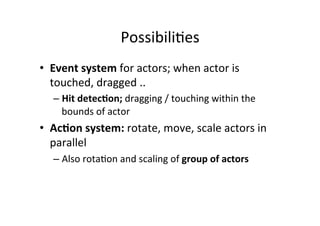
Possibili1es	
  
•  Event	
  system	
  for	
  actors;	
  when	
  actor	
  is	
  
touched,	
  dragged	
  ..	
  
– Hit	
  detec>on;	
  dragging	
  /	
  touching	
  within	
  the	
  
bounds	
  of	
  actor	
  
•  Ac>on	
  system:	
  rotate,	
  move,	
  scale	
  actors	
  in	
  
parallel	
  
– Also	
  rota1on	
  and	
  scaling	
  of	
  group	
  of	
  actors	
  
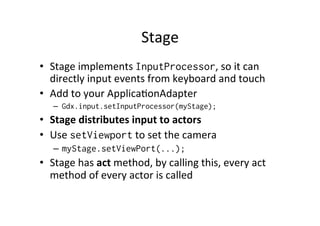
Stage	
  
•  Stage	
  implements	
  InputProcessor,	
  so	
  it	
  can	
  
directly	
  input	
  events	
  from	
  keyboard	
  and	
  touch	
  
•  Add	
  to	
  your	
  Applica1onAdapter	
  
–  Gdx.input.setInputProcessor(myStage);
•  Stage	
  distributes	
  input	
  to	
  actors	
  
•  Use	
  setViewport	
  to	
  set	
  the	
  camera	
  
–  myStage.setViewPort(...);	
  
•  Stage	
  has	
  act	
  method,	
  by	
  calling	
  this,	
  every	
  act	
  
method	
  of	
  every	
  actor	
  is	
  called	
  
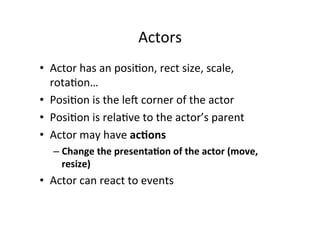
Actors	
  
•  Actor	
  has	
  an	
  posi1on,	
  rect	
  size,	
  scale,	
  
rota1on…	
  
•  Posi1on	
  is	
  the	
  leb	
  corner	
  of	
  the	
  actor	
  
•  Posi1on	
  is	
  rela1ve	
  to	
  the	
  actor’s	
  parent	
  
•  Actor	
  may	
  have	
  ac>ons	
  
– Change	
  the	
  presenta>on	
  of	
  the	
  actor	
  (move,	
  
resize)	
  
•  Actor	
  can	
  react	
  to	
  events	
  
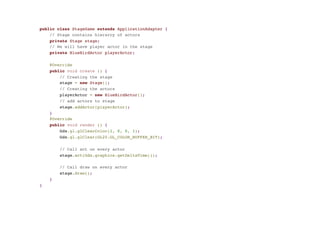
public class StageGame extends ApplicationAdapter {
// Stage contains hierarcy of actors
private Stage stage;
// We will have player actor in the stage
private BlueBirdActor playerActor;
@Override
public void create () {
// Creating the stage
stage = new Stage();
// Creating the actors
playerActor = new BlueBirdActor();
// add actors to stage
stage.addActor(playerActor);
}
@Override
public void render () {
Gdx.gl.glClearColor(1, 0, 0, 1);
Gdx.gl.glClear(GL20.GL_COLOR_BUFFER_BIT);
// Call act on every actor
stage.act(Gdx.graphics.getDeltaTime());
// Call draw on every actor
stage.draw();
}
}
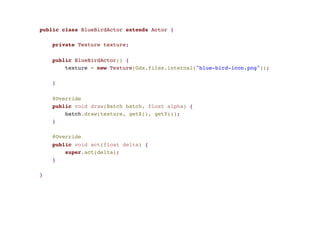
public class BlueBirdActor extends Actor {
private Texture texture;
public BlueBirdActor() {
texture = new Texture(Gdx.files.internal("blue-bird-icon.png"));
}
@Override
public void draw(Batch batch, float alpha) {
batch.draw(texture, getX(), getY());
}
@Override
public void act(float delta) {
super.act(delta);
}
}
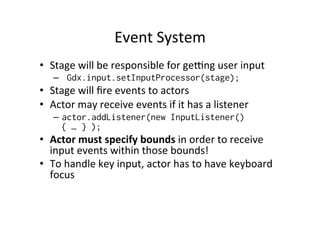
Event	
  System	
  
•  Stage	
  will	
  be	
  responsible	
  for	
  gedng	
  user	
  input	
  
–  Gdx.input.setInputProcessor(stage);
•  Stage	
  will	
  fire	
  events	
  to	
  actors	
  
•  Actor	
  may	
  receive	
  events	
  if	
  it	
  has	
  a	
  listener	
  
–  actor.addListener(new InputListener()
{ … } );
•  Actor	
  must	
  specify	
  bounds	
  in	
  order	
  to	
  receive	
  
input	
  events	
  within	
  those	
  bounds!	
  
•  To	
  handle	
  key	
  input,	
  actor	
  has	
  to	
  have	
  keyboard	
  
focus	
  
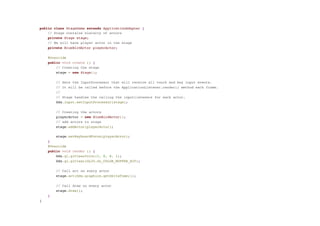
public class StageGame extends ApplicationAdapter {
// Stage contains hierarcy of actors
private Stage stage;
// We will have player actor in the stage
private BlueBirdActor playerActor;
@Override
public void create () {
// Creating the stage
stage = new Stage();
// Sets the InputProcessor that will receive all touch and key input events.
// It will be called before the ApplicationListener.render() method each frame.
//
// Stage handles the calling the inputlisteners for each actor.
Gdx.input.setInputProcessor(stage);
// Creating the actors
playerActor = new BlueBirdActor();
// add actors to stage
stage.addActor(playerActor);
stage.setKeyboardFocus(playerActor);
}
@Override
public void render () {
Gdx.gl.glClearColor(1, 0, 0, 1);
Gdx.gl.glClear(GL20.GL_COLOR_BUFFER_BIT);
// Call act on every actor
stage.act(Gdx.graphics.getDeltaTime());
// Call draw on every actor
stage.draw();
}
}
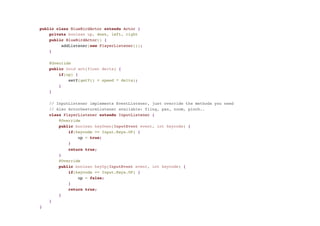
public class BlueBirdActor extends Actor {
private boolean up, down, left, right
public BlueBirdActor() {
addListener(new PlayerListener());
}
@Override
public void act(float delta) {
if(up) {
setY(getY() + speed * delta);
}
}
// InputListener implements EventListener, just override the methods you need
// Also ActorGestureListener available: fling, pan, zoom, pinch..
class PlayerListener extends InputListener {
@Override
public boolean keyDown(InputEvent event, int keycode) {
if(keycode == Input.Keys.UP) {
up = true;
}
return true;
}
@Override
public boolean keyUp(InputEvent event, int keycode) {
if(keycode == Input.Keys.UP) {
up = false;
}
return true;
}
}
}
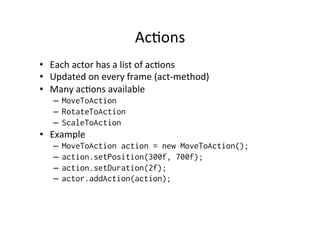
Ac1ons	
  
•  Each	
  actor	
  has	
  a	
  list	
  of	
  ac1ons	
  
•  Updated	
  on	
  every	
  frame	
  (act-­‐method)	
  
•  Many	
  ac1ons	
  available	
  
–  MoveToAction
–  RotateToAction
–  ScaleToAction
•  Example	
  
–  MoveToAction action = new MoveToAction();
–  action.setPosition(300f, 700f);
–  action.setDuration(2f);
–  actor.addAction(action);
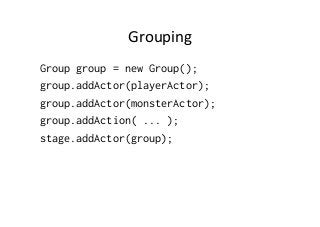
Grouping	
  Ac1ons	
  in	
  Sequence	
  
SequenceAction sequenceAction = new SequenceAction();
MoveToAction moveAction = new MoveToAction();
RotateToAction rotateAction = new RotateToAction();
ScaleToAction scaleAction = new ScaleToAction();
moveAction.setPosition(200f, 400f);
moveAction.setDuration(1f);
rotateAction.setRotation(rotate);
rotateAction.setDuration(1f);
scaleAction.setScale(0.5f);
scaleAction.setDuration(1f);
sequenceAction.addAction(moveAction);
sequenceAction.addAction(rotateAction);
sequenceAction.addAction(scaleAction);
actor.addAction(sequenceAction);
Grouping	
  Ac1ons	
  in	
  Parallel	
  
ParallelAction parallel = new ParallelAction ();
MoveToAction moveAction = new MoveToAction();
RotateToAction rotateAction = new RotateToAction();
ScaleToAction scaleAction = new ScaleToAction();
moveAction.setPosition(200f, 400f);
moveAction.setDuration(1f);
rotateAction.setRotation(rotate);
rotateAction.setDuration(1f);
scaleAction.setScale(0.5f);
scaleAction.setDuration(1f);
parallel.addAction(moveAction);
parallel.addAction(rotateAction);
parallel.addAction(scaleAction);
actor.addAction(parallel);
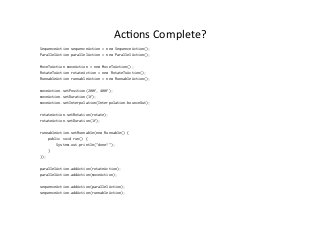
Ac1ons	
  Complete?	
  
SequenceAction sequenceAction = new SequenceAction();
ParallelAction parallelAction = new ParallelAction();
MoveToAction moveAction = new MoveToAction();
RotateToAction rotateAction = new RotateToAction();
RunnableAction runnableAction = new RunnableAction();
moveAction.setPosition(200f, 400f);
moveAction.setDuration(1f);
moveAction.setInterpolation(Interpolation.bounceOut);
rotateAction.setRotation(rotate);
rotateAction.setDuration(1f);
runnableAction.setRunnable(new Runnable() {
public void run() {
System.out.println("done!");
}
});
parallelAction.addAction(rotateAction);
parallelAction.addAction(moveAction);
sequenceAction.addAction(parallelAction);
sequenceAction.addAction(runnableAction);
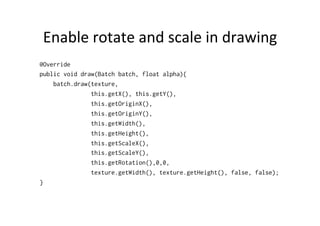
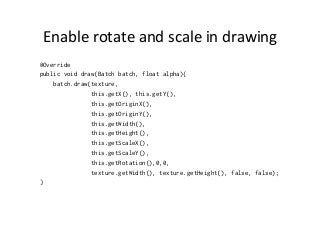
Enable	
  rotate	
  and	
  scale	
  in	
  drawing	
  
@Override
public void draw(Batch batch, float alpha){
batch.draw(texture,
this.getX(), this.getY(),
this.getOriginX(),
this.getOriginY(),
this.getWidth(),
this.getHeight(),
this.getScaleX(),
this.getScaleY(),
this.getRotation(),0,0,
texture.getWidth(), texture.getHeight(), false, false);
}
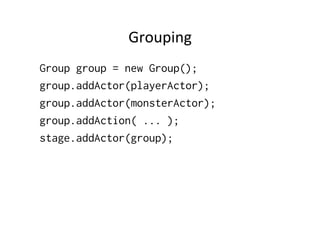
Grouping	
  
Group group = new Group();
group.addActor(playerActor);
group.addActor(monsterActor);
group.addAction( ... );
stage.addActor(group);
CREATING	
  UI:	
  SCENE2D.UI	


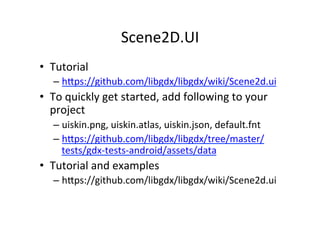
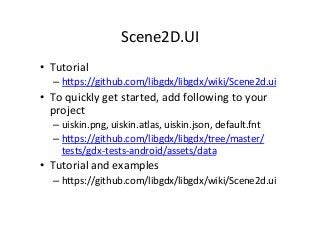
Scene2D.UI	
  
•  Tutorial	
  
– hVps://github.com/libgdx/libgdx/wiki/Scene2d.ui	
  
•  To	
  quickly	
  get	
  started,	
  add	
  following	
  to	
  your	
  
project	
  
– uiskin.png,	
  uiskin.atlas,	
  uiskin.json,	
  default.fnt	
  
– hVps://github.com/libgdx/libgdx/tree/master/
tests/gdx-­‐tests-­‐android/assets/data	
  
•  Tutorial	
  and	
  examples	
  
– hVps://github.com/libgdx/libgdx/wiki/Scene2d.ui	
  
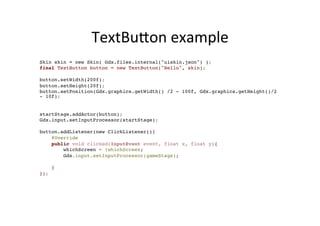
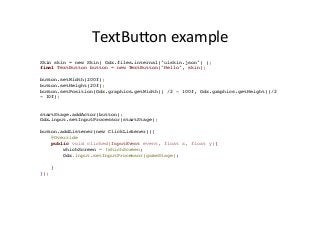
TextBuVon	
  example	
  
Skin skin = new Skin( Gdx.files.internal("uiskin.json") );
final TextButton button = new TextButton("Hello", skin);
button.setWidth(200f);
button.setHeight(20f);
button.setPosition(Gdx.graphics.getWidth() /2 - 100f, Gdx.graphics.getHeight()/2
- 10f);
startStage.addActor(button);
Gdx.input.setInputProcessor(startStage);
button.addListener(new ClickListener(){
@Override
public void clicked(InputEvent event, float x, float y){
whichScreen = !whichScreen;
Gdx.input.setInputProcessor(gameStage);
}
});

libGDX: Scene2D

  • 1.
    LibGDX:  Internaliza1on  and   Scene  2D   Jussi  Pohjolainen   Tampere  University  of  Applied  Sciences  
  • 2.
  • 3.
    Support  for  Mul1ple  Languages   •  Create  defaults  proper1es  file:   – MyBundle.properties •  Create  other  language  files:   – MyBundle.fi_FI.properties
  • 4.
  • 5.
  • 6.
    In  Java   Localelocale = new Locale("fi"); I18NBundle myBundle = I18NBundle.createBundle(Gdx.files.internal("MyBundle"), locale); String title = myBundle.get("title"); String score = myBundle.get("score", 50);
  • 7.
    Notes   •  If  you  don't  specify  locale,  default  locale  is   used   •  Charset  is  UTF-­‐8  (without  BOM)   •  See:     – hVps://github.com/libgdx/libgdx/wiki/ Interna1onaliza1on-­‐and-­‐Localiza1on    
  • 8.
  • 9.
    Scene2D?   •  It’s  op1onal,  you  don’t  need  it.  But  you  may   want  to  use  it.   •  May  be  useful  for  "board  games"   •  Higher  level  framework  for  crea>ng  games   •  Provides  UI  Toolkit  also:  Scene2d.ui   •  Tutorial   –  https://github.com/libgdx/libgdx/wiki/Scene2d
  • 10.
    Concepts   •  Stage   – “Screens”,  “Stages”,  “Levels”   – Camera  watching  the  stage   – Contains  group  of  actors   •  Actors   – “Sprites”      
  • 11.
    Roughly  the  Idea  in  Code   Stage gameStage = new Stage(); // PlayerActor extends Actor { .. } PlayerActor player = new PlayerActor(); // Let's add the actor to the stage gameStage.addActor(player);
  • 12.
    Possibili1es   •  Event  system  for  actors;  when  actor  is   touched,  dragged  ..   – Hit  detec>on;  dragging  /  touching  within  the   bounds  of  actor   •  Ac>on  system:  rotate,  move,  scale  actors  in   parallel   – Also  rota1on  and  scaling  of  group  of  actors  
  • 13.
    Stage   •  Stage  implements  InputProcessor,  so  it  can   directly  input  events  from  keyboard  and  touch   •  Add  to  your  Applica1onAdapter   –  Gdx.input.setInputProcessor(myStage); •  Stage  distributes  input  to  actors   •  Use  setViewport  to  set  the  camera   –  myStage.setViewPort(...);   •  Stage  has  act  method,  by  calling  this,  every  act   method  of  every  actor  is  called  
  • 14.
    Actors   •  Actor  has  an  posi1on,  rect  size,  scale,   rota1on…   •  Posi1on  is  the  leb  corner  of  the  actor   •  Posi1on  is  rela1ve  to  the  actor’s  parent   •  Actor  may  have  ac>ons   – Change  the  presenta>on  of  the  actor  (move,   resize)   •  Actor  can  react  to  events  
  • 15.
    public class StageGameextends ApplicationAdapter { // Stage contains hierarcy of actors private Stage stage; // We will have player actor in the stage private BlueBirdActor playerActor; @Override public void create () { // Creating the stage stage = new Stage(); // Creating the actors playerActor = new BlueBirdActor(); // add actors to stage stage.addActor(playerActor); } @Override public void render () { Gdx.gl.glClearColor(1, 0, 0, 1); Gdx.gl.glClear(GL20.GL_COLOR_BUFFER_BIT); // Call act on every actor stage.act(Gdx.graphics.getDeltaTime()); // Call draw on every actor stage.draw(); } }
  • 16.
    public class BlueBirdActorextends Actor { private Texture texture; public BlueBirdActor() { texture = new Texture(Gdx.files.internal("blue-bird-icon.png")); } @Override public void draw(Batch batch, float alpha) { batch.draw(texture, getX(), getY()); } @Override public void act(float delta) { super.act(delta); } }
  • 17.
    Event  System   • Stage  will  be  responsible  for  gedng  user  input   –  Gdx.input.setInputProcessor(stage); •  Stage  will  fire  events  to  actors   •  Actor  may  receive  events  if  it  has  a  listener   –  actor.addListener(new InputListener() { … } ); •  Actor  must  specify  bounds  in  order  to  receive   input  events  within  those  bounds!   •  To  handle  key  input,  actor  has  to  have  keyboard   focus  
  • 18.
    public class StageGameextends ApplicationAdapter { // Stage contains hierarcy of actors private Stage stage; // We will have player actor in the stage private BlueBirdActor playerActor; @Override public void create () { // Creating the stage stage = new Stage(); // Sets the InputProcessor that will receive all touch and key input events. // It will be called before the ApplicationListener.render() method each frame. // // Stage handles the calling the inputlisteners for each actor. Gdx.input.setInputProcessor(stage); // Creating the actors playerActor = new BlueBirdActor(); // add actors to stage stage.addActor(playerActor); stage.setKeyboardFocus(playerActor); } @Override public void render () { Gdx.gl.glClearColor(1, 0, 0, 1); Gdx.gl.glClear(GL20.GL_COLOR_BUFFER_BIT); // Call act on every actor stage.act(Gdx.graphics.getDeltaTime()); // Call draw on every actor stage.draw(); } }
  • 19.
    public class BlueBirdActorextends Actor { private boolean up, down, left, right public BlueBirdActor() { addListener(new PlayerListener()); } @Override public void act(float delta) { if(up) { setY(getY() + speed * delta); } } // InputListener implements EventListener, just override the methods you need // Also ActorGestureListener available: fling, pan, zoom, pinch.. class PlayerListener extends InputListener { @Override public boolean keyDown(InputEvent event, int keycode) { if(keycode == Input.Keys.UP) { up = true; } return true; } @Override public boolean keyUp(InputEvent event, int keycode) { if(keycode == Input.Keys.UP) { up = false; } return true; } } }
  • 20.
    Ac1ons   •  Each  actor  has  a  list  of  ac1ons   •  Updated  on  every  frame  (act-­‐method)   •  Many  ac1ons  available   –  MoveToAction –  RotateToAction –  ScaleToAction •  Example   –  MoveToAction action = new MoveToAction(); –  action.setPosition(300f, 700f); –  action.setDuration(2f); –  actor.addAction(action);
  • 21.
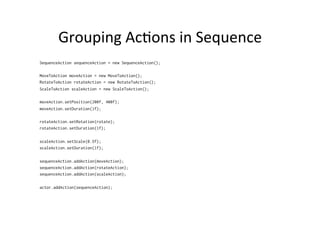
    Grouping  Ac1ons  in  Sequence   SequenceAction sequenceAction = new SequenceAction(); MoveToAction moveAction = new MoveToAction(); RotateToAction rotateAction = new RotateToAction(); ScaleToAction scaleAction = new ScaleToAction(); moveAction.setPosition(200f, 400f); moveAction.setDuration(1f); rotateAction.setRotation(rotate); rotateAction.setDuration(1f); scaleAction.setScale(0.5f); scaleAction.setDuration(1f); sequenceAction.addAction(moveAction); sequenceAction.addAction(rotateAction); sequenceAction.addAction(scaleAction); actor.addAction(sequenceAction);
  • 22.
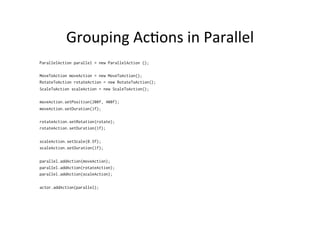
    Grouping  Ac1ons  in  Parallel   ParallelAction parallel = new ParallelAction (); MoveToAction moveAction = new MoveToAction(); RotateToAction rotateAction = new RotateToAction(); ScaleToAction scaleAction = new ScaleToAction(); moveAction.setPosition(200f, 400f); moveAction.setDuration(1f); rotateAction.setRotation(rotate); rotateAction.setDuration(1f); scaleAction.setScale(0.5f); scaleAction.setDuration(1f); parallel.addAction(moveAction); parallel.addAction(rotateAction); parallel.addAction(scaleAction); actor.addAction(parallel);
  • 23.
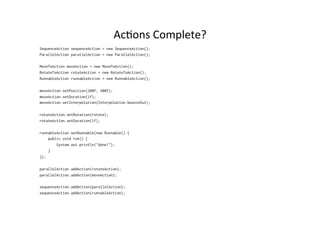
    Ac1ons  Complete?   SequenceActionsequenceAction = new SequenceAction(); ParallelAction parallelAction = new ParallelAction(); MoveToAction moveAction = new MoveToAction(); RotateToAction rotateAction = new RotateToAction(); RunnableAction runnableAction = new RunnableAction(); moveAction.setPosition(200f, 400f); moveAction.setDuration(1f); moveAction.setInterpolation(Interpolation.bounceOut); rotateAction.setRotation(rotate); rotateAction.setDuration(1f); runnableAction.setRunnable(new Runnable() { public void run() { System.out.println("done!"); } }); parallelAction.addAction(rotateAction); parallelAction.addAction(moveAction); sequenceAction.addAction(parallelAction); sequenceAction.addAction(runnableAction);
  • 24.
    Enable  rotate  and  scale  in  drawing   @Override public void draw(Batch batch, float alpha){ batch.draw(texture, this.getX(), this.getY(), this.getOriginX(), this.getOriginY(), this.getWidth(), this.getHeight(), this.getScaleX(), this.getScaleY(), this.getRotation(),0,0, texture.getWidth(), texture.getHeight(), false, false); }
  • 25.
    Grouping   Group group= new Group(); group.addActor(playerActor); group.addActor(monsterActor); group.addAction( ... ); stage.addActor(group);
  • 26.
  • 27.
    Scene2D.UI   •  Tutorial   – hVps://github.com/libgdx/libgdx/wiki/Scene2d.ui   •  To  quickly  get  started,  add  following  to  your   project   – uiskin.png,  uiskin.atlas,  uiskin.json,  default.fnt   – hVps://github.com/libgdx/libgdx/tree/master/ tests/gdx-­‐tests-­‐android/assets/data   •  Tutorial  and  examples   – hVps://github.com/libgdx/libgdx/wiki/Scene2d.ui  
  • 28.
    TextBuVon  example   Skinskin = new Skin( Gdx.files.internal("uiskin.json") ); final TextButton button = new TextButton("Hello", skin); button.setWidth(200f); button.setHeight(20f); button.setPosition(Gdx.graphics.getWidth() /2 - 100f, Gdx.graphics.getHeight()/2 - 10f); startStage.addActor(button); Gdx.input.setInputProcessor(startStage); button.addListener(new ClickListener(){ @Override public void clicked(InputEvent event, float x, float y){ whichScreen = !whichScreen; Gdx.input.setInputProcessor(gameStage); } });