Intro	
  to	
  PhoneGap	
  
Jussi	
  Pohjolainen	
  
Tampere	
  University	
  of	
  Applied	
  Sciences	
  
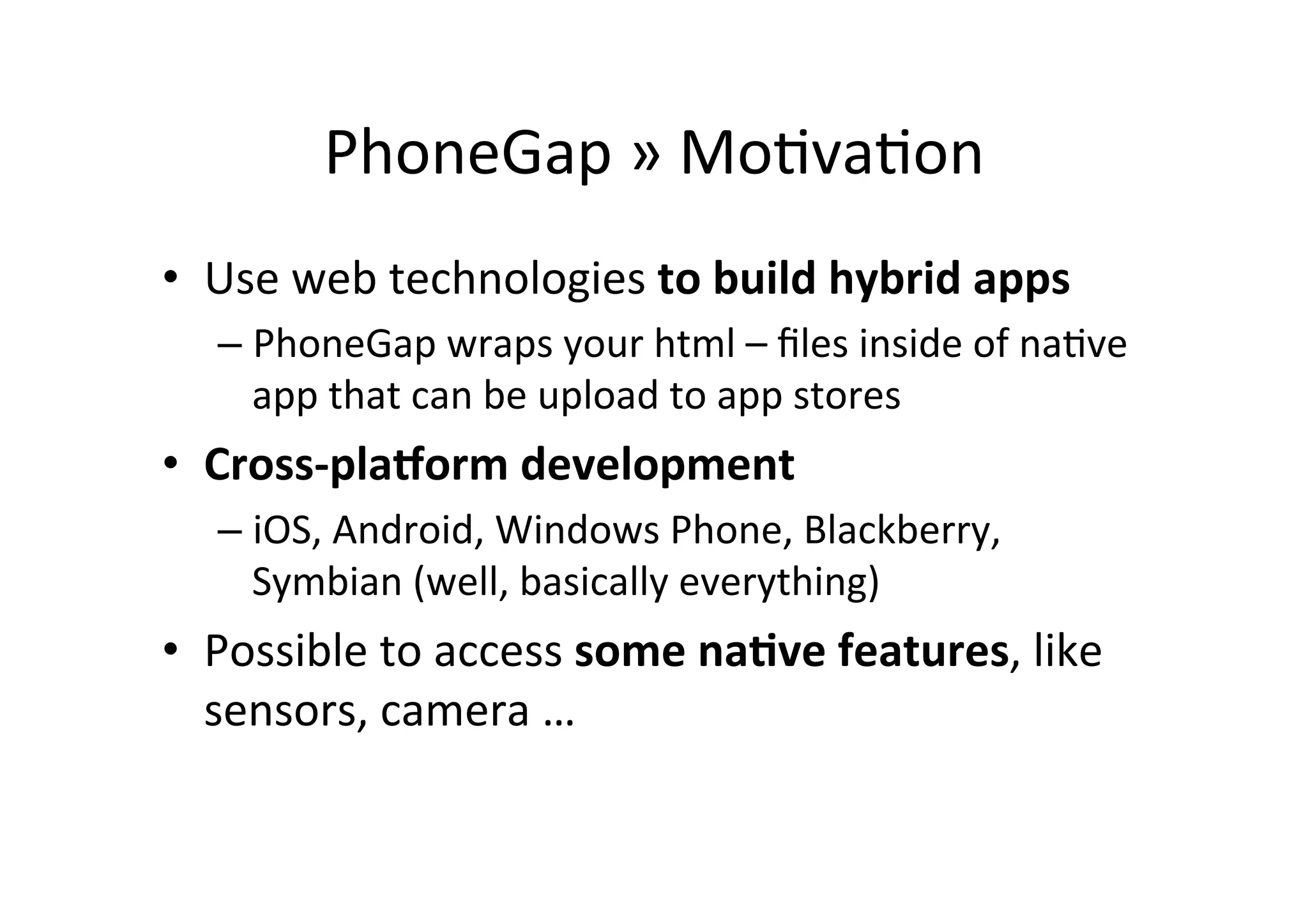
PhoneGap	
  »	
  Mo?va?on	
  
•  Use	
  web	
  technologies	
  to	
  build	
  hybrid	
  apps	
  
– PhoneGap	
  wraps	
  your	
  html	
  –	
  files	
  inside	
  of	
  na?ve	
  
app	
  that	
  can	
  be	
  upload	
  to	
  app	
  stores	
  
•  Cross-­‐pla1orm	
  development	
  
– iOS,	
  Android,	
  Windows	
  Phone,	
  Blackberry,	
  
Symbian	
  (well,	
  basically	
  everything)	
  
•  Possible	
  to	
  access	
  some	
  na6ve	
  features,	
  like	
  
sensors,	
  camera	
  …	
  
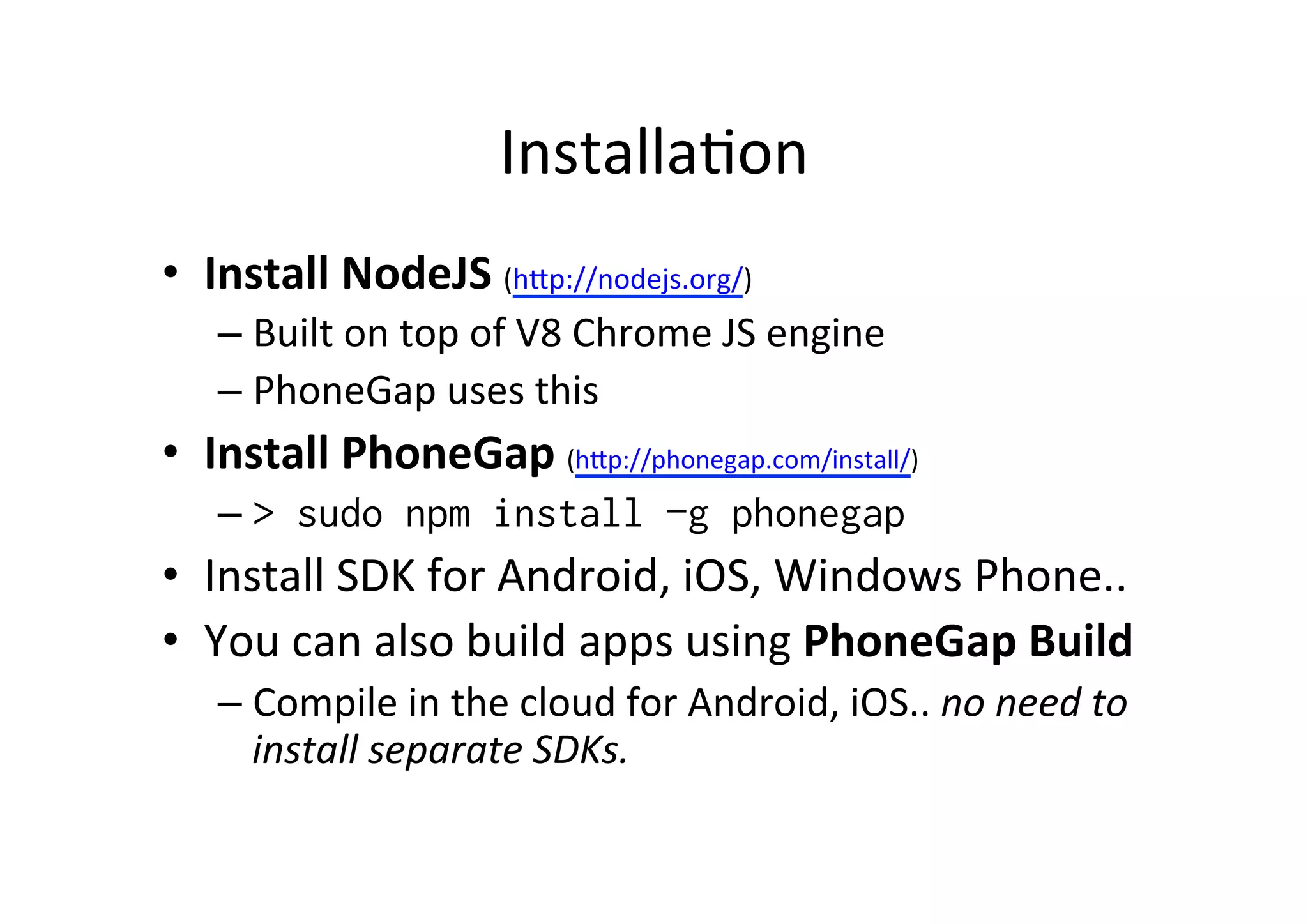
Installa?on	
  
•  Install	
  NodeJS	
  (hMp://nodejs.org/)	
  
– Built	
  on	
  top	
  of	
  V8	
  Chrome	
  JS	
  engine	
  
– PhoneGap	
  uses	
  this	
  
•  Install	
  PhoneGap	
  (hMp://phonegap.com/install/)	
  
– > sudo npm install –g phonegap
•  Install	
  SDK	
  for	
  Android,	
  iOS,	
  Windows	
  Phone..	
  
•  You	
  can	
  also	
  build	
  apps	
  using	
  PhoneGap	
  Build	
  
– Compile	
  in	
  the	
  cloud	
  for	
  Android,	
  iOS..	
  no	
  need	
  to	
  
install	
  separate	
  SDKs.	
  
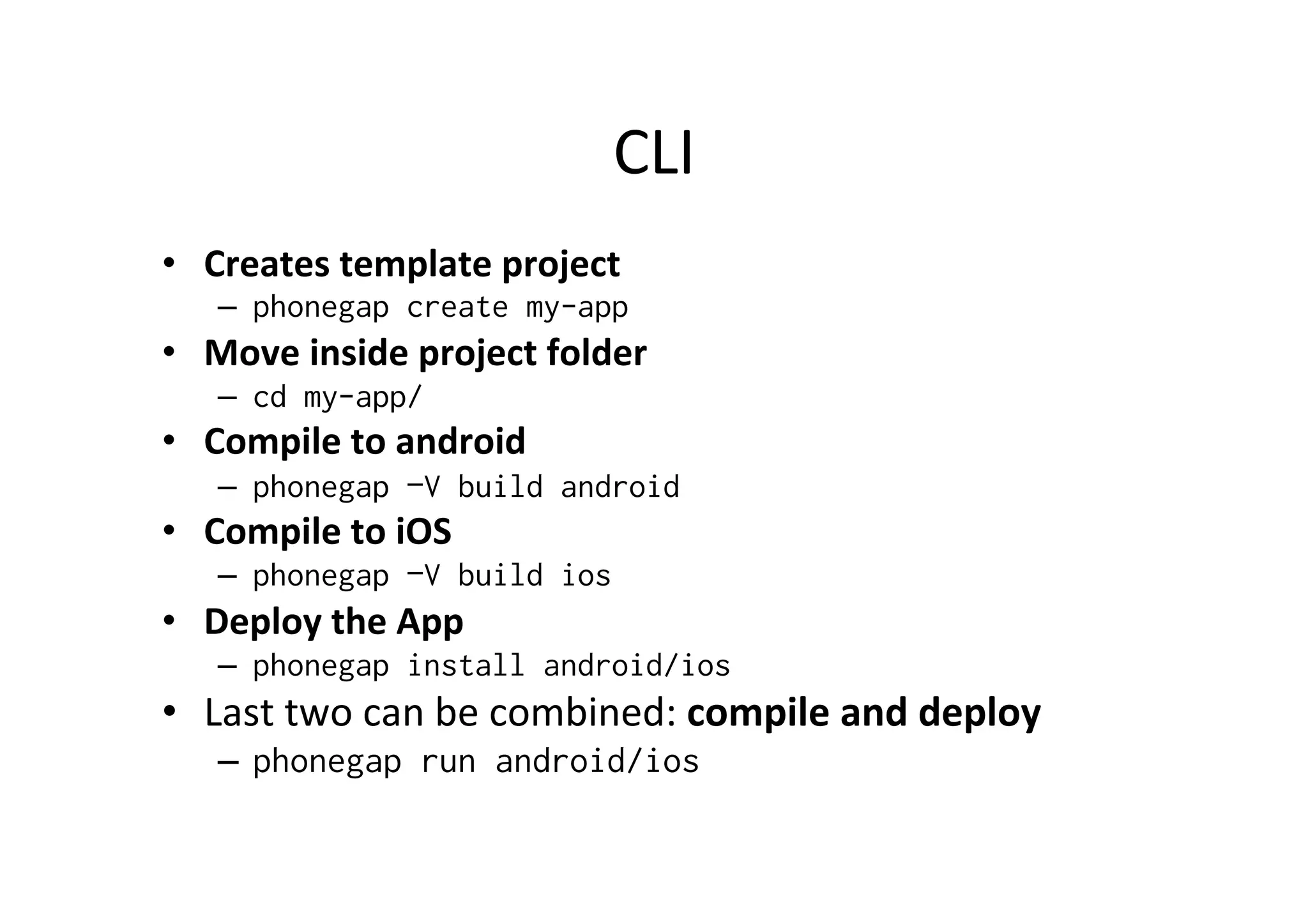
CLI	
  
•  Creates	
  template	
  project	
  
–  phonegap create my-app
•  Move	
  inside	
  project	
  folder	
  
–  cd my-app/
•  Compile	
  to	
  android	
  
–  phonegap –V build android
•  Compile	
  to	
  iOS	
  
–  phonegap –V build ios
•  Deploy	
  the	
  App	
  
–  phonegap install android/ios
•  Last	
  two	
  can	
  be	
  combined:	
  compile	
  and	
  deploy	
  
–  phonegap run android/ios
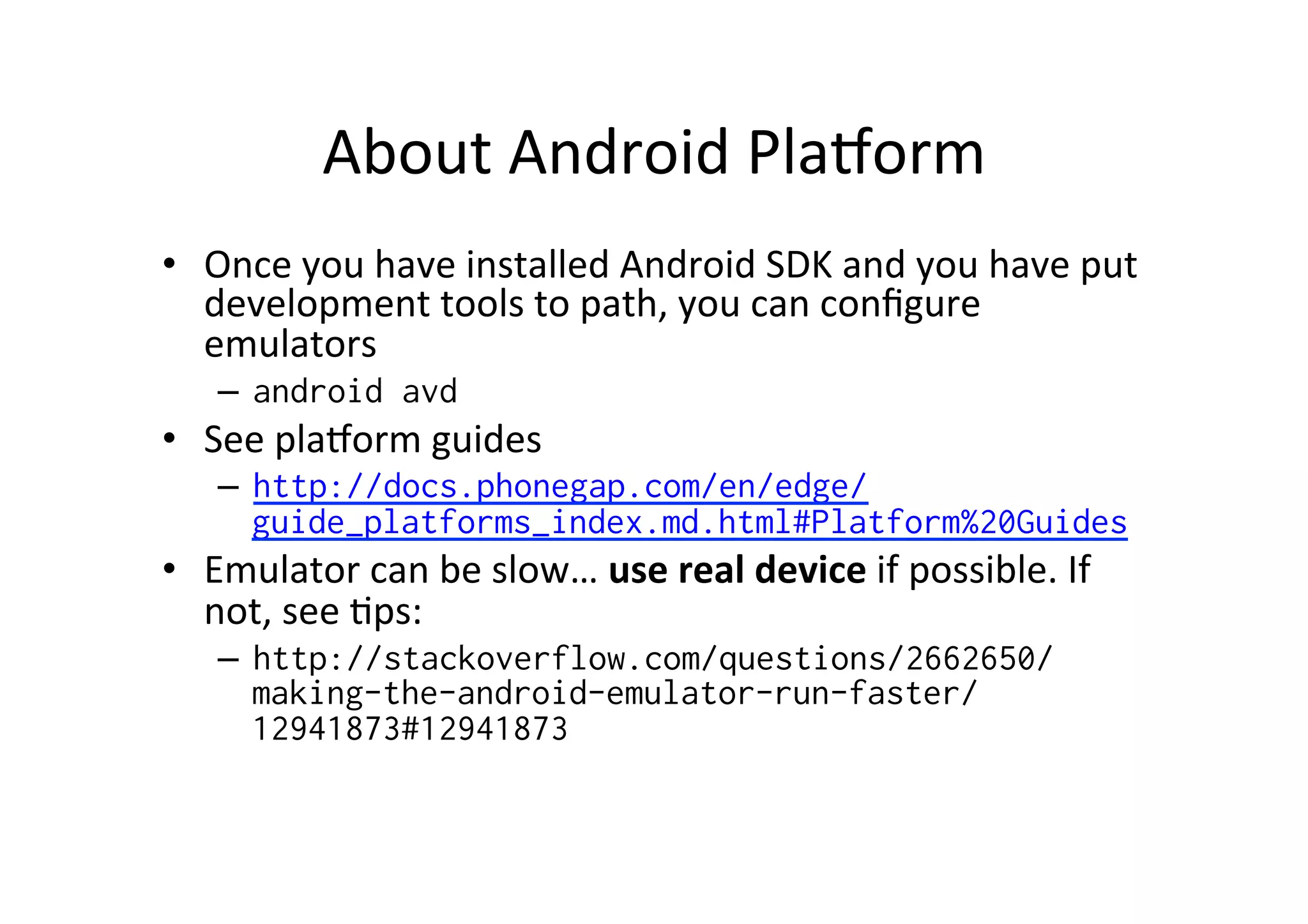
About	
  Android	
  PlaXorm	
  
•  Once	
  you	
  have	
  installed	
  Android	
  SDK	
  and	
  you	
  have	
  put	
  
development	
  tools	
  to	
  path,	
  you	
  can	
  configure	
  
emulators	
  
–  android avd
•  See	
  plaXorm	
  guides	
  
–  http://docs.phonegap.com/en/edge/
guide_platforms_index.md.html#Platform%20Guides
•  Emulator	
  can	
  be	
  slow…	
  use	
  real	
  device	
  if	
  possible.	
  If	
  
not,	
  see	
  ?ps:	
  
–  http://stackoverflow.com/questions/2662650/
making-the-android-emulator-run-faster/
12941873#12941873
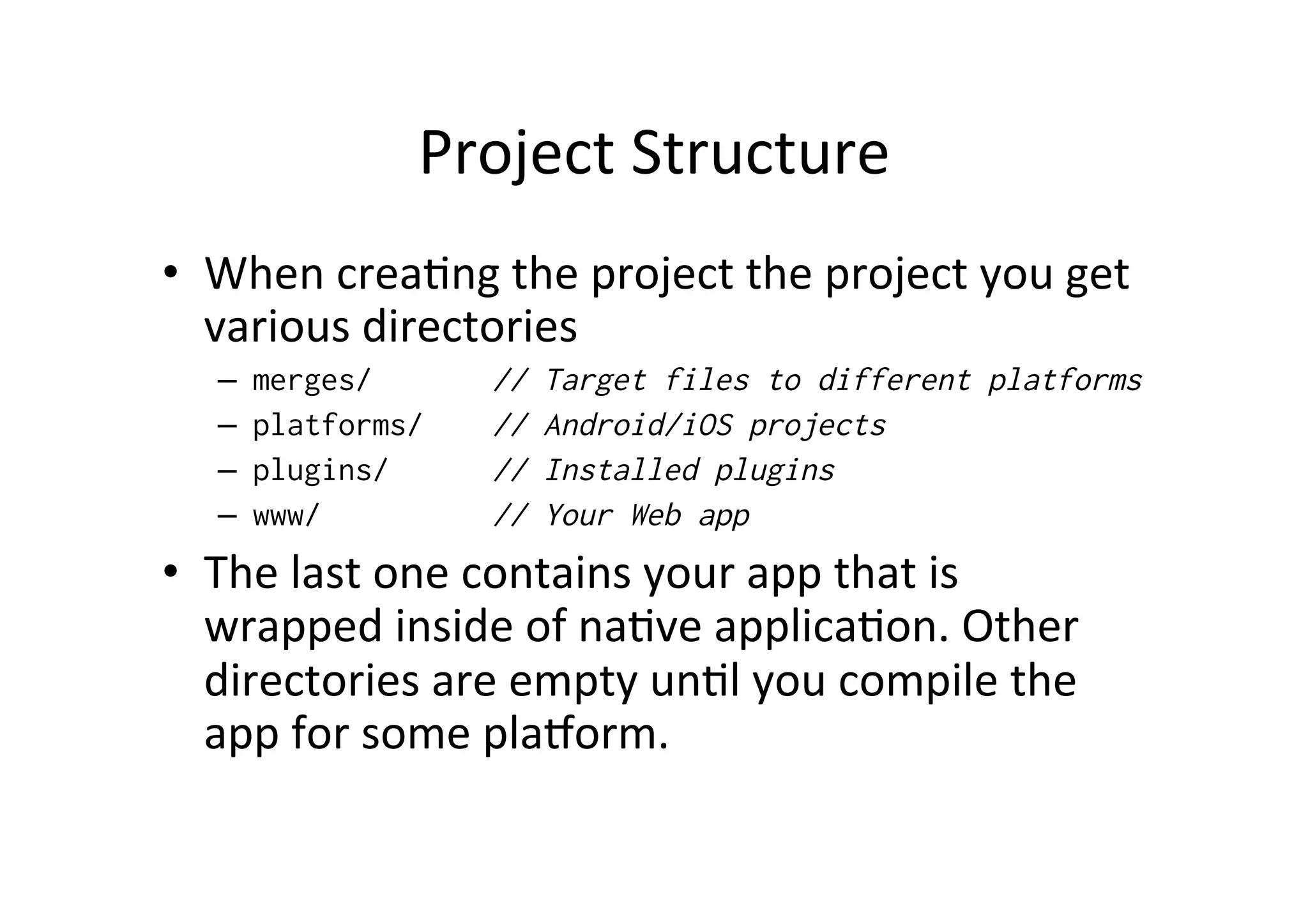
Project	
  Structure	
  
•  When	
  crea?ng	
  the	
  project	
  the	
  project	
  you	
  get	
  
various	
  directories	
  
–  merges/ // Target files to different platforms
–  platforms/ // Android/iOS projects
–  plugins/ // Installed plugins
–  www/ // Your Web app
•  The	
  last	
  one	
  contains	
  your	
  app	
  that	
  is	
  
wrapped	
  inside	
  of	
  na?ve	
  applica?on.	
  Other	
  
directories	
  are	
  empty	
  un?l	
  you	
  compile	
  the	
  
app	
  for	
  some	
  plaXorm.	
  
www/config.xml
•  App	
  rely	
  on	
  a	
  common	
  config.xml	
  that	
  
provides	
  info	
  about	
  the	
  app	
  and	
  specifies	
  
parameters	
  how	
  it	
  works	
  
•  Packaged	
  Web	
  Apps	
  specifica?on	
  (W3C)	
  
– http://www.w3.org/TR/widgets/
www/index.html
•  App	
  itself	
  is	
  implemented	
  as	
  a	
  web	
  page	
  that	
  is	
  
linked	
  to	
  whatever	
  css	
  and	
  js.	
  
•  App	
  executes	
  inside	
  of	
  "WebView"	
  -­‐	
  component	
  
of	
  na?ve	
  app.	
  
–  Can	
  be	
  distributed	
  
•  The	
  WebView	
  can	
  take	
  the	
  whole	
  screen	
  or	
  you	
  
can	
  develop	
  mix	
  na?ve	
  components	
  and	
  the	
  
WebView	
  
•  If	
  you	
  want	
  to	
  access	
  na?ve	
  features	
  of	
  phone,	
  
you	
  do	
  it	
  by	
  using	
  phonegap.js
Compiling	
  Locally	
  and	
  Remote	
  
•  You	
  must	
  install	
  SDK	
  to	
  be	
  able	
  to	
  compile	
  
your	
  apps	
  locally	
  
– Or	
  you	
  can	
  use	
  PhoneGap	
  Build	
  cloud	
  service	
  
– PhoneGap	
  Build	
  does	
  not	
  support	
  Windows	
  
Phone	
  8	
  and	
  Windows	
  8.	
  
•  Locally	
  supported	
  pla1orms	
  
-­‐  iOS	
  (Mac)	
  
-­‐  Android	
  (Mac,	
  Linux,	
  Windows)	
  
-­‐  Windows	
  Phone	
  (Windows)	
  
PhoneGap	
  Build	
  
•  Create	
  account	
  
–  https://build.phonegap.com/
–  github	
  account	
  is	
  not	
  supported,	
  use	
  adobe	
  id!	
  
•  Login	
  in	
  CLI	
  
–  phonegap remote login --username
iamreallyadog@gmail.com --password mYpASSw0RD
•  A`er	
  that	
  
–  phonegap remote build android/ios
•  Device	
  install?	
  
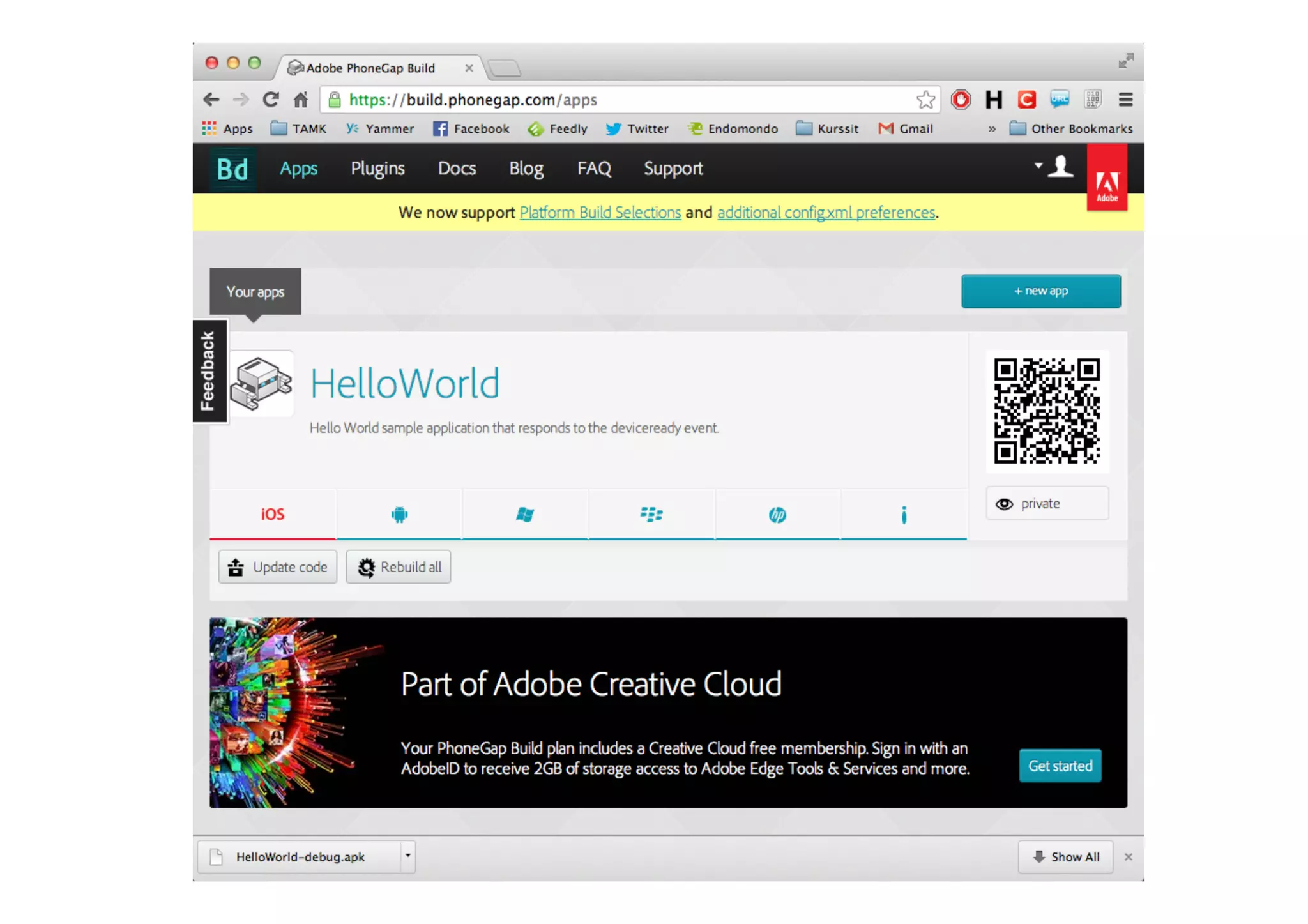
–  phonegap remote install android/ios
–  You	
  will	
  get	
  a	
  qr	
  code,	
  use	
  that	
  to	
  install	
  on	
  device!	
  
PhoneGap	
  Build	
  
Adding	
  Device	
  Specific	
  Features	
  
•  If	
  you	
  need	
  to	
  access	
  device	
  specific	
  features	
  using	
  JS,	
  you	
  must	
  install	
  
plugins	
  
•  How?	
  
–  phonegap local plugin add url
•  Where	
  url	
  can	
  be	
  
–  https://git-wip-us.apache.org/repos/asf/cordova-plugin-
device.git
•  See:	
  
–  http://docs.phonegap.com/en/edge/guide_cli_index.md.html#The
%20Command-line%20Interface
•  To	
  see	
  all	
  currently	
  installed	
  plugins	
  
–  phonegap local plugin list
•  And	
  delete	
  plugins	
  
–  phonegap local plugin remove org.apache.cordova.core.console
Debugging	
  
•  Possible	
  to	
  use	
  desktop	
  browsers	
  
–  Although	
  na?ve	
  APIs	
  are	
  not	
  available!	
  
•  PhoneGap	
  Ripple	
  emulator	
  
–  http://emulate.phonegap.com/
–  Emulates	
  the	
  na?ve	
  APIs	
  in	
  desktop	
  
•  Log	
  messages	
  
–  console.log(…);
–  Android:	
  	
  
•  Unix: adb logcat | grep 'web console'
•  Win: adb logcat | findstr 'web console'
–  iOS:	
  Xcode	
  Debug	
  Area	
  console	
  
LIFECYCLE	
  EVENTS	
  
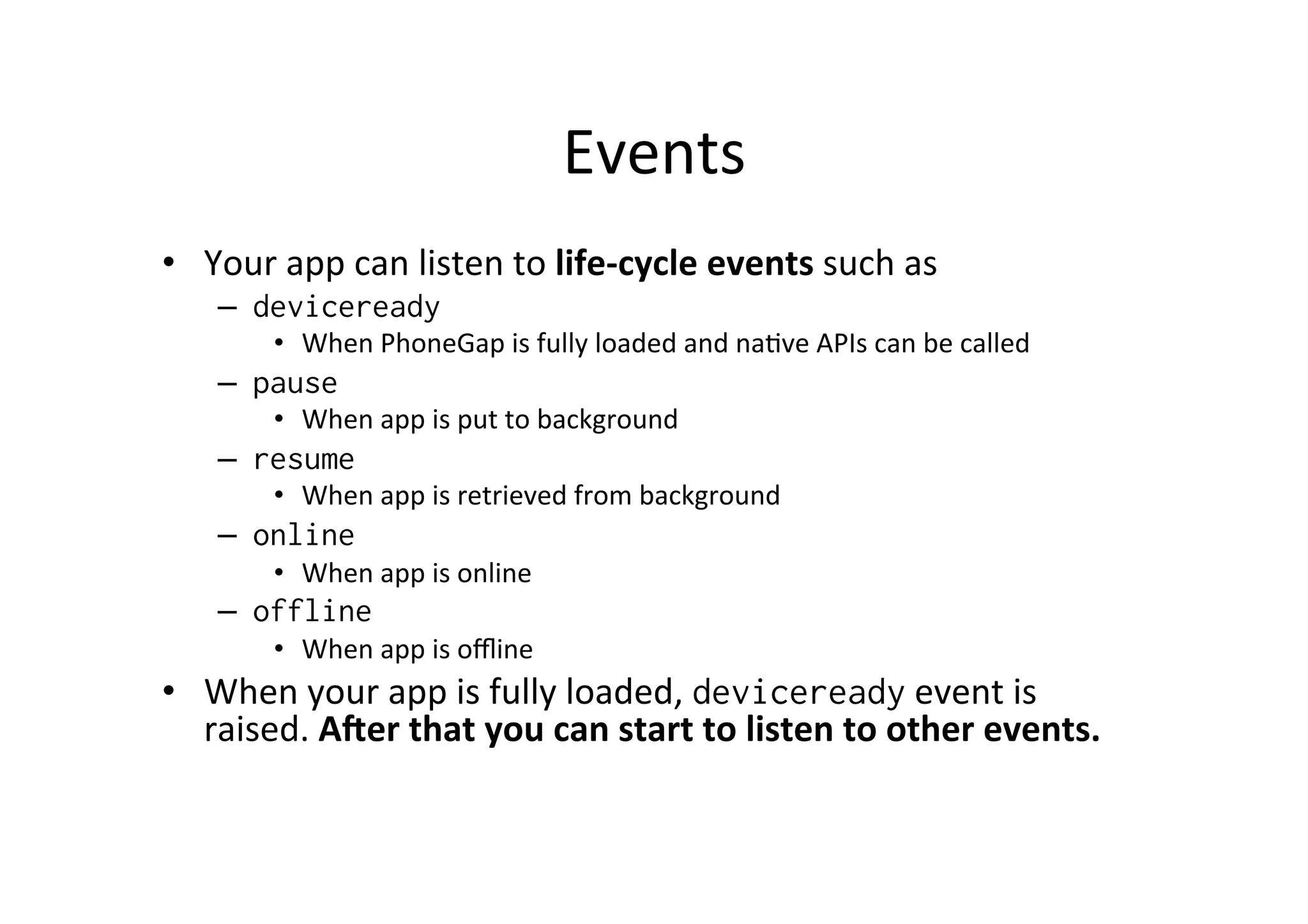
Events	
  
•  Your	
  app	
  can	
  listen	
  to	
  life-­‐cycle	
  events	
  such	
  as	
  
–  deviceready
•  When	
  PhoneGap	
  is	
  fully	
  loaded	
  and	
  na?ve	
  APIs	
  can	
  be	
  called	
  
–  pause
•  When	
  app	
  is	
  put	
  to	
  background	
  
–  resume
•  When	
  app	
  is	
  retrieved	
  from	
  background	
  
–  online
•  When	
  app	
  is	
  online	
  
–  offline
•  When	
  app	
  is	
  offline
•  When	
  your	
  app	
  is	
  fully	
  loaded,	
  deviceready	
  event	
  is	
  
raised.	
  AOer	
  that	
  you	
  can	
  start	
  to	
  listen	
  to	
  other	
  events.	
  
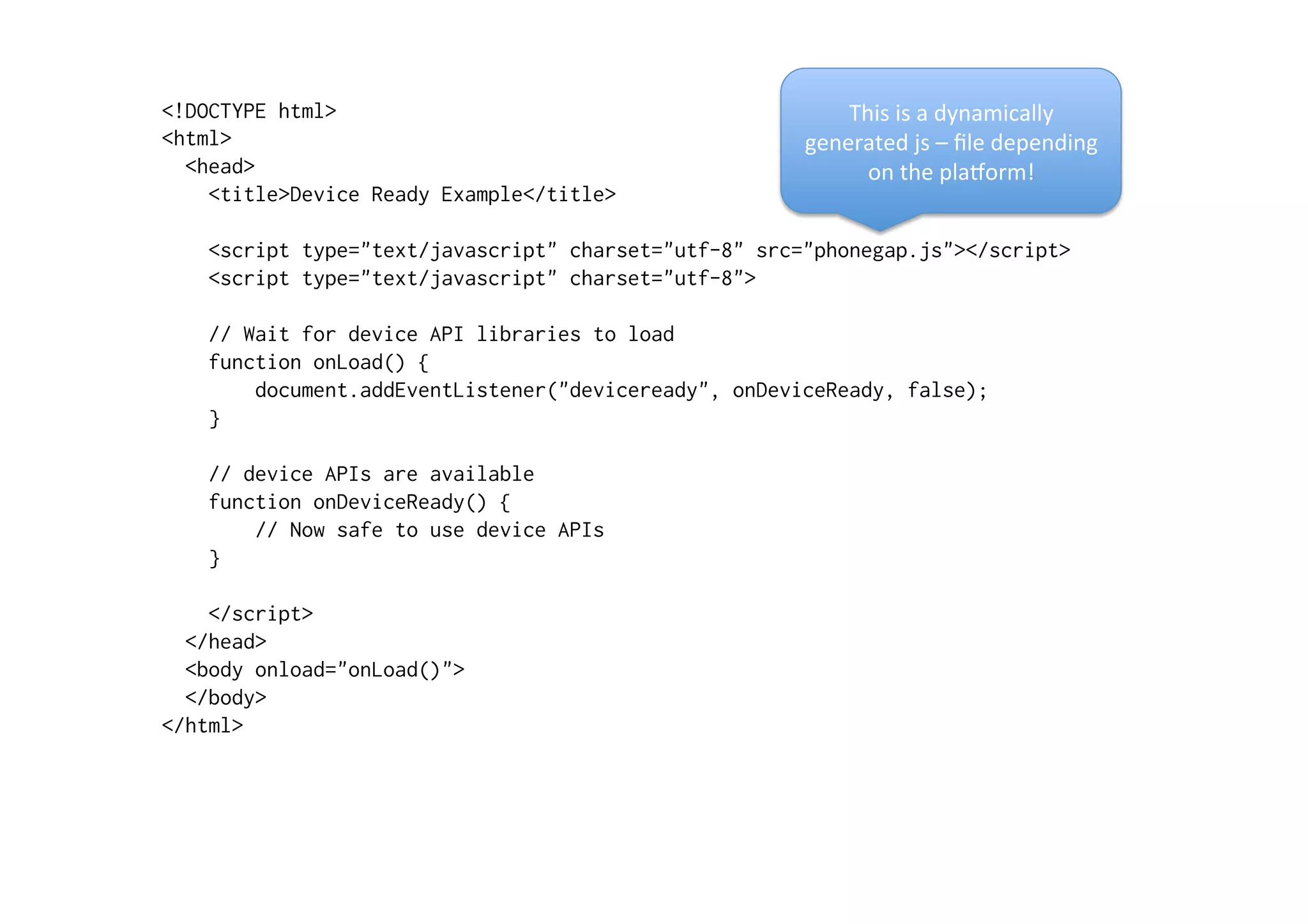
<!DOCTYPE html>
<html>
<head>
<title>Device Ready Example</title>
<script type="text/javascript" charset="utf-8" src="phonegap.js"></script>
<script type="text/javascript" charset="utf-8">
// Wait for device API libraries to load
function onLoad() {
document.addEventListener("deviceready", onDeviceReady, false);
}
// device APIs are available
function onDeviceReady() {
// Now safe to use device APIs
}
</script>
</head>
<body onload="onLoad()">
</body>
</html>
This	
  is	
  a	
  dynamically	
  
generated	
  js	
  –	
  file	
  depending	
  
on	
  the	
  plaXorm!	
  
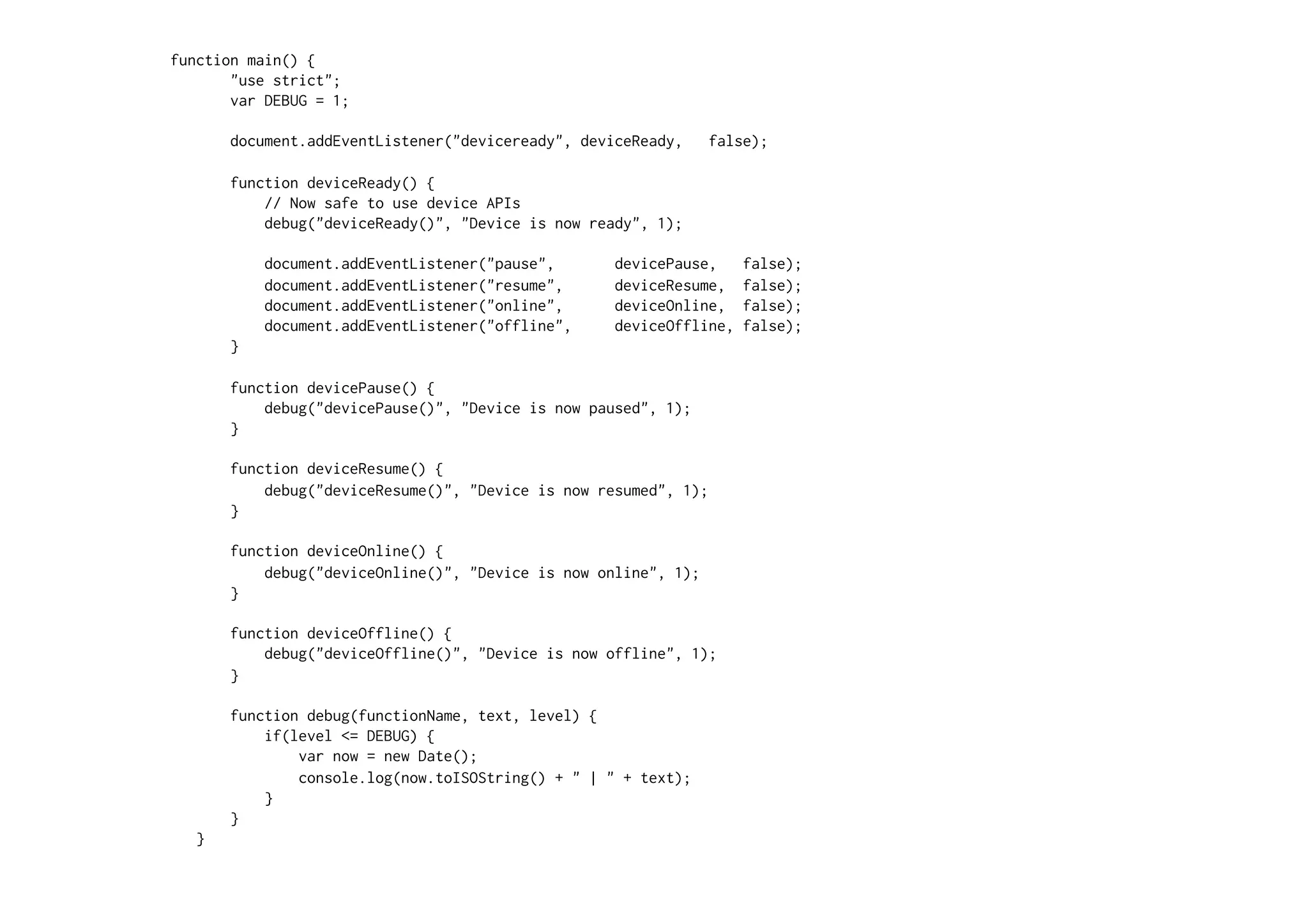
function main() {
"use strict";
var DEBUG = 1;
document.addEventListener("deviceready", deviceReady, false);
function deviceReady() {
// Now safe to use device APIs
debug("deviceReady()", "Device is now ready", 1);
document.addEventListener("pause", devicePause, false);
document.addEventListener("resume", deviceResume, false);
document.addEventListener("online", deviceOnline, false);
document.addEventListener("offline", deviceOffline, false);
}
function devicePause() {
debug("devicePause()", "Device is now paused", 1);
}
function deviceResume() {
debug("deviceResume()", "Device is now resumed", 1);
}
function deviceOnline() {
debug("deviceOnline()", "Device is now online", 1);
}
function deviceOffline() {
debug("deviceOffline()", "Device is now offline", 1);
}
function debug(functionName, text, level) {
if(level <= DEBUG) {
var now = new Date();
console.log(now.toISOString() + " | " + text);
}
}
}
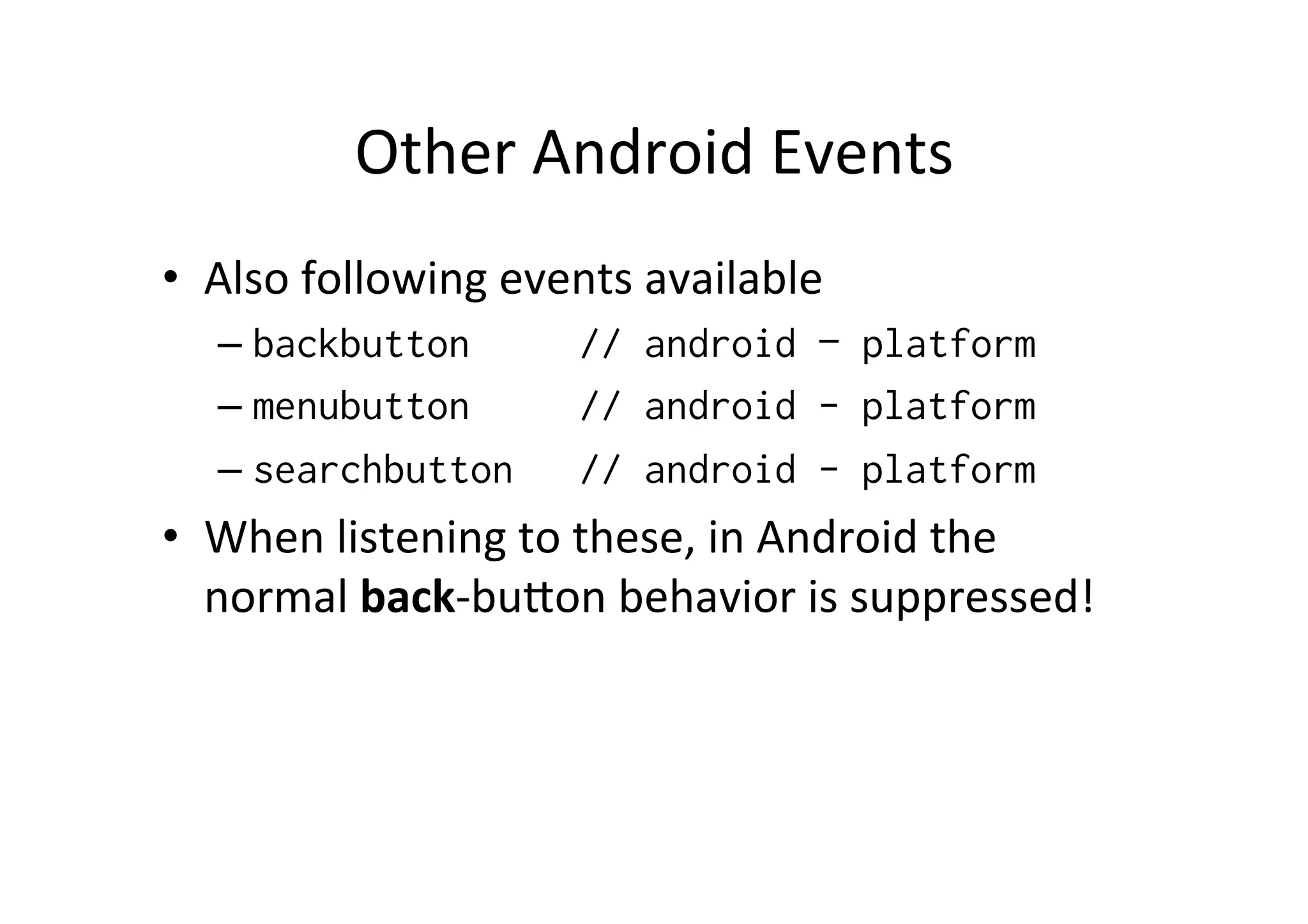
Other	
  Android	
  Events	
  
•  Also	
  following	
  events	
  available	
  
– backbutton // android – platform
– menubutton // android - platform
– searchbutton // android - platform
•  When	
  listening	
  to	
  these,	
  in	
  Android	
  the	
  
normal	
  back-­‐buMon	
  behavior	
  is	
  suppressed!	
  
USING	
  NATIVE	
  APIS:	
  
ACCELEROMETER	
  
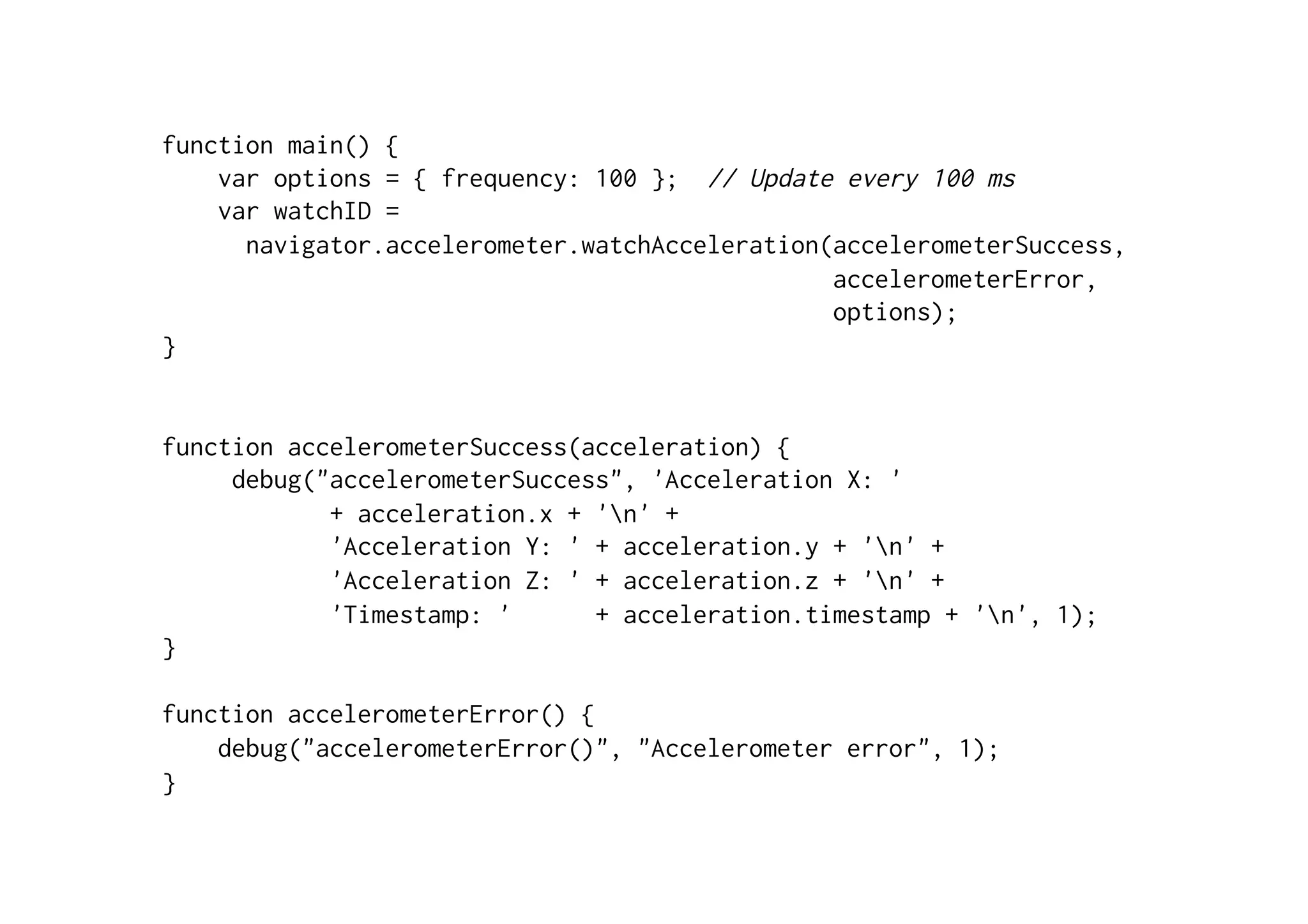
function main() {
var options = { frequency: 100 }; // Update every 100 ms
var watchID =
navigator.accelerometer.watchAcceleration(accelerometerSuccess,
accelerometerError,
options);
}
function accelerometerSuccess(acceleration) {
debug("accelerometerSuccess", 'Acceleration X: '
+ acceleration.x + 'n' +
'Acceleration Y: ' + acceleration.y + 'n' +
'Acceleration Z: ' + acceleration.z + 'n' +
'Timestamp: ' + acceleration.timestamp + 'n', 1);
}
function accelerometerError() {
debug("accelerometerError()", "Accelerometer error", 1);
}

Intro to PhoneGap

  • 1.
    Intro  to  PhoneGap   Jussi  Pohjolainen   Tampere  University  of  Applied  Sciences  
  • 2.
    PhoneGap  »  Mo?va?on   •  Use  web  technologies  to  build  hybrid  apps   – PhoneGap  wraps  your  html  –  files  inside  of  na?ve   app  that  can  be  upload  to  app  stores   •  Cross-­‐pla1orm  development   – iOS,  Android,  Windows  Phone,  Blackberry,   Symbian  (well,  basically  everything)   •  Possible  to  access  some  na6ve  features,  like   sensors,  camera  …  
  • 3.
    Installa?on   •  Install  NodeJS  (hMp://nodejs.org/)   – Built  on  top  of  V8  Chrome  JS  engine   – PhoneGap  uses  this   •  Install  PhoneGap  (hMp://phonegap.com/install/)   – > sudo npm install –g phonegap •  Install  SDK  for  Android,  iOS,  Windows  Phone..   •  You  can  also  build  apps  using  PhoneGap  Build   – Compile  in  the  cloud  for  Android,  iOS..  no  need  to   install  separate  SDKs.  
  • 4.
    CLI   •  Creates  template  project   –  phonegap create my-app •  Move  inside  project  folder   –  cd my-app/ •  Compile  to  android   –  phonegap –V build android •  Compile  to  iOS   –  phonegap –V build ios •  Deploy  the  App   –  phonegap install android/ios •  Last  two  can  be  combined:  compile  and  deploy   –  phonegap run android/ios
  • 5.
    About  Android  PlaXorm   •  Once  you  have  installed  Android  SDK  and  you  have  put   development  tools  to  path,  you  can  configure   emulators   –  android avd •  See  plaXorm  guides   –  http://docs.phonegap.com/en/edge/ guide_platforms_index.md.html#Platform%20Guides •  Emulator  can  be  slow…  use  real  device  if  possible.  If   not,  see  ?ps:   –  http://stackoverflow.com/questions/2662650/ making-the-android-emulator-run-faster/ 12941873#12941873
  • 6.
    Project  Structure   • When  crea?ng  the  project  the  project  you  get   various  directories   –  merges/ // Target files to different platforms –  platforms/ // Android/iOS projects –  plugins/ // Installed plugins –  www/ // Your Web app •  The  last  one  contains  your  app  that  is   wrapped  inside  of  na?ve  applica?on.  Other   directories  are  empty  un?l  you  compile  the   app  for  some  plaXorm.  
  • 7.
    www/config.xml •  App  rely  on  a  common  config.xml  that   provides  info  about  the  app  and  specifies   parameters  how  it  works   •  Packaged  Web  Apps  specifica?on  (W3C)   – http://www.w3.org/TR/widgets/
  • 8.
    www/index.html •  App  itself  is  implemented  as  a  web  page  that  is   linked  to  whatever  css  and  js.   •  App  executes  inside  of  "WebView"  -­‐  component   of  na?ve  app.   –  Can  be  distributed   •  The  WebView  can  take  the  whole  screen  or  you   can  develop  mix  na?ve  components  and  the   WebView   •  If  you  want  to  access  na?ve  features  of  phone,   you  do  it  by  using  phonegap.js
  • 9.
    Compiling  Locally  and  Remote   •  You  must  install  SDK  to  be  able  to  compile   your  apps  locally   – Or  you  can  use  PhoneGap  Build  cloud  service   – PhoneGap  Build  does  not  support  Windows   Phone  8  and  Windows  8.   •  Locally  supported  pla1orms   -­‐  iOS  (Mac)   -­‐  Android  (Mac,  Linux,  Windows)   -­‐  Windows  Phone  (Windows)  
  • 10.
    PhoneGap  Build   • Create  account   –  https://build.phonegap.com/ –  github  account  is  not  supported,  use  adobe  id!   •  Login  in  CLI   –  phonegap remote login --username iamreallyadog@gmail.com --password mYpASSw0RD •  A`er  that   –  phonegap remote build android/ios •  Device  install?   –  phonegap remote install android/ios –  You  will  get  a  qr  code,  use  that  to  install  on  device!  
  • 11.
  • 12.
    Adding  Device  Specific  Features   •  If  you  need  to  access  device  specific  features  using  JS,  you  must  install   plugins   •  How?   –  phonegap local plugin add url •  Where  url  can  be   –  https://git-wip-us.apache.org/repos/asf/cordova-plugin- device.git •  See:   –  http://docs.phonegap.com/en/edge/guide_cli_index.md.html#The %20Command-line%20Interface •  To  see  all  currently  installed  plugins   –  phonegap local plugin list •  And  delete  plugins   –  phonegap local plugin remove org.apache.cordova.core.console
  • 13.
    Debugging   •  Possible  to  use  desktop  browsers   –  Although  na?ve  APIs  are  not  available!   •  PhoneGap  Ripple  emulator   –  http://emulate.phonegap.com/ –  Emulates  the  na?ve  APIs  in  desktop   •  Log  messages   –  console.log(…); –  Android:     •  Unix: adb logcat | grep 'web console' •  Win: adb logcat | findstr 'web console' –  iOS:  Xcode  Debug  Area  console  
  • 14.
  • 15.
    Events   •  Your  app  can  listen  to  life-­‐cycle  events  such  as   –  deviceready •  When  PhoneGap  is  fully  loaded  and  na?ve  APIs  can  be  called   –  pause •  When  app  is  put  to  background   –  resume •  When  app  is  retrieved  from  background   –  online •  When  app  is  online   –  offline •  When  app  is  offline •  When  your  app  is  fully  loaded,  deviceready  event  is   raised.  AOer  that  you  can  start  to  listen  to  other  events.  
  • 16.
    <!DOCTYPE html> <html> <head> <title>Device ReadyExample</title> <script type="text/javascript" charset="utf-8" src="phonegap.js"></script> <script type="text/javascript" charset="utf-8"> // Wait for device API libraries to load function onLoad() { document.addEventListener("deviceready", onDeviceReady, false); } // device APIs are available function onDeviceReady() { // Now safe to use device APIs } </script> </head> <body onload="onLoad()"> </body> </html> This  is  a  dynamically   generated  js  –  file  depending   on  the  plaXorm!  
  • 17.
    function main() { "usestrict"; var DEBUG = 1; document.addEventListener("deviceready", deviceReady, false); function deviceReady() { // Now safe to use device APIs debug("deviceReady()", "Device is now ready", 1); document.addEventListener("pause", devicePause, false); document.addEventListener("resume", deviceResume, false); document.addEventListener("online", deviceOnline, false); document.addEventListener("offline", deviceOffline, false); } function devicePause() { debug("devicePause()", "Device is now paused", 1); } function deviceResume() { debug("deviceResume()", "Device is now resumed", 1); } function deviceOnline() { debug("deviceOnline()", "Device is now online", 1); } function deviceOffline() { debug("deviceOffline()", "Device is now offline", 1); } function debug(functionName, text, level) { if(level <= DEBUG) { var now = new Date(); console.log(now.toISOString() + " | " + text); } } }
  • 18.
    Other  Android  Events   •  Also  following  events  available   – backbutton // android – platform – menubutton // android - platform – searchbutton // android - platform •  When  listening  to  these,  in  Android  the   normal  back-­‐buMon  behavior  is  suppressed!  
  • 19.
    USING  NATIVE  APIS:   ACCELEROMETER  
  • 20.
    function main() { varoptions = { frequency: 100 }; // Update every 100 ms var watchID = navigator.accelerometer.watchAcceleration(accelerometerSuccess, accelerometerError, options); } function accelerometerSuccess(acceleration) { debug("accelerometerSuccess", 'Acceleration X: ' + acceleration.x + 'n' + 'Acceleration Y: ' + acceleration.y + 'n' + 'Acceleration Z: ' + acceleration.z + 'n' + 'Timestamp: ' + acceleration.timestamp + 'n', 1); } function accelerometerError() { debug("accelerometerError()", "Accelerometer error", 1); }