Painless way to cite: 
Introduction to Zotero (v.1.0) 
To the extent possible under law, the author of this document have waived all 
copyright and related or neighboring rights to “Painless way to cite: Introduction to 
Zotero”. This work is published from Sydney, Australia. 
Dasapta Erwin Irawan 
Hydrogeologist 
Applied Geology Research Division 
Faculty of Earth Sciences and Technology 
Institut Teknologi Bandung 
Indonesia 
Visiting fellow 
Faculty of Agriculture and Environment 
University of Sydney 
Australia 
This document is made on Mac OSX 10.7.2 
(Mountain Lion). You may expect slightly 
different menus and buttons on Linux and 
Windows.
This document is only the intro part for 
Zotero. So you can tweak it more as you 
move along working with your papers. 
The software components and workflows 
introduced in this document are common, so 
it can be applied to other similar reference 
manager. 
But off course, they would have different 
name of buttons, different names in their 
menus.
Zotero: the easiest way to pronounce it is “zo tay ro” 
What is it? 
it’s a reference manager 
What is reference manager? 
it’s kind of your own personal digital library 
What is it really? 
it stores all your pdfs along with their citation infos. 
Then what is a citation info? 
it’s the ID of your pdf or any resources you have in you Zotero library. 
How to get this citation info? 
well this would be another story.
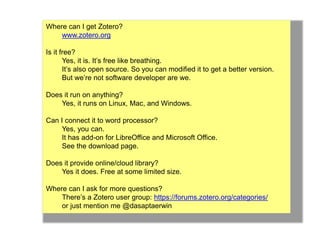
Where can I get Zotero? 
www.zotero.org 
Is it free? 
Yes, it is. It’s free like breathing. 
It’s also open source. So you can modified it to get a better version. 
But we’re not software developer are we. 
Does it run on anything? 
Yes, it runs on Linux, Mac, and Windows. 
Can I connect it to word processor? 
Yes, you can. 
It has add-on for LibreOffice and Microsoft Office. 
See the download page. 
Does it provide online/cloud library? 
Yes it does. Free at some limited size. 
Where can I ask for more questions? 
There’s a Zotero user group: https://forums.zotero.org/categories/ 
or just mention me @dasaptaerwin
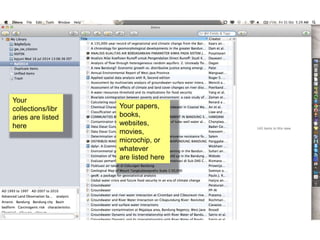
Your 
collections/libr 
aries are listed 
here 
Your papers, 
books, 
websites, 
movies, 
microchip, or 
whatever 
are listed here
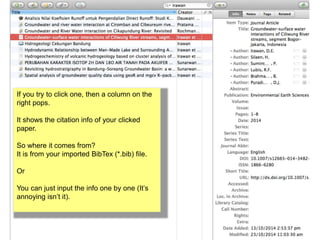
If you try to click one, then a column on the 
right pops. 
It shows the citation info of your clicked 
paper. 
So where it comes from? 
It is from your imported BibTex (*.bib) file. 
Or 
You can just input the info one by one (It’s 
annoying isn’t it).
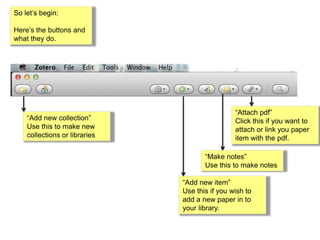
So let’s begin: 
Here’s the buttons and 
what they do. 
“Add new collection” 
Use this to make new 
collections or libraries 
“Attach pdf” 
Click this if you want to 
attach or link you paper 
item with the pdf. 
“Make notes” 
Use this to make notes 
“Add new item” 
Use this if you wish to 
add a new paper in to 
your library.
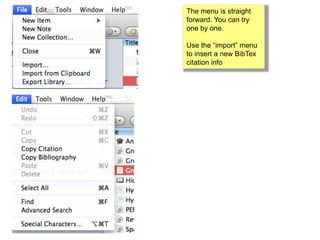
The menu is straight 
forward. You can try 
one by one. 
Use the “import” menu 
to insert a new BibTex 
citation info
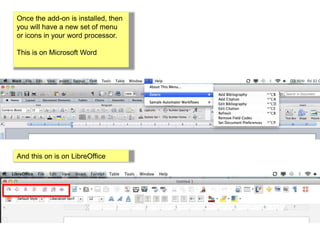
Once the add-on is installed, then 
you will have a new set of menu 
or icons in your word processor. 
This is on Microsoft Word 
And this on is on LibreOffice
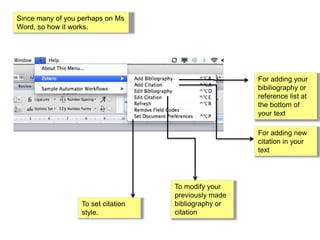
Since many of you perhaps on Ms 
Word, so how it works. 
For adding your 
bibiliography or 
reference list at 
the bottom of 
your text 
For adding new 
citation in your 
text 
To set citation 
style. 
To modify your 
previously made 
bibliography or 
citation
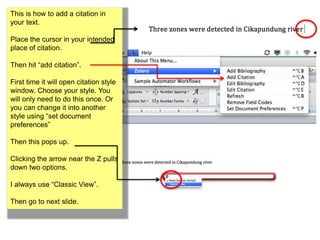
This is how to add a citation in 
your text. 
Place the cursor in your intended 
place of citation. 
Then hit “add citation”. 
First time it will open citation style 
window. Choose your style. You 
will only need to do this once. Or 
you can change it into another 
style using “set document 
preferences” 
Then this pops up. 
Clicking the arrow near the Z pulls 
down two options. 
I always use “Classic View”. 
Then go to next slide.
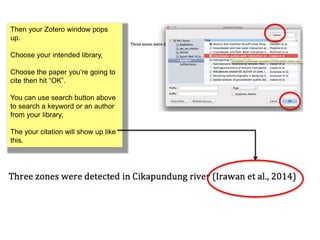
Then your Zotero window pops 
up. 
Choose your intended library, 
Choose the paper you’re going to 
cite then hit “OK”. 
You can use search button above 
to search a keyword or an author 
from your library. 
The your citation will show up like 
this.
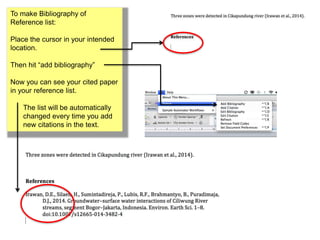
To make Bibliography of 
Reference list: 
Place the cursor in your intended 
location. 
Then hit “add bibliography” 
Now you can see your cited paper 
in your reference list. 
The list will be automatically 
changed every time you add 
new citations in the text.
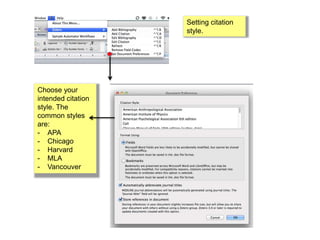
Setting citation 
style. 
Choose your 
intended citation 
style. The 
common styles 
are: 
- APA 
- Chicago 
- Harvard 
- MLA 
- Vancouver
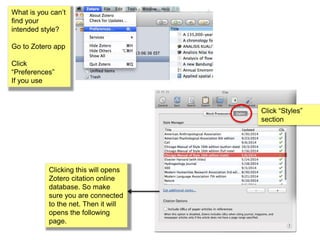
What is you can’t 
find your 
intended style? 
Go to Zotero app 
Click 
“Preferences” 
If you use 
Click “Styles” 
section 
Clicking this will opens 
Zotero citation online 
database. So make 
sure you are connected 
to the net. Then it will 
opens the following 
page.
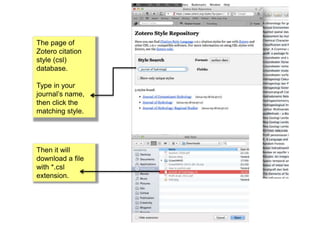
The page of 
Zotero citation 
style (csl) 
database. 
Type in your 
journal’s name, 
then click the 
matching style. 
Then it will 
download a file 
with *.csl 
extension.
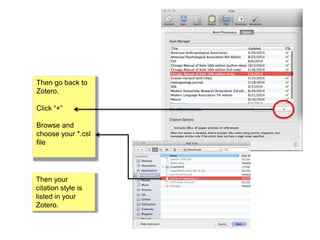
Then go back to 
Zotero. 
Click “+” 
Browse and 
choose your *.csl 
file 
Then your 
citation style is 
listed in your 
Zotero.
Thank you. 
@dasaptaerwin 
To the extent possible under law, the author of this document have waived all 
copyright and related or neighboring rights to “Painless way to cite: Introduction to 
Zotero”. This work is published from Sydney, Australia.

Introduction to Zotero reference manager

  • 1.
    Painless way tocite: Introduction to Zotero (v.1.0) To the extent possible under law, the author of this document have waived all copyright and related or neighboring rights to “Painless way to cite: Introduction to Zotero”. This work is published from Sydney, Australia. Dasapta Erwin Irawan Hydrogeologist Applied Geology Research Division Faculty of Earth Sciences and Technology Institut Teknologi Bandung Indonesia Visiting fellow Faculty of Agriculture and Environment University of Sydney Australia This document is made on Mac OSX 10.7.2 (Mountain Lion). You may expect slightly different menus and buttons on Linux and Windows.
  • 2.
    This document isonly the intro part for Zotero. So you can tweak it more as you move along working with your papers. The software components and workflows introduced in this document are common, so it can be applied to other similar reference manager. But off course, they would have different name of buttons, different names in their menus.
  • 3.
    Zotero: the easiestway to pronounce it is “zo tay ro” What is it? it’s a reference manager What is reference manager? it’s kind of your own personal digital library What is it really? it stores all your pdfs along with their citation infos. Then what is a citation info? it’s the ID of your pdf or any resources you have in you Zotero library. How to get this citation info? well this would be another story.
  • 4.
    Where can Iget Zotero? www.zotero.org Is it free? Yes, it is. It’s free like breathing. It’s also open source. So you can modified it to get a better version. But we’re not software developer are we. Does it run on anything? Yes, it runs on Linux, Mac, and Windows. Can I connect it to word processor? Yes, you can. It has add-on for LibreOffice and Microsoft Office. See the download page. Does it provide online/cloud library? Yes it does. Free at some limited size. Where can I ask for more questions? There’s a Zotero user group: https://forums.zotero.org/categories/ or just mention me @dasaptaerwin
  • 5.
    Your collections/libr ariesare listed here Your papers, books, websites, movies, microchip, or whatever are listed here
  • 6.
    If you tryto click one, then a column on the right pops. It shows the citation info of your clicked paper. So where it comes from? It is from your imported BibTex (*.bib) file. Or You can just input the info one by one (It’s annoying isn’t it).
  • 7.
    So let’s begin: Here’s the buttons and what they do. “Add new collection” Use this to make new collections or libraries “Attach pdf” Click this if you want to attach or link you paper item with the pdf. “Make notes” Use this to make notes “Add new item” Use this if you wish to add a new paper in to your library.
  • 8.
    The menu isstraight forward. You can try one by one. Use the “import” menu to insert a new BibTex citation info
  • 9.
    Once the add-onis installed, then you will have a new set of menu or icons in your word processor. This is on Microsoft Word And this on is on LibreOffice
  • 10.
    Since many ofyou perhaps on Ms Word, so how it works. For adding your bibiliography or reference list at the bottom of your text For adding new citation in your text To set citation style. To modify your previously made bibliography or citation
  • 11.
    This is howto add a citation in your text. Place the cursor in your intended place of citation. Then hit “add citation”. First time it will open citation style window. Choose your style. You will only need to do this once. Or you can change it into another style using “set document preferences” Then this pops up. Clicking the arrow near the Z pulls down two options. I always use “Classic View”. Then go to next slide.
  • 12.
    Then your Zoterowindow pops up. Choose your intended library, Choose the paper you’re going to cite then hit “OK”. You can use search button above to search a keyword or an author from your library. The your citation will show up like this.
  • 13.
    To make Bibliographyof Reference list: Place the cursor in your intended location. Then hit “add bibliography” Now you can see your cited paper in your reference list. The list will be automatically changed every time you add new citations in the text.
  • 14.
    Setting citation style. Choose your intended citation style. The common styles are: - APA - Chicago - Harvard - MLA - Vancouver
  • 15.
    What is youcan’t find your intended style? Go to Zotero app Click “Preferences” If you use Click “Styles” section Clicking this will opens Zotero citation online database. So make sure you are connected to the net. Then it will opens the following page.
  • 16.
    The page of Zotero citation style (csl) database. Type in your journal’s name, then click the matching style. Then it will download a file with *.csl extension.
  • 17.
    Then go backto Zotero. Click “+” Browse and choose your *.csl file Then your citation style is listed in your Zotero.
  • 18.
    Thank you. @dasaptaerwin To the extent possible under law, the author of this document have waived all copyright and related or neighboring rights to “Painless way to cite: Introduction to Zotero”. This work is published from Sydney, Australia.