Zotero presentation
25. October 2011
Information - and Literature searching 1
Asger Væring Larsen
Information specialist
Agenda:
• What is Zotero?
• How does it work!
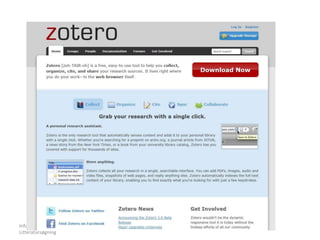
• www.zotero.org
• Zotero and REX
• Zotero and electronic resources
• Zotero and Word / Open Office
• Help and tutorials for Zotero
• Installing Zotero
Informations- og
Litteratursøgning
2
What is Zotero?
Informations- og
Litteratursøgning
3
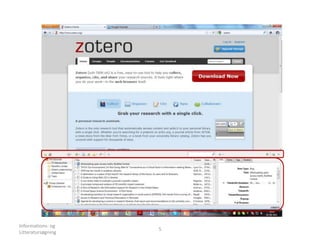
It is a Firefox application!
Made by George Mason University
 Reference Management Software
Collect literature and/or references
Organize your literature
Make foot notes and bibliografies
Informations- og
Litteratursøgning
4
Informations- og
Litteratursøgning
5
Informations- og
Litteratursøgning
6
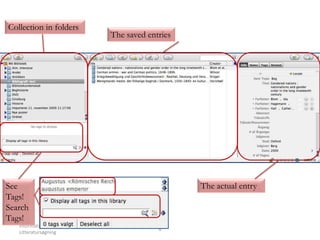
Collection in folders
The saved entries
The actual entrySee
Tags!
Search
Tags!
Informations- og
Litteratursøgning
7
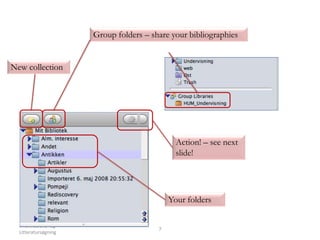
New collection
Your folders
Group folders – share your bibliographies
Action! – see next
slide!
Informations- og
Litteratursøgning
8
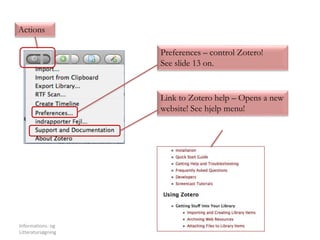
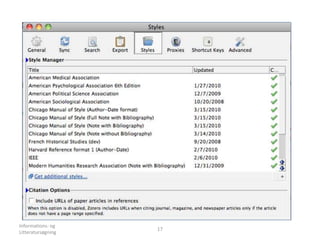
Preferences – control Zotero!
See slide 13 on.
Link to Zotero help – Opens a new
website! See hjelp menu!
Actions
Informations- og
Litteratursøgning
9
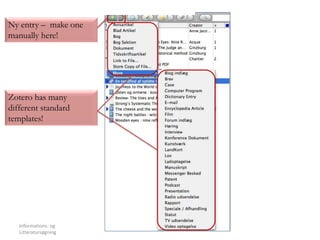
Ny entry – make one
manually here!
Zotero has many
different standard
templates!
Informations- og
Litteratursøgning
10
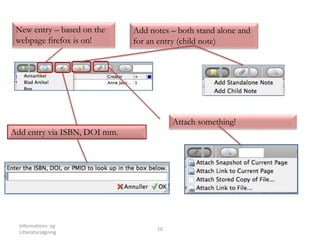
New entry – based on the
webpage firefox is on!
Add entry via ISBN, DOI mm.
Add notes – both stand alone and
for an entry (child note)
Attach something!
Informations- og
Litteratursøgning
11
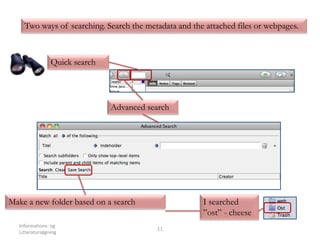
Two ways of searching. Search the metadata and the attached files or webpages.
Quick search
Advanced search
Make a new folder based on a search I searched
”ost” - cheese
Informations- og
Litteratursøgning
12
The last two…!
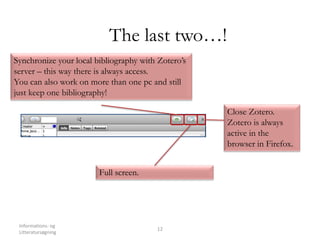
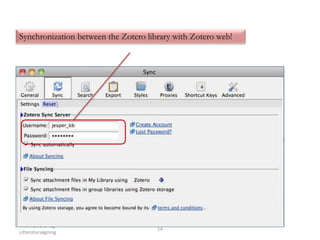
Synchronize your local bibliography with Zotero’s
server – this way there is always access.
You can also work on more than one pc and still
just keep one bibliography!
Close Zotero.
Zotero is always
active in the
browser in Firefox.
Full screen.
Informations- og
Litteratursøgning
13
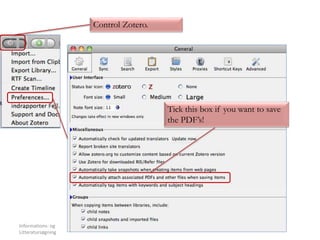
Control Zotero.
Tick this box if you want to save
the PDF’s!
Informations- og
Litteratursøgning
14
Synchronization between the Zotero library with Zotero web!
Informations- og
Litteratursøgning
15
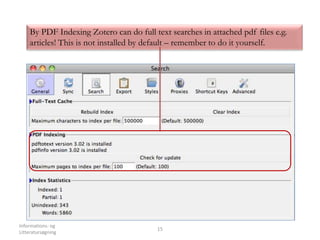
By PDF Indexing Zotero can do full text searches in attached pdf files e.g.
articles! This is not installed by default – remember to do it yourself.
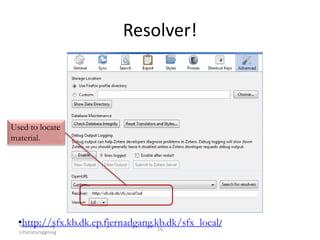
Resolver!
Informations- og
Litteratursøgning
16
•http://sfx.kb.dk.ep.fjernadgang.kb.dk/sfx_local/
Used to locate
material.
Informations- og
Litteratursøgning
17
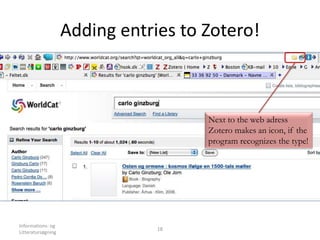
Adding entries to Zotero!
Informations- og
Litteratursøgning
18
Next to the web adress
Zotero makes an icon, if the
program recognizes the type!
Informations- og
Litteratursøgning
19
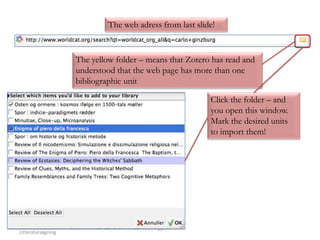
The yellow folder – means that Zotero has read and
understood that the web page has more than one
bibliographic unit
The web adress from last slide!
Click the folder – and
you open this window.
Mark the desired units
to import them!
Informations- og
Litteratursøgning
20
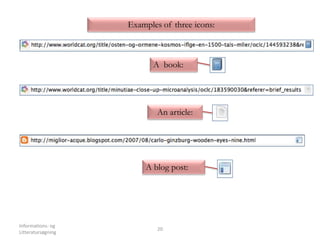
Examples of three icons:
A book:
An article:
A blog post:
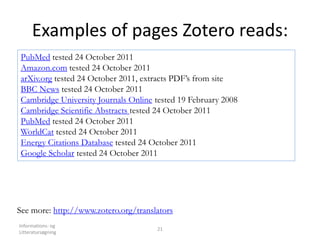
Examples of pages Zotero reads:
Informations- og
Litteratursøgning
21
PubMed tested 24 October 2011
Amazon.com tested 24 October 2011
arXiv.org tested 24 October 2011, extracts PDF’s from site
BBC News tested 24 October 2011
Cambridge University Journals Online tested 19 February 2008
Cambridge Scientific Abstracts tested 24 October 2011
PubMed tested 24 October 2011
WorldCat tested 24 October 2011
Energy Citations Database tested 24 October 2011
Google Scholar tested 24 October 2011
See more: http://www.zotero.org/translators
Word and Open Office
• To use Zotero’s way of working with Word or
Open Office you need to install a file. More
info on:
– http://www.zotero.org/support/word_processor_plugin_installation
Informations- og
Litteratursøgning
22
Informations- og
Litteratursøgning
23
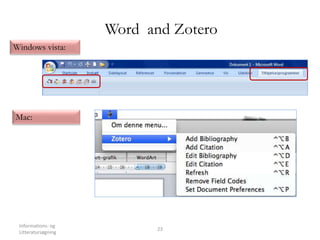
Word and Zotero
Windows vista:
Mac:
Informations- og
Litteratursøgning
24
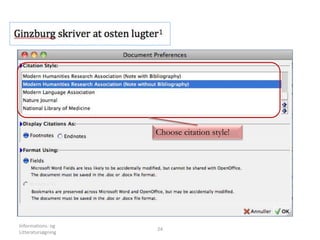
Choose citation style!
Informations- og
Litteratursøgning
25
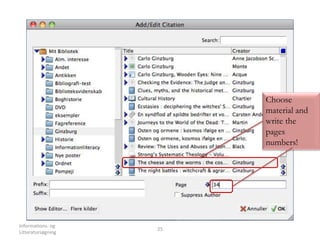
Choose
material and
write the
pages
numbers!
Informations- og
Litteratursøgning
26
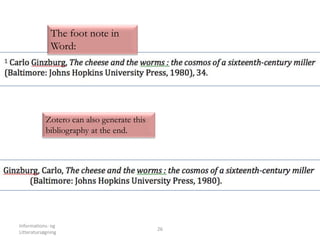
The foot note in
Word:
Zotero can also generate this
bibliography at the end.
Usefull links:
• http://www.zotero.org/support/
• http://www.worldcat.org
• http://bibliotek.dk/
Informations- og
Litteratursøgning
27
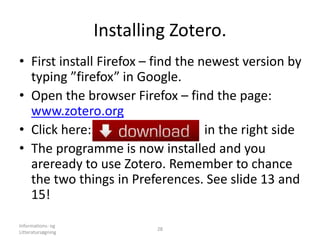
Installing Zotero.
• First install Firefox – find the newest version by
typing ”firefox” in Google.
• Open the browser Firefox – find the page:
www.zotero.org
• Click here: in the right side
• The programme is now installed and you
areready to use Zotero. Remember to chance
the two things in Preferences. See slide 13 and
15!
Informations- og
Litteratursøgning
28
Zotero apps
Informations- og
Litteratursøgning
29
Get your smartphone apps for Zotero. Here are 4:
1. Zandy: Add references to your archive and more
2. Scanner for Zotero: Scan the barcode on a book and the reference is added
3. BibUp: Same as SfZ, but it can also save pictures of the text (incl. OCR)
4. ZotFile: Easy transfer of Zotero-pdf’s to mobile readers (iPad an others)
http://www.zotero.org/blog/zotero-apps-go-mobile/
Informations- og
Litteratursøgning
30
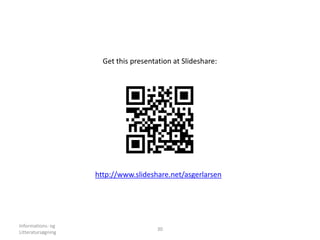
Get this presentation at Slideshare:
http://www.slideshare.net/asgerlarsen

Zotero english presentation

Editor's Notes

  • #5 Zotero – højre hjørne
  • #7 3 felter – Collections – de gemte poster – Den enkelt post
  • #8 Menuen ovenover er: Ny samling – Ny gruppe – Vis / gem tags
  • #10 –– Ny post
  • #11 Ny post fra ovenstående side – Ny post pga af identifier f.eks. Isbn – selvstændig note
  • #12 avanceret søgning – søge felt
  • #13 Synkronisering – Fuldskærmsvisning – luk
  • #14 Download af pdf-er – ændre opsætning
  • #16 Husk også under ”search” at få installeret de to ting