a free, easy-to-use tool to collect, organize,
cite, and share research sources
Beginners’ guide to
1
1
2
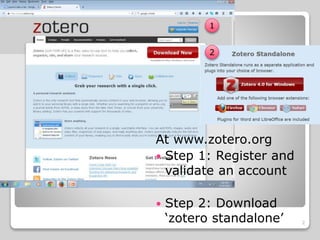
At www.zotero.org
 Step 1: Register and
validate an account
 Step 2: Download
‘zotero standalone’ 2
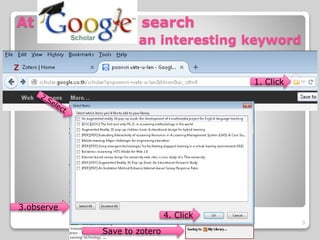
At search
an interesting keyword
1. Click
3.observe
4. Click
Save to zotero
3
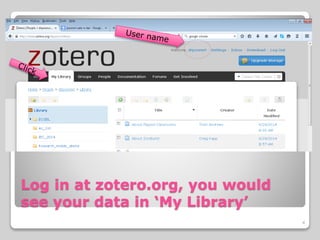
Log in at zotero.org, you would
see your data in ‘My Library’
4
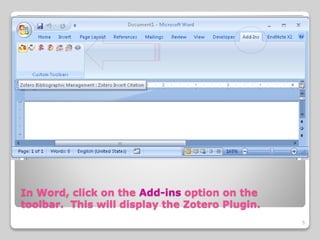
In Word, click on the Add-ins option on the
toolbar. This will display the Zotero Plugin.
5
Using The Zotero Word Plugin
 For the first citation
adding to the document,
the Document Preferences
window will open. Chose
APA format according to
AU_GSeL style book and
click OK.
Click on the “Zotero Insert Citation” icon
6
Adding a Citation in Word
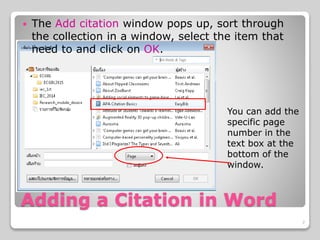
 The Add citation window pops up, sort through
the collection in a window, select the item that
need to and click on OK.
You can add the
specific page
number in the
text box at the
bottom of the
window.
7
Generating a bibliography
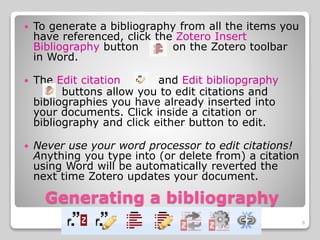
 To generate a bibliography from all the items you
have referenced, click the Zotero Insert
Bibliography button on the Zotero toolbar
in Word.
 The Edit citation and Edit bibliopgraphy
buttons allow you to edit citations and
bibliographies you have already inserted into
your documents. Click inside a citation or
bibliography and click either button to edit.
 Never use your word processor to edit citations!
Anything you type into (or delete from) a citation
using Word will be automatically reverted the
next time Zotero updates your document.
8
Generating a bibliography
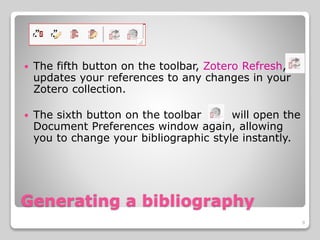
 The fifth button on the toolbar, Zotero Refresh,
updates your references to any changes in your
Zotero collection.
 The sixth button on the toolbar will open the
Document Preferences window again, allowing
you to change your bibliographic style instantly.
9
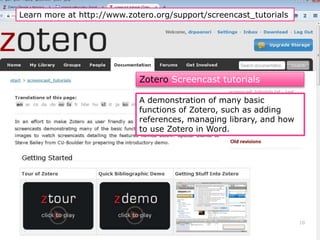
A demonstration of many basic
functions of Zotero, such as adding
references, managing library, and how
to use Zotero in Word.
Learn more at http://www.zotero.org/support/screencast_tutorials
Zotero Screencast tutorials
10

Beginners' Guide to Zotero

  • 1.
    a free, easy-to-usetool to collect, organize, cite, and share research sources Beginners’ guide to 1
  • 2.
    1 2 At www.zotero.org  Step1: Register and validate an account  Step 2: Download ‘zotero standalone’ 2
  • 3.
    At search an interestingkeyword 1. Click 3.observe 4. Click Save to zotero 3
  • 4.
    Log in atzotero.org, you would see your data in ‘My Library’ 4
  • 5.
    In Word, clickon the Add-ins option on the toolbar. This will display the Zotero Plugin. 5
  • 6.
    Using The ZoteroWord Plugin  For the first citation adding to the document, the Document Preferences window will open. Chose APA format according to AU_GSeL style book and click OK. Click on the “Zotero Insert Citation” icon 6
  • 7.
    Adding a Citationin Word  The Add citation window pops up, sort through the collection in a window, select the item that need to and click on OK. You can add the specific page number in the text box at the bottom of the window. 7
  • 8.
    Generating a bibliography To generate a bibliography from all the items you have referenced, click the Zotero Insert Bibliography button on the Zotero toolbar in Word.  The Edit citation and Edit bibliopgraphy buttons allow you to edit citations and bibliographies you have already inserted into your documents. Click inside a citation or bibliography and click either button to edit.  Never use your word processor to edit citations! Anything you type into (or delete from) a citation using Word will be automatically reverted the next time Zotero updates your document. 8
  • 9.
    Generating a bibliography The fifth button on the toolbar, Zotero Refresh, updates your references to any changes in your Zotero collection.  The sixth button on the toolbar will open the Document Preferences window again, allowing you to change your bibliographic style instantly. 9
  • 10.
    A demonstration ofmany basic functions of Zotero, such as adding references, managing library, and how to use Zotero in Word. Learn more at http://www.zotero.org/support/screencast_tutorials Zotero Screencast tutorials 10