Zotero: Collect, Organize, Cite and
Share
Shamprasad M. Pujar, PhD
Deputy Librarian
IGIDR, Mumbai
E-mail: pujar@igidr.ac.in
COIST, Dec 6, 2017
Agenda
 What are citation styles and why to use?
 What is Zotero?
 Features of Zotero
 How to use Zotero?
 Zotero Benefits
What are Citation styles and Why to use?
 Citation styles are predefined styles stating how
to set your bibliography or reference lists and in
text citations
 Popular citation style guides include APA, MLA,
Chicago, Harvard, etc.
 Styles are mandatory requirement for citing and
giving references in journal articles, conference
papers and theses and dissertations
 You need to cite reference for text taken from
some other source, otherwise it is considered as
‘Plagiarism’
What is Zotero?
Features of Zotero
Global
Collections
List of items
in a Collection
Information about
the selected item
How to use Zotero?
 Open http://www.zotero.org website.
 Click on ‘Download’ option and install Zotero
 It also includes Plugin for MS-Word and LibreOffice
 Once it is installed on your computer, add or install
Zotero connector for ‘Chrome/Firefox/Safari’ browser
 Third party plugins are also available for enhancing
its features or for integration with other applications
 To save a reference into a Zotero collection, you first
need to run the application
 Then open any website or database in the browser to
store the references in to Zotero (For some
websites/databases it may not work) by creating a
collection
How to use Zotero?
Zotero
Software
Zotero Browser
Connector
Zotero in Action
Zotero Icon for record of book
Zotero Icon for Collection of Items
Zotero List of Items Box
Zotero Icons
Zotero in Action
Create New
Collection
Add Tags Export / Import
Create new manual item, new item
from the current webpage, save link
to current page, take snapshot of
current page, new standalone note,
look out items by identifiers like DOI,
ISBN and search the items
Add information, create notes,
view website, add tags, locate
full text of the file and add
related information.
Zotero in Action Creates Bibliography using
APA or Chicago or MLA or
other styles (many more are
available for download at:
http://www.zotero.org/styles)
Bibliographies can also be
created on specific collections
created by you
It is also possible to generate
reports
Metadata Extraction from PDF
files
 You may drag your PDF collections to Items panel
or choose from ‘New Item’ icon and choose option
‘Store Copy of File’
 Right click on the PDF file or group of files, and
choose option ‘Retrieve Metadata for PDF’
 If the PDF is available on ‘Google Scholar,’ then
Zotero retrieves metadata
 First time, when this option is used, it may prompt
for installing PDF extractor from ‘preferences’ option
available under ‘Edit’ menu
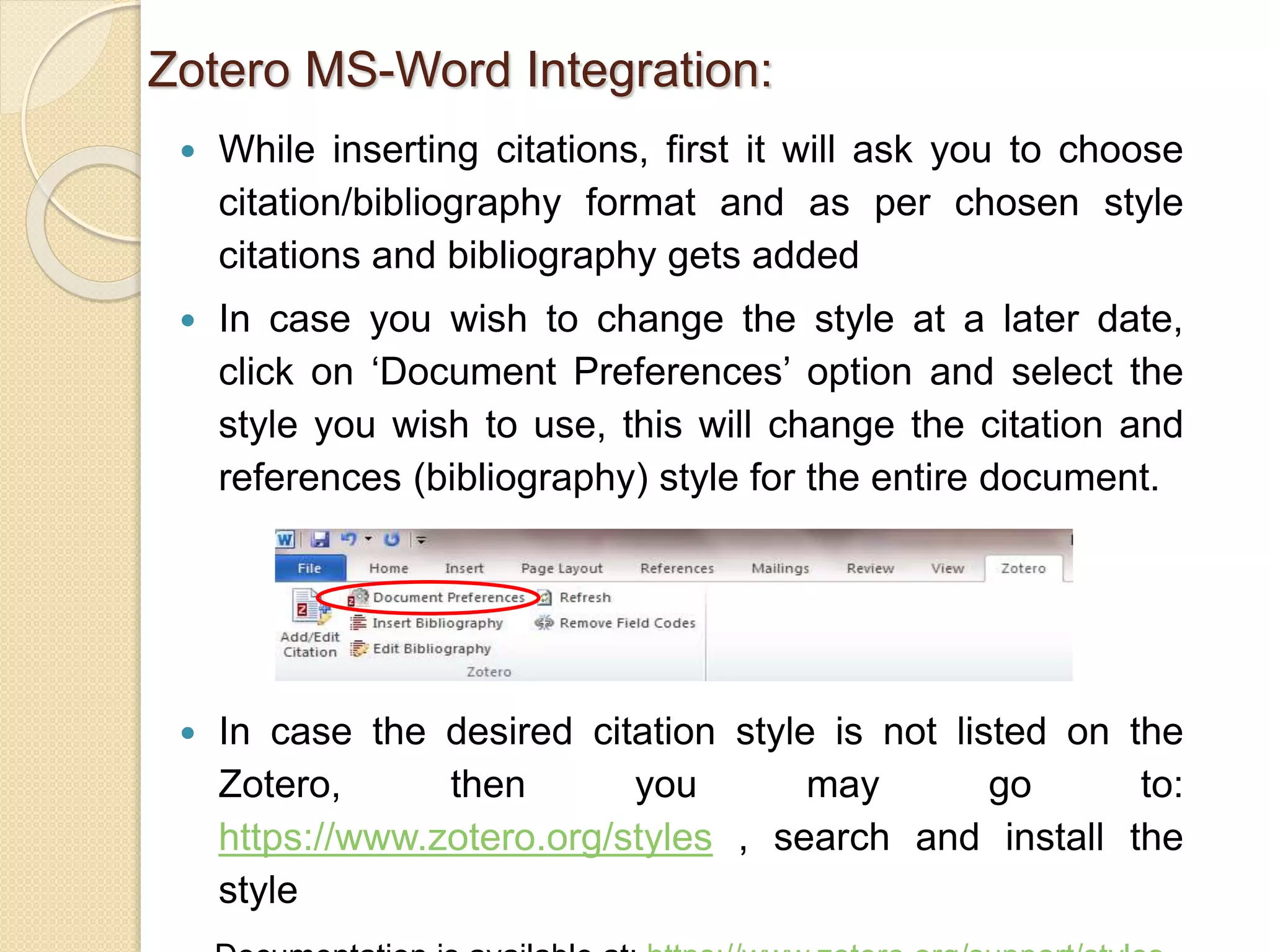
 MS-Word Plug-in is integrated with Zotero.
 After installation, Zotero toolbar gets added to MS-
Word as ‘Zotero’.
Zotero MS-Word Integration:
Continued….
http://libguides.mit.edu/c.php?g=176000&p=1159208
LaTex Integration:
 While inserting citations, first it will ask you to choose
citation/bibliography format and as per chosen style
citations and bibliography gets added
 In case you wish to change the style at a later date,
click on ‘Document Preferences’ option and select the
style you wish to use, this will change the citation and
references (bibliography) style for the entire document.
 In case the desired citation style is not listed on the
Zotero, then you may go to:
https://www.zotero.org/styles , search and install the
style
Zotero MS-Word Integration:
 On mobile phones/tablets by installing a Zotero
"Bookmarklet," a special link that saves items directly
to your Zotero account on the web. It also allows
you to edit any of the items in your library
http://www.zotero.org/downloadbookmarklet
 Pre-requisite is you need to have a Zotero online
account
Zotero Mobile Integration:
https://www.zotero.org/support/mobile
 Create a Zotero online account to enable Zotero to sync data in
local library for access using other devices.
 Online syncing is free only up to 300 MB, additional storage
space is available at cost from Zotero. (Try not to sync
attachments – uncheck this in preferences to save free storage
space)
 To unable Zotero online syncing, add your Zotero online user
name and password using ‘Sync’ preference given under
Zotero ‘Preferences’ .
Zotero Online Syncing:
 Go to ‘Edit’ menu and select ‘Preferences’
 Select ‘Advanced’ tab and choose tab ‘Files and
folders’
 You just copy all of the data folders and files available
at this directory
 Alternatively, instead of profile directory, you may set
custom directory to store your data
Backup of Data:
 Topic of research: Foreign direct investment in
India
 Sources to be searched for literature:
Google Scholar, John Wiley and Science Direct
 Type of work: Journal article
 Journals considered for publication of article
 Applied Economics (Chicago Manual of Style 16th ed – Author-
Date)
 Journal of Banking and Finance (Has its own style template)
Case Study:
 It is possible to consolidate all references at one
place thus save your valuable research time.
 Avoid duplication of work.
 Exchange of records with other researcher/s.
 Collaboration with groups through shared
libraries.
Zotero Benefits:
Zotero

Zotero

  • 1.
    Zotero: Collect, Organize,Cite and Share Shamprasad M. Pujar, PhD Deputy Librarian IGIDR, Mumbai E-mail: pujar@igidr.ac.in COIST, Dec 6, 2017
  • 2.
    Agenda  What arecitation styles and why to use?  What is Zotero?  Features of Zotero  How to use Zotero?  Zotero Benefits
  • 3.
    What are Citationstyles and Why to use?  Citation styles are predefined styles stating how to set your bibliography or reference lists and in text citations  Popular citation style guides include APA, MLA, Chicago, Harvard, etc.  Styles are mandatory requirement for citing and giving references in journal articles, conference papers and theses and dissertations  You need to cite reference for text taken from some other source, otherwise it is considered as ‘Plagiarism’
  • 4.
  • 5.
    Features of Zotero Global Collections Listof items in a Collection Information about the selected item
  • 6.
    How to useZotero?  Open http://www.zotero.org website.  Click on ‘Download’ option and install Zotero  It also includes Plugin for MS-Word and LibreOffice  Once it is installed on your computer, add or install Zotero connector for ‘Chrome/Firefox/Safari’ browser  Third party plugins are also available for enhancing its features or for integration with other applications  To save a reference into a Zotero collection, you first need to run the application  Then open any website or database in the browser to store the references in to Zotero (For some websites/databases it may not work) by creating a collection
  • 7.
    How to useZotero? Zotero Software Zotero Browser Connector
  • 8.
    Zotero in Action ZoteroIcon for record of book Zotero Icon for Collection of Items Zotero List of Items Box Zotero Icons
  • 9.
    Zotero in Action CreateNew Collection Add Tags Export / Import Create new manual item, new item from the current webpage, save link to current page, take snapshot of current page, new standalone note, look out items by identifiers like DOI, ISBN and search the items Add information, create notes, view website, add tags, locate full text of the file and add related information.
  • 10.
    Zotero in ActionCreates Bibliography using APA or Chicago or MLA or other styles (many more are available for download at: http://www.zotero.org/styles) Bibliographies can also be created on specific collections created by you It is also possible to generate reports
  • 11.
    Metadata Extraction fromPDF files  You may drag your PDF collections to Items panel or choose from ‘New Item’ icon and choose option ‘Store Copy of File’  Right click on the PDF file or group of files, and choose option ‘Retrieve Metadata for PDF’  If the PDF is available on ‘Google Scholar,’ then Zotero retrieves metadata  First time, when this option is used, it may prompt for installing PDF extractor from ‘preferences’ option available under ‘Edit’ menu
  • 12.
     MS-Word Plug-inis integrated with Zotero.  After installation, Zotero toolbar gets added to MS- Word as ‘Zotero’. Zotero MS-Word Integration: Continued…. http://libguides.mit.edu/c.php?g=176000&p=1159208 LaTex Integration:
  • 13.
     While insertingcitations, first it will ask you to choose citation/bibliography format and as per chosen style citations and bibliography gets added  In case you wish to change the style at a later date, click on ‘Document Preferences’ option and select the style you wish to use, this will change the citation and references (bibliography) style for the entire document.  In case the desired citation style is not listed on the Zotero, then you may go to: https://www.zotero.org/styles , search and install the style Zotero MS-Word Integration:
  • 14.
     On mobilephones/tablets by installing a Zotero "Bookmarklet," a special link that saves items directly to your Zotero account on the web. It also allows you to edit any of the items in your library http://www.zotero.org/downloadbookmarklet  Pre-requisite is you need to have a Zotero online account Zotero Mobile Integration: https://www.zotero.org/support/mobile
  • 15.
     Create aZotero online account to enable Zotero to sync data in local library for access using other devices.  Online syncing is free only up to 300 MB, additional storage space is available at cost from Zotero. (Try not to sync attachments – uncheck this in preferences to save free storage space)  To unable Zotero online syncing, add your Zotero online user name and password using ‘Sync’ preference given under Zotero ‘Preferences’ . Zotero Online Syncing:
  • 16.
     Go to‘Edit’ menu and select ‘Preferences’  Select ‘Advanced’ tab and choose tab ‘Files and folders’  You just copy all of the data folders and files available at this directory  Alternatively, instead of profile directory, you may set custom directory to store your data Backup of Data:
  • 17.
     Topic ofresearch: Foreign direct investment in India  Sources to be searched for literature: Google Scholar, John Wiley and Science Direct  Type of work: Journal article  Journals considered for publication of article  Applied Economics (Chicago Manual of Style 16th ed – Author- Date)  Journal of Banking and Finance (Has its own style template) Case Study:
  • 18.
     It ispossible to consolidate all references at one place thus save your valuable research time.  Avoid duplication of work.  Exchange of records with other researcher/s.  Collaboration with groups through shared libraries. Zotero Benefits:

Editor's Notes

  • #5 Tip: Add your own speaker notes here.
  • #13 Tip: Add your own speaker notes here.
  • #14 Tip: Add your own speaker notes here.
  • #15 Tip: Add your own speaker notes here.
  • #16 Tip: Add your own speaker notes here.
  • #17 Tip: Add your own speaker notes here.
  • #18 Tip: Add your own speaker notes here.
  • #19 Tip: Add your own speaker notes here.
  • #20 Tip: Add your own speaker notes here.