1
2
What’s inside?
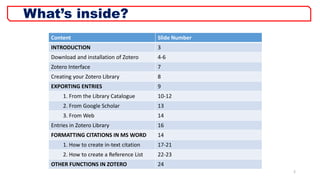
Content Slide Number
INTRODUCTION 3
Download and installation of Zotero 4-6
Zotero Interface 7
Creating your Zotero Library 8
EXPORTING ENTRIES 9
1. From the Library Catalogue 10-12
2. From Google Scholar 13
3. From Web 14
Entries in Zotero Library 16
FORMATTING CITATIONS IN MS WORD 14
1. How to create in-text citation 17-21
2. How to create a Reference List 22-23
OTHER FUNCTIONS IN ZOTERO 24
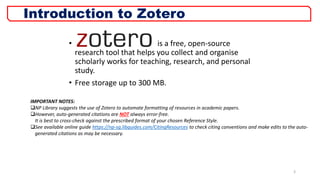
• is a free, open-source
research tool that helps you collect and organise
scholarly works for teaching, research, and personal
study.
• Free storage up to 300 MB.
3
Introduction to Zotero
IMPORTANT NOTES:
NP Library suggests the use of Zotero to automate formatting of resources in academic papers.
However, auto-generated citations are NOT always error-free.
It is best to cross-check against the prescribed format of your chosen Reference Style.
See available online guide https://np-sg.libguides.com/CitingResources to check citing conventions and make edits to the auto-
generated citations as may be necessary.
Download Zotero
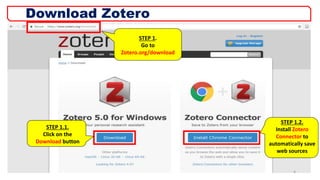
STEP 1.
Go to
Zotero.org/download
STEP 1.2.
Install Zotero
Connector to
automatically save
web sources
STEP 1.1.
Click on the
Download button
4
Download Zotero
5
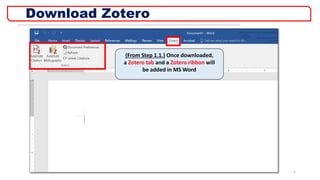
(From Step 1.1.) Once downloaded,
a Zotero tab and a Zotero ribbon will
be added in MS Word
Download Zotero
6
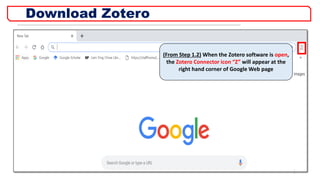
(From Step 1.2) When the Zotero software is open,
the Zotero Connector icon “Z” will appear at the
right hand corner of Google Web page
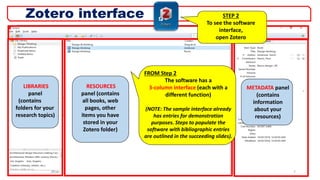
FROM Step 2
The software has a
3-column interface (each with a
different function)
(NOTE: The sample interface already
has entries for demonstration
purposes. Steps to populate the
software with bibliographic entries
are outlined in the succeeding slides).
LIBRARIES
panel
(contains
folders for your
research topics)
RESOURCES
panel (contains
all books, web
pages, other
items you have
stored in your
Zotero folder)
METADATA panel
(contains
information
about your
resources)
7
Zotero interface STEP 2
To see the software
interface,
open Zotero
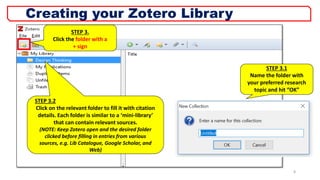
STEP 3.
Click the folder with a
+ sign
STEP 3.2
Click on the relevant folder to fill it with citation
details. Each folder is similar to a ‘mini-library’
that can contain relevant sources.
(NOTE: Keep Zotero open and the desired folder
clicked before filling in entries from various
sources, e.g. Lib Catalogue, Google Scholar, and
Web)
8
Creating your Zotero Library
STEP 3.1
Name the folder with
your preferred research
topic and hit “OK”
9
Automatically export entries from
1. Library Catalogue
2. Google Scholar
3. Web
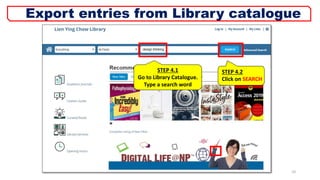
STEP 4.1
Go to Library Catalogue.
Type a search word
10
Export entries from Library catalogue
STEP 4.2
Click on SEARCH
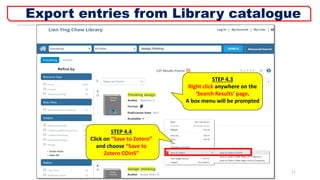
STEP 4.4
Click on “Save to Zotero”
and choose “Save to
Zotero COinS”
STEP 4.3
Right click anywhere on the
‘Search Results’ page.
A box menu will be prompted
11
Export entries from Library catalogue
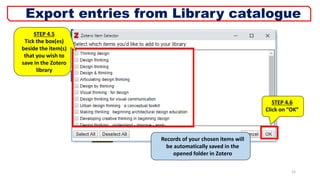
STEP 4.5
Tick the box(es)
beside the item(s)
that you wish to
save in the Zotero
library
Records of your chosen items will
be automatically saved in the
opened folder in Zotero
12
Export entries from Library catalogue
STEP 4.6
Click on “OK”
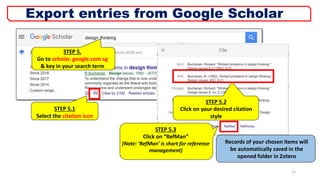
STEP 5.
Go to scholar. google.com.sg
& key in your search term
STEP 5.2
Click on your desired citation
style
STEP 5.3
Click on “RefMan”
(Note: ‘RefMan’ is short for reference
management)
Records of your chosen items will
be automatically saved in the
opened folder in Zotero
STEP 5.1
Select the citation icon
13
Export entries from Google Scholar
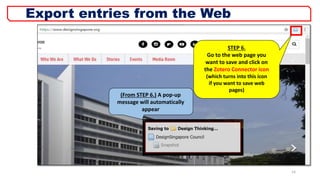
STEP 6.
Go to the web page you
want to save and click on
the Zotero Connector icon
(which turns into this icon
if you want to save web
pages)
14
Export entries from the Web
(From STEP 6.) A pop-up
message will automatically
appear
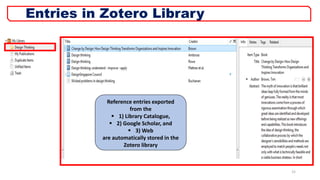
Reference entries exported
from the
 1) Library Catalogue,
 2) Google Scholar, and
 3) Web
are automatically stored in the
Zotero library
15
Entries in Zotero Library
16
Formatting citations in MS Word
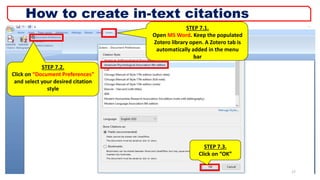
STEP 7.1.
Open MS Word. Keep the populated
Zotero library open. A Zotero tab is
automatically added in the menu
bar
STEP 7.2.
Click on “Document Preferences”
and select your desired citation
style
STEP 7.3.
Click on “OK”
17
How to create in-text citations
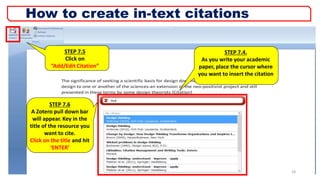
STEP 7.5
Click on
“Add/Edit Citation”
STEP 7.4.
As you write your academic
paper, place the cursor where
you want to insert the citation
STEP 7.6
A Zotero pull down bar
will appear. Key in the
title of the resource you
want to cite.
Click on the title and hit
‘ENTER’
18
How to create in-text citations
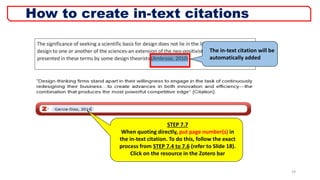
The in-text citation will be
automatically added
19
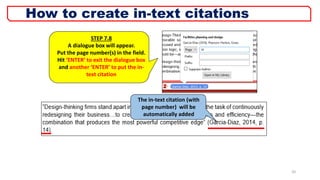
STEP 7.7
When quoting directly, put page number(s) in
the in-text citation. To do this, follow the exact
process from STEP 7.4 to 7.6 (refer to Slide 18).
Click on the resource in the Zotero bar
How to create in-text citations
20
STEP 7.8
A dialogue box will appear.
Put the page number(s) in the field.
Hit ‘ENTER’ to exit the dialogue box
and another ‘ENTER’ to put the in-
text citation
The in-text citation (with
page number) will be
automatically added
How to create in-text citations
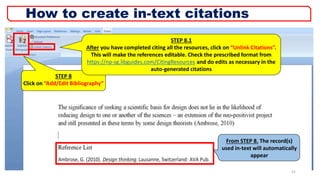
STEP 8
Click on “Add/Edit Bibliography”
From STEP 8. The record(s)
used in-text will automatically
appear
21
How to create in-text citations
STEP 8.1
After you have completed citing all the resources, click on “Unlink Citations”.
This will make the references editable. Check the prescribed format from
https://np-sg.libguides.com/CitingResources and do edits as necessary in the
auto-generated citations
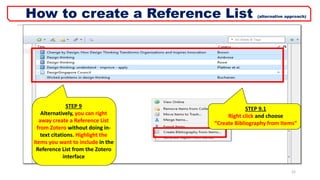
STEP 9
Alternatively, you can right
away create a Reference List
from Zotero without doing in-
text citations. Highlight the
items you want to include in the
Reference List from the Zotero
interface
STEP 9.1
Right click and choose
“Create Bibliography from Items”
22
How to create a Reference List (alternative approach)
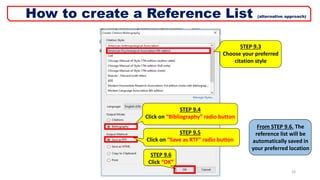
STEP 9.3
Choose your preferred
citation style
STEP 9.4
Click on “Bibliography” radio button
STEP 9.5
Click on “Save as RTF” radio button
STEP 9.6
Click “OK”
23
How to create a Reference List (alternative approach)
From STEP 9.6. The
reference list will be
automatically saved in
your preferred location
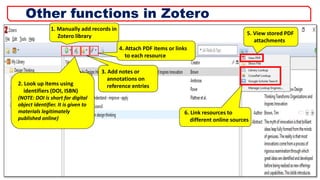
1. Manually add records in
Zotero library
2. Look up items using
identifiers (DOI, ISBN)
(NOTE: DOI is short for digital
object identifier. It is given to
materials legitimately
published online)
4. Attach PDF items or links
to each resource
5. View stored PDF
attachments
6. Link resources to
different online sources
3. Add notes or
annotations on
reference entries
24
Other functions in Zotero

Zotero PPT

  • 1.
  • 2.
    2 What’s inside? Content SlideNumber INTRODUCTION 3 Download and installation of Zotero 4-6 Zotero Interface 7 Creating your Zotero Library 8 EXPORTING ENTRIES 9 1. From the Library Catalogue 10-12 2. From Google Scholar 13 3. From Web 14 Entries in Zotero Library 16 FORMATTING CITATIONS IN MS WORD 14 1. How to create in-text citation 17-21 2. How to create a Reference List 22-23 OTHER FUNCTIONS IN ZOTERO 24
  • 3.
    • is afree, open-source research tool that helps you collect and organise scholarly works for teaching, research, and personal study. • Free storage up to 300 MB. 3 Introduction to Zotero IMPORTANT NOTES: NP Library suggests the use of Zotero to automate formatting of resources in academic papers. However, auto-generated citations are NOT always error-free. It is best to cross-check against the prescribed format of your chosen Reference Style. See available online guide https://np-sg.libguides.com/CitingResources to check citing conventions and make edits to the auto- generated citations as may be necessary.
  • 4.
    Download Zotero STEP 1. Goto Zotero.org/download STEP 1.2. Install Zotero Connector to automatically save web sources STEP 1.1. Click on the Download button 4
  • 5.
    Download Zotero 5 (From Step1.1.) Once downloaded, a Zotero tab and a Zotero ribbon will be added in MS Word
  • 6.
    Download Zotero 6 (From Step1.2) When the Zotero software is open, the Zotero Connector icon “Z” will appear at the right hand corner of Google Web page
  • 7.
    FROM Step 2 Thesoftware has a 3-column interface (each with a different function) (NOTE: The sample interface already has entries for demonstration purposes. Steps to populate the software with bibliographic entries are outlined in the succeeding slides). LIBRARIES panel (contains folders for your research topics) RESOURCES panel (contains all books, web pages, other items you have stored in your Zotero folder) METADATA panel (contains information about your resources) 7 Zotero interface STEP 2 To see the software interface, open Zotero
  • 8.
    STEP 3. Click thefolder with a + sign STEP 3.2 Click on the relevant folder to fill it with citation details. Each folder is similar to a ‘mini-library’ that can contain relevant sources. (NOTE: Keep Zotero open and the desired folder clicked before filling in entries from various sources, e.g. Lib Catalogue, Google Scholar, and Web) 8 Creating your Zotero Library STEP 3.1 Name the folder with your preferred research topic and hit “OK”
  • 9.
    9 Automatically export entriesfrom 1. Library Catalogue 2. Google Scholar 3. Web
  • 10.
    STEP 4.1 Go toLibrary Catalogue. Type a search word 10 Export entries from Library catalogue STEP 4.2 Click on SEARCH
  • 11.
    STEP 4.4 Click on“Save to Zotero” and choose “Save to Zotero COinS” STEP 4.3 Right click anywhere on the ‘Search Results’ page. A box menu will be prompted 11 Export entries from Library catalogue
  • 12.
    STEP 4.5 Tick thebox(es) beside the item(s) that you wish to save in the Zotero library Records of your chosen items will be automatically saved in the opened folder in Zotero 12 Export entries from Library catalogue STEP 4.6 Click on “OK”
  • 13.
    STEP 5. Go toscholar. google.com.sg & key in your search term STEP 5.2 Click on your desired citation style STEP 5.3 Click on “RefMan” (Note: ‘RefMan’ is short for reference management) Records of your chosen items will be automatically saved in the opened folder in Zotero STEP 5.1 Select the citation icon 13 Export entries from Google Scholar
  • 14.
    STEP 6. Go tothe web page you want to save and click on the Zotero Connector icon (which turns into this icon if you want to save web pages) 14 Export entries from the Web (From STEP 6.) A pop-up message will automatically appear
  • 15.
    Reference entries exported fromthe  1) Library Catalogue,  2) Google Scholar, and  3) Web are automatically stored in the Zotero library 15 Entries in Zotero Library
  • 16.
  • 17.
    STEP 7.1. Open MSWord. Keep the populated Zotero library open. A Zotero tab is automatically added in the menu bar STEP 7.2. Click on “Document Preferences” and select your desired citation style STEP 7.3. Click on “OK” 17 How to create in-text citations
  • 18.
    STEP 7.5 Click on “Add/EditCitation” STEP 7.4. As you write your academic paper, place the cursor where you want to insert the citation STEP 7.6 A Zotero pull down bar will appear. Key in the title of the resource you want to cite. Click on the title and hit ‘ENTER’ 18 How to create in-text citations
  • 19.
    The in-text citationwill be automatically added 19 STEP 7.7 When quoting directly, put page number(s) in the in-text citation. To do this, follow the exact process from STEP 7.4 to 7.6 (refer to Slide 18). Click on the resource in the Zotero bar How to create in-text citations
  • 20.
    20 STEP 7.8 A dialoguebox will appear. Put the page number(s) in the field. Hit ‘ENTER’ to exit the dialogue box and another ‘ENTER’ to put the in- text citation The in-text citation (with page number) will be automatically added How to create in-text citations
  • 21.
    STEP 8 Click on“Add/Edit Bibliography” From STEP 8. The record(s) used in-text will automatically appear 21 How to create in-text citations STEP 8.1 After you have completed citing all the resources, click on “Unlink Citations”. This will make the references editable. Check the prescribed format from https://np-sg.libguides.com/CitingResources and do edits as necessary in the auto-generated citations
  • 22.
    STEP 9 Alternatively, youcan right away create a Reference List from Zotero without doing in- text citations. Highlight the items you want to include in the Reference List from the Zotero interface STEP 9.1 Right click and choose “Create Bibliography from Items” 22 How to create a Reference List (alternative approach)
  • 23.
    STEP 9.3 Choose yourpreferred citation style STEP 9.4 Click on “Bibliography” radio button STEP 9.5 Click on “Save as RTF” radio button STEP 9.6 Click “OK” 23 How to create a Reference List (alternative approach) From STEP 9.6. The reference list will be automatically saved in your preferred location
  • 24.
    1. Manually addrecords in Zotero library 2. Look up items using identifiers (DOI, ISBN) (NOTE: DOI is short for digital object identifier. It is given to materials legitimately published online) 4. Attach PDF items or links to each resource 5. View stored PDF attachments 6. Link resources to different online sources 3. Add notes or annotations on reference entries 24 Other functions in Zotero

Editor's Notes

  • #5 Crop the word
  • #6 Crop the word
  • #7 Crop the word
  • #12 Demo also using Databases
  • #13 Can also be done on Amazon, The New York Times