Copyright © 2006 by The McGraw-Hill Companies, Inc. All rights reserved.McGraw-Hill Technology Education
McGraw-Hill Technology Education Copyright © 2006 by The McGraw-Hill Companies, Inc. All rights reserved.
Edited by:Edited by:
Rahman Ali, Lecturer inRahman Ali, Lecturer in
Computer Science, QACC,Computer Science, QACC,
University of PeshawarUniversity of Peshawar
Copyright © 2006 by The McGraw-Hill Companies, Inc. All rights reserved.McGraw-Hill Technology Education
Chapter 1B
Looking Inside the
Computer System
1B-3
Parts of the Computer System
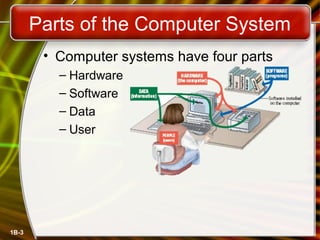
• Computer systems have four parts
– Hardware
– Software
– Data
– User
1B-4
Parts of the Computer System
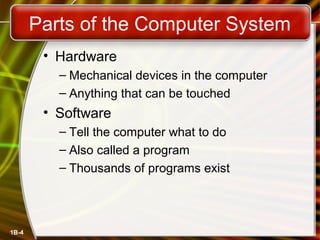
• Hardware
– Mechanical devices in the computer
– Anything that can be touched
• Software
– Tell the computer what to do
– Also called a program
– Thousands of programs exist
1B-5
Parts of the Computer System
• Data
– Pieces of information
– Computer organize and present data
• Users
– People operating the computer
– Most important part
– Tell the computer what to do
1B-6
Information Processing Cycle
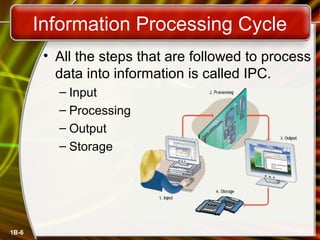
• All the steps that are followed to process
data into information is called IPC.
– Input
– Processing
– Output
– Storage
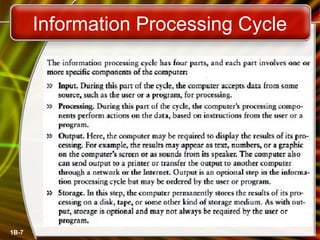
Information Processing Cycle
1B-7
1B-8
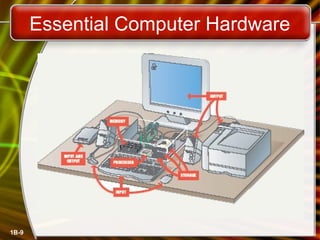
Essential Computer Hardware
• Computers use the same basic
hardware
• Hardware categorized into four types:
– Input
– Memory devices
– Processor
– Output
– Storage
Essential Computer Hardware
1B-9
1B-10
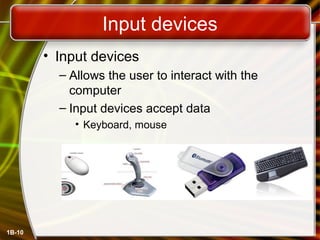
Input devices
• Input devices
– Allows the user to interact with the
computer
– Input devices accept data
• Keyboard, mouse
1B-11
Memory devices
• Memory devices
– Computer Memory are internal storage
areas in the computer used to either
temporarily or permanently store data or
instructions to be processed
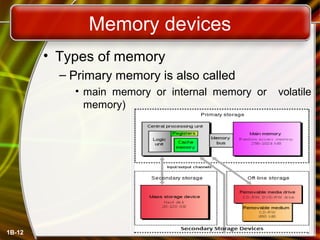
Memory devices
• Types of memory
– Primary memory is also called
• main memory or internal memory or volatile
memory)
1B-12
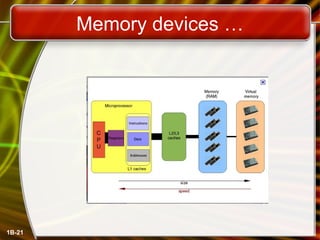
Memory devices …
• Primary memory
– RAM
– ROM
– CPU registers
– Cache memory
1B-13
Memory devices …
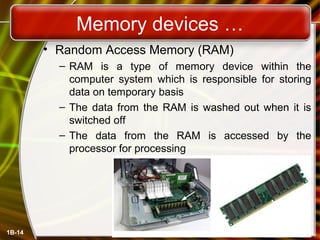
• Random Access Memory (RAM)
– RAM is a type of memory device within the
computer system which is responsible for storing
data on temporary basis
– The data from the RAM is washed out when it is
switched off
– The data from the RAM is accessed by the
processor for processing
1B-14
Memory devices
• RAM types
– Static RAM (SRAM):
• Not refreshed, more power consumption, faster
than DRAM
– Dynamic RAM (DRAM):
• Refreshed regularly, consume less power,
slower than SRAM
• Examples are:
– SDRAM, DDR and Rambus DRAM
• Size of RAM
– 2GB, 4GB, 8GB, 16GB and 24GB (installed on
Core i7)
1B-15
Memory devices …
• Read Only Memory (ROM)
– This type of memory is active, regardless of
whether the system is turned on or is switched off.
– It is a kind of permanent non-volatile storage
memory.
– As the name 'read only' suggests, the contents in it
cannot be changed or modified.
– It is an integrated circuit which is pre-programmed
with important data that should necessarily be
present for the computer to carry out its normal
functionalities.
1B-16
Memory devices …
1B-17
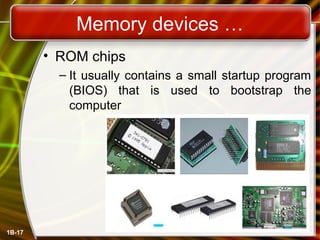
• ROM chips
– It usually contains a small startup program
(BIOS) that is used to bootstrap the
computer
Memory devices …
• Read Only Memory (ROM) Types
– ROM –
• Read Only Memory
– PROM –
• Programmable Read Only Memory : Programmed once
– EPROM –
• Erasable Programmable Read Only Memory: Programed
many times
– EEPROM –
• Electrically Erasable Programmable Read Only Memory
– Flash EEPROM memory
1B-18
Memory devices …
• CPU register
– Processor registers are located inside the
processor.
– Each register typically holds a word of data
(often 32 or 64 bits).
– Registers are the fastest of all forms of
computer data storage.
1B-19
Memory devices …
• Cache memory
– Processor cache is an intermediate stage between
ultra-fast registers and much slower main memory
– It is used to reduce the speed mismatch between
fastest speed registers and slow speed RAM
– It's introduced solely to increase performance of
the computer.
– Cache is divided into multiple level
• Level 1 (L1) cache or primary cache
– being smallest, fastest and located inside the processor
• Level 2 (L2) and Level 3 (L3) cache or secondary cache
– larger and slower than level 1 and located outside the CPU on motherboard
1B-20
Memory devices …
1B-21
1B-22
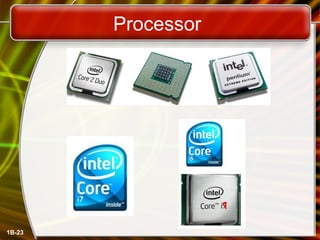
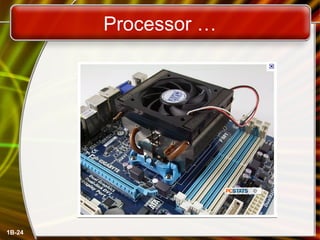
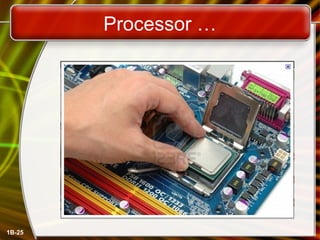
Processing devices (CPU)
• Processing devices
– Brains of the computer
– Carries out instructions from the program
– Manipulate the data
– Most computers have several processors
– Central Processing Unit (CPU)
– Secondary processors
– Processors made of silicon and copper
Processor
1B-23
Processor …
1B-24
Processor …
1B-25
Processor…
• Components of processor
– CU (Control Unit):
• The control unit control all the activities of the processor
• It communicates with both the arithmetic/logic unit and memory
(registers)
– ALU (Arithmetic Logic Unit):
• Perform arithmetic and logical operations
• Arithmetic operation: X=a+b
• Logical operation:
– X>Y or
– percentage>=70 && percentage<80 then grade=A
– Registers:
• A processor register is a small amount of storage available as
a part of a CPU
• 64 bits registers and 128 bits registers are used in latest CPU’s
1B-26
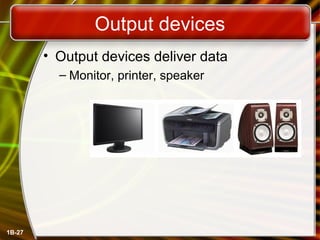
Output devices
• Output devices deliver data
– Monitor, printer, speaker
1B-27
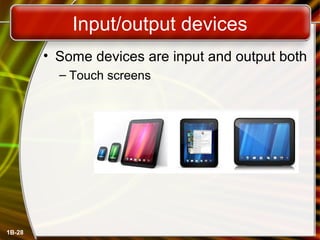
Input/output devices
• Some devices are input and output both
– Touch screens
1B-28
1B-29
Storage devices …
• Secondary storage (also known as external
memory or auxiliary storage), is a permanent
storage that stores a large volume of data
• It differs from primary storage in that it is not
directly accessible by the CPU and is also a
permanent storage
• Types of secondary storage
– Magnetic storage
– Optical storage
Storage devices …
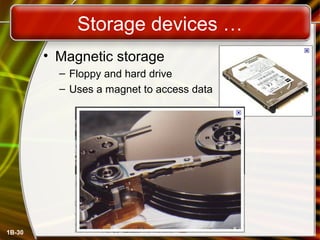
• Magnetic storage
– Floppy and hard drive
– Uses a magnet to access data
1B-30
Storage devices …
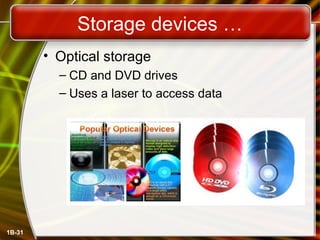
• Optical storage
– CD and DVD drives
– Uses a laser to access data
1B-31
Storage devices …
• Other secondary storage devices
– Flash Memory: This is another non-volatile
(permanent) kind of memory which is
intended to contribute to portable storage
and a convenient transfer of data from one
computer to another
• Memory cards and
• USB flash drives are some modes of this type of
memory storage.
1B-32
1B-33
Software Runs The Machine
• Softwares are the computers programs
that tell the computer to perform a
specific task
• Two types
– System software
– Application software
1B-34
Software Runs The Machine
• System software
– These are the most important softwares
that control the computer hardwares and
make them ready for users operations
System softwares
• Types of system softwares
– Operating system
• Is the most important system software that that controls
the computer hardwares and run other application
softwares.
• Examples: Windows XP, Vista, Windows 7
– Network operating system (OS)
• Allows computers to communicate and share data across
a network
• Examples: Windows Server 2003
– Utility
• These are computer programs that are used to perform
highly specialized tasks
• Examples: Symantec AntiVirus, disk management,
calculator etc.1B-35
1B-36
Application software
• Application software
– Accomplishes a specific task
– Most common type of application softwares
• Word processing
– MS Word
• Graphics
• Spreadsheet
– MS Excel
• Database management
– MS Access
• Multimedia
• Web designing
1B-37
Computer data
• Fact with no meaning on its own
• Stored using the binary number system
• Data can be organized into files
• Always be in raw form
• Cannot be used for decision making
purpose
• Always used as input to the computers
1B-38
Computer users
• Role depends on ability
– Setup the system
– Install software
– Mange files
– Maintain the system
• “Userless” computers
– Run with no user input
– Automated systems
– Controlled by the installed operating system
– Examples: washer and dryers machines, automatic
cars etc.
Copyright © 2006 by The McGraw-Hill Companies, Inc. All rights reserved.McGraw-Hill Technology Education
Chapter 1B
End of Chapter

Introduction to Information Technology ch 01_b

  • 1.
    Copyright © 2006by The McGraw-Hill Companies, Inc. All rights reserved.McGraw-Hill Technology Education McGraw-Hill Technology Education Copyright © 2006 by The McGraw-Hill Companies, Inc. All rights reserved. Edited by:Edited by: Rahman Ali, Lecturer inRahman Ali, Lecturer in Computer Science, QACC,Computer Science, QACC, University of PeshawarUniversity of Peshawar
  • 2.
    Copyright © 2006by The McGraw-Hill Companies, Inc. All rights reserved.McGraw-Hill Technology Education Chapter 1B Looking Inside the Computer System
  • 3.
    1B-3 Parts of theComputer System • Computer systems have four parts – Hardware – Software – Data – User
  • 4.
    1B-4 Parts of theComputer System • Hardware – Mechanical devices in the computer – Anything that can be touched • Software – Tell the computer what to do – Also called a program – Thousands of programs exist
  • 5.
    1B-5 Parts of theComputer System • Data – Pieces of information – Computer organize and present data • Users – People operating the computer – Most important part – Tell the computer what to do
  • 6.
    1B-6 Information Processing Cycle •All the steps that are followed to process data into information is called IPC. – Input – Processing – Output – Storage
  • 7.
  • 8.
    1B-8 Essential Computer Hardware •Computers use the same basic hardware • Hardware categorized into four types: – Input – Memory devices – Processor – Output – Storage
  • 9.
  • 10.
    1B-10 Input devices • Inputdevices – Allows the user to interact with the computer – Input devices accept data • Keyboard, mouse
  • 11.
    1B-11 Memory devices • Memorydevices – Computer Memory are internal storage areas in the computer used to either temporarily or permanently store data or instructions to be processed
  • 12.
    Memory devices • Typesof memory – Primary memory is also called • main memory or internal memory or volatile memory) 1B-12
  • 13.
    Memory devices … •Primary memory – RAM – ROM – CPU registers – Cache memory 1B-13
  • 14.
    Memory devices … •Random Access Memory (RAM) – RAM is a type of memory device within the computer system which is responsible for storing data on temporary basis – The data from the RAM is washed out when it is switched off – The data from the RAM is accessed by the processor for processing 1B-14
  • 15.
    Memory devices • RAMtypes – Static RAM (SRAM): • Not refreshed, more power consumption, faster than DRAM – Dynamic RAM (DRAM): • Refreshed regularly, consume less power, slower than SRAM • Examples are: – SDRAM, DDR and Rambus DRAM • Size of RAM – 2GB, 4GB, 8GB, 16GB and 24GB (installed on Core i7) 1B-15
  • 16.
    Memory devices … •Read Only Memory (ROM) – This type of memory is active, regardless of whether the system is turned on or is switched off. – It is a kind of permanent non-volatile storage memory. – As the name 'read only' suggests, the contents in it cannot be changed or modified. – It is an integrated circuit which is pre-programmed with important data that should necessarily be present for the computer to carry out its normal functionalities. 1B-16
  • 17.
    Memory devices … 1B-17 •ROM chips – It usually contains a small startup program (BIOS) that is used to bootstrap the computer
  • 18.
    Memory devices … •Read Only Memory (ROM) Types – ROM – • Read Only Memory – PROM – • Programmable Read Only Memory : Programmed once – EPROM – • Erasable Programmable Read Only Memory: Programed many times – EEPROM – • Electrically Erasable Programmable Read Only Memory – Flash EEPROM memory 1B-18
  • 19.
    Memory devices … •CPU register – Processor registers are located inside the processor. – Each register typically holds a word of data (often 32 or 64 bits). – Registers are the fastest of all forms of computer data storage. 1B-19
  • 20.
    Memory devices … •Cache memory – Processor cache is an intermediate stage between ultra-fast registers and much slower main memory – It is used to reduce the speed mismatch between fastest speed registers and slow speed RAM – It's introduced solely to increase performance of the computer. – Cache is divided into multiple level • Level 1 (L1) cache or primary cache – being smallest, fastest and located inside the processor • Level 2 (L2) and Level 3 (L3) cache or secondary cache – larger and slower than level 1 and located outside the CPU on motherboard 1B-20
  • 21.
  • 22.
    1B-22 Processing devices (CPU) •Processing devices – Brains of the computer – Carries out instructions from the program – Manipulate the data – Most computers have several processors – Central Processing Unit (CPU) – Secondary processors – Processors made of silicon and copper
  • 23.
  • 24.
  • 25.
  • 26.
    Processor… • Components ofprocessor – CU (Control Unit): • The control unit control all the activities of the processor • It communicates with both the arithmetic/logic unit and memory (registers) – ALU (Arithmetic Logic Unit): • Perform arithmetic and logical operations • Arithmetic operation: X=a+b • Logical operation: – X>Y or – percentage>=70 && percentage<80 then grade=A – Registers: • A processor register is a small amount of storage available as a part of a CPU • 64 bits registers and 128 bits registers are used in latest CPU’s 1B-26
  • 27.
    Output devices • Outputdevices deliver data – Monitor, printer, speaker 1B-27
  • 28.
    Input/output devices • Somedevices are input and output both – Touch screens 1B-28
  • 29.
    1B-29 Storage devices … •Secondary storage (also known as external memory or auxiliary storage), is a permanent storage that stores a large volume of data • It differs from primary storage in that it is not directly accessible by the CPU and is also a permanent storage • Types of secondary storage – Magnetic storage – Optical storage
  • 30.
    Storage devices … •Magnetic storage – Floppy and hard drive – Uses a magnet to access data 1B-30
  • 31.
    Storage devices … •Optical storage – CD and DVD drives – Uses a laser to access data 1B-31
  • 32.
    Storage devices … •Other secondary storage devices – Flash Memory: This is another non-volatile (permanent) kind of memory which is intended to contribute to portable storage and a convenient transfer of data from one computer to another • Memory cards and • USB flash drives are some modes of this type of memory storage. 1B-32
  • 33.
    1B-33 Software Runs TheMachine • Softwares are the computers programs that tell the computer to perform a specific task • Two types – System software – Application software
  • 34.
    1B-34 Software Runs TheMachine • System software – These are the most important softwares that control the computer hardwares and make them ready for users operations
  • 35.
    System softwares • Typesof system softwares – Operating system • Is the most important system software that that controls the computer hardwares and run other application softwares. • Examples: Windows XP, Vista, Windows 7 – Network operating system (OS) • Allows computers to communicate and share data across a network • Examples: Windows Server 2003 – Utility • These are computer programs that are used to perform highly specialized tasks • Examples: Symantec AntiVirus, disk management, calculator etc.1B-35
  • 36.
    1B-36 Application software • Applicationsoftware – Accomplishes a specific task – Most common type of application softwares • Word processing – MS Word • Graphics • Spreadsheet – MS Excel • Database management – MS Access • Multimedia • Web designing
  • 37.
    1B-37 Computer data • Factwith no meaning on its own • Stored using the binary number system • Data can be organized into files • Always be in raw form • Cannot be used for decision making purpose • Always used as input to the computers
  • 38.
    1B-38 Computer users • Roledepends on ability – Setup the system – Install software – Mange files – Maintain the system • “Userless” computers – Run with no user input – Automated systems – Controlled by the installed operating system – Examples: washer and dryers machines, automatic cars etc.
  • 39.
    Copyright © 2006by The McGraw-Hill Companies, Inc. All rights reserved.McGraw-Hill Technology Education Chapter 1B End of Chapter

Editor's Notes

  • #5 Teaching tip Suggest to your students that the majority of people who purchase computers do so because of software. They want to email, or type letters. Nearly every reason given to purchase a computer is based on software needs.
  • #6 Teaching tip A good exercise to relate the importance of making data meaningful is to list some random numbers on the board. Then ask what they mean. Without a title, the numbers have no meaning. Once a title is presented, the numbers make sense.
  • #7 Teaching tip It is helpful to walk through a simple program to demonstrate the cycle. I often use a simple arithmetic problem to show this cycle.
  • #11 Teaching tip It is helpful to have examples of input and output devices in class. Stories of obscure input output devices are typically well received by the students.
  • #12 Insider information Intel, the manufacturer of popular CPUs, originally made RAM for mainframe and minicomputers. Today Kingston is a leading RAM manufacturer. Chapter 5 discusses ROM and the BIOS. Refer your students to this chapter if they desire more information.
  • #23 Teaching tip The interaction between a CPU and secondary processors is much like the interaction between a boss and subordinate. The boss tells the subordinate what to do but not necessarily how to accomplish the task. The subordinate only bothers the boss when guidance or more data is needed.
  • #30 Insider information A new CD technology is emerging. A shorter wavelength blue laser beam is being used to burn CD’s. This allows more data to be saved on a disk. The technology is in it’s infancy but should be mature in the near future. Chapter 11 of the text provides more detail regarding storage devices. DVD writers are available for purchase. They have not been standardized yet. Several competing formats are vying for acceptance. Of these, the DVD+RW seems to have the strongest support.
  • #38 Teaching tip Chapter 5 in the text explores data processing in greater detail. Figure 1B.5 shows data in binary format.
  • #39 Teaching tip Most computer problems are caused by user error. Given this fact, it is fun here to teach the student the acronym PEBKAC the Problem Exists Between Keyboard And Chair. A little humor can break up the lecture monotony.