Take Notes right on a
PowerPoint Slide
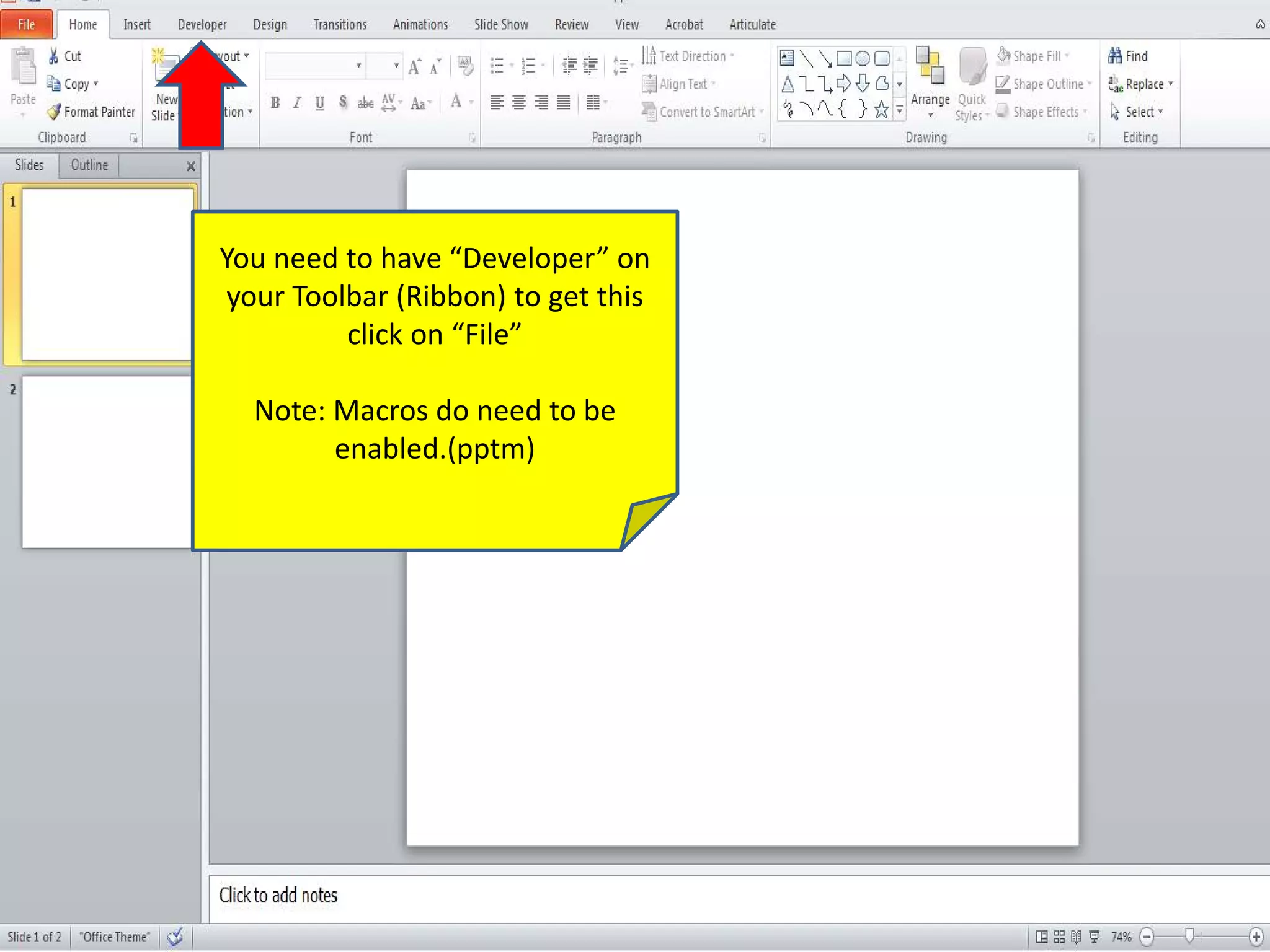
You need to have “Developer” on
your Toolbar (Ribbon) to get this
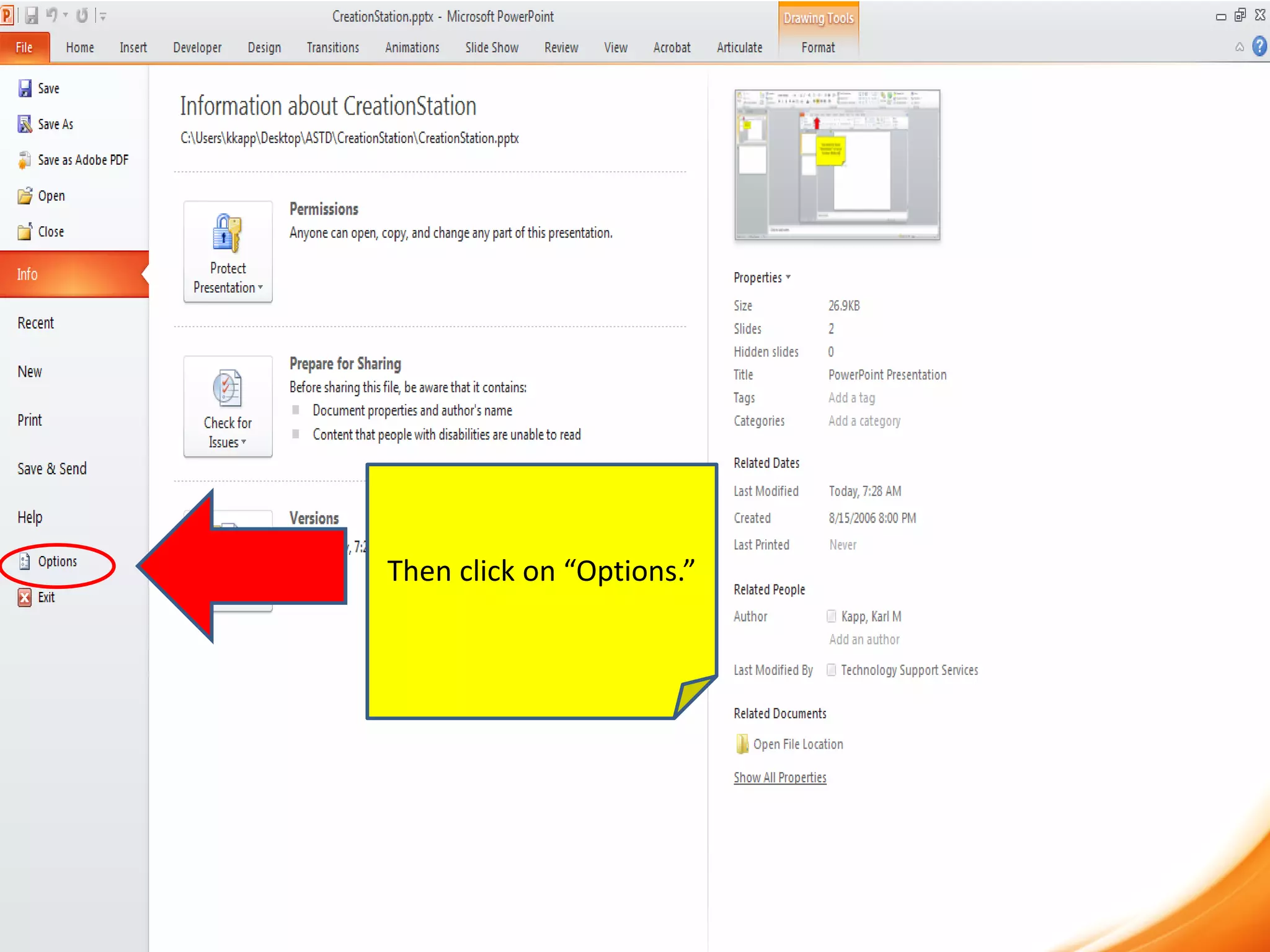
click on “File”
Note: Macros do need to be
enabled.(pptm)
Then click on “Options.”
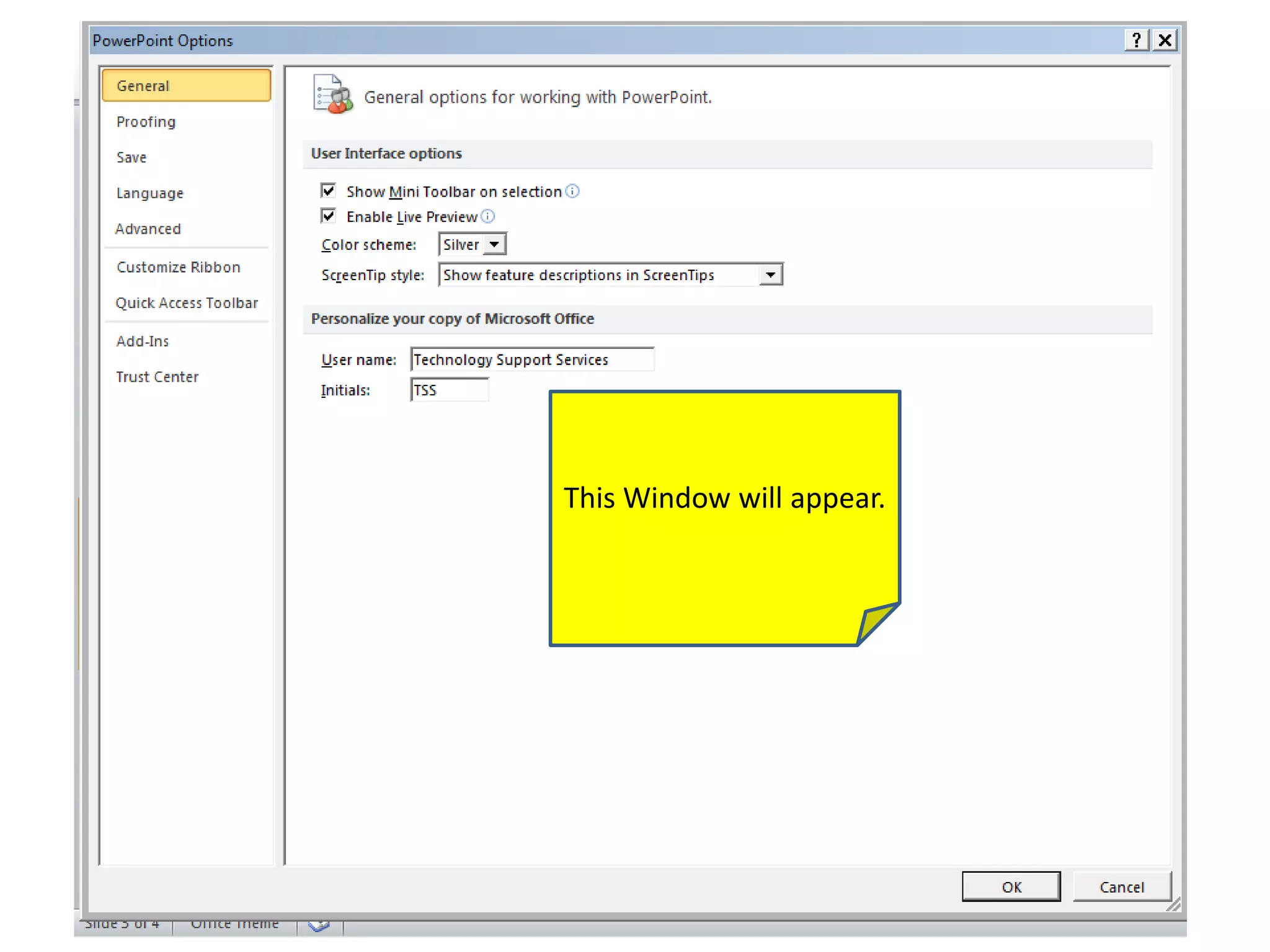
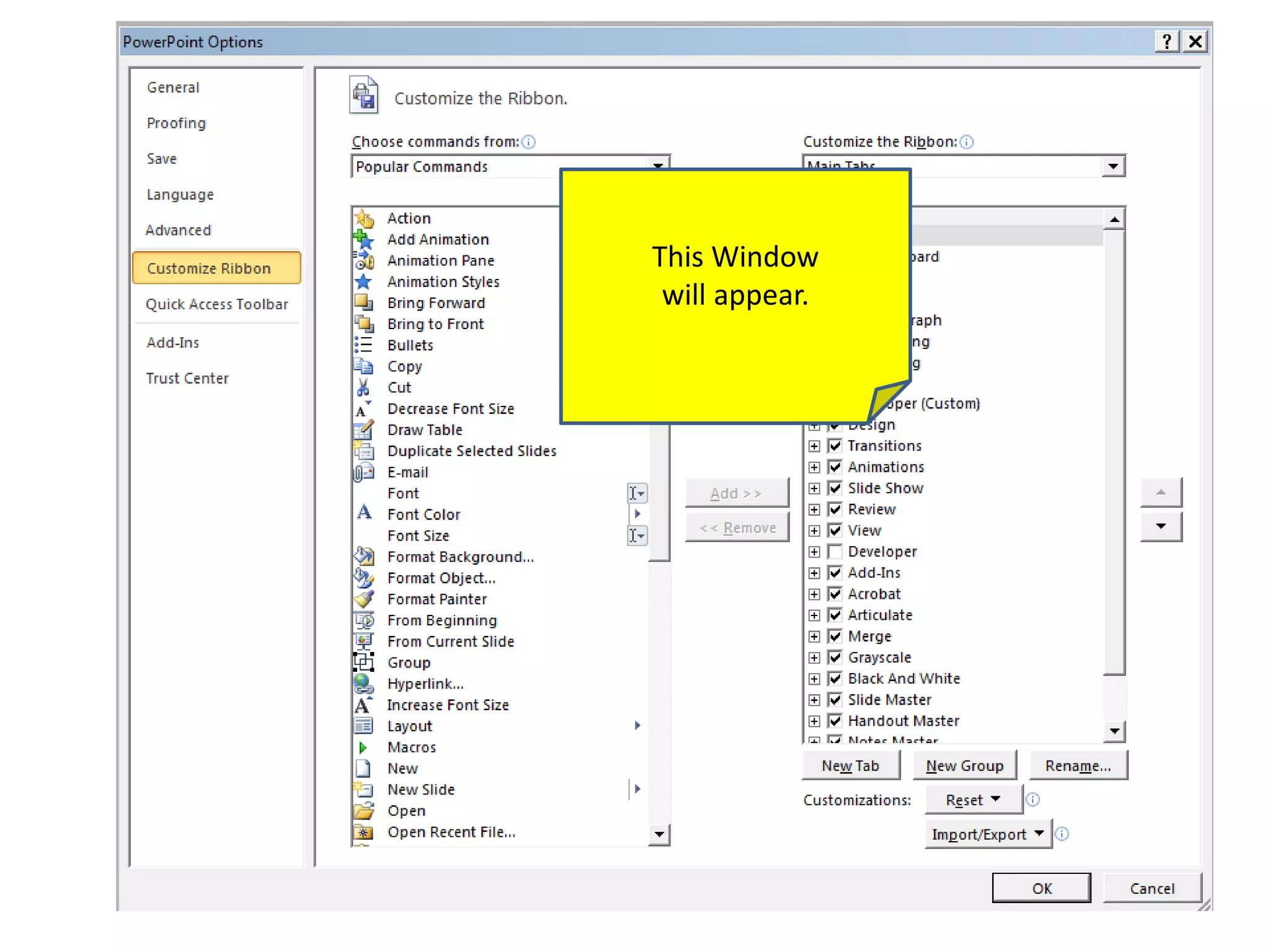
This Window will appear.
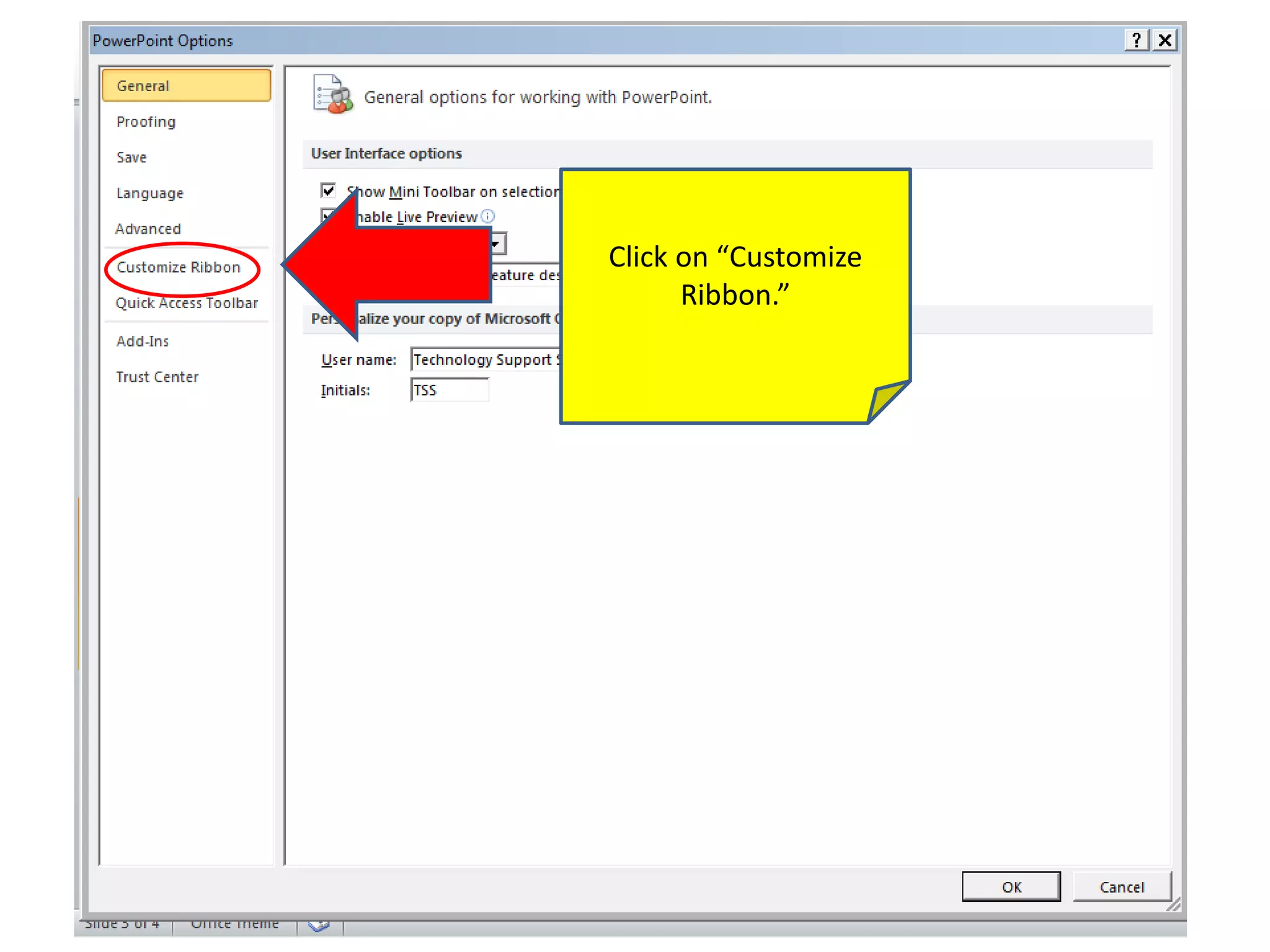
Click on “Customize
Ribbon.”
This Window
will appear.
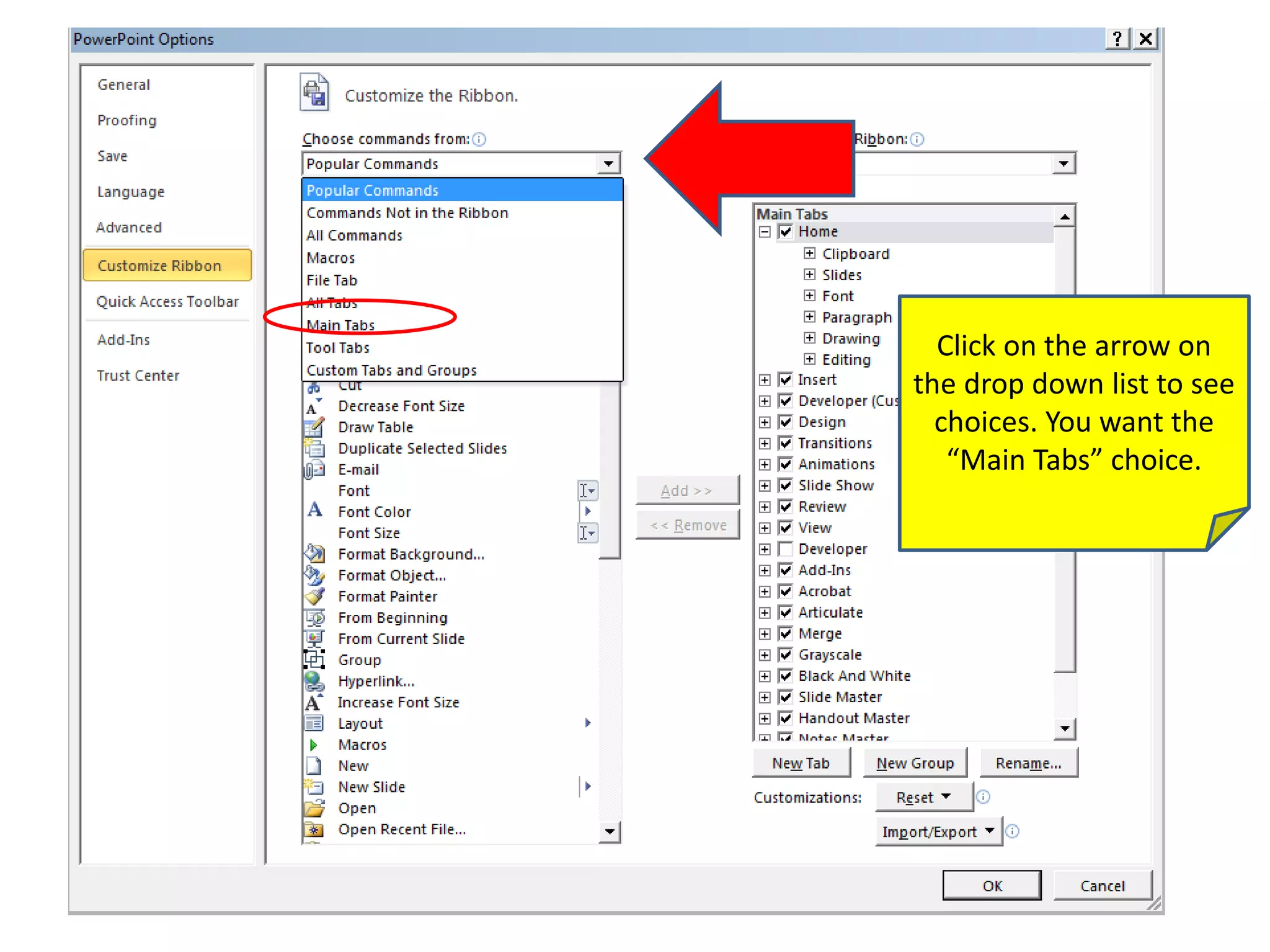
Click on the arrow on
the drop down list to see
choices. You want the
“Main Tabs” choice.
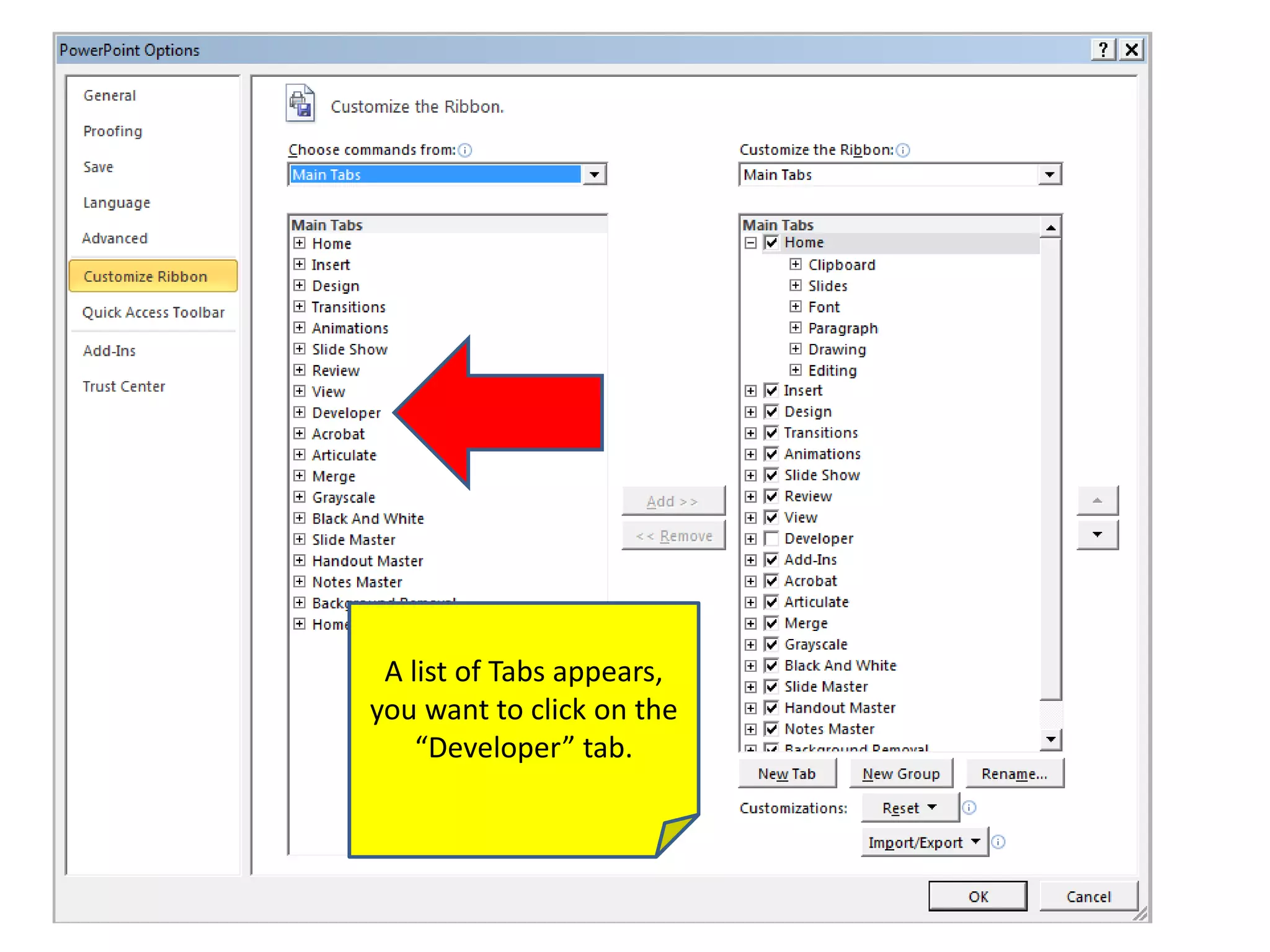
A list of Tabs appears,
you want to click on the
“Developer” tab.
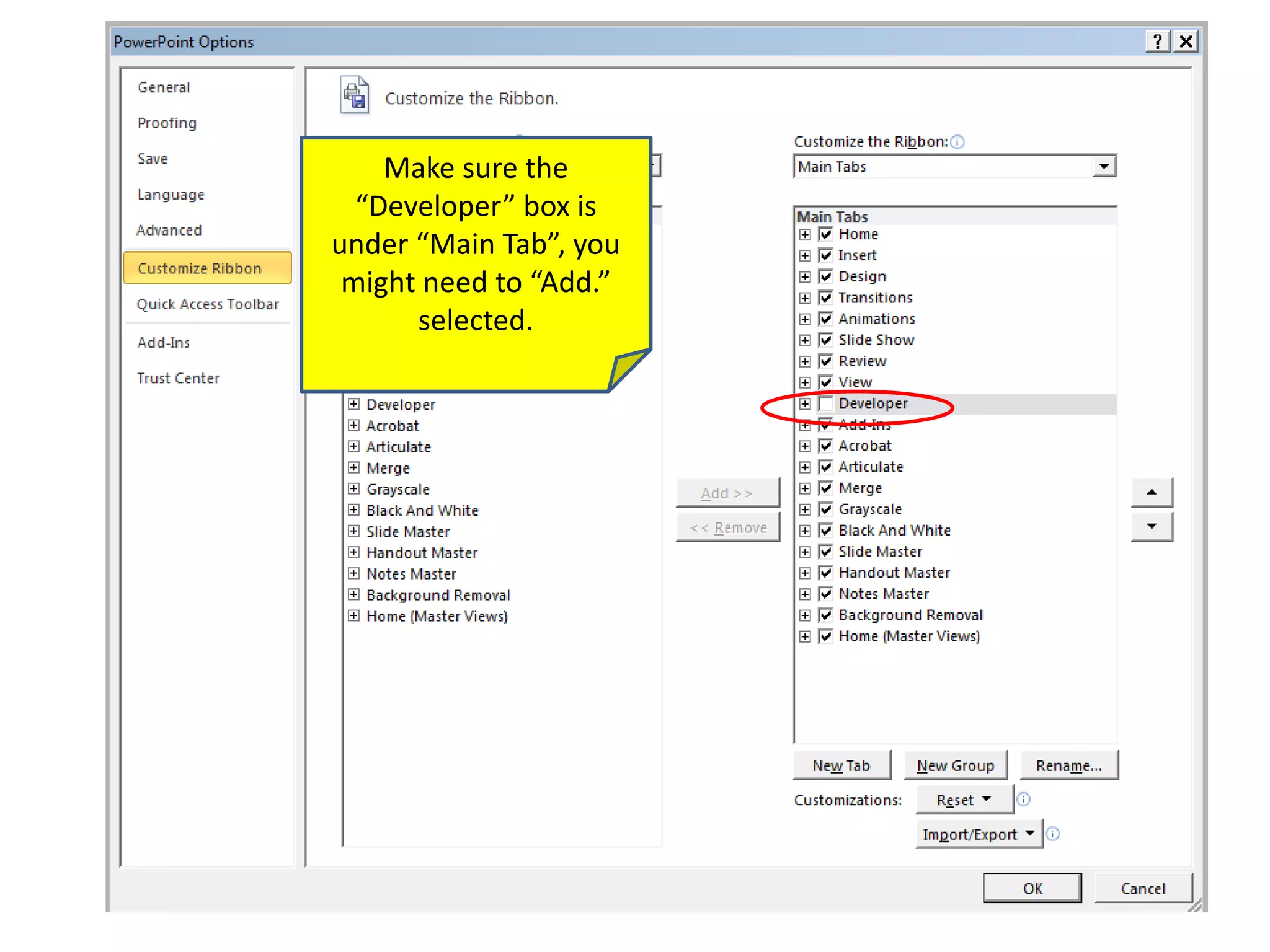
Make sure the
“Developer” box is
under “Main Tab”, you
might need to “Add.”
selected.
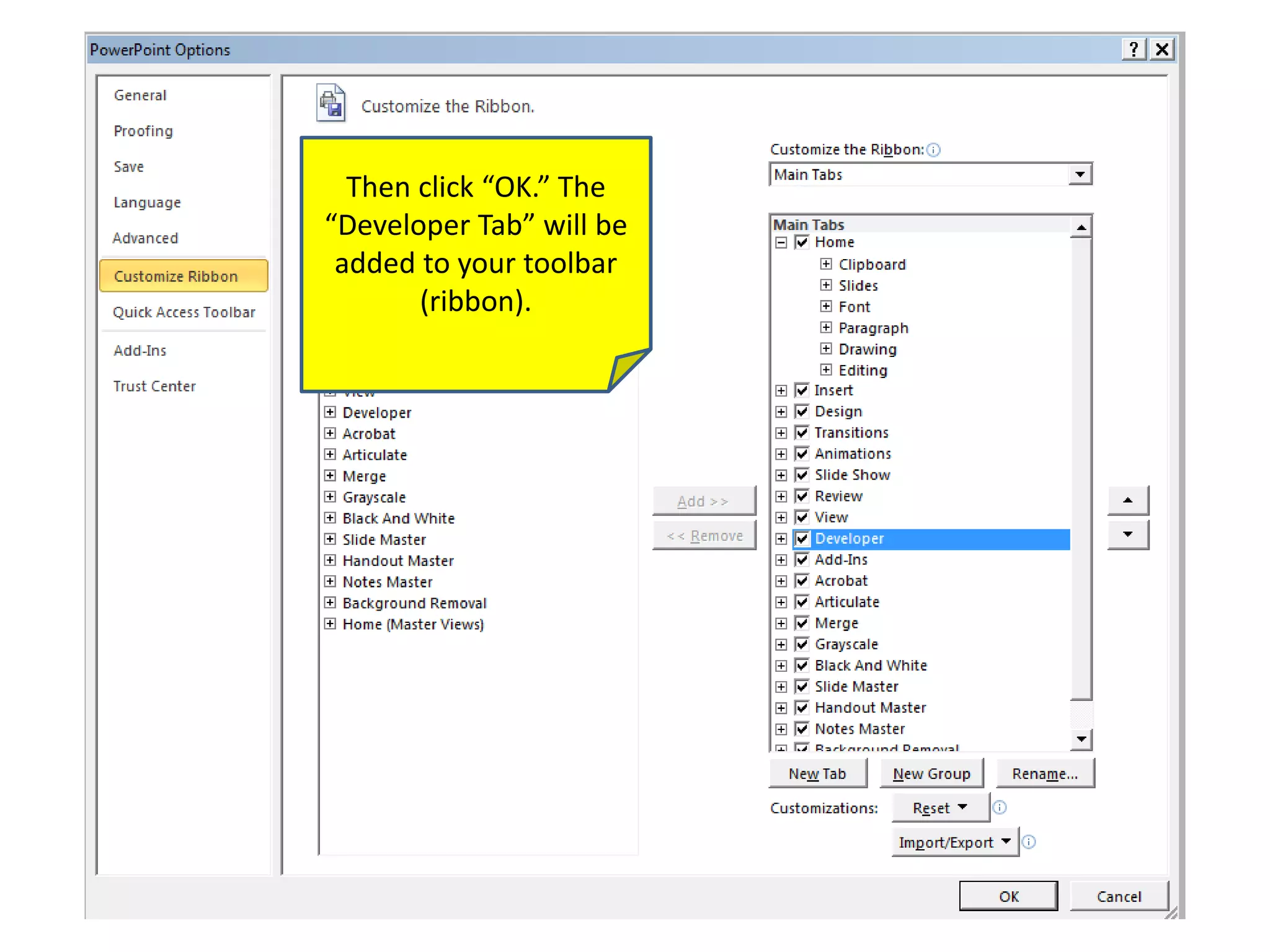
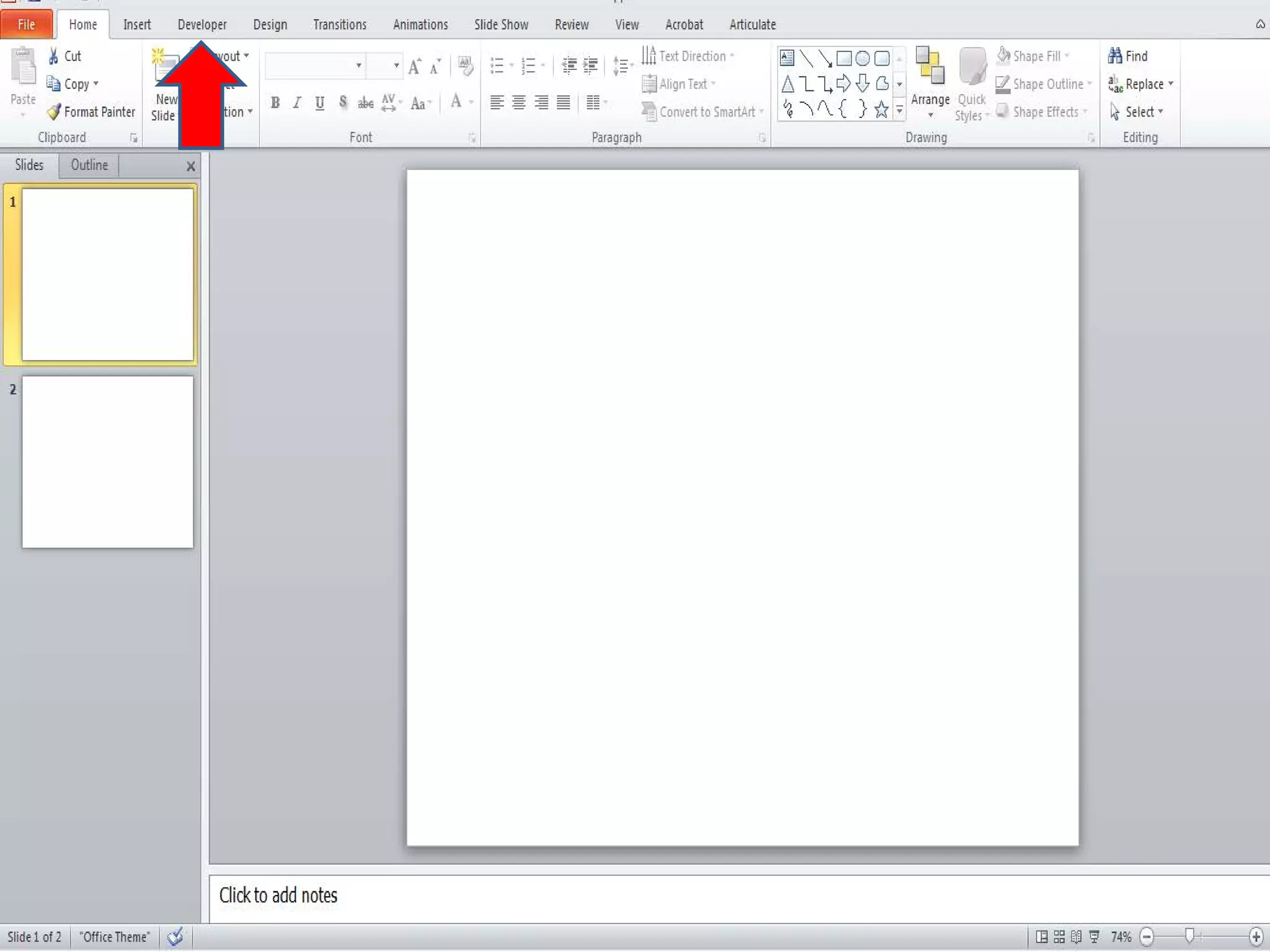
Then click “OK.” The
“Developer Tab” will be
added to your toolbar
(ribbon).
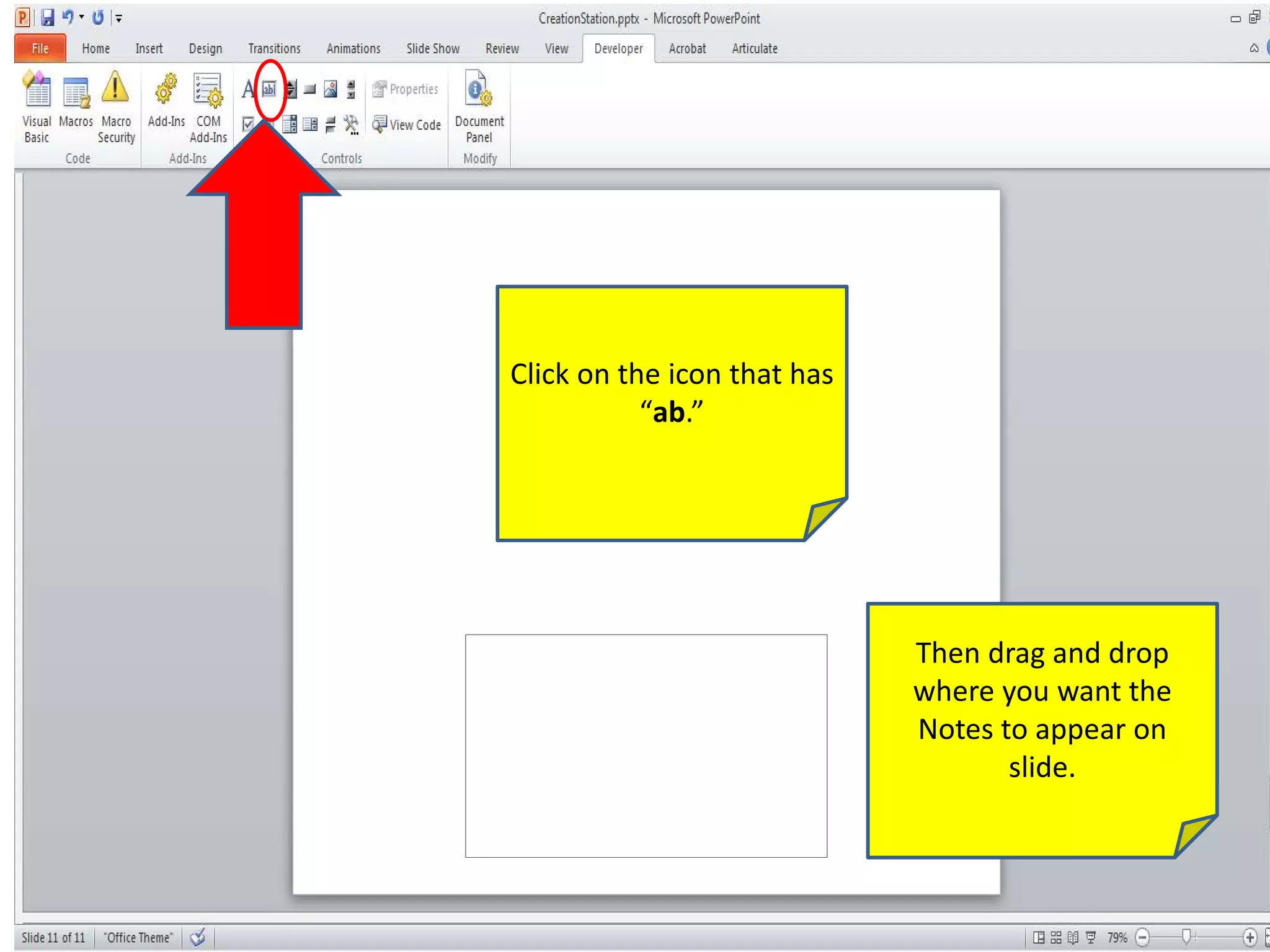
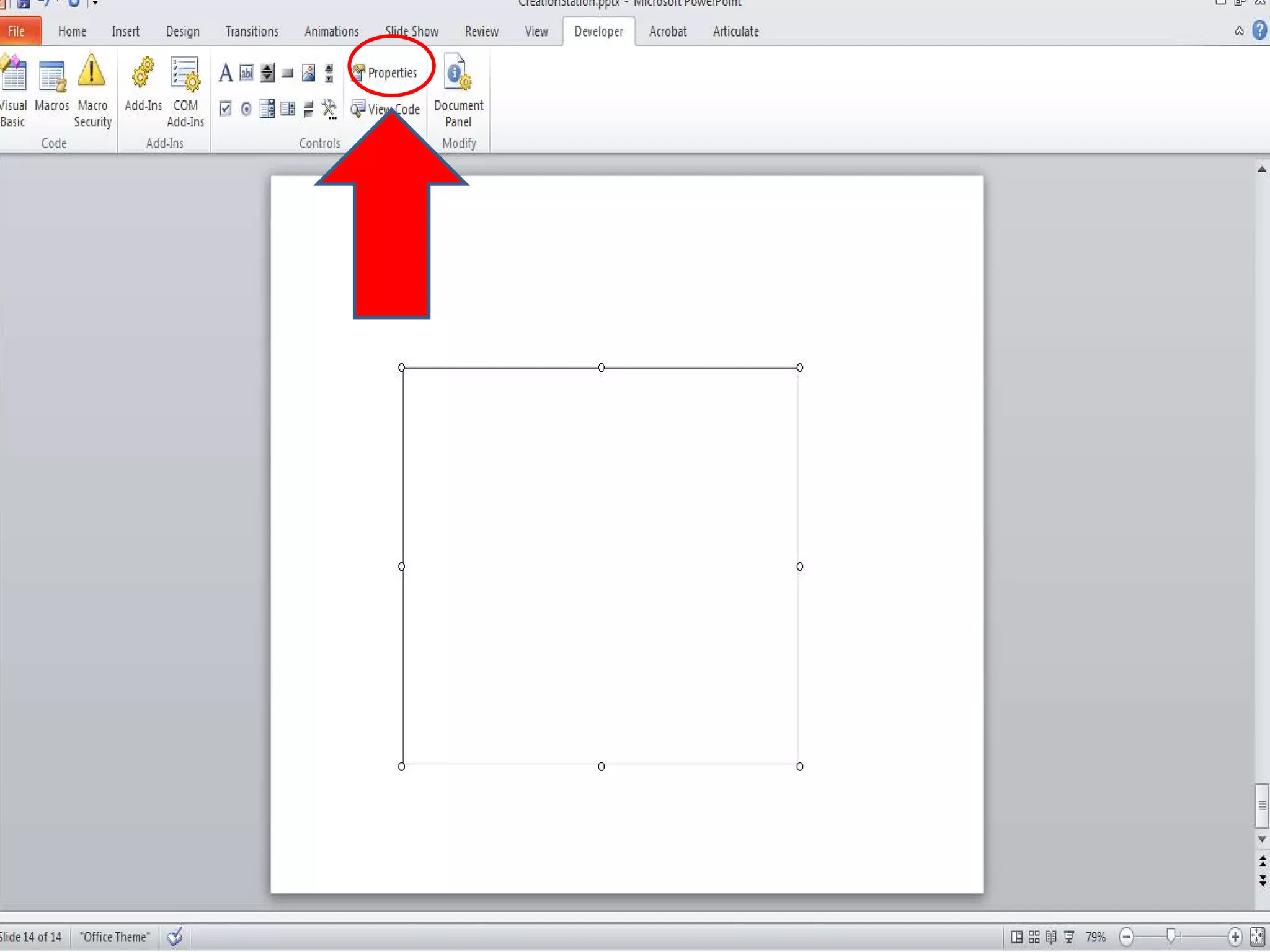
Click on the icon that has
“ab.”
Then drag and drop
where you want the
Notes to appear on
slide.
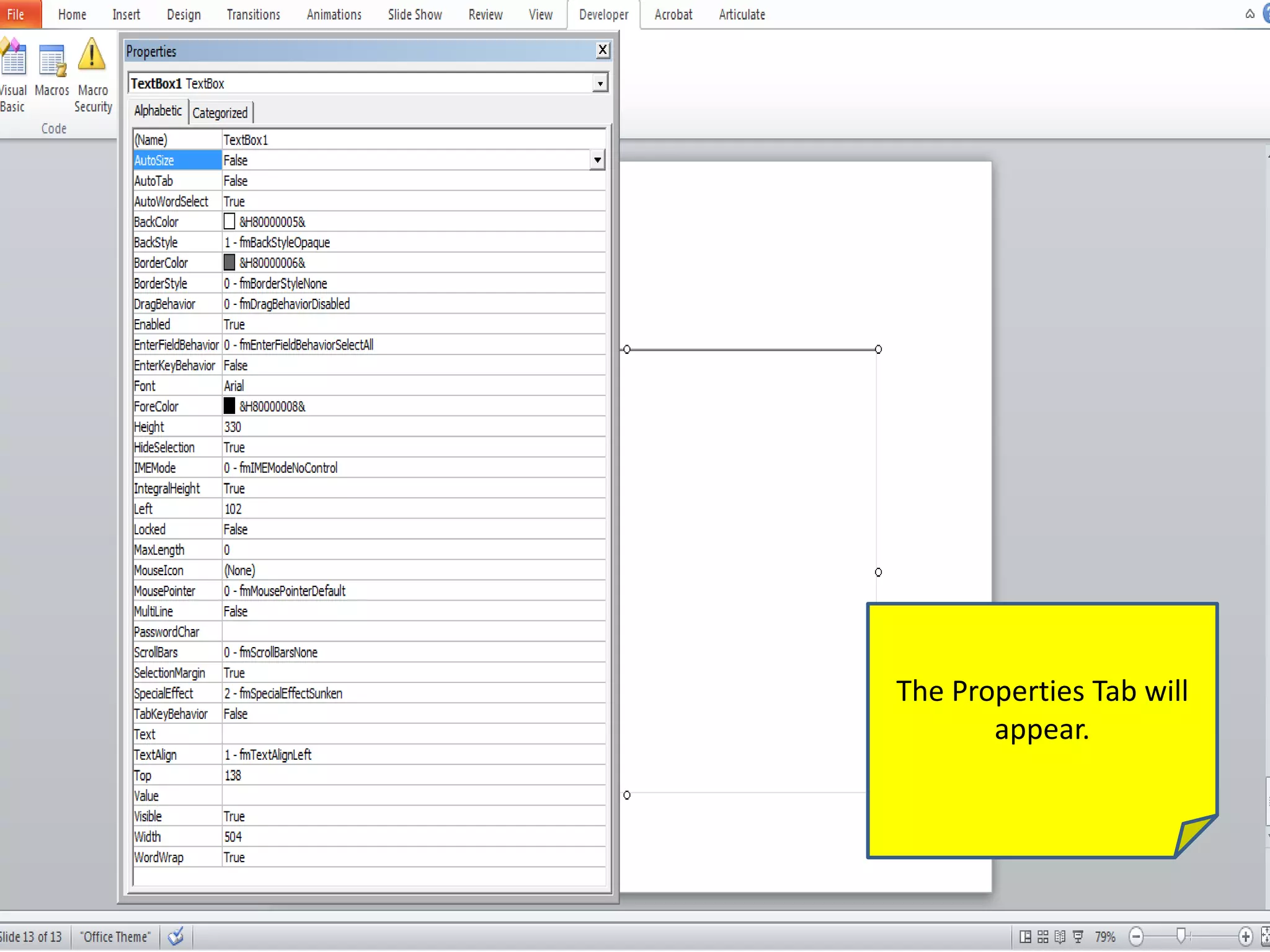
The Properties Tab will
appear.
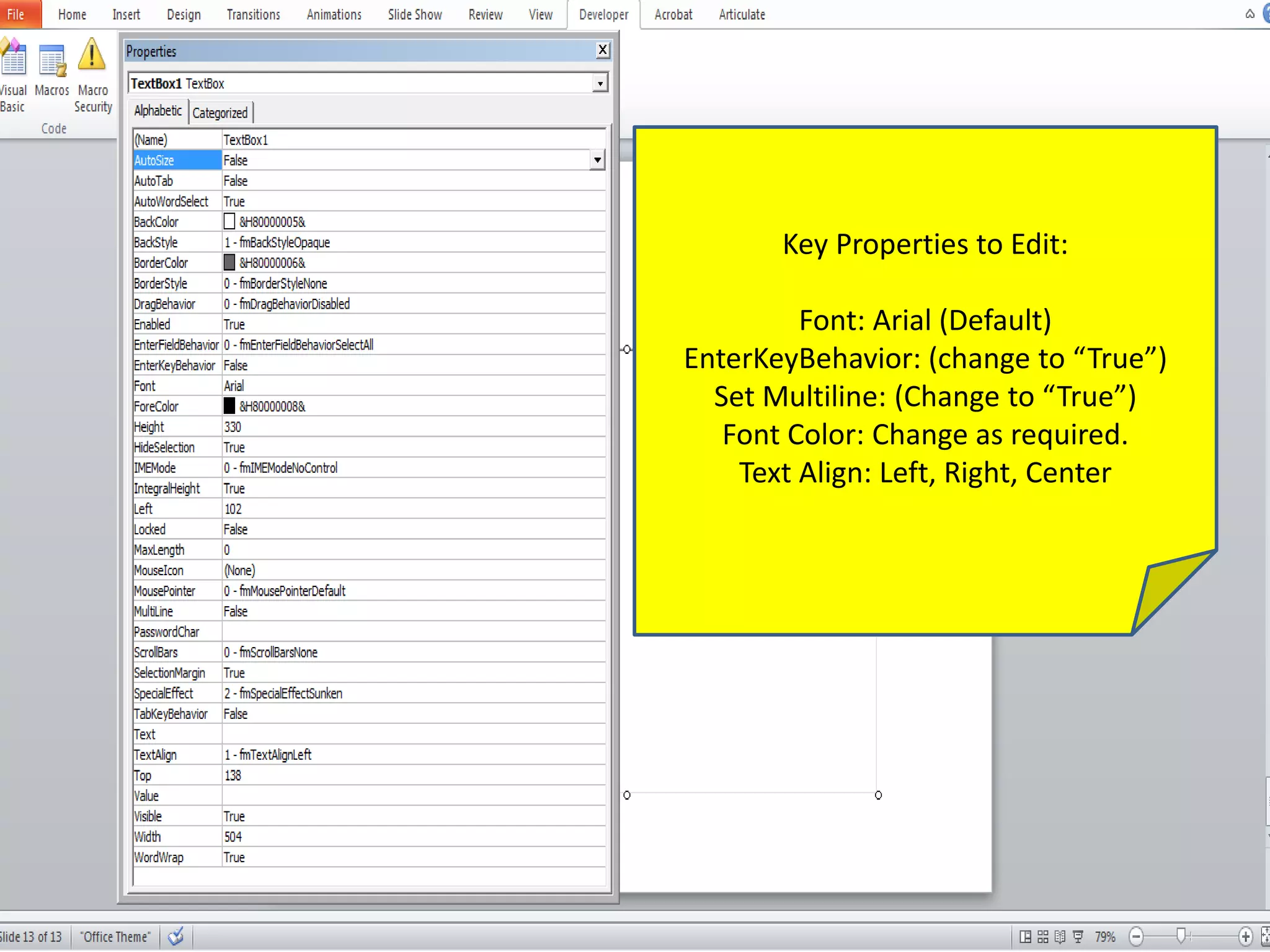
Key Properties to Edit:
Font: Arial (Default)
EnterKeyBehavior: (change to “True”)
Set Multiline: (Change to “True”)
Font Color: Change as required.
Text Align: Left, Right, Center
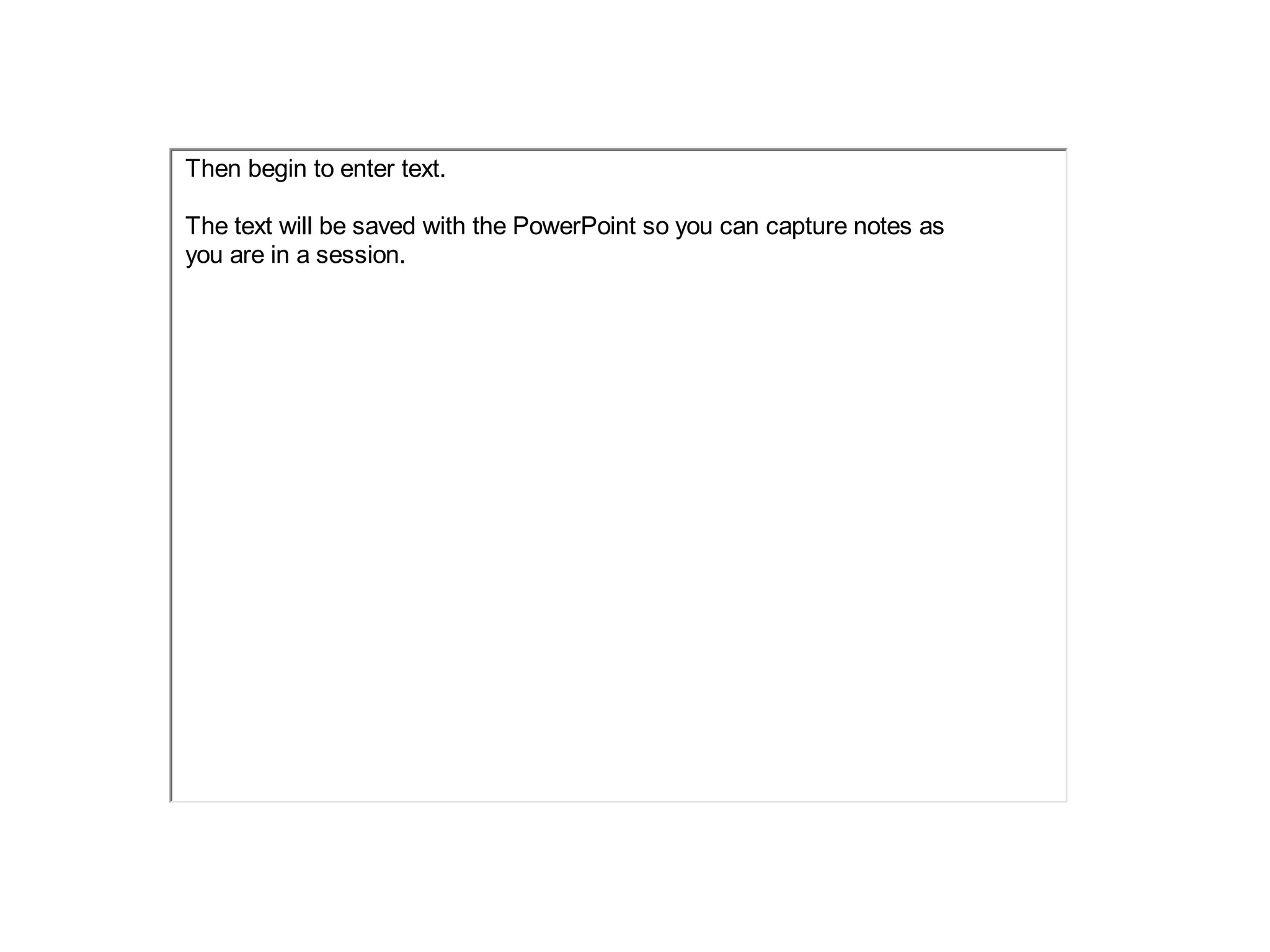
Then begin to enter text.
The text will be saved with the PowerPoint so you can capture notes as
you are in a session.

Instructions on How to Take Notes Directly on a PowerPoint Slide