InDesign
Practice #3
Review: You Can…
Draw rectangle shapes with the
rectangle tool and the rectangle
frame tool
Fill shapes with colors
Add text inside of a rectangle, and
change the size, font, and color
Place images inside of shapes,
and move them around
Draw circle and oval shapes using
the ellipse tool and ellipse frame
tool
Use “fitting” options to adjust how
images fit inside of shapes
Add and remove borders around
shapes
Make an image or shape
transparent using the “opacity”
slider
Add image effects like “drop
shadow”
Rotate images and shapes
Draw custom shapes with the pen
tool and pencil tool
Place images inside of custom
shapes
Create curvy edges on custom
shapes by adding and dragging
“anchor points” on the lines
Make a duplicate copy of a shape
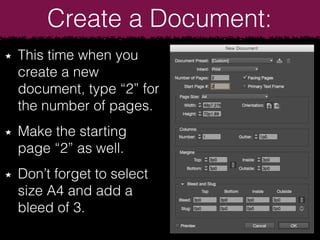
Create a Document:
This time when you
create a new
document, type “2” for
the number of pages.
Make the starting
page “2” as well.
Don’t forget to select
size A4 and add a
bleed of 3.
Pages:
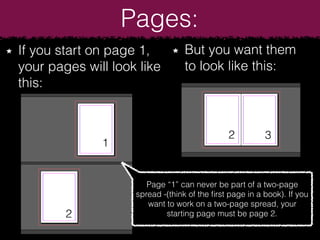
If you start on page 1,
your pages will look like
this:
But you want them
to look like this:
Page “1” can never be part of a two-page
spread -(think of the first page in a book). If you
want to work on a two-page spread, your
starting page must be page 2.
1
2
2
3
Create a Document:
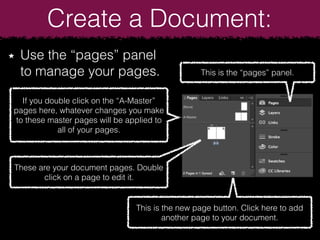
Use the “pages” panel
to manage your pages. This is the “pages” panel.
If you double click on the “A-Master”
pages here, whatever changes you make
to these master pages will be applied to
all of your pages.
These are your document pages. Double
click on a page to edit it.
This is the new page button. Click here to add
another page to your document.
Create a Document:
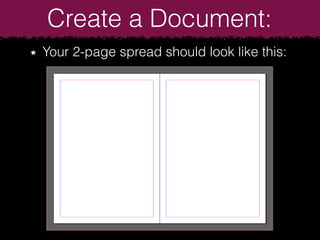
Your 2-page spread should look like this:
Adding Long Articles:
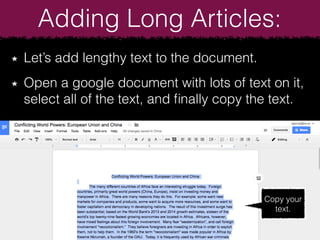
Let’s add lengthy text to the document.
Open a google document with lots of text on it,
select all of the text, and finally copy the text.
Copy your
text.
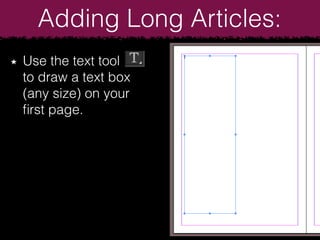
Use the text tool
to draw a text box
(any size) on your
first page.
Adding Long Articles:
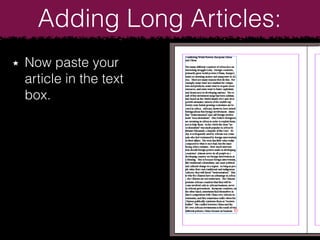
Now paste your
article in the text
box.
Adding Long Articles:
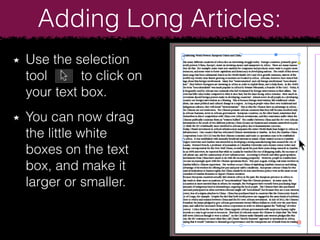
Use the selection
tool to click on
your text box.
You can now drag
the little white
boxes on the text
box, and make it
larger or smaller.
Adding Long Articles:
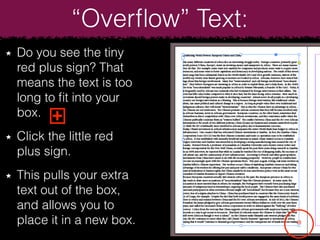
Do you see the tiny
red plus sign? That
means the text is too
long to fit into your
box.
Click the little red
plus sign.
This pulls your extra
text out of the box,
and allows you to
place it in a new box.
+
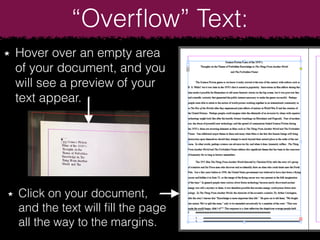
“Overflow” Text:
Click on your document,
and the text will fill the page
all the way to the margins.
Hover over an empty area
of your document, and you
will see a preview of your
text appear.
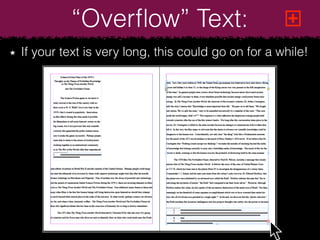
“Overflow” Text:
If your text is very long, this could go on for a while!
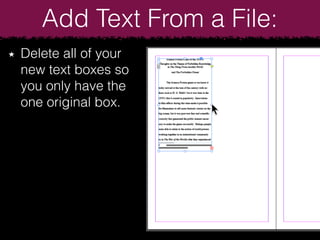
+“Overflow” Text:
Delete all of your
new text boxes so
you only have the
one original box.
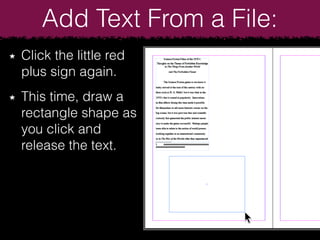
Add Text From a File:
Click the little red
plus sign again.
This time, draw a
rectangle shape as
you click and
release the text.
Add Text From a File:
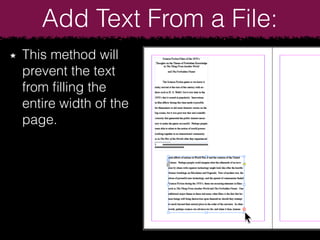
This method will
prevent the text
from filling the
entire width of the
page.
Add Text From a File:
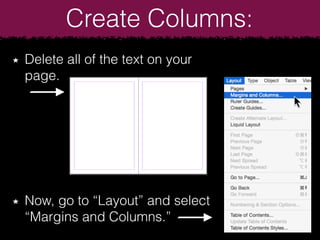
Delete all of the text on your
page.
Now, go to “Layout” and select
“Margins and Columns.”
Create Columns:
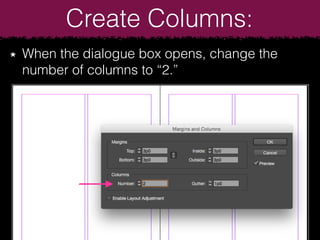
When the dialogue box opens, change the
number of columns to “2.”
Create Columns:
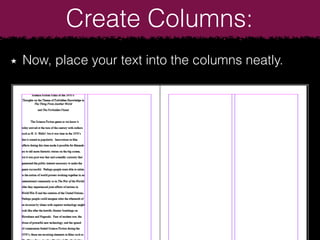
Now, place your text into the columns neatly.
Create Columns:
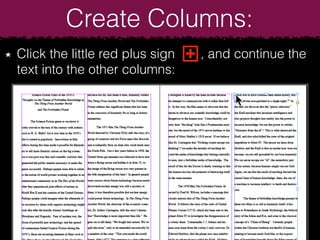
Click the little red plus sign , and continue the
text into the other columns:
Create Columns:
+
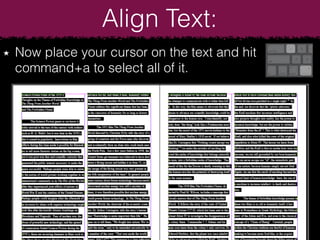
Now place your cursor on the text and hit
command+a to select all of it.
Align Text:
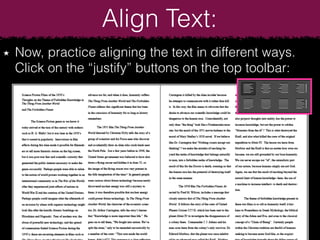
Now, practice aligning the text in different ways.
Click on the “justify” buttons on the top toolbar:
Align Text:
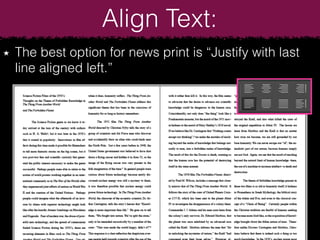
The best option for news print is “Justify with last
line aligned left.”
Align Text:
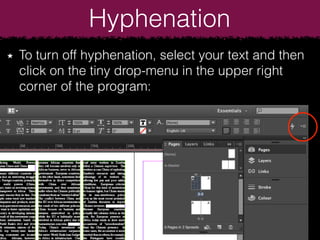
To turn off hyphenation, select your text and then
click on the tiny drop-menu in the upper right
corner of the program:
Hyphenation
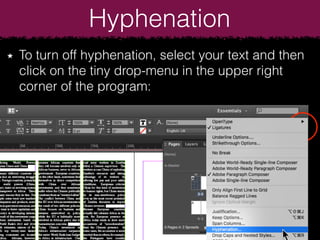
To turn off hyphenation, select your text and then
click on the tiny drop-menu in the upper right
corner of the program:
Hyphenation
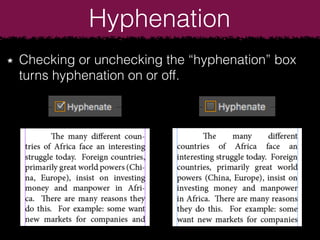
Checking or unchecking the “hyphenation” box
turns hyphenation on or off.
Hyphenation
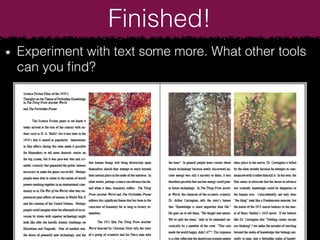
Experiment with text some more. What other tools
can you find?
Finished!

InDesign Tutorial: Text

  • 1.
  • 2.
    Review: You Can… Drawrectangle shapes with the rectangle tool and the rectangle frame tool Fill shapes with colors Add text inside of a rectangle, and change the size, font, and color Place images inside of shapes, and move them around Draw circle and oval shapes using the ellipse tool and ellipse frame tool Use “fitting” options to adjust how images fit inside of shapes Add and remove borders around shapes Make an image or shape transparent using the “opacity” slider Add image effects like “drop shadow” Rotate images and shapes Draw custom shapes with the pen tool and pencil tool Place images inside of custom shapes Create curvy edges on custom shapes by adding and dragging “anchor points” on the lines Make a duplicate copy of a shape
  • 3.
    Create a Document: Thistime when you create a new document, type “2” for the number of pages. Make the starting page “2” as well. Don’t forget to select size A4 and add a bleed of 3.
  • 4.
    Pages: If you starton page 1, your pages will look like this: But you want them to look like this: Page “1” can never be part of a two-page spread -(think of the first page in a book). If you want to work on a two-page spread, your starting page must be page 2. 1 2 2 3
  • 5.
    Create a Document: Usethe “pages” panel to manage your pages. This is the “pages” panel. If you double click on the “A-Master” pages here, whatever changes you make to these master pages will be applied to all of your pages. These are your document pages. Double click on a page to edit it. This is the new page button. Click here to add another page to your document.
  • 6.
    Create a Document: Your2-page spread should look like this:
  • 7.
    Adding Long Articles: Let’sadd lengthy text to the document. Open a google document with lots of text on it, select all of the text, and finally copy the text. Copy your text.
  • 8.
    Use the texttool to draw a text box (any size) on your first page. Adding Long Articles:
  • 9.
    Now paste your articlein the text box. Adding Long Articles:
  • 10.
    Use the selection toolto click on your text box. You can now drag the little white boxes on the text box, and make it larger or smaller. Adding Long Articles:
  • 11.
    Do you seethe tiny red plus sign? That means the text is too long to fit into your box. Click the little red plus sign. This pulls your extra text out of the box, and allows you to place it in a new box. + “Overflow” Text:
  • 12.
    Click on yourdocument, and the text will fill the page all the way to the margins. Hover over an empty area of your document, and you will see a preview of your text appear. “Overflow” Text:
  • 13.
    If your textis very long, this could go on for a while! +“Overflow” Text:
  • 14.
    Delete all ofyour new text boxes so you only have the one original box. Add Text From a File:
  • 15.
    Click the littlered plus sign again. This time, draw a rectangle shape as you click and release the text. Add Text From a File:
  • 16.
    This method will preventthe text from filling the entire width of the page. Add Text From a File:
  • 17.
    Delete all ofthe text on your page. Now, go to “Layout” and select “Margins and Columns.” Create Columns:
  • 18.
    When the dialoguebox opens, change the number of columns to “2.” Create Columns:
  • 19.
    Now, place yourtext into the columns neatly. Create Columns:
  • 20.
    Click the littlered plus sign , and continue the text into the other columns: Create Columns: +
  • 21.
    Now place yourcursor on the text and hit command+a to select all of it. Align Text:
  • 22.
    Now, practice aligningthe text in different ways. Click on the “justify” buttons on the top toolbar: Align Text:
  • 23.
    The best optionfor news print is “Justify with last line aligned left.” Align Text:
  • 24.
    To turn offhyphenation, select your text and then click on the tiny drop-menu in the upper right corner of the program: Hyphenation
  • 25.
    To turn offhyphenation, select your text and then click on the tiny drop-menu in the upper right corner of the program: Hyphenation
  • 26.
    Checking or uncheckingthe “hyphenation” box turns hyphenation on or off. Hyphenation
  • 27.
    Experiment with textsome more. What other tools can you find? Finished!