InDesign
COLORS
Draw a Shape
Draw a closed shape
on your document
using the “pen tool”
or the “pencil tool.”
Pen tool
Pencil tool
Choose a Fill Color
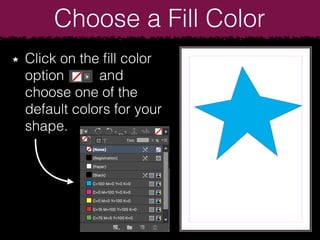
Click on the fill color
option and
choose one of the
default colors for your
shape.
Color Profiles
There are two color
profiles used in digital
design. RGB colors are
typically used for digital
screens and devices.
CMYK colors are used
for printed materials.
All RGB colors are made
from a combination of
red, green, and blue
pixels. All CMYK colors
are made from a
combination of cyan,
magenta, yellow, and
black inks.
CMYK Color Profile
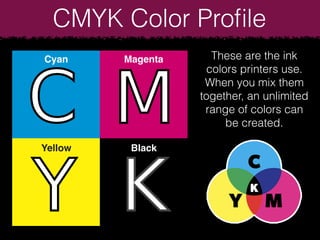
Cyan Magenta
Yellow Black
These are the ink
colors printers use.
When you mix them
together, an unlimited
range of colors can
be created.
CMYK Color Profile
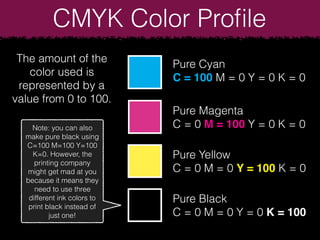
The amount of the
color used is
represented by a
value from 0 to 100.
Pure Cyan
C = 100 M = 0 Y = 0 K = 0
Pure Magenta
C = 0 M = 100 Y = 0 K = 0
Pure Yellow
C = 0 M = 0 Y = 100 K = 0
Pure Black
C = 0 M = 0 Y = 0 K = 100
Note: you can also
make pure black using
C=100 M=100 Y=100
K=0. However, the
printing company
might get mad at you
because it means they
need to use three
different ink colors to
print black instead of
just one!
CMYK Color Profile
You can mix the
CMYK colors
together to create
new colors!
C = 100 M = 100 Y = 0 K = 0
C = 0 M = 100 Y = 100 K = 0
C = 100 M = 0 Y = 100 K = 0
C = 100 M = 0 Y = 0 K = 50
CMYK Color Profile
Increasing the “K” value
will make a color darker
(by adding black).
Lowering an individual color
value will make a color
lighter (by adding white).
C = 100 K = 0
C = 100 K = 20
C = 100 K = 40
C = 100 K = 60
C = 100 K = 80
C = 100 K = 100
C = 100 K = 0
C = 80 K = 0
C = 60 K = 0
C = 40 K = 0
C = 20 K = 0
C = 0 K = 0
CMYK Color Profile
Create your own color combinations, or discover the
CMYK values of pre-made colors and color palates online.
C = 33 M = 74 Y = 56 K = 10
C = 26 M = 37 Y = 100 K = 0
C = 56 M = 45 Y = 14 K = 5
C = 49 M = 8 Y = 70 K = 18
C = 63 M = 13 Y = 17 K = 24
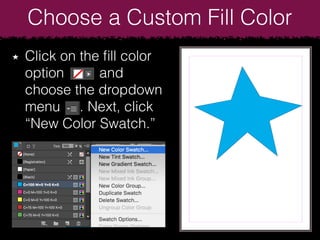
Choose a Custom Fill Color
Click on the fill color
option and
choose the dropdown
menu . Next, click
“New Color Swatch.”
Choose a Custom Fill Color
Create a custom
CMYK color by
adjusting the values.
Choose a Custom Fill Color
Your custom colors will be saved in your
“Swatches” panel.
In digital design, a “swatch” is an active
color in your color palate. A color “palate” is
a collection of multiple colors.
Color Palate Color Swatch
Create an RGB Swatch
You can create new RGB colors in a similar
way that you create CMYK colors.
Click “New Color Swatch”
Change the
color profile
to “RGB”
Mix your color
RBG also uses a 6 number/
letter code to represent
specific colors. These are
called Hex Codes, RBG
codes, or HTML color codes.
This is a chart of
“Hex” codes which
represent RGB
colors.
Charts like this one
can be found online.
Color Codes
The same color
can be
represented by
different CMYK,
RBG, and Hex
codes.
CMYK:
C=60 M=20 Y=100 K=25
60, 20, 100, 25
RBG:
R=94 G=130 B=50
94, 130, 50
Hex:
5d8231
Using the Color Picker
Click on the
“Color” panel.
If you can’t see
the color panel,
click on
“Window” and
then click on
“Color” to open it
When you hover over
the color bar, a
“dropper” icon will
appear. Click on the
color you like.
Now you can control your colors like a pro!

InDesign: Colors

  • 1.
  • 2.
    Draw a Shape Drawa closed shape on your document using the “pen tool” or the “pencil tool.” Pen tool Pencil tool
  • 3.
    Choose a FillColor Click on the fill color option and choose one of the default colors for your shape.
  • 4.
    Color Profiles There aretwo color profiles used in digital design. RGB colors are typically used for digital screens and devices. CMYK colors are used for printed materials. All RGB colors are made from a combination of red, green, and blue pixels. All CMYK colors are made from a combination of cyan, magenta, yellow, and black inks.
  • 5.
    CMYK Color Profile CyanMagenta Yellow Black These are the ink colors printers use. When you mix them together, an unlimited range of colors can be created.
  • 6.
    CMYK Color Profile Theamount of the color used is represented by a value from 0 to 100. Pure Cyan C = 100 M = 0 Y = 0 K = 0 Pure Magenta C = 0 M = 100 Y = 0 K = 0 Pure Yellow C = 0 M = 0 Y = 100 K = 0 Pure Black C = 0 M = 0 Y = 0 K = 100 Note: you can also make pure black using C=100 M=100 Y=100 K=0. However, the printing company might get mad at you because it means they need to use three different ink colors to print black instead of just one!
  • 7.
    CMYK Color Profile Youcan mix the CMYK colors together to create new colors! C = 100 M = 100 Y = 0 K = 0 C = 0 M = 100 Y = 100 K = 0 C = 100 M = 0 Y = 100 K = 0 C = 100 M = 0 Y = 0 K = 50
  • 8.
    CMYK Color Profile Increasingthe “K” value will make a color darker (by adding black). Lowering an individual color value will make a color lighter (by adding white). C = 100 K = 0 C = 100 K = 20 C = 100 K = 40 C = 100 K = 60 C = 100 K = 80 C = 100 K = 100 C = 100 K = 0 C = 80 K = 0 C = 60 K = 0 C = 40 K = 0 C = 20 K = 0 C = 0 K = 0
  • 9.
    CMYK Color Profile Createyour own color combinations, or discover the CMYK values of pre-made colors and color palates online. C = 33 M = 74 Y = 56 K = 10 C = 26 M = 37 Y = 100 K = 0 C = 56 M = 45 Y = 14 K = 5 C = 49 M = 8 Y = 70 K = 18 C = 63 M = 13 Y = 17 K = 24
  • 10.
    Choose a CustomFill Color Click on the fill color option and choose the dropdown menu . Next, click “New Color Swatch.”
  • 11.
    Choose a CustomFill Color Create a custom CMYK color by adjusting the values.
  • 12.
    Choose a CustomFill Color Your custom colors will be saved in your “Swatches” panel. In digital design, a “swatch” is an active color in your color palate. A color “palate” is a collection of multiple colors. Color Palate Color Swatch
  • 13.
    Create an RGBSwatch You can create new RGB colors in a similar way that you create CMYK colors. Click “New Color Swatch” Change the color profile to “RGB” Mix your color RBG also uses a 6 number/ letter code to represent specific colors. These are called Hex Codes, RBG codes, or HTML color codes.
  • 14.
    This is achart of “Hex” codes which represent RGB colors. Charts like this one can be found online.
  • 15.
    Color Codes The samecolor can be represented by different CMYK, RBG, and Hex codes. CMYK: C=60 M=20 Y=100 K=25 60, 20, 100, 25 RBG: R=94 G=130 B=50 94, 130, 50 Hex: 5d8231
  • 16.
    Using the ColorPicker Click on the “Color” panel. If you can’t see the color panel, click on “Window” and then click on “Color” to open it When you hover over the color bar, a “dropper” icon will appear. Click on the color you like.
  • 17.
    Now you cancontrol your colors like a pro!