ADOBE INDESIGN Introduction Course
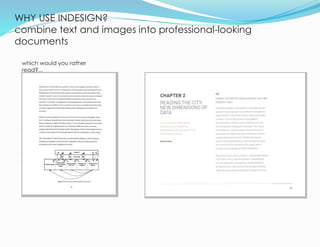
WHY USE INDESIGN?
combine text and images into professional-looking
documents
2
which would you rather
read?...
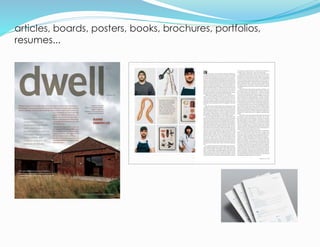
articles, boards, posters, books, brochures, portfolios,
resumes...
3
NEW
DOCUMENT
4
1.File - New - Document
2.Check “Facing Pages” if you want spreads
like a book
3.Set your Paper Size: Letter, Landscape
4.Set # of Columns - 3
1
2
3
4
INTERFAC
E
5
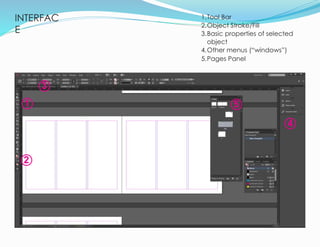
1.Tool Bar
2.Object Stroke/Fill
3.Basic properties of selected
object
4.Other menus (“windows”)
5.Pages Panel
1
2
3
4
5
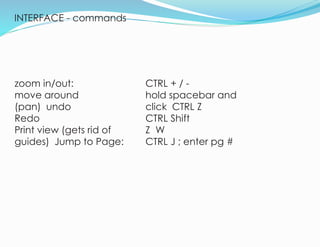
INTERFACE - commands
6
zoom in/out:
move around
(pan) undo
Redo
Print view (gets rid of
guides) Jump to Page:
CTRL + / -
hold spacebar and
click CTRL Z
CTRL Shift
Z W
CTRL J ; enter pg #
NEW DOCUMENT: MASTER PAGE
7
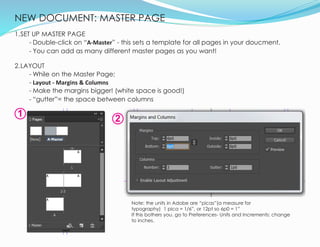
1.SET UP MASTER PAGE
- Double-click on “A-Master” - this sets a template for all pages in your doucment.
- You can add as many different master pages as you want!
2.LAYOUT
- While on the Master Page:
- Layout - Margins & Columns
- Make the margins bigger! (white space is good!)
- “gutter”= the space between columns
1
2
Note: the units in Adobe are “picas”(a measure for
typography) 1 pica = 1/6”, or 12pt so 6p0 = 1”
If this bothers you, go to Preferences- Units and Increments: change
to inches.
SHAPES: RECTANGLE
TOOL
8
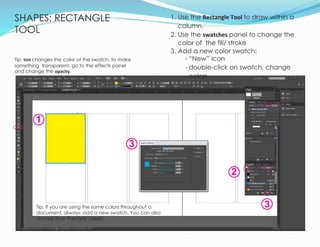
1. Use the Rectangle Tool to draw within a
column.
2. Use the swatches panel to change the
color of the fill/ stroke
3. Add a new color swatch:
- “New” icon
- double-click on swatch, change
colors
1
Tip: if you are using the same colors throughout a
document, always add a new swatch. You can also
choose from Pantone colors.
2
3
3
Tip: tint changes the color of the swatch. to make
something transparent, go to the effects panel
and change the opacity.
MASTER PAGE: PAGE NUMBERS
9
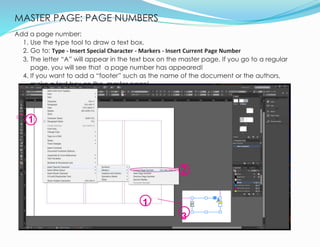
Add a page number:
1. Use the type tool to draw a text box.
2. Go to: Type - Insert Special Character - Markers - Insert Current Page Number
3. The letter “A” will appear in the text box on the master page. If you go to a regular
page, you will see that a page number has appeared!
4. If you want to add a “footer” such as the name of the document or the authors,
make a text box on the master page!
1
2
1
3
ADD
PAGES
10
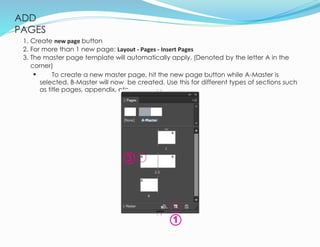
1. Create new page button
2. For more than 1 new page: Layout - Pages - Insert Pages
3. The master page template will automatically apply. (Denoted by the letter A in the
corner)
• To create a new master page, hit the new page button while A-Master is
selected. B-Master will now be created. Use this for different types of sections such
as title pages, appendix, etc.
1
3
TEXT: GRIDS
11
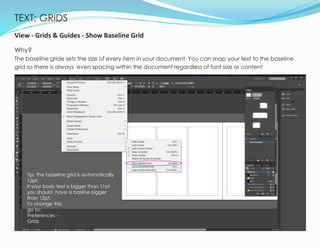
View - Grids & Guides - Show Baseline Grid
Why?
The baseline gride sets the size of every item in your document. You can snap your text to the baseline
grid so there is always even spacing within the document regardless of font size or content
Tip: The baseline grid is automatically
12pt.
If your body text is bigger than 11pt
you should have a basline bigger
than 12pt.
To change this,
go to:
Preferences -
Grids
TEXT:
GRIDS
12
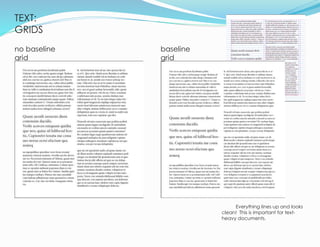
no baseline
grid
baseline
grid
Everything lines up and looks
clean! This is important for text-
heavy documents.
TEXT: ADD
TEXT
13
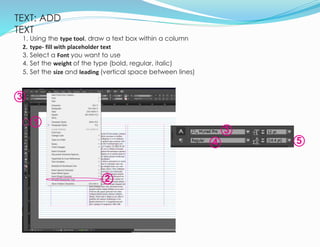
1. Using the type tool, draw a text box within a column
2. type- fill with placeholder text
3. Select a Font you want to use
4. Set the weight of the type (bold, regular, italic)
5. Set the size and leading (vertical space between lines)
2
3
1
54
3
TEXT: ADD TEXT
14
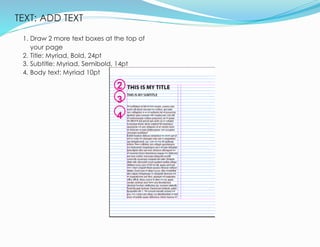
1. Draw 2 more text boxes at the top of
your page
2. Title: Myriad, Bold, 24pt
3. Subtitle: Myriad, Semibold, 14pt
4. Body text: Myriad 10pt
2
3
4
TEXT: CHARACTER
STYLES
15
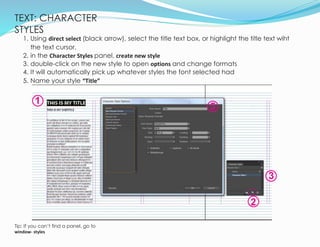
1. Using direct select (black arrow), select the title text box, or highlight the title text wiht
the text cursor.
2. in the Character Styles panel, create new style
3. double-click on the new style to open options and change formats
4. It will automatically pick up whatever styles the font selected had
5. Name your style “Title”
1
3
2
5
Tip: If you can’t find a panel, go to
window- styles
TEXT: PARAGRAPH
STYLES
1. Using direct select (black arrow), select the body text box
2. in the Paragraph Styles panel, create new style
3. double-click on the new style to open options and change formats
4. Name your style “Body”
5. Under Indents and Spacing - Align to Grid- All : This aligns your text to the
baseline grid!
Tip: Paragraph styles will apply a style within a whole paragraph (until you hit “enter”), whereas character styles apply only
to specfic letters. You can also set the amount of space between paragrahs here or automatically “nest styles.”
1
2
35
4
1
TEXT: FLOWING TEXT
17
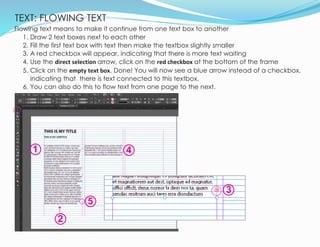
Flowing text means to make it continue from one text box to another
1. Draw 2 text boxes next to each other
2. Fill the first text box with text then make the textbox slightly smaller
3. A red checkbox will appear, indicating that there is more text waiting
4. Use the direct selection arrow, click on the red checkbox at the bottom of the frame
5. Click on the empty text box. Done! You will now see a blue arrow instead of a checkbox,
indicating that there is text connected to this textbox.
6. You can also do this to flow text from one page to the next.
1
3
2
5
4
TEXT: COLUMNS
18
If you only want columns of text within a specific part of your document, you can do it within
a text box instead of setting up 3 text boxes on the page.
1. Create a big new text box and fill with placeholder text
2. Add a column to the textbox with the Number of Columns button, or right click - Text Frame
Options
3. To create even columns, use the Balance Columns button.
2
3
2
31
IMAGES: PLACING
19
1. Using the frame tool, draw a rectangle in one of
your columns
2. Hit cmd D/ CTRL D which will pring up the Place
Menu
3. Select your file to place
1
2
1
3
IMAGES: FITTING
20
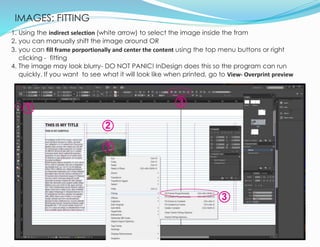
1. Using the indirect selection (white arrow) to select the image inside the fram
2. you can manually shift the image around OR
3. you can fill frame porportionally and center the content using the top menu buttons or right
clicking - fitting
4. The image may look blurry- DO NOT PANIC! InDesign does this so the program can run
quickly. If you want to see what it will look like when printed, go to View- Overprint preview
1
3
3
2
1
EXPORTIN
G
21
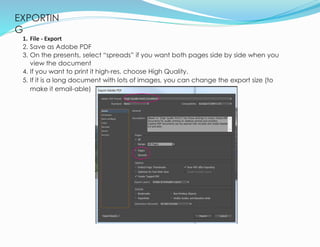
1. File - Export
2. Save as Adobe PDF
3. On the presents, select “spreads” if you want both pages side by side when you
view the document
4. If you want to print it high-res, choose High Quality.
5. If it is a long document with lots of images, you can change the export size (to
make it email-able)

Indesign training

  • 1.
  • 2.
    WHY USE INDESIGN? combinetext and images into professional-looking documents 2 which would you rather read?...
  • 3.
    articles, boards, posters,books, brochures, portfolios, resumes... 3
  • 4.
    NEW DOCUMENT 4 1.File - New- Document 2.Check “Facing Pages” if you want spreads like a book 3.Set your Paper Size: Letter, Landscape 4.Set # of Columns - 3 1 2 3 4
  • 5.
    INTERFAC E 5 1.Tool Bar 2.Object Stroke/Fill 3.Basicproperties of selected object 4.Other menus (“windows”) 5.Pages Panel 1 2 3 4 5
  • 6.
    INTERFACE - commands 6 zoomin/out: move around (pan) undo Redo Print view (gets rid of guides) Jump to Page: CTRL + / - hold spacebar and click CTRL Z CTRL Shift Z W CTRL J ; enter pg #
  • 7.
    NEW DOCUMENT: MASTERPAGE 7 1.SET UP MASTER PAGE - Double-click on “A-Master” - this sets a template for all pages in your doucment. - You can add as many different master pages as you want! 2.LAYOUT - While on the Master Page: - Layout - Margins & Columns - Make the margins bigger! (white space is good!) - “gutter”= the space between columns 1 2 Note: the units in Adobe are “picas”(a measure for typography) 1 pica = 1/6”, or 12pt so 6p0 = 1” If this bothers you, go to Preferences- Units and Increments: change to inches.
  • 8.
    SHAPES: RECTANGLE TOOL 8 1. Usethe Rectangle Tool to draw within a column. 2. Use the swatches panel to change the color of the fill/ stroke 3. Add a new color swatch: - “New” icon - double-click on swatch, change colors 1 Tip: if you are using the same colors throughout a document, always add a new swatch. You can also choose from Pantone colors. 2 3 3 Tip: tint changes the color of the swatch. to make something transparent, go to the effects panel and change the opacity.
  • 9.
    MASTER PAGE: PAGENUMBERS 9 Add a page number: 1. Use the type tool to draw a text box. 2. Go to: Type - Insert Special Character - Markers - Insert Current Page Number 3. The letter “A” will appear in the text box on the master page. If you go to a regular page, you will see that a page number has appeared! 4. If you want to add a “footer” such as the name of the document or the authors, make a text box on the master page! 1 2 1 3
  • 10.
    ADD PAGES 10 1. Create newpage button 2. For more than 1 new page: Layout - Pages - Insert Pages 3. The master page template will automatically apply. (Denoted by the letter A in the corner) • To create a new master page, hit the new page button while A-Master is selected. B-Master will now be created. Use this for different types of sections such as title pages, appendix, etc. 1 3
  • 11.
    TEXT: GRIDS 11 View -Grids & Guides - Show Baseline Grid Why? The baseline gride sets the size of every item in your document. You can snap your text to the baseline grid so there is always even spacing within the document regardless of font size or content Tip: The baseline grid is automatically 12pt. If your body text is bigger than 11pt you should have a basline bigger than 12pt. To change this, go to: Preferences - Grids
  • 12.
    TEXT: GRIDS 12 no baseline grid baseline grid Everything linesup and looks clean! This is important for text- heavy documents.
  • 13.
    TEXT: ADD TEXT 13 1. Usingthe type tool, draw a text box within a column 2. type- fill with placeholder text 3. Select a Font you want to use 4. Set the weight of the type (bold, regular, italic) 5. Set the size and leading (vertical space between lines) 2 3 1 54 3
  • 14.
    TEXT: ADD TEXT 14 1.Draw 2 more text boxes at the top of your page 2. Title: Myriad, Bold, 24pt 3. Subtitle: Myriad, Semibold, 14pt 4. Body text: Myriad 10pt 2 3 4
  • 15.
    TEXT: CHARACTER STYLES 15 1. Usingdirect select (black arrow), select the title text box, or highlight the title text wiht the text cursor. 2. in the Character Styles panel, create new style 3. double-click on the new style to open options and change formats 4. It will automatically pick up whatever styles the font selected had 5. Name your style “Title” 1 3 2 5 Tip: If you can’t find a panel, go to window- styles
  • 16.
    TEXT: PARAGRAPH STYLES 1. Usingdirect select (black arrow), select the body text box 2. in the Paragraph Styles panel, create new style 3. double-click on the new style to open options and change formats 4. Name your style “Body” 5. Under Indents and Spacing - Align to Grid- All : This aligns your text to the baseline grid! Tip: Paragraph styles will apply a style within a whole paragraph (until you hit “enter”), whereas character styles apply only to specfic letters. You can also set the amount of space between paragrahs here or automatically “nest styles.” 1 2 35 4 1
  • 17.
    TEXT: FLOWING TEXT 17 Flowingtext means to make it continue from one text box to another 1. Draw 2 text boxes next to each other 2. Fill the first text box with text then make the textbox slightly smaller 3. A red checkbox will appear, indicating that there is more text waiting 4. Use the direct selection arrow, click on the red checkbox at the bottom of the frame 5. Click on the empty text box. Done! You will now see a blue arrow instead of a checkbox, indicating that there is text connected to this textbox. 6. You can also do this to flow text from one page to the next. 1 3 2 5 4
  • 18.
    TEXT: COLUMNS 18 If youonly want columns of text within a specific part of your document, you can do it within a text box instead of setting up 3 text boxes on the page. 1. Create a big new text box and fill with placeholder text 2. Add a column to the textbox with the Number of Columns button, or right click - Text Frame Options 3. To create even columns, use the Balance Columns button. 2 3 2 31
  • 19.
    IMAGES: PLACING 19 1. Usingthe frame tool, draw a rectangle in one of your columns 2. Hit cmd D/ CTRL D which will pring up the Place Menu 3. Select your file to place 1 2 1 3
  • 20.
    IMAGES: FITTING 20 1. Usingthe indirect selection (white arrow) to select the image inside the fram 2. you can manually shift the image around OR 3. you can fill frame porportionally and center the content using the top menu buttons or right clicking - fitting 4. The image may look blurry- DO NOT PANIC! InDesign does this so the program can run quickly. If you want to see what it will look like when printed, go to View- Overprint preview 1 3 3 2 1
  • 21.
    EXPORTIN G 21 1. File -Export 2. Save as Adobe PDF 3. On the presents, select “spreads” if you want both pages side by side when you view the document 4. If you want to print it high-res, choose High Quality. 5. If it is a long document with lots of images, you can change the export size (to make it email-able)