




Hypertext Markup Language
IFI7174.DT – Lesson 1
Outline
HTML
Basic concepts
Basic elements
Text
Lists
Hyperlinks and images
Tables
Forms
2@ Sonia Sousa2015
Concepts
• HTML is
– A markup language interpreted by Web browsers
– It is “spoken” into 2 different ways…
• CLIENT side
– a person (user) perspective
» who access to a Web site.
• SERVER side
– data storage perspective
» information/data that is stored in a computer (server)
and later is distributed to clients (users)
Why?
• If we can generate HTML easily
• First.... because you need
– Clean code to develop distributed interfaces
• Second.... you need
– To have control over the code
• What happen if some problem happens?
• How to fix it?
– Need to talk with a Professional
• Last… you need confidence and competence
– To talk with developers
– To be able to
• Create a particular result
• Read or reuse the code, and "borrow" the effects.
Dreamweaver
or wordpress
What HTML does?
• HTML defines the structure of the document
– Document
• Pages – structure
– Content
• multimedia elements
– text, lists, links, images, tables, and forms
• Provide the information needed for
– the browser to present the content to the user; and
• define What each element is..
– Heading
– paragraph
– list of items,
– a link,
– or an image
• This is due by adding markups “< > </>”
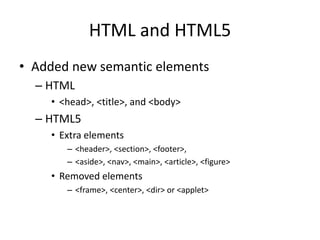
HTML and HTML5
• Added new semantic elements
– HTML
• <head>, <title>, and <body>
– HTML5
• Extra elements
– <header>, <section>, <footer>,
– <aside>, <nav>, <main>, <article>, <figure>
• Removed elements
– <frame>, <center>, <dir> or <applet>
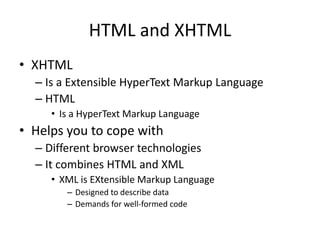
HTML and XHTML
• XHTML
– Is a Extensible HyperText Markup Language
– HTML
• Is a HyperText Markup Language
• Helps you to cope with
– Different browser technologies
– It combines HTML and XML
• XML is EXtensible Markup Language
– Designed to describe data
– Demands for well-formed code
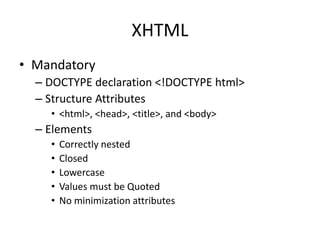
XHTML
• Mandatory
– DOCTYPE declaration <!DOCTYPE html>
– Structure Attributes
• <html>, <head>, <title>, and <body>
– Elements
• Correctly nested
• Closed
• Lowercase
• Values must be Quoted
• No minimization attributes
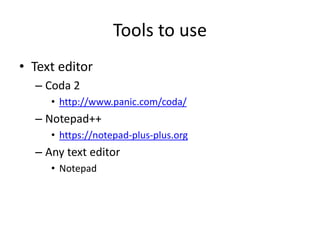
Tools to use
• Text editor
– Coda 2
• http://www.panic.com/coda/
– Notepad++
• https://notepad-plus-plus.org
– Any text editor
• Notepad
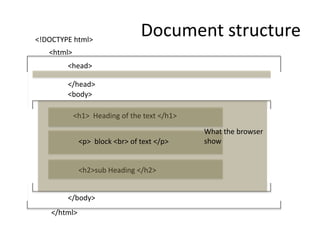
DOCUMENT STRUCTURE
Document structure
<html>
</html>
<head>
</body>
</head>
<body>
<h1> Heading of the text </h1>
<p> block <br> of text </p>
<h2>sub Heading </h2>
What the browser
show
<!DOCTYPE html>
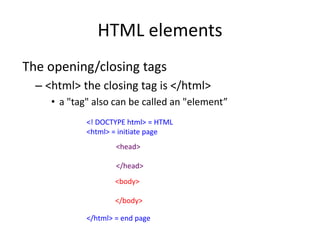
HTML elements
The opening/closing tags
– <html> the closing tag is </html>
• a "tag" also can be called an "element”
<! DOCTYPE html> = HTML
<html> = initiate page
</html> = end page
<head>
</head>
<body>
</body>
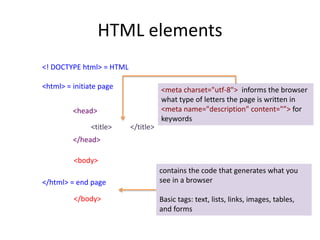
HTML elements
<! DOCTYPE html> = HTML
<html> = initiate page
</html> = end page
<head>
</head>
<title> </title>
<body>
</body>
<meta charset="utf-8"> informs the browser
what type of letters the page is written in
<meta name="description" content="”> for
keywords
contains the code that generates what you
see in a browser
Basic tags: text, lists, links, images, tables,
and forms
HTML EXERCISE
Structure document
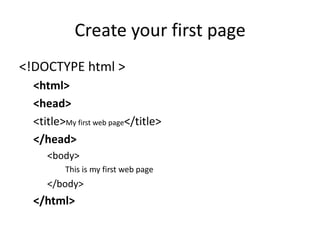
Create your first page
<!DOCTYPE html >
<html>
<head>
<title>My first web page</title>
</head>
<body>
This is my first web page
</body>
</html>
Basic elements
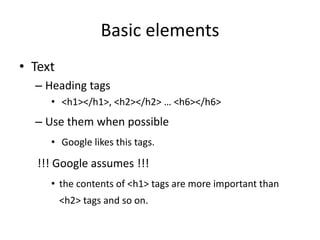
• Text
– Heading tags
• <h1></h1>, <h2></h2> … <h6></h6>
– Use them when possible
• Google likes this tags.
!!! Google assumes !!!
• the contents of <h1> tags are more important than
<h2> tags and so on.
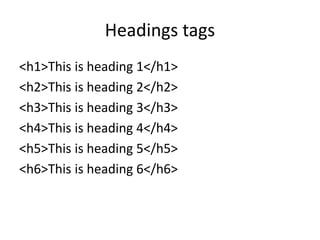
Headings tags
<h1>This is heading 1</h1>
<h2>This is heading 2</h2>
<h3>This is heading 3</h3>
<h4>This is heading 4</h4>
<h5>This is heading 5</h5>
<h6>This is heading 6</h6>
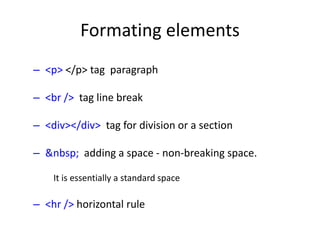
Formating elements
– <p> </p> tag paragraph
– <br /> tag line break
– <div></div> tag for division or a section
– &nbsp; adding a space - non-breaking space.
It is essentially a standard space
– <hr /> horizontal rule
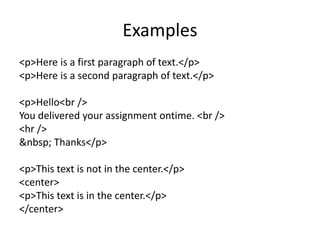
Examples
<p>Here is a first paragraph of text.</p>
<p>Here is a second paragraph of text.</p>
<p>Hello<br />
You delivered your assignment ontime. <br />
<hr />
&nbsp; Thanks</p>
<p>This text is not in the center.</p>
<center>
<p>This text is in the center.</p>
</center>
HTML EXERCISE
formatting
<!DOCTYPE html >
<html>
<head>
<title>My first web page</title>
</head>
<body>
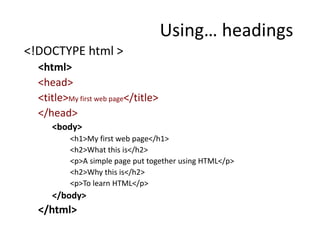
<h1>My first web page</h1>
<h2>What this is</h2>
<p>A simple page put together using HTML</p>
<h2>Why this is</h2>
<p>To learn HTML</p>
</body>
</html>
Using… headings
Lists elements
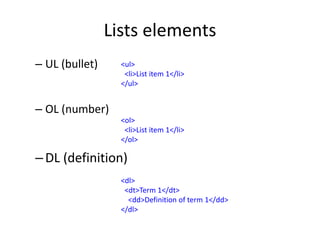
– UL (bullet)
– OL (number)
–DL (definition)
<ul>
<li>List item 1</li>
</ul>
<ol>
<li>List item 1</li>
</ol>
<dl>
<dt>Term 1</dt>
<dd>Definition of term 1</dd>
</dl>
HTML EXERCISE
List data
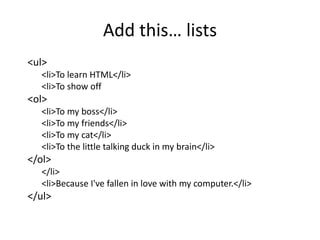
Add this… lists
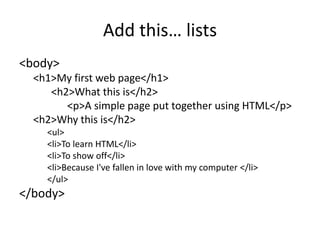
<body>
<h1>My first web page</h1>
<h2>What this is</h2>
<p>A simple page put together using HTML</p>
<h2>Why this is</h2>
<ul>
<li>To learn HTML</li>
<li>To show off</li>
<li>Because I've fallen in love with my computer </li>
</ul>
</body>
<ul>
<li>To learn HTML</li>
<li>To show off
<ol>
<li>To my boss</li>
<li>To my friends</li>
<li>To my cat</li>
<li>To the little talking duck in my brain</li>
</ol>
</li>
<li>Because I've fallen in love with my computer.</li>
</ul>
Add this… lists
Hyperlinks and images
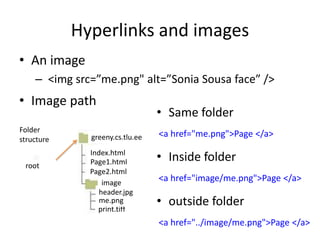
• An image
– <img src=”me.png" alt=”Sonia Sousa face” />
• Image path
greeny.cs.tlu.ee
Page2.html
Page1.html
Index.html
print.tiff
me.png
header.jpg
image
root
Folder
structure
• Same folder
<a href="me.png">Page </a>
• Inside folder
<a href="image/me.png">Page </a>
• outside folder
<a href="../image/me.png">Page </a>
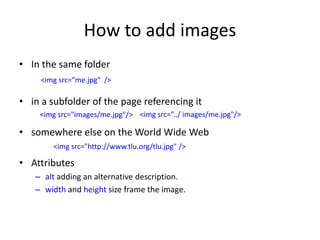
How to add images
• In the same folder
• in a subfolder of the page referencing it
• somewhere else on the World Wide Web
• Attributes
– alt adding an alternative description.
– width and height size frame the image.
<img src=”me.jpg" />
<img src="images/me.jpg"/>
<img src="http://www.tlu.org/tlu.jpg" />
<img src=”../ images/me.jpg"/>
Hyperlinks and images
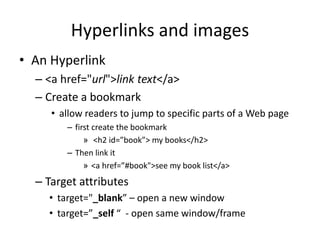
• An Hyperlink
– <a href="url">link text</a>
– Create a bookmark
• allow readers to jump to specific parts of a Web page
– first create the bookmark
» <h2 id=”book”> my books</h2>
– Then link it
» <a href=”#book">see my book list</a>
– Target attributes
• target="_blank” – open a new window
• target=”_self “ - open same window/frame
HTML EXERCISE
Hyperlinks and images
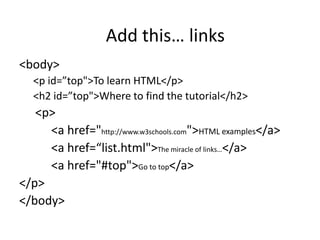
<body>
<p id=”top">To learn HTML</p>
<h2 id=”top">Where to find the tutorial</h2>
<p>
<a href="http://www.w3schools.com">HTML examples</a>
<a href=“list.html">The miracle of links…</a>
<a href="#top">Go to top</a>
</p>
</body>
Add this… links
HTML EXERCISE
Tables
Tables
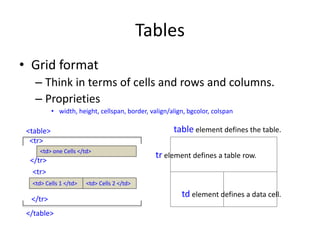
• Grid format
– Think in terms of cells and rows and columns.
– Proprieties
• width, height, cellspan, border, valign/align, bgcolor, colspan
<td> one Cells </td>
<td> Cells 1 </td>
<table>
</table>
<tr>
<tr>
</tr>
</tr>
<td> Cells 2 </td>
table element defines the table.
tr element defines a table row.
td element defines a data cell.
Tables
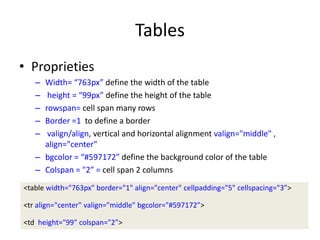
• Proprieties
– Width= “763px” define the width of the table
– height = “99px” define the height of the table
– rowspan= cell span many rows
– Border =1 to define a border
– valign/align, vertical and horizontal alignment valign="middle" ,
align="center"
– bgcolor = “#597172” define the background color of the table
– Colspan = "2” = cell span 2 columns
<table width="763px" border="1" align="center" cellpadding="5" cellspacing="3”>
<tr align="center" valign="middle" bgcolor="#597172”>
<td height="99" colspan="2”>
HTML EXERCISE
Tables
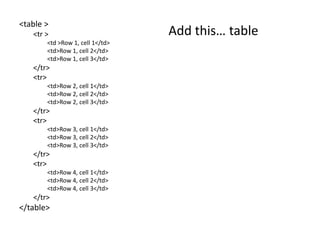
<table >
<tr >
<td >Row 1, cell 1</td>
<td>Row 1, cell 2</td>
<td>Row 1, cell 3</td>
</tr>
<tr>
<td>Row 2, cell 1</td>
<td>Row 2, cell 2</td>
<td>Row 2, cell 3</td>
</tr>
<tr>
<td>Row 3, cell 1</td>
<td>Row 3, cell 2</td>
<td>Row 3, cell 3</td>
</tr>
<tr>
<td>Row 4, cell 1</td>
<td>Row 4, cell 2</td>
<td>Row 4, cell 3</td>
</tr>
</table>
Add this… table
Forms
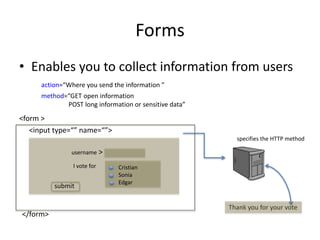
• Enables you to collect information from users
</form>
<form >
username >
I vote for
submit
Cristian
Sonia
Edgar
Thank you for your vote
<input type=“” name=“”>
action=“Where you send the information ”
method=“GET open information
POST long information or sensitive data”
specifies the HTTP method
HTML forms
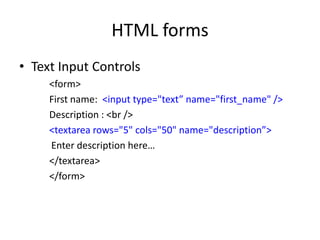
• Text Input Controls
<form>
First name: <input type="text” name="first_name" />
Description : <br />
<textarea rows="5" cols="50" name="description”>
Enter description here…
</textarea>
</form>
HTML forms
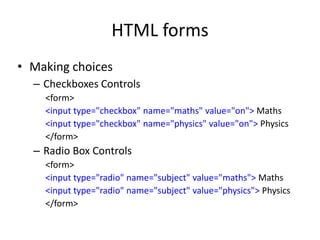
• Making choices
– Checkboxes Controls
<form>
<input type="checkbox" name="maths" value="on"> Maths
<input type="checkbox" name="physics" value="on"> Physics
</form>
– Radio Box Controls
<form>
<input type="radio" name="subject" value="maths"> Maths
<input type="radio" name="subject" value="physics"> Physics
</form>
HTML forms
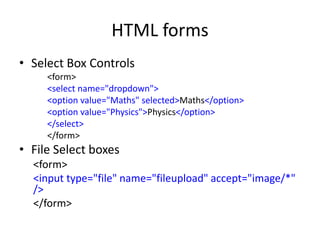
• Select Box Controls
<form>
<select name="dropdown">
<option value="Maths" selected>Maths</option>
<option value="Physics">Physics</option>
</select>
</form>
• File Select boxes
<form>
<input type="file" name="fileupload" accept="image/*"
/>
</form>
HTML forms
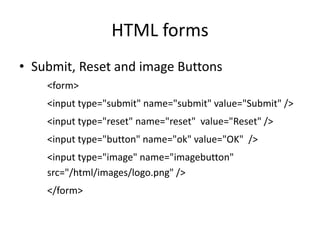
• Submit, Reset and image Buttons
<form>
<input type="submit" name="submit" value="Submit" />
<input type="reset" name="reset" value="Reset" />
<input type="button" name="ok" value="OK" />
<input type="image" name="imagebutton"
src="/html/images/logo.png" />
</form>
HTML forms
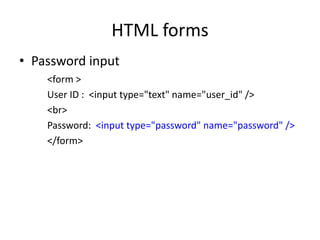
• Password input
<form >
User ID : <input type="text" name="user_id" />
<br>
Password: <input type="password" name="password" />
</form>
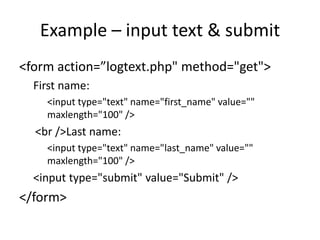
Example – input text & submit
<form action=”logtext.php" method="get">
First name:
<input type="text" name="first_name" value=""
maxlength="100" />
<br />Last name:
<input type="text" name="last_name" value=""
maxlength="100" />
<input type="submit" value="Submit" />
</form>
Example – input text & submit
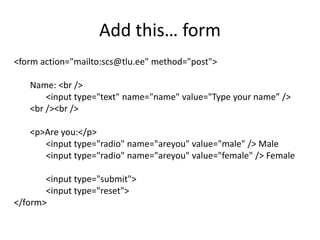
Add this… form
<form action="mailto:scs@tlu.ee" method="post">
Name: <br />
<input type="text" name="name" value="Type your name” />
<br /><br />
<p>Are you:</p>
<input type="radio" name="areyou" value="male" /> Male
<input type="radio" name="areyou" value="female" /> Female
<input type="submit">
<input type="reset">
</form>
Additional information
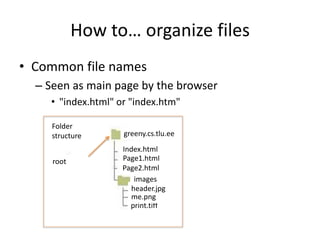
How to… organize files
• Common file names
– Seen as main page by the browser
• "index.html" or "index.htm"
greeny.cs.tlu.ee
Page2.html
Page1.html
Index.html
print.tiff
me.png
header.jpg
images
root
Folder
structure
Image formats
• pixel-based graphics
– Resolution and size influence the quality of the information
• Think in pixels: Resolution 72px, 92px
• Format
– .gif
• bitmap image format, supports animations, compressed image without
degrading the visual quality
– .png
• Raster graphics format, created to replace GIF format
• Format .jpg
– Images with color (photos)
• Compress image, can lose information
• Vector graphics
– represent geometrical primitives
• points, lines, curves, and shapes or polygons
– can be magnified infinitely without loss of quality,
HTML Color Modes
• Color Names
– To be more specific, use Hexadecimal codes
• #FFCC00
– Can be shortened to three letters if they're
• the same #FC0
– Newer browsers can use
• rgb(0,0,0,0.5);
http://www.color-hex.com
http://www.w3schools.com/tags/ref_colornames.asp
http://www.w3schools.com/tags/ref_colorpicker.asp
HTML tags
http://www.w3schools.com/tags/ref_html_dtd.asp
EXERCISE 1 - HTML
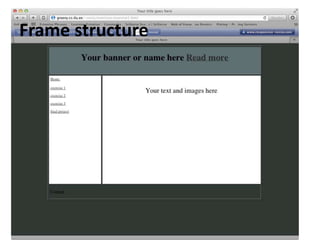
Frame structure

Ifi7174 lesson1

  • 1.
  • 2.
    Outline HTML Basic concepts Basic elements Text Lists Hyperlinksand images Tables Forms 2@ Sonia Sousa2015
  • 3.
    Concepts • HTML is –A markup language interpreted by Web browsers – It is “spoken” into 2 different ways… • CLIENT side – a person (user) perspective » who access to a Web site. • SERVER side – data storage perspective » information/data that is stored in a computer (server) and later is distributed to clients (users)
  • 4.
    Why? • If wecan generate HTML easily • First.... because you need – Clean code to develop distributed interfaces • Second.... you need – To have control over the code • What happen if some problem happens? • How to fix it? – Need to talk with a Professional • Last… you need confidence and competence – To talk with developers – To be able to • Create a particular result • Read or reuse the code, and "borrow" the effects. Dreamweaver or wordpress
  • 5.
    What HTML does? •HTML defines the structure of the document – Document • Pages – structure – Content • multimedia elements – text, lists, links, images, tables, and forms • Provide the information needed for – the browser to present the content to the user; and • define What each element is.. – Heading – paragraph – list of items, – a link, – or an image • This is due by adding markups “< > </>”
  • 6.
    HTML and HTML5 •Added new semantic elements – HTML • <head>, <title>, and <body> – HTML5 • Extra elements – <header>, <section>, <footer>, – <aside>, <nav>, <main>, <article>, <figure> • Removed elements – <frame>, <center>, <dir> or <applet>
  • 7.
    HTML and XHTML •XHTML – Is a Extensible HyperText Markup Language – HTML • Is a HyperText Markup Language • Helps you to cope with – Different browser technologies – It combines HTML and XML • XML is EXtensible Markup Language – Designed to describe data – Demands for well-formed code
  • 8.
    XHTML • Mandatory – DOCTYPEdeclaration <!DOCTYPE html> – Structure Attributes • <html>, <head>, <title>, and <body> – Elements • Correctly nested • Closed • Lowercase • Values must be Quoted • No minimization attributes
  • 9.
    Tools to use •Text editor – Coda 2 • http://www.panic.com/coda/ – Notepad++ • https://notepad-plus-plus.org – Any text editor • Notepad
  • 10.
  • 11.
    Document structure <html> </html> <head> </body> </head> <body> <h1> Headingof the text </h1> <p> block <br> of text </p> <h2>sub Heading </h2> What the browser show <!DOCTYPE html>
  • 12.
    HTML elements The opening/closingtags – <html> the closing tag is </html> • a "tag" also can be called an "element” <! DOCTYPE html> = HTML <html> = initiate page </html> = end page <head> </head> <body> </body>
  • 13.
    HTML elements <! DOCTYPEhtml> = HTML <html> = initiate page </html> = end page <head> </head> <title> </title> <body> </body> <meta charset="utf-8"> informs the browser what type of letters the page is written in <meta name="description" content="”> for keywords contains the code that generates what you see in a browser Basic tags: text, lists, links, images, tables, and forms
  • 14.
  • 15.
    Create your firstpage <!DOCTYPE html > <html> <head> <title>My first web page</title> </head> <body> This is my first web page </body> </html>
  • 16.
    Basic elements • Text –Heading tags • <h1></h1>, <h2></h2> … <h6></h6> – Use them when possible • Google likes this tags. !!! Google assumes !!! • the contents of <h1> tags are more important than <h2> tags and so on.
  • 17.
    Headings tags <h1>This isheading 1</h1> <h2>This is heading 2</h2> <h3>This is heading 3</h3> <h4>This is heading 4</h4> <h5>This is heading 5</h5> <h6>This is heading 6</h6>
  • 18.
    Formating elements – <p></p> tag paragraph – <br /> tag line break – <div></div> tag for division or a section – &nbsp; adding a space - non-breaking space. It is essentially a standard space – <hr /> horizontal rule
  • 19.
    Examples <p>Here is afirst paragraph of text.</p> <p>Here is a second paragraph of text.</p> <p>Hello<br /> You delivered your assignment ontime. <br /> <hr /> &nbsp; Thanks</p> <p>This text is not in the center.</p> <center> <p>This text is in the center.</p> </center>
  • 20.
  • 21.
    <!DOCTYPE html > <html> <head> <title>Myfirst web page</title> </head> <body> <h1>My first web page</h1> <h2>What this is</h2> <p>A simple page put together using HTML</p> <h2>Why this is</h2> <p>To learn HTML</p> </body> </html> Using… headings
  • 22.
    Lists elements – UL(bullet) – OL (number) –DL (definition) <ul> <li>List item 1</li> </ul> <ol> <li>List item 1</li> </ol> <dl> <dt>Term 1</dt> <dd>Definition of term 1</dd> </dl>
  • 23.
  • 24.
    Add this… lists <body> <h1>Myfirst web page</h1> <h2>What this is</h2> <p>A simple page put together using HTML</p> <h2>Why this is</h2> <ul> <li>To learn HTML</li> <li>To show off</li> <li>Because I've fallen in love with my computer </li> </ul> </body>
  • 25.
    <ul> <li>To learn HTML</li> <li>Toshow off <ol> <li>To my boss</li> <li>To my friends</li> <li>To my cat</li> <li>To the little talking duck in my brain</li> </ol> </li> <li>Because I've fallen in love with my computer.</li> </ul> Add this… lists
  • 26.
    Hyperlinks and images •An image – <img src=”me.png" alt=”Sonia Sousa face” /> • Image path greeny.cs.tlu.ee Page2.html Page1.html Index.html print.tiff me.png header.jpg image root Folder structure • Same folder <a href="me.png">Page </a> • Inside folder <a href="image/me.png">Page </a> • outside folder <a href="../image/me.png">Page </a>
  • 27.
    How to addimages • In the same folder • in a subfolder of the page referencing it • somewhere else on the World Wide Web • Attributes – alt adding an alternative description. – width and height size frame the image. <img src=”me.jpg" /> <img src="images/me.jpg"/> <img src="http://www.tlu.org/tlu.jpg" /> <img src=”../ images/me.jpg"/>
  • 28.
    Hyperlinks and images •An Hyperlink – <a href="url">link text</a> – Create a bookmark • allow readers to jump to specific parts of a Web page – first create the bookmark » <h2 id=”book”> my books</h2> – Then link it » <a href=”#book">see my book list</a> – Target attributes • target="_blank” – open a new window • target=”_self “ - open same window/frame
  • 29.
  • 30.
    <body> <p id=”top">To learnHTML</p> <h2 id=”top">Where to find the tutorial</h2> <p> <a href="http://www.w3schools.com">HTML examples</a> <a href=“list.html">The miracle of links…</a> <a href="#top">Go to top</a> </p> </body> Add this… links
  • 31.
  • 32.
    Tables • Grid format –Think in terms of cells and rows and columns. – Proprieties • width, height, cellspan, border, valign/align, bgcolor, colspan <td> one Cells </td> <td> Cells 1 </td> <table> </table> <tr> <tr> </tr> </tr> <td> Cells 2 </td> table element defines the table. tr element defines a table row. td element defines a data cell.
  • 33.
    Tables • Proprieties – Width=“763px” define the width of the table – height = “99px” define the height of the table – rowspan= cell span many rows – Border =1 to define a border – valign/align, vertical and horizontal alignment valign="middle" , align="center" – bgcolor = “#597172” define the background color of the table – Colspan = "2” = cell span 2 columns <table width="763px" border="1" align="center" cellpadding="5" cellspacing="3”> <tr align="center" valign="middle" bgcolor="#597172”> <td height="99" colspan="2”>
  • 34.
  • 35.
    <table > <tr > <td>Row 1, cell 1</td> <td>Row 1, cell 2</td> <td>Row 1, cell 3</td> </tr> <tr> <td>Row 2, cell 1</td> <td>Row 2, cell 2</td> <td>Row 2, cell 3</td> </tr> <tr> <td>Row 3, cell 1</td> <td>Row 3, cell 2</td> <td>Row 3, cell 3</td> </tr> <tr> <td>Row 4, cell 1</td> <td>Row 4, cell 2</td> <td>Row 4, cell 3</td> </tr> </table> Add this… table
  • 36.
    Forms • Enables youto collect information from users </form> <form > username > I vote for submit Cristian Sonia Edgar Thank you for your vote <input type=“” name=“”> action=“Where you send the information ” method=“GET open information POST long information or sensitive data” specifies the HTTP method
  • 37.
    HTML forms • TextInput Controls <form> First name: <input type="text” name="first_name" /> Description : <br /> <textarea rows="5" cols="50" name="description”> Enter description here… </textarea> </form>
  • 38.
    HTML forms • Makingchoices – Checkboxes Controls <form> <input type="checkbox" name="maths" value="on"> Maths <input type="checkbox" name="physics" value="on"> Physics </form> – Radio Box Controls <form> <input type="radio" name="subject" value="maths"> Maths <input type="radio" name="subject" value="physics"> Physics </form>
  • 39.
    HTML forms • SelectBox Controls <form> <select name="dropdown"> <option value="Maths" selected>Maths</option> <option value="Physics">Physics</option> </select> </form> • File Select boxes <form> <input type="file" name="fileupload" accept="image/*" /> </form>
  • 40.
    HTML forms • Submit,Reset and image Buttons <form> <input type="submit" name="submit" value="Submit" /> <input type="reset" name="reset" value="Reset" /> <input type="button" name="ok" value="OK" /> <input type="image" name="imagebutton" src="/html/images/logo.png" /> </form>
  • 41.
    HTML forms • Passwordinput <form > User ID : <input type="text" name="user_id" /> <br> Password: <input type="password" name="password" /> </form>
  • 42.
    Example – inputtext & submit <form action=”logtext.php" method="get"> First name: <input type="text" name="first_name" value="" maxlength="100" /> <br />Last name: <input type="text" name="last_name" value="" maxlength="100" /> <input type="submit" value="Submit" /> </form>
  • 43.
    Example – inputtext & submit
  • 44.
    Add this… form <formaction="mailto:scs@tlu.ee" method="post"> Name: <br /> <input type="text" name="name" value="Type your name” /> <br /><br /> <p>Are you:</p> <input type="radio" name="areyou" value="male" /> Male <input type="radio" name="areyou" value="female" /> Female <input type="submit"> <input type="reset"> </form>
  • 45.
  • 46.
    How to… organizefiles • Common file names – Seen as main page by the browser • "index.html" or "index.htm" greeny.cs.tlu.ee Page2.html Page1.html Index.html print.tiff me.png header.jpg images root Folder structure
  • 47.
    Image formats • pixel-basedgraphics – Resolution and size influence the quality of the information • Think in pixels: Resolution 72px, 92px • Format – .gif • bitmap image format, supports animations, compressed image without degrading the visual quality – .png • Raster graphics format, created to replace GIF format • Format .jpg – Images with color (photos) • Compress image, can lose information • Vector graphics – represent geometrical primitives • points, lines, curves, and shapes or polygons – can be magnified infinitely without loss of quality,
  • 48.
    HTML Color Modes •Color Names – To be more specific, use Hexadecimal codes • #FFCC00 – Can be shortened to three letters if they're • the same #FC0 – Newer browsers can use • rgb(0,0,0,0.5); http://www.color-hex.com http://www.w3schools.com/tags/ref_colornames.asp http://www.w3schools.com/tags/ref_colorpicker.asp
  • 49.
  • 50.
  • 51.